
How to add subtitle translations to your video and audio files
Overview
You can add translations to your video and audio files by uploading your own translated subtitle file or generating subtitle translations using AI in your Media Cloud account.
Use this feature when you want to provide translated on-screen text for your content across supported platforms. Translated subtitles can also help viewers follow content in its original spoken language while using text in a language they understand more comfortably. If your current package includes the Subtitle feature, you can use AI to translate subtitles into 40+ languages.
For more information about how AI subtitle translations work or how to enable them, see: Understanding AI subtitles and AI subtitle translations.
How it works
Lightcast supports subtitle translations for video and audio content when the Subtitle feature is included in your current package.
There are two main ways to add translations to your media files:
Upload your own translated subtitle file
Generate translated subtitle files using AI
You can upload, generate, review, and manage translated subtitle files from the media item’s METADATA tab in the Video Archive or Audio Archive. You can also manage them from the Subtitles [CC] section in your Media Cloud account. Where you edit and publish the file depends on whether the translated subtitle file was uploaded manually or generated using AI.
When you generate subtitle translations using AI, Lightcast creates the subtitles first if they do not already exist, and then sends them for translation. If Auto-Publish Translated Subtitles is enabled in MEDIA > Media Settings > AI Generated Subtitles, future AI-generated translated subtitles are published automatically after they are created. This setting is disabled by default. Any AI-generated translated subtitles that were created before the setting was enabled and have not been published must still be published manually.
For media uploaded through any of our available uploaders, the translated subtitle files can be added and managed from that media item’s METADATA tab after transcoding is complete. For automated ingestion workflows, such as the MRSS Import Tool or LightcastAPI, automatically imported translated subtitle files can also be edited from the Subtitles [CC] section of the Media Cloud.
Uploaded translated subtitle files can be edited in the Subtitles [CC] section only. AI-generated translated subtitle files can be edited in the media item’s METADATA tab before they are published, or in the Subtitles [CC] section before and after they are published.
After a translated subtitle file is generated or uploaded, you can review it, edit it, and publish it for that media item. Any saved changes to a published translated subtitle file automatically appear on the published media item anywhere subtitles or closed captions are supported.
The display of translated subtitles depends on the platform and app configuration. TV apps, social media platforms, mobile apps, Web Apps, and Web Players may not all render translated subtitles in the same way.
Instructions
Generate translated subtitles using AI via the Media Archive
Step 1
Log in to your Media Cloud account.
Step 2
Go to MEDIA.
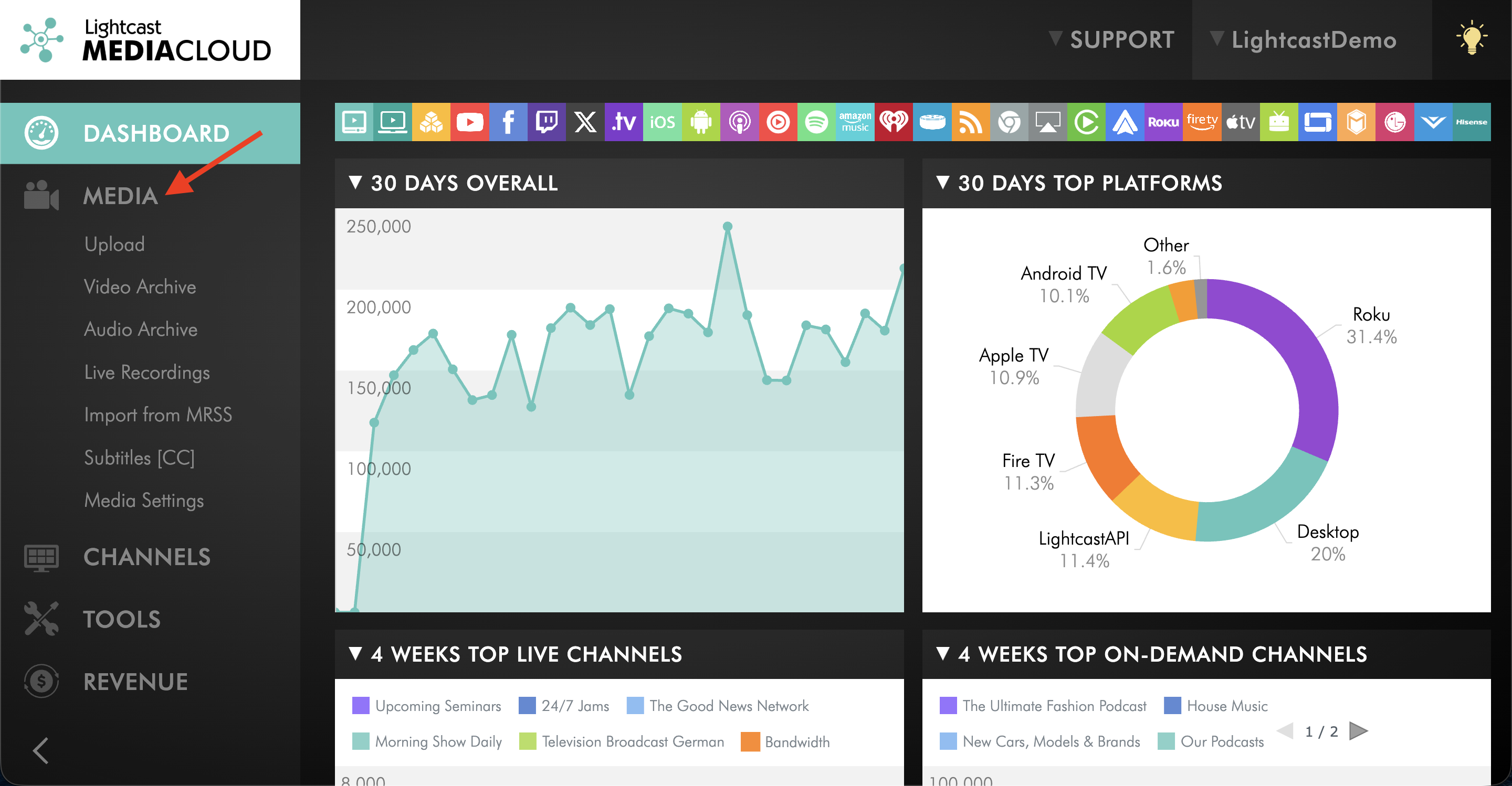
Step 3
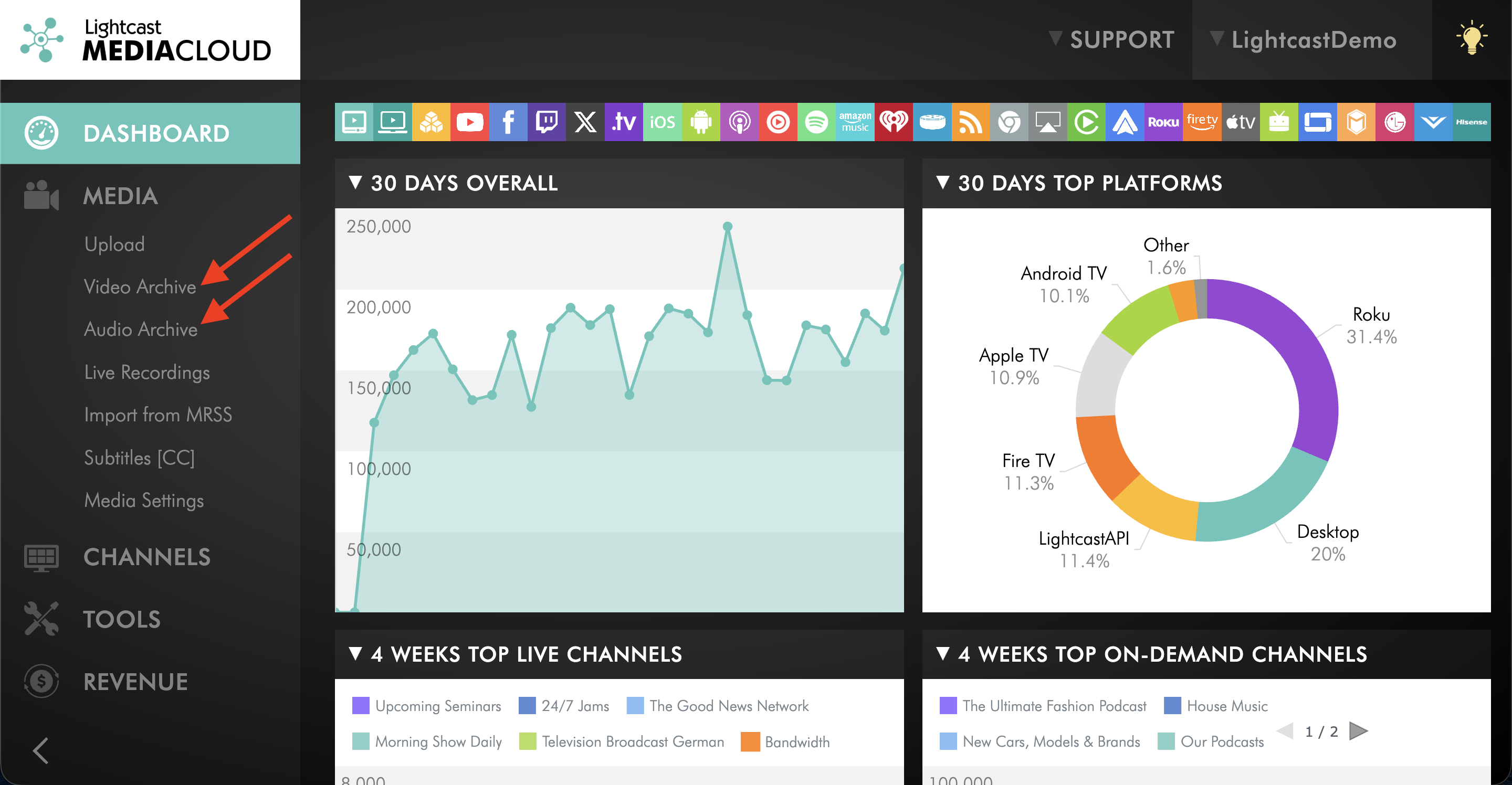
Click on Video Archive or Audio Archive.
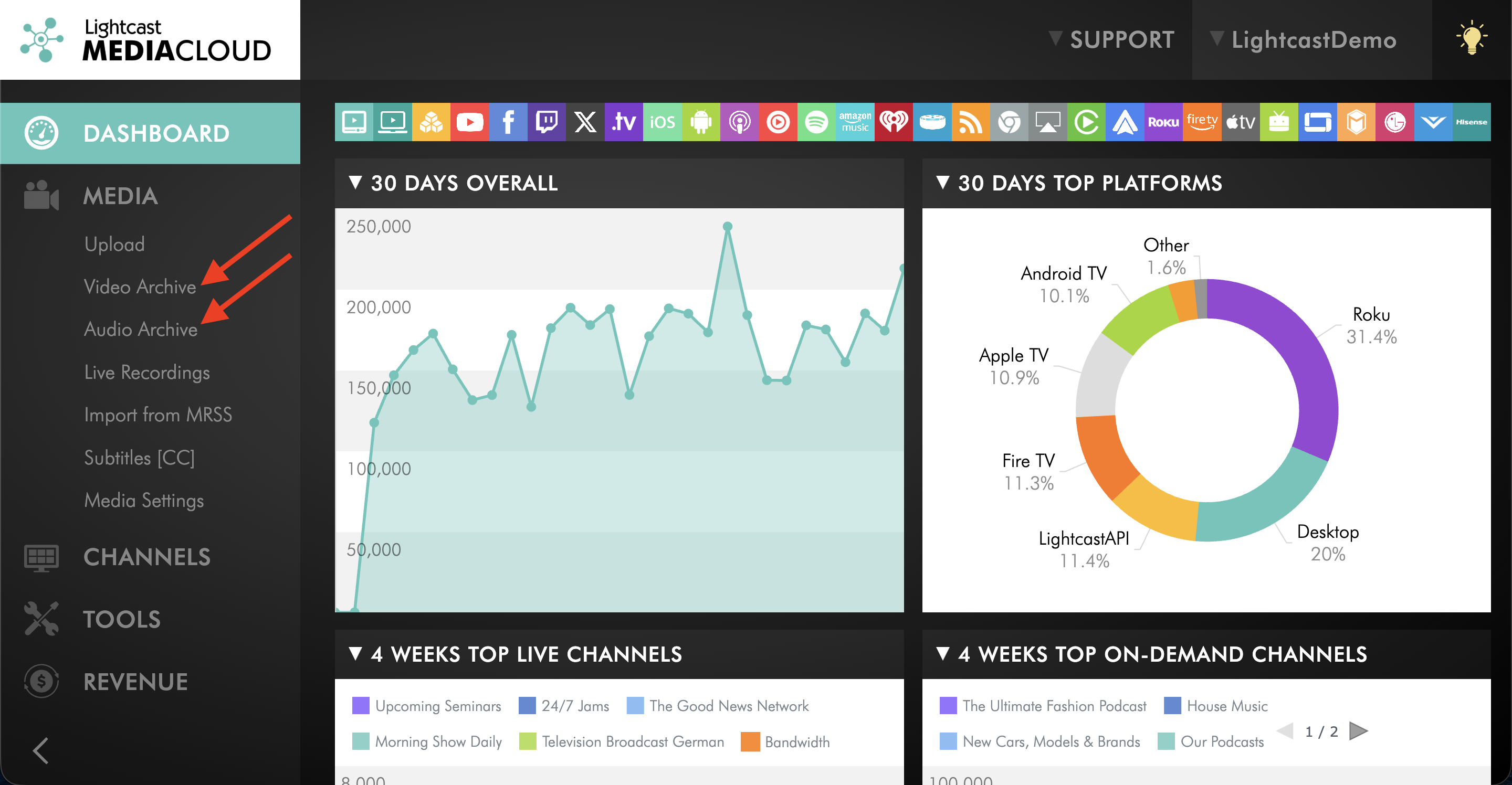
Step 4
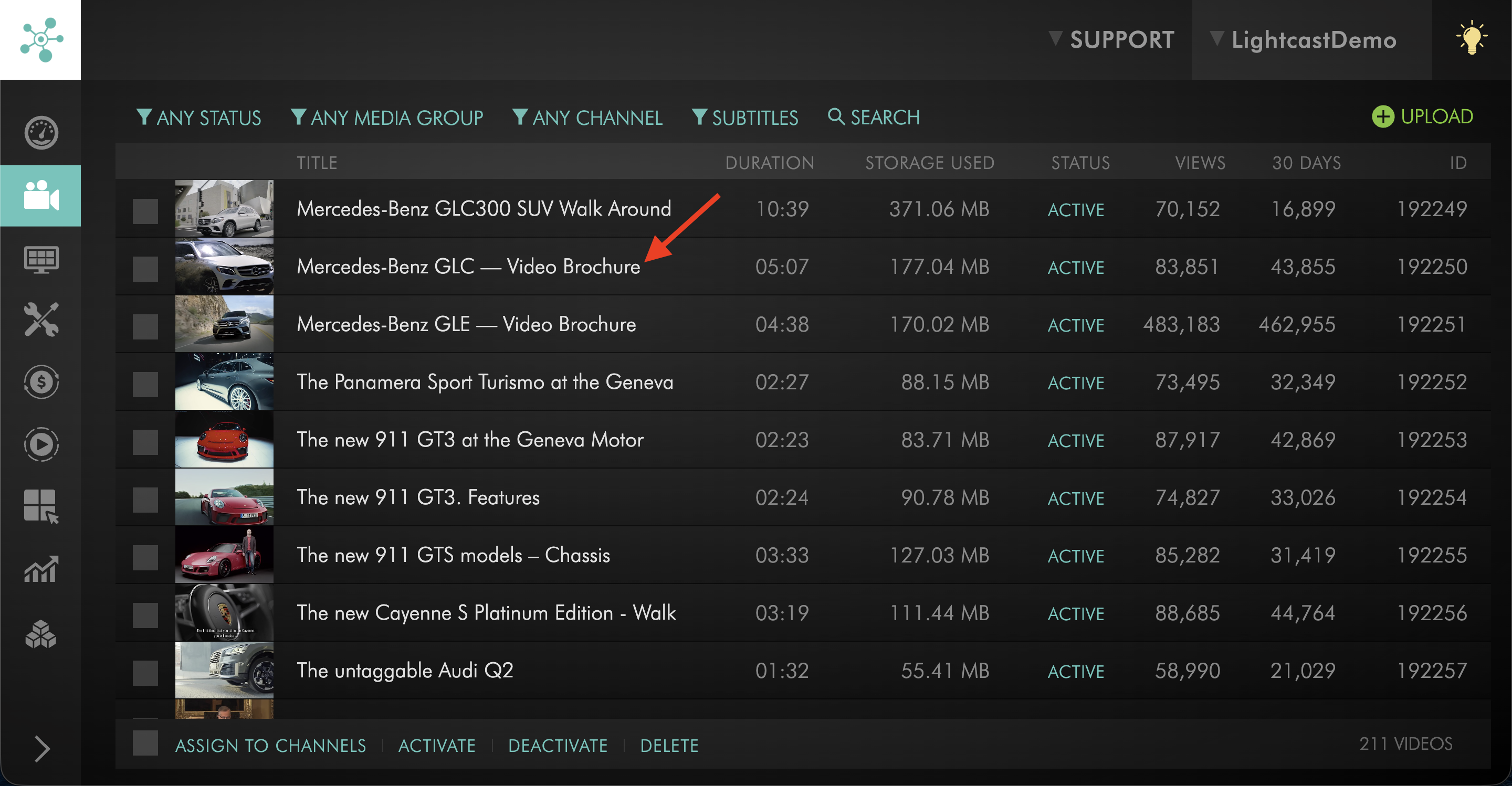
Select the media item you want to update.
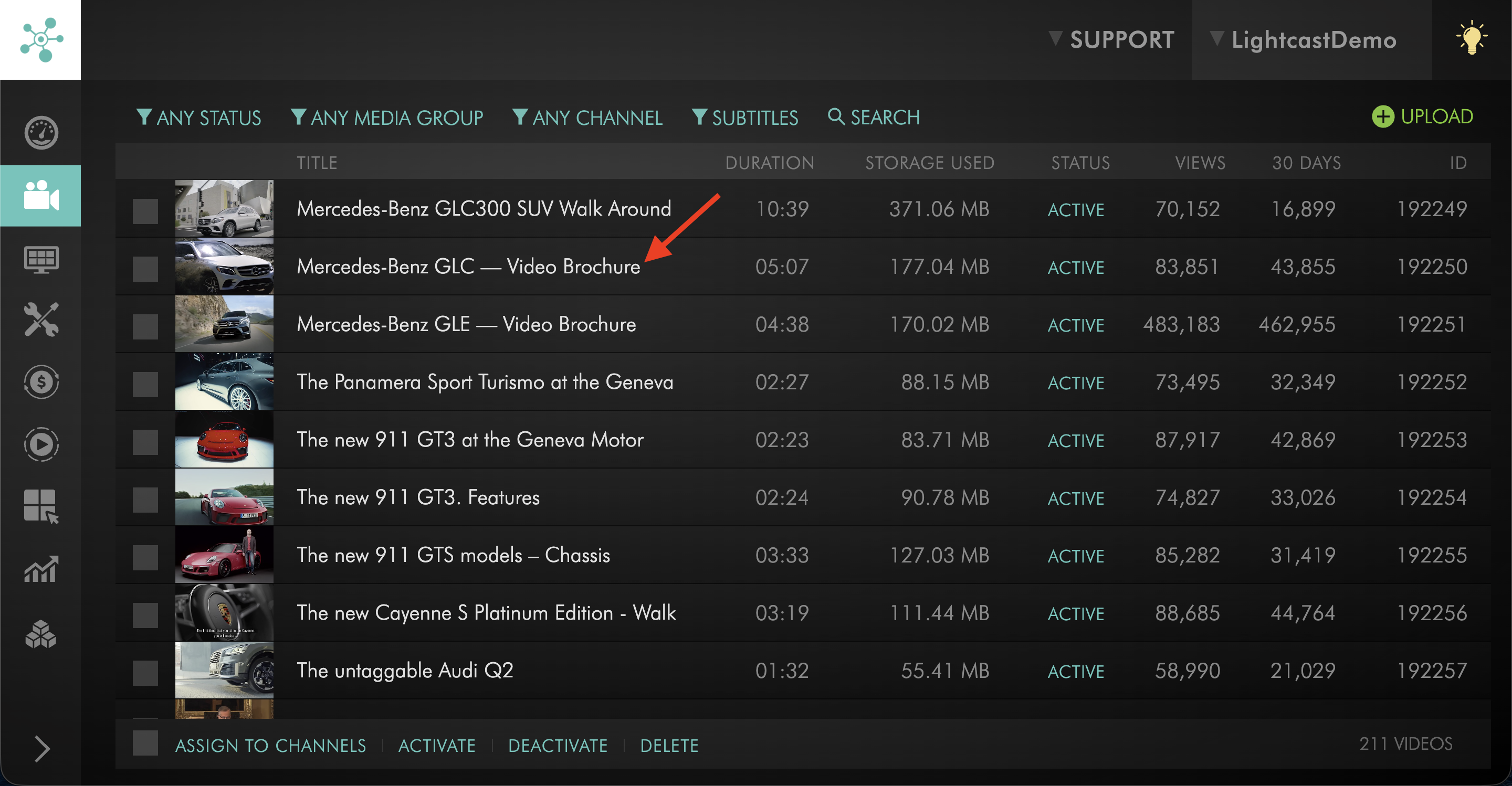
Step 5
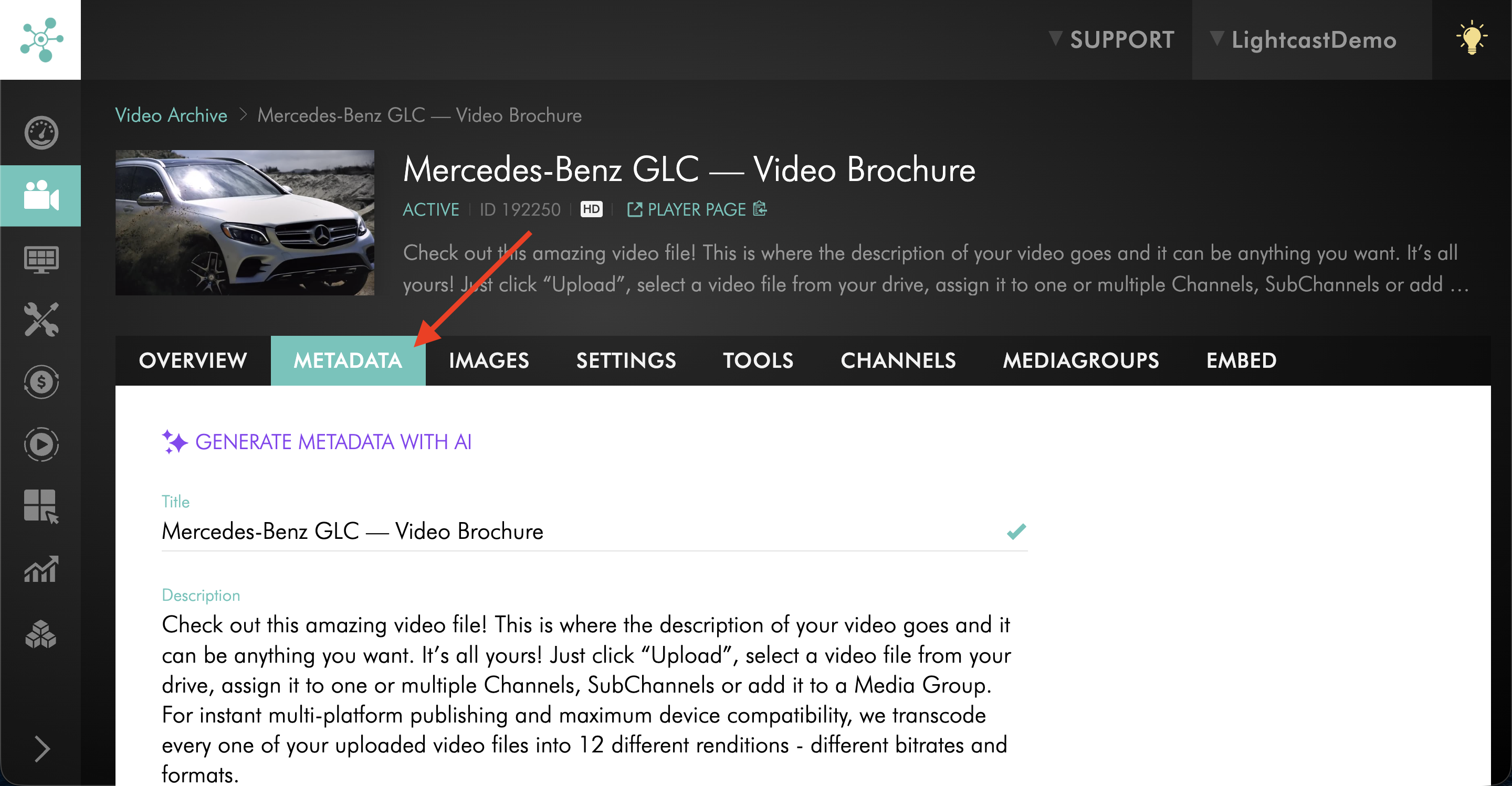
Open the METADATA tab.
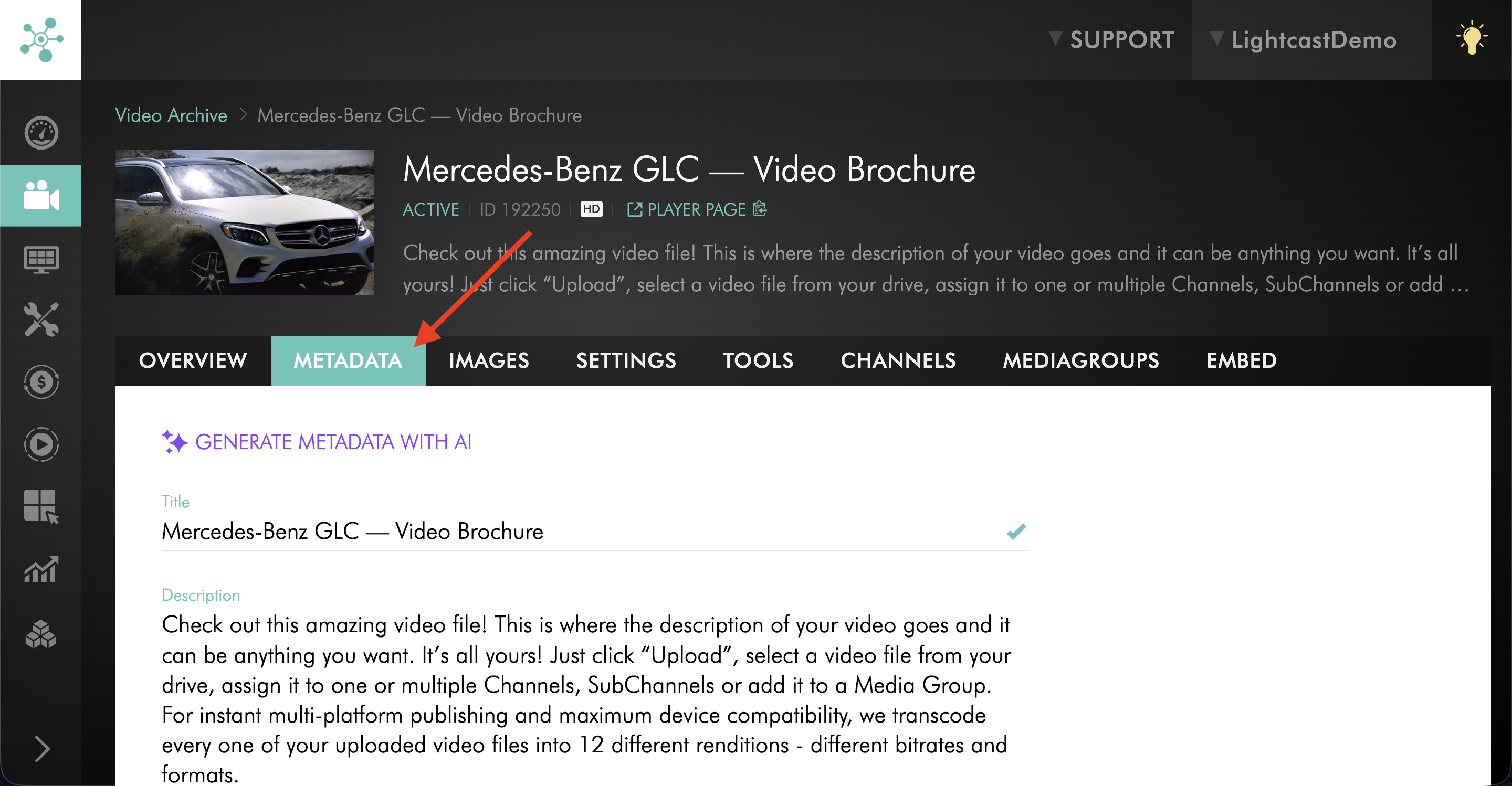
Step 6
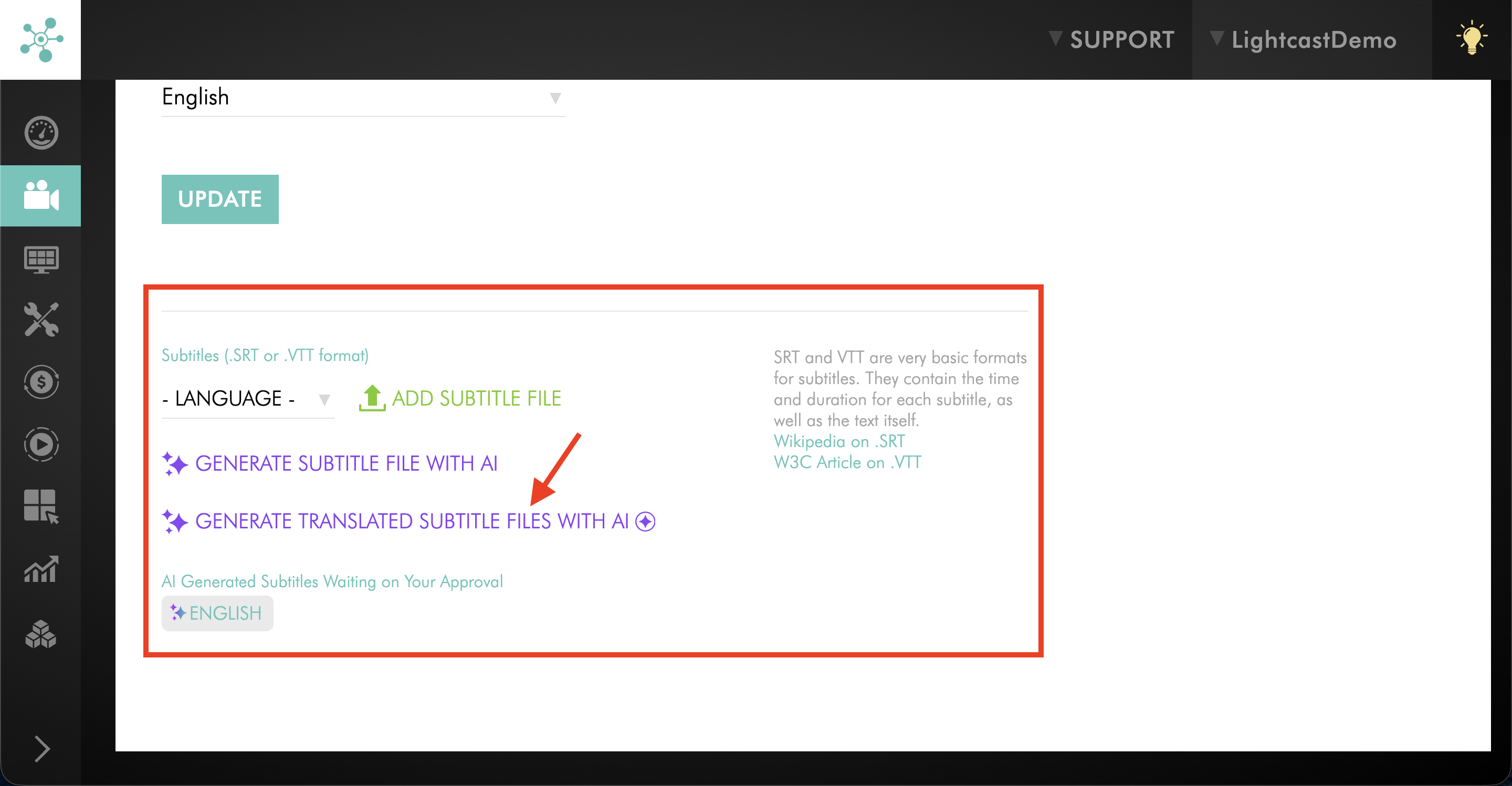
Scroll down to the Subtitles (.SRT or .VTT format) section and click GENERATE TRANSLATED SUBTITLE FILES WITH AI.
Step 7
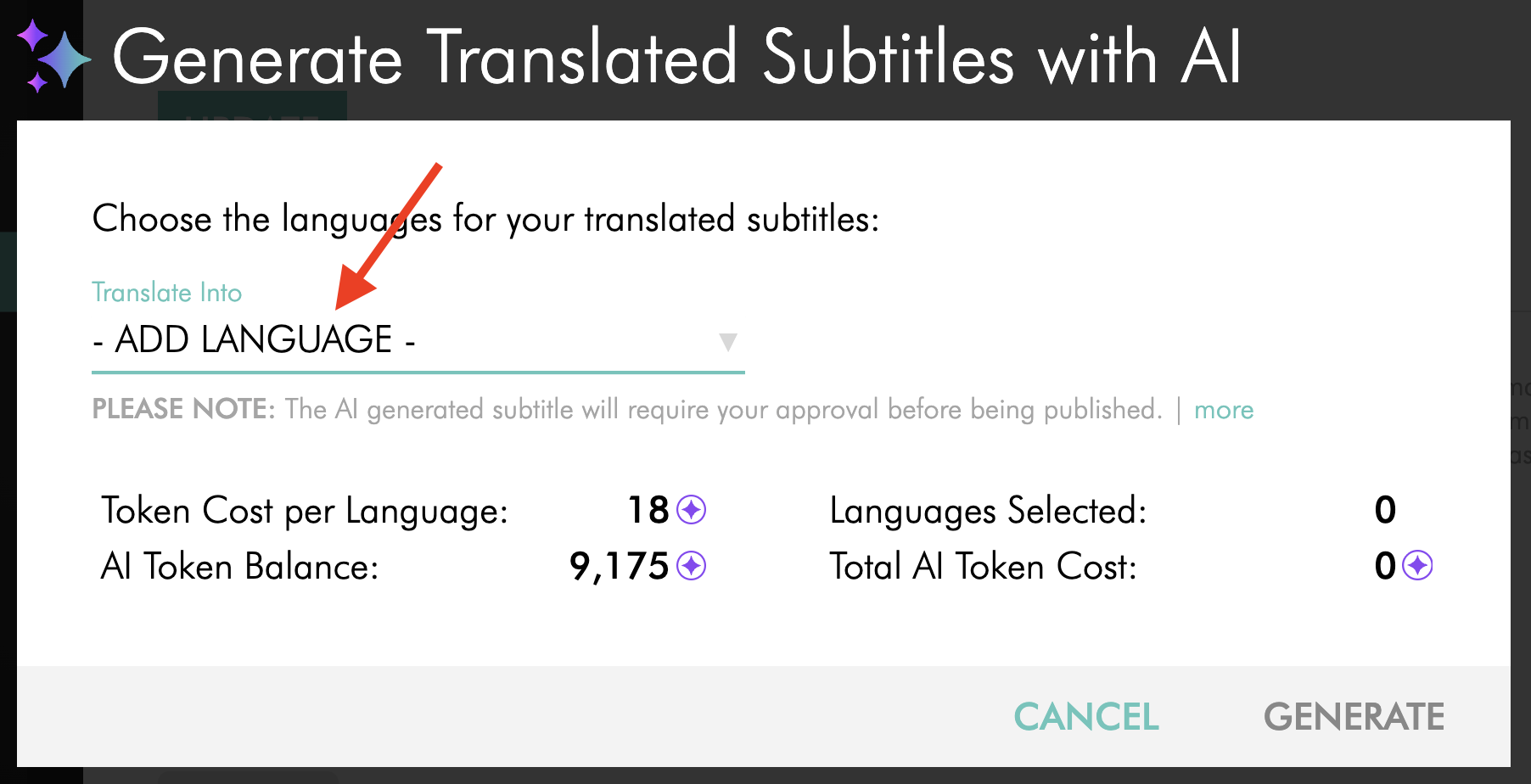
Choose the language or languages you want to translate your subtitles into. Before continuing, make sure you have enough available AI Tokens for the translation.
To learn how to purchase additional AI Tokens, visit: How to purchase AI Tokens.
Step 8
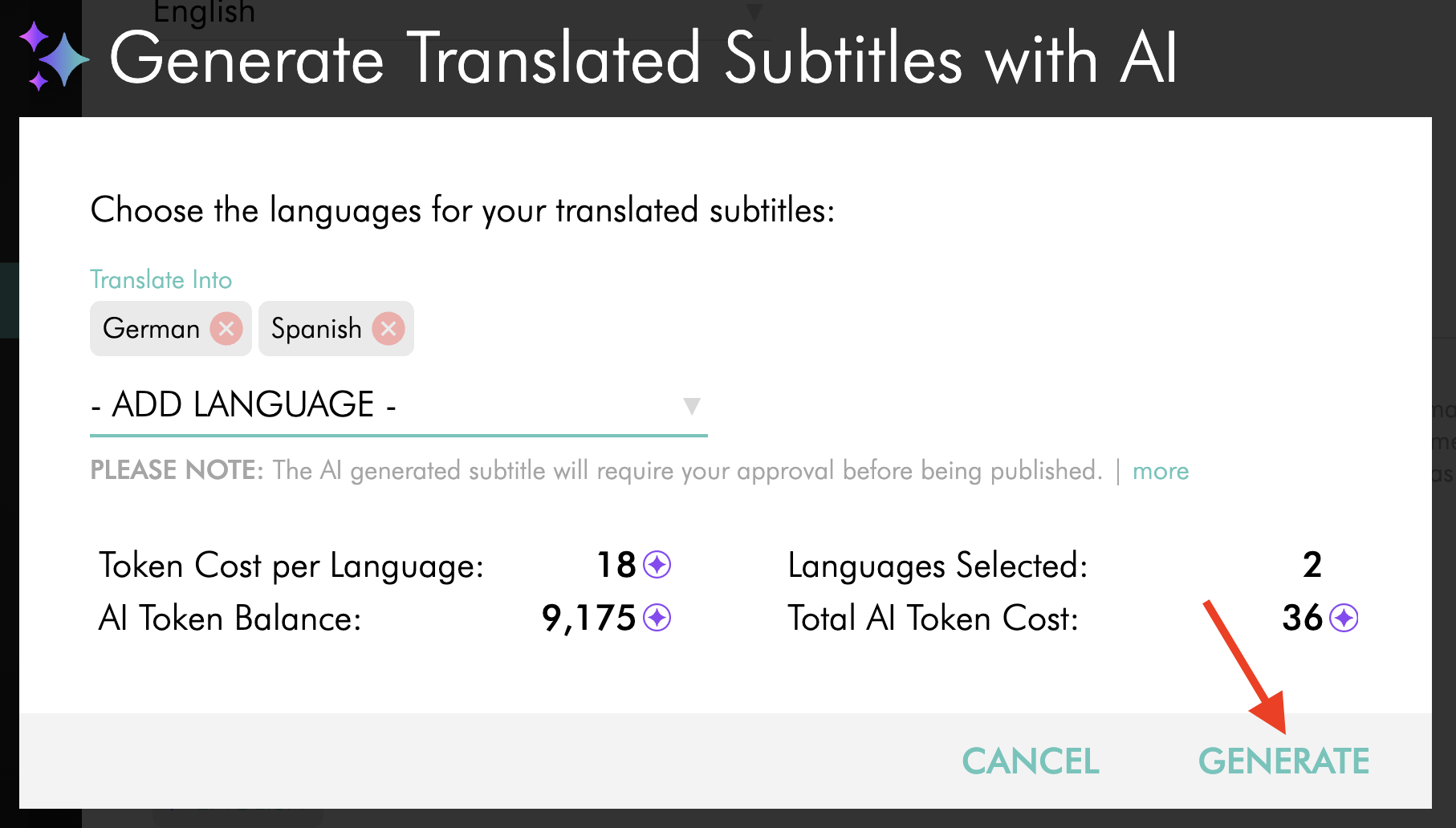
Click GENERATE.
Enable auto-publish for AI-generated translated subtitles
Turn this setting on if you want AI-generated translated subtitles to publish automatically after they are created.
Step 1
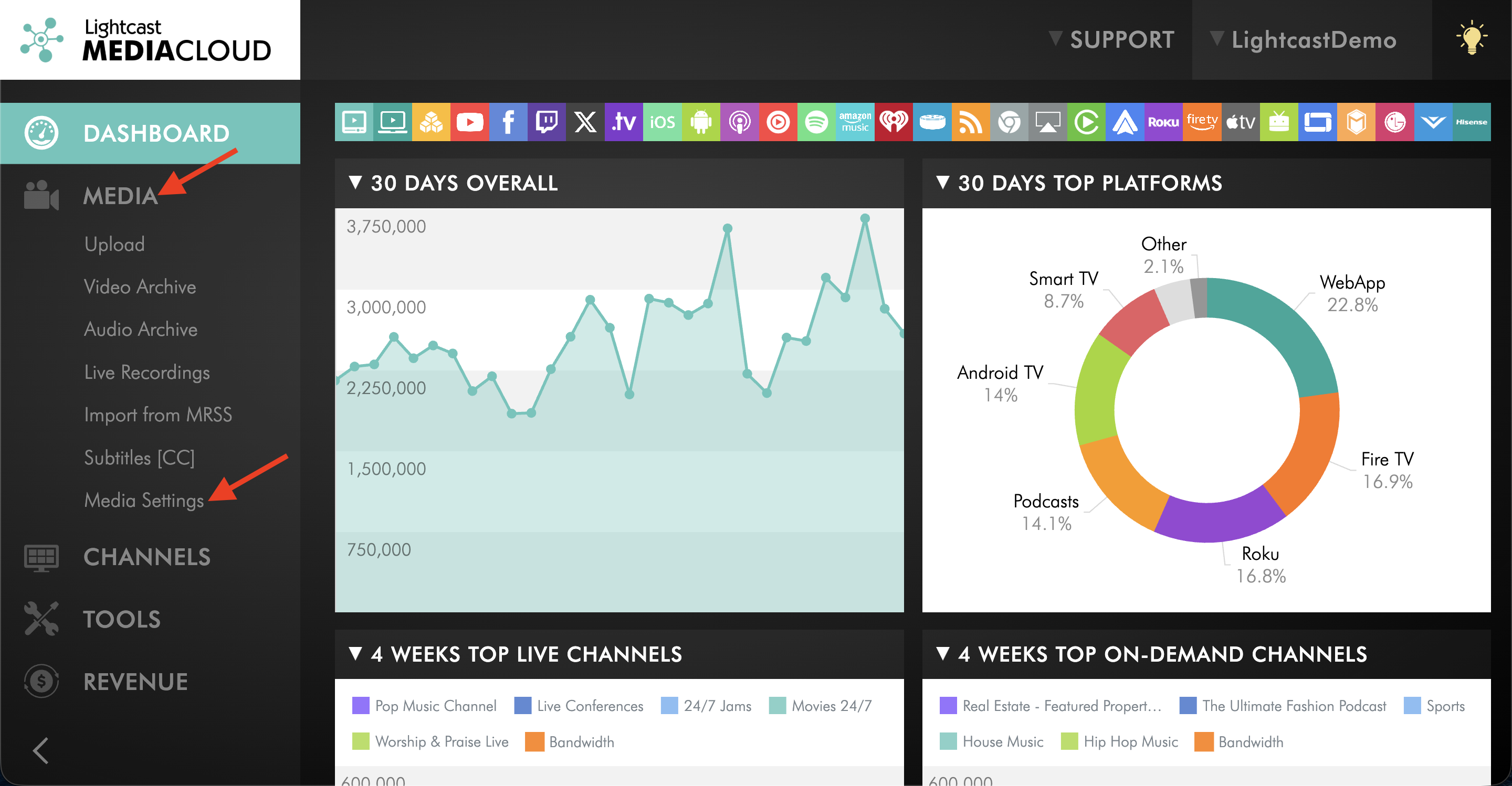
Go to MEDIA and click Media Settings.
Step 2
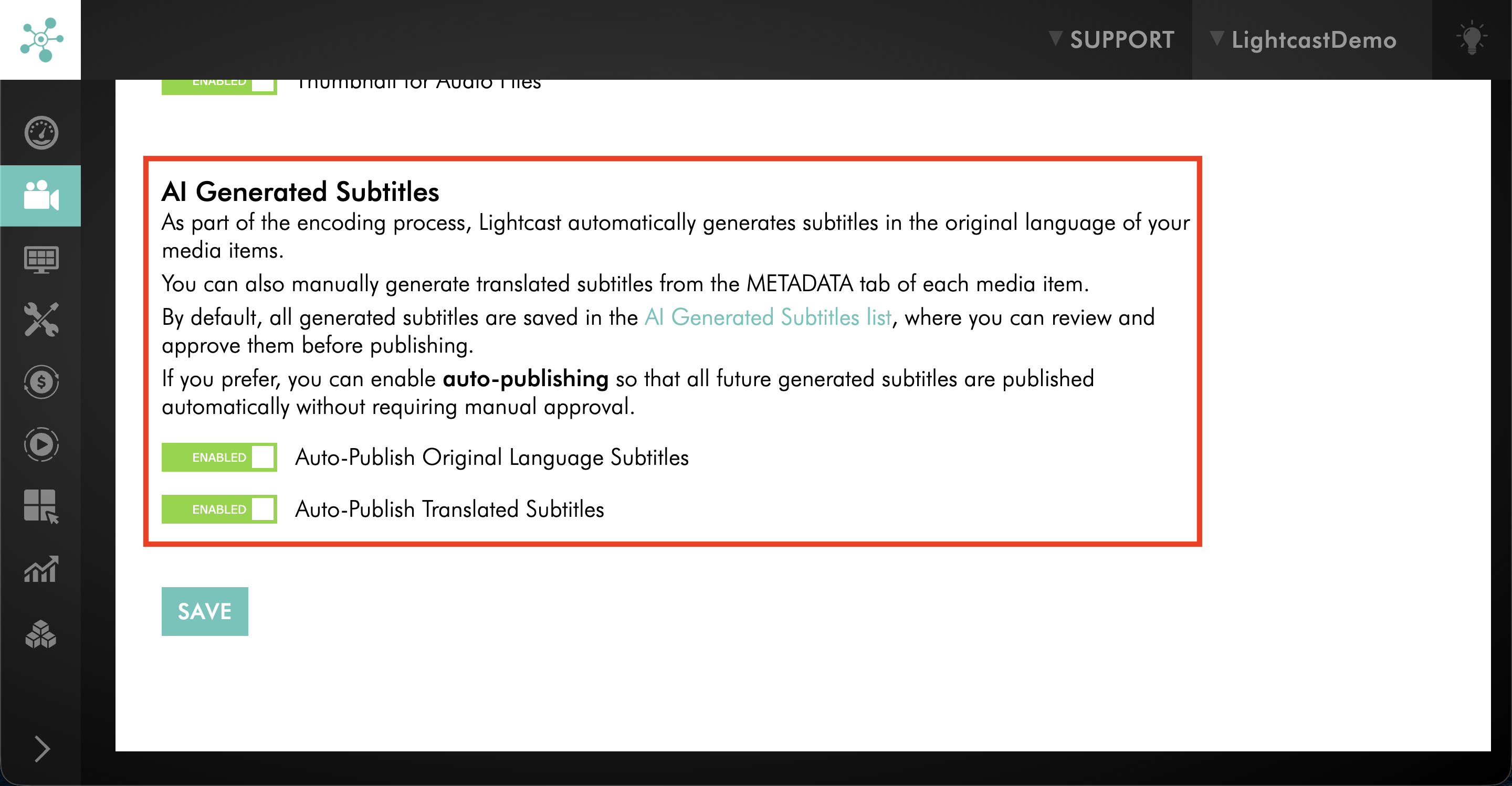
Scroll down to the AI Generated Subtitles section.
Step 3
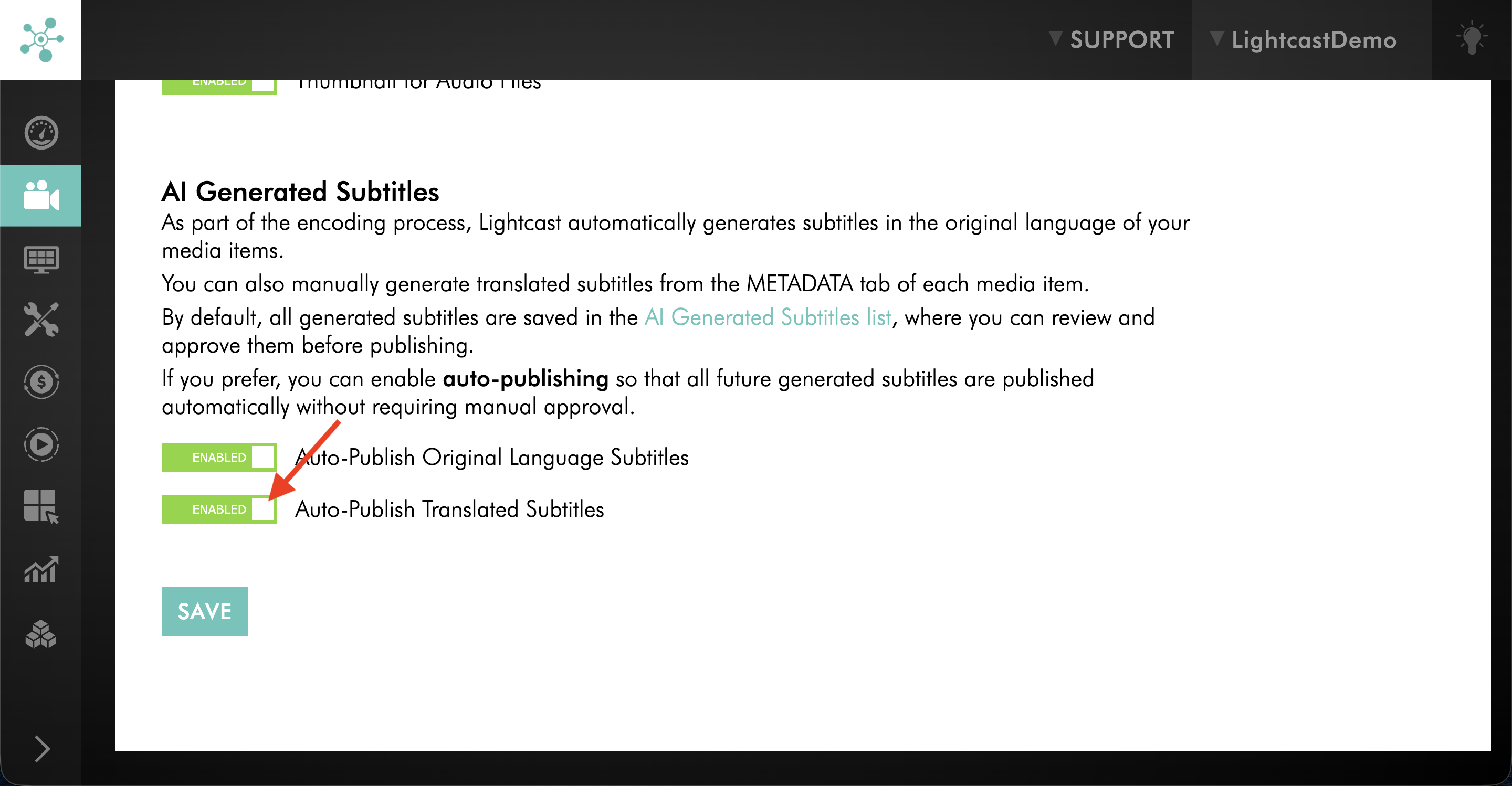
Use the toggle to enable Auto-Publish Translated Subtitles.
Step 4
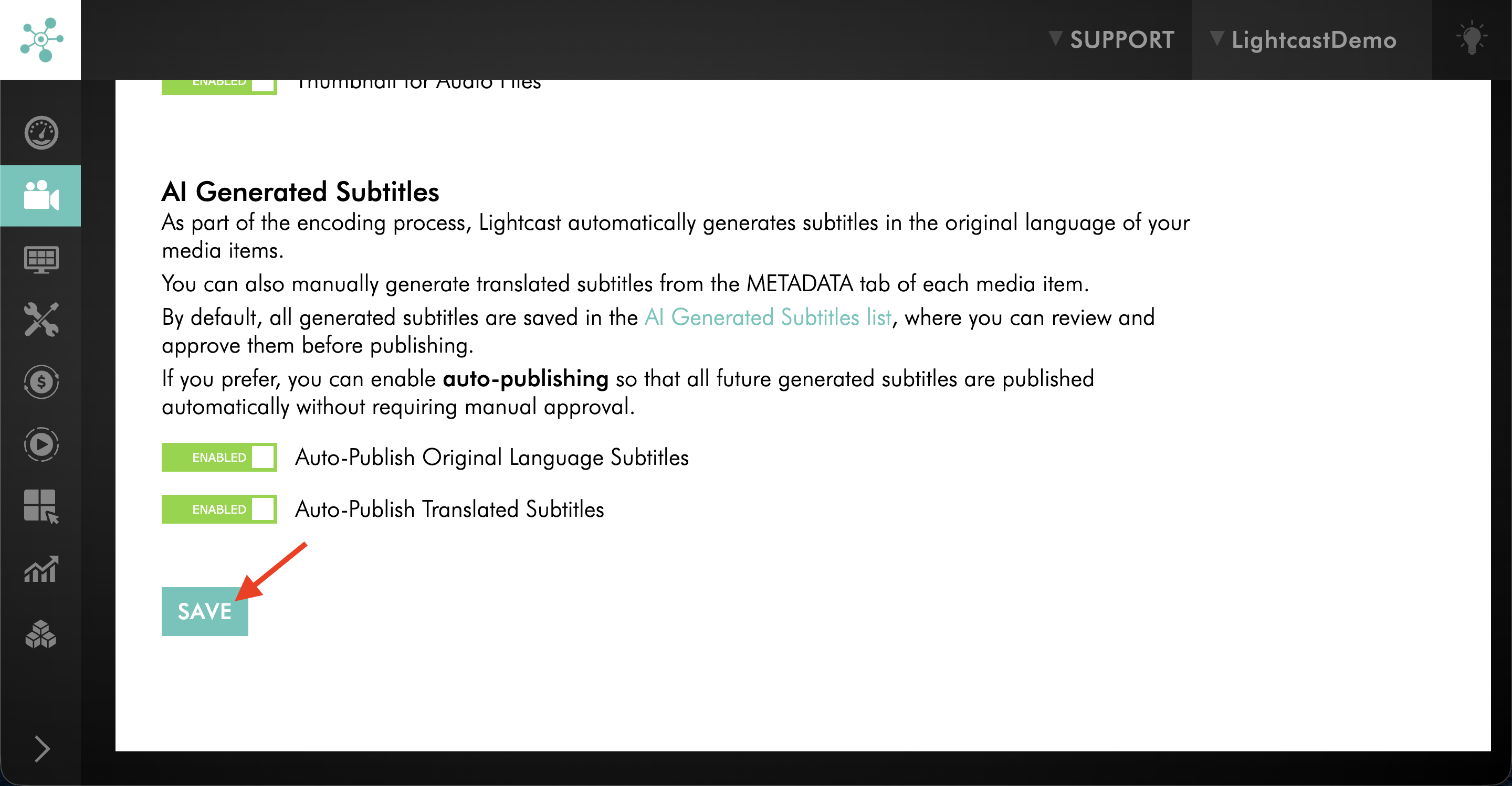
Click SAVE.
Upload your own translated subtitle file
Step 1
Log in to your Media Cloud account.
Step 2
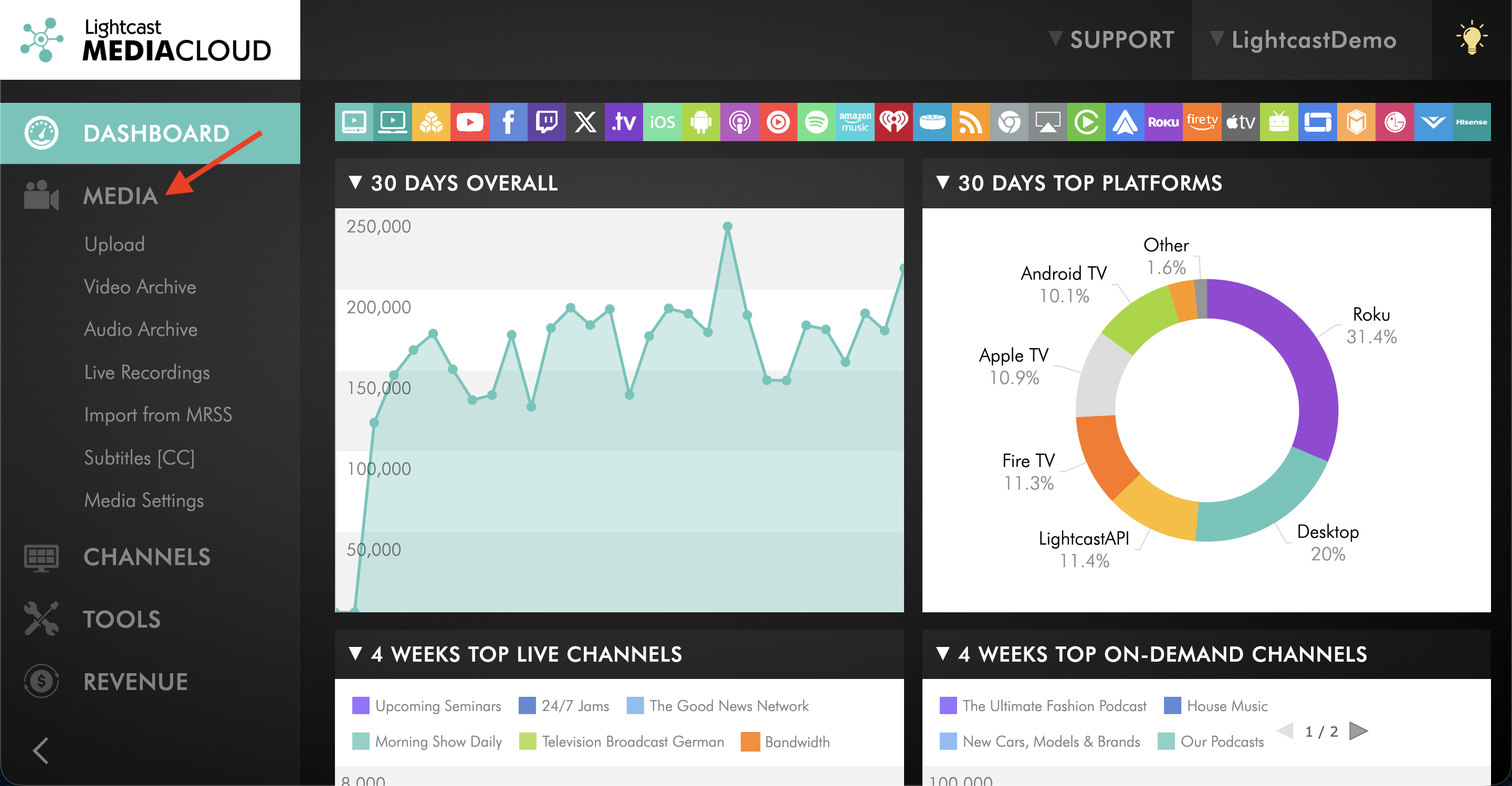
Go to MEDIA.
Step 3
Click on Video Archive or Audio Archive.
Step 4
Select the media item you want to update.
Step 5
Open the METADATA tab.
Step 6
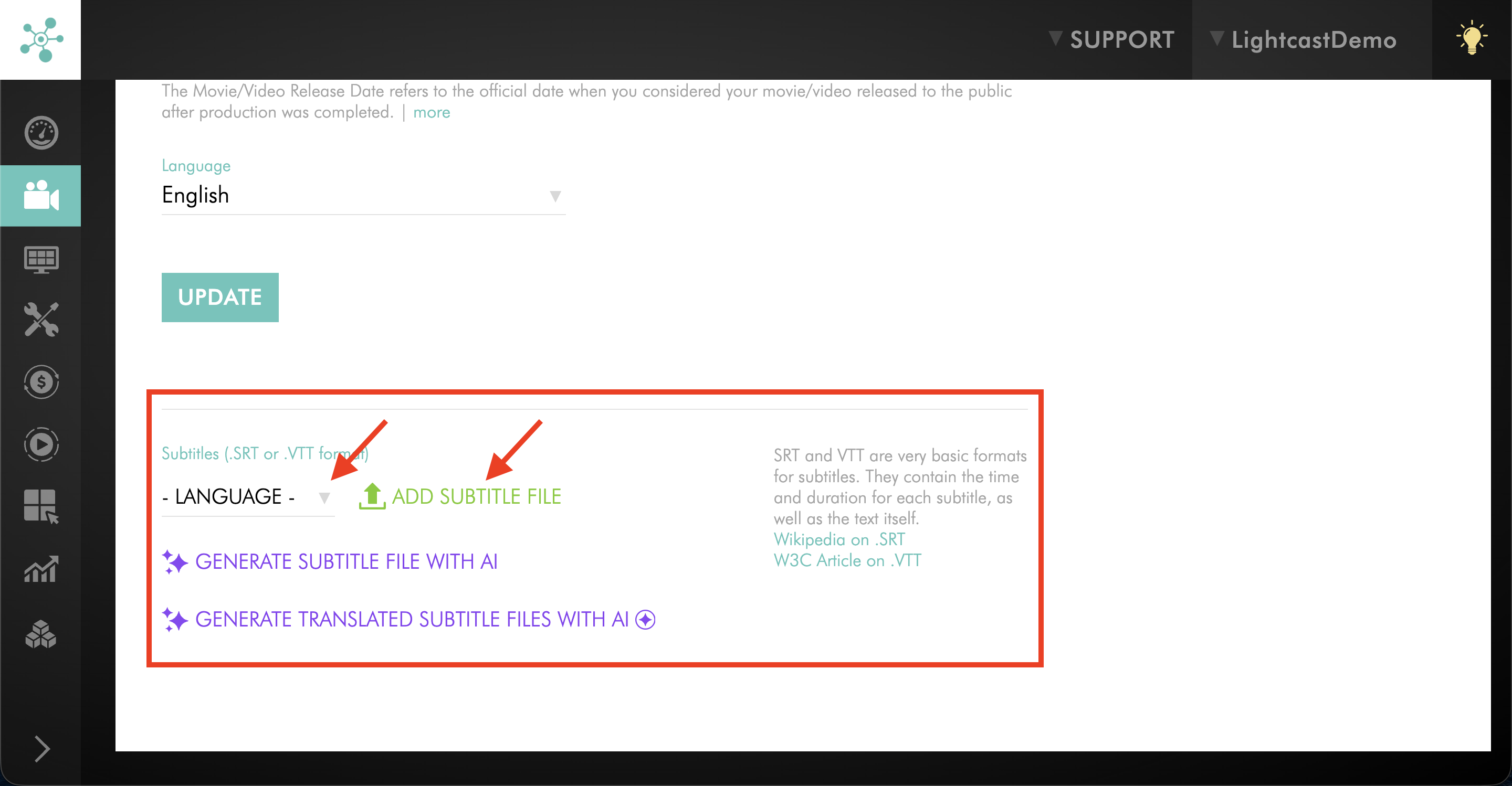
Scroll down to the Subtitles section, select the language in the dropdown menu, and click ADD SUBTITLE FILE.
Review, edit, and publish a translated subtitle file
Use these steps to review, edit, or publish a translated subtitle file manually. If auto-publish is turned on, future AI-generated translated subtitles are published automatically, so you only need these steps when you want to make changes yourself or publish translated subtitles that were generated before auto-publish was enabled.
You can review, edit, and publish an AI-generated translated subtitle file from either the media item's METADATA tab or the Subtitles [CC] section.
Option 1: Via the media item's METADATA tab
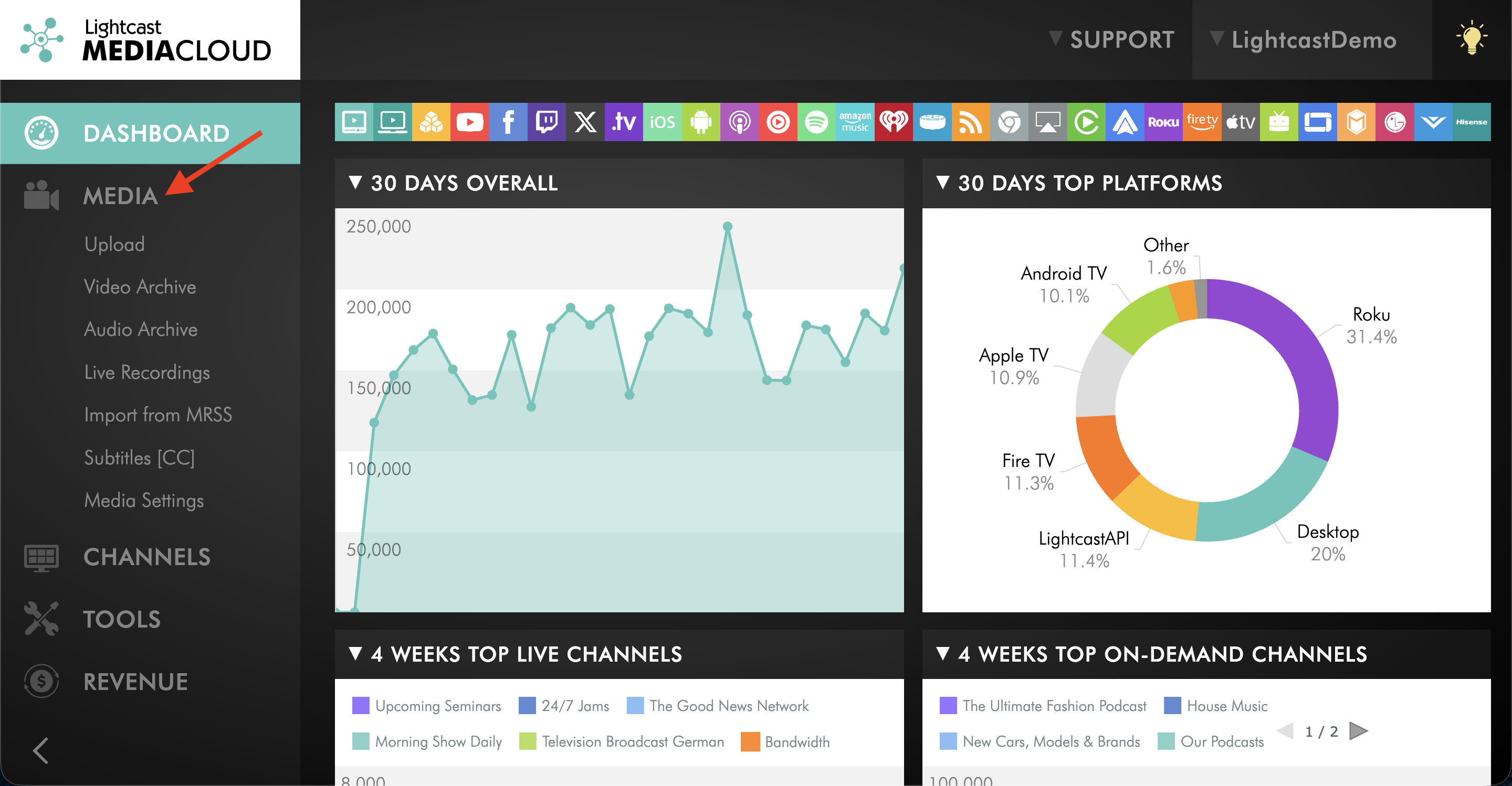
Step 1
Go to MEDIA.
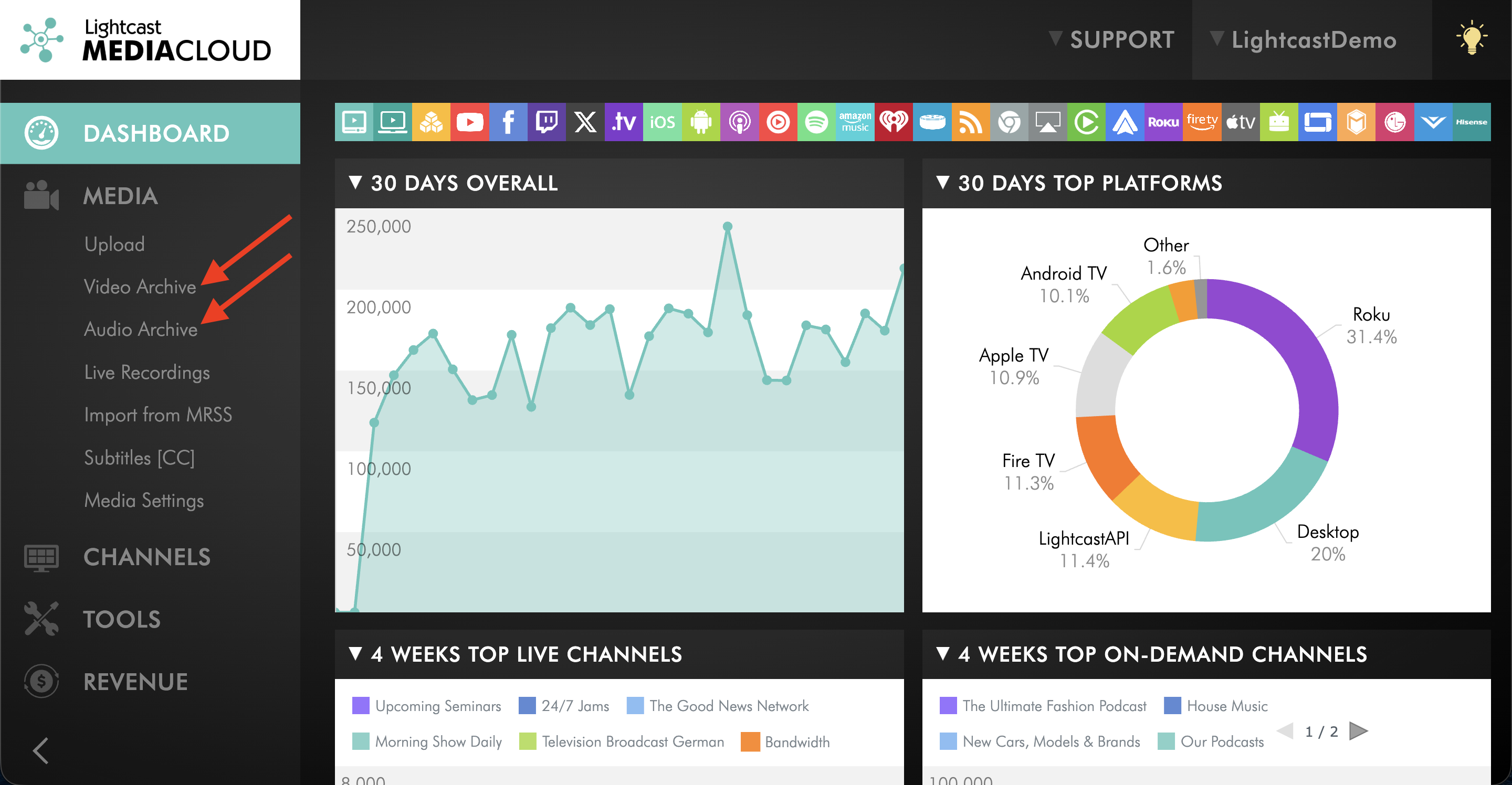
Step 2
Click Video Archive or Audio Archive.
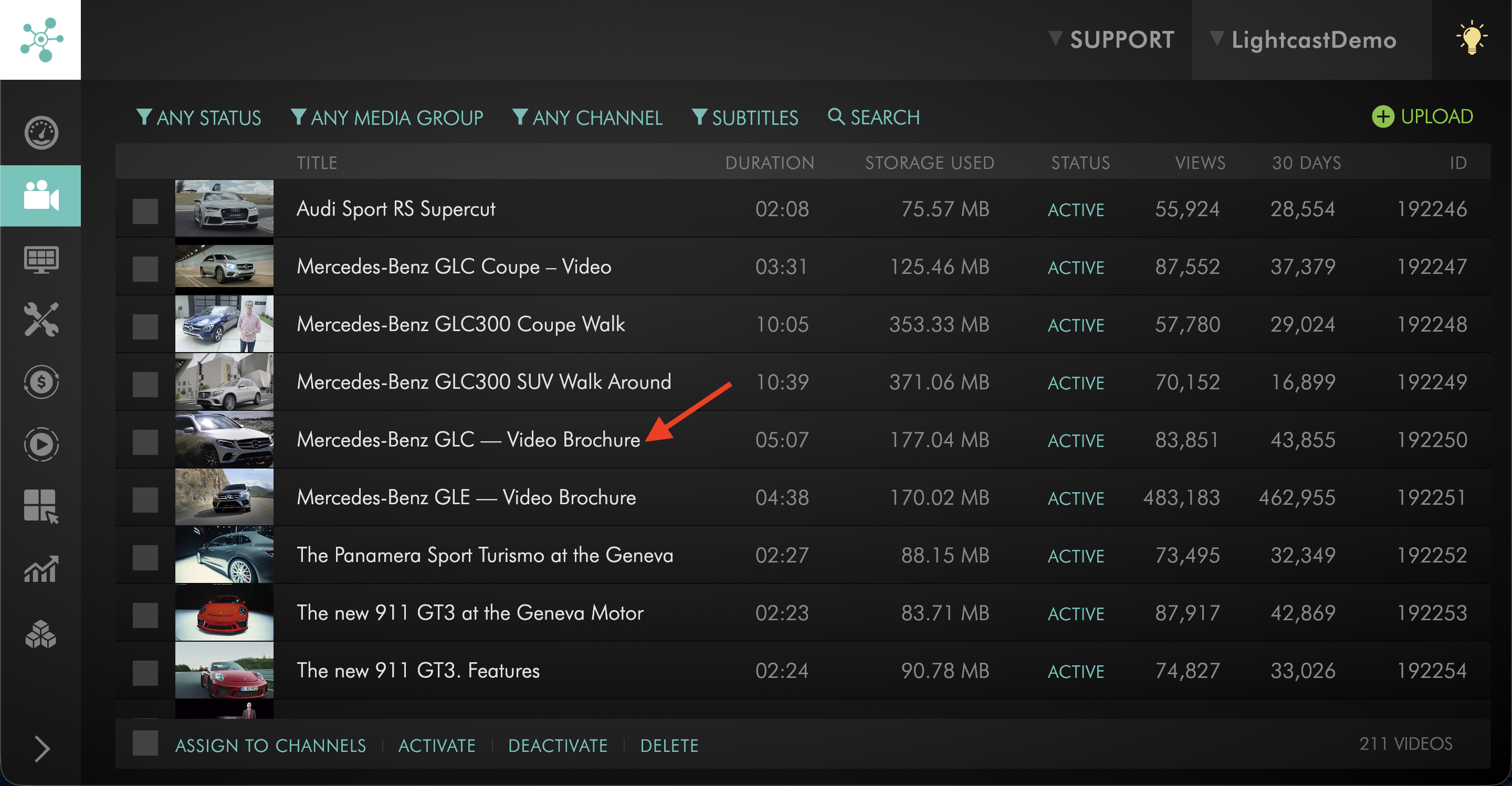
Step 3
Select the media item you want to update.
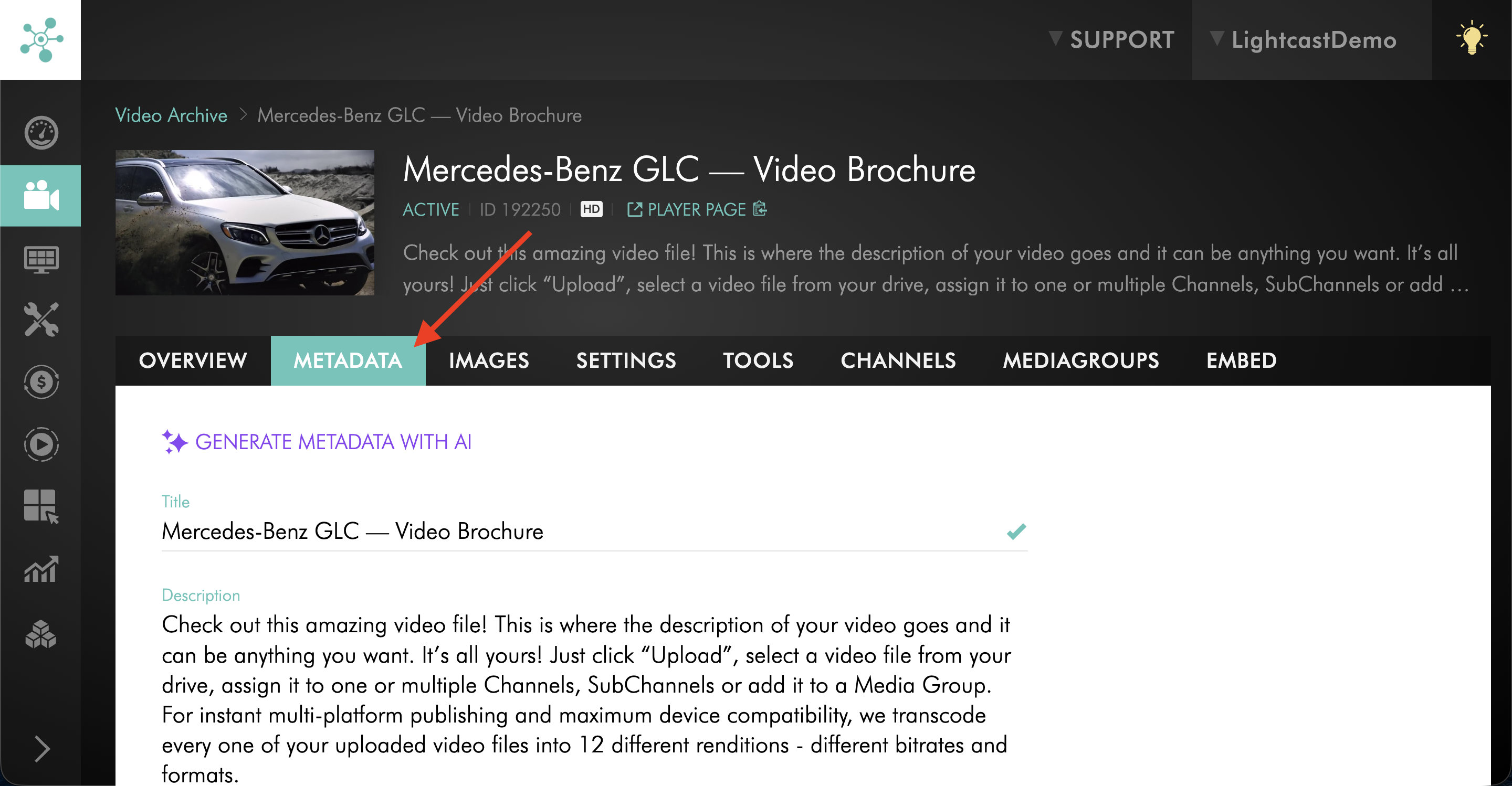
Step 4
Open the METADATA tab.
Step 5
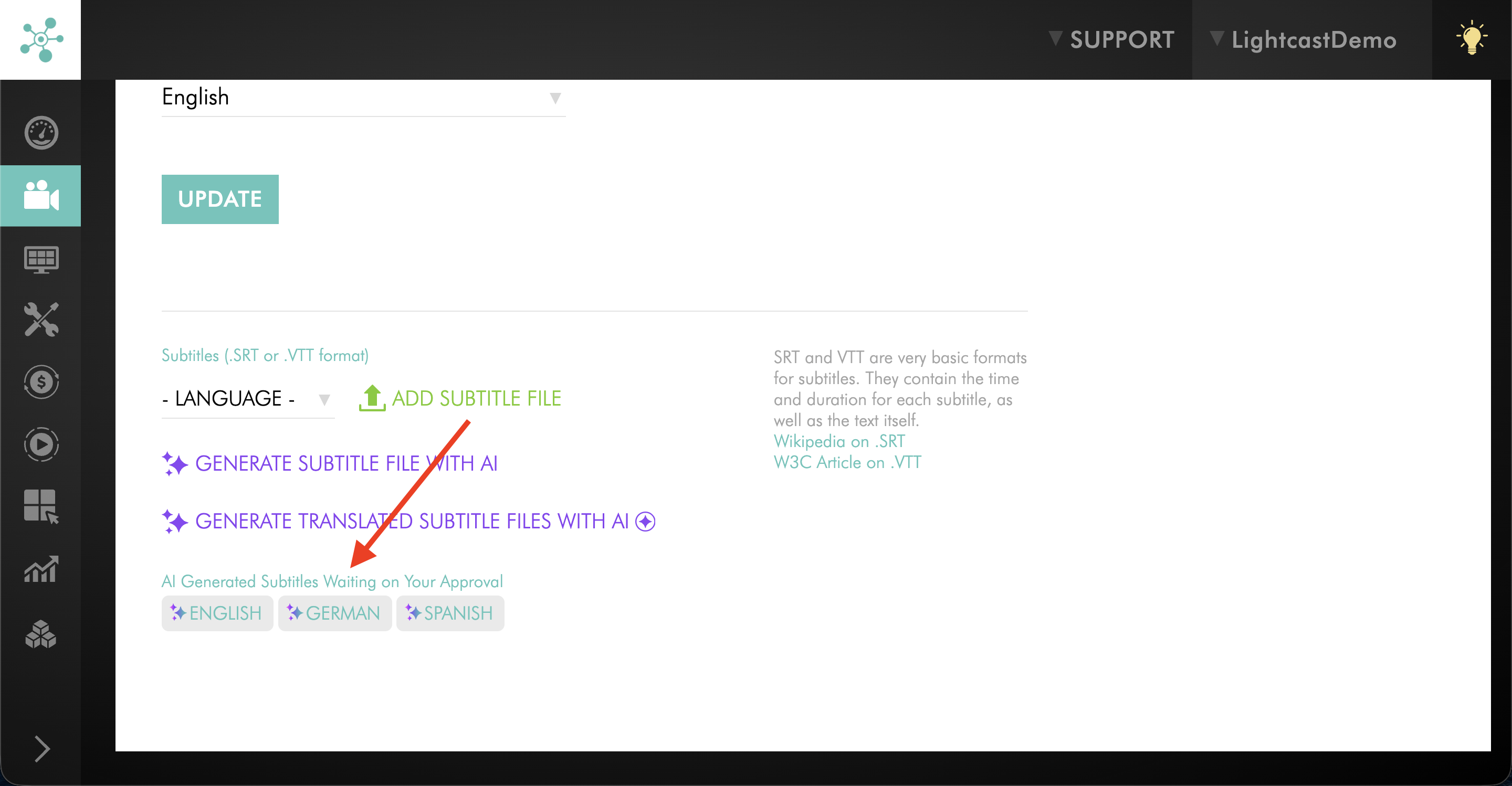
Scroll down to AI Generated Subtitles Waiting on Your Approval.
Step 6
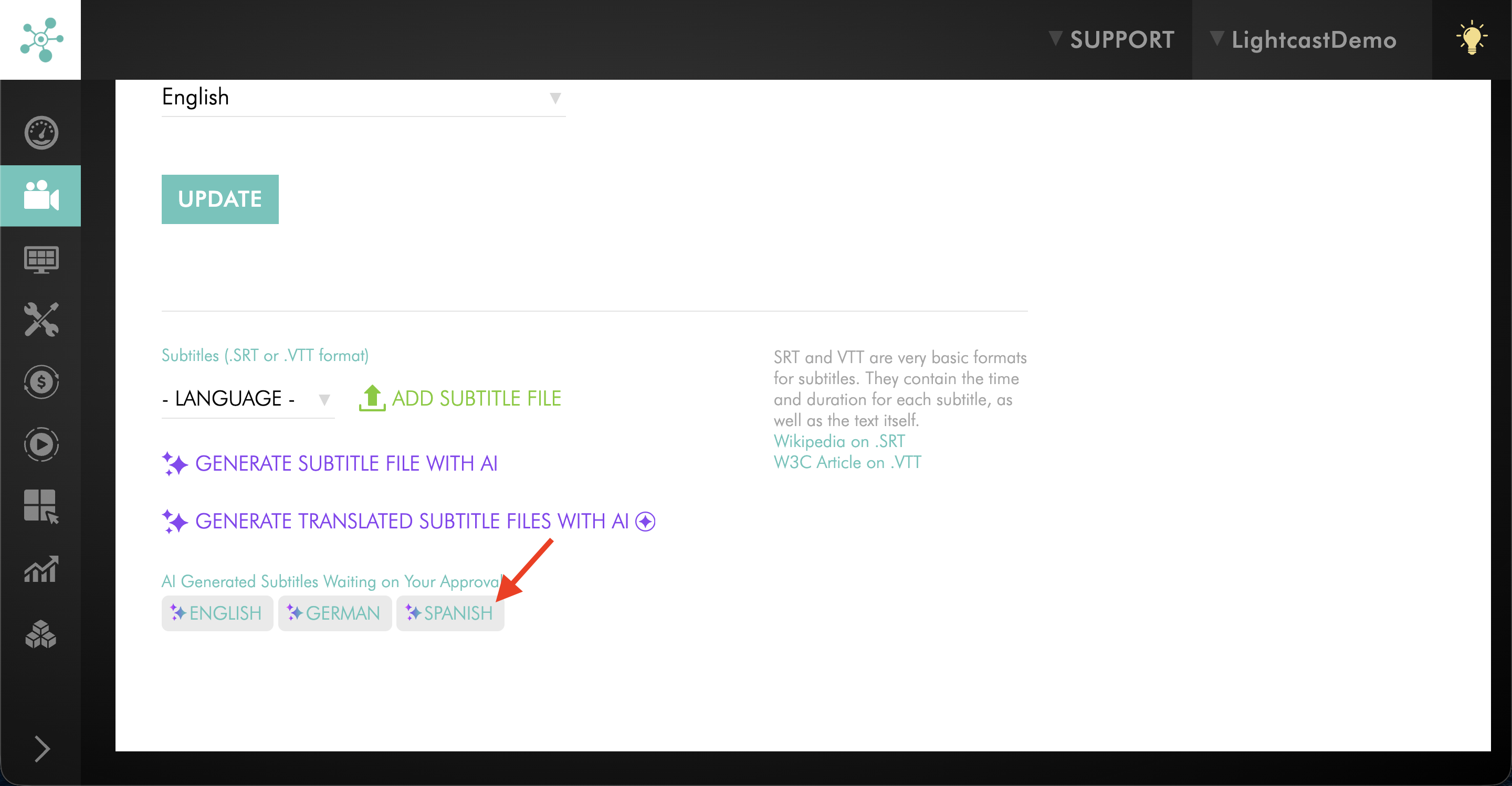
Click the translated subtitle file you want to review.
Step 7
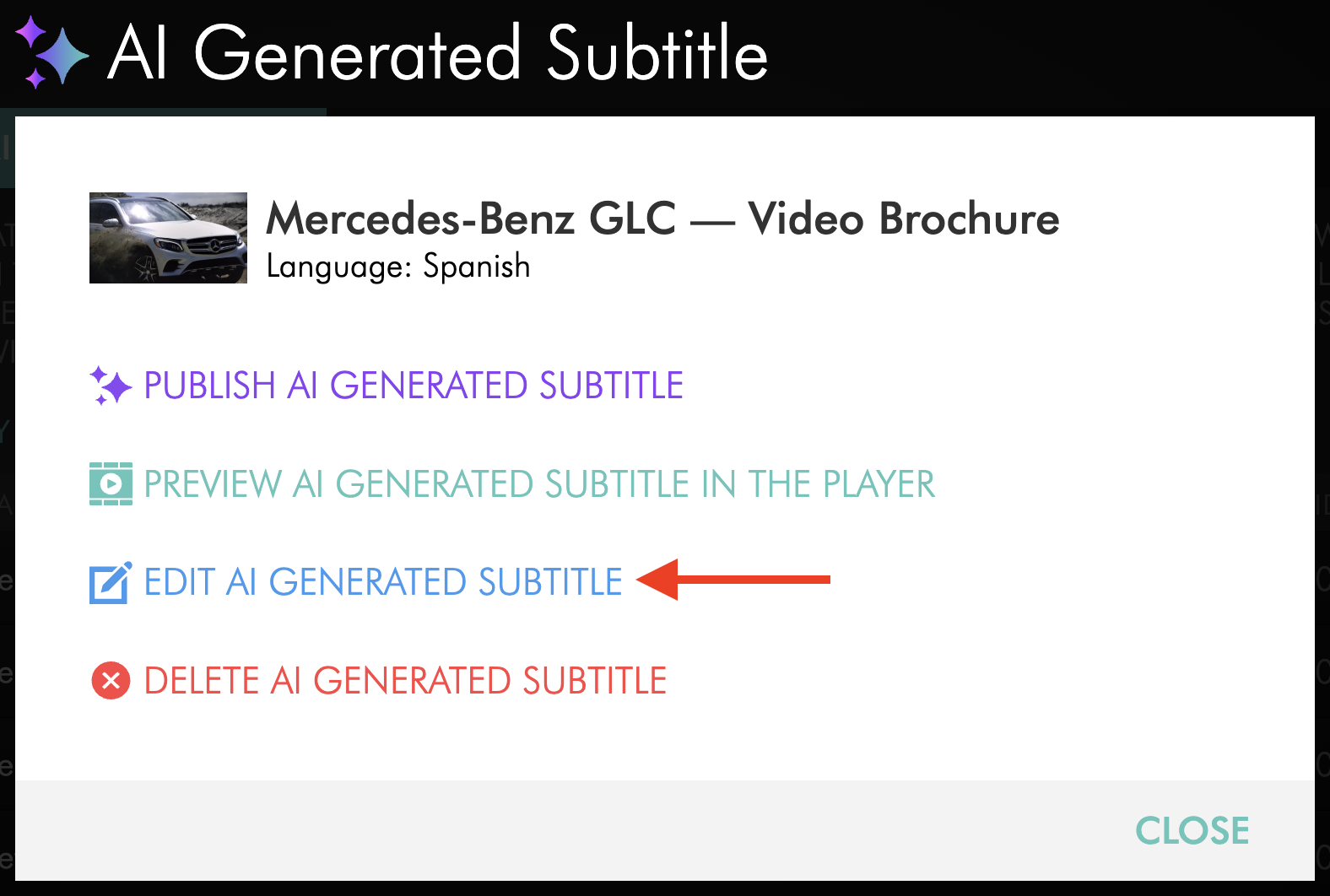
Click EDIT AI GENERATED SUBTITLE.
Step 8
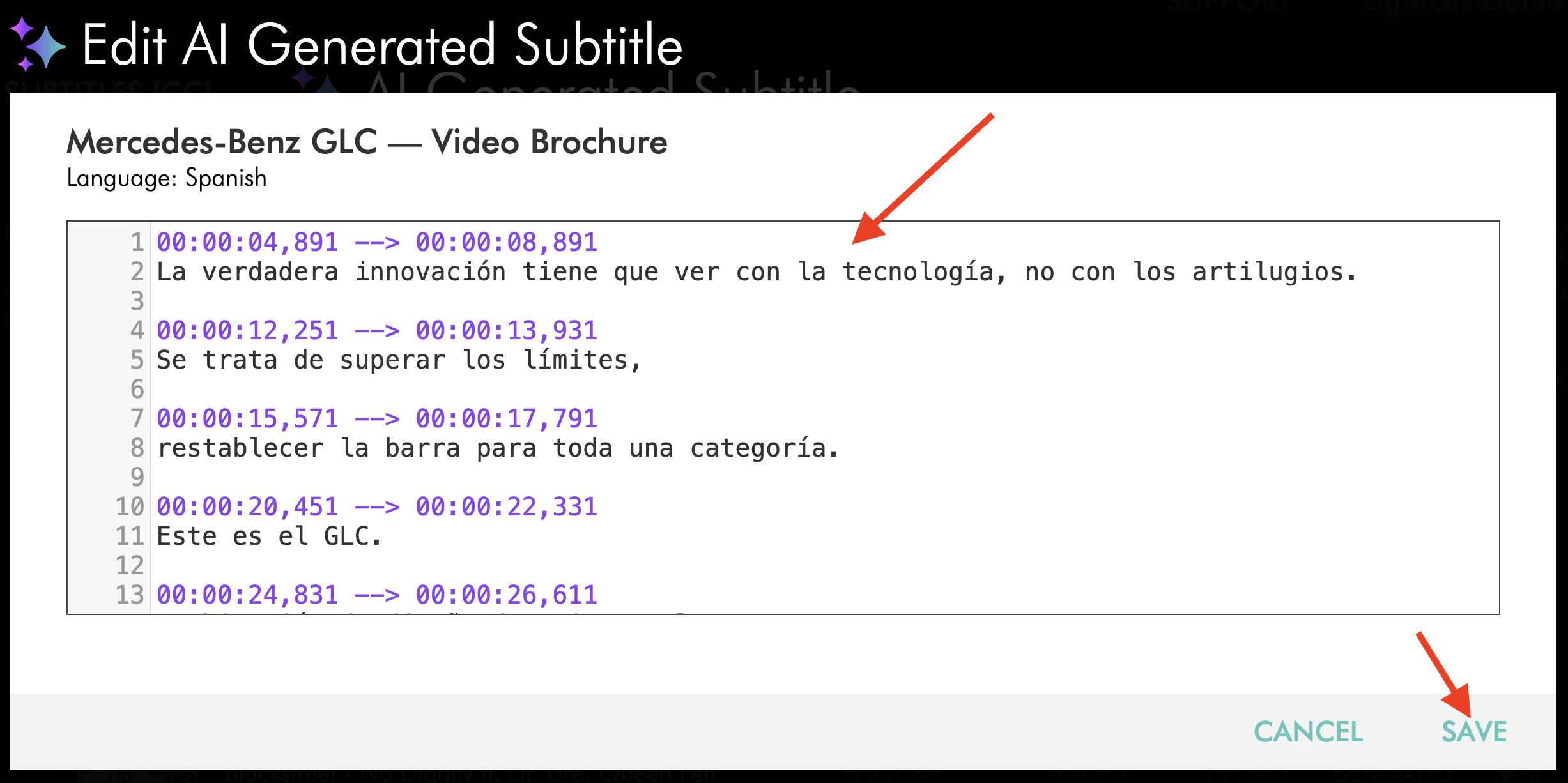
Preview the translated subtitle file, make any needed changes, and save them.
Step 9
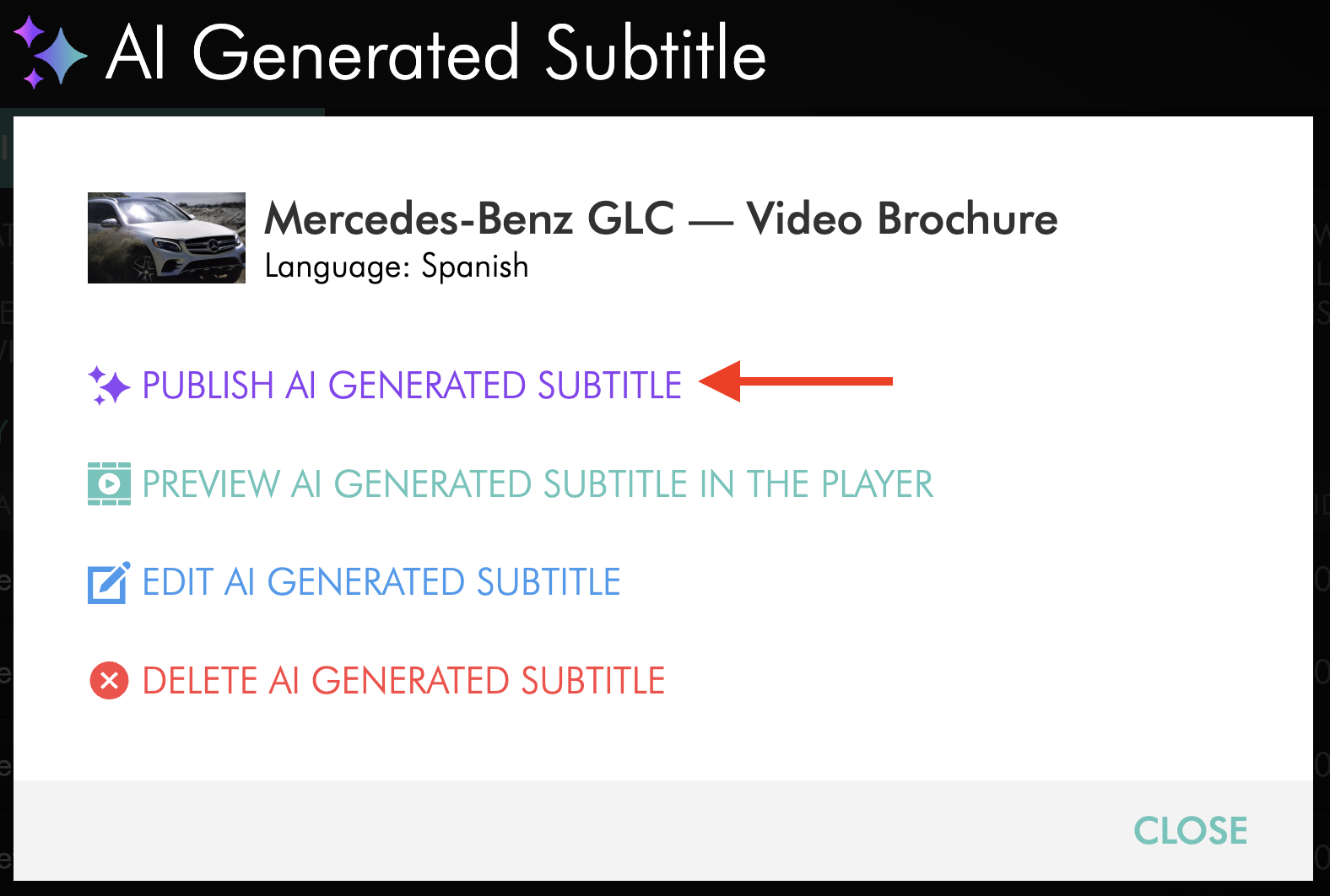
Click PUBLISH AI GENERATED SUBTITLE.
Option 2: Via Subtitles [CC]
Step 1
Go to MEDIA.
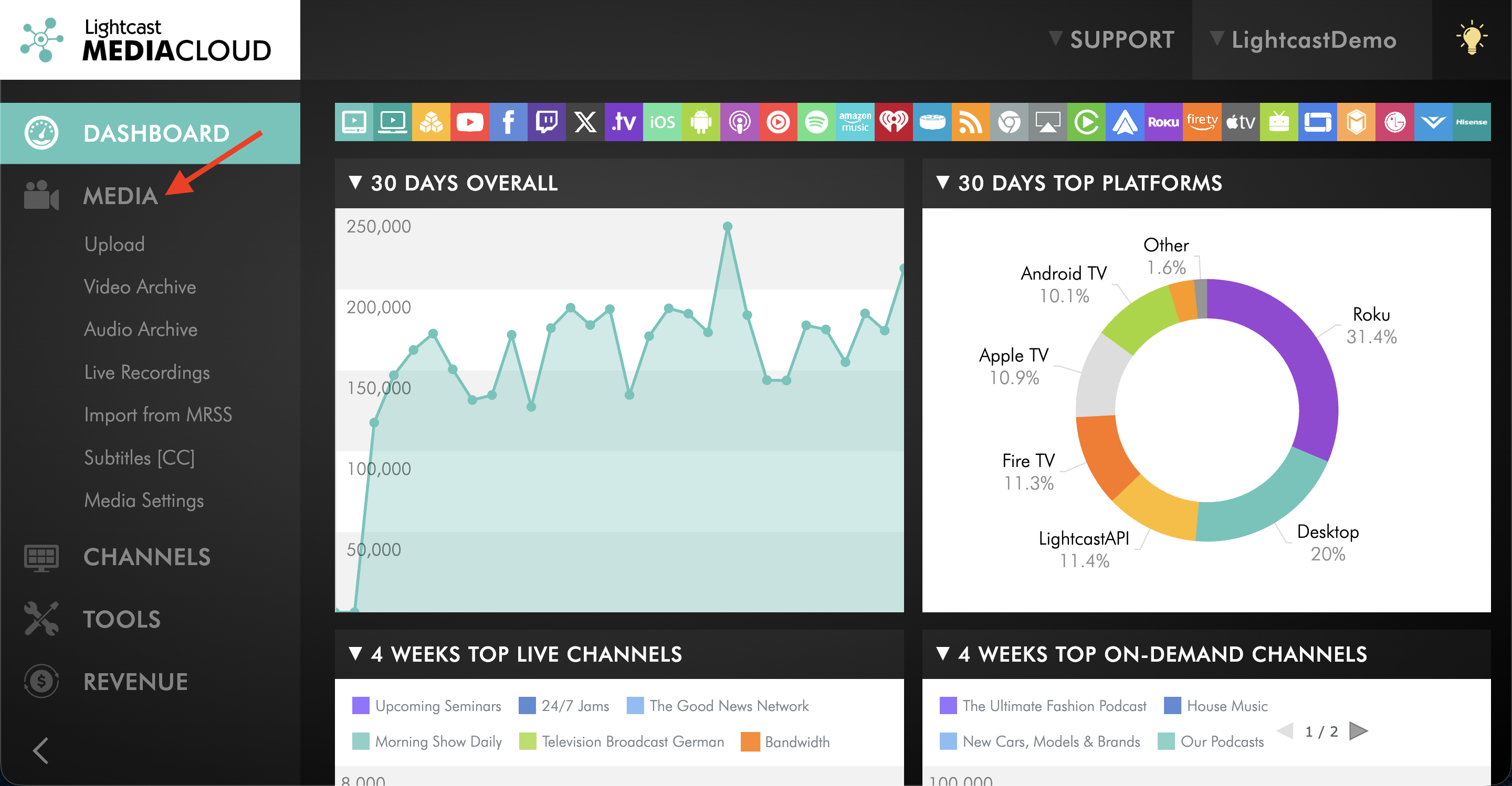
Step 2
Click Subtitles [CC].
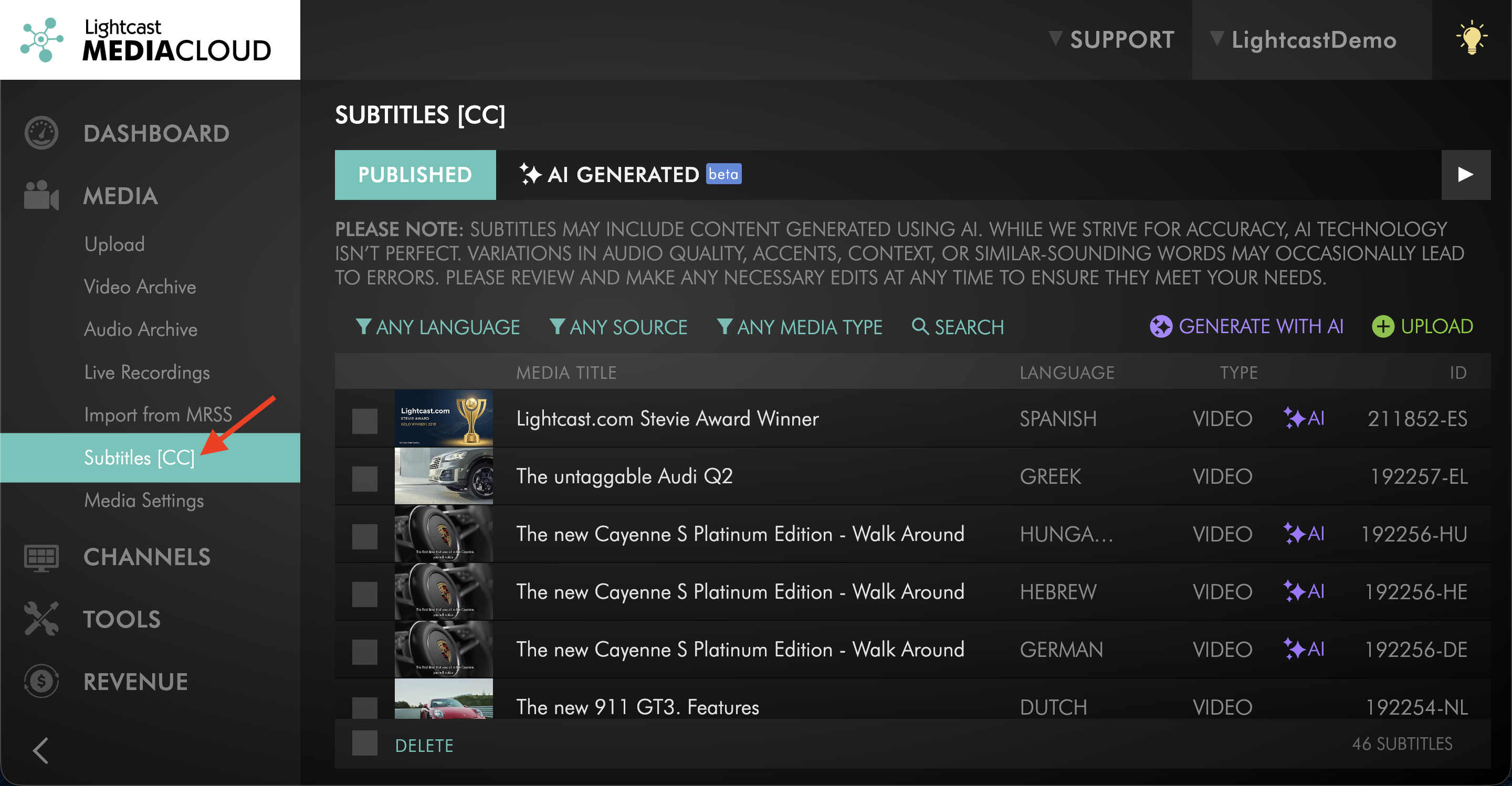
Step 3
Open the AI GENERATED tab if needed, then select the translated subtitle file you want to review.
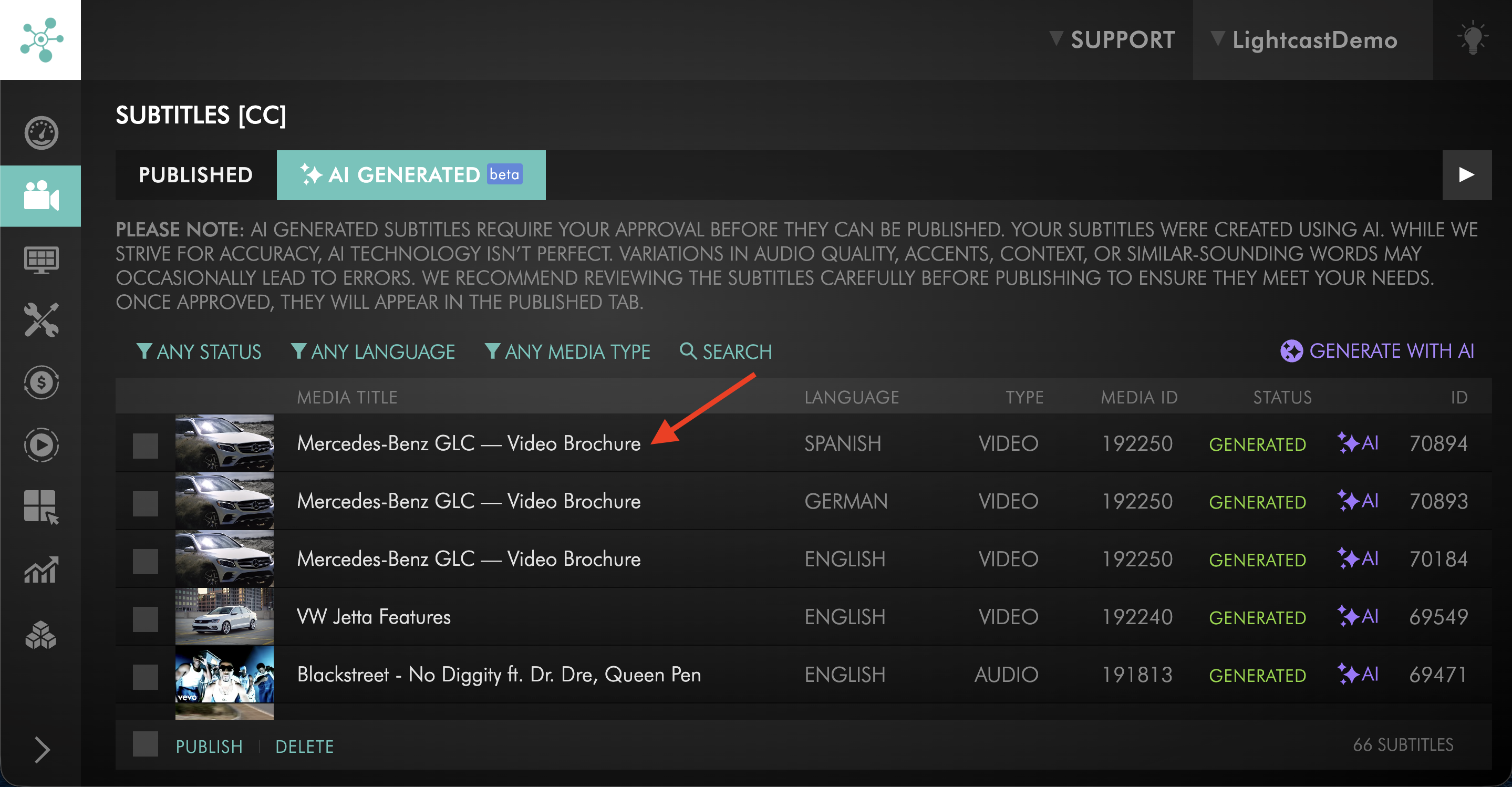
Step 4
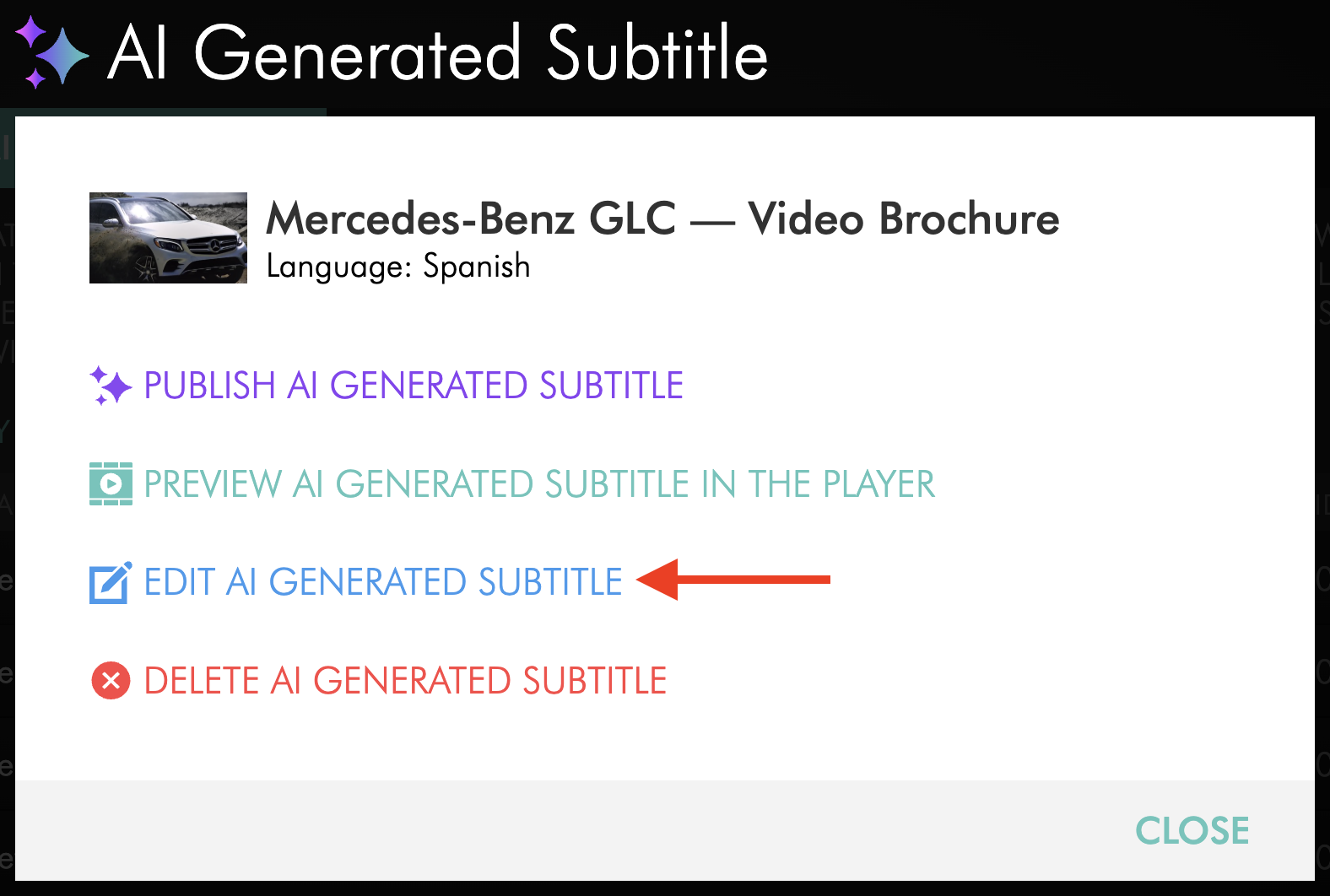
Click EDIT AI GENERATED SUBTITLE.
Step 5
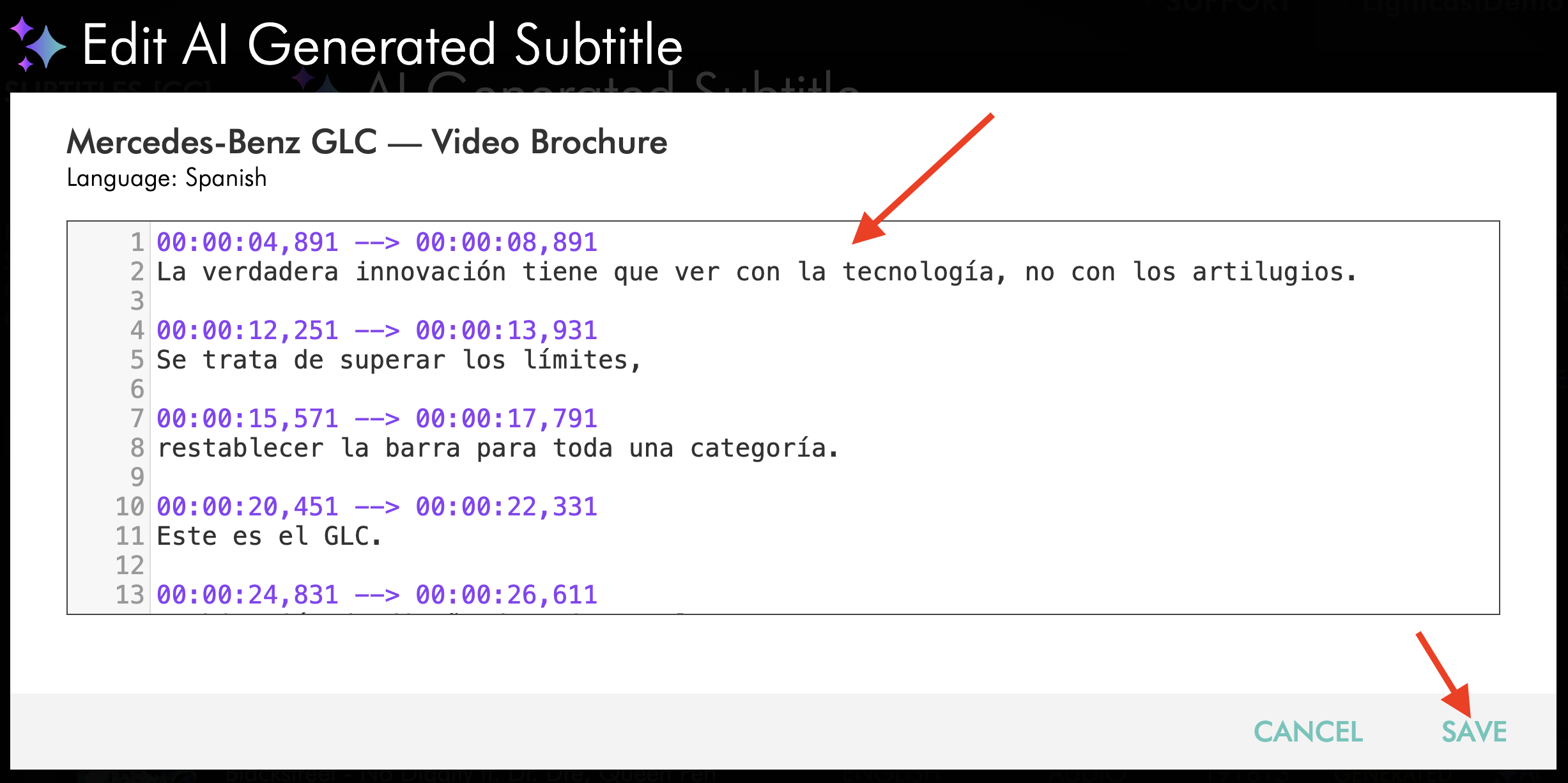
Preview the translated subtitle file, make any needed changes, and save them.
Step 6
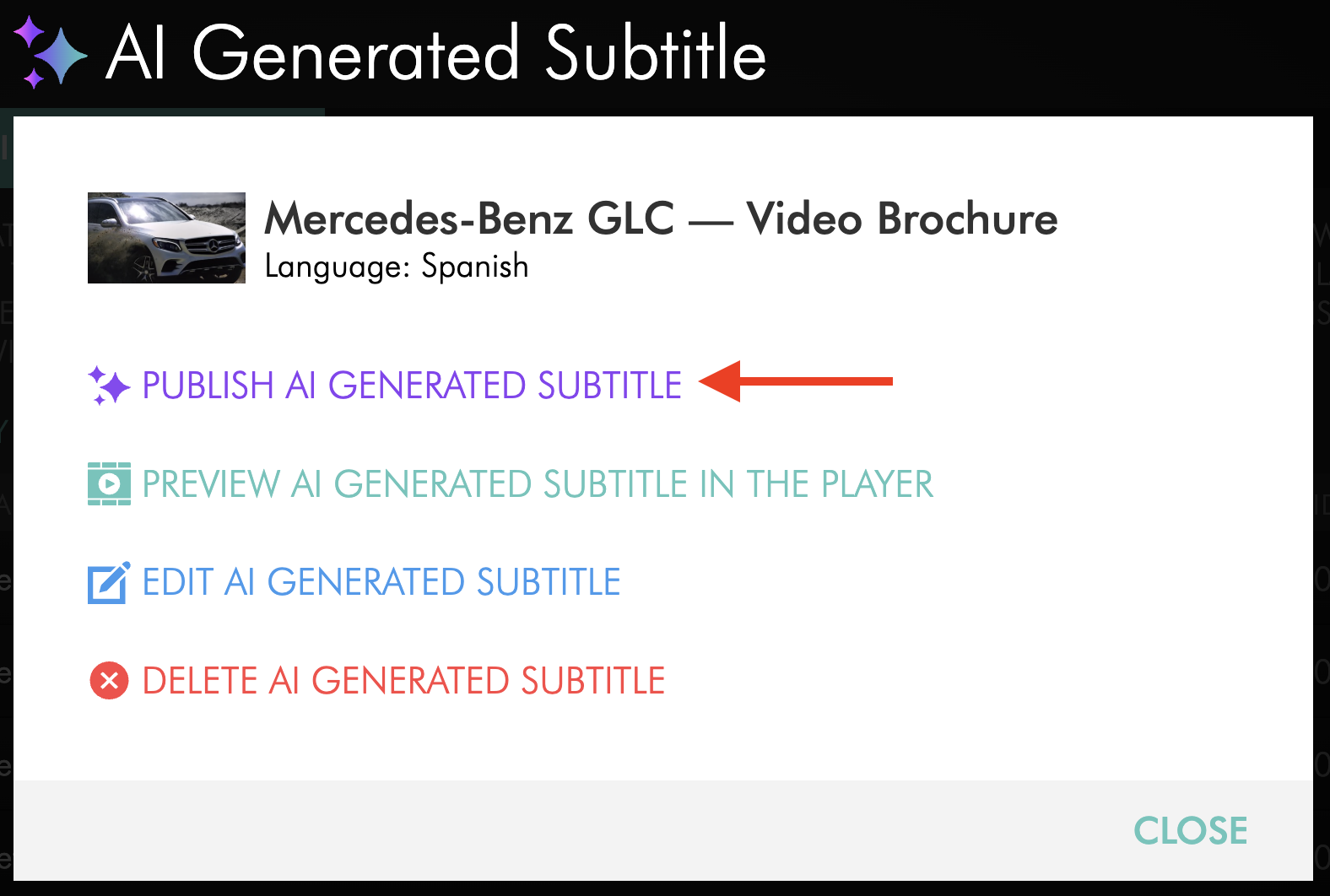
Click PUBLISH AI GENERATED SUBTITLE.
FAQs
Which subtitle languages are currently supported with my Apps?
Currently, your Apps support all Latin languages, such as English, Spanish, German, and Italian, when uploaded as an .srt or .vtt file.
Non-Western or non-Latin languages are not currently supported through the .srt or .vtt format.
There may be other subtitle formats supported by app platforms that allow these languages to be displayed, but Lightcast currently uses .srt and .vtt only.
Do I need subtitles before I can generate translations using AI?
No. If subtitles do not already exist for the media item, Lightcast creates them before sending them for translation.
Do AI-generated translated subtitles always need manual approval?
No. If Auto-Publish Translated Subtitles is enabled in MEDIA > Media Settings, future AI-generated translated subtitles are published automatically as soon as they are generated. This setting is disabled by default. Any previously generated translated subtitles that have not been published must still be published manually.
Can I edit translated subtitles after they are published?
Yes. You can open a published translated subtitle file in Subtitles [CC], make changes, preview them, and save them. Any saved updates automatically appear on the published media item on supported platforms.
Will translated subtitles display the same way on every platform?
Not always. Lightcast web players and Lightcast framework-based apps support subtitle overlays and controls that allow viewers to select from the available subtitle languages. Third-party apps or players may require additional development to support subtitle overlays and language selection.
If you are unsure whether translated subtitles are supported in a specific app or player, contact Customer Support.
Pricing
A.I. Subtitle [CC] Translations is available on POWER packages and up.
If you don’t have access to this feature, you can upgrade to one of our latest plans or contact your account manager.