
Resolving YouTube publishing errors
Overview
This article explains how to troubleshoot errors that may occur when publishing videos from the Media Cloud to YouTube.
When to use this article
Use this article when:
a video fails to publish to YouTube
a YouTube publishing error appears in the Media Cloud
the wrong Google or YouTube account may be connected
the connection between the Media Cloud and YouTube may need to be refreshed
For general publishing steps, see How to publish your videos to your YouTube Channel.
How it works
Publishing to YouTube requires a connection between the Media Cloud and the Google account that manages your YouTube Channel. If the connection becomes invalid, the required permissions change, or the connected account no longer has access to the intended YouTube Channel, publishing may fail.
The connected Google account must have access to an active YouTube Channel. If a YouTube Channel has not been set up for the connected Google account, videos cannot be published to YouTube from the Media Cloud.
YouTube may also restrict certain uploads based on the settings or verification status of the YouTube account. For example, YouTube may limit uploads longer than 15 minutes unless the account has been verified for longer videos. These requirements are controlled by YouTube rather than the Media Cloud.
Publishing can also occasionally fail because of a temporary interruption while the video is being transferred to YouTube. In these cases, publishing the video again may resolve the issue.
When a YouTube publishing attempt fails, the Media Cloud may display a RESET option next to the failed publishing status. RESET clears the failed publishing attempt and allows the video to be selected for YouTube publishing again. The RESET option only appears after a YouTube publishing attempt has failed.
If publishing continues to fail, you may need to disconnect and reconnect the YouTube account to refresh the connection and permissions between the Media Cloud and YouTube.
Instructions
Confirm the connected YouTube account
Step 1
Log in to your Media Cloud account.
Step 2
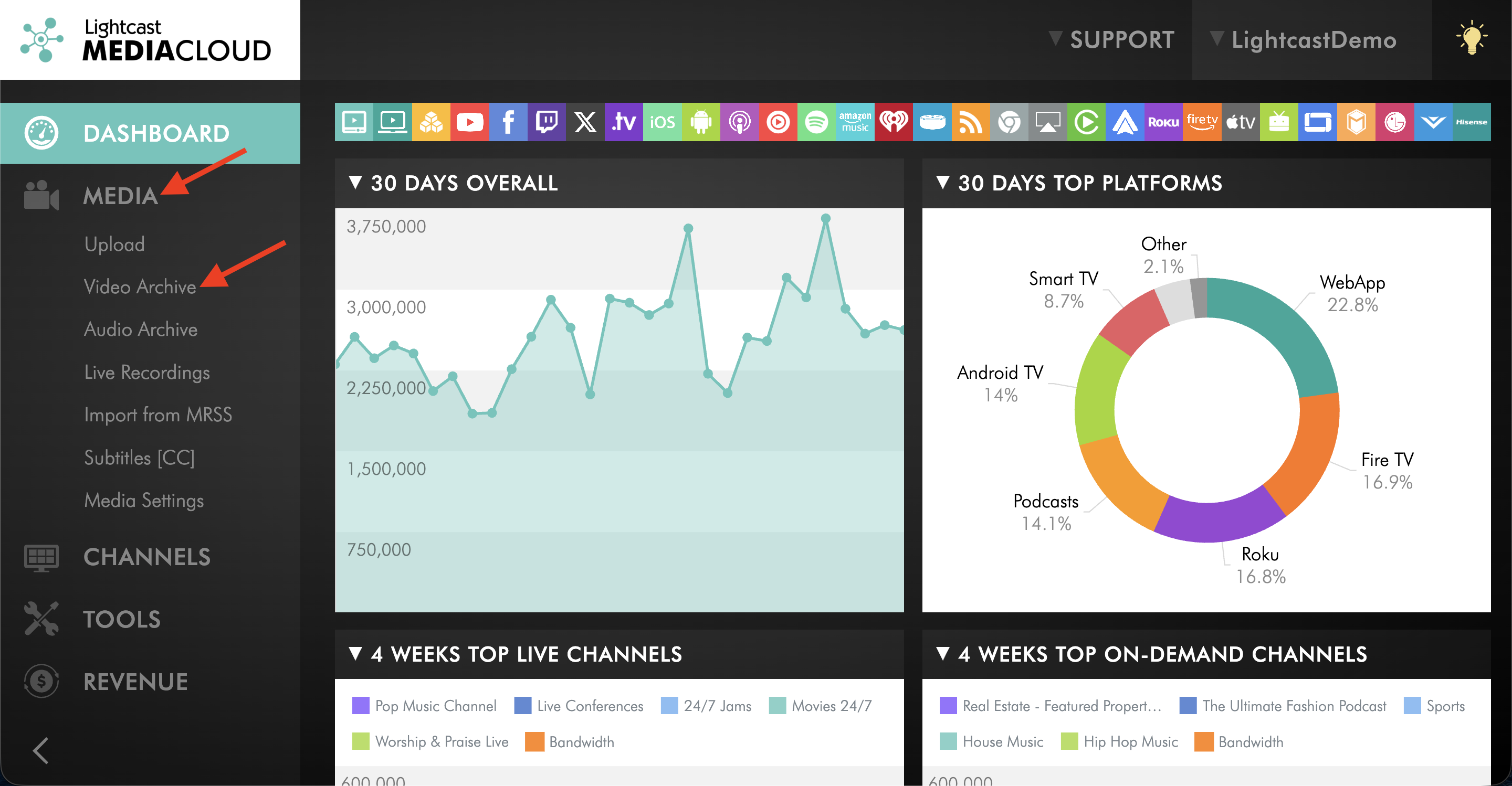
Go to MEDIA and select Video Archive.
Step 3
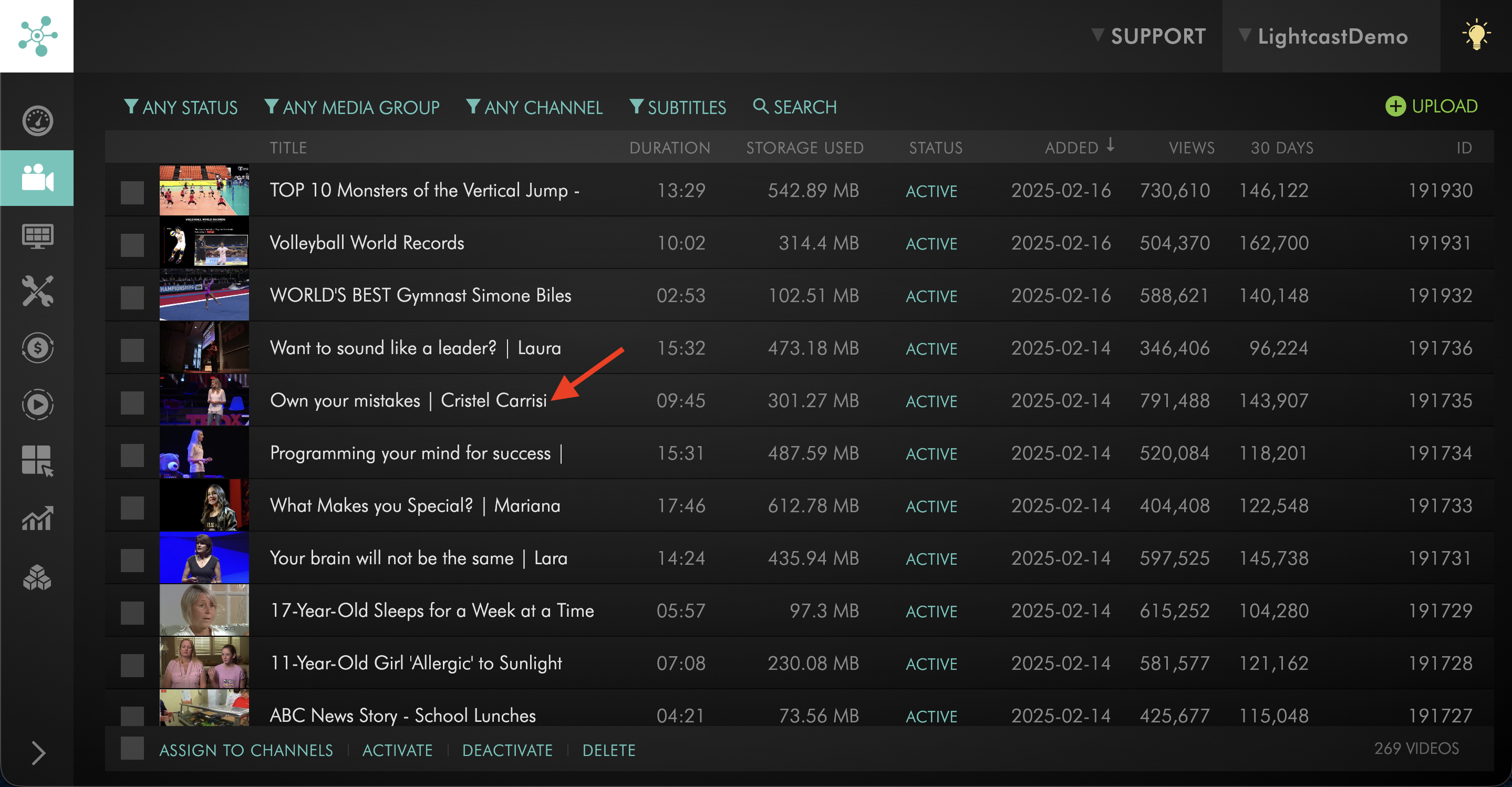
Open the video you are trying to publish to YouTube.
Step 4
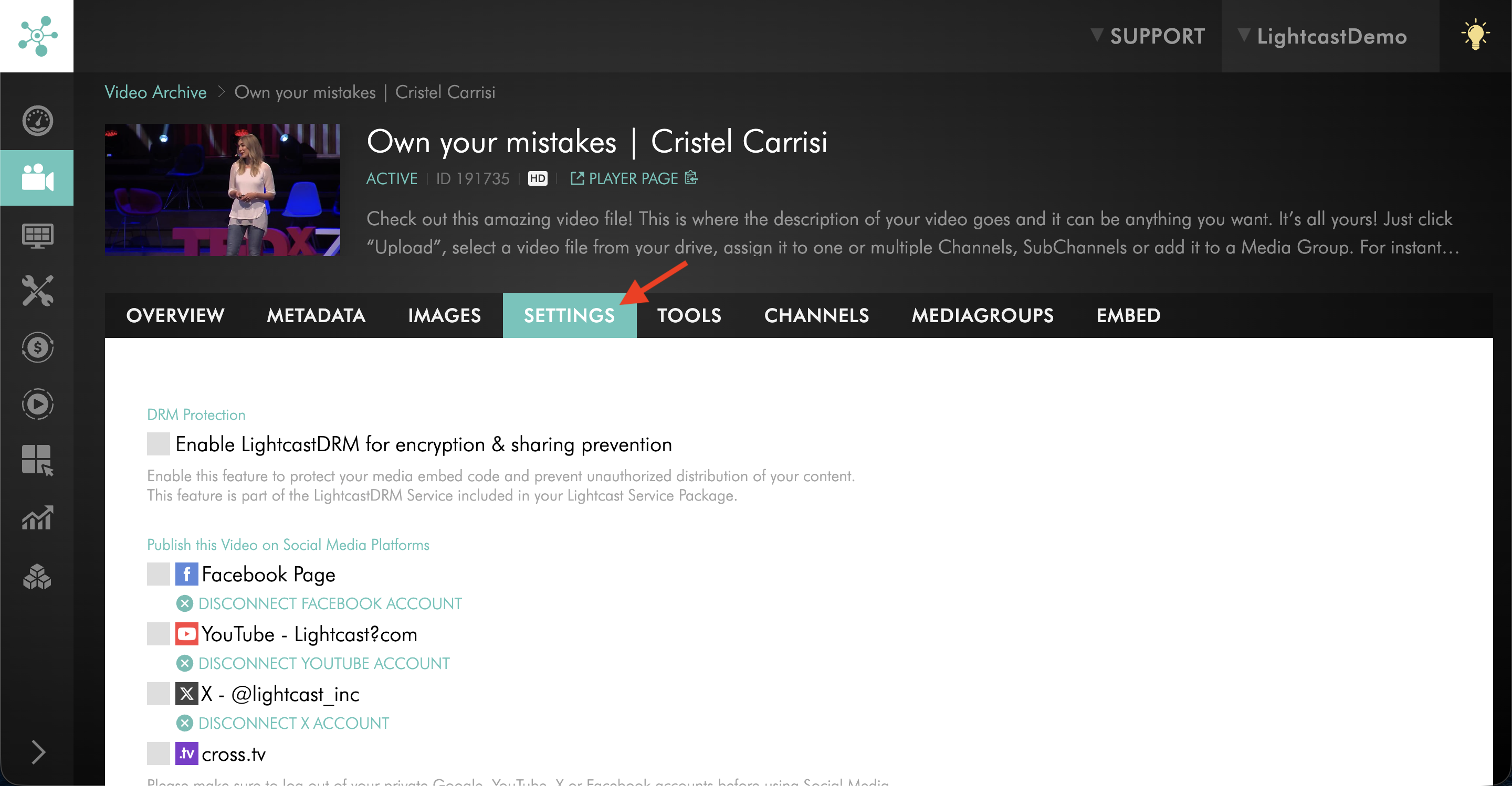
Go to the SETTINGS tab.
Step 5
Check which YouTube account is connected to the video.
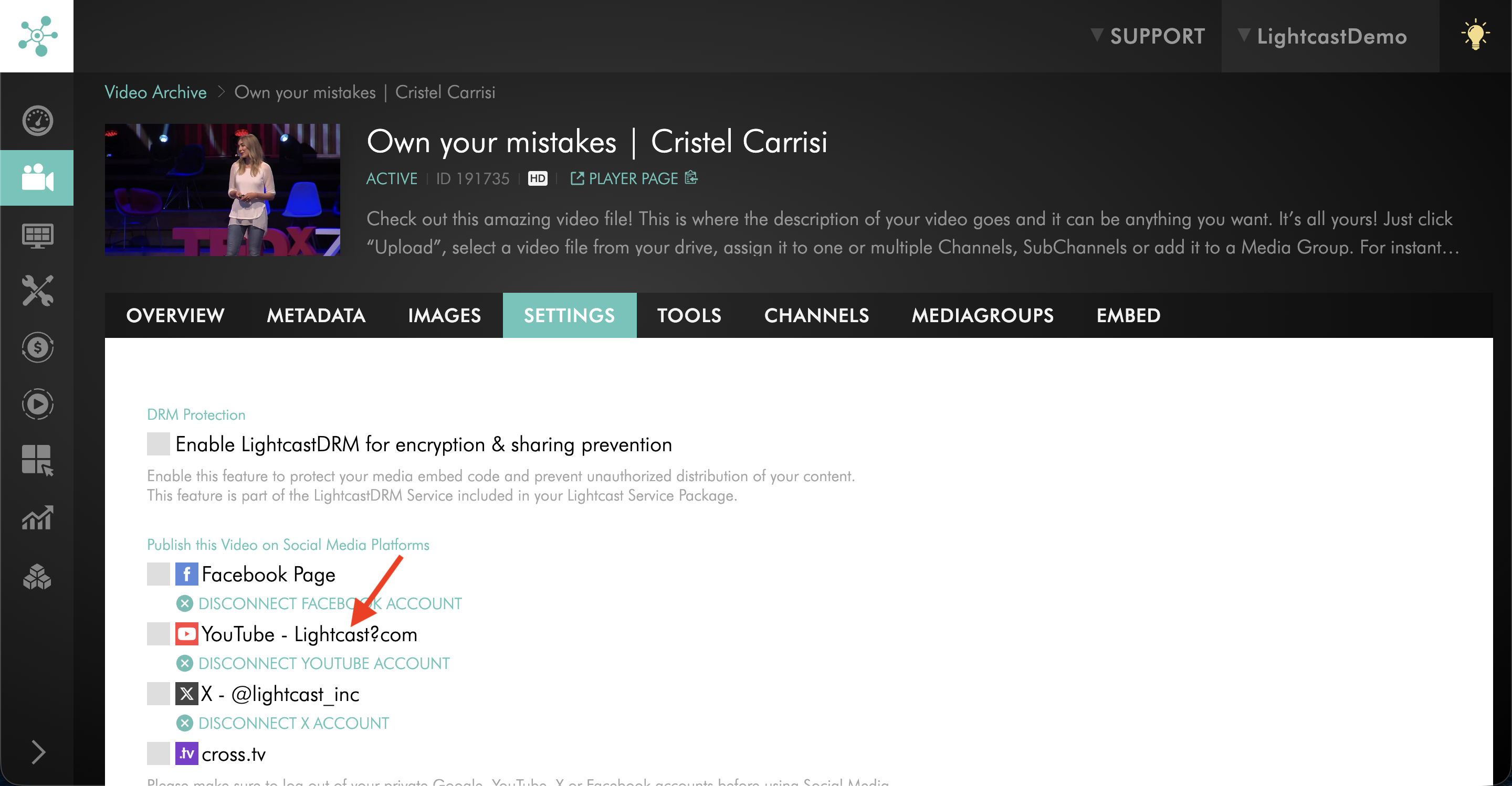
If the wrong account is connected, disconnect the current YouTube account and connect the correct one.
For step-by-step instructions, see How to connect a different YouTube account to your Media Cloud account.
Check the YouTube account requirements
Step 1
Log in directly to the Google or YouTube account you want to use for publishing.
Step 2
Confirm that the account has an active YouTube Channel.
Step 3
If you are publishing a video longer than 15 minutes, confirm in YouTube that the account is verified for longer uploads.
For the most current steps, see YouTube Help: Create a YouTube Channel and YouTube Help: Verify your YouTube account.
Reset the failed publishing attempt and try again
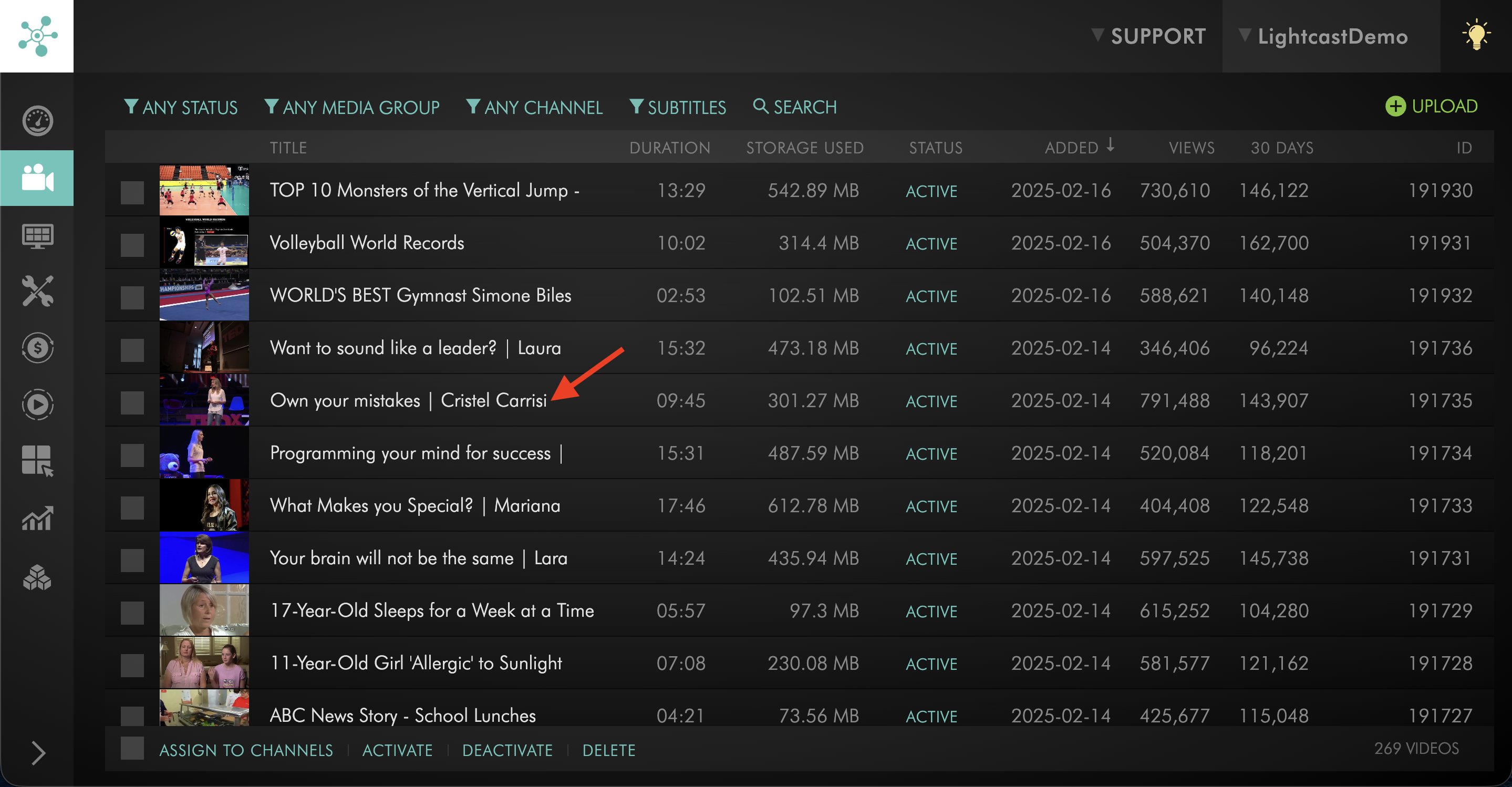
Step 1
Open the video from the Video Archive.
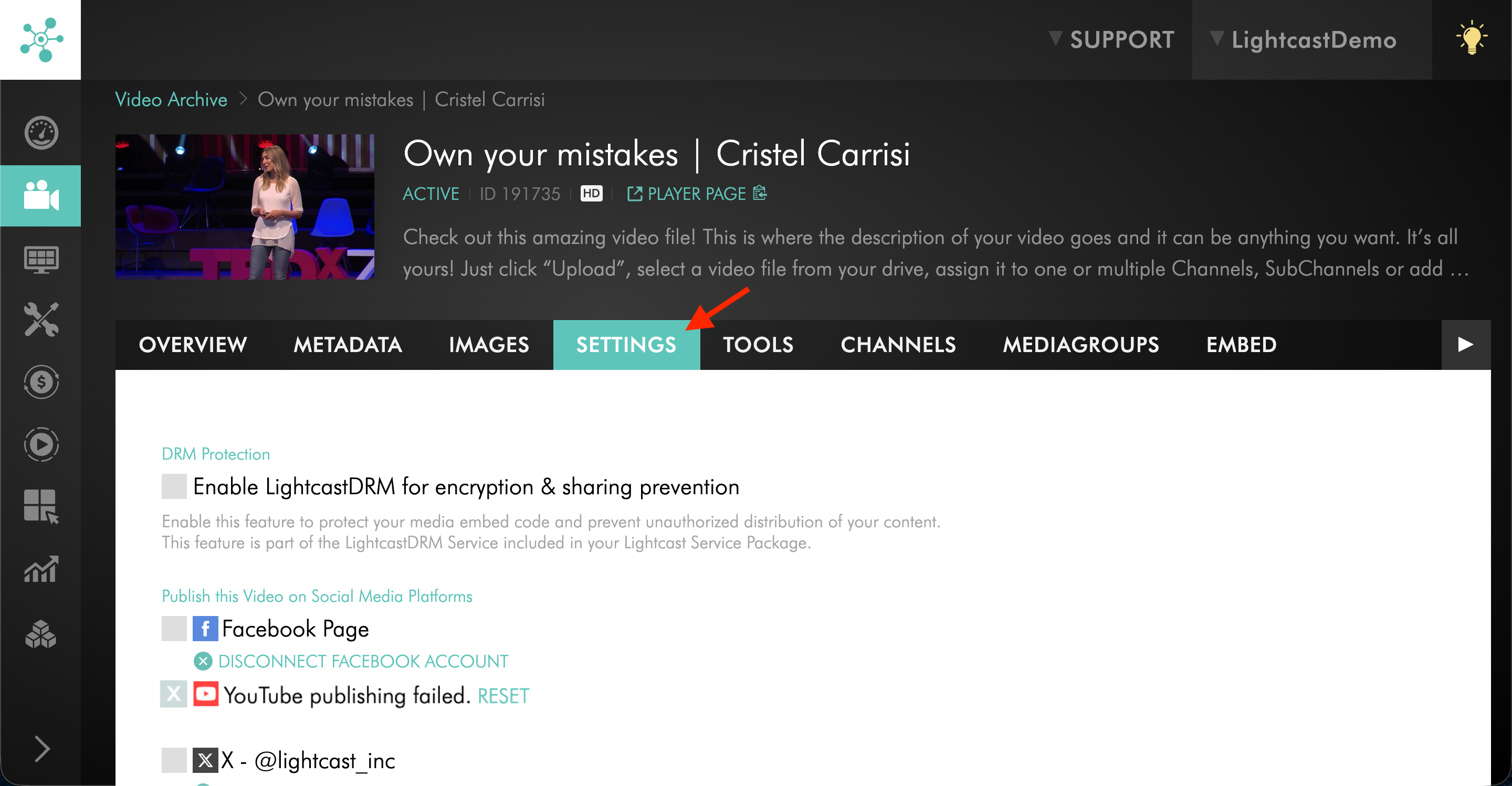
Step 2
Go to the SETTINGS tab.
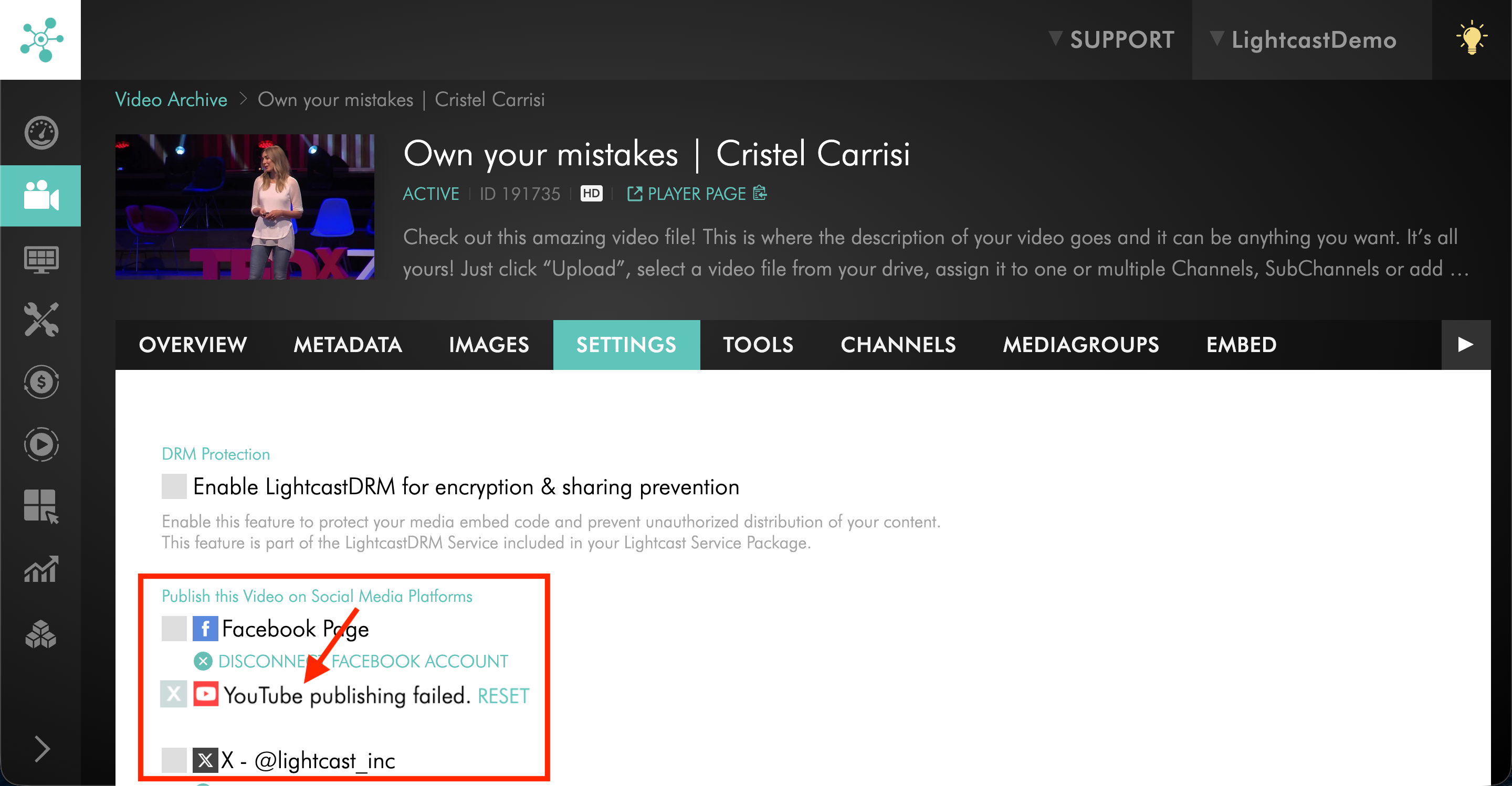
Step 3
Under Publish this Video on Social Media Platforms, find the YouTube status.
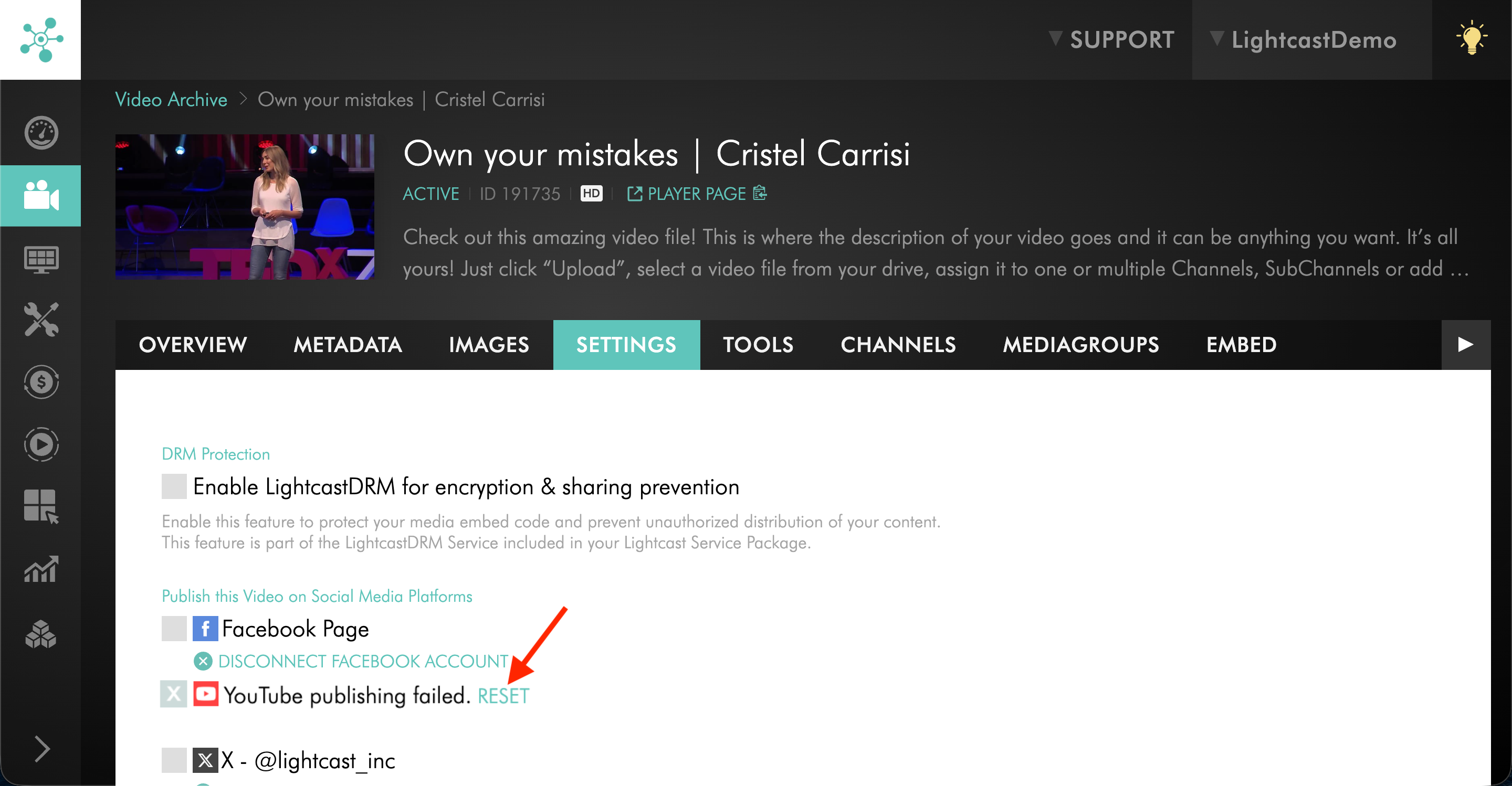
Step 4
If the video shows YouTube publishing failed, click RESET.
Step 5
Select the YouTube publishing option again.
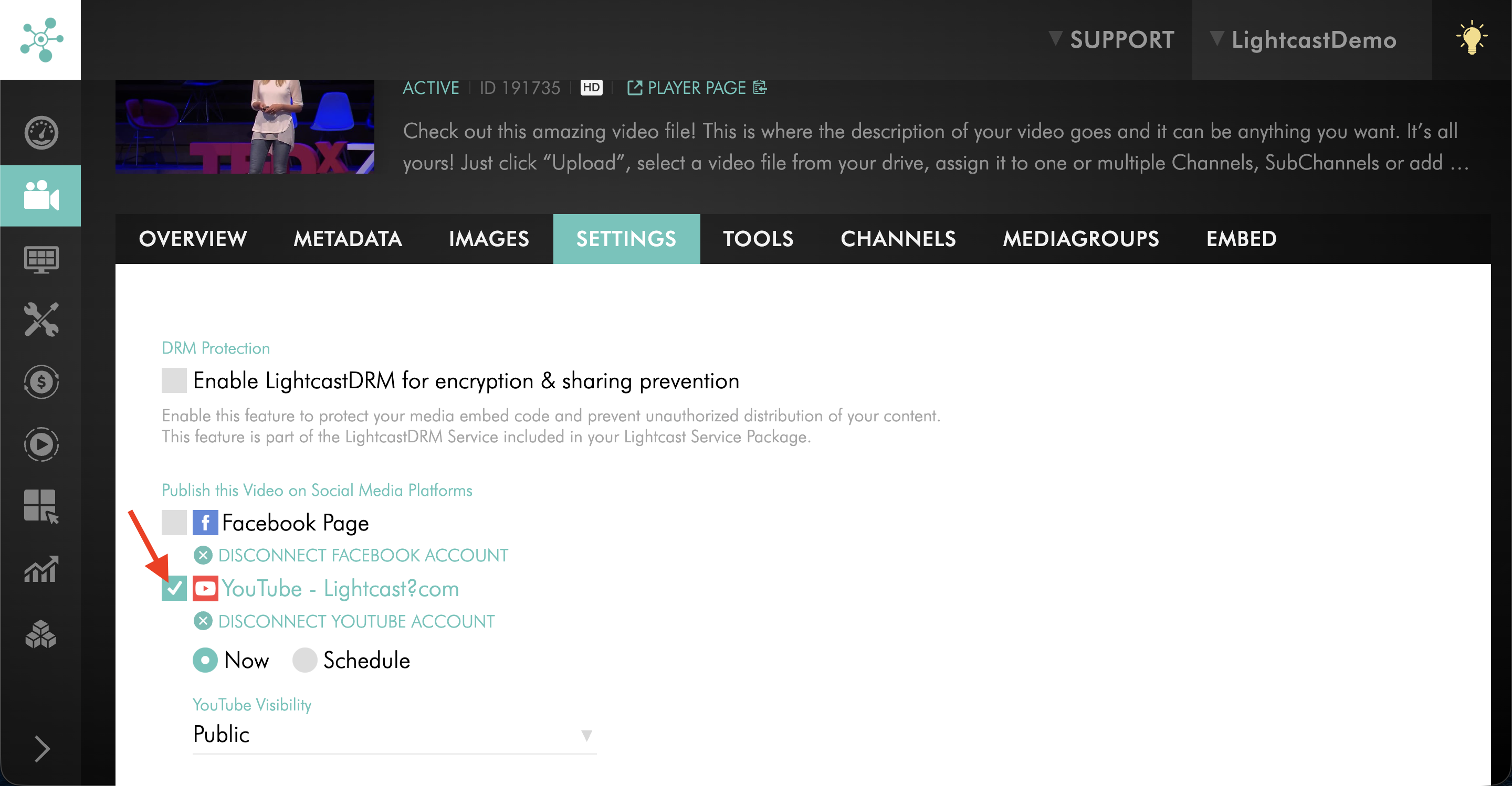
Step 6
Click UPDATE to save the publishing settings and try publishing again.
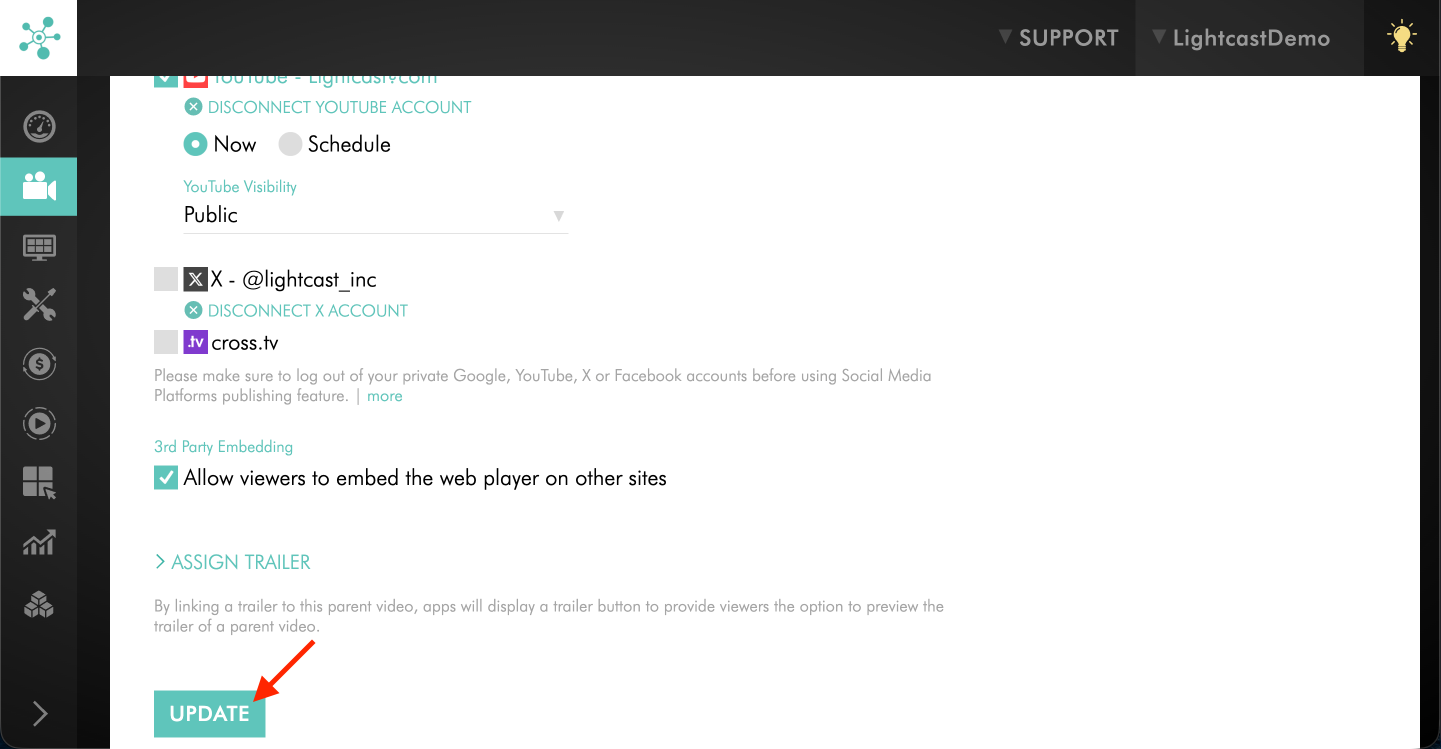
Step 7
Refresh the page after a few minutes to confirm whether the video was published successfully.
If the video was published successfully, you will see Published on YouTube: Watch Video.
If the video was not published successfully, you will see YouTube publishing failed.
Disconnect and reconnect the YouTube account
If the video still shows YouTube publishing failed after using RESET and trying again, disconnect the connected YouTube account and reconnect it.
For step-by-step instructions, see How to connect a different YouTube account to your Media Cloud account.
After reconnecting the YouTube account, select the YouTube publishing option again and click UPDATE to try publishing again.
FAQs
Why did YouTube publishing not complete successfully?
YouTube publishing may not complete successfully if the connected Google account does not have access to an active YouTube Channel, if the YouTube account is not verified for longer videos, if YouTube rejects the video, if there is a temporary transfer interruption, or if the connection between the Media Cloud and YouTube needs to be refreshed.
What does RESET do next to YouTube publishing failed?
RESET clears the failed YouTube publishing attempt so you can select YouTube publishing again and try to publish the video another time.
RESET only appears when YouTube publishing has failed for that video. If the video published successfully, the RESET option does not appear.
What should be done if the video fails again after clicking RESET?
If the video fails again after using RESET, disconnect the connected YouTube account and reconnect it. This refreshes the connection between the Media Cloud and YouTube.
Reconnecting may be needed if the Google or YouTube login credentials changed, account permissions changed, or YouTube no longer recognizes the connection between the Media Cloud and the connected account.
Can being logged in to the wrong Google account affect YouTube publishing?
Yes. If you are logged in to a different Google or YouTube account than the one originally connected, YouTube publishing may not complete successfully or may connect to the wrong account.
Before reconnecting YouTube, make sure you are using the Google account that manages the YouTube Channel where you want the video to publish.
Does the connected Google account need a YouTube Channel?
Yes. The connected Google account must have an active YouTube Channel before videos can be published from the Media Cloud to YouTube.
If the account does not have a YouTube Channel, set one up directly in YouTube before publishing from the Media Cloud.
Why can videos longer than 15 minutes fail to publish to YouTube?
YouTube may limit uploads longer than 15 minutes unless the YouTube account is verified for longer uploads.
If you need to publish a video longer than 15 minutes, confirm directly in YouTube that the connected account is verified for longer uploads.
Can YouTube reject or block a publishing attempt?
Yes. YouTube controls whether the video can be accepted on its platform. A publishing attempt may not complete if YouTube rejects the video, if YouTube’s API is temporarily unavailable, or if YouTube no longer recognizes the connection between the Media Cloud and the connected account.
What should be done if there is a temporary transfer interruption to YouTube?
If the connected YouTube account and account settings are correct, try publishing the video again from the video’s SETTINGS tab in the Media Cloud.
Temporary transfer interruptions may resolve after trying again.
What should be checked before requesting additional help?
Before requesting additional help, confirm that:
the correct YouTube account is connected
the connected Google account has an active YouTube Channel
the YouTube account is verified for longer uploads if the video is longer than 15 minutes
you clicked RESET if the video shows YouTube publishing failed
the YouTube account has been disconnected and reconnected if publishing still does not complete after RESET
you tried publishing the video again after confirming the account setup
Pricing
YouTube Publishing is available on POWER packages and up.
If you don’t have access to this feature, you can upgrade to one of our latest plans or contact your account manager.