
Understanding VOD-to-LIVE and AOD-to-LIVE continuous loops
Overview
This article explains how VOD-to-LIVE and AOD-to-LIVE continuous loops work in the Media Cloud.
These features turn an on-demand Channel playlist into a continuous linear stream that viewers can watch or listen to through a LIVE Channel player.
With VOD-to-LIVE or AOD-to-LIVE, viewers join the stream at the current point in the loop, similar to watching a live television channel or listening to a continuous radio-style stream.
When to use VOD-to-LIVE or AOD-to-LIVE
Use VOD-to-LIVE or AOD-to-LIVE when you want to turn on-demand content into a continuous 24/7 linear experience.
This may be helpful when:
You want to create a continuous linear stream from existing VOD or AOD content
You want viewers to join programming that is already in progress
You want to create a TV-style or radio-style viewing experience
You want to reduce manual scheduling for recurring or rotating content
VOD-to-LIVE uses a VOD Channel playlist as the source.
AOD-to-LIVE uses an AOD Channel playlist as the source.
Both workflows function the same way from the viewer’s perspective.
Important considerations
Before requesting a VOD-to-LIVE or AOD-to-LIVE continuous loop, review the following details:
The source must be a VOD or AOD Channel playlist.
The source playlist may contain more than 24 hours of content, but only 24 hours of content can play in each daily loop.
If Shuffle is not enabled, the loop uses the first 24 hours of content from the source playlist.
If Shuffle is enabled, the loop uses a randomized selection of 24 hours of content from the source playlist.
The continuous loop restarts daily at midnight Eastern Time.
Playlist changes must be completed by 11:50 PM Eastern Time to be included in the next daily loop.
Changes to the source playlist do not update the currently running continuous stream immediately.
The Shuffle order is regenerated each day when the loop restarts at midnight Eastern Time.
The resulting Channel appears under Linear Streams.
Setup is completed with assistance from Customer Support.
How it works
Source playlist and continuous stream
VOD-to-LIVE and AOD-to-LIVE create a continuous linear stream from an on-demand Channel playlist.
The VOD or AOD Channel remains the source for the playlist. The Media Cloud uses that playlist to generate the continuous linear stream, which appears as a separate Channel under Linear Streams after setup.
The workflow is:
VOD or AOD Channel → source playlist → continuous stream → Linear Stream Channel
This is different from a viewer manually watching or listening to one on-demand item after another. VOD-to-LIVE and AOD-to-LIVE create a true linear stream from the source playlist.
VOD-to-LIVE and AOD-to-LIVE continuous loops are configured with the assistance of Lightcast Customer Support.
How viewers experience the stream
Viewers do not start at the beginning of the playlist when they open the player or app.
Instead, viewers join the stream at the current point in the loop, similar to joining a live television channel or continuous radio-style stream that is already in progress.
Daily restart and playlist updates
The continuous loop restarts from the beginning of the source playlist every day at midnight Eastern Time.
At midnight Eastern Time, playback starts again from the beginning of the playlist, regardless of where the stream was in the playlist before the daily restart.
If Shuffle is enabled, a new randomized order is generated when the loop restarts at midnight Eastern Time.
Playlist changes must be completed by 11:50 PM Eastern Time to be included in the next daily loop beginning at midnight. Changes made after the cutoff may not take effect until the following daily restart.
Changes to the source playlist do not update the currently running continuous stream immediately. They are applied when the loop is regenerated for the next daily restart.
Playlist changes may include:
Adding media items to the playlist
Removing media items from the playlist
Deactivating media items
Reordering media items in the playlist
Playlist duration and playback order
The source playlist may contain more than 24 hours of video or audio content. However, because the continuous loop is generated as a 24-hour daily stream, only 24 hours of content will play in each daily loop.
If Shuffle is not enabled, the loop uses the first 24 hours of content from the source playlist.
If Shuffle is enabled, the Media Cloud randomizes the playlist and uses 24 hours of content for that day’s loop. A new Shuffle order is generated each day when the loop restarts at midnight Eastern Time.
If the source playlist is shorter than 24 hours, the playlist repeats continuously until the daily restart at midnight Eastern Time.
The source playlist can play in its assigned playlist order, or it can be shuffled if the Shuffle feature is enabled for the continuous loop setup.
Where to find the Linear Stream
After setup is complete, the VOD-to-LIVE or AOD-to-LIVE Channel appears under Linear Streams in the Media Cloud.
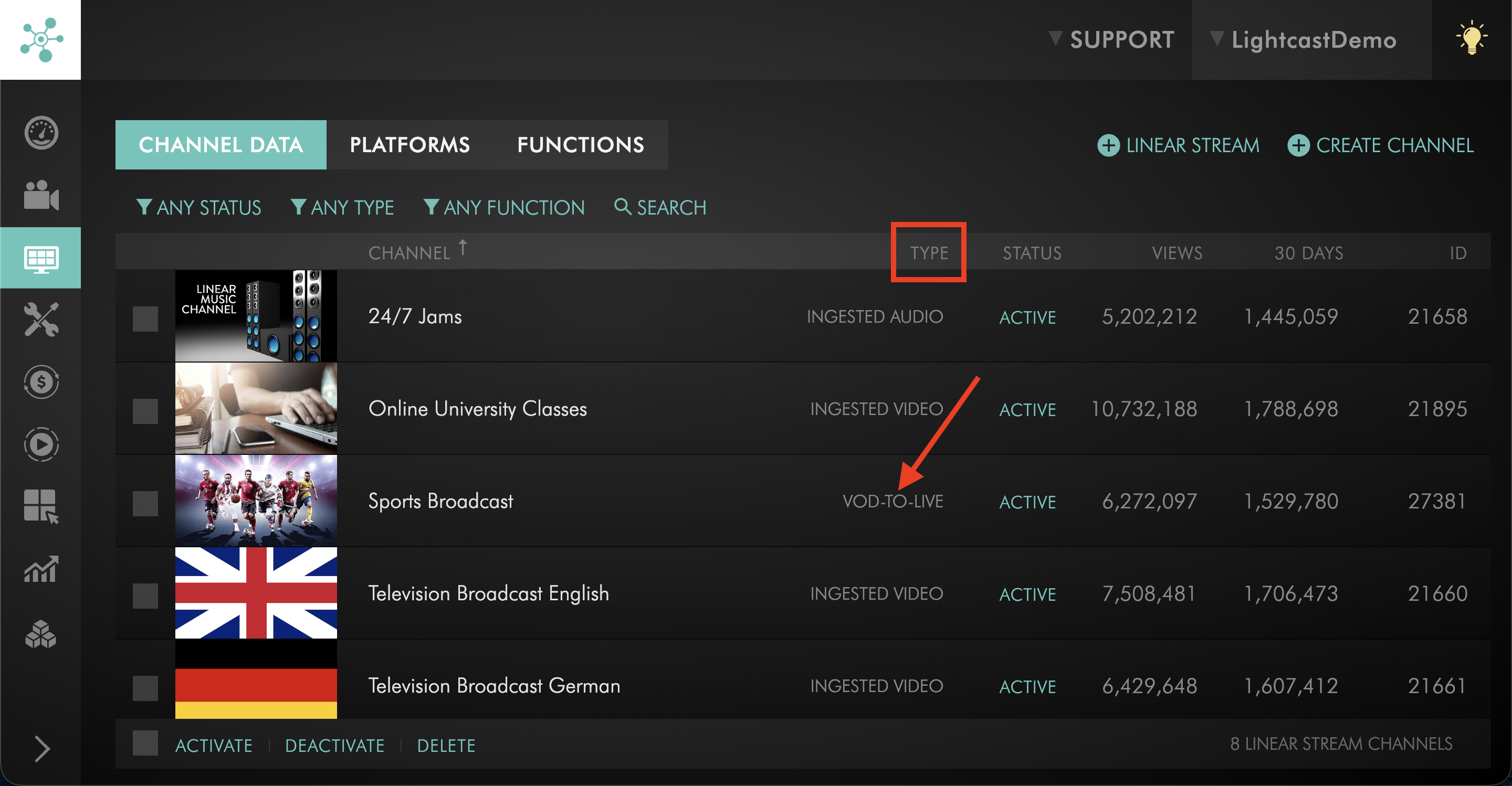
The Channel may be marked as VOD-TO-LIVE or AOD-TO-LIVE in the Type column.
Stream quality
The quality of the continuous stream depends on both the quality of the uploaded source media and the configuration of the resulting linear stream.
Higher-quality source files generally provide better results, but the final stream quality may also depend on the settings used for the VOD-to-LIVE or AOD-to-LIVE setup.
For VOD-to-LIVE, the stream quality is based on the uploaded video file quality and the stream configuration used for the setup.
For AOD-to-LIVE, the stream quality is based on the uploaded audio file quality and the stream configuration used for the setup.
Instructions
Request a VOD-to-LIVE or AOD-to-LIVE setup
Step 1
Contact Customer Support and request a VOD-to-LIVE or AOD-to-LIVE continuous loop.
Please provide:
The Channel ID of the VOD or AOD Channel you want to use as the source
Whether the playlist should play in its assigned order or use Shuffle
Step 2
Customer Support will confirm availability, setup requirements, and any applicable pricing for your account.
Find your VOD-to-LIVE or AOD-to-LIVE Channel after setup
Step 1
Log in to your Media Cloud account.
Step 2
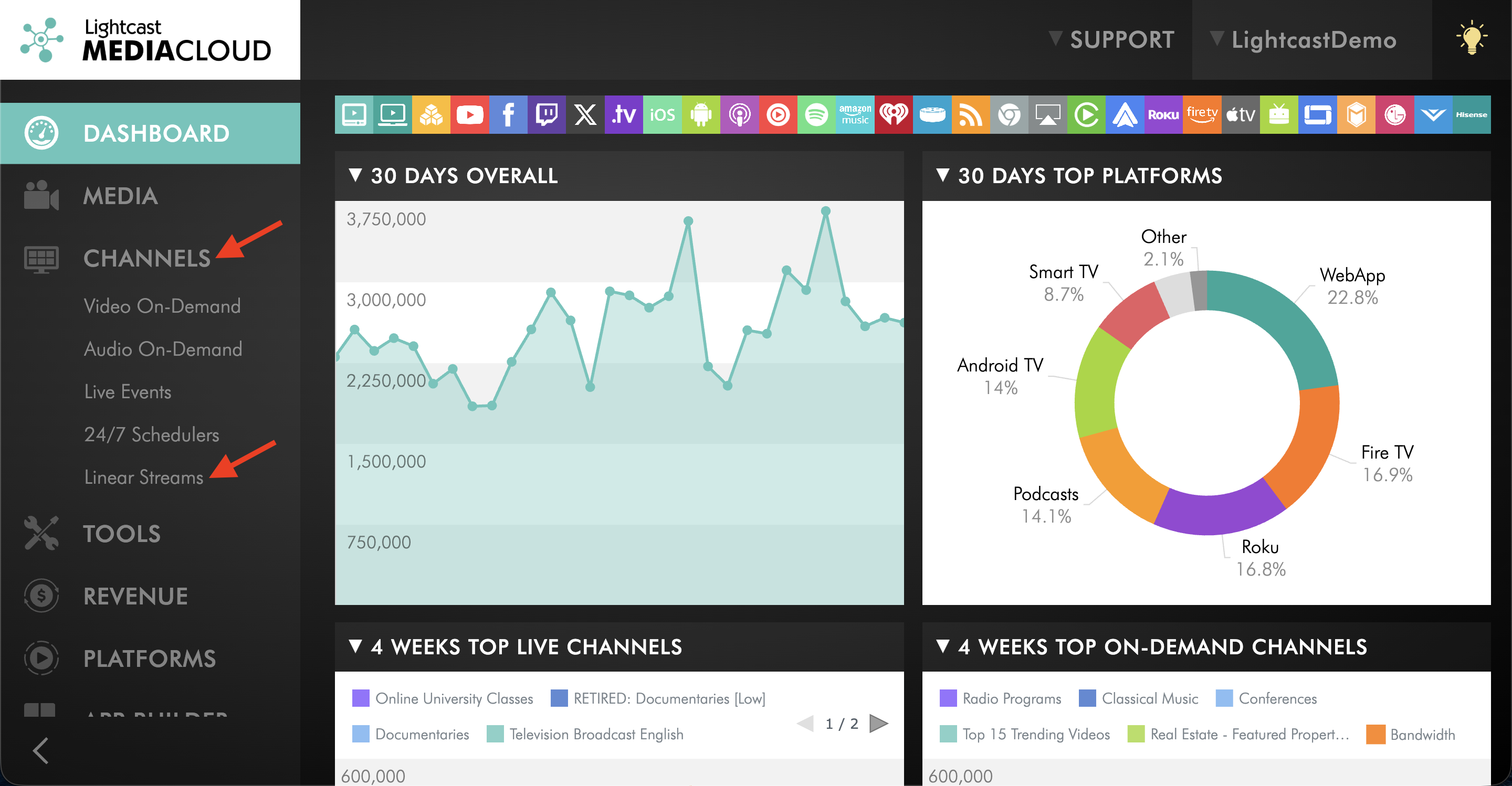
Go to CHANNELS then select Linear Streams.
Step 3
Look for the Channel marked as VOD-TO-LIVE or AOD-TO-LIVE in the Type column.
Update your Source Channel playlist
Step 1
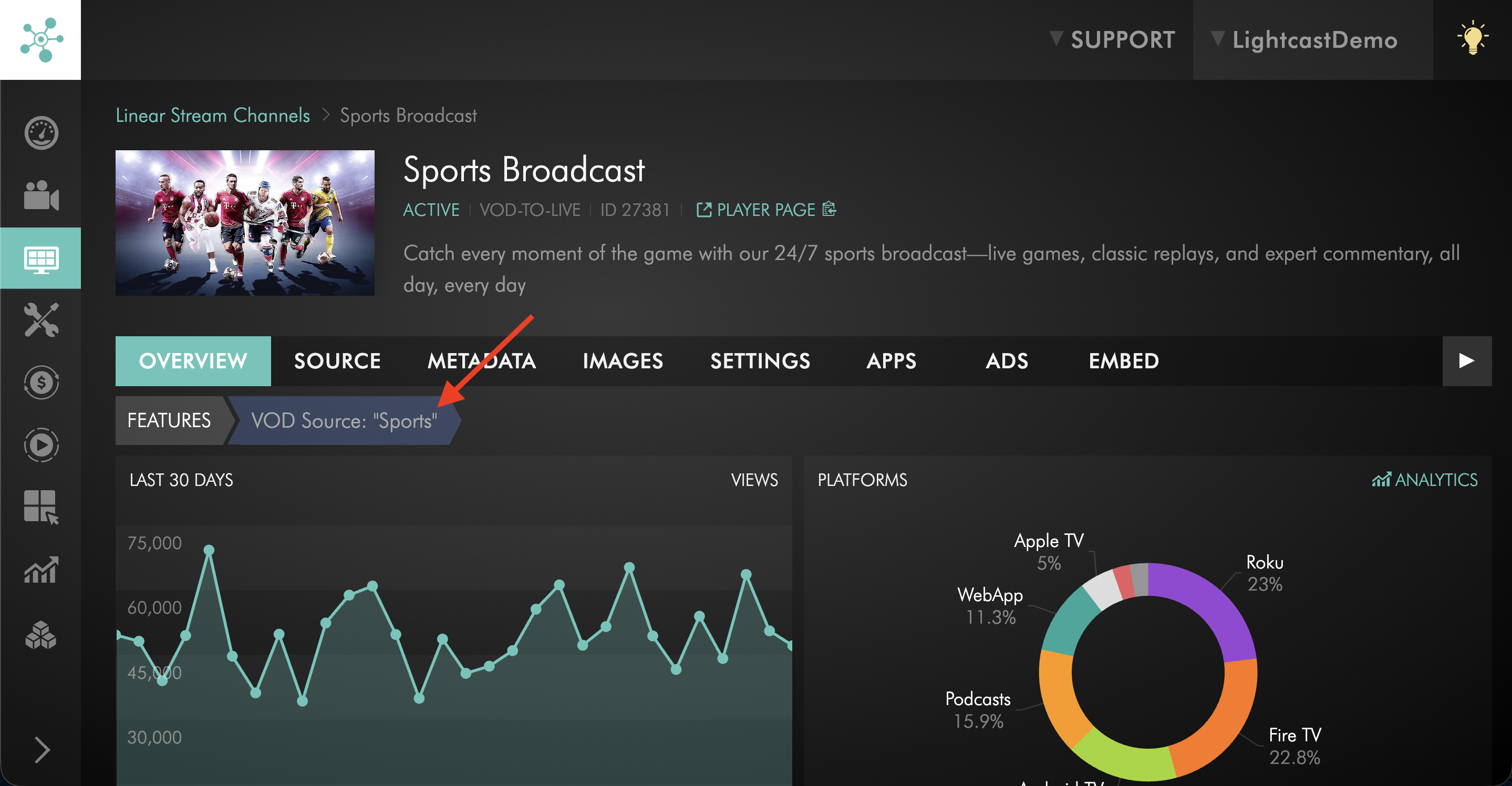
Open the VOD or AOD Channel used as the source playlist for your continuous loop.
Step 2
Update the playlist as needed.
This may include adding media items, removing media items, deactivating media items, or changing the playlist order.
To change the order of media items in the source playlist, see How to reorder media in an On-Demand Channel playlist.
If you need to upload new local media files to the source Channel, see:
Step 3
Complete playlist changes by 11:50 PM Eastern Time.
Changes completed by 11:50 PM Eastern Time will be included when the loop refreshes at midnight Eastern Time. Changes made after the cutoff may not take effect until the following daily restart.
Step 4
Review the VOD-to-LIVE or AOD-to-LIVE stream after the next loop refresh to confirm the updated playlist is playing as expected.
FAQs
Does VOD-to-LIVE or AOD-to-LIVE create a true live stream?
Yes. VOD-to-LIVE and AOD-to-LIVE create a true linear stream from your on-demand Channel playlist.
Viewers do not start at the beginning of the playlist when they open the player. Instead, they join the stream at the current point in the loop.
What is the difference between VOD-to-LIVE and AOD-to-LIVE?
VOD-to-LIVE uses a VOD Channel playlist as the source.
AOD-to-LIVE uses an AOD Channel playlist as the source.
Both create a continuous linear stream and function the same way from the viewer’s perspective.
When does the VOD-to-LIVE loop restart?
The VOD-to-LIVE or AOD-to-LIVE loop restarts from the beginning every day at midnight Eastern Time.
At midnight Eastern Time, playback starts again from the beginning of the playlist, regardless of where the stream was in the playlist before the daily restart.
When do playlist changes take effect?
Playlist changes take effect after the loop refreshes at midnight Eastern Time.
To make sure your changes are included in the next loop, complete playlist updates by 11:50 PM Eastern Time.
Changes made after the cutoff may not take effect until the following daily restart.
Do playlist changes update the continuous stream immediately?
No. Changes to the source playlist do not update the currently running continuous stream immediately.
They are applied when the loop is regenerated for the next daily restart.
How much content can be included in the VOD-to-LIVE playlist?
The source playlist may contain more than 24 hours of video or audio content. However, only 24 hours of content can play in each daily loop.
If Shuffle is not enabled, the loop uses the first 24 hours of content from the source playlist.
If Shuffle is enabled, the Media Cloud randomizes the playlist and uses 24 hours of content for that day’s loop.
What happens if the source playlist is shorter than 24 hours?
If the source playlist is shorter than 24 hours, the playlist repeats continuously until the daily restart at midnight Eastern Time.
What happens if the source playlist is longer than 24 hours?
If the source playlist is longer than 24 hours, only 24 hours of content will play in each daily loop.
If Shuffle is not enabled, the loop uses the first 24 hours of content from the source playlist.
If Shuffle is enabled, the Media Cloud randomizes the playlist and uses 24 hours of content for that day’s loop.
Where can I find my VOD-to-LIVE or AOD-to-LIVE Channel after setup?
After setup is complete, the Channel appears under CHANNELS → Linear Streams.
Look for VOD-TO-LIVE or AOD-TO-LIVE in the Type column.
Which bitrate quality is used for my VOD-to-LIVE stream?
The VOD-to-LIVE stream quality depends on the uploaded video file quality and the configuration of the resulting linear stream.
Higher-quality source files generally provide better results, but the final stream quality may also depend on the settings used for the VOD-to-LIVE setup.
What quality is used for my AOD-to-LIVE stream?
The AOD-to-LIVE stream quality depends on the uploaded audio file quality and the configuration of the resulting linear stream.
Higher-quality source files generally provide better results, but the final stream quality may also depend on the settings used for the AOD-to-LIVE setup.
Can I change the playlist after VOD-to-LIVE or AOD-to-LIVE is set up?
Yes. You can update the source playlist by adding, removing, deactivating, or reordering media items.
Changes become effective after the loop refreshes at midnight Eastern Time, as long as they are completed by 11:50 PM Eastern Time.
Can the playlist be shuffled?
Yes. The playlist can be shuffled if the Shuffle feature is enabled for the VOD-to-LIVE or AOD-to-LIVE setup.
When Shuffle is enabled, the media items play in a randomized order instead of following their assigned playlist positions. The Shuffle order is regenerated each day when the loop restarts at midnight Eastern Time.
If you want the playlist to play in a specific order, make sure Shuffle is not enabled and arrange the source Channel playlist in the order you want viewers to receive it.
Pricing
VOD-to-LIVE and AOD-to-LIVE continuous loops require Lightcast setup. A one-time setup fee may apply.
If you want the source playlist to play in a randomized order, the Shuffle feature can be enabled for the continuous loop setup. An additional one-time setup fee may apply.
Contact Customer Support to confirm availability, setup requirements, and pricing for your account.