
Understanding Apple TV app names and Apple Developer Account names
Overview
This article explains why your Apple TV app name should match your Apple Developer Account name when possible, and what to prepare if Apple requests proof of ownership, permission, or intellectual property rights during app review.
How it works
Apple reviews Apple TV apps before they are approved for the App Store. During review, Apple may compare your app name, Apple Developer Account name, app metadata, graphics, and app content to confirm that you have the right to publish the app and use the content.
If your Apple TV app name is different from the name listed on your Apple Developer Account, Apple may reject the app or request proof that the app, content, and Developer account belong to the same organization or are being used with proper permission.
Apple’s App Review Guidelines state that apps should only include content you created or have a license to use. Apple also states that apps should not include misleading, false, or copycat names, metadata, or developer names. Apps should be submitted by the person or legal entity that owns or has licensed the intellectual property and other relevant rights.
To reduce the chance of review delays or rejection, use an app name that clearly matches your organization and the content you provide. When possible, your Apple TV app name should be consistent with your Apple Developer Account name.
If you need to use a different app name, prepare documentation before the app is submitted. This helps you respond quickly if Apple asks for proof of ownership, licensing, permission, or affiliation.
The iOS mobile app and Apple TV app can use the same app name if both apps are bundled together in the same Apple Developer account. Lightcast must have access to your Apple Developer Account so both apps can be developed and submitted with the same app name.
As the developer, you are responsible for making sure you have the necessary rights to distribute your app through the App Store. If you need help understanding which parts of your Apple TV app are provided by Lightcast and which parts are provided by your organization, contact Customer Support.
Instructions
Choose an Apple app name
When completing your Apple TV app specs form, choose an Apple TV app name that clearly represents your organization and content.
When possible, use an app name that matches or closely aligns with the legal name on your Apple Developer Account.
When to prepare a proof of ownership or permission letter
If your Apple TV app name is different from your Apple Developer Account name, prepare a permission or affiliation letter before the app is submitted.
The letter should explain the relationship between:
Your organization
Your Apple Developer Account name
Your Apple TV app name
The content included in the app
Contact Customer Support if you need a permission letter template.
What to include in the permission letter
Your letter should include the information Apple may need to verify your rights:
Your name or company name
The Apple Developer Account name
The Apple TV app name
A clear explanation of how the Apple Developer Account name and app name are connected
Details explaining your affiliation with the business, organization, or app
Relevant signatures and dates
When to prepare a license agreement
If the app includes content that you did not create, be prepared to provide license agreements or other proof that you have the right to use the content.
If the app includes content produced by you or your organization, explain that the content was produced by you or your team and that you own the rights to use it in the app.
How to submit documentation if Apple rejects your app
Step 1
Log in to your App Store Connect account.
Step 2
Click Apps in the top menu.

Step 3
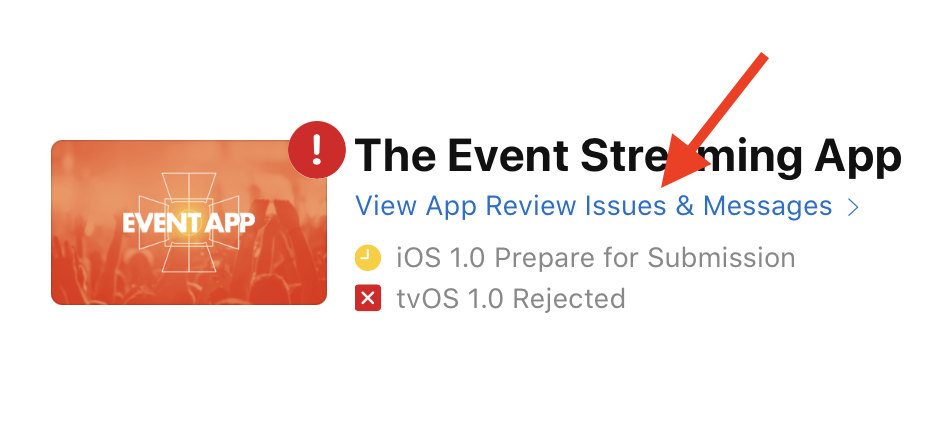
Find the app that was rejected.
If the app tile shows View App Review Issues & Messages, click that link to open the app review issues.
Step 4
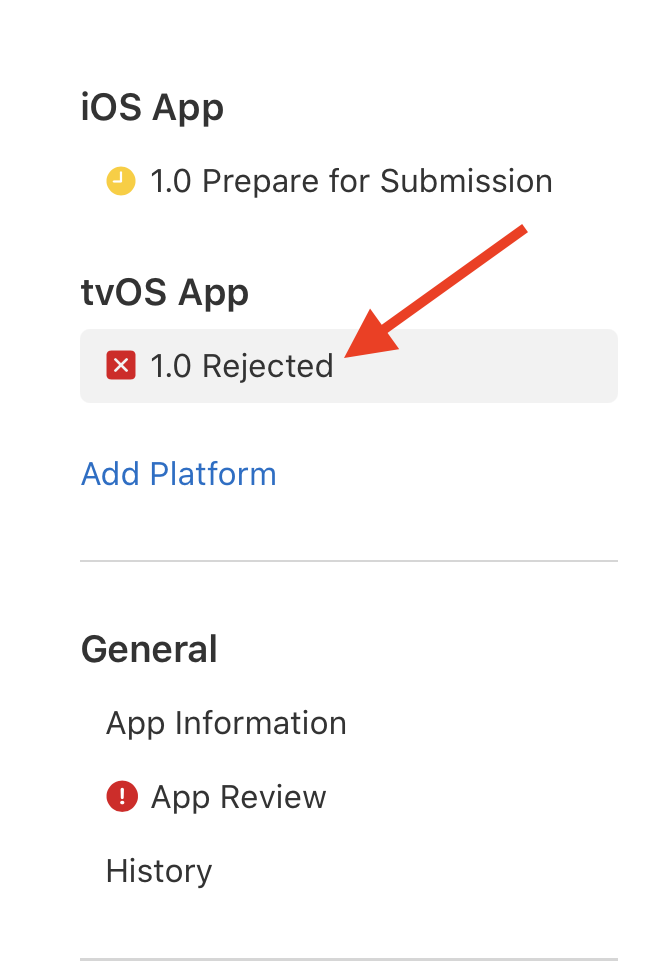
Open the rejected app version.
If the app has both an iOS version and a tvOS version, select the platform that Apple rejected.
The rejected version may show a status such as Rejected, Metadata Rejected, or something similar.
Step 5
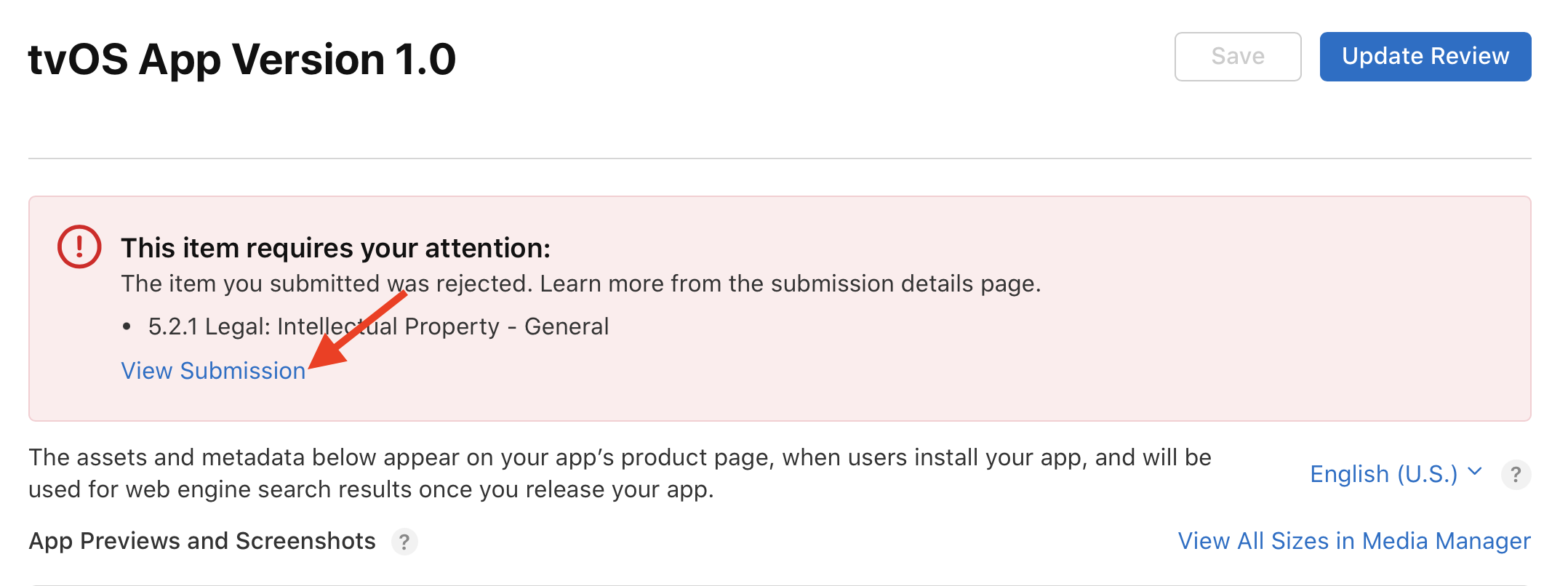
Click View Submission in the red box that says This item requires your attention.
This opens Apple’s app review message.
Step 6
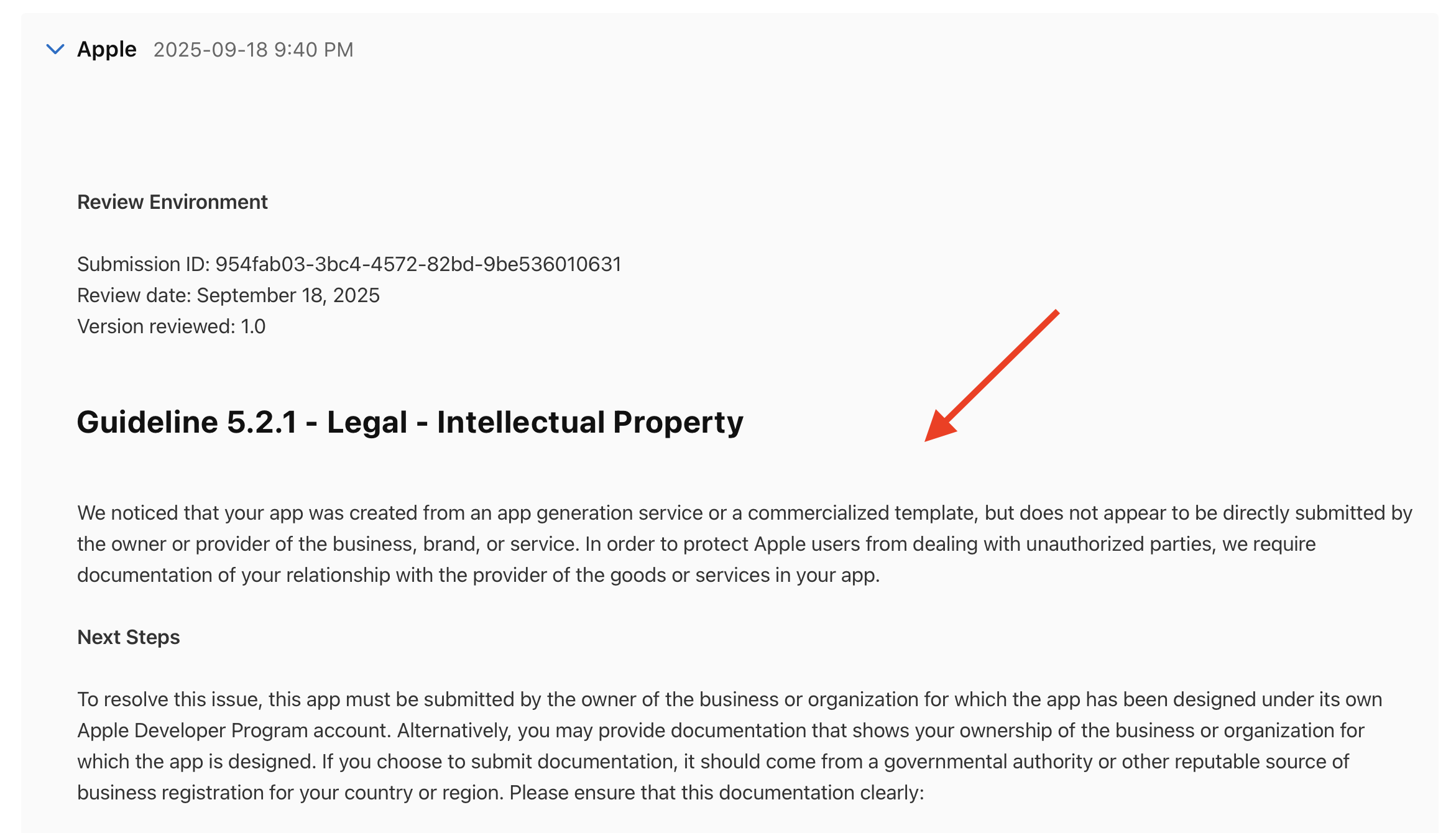
Review Apple’s rejection message carefully so you can respond with the correct documentation.
Step 7
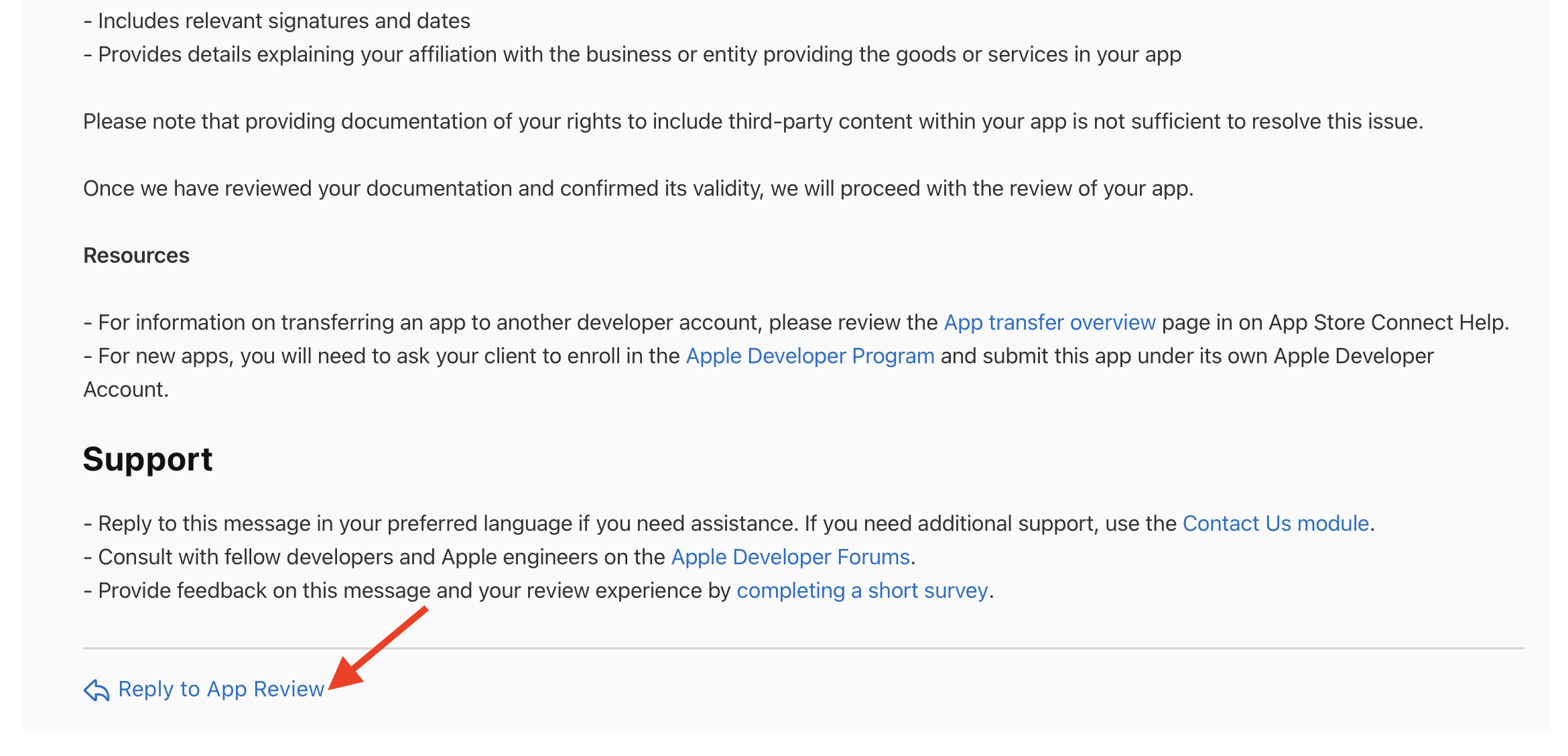
Click Reply to App Review.
Step 8
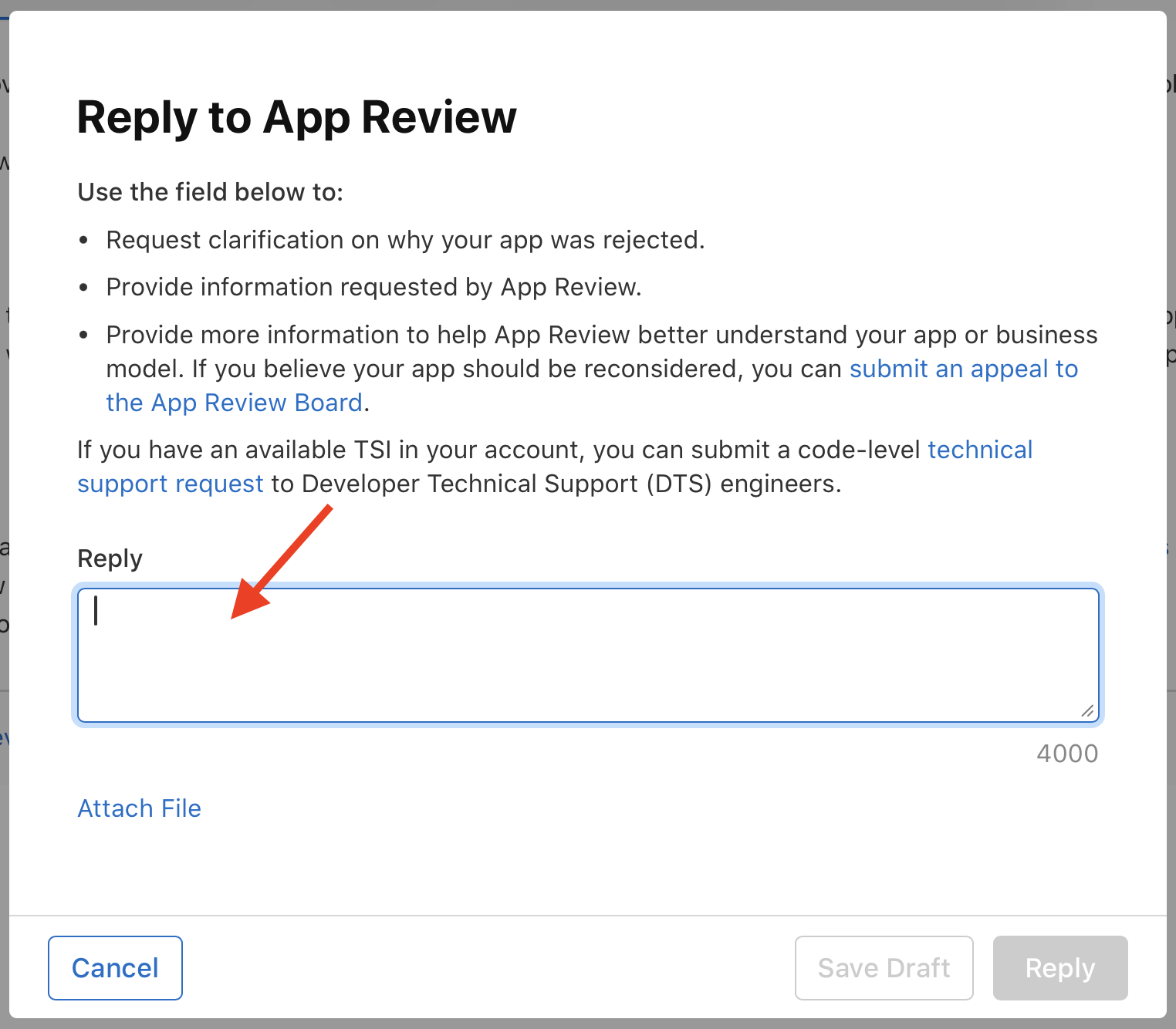
Enter your reply to Apple.
Your reply should explain that you have the rights to use the app name, content, graphics, and related metadata.
Step 9
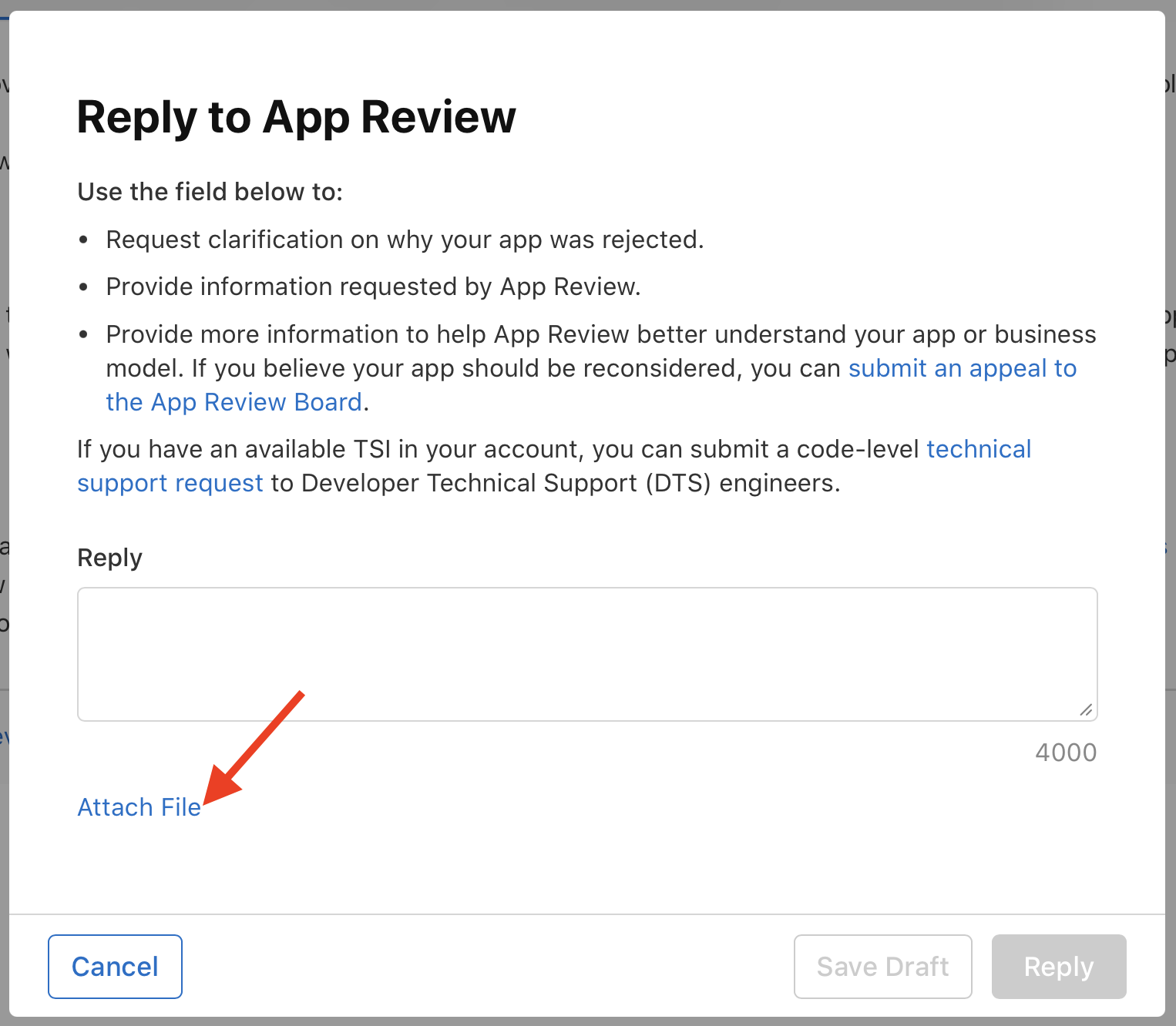
Click Attach File and attach your permission letter, license agreement, or other proof of rights.
Step 10
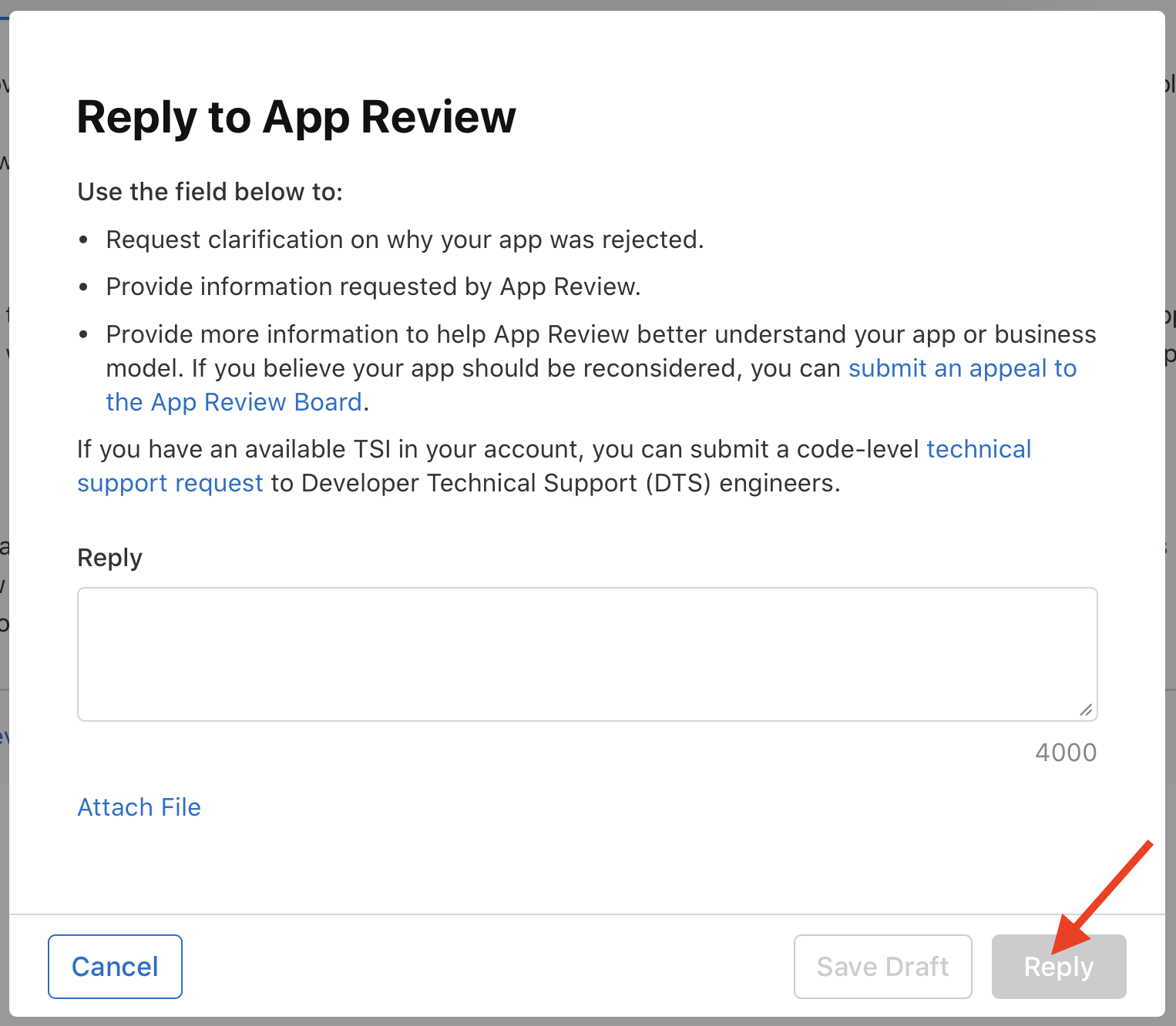
Click Reply to submit your response to Apple.
Step 11
After Apple approves your documentation, contact Customer Support and let them know Apple accepted your documentation.
This is important because Lightcast’s developers need to know when the Apple TV app can be resubmitted.
FAQs
Why should the Apple TV app name match the Apple Developer Account name?
Matching the app name to the Apple Developer Account name can help Apple confirm that the account owner has the right to publish the app and its content.
If the names do not match, Apple may reject the app or request additional documentation before approving it.
Can the Apple TV app name be different from the Apple Developer Account name?
Yes. However, Apple may ask for proof that you have the right to use the app name, brand, content, graphics, and related metadata.
This does not always mean the app cannot be approved. It means you may need to provide documentation that explains the relationship between the app name and the Apple Developer Account name.
Can the iOS mobile app and Apple TV app use the same app name?
Yes. The iOS mobile app and Apple TV app can use the same app name if both apps are bundled together in the same Apple Developer Account.
Lightcast must have access to your Apple Developer Account so both apps can be developed and submitted with the same app name.
How does Lightcast get access to the Apple Developer Account?
Lightcast must be invited to your Apple Developer Account as an Admin.
For full setup instructions, see How to create an Apple Developer Account for your Apple TV or iOS mobile app.
Should proof of ownership be prepared in advance?
Only if the Apple Developer Account name differs from the Apple TV app name. Preparing this documentation in advance can help prevent delays if Apple requests proof during the app review process.
If the app includes content that you did not create, you should also be prepared to provide license agreements or other proof that you have the right to use the content.
What documentation may Apple request if the app name and Developer Account name are different?
Apple may request documentation that confirms the relationship between your organization, your Apple Developer Account, your app name, and the content in the app.
This may include a permission letter, license agreement, proof of ownership, or other documentation that shows you have the right to publish the app and content.
What should be provided if the app contains licensed content?
If your app contains content that was not produced by your organization, be prepared to provide license agreements or written permission showing that you have the right to use the content in your app.
What should be provided if the app contains original content?
If your app contains content produced by you or your organization, explain to Apple that the content was produced by you or your team and that you own the rights to use it in the app.
What should happen after Apple approves the permission or intellectual property claim?
After Apple approves your claim, contact Customer Support and let them know Apple accepted your documentation.
Lightcast’s developers need this information so they can continue with the Apple TV app submission process.