
How to create an Apple Developer Account for your Apple TV or iOS mobile app
Overview
This article explains how to create an Apple Developer Account or update an existing one so Lightcast can submit your Apple TV or iOS mobile app to Apple.
Use this guide if you need to enroll in the Apple Developer Program, complete Apple’s verification steps, or grant Lightcast the account access required for app submission.
How it works
To publish your Apple TV or iOS mobile app, you must have an active Apple Developer Account enrolled as a Company/Organization or Non-Profit. Apple reviews your enrollment, verifies your organization details, and requires you to accept the Apple Developer Program License Agreement before your membership becomes active.
Before continuing, make sure you have a corporate domain email address, a D-U-N-S Number, Two-Factor Authentication enabled on your Apple ID, legal authority to enroll your organization, and a credit card unless your Non-Profit fee waiver is approved.
At the end of the setup process, you must invite developer@lightcast.com as an Admin and enable access to Certificates, Identifiers & Profiles so Lightcast can submit your app to Apple.
Instructions
If you already have an active Apple Developer Account, follow the steps under Case 1. If you already have an Apple ID but not a Developer Account, follow Case 2. If you do not have an Apple ID yet, start with Case 3.
Case 1: I already have an Apple Developer Account
Step 1
Go to: https://developer.apple.com/account.
Step 2
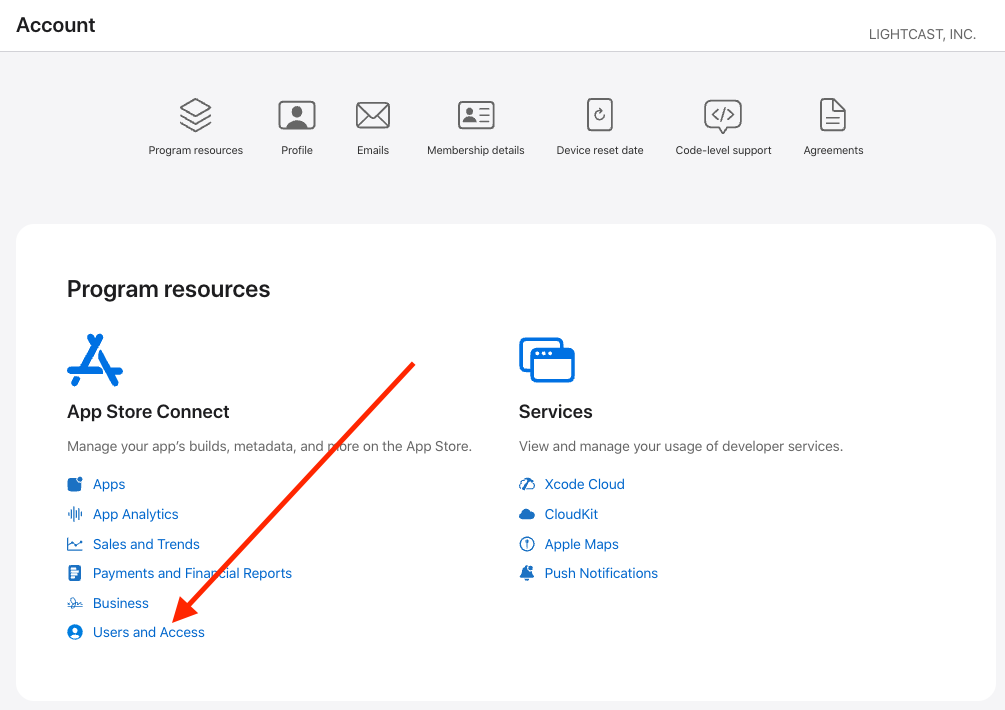
Click Users and Access.
Step 3
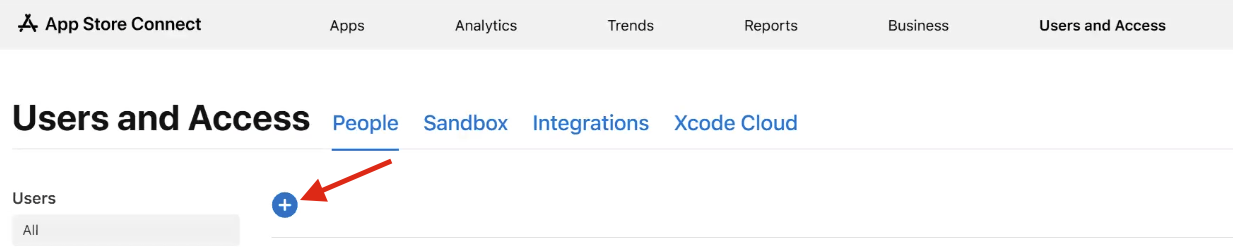
Click the ”+” button to add a new user.
Step 4
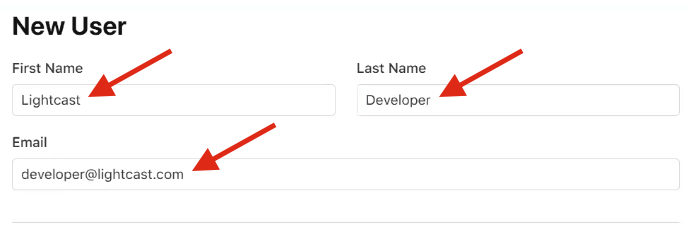
Enter the following information:
First Name: Lightcast
Last Name: Developer
Email Address: developer@lightcast.com
Step 5
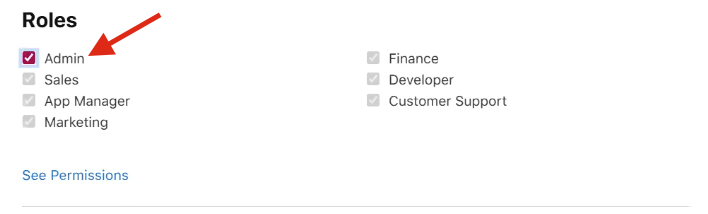
Under Roles, select: Admin.
Step 6
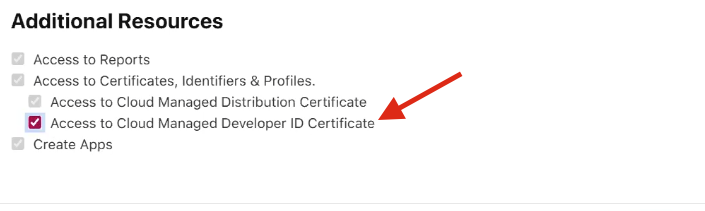
Under Developer Resources (bottom of page), enable: Access to Cloud Managed Developer ID Certificate.
Step 7
Click Next and then Invite.
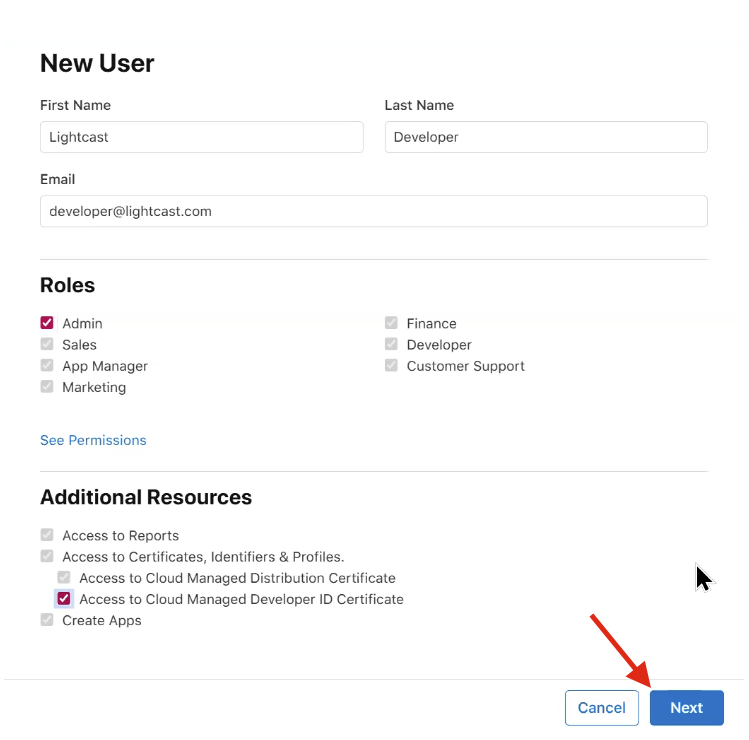
Please Note: If we are not invited as Admin and do not have access to the Access to Cloud Managed Developer ID Certificate permission, Apple will not allow us to submit your app.
Security Notice
Do not send us your login credentials. Apple uses Two-Factor Authentication, and shared credentials cannot be used securely.
Case 2: I have an Apple ID but not a Developer Account
If you already have an Apple ID, follow the steps below.
Step 1
Obtain a D-U-N-S Number before starting enrollment.
Apple requires a D-U-N-S Number for all Company/Organization enrollments.
Apply for a free D-U-N-S number here: https://www.dnb.com/duns-number/get-a-duns.html
Processing timeline:
Up to 5 business days to receive your number
Up to 2 additional business days for Apple to receive confirmation from Dun & Bradstreet
You cannot complete enrollment without this number.
More information: https://developer.apple.com/support/D-U-N-S/
Step 2
Once you have your D-U-N-S number, go to: https://developer.apple.com/programs/enroll/.
Step 3
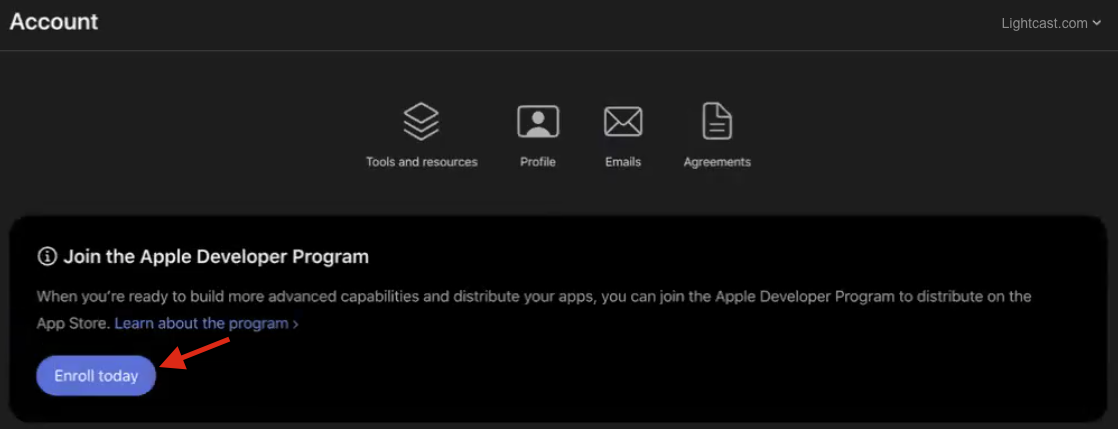
Click Enroll today.
Step 4
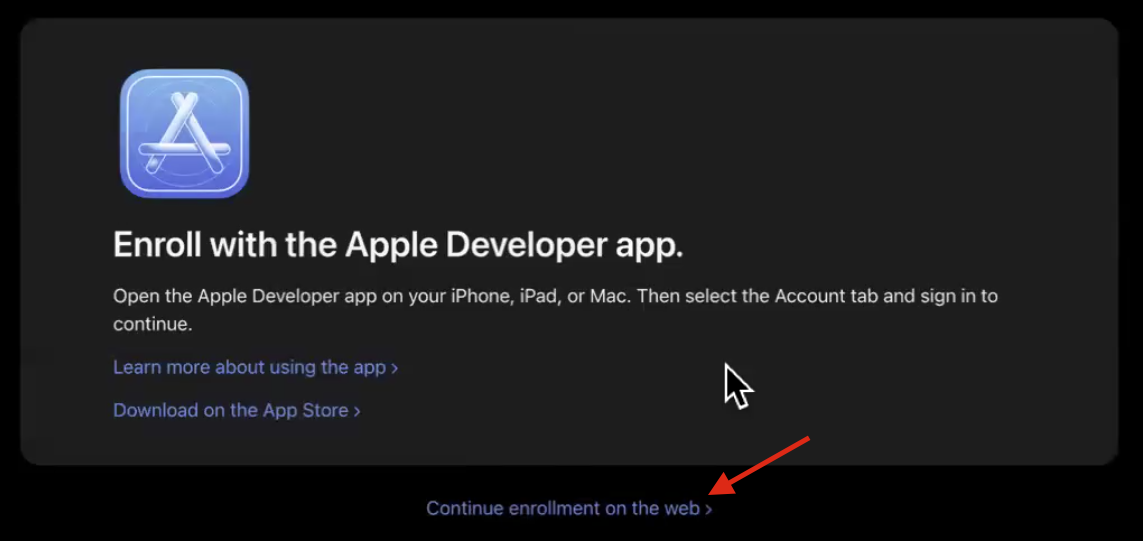
Select Continue enrollment on the web.
Step 5
Enter your legal personal information.
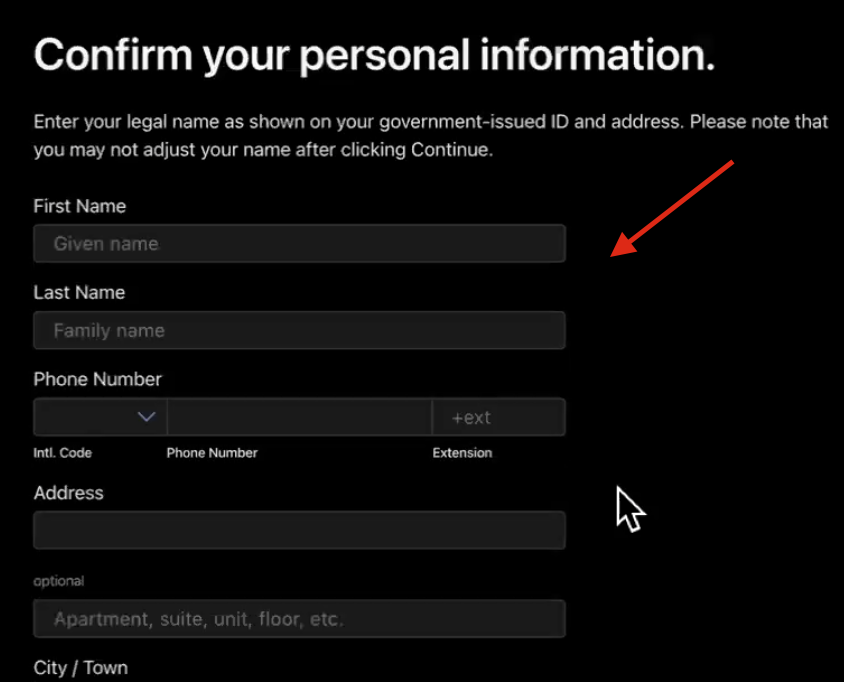
Step 6
Complete the Compliance Screening.
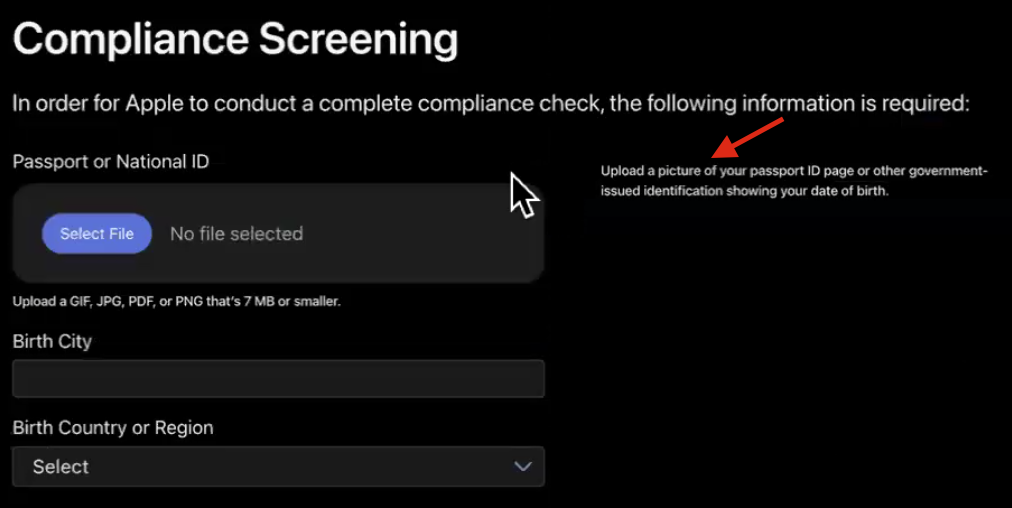
Step 7
When prompted, select your entity type:
Company/Organization
OR
Non-Profit
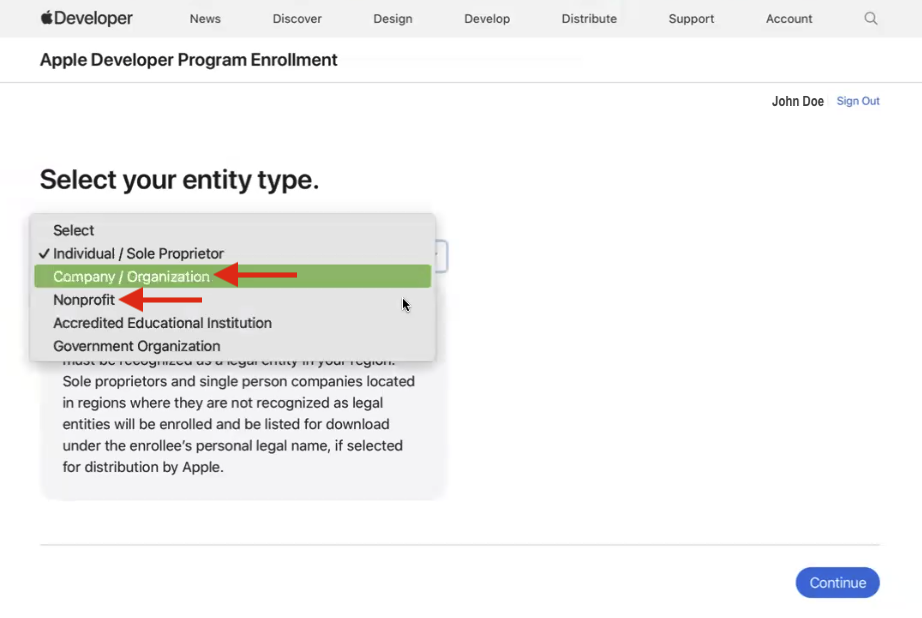
Do not select “Individual.”
If you enroll as an Individual, Lightcast will not have the permissions required to properly manage and submit your app.
Step 8
Enter your organization details:
Legal Entity Name exactly as it appears on your D-U-N-S record
D-U-N-S Number
Organization website
Organization phone number
Work email address using your company domain
Step 9
Verify your email address using the code Apple sends you.
If enrolling as Non-Profit, you may request a membership fee waiver on this page.
Step 10
Submit your enrollment.
After submission:
Apple verifies your D-U-N-S number and organization details
Apple will call or email you within 3–5 business days
Step 11
After verification is approved, log in to your Apple Developer account at: https://developer.apple.com/account
When prompted, click review and accept the Program License Agreement.
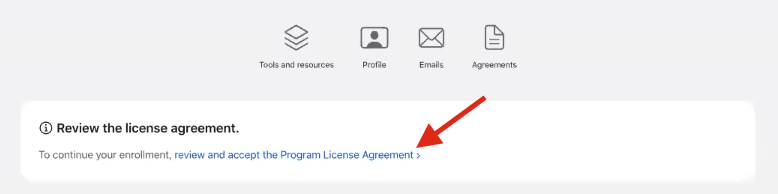
Check the box and click Continue to accept the terms
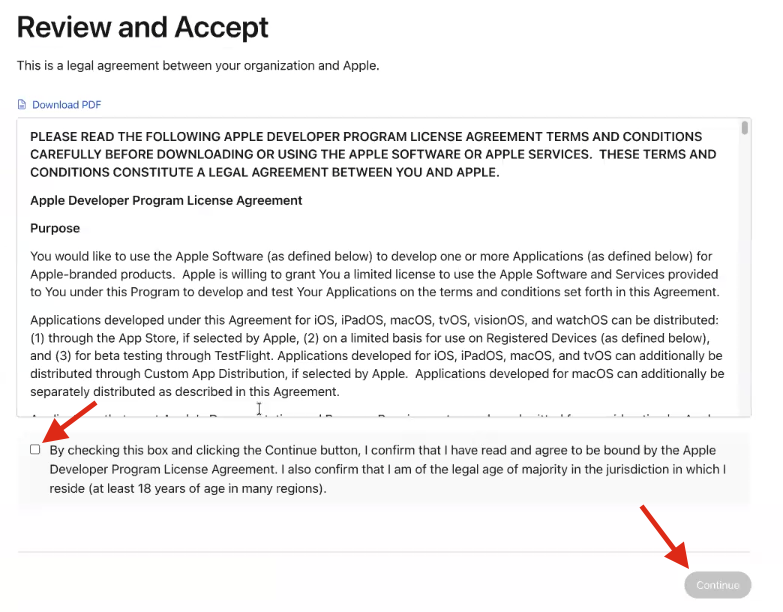
You must accept this agreement before you can complete payment and activate your membership.
Step 12
Once you have accepted the Program License Agreement, review the information on the page and then click Purchase.
Add a credit card and complete the purchase to pay the annual developer fee.
If your Non-Profit fee waiver is approved, payment is not required.
Step 13
Once your account is active, return to Case 1 and follow the steps to invite Lightcast.
Case 3: I do not have an Apple ID or a Developer Account
If you do not have an Apple ID, complete the steps below before continuing to Case 2.
Step 1
Create your Apple ID here: https://appleid.apple.com/account#!&page=create
Use your company's corporate domain email address.
Do no use free email services such as Gmail or Yahoo. Apple may reject organization enrollments using generic email addresses because they cannot verify company ownership.
Step 2
Apple requires Two-Factor Authentication before enrollment. See Apple’s official instructions at: https://support.apple.com/en-us/HT204915
Go to: https://appleid.apple.com/account/manage
Step 3
Click Account Security.
Step 4
Add a Trusted Phone Number.
Step 5
Verify a trusted device using one of the following:
iPhone
iPad
iPod touch
Mac
Step 6
After setup, confirm that your device appears as a trusted device in Account Security.
Step 7
Once your Apple ID is ready and Two-Factor Authentication is enabled, continue with Case 2.
Before continuing, make sure you also have your D-U-N-S Number.
Important: prevent app removal due to expired membership
Your Apple Developer membership must remain active for your app to stay live in the App Store.
If your annual membership fee is not paid:
Your Developer Account becomes inactive
Apple can remove your app from the App Store
Users will not be able to download your app
You will not be able to submit updates
Restoring access may delay relaunch or updates
To prevent this, enable automatic renewal billing in your Apple Developer account settings.
FAQs
What happens if I enroll as an Individual?
Lightcast will not have the required permissions to properly manage and submit your app.
You must enroll as Company/Organization (or Non-Profit).
How long does the full process take?
Typically:
5–7 business days for D-U-N-S
3–5 business days for Apple verification
Total average timeline: 1 – 2 weeks
If your enrollment is delayed, see: How to contact Apple Support for Apple Developer enrollment delays
What happens if my Developer membership expires?
Apple may remove your app from the App Store until your membership is renewed.
To avoid disruption, enable automatic renewal billing.
Who do I contact if enrollment fails?
Apple Developer Support:
Phone: 1-800-275-2273
Email: devprograms@apple.com
Support article: https://support.apple.com/en-us/HT201232