
How to add, remove, or reorder Channels in your published apps
Overview
This article explains how to add, remove, or reorder VOD, LIVE, and AOD Channels in your published TV apps, mobile apps, and Web Apps through the APP BUILDER section of the Media Cloud.
When to manage Channels in a published app
Use this article when you want to change which Channels appear in an app that has already been published.
This may be helpful when you want to:
Add another VOD, LIVE, or AOD Channel to a published app
Remove a Channel from a published app
Change the order of Channels in a published app
Publish only selected Channels to a specific app
If you want to add new video or audio files to a Channel that is already published in your app, see How to add new media content to your published apps.
How it works
During the app build process, the Channels included in your app specs form are the Channels Lightcast adds to your app for launch.
After your app is published, you can manage supported Channel updates through the APP BUILDER in the Media Cloud. This may include adding, removing, or reordering VOD, LIVE, and AOD Channels in your published apps.
Your Lightcast package or Service Subscription Agreement includes a certain number of VOD, LIVE, and AOD Channels. You can add all included Channels to your apps or choose only specific Channels.
If you need more Channels than your current package includes, you may need to upgrade to a package with more Channels available.
Published apps can include one Channel or multiple Channels. If you have a multi-channel TV app, your VOD, LIVE, and AOD Channels are combined into one app instead of being published as separate apps for each Channel.
Channel updates made through APP BUILDER usually appear in the app in real time when supported by the app setup and platform. In some cases, you may need to refresh or reopen the app before the update appears because the app or device may be cached.
Some Channel changes may depend on your app setup, app type, Service Package, enabled features, or Service Subscription Agreement. Development costs may apply for some app extensions or unsupported Channel changes.
Instructions
Add Channels to a published app
Step 1
Log in to your Media Cloud account.
Step 2
Open the APP BUILDER.
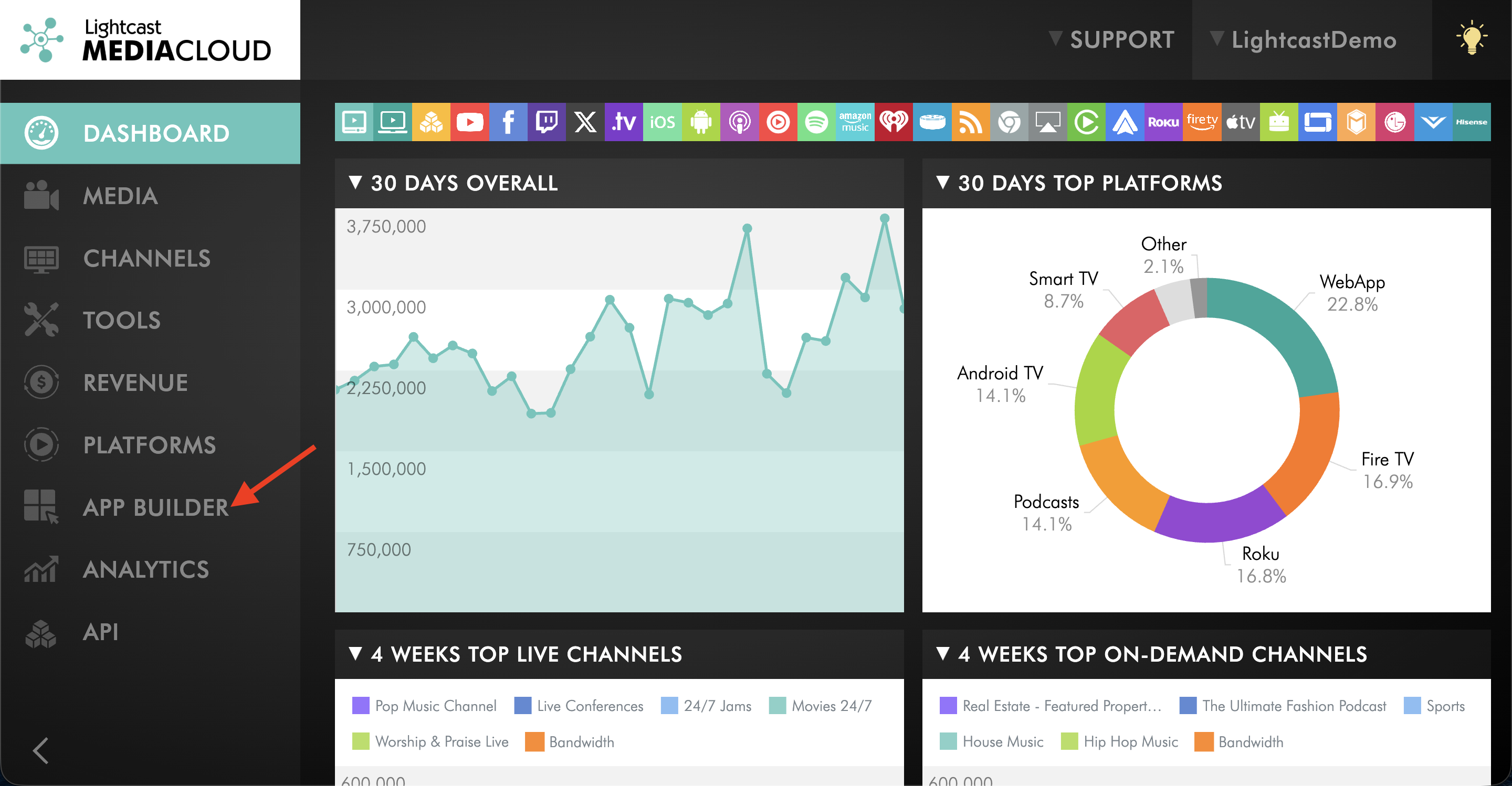
Step 3
Select the published app you want to update.
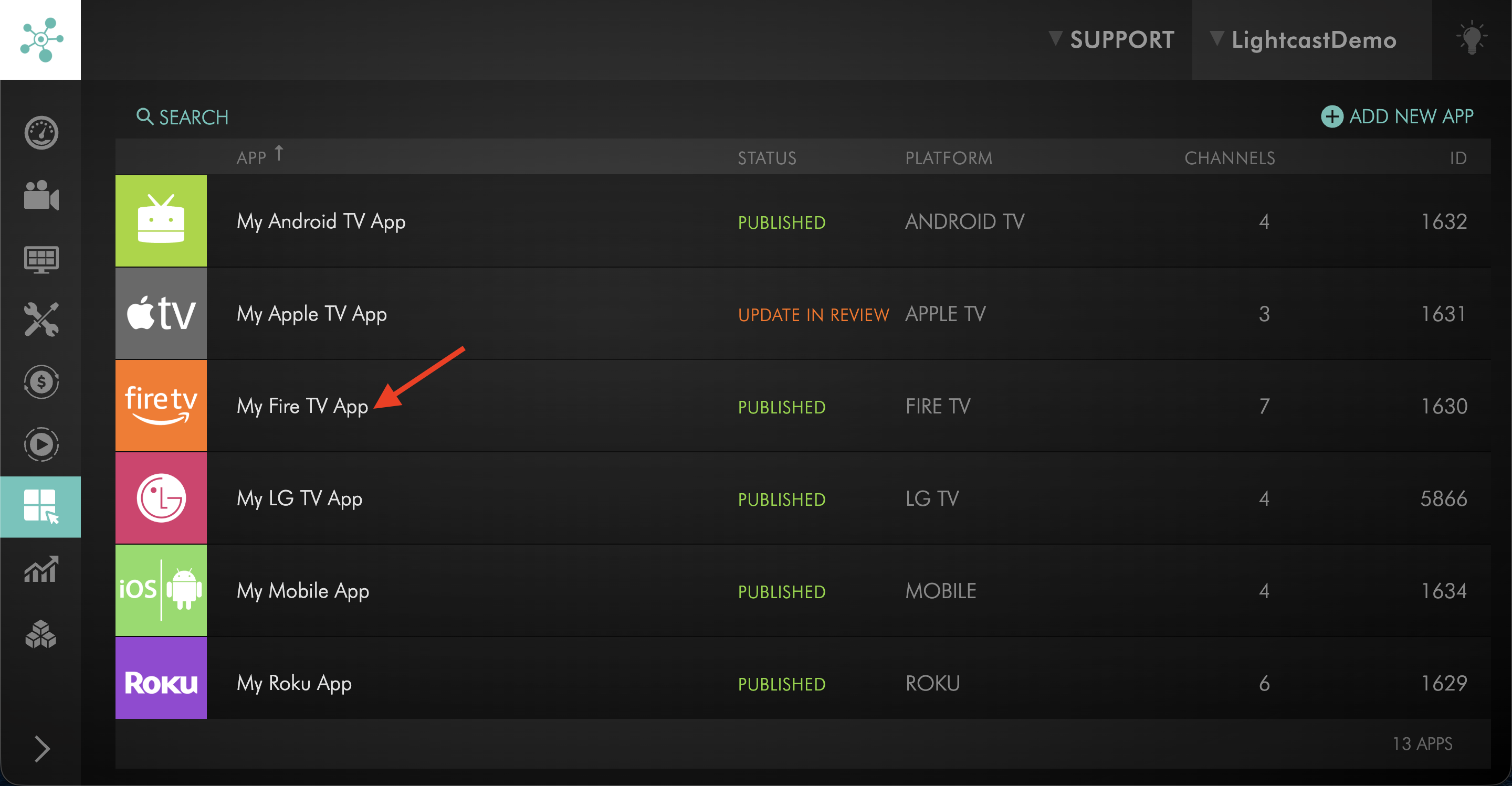
Step 4
Switch the NAVIGATION tab.
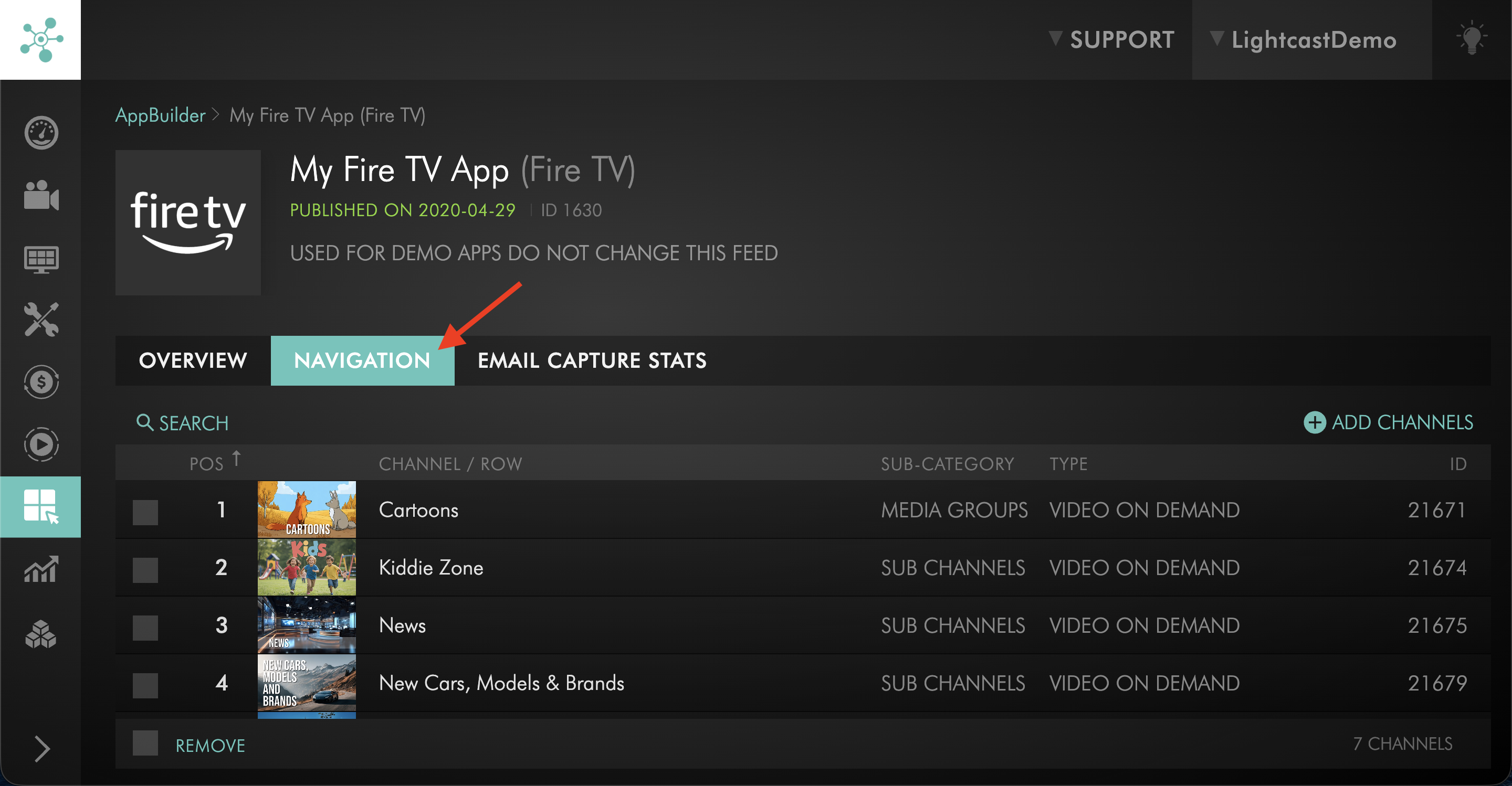
Step 5
Click + ADD CHANNELS.
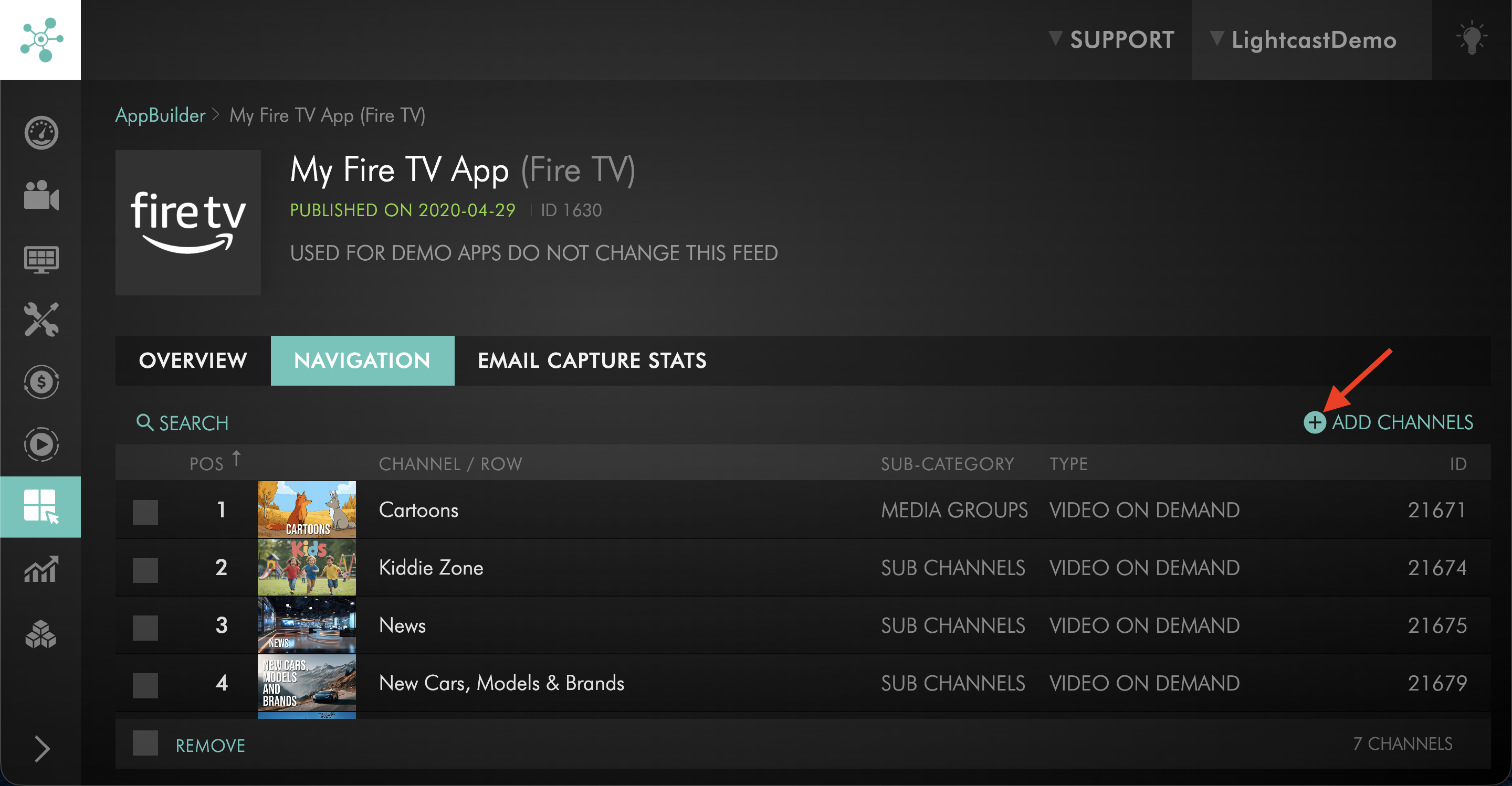
Step 6
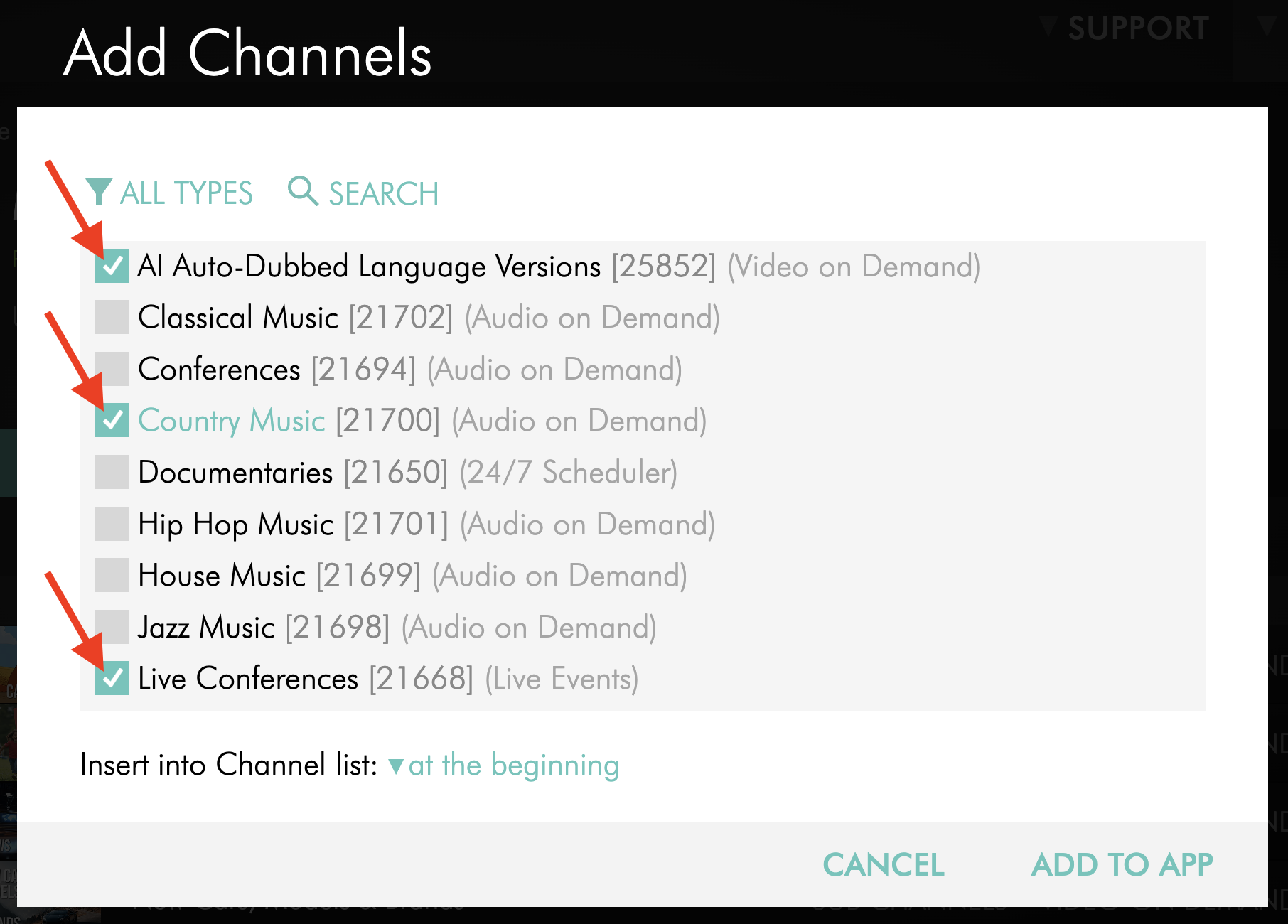
Choose the VOD, LIVE, or AOD Channels you want to add to the app.
You can add all Channels included in your package or only specific Channels.
Step 7
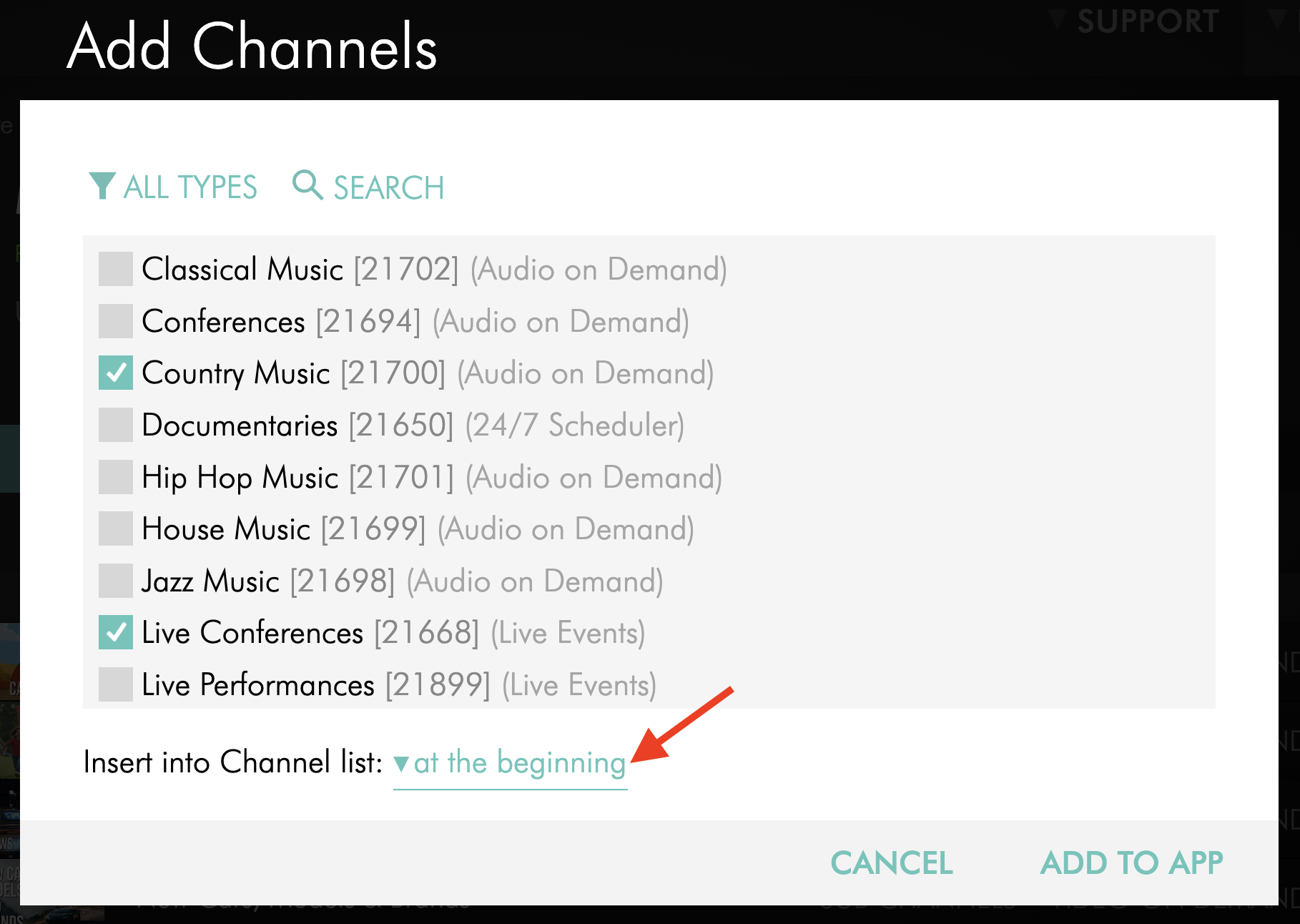
Set the desired Channel list position:
at the beginning places the Channel(s) at the top of your app
at the end places the Channel(s) at the bottom of your app
Step 8
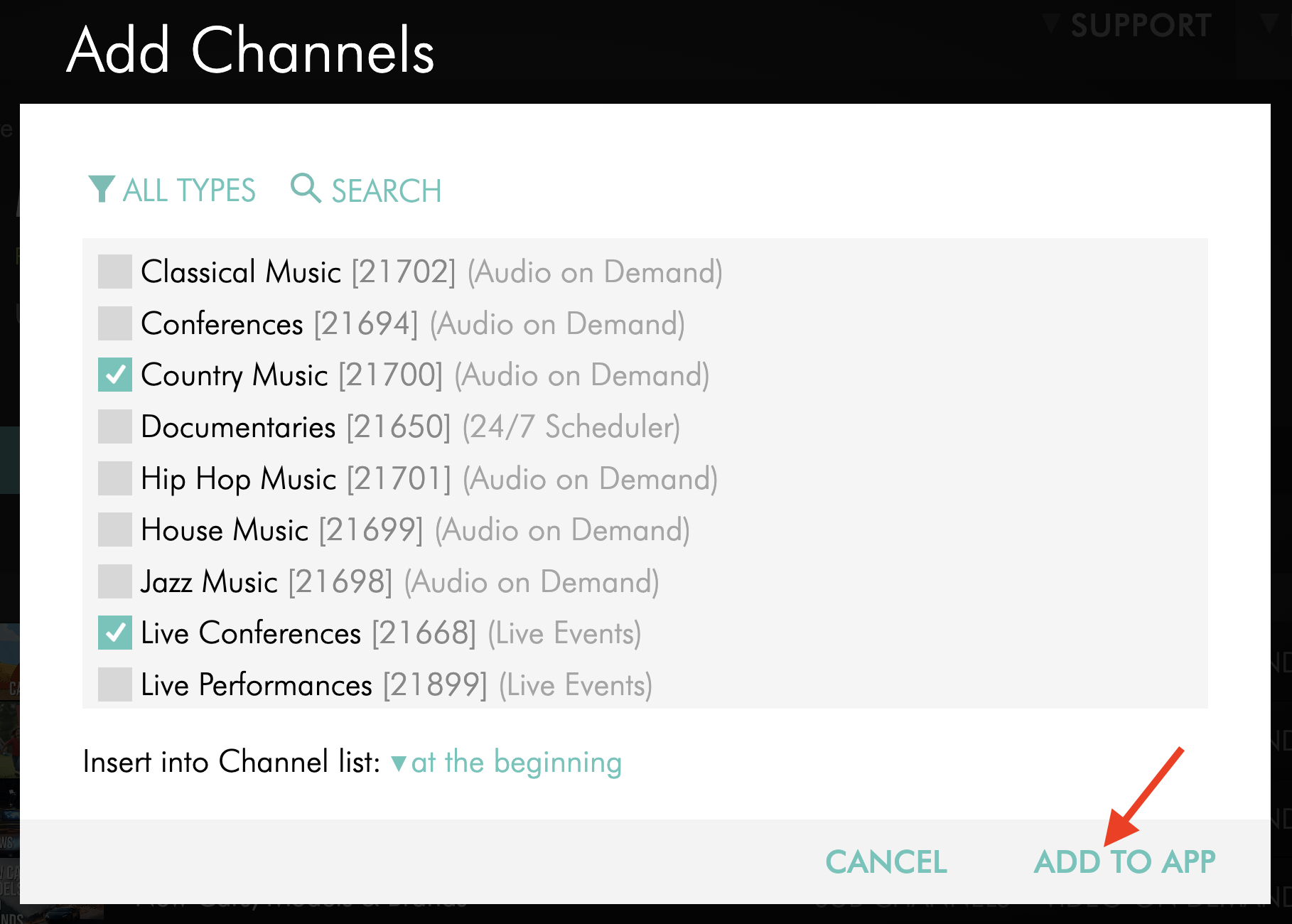
Click ADD TO APP to save your changes.
Your selected Channels will update in your app in real time.
Remove Channels from a published app
Step 1
Log in to your Media Cloud account.
Step 2
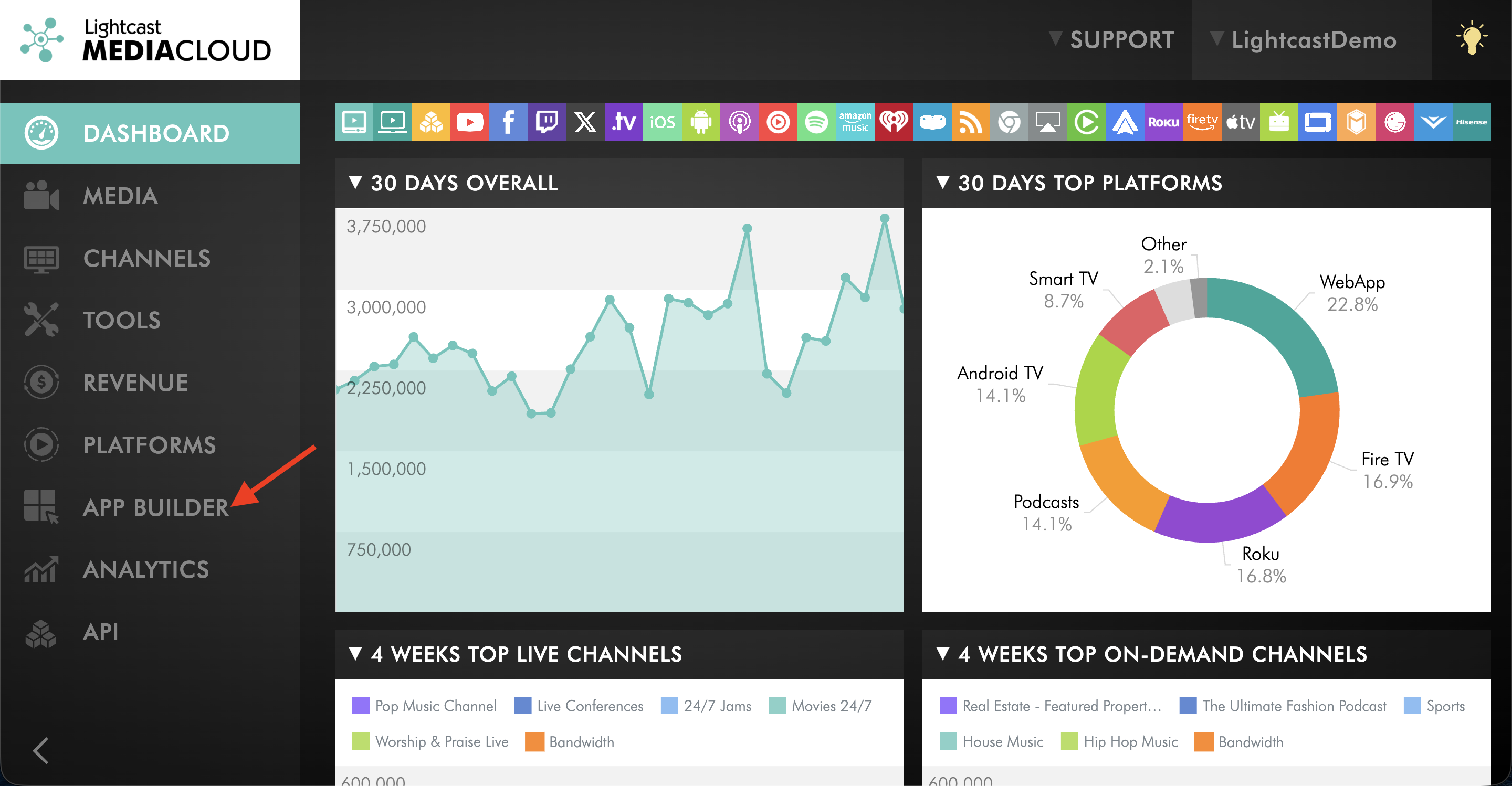
Open the APP BUILDER.
Step 3
Select the published app you want to update.
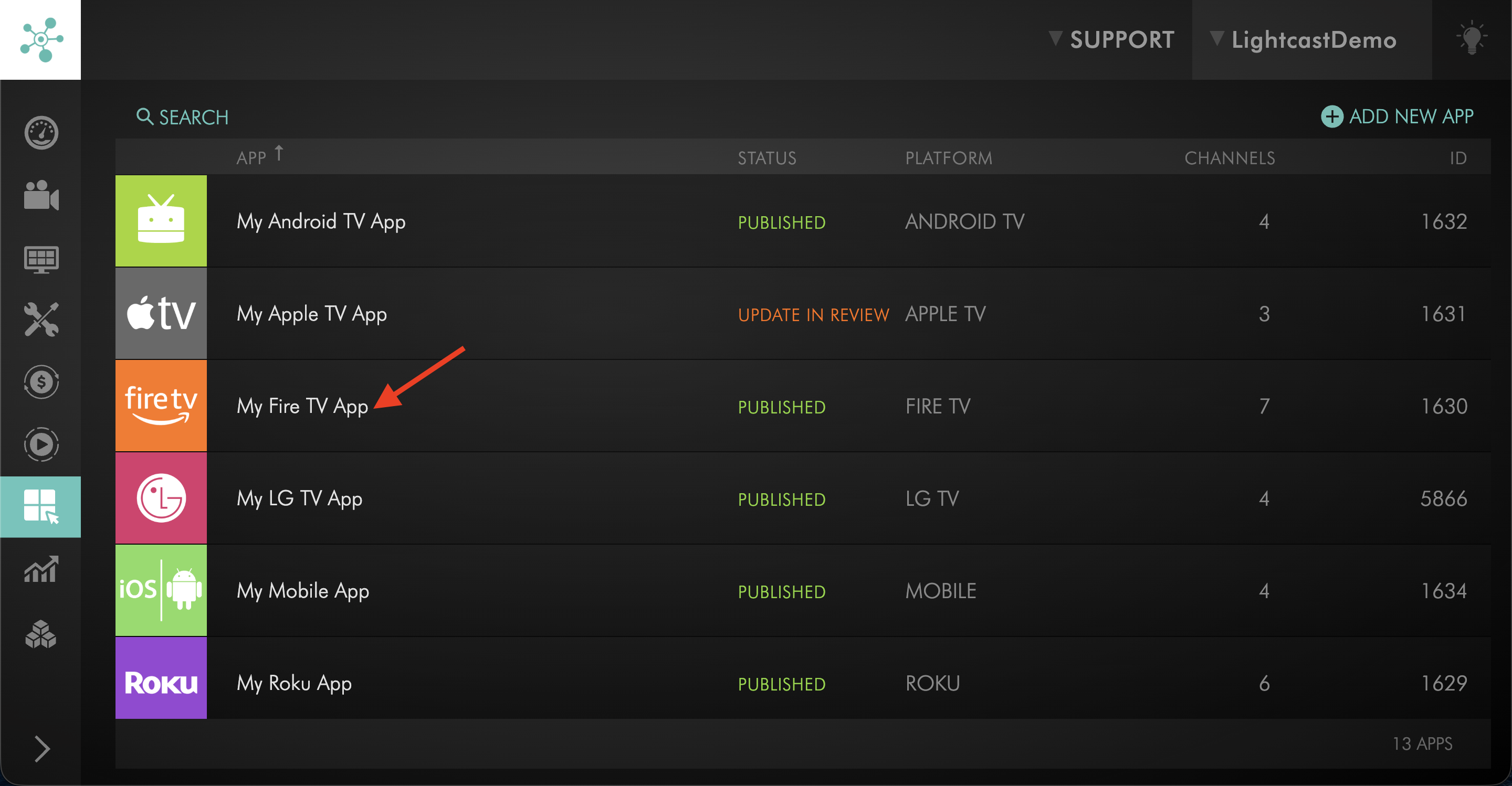
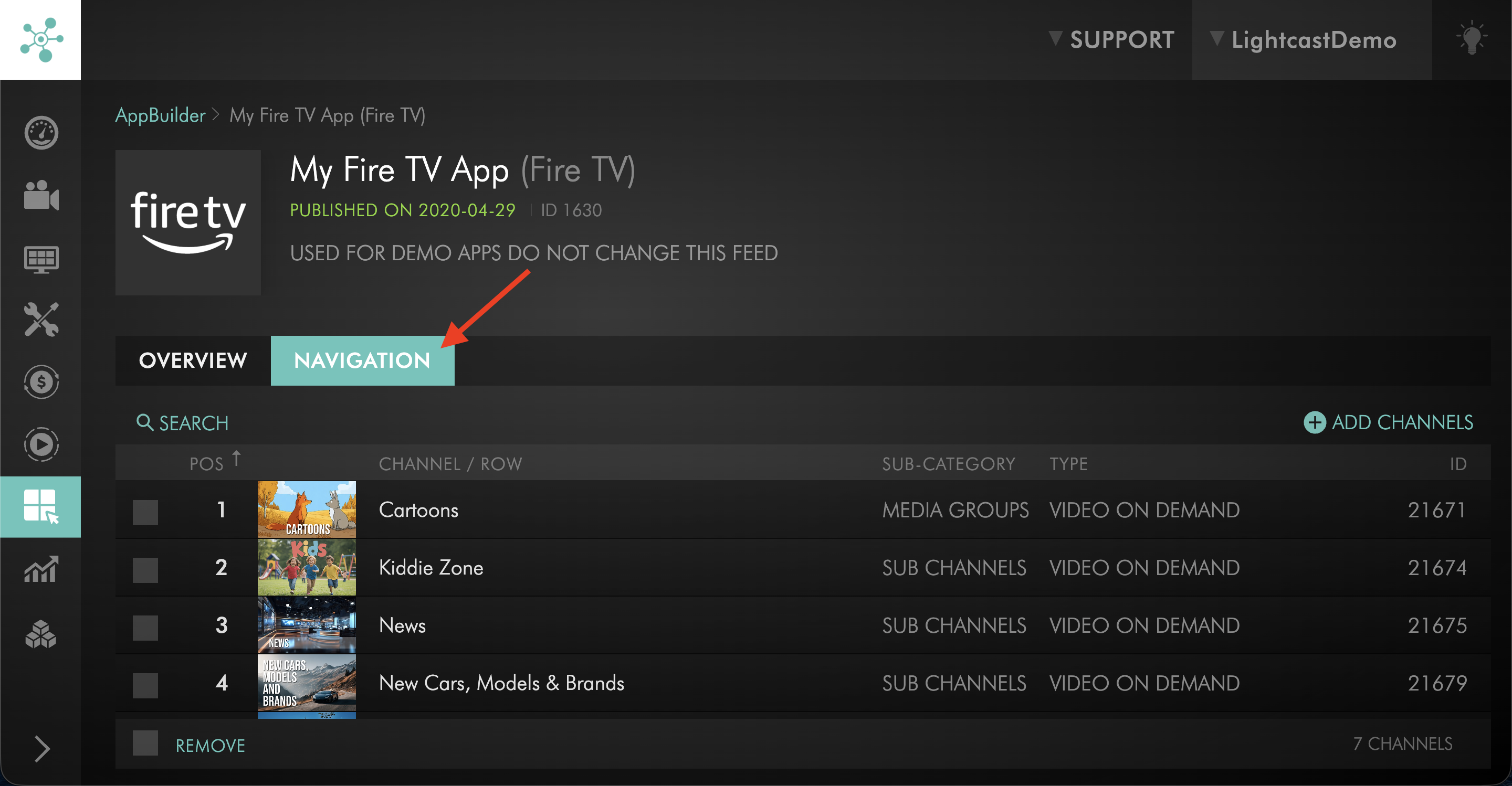
Step 4
Switch the NAVIGATION tab.
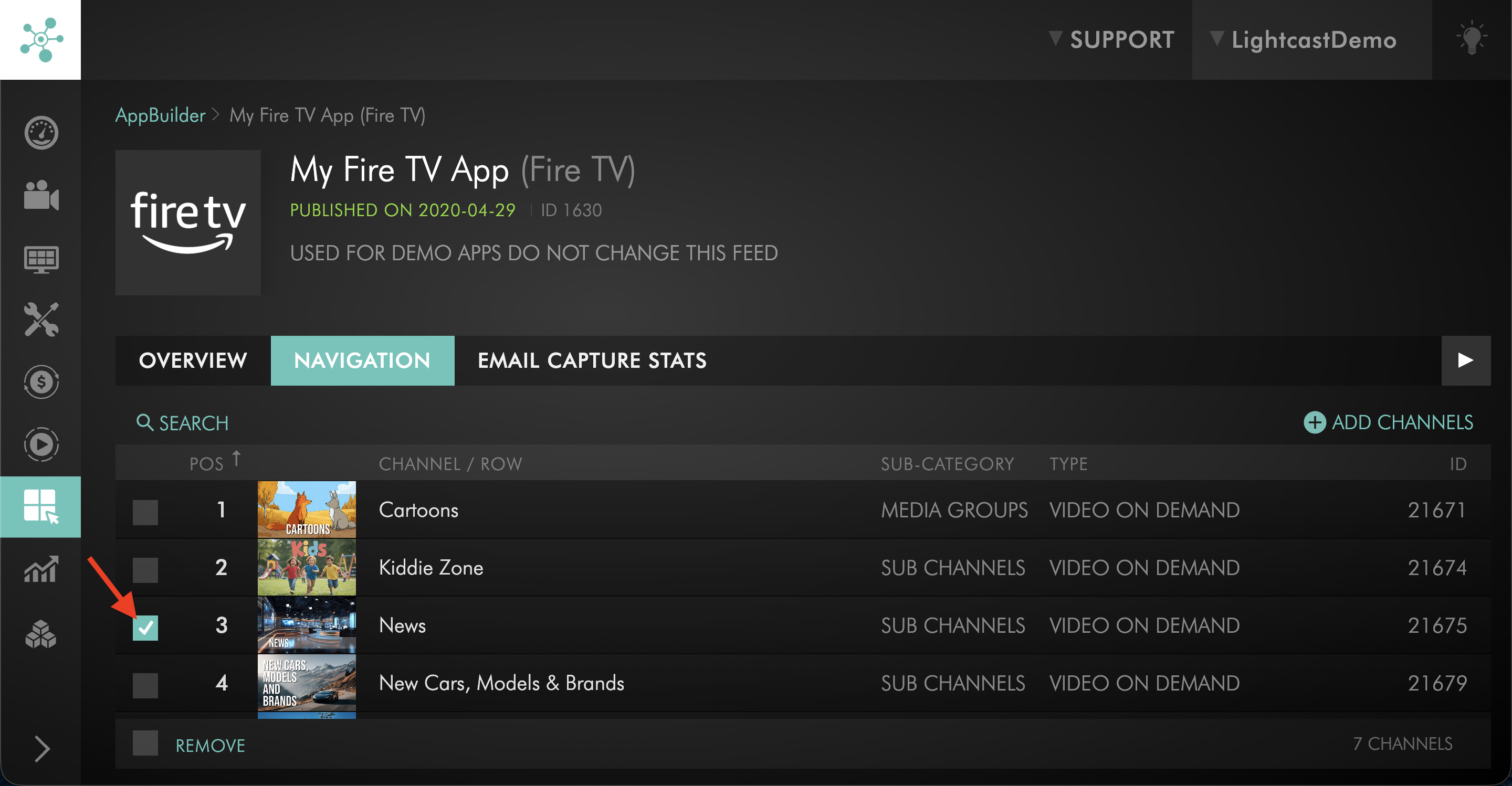
Step 5
Select the checkbox next to the Channel you want to remove from the app.
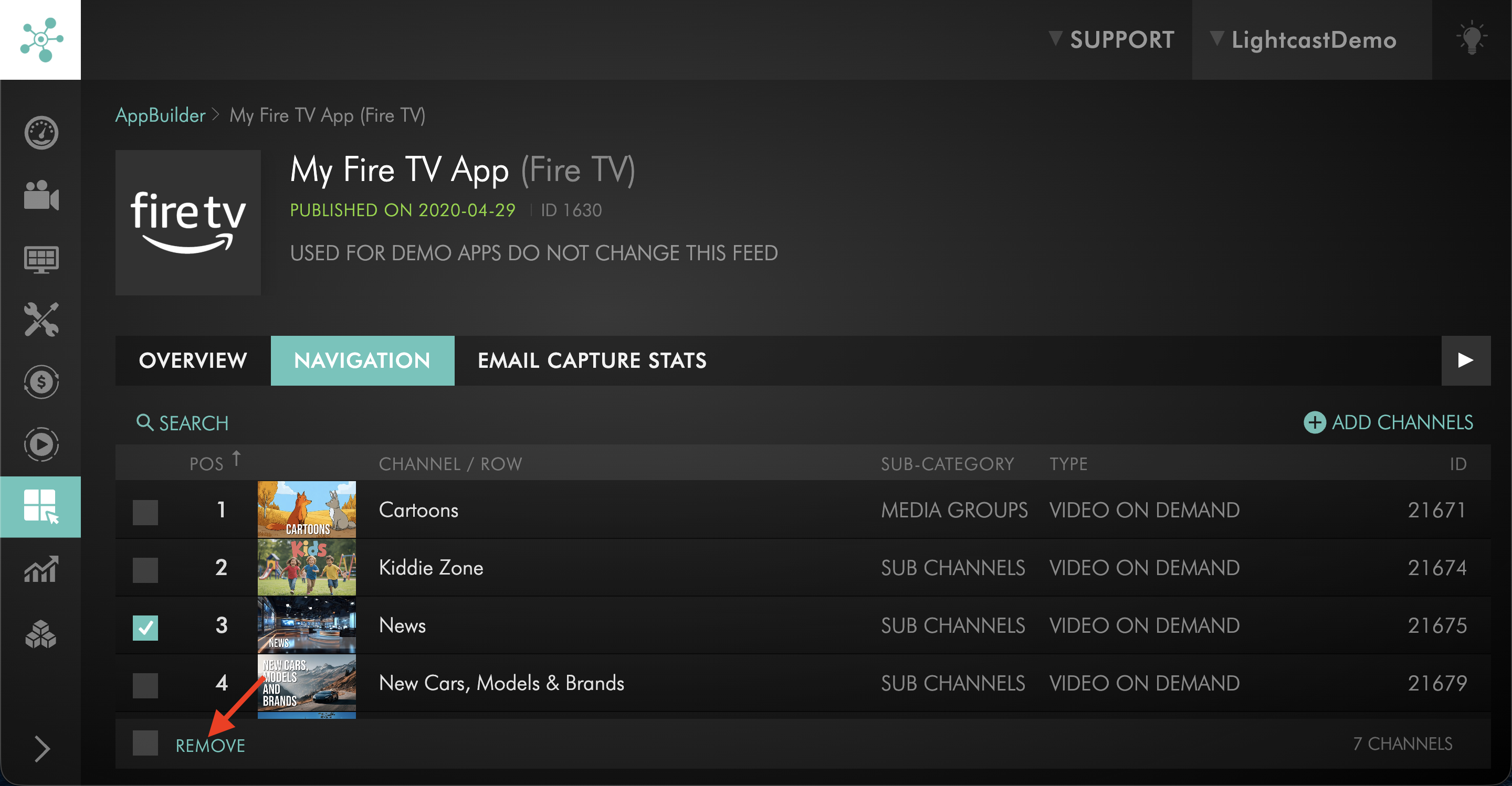
Step 6
Click REMOVE.
Step 7
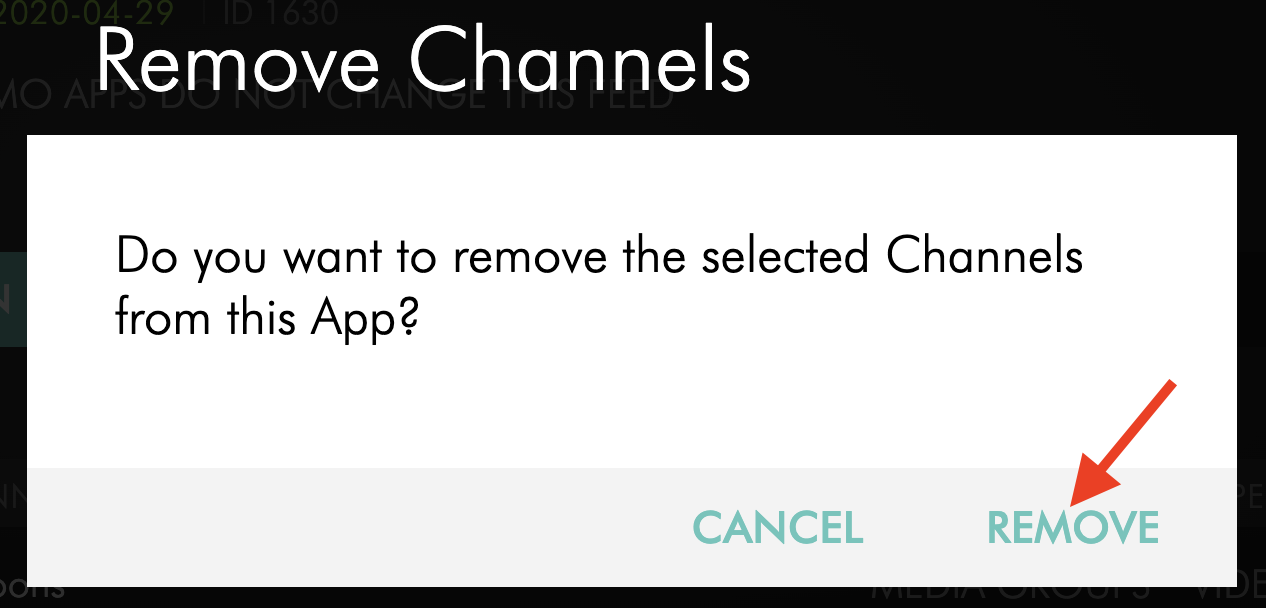
In the pop-up window, click REMOVE to confirm.
The selected Channel will be removed from the app in real time.
Reorder Channels in a published app
Step 1
Log in to your Media Cloud account.
Step 2
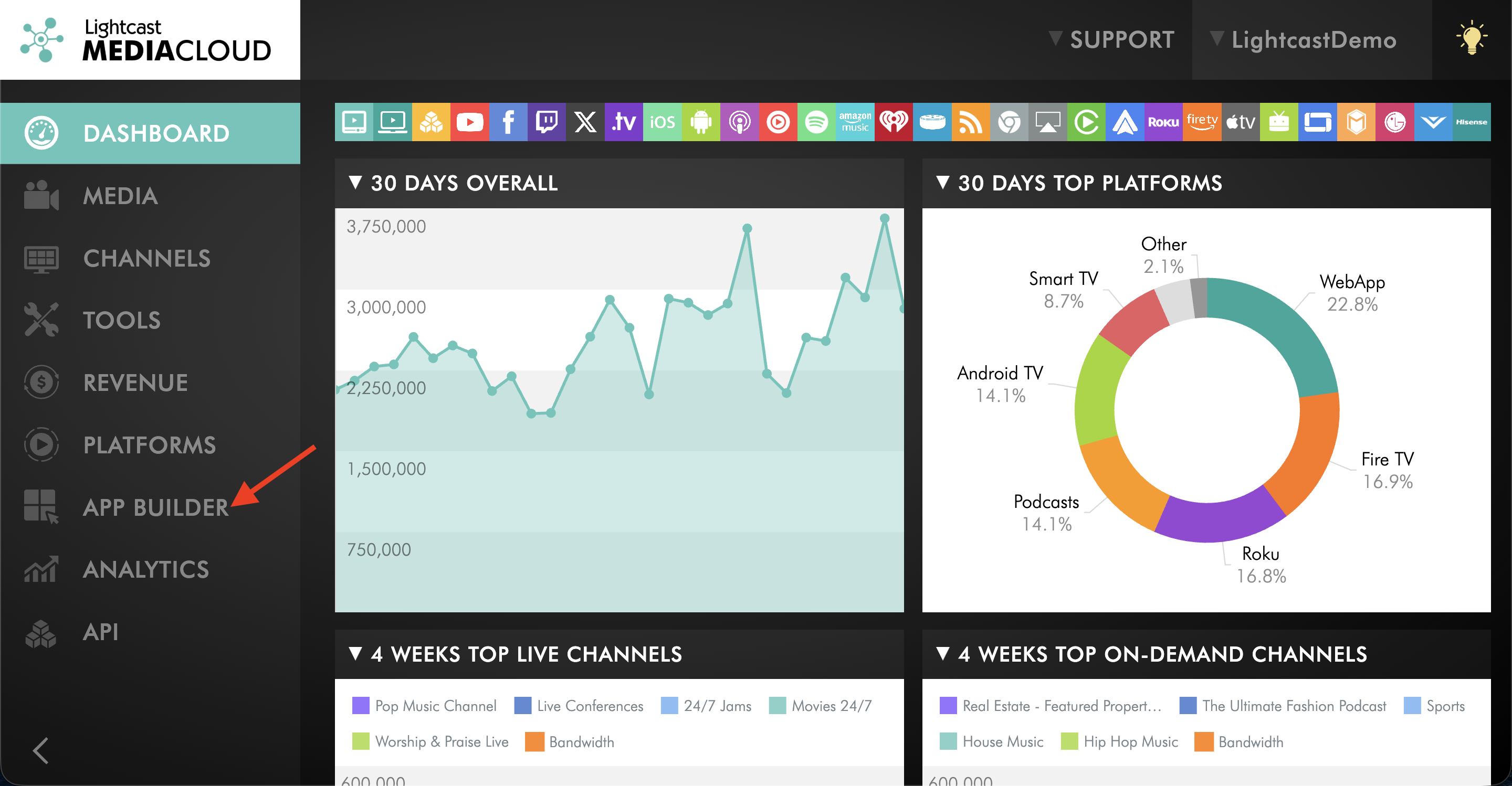
Open the APP BUILDER.
Step 3
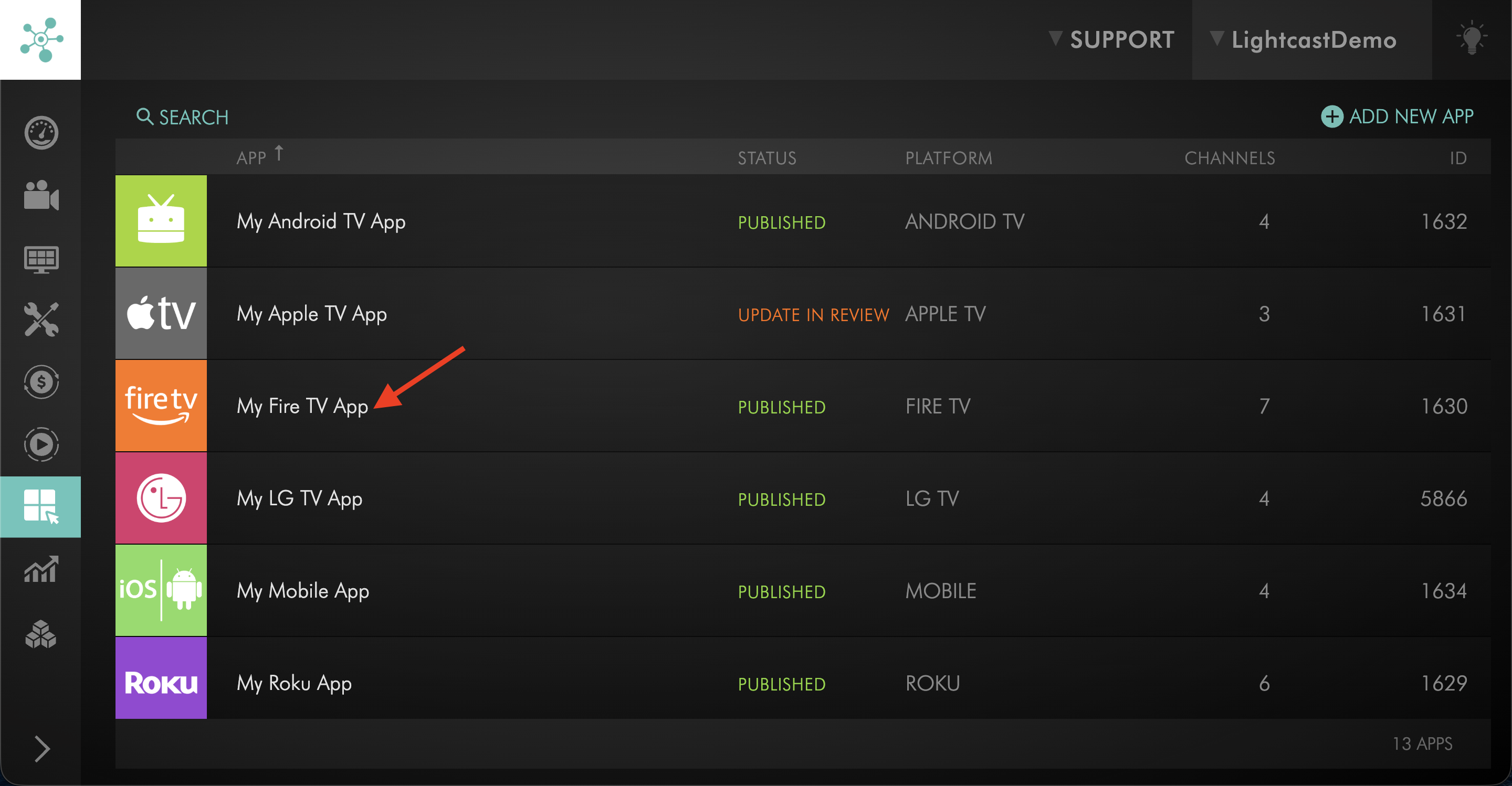
Select the published app you want to update.
Step 4
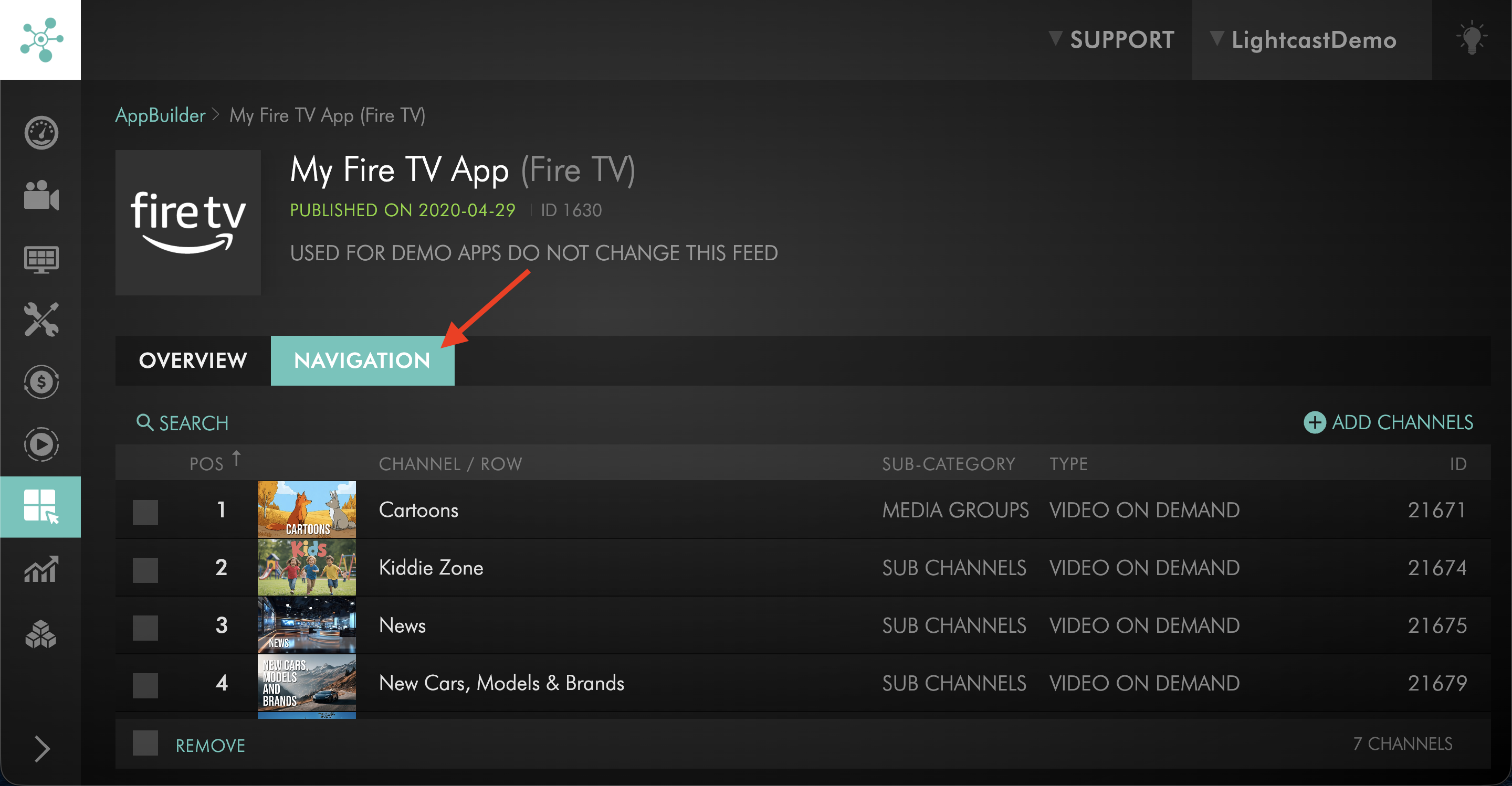
Switch the NAVIGATION tab.
Step 5
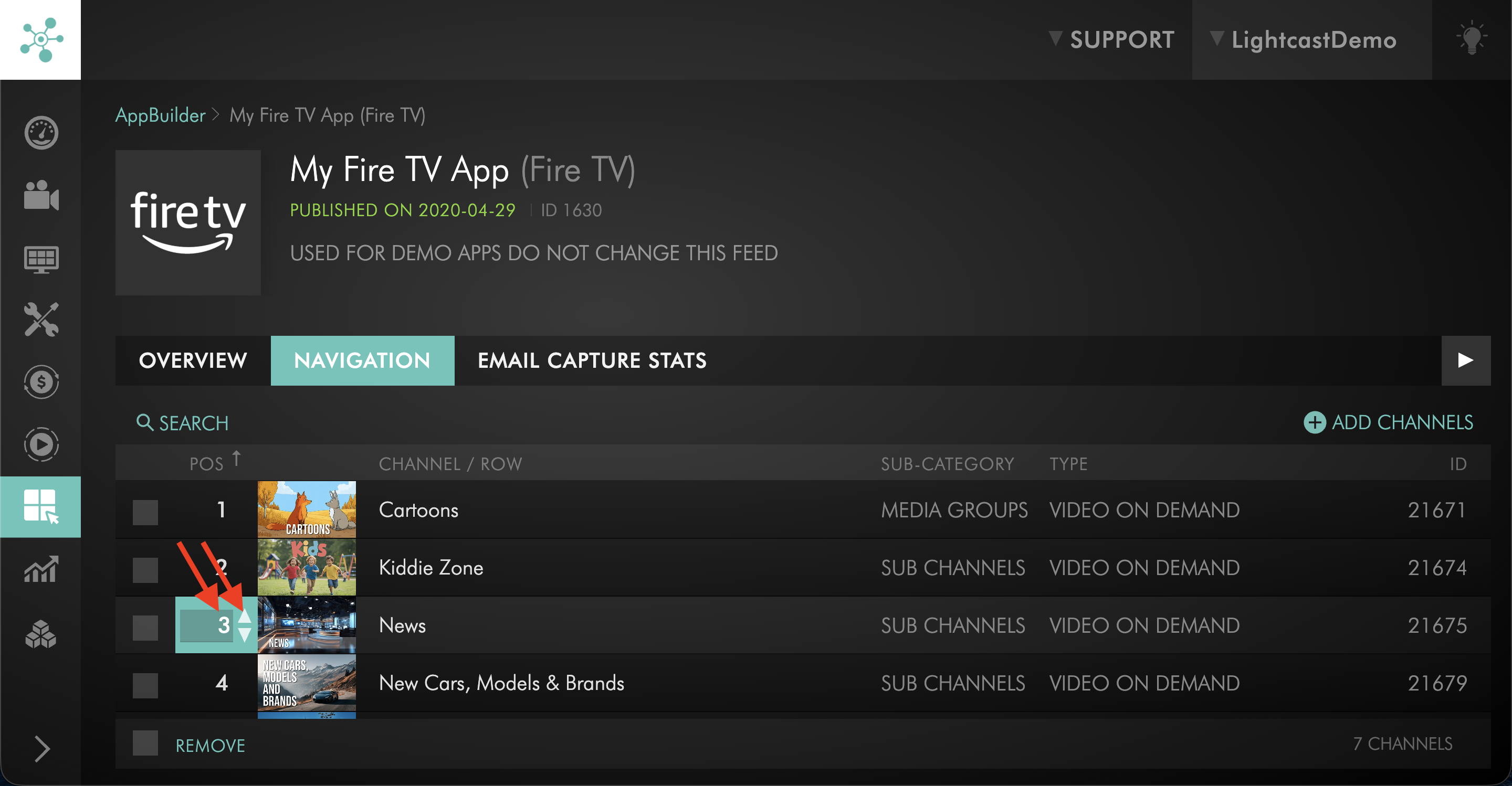
Use the arrows or number box in the POS column to move the Channel to the desired position.
Step 6
Repeat this for any other Channels you want to reorder.
Your updated Channel order will appear in the app in real time.
FAQs
Are all VOD, LIVE, and AOD Channels automatically integrated into apps?
No. During the app build process, the Channels listed in your app specs form are added to your app for launch.
After your app is published, you can manage which Channels are included through the APP BUILDER in the Media Cloud. You can add all included Channels or only specific Channels.
Can I choose which Channels appear in each app?
Yes. You can add all included Channels to your apps or choose only specific Channels.
Available options may depend on your app setup, app type, Service Package, and Service Subscription Agreement.
How many Channels can be added to published apps?
You can add the VOD, LIVE, and AOD Channels included in your Lightcast package to your TV, mobile, and Web Apps.
If you need more Channels than your current package includes, you can upgrade to a package with more Channels.
Does each Channel need its own TV App?
No. A TV App can include one Channel or multiple VOD, LIVE, and AOD Channels.
If you have a multi-channel TV app, your Channels are combined into one app instead of being published as separate TV apps for each Channel.
Can a published app be extended with more Channels later?
Yes. Published apps can be extended with additional VOD, LIVE, and AOD Channels through the APP BUILDER in the Media Cloud.
You must have enough Channels available in your Lightcast package. Development costs may apply for some app extensions.
Can Channels be reordered after the app is published?
Yes. Supported Channels can usually be reordered through APP BUILDER in the Media Cloud.
The updated Channel order will appear in the app when supported by the app setup and platform.
Can removing a Channel from an app delete the Channel from the Media Cloud?
No. Removing a Channel from an app does not delete the Channel from the Media Cloud.
It only removes that Channel from the selected app when supported by the app setup and platform.
Can I add new videos or audio files from the APP BUILDER?
No. The APP BUILDER is used to manage which supported Channels appear in your app.
To add new videos or audio files to a published app, upload or assign the media to a VOD or AOD Channel that is already published in the app. For more information, see How to add new media content to your published apps.
Do Channel updates appear in apps right away?
Most supported Channel updates made through the APP BUILDER appear in connected apps in real time.
If you do not see the update right away, refresh or reopen the app because the app or device may be cached.