
How to install and test beta mobile apps
Overview
This article explains how to install and test beta versions of Android and iOS mobile apps before they are released in the Google Play Store or iOS App Store.
When to use beta mobile app testing
Use beta mobile app testing when you have ordered a pre-release version of your Mobile app and need to review the app before it is publicly launched.
For Android beta testing, you need an active Google Play account. You must provide Lightcast with the Google Play email address you use on your Android device.
For iOS TestFlight testing, you need an active Apple ID. You must provide Lightcast with the Apple ID email address you want to use for testing.
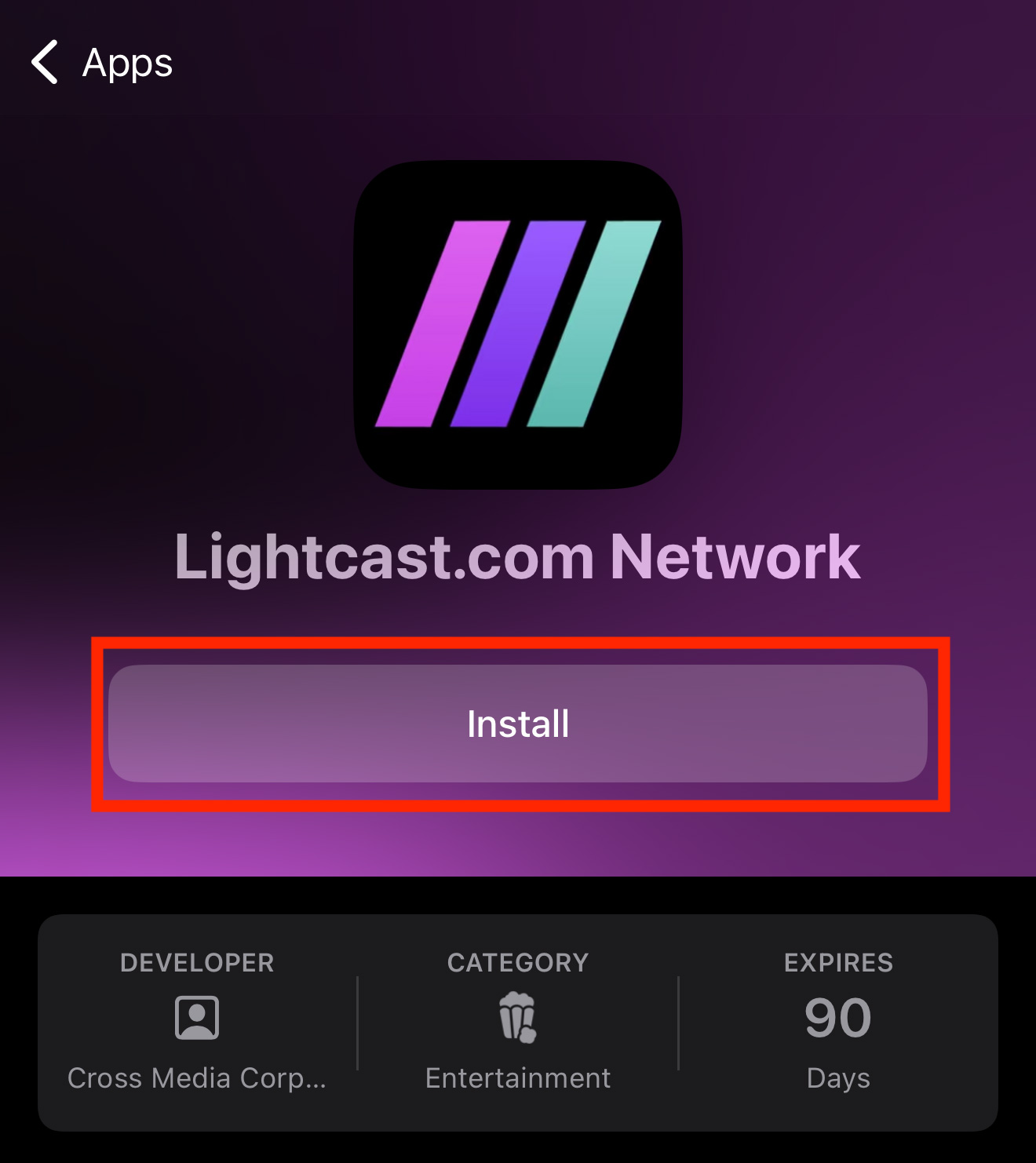
TestFlight apps are valid for 90 days.
Instructions
For Android mobile apps
Complete both Android sections in order if this is your first time installing an Android beta app through Internal App Sharing.
1. Enabling Internal App Sharing on Android
Step 1
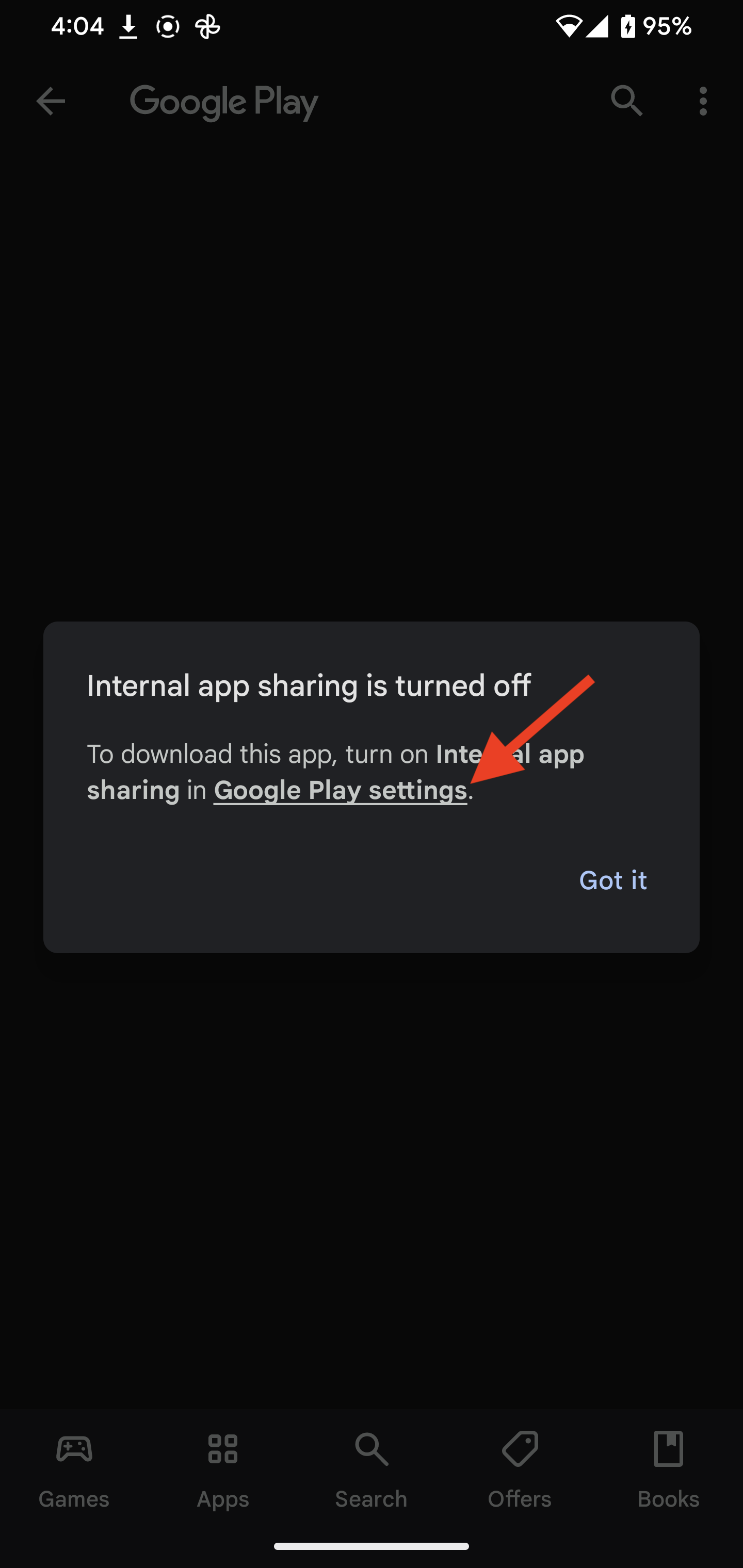
If this is your first time installing an app through Internal App Sharing, Android may block the installation by default.
When prompted, tap Google Play Settings.
Step 2
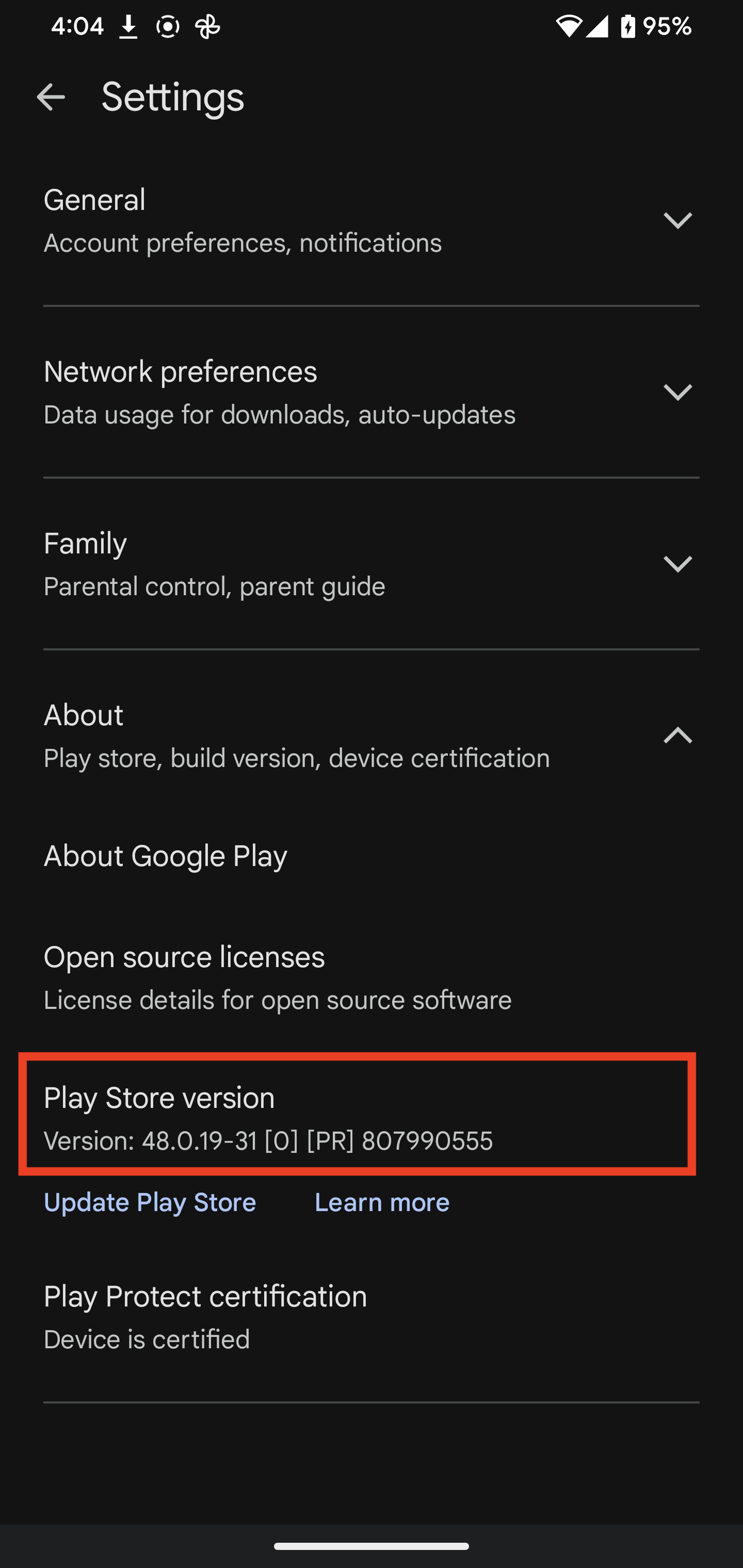
In the About section, tap the Play Store version 7 times.
This enables the Developer options area in Google Play Store settings. This is required before Internal App Sharing can be turned on.
Step 3
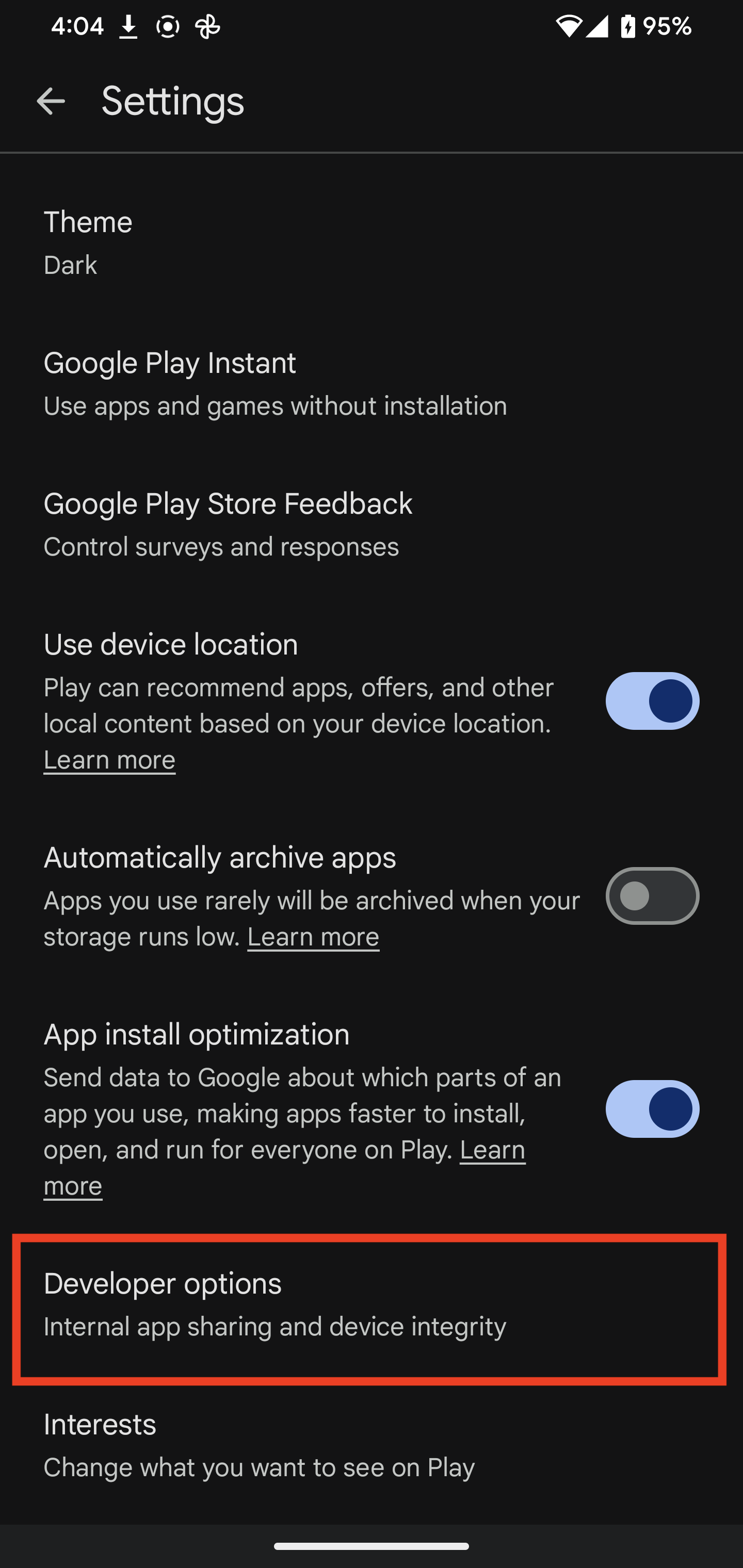
After the Internal App Sharing setting appears, go to General and then Developer options.
Step 4
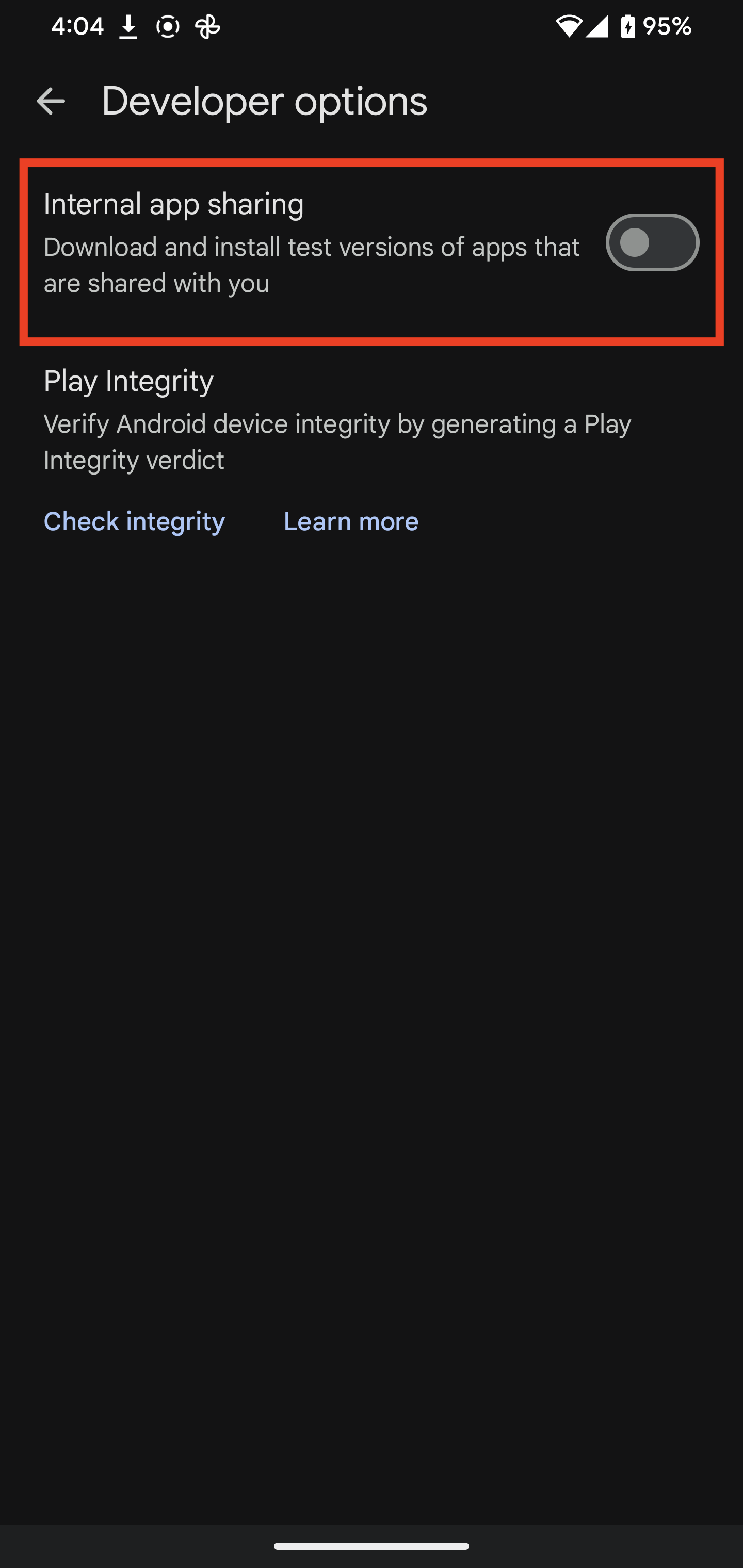
Tap Internal app sharing.
Step 5
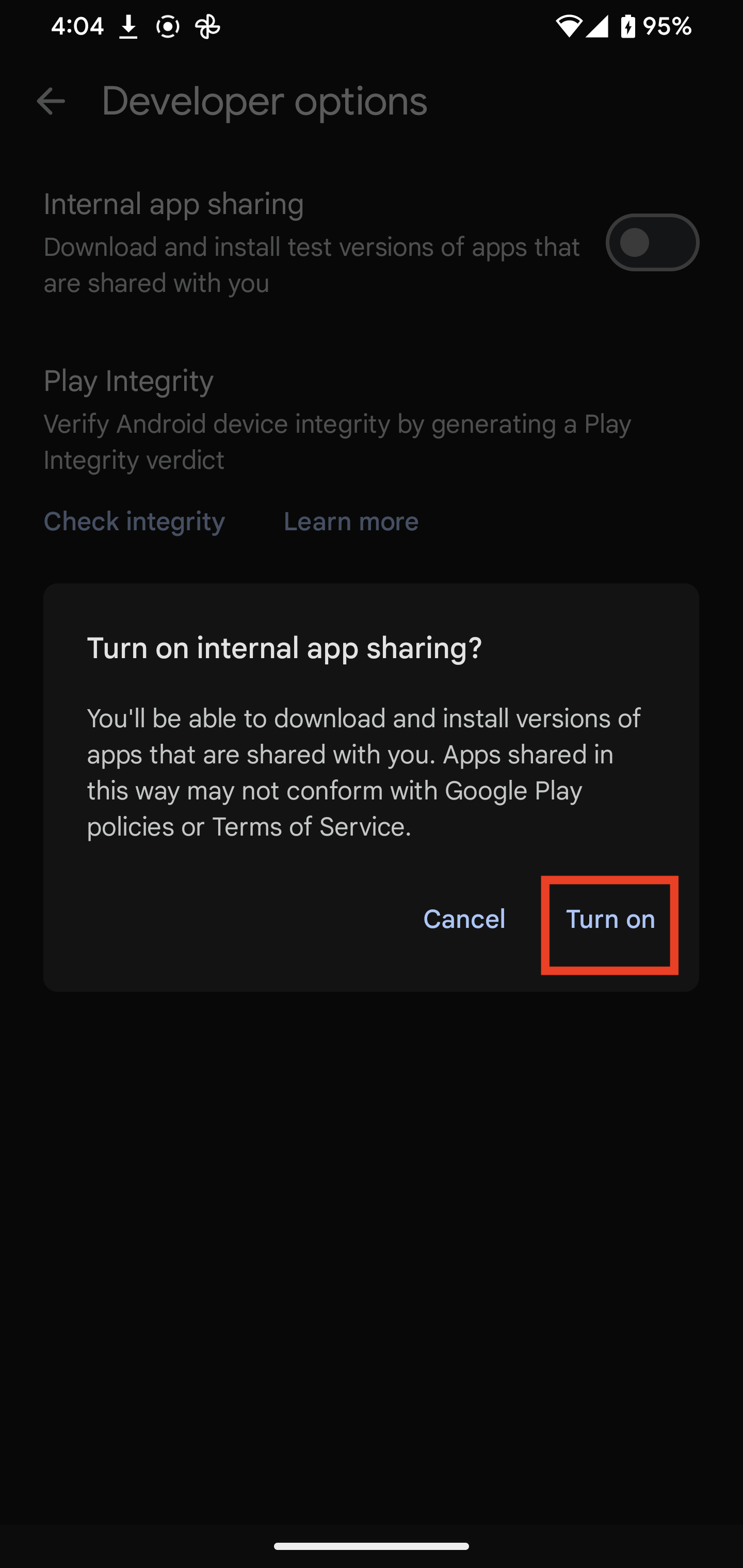
When the pop-up appears, tap Turn on.
Step 6
Return to the beta app test link and continue installing the app.
2. Installing and testing an Android beta app
Step 1
Provide your Google Play Store email address to Lightcast.
This should be the email address you use to log in on your Android device.
Step 2
If this is your first time installing an Android beta app through Internal App Sharing, complete the steps under Enabling Internal App Sharing on Android first.
Step 3
Open the test link provided by Lightcast.
The link will open in your browser and may look similar to this: https://play.google.com/apps/internaltest/123456789093.
Step 4
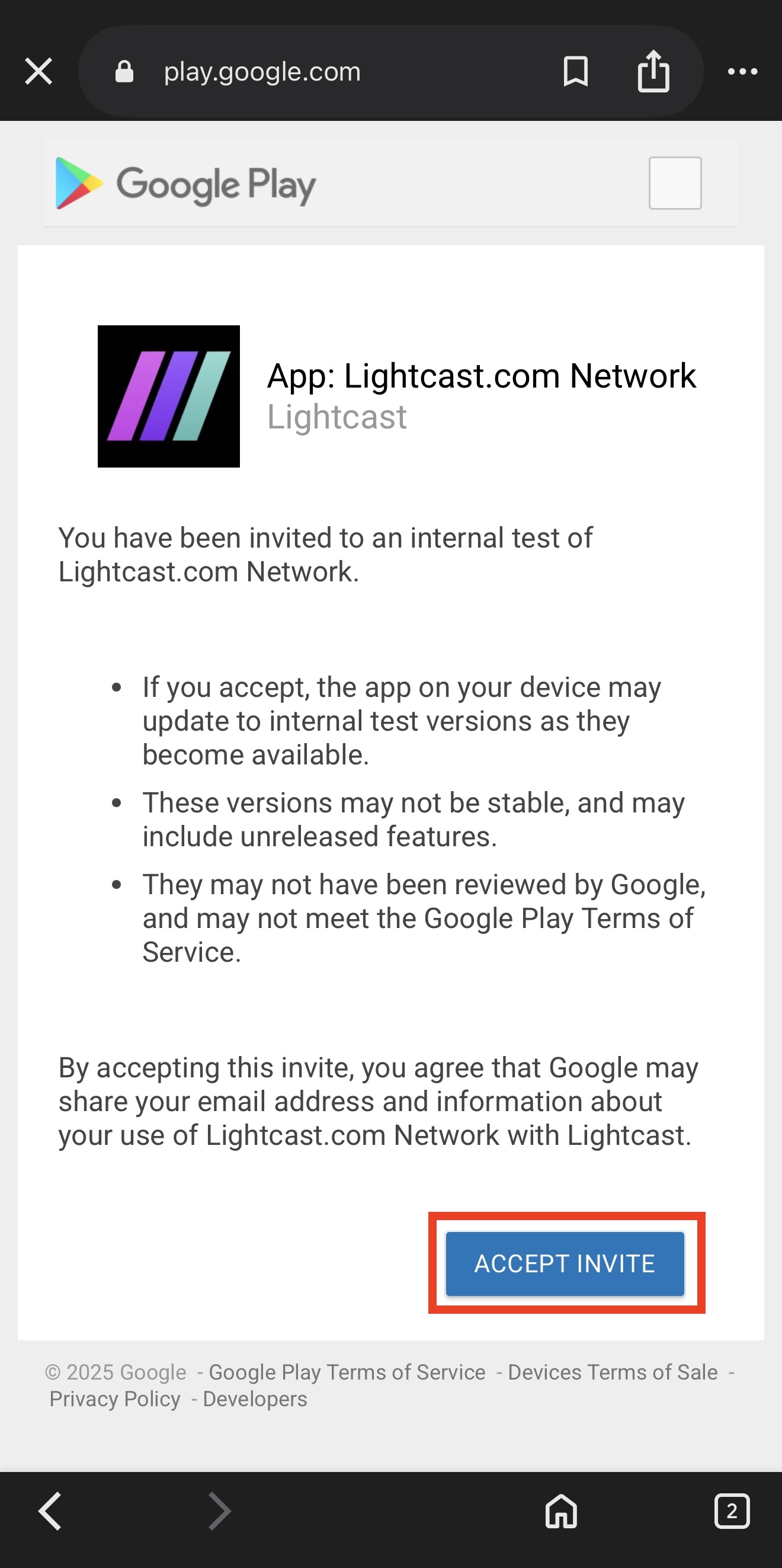
Tap Accept invite to join the beta internal test program for the app.
Step 5
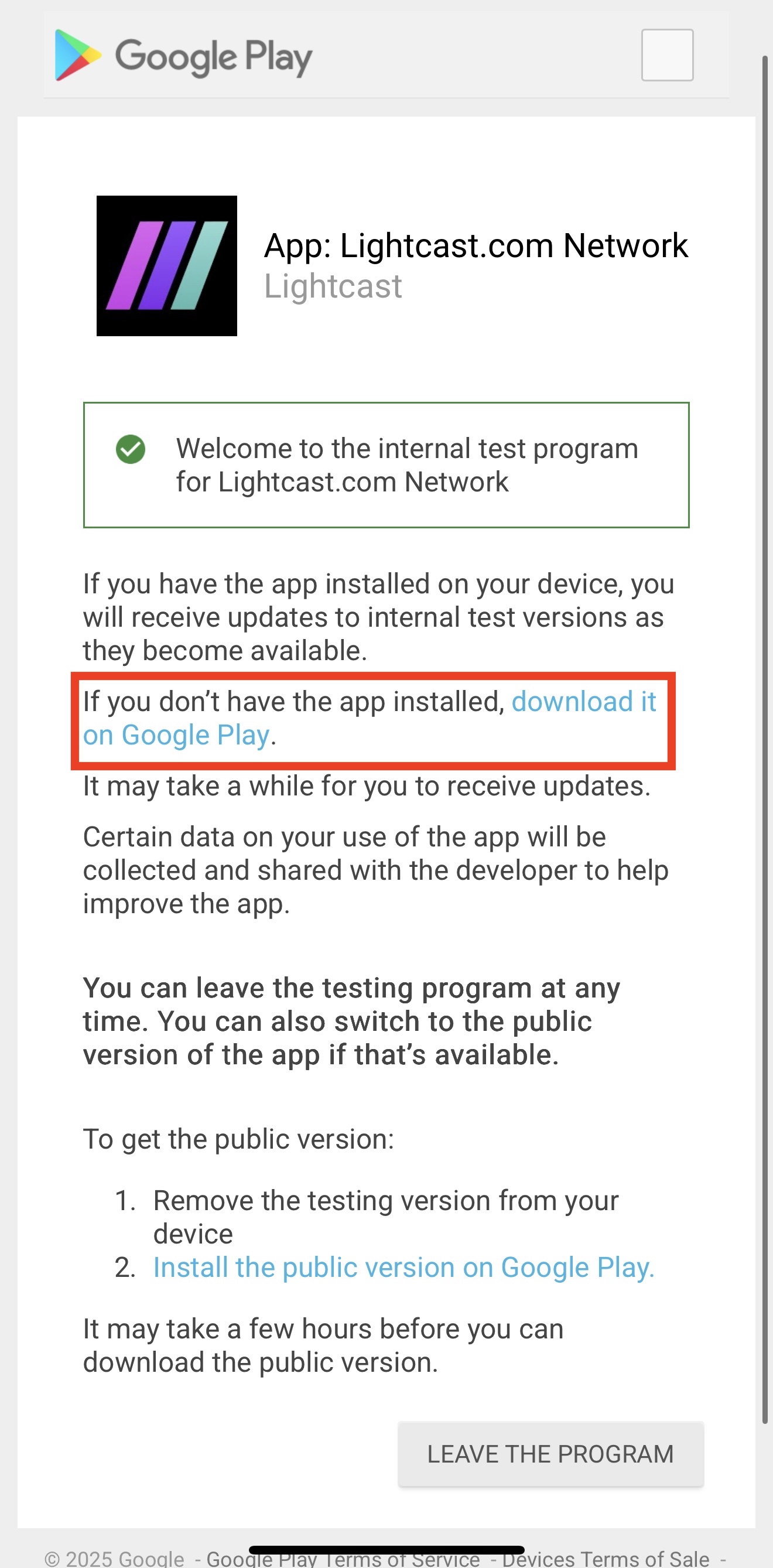
On the Internal Test Program page, tap download it on Google Play.
Step 6
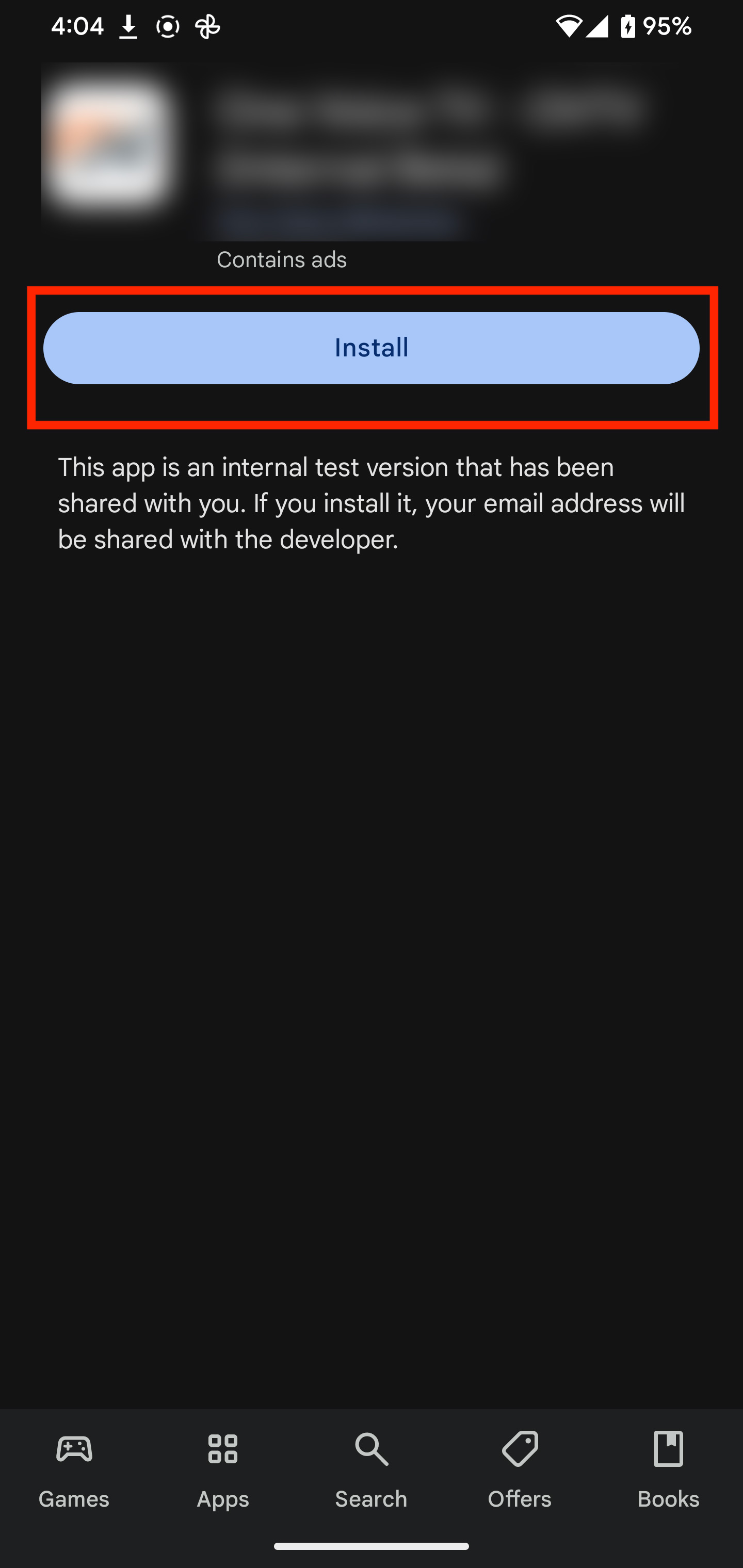
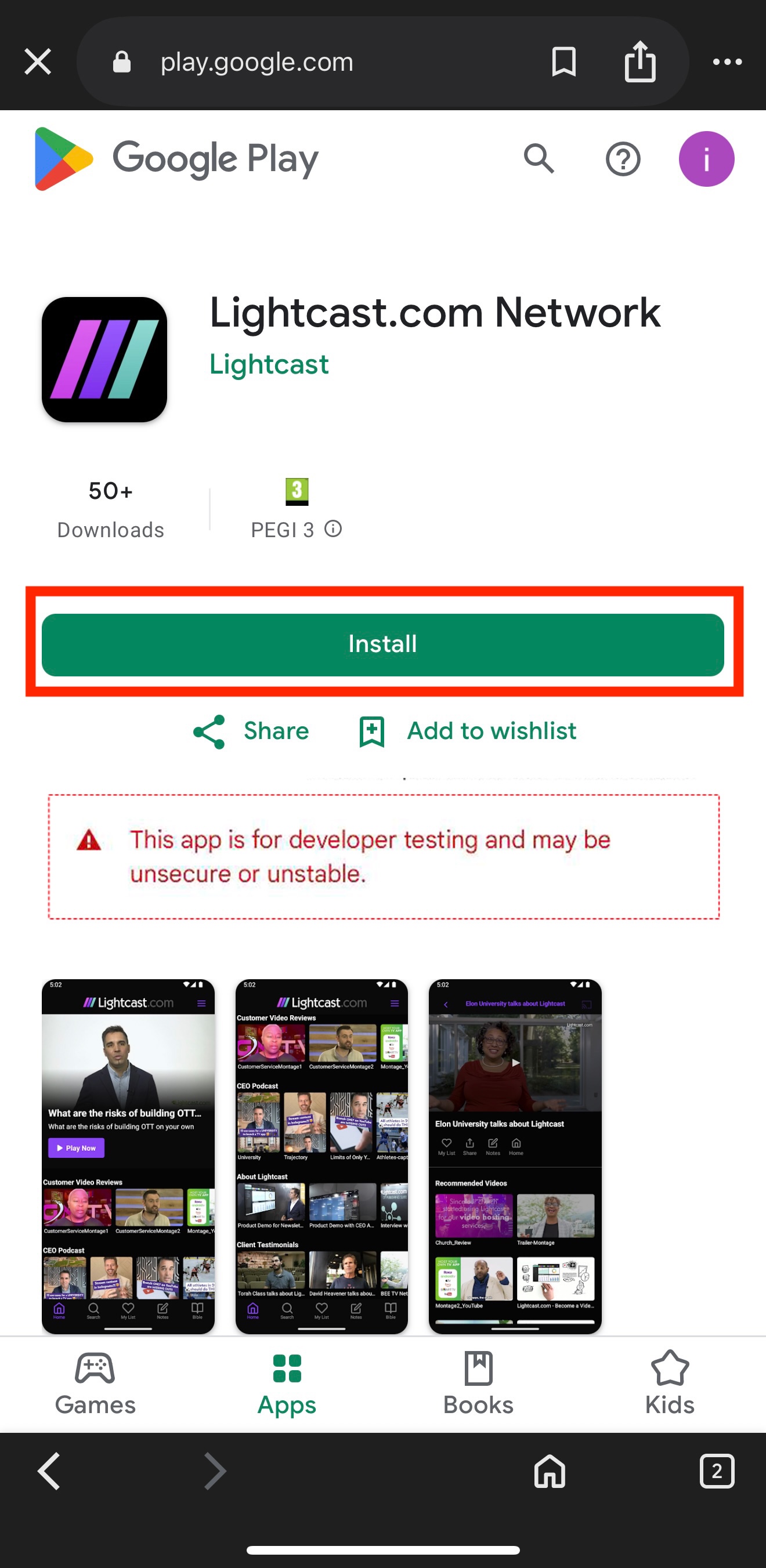
When the Google Play Store opens, tap Install.
You may see a warning that says the app is for developer testing and may be insecure or unstable. This is a standard Google message for beta apps.
Step 7
After the app finishes downloading, open the app on your device and test its features and functionality.
If you already had the app installed and do not see the beta changes, delete the app completely from your device and reinstall it.
3. Leaving an Android beta program
Step 1
Open the beta invite link provided by Lightcast.
Step 2
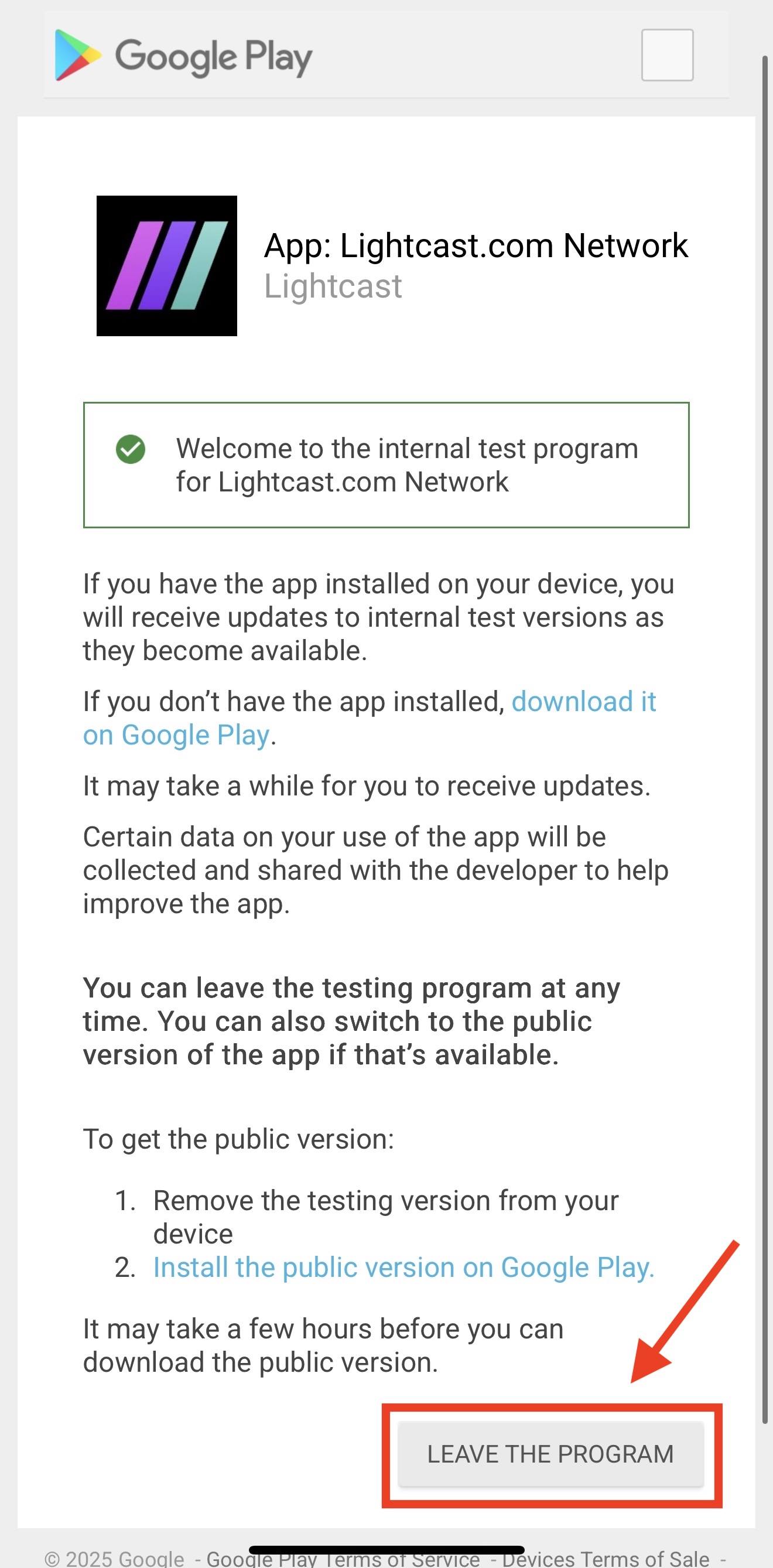
Tap Leave the program.
Step 3
Confirm that you want to leave the beta program.
After you leave the beta program, you can download the public version of the app from the Google Play Store.
For iOS mobile apps
Installing and testing an iOS TestFlight app
Step 1
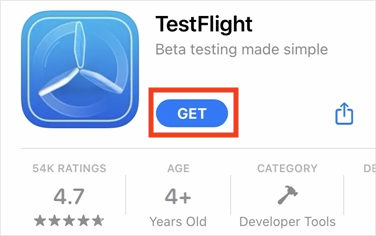
Download the TestFlight app from the App Store on your iOS mobile device.
Step 2
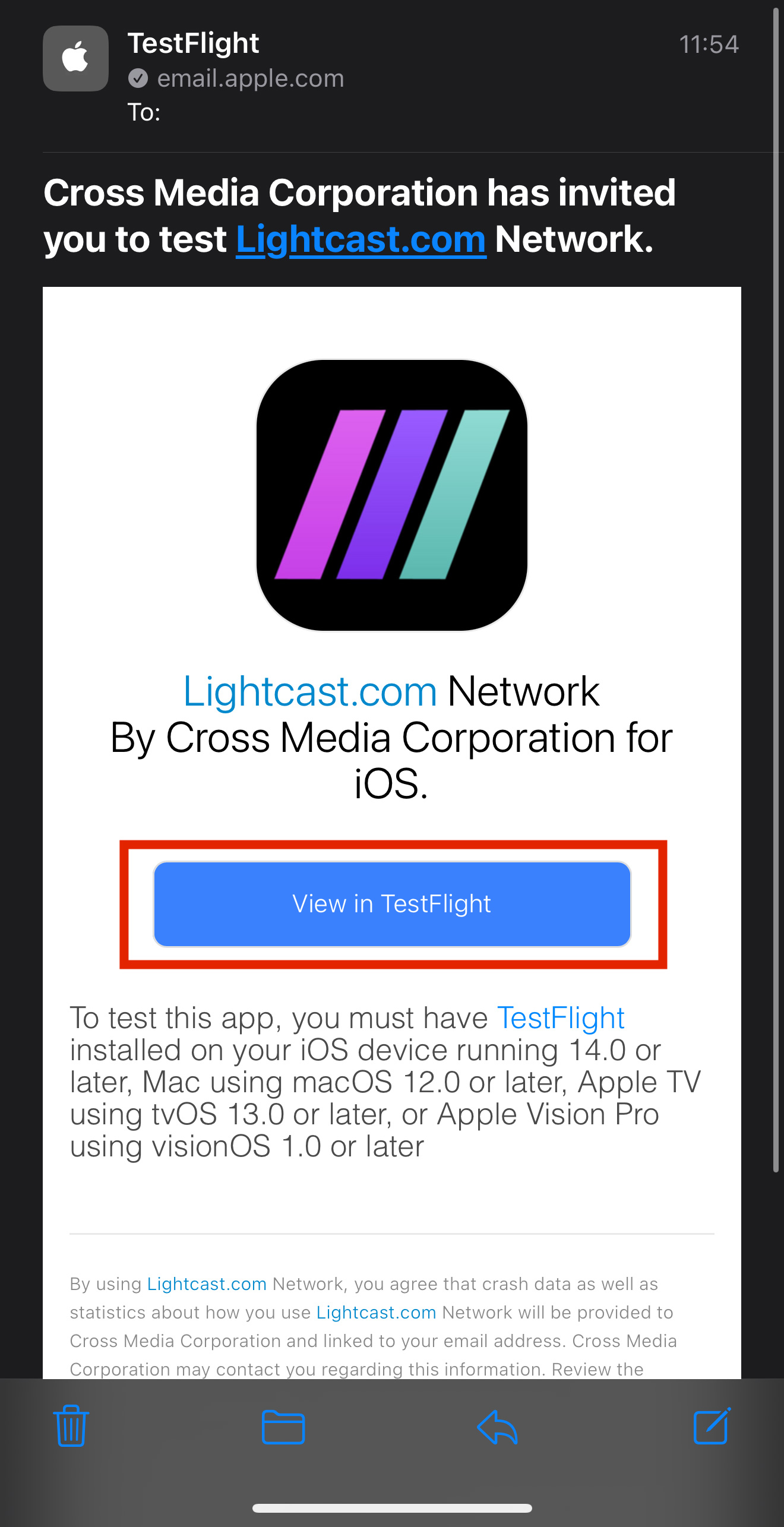
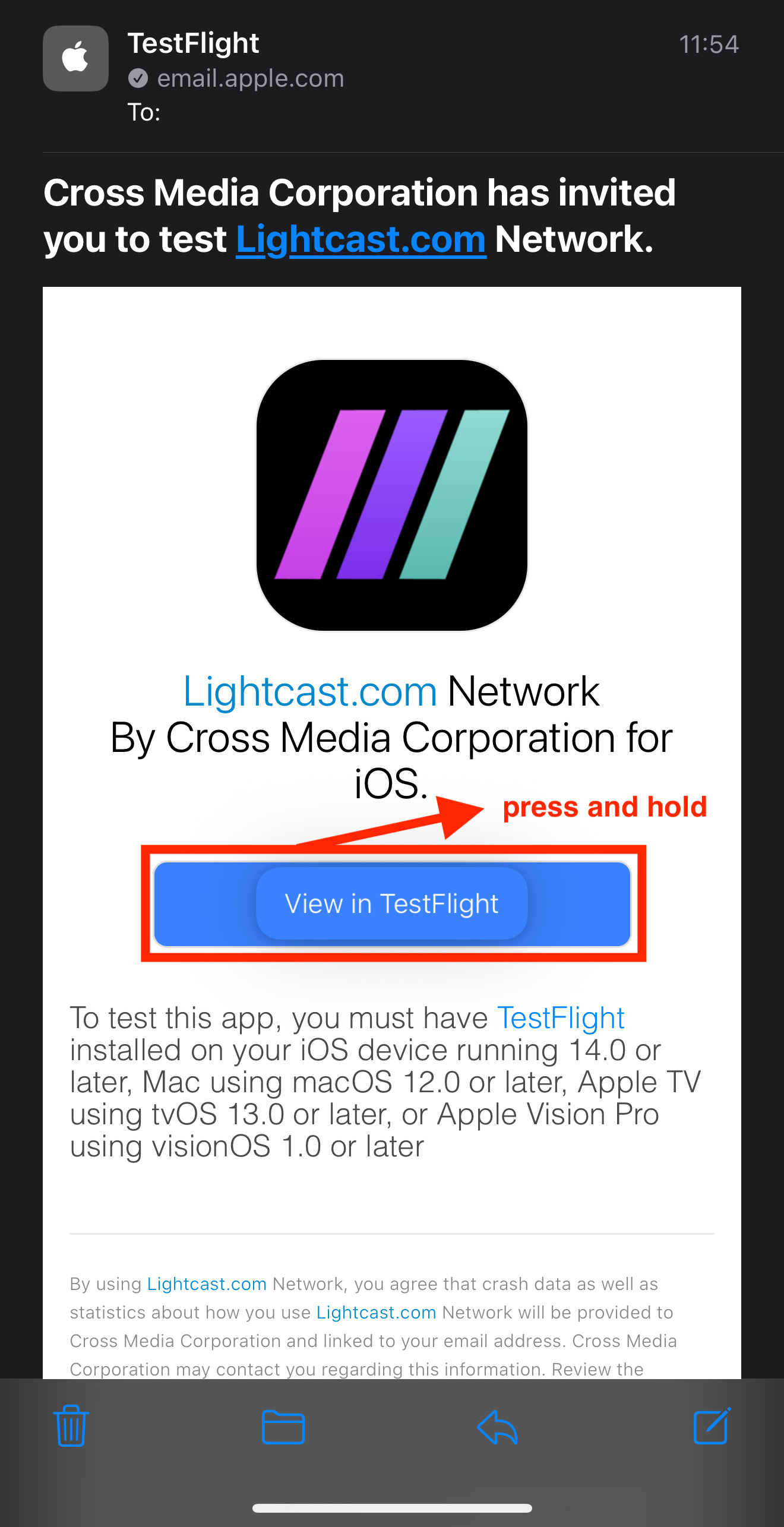
Open the invitation email sent to the Apple ID email address you provided.
The email subject will look similar to: (Name) invited you to test (App Name).
Step 3
Tap View in TestFlight.
Step 4
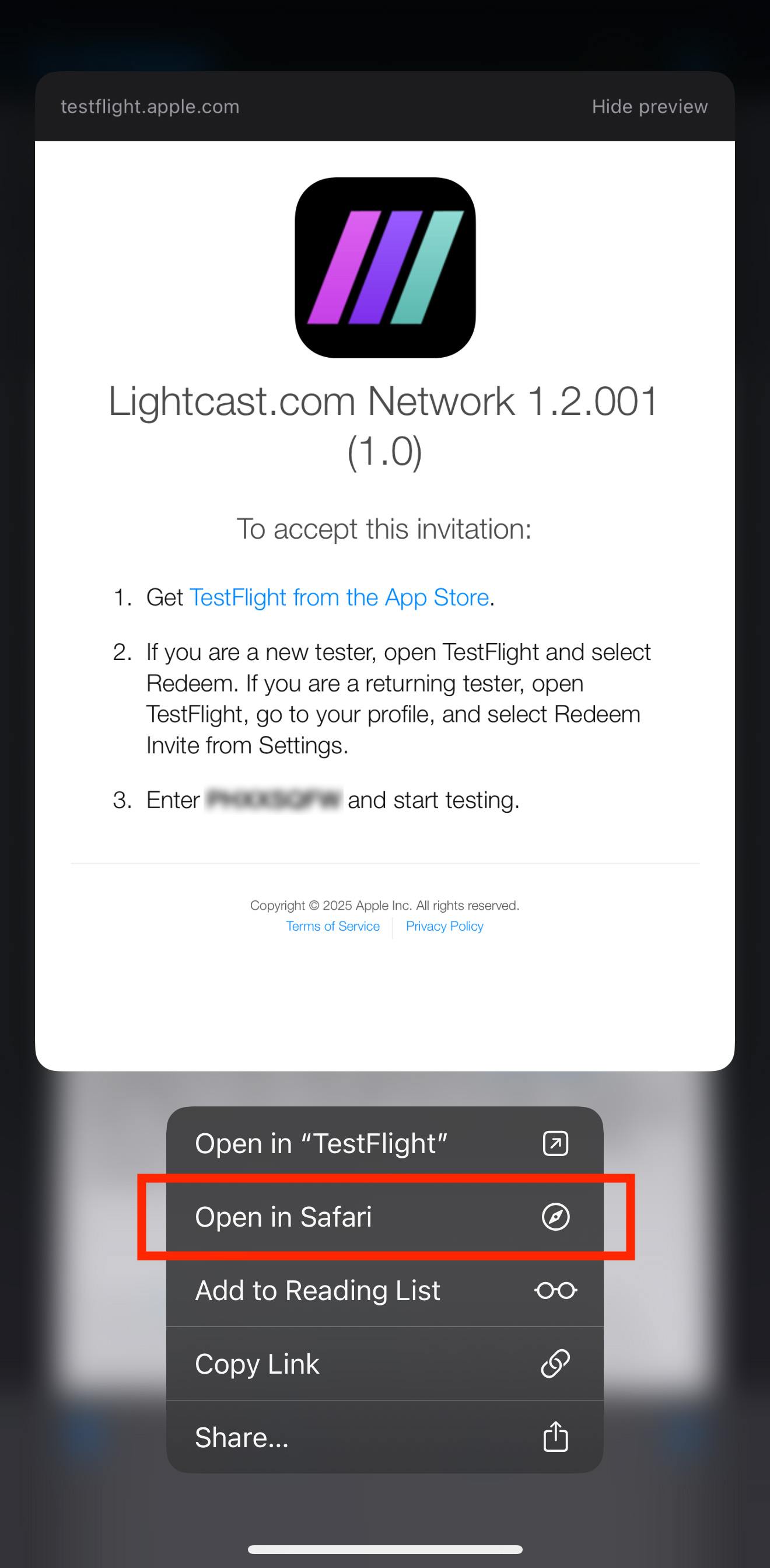
If you cannot tap the button, press and hold View in TestFlight, then select Open in Safari.
Step 5
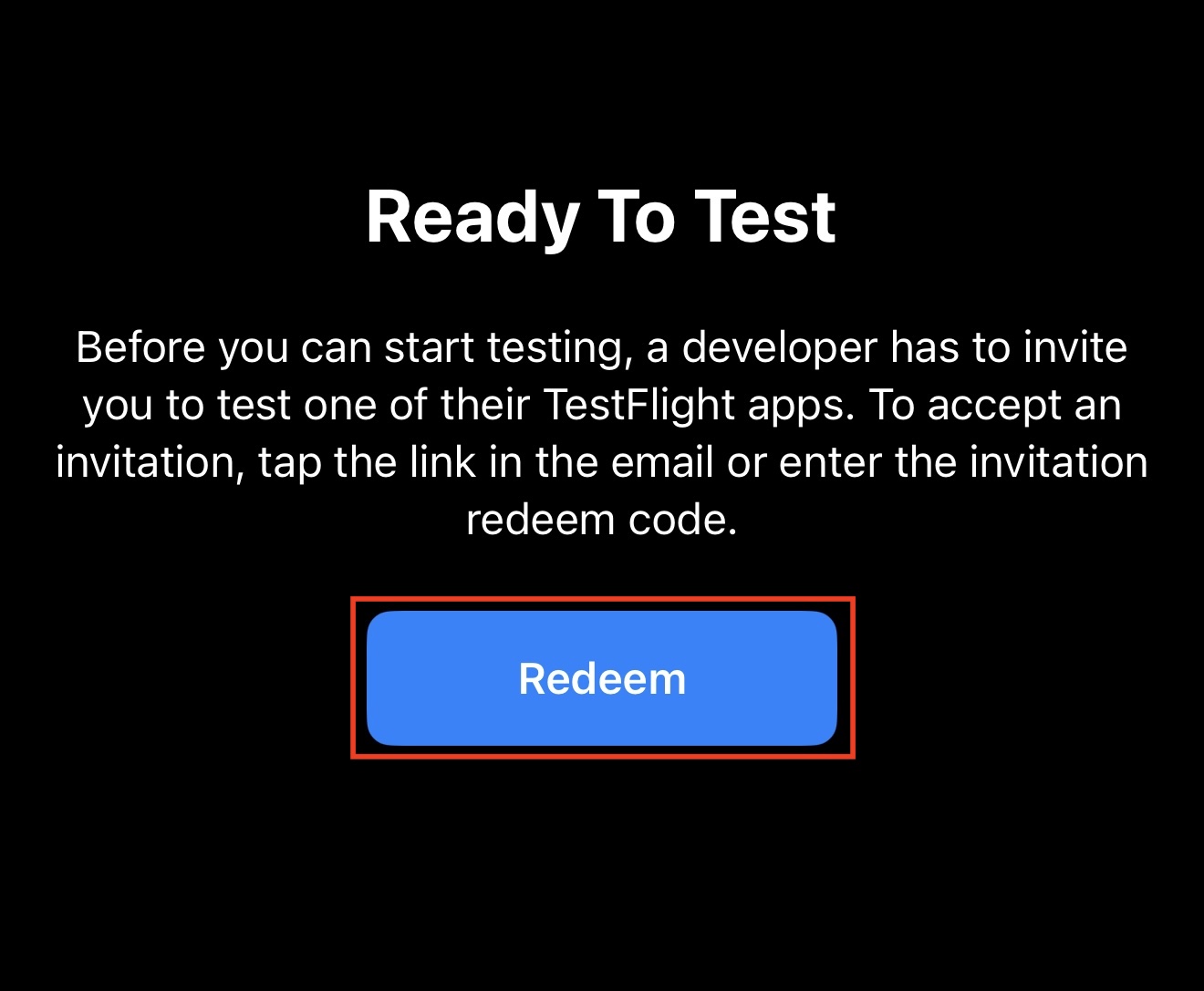
Open the TestFlight app on your iOS device and tap Redeem in the top-right corner.
Step 6
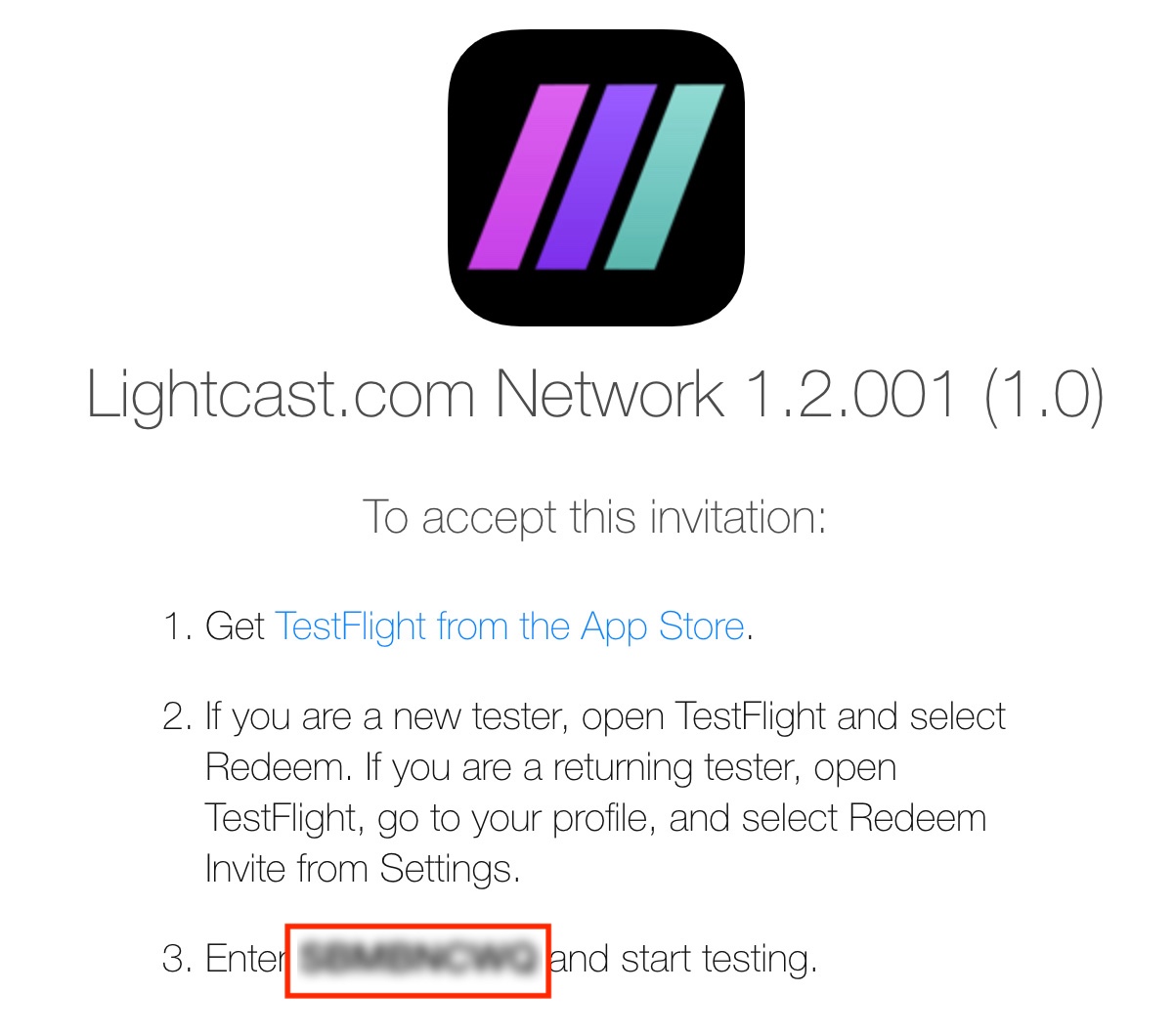
Enter the redeem code from the invitation email or invitation link.
Step 7
When the app name appears, tap Install.
Step 8
After the app installs, open it and test its features and functionality.
Viewing new iOS TestFlight versions
Step 1
Open the TestFlight app.
Step 2
Tap the app you are testing.
Step 3
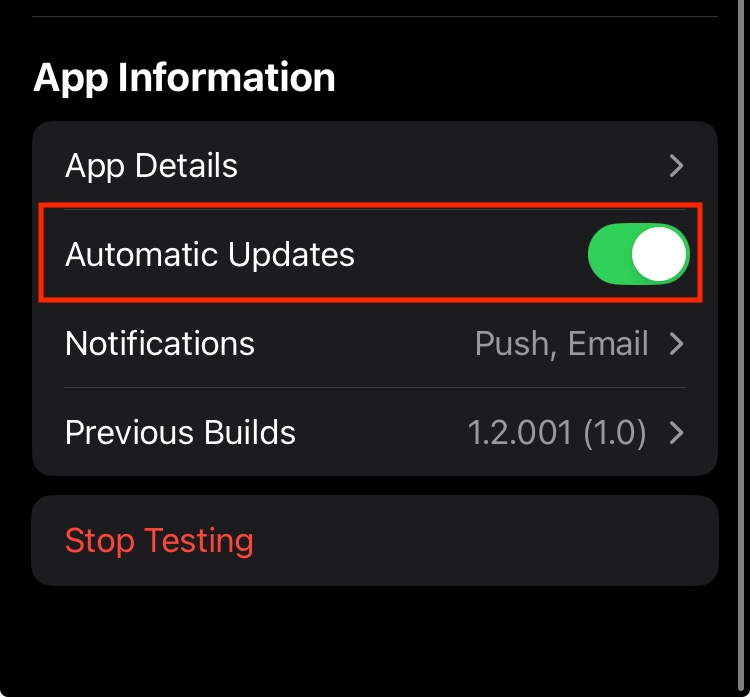
Scroll down and enable Automatic Updates if you want new versions to install automatically.
If Automatic Updates is already enabled, new versions will install automatically. If you do not enable Automatic Updates, tap Update manually when a new version is available.
FAQs
Is a Google Play account required to test an Android beta app?
Yes. You need an active Google Play account to install and test an Android beta app.
Is an Apple ID required to test an iOS TestFlight app?
Yes. You need an active Apple ID to install and test an iOS TestFlight app.
How long is an iOS TestFlight app available?
TestFlight apps are valid for 90 days.
Should the previous iOS TestFlight version be deleted before installing a new version?
No. You do not need to delete the previous TestFlight version when a new version is released.
What should be done if Android beta app changes do not appear after installation?
Delete the app completely from your device, then reinstall the beta version from the test link.
Why is there a fee for a beta mobile app?
The beta mobile app fee applies when you want to install and test a beta version of your iOS or Android mobile app locally on your device before the app is published in the App Store or Google Play Store.
Beta app testing is optional, so the fee is not included in standard app setup costs. This helps keep the standard app setup cost fair for publishers who do not need a beta app.
The beta mobile app fee is listed on the Rate-Card for Add-On Services page in the Media Cloud.
Lightcast can also provide screenshots of the final app at no additional cost. Many publishers choose this option when they do not need to install and test the beta app directly on a device.
For more information about the Lightcast app framework, see Mobile app framework overview.