
How to use AI Dubbing for videos
Overview
This article explains how to use AI Dubbing to create translated versions of videos in the Media Cloud.
It is helpful when you want to localize video content for viewers who speak another language and need guidance on generating, tracking, and locating an AI-dubbed video.
When to use AI Dubbing
Use AI Dubbing when you want to create a localized version of a video for viewers in another language.
Before you begin, keep these points in mind:
AI Dubbing is available for videos only.
The feature supports 40+ languages. The full list is available in the language dropdown in the dubbing tool.
You need enough AI Tokens in your account to start the job. The token cost is based on the duration of the video.
AI-dubbed videos are created as new video files, so they also use your account’s storage and transcoding.
How it works
Why AI Dubbing creates a separate video
AI Dubbing automatically translates the spoken dialogue and generates a fully dubbed version of your video in the selected language. Rather than adding an additional audio track to the original video, Lightcast AI Dubbing creates a separate video for each language.
This approach provides several advantages:
A complete localized viewing experience — Each dubbed version includes translated speech, synchronized lip movements, and other AI enhancements while preserving the original video exactly as it was.
Language-specific content organization — You can create dedicated Channels or Sub-Channels for each language, making it easier for viewers to browse content in their preferred language.
Independent content management — Each language version can be managed, published, and updated independently without affecting the original video.
Clear navigation for multilingual libraries — Separate language versions allow you to create clear navigation paths for different audiences instead of requiring viewers to switch audio tracks manually.
The dubbed video uses natural-sounding speech and preserves the original music, atmosphere, sound effects, audience responses, and other background audio that are not part of the spoken dialogue.
The dubbed version is saved as a new video in the Media Cloud, so your original video remains unchanged. Because it is created as a new file, it also uses storage and goes through encoding like other new video uploads. In most cases, any difference in file size is small.
Metadata and thumbnail behavior
When a video is dubbed, the existing metadata for the source video is translated into the selected language. This applies whether AI-generated metadata is enabled or not. The dubbing process does not create new AI-generated metadata.
If metadata fields are empty on the source video, they stay empty on the dubbed video. The title is the exception because a title is required.
Thumbnail behavior depends on the source video metadata. If the source video has both a title and description, the dubbed video receives an AI-generated thumbnail. The thumbnail is generated from the title and description, not from the video content itself.
If the source video does not have a description, the dubbed video uses a screenshot from the video instead. For more information, see AI-generated metadata explained and AI-generated thumbnail images explained.
Processing and managing dubbed videos
While the dub is processing, the job appears in the Running Tasks section and under the AI Dubbing area on the video’s TOOLS tab.
After the dub is created, the new video appears in the Video Archive and must finish encoding before it can be viewed.
Once encoding is complete, you can manage the dubbed video like other videos in your Video Archive. For example, you can add it to a VOD Channel or Sub-Channel for the selected language and distribute it through your Lightcast web players, mobile apps, Web Apps, and TV apps.
Instructions
Step 1
Log in to your Media Cloud account.
Step 2
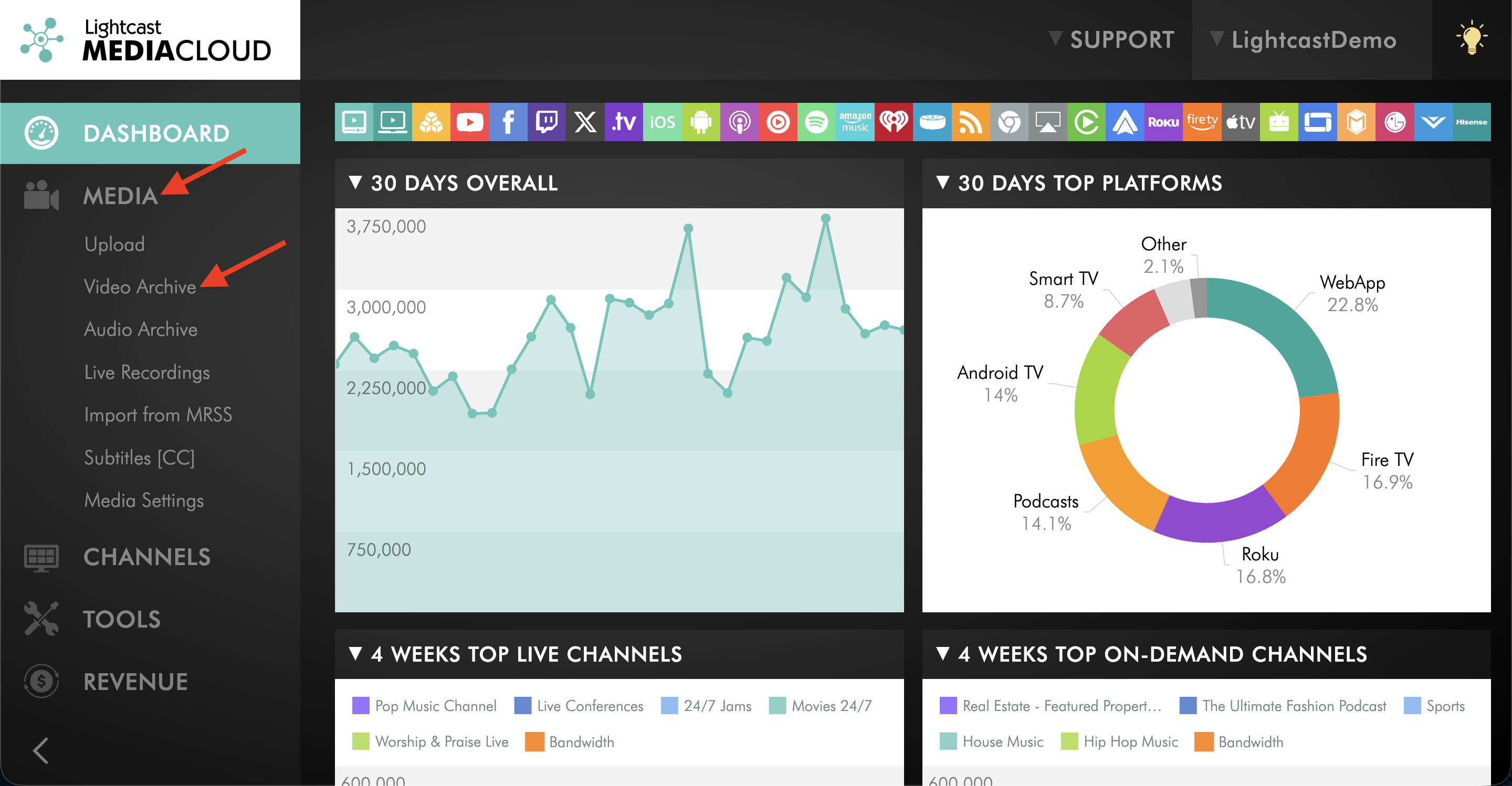
Go to MEDIA and select the Video Archive.
Step 3
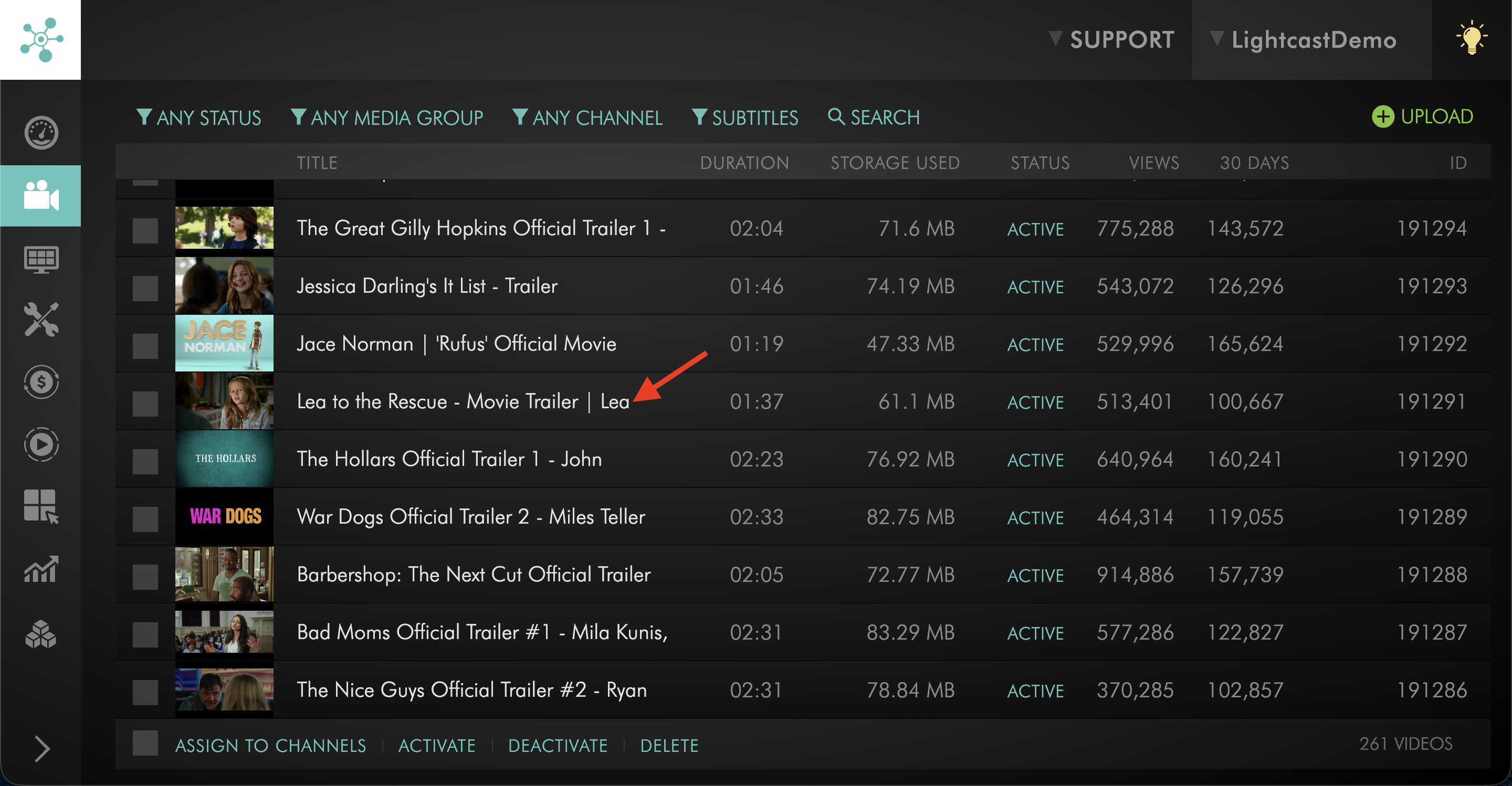
Open the video you want to dub.
Step 4
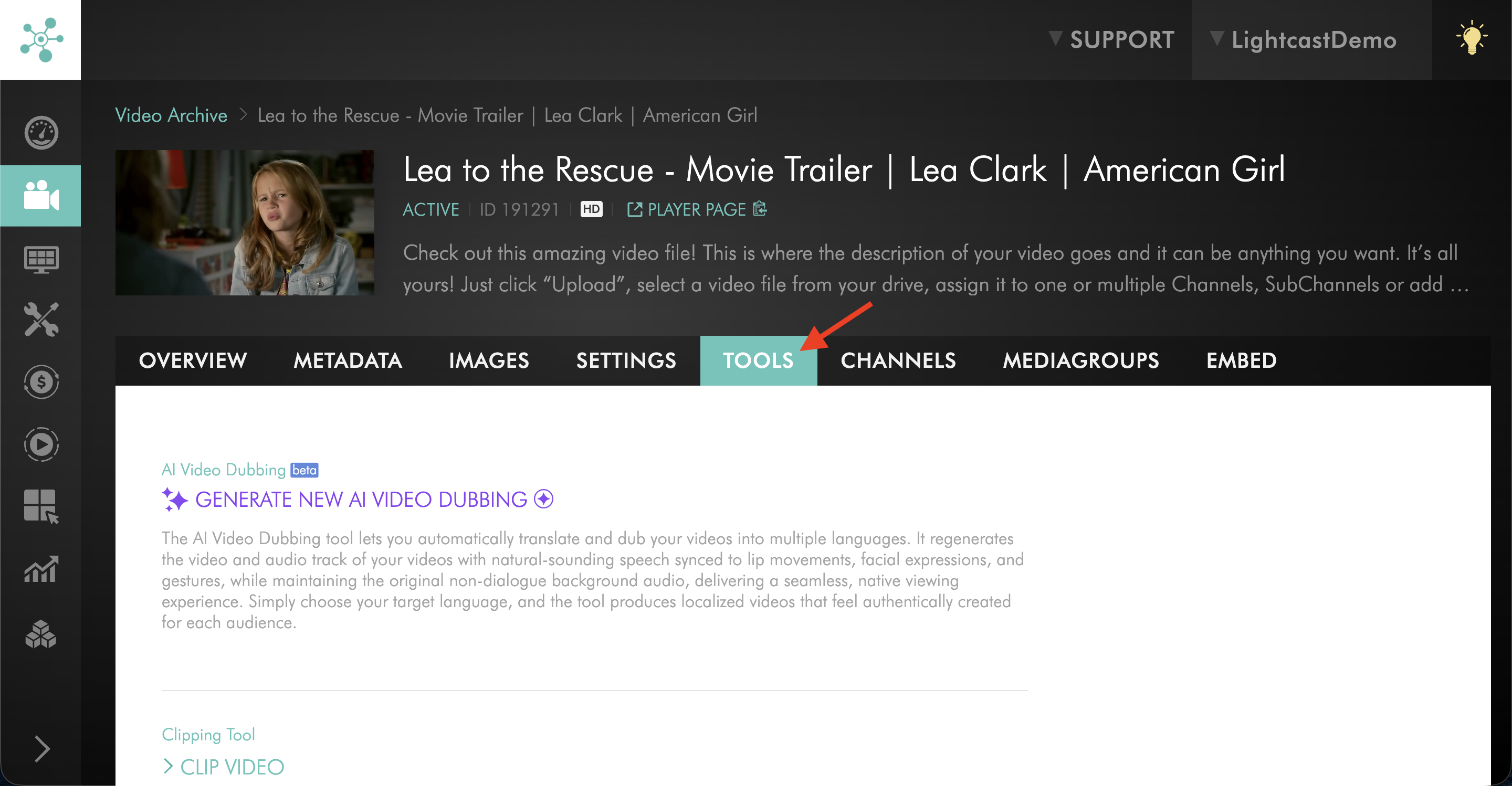
Select the TOOLS tab.
Step 5
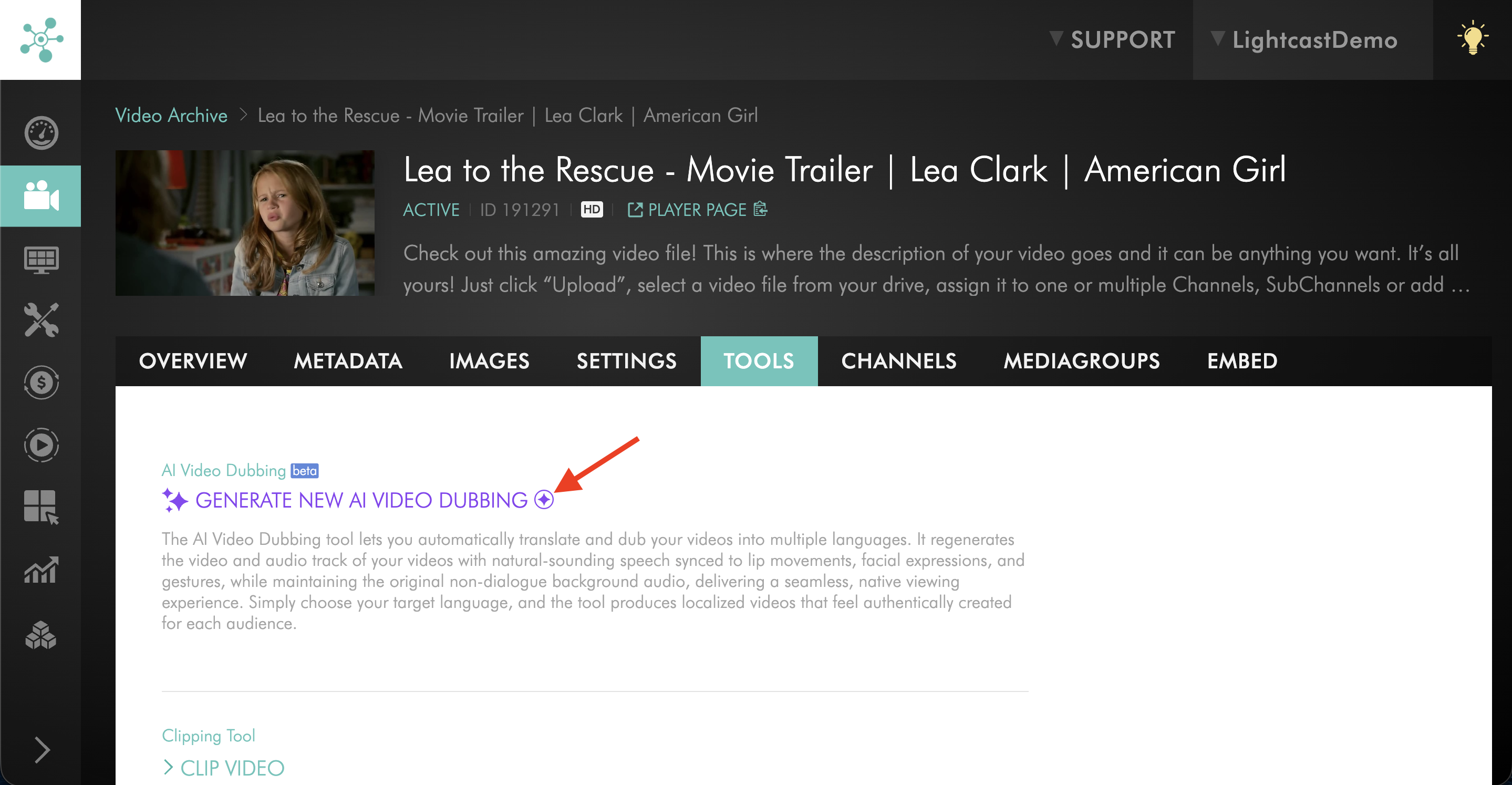
Click GENERATE NEW AI VIDEO DUBBING.
Step 6
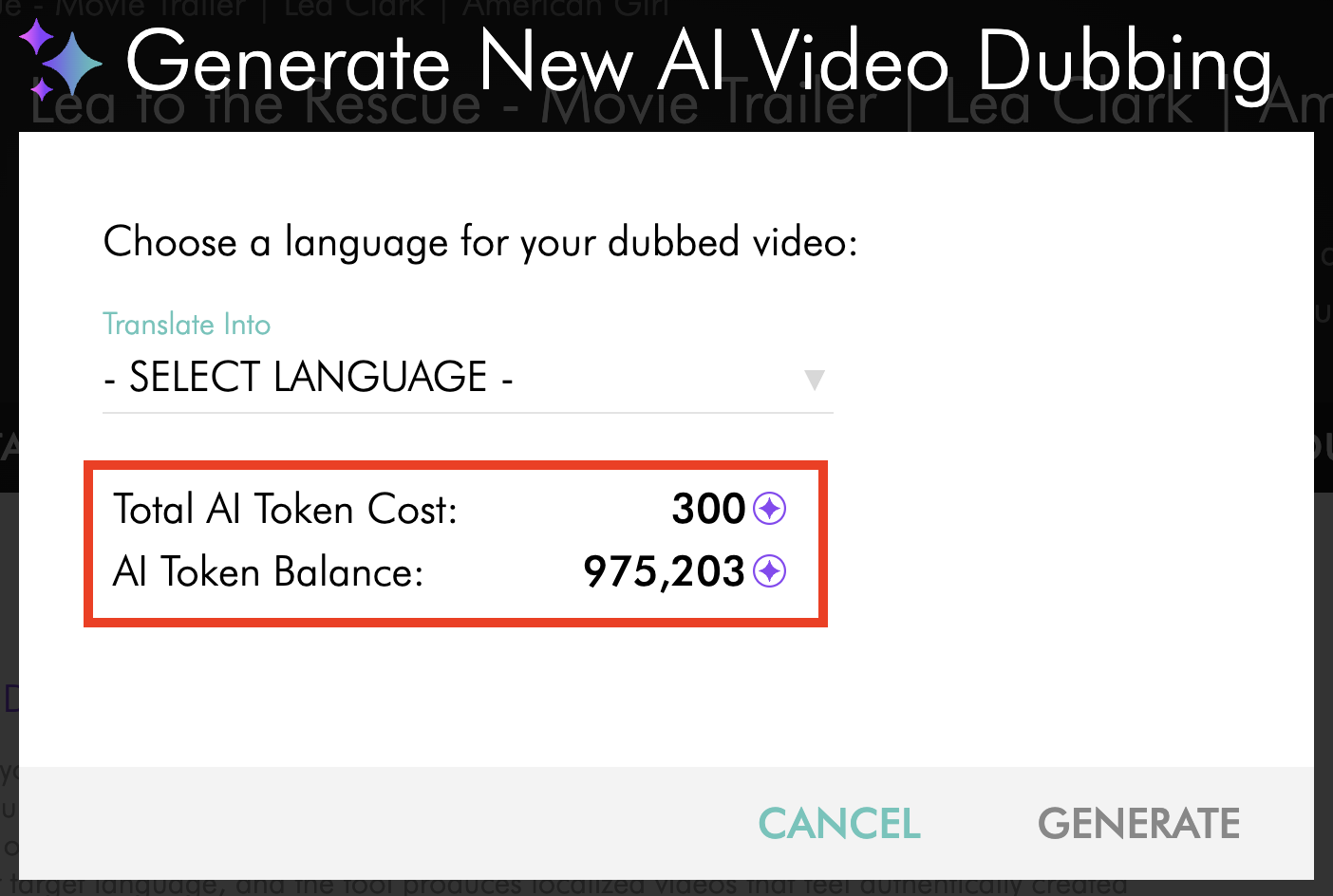
In the dialog box, review your AI Token Balance and the Total AI Token Cost for the job. The cost is calculated automatically based on the length of the video.
Step 7
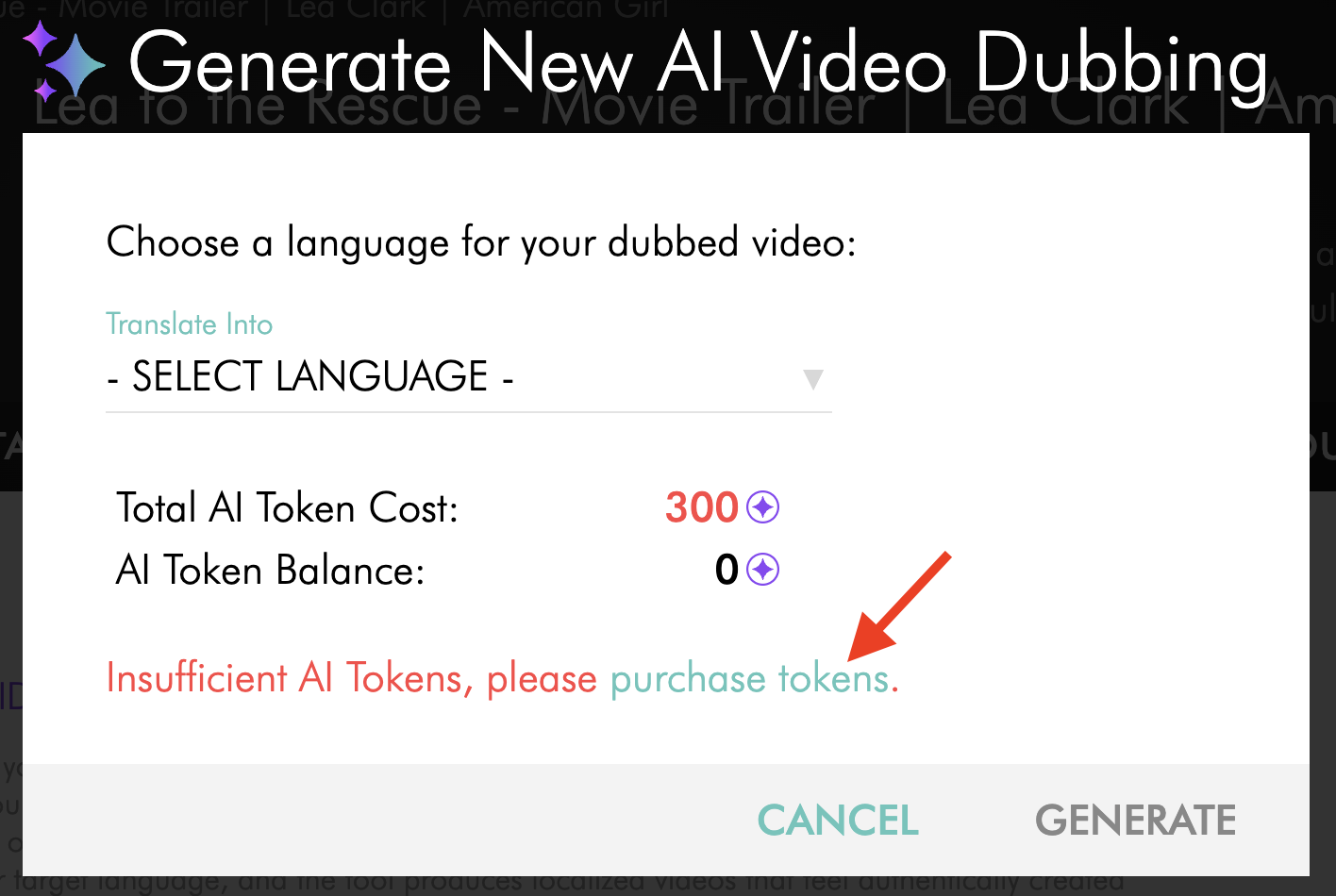
If you do not have enough AI Tokens, click purchase tokens to open the purchase window and add more tokens to your account.
Step 8
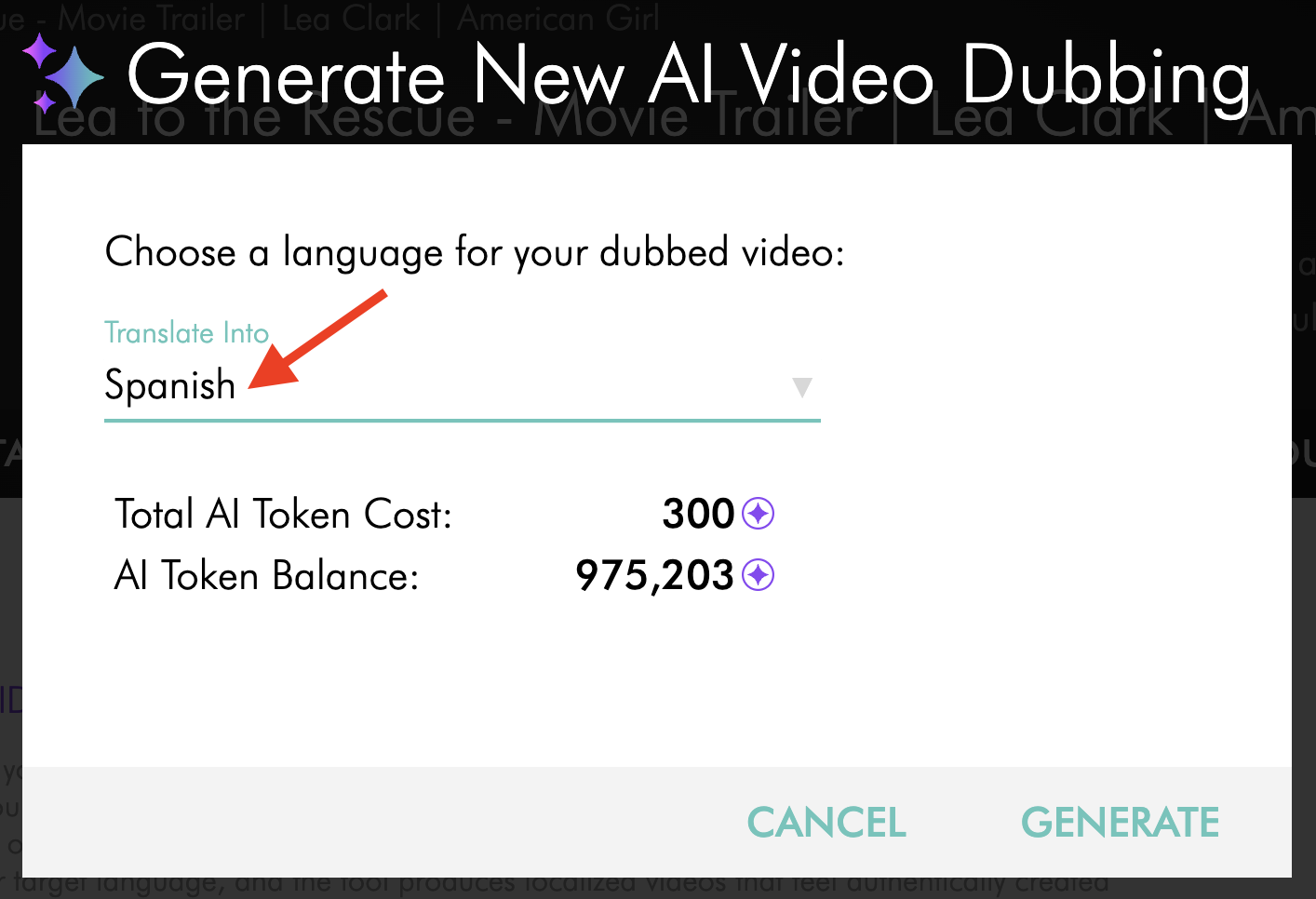
Choose the language you want from the Translate Into dropdown.
Step 9
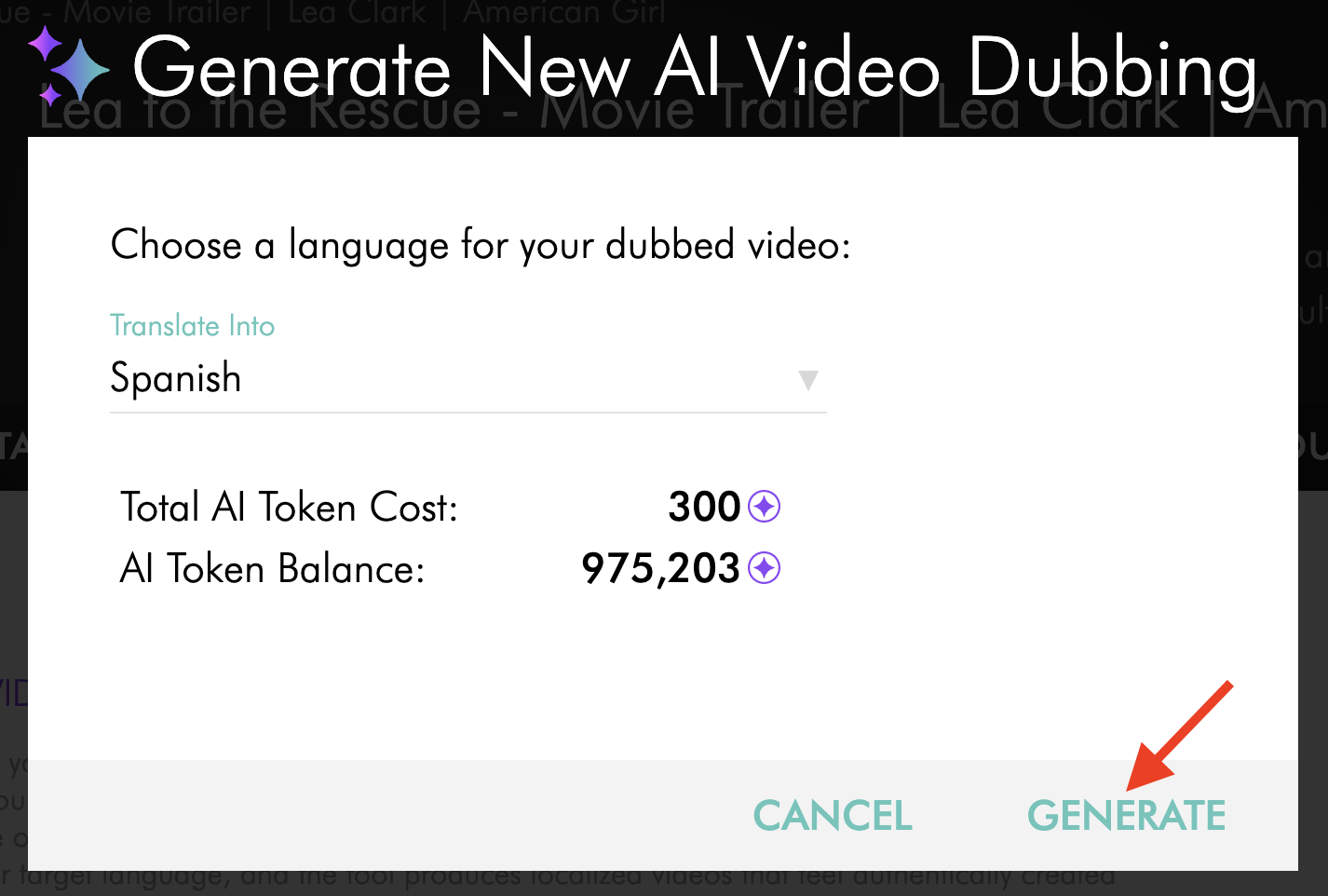
Click GENERATE to start the dubbing job.
Step 10
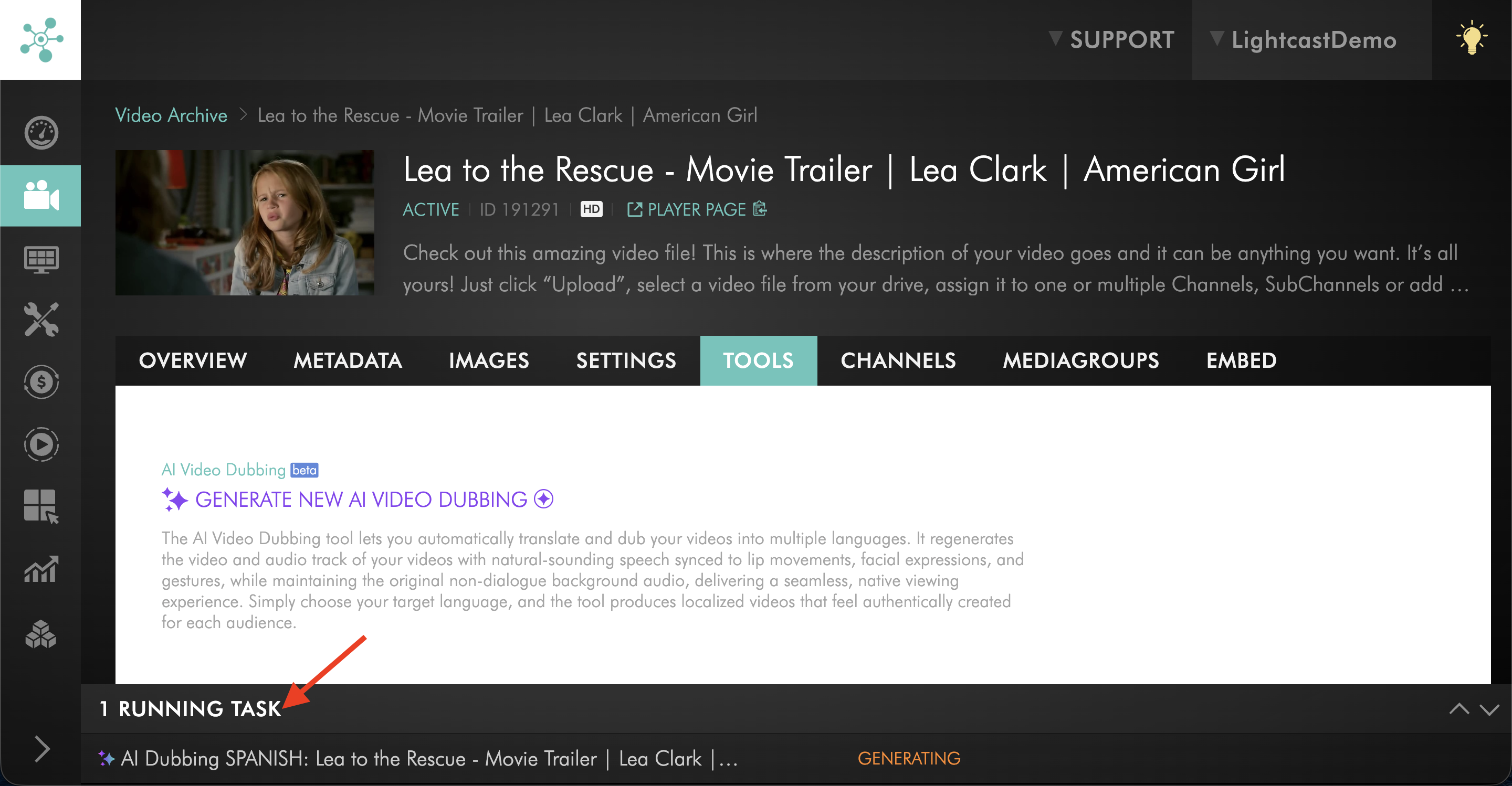
Check the Running Tasks section at the bottom of the page to follow the progress of the job. The entry shows the selected language and video name while the dub is being created.
Step 11
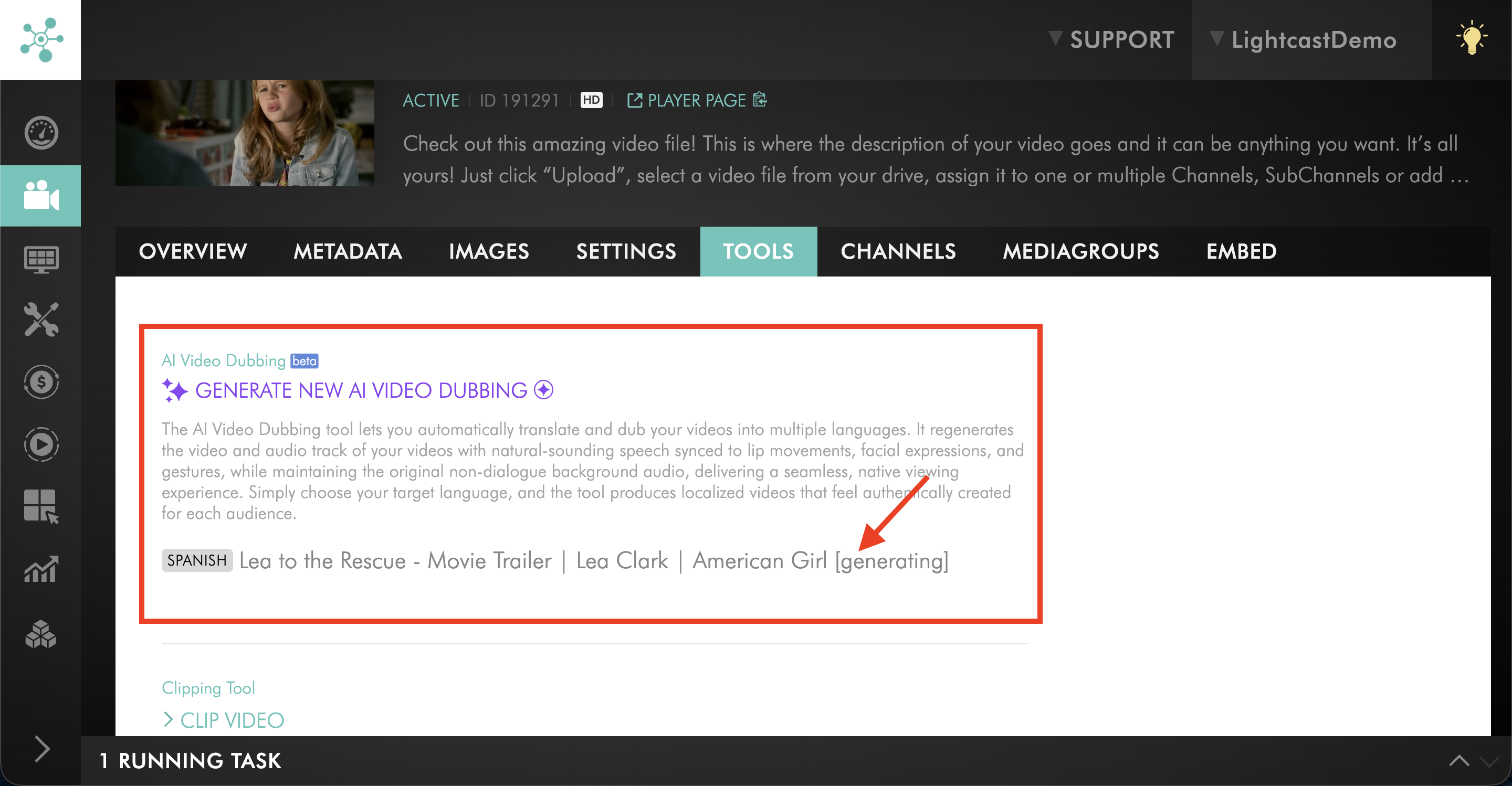
To view completed and in-progress dubs for that video, look under the GENERATE NEW AI VIDEO DUBBING button on the TOOLS tab. While the dub is still processing, each entry shows the language, video name, and a [generating] status.
Step 12
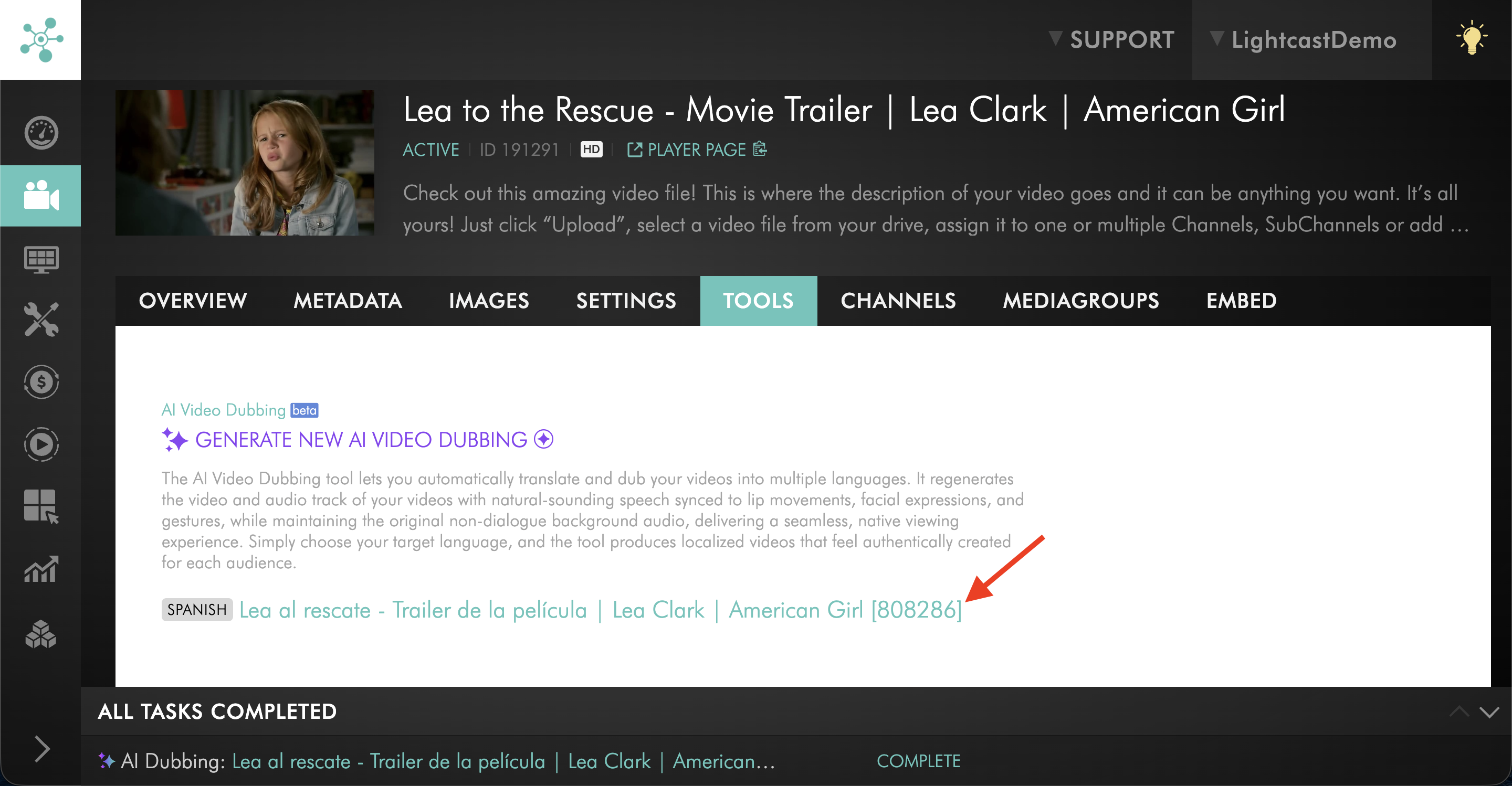
Once encoding is complete, each entry shows the language, video name, and ID. Click a completed entry to open the dubbed video.
Step 13
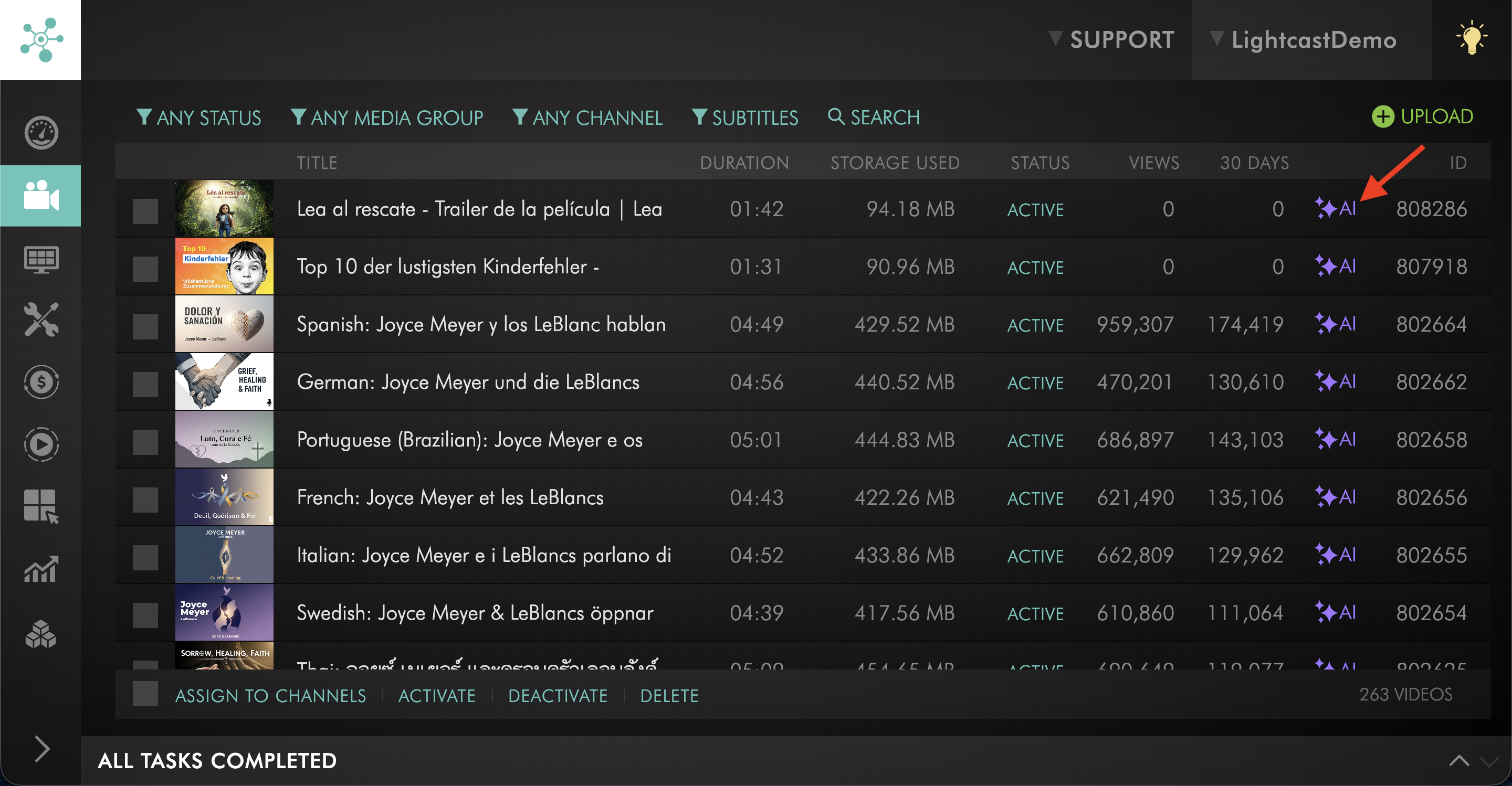
You can also find the new video in the Video Archive. AI-dubbed videos display an AI tag. Wait for encoding to finish before trying to view the video.
FAQs
Does AI Dubbing change the original video?
No. Lightcast AI Dubbing creates a separate new video. The original video remains unchanged in your Video Archive.
Does AI Dubbing add another audio track to the original video?
No. Lightcast AI Dubbing creates a separate video in the selected language rather than adding an additional audio track to the original video.
This approach provides a fully localized viewing experience with translated speech, synchronized lip movements, and preserved background audio while keeping the original video unchanged. It also allows you to organize content into language-specific Channels or Sub-Channels and create clear navigation for multilingual content libraries.
How is AI Dubbing different from a voice-over?
Lightcast AI Dubbing generates a separate video in the selected language. It adjusts the speakers’ lip movements and preserves the original music, atmosphere, sound effects, audience responses, and other background audio.
A basic voice-over typically adds replacement speech over the original audio and may not preserve or adapt all of those elements in the same way.
Are translated subtitles and dubbed videos organized the same way?
Not always. Lightcast Translated Subtitles are attached to the original media item, allowing viewers to select another subtitle language when supported by the player or app experience.
Lightcast AI Dubbing creates a separate video file for each language. As a result, each dubbed version can be managed like other media items in the Media Cloud and assigned to Channels, Sub-Channels, or Media Groups.
How can I organize AI-dubbed videos in my apps?
After an AI-dubbed video finishes encoding, you can add it to VOD Channels, Sub-Channels, or Media Groups like other videos in your Video Archive.
For example, you can create:
A dedicated VOD Channel for content in a specific language
Language-specific Sub-Channels for a program or series
Separate navigation paths for different language libraries
Because Lightcast AI Dubbing creates a separate video for each language, each version can be organized and published independently through your Lightcast web players, mobile apps, Web Apps, and TV apps.
Can AI Dubbing be used for audio items?
No. AI Dubbing is available for videos only. It is not available for audio items.
How many languages are supported?
AI Dubbing supports 40+ languages. You can view the full list in the language dropdown in the tool.
Is metadata automatically generated for dubbed videos?
No. Video dubbing does not create new AI-generated metadata. Instead, the existing metadata from the source video is translated into the selected language.
What happens if some metadata fields are empty on the source video?
Empty metadata fields stay empty on the dubbed video. The title is the exception because a title is required.
How is the thumbnail chosen for a dubbed video?
If the source video has both a title and description, the dubbed video receives an AI-generated thumbnail. If the source video does not have a description, the dubbed video uses a screenshot from the video instead.
Is the AI-generated thumbnail based on the video content?
No. When an AI-generated thumbnail is created for a dubbed video, it is based on the title and description metadata, not the video content itself.
How is the AI Token cost calculated?
The total AI Token cost is based on the duration of the video and is shown in the dubbing dialog before you start the job.
Where can AI-dubbed videos be identified in the Media Cloud?
AI-dubbed videos are marked in several places across the Media Cloud:
In Video Archive, the dubbed video shows an AI icon next to the Video ID.
In a Channel or Sub-Channel PLAYLIST, the AI icon appears next to the Video ID.
On the Video Overview page, the video shows an AI Dubbed tag next to its features. Hover over the tag to see AI Dubbed From: [original video name], and click it to open the original source video.
In the Add Items from Archive list, AI-dubbed videos show the AI icon next to their title. You can open this list from a VOD Channel or Sub-Channel PLAYLIST by clicking + FROM ARCHIVE.