
How to manage sharing options for Lightcast web players
Overview
This article explains how to change or remove the sharing options for Channel players, Sub-Channel players, and single media players in the Media Cloud.
When to manage sharing options
Manage sharing options when you want to control how viewers can share the embedded Lightcast web player.
For example, you may want to:
Change the link that viewers share from the web player.
Direct shared links to a specific webpage or destination.
Remove the sharing option from the web player.
How it works
Sharing options are managed from the EMBED tab of the specific Channel, Sub-Channel, or individual media item you want to update.
These settings control the sharing options available to viewers from the web player.
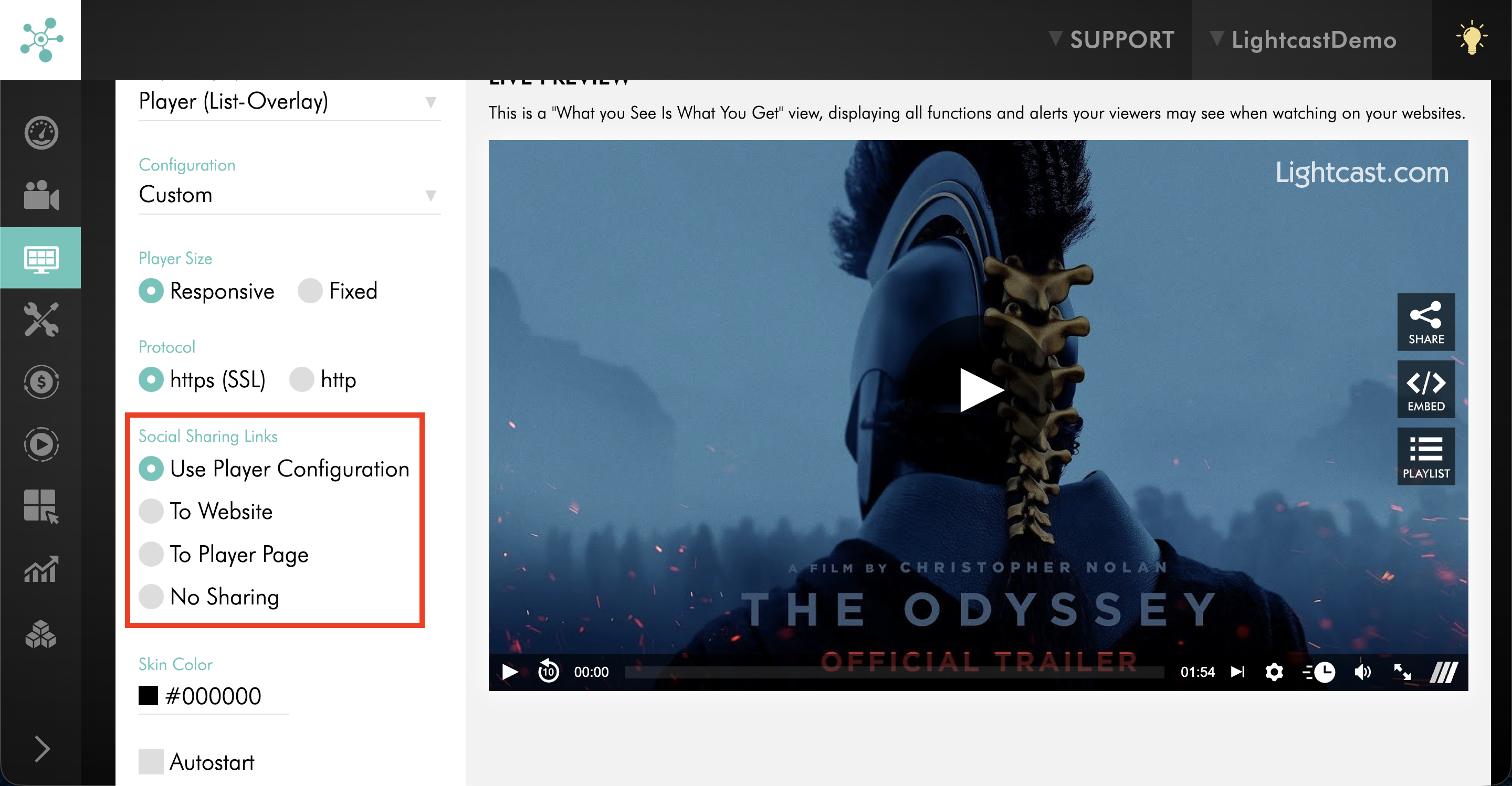
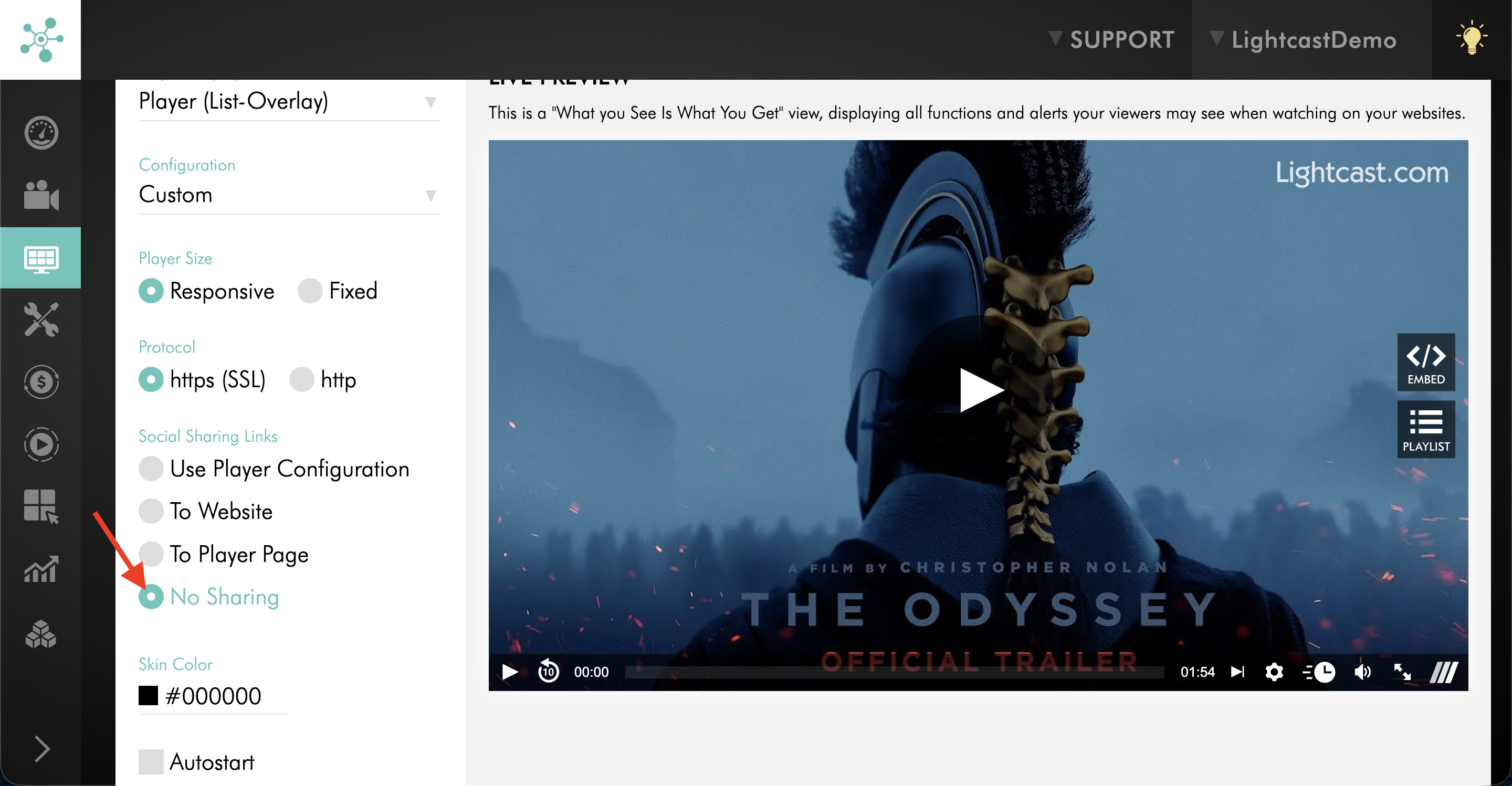
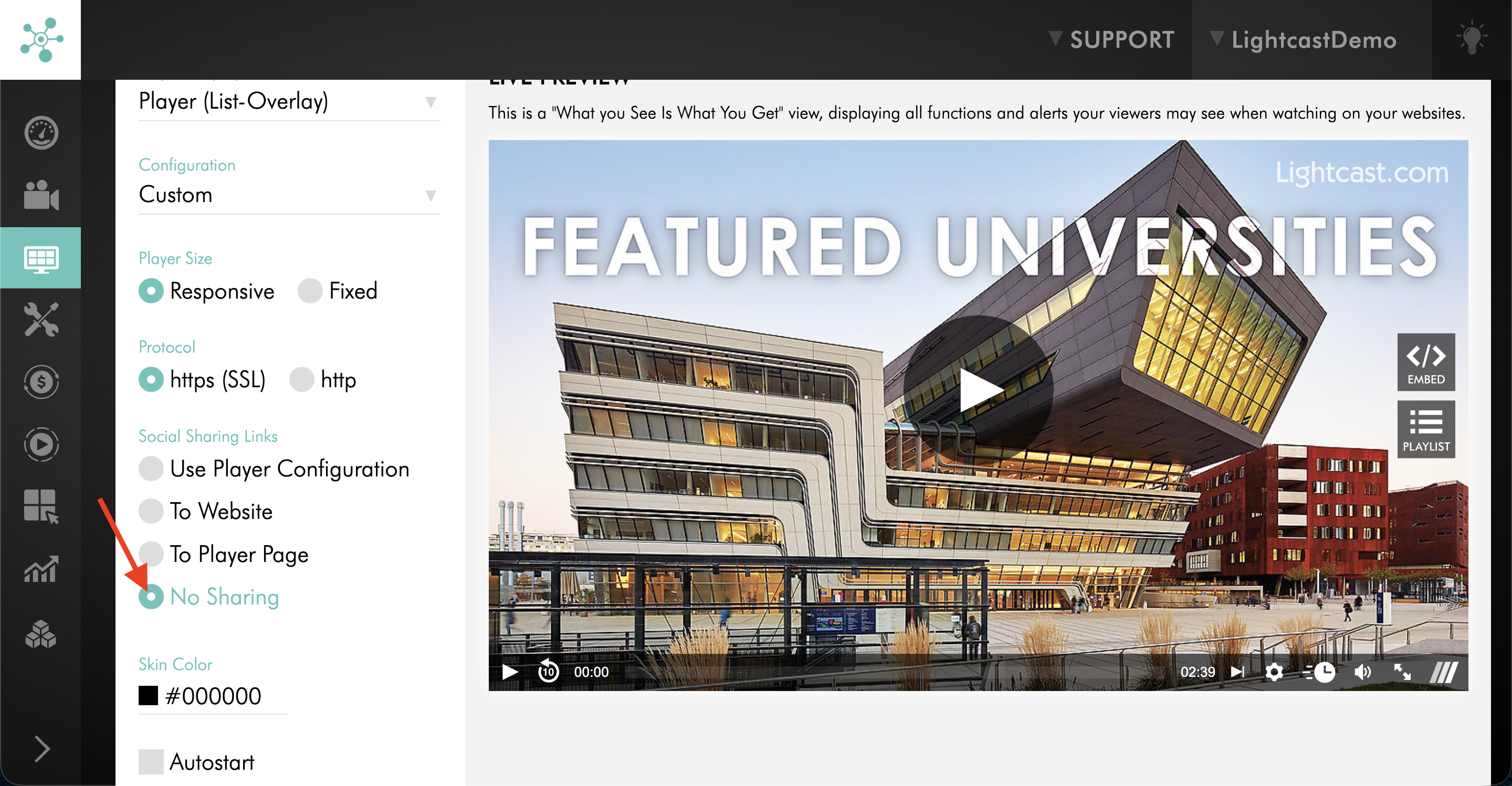
Under Social Sharing Links, you can select one of the following options:
Use Player Configuration: Uses the sharing settings defined in your Player Configurator.
To Website: Shares a link to the website or Web App where the player is embedded. For Channel Players, this directs viewers to the webpage containing the Channel playlist rather than a specific video within that playlist.
To Player Page: Shares a link to the Lightcast-hosted player page instead of the website where the player is embedded. This allows viewers to share a specific video from a Channel playlist directly.
No Sharing: Removes the sharing option from the web player.
These options are available for supported Channel, Sub-Channel, and individual media players, including video and audio players.
Sharing is different from viewer embedding. Sharing allows viewers to share a link associated with the player, while viewer embedding controls whether viewers can access and copy the player's embed code to place the player on another website.
For more information about how shared player links may appear in social media posts, see Understanding how player links appear on social media.
Instructions
Manage sharing options for a Channel player
Step 1
Log in to your Media Cloud account.
Step 2
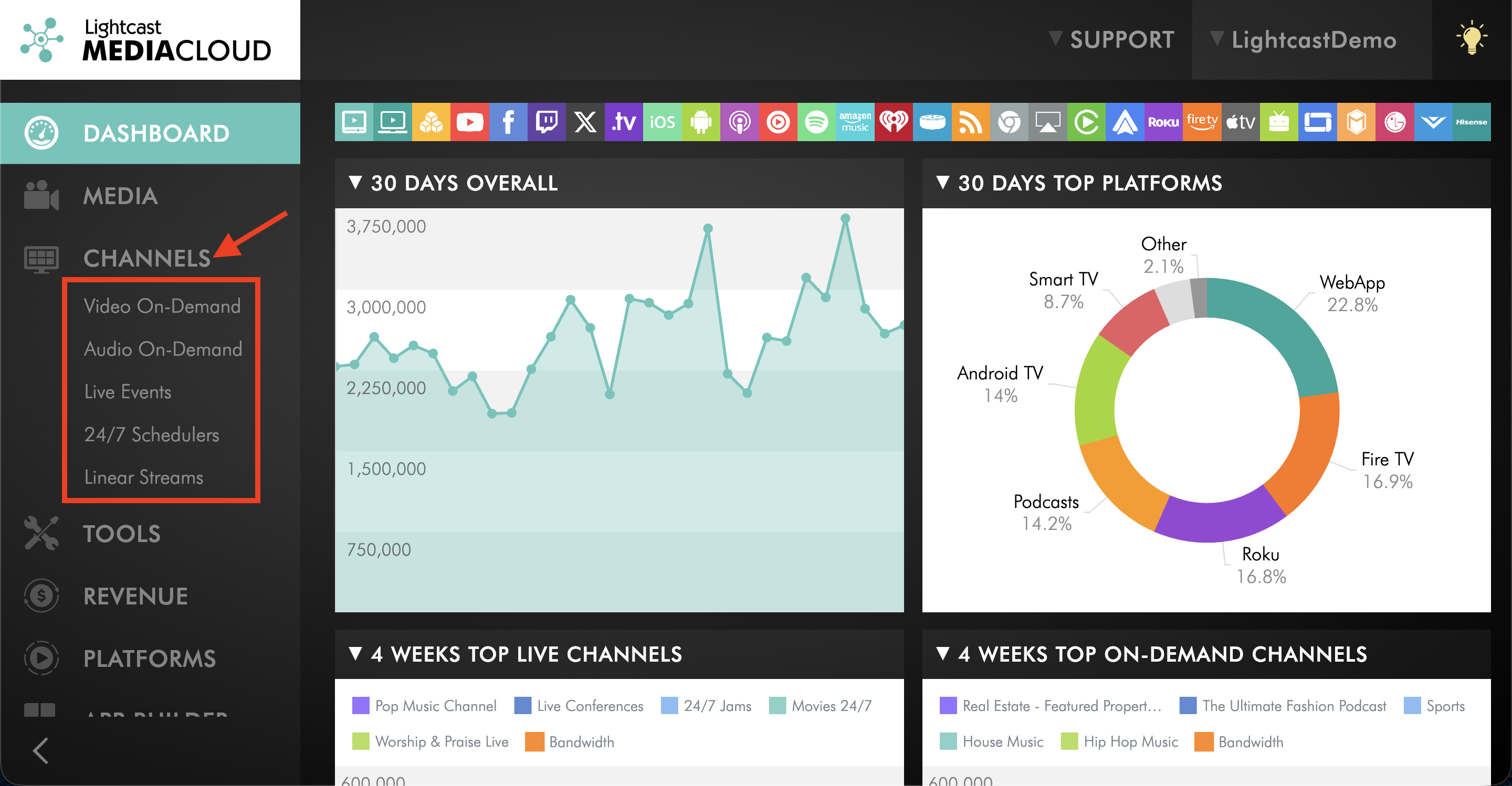
Click CHANNELS, then select the Channel type.
Step 3
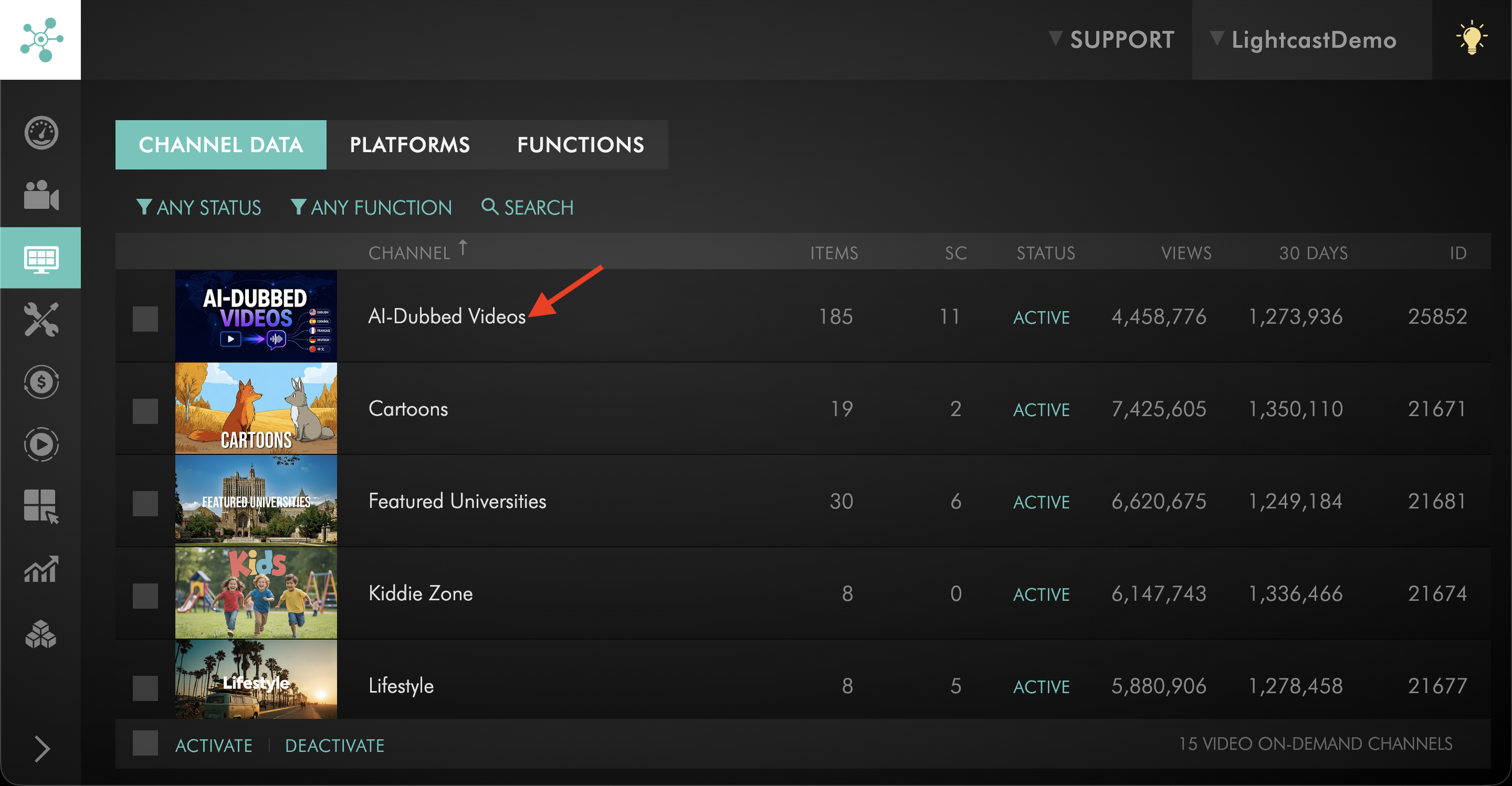
Open the Channel you want to update.
Step 4
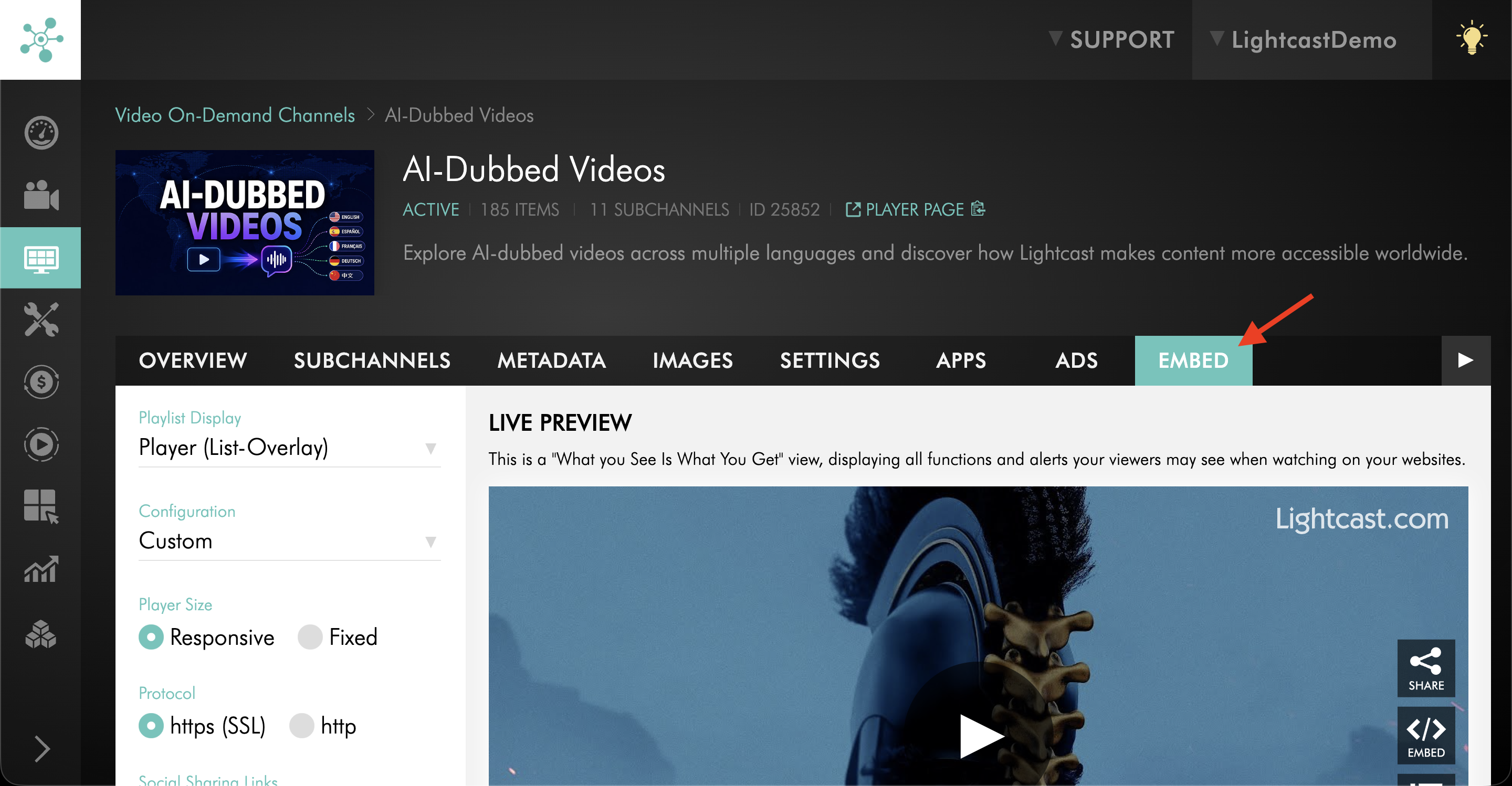
Go to the EMBED tab.
Step 5
Find the sharing settings for the player.
Step 6
Select the sharing option you want to use.
To remove the sharing plugin from the web player, select No Sharing.
Step 7
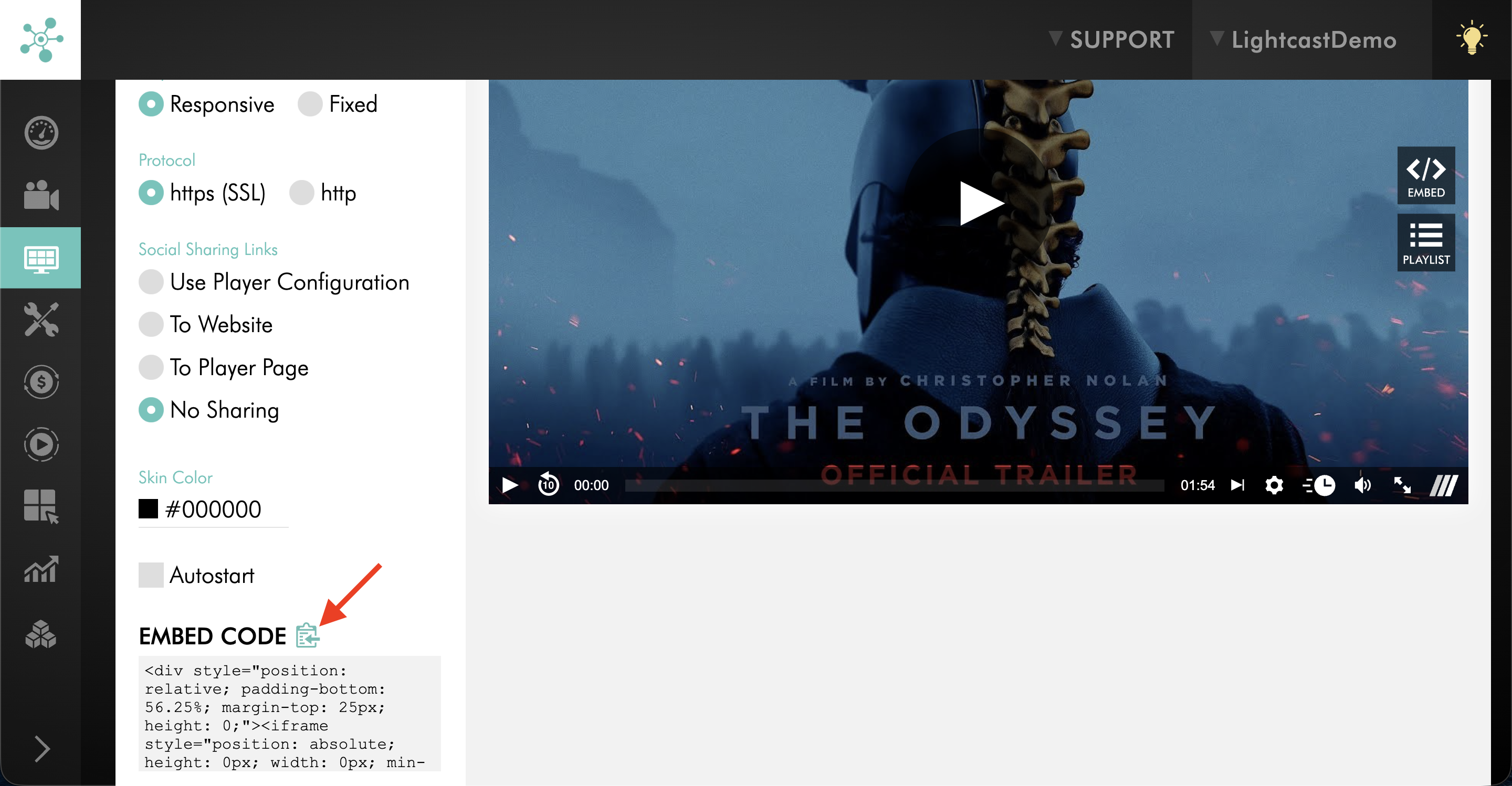
Copy the updated embed code if you need to add the updated player to your website or another webpage that supports embed code.
Manage sharing options for a Sub-Channel player
Step 1
Log in to your Media Cloud account.
Step 2
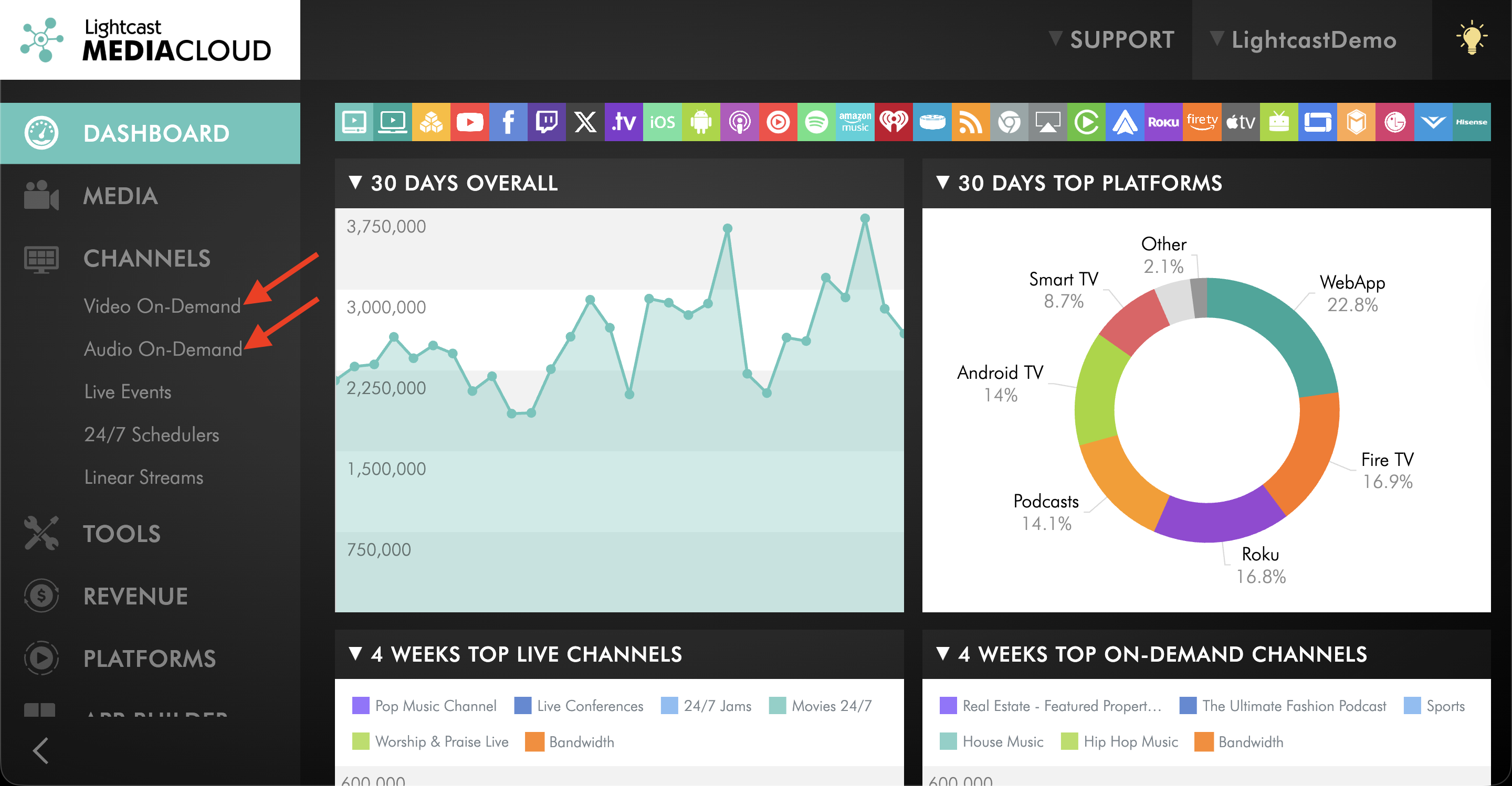
Click CHANNELS, then select VIDEO ON DEMAND or AUDIO ON DEMAND.
Step 3
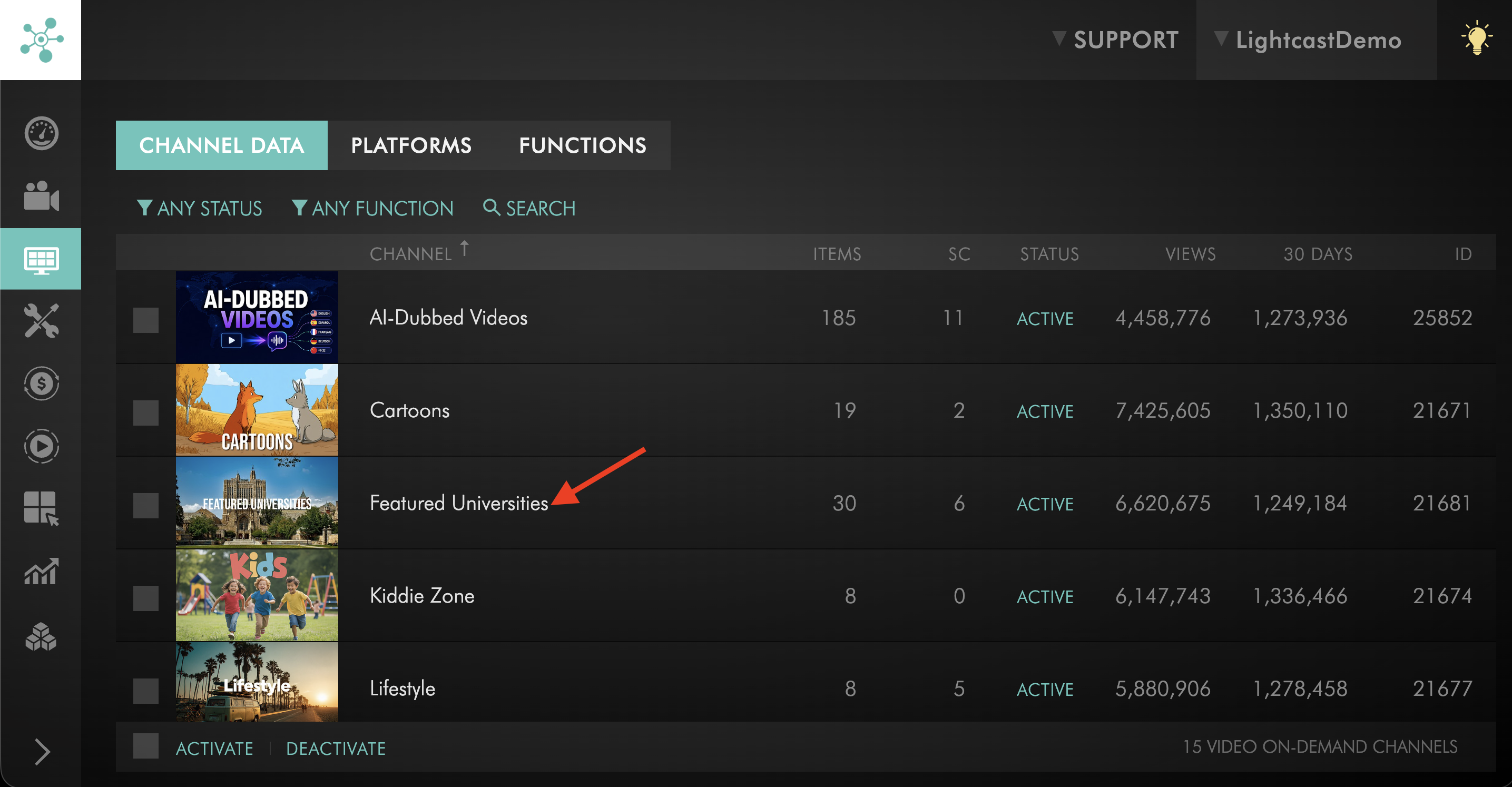
Open the Channel that contains the Sub-Channel.
Step 4
Go to the SUBCHANNELS tab.
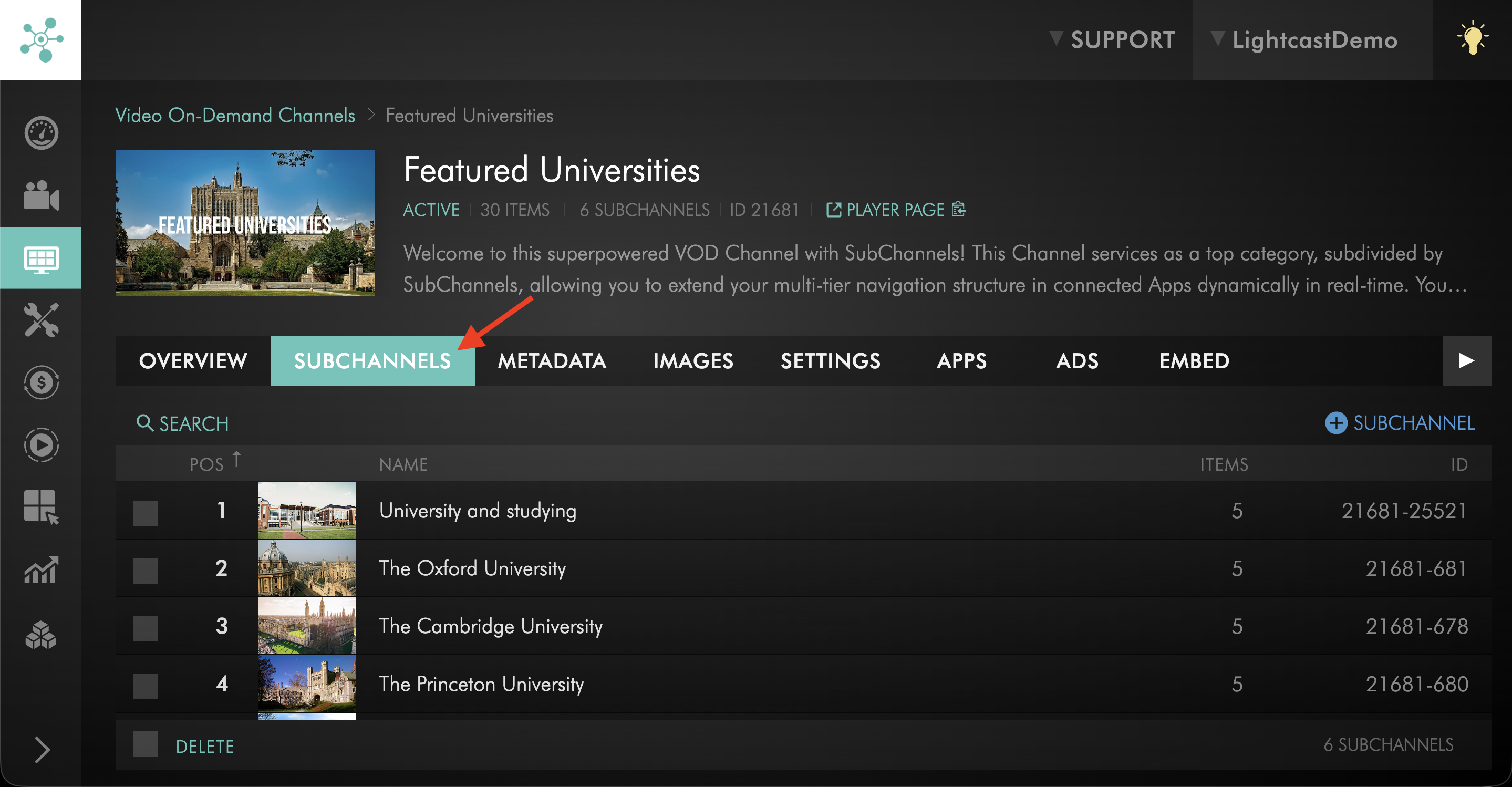
Step 5
Open the Sub-Channel you want to update.
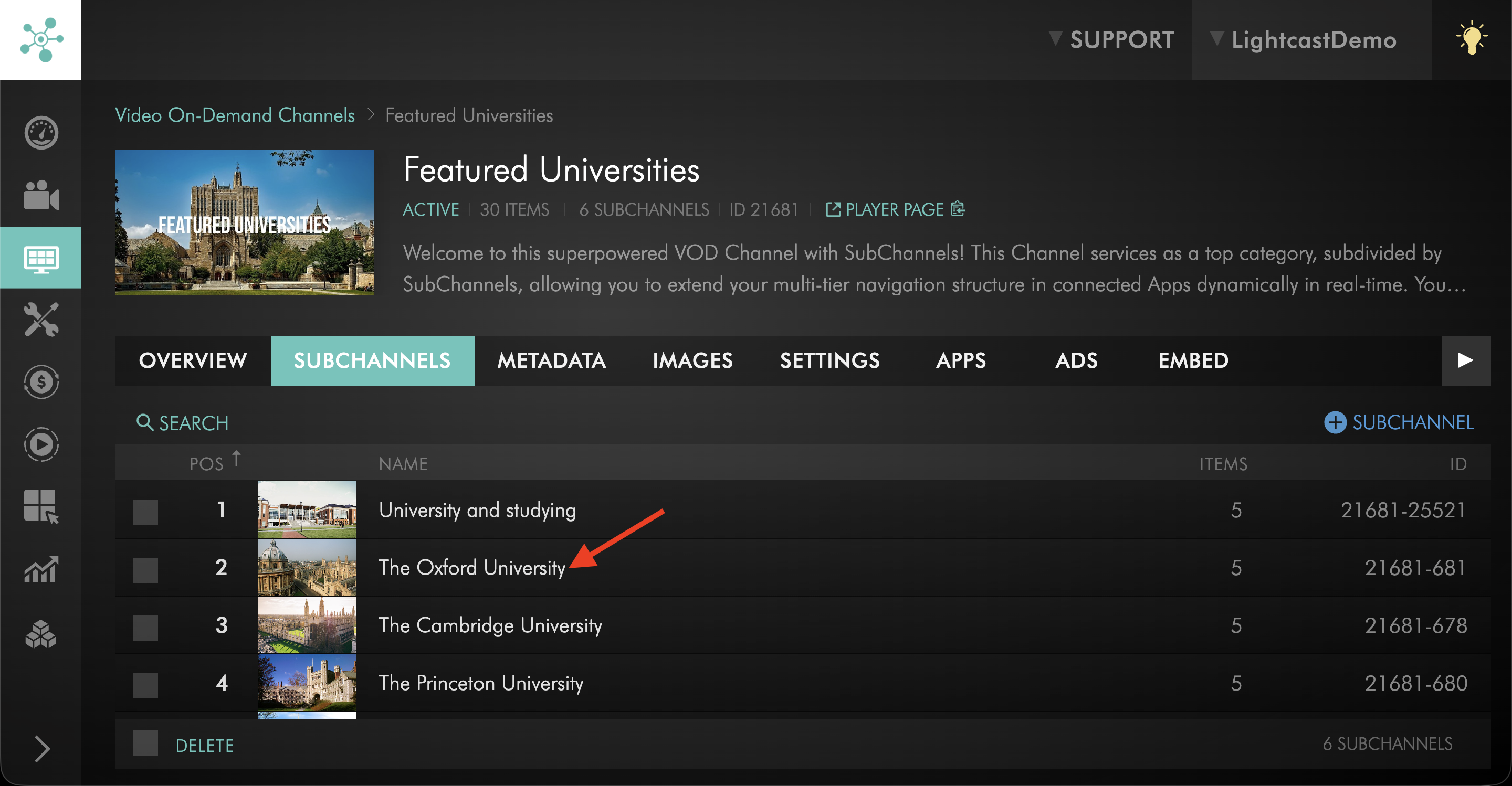
Step 6
Go to the EMBED tab.
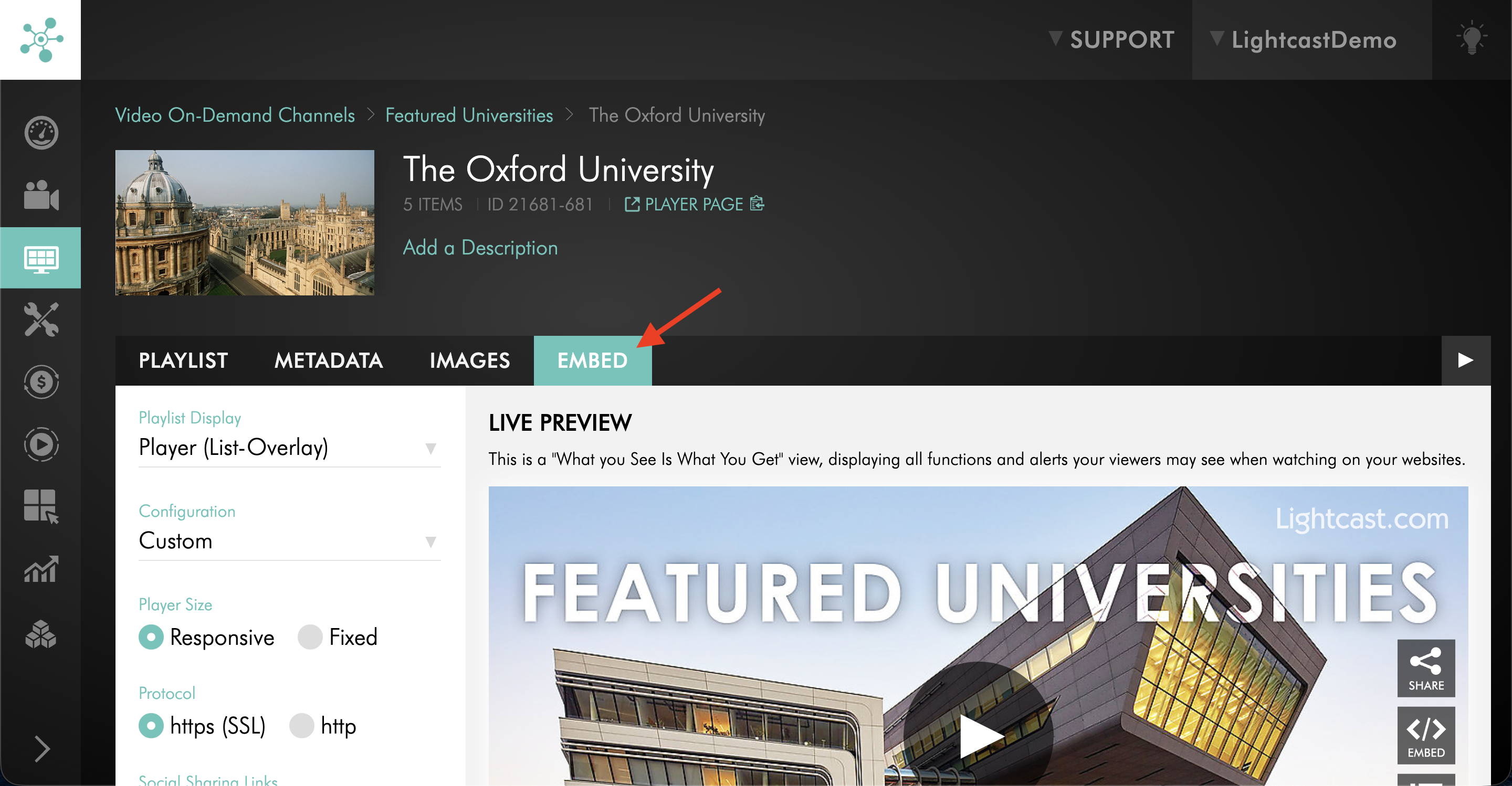
Step 7
Find the sharing settings for the player.
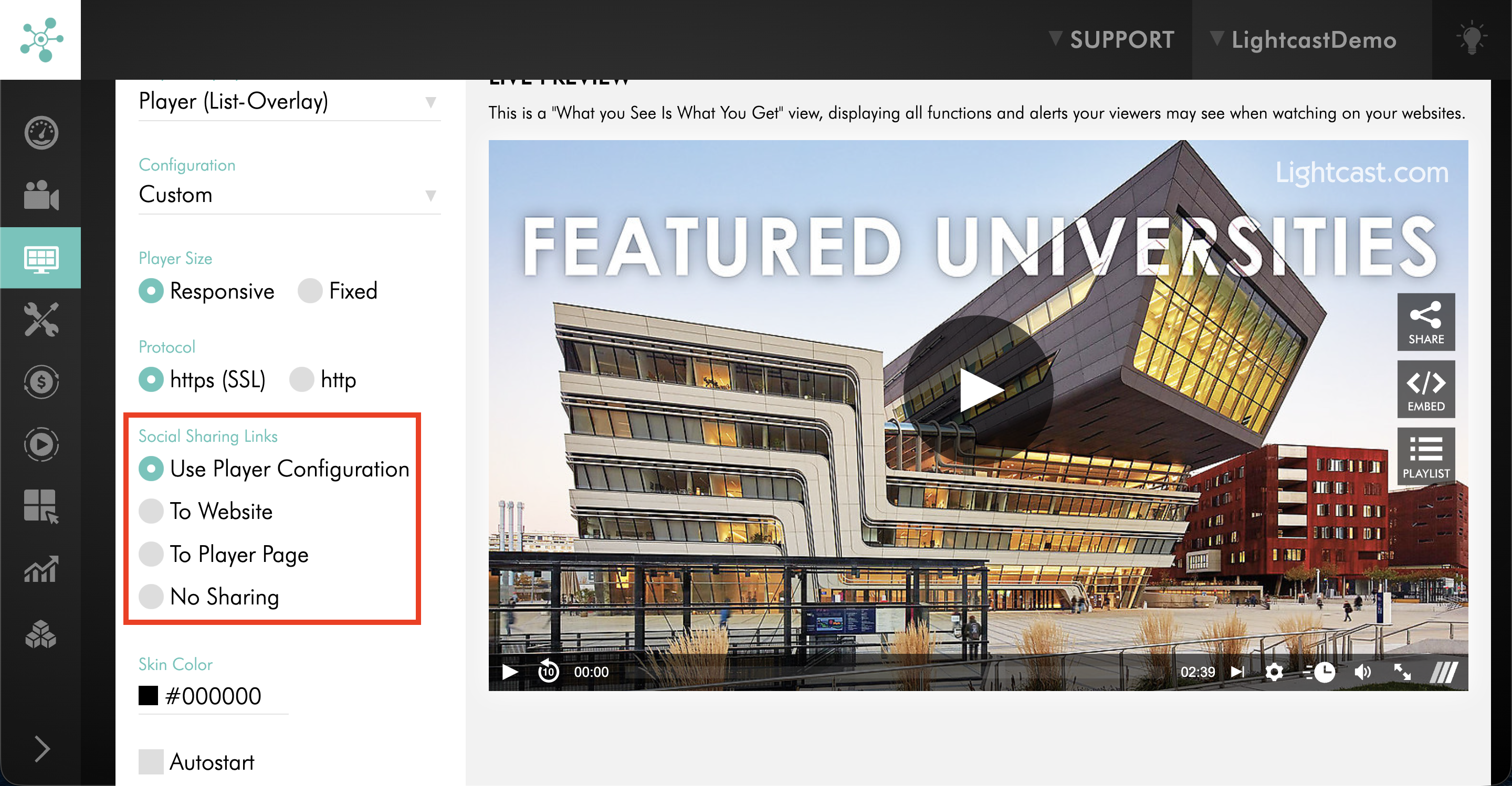
Step 8
Select the sharing option you want to use.
To remove the sharing plugin from the web player, select No Sharing.
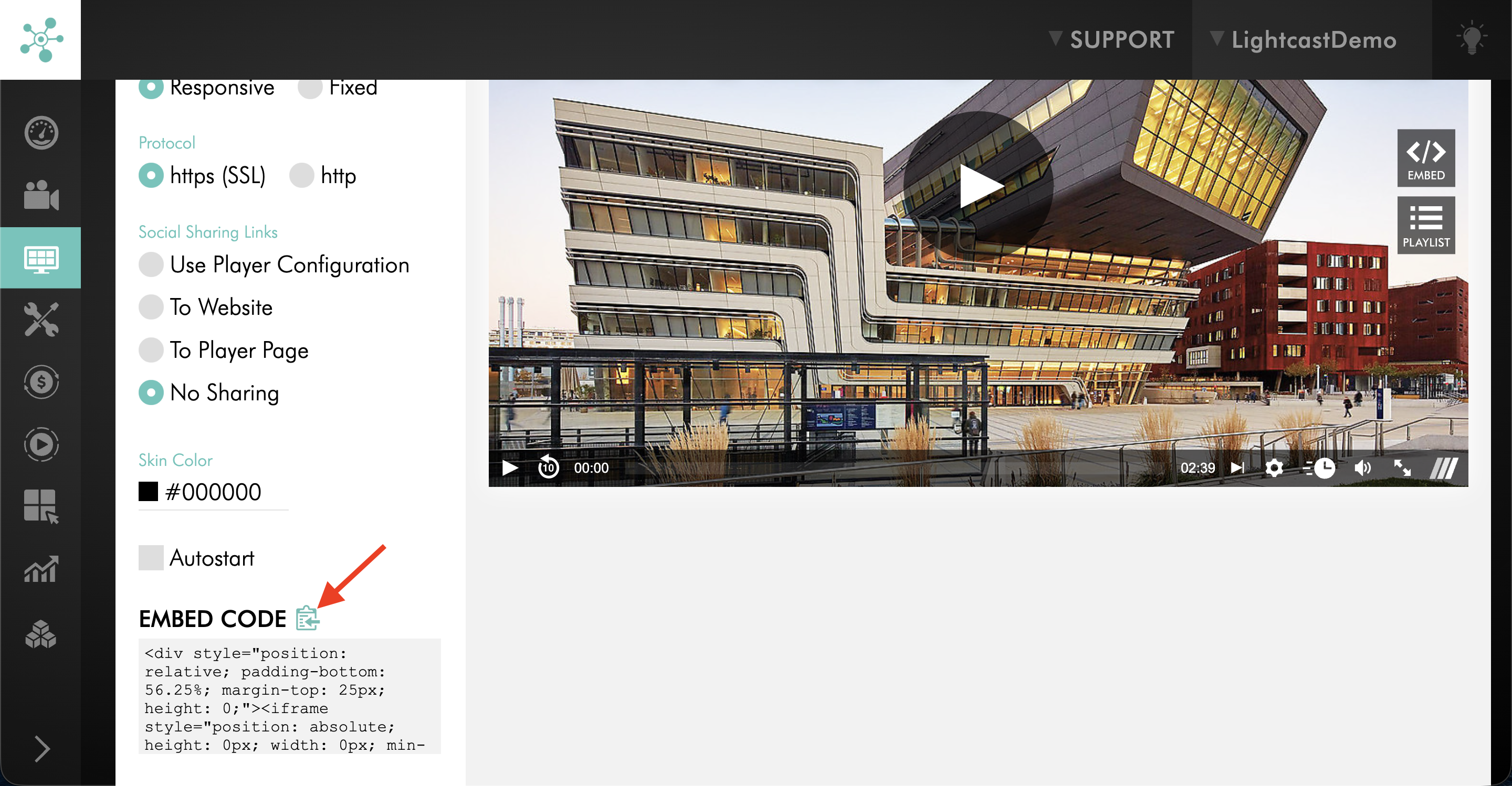
Step 9
Copy the updated embed code if you need to add the updated player to your website or another webpage that supports embed code.
Manage sharing options for a single media player
Step 1
Log in to your Media Cloud account.
Step 2
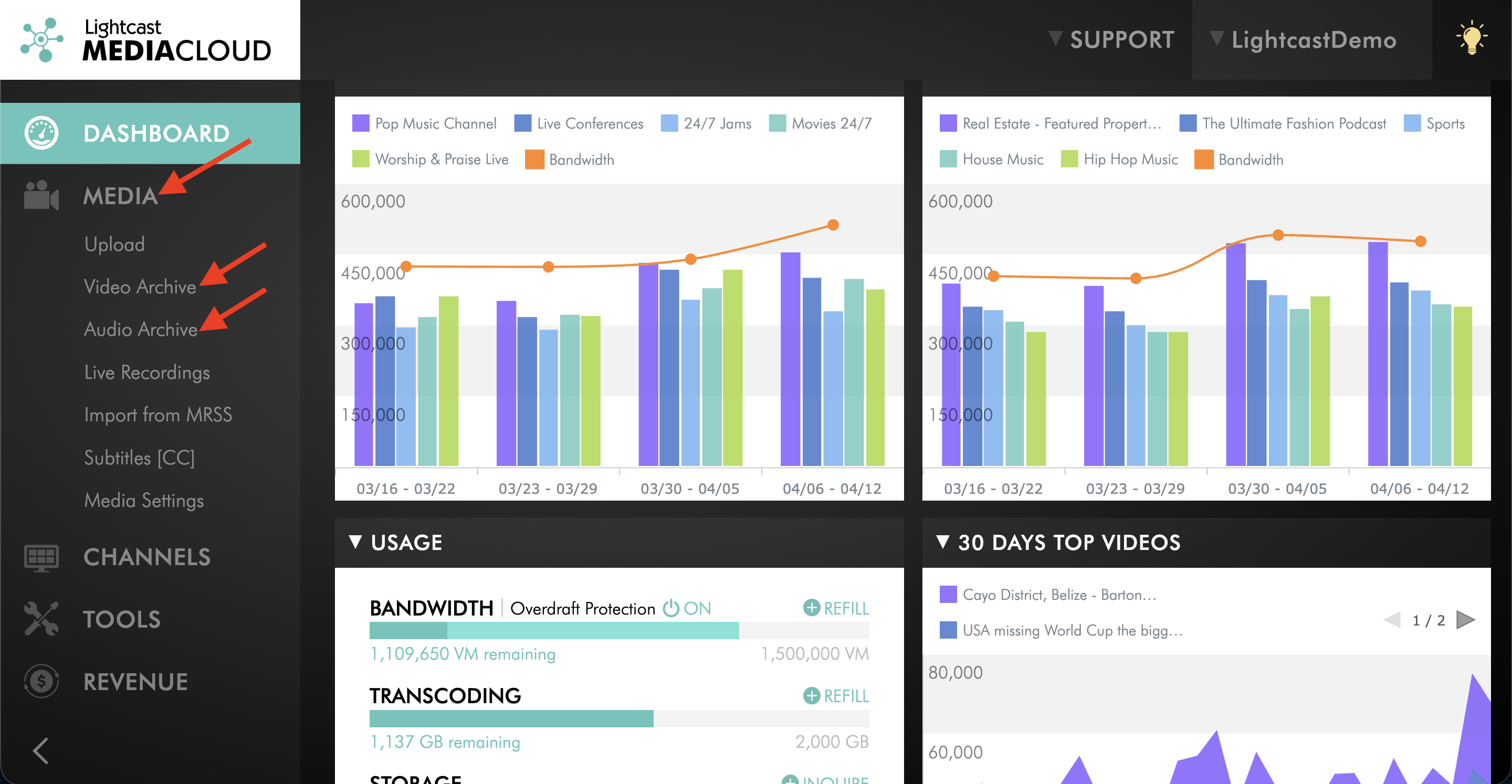
Click MEDIA, then select Video Archive or Audio Archive.
Step 3
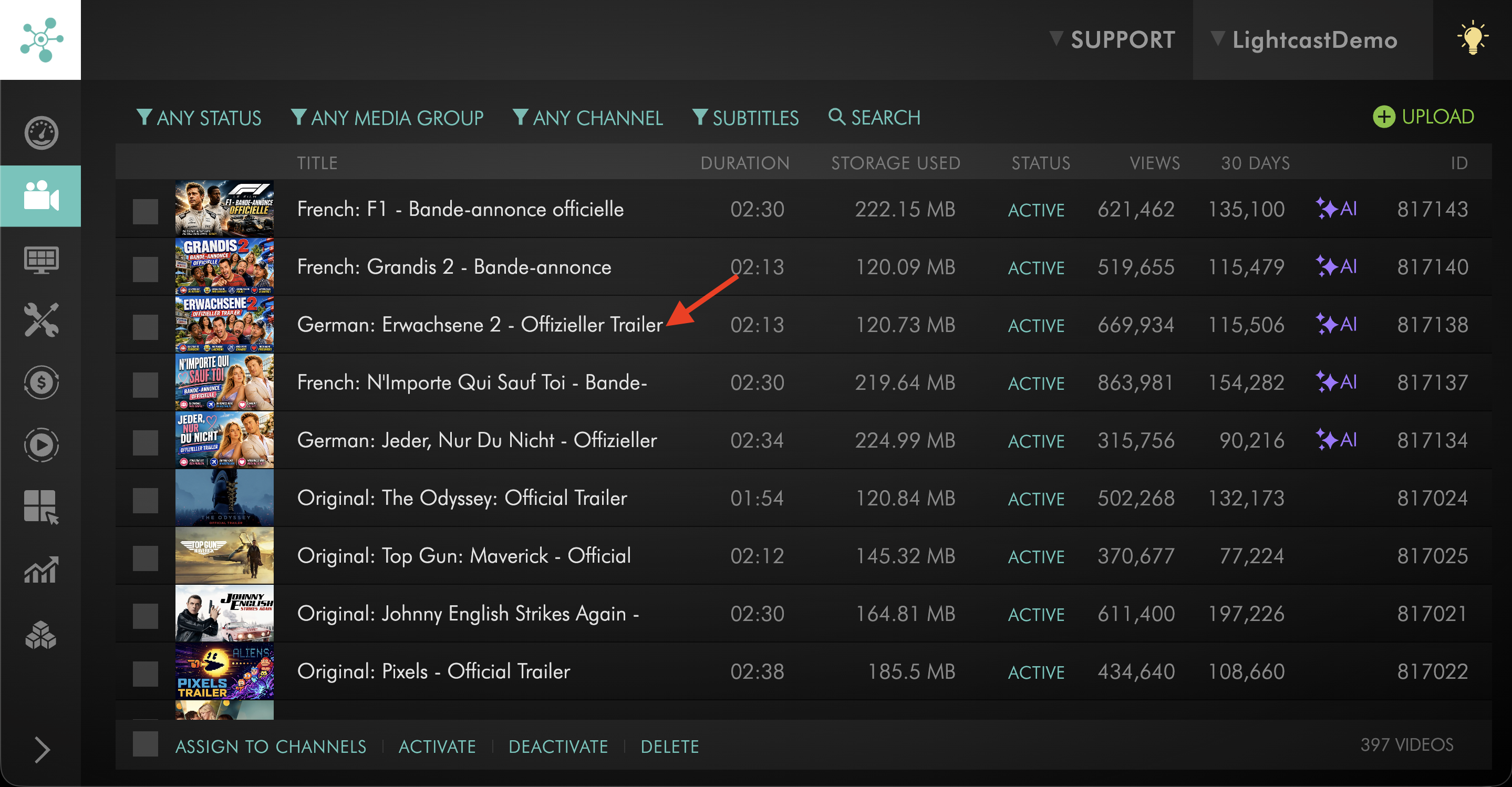
Open the video or audio file you want to update.
Step 4
Go to the EMBED tab.
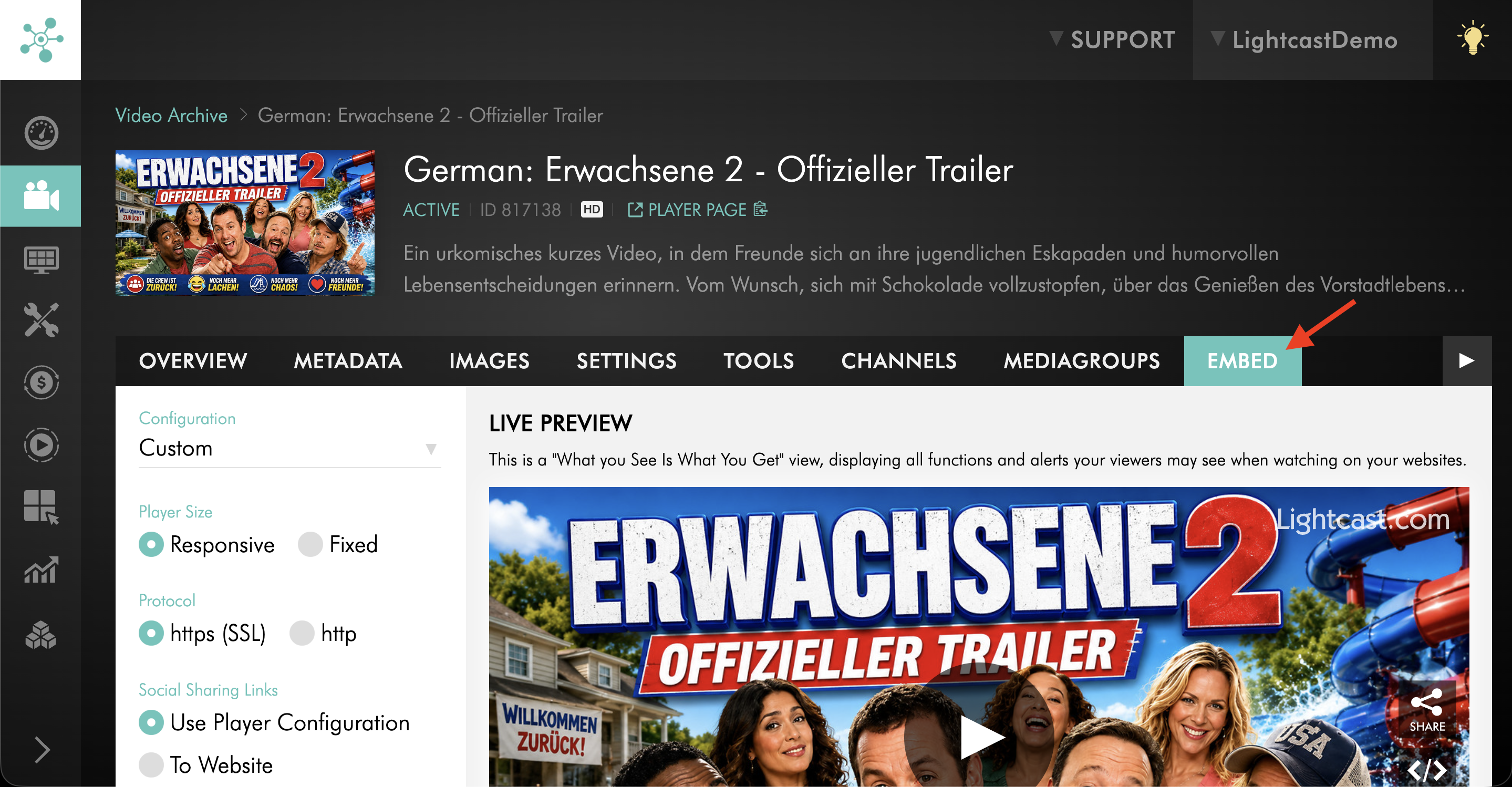
Step 5
Find the sharing settings for the player.
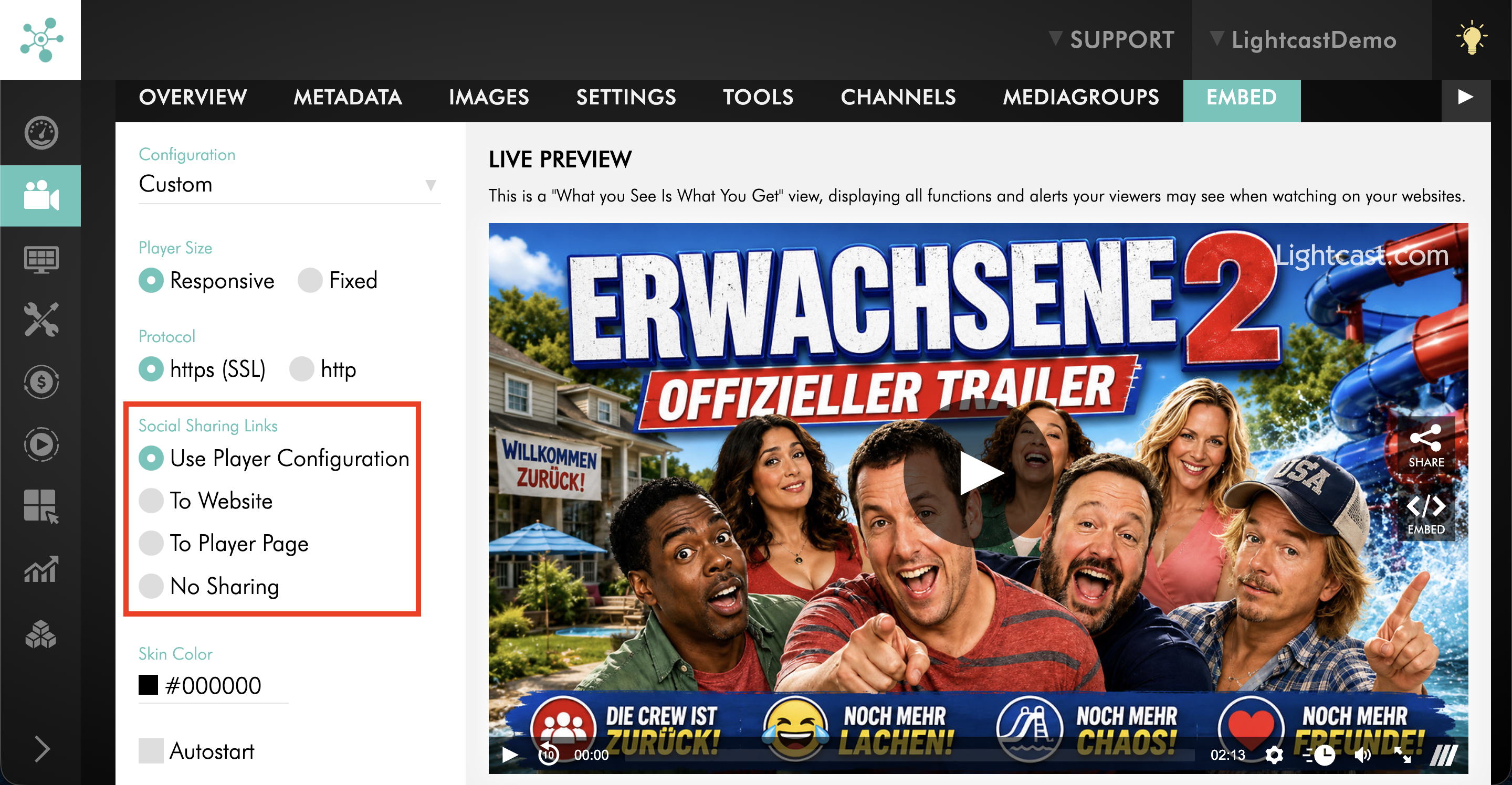
Step 6
Select the sharing option you want to use.
To remove the sharing plugin from the web player, select No Sharing.
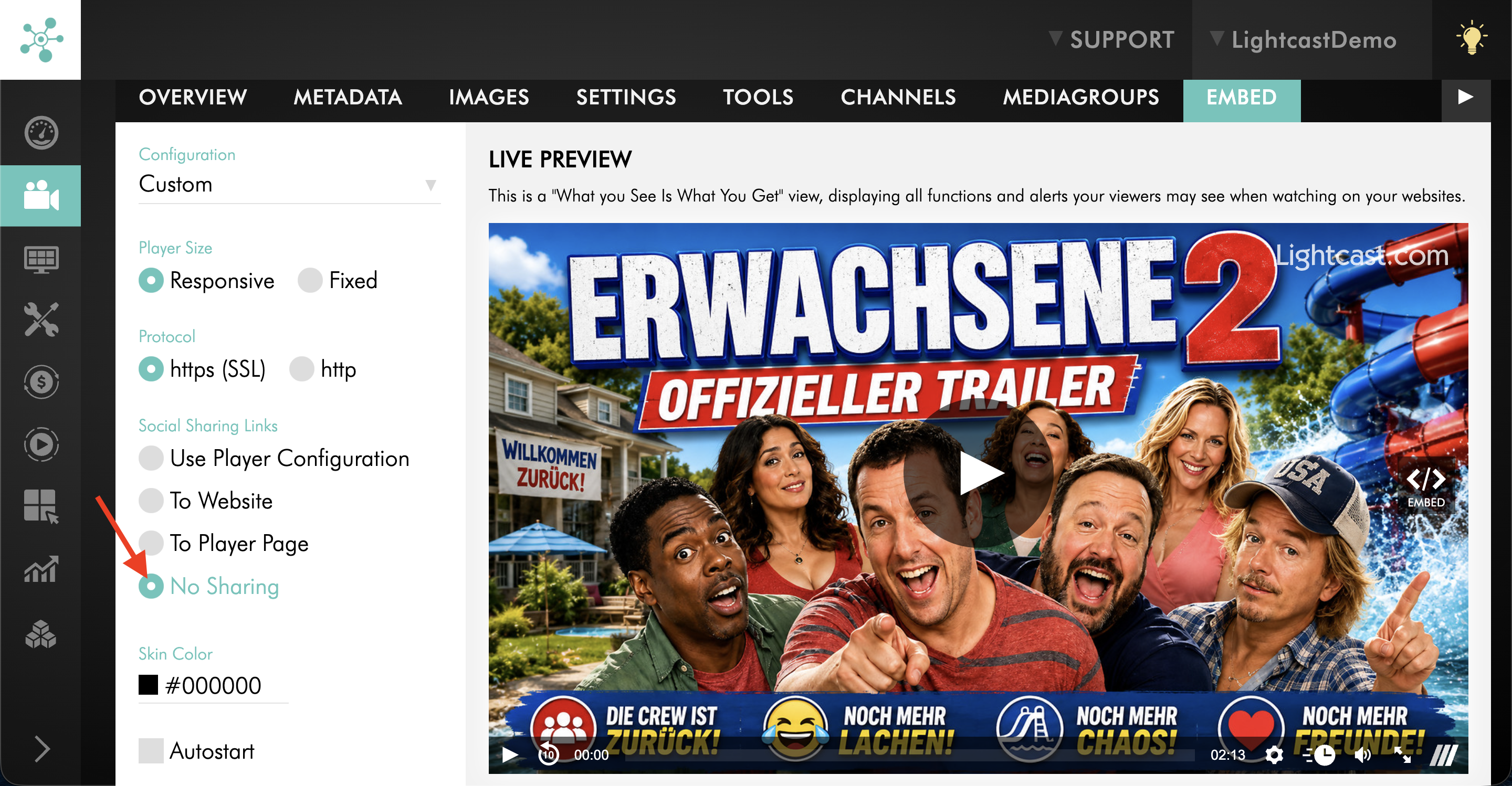
Step 7
Copy the updated embed code if you need to add the updated player to your website or another webpage that supports embed code.
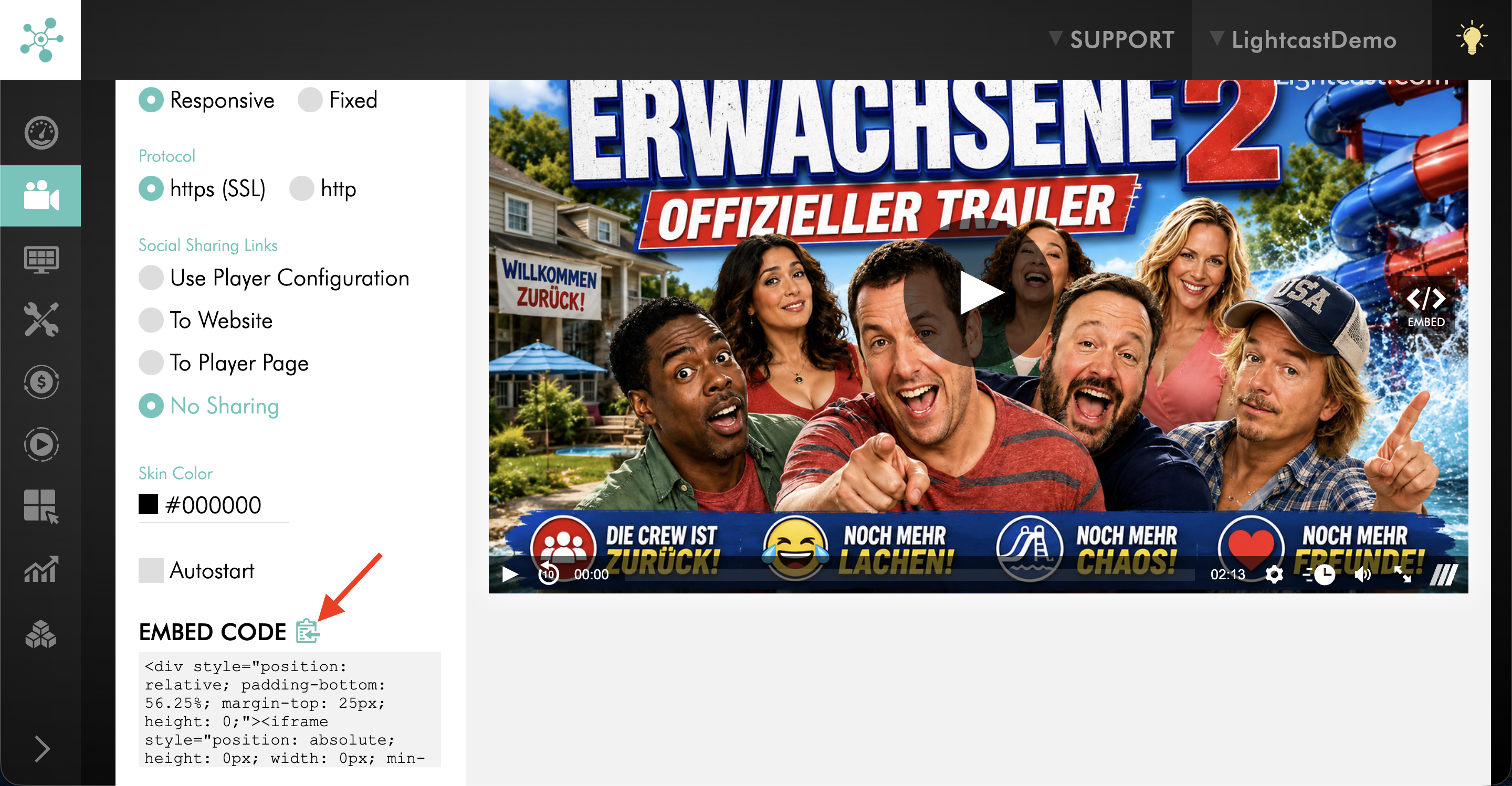
FAQs
Can the sharing plugin be removed from the web player?
Yes. Select No Sharing in the sharing settings on the player’s EMBED tab.
Can the share link for a web player be changed?
Yes. You can update the share link from the sharing settings on the player’s EMBED tab.
Are sharing options the same as viewer embedding permissions?
No. Sharing options control the share link behavior available from the web player. Viewer embedding permissions control whether viewers can access and copy the player’s embed code to place the player on another website.
Does removing the sharing plugin disable viewer embedding?
No. Removing the sharing option does not automatically disable viewer embedding. To control whether viewers can copy the player embed code, update the Allow viewers to embed the web player on other sites setting from the player’s SETTINGS tab.
Social Sharing Links options