
How to disable viewer embedding for Lightcast web players
Overview
This article explains how to disable the viewer-facing embed option for Channel players, Sub-Channel players, and single media players in the Media Cloud.
When to disable viewer embedding
Disable viewer embedding when you do not want viewers to copy the web player embed code and re-embed your Channel player, Sub-Channel player, or single media player on other websites.
This setting controls whether the embed option appears on the web player for viewers. It does not remove or disable the embed code available in the Media Cloud to account users who have access to the player’s embed settings.
How it works
Viewer embedding is controlled by the Allow viewers to embed the web player on other sites setting.
When this setting is enabled, viewers can access the embed option from the web player and copy the player embed code.
When this setting is disabled, the embed option is removed from the web player. Viewers can still watch the player on websites where it has already been embedded, but they cannot access or copy the embed code from the web player.
For Sub-Channel players, viewer embedding is controlled by the parent VOD or AOD Channel. If viewer embedding is disabled on the parent Channel, the embed option is also removed from the web player for all Sub-Channels in that Channel.
Disabling viewer embedding only controls the viewer-facing embed option in the Lightcast web player. It does not prevent account users from accessing the embed code in the Media Cloud, and it does not override permissions, sharing options, or distribution behavior on third-party platforms where the same content may also be published.
Instructions
Disable viewer embedding for a Channel player
Step 1
Log in to your Media Cloud account.
Step 2
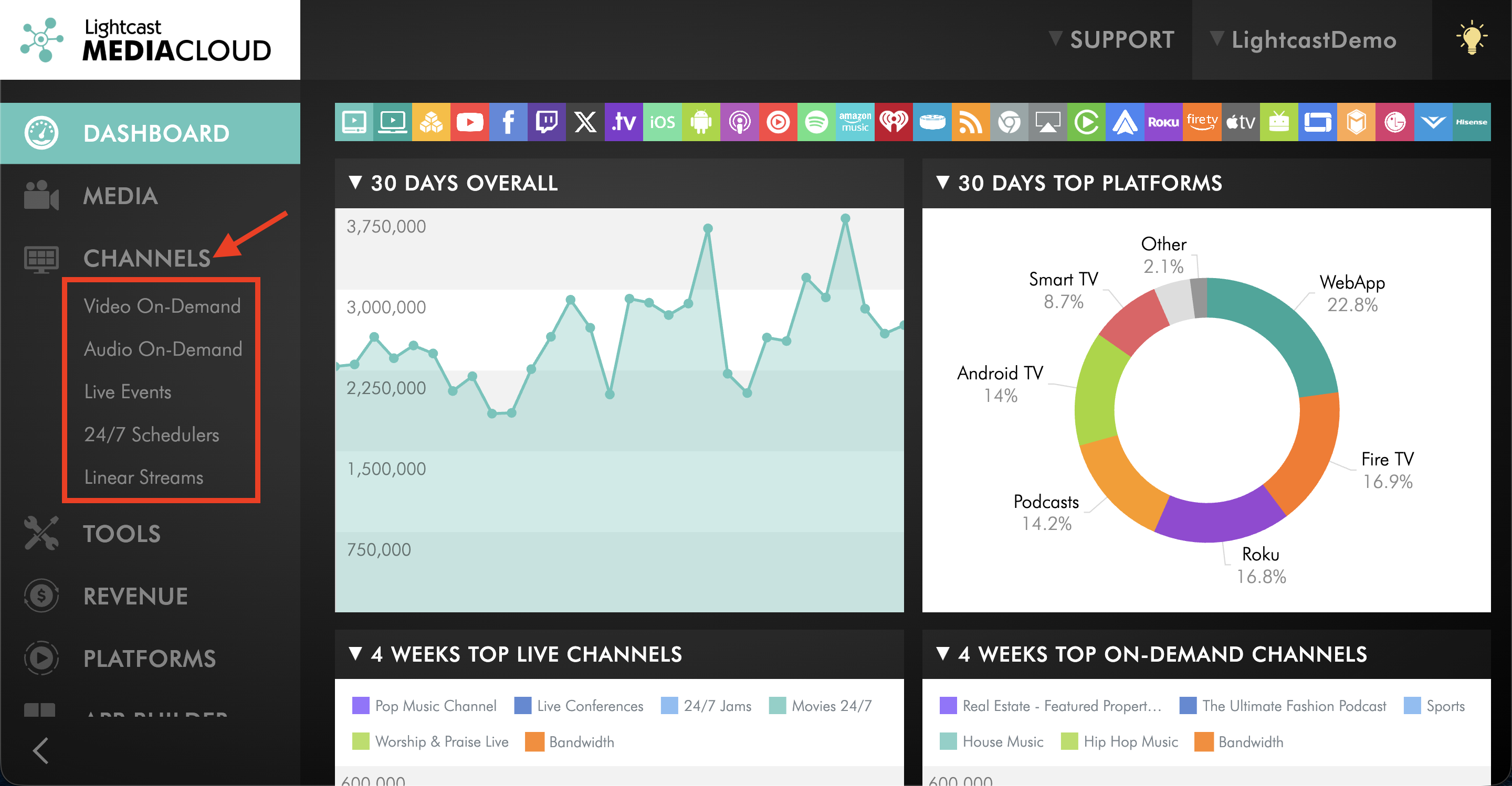
Click CHANNELS, then select the Channel type.
Step 3
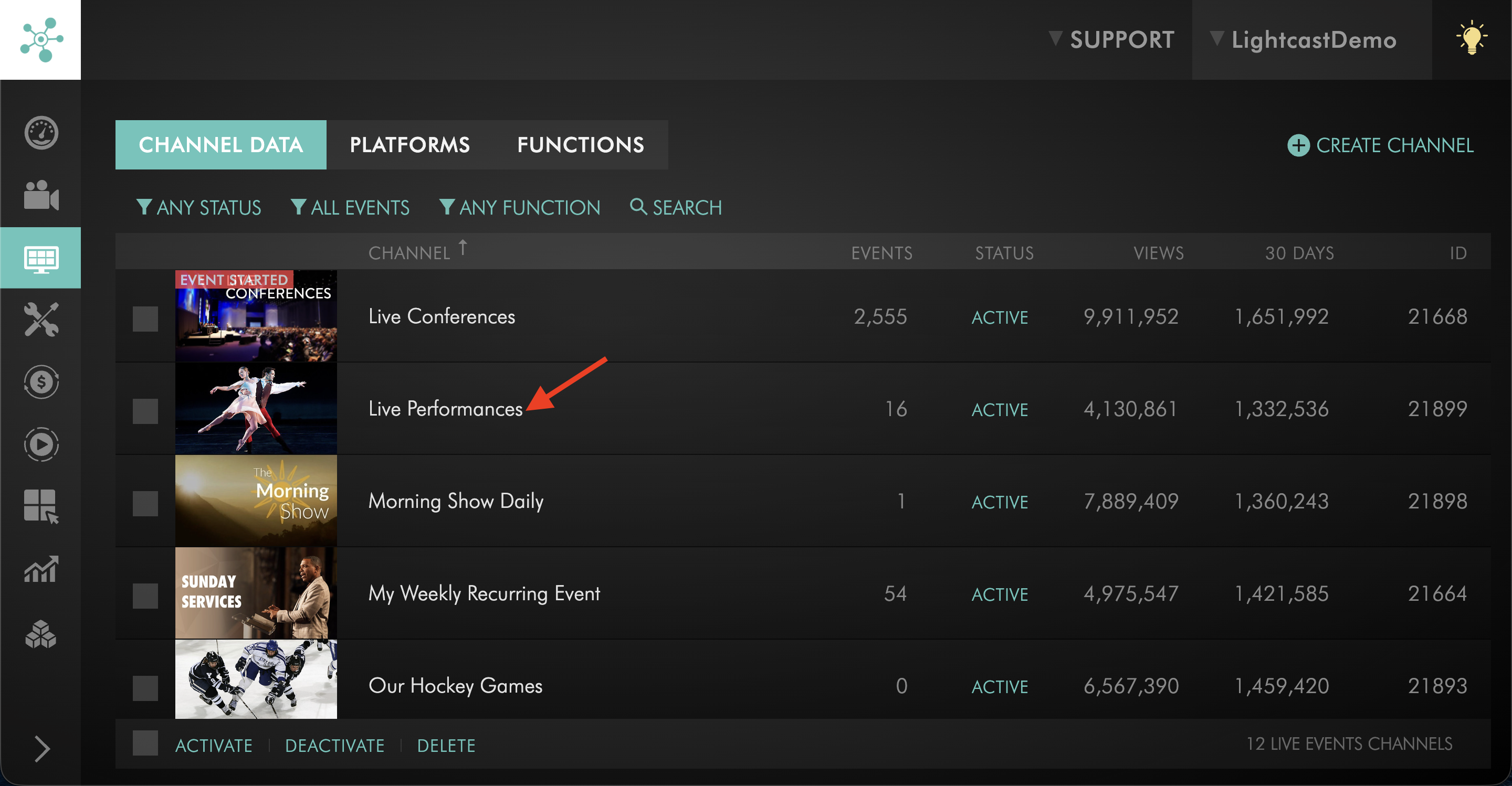
Open the Channel you want to update.
Step 4
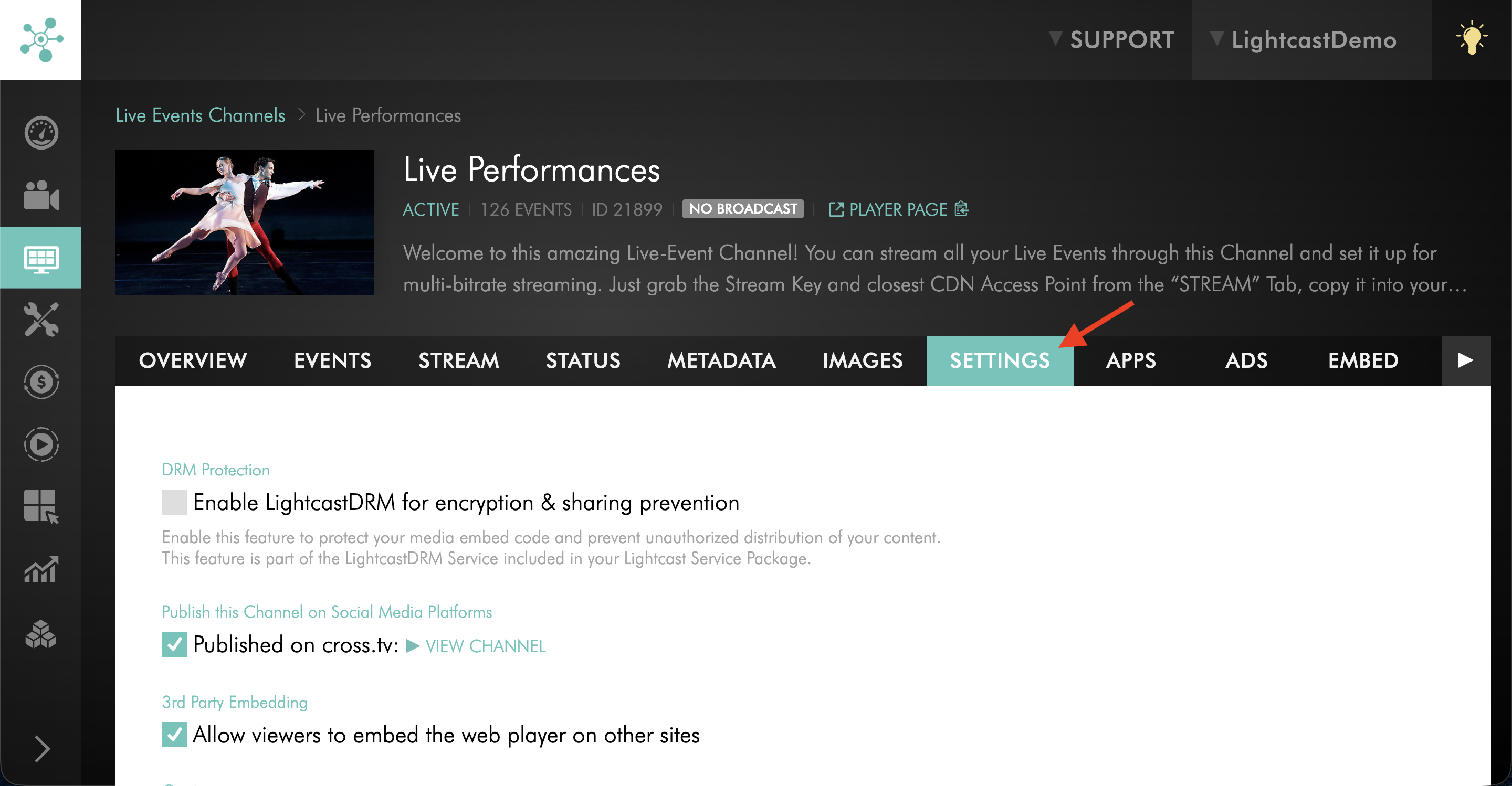
Go to the SETTINGS tab.
Step 5
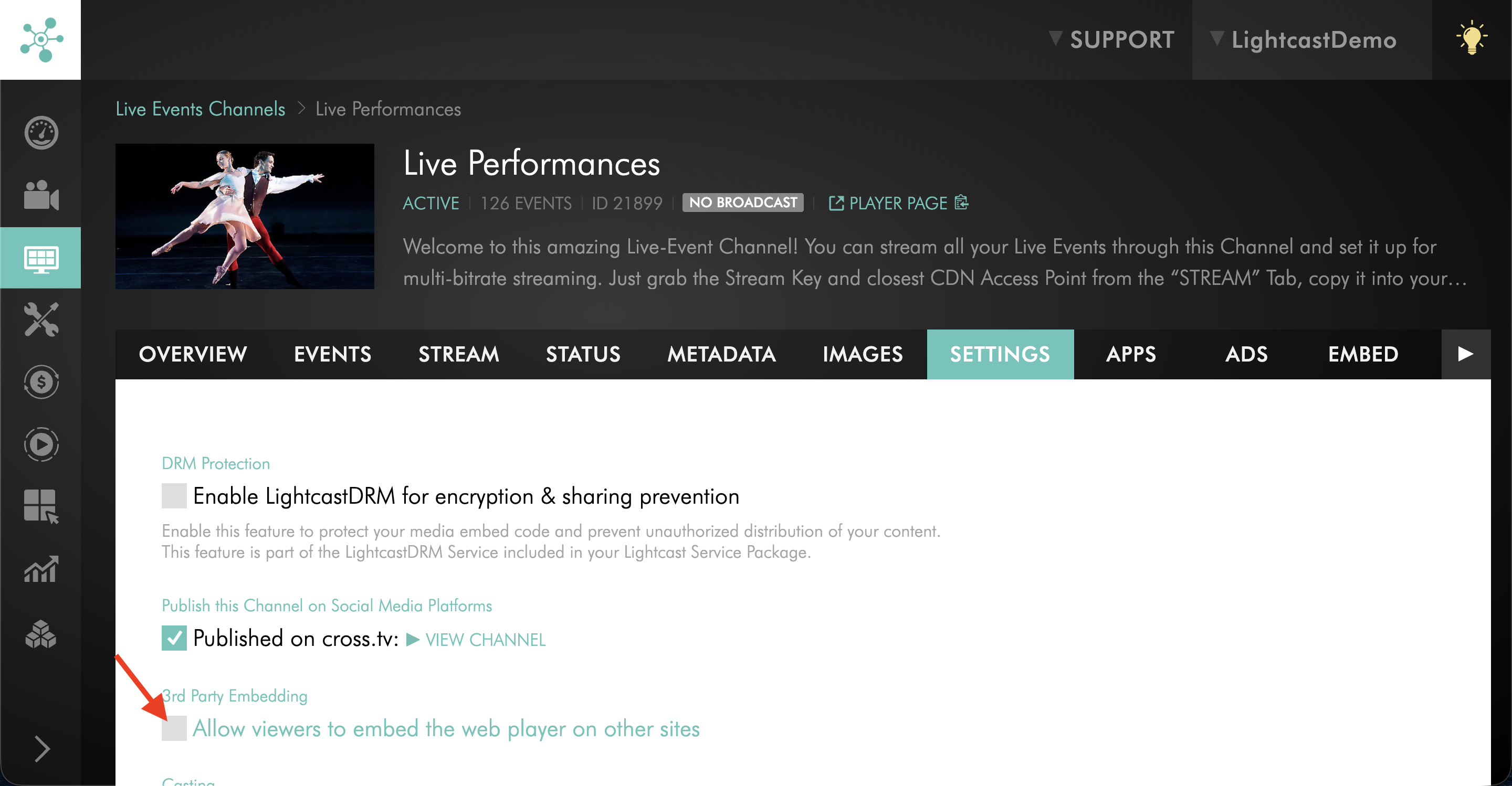
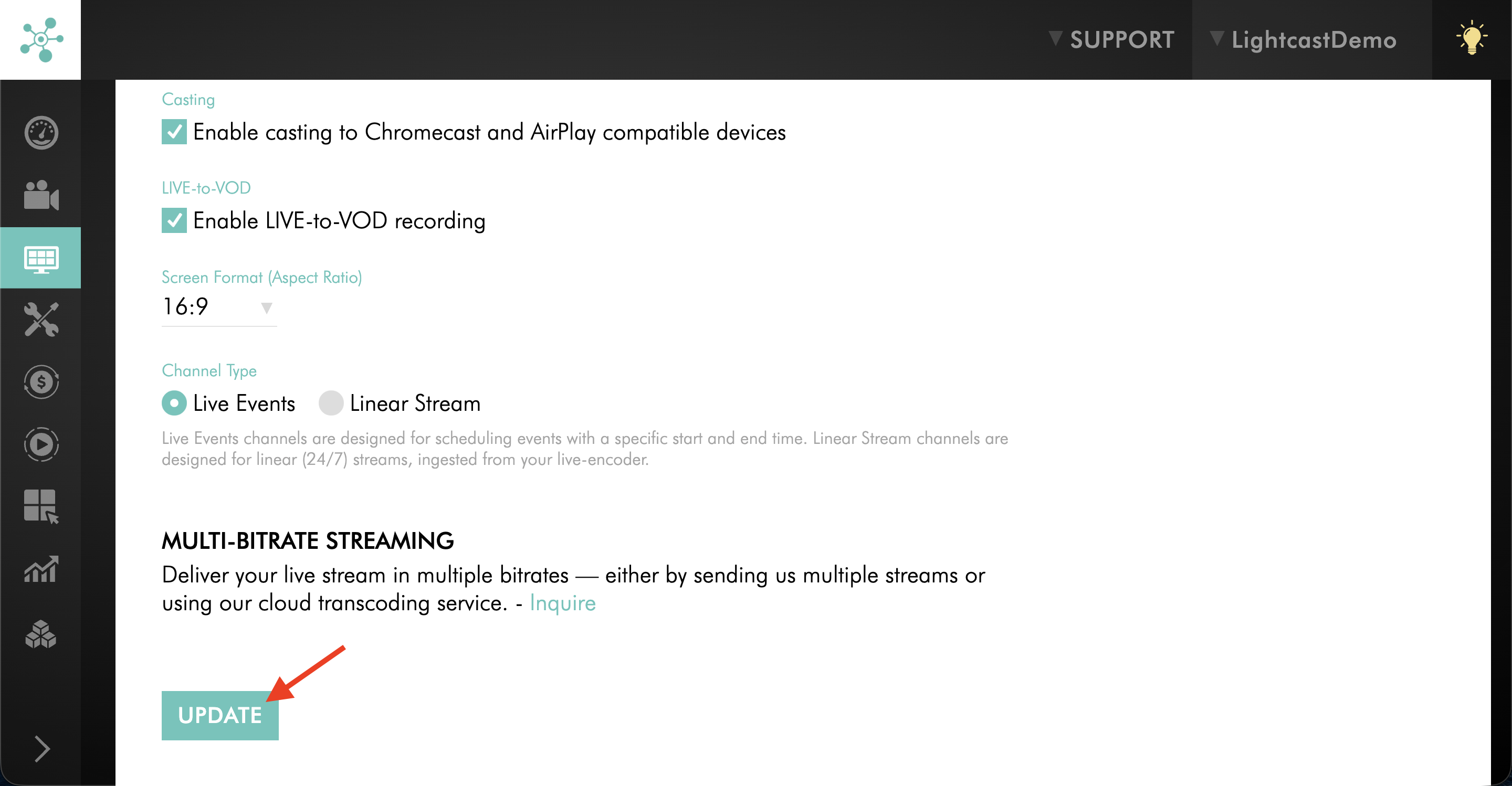
Clear the checkbox for Allow viewers to embed the web player on other sites.
Step 6
Click UPDATE to save your changes.
Disable viewer embedding for a single media player
Step 1
Log in to your Media Cloud account.
Step 2
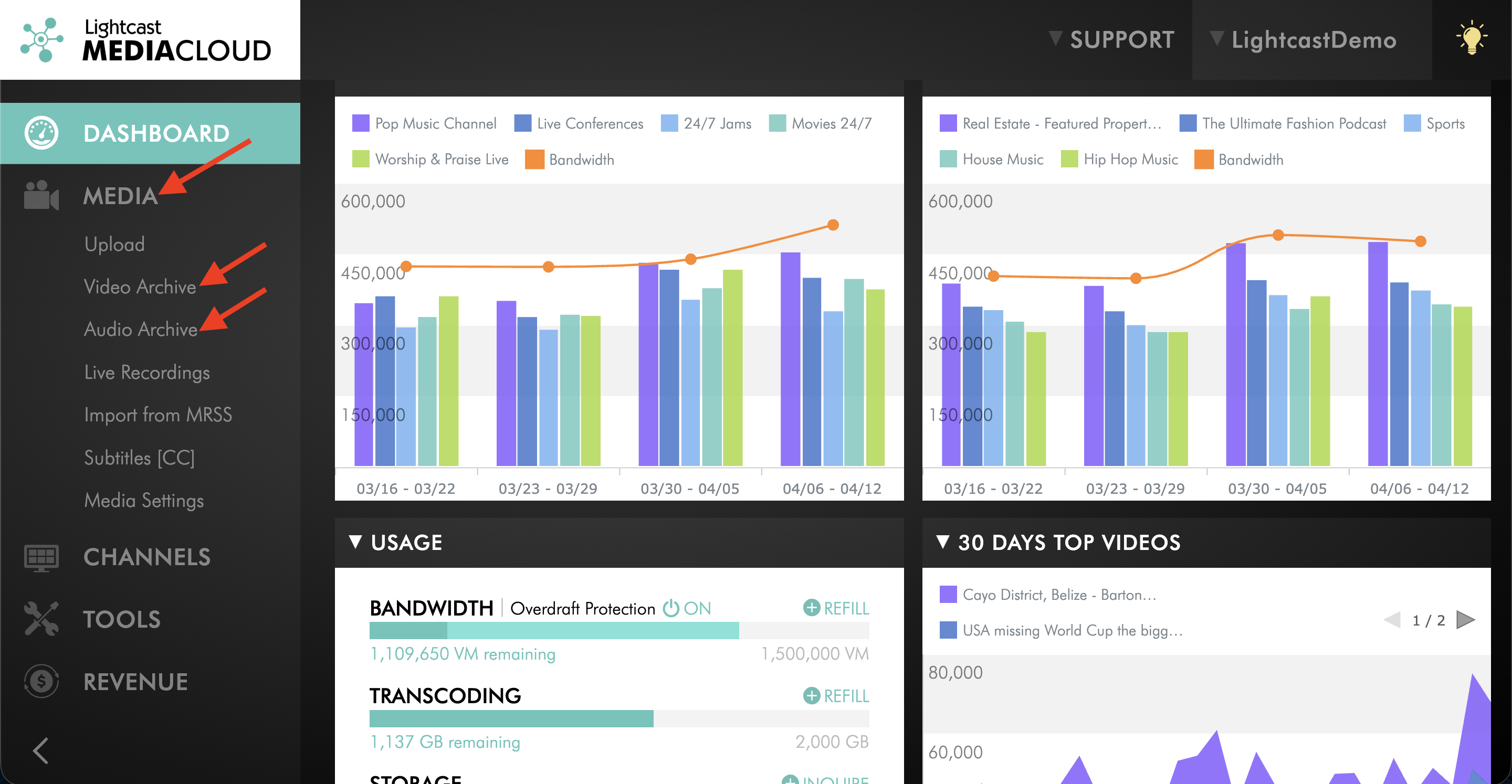
Click MEDIA, then select Video Archive or Audio Archive.
Step 3
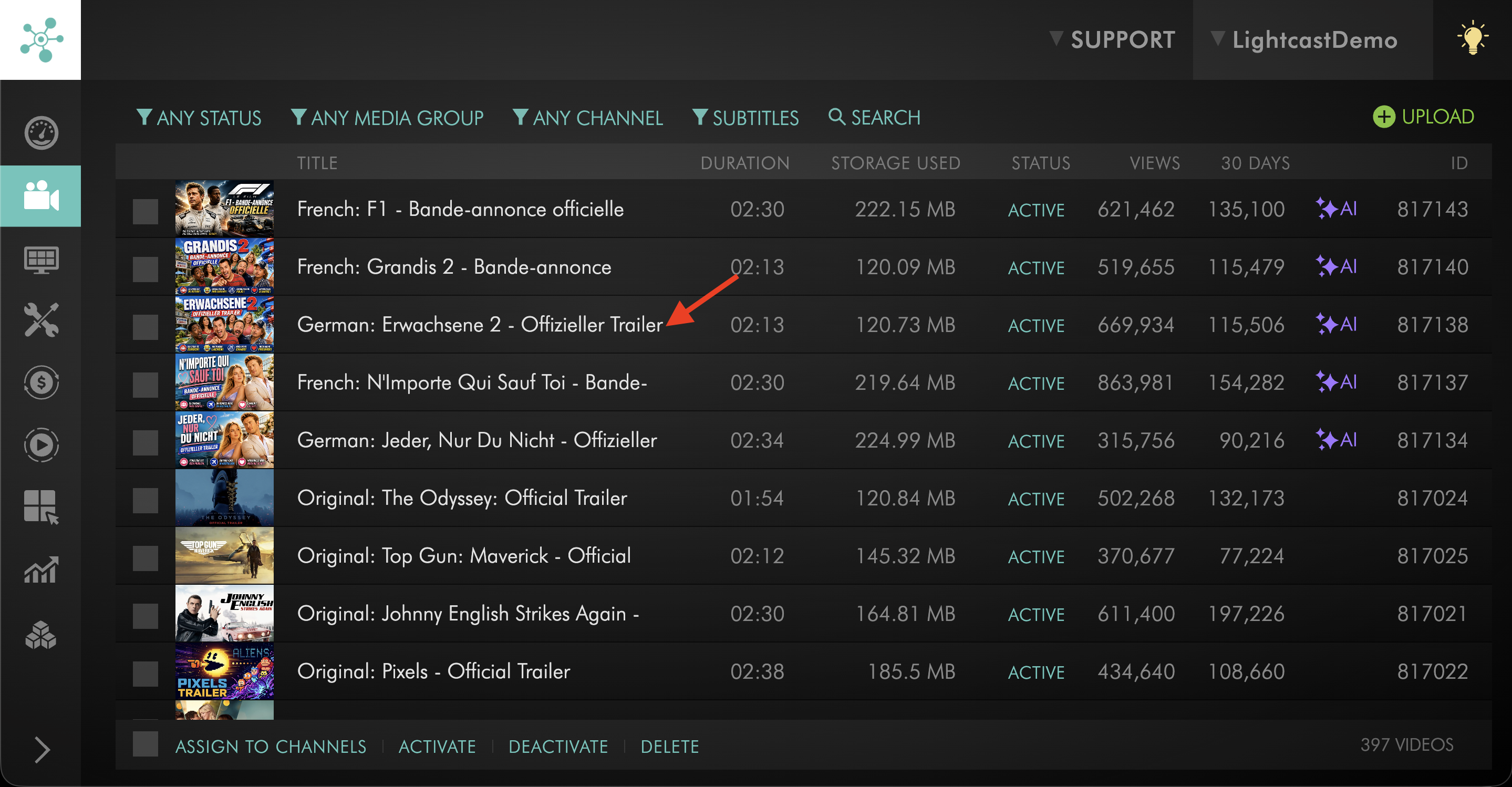
Open the video or audio file you want to update.
Step 4
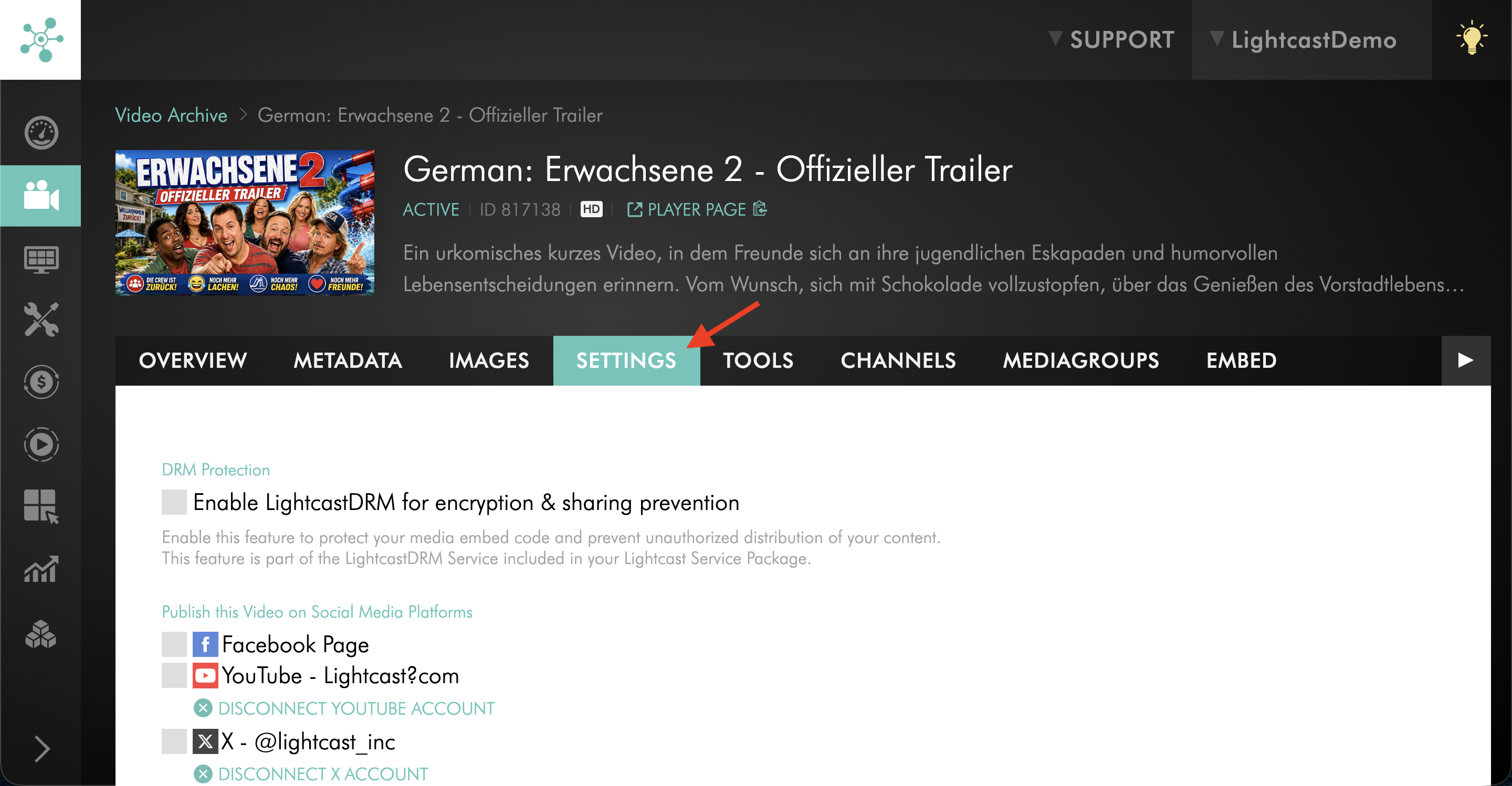
Go to the SETTINGS tab.
Step 5
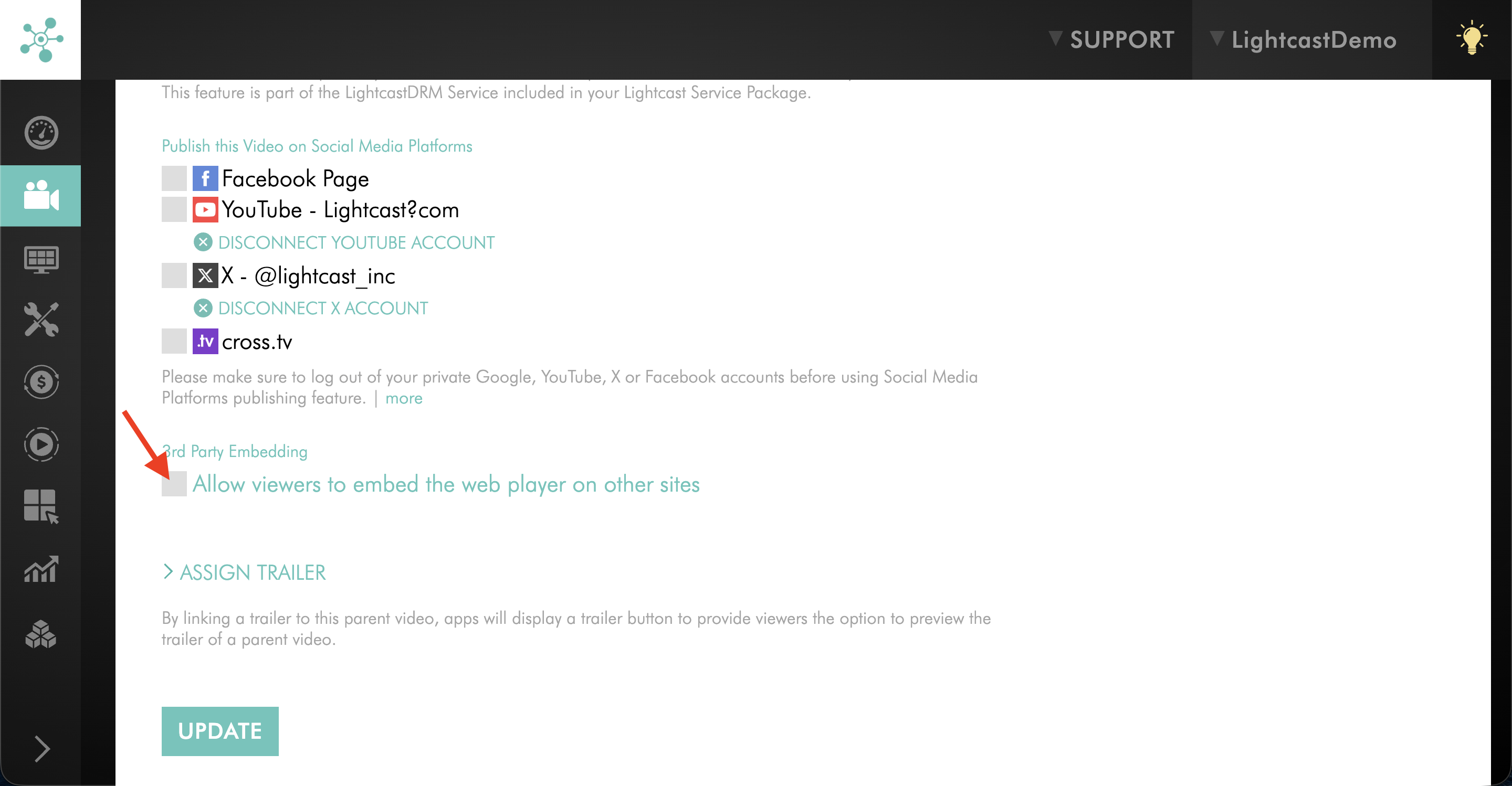
Clear the checkbox for Allow viewers to embed the web player on other sites.
Step 6
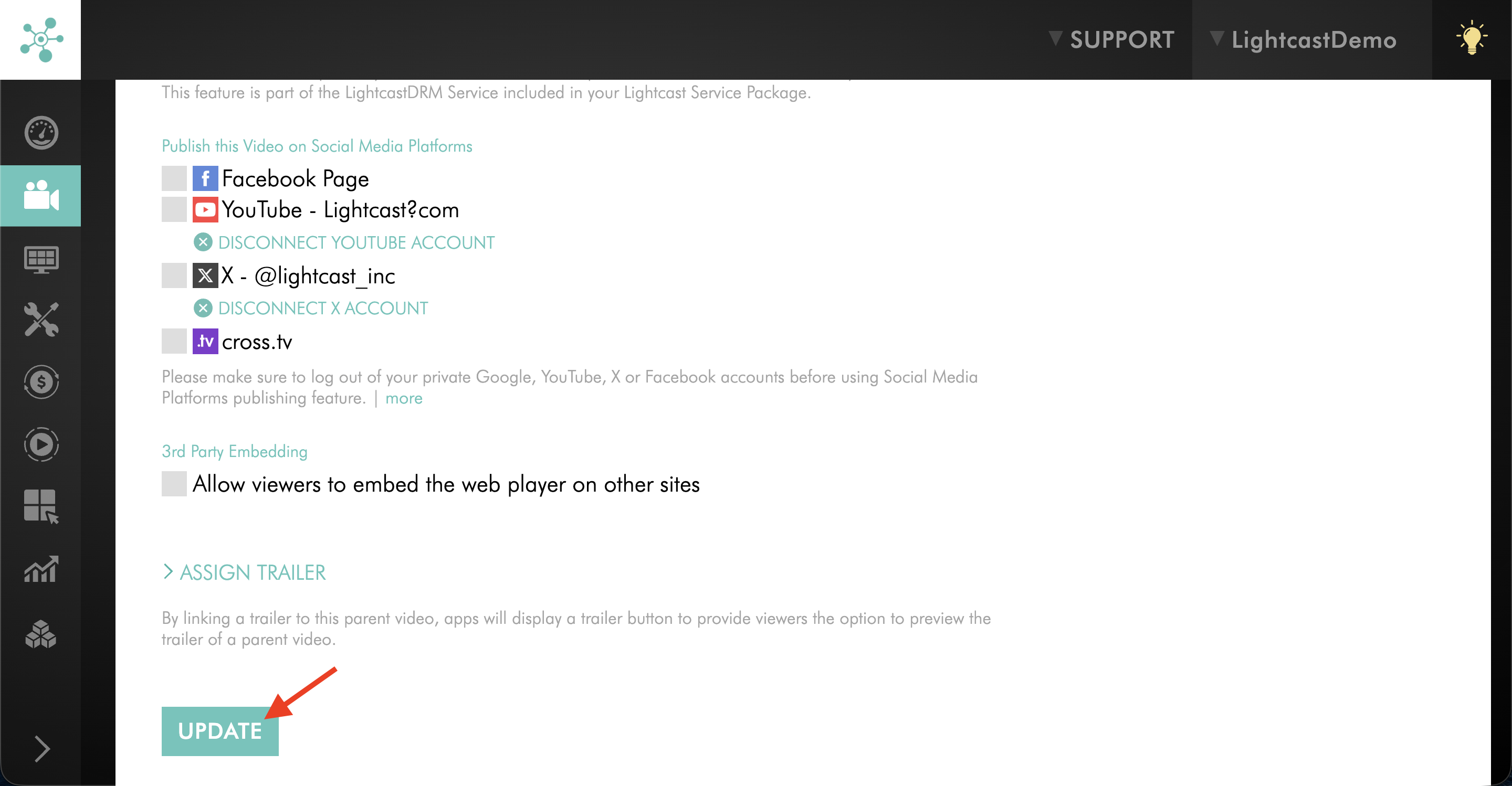
Click UPDATE to save your changes.
FAQs
Can viewer embedding be disabled for Sub-Channel players?
Yes. To disable viewer embedding for Sub-Channel players, disable the setting on the parent VOD or AOD Channel. This removes the embed option from the web player for all Sub-Channels in that Channel.
What happens when viewer embedding is disabled?
The embed option is removed from the web player, so viewers cannot access or copy the player embed code from the player.
Does disabling viewer embedding remove the player from websites where it is already embedded?
No. Disabling viewer embedding removes the embed option from the web player for viewers. It does not remove the player from websites where the embed code has already been added.
Does disabling viewer embedding restrict content on third-party platforms?
No. Disabling viewer embedding in the Media Cloud only controls the viewer-facing embed option in the Lightcast web player. If the same content is also published to third-party platforms, those platforms may have their own sharing, embedding, download, or distribution options.