
How to schedule content on your 24/7 Scheduler Channel
Overview
This article explains how to create and manage a programming schedule for your 24/7 Scheduler Channel in the Media Cloud.
It covers adding individual media files, importing multiple videos, organizing programming, importing supported SSAI ad breaks with your programming schedule, and copying existing days or weeks to build a continuous linear stream.
When to use the 24/7 Scheduler Channel
Use the 24/7 Scheduler when you want to create a continuous linear stream by arranging your uploaded media into a scheduled programming lineup.
This article is helpful when you want to:
Add individual videos to your programming schedule
Remove videos from your schedule
Import multiple videos using a CSV or TXT file
Include SSAI ad breaks in a schedule import file when SSAI ad-break support is enabled
Copy an existing day or week of programming
Replace existing scheduled programming with a copied or imported schedule
Before you begin
Your 24/7 Scheduler Channel must first be created and configured by Customer Support.
After the Channel has been created, complete the Channel setup by adding your Channel name, description, thumbnail image, and other Channel details.
To learn more, see How to set up your 24/7 Scheduler Channel.
If you want to include SSAI ad breaks in a schedule import file, SSAI ad-break support must already be enabled for the 24/7 Scheduler Channel.
For the complete SSAI and FAST Channel workflow, see How to create a FAST Channel using the 24/7 Scheduler and Playout system.
How it works
The 24/7 Scheduler uses media uploaded to your Media Cloud account to create a continuous scheduled stream.
Once media has been added to the schedule, the Playout System plays the scheduled content in the programmed order and at the specified times, creating a continuous linear stream.
You can add content to your schedule in two ways:
Add individual videos manually by selecting media from your Media Cloud account.
Add multiple videos at once by exporting Video IDs from your uploaded media and importing them into the 24/7 Scheduler.
You can copy existing days or weeks of programming to quickly extend your schedule or replace existing scheduled content.
Important: When you import a schedule or copy programming to an existing time period, the existing programming for that selected period is replaced.
Additional scheduling options
Depending on the features enabled for your account, you can also use:
Filler Videos to fill gaps between scheduled programs
Live Broadcasts to insert live programming into your schedule
Ad Breaks to define advertising opportunities within scheduled programming
When SSAI ad-break support is enabled, ad breaks can be added manually from the ADS tab or included directly in a CSV or TXT schedule import file.
To learn more, see:
Instructions
Add individual videos to your schedule
Step 1
Log in to your Media Cloud account.
Step 2
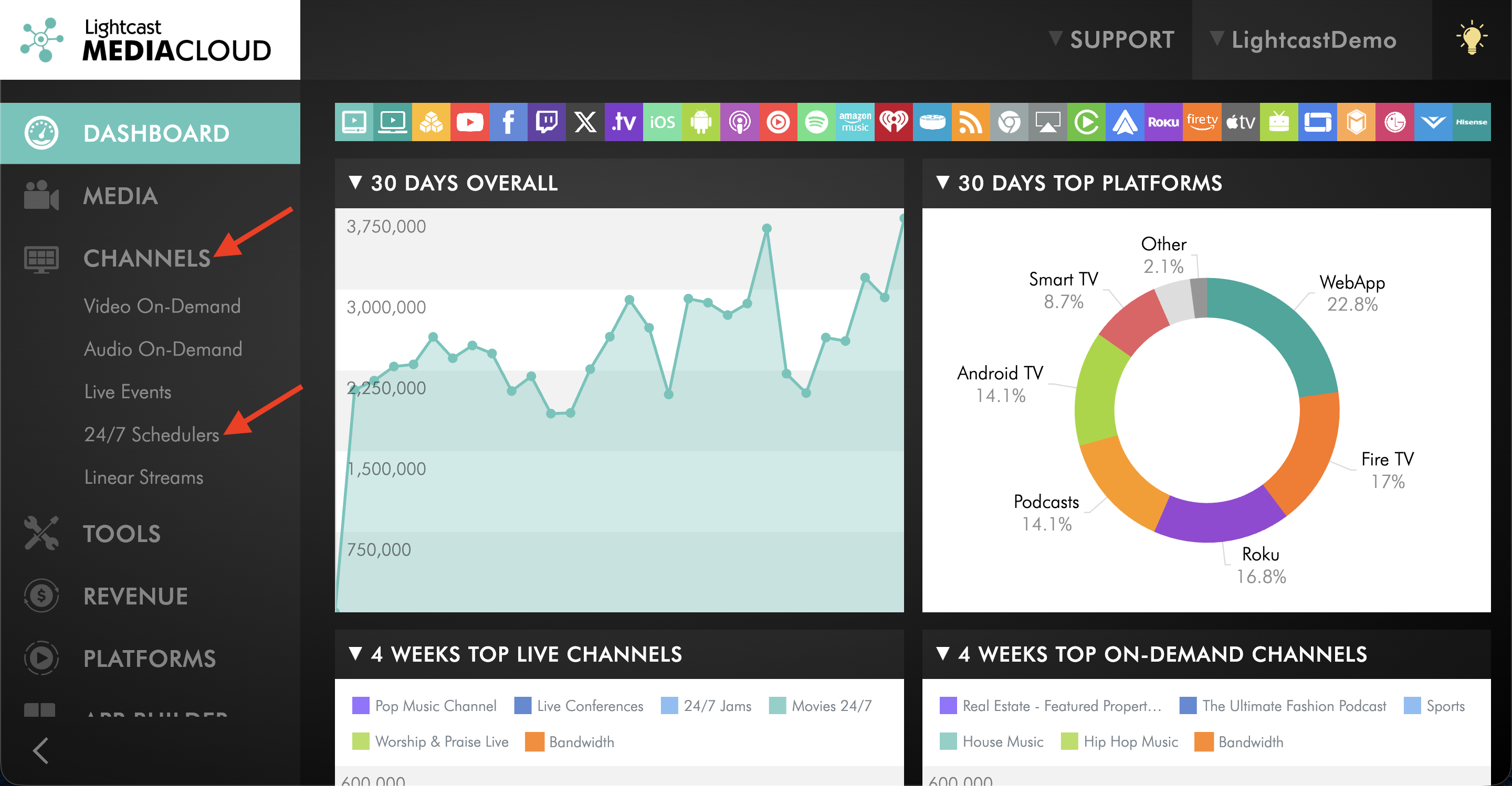
Go to CHANNELS and select 24/7 Schedulers.
Step 3
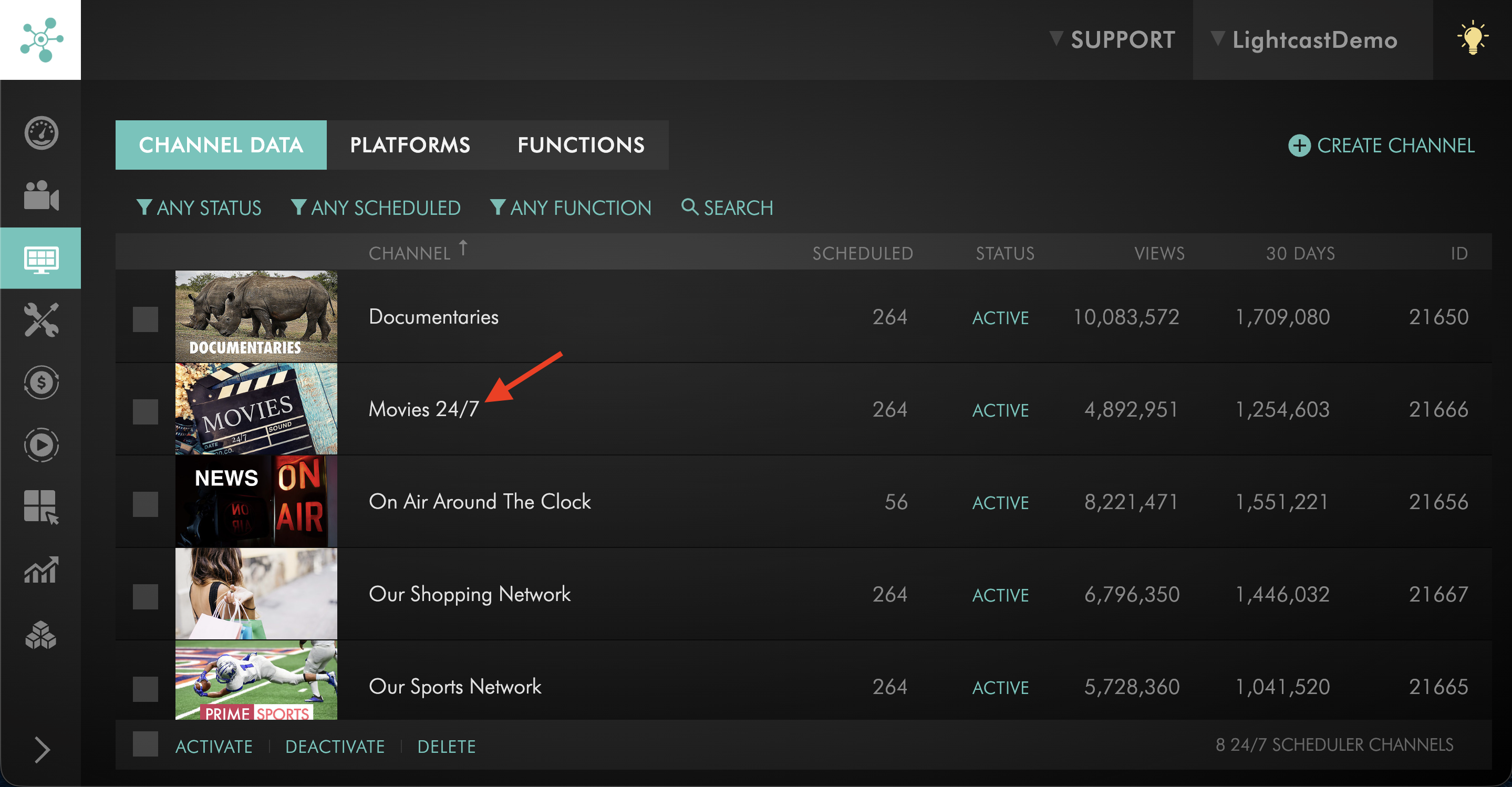
Select the 24/7 Scheduler Channel you want to manage.
Step 4
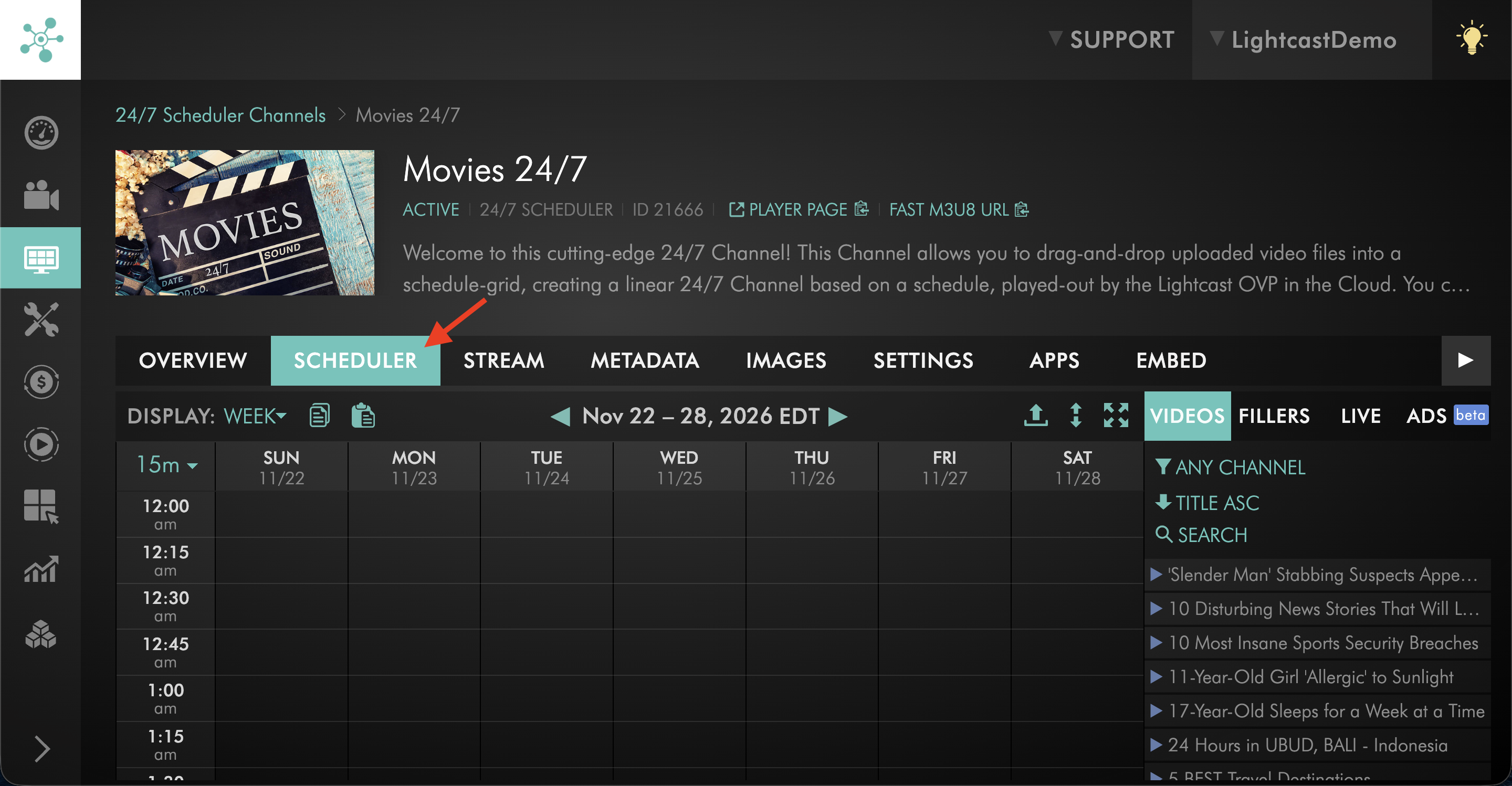
Open the SCHEDULER tab.
Step 5
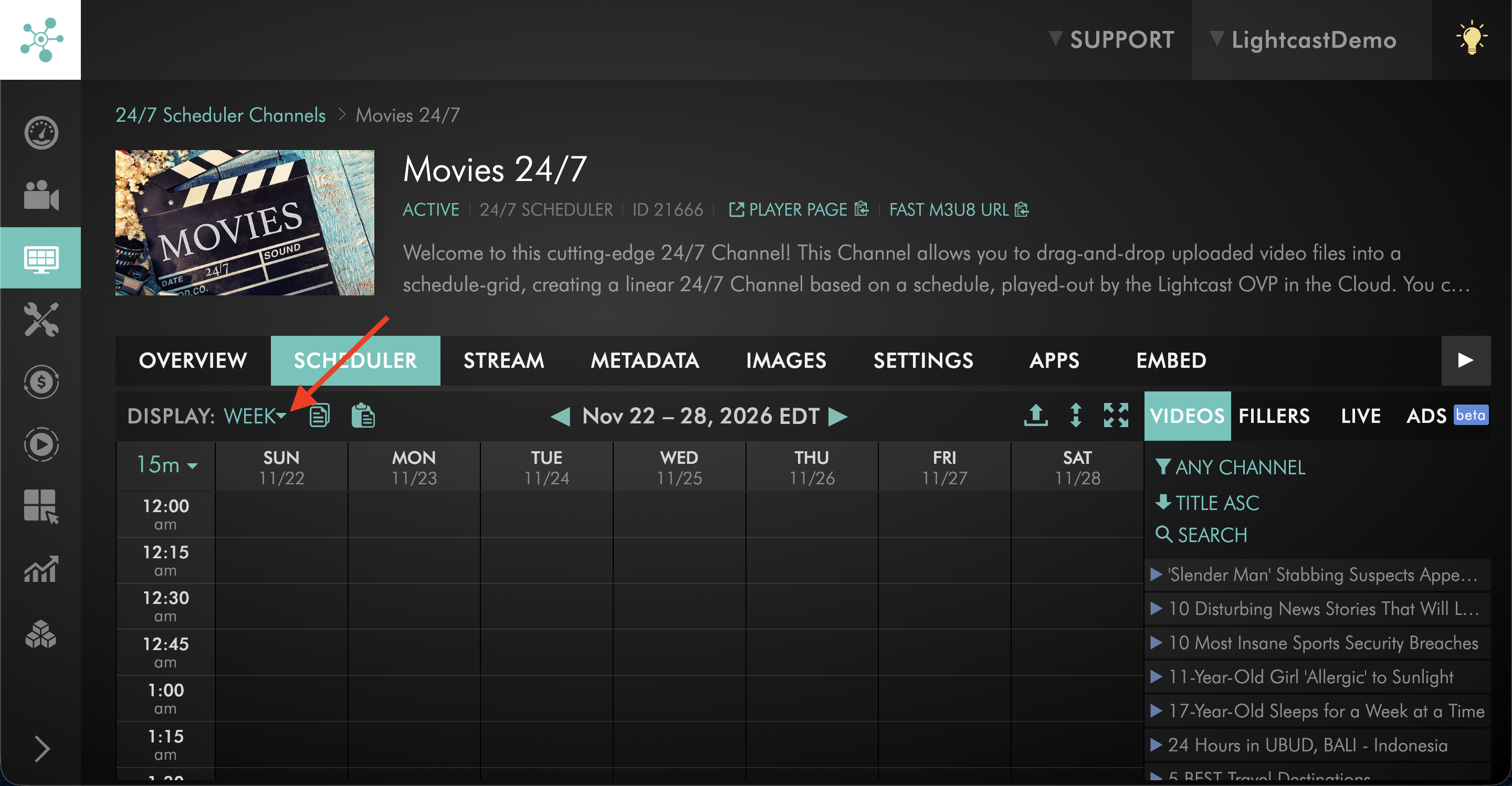
Select the DISPLAY mode you want to use.
Choose Day to manage programming for a specific day or choose Week to view and manage a larger programming schedule.
Step 6
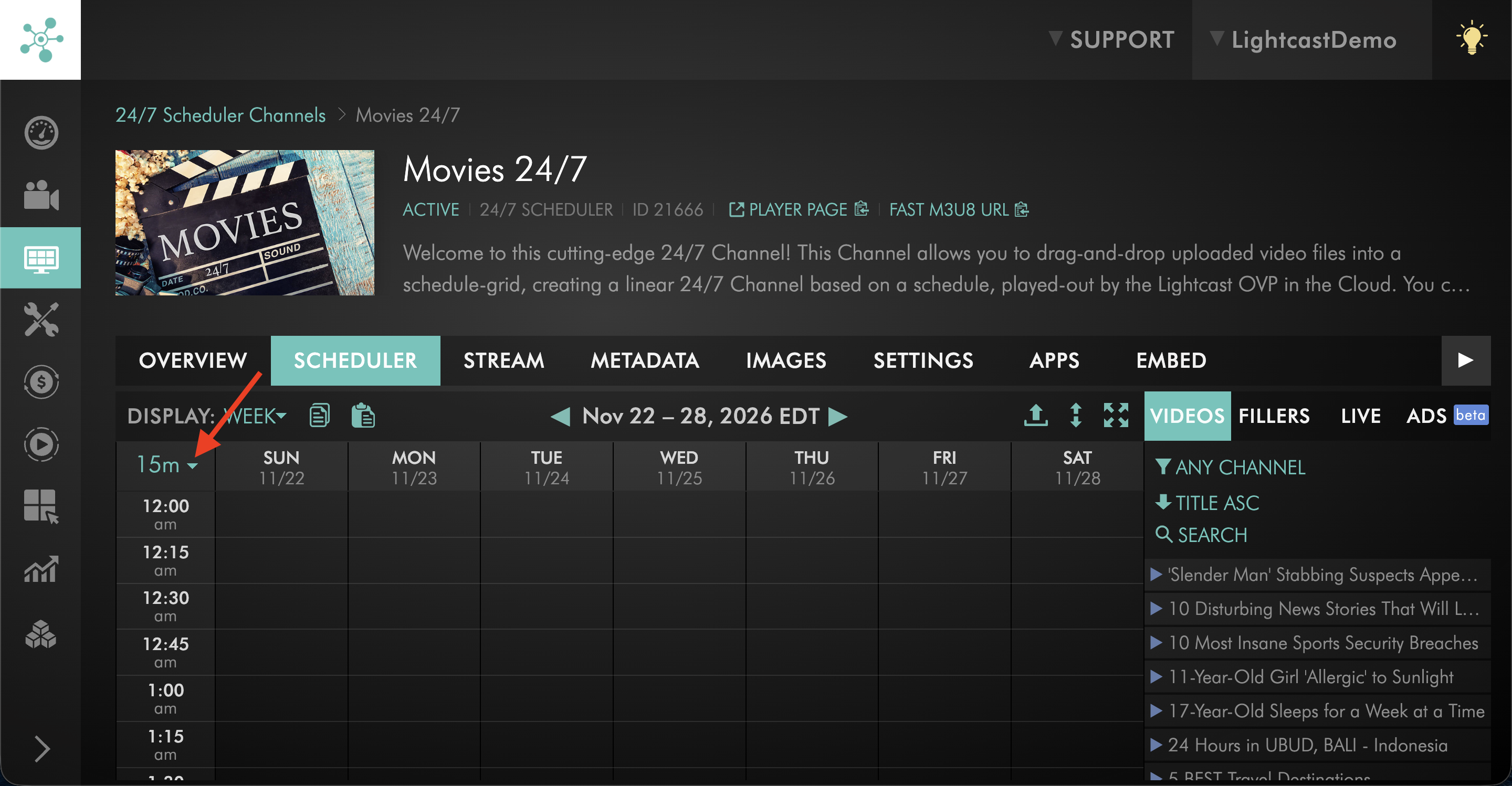
Select the timeframe you want to display in the Scheduler.
Choose a larger timeframe to view more of your schedule at once or a smaller timeframe to make more precise scheduling adjustments.
Step 7
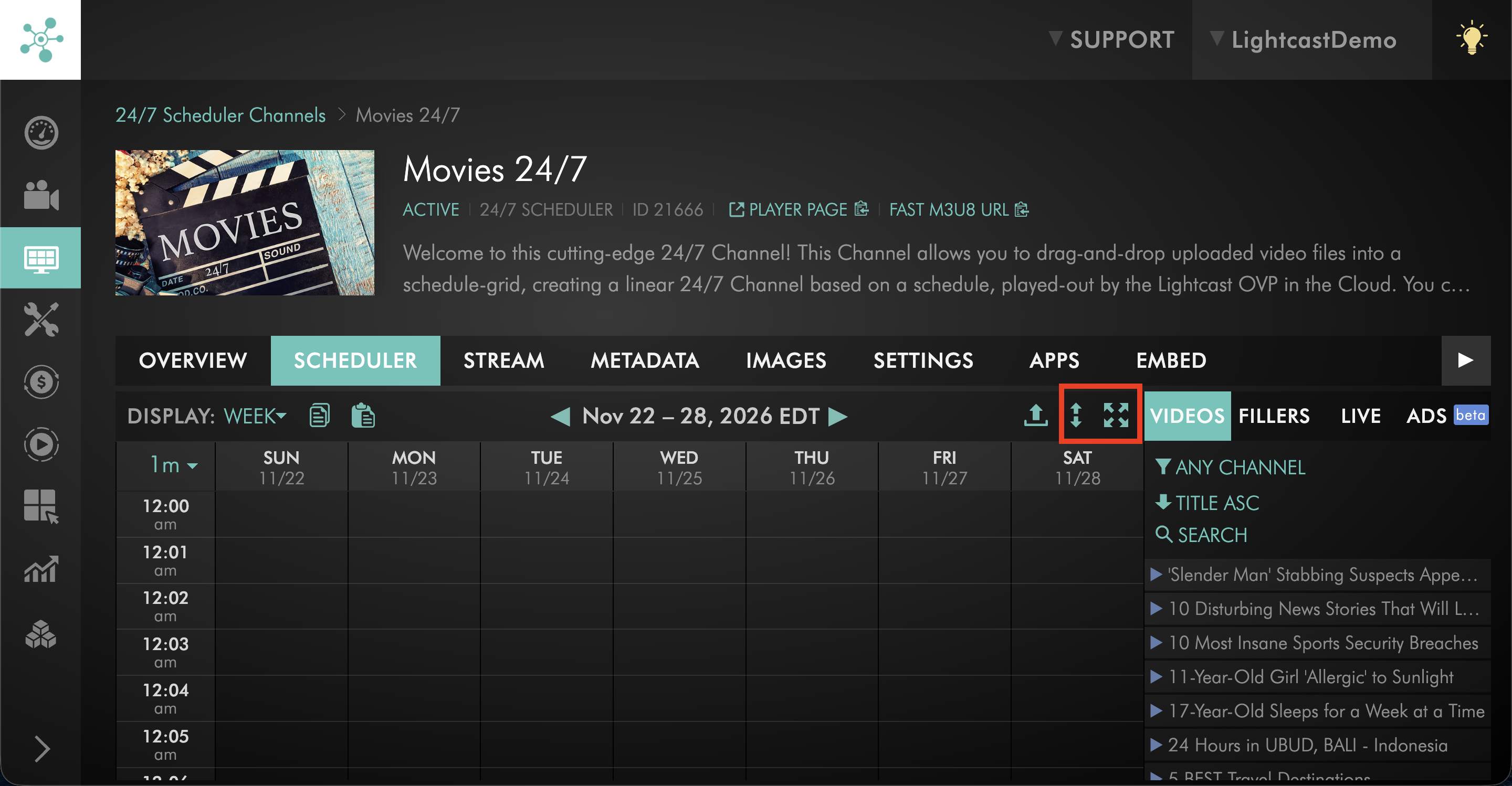
Choose how you want the Scheduler grid to display.
Select Full Screen to expand the Scheduler view or Fill Window to adjust the Scheduler view to fit your available workspace.
Step 8
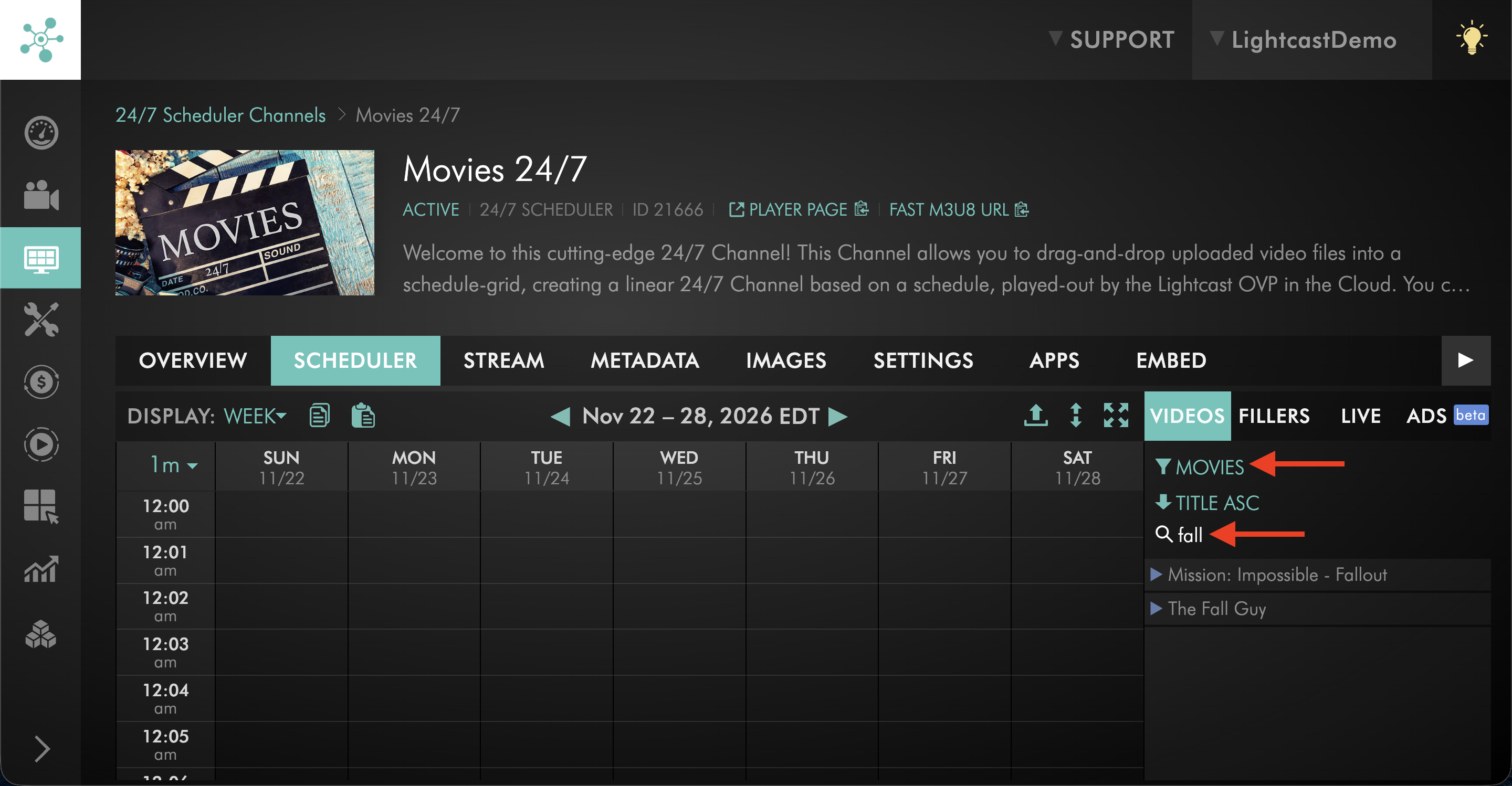
Use the available search and filtering options to locate the video you want to add to your schedule.
You can search for a specific video or filter the available media to help find the content you need.
Step 9
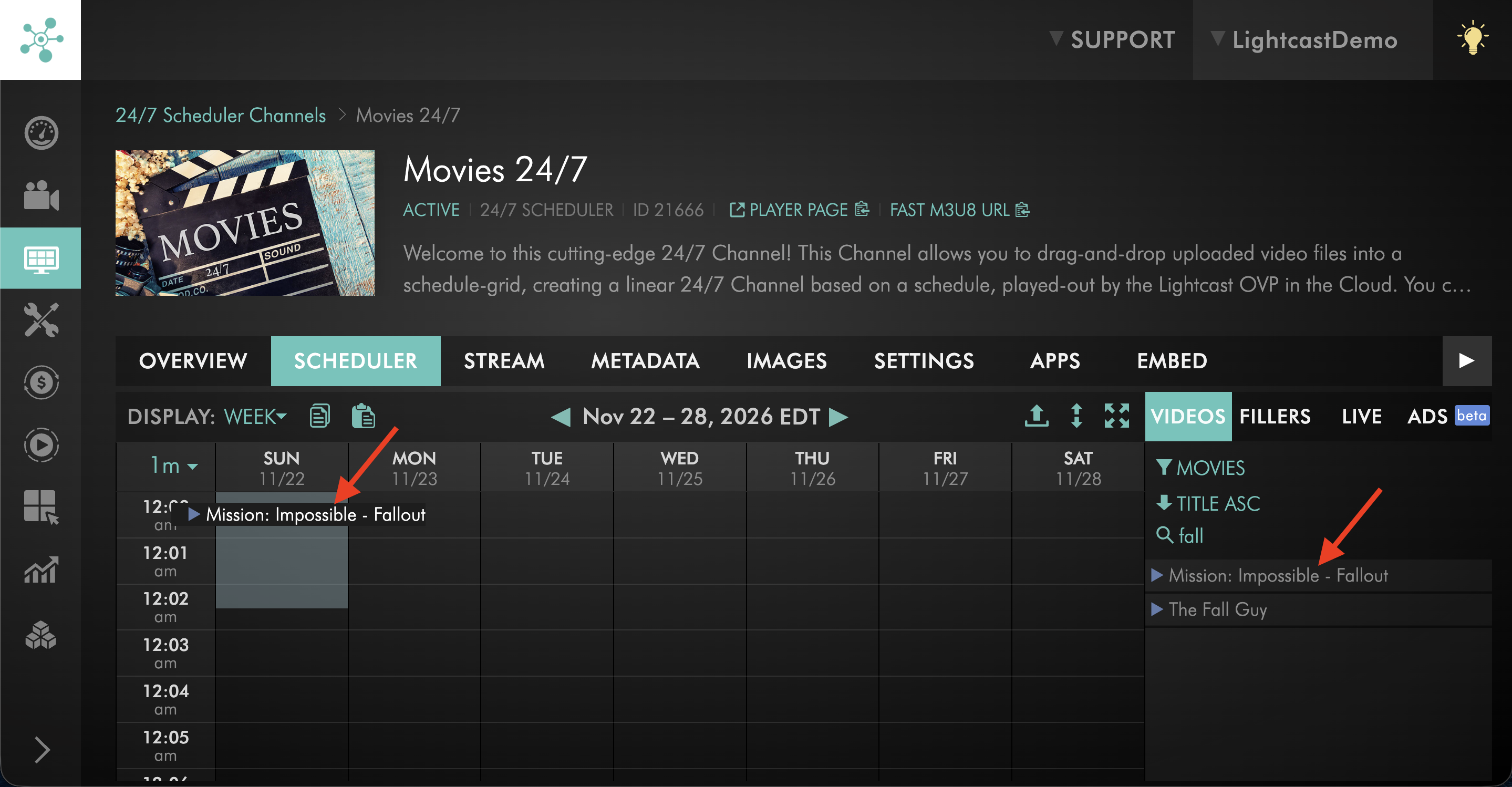
Drag and drop the selected video into the desired date and time on your schedule.
Remove individual videos from your schedule
Step 1
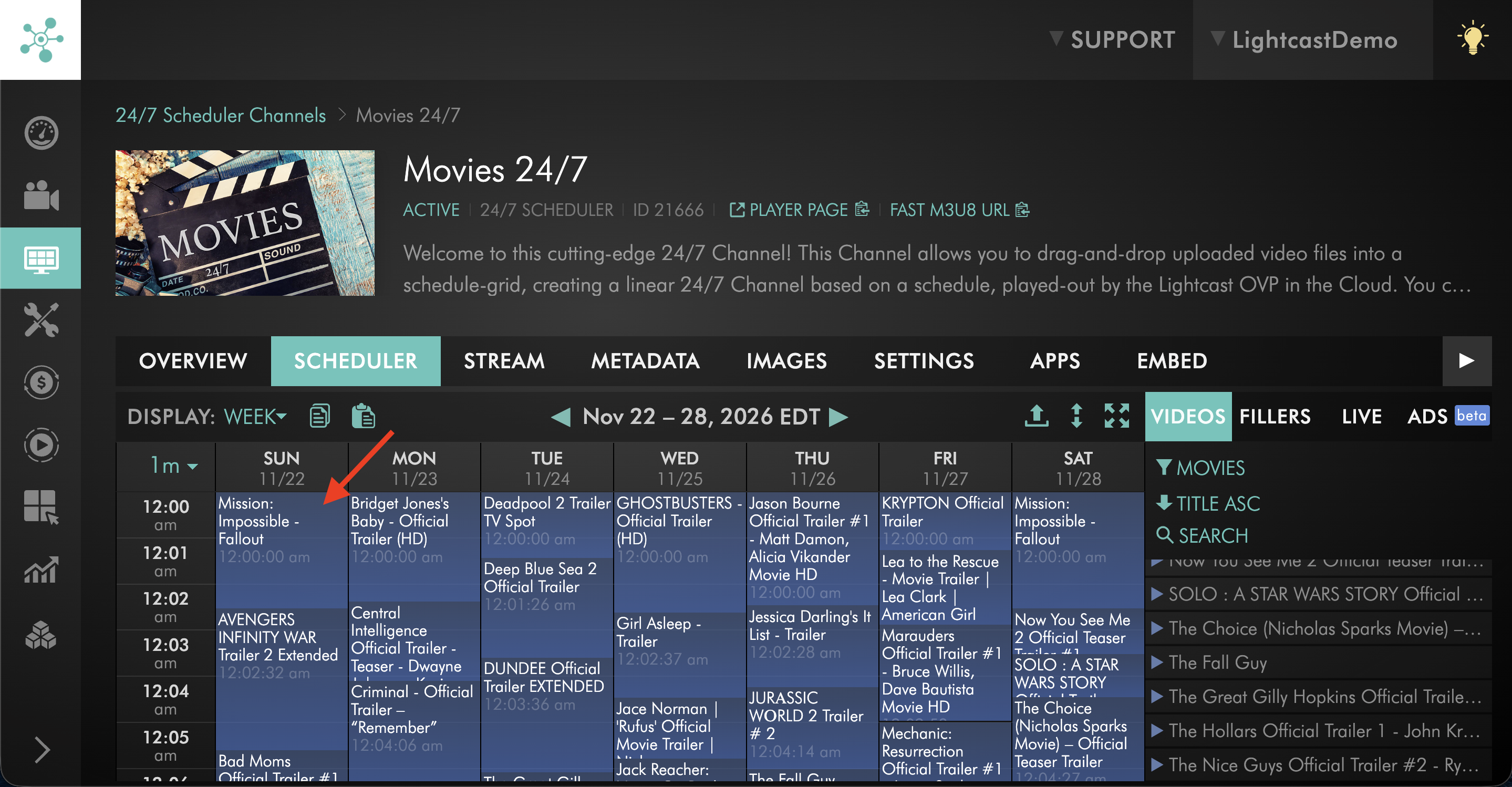
Locate the video you want to remove from your schedule.
Step 2
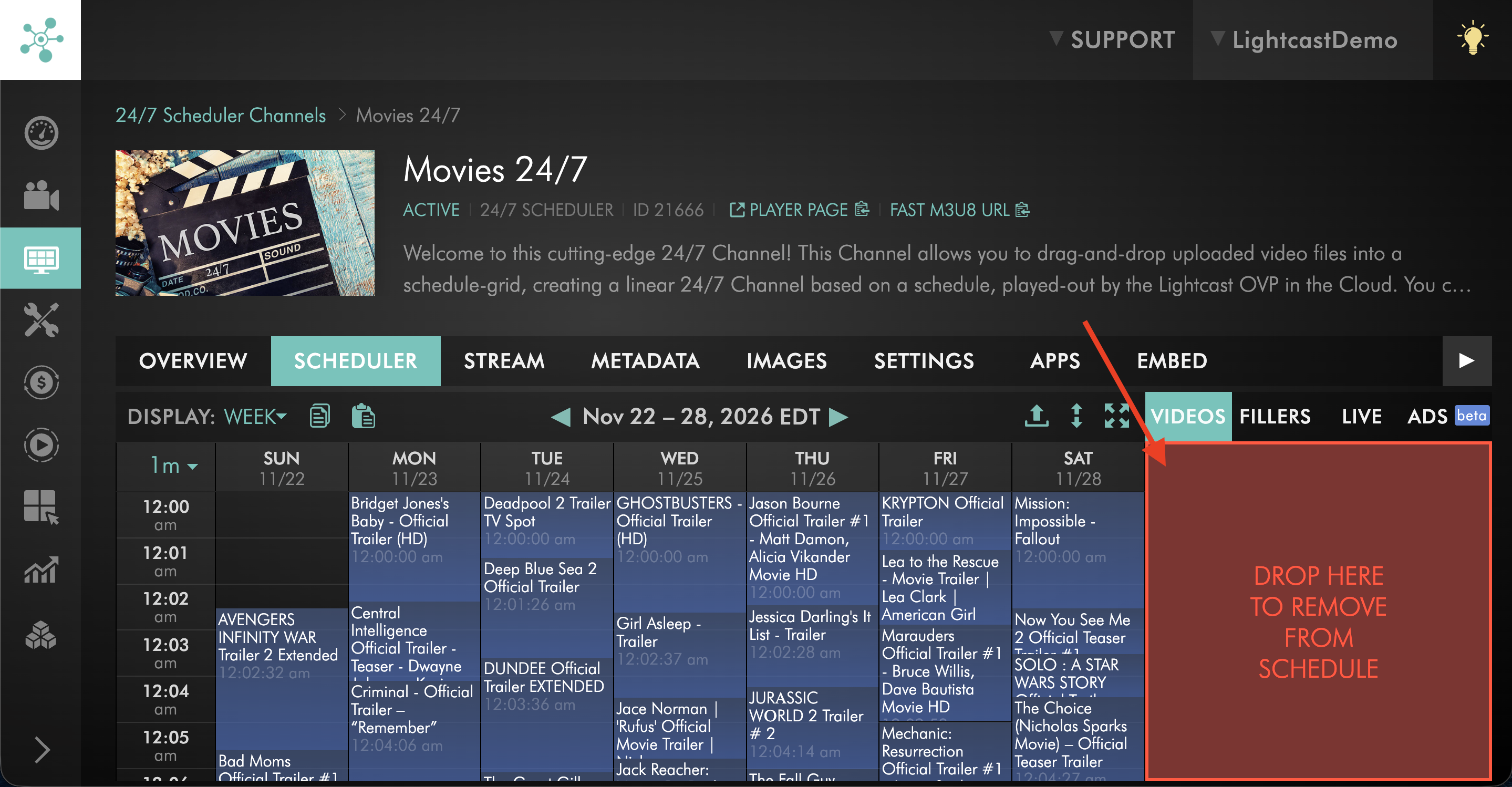
Drag the video from the schedule back to the available media area.
The video will be removed from that scheduled time.
Export and import multiple videos into your schedule
You can add multiple uploaded videos to your 24/7 Scheduler at once by exporting their Video IDs from the Media Cloud and importing them into the Scheduler.
This can save time when building a schedule because you do not need to add each video individually.
Note: If SSAI ad-break support is enabled for your 24/7 Scheduler Channel, you can also include ad-break entries in the same CSV or TXT import file. This allows your programming and ad-break placements to be imported together.
For the complete SSAI ad-break and FAST Channel workflow, see How to create a FAST Channel using the 24/7 Scheduler and Playout system.
First, export the Video IDs you want to use:
Step 1
Open the SCHEDULER tab for your 24/7 Scheduler Channel.
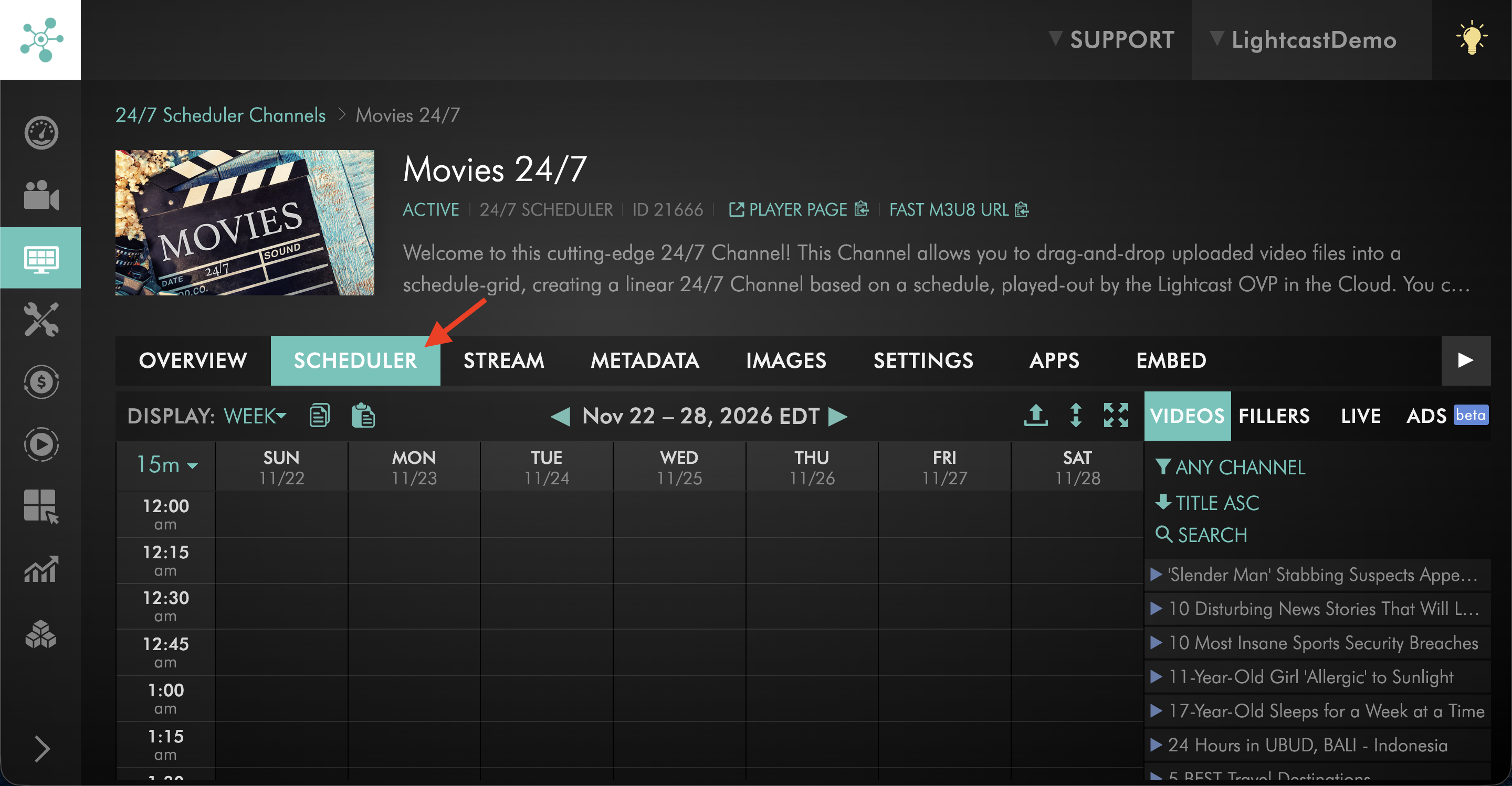
Step 2
Select Import.
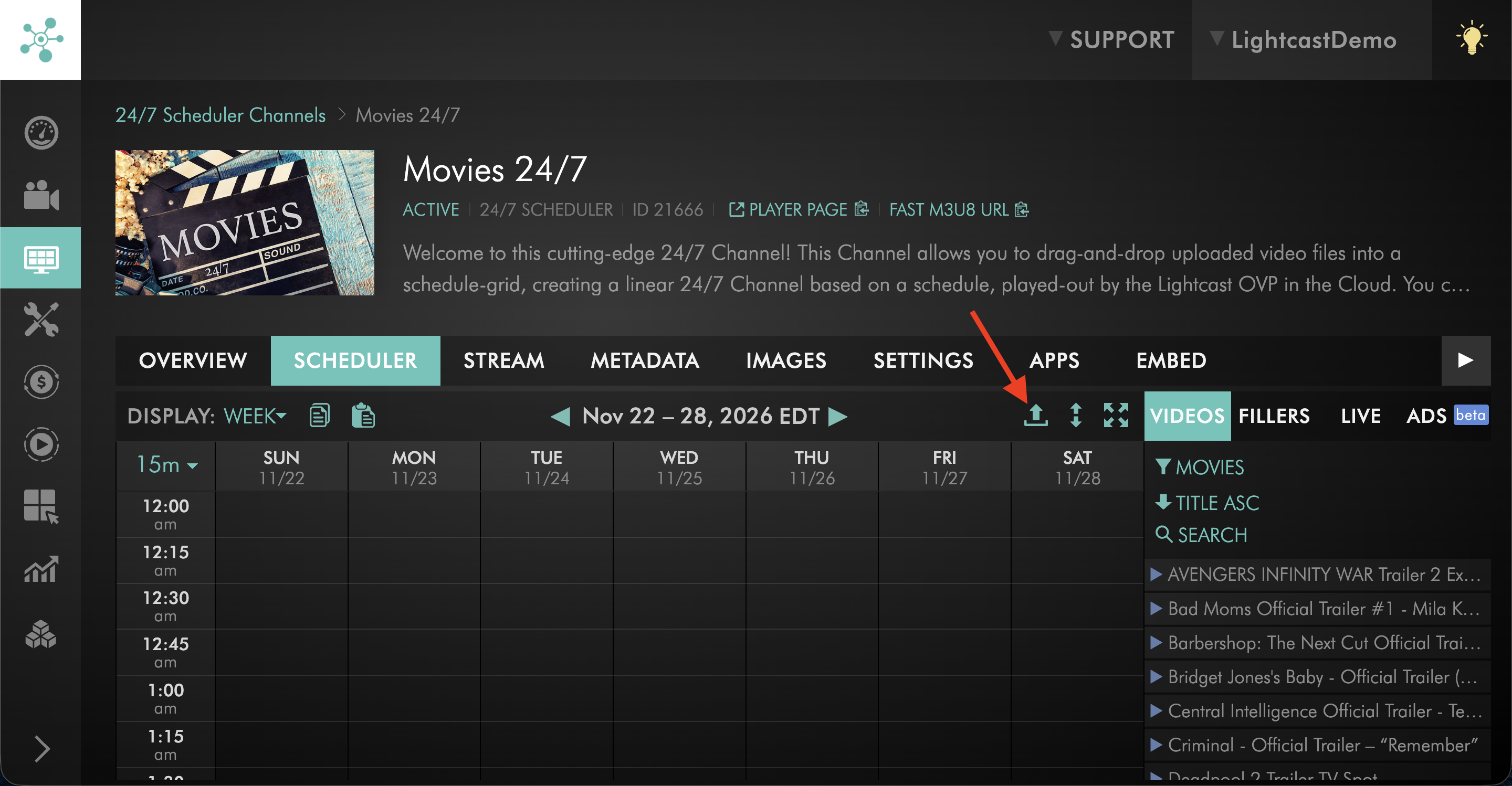
Step 3
Select DOWNLOAD VIDEO ARCHIVE IDS (CSV).
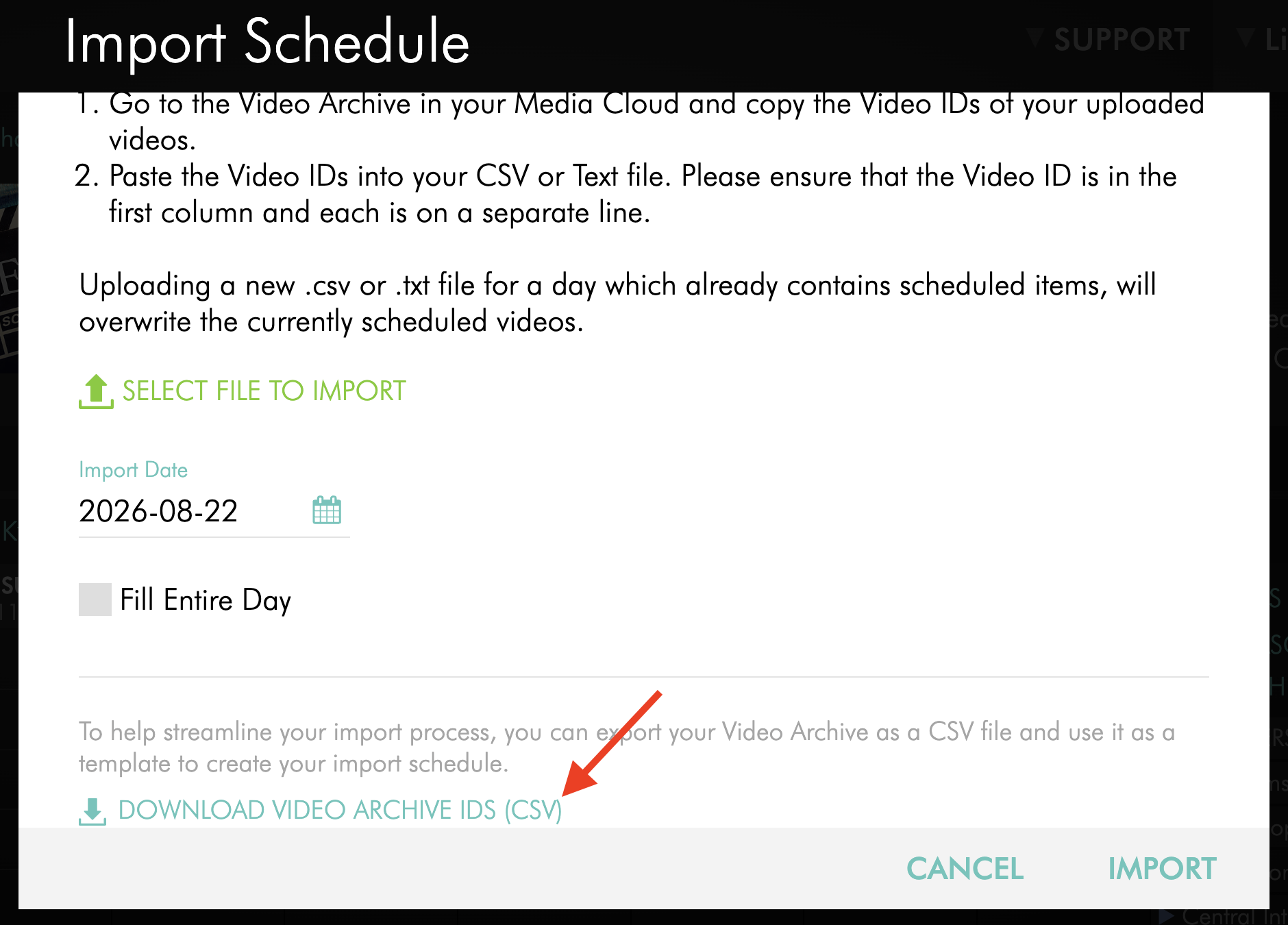
Step 4
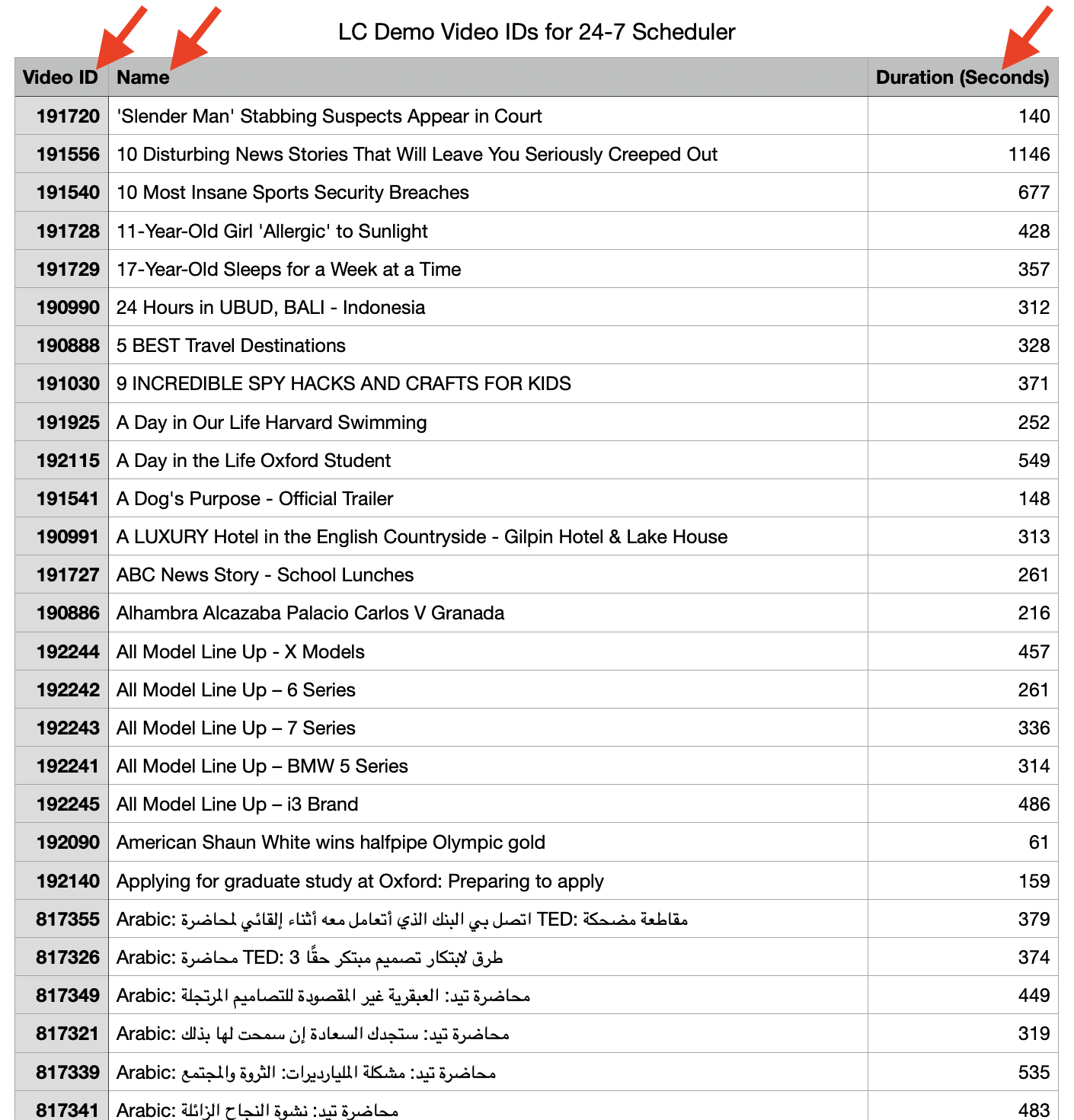
Open the downloaded CSV file.
The exported file includes the Name, Duration, and Video ID for media items in your Video Archive.
Use the Video ID values to create your Scheduler import file.
Next, prepare and import the Video IDs into the Scheduler:
Step 5
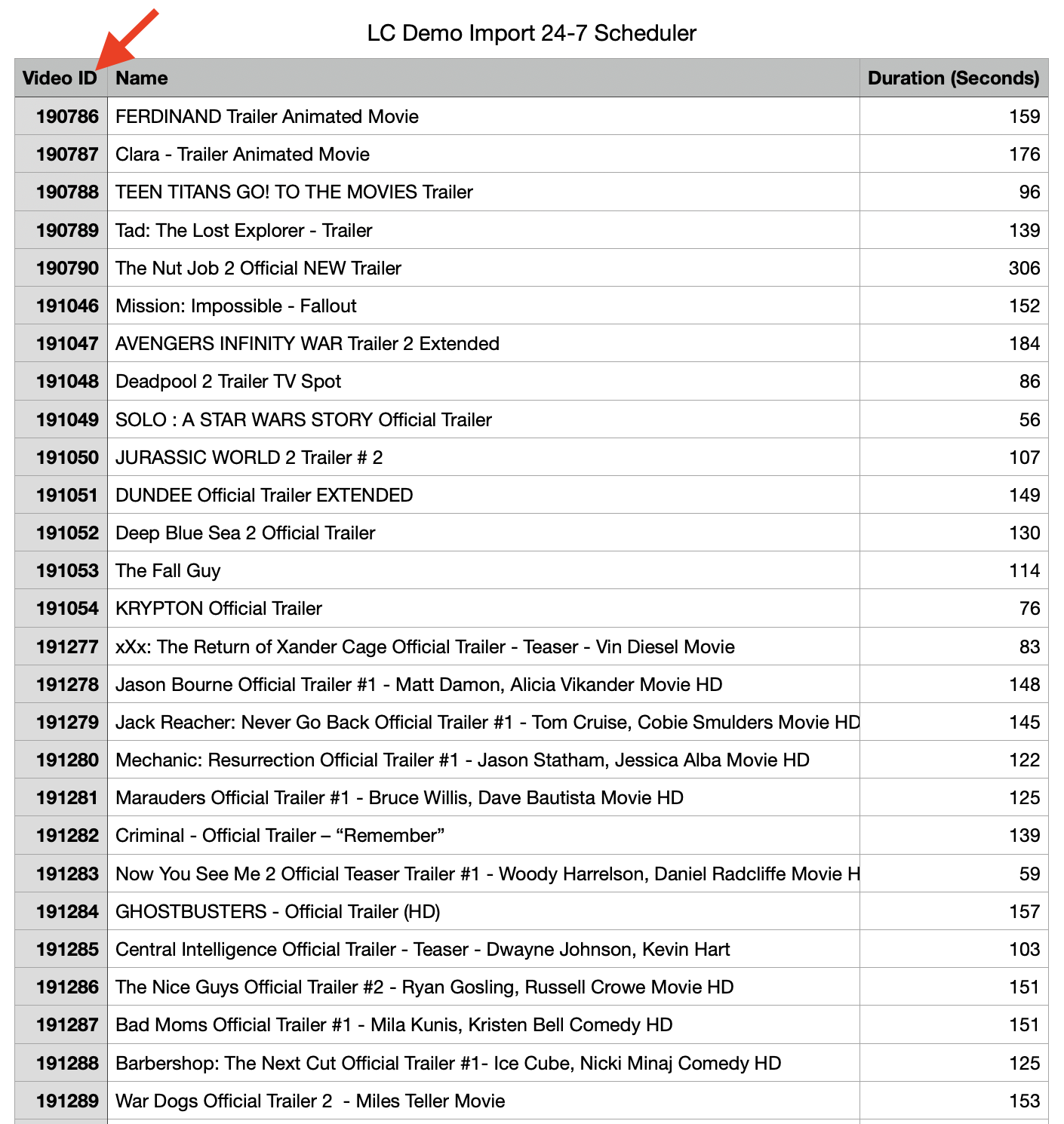
Prepare a CSV file or text file containing the Video IDs you want to add to your schedule.
For CSV files, add the Video IDs in the first column of the spreadsheet, with each ID on a separate row.
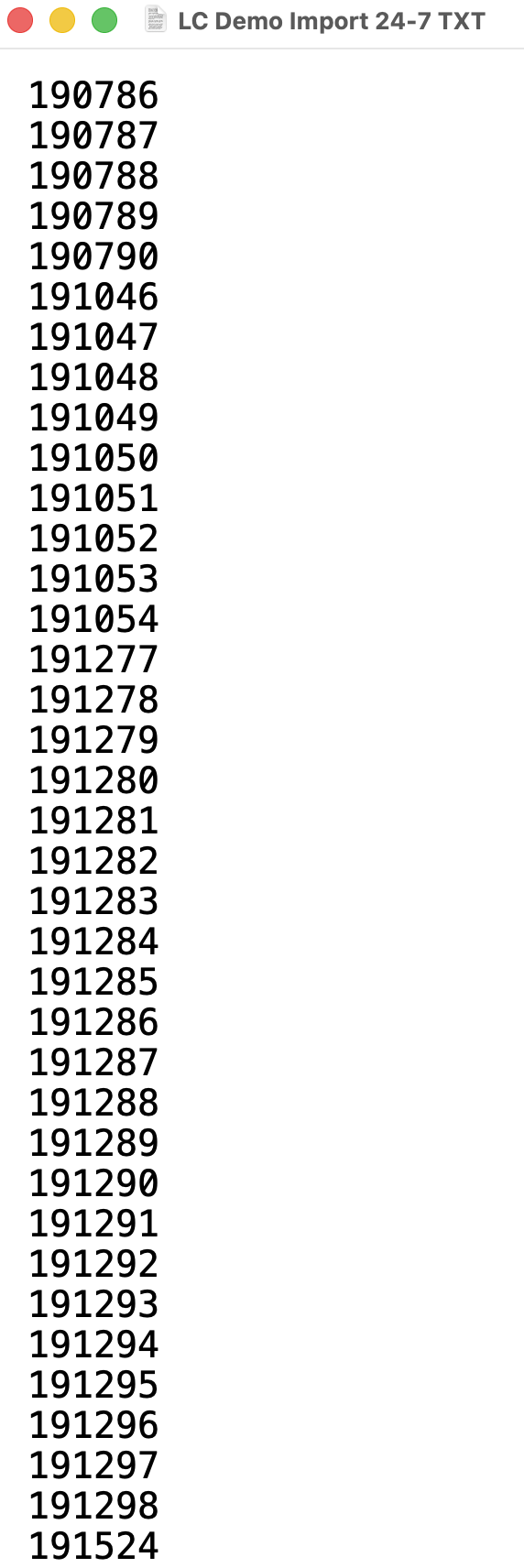
For text files, add each Video ID on a separate line.
If you also want to import SSAI ad breaks with the schedule, see How to create a FAST Channel using the 24/7 Scheduler and Playout system before completing your import file.
Step 6
Open the SCHEDULER tab for your 24/7 Scheduler Channel.
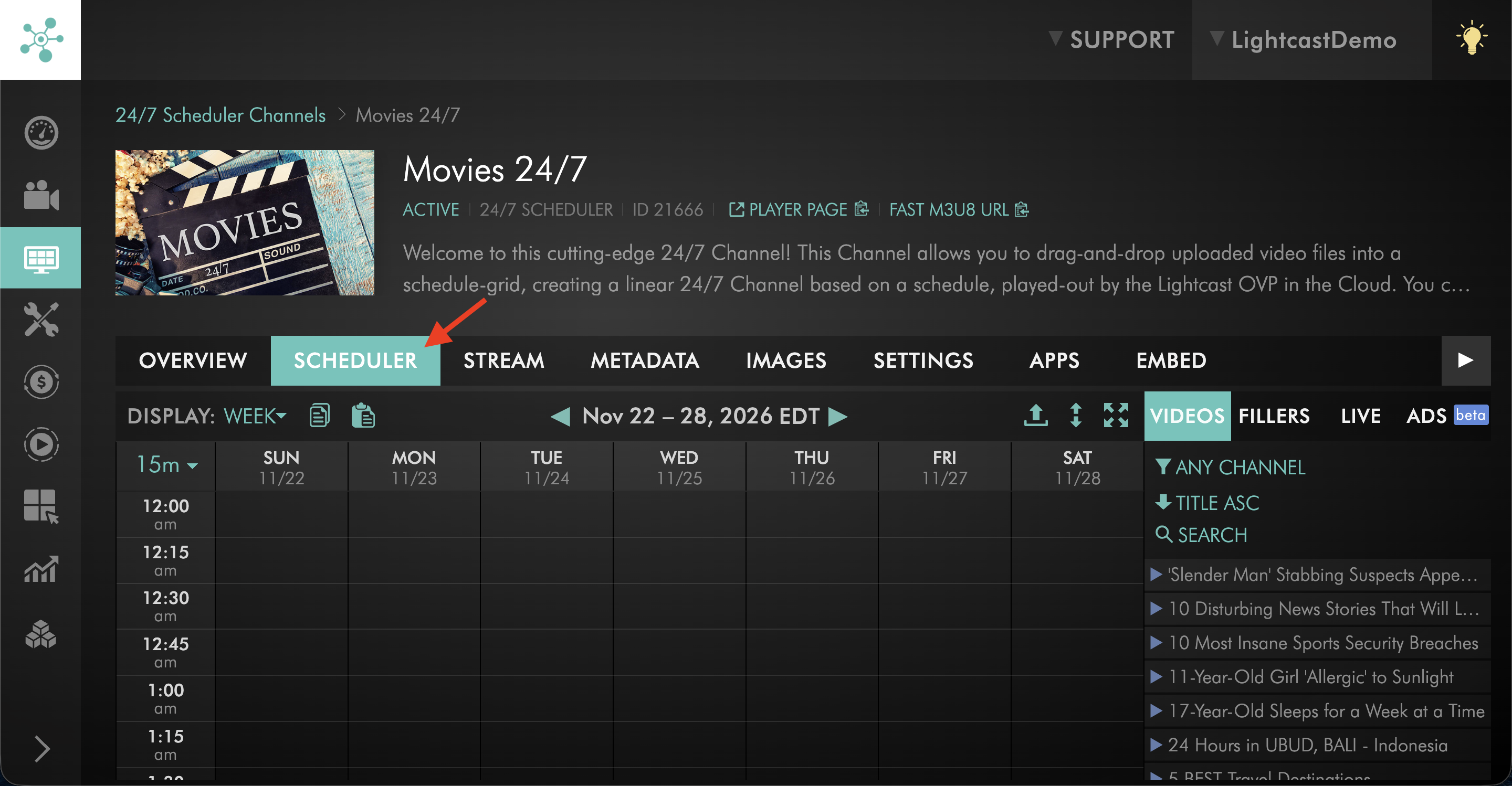
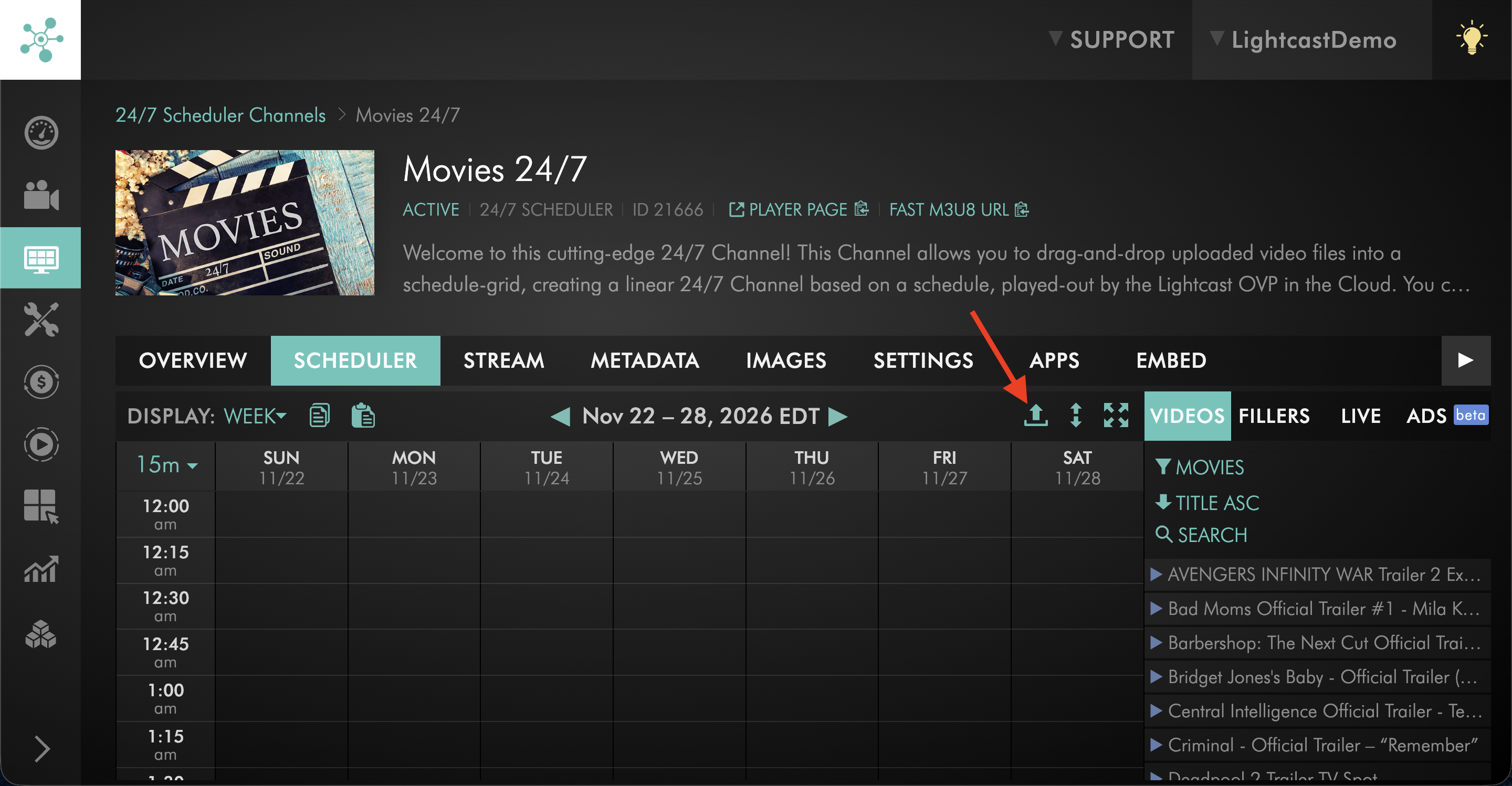
Step 7
Select Import.
Step 8
Select SELECT FILE TO IMPORT.
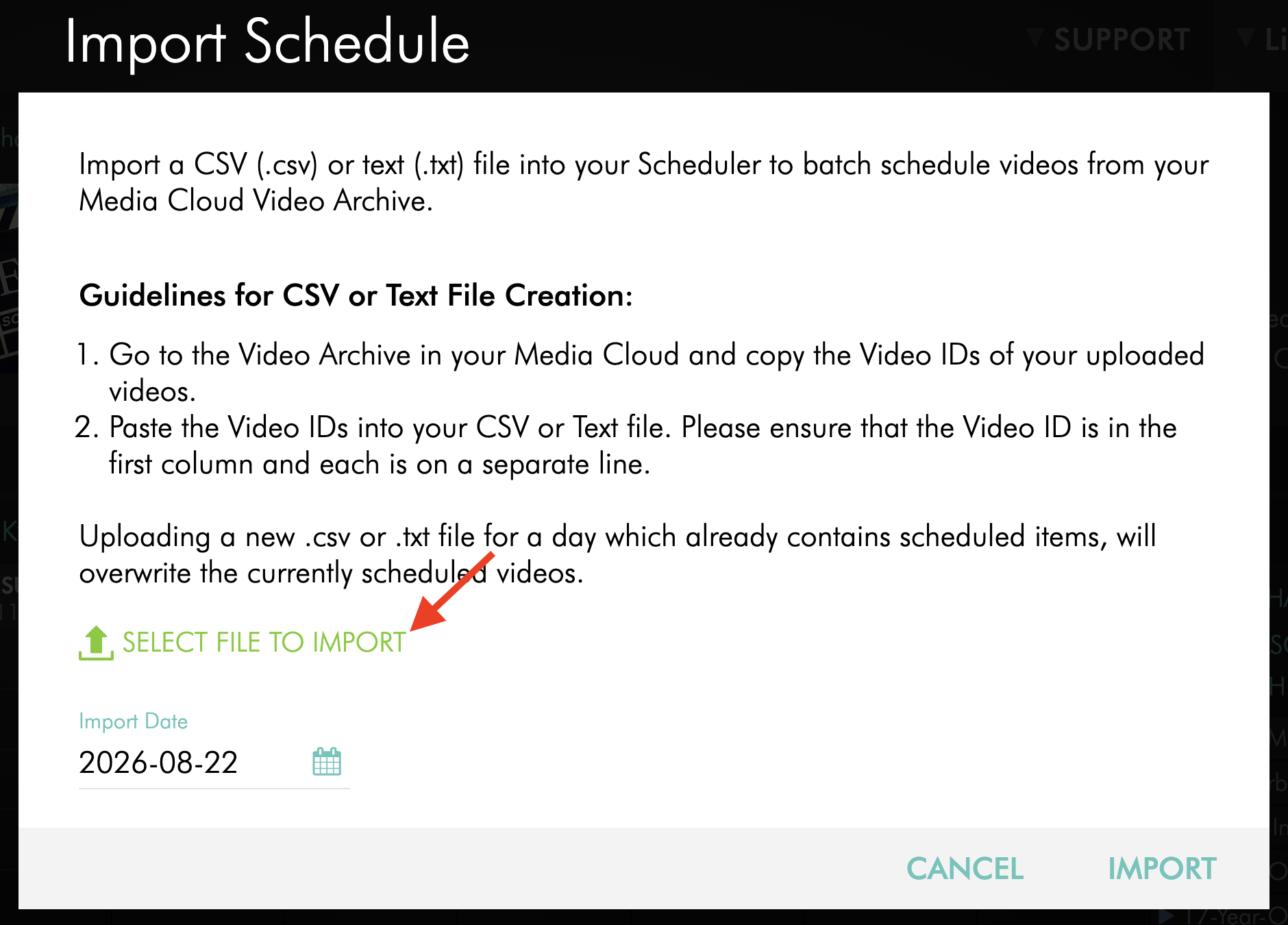
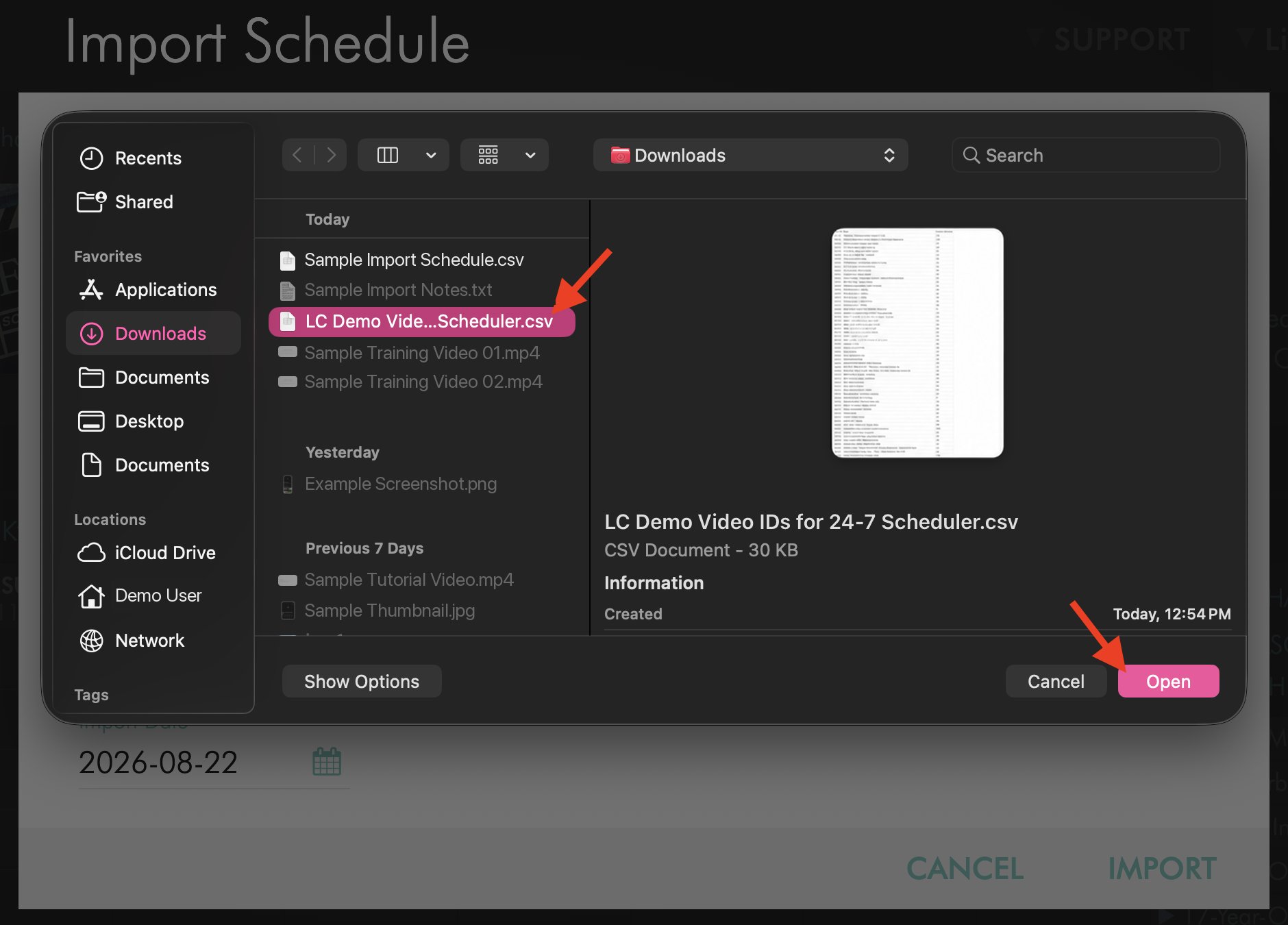
Step 9
Locate the CSV or text file on your computer and select it.
Step 10
Under Import Date, select the date where you want the imported programming to begin.
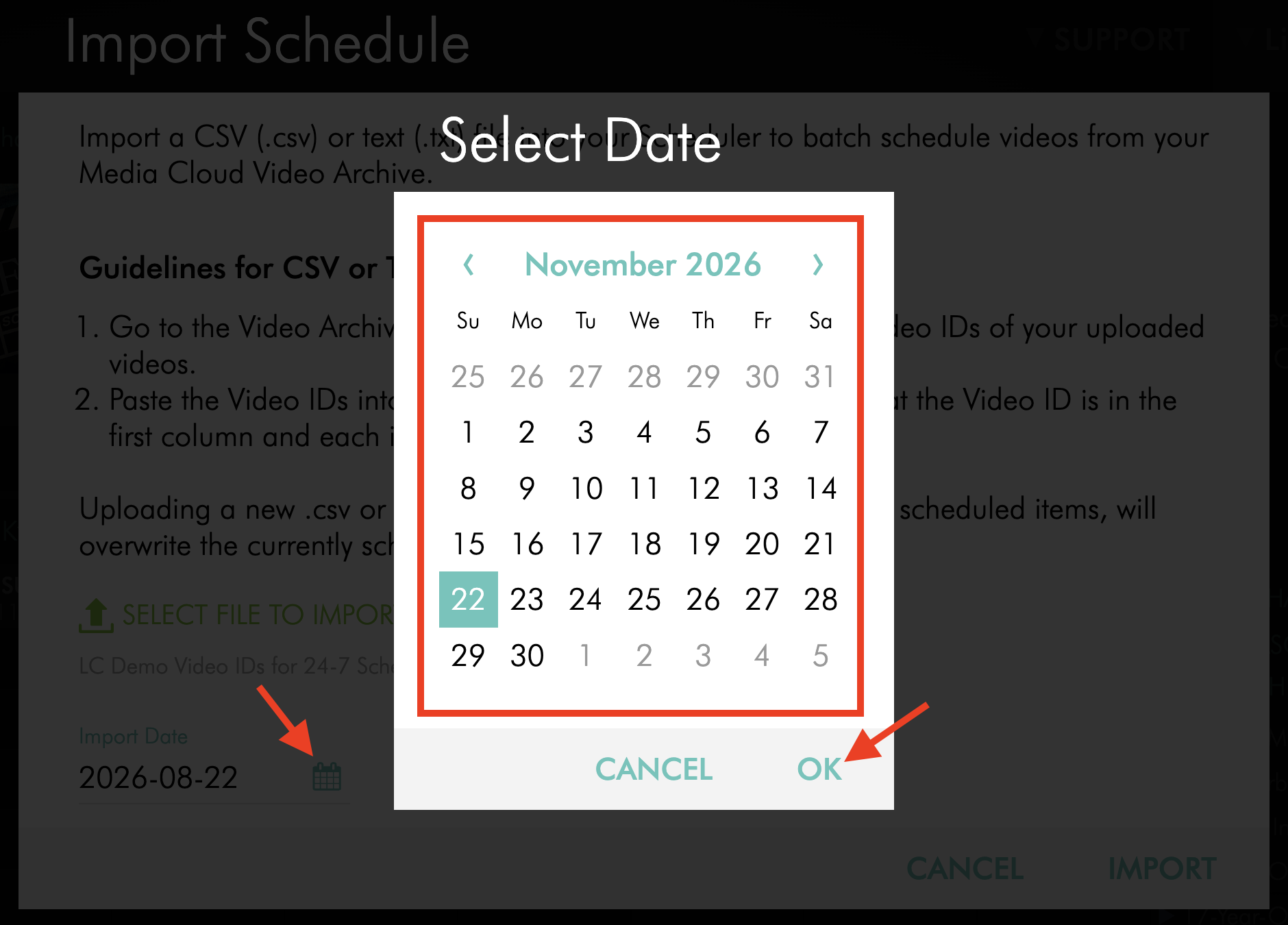
Step 11
Optional: Select Fill Entire Day if you want the imported programming to fill the entire selected day.
Important: Importing a CSV or text file into a day that already contains scheduled content will replace the existing scheduled videos for that day.
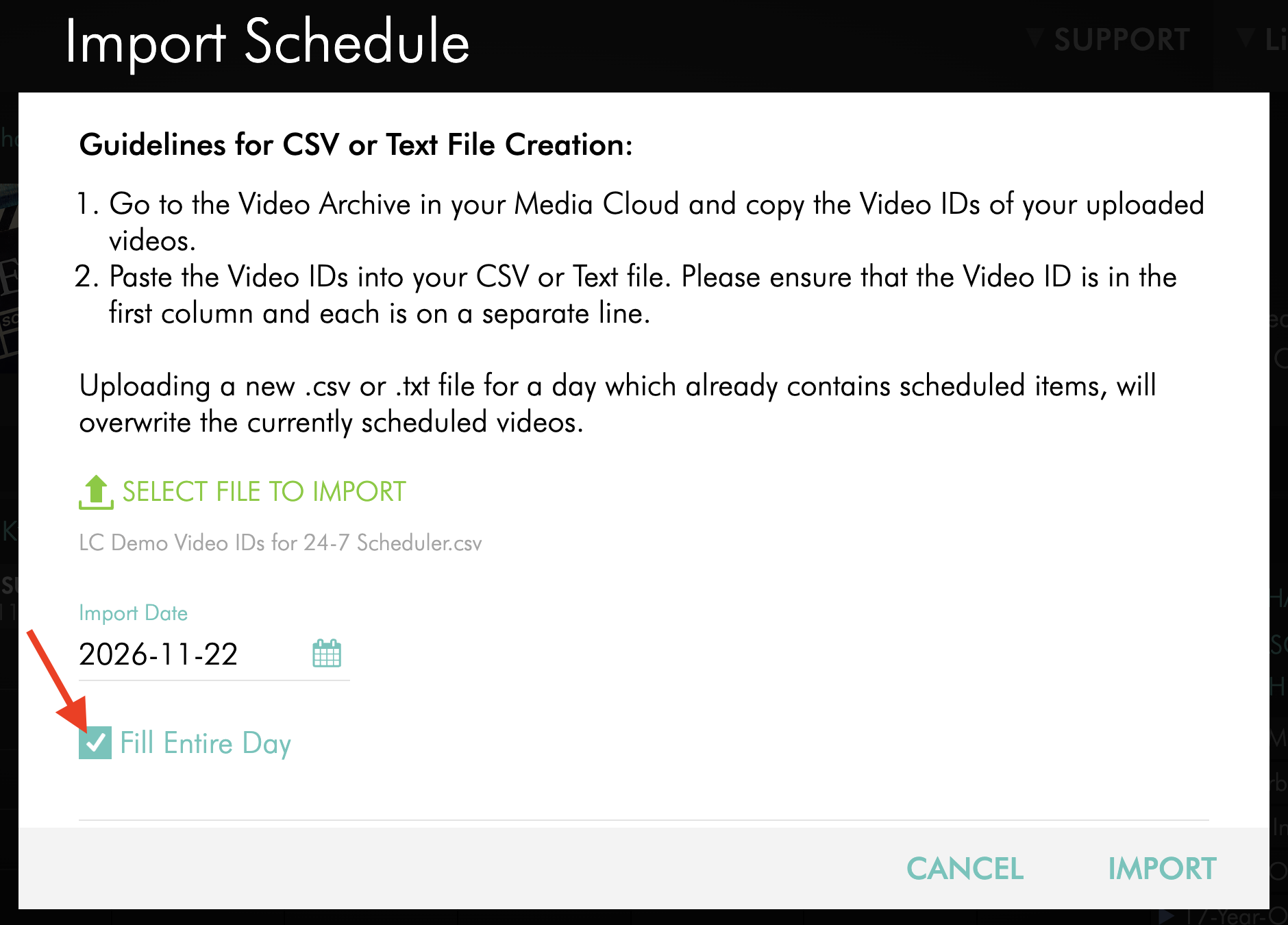
Step 12
Review the selected file, import date, and Fill Entire Day option.
Select IMPORT to import the scheduled programming.
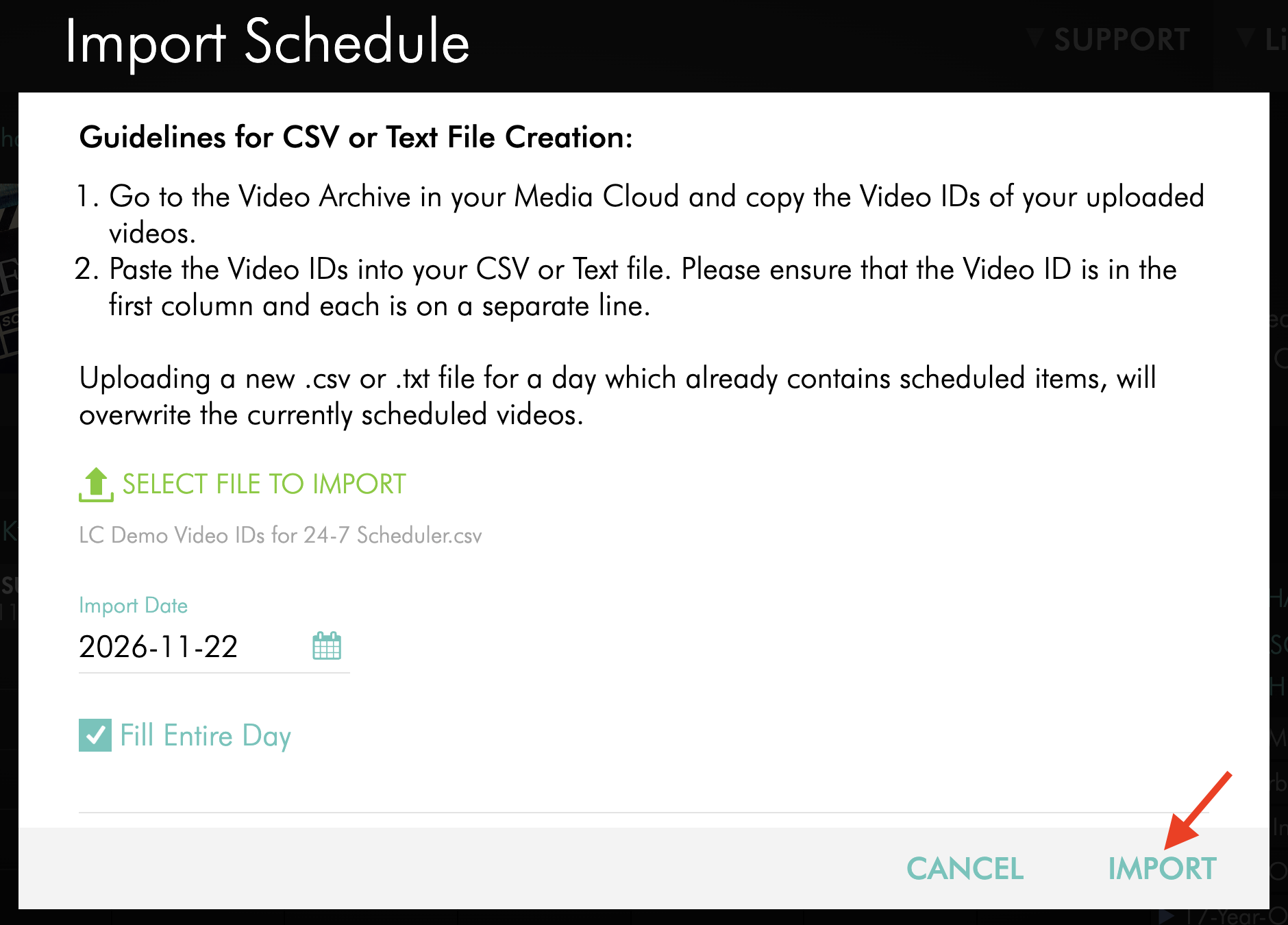
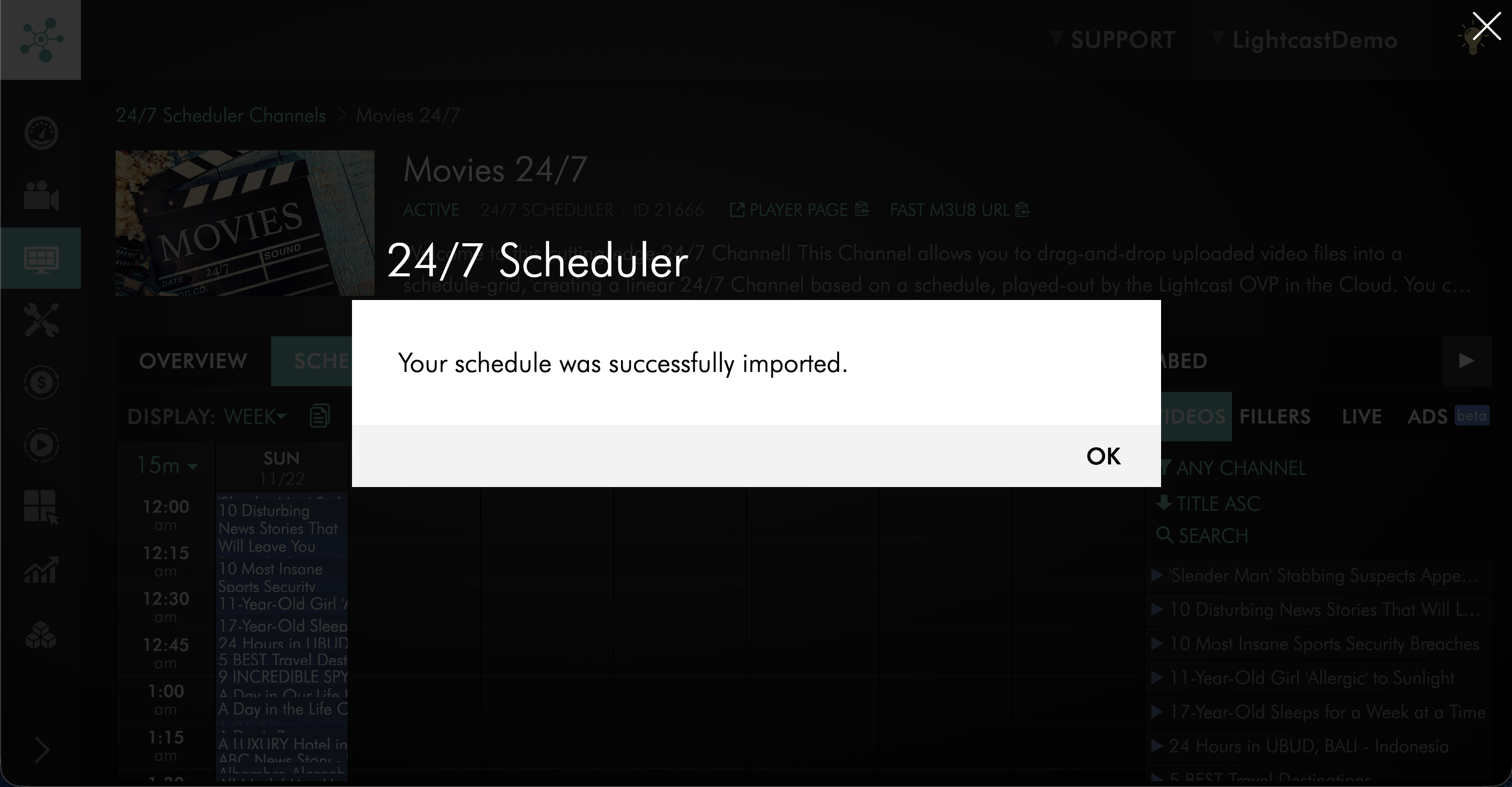
Step 13
Confirm that the success message appears and review the imported programming in your schedule.
Copy a day of programming
You can copy a day's schedule to quickly duplicate programming or replace an existing day's schedule.
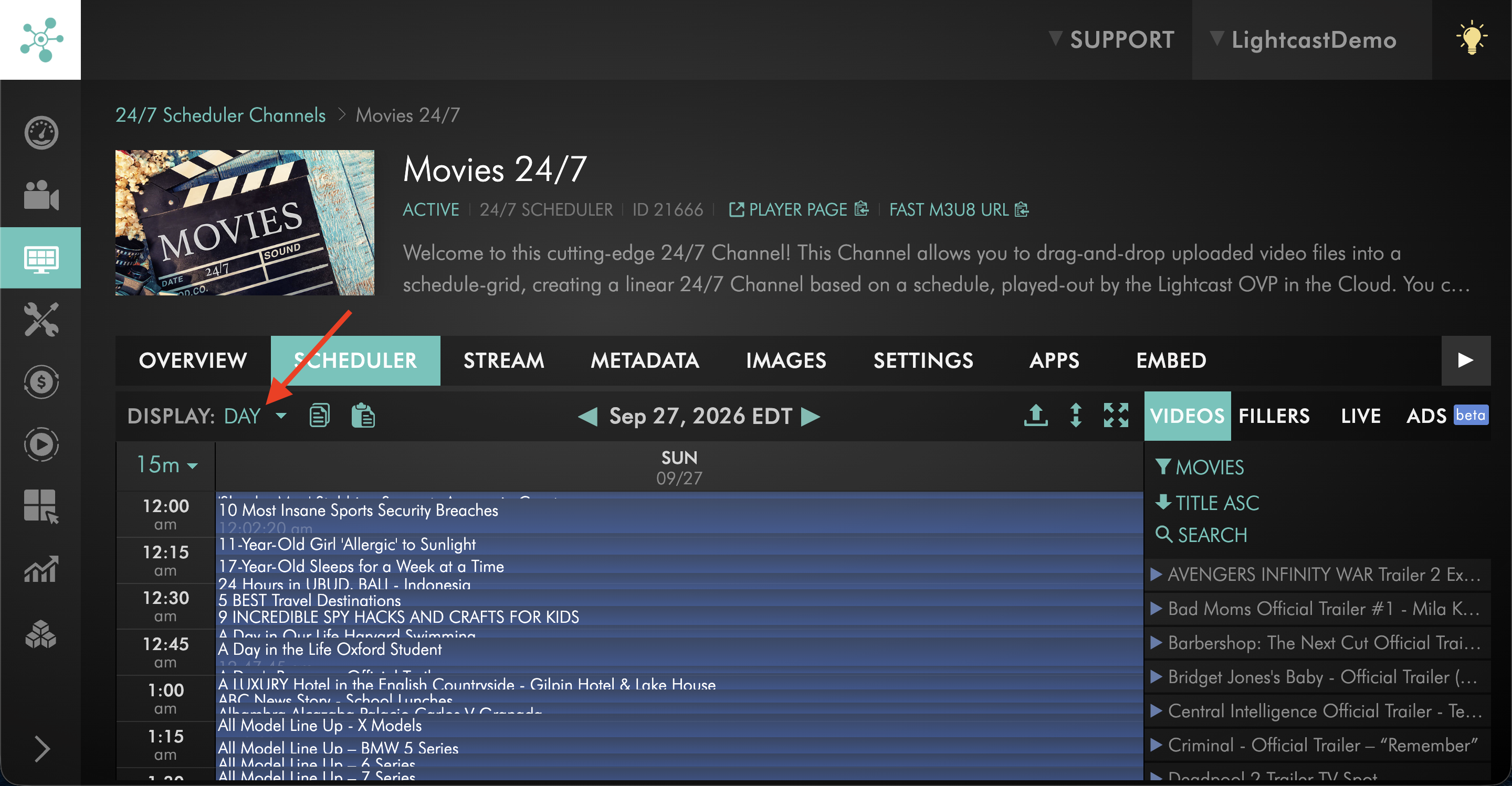
Step 1
Change the Scheduler DISPLAY mode to Day.
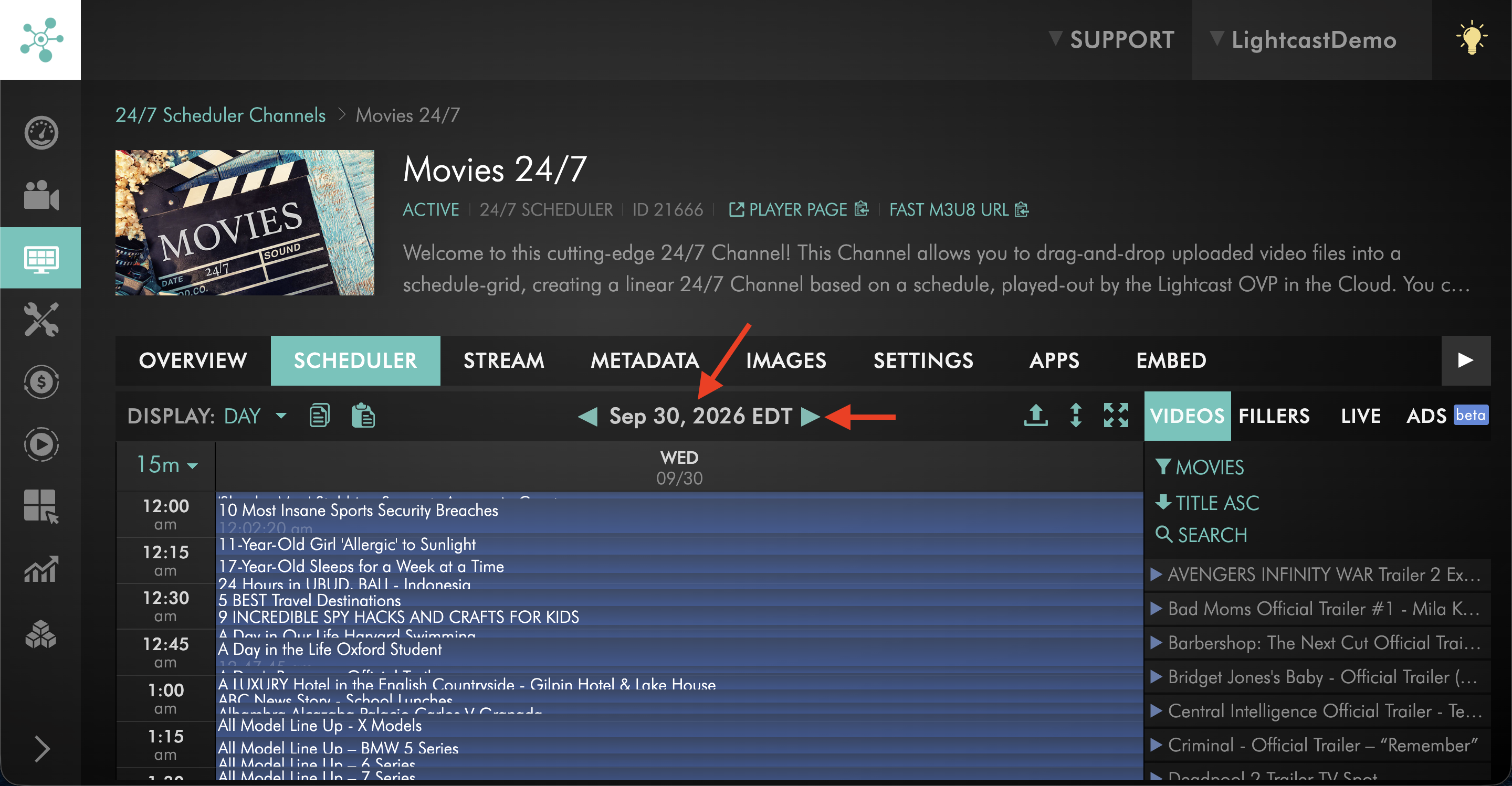
Step 2
Navigate to the day you want to copy.
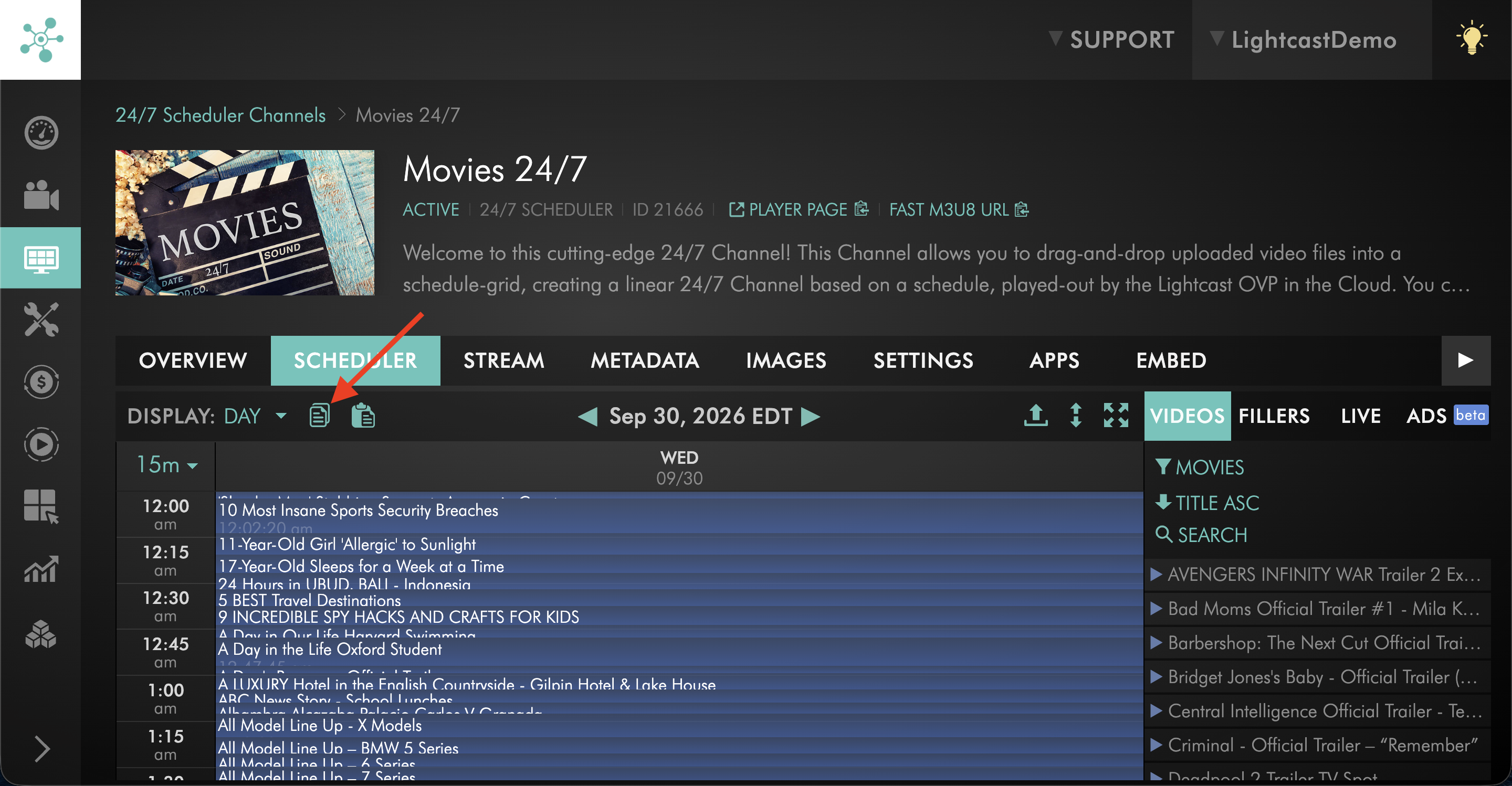
Step 3
Select the copy icon to copy the day's schedule.
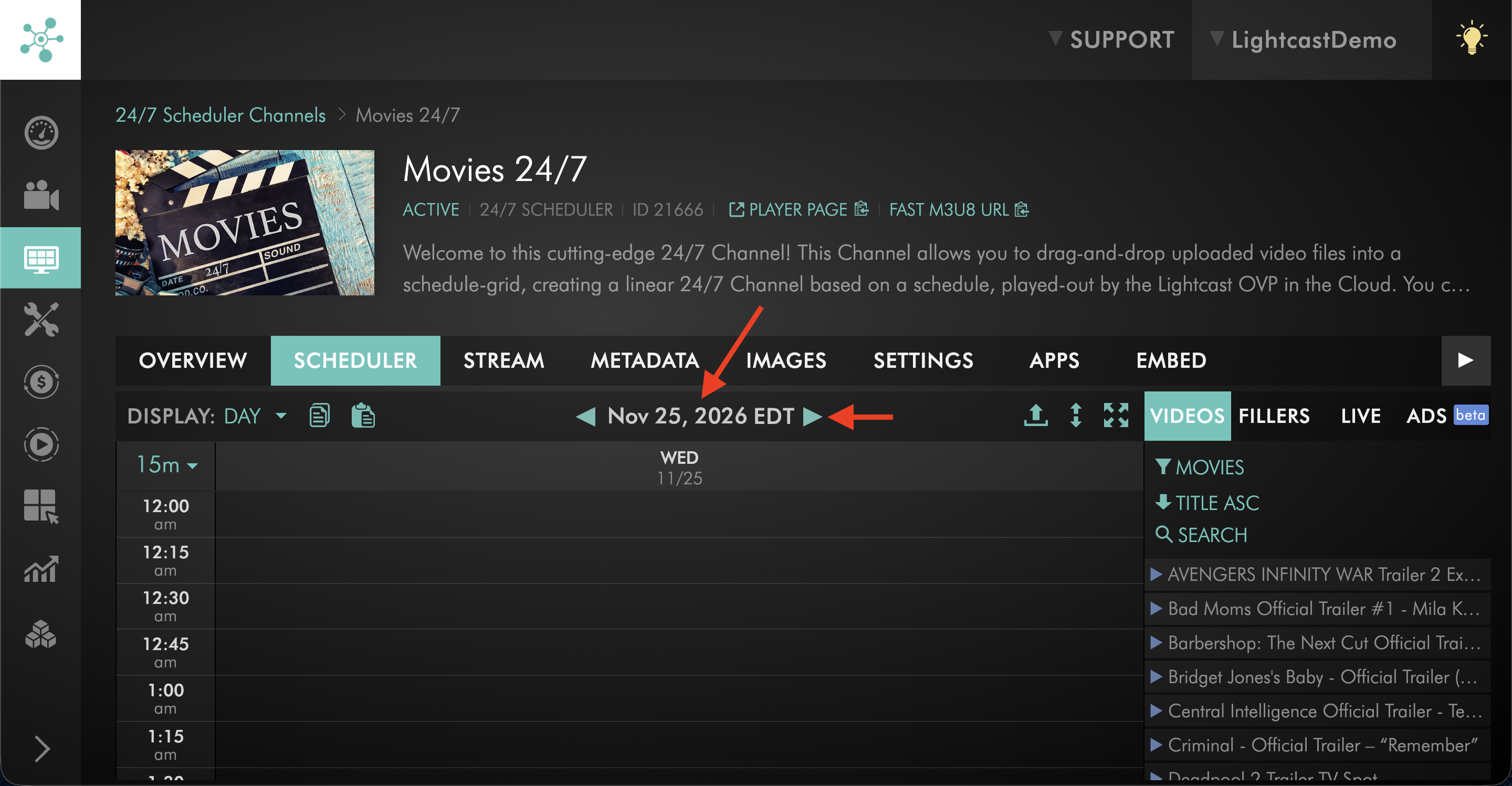
Step 4
Navigate to the day where you want to apply the copied schedule.
Step 5
Select the paste icon to apply the copied schedule.
Pasting a copied day replaces any existing scheduled content for that day.
You can also copy and paste an empty day to remove all scheduled content from that day and start over.
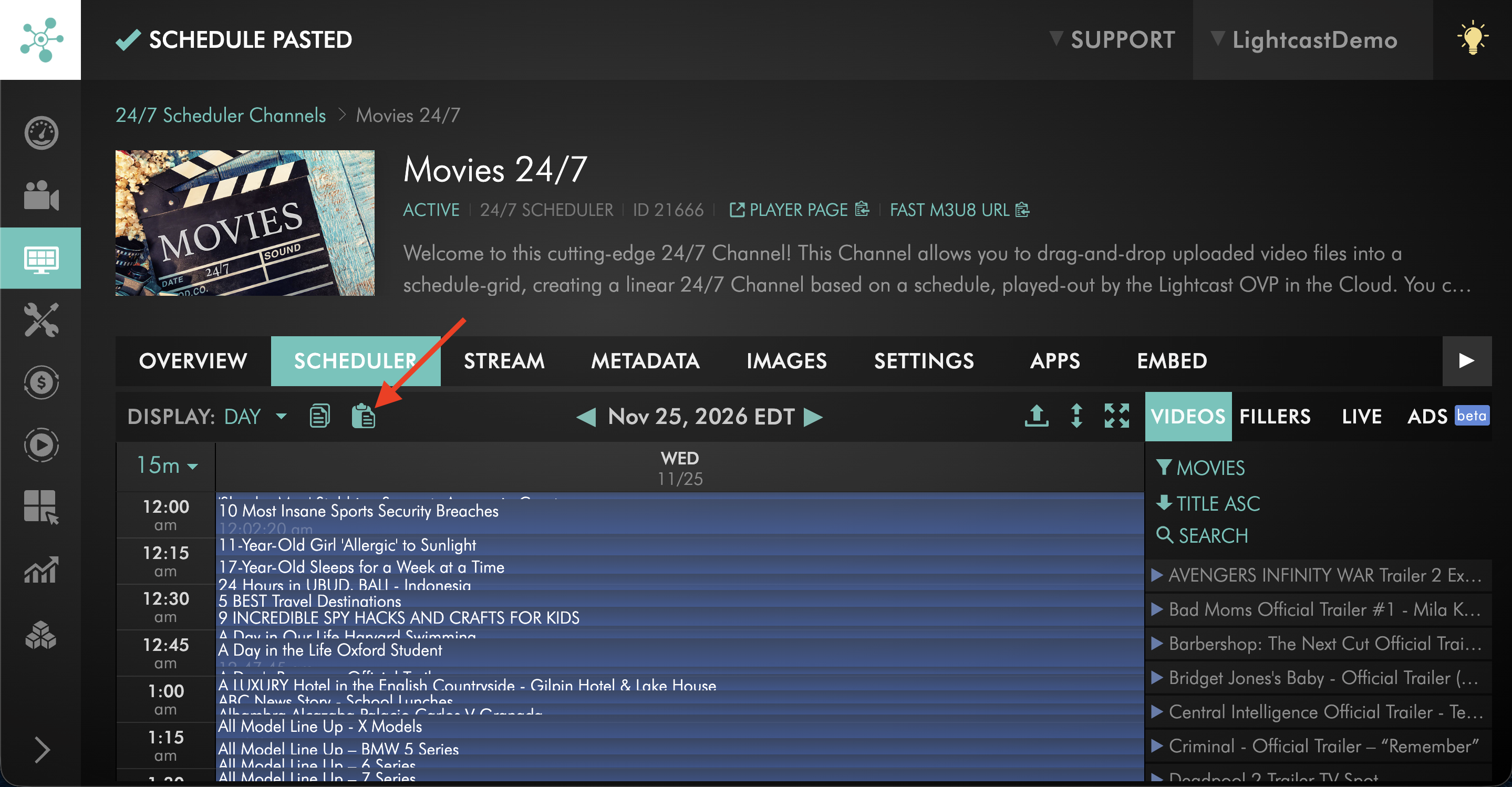
Copy a week of programming
You can copy a week's schedule to quickly duplicate programming or replace an existing week's schedule.
Step 1
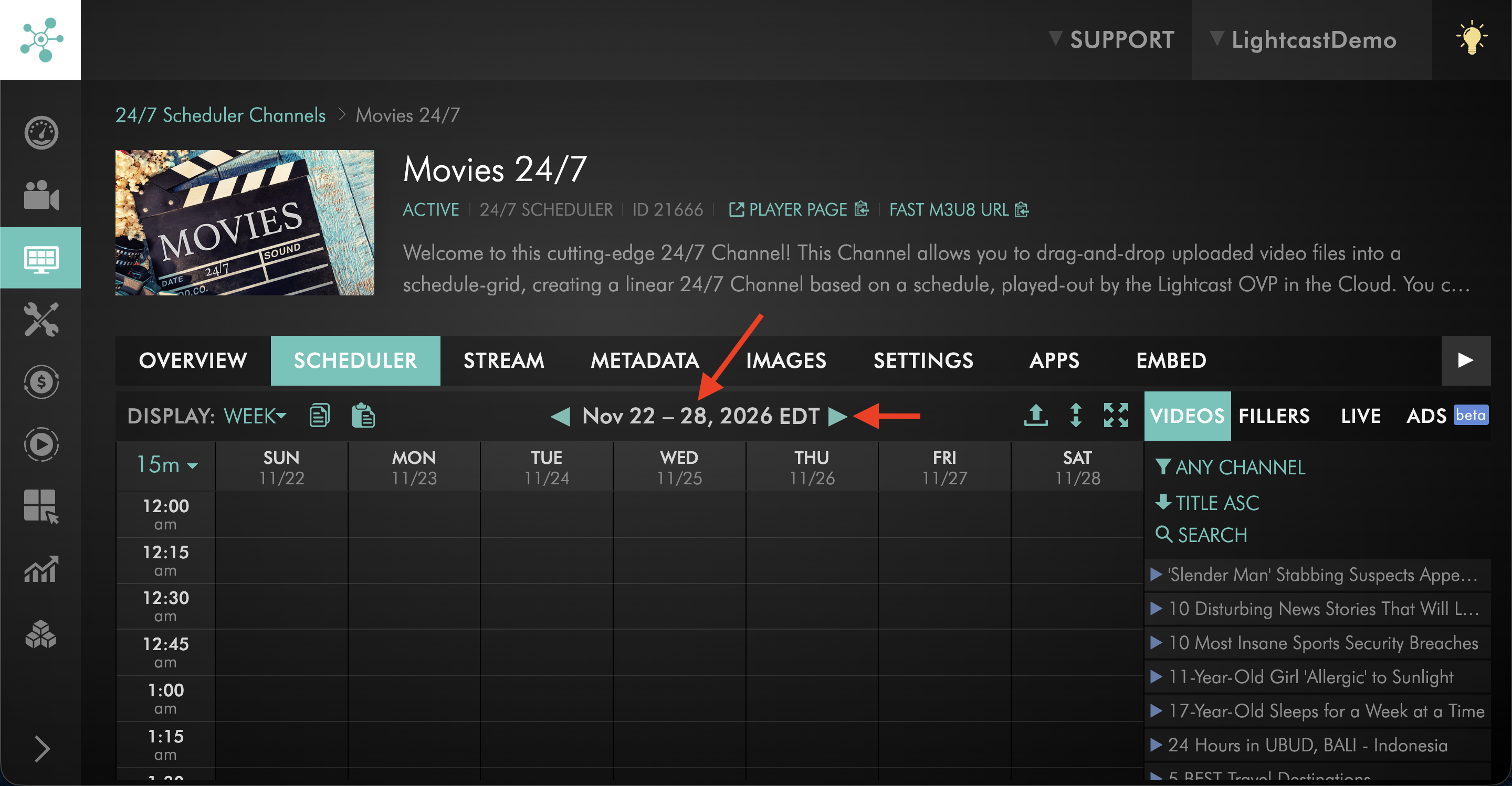
Change the Scheduler DISPLAY mode to Week.
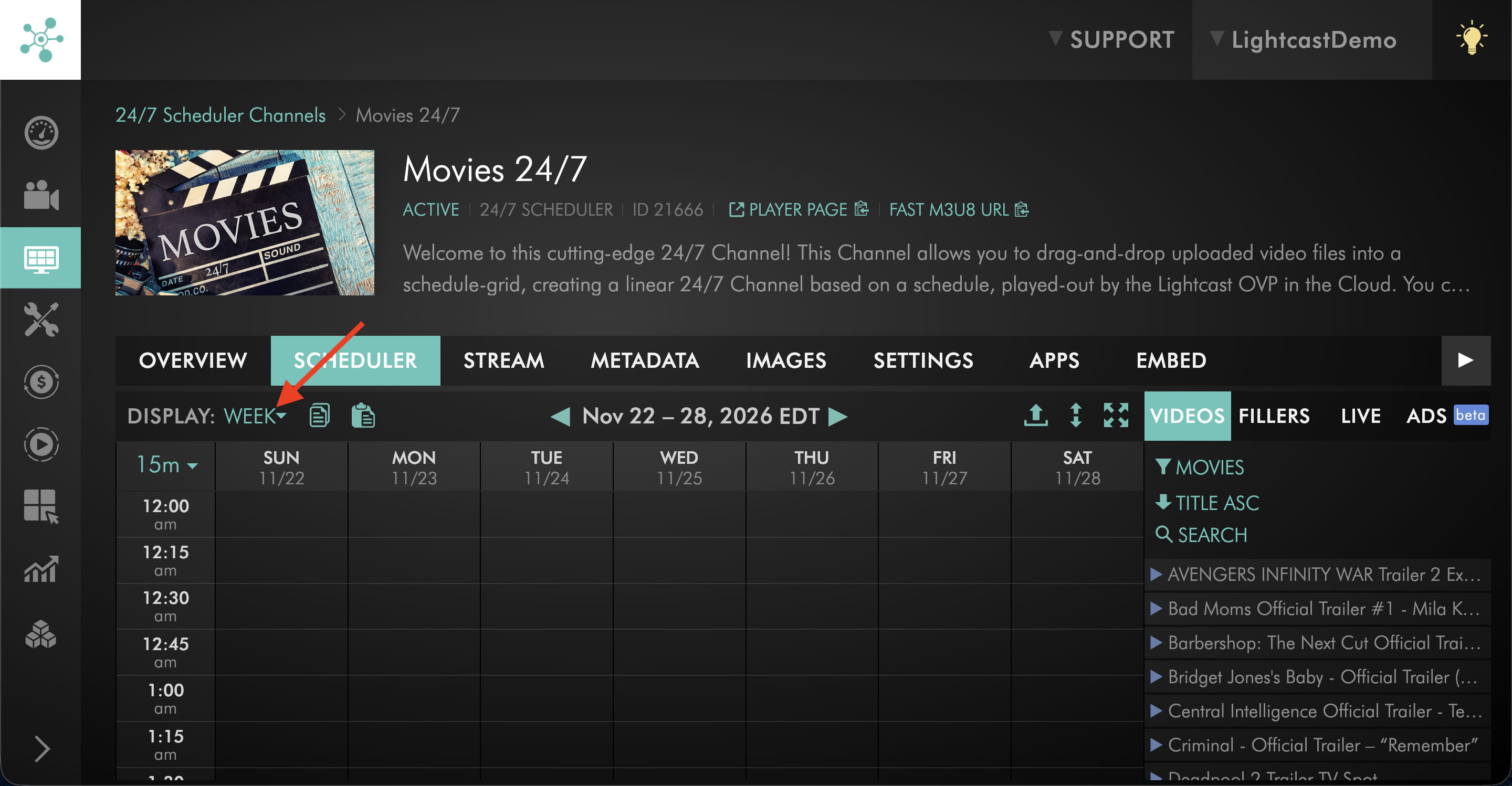
Step 2
Navigate to the week you want to copy.
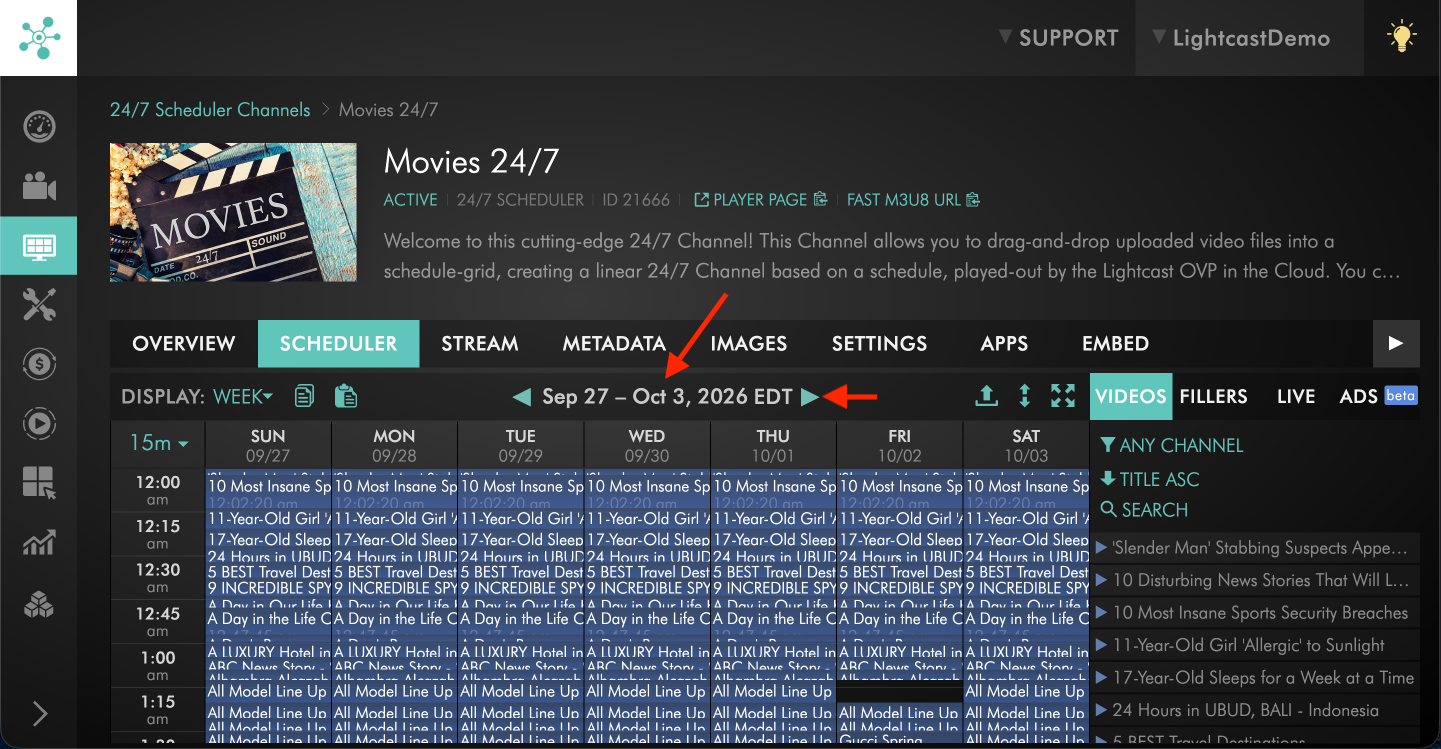
Step 3
Select the copy icon to copy the week's schedule.
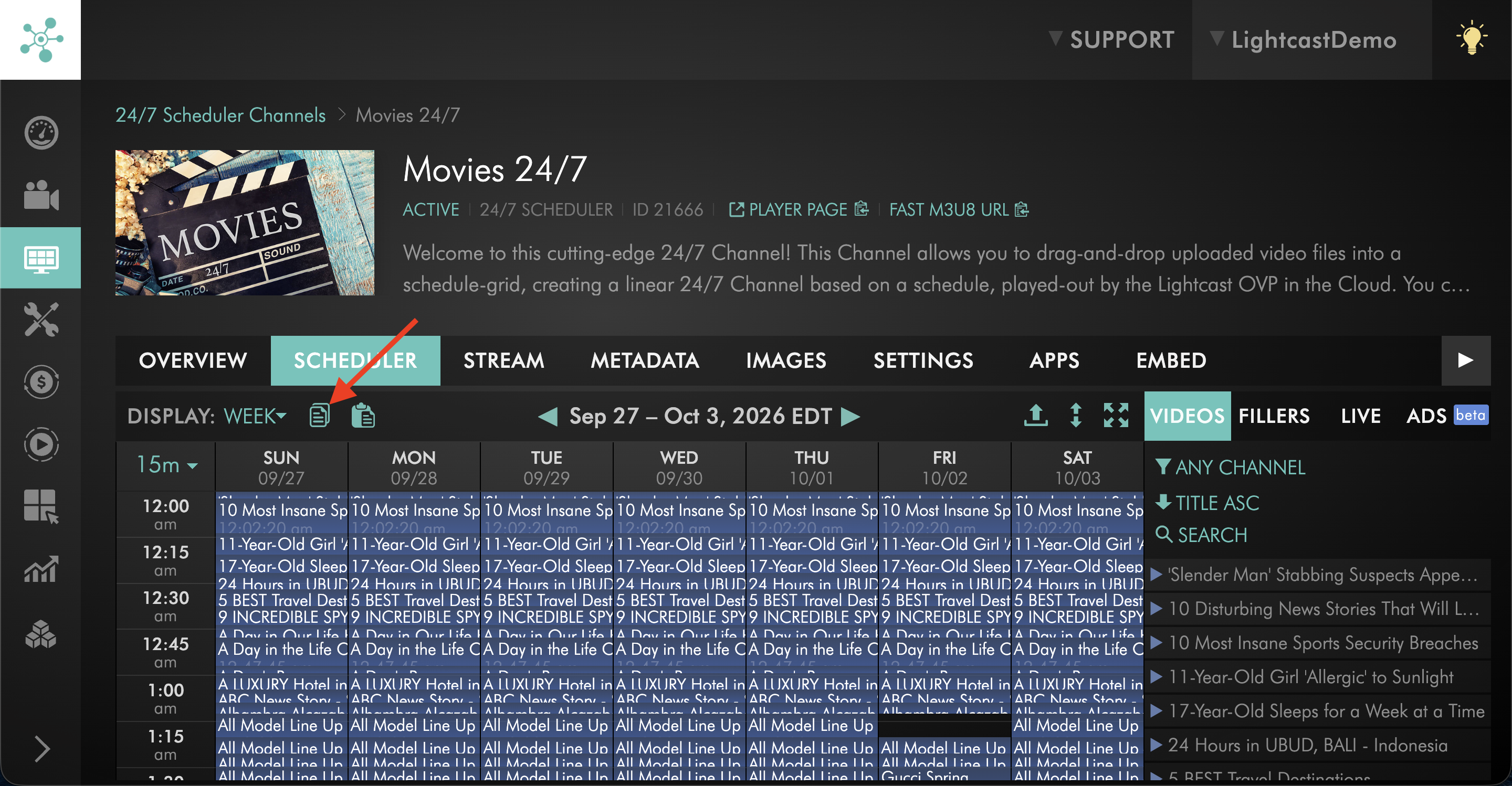
Step 4
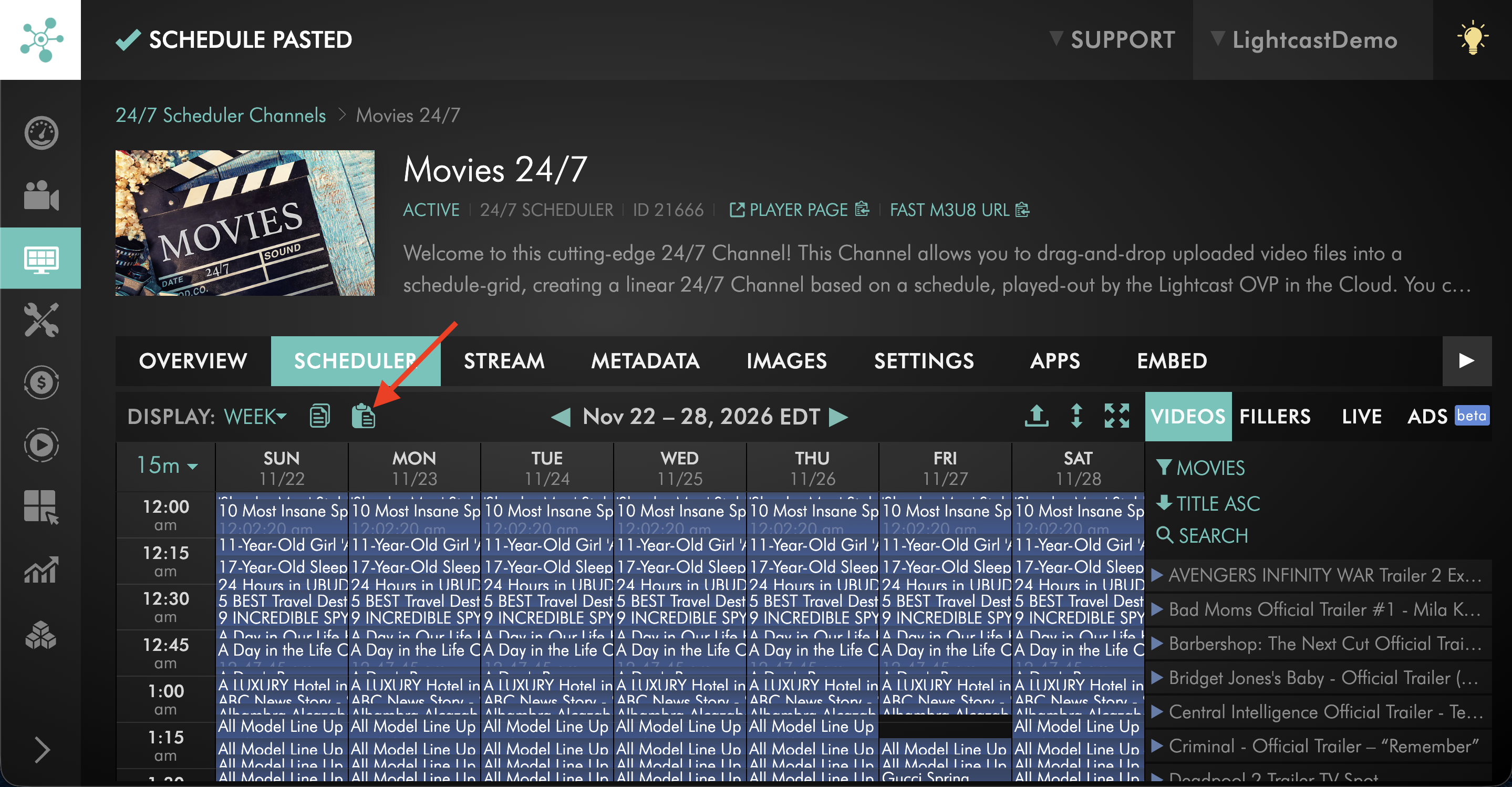
Navigate to the week where you want to apply the copied schedule.
Step 5
Select the paste icon to apply the copied schedule.
Pasting a copied week replaces any existing scheduled content for that week.
You can also copy and paste an empty week to remove all scheduled content from that week and start over.
FAQs
Can I copy an existing schedule instead of rebuilding it manually?
Yes. The 24/7 Scheduler allows you to copy and paste scheduled days or weeks so you can extend your programming lineup more efficiently.
Can I replace an existing schedule by copying and pasting another schedule?
Yes. When you paste a copied day or week, it replaces the existing scheduled content for that selected time period.
You can also copy and paste an empty day or week to remove scheduled content and start over.
Can I add multiple videos to my 24/7 Scheduler at once?
Yes. You can use the Import feature to add multiple videos by uploading a CSV or text file containing Video IDs.
Can I import ad breaks with my programming schedule?
Yes. If SSAI ad-break support is enabled for your 24/7 Scheduler Channel, supported ad-break entries can be included in the same CSV or TXT file used to import your programming schedule.
For the required format, supported durations, and instructions, see How to create a FAST Channel using the 24/7 Scheduler and Playout system.
What happens if my import file contains ad breaks but SSAI ad-break support is not enabled?
The import will not proceed.
SSAI ad-break support must first be enabled for the 24/7 Scheduler Channel before you can import a schedule file containing ad-break entries.
For more information, see How to create a FAST Channel using the 24/7 Scheduler and Playout system.
Why do I need to export Video IDs before importing multiple videos?
The Scheduler uses Video IDs to identify the uploaded videos you want to add to the schedule.
The DOWNLOAD VIDEO ARCHIVE IDS (CSV) option provides the Video IDs for media in your Video Archive so you can prepare the CSV or text file used for the Scheduler import.
What information is included in the Video Archive CSV export?
The Video Archive CSV export includes the Name, Duration, and Video ID for media items in your Video Archive.
Can scheduled content be imported from multiple Channels?
Yes. You can search and filter available media by Channel when building your schedule and add content from multiple Channels to your 24/7 Scheduler.
Does removing scheduled content delete the video from my Media Cloud account?
No. Removing content from the 24/7 Scheduler only removes it from the programming schedule. The video remains available in your Media Cloud account.
Can I use filler videos in my 24/7 Scheduler Channel?
Yes. Filler videos can be used to help fill gaps between scheduled programming in your 24/7 Scheduler Channel.
To learn how filler videos work and how to configure them, see How to use filler videos in the 24/7 Scheduler.
Can I schedule Live Broadcasts in my 24/7 Scheduler Channel?
Yes. Live Broadcasts can be added to your 24/7 Scheduler programming lineup.
To learn how Live Broadcasts work and how to configure them, see How to use Live Broadcasts in the 24/7 Scheduler.
Can I schedule video commercials in my 24/7 Scheduler Channel?
Yes. Video commercials can be uploaded to the Media Cloud and scheduled like other video content.
For SSAI ad breaks and FAST Channel workflows, see How to create a FAST Channel using the 24/7 Scheduler and Playout system.
Pricing
The 24/7 Scheduler and Playout System is available on POWER packages and above for a fee.
If you don't have access to this feature, you can upgrade to one of our latest plans or contact Customer Support.
SSAI ad-break support is a separate add-on for 24/7 Scheduler Channels.
If you do not have access to the 24/7 Scheduler or SSAI ad-break support, contact Customer Support to review the available options.