
How to create a FAST Channel using the 24/7 Scheduler and Playout system
Overview
This article explains how to create a FAST Channel workflow using the Media Cloud’s 24/7 Scheduler and Playout system.
It also explains how to schedule or import SSAI ad breaks, copy the FAST M3U8 URL, and share that URL with your FAST or SSAI provider.
Before you begin
This article assumes you are using the Media Cloud’s 24/7 Scheduler and Playout system as the source for a FAST Channel.
If you are unfamiliar with FAST Channels, Server-Side Ad Insertion (SSAI), or SCTE-35 ad markers, see FAST Channel integration and SSAI workflows.
Before using this workflow, your 24/7 Scheduler Channel must already be created, and SSAI ad-break support must be enabled for that Channel.
If you need help identifying possible FAST Channel providers, SSAI providers, or ad networks, contact Customer Support to inquire about available recommendations.
Important: If you plan to import ad breaks with your programming schedule, SSAI ad-break support must be enabled for the 24/7 Scheduler Channel before you import the file. If the import file contains ad-break entries and SSAI ad-break support is not enabled, the import will not proceed.
When to use the 24/7 Scheduler and Playout system for FAST Channels
Use this workflow when you want to manage a 24/7 linear Channel in the Media Cloud and include scheduled ad-break opportunities for SSAI.
This option may be helpful when you want to:
Create or manage a 24/7 linear Channel in the Media Cloud
Use the 24/7 Scheduler to schedule your linear programming
Add ad breaks manually from the ADS tab
Import ad breaks together with your programming schedule using a CSV or TXT file
Provide a FAST M3U8 URL with SCTE-35 ad markers to an SSAI provider
Continue updating your scheduled content and ad breaks in the Media Cloud
Receive a final ad-enabled HLS playback feed from your SSAI provider for Lightcast integration
How it works
The Media Cloud’s 24/7 Scheduler and Playout system manages the programming schedule for your 24/7 linear Channel.
When SSAI ad-break support is enabled, you can add ad breaks to your programming schedule in two ways:
Add ad breaks manually from the ADS tab
Include ad-break entries directly in a CSV or TXT schedule import file
Both methods add scheduled ad-break opportunities to the 24/7 Scheduler. These scheduled breaks generate SCTE-35 markers in the FAST M3U8 output. They do not insert advertisements into the stream.
To learn how to build, manage, and import programming schedules in the 24/7 Scheduler, see How to schedule content on your 24/7 Scheduler Channel.
Copy the generated FAST M3U8 URL and provide it to your FAST or SSAI provider. The provider uses the SCTE-35 markers to insert advertisements and generate the final ad-enabled HLS playback feed.
After your provider returns the completed playback feed, send the playback URL to Lightcast for compatibility review and integration into supported apps or Web Players.
Workflow summary
Media Cloud 24/7 Scheduler
↓
Create or import programming schedule
↓
Add or import SCTE-35 ad breaks
↓
Generate FAST M3U8 URL
↓
FAST or SSAI provider
↓
Insert advertisements
↓
Final ad-enabled HLS playback feed
↓
Lightcast integration
Instructions
Check whether SSAI ad-break support is enabled
Step 1
Log in to your Media Cloud account.
Step 2
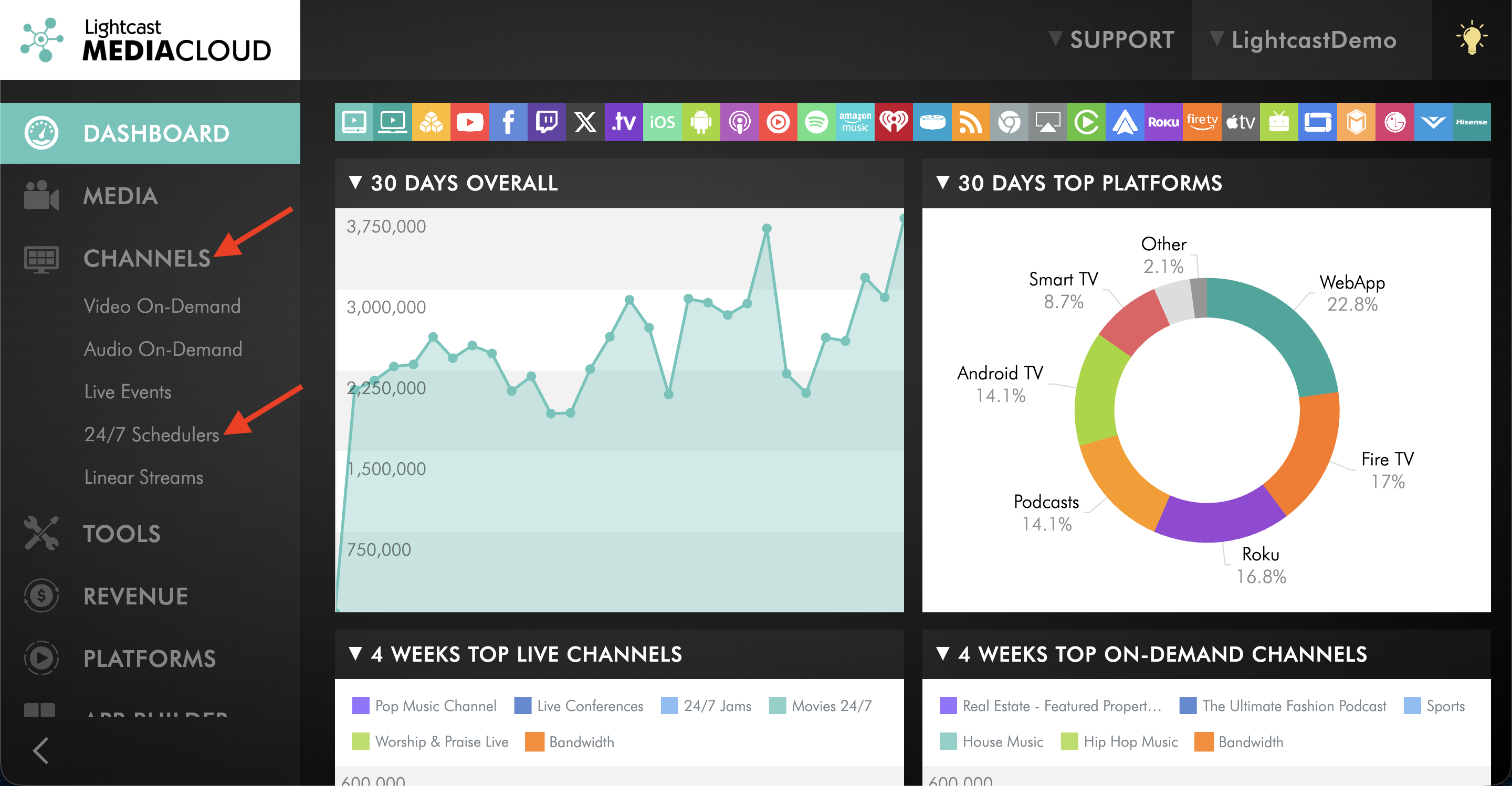
Go to CHANNELS, then select 24/7 Schedulers.
Step 3
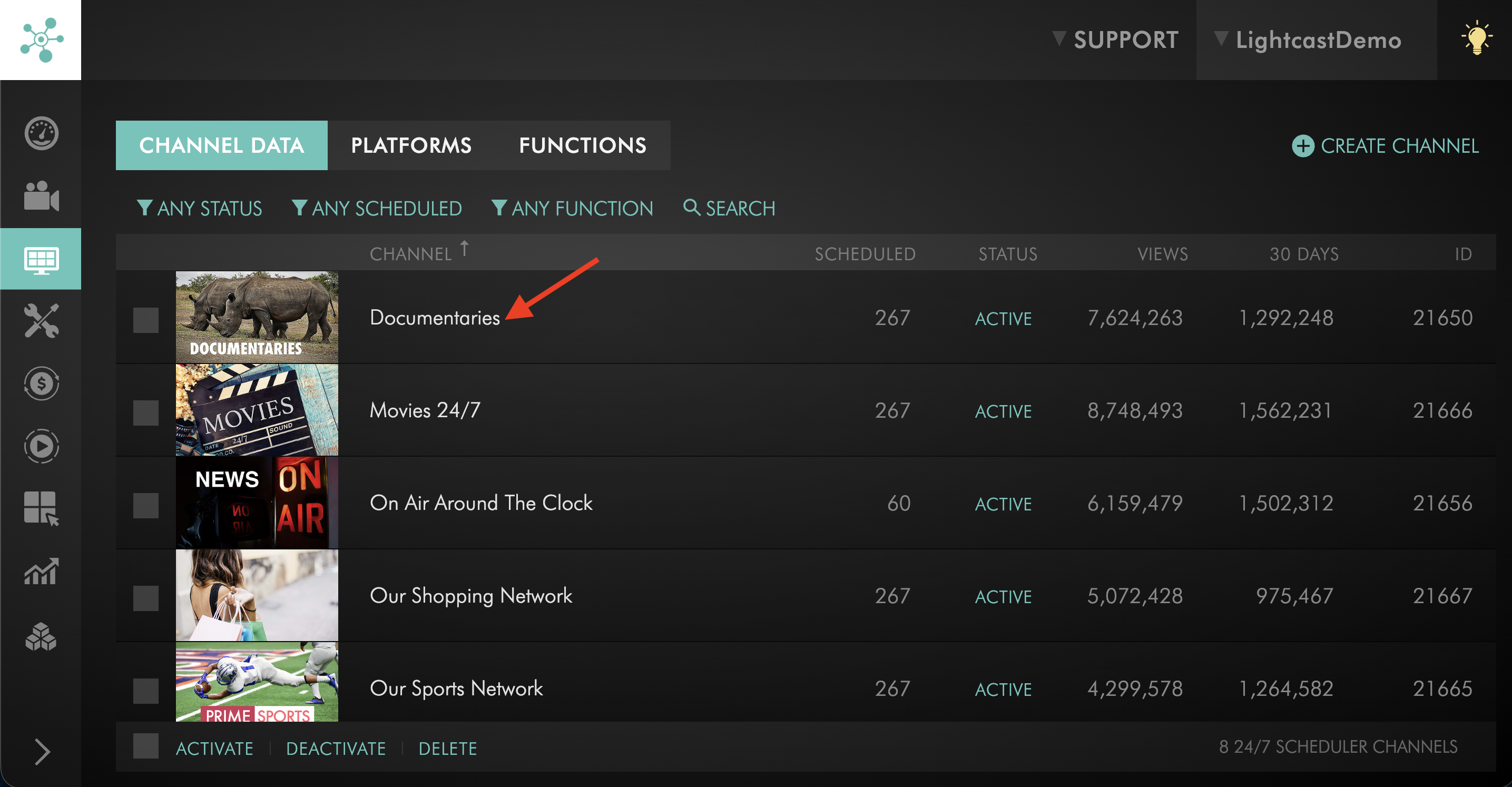
Open the 24/7 Scheduler Channel where you want to schedule SSAI ad breaks.
Step 4
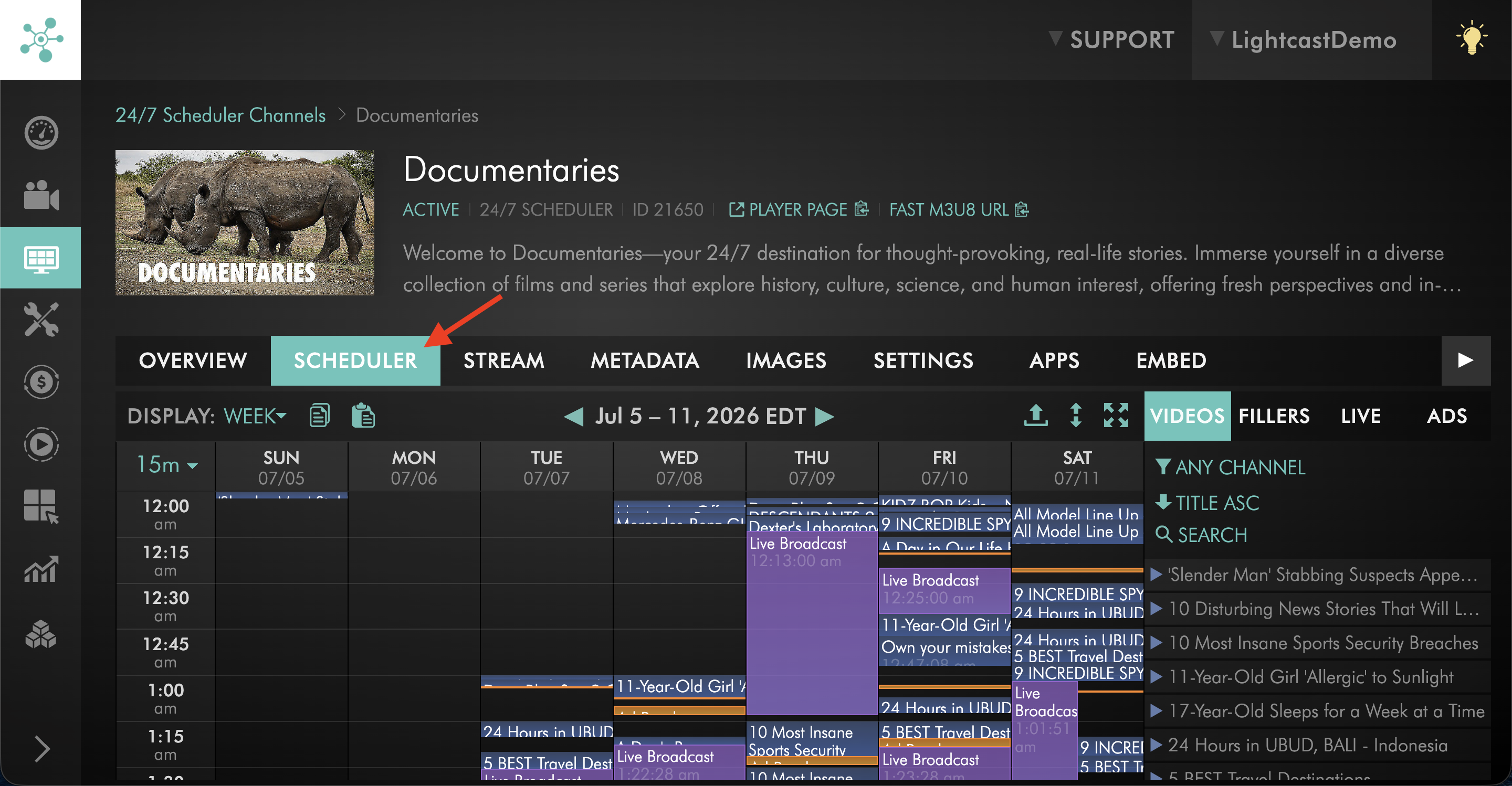
Select the SCHEDULER tab.
Step 5
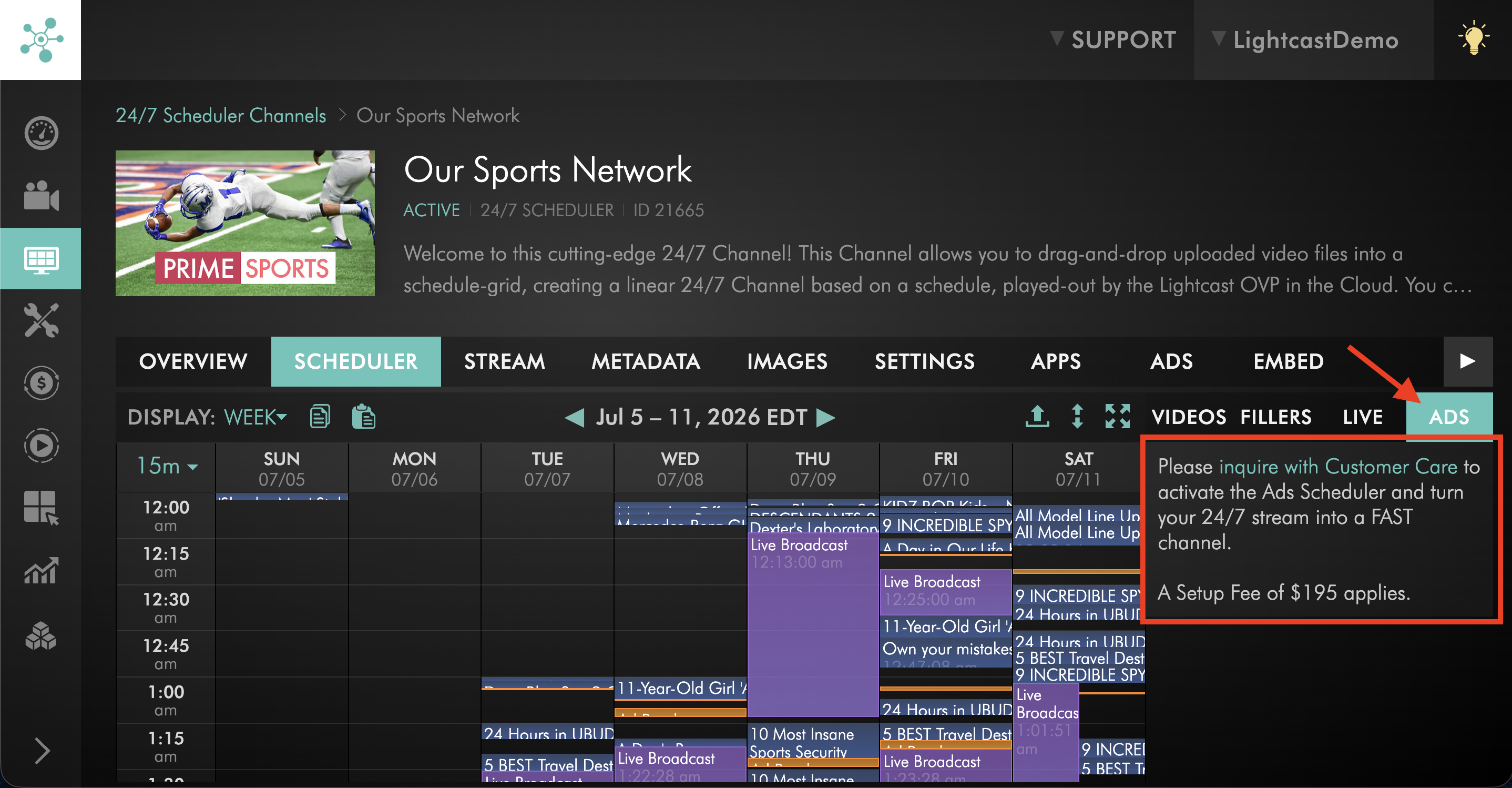
Click the ADS tab.
If SSAI ad-break support has been enabled for the Channel, the available ad-break durations will be displayed.
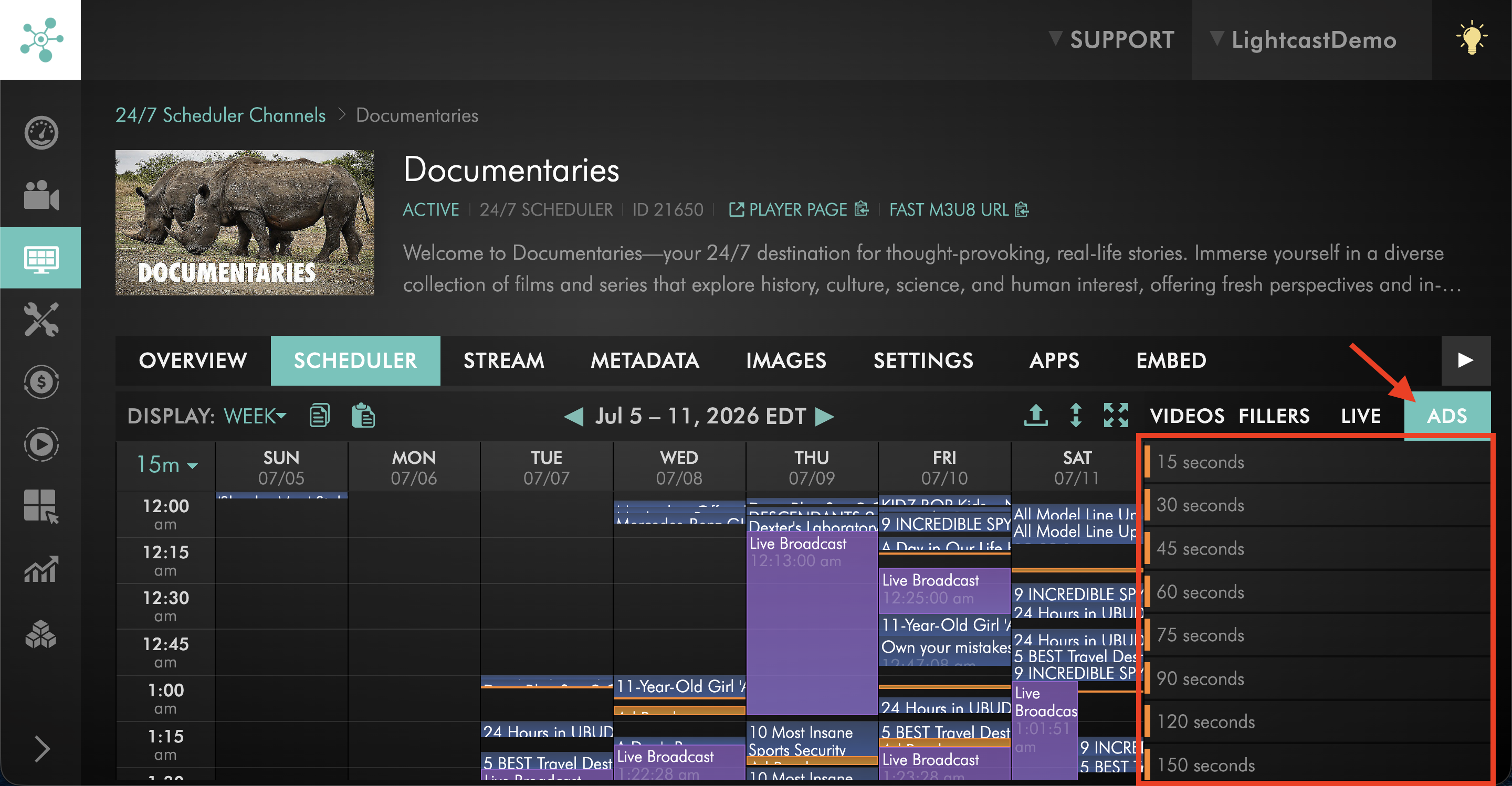
If SSAI ad-break support has not been enabled, select inquire with Customer Care to request the feature.
Manually schedule ad breaks
Step 1
Create or update your programming schedule in the 24/7 Scheduler.
For complete scheduling instructions, see How to schedule content on your 24/7 Scheduler Channel.
Your scheduled content determines what plays in the 24/7 linear stream.
Step 2
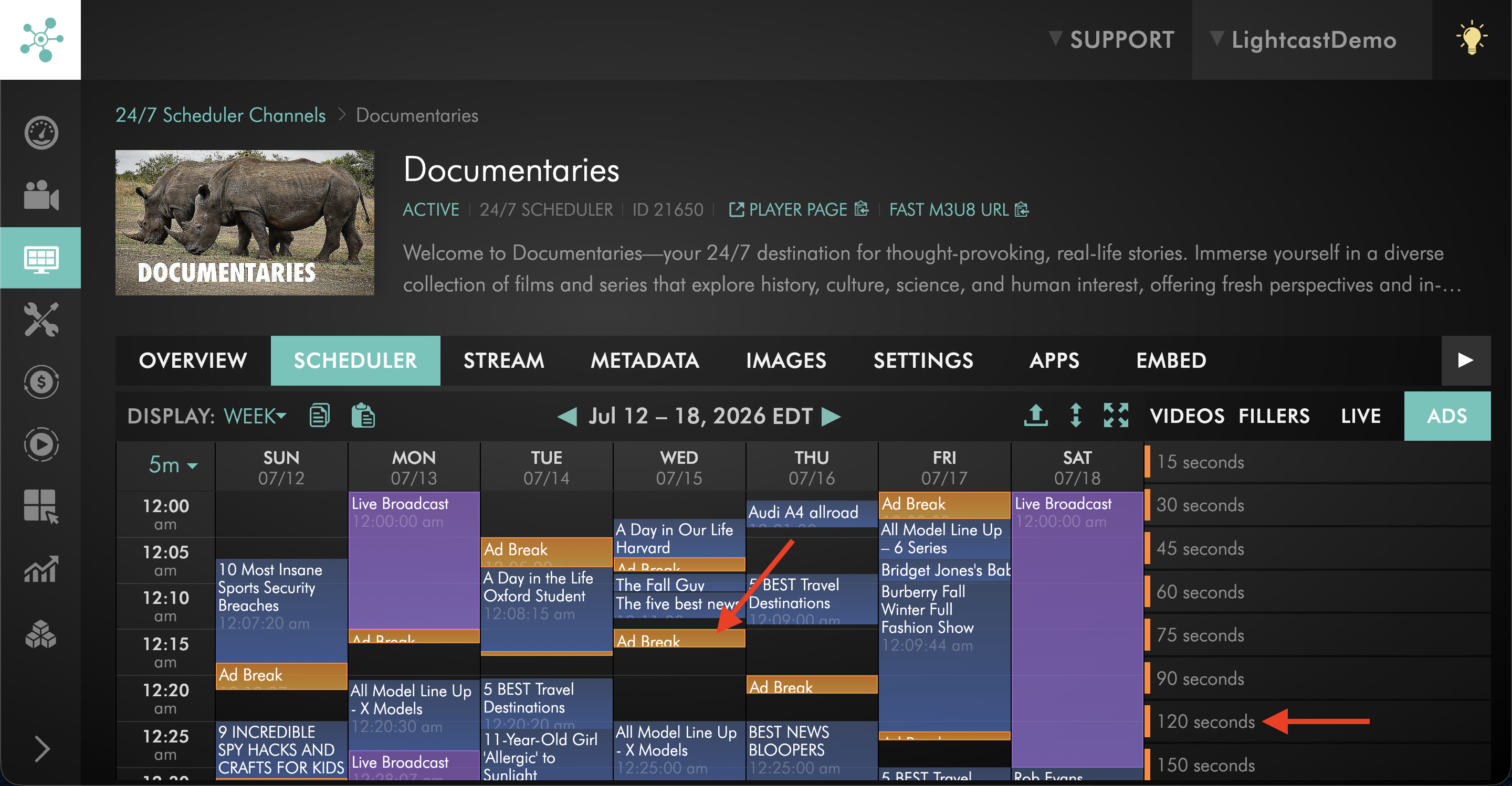
From the ADS tab, drag and drop the ad breaks where you want them to occur in the schedule.
Ad breaks can be configured in supported time increments. Choose the timing and duration that match your FAST or SSAI provider’s requirements.
Step 3
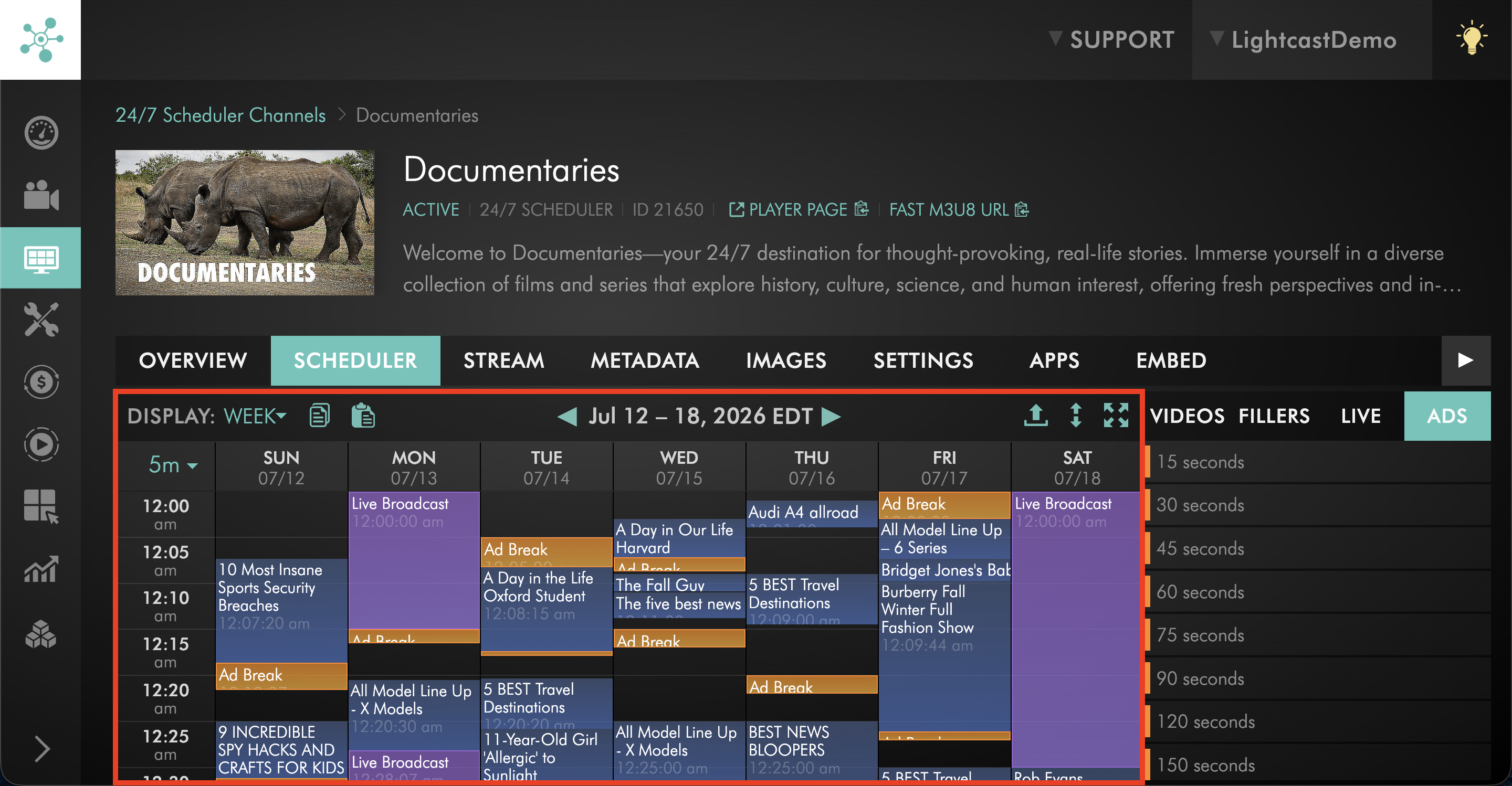
Review the scheduled programming and ad breaks to make sure the timing and placement are correct.
Import ad breaks with your programming schedule
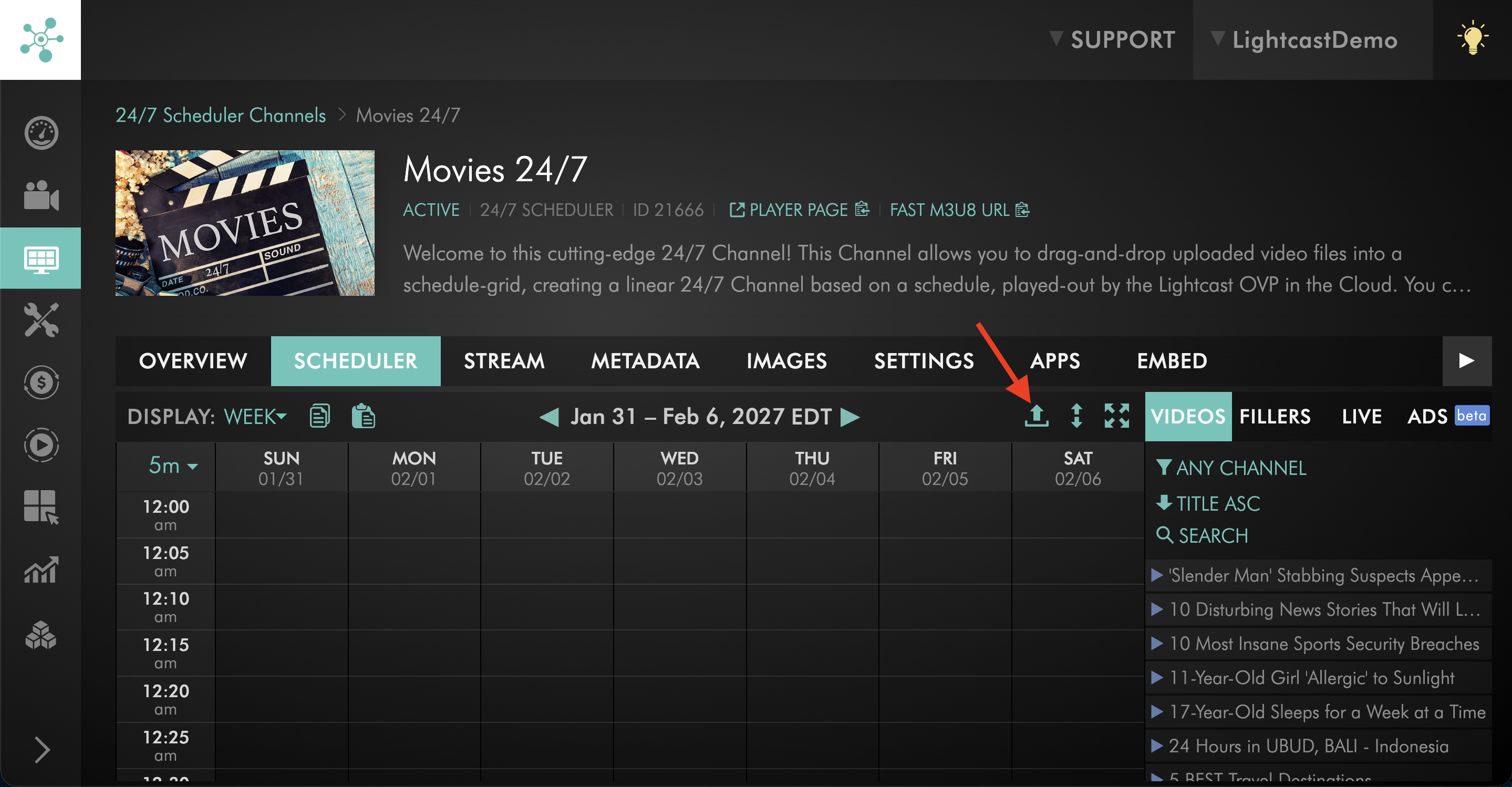
Step 1
Prepare the CSV or TXT file you want to use to import your programming schedule.
For instructions on preparing and importing a 24/7 Scheduler file, see How to schedule content on your 24/7 Scheduler Channel.
Step 2
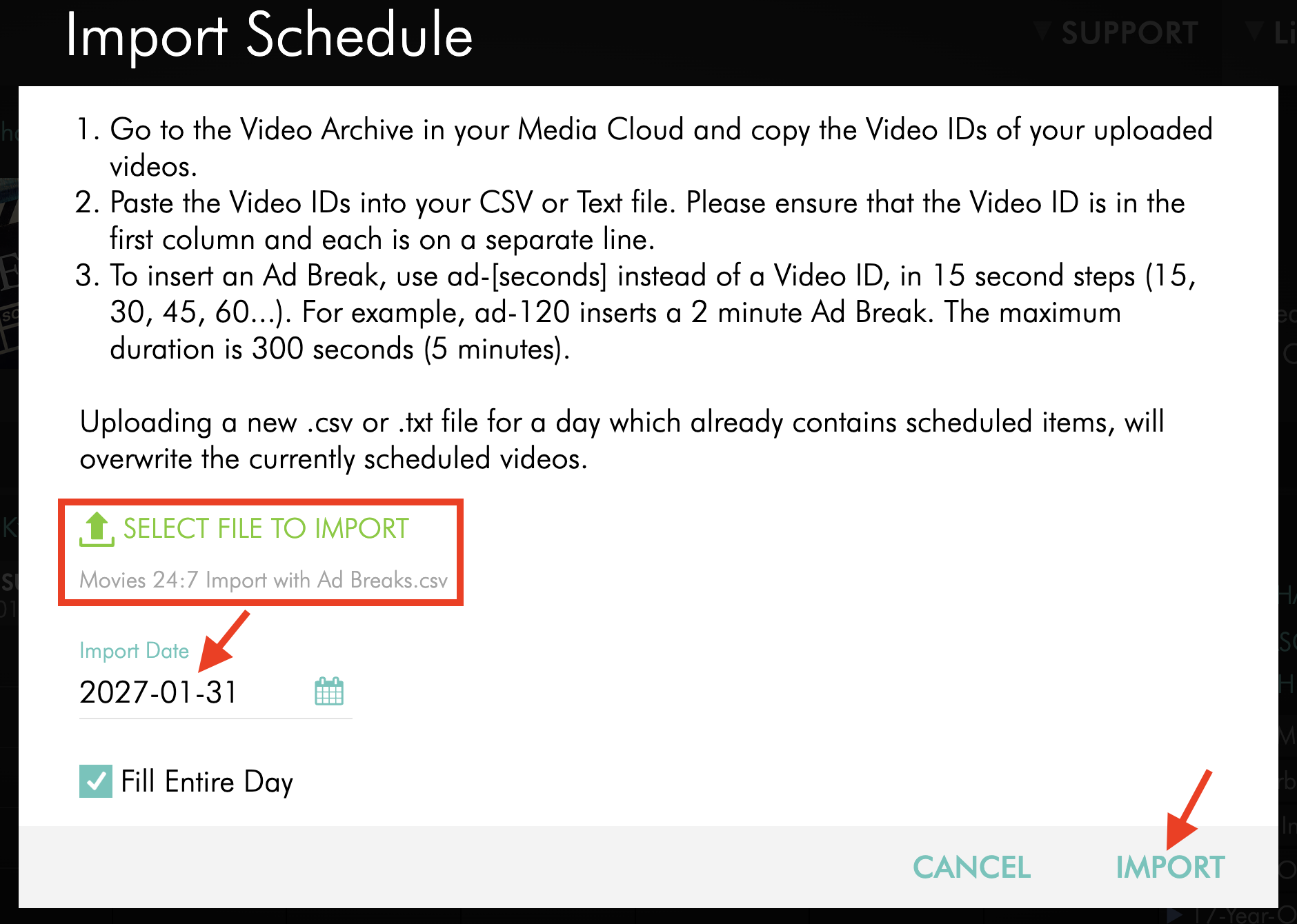
Add ad-break entries alongside the Video IDs using the following format: ad-[duration in seconds]
For example:
ad-15 – Adds a 15-second ad break
ad-30 – Adds a 30-second ad break
ad-90 – Adds a 90-second ad break
ad-120 – Adds a 2-minute ad break
ad-300 – Adds a 5-minute ad break
Place each ad-break entry on its own line where you want the break to occur. Ad breaks can be placed between videos, at the beginning of the schedule, or at the end.
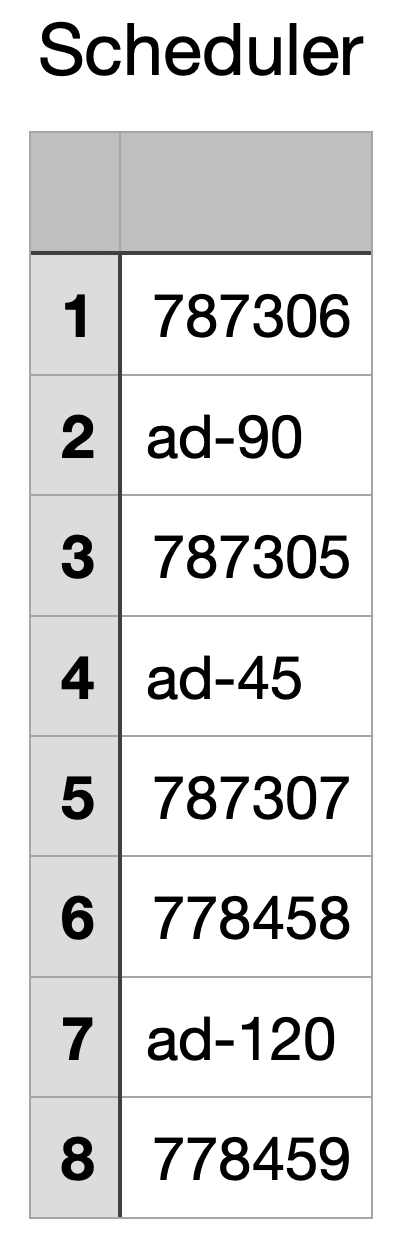
Imported ad breaks must meet the following requirements:
Durations must be in 15-second intervals
The maximum duration is 300 seconds (5 minutes)
Important: SSAI ad-break support must be enabled for the 24/7 Scheduler Channel before you import the file. If the file contains ad-break entries and SSAI ad-break support is not enabled, the import will not proceed.
Step 3
Import the completed CSV or TXT file through the 24/7 Scheduler.
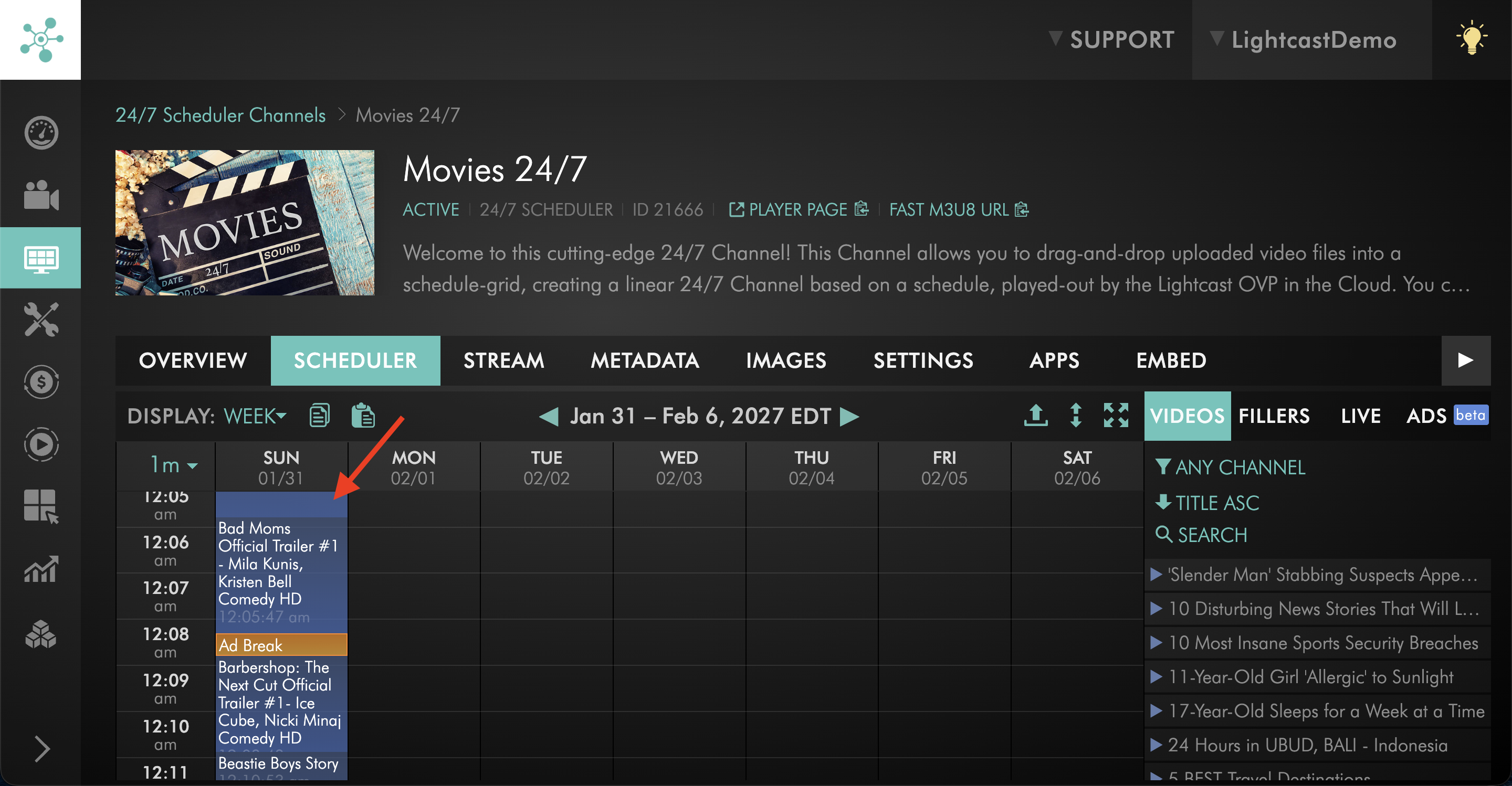
The videos and ad breaks will be added to the schedule in the order specified in the file.
Step 4
Review the imported programming and ad breaks to make sure the order, timing, and placement are correct.
Provide the FAST M3U8 URL to your provider
Step 1
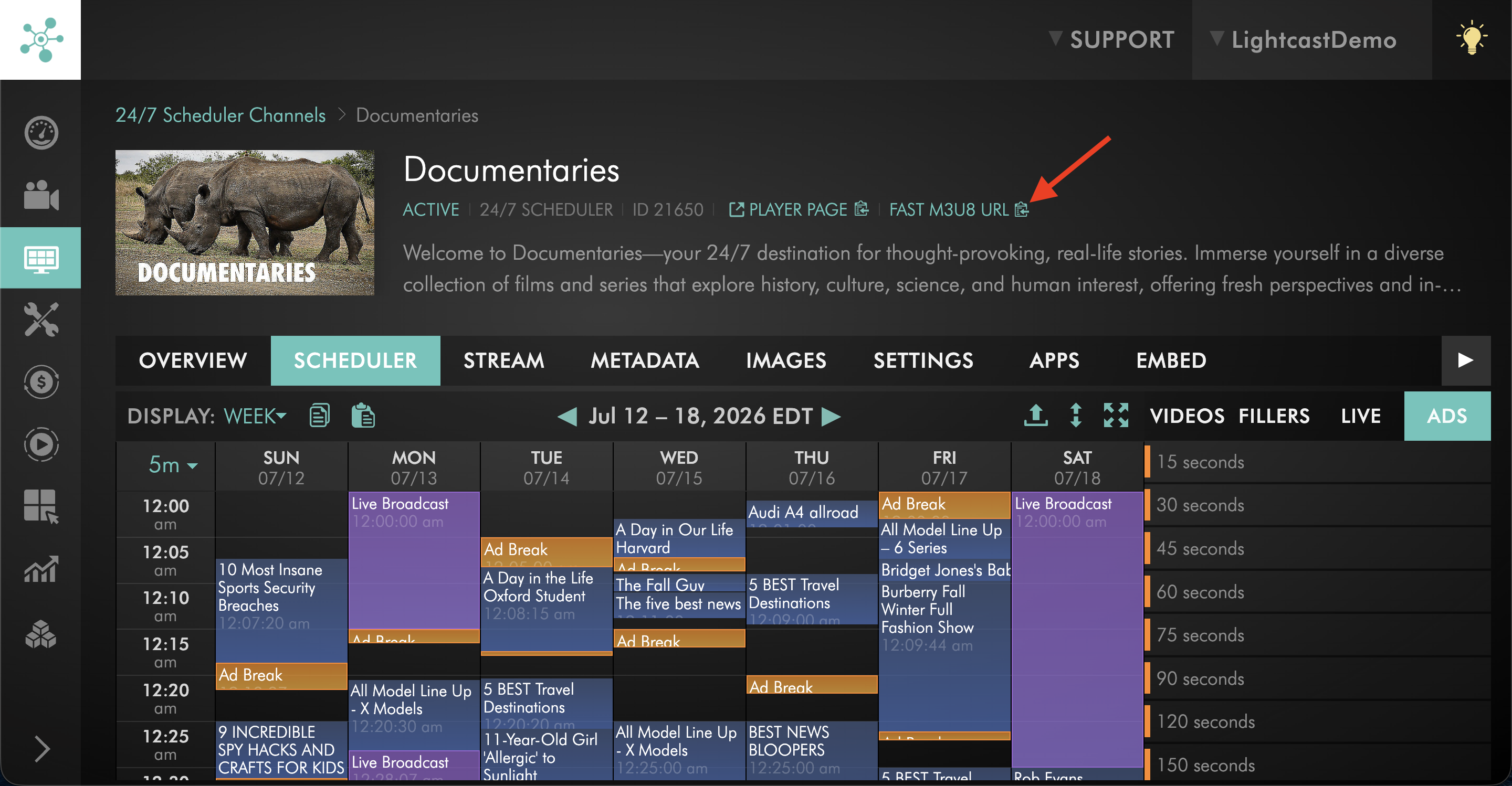
Copy the FAST M3U8 URL from the 24/7 Scheduler Channel page.
This URL includes the SCTE-35 ad markers generated from your scheduled ad breaks, whether the ad breaks were added manually or imported with the programming schedule.
Step 2
Send the FAST M3U8 URL to your FAST or SSAI provider.
Your provider uses the SCTE-35 markers in this feed to insert advertisements and generate the final ad-enabled HLS playback feed.
Step 3
After your FAST or SSAI provider returns the final ad-enabled HLS playback feed, send the playback URL to Lightcast for integration review.
Lightcast will review the final playback feed for compatibility and confirm the available integration options.
FAQs
Why do I not see ad break options on the ADS tab?
Ad break options appear on the ADS tab only when SSAI has been enabled for the 24/7 Scheduler Channel.
If SSAI has not been enabled, the ADS tab may show an option to inquire with Customer Care. Click inquire with Customer Care or contact Customer Support to request SSAI ad-break support for the Channel.
Does the 24/7 Scheduler insert the ads into the stream?
No. The 24/7 Scheduler creates SCTE-35 ad markers that identify ad-break opportunities in the FAST M3U8 URL.
Your FAST or SSAI provider uses those markers to generate the final ad-enabled HLS playback feed.
Can I import ad breaks with my 24/7 Scheduler programming schedule?
Yes. If SSAI ad-break support is enabled for the 24/7 Scheduler Channel, you can include ad-break entries directly in the same CSV or TXT file used to import your programming schedule.
Use the format ad-[duration in seconds] and place each ad-break entry on its own line where you want the break to occur.
Imported ad-break durations must use 15-second intervals and cannot exceed 300 seconds (5 minutes).
Where can imported ad breaks be placed in the schedule?
Ad-break entries can be placed between Video IDs, at the beginning of the schedule, or at the end.
The videos and ad breaks are added to the 24/7 Scheduler in the order specified in the import file.
What happens if I import ad breaks into a Channel without SSAI ad-break support enabled?
The import will not proceed if the CSV or TXT file contains ad-break entries and SSAI ad-break support is not enabled for the 24/7 Scheduler Channel.
Open the ADS tab and click inquire with Customer Care, or contact Customer Support to request SSAI ad-break support before importing the schedule.
What is the FAST M3U8 URL used for?
The FAST M3U8 URL is the HLS feed generated by the 24/7 Scheduler with SCTE-35 ad markers included.
You provide this URL to your FAST or SSAI provider so they can generate the final ad-enabled HLS playback feed.
Does the FAST M3U8 URL need to be sent to the SSAI provider every time the schedule changes?
No. The FAST M3U8 URL usually stays the same.
After the URL has been provided to your FAST or SSAI provider, you can continue updating the 24/7 Scheduler content and ad breaks as needed, unless your provider gives you different instructions.
Can I continue updating the 24/7 Scheduler after SSAI is enabled?
Yes. You can continue updating your scheduled content and ad breaks in the 24/7 Scheduler.
The FAST M3U8 URL remains the feed your FAST or SSAI provider uses for the SSAI workflow.
What does the SSAI provider send back?
The SSAI provider should send back a final ad-enabled HLS playback feed.
This final playback feed is what Lightcast reviews for compatibility and integration into supported apps or Web Players.
Can Lightcast recommend a FAST Channel provider, SSAI provider, or ad network?
Contact Customer Support if you need guidance on possible FAST Channel providers, SSAI providers, or ad networks for your FAST Channel workflow.
Can viewer-specific ad insertion be used?
Viewer-specific ad insertion depends on your FAST or SSAI provider.
If your provider uses dynamic ad insertion based on viewer-specific criteria, such as location or device type, include those details when you send the final ad-enabled HLS playback feed to Lightcast for review.
Pricing
The 24/7 Scheduler and Playout System is available on POWER packages and above for a fee.
If you don't have access to this feature, you can upgrade to one of our latest plans or contact Customer Support.
Ad-break support for the 24/7 Scheduler is available as an add-on for the 24/7 Scheduler.
Current pricing and inquiry options are available from the ADS tab in the 24/7 Scheduler. If SSAI ad-break support has not been enabled for the Channel, the ADS tab may show an option to inquire with Customer Care.
Custom feed requirements, dynamic ad insertion, custom macros, or additional feed development may require review and may involve additional fees. Contact Customer Support to confirm available options, technical requirements, and whether any fees apply.