
How to find and copy a shareable player link from the Media Cloud or Web App
Overview
This article explains how to access a shareable player link from the Media Cloud or from a Web App player. You can use the link to share a single media item, Channel, or Sub-Channel with viewers.
Shareable player links can be sent by email or text message, added to a website, or shared on social media.
How it works
You can copy a shareable player link from either the Media Cloud or a Web App player. When a viewer opens the link, it opens the player for the media item, Channel, or Sub-Channel you selected.
The general sharing process is similar for single media items, On-Demand Channels, Sub-Channels, and LIVE Channels. However, the menu or screen used to access the sharing options may vary depending on the type of content and whether you are sharing from the Media Cloud or a Web App player.
Shareable player links are also available in mobile apps for individual media items and LIVE Channel players. Mobile apps use a different sharing workflow than the Media Cloud and Web App. To learn more, see How to share a player link from a mobile app.
TV apps do not support copying or sharing player links. TV apps are designed for viewing content on a television and do not include the sharing tools needed to copy or send player links by text message, email, or social media.
Instructions
Use the steps below based on where you want to copy the player link and the type of content you want to share.
From the Media Cloud
Use these steps if you want to copy a shareable player link for a single media item, Channel, or Sub-Channel directly from the Media Cloud.
Step 1
Log in to your Media Cloud account.
Step 2
Open the item you want to share:
For a single media item, go to MEDIA and select Video Archive or Audio Archive. Then open the media item.
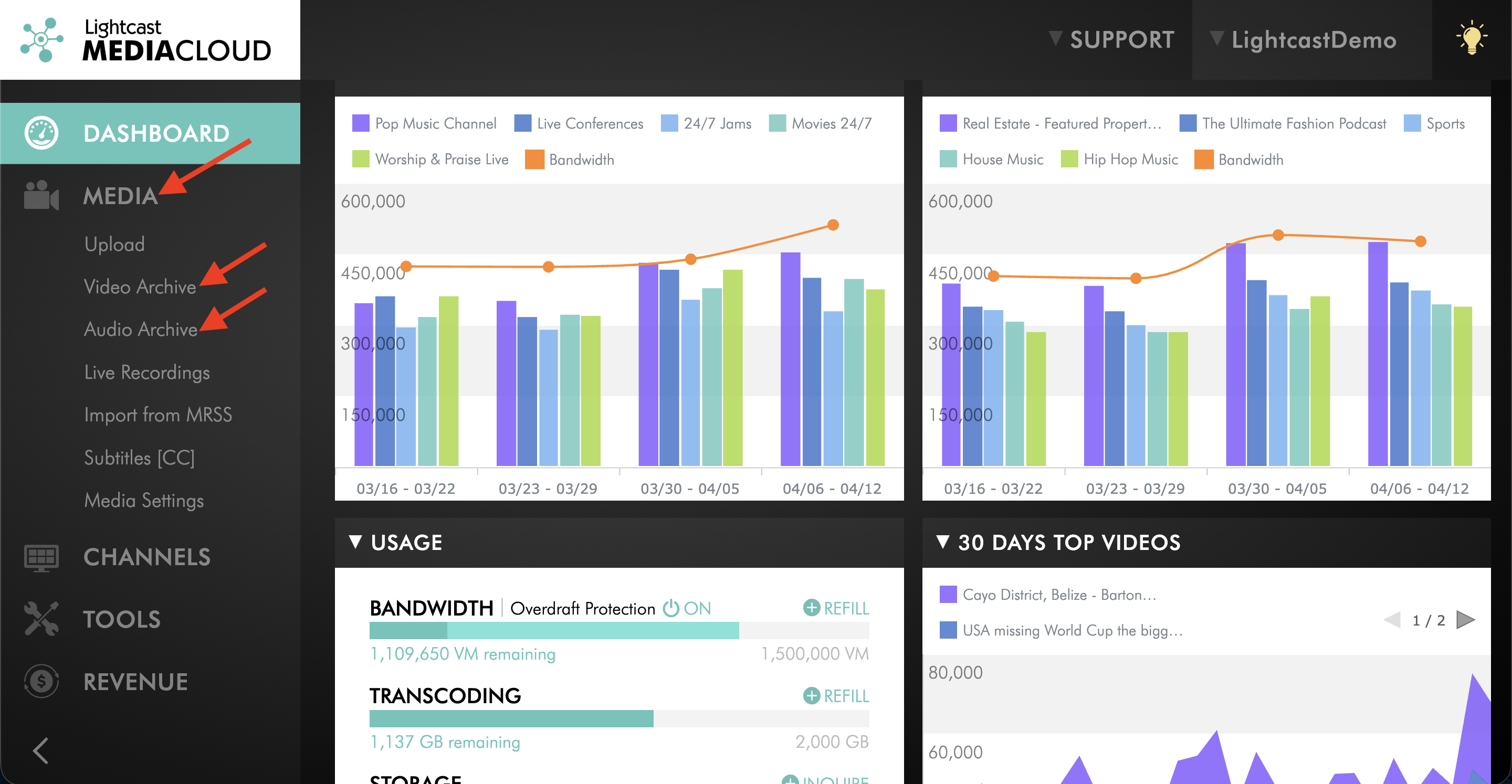
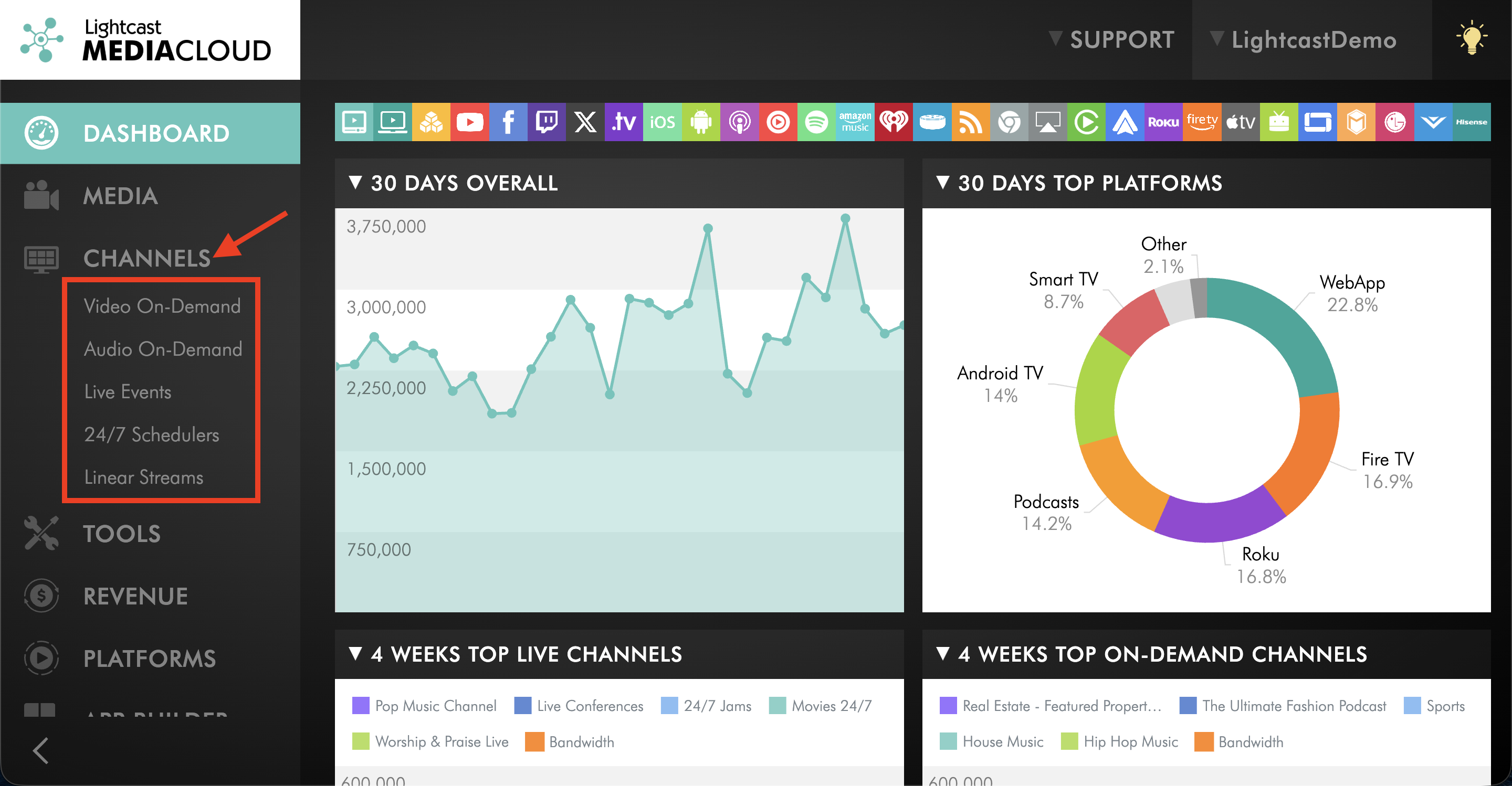
For a Channel, go to CHANNELS and select Video On-Demand, Audio On-Demand, Live Events, 24/7 Schedulers, or Linear Streams. Then open the Channel.
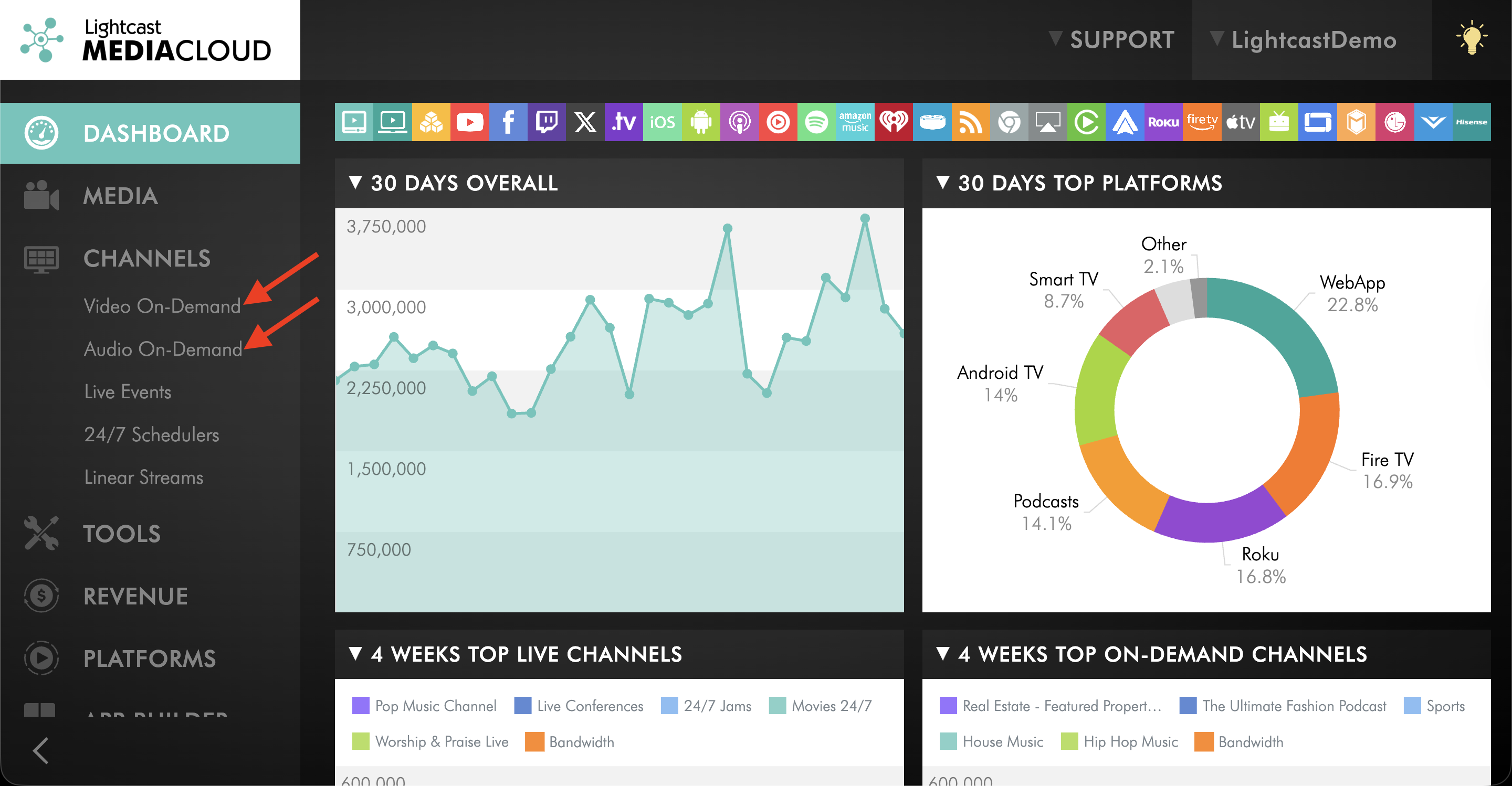
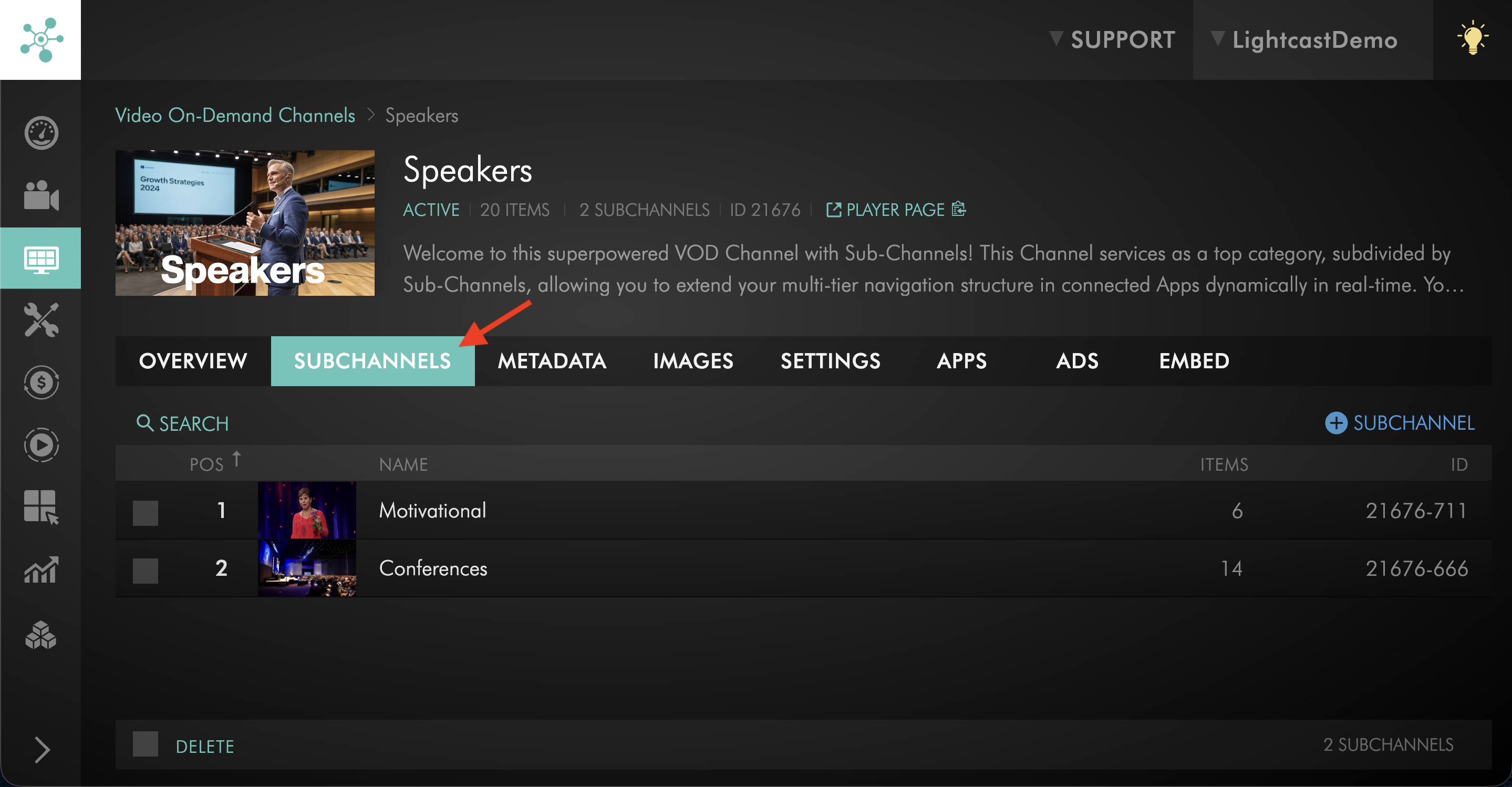
For a Sub-Channel, go to CHANNELS and select Video On-Demand or Audio On-Demand. Open the parent Channel, then go to the SUBCHANNELS tab and open the Sub-Channel.
Step 3
Open the player for the item you want to share.
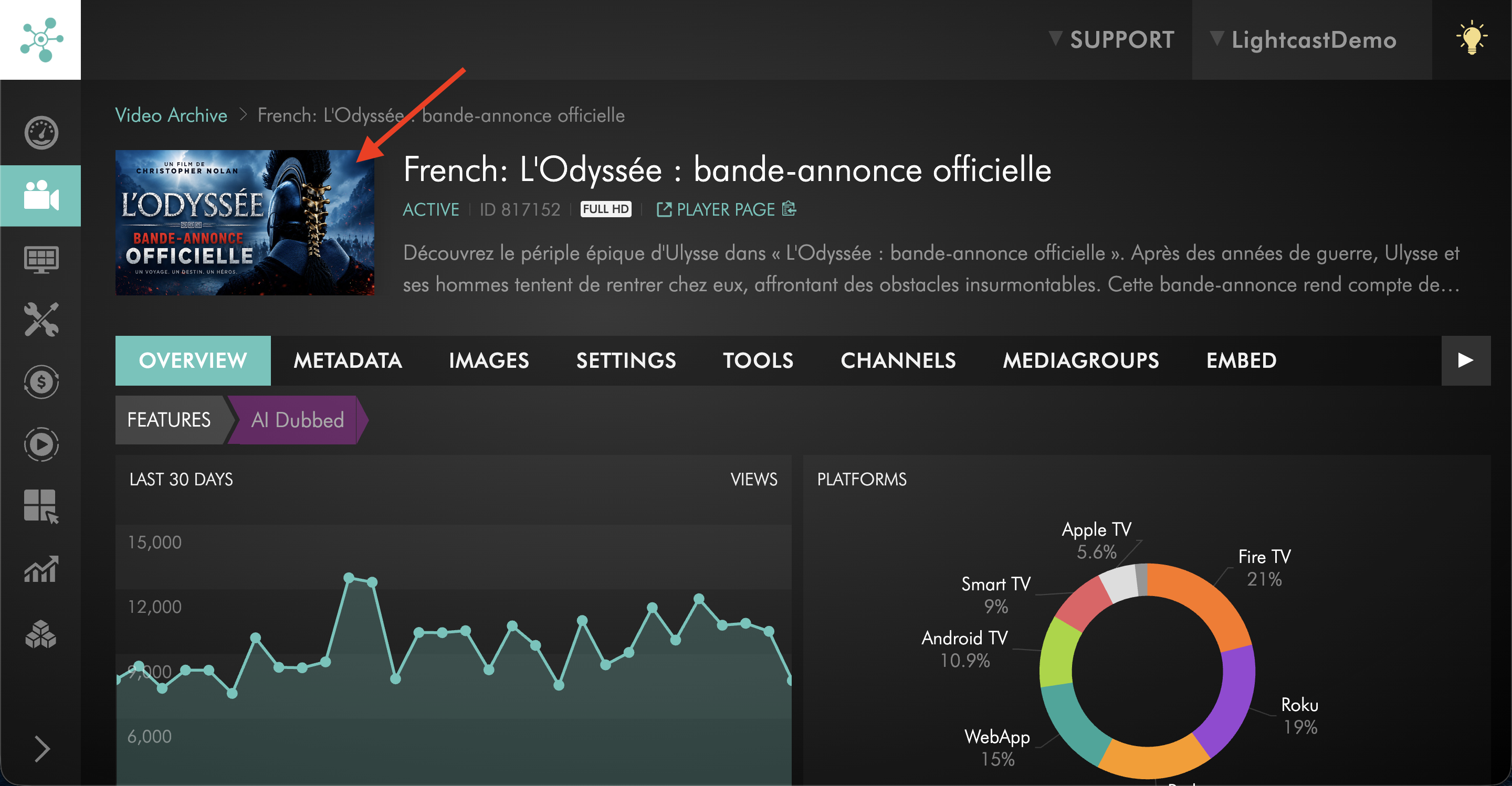
Step 4
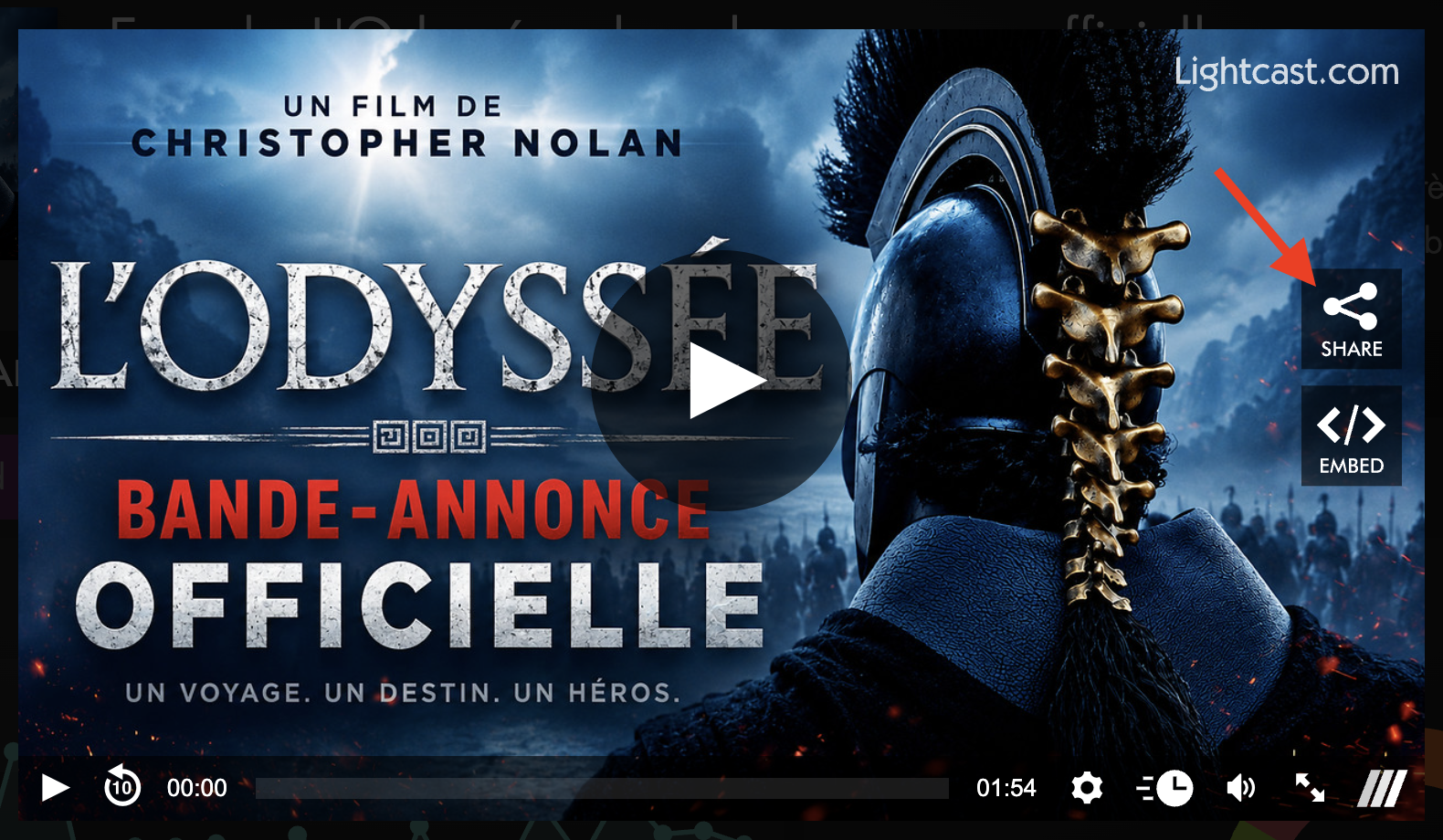
When the player opens, click the SHARE icon.
Step 5
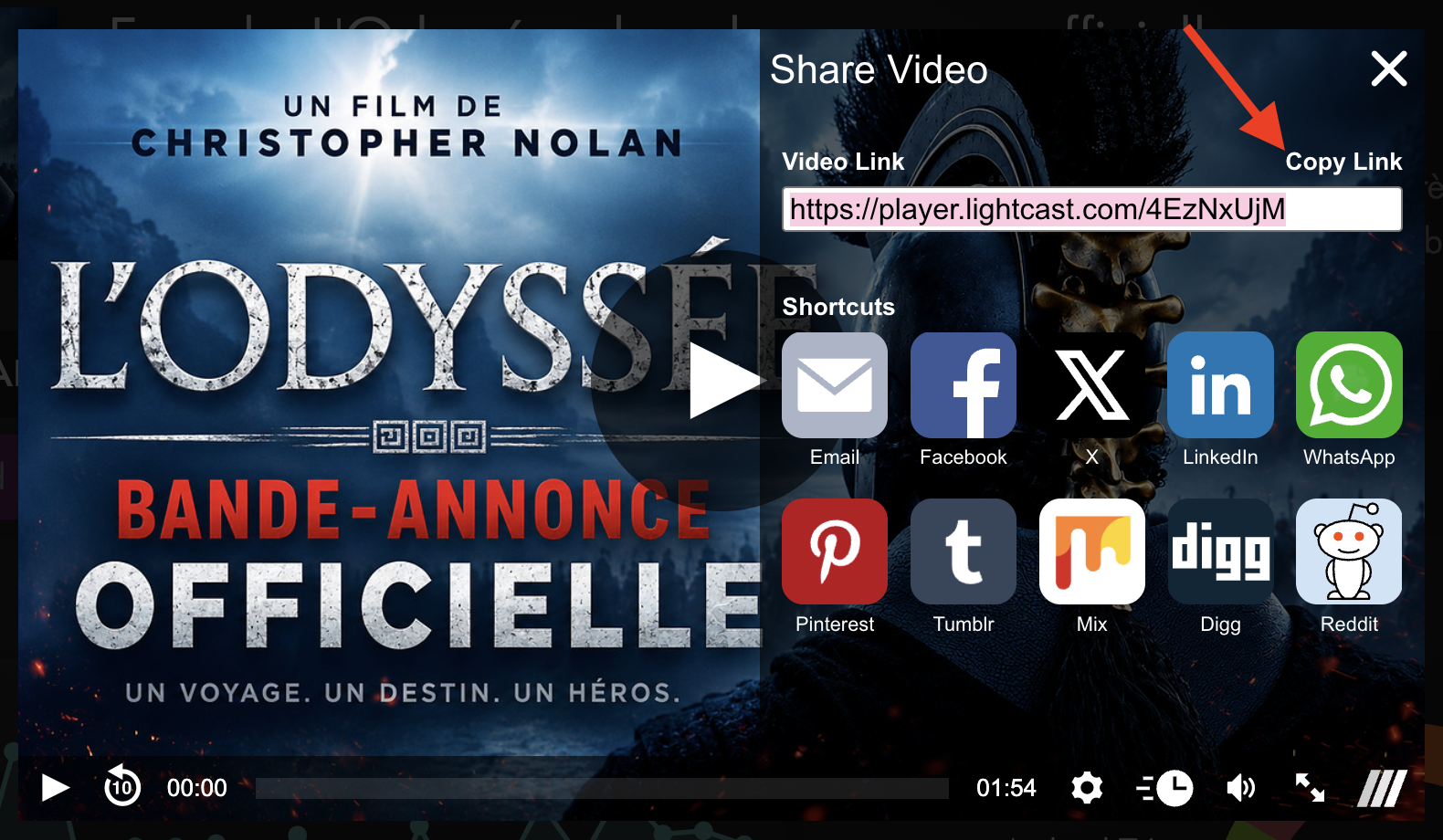
When the share window opens, click Copy Link to copy the shareable player link.
Step 6
Paste the link where you want to use it.
From a Web App: On-Demand Content
Use these steps if you want to copy a player link for content inside an On-Demand Channel or Sub-Channel while viewing it in a Web App.
Step 1
Open the content you want to share in your Web App:
For content inside an On-Demand Channel, open the content on the Channel and click Play.
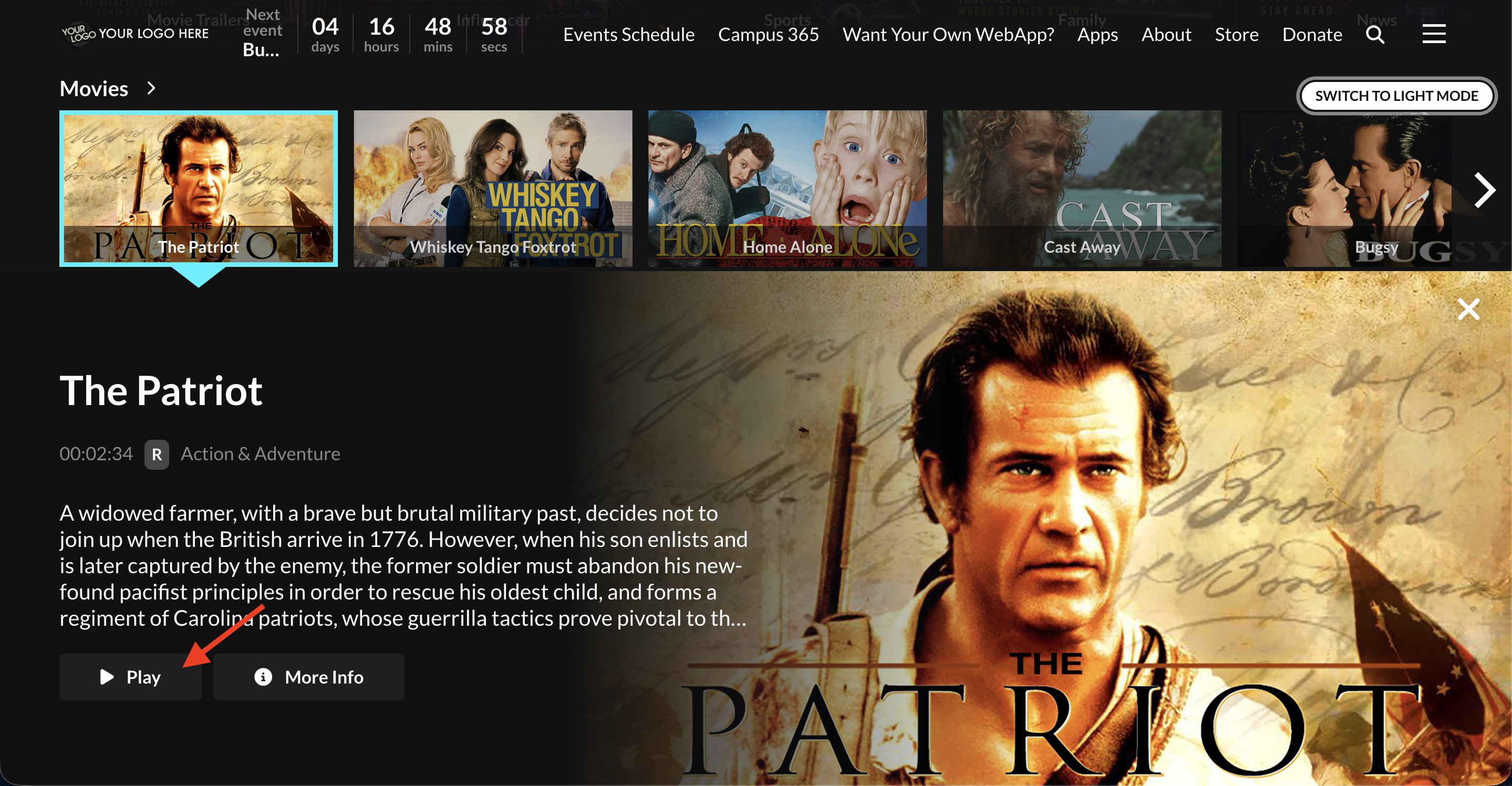
For content inside a Sub-Channel, open the Sub-Channel, then click the Play icon on the media item you want to share.
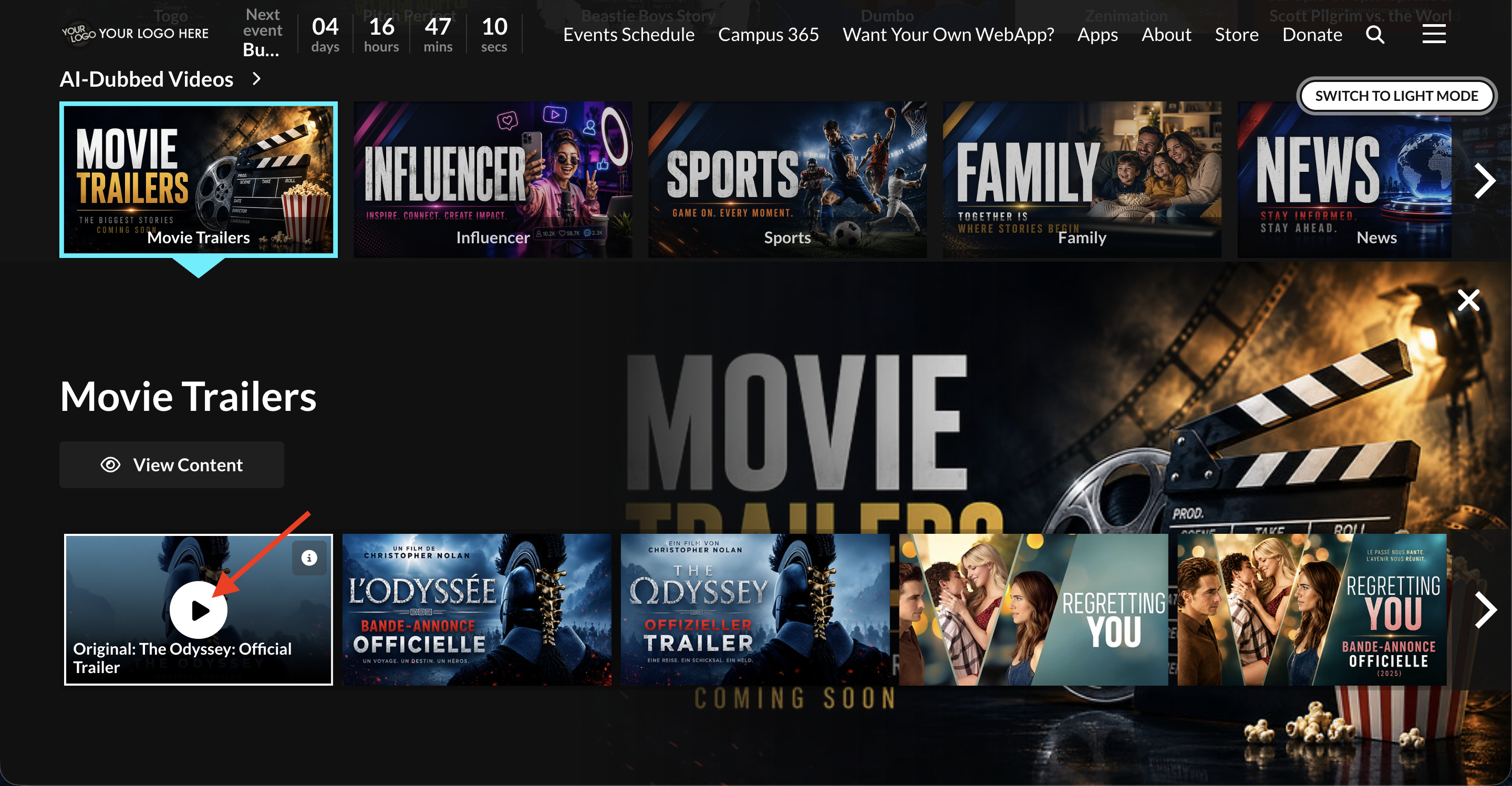
Step 2
When the player page opens, click the SHARE icon.
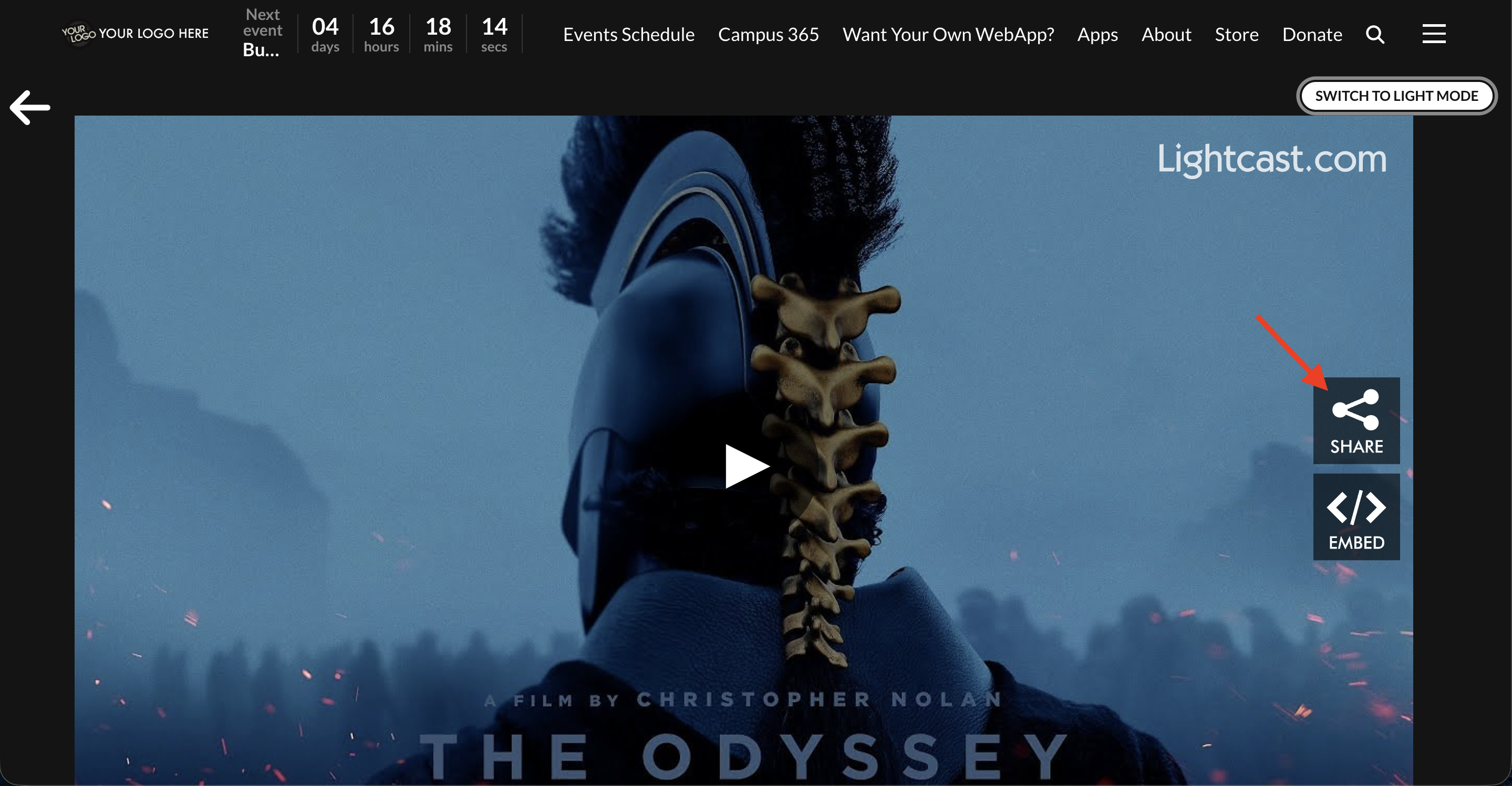
Step 3
When the share window opens, click Copy Link to copy the shareable player link.
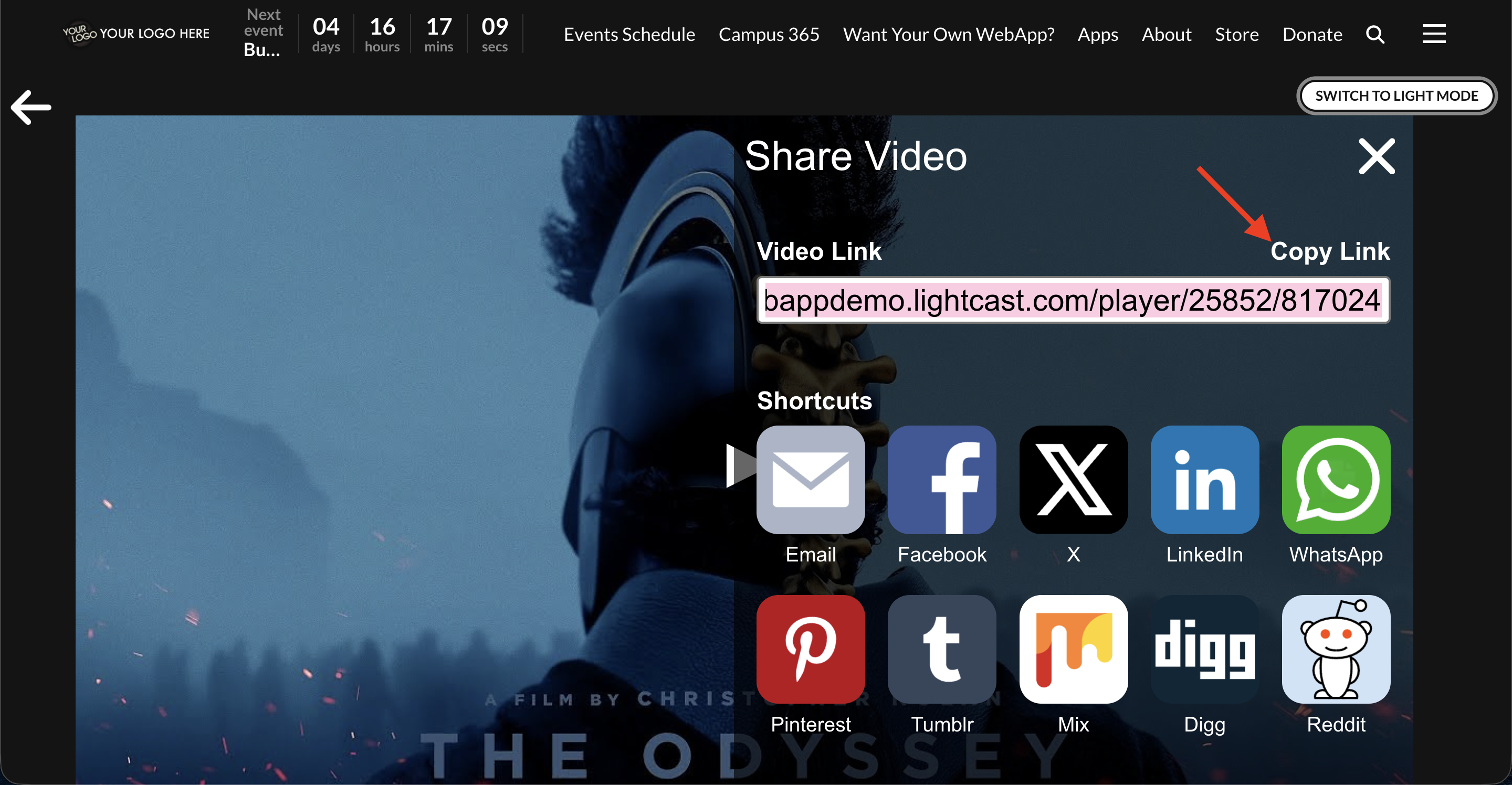
Step 4
Paste the link where you want to use it.
From a Web App: LIVE Channels
Use these steps if you want to copy a player link for a Live Event, Linear Stream, or 24/7 Scheduler while viewing it in a Web App.
Step 1
Open the Live Channel you want to share in your Web App, then click Play to open the player page.
If you are sharing a Live Event Channel, an event must be live before the SHARE icon will appear.
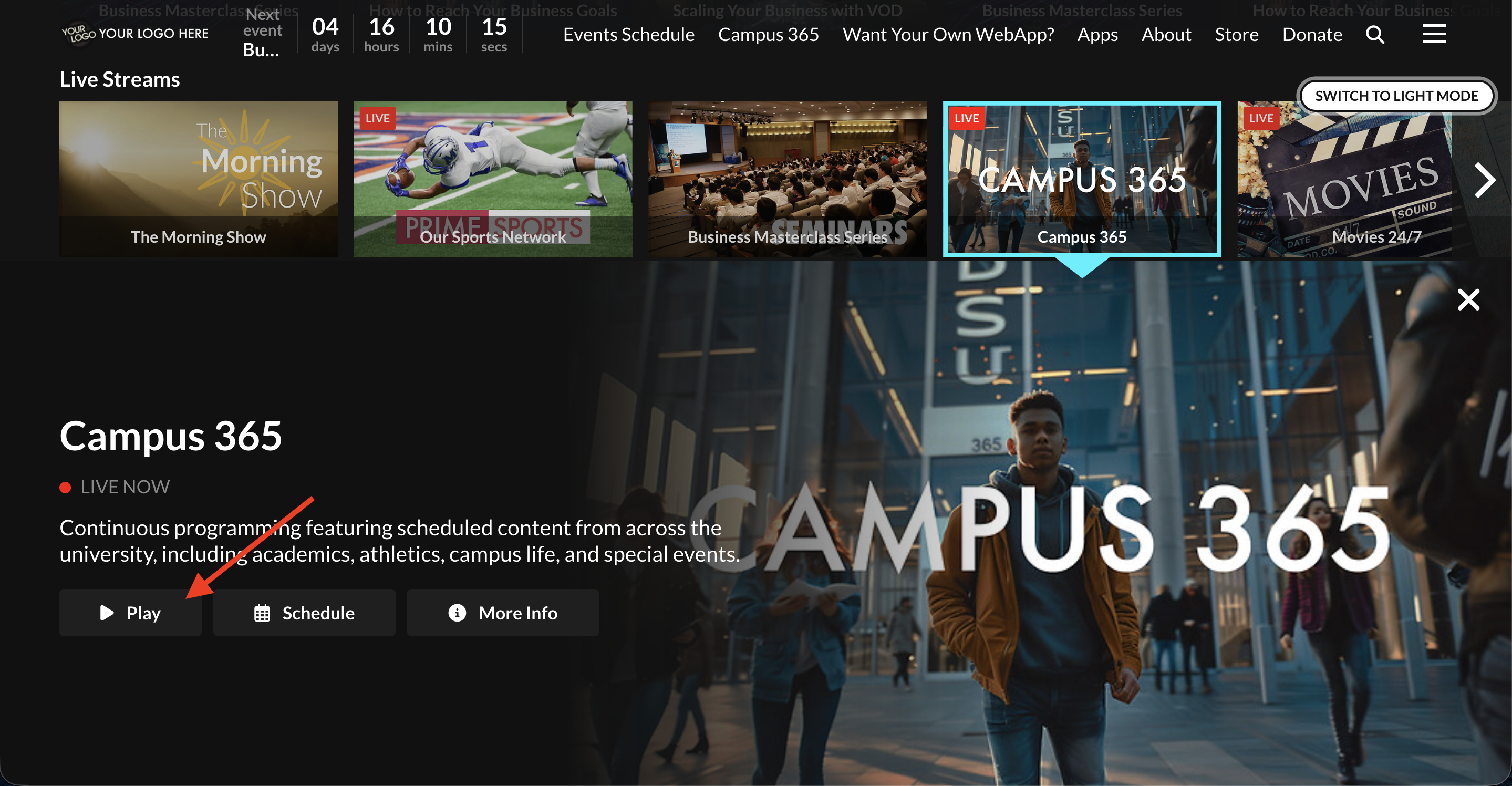
Step 2
Find the Share Channel icon in the player.
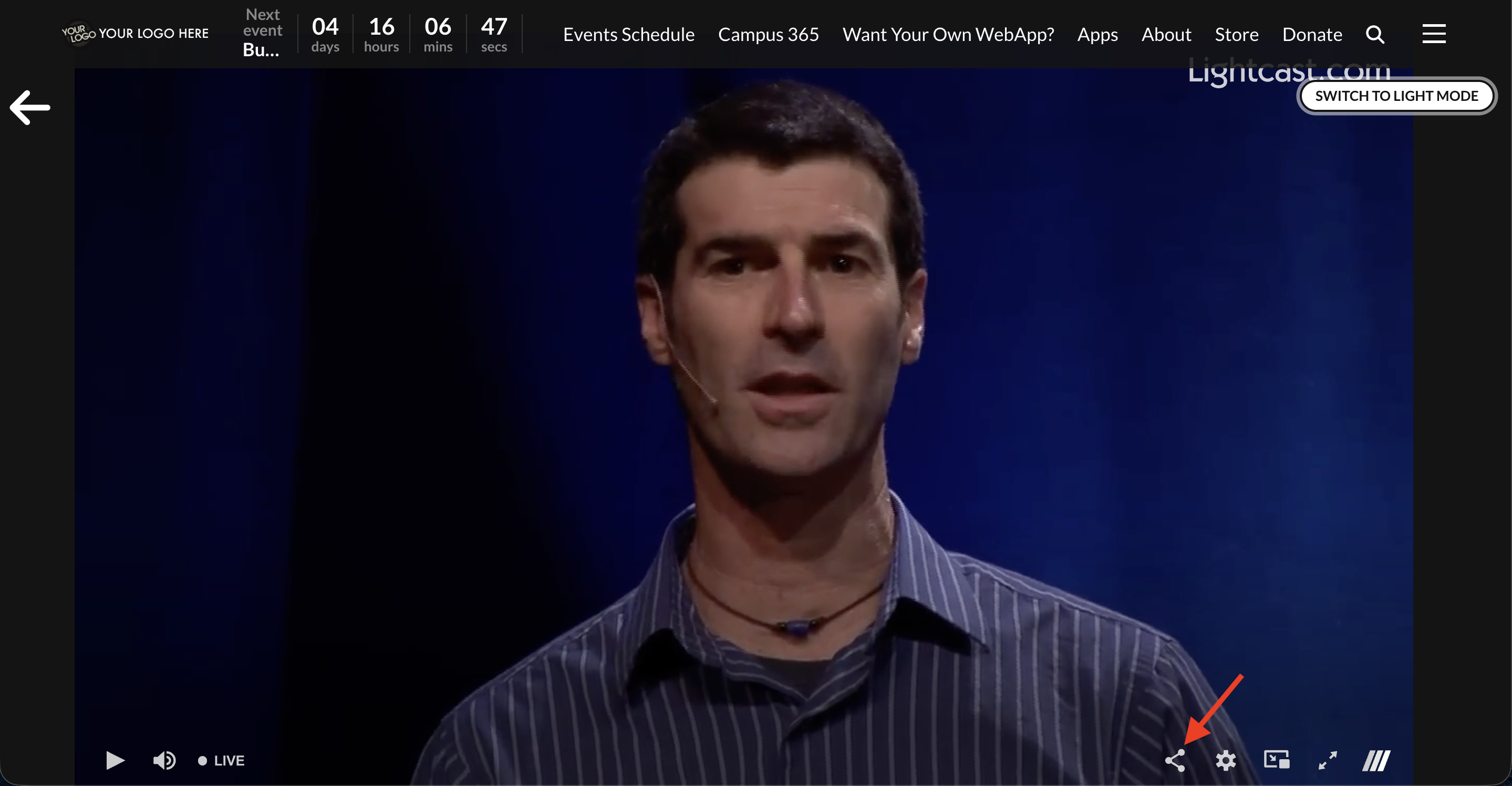
Step 3
Click on the ShareChannel icon, then click Link to copy the shareable player link.
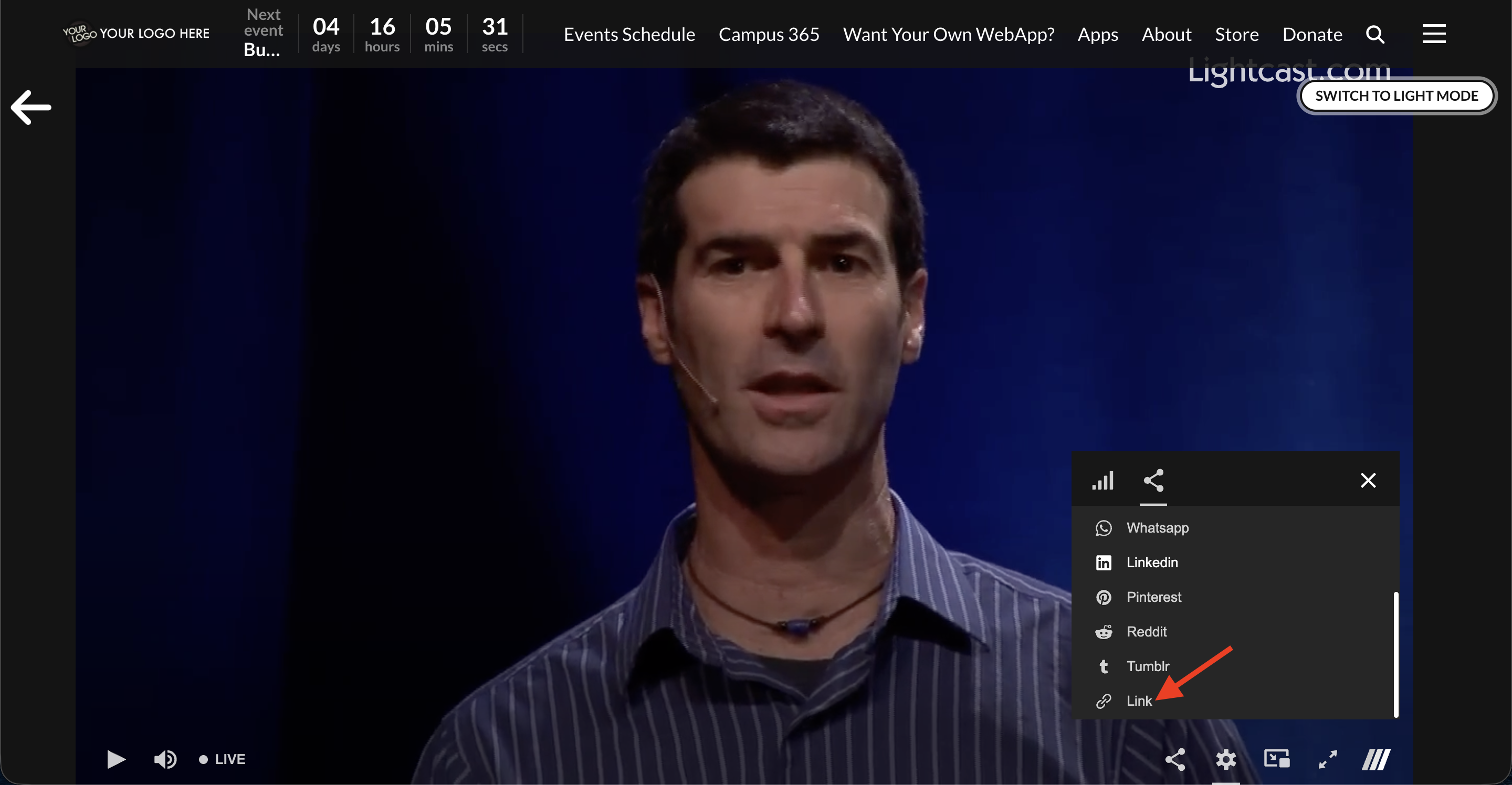
Step 4
Paste the link where you want to use it.
FAQs
Can I copy a shareable player link for a single media item, a Channel, and a Sub-Channel?
Yes. You can copy a shareable player link for a single media item, a Channel, or a Sub-Channel. The place where you open the share window may vary, but the general process is similar.
Can I copy the player link from the Media Cloud or from a Web App?
Yes. You can copy a shareable player link from either the Media Cloud or a Web App player.
Are there other ways to copy a shareable player link in the Media Cloud?
Yes. In some cases, you may also be able to copy the player link from other locations in the Media Cloud, such as the PLAYER PAGE link or the EMBED tab. However, the most consistent method is to open the player, click the SHARE icon, and then click Copy Link.
Can I copy a player link for both On-Demand and LIVE content?
Yes. The general sharing process is similar, but the exact place where you access the sharing options may vary depending on the type of content.
For a Live Event Channel in a Web App, an event must be live before the SHARE icon will appear.
Can I share a player link from a mobile app?
Yes. Mobile apps support sharing individual media items and LIVE Channel players. The mobile app sharing workflow is different from the Media Cloud and Web App workflows and is covered separately.
Can I share a player link from a TV app?
No. TV apps do not support copying or sharing player links. TV apps are designed for viewing content on a television and do not include the sharing tools needed to copy or send player links.
Can I share this player link on social media?
Yes. You can copy a shareable player link for a video, audio file, Channel, or Sub-Channel and paste it into a social media post on supported platforms, such as Facebook or X.
Lightcast web players also include built-in social sharing options. You can click the SHARE icon in the player to access shortcuts for supported platforms, such as Facebook, X, LinkedIn, and WhatsApp.
The available sharing options may vary depending on the player and platform.
For more information about how player links may appear when shared, see Understanding how player links appear on social media.
Is copying a player link the same as publishing a video directly from the Media Cloud to Facebook?
No. Copying a player link gives you a shareable link to the player. Direct Facebook publishing sends the video to Facebook as a published Facebook video.
For more information, see How to publish your videos to Facebook.