
How to embed a Channel player on your website
Overview
This article explains how to embed a Lightcast Channel player on your website or another webpage that supports embed code using the player embed code available in the Media Cloud.
When to use a Channel player
Use a Channel player when you want to make a Channel and its content available on your website instead of embedding an individual video or audio file.
You can embed On-Demand and LIVE Channel types, including:
VOD Channels
AOD Channels
Live Event Channels
Linear Stream Channels
24/7 Scheduler Channels
How it works
The content available in the embedded player is based on the content and configuration of the selected Channel.
If you only want to embed an individual video or audio file, use a single media player instead. For more information, see How to embed a single media player on your website.
Customize your Channel player
If you want to change the appearance or supported configuration options of your Lightcast web player, use the Player Configurator in the Media Cloud.
The Player Configurator allows you to customize supported player settings so the player better matches your branding and desired viewing experience.
For more information, see How to customize your shareable and embeddable web player.
Instructions
Step 1
Log in to your Media Cloud account.
Step 2
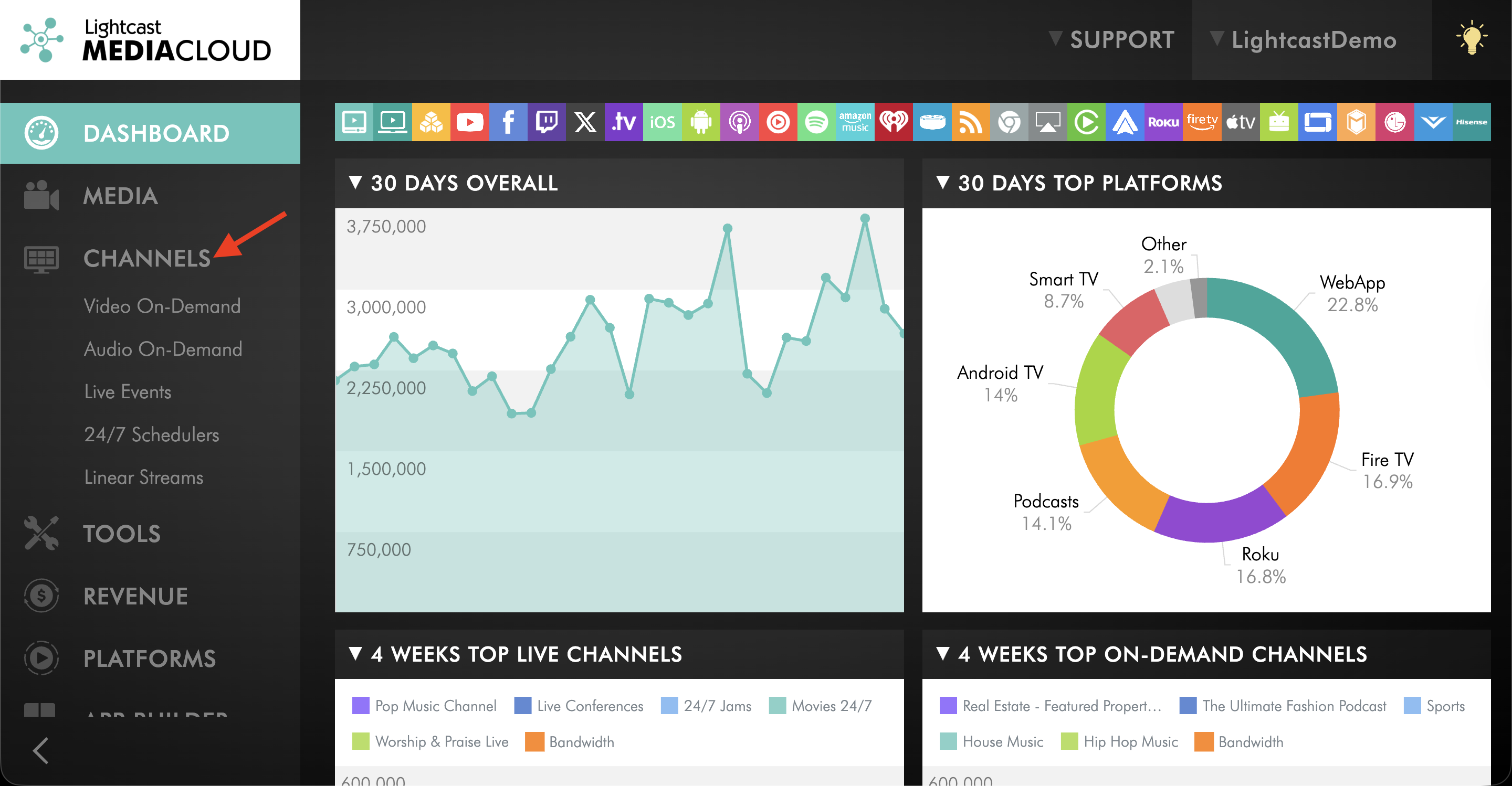
In the left-side menu, click CHANNELS.
Step 3
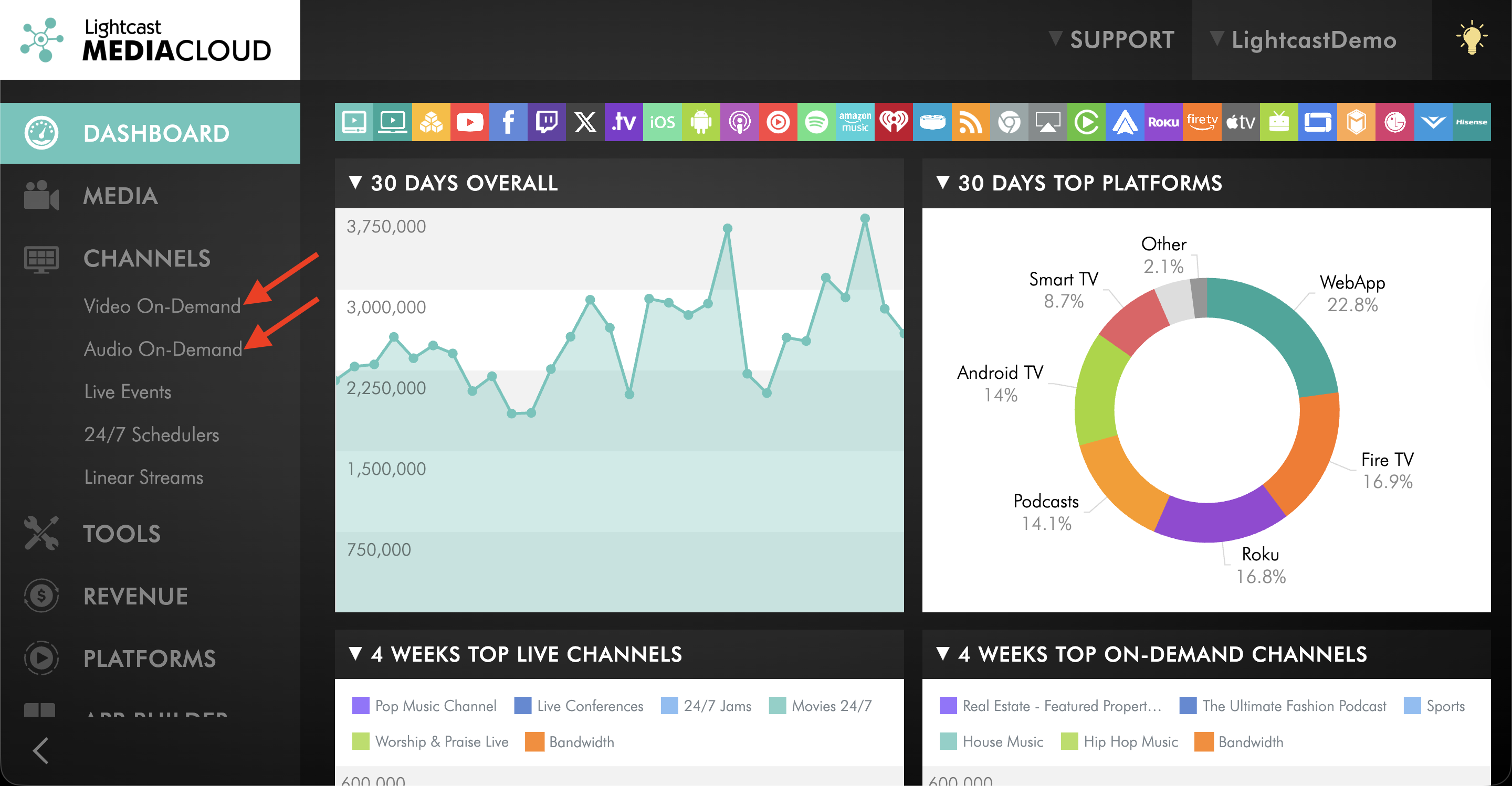
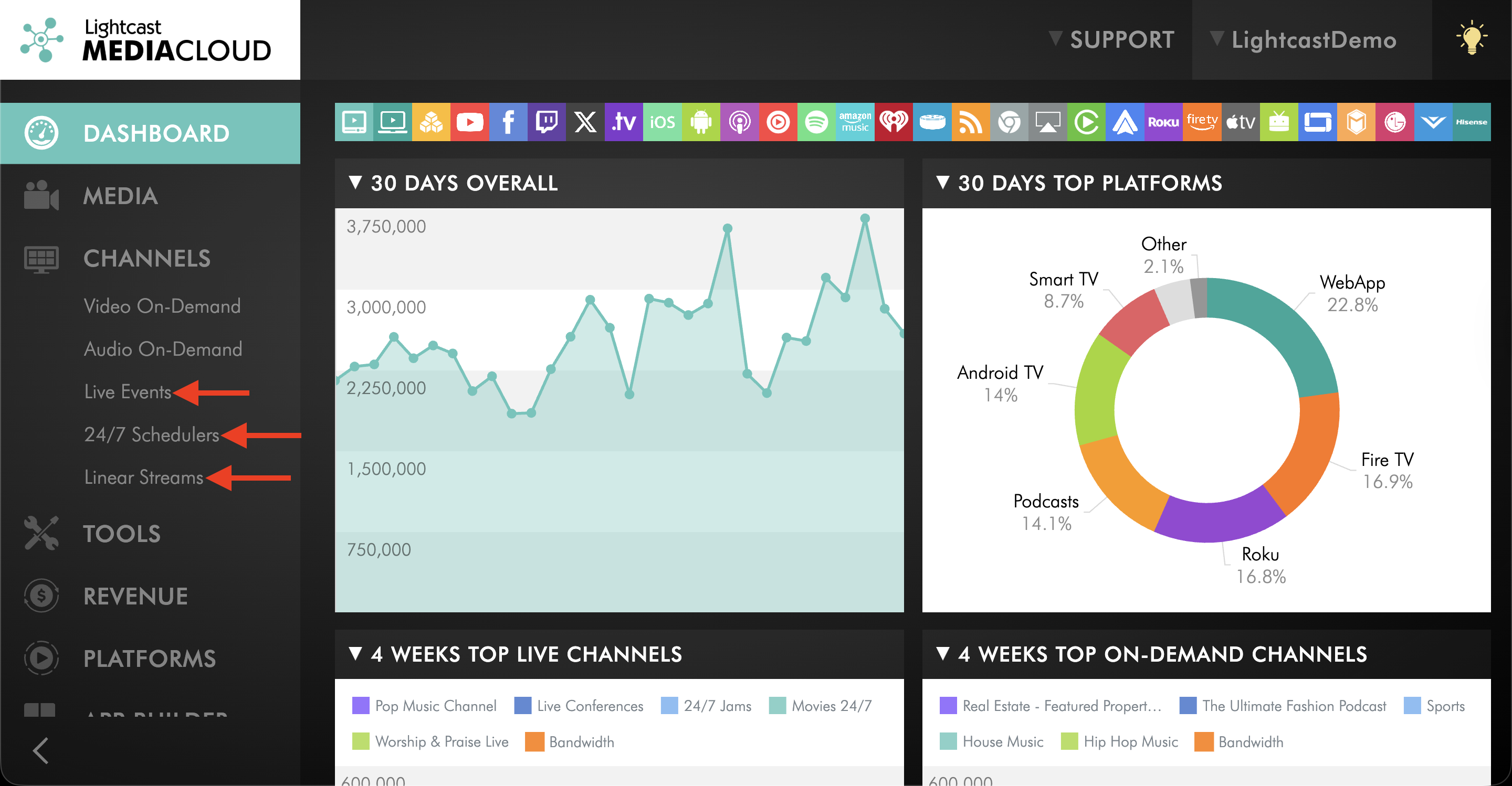
Select the Channel type you want to embed.
For On-Demand Channels, select Video On-Demand or Audio On-Demand.
For LIVE Channels, select Live Events, Linear Streams, or 24/7 Schedulers.
Step 4
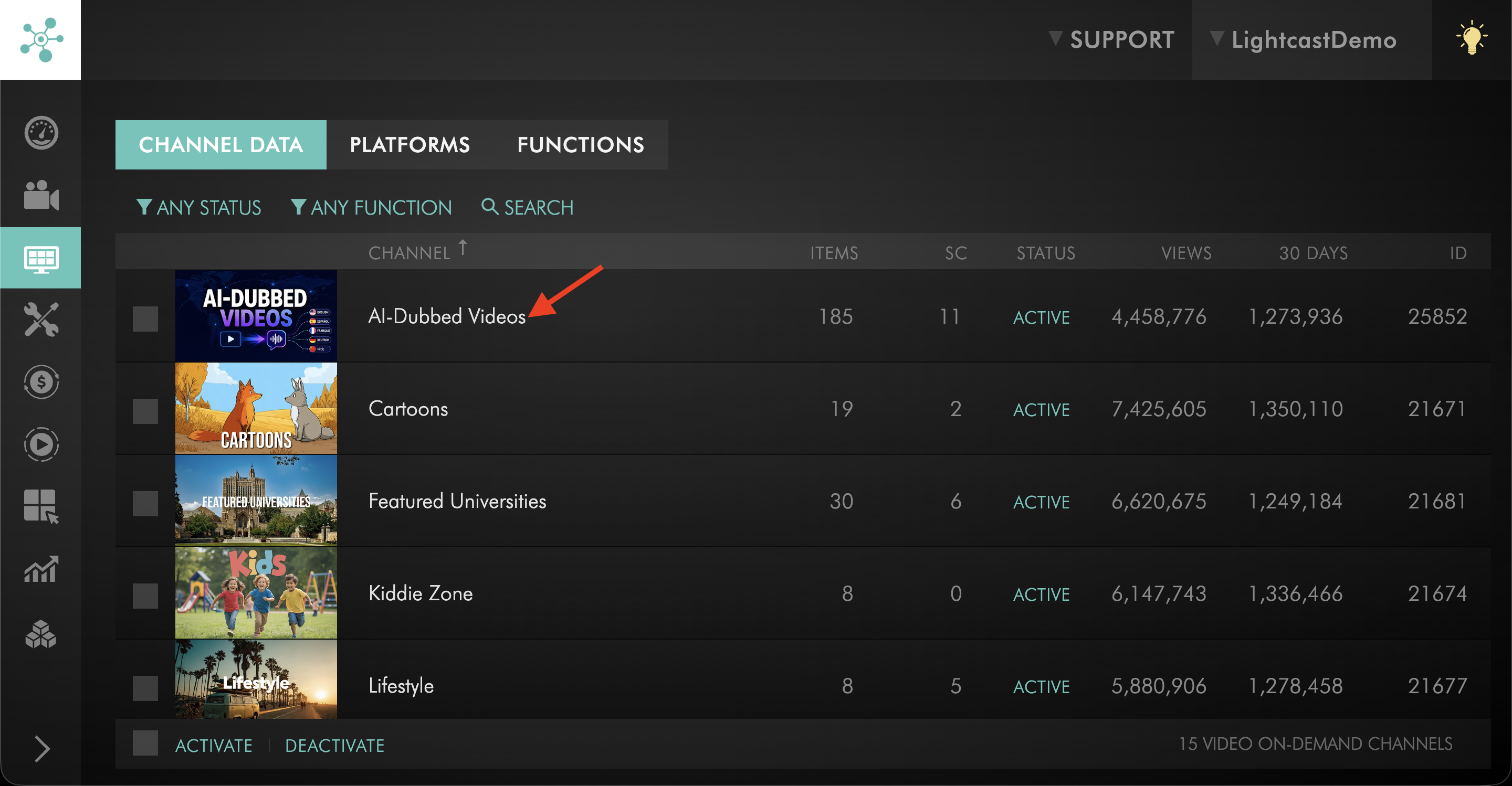
Open the Channel you want to embed.
Step 5
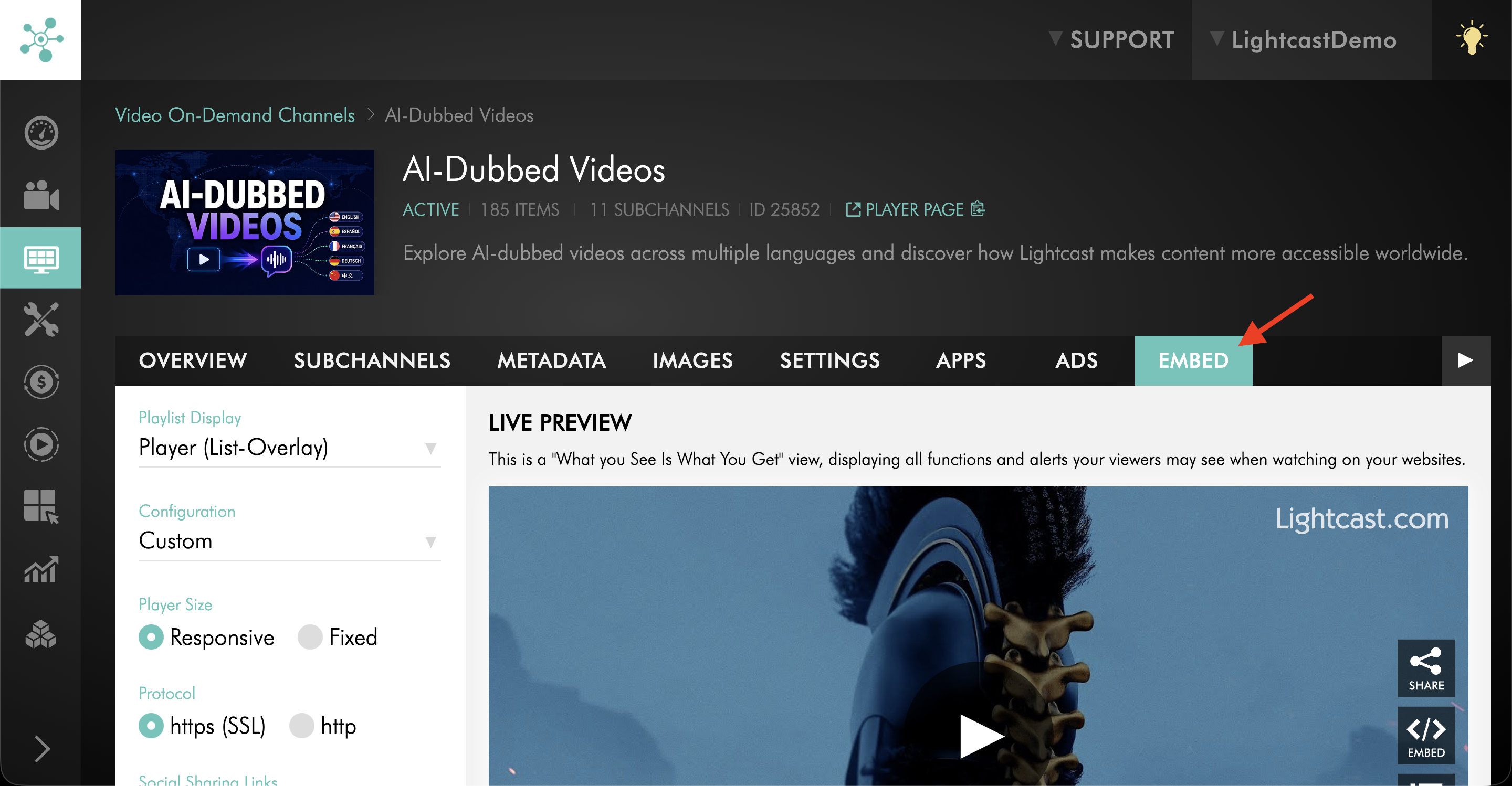
Go to the EMBED tab.
Step 6
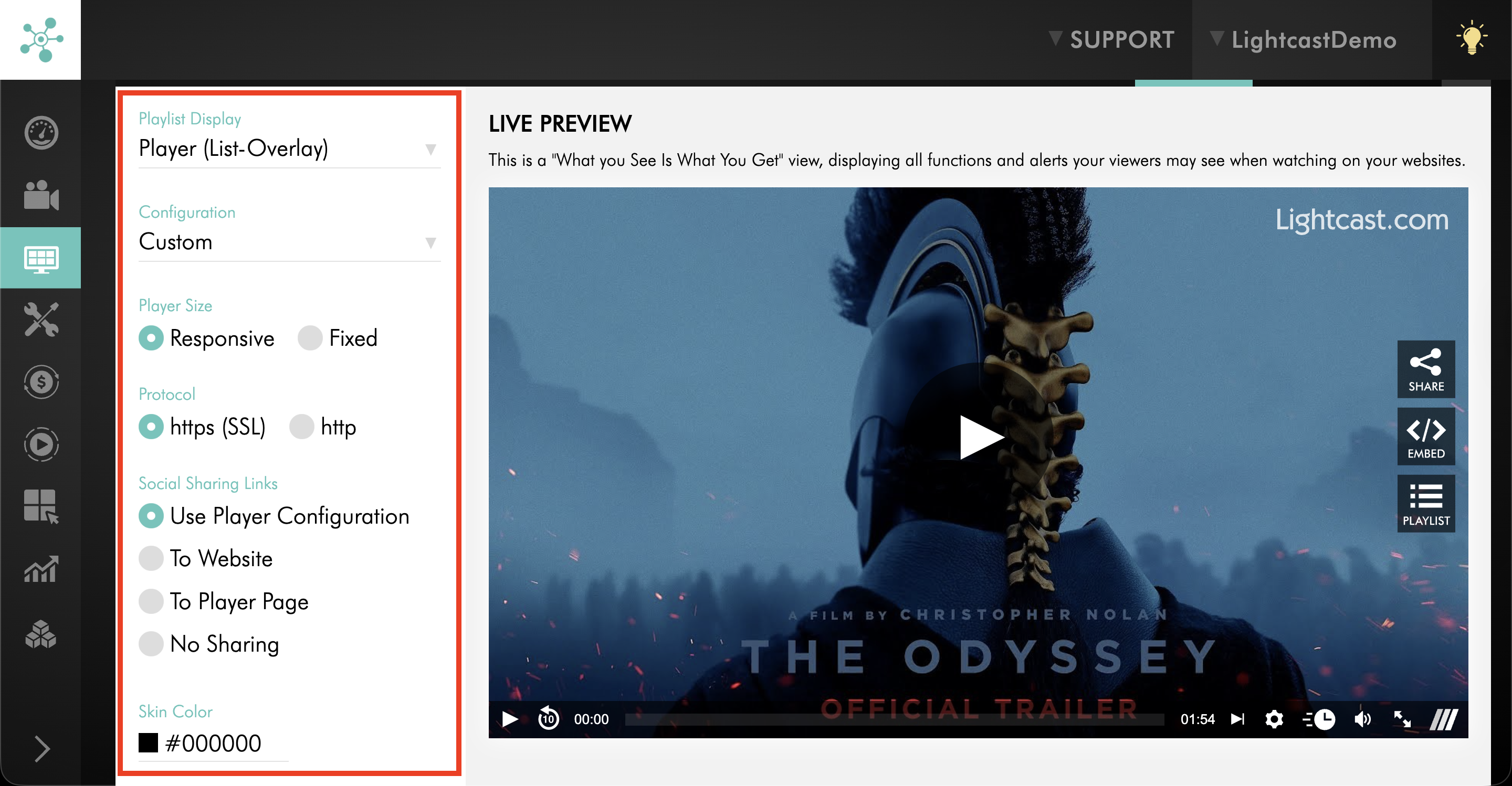
Review the available player options, such as Player Size or other embed settings.
Step 7
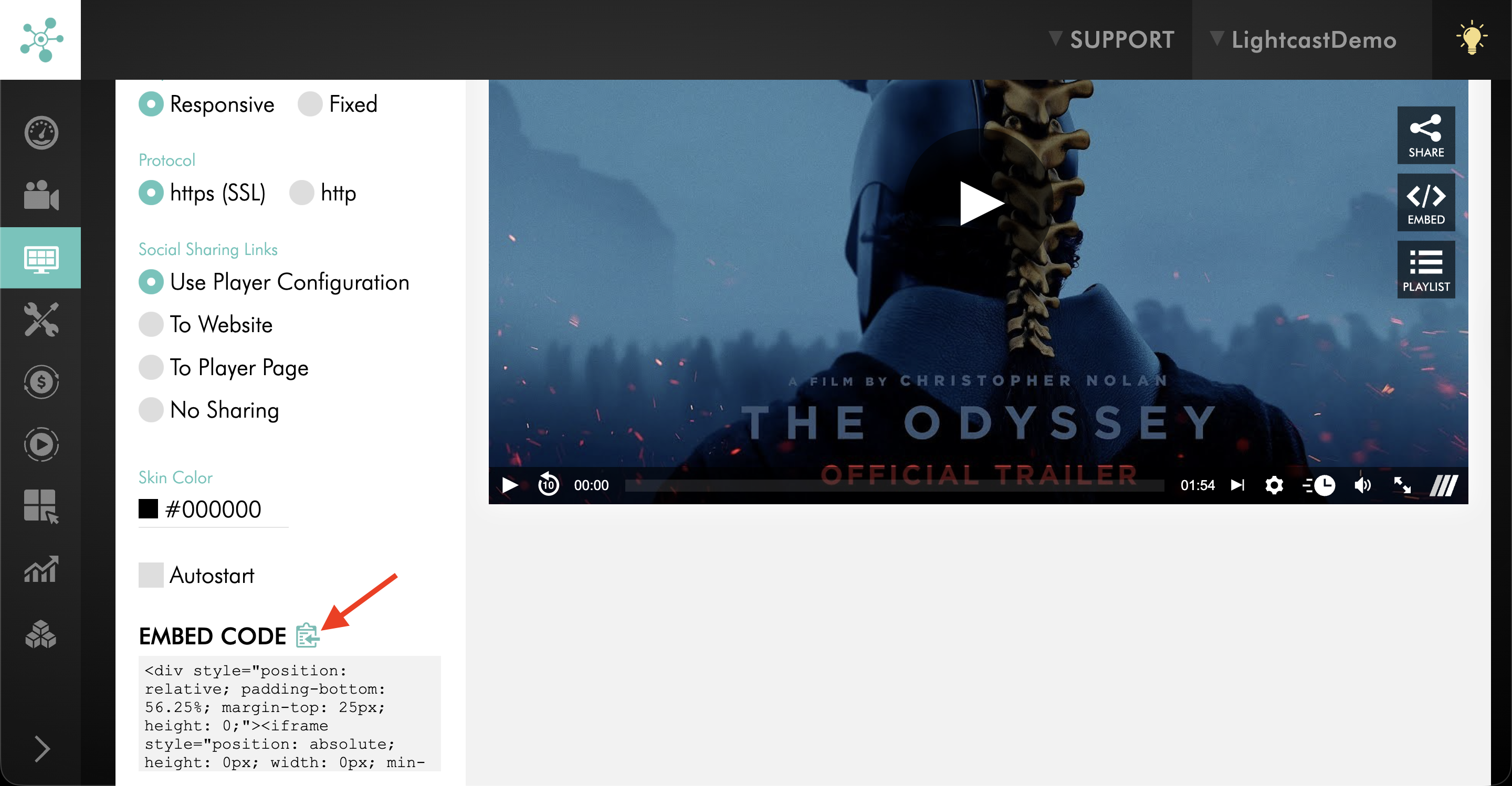
Copy the EMBED CODE for the Channel player.
Step 8
Paste the embed code into your website or social page using your website editor or page builder.
FAQs
Can VOD and AOD Channel players be embedded?
Yes. VOD and AOD Channel players can be embedded on your website or social page using the Channel embed code from the Media Cloud.
Can LIVE Channel players be embedded?
Yes. Live Event, Linear Stream, and 24/7 Scheduler Channel players can be embedded on your website or social page using the Channel embed code from the Media Cloud.
Can a single video or audio player be embedded instead of a full Channel player?
Yes. You can embed a single video or audio player when you only want to share one media item instead of a full Channel.
Can a Sub-Channel player be embedded instead of the main VOD or AOD Channel player?
Yes. You can embed a Sub-Channel player separately from the main VOD or AOD Channel player.
Where can the Channel player embed code be used?
The Channel player embed code can be added to your website or social page using your website editor or page builder.