
How to enable or disable Sub-Channels or Media Groups in published apps
Overview
This article explains how to enable or disable Sub-Channels and Media Groups for published TV apps, mobile apps, and Web Apps using the APP BUILDER section of the Media Cloud.
When to use Sub-Channels or Media Groups in apps
Use Sub-Channels or Media Groups when you want to organize content within a VOD or AOD Channel by adding an additional navigation level in supported apps.
This may be helpful when you want to organize a larger video or audio library by:
audience
category
content type
event
series
speaker
theme
topic
Sub-Channels and Media Groups can make larger content libraries easier for viewers to browse and easier for your team to manage.
Availability may depend on your app setup, app framework, Service Package, Service Subscription Agreement, and supported platforms.
How it works
Sub-Channels and Media Groups are used to organize VOD or AOD content into an additional navigation level inside a VOD or AOD Channel.
Both options can help group videos or audio files into smaller sections inside a larger Channel. However, Sub-Channels and Media Groups are managed differently in the Media Cloud.
To learn more about the difference between these options, see Understanding the difference between Sub-Channels and Media Groups.
Sub-Channels and Media Groups are enabled or disabled individually for each published app. This allows different apps to use different navigation structures while using the same Media Cloud content.
Enabling or disabling Sub-Channels or Media Groups through the APP BUILDER usually does not require an app rebuild or App Store resubmission.
After Sub-Channels or Media Groups are enabled for a published app, changes made in the Media Cloud are typically reflected in the connected app automatically.
Examples of updates that can be managed in the Media Cloud include:
adding or removing Sub-Channels or Media Groups
changing the order of Sub-Channels or Media Groups
changing Sub-Channel or Media Group thumbnails
changing Sub-Channel or Media Group metadata
assigning or removing videos or audio files from Sub-Channels or Media Groups
Depending on app or device caching, you may need to refresh or reopen the app before the changes appear.
Enabling or disabling Sub-Channels or Media Groups only changes how content is displayed in the app. It does not delete any Sub-Channels, Media Groups, or media content from the Media Cloud.
Instructions
Enable Sub-Channels or Media Groups in a published app
Step 1
Log in to your Media Cloud account.
Step 2
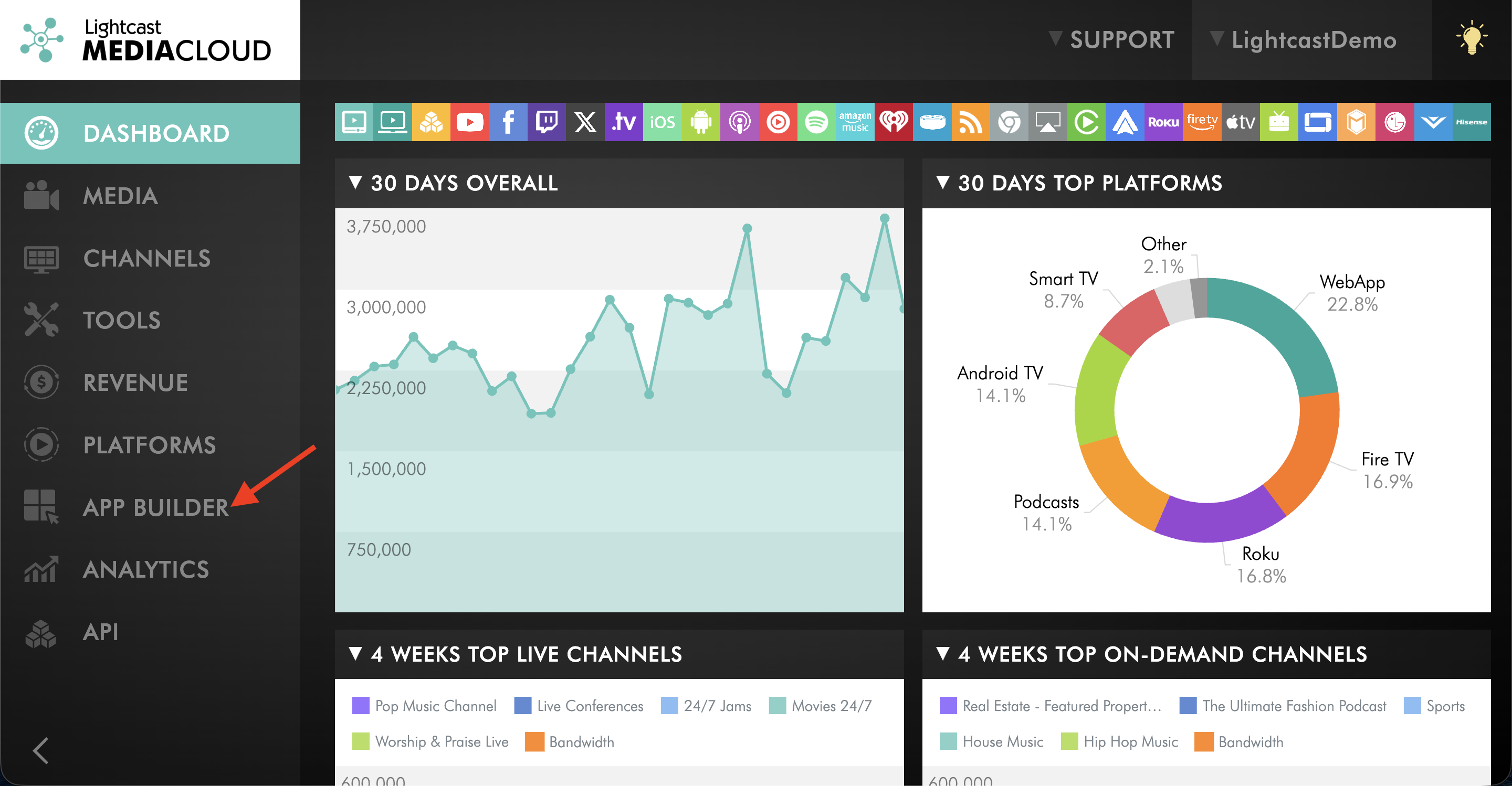
Open the APP BUILDER.
Step 3
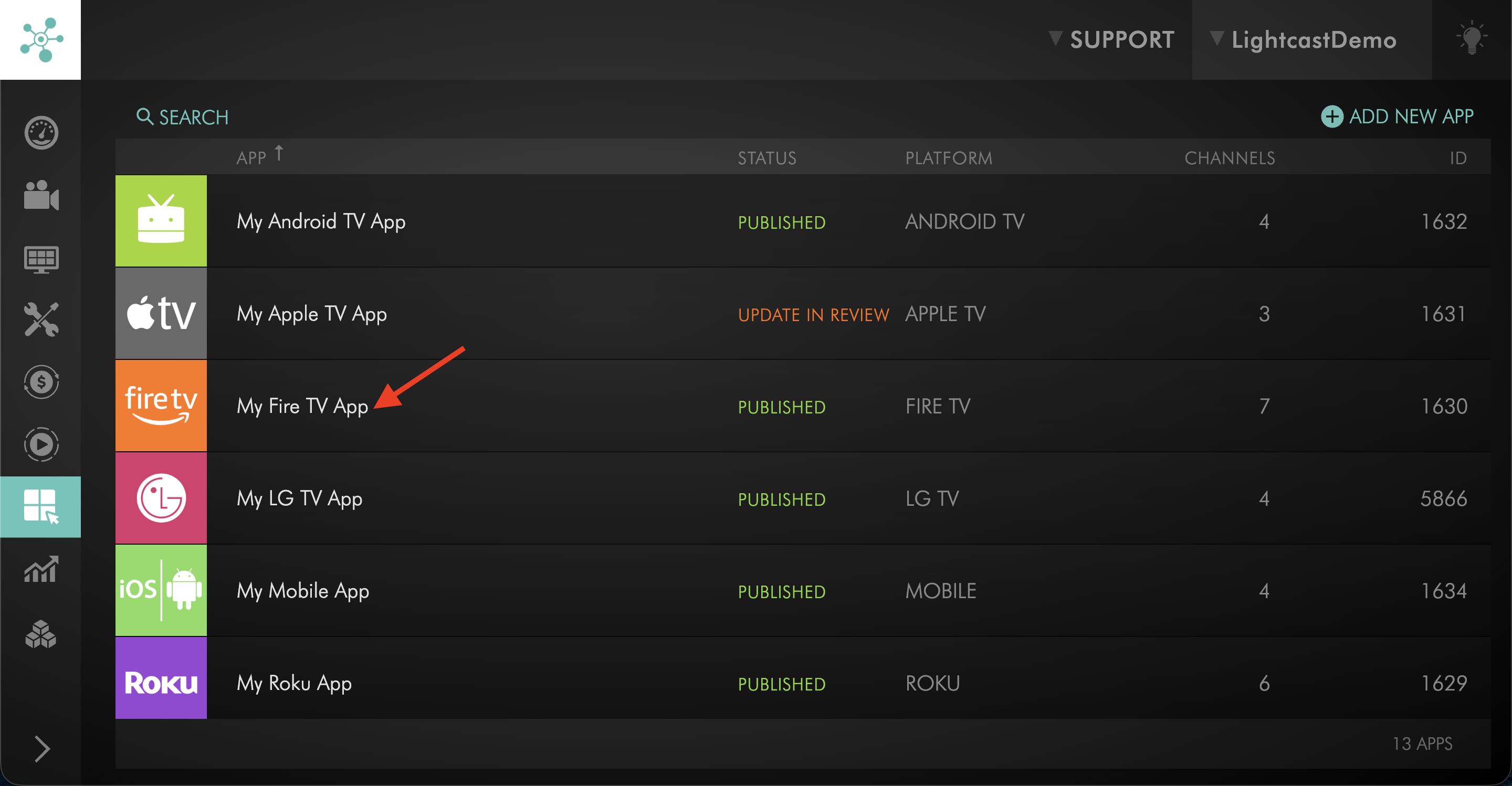
Select the published app you want to update.
Step 4
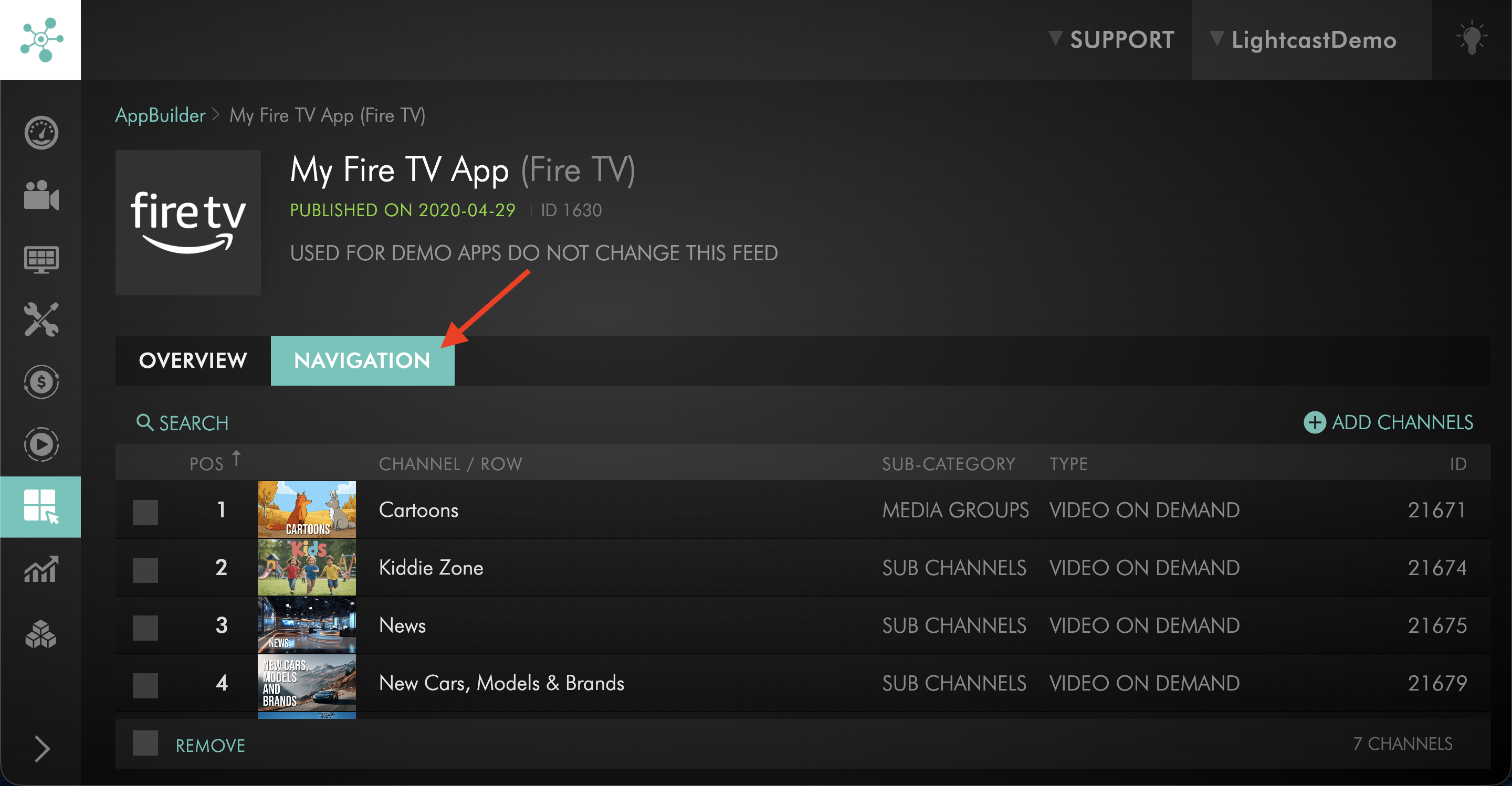
Switch to the NAVIGATION tab.
Step 5
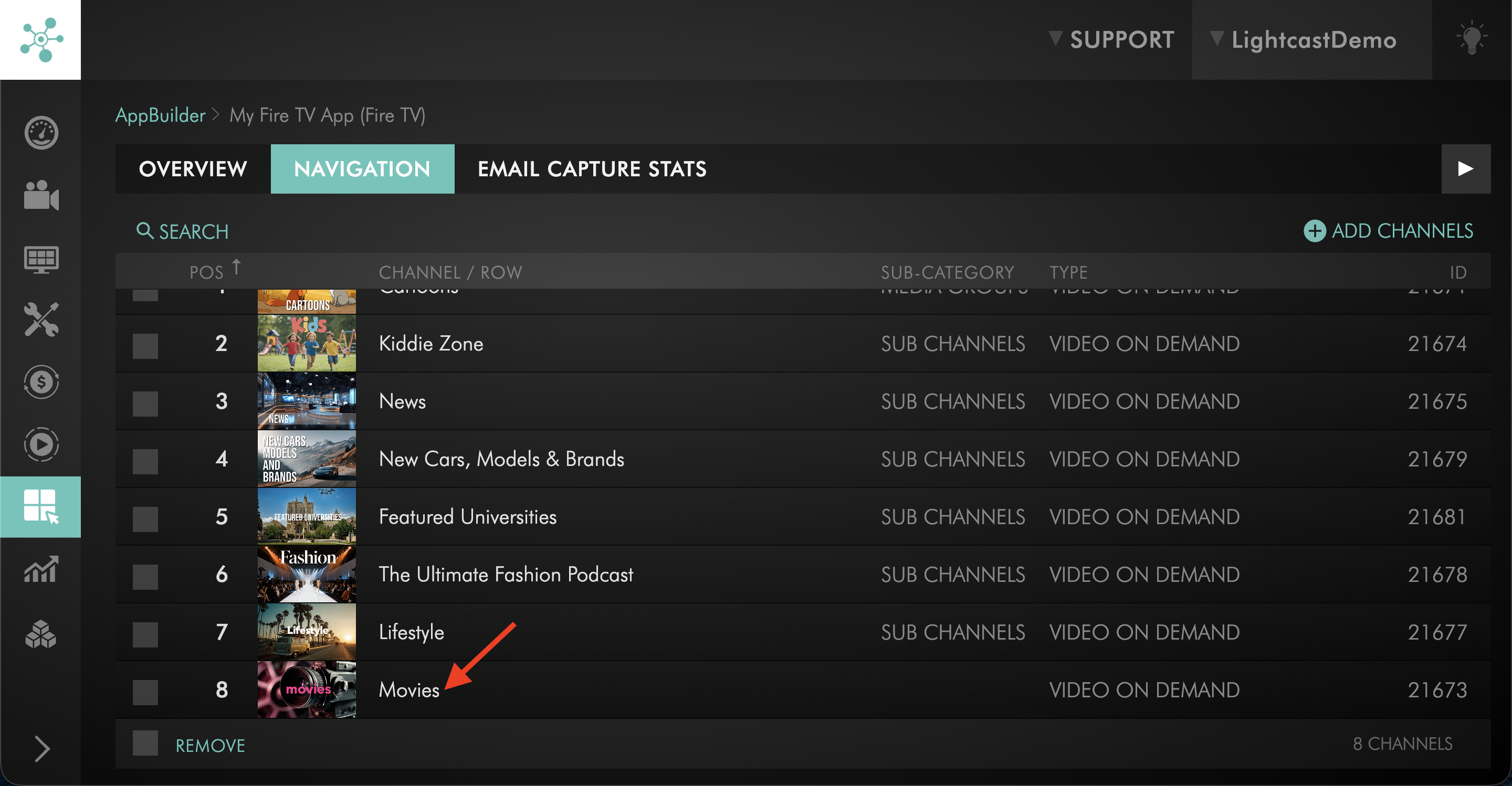
Click the VOD or AOD Channel where you want to enable Sub-Channels or Media Groups.
This opens the Channel Settings window.
Step 6
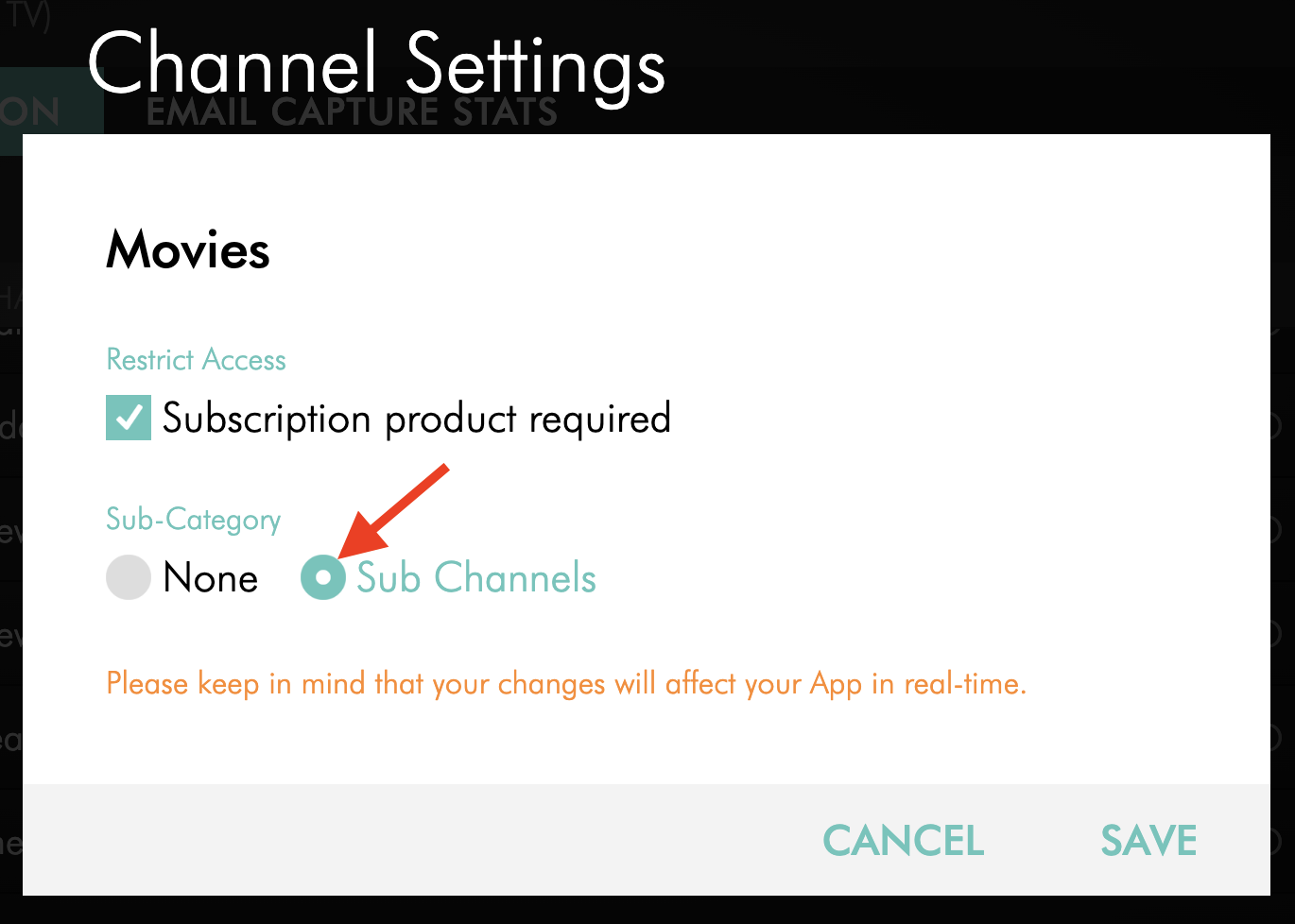
Under Sub-Category, select the option you want to use.
Depending on your app setup and enabled features, this may include Sub-Channels or Media Groups.
Step 7
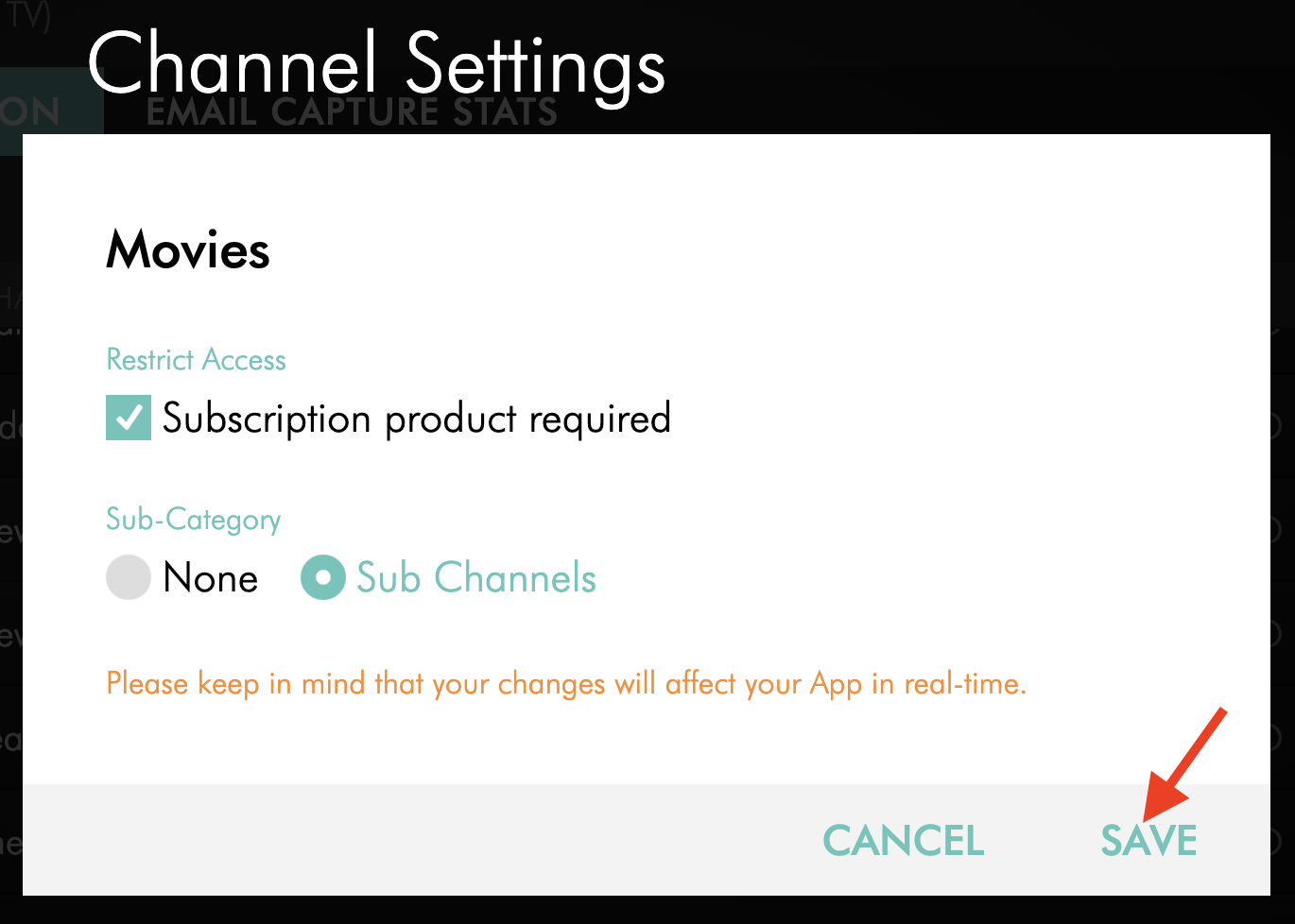
Click SAVE.
Step 8
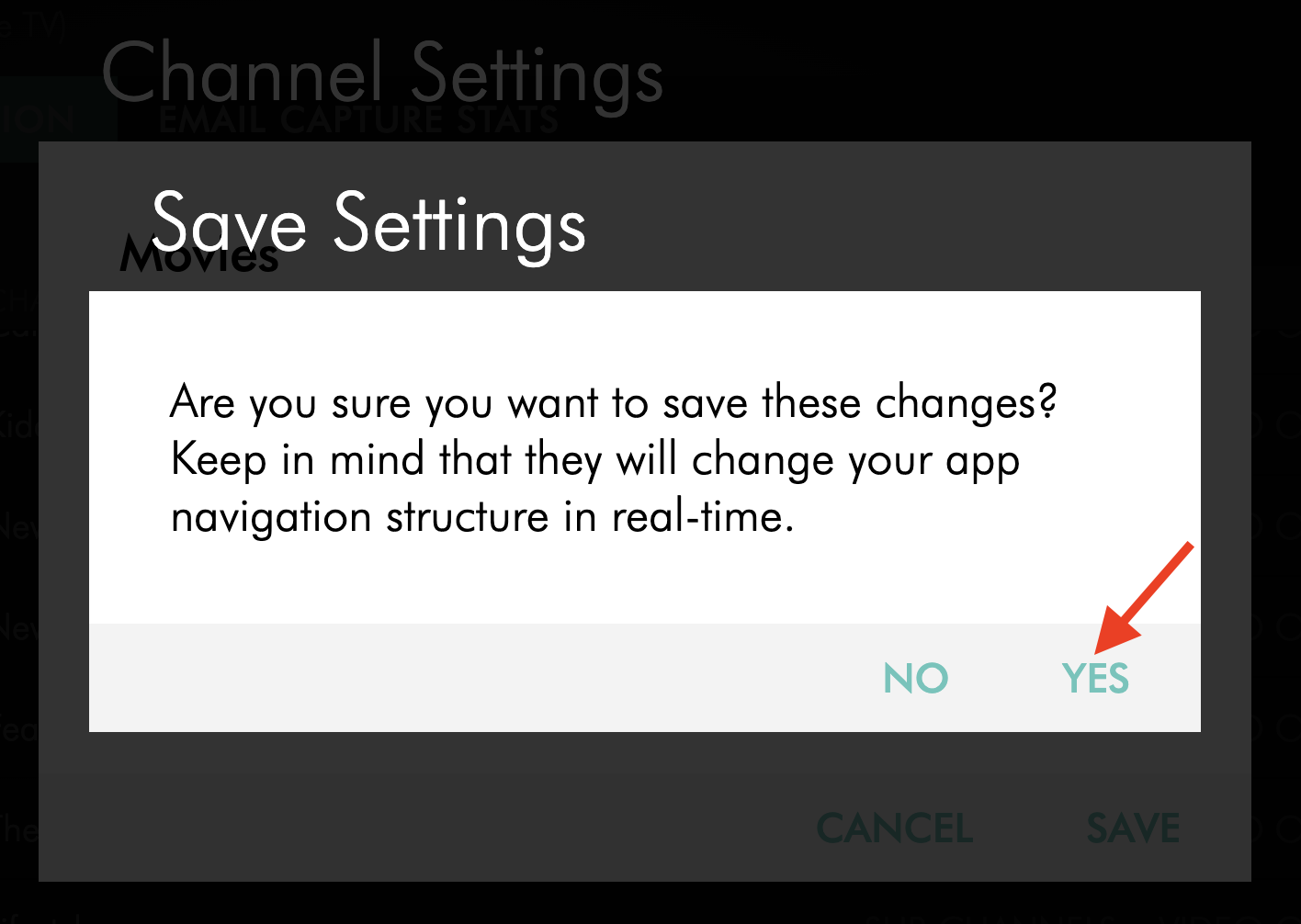
In the confirmation pop-up, click YES to confirm that you want to save the change.
The change updates how content is displayed in the selected app.
Disable Sub-Channels or Media Groups in a published app
Step 1
Log in to your Media Cloud account.
Step 2
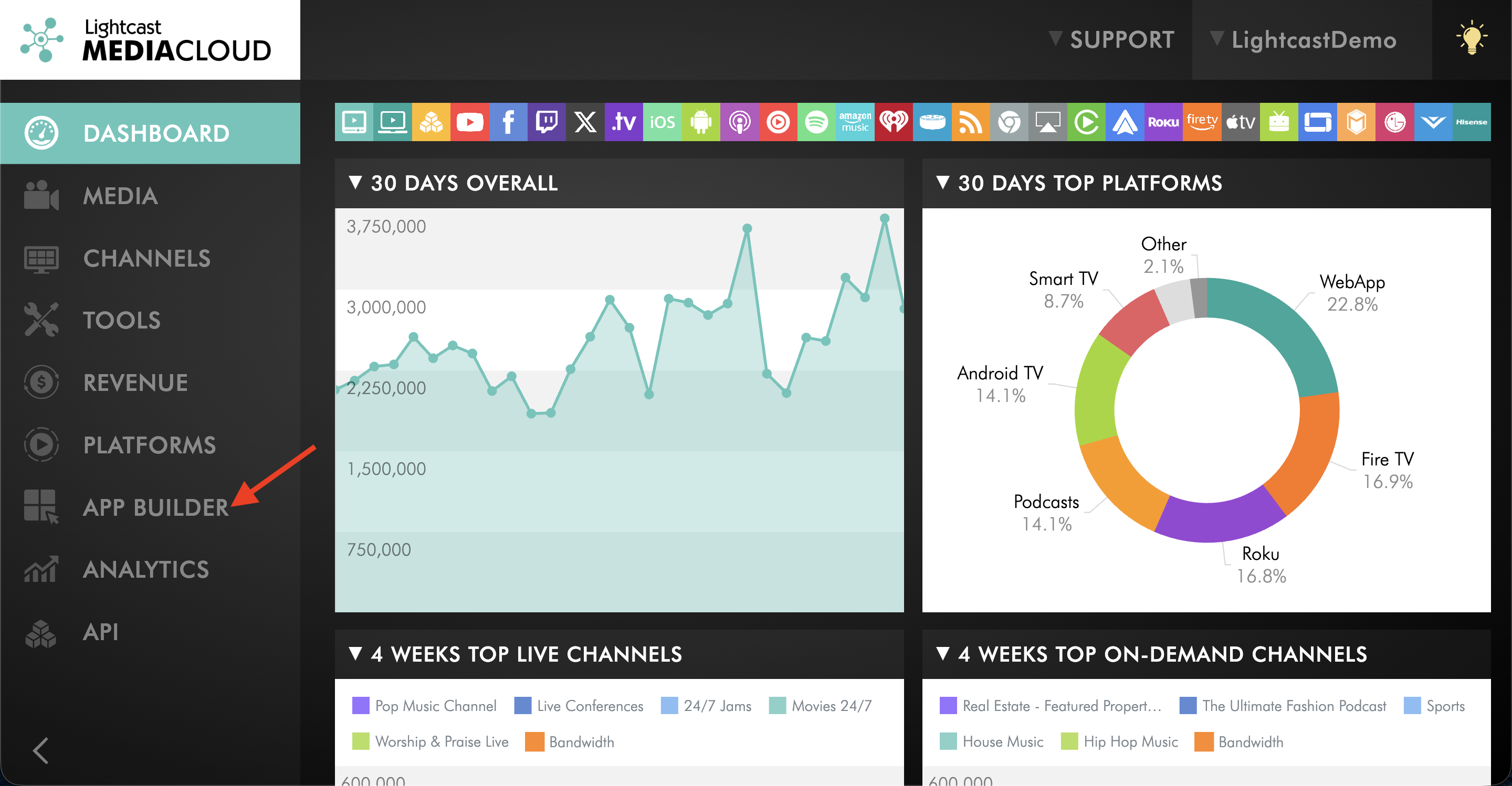
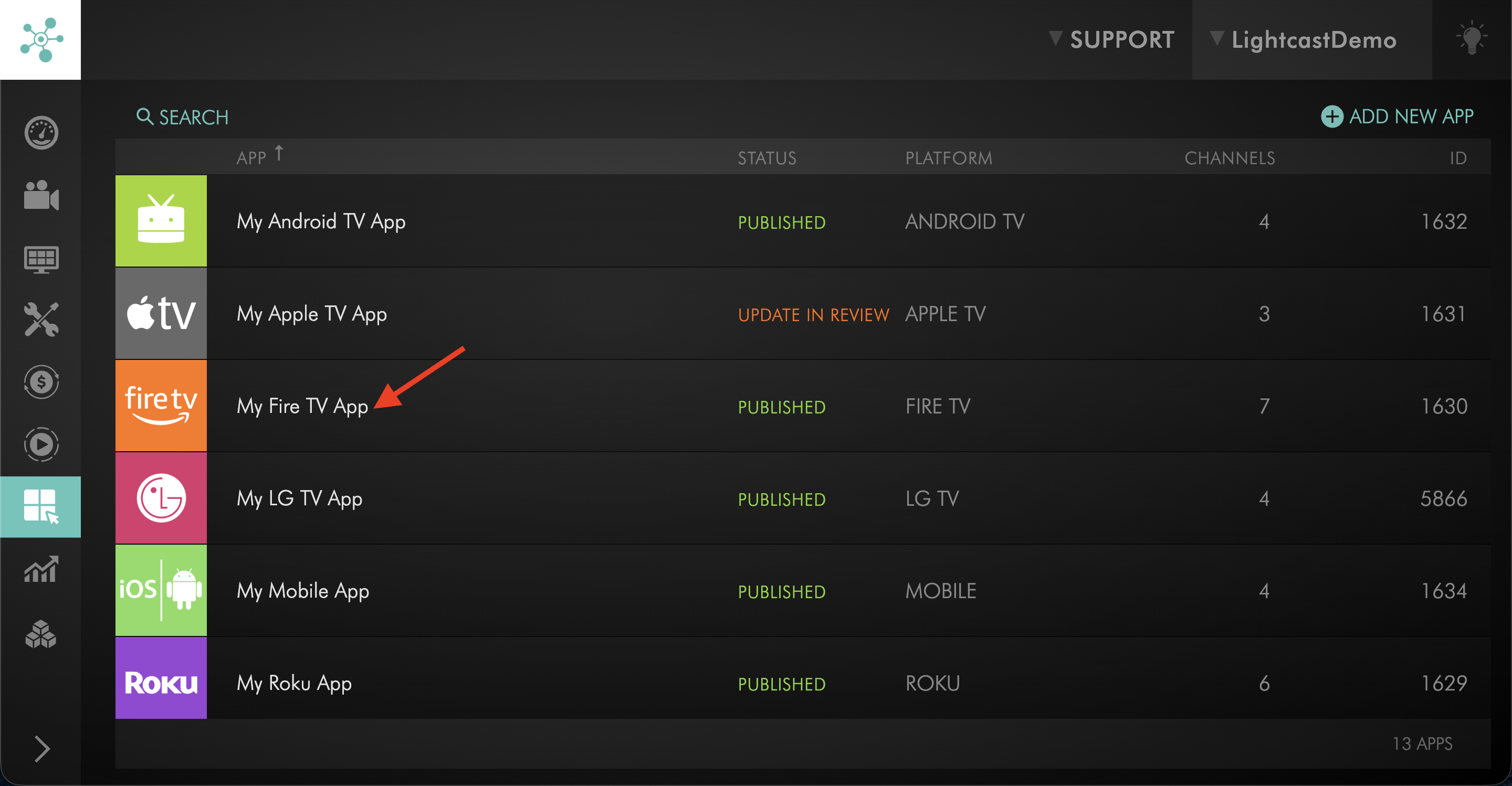
Open the APP BUILDER.
Step 3
Select the published app you want to update.
Step 4
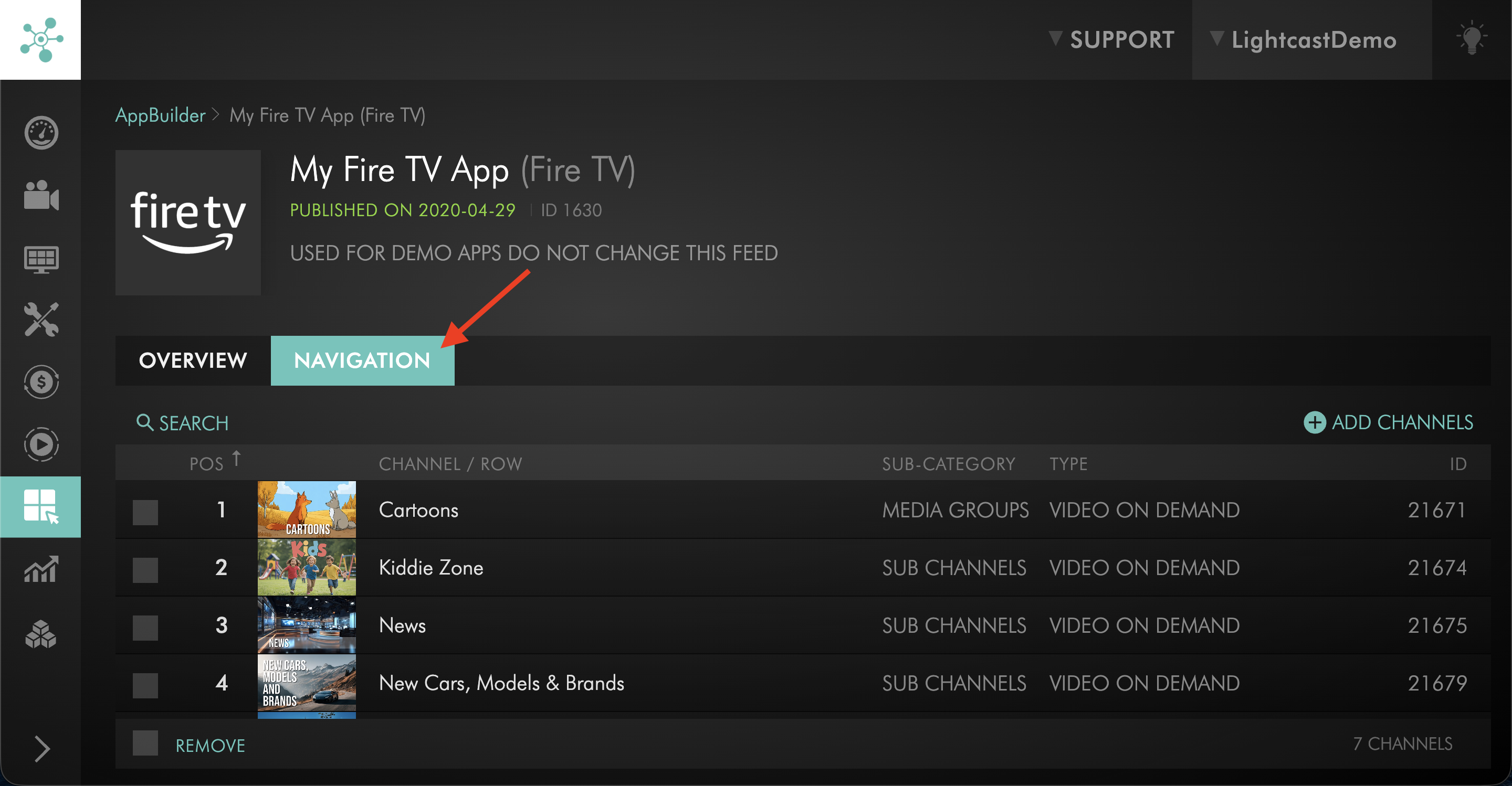
Switch to the NAVIGATION tab.
Step 5
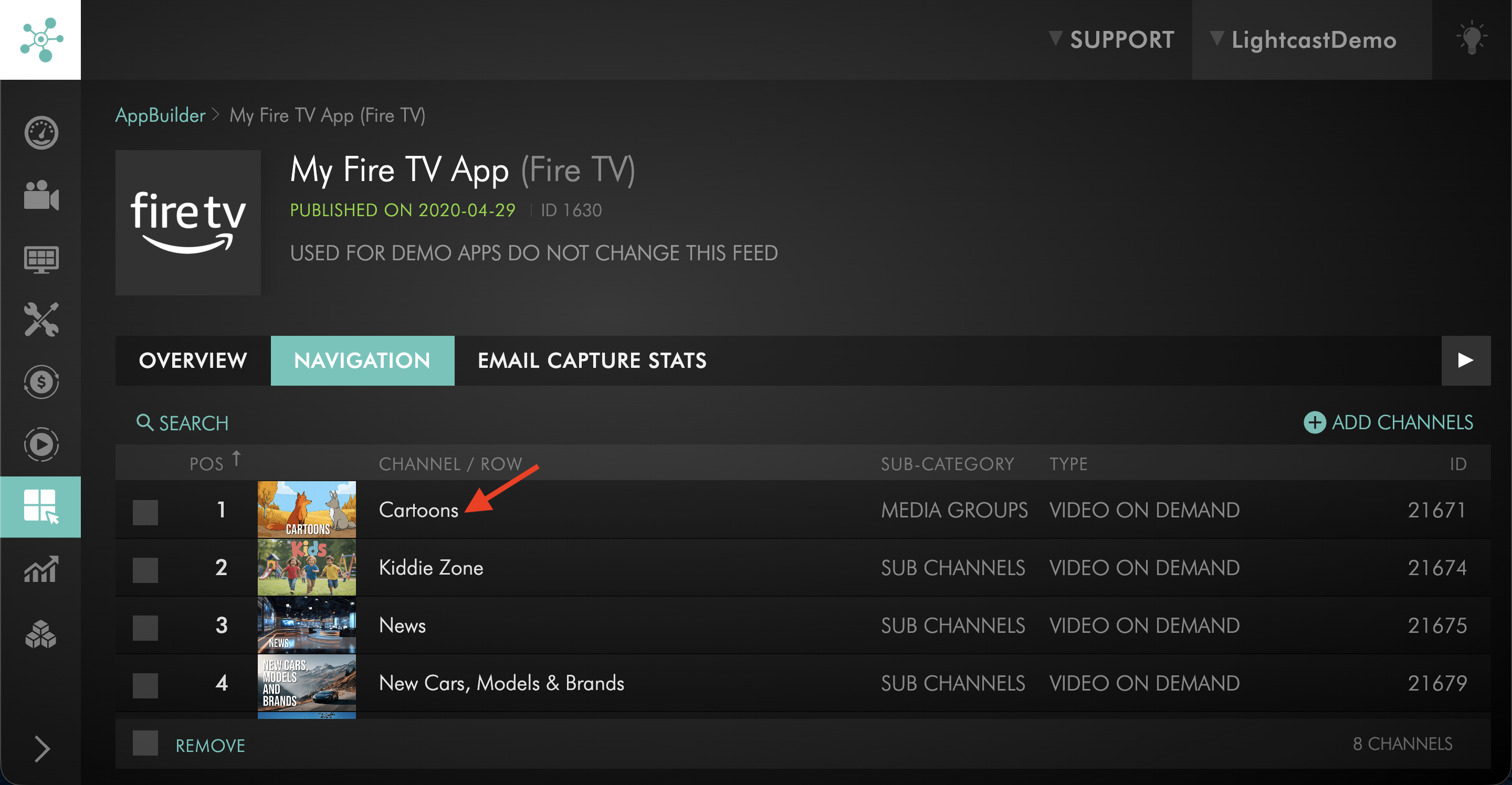
Click the VOD or AOD Channel where Sub-Channels or Media Groups are enabled.
This opens the Channel Settings window.
Step 6
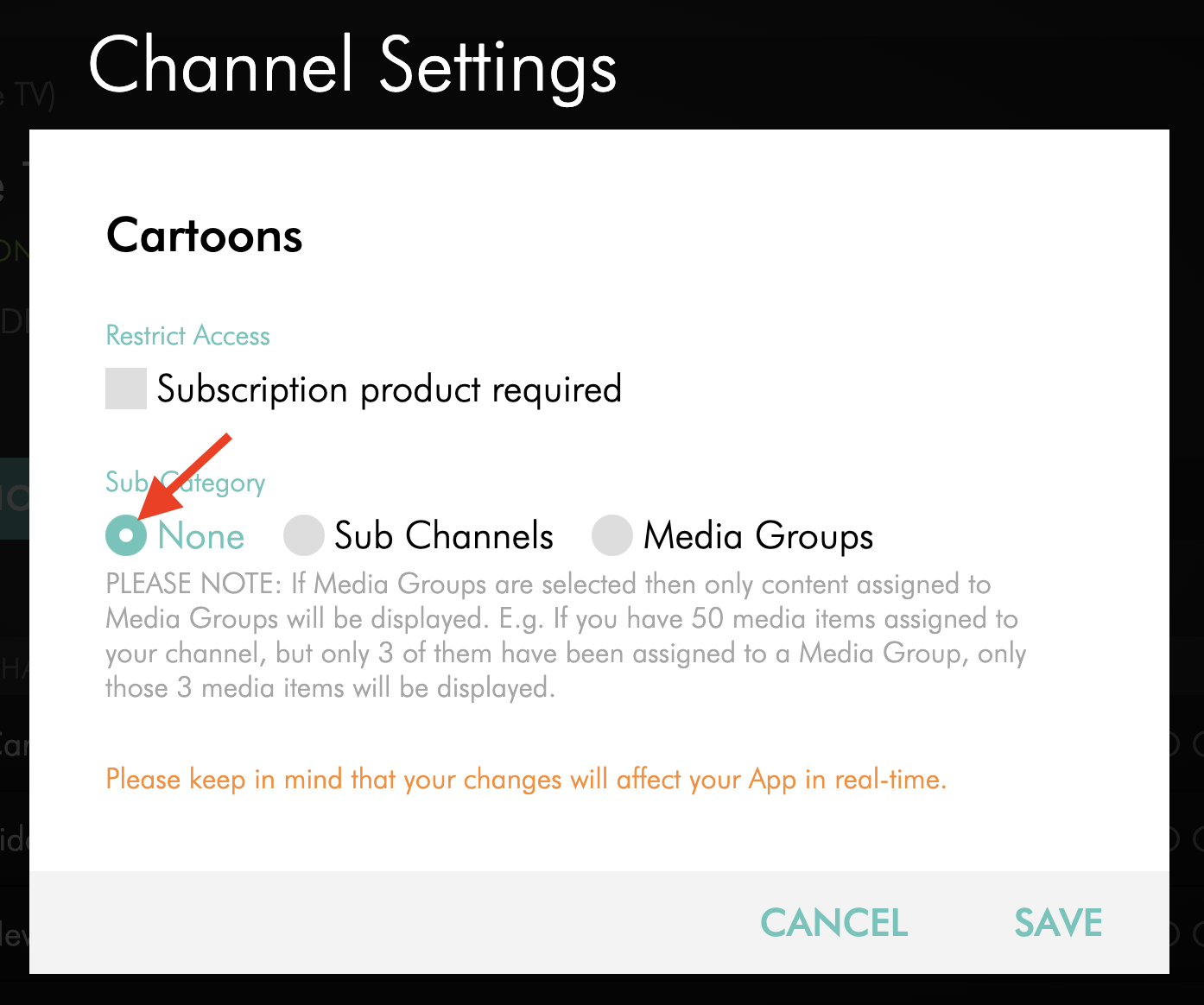
Under Sub-Category, select None.
Step 7
Click SAVE.
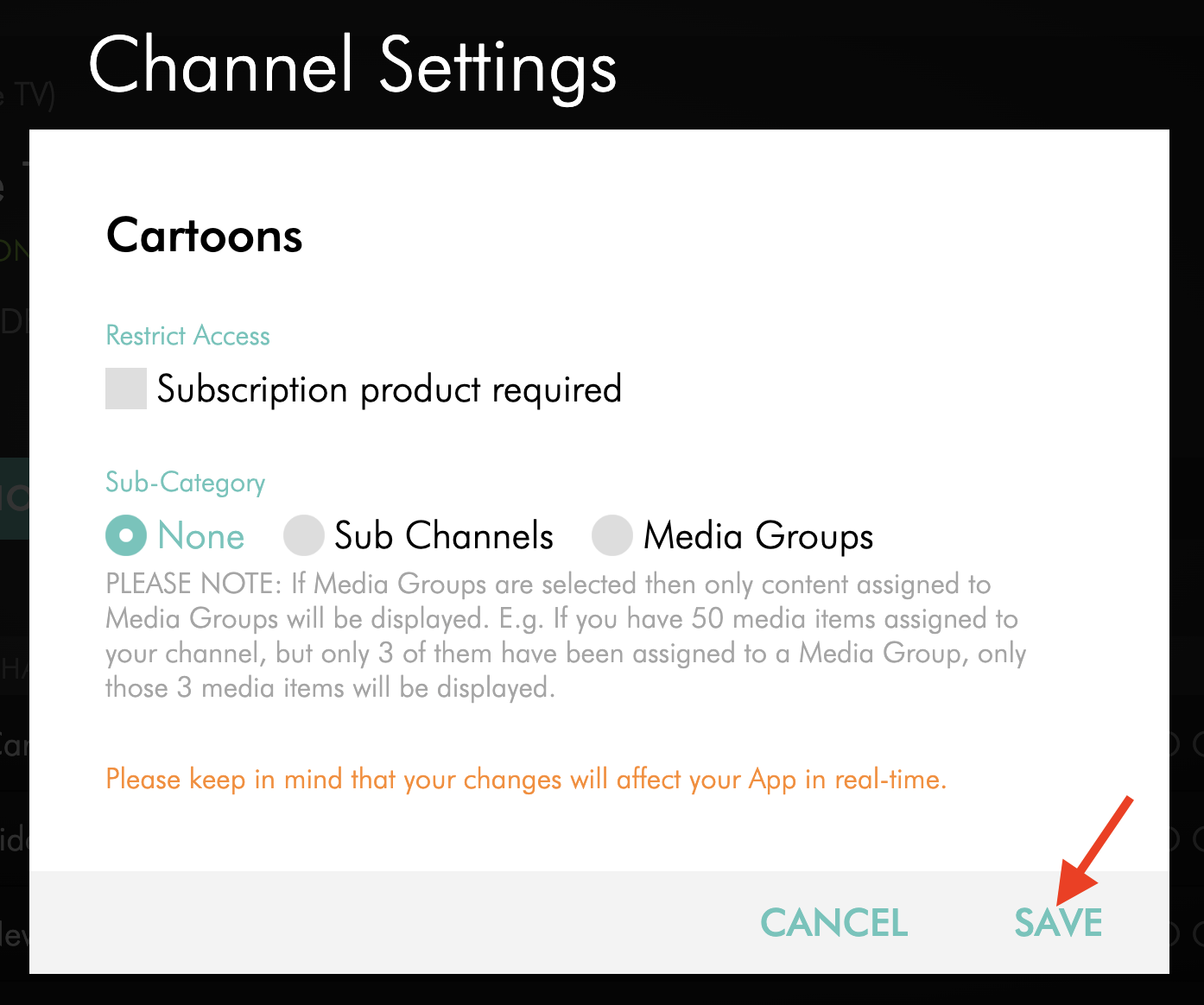
Step 8
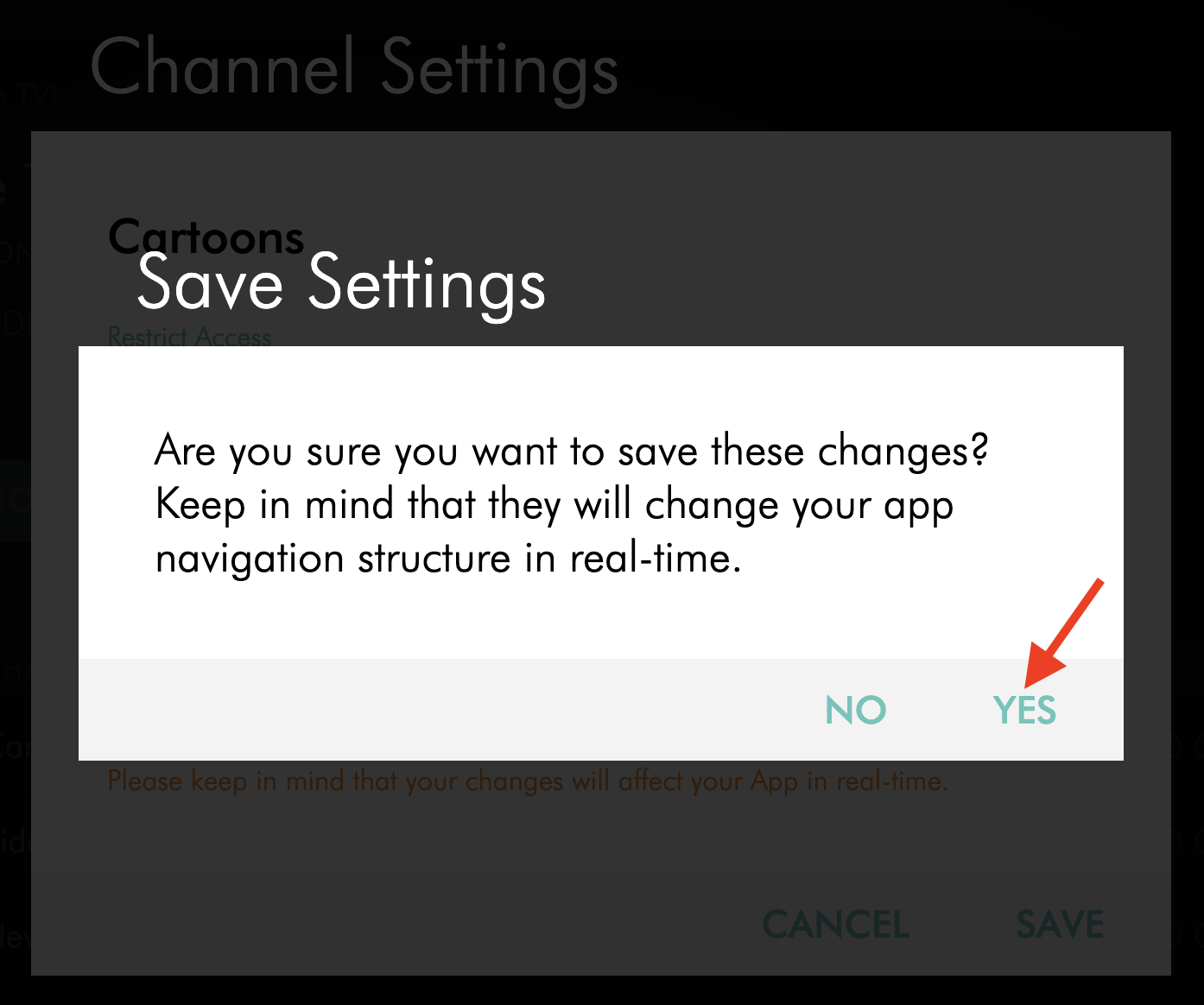
In the confirmation pop-up, click YES to confirm that you want to save the change.
The change updates how content is displayed in the selected app.
Manage Sub-Channels or Media Groups after they are enabled
Step 1
Log in to your Media Cloud account.
Step 2
Go to the area where your Sub-Channels or Media Groups are managed.
For Sub-Channels, see How to create and organize Sub-Channels in the Media Cloud.
For Media Groups, see How to create and manage Media Groups in the Media Cloud.
Step 3
Make the update you need, such as adding, removing, reordering, or updating thumbnails or metadata.
Step 4
Save your changes.
Updates should appear in connected apps where Sub-Channels or Media Groups are enabled. Depending on app or device caching, you may need to refresh or reopen the app before the changes appear.
FAQs
Can Sub-Channels or Media Groups be used in all apps?
Sub-Channels and Media Groups may be available for TV apps, mobile apps, and Web Apps, depending on the app setup, app framework, enabled features, and supported platforms.
Do Sub-Channels and Media Groups do the same thing?
They are similar because both options add another navigation level to organize VOD or AOD content.
However, they are managed differently in the Media Cloud. To compare the two options, see Understanding the difference between Sub-Channels and Media Groups.
Can Sub-Channels or Media Groups add another navigation level to my app?
Yes. When available, Sub-Channels or Media Groups can add another navigation level inside a VOD or AOD Channel in your app.
This can help viewers or listeners browse videos or audio files by audience, category, content type, event, series, speaker, theme, topic, or other organized groupings.
Can I enable Sub-Channels or Media Groups after my app is published?
Yes, when available for your app setup and enabled features.
Use the APP BUILDER in the Media Cloud to enable or disable Sub-Channel or Media Group options for a published app.
Do I need to rebuild my app to add more Sub-Channels or Media Groups?
Usually, no. Enabling or disabling Sub-Channels or Media Groups through the APP BUILDER usually does not require an app rebuild or App Store resubmission.
Some app setups or changes may require Lightcast review.
Are Sub-Channels or Media Groups enabled separately for each app?
Yes. Sub-Channels and Media Groups are enabled or disabled individually for each published app.
This allows different apps to use different navigation structures while using the same Media Cloud content.
Does disabling Sub-Channels or Media Groups delete them from the Media Cloud?
No. Disabling Sub-Channels or Media Groups in an app does not delete them from the Media Cloud.
It only changes how content is displayed in the selected app.
Do Sub-Channel or Media Group updates appear in apps right away?
Most updates are reflected in connected apps automatically.
Depending on app or device caching, you may need to refresh or reopen the app before the changes appear.
Can I change the order of Sub-Channels or Media Groups after they are enabled?
Yes. Sub-Channel or Media Group order changes can usually be managed in the Media Cloud.
The updated order should appear in connected apps where Sub-Channels or Media Groups are enabled.
Can I add new videos or audio files to a Sub-Channel or Media Group after the app is published?
Yes. You can add or remove videos or audio files from Sub-Channels or Media Groups in the Media Cloud.
For more information about adding new media content to published apps, see How to add new media content to a published app.
Do Sub-Channels or Media Groups require a specific package?
Yes. Sub-Channels and Media Groups require a package that includes access to this feature.
For more information, see the Pricing section below.
Pricing
Sub-Channels and Media Groups are available on POWER packages and up.
If you don’t have access to this feature, you can upgrade to one of our latest plans or contact your account manager.