
How to update an existing iOS mobile app with a new iOS mobile app built by Lightcast
Overview
This article explains what to do if you already have a published iOS mobile app and want Lightcast to update it with the Lightcast app framework.
When to update an existing iOS mobile app
Use this information if your organization already has a published iOS mobile app before starting a new iOS mobile app build with Lightcast.
In most cases, the best option is to update the existing iOS mobile app instead of removing it and submitting a brand new app. Updating the existing app helps preserve the app’s current App Store listing, reviews, ratings, users, and install base.
Before Lightcast can update an existing iOS mobile app, you need to determine where the app is currently located:
In your organization’s Apple Developer Account
In another developer’s Apple Developer Account
In an account you do not currently have access to
As part of your mobile app specs form, you will be asked whether you already have an iOS mobile app and whether you want Lightcast to update the existing app or build a new iOS mobile app. Your answer helps Lightcast determine the correct next steps for your iOS mobile app build.
How it works
Apple app names must be unique in the App Store. If an existing Apple TV or iOS app is already published with your app name, a brand new app may not be able to use the same name unless the existing tvOS and iOS app bundle is removed, renamed, or transferred.
When Lightcast updates your existing Apple app, the app remains under the same App Store listing. This helps preserve the app’s current listing, reviews, ratings, users, and install base while Lightcast prepares and submits the updated app version through your Apple Developer Account.
If the app is in your Apple Developer Account, you can invite Lightcast as an Admin so our development team can prepare and submit the updated iOS mobile app build.
If the app is in another developer’s Apple Developer Account, that developer must transfer the app to your Apple Developer Account first. After the app is transferred, you can invite Lightcast as an Admin user.
If your organization does not have an Apple Developer Account yet, you will need to create one before the app can be transferred to your account.
Apple requires the current Account Holder to initiate the app transfer. The receiving Account Holder must accept the transfer in App Store Connect. The transfer must meet Apple’s app transfer criteria before it can be completed.
To request the transfer, the current developer may need your receiving account details, including:
The Recipient’s Team Agent Apple ID, which is the Apple ID email address for the Account Holder of your organization’s Apple Developer Account
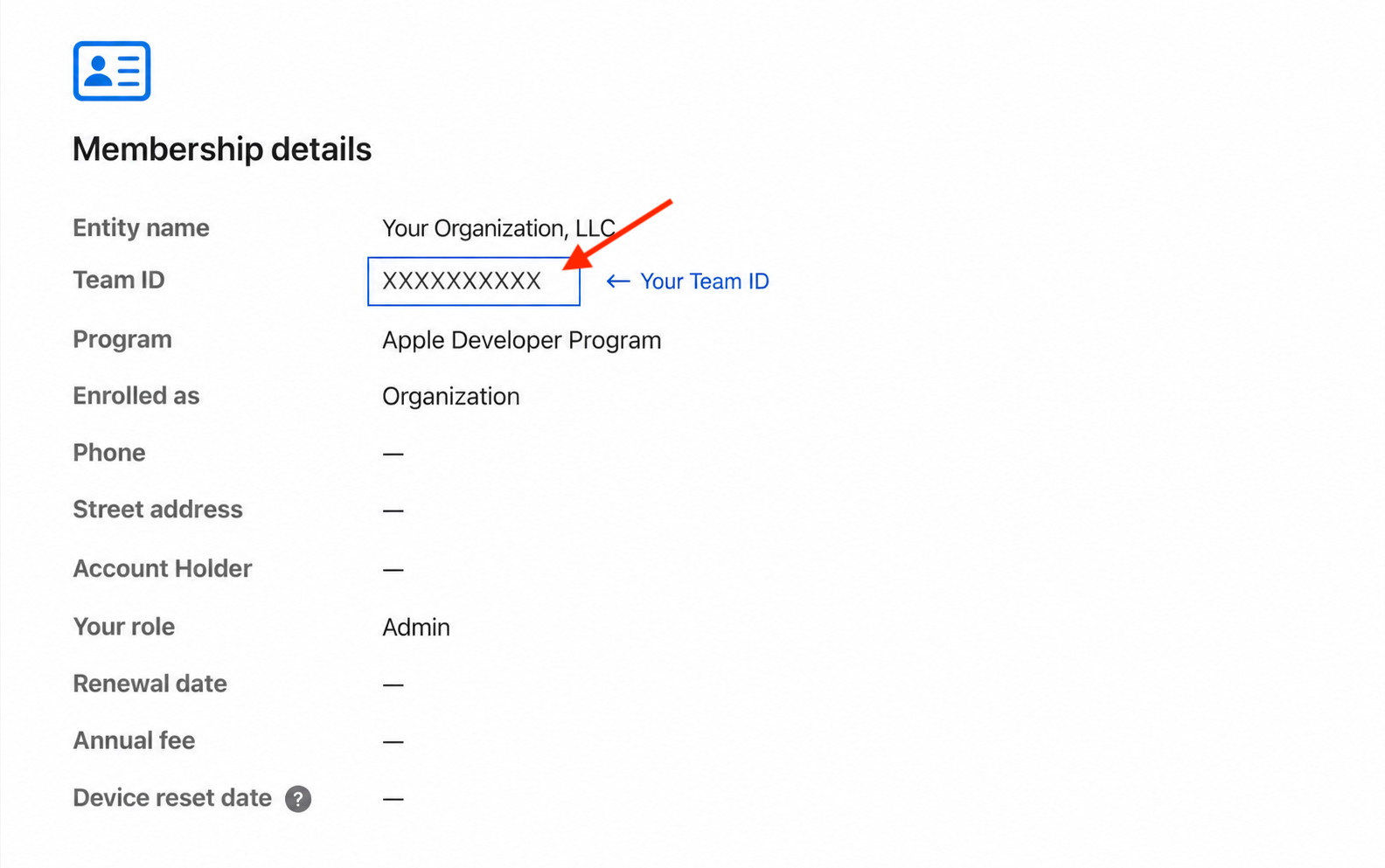
The Team ID, which is the unique identifier for your Apple Developer Account team
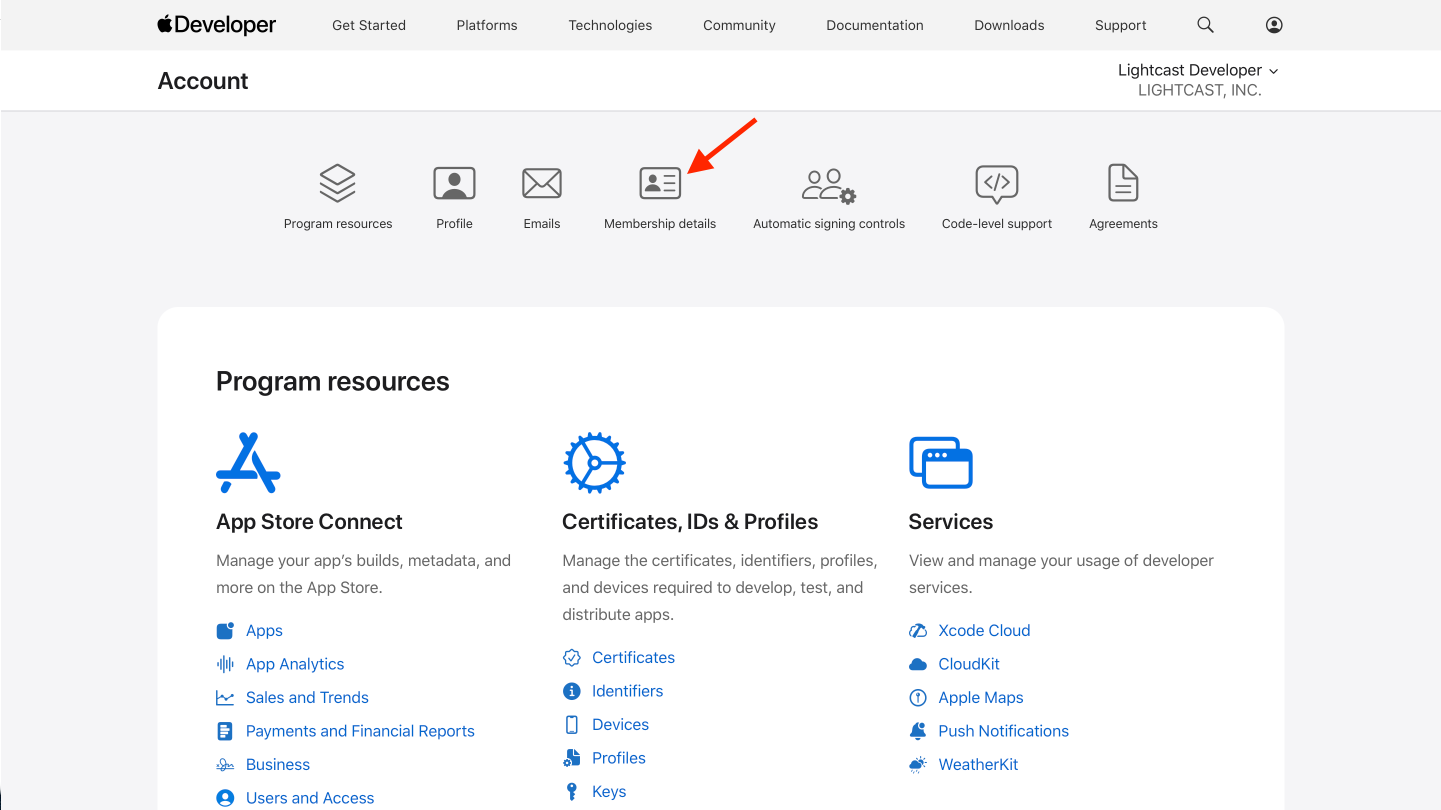
You can find your Team ID by logging in to your Apple Developer Account and going to Membership details. Your Team ID appears with your Apple Developer Program membership information.
If the existing app uses subscriptions, Sign in with Apple, App Groups, Apple Wallet, Xcode Cloud, or other advanced Apple services, additional transfer requirements may apply. Review Apple’s app transfer criteria before requesting the transfer.
Removing the existing Apple app and submitting a brand new app should only be considered if updating or transferring the existing app is not possible.
Instructions
Follow the scenario that matches where your existing Apple TV or iOS app is currently located.
If the app is in your organization’s Apple Developer Account
Step 1
Confirm that your organization can access the Apple Developer Account where the existing Apple TV or iOS mobile app is located.
Step 2
Invite developer@lightcast.com to your Apple Developer Account as an Admin user.
For help with this process, see How to create an Apple Developer Account for your Apple TV or iOS mobile app.
Step 3
Make sure Lightcast has the required Developer Resources access so our developers can submit your app to Apple.
Step 4
Notify Customer Support after the invitation has been sent.
Lightcast can then review access and continue preparing the updated iOS mobile app build.
If the app is in another developer’s Apple Developer Account
Step 1
Create your organization’s own Apple Developer Account if you do not already have one.
For help creating your account, see How to create an Apple Developer Account for your Apple TV or iOS mobile app.
Step 2
Find your Apple Developer Account details.
The current developer may need:
Recipient’s Team Agent Apple ID: the Apple ID email address for the Account Holder of your organization’s Apple Developer Account
Team ID: the unique identifier for your Apple Developer Account team
You can find your Team ID in your Apple Developer Account under Membership details.
Step 3
Contact the current developer and ask them to transfer the existing iOS mobile app into your organization’s Apple Developer Account.
Step 4
Ask the current developer to log in to App Store Connect and open the app that needs to be transferred.
Step 5
Ask the current developer to go to the App Information section for the app.
Step 6
Ask the current developer to scroll to Additional Information and click Transfer App.
Step 7
Ask the current developer to review Apple’s app transfer criteria.
If the app meets Apple’s transfer criteria, they can continue with the transfer request.
Step 8
Ask the current developer to enter your receiving account details.
They may need to enter:
Recipient’s Team Agent Apple ID
Team ID
Step 9
Ask the current developer to review Apple’s transfer agreement and click Request Transfer.
The transfer may take a few days to be approved and initiated by Apple.
Step 10
Accept the app transfer in your organization’s Apple Developer Account when Apple makes the transfer available.
Step 11
After the app is transferred, invite developer@lightcast.com to your Apple Developer Account as an Admin user.
For help with this process, see How to create an Apple Developer Account for your Apple TV or iOS mobile app.
Step 12
Notify Customer Support when the app transfer is complete and the Lightcast invitation has been sent.
Lightcast can then review access and continue preparing the updated iOS mobile app build.
If you are not sure where the app is located
Step 1
Check whether your organization has access to the Apple Developer Account where the existing Apple TV or iOS mobile app is managed.
Step 2
If you do not have access, contact the person or developer who originally created or submitted the app.
Step 3
Ask which Apple Developer Account currently manages the app.
Step 4
Ask whether the app can be transferred into your organization’s Apple Developer Account.
Step 5
Contact Customer Support if you need help determining the next step.
FAQs
Does an existing Apple TV or iOS app bundle need to be removed before Lightcast builds a new app?
Usually, no. In most cases, the best option is to update the existing app instead of removing it.
Updating the existing app helps preserve the app’s current App Store listing, reviews, ratings, users, and install base.
Why is updating the existing Apple app usually better than removing it?
Updating the existing app helps preserve the app’s current App Store presence.
If the existing app is removed, viewers may lose access to the published app while the new app is built, submitted, reviewed, and approved by Apple.
Why might the same Apple app name not be available for a brand new app?
Apple app names must be unique in the App Store.
If an existing Apple TV or iOS mobile app is already published with your app name, a brand new app may not be able to use the same name unless the existing app bundle is removed, renamed, or transferred.
What should be done if the existing Apple app is in your organization’s Apple Developer Account?
Invite developer@lightcast.com as an Admin user in your Apple Developer Account.
Then notify Customer Support so Lightcast can review access and continue preparing the updated app build.
What should be done if the existing Apple app is in another developer’s Apple Developer Account?
Work with the current developer to transfer the existing Apple TV or iOS mobile app into your organization’s Apple Developer Account.
After the app is transferred, invite developer@lightcast.com as an Admin user so Lightcast can update the app.
What if your organization does not have an Apple Developer Account yet?
Create an Apple Developer Account for your organization first.
After the account is created and active, the current developer can transfer the existing Apple app into your Apple Developer Account.
Can an existing Apple app be transferred directly to Lightcast’s Apple Developer Account?
In most cases, the app should be transferred into your organization’s Apple Developer Account.
Apple expects apps to be submitted by the person or legal entity that owns or has licensed the app, content, and related rights. After the app is in your organization’s Apple Developer Account, developer@lightcast.com should be invited as an Admin user to update and submit the app on your behalf.
Who has to start the Apple app transfer?
The current Account Holder for the Apple Developer Account where the app is located must initiate the app transfer in App Store Connect.
The Account Holder for your organization’s receiving Apple Developer Account must accept the transfer.
What information does the current developer need to transfer the app?
The current developer may need your receiving account details, including:
The Recipient’s Team Agent Apple ID, which is the Apple ID email address for the Account Holder of your organization’s Apple Developer Account
The Team ID, which is the unique identifier for your Apple Developer Account team
You can find your Team ID by logging in to your Apple Developer Account and going to Membership details. Your Team ID appears with your Apple Developer Program membership information.
These details identify the Apple Developer Account that should receive the transferred app.
Will the app stay available during the Apple app transfer?
Apple allows apps to be transferred while keeping them available for download on the App Store.
During and after the transfer, the app can retain its reviews and ratings, and users can continue to receive updates.
What if the app does not meet Apple’s transfer criteria?
If the app does not meet Apple’s transfer criteria, the current developer will need to resolve the issue before the transfer can continue.
Apple may require certain agreements, app versions, app status, subscription settings, TestFlight details, Xcode Cloud data, or other app information to be completed before the app can be transferred.
What if the existing app uses subscriptions or other Apple services?
If the existing app uses subscriptions, Sign in with Apple, App Groups, Apple Wallet, Xcode Cloud, or other advanced Apple services, additional transfer requirements may apply.
Review Apple’s app transfer criteria before requesting the transfer, and contact Customer Support if you need help determining the next step.