
Understanding Amazon Fire TV app names and Amazon Developer Account names
Overview
This article explains why your Amazon Fire TV app name should match your Amazon Developer Account name when possible, and what to prepare if Amazon requests proof of ownership, permission, or copyright rights during app review.
How it works
Amazon reviews Fire TV apps before they are approved for the Amazon Appstore. During review, Amazon may compare your app name, Amazon Developer Account name, app metadata, graphics, and app content to confirm that you have the right to publish the app and use the content.
If your Fire TV app name is different from the name listed on your Amazon Developer Account, Amazon may request proof that the app, content, and Developer Account belong to the same organization or are being used with proper permission.
To reduce the chance of review delays or rejection, use an app name that clearly matches your organization and the content you provide. When possible, your Fire TV app name should be consistent with your Amazon Developer Account name.
If you need to use a different app name, prepare documentation before the app is submitted. This helps you respond quickly if Amazon asks for proof of ownership, licensing, copyright permission, or affiliation.
As the developer, you are responsible for making sure you have the necessary intellectual property rights to distribute your app through Amazon. If you need help understanding which parts of your Fire TV app are provided by Lightcast and which parts are provided by your organization, contact Customer Support.
Instructions
Choose a Fire TV app name
When completing your Fire TV app specs form, choose a Fire TV app name that clearly represents your organization and content.
When possible, use an app name that matches or closely aligns with the name on your Amazon Developer Account.
When to prepare a proof of ownership or permission letter
If your Fire TV app name is different from your Amazon Developer Account name, prepare a permission or affiliation letter before the app is submitted.
The letter should explain the relationship between:
Your organization
Your Amazon Developer Account name
Your Fire TV app name
The content included in the app
Contact Customer Support if you need a permission letter template.
What to include in the permission letter
Your letter should include the information Amazon may need to verify your rights:
Your name or company name
The Amazon Developer Account name
The Fire TV app name
A clear explanation of how the Amazon Developer Account name and app name are connected
Details explaining your affiliation with the business, organization, or app
Relevant signatures and dates
When to prepare a license agreement
If the app includes content that you did not create, be prepared to provide license agreements or other proof that you have the right to use the content.
If the app includes content produced by you or your organization, explain that the content was produced by you or your team and that you own the rights to use it in the app.
How to submit an appeal if Amazon rejects your app
If Amazon rejects the app because of a name, copyright, brand, permission, or intellectual property concern, follow the steps below.
Step 1
Review the rejection message from Amazon.
Step 2
If you cannot find Amazon’s rejection email, log in to your Amazon Developer Console.
Step 3
Click My Apps in the Amazon Developer Console.
Find the Fire TV app that needs the rejection resolved.
If you cannot find the app right away, use the Search field to search by the app name, brand name, or package name shown in Amazon’s rejection email. You can also look for the app icon or the most recently updated app submission.

Step 4
Open the app submission.
Click the app name or expand the app row, then click View to open the app submission.

Step 5
Open the rejection details.
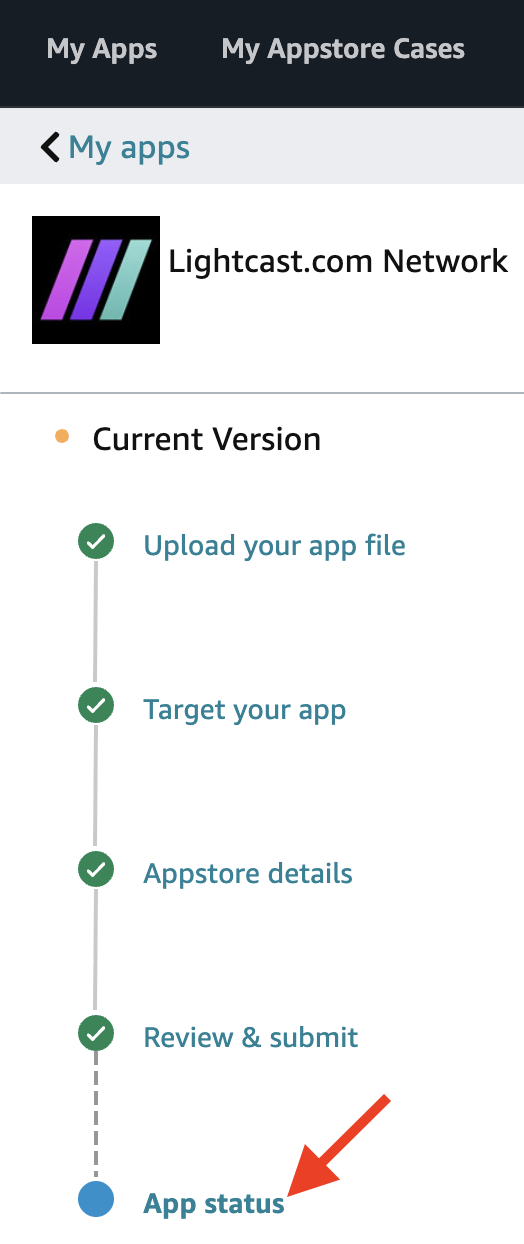
In the left-side menu, click App status. Then click Details to view Amazon’s rejection message.
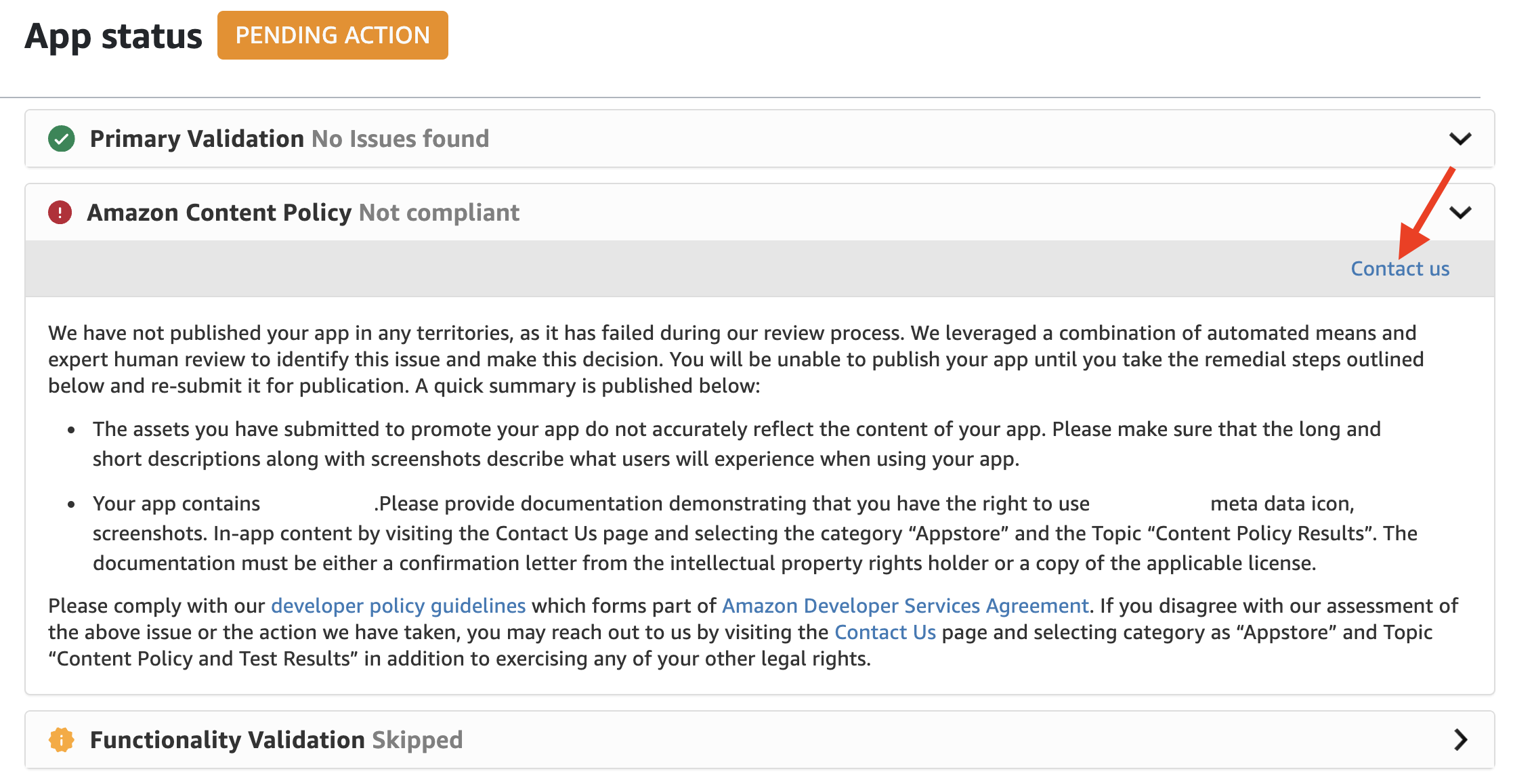
If the rejection details include a Contact us link, click Contact us from the rejection message.
Step 6
Click Contact us to submit your appeal.
If you do not see a Contact us link in the rejection details, open Developer Support from the Amazon Developer Console.
Use the support or help option in the console to reach the Developer Support contact form.
Step 7
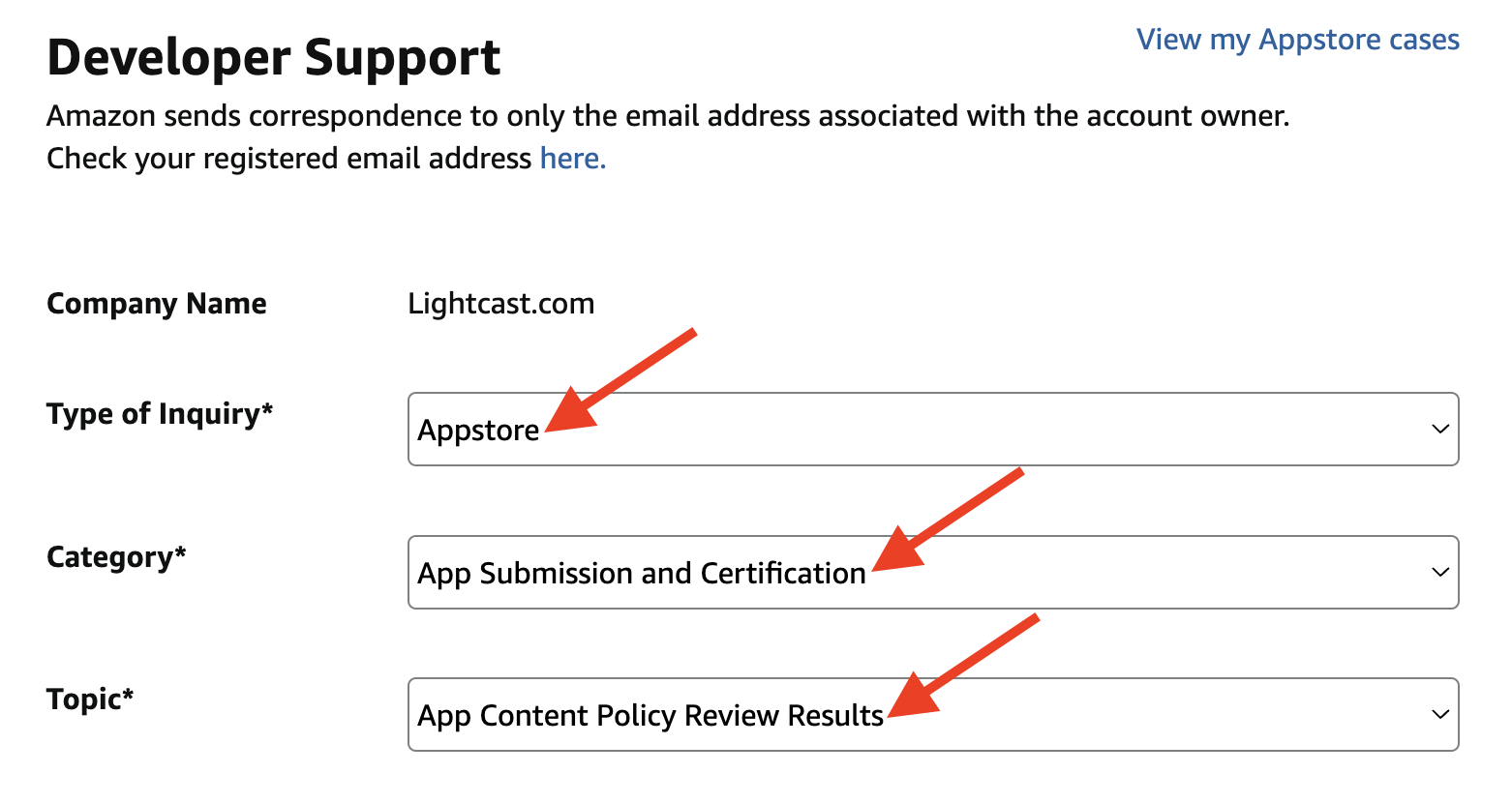
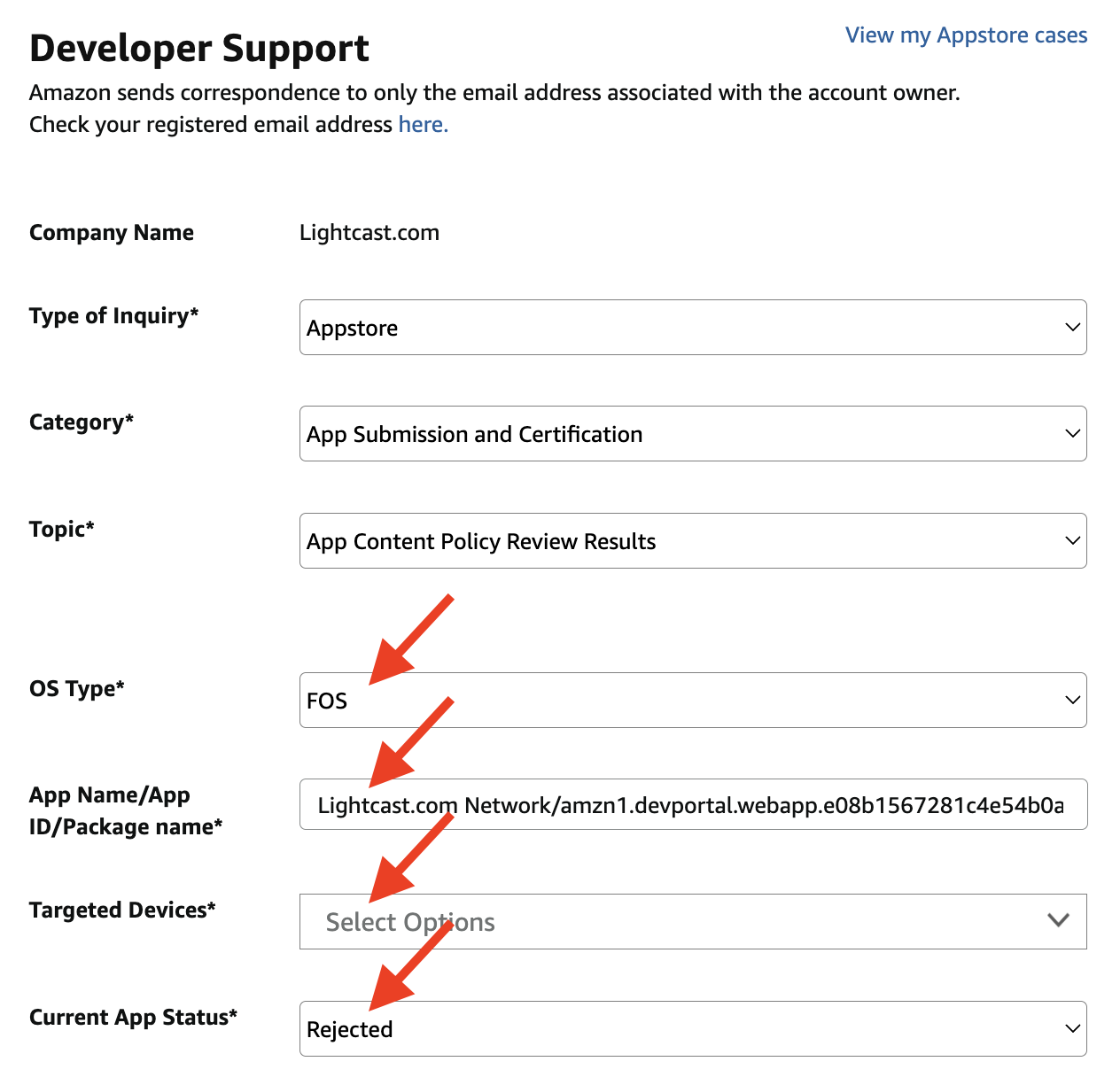
Complete the first section of the Developer Support form.
Use the following selections when available:
Type of Inquiry: Appstore
Category: App Submission and Certification
Topic: App Content Policy Review Results
Step 8
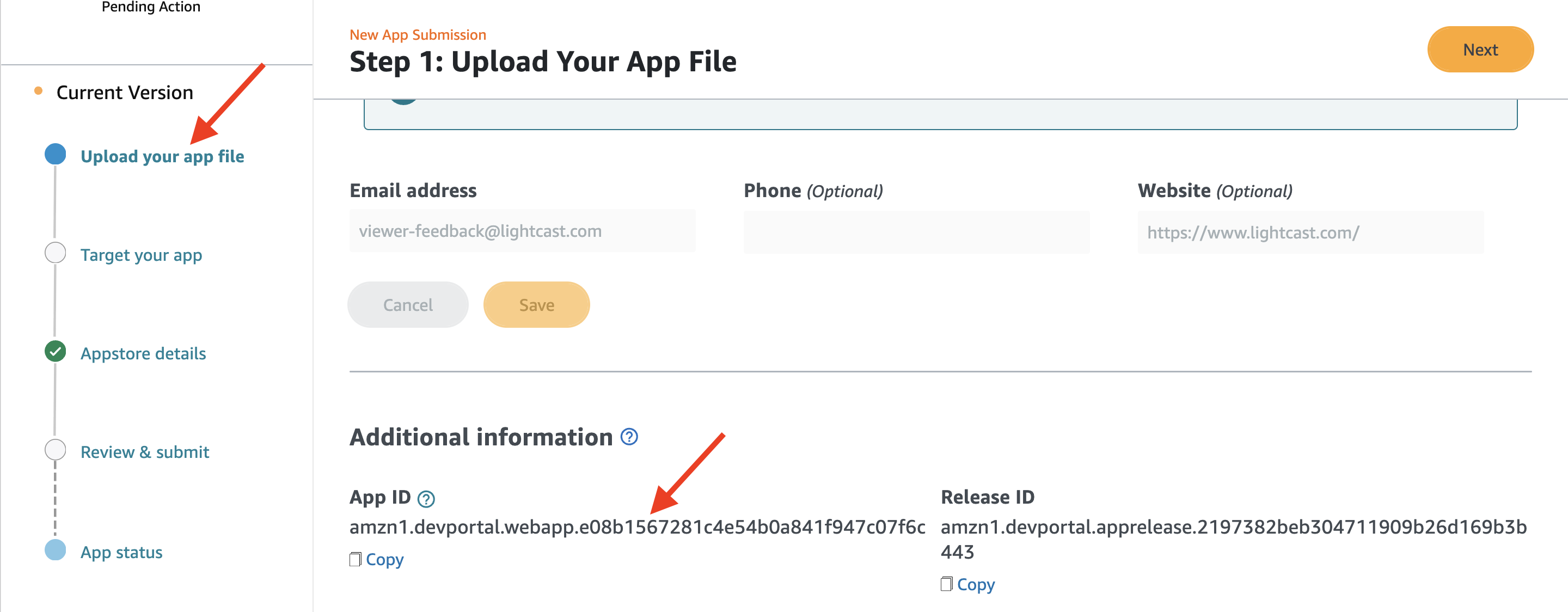
If needed, look for the App ID in your Amazon Developer Console.
Go to My Apps, open the app listing, and check the Upload your app file screen. The App ID should appear in the Additional information section.
If you cannot find the App ID, you can still submit the form with the app name and any other available app details. Amazon should still be able to identify the app from the account, app name, targeted device, and rejection details.
Step 9
Enter the rejected app details.
Complete the fields that identify the rejected Fire TV app:
For OS Type, select the option that matches the app submission Amazon rejected. In this example, FOS is selected. If you are unsure which option applies, use the OS type shown in your Amazon Developer Console or rejection details.
For App Name/App ID/Package name, enter the app name. If you have access to the App ID or package name, include that information as well.
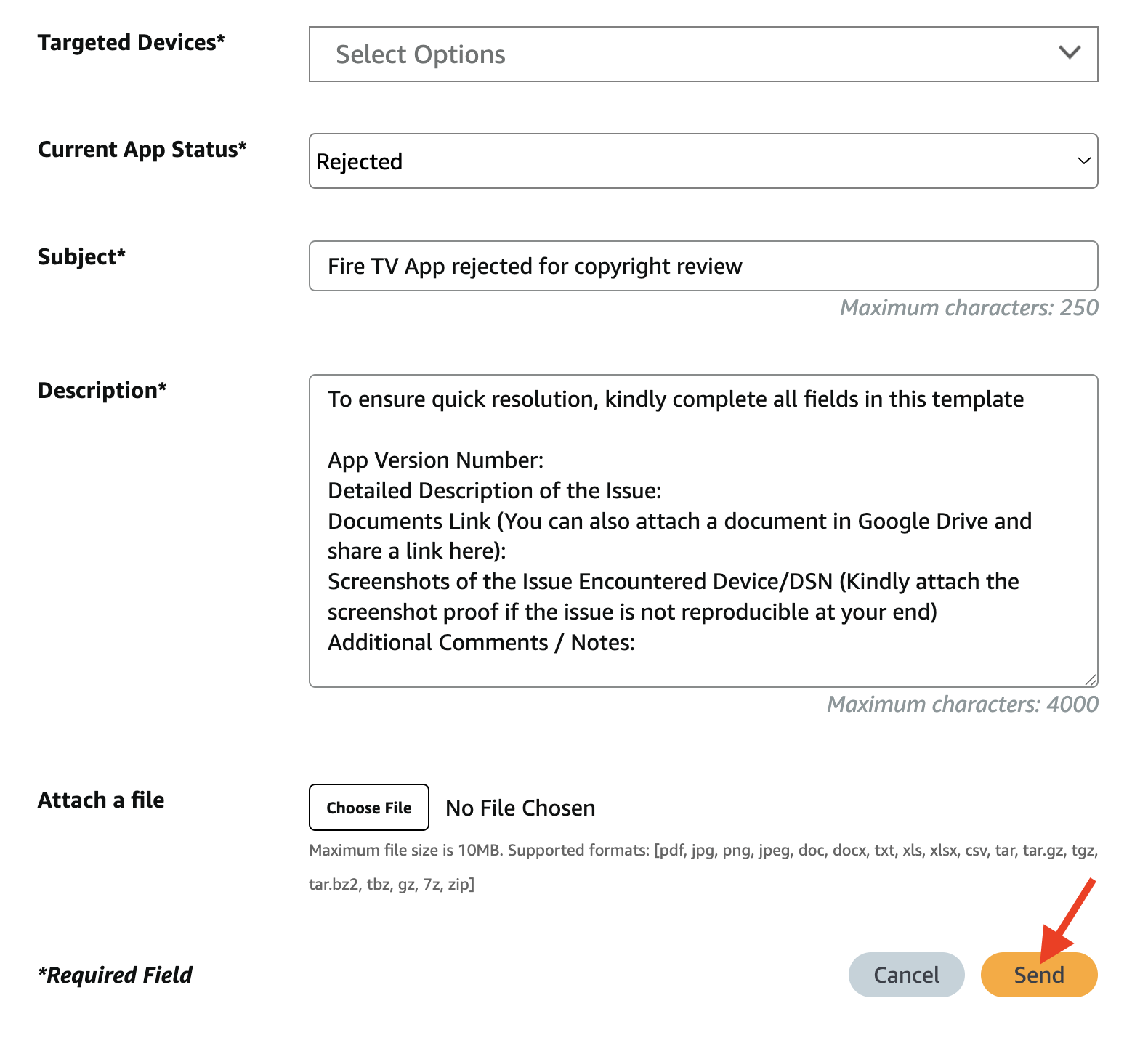
For Targeted Devices, select Amazon Fire TV.
For Current App Status, select Rejected or the closest available status shown in your Amazon Developer Console.
Step 10
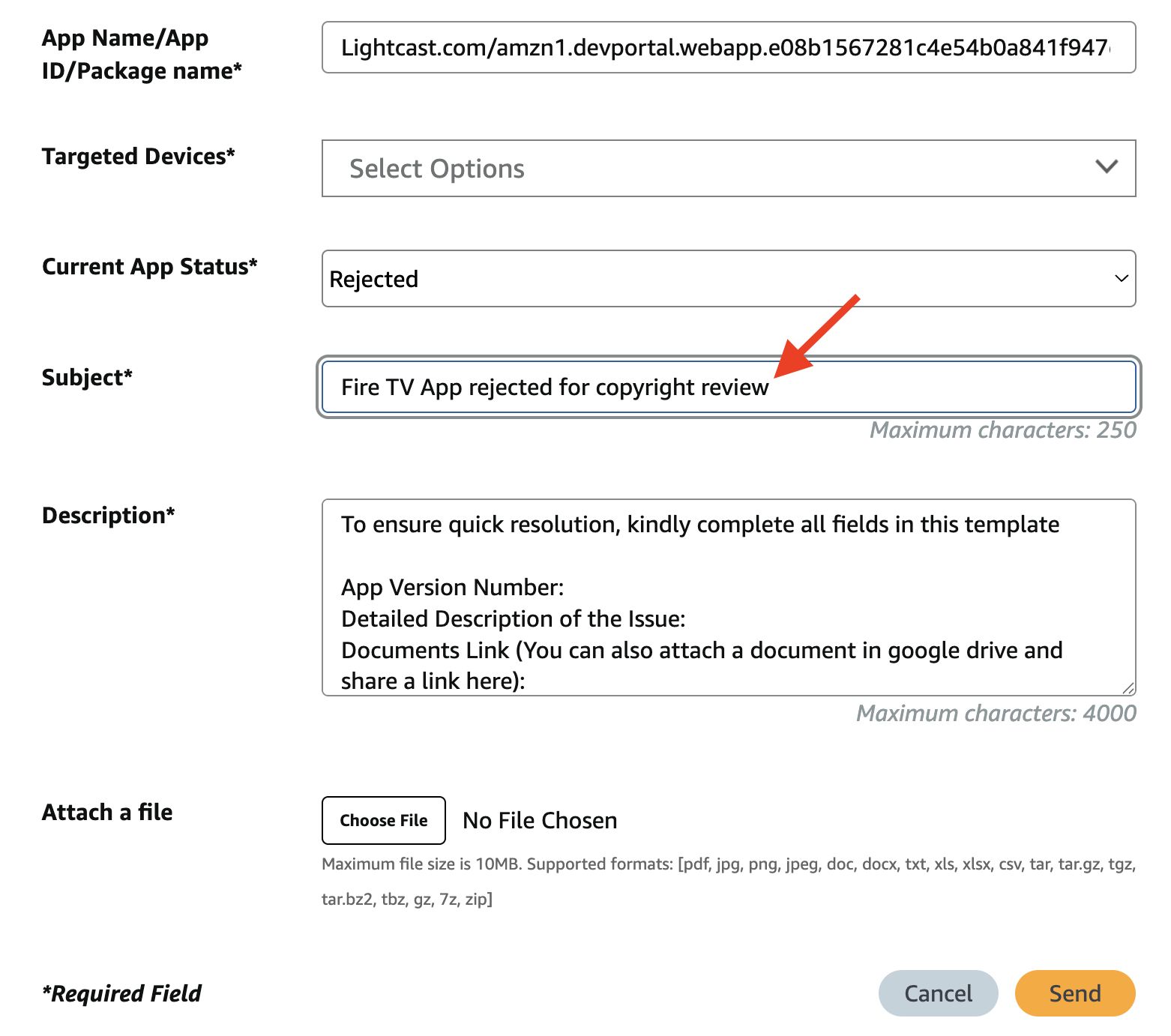
Fill out the Subject field.
Use a short subject that clearly explains the issue, such as: Fire TV App rejected for copyright review
Step 11
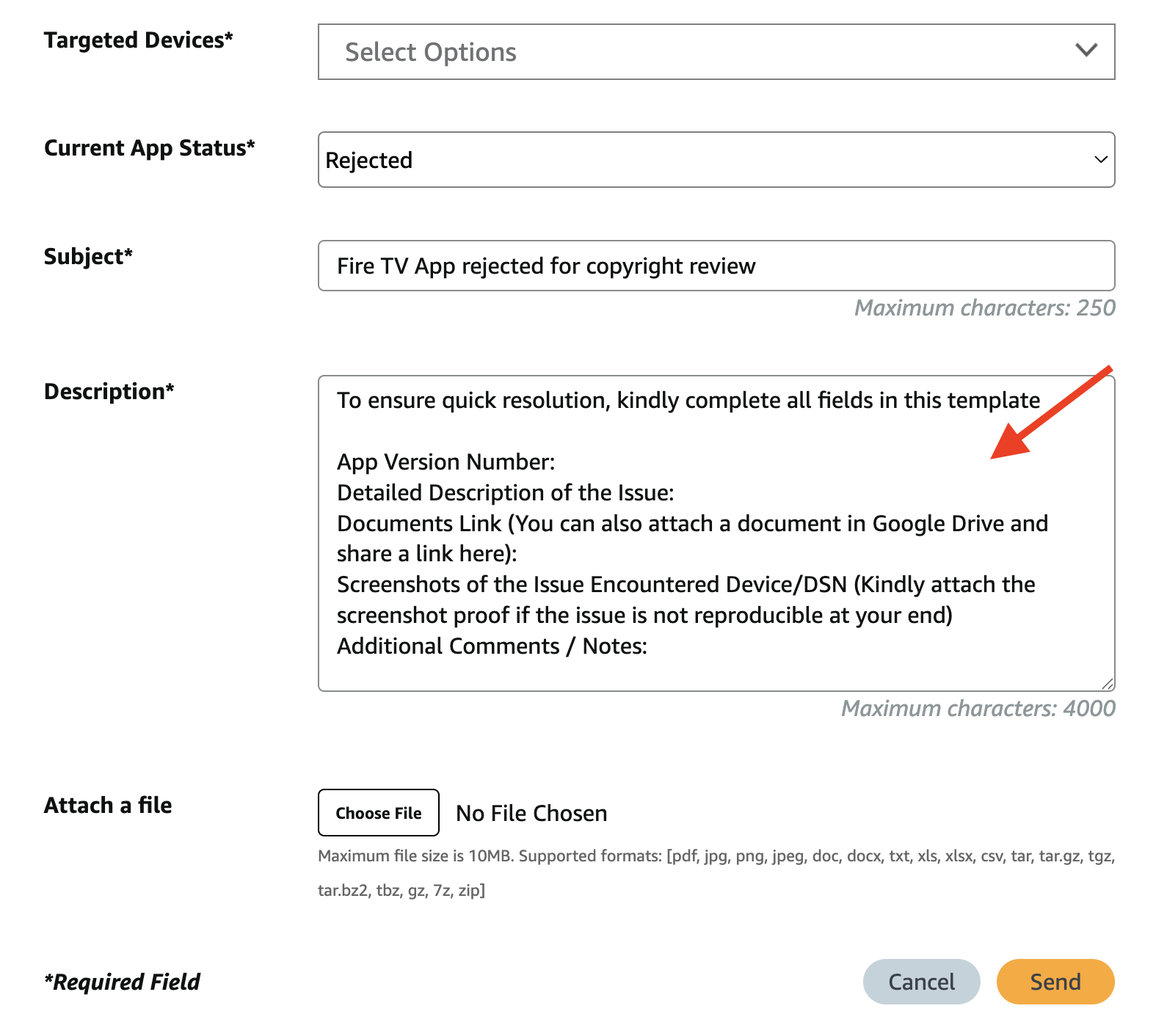
Fill out the Description field and include the details Amazon needs to review your claim.
Use Amazon’s template in the description box as your guide. Include the applicable details below:
App Version Number: [add the app version number, if available]
Detailed Description of the Issue: Our Fire TV app was rejected due to a copyright, intellectual property, name, brand, or permission concern. We attached documentation showing that we have the necessary rights to publish the app and display the content, graphics, app name, and related metadata.
Documents Link: [add a link to your permission letter, license agreement, or proof of rights, if available]
Screenshots of the Issue Encountered Device/DSN: [add screenshot details only if Amazon requested them or if they apply to your issue]
Additional Comments / Notes: add any additional relevant details
If you are attaching the permission letter or license agreement directly to the form, you can also mention that in the Documents Link or Additional Comments / Notes field.
Step 12
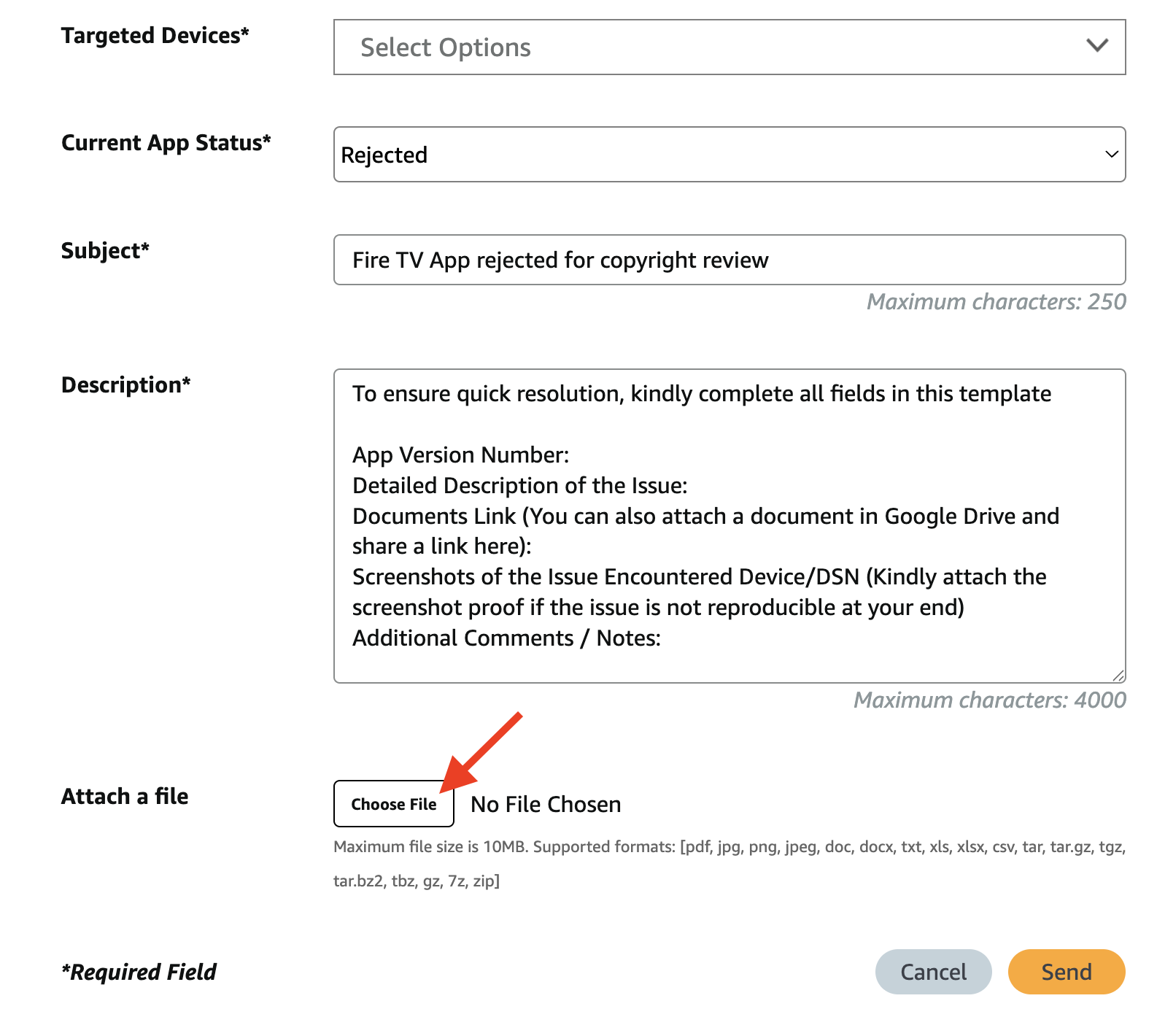
Attach your permission letter, license agreement, or other proof of rights under Attach a File.
Step 13
Click Send to submit your appeal to Amazon.
Amazon should send a confirmation email after receiving your appeal.
Step 14
After Amazon approves your claim, contact Customer Support and let them know Amazon accepted your documentation.
This is important because Lightcast’s developers need to know when the Fire TV app can be resubmitted.
FAQs
Why should the Fire TV app name match the Amazon Developer Account name?
Matching the Fire TV app name to the Amazon Developer Account name can help Amazon confirm that the account owner has the right to publish the app and its content.
If the names do not match, Amazon may request additional documentation before approving the app.
Can the Fire TV app name be different from the Amazon Developer Account name?
Yes. However, Amazon may ask for proof that you have the right to use the app name, brand, content, graphics, and related metadata.
This does not always mean the app cannot be approved. It means you may need to provide documentation that explains the relationship between the app name and the Amazon Developer Account name.
Should proof of ownership be prepared in advance?
Only if the Amazon Developer Account name differs from the Fire TV app name. Preparing this documentation in advance can help prevent delays if Amazon requests proof during the app review process.
If the app includes content that you did not create, you should also be prepared to provide license agreements or other proof that you have the right to use the content.
What documentation may Amazon request if the app name and Developer Account name are different?
Amazon may request documentation that confirms the relationship between your organization, your Amazon Developer Account, your app name, and the content in the app.
This may include a permission letter, license agreement, proof of ownership, or other documentation that shows you have the right to publish the app and content.
What should be provided if the app contains licensed content?
If your app contains content that was not produced by your organization, be prepared to provide license agreements or written permission showing that you have the right to use the content in your app.
What should be provided if the app contains original content?
If your app contains content produced by you or your organization, explain to Amazon that the content was produced by you or your team and that you own the rights to use it in the app.
What should happen after Amazon approves the copyright or permission claim?
After Amazon approves your claim, contact Customer Support and let them know Amazon accepted your documentation.
Lightcast’s developers need this information so they can continue with the Fire TV app submission process.