
How to create an Amazon Developer Account for your Fire TV app
Overview
This article explains how to create an Amazon Developer Account for your Fire TV app and how to give Lightcast access to manage the app submission so that we can build, package, and submit the app for you.
For Amazon’s official instructions, you can also review their developer documentation.
How it works
To submit a Fire TV app to the Amazon Appstore, the app must be managed inside an Amazon Developer Account. This account belongs to you, but Lightcast needs admin access so our team can prepare the app files, upload the required store information, and complete the submission process on your behalf.
Before continuing, make sure you have access to an Amazon account and are ready to create a developer account with Amazon. You must also add developer@lightcast.com as an admin user after setup is complete. Without this access, Lightcast cannot prepare or submit your Fire TV app.
Instructions
Step 1
Review Amazon’s official developer registration page at: https://developer.amazon.com/docs/app-submission/manage-account-and-permissions.html#create_account
Step 2
Go to https://developer.amazon.com/ and sign in with your Amazon account, or create one if needed.
Step 3
Complete the developer registration form:
Choose Individual or Company
Enter your contact and payment information
Accept the Amazon Developer Agreement
Step 4
Submit your registration.
Step 5
After creating your developer account, Amazon requires you to verify your identity before the account can be fully used.
Follow Amazon’s identity verification steps here: https://developer.amazon.com/docs/app-submission/identity-verification.html#how-to-verify-your-identity
Complete all verification requirements requested by Amazon before continuing to the next step.
Step 6
After your developer account has been created and verified, you must add Lightcast as an admin user. For Amazon’s official guide, visit: https://developer.amazon.com/docs/app-submission/manage-account-and-permissions.html#add_other_users
Log in to your Amazon Developer Console.
Step 7
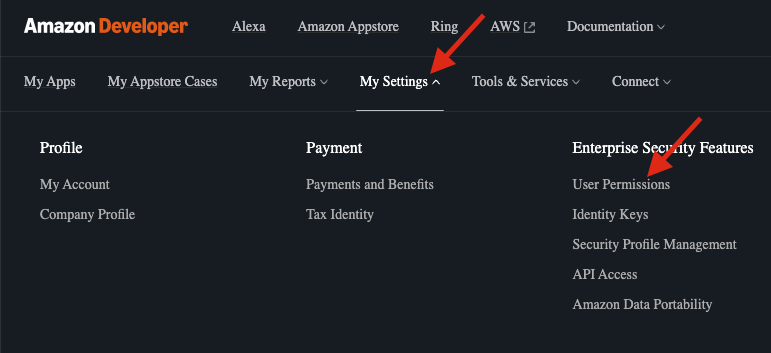
Navigate to My Settings → User Permissions.
Step 8
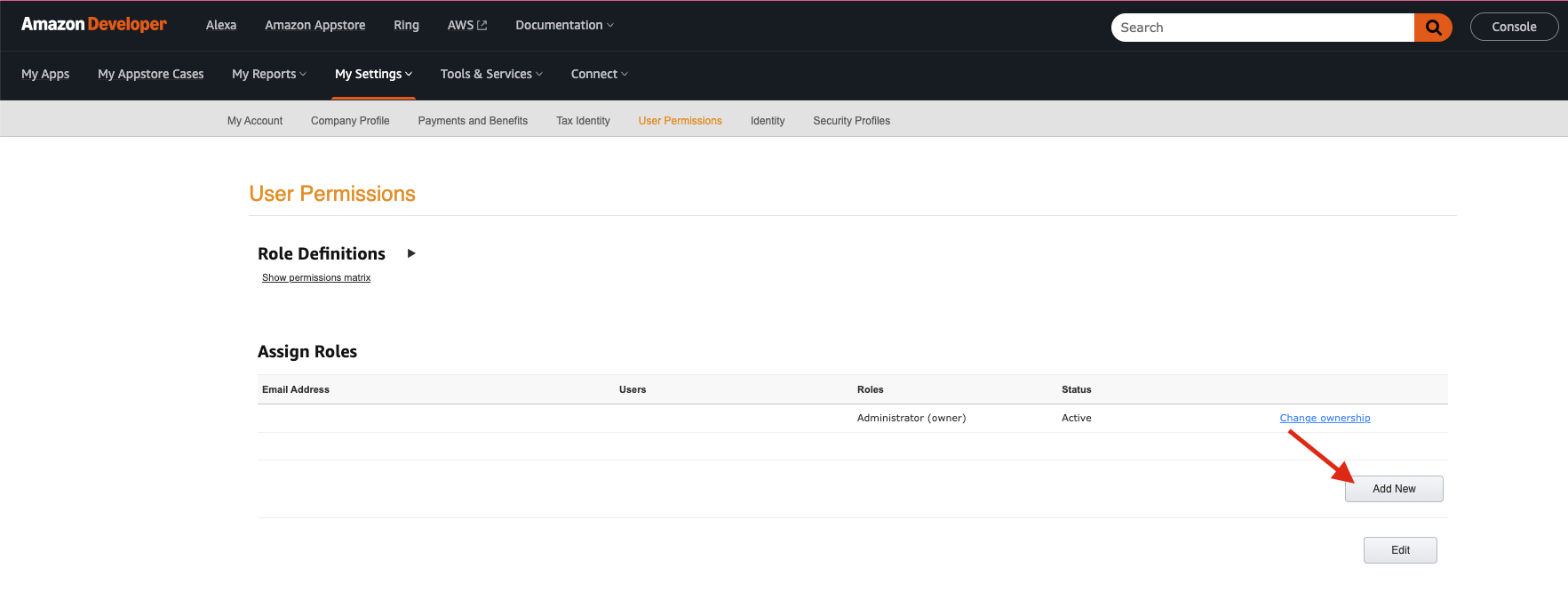
Select Add New.
Step 9
Enter the following email address: developer@lightcast.com

Step 10
Assign the role: Administrator, then click Save to send the invite.

Step 11
Once the invitation has been sent, please notify Customer Support to ensure that Lightcast can accept it and continue preparing your app submission.
FAQs
Why do I need to create the Amazon Developer Account myself?
The Amazon Developer Account must be created and owned by you or your organization. Lightcast cannot create this account on your behalf.
Do I need to pay Amazon to create a developer account?
Amazon may charge a developer registration fee. Please refer to Amazon’s official documentation for current pricing.
Why does Lightcast need admin access?
Lightcast needs admin access to build, package, upload, and submit your Fire TV app through your Amazon Developer Account.
Can Lightcast create the account for me?
No. The account must be created by you (the app owner). However, we can assist you during the setup process.
What happens if I do not add developer@lightcast.com as an admin?
Lightcast will not be able to access your account to prepare or submit your Fire TV app.
Amazon: Manage Account and Permissions: https://developer.amazon.com/docs/app-submission/manage-account-and-permissions.html
Amazon: Create an Account: https://developer.amazon.com/docs/app-submission/manage-account-and-permissions.html#create_account
Amazon: Verify Your Identity: https://developer.amazon.com/docs/app-submission/identity-verification.html#how-to-verify-your-identity
Amazon: Add Other Users: https://developer.amazon.com/docs/app-submission/manage-account-and-permissions.html#add_other_users
Timeline for building and launching new apps in the App Stores
Customer Care appointment scheduling: https://customercare.lightcast.com