
Troubleshooting: Apple AirPlay button is not showing in the Web Player
Overview
This article explains what to check when the Apple AirPlay button is not showing in the Web Player.
When to use this article
Use this article when a viewer expects to see the Apple AirPlay button in the Web Player, but the button is missing.
This article applies to Apple AirPlay support in the Web Player. For Chromecast or Google Cast troubleshooting, see Troubleshooting: Chromecast button is not showing in the Web Player.
How it works
The Apple AirPlay button appears in the Web Player when the player can detect a supported AirPlay setup.
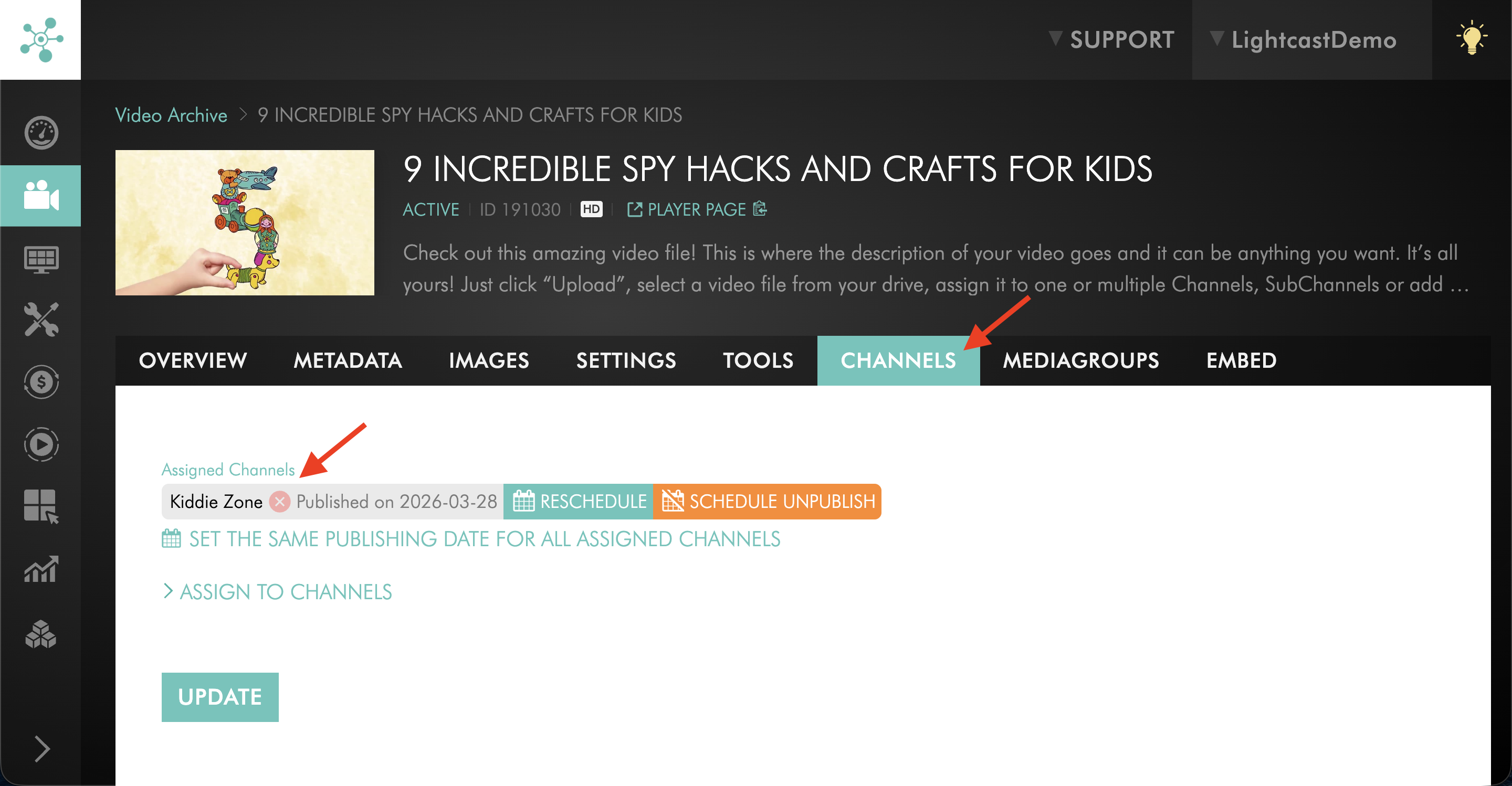
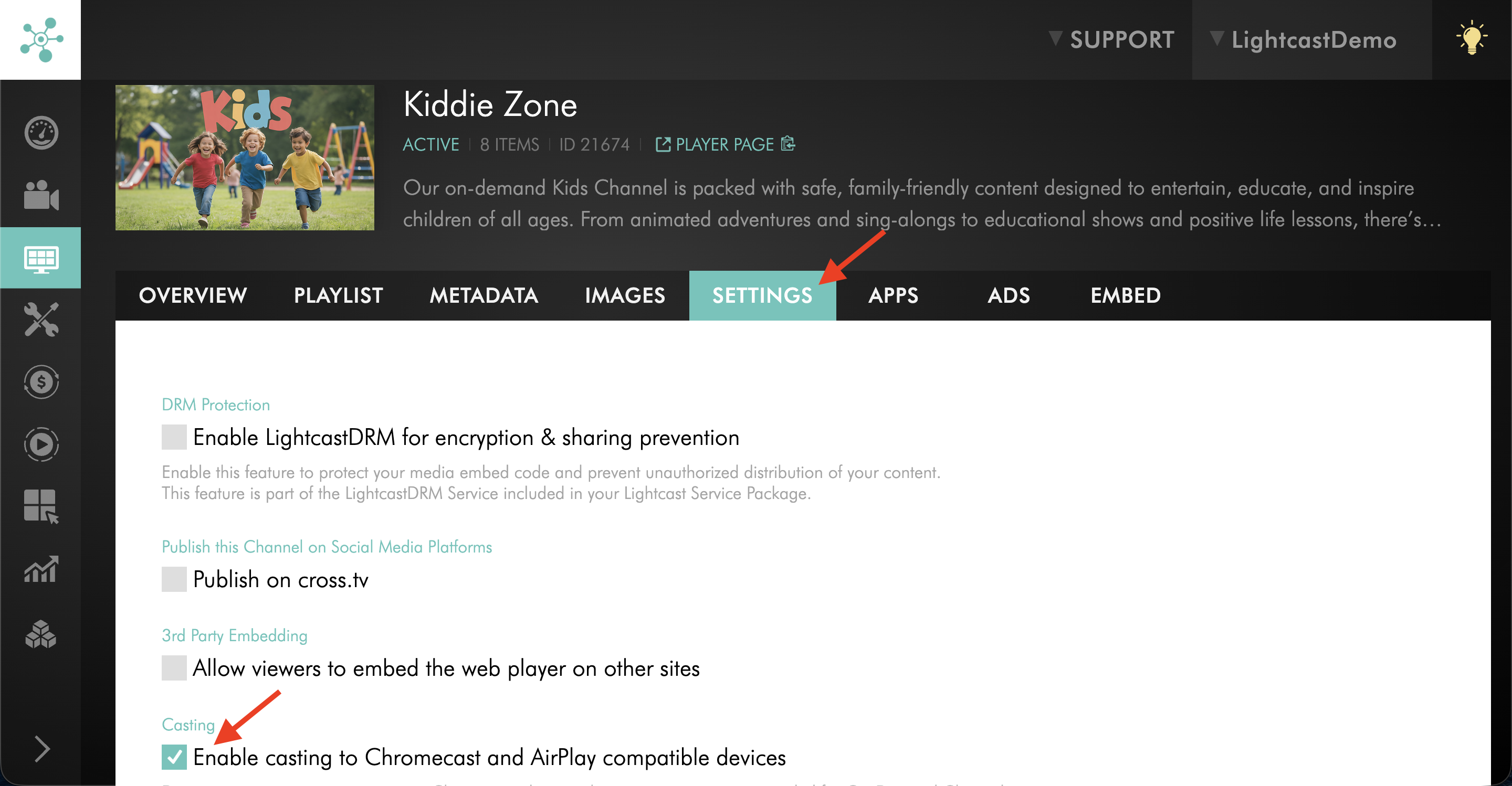
The media item must be assigned to a Channel in the Media Cloud, and Chromecast and Apple AirPlay support must be enabled for that Channel. To learn how to enable Chromecast and Apple AirPlay support, see How to enable or disable Chromecast and Apple AirPlay for a Channel.
AirPlay support depends on the viewer’s device, browser or player environment, and AirPlay-compatible receiving device.
The viewer’s device and AirPlay-compatible receiving device must be connected to the same network. If the devices are connected to different networks, the AirPlay button may not appear.
The Web Player and the page where the player is embedded should be loaded over HTTPS/SSL. Lightcast WebApps and player.lightcast.com Player Landing Pages are loaded over HTTPS/SSL.
Instructions
Step 1
Confirm that the media item is assigned to a Channel in the Media Cloud.
Step 2
Confirm that Chromecast and Apple AirPlay support is enabled for that Channel.
Step 3
Confirm that the viewer is using an AirPlay-compatible device, browser, or player environment.
Step 4
Confirm that the viewer is trying to cast to an AirPlay-compatible receiving device.
Step 5
Confirm that the viewer’s device and AirPlay-compatible receiving device are connected to the same network.
Step 6
Confirm that the Web Player and the page where it is embedded are loaded over HTTPS/SSL.
FAQs
Does the media item need to be assigned to a Channel?
Yes. The media item must be assigned to a Channel that has Chromecast and Apple AirPlay support enabled. To learn how to enable Chromecast and Apple AirPlay support, see How to enable or disable Chromecast and Apple AirPlay for a Channel.
Does Apple AirPlay work on every device or browser?
No. AirPlay support depends on the viewer’s device, browser or player environment, and AirPlay-compatible receiving device.
Does the receiving device need to support AirPlay?
Yes. The viewer must use an AirPlay-compatible receiving device, such as an Apple TV or supported Smart TV.
Do the viewer’s device and AirPlay-compatible receiving device need to be on the same network?
Yes. The viewer’s device and AirPlay-compatible receiving device must be connected to the same network.
Does the Web Player need to be loaded over HTTPS/SSL?
The Web Player and the page where it is embedded should be loaded over HTTPS/SSL. Lightcast WebApps and player.lightcast.com Player Landing Pages are loaded over HTTPS/SSL.