
How to enable or disable Chromecast and Apple AirPlay for a Channel
Overview
This article explains how to enable or disable Chromecast and Apple AirPlay support for a Channel in the Media Cloud.
When to use Chromecast and Apple AirPlay
Use this setting when you want viewers to cast supported media from a Channel to Chromecast, Google Cast, or Apple AirPlay compatible devices.
Chromecast and Apple AirPlay support is managed at the Channel level. Each Channel must be updated individually.
How it works
The Enable casting to Chromecast and AirPlay compatible devices setting controls whether casting support is available for a Channel.
When this setting is enabled, supported media assigned to that Channel can display Chromecast or Apple AirPlay options in compatible player, device, browser, network, and receiver setups.
When this setting is disabled, Chromecast and Apple AirPlay support is turned off for that Channel.
Instructions
VOD Channels
Step 1
Log in to your Media Cloud account.
Step 2
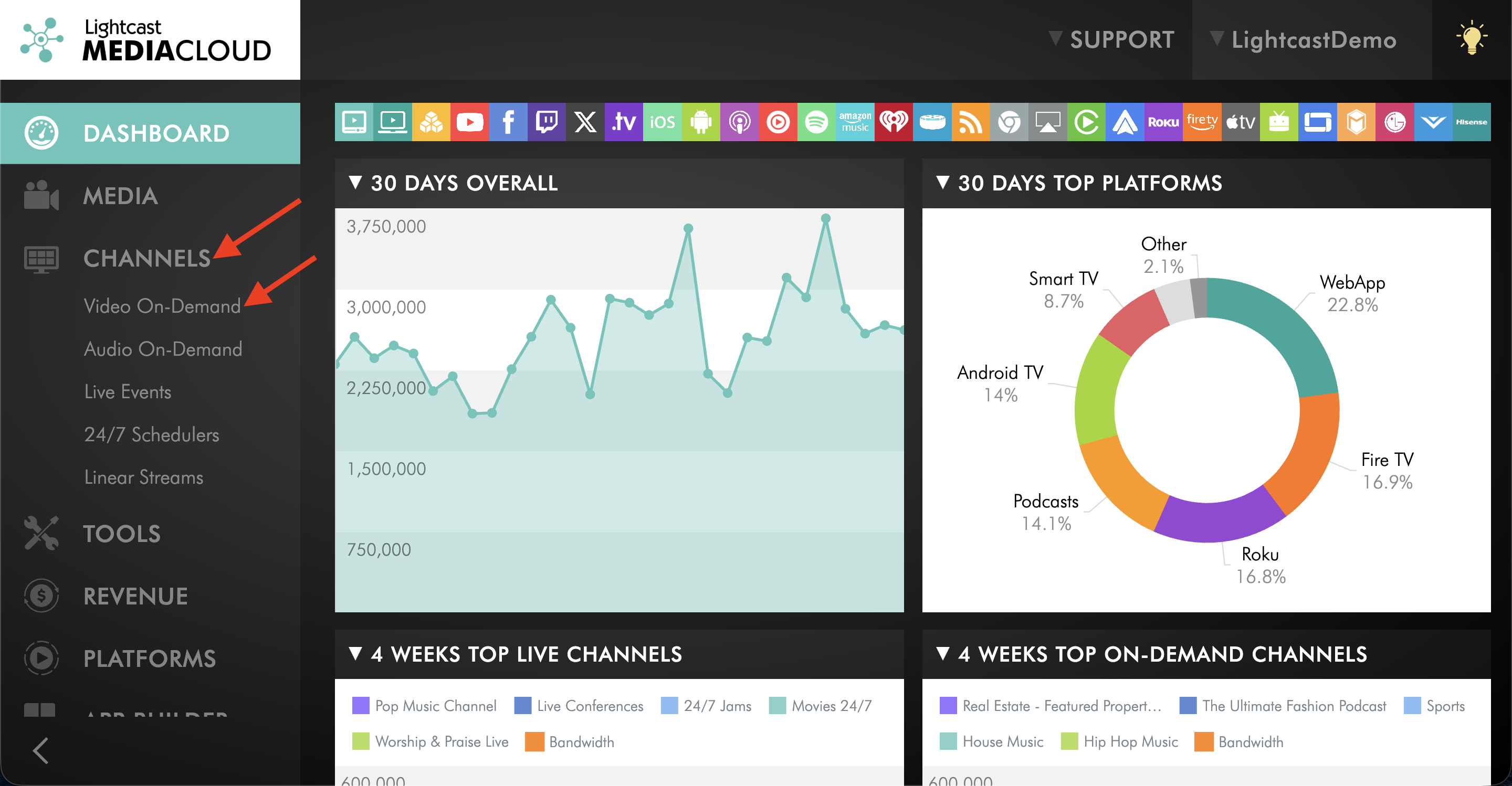
Go to CHANNELS and select Video On-Demand.
Step 3
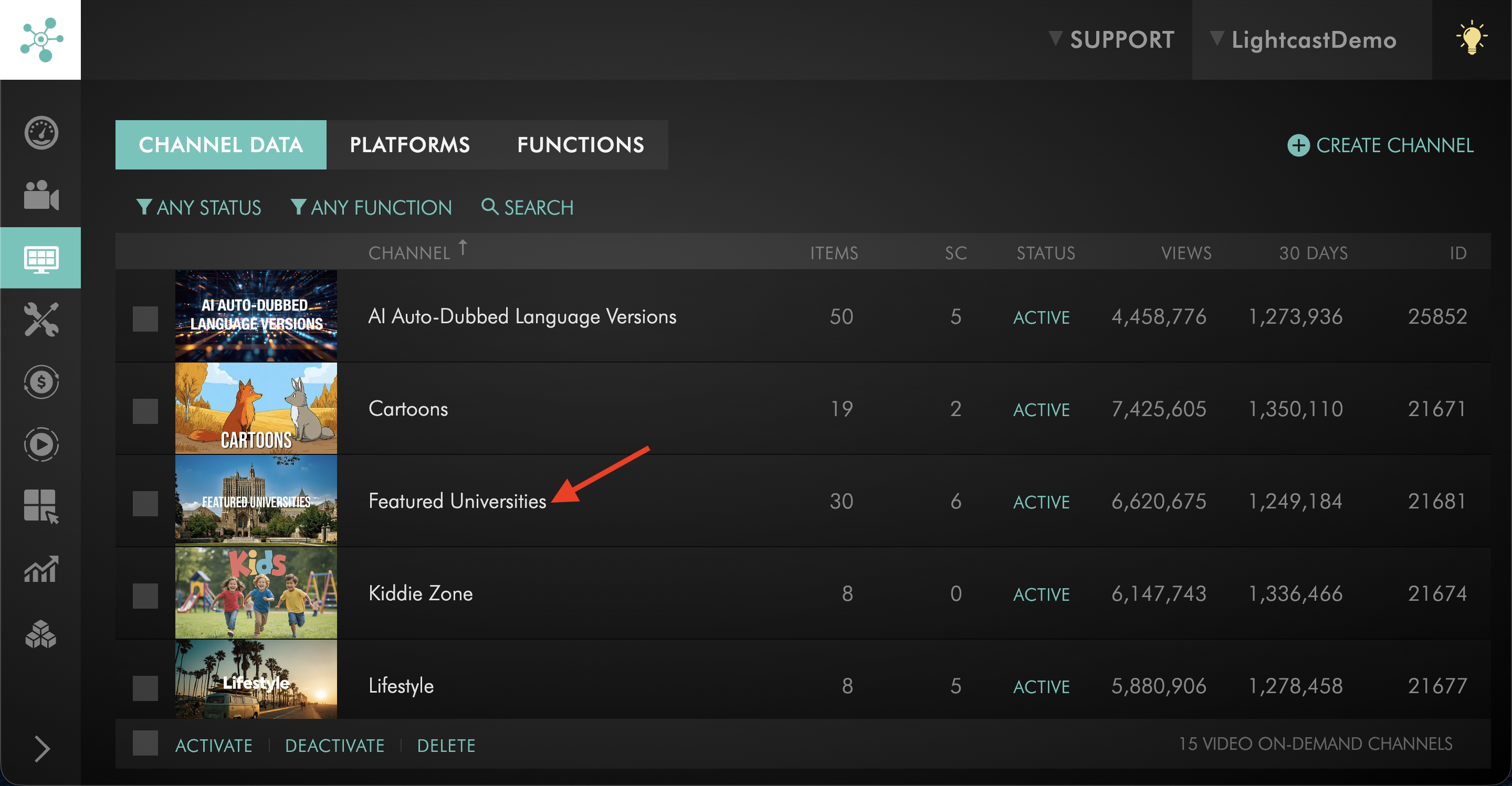
Open the VOD Channel you want to update.
Step 4
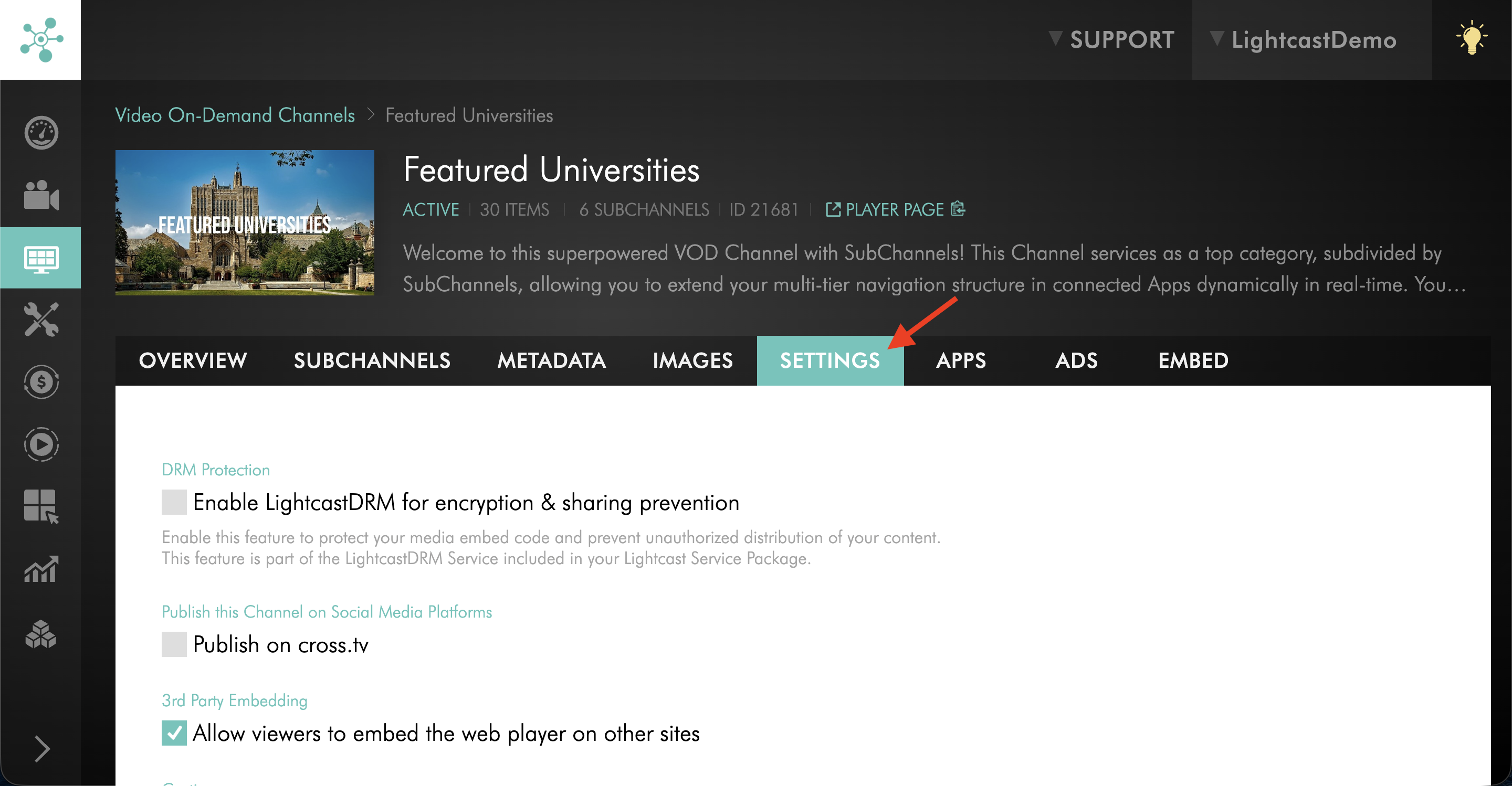
Switch to the SETTINGS tab.
Step 5
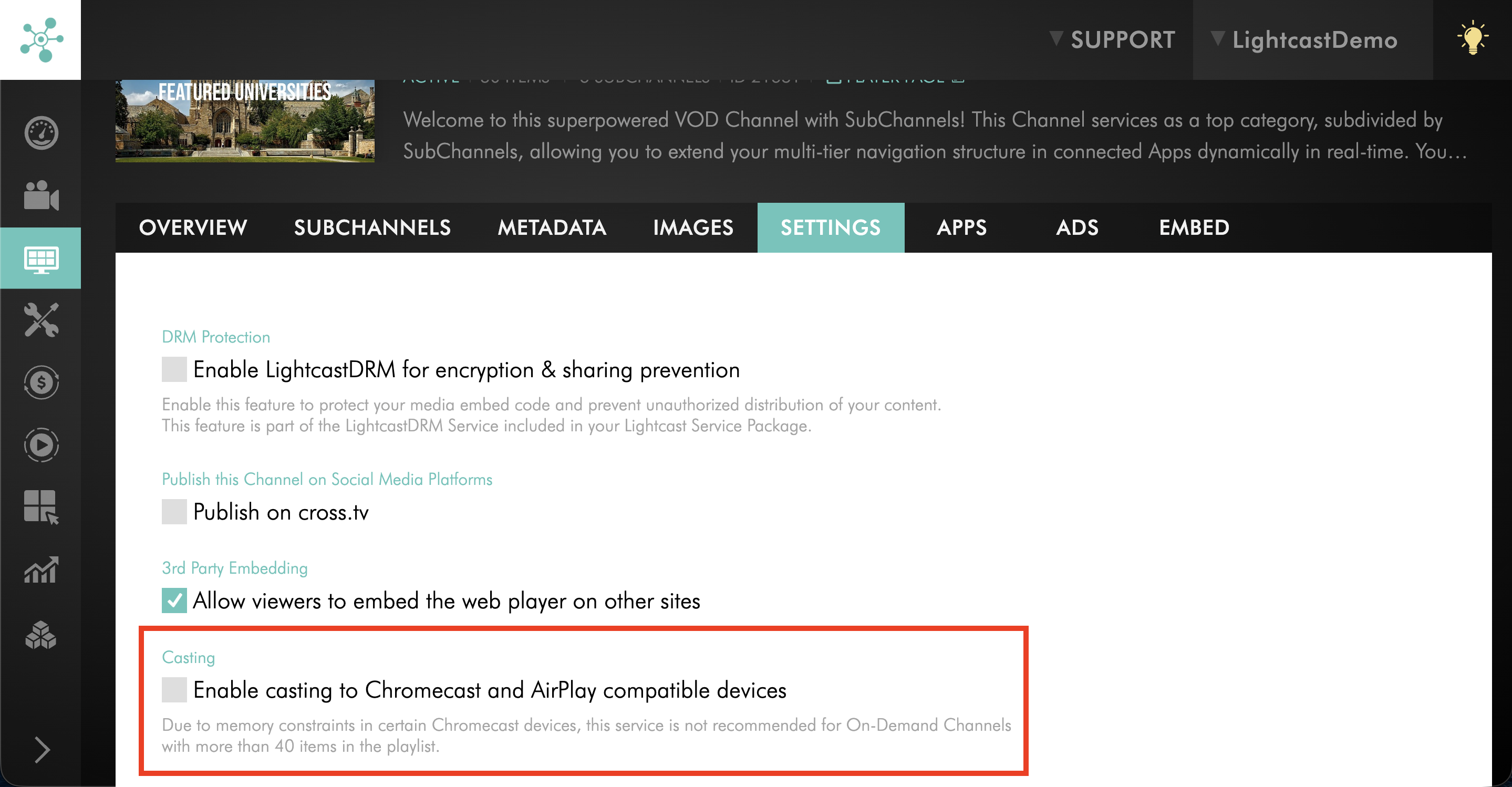
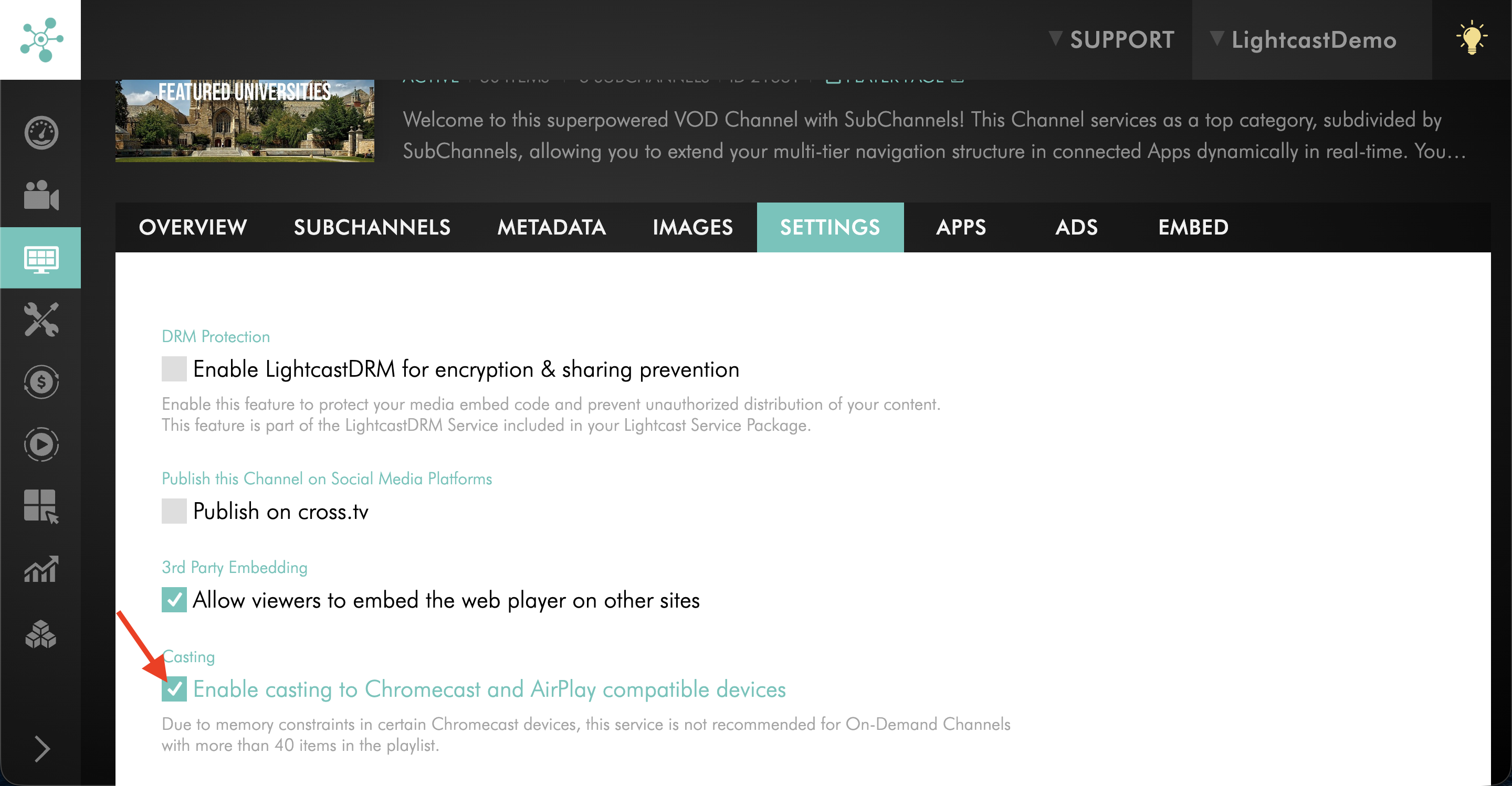
Find the Enable casting to Chromecast and AirPlay compatible devices setting.
Step 6
Enable or disable the setting.
Step 7
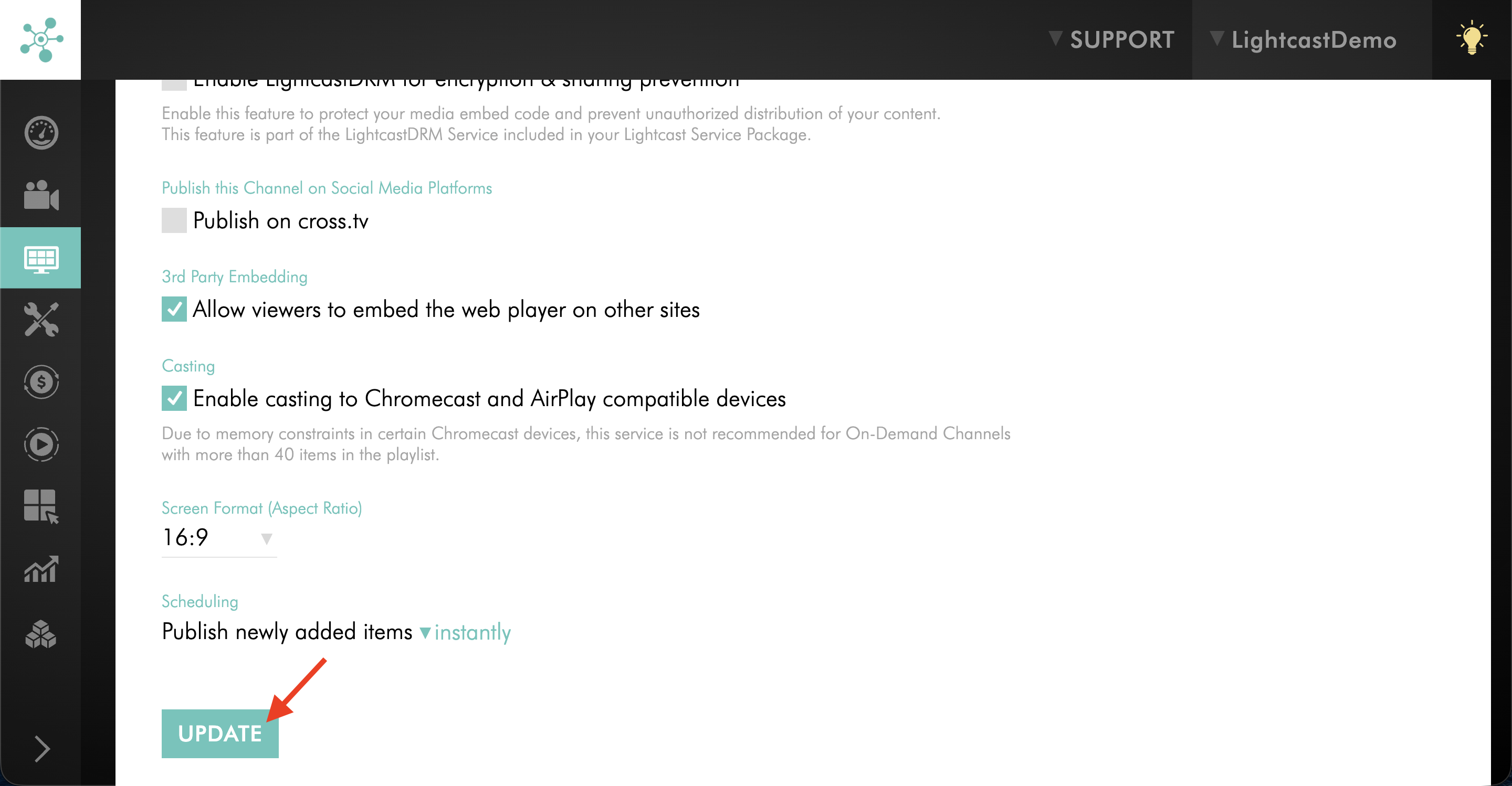
Click UPDATE to save your changes.
AOD Channels
Step 1
Log in to your Media Cloud account.
Step 2
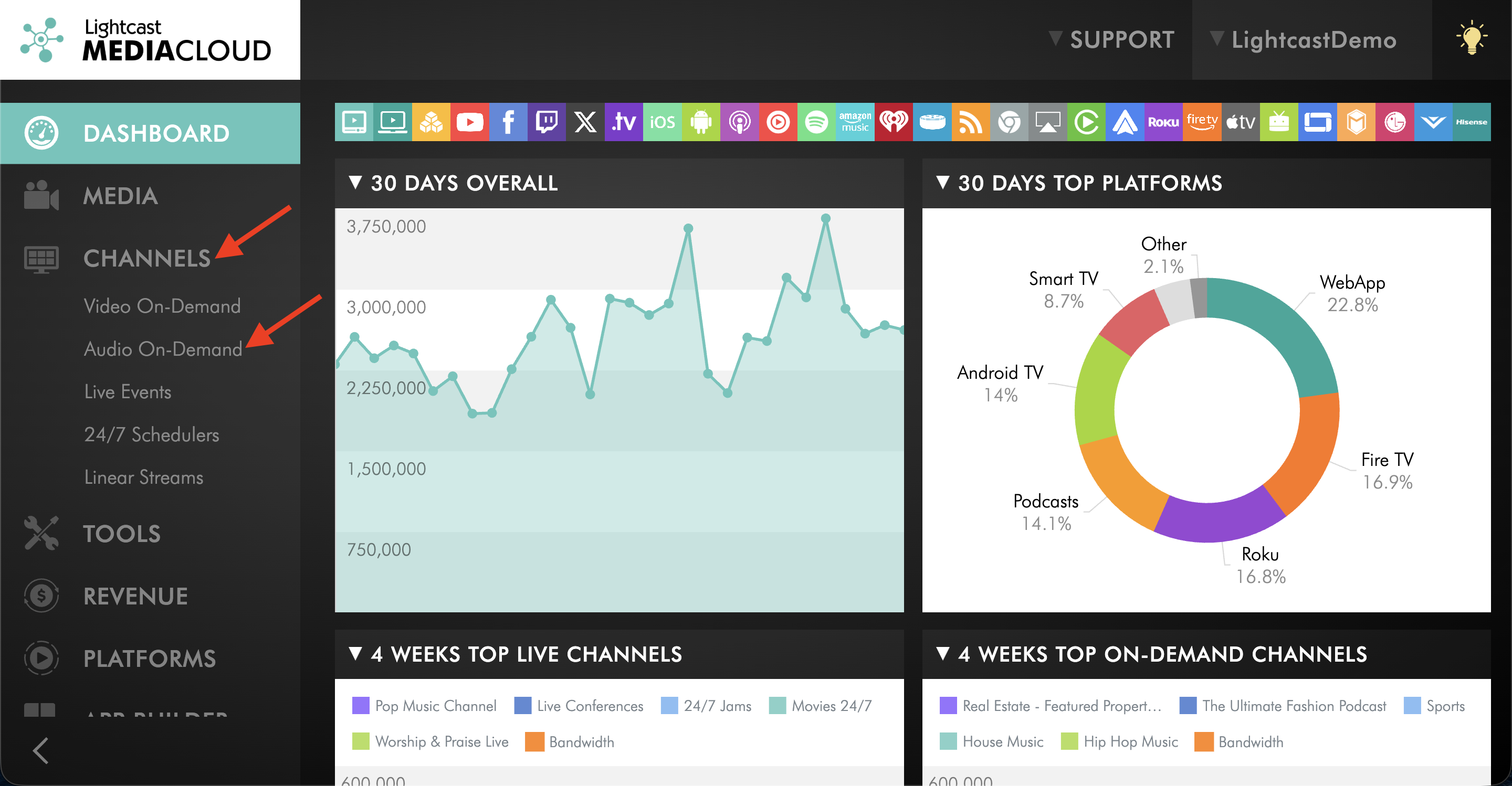
Go to CHANNELS and select Audio On-Demand.
Step 3
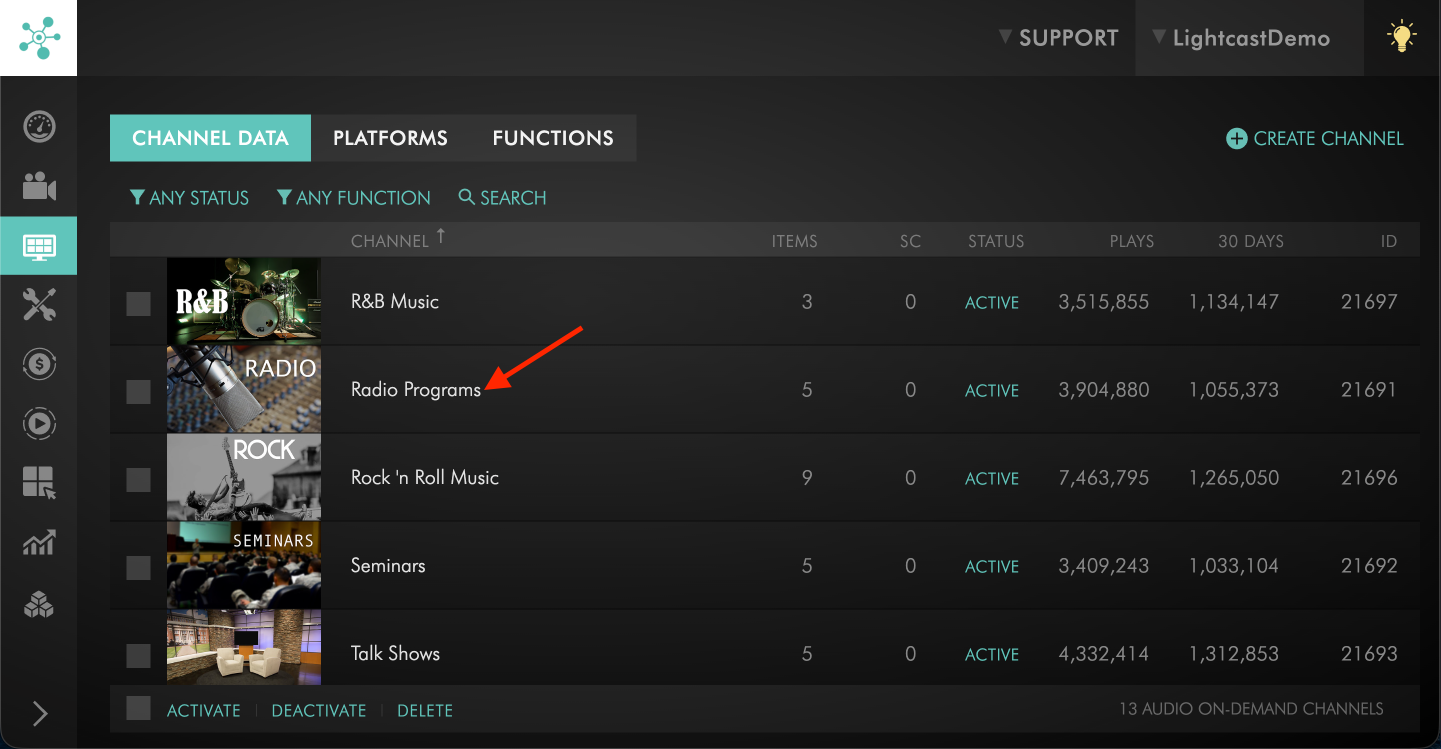
Open the AOD Channel you want to update.
Step 4
Switch to the SETTINGS tab.
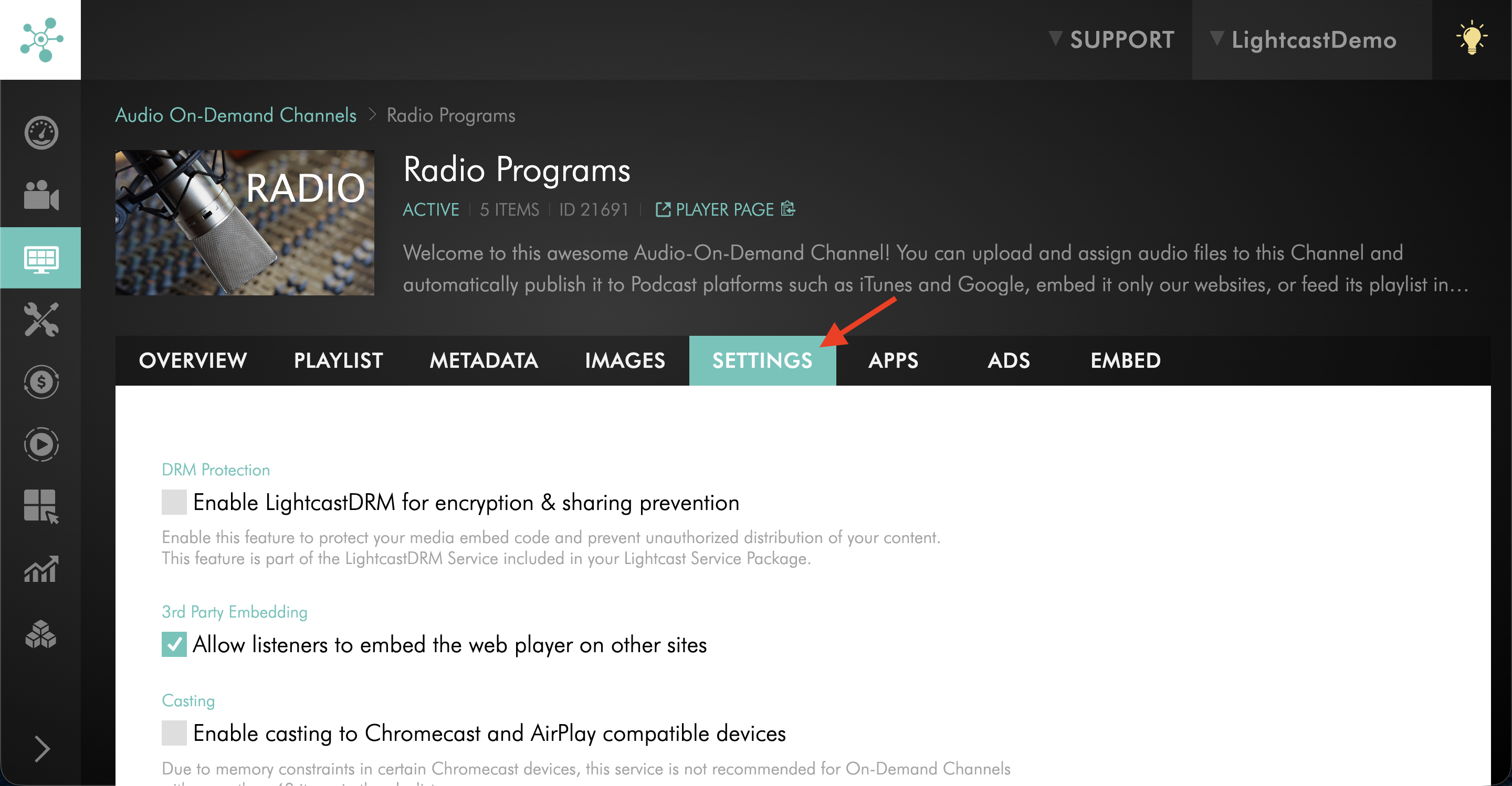
Step 5
Find the Enable casting to Chromecast and AirPlay compatible devices setting.
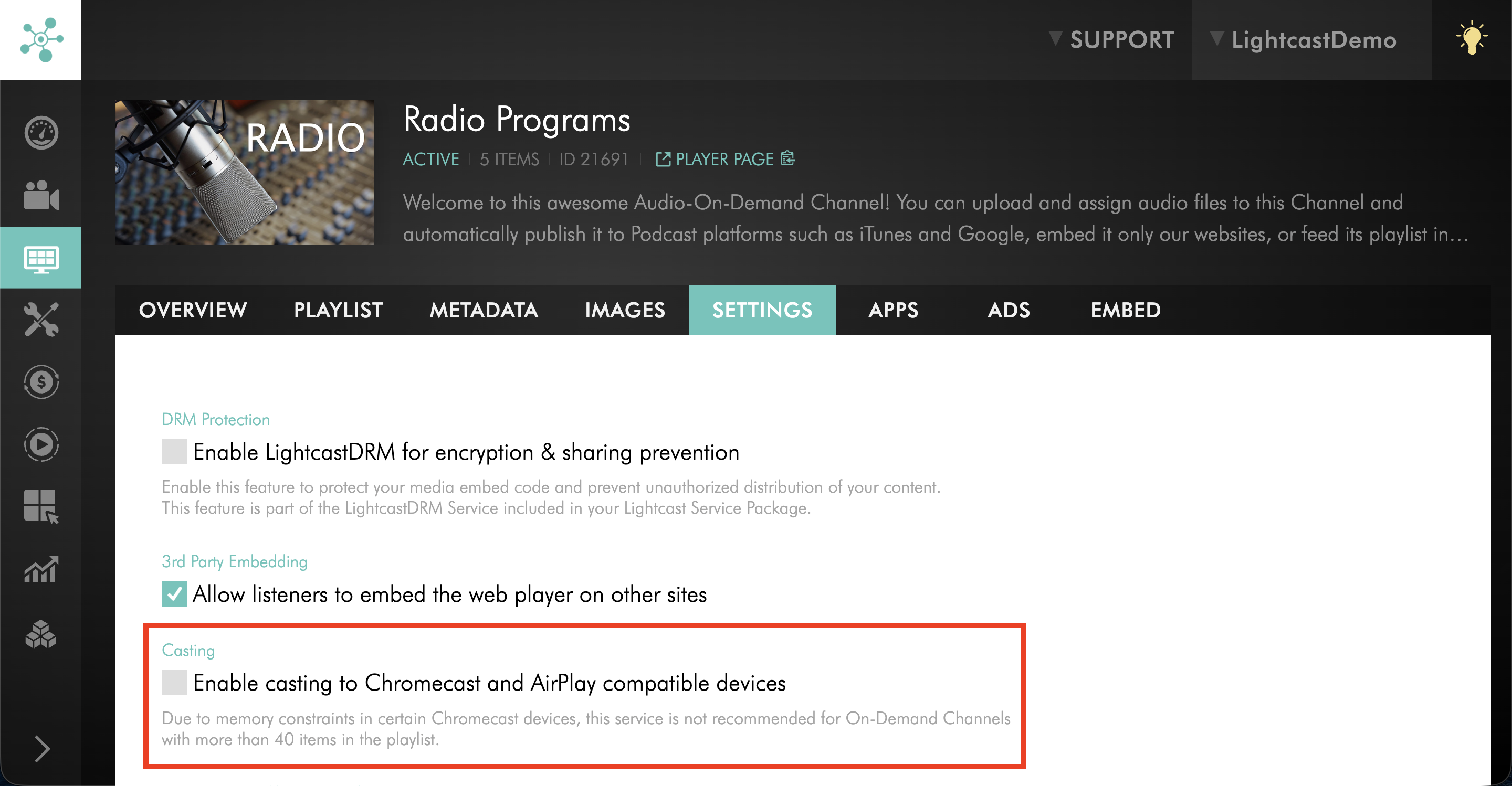
Step 6
Enable or disable the setting.
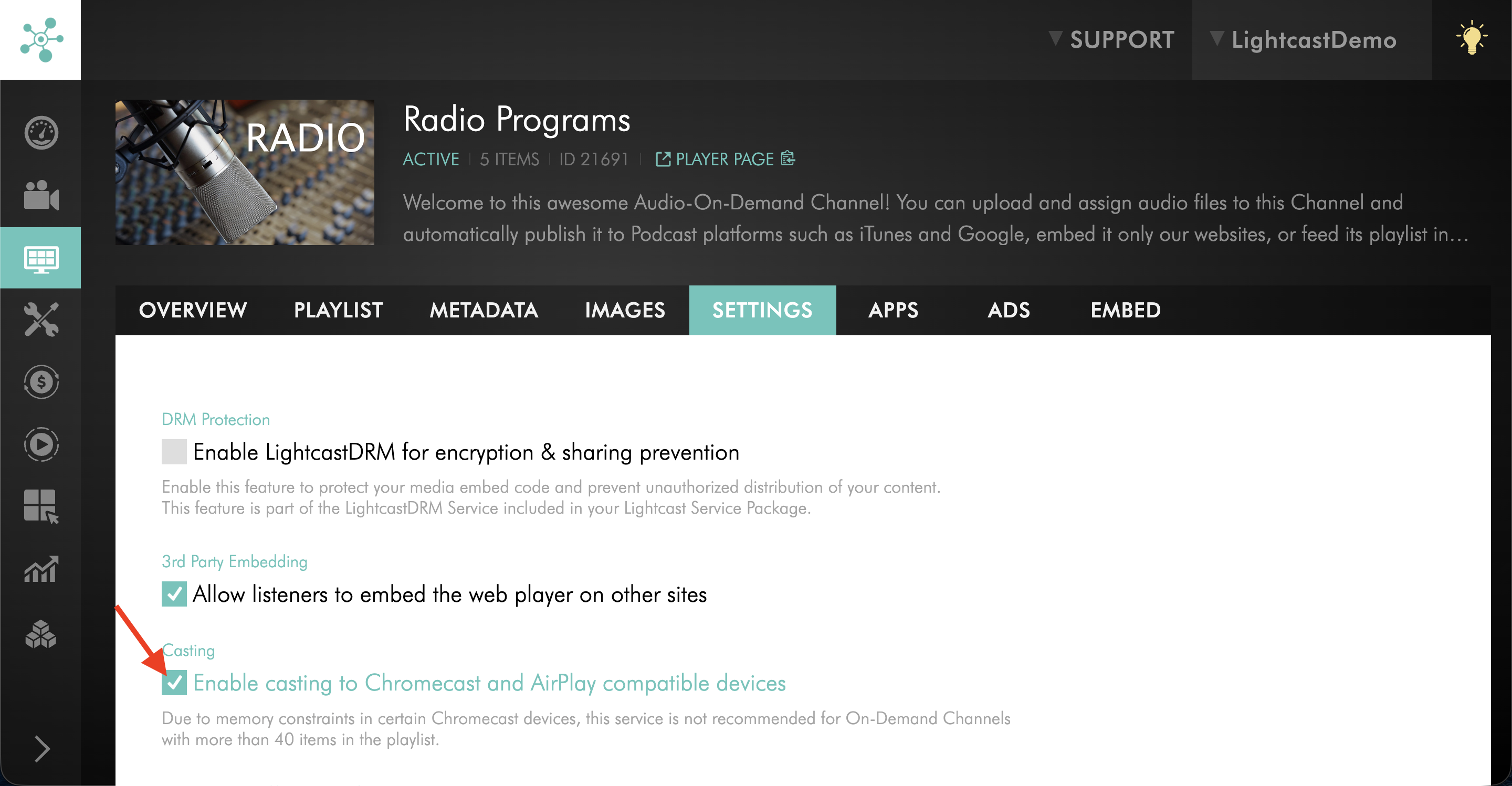
Step 7
Click UPDATE to save your changes.
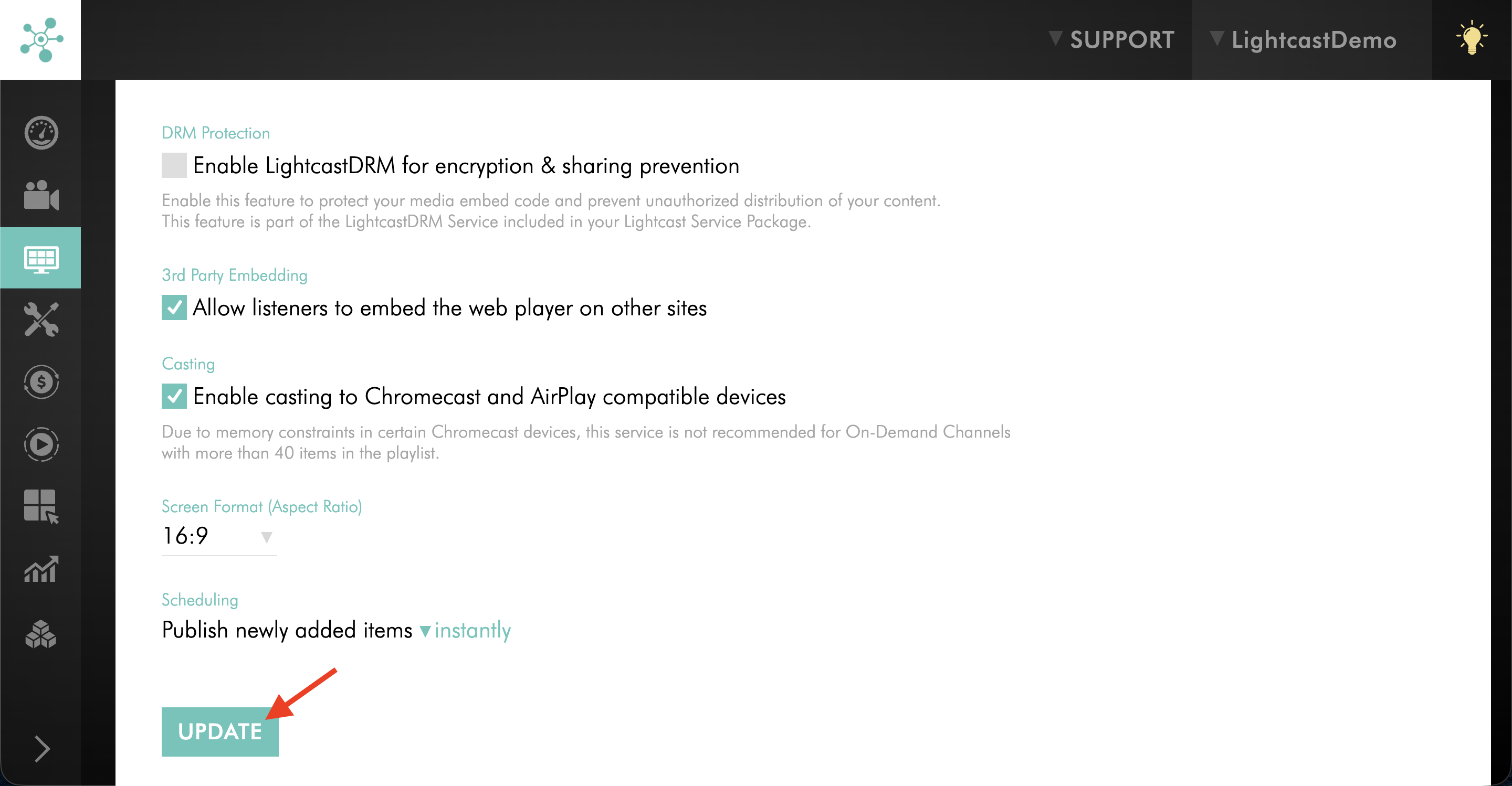
LIVE Channels
Step 1
Log in to your Media Cloud account.
Step 2
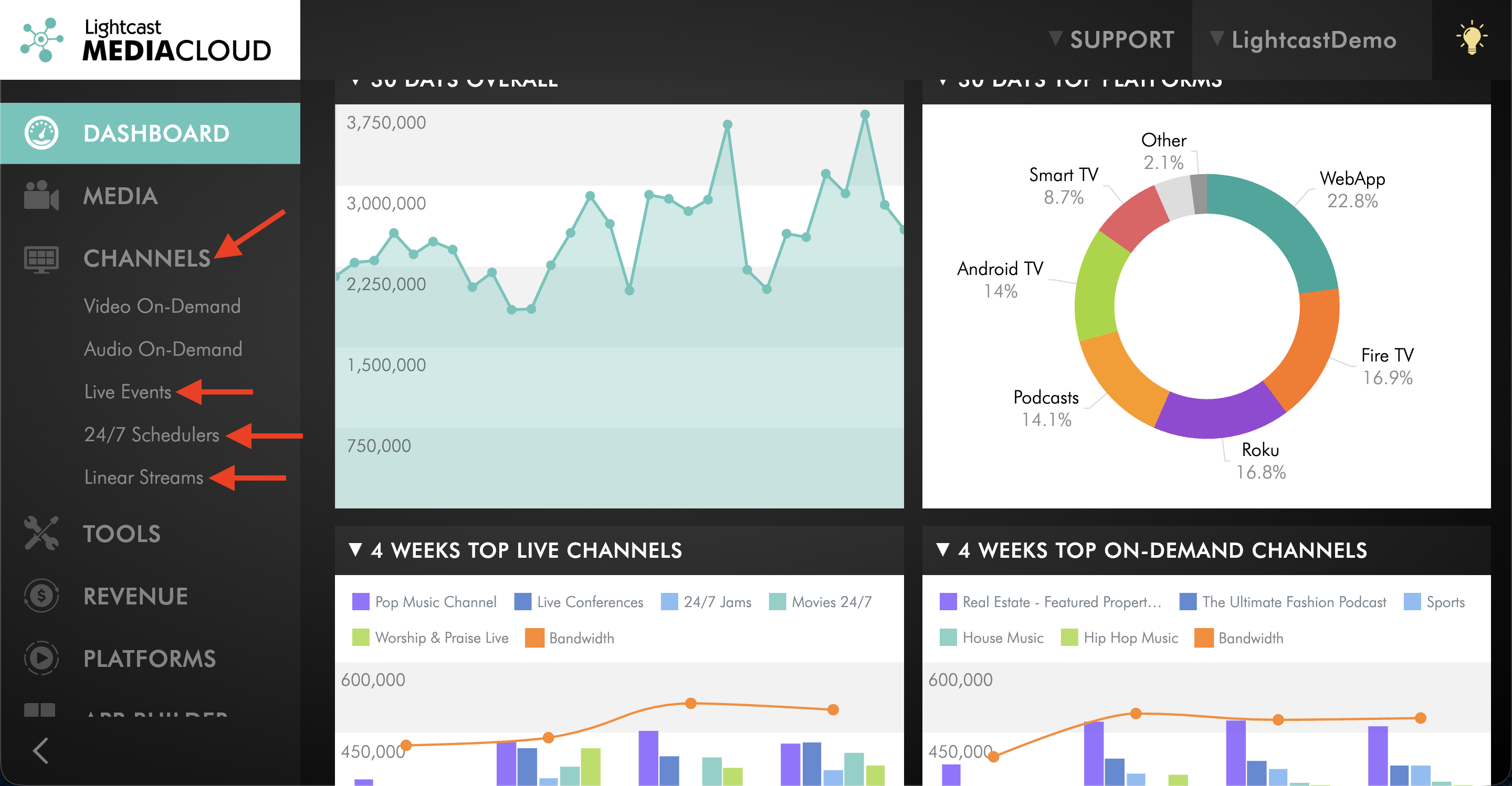
Go to CHANNELS and select either Live Events, 24/7 Scheduler, or Linear Streams.
Step 3
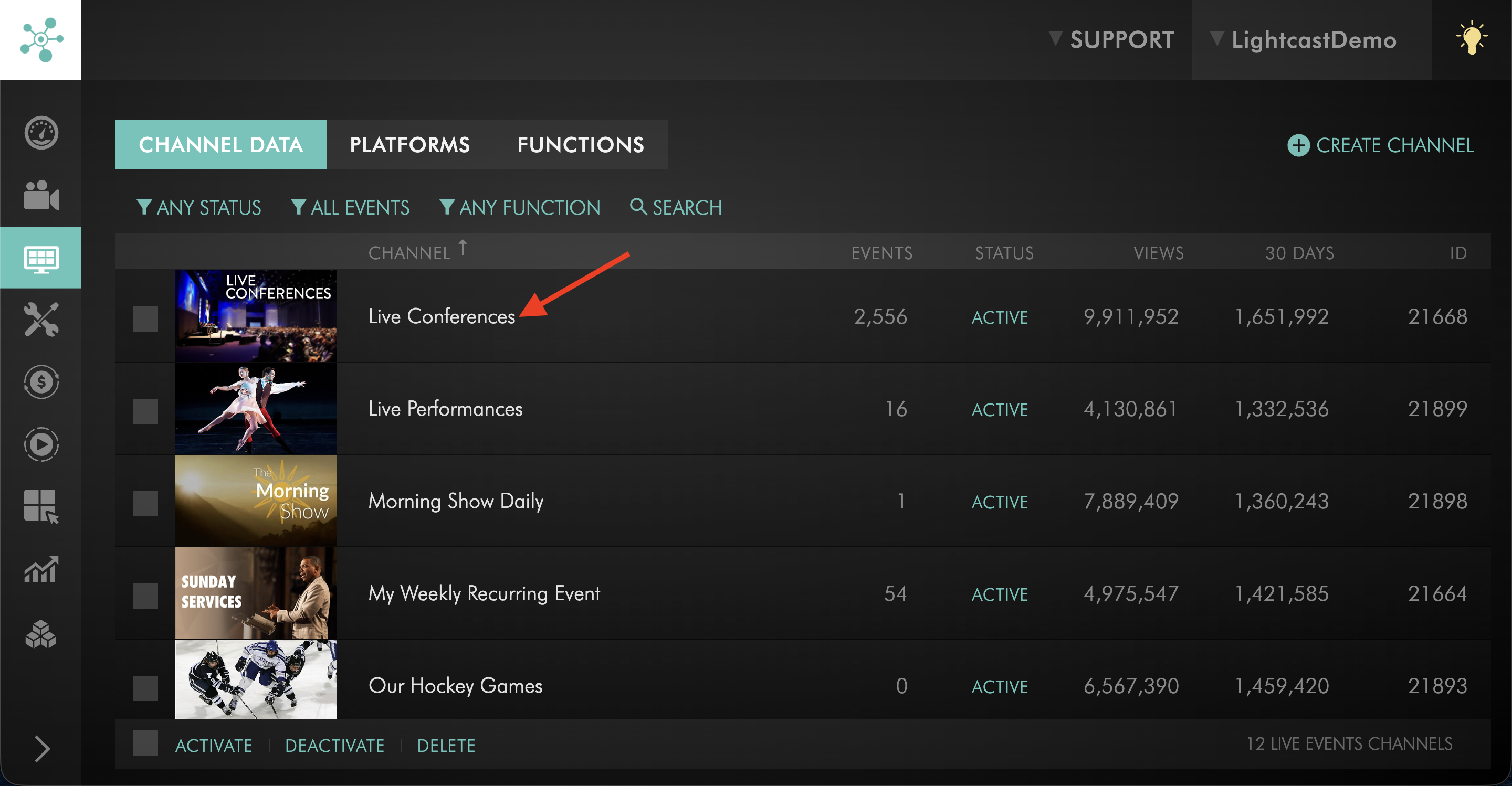
Open the LIVE Channel you want to update.
Step 4
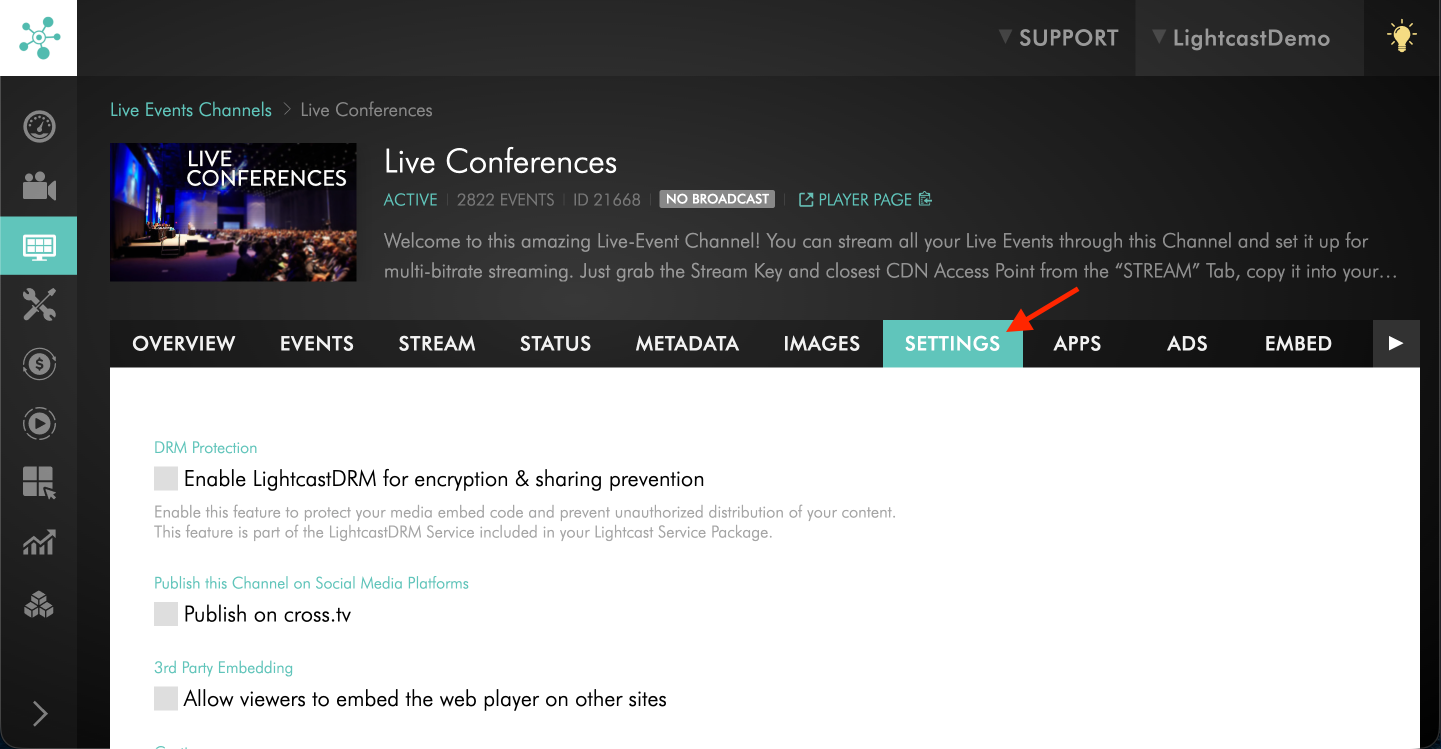
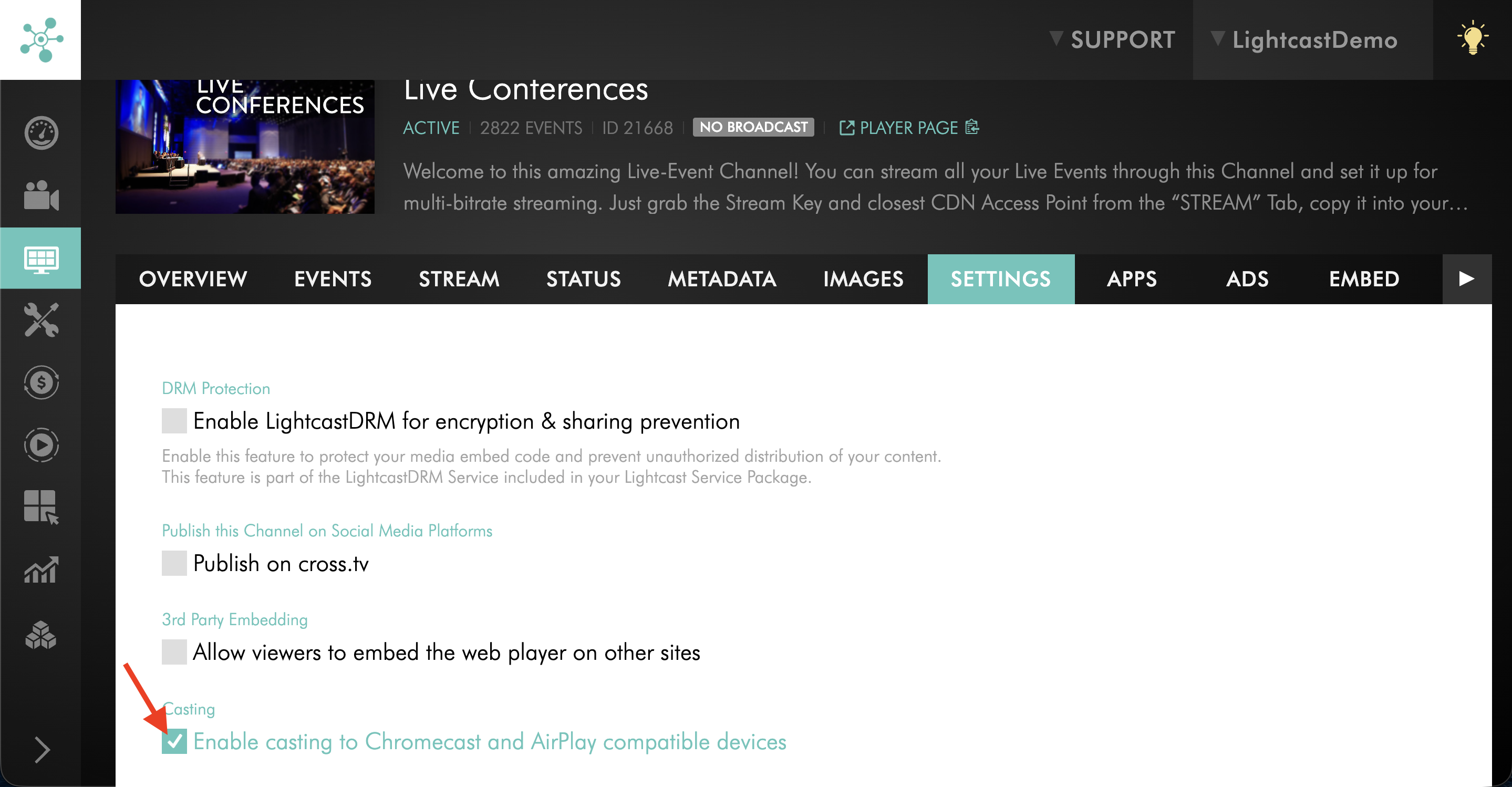
Switch to the SETTINGS tab.
Step 5
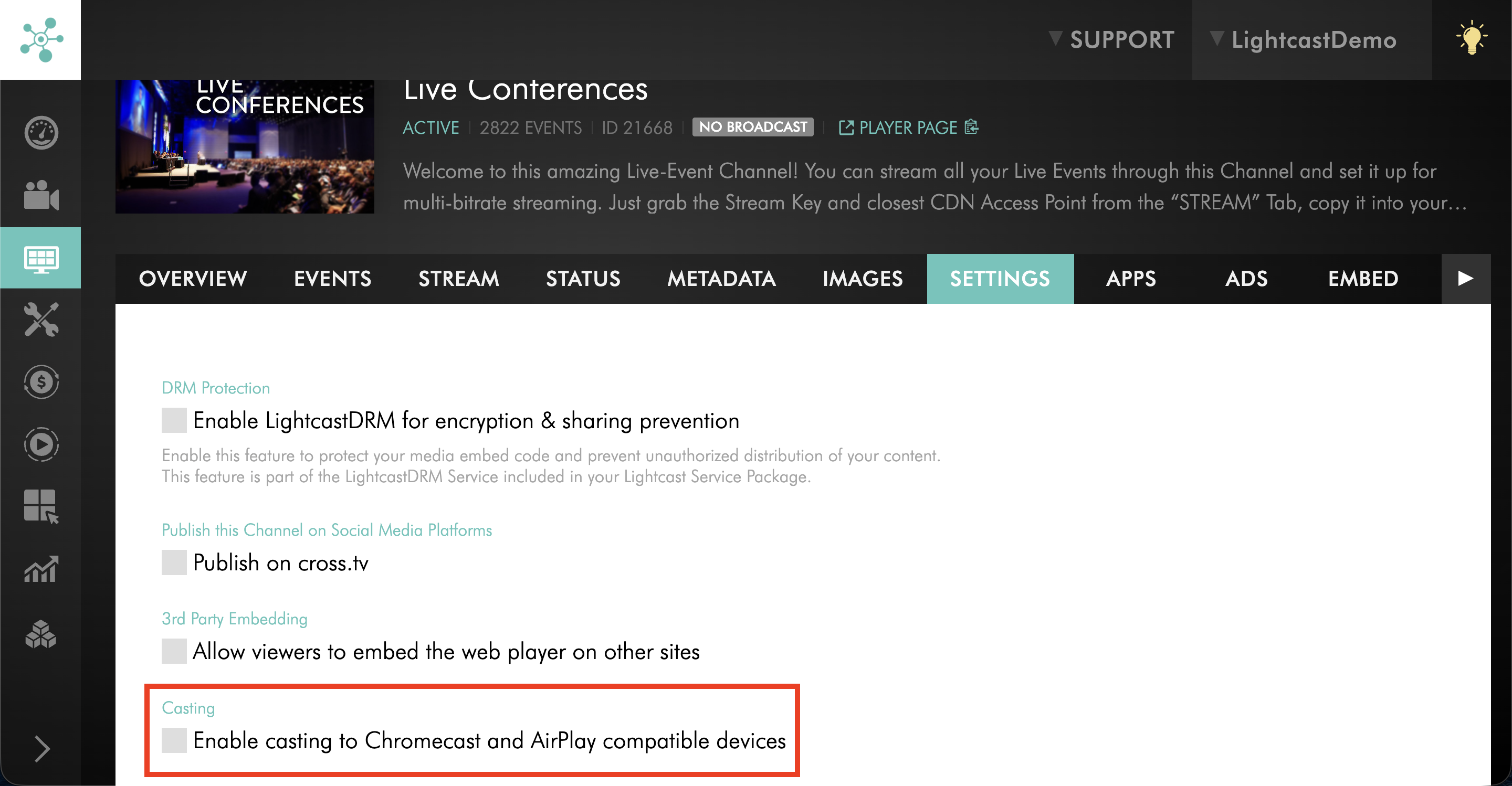
Find the Enable casting to Chromecast and AirPlay compatible devices setting.
Step 6
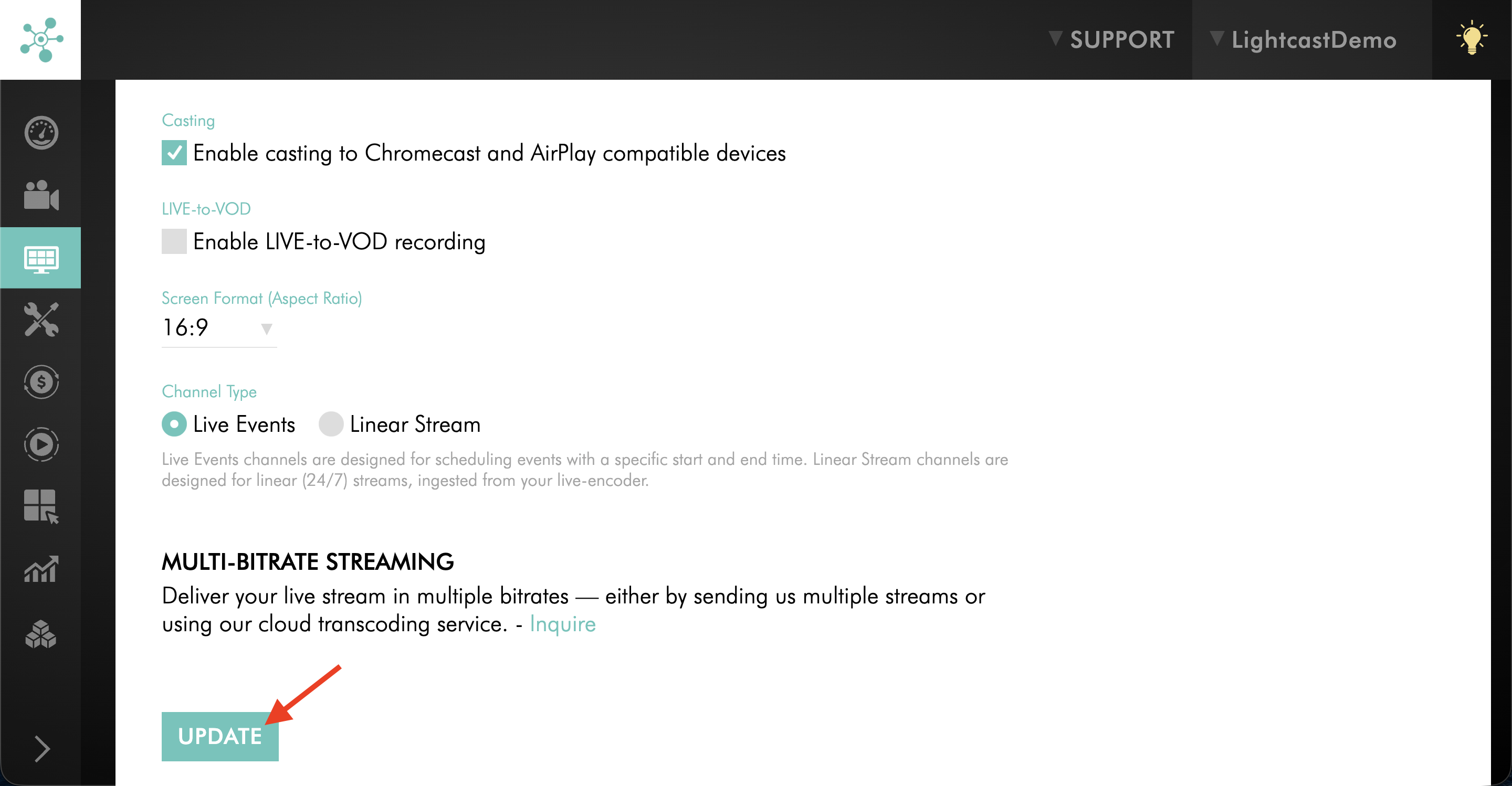
Enable or disable the setting.
Step 7
Click UPDATE to save your changes.
FAQs
Does this setting apply to every Channel automatically?
No. Chromecast and Apple AirPlay support is managed separately for each Channel. Update each Channel individually if you want casting support enabled or disabled across multiple Channels.
Does enabling this setting guarantee that every viewer will see the Chromecast or Apple AirPlay button?
No. The viewer must also use a compatible device, browser or player environment, network, and receiving device.
Can Chromecast and Apple AirPlay be enabled separately?
No. Chromecast and Apple AirPlay support are managed together with the Enable casting to Chromecast and AirPlay compatible devices setting.
Does a media item need to be assigned to a Channel with casting enabled?
Yes. The media item must be assigned to a Channel that has Chromecast and Apple AirPlay support enabled.
Pricing
Chromecast and Apple AirPlay are available on POWER packages and up.
If you don’t have access to this feature, you can upgrade to one of our latest plans or contact your account manager.
Video: How to Enable/Disable Chromecast & AirPlay for a VOD Channel
Video: How to Enable/Disable Chromecast & AirPlay for an AOD Channel
Video: How to Enable/Disable Chromecast & AirPlay for a Live Event Channel
Video: How to Enable/Disable Chromecast & AirPlay for a 24/7 Scheduler Channel
Video: How to Enable/Disable Chromecast & AirPlay for a Linear Stream Channel
Troubleshooting: Chromecast button is not showing in the Web Player
Troubleshooting: Apple AirPlay button is not showing in the Web Player