
Troubleshooting: Chromecast button is not showing in the Web Player
Overview
This article explains what to check when the Chromecast button is not showing in the Web Player.
When to use this article
Use this article when a viewer expects to see the Chromecast button in the Web Player, but the button is missing.
This article applies to Chromecast or Google Cast support in the Web Player. For Apple AirPlay troubleshooting, see Troubleshooting: Apple AirPlay button is not showing in the Web Player.
How it works
The Chromecast button appears in the Web Player when the player can detect a supported Chromecast setup.
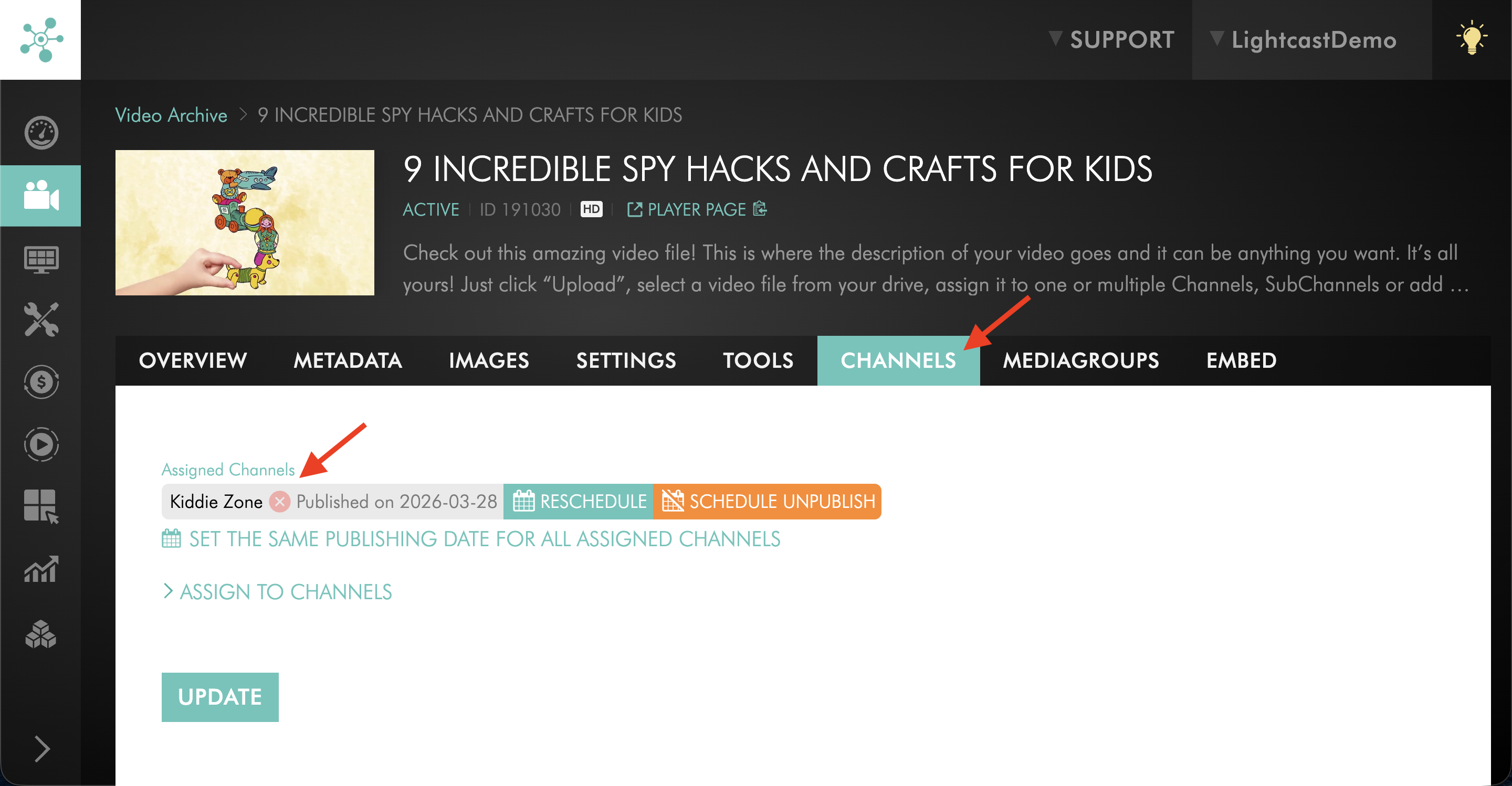
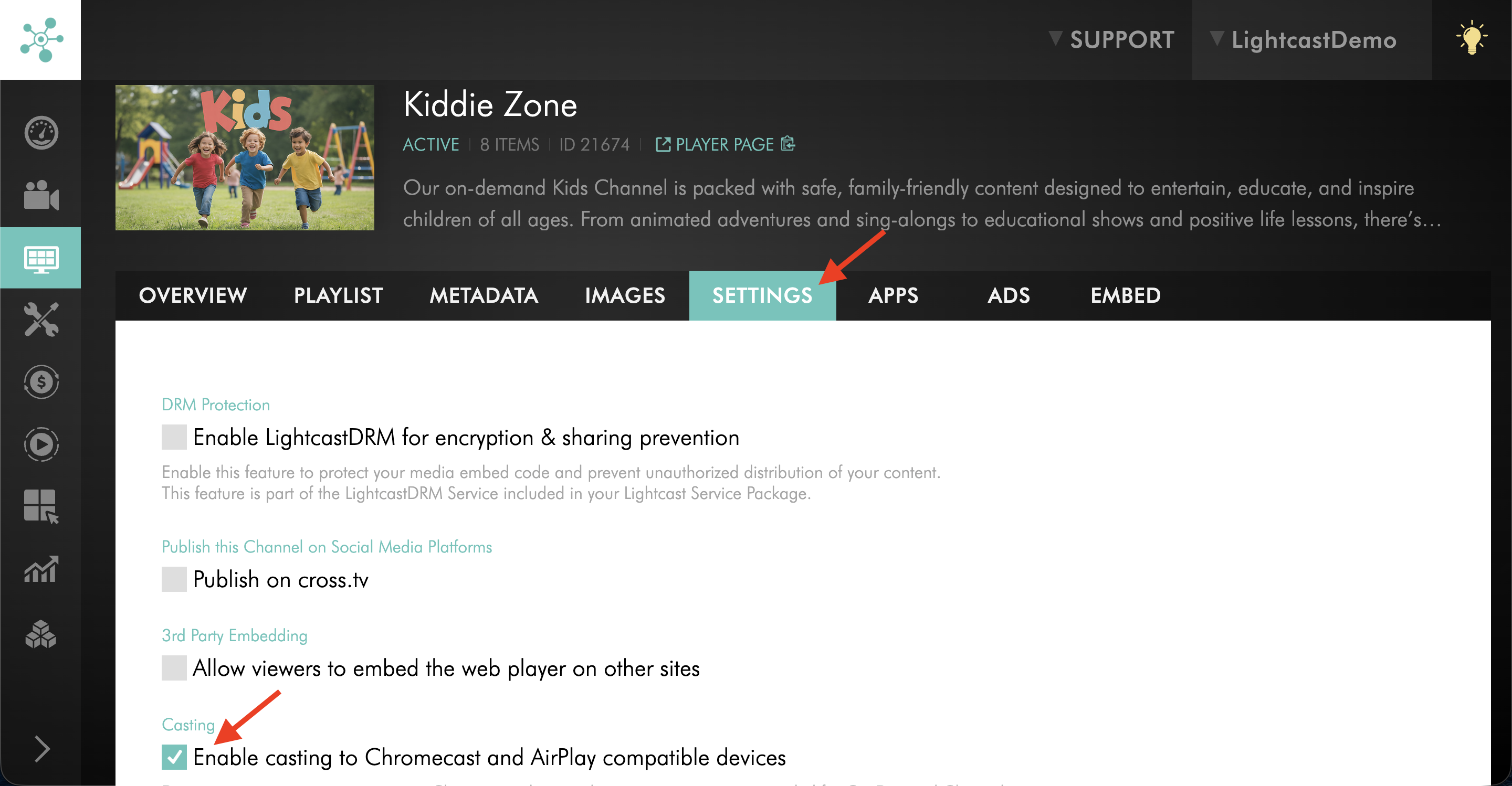
The media item must be assigned to a VOD or AOD Channel in the Media Cloud, and Chromecast and Apple AirPlay support must be enabled for that Channel. To learn how to enable Chromecast and Apple AirPlay support, see How to enable or disable Chromecast and Apple AirPlay for a Channel.
Chromecast works only in the Google Chrome web browser. Other browsers are not supported for Chromecast playback from the Web Player.
Chrome on iOS is not supported for Chromecast playback due to restrictions by Apple.
The viewer’s device and Chromecast device must be connected to the same network. If the devices are connected to different networks, the Chromecast button may not appear.
The Web Player and the page where the player is embedded must be loaded over HTTPS/SSL. If the player is embedded on an unsecured page, the Chromecast button may not appear. Lightcast Web Apps and player.lightcast.com Player Landing Pages are loaded over HTTPS/SSL.
Instructions
Step 1
Check the media item's CHANNELS tab to confirm that it is assigned to a Channel in the Media Cloud.
Step 2
Check the SETTINGS tab of the AOD or VOD Channel to confirm that Chromecast and Apple AirPlay support is enabled for that Channel.
Step 3
Confirm that the viewer is using the Google Chrome web browser.
Step 4
Confirm that the viewer is not using Chrome on iOS.
Step 5
Confirm that the viewer’s device and Chromecast device are connected to the same network.
Step 6
Confirm that the Web Player and the page where it is embedded are loaded over HTTPS/SSL.
FAQs
Can the Chromecast button appear in browsers other than Google Chrome?
No. Chromecast works only in the Google Chrome web browser.
Is Chrome on iOS supported for Chromecast playback?
No. Chrome on iOS is not supported due to restrictions by Apple.
Does the media item need to be assigned to a Channel?
Yes. The media item must be assigned to a Channel that has Chromecast support enabled. To learn how to enable Chromecast and Apple AirPlay support, see How to enable or disable Chromecast and Apple AirPlay for a Channel.
Do the viewer’s device and Chromecast device need to be on the same network
Yes. The viewer’s device and Chromecast device must be connected to the same network.
Does the Web Player need to be loaded over HTTPS/SSL?
Yes. The Web Player and the page where it is embedded must be loaded over HTTPS/SSL. Lightcast Web Apps and player.lightcast.com Player Landing Pages are loaded over HTTPS/SSL.