
How to unassign or remove audio from an Audio On-Demand (AOD) Channel
Overview
This article explains how to remove audio content from an Audio On-Demand (AOD) Channel playlist in the Media Cloud.
When to use this article
Use this article when you want to remove audio content from an AOD Channel playlist in the Media Cloud.
This article is helpful when you want to:
remove one or more audio items from an AOD Channel playlist
unassign an individual audio item from an AOD Channel by using that item’s CHANNELS tab
How it works
An Audio On-Demand (AOD) Channel in the Media Cloud is used to organize and deliver on-demand audio content.
To learn more about how AOD Channels work, see Understanding Video On-Demand (VOD), Audio On-Demand (AOD), and LIVE Channels (and Channel IDs).
When you remove audio from an AOD Channel playlist, the audio item is removed from that Channel assignment. This does not delete the audio item from the Media Cloud’s Audio Archive.
When you unassign an audio item from its CHANNELS tab, the result is the same. The audio item is removed from that AOD Channel assignment, but the media item remains in your Audio Archive unless you delete it separately.
If an audio item is assigned to multiple Channels, removing it from one Channel does not remove it from the others.
Instructions
Option 1: Remove audio items from an AOD Channel playlist
Step 1
Log in to your Media Cloud account.
Step 2
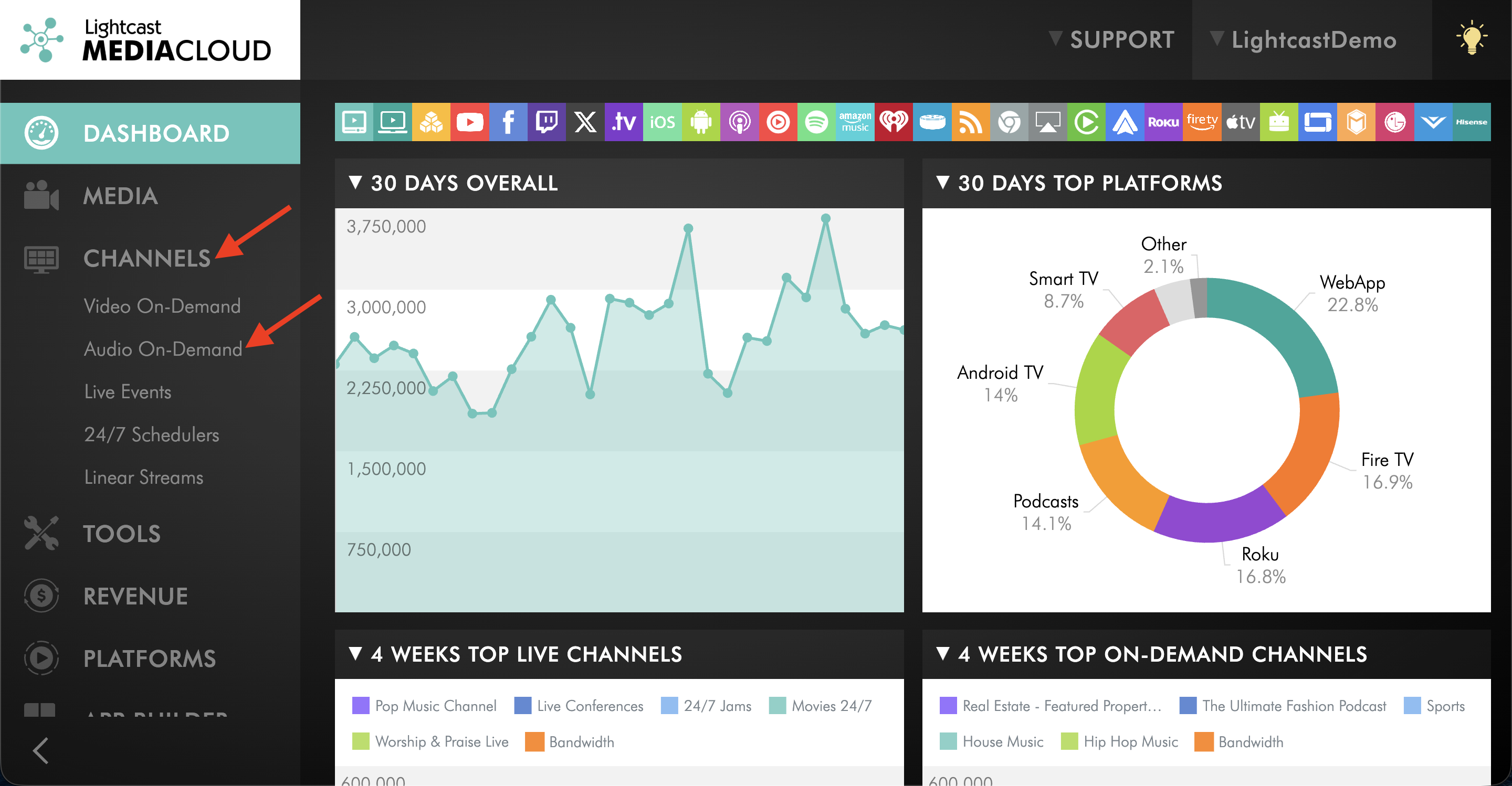
Go to CHANNELS and then Audio On-Demand.
Step 3
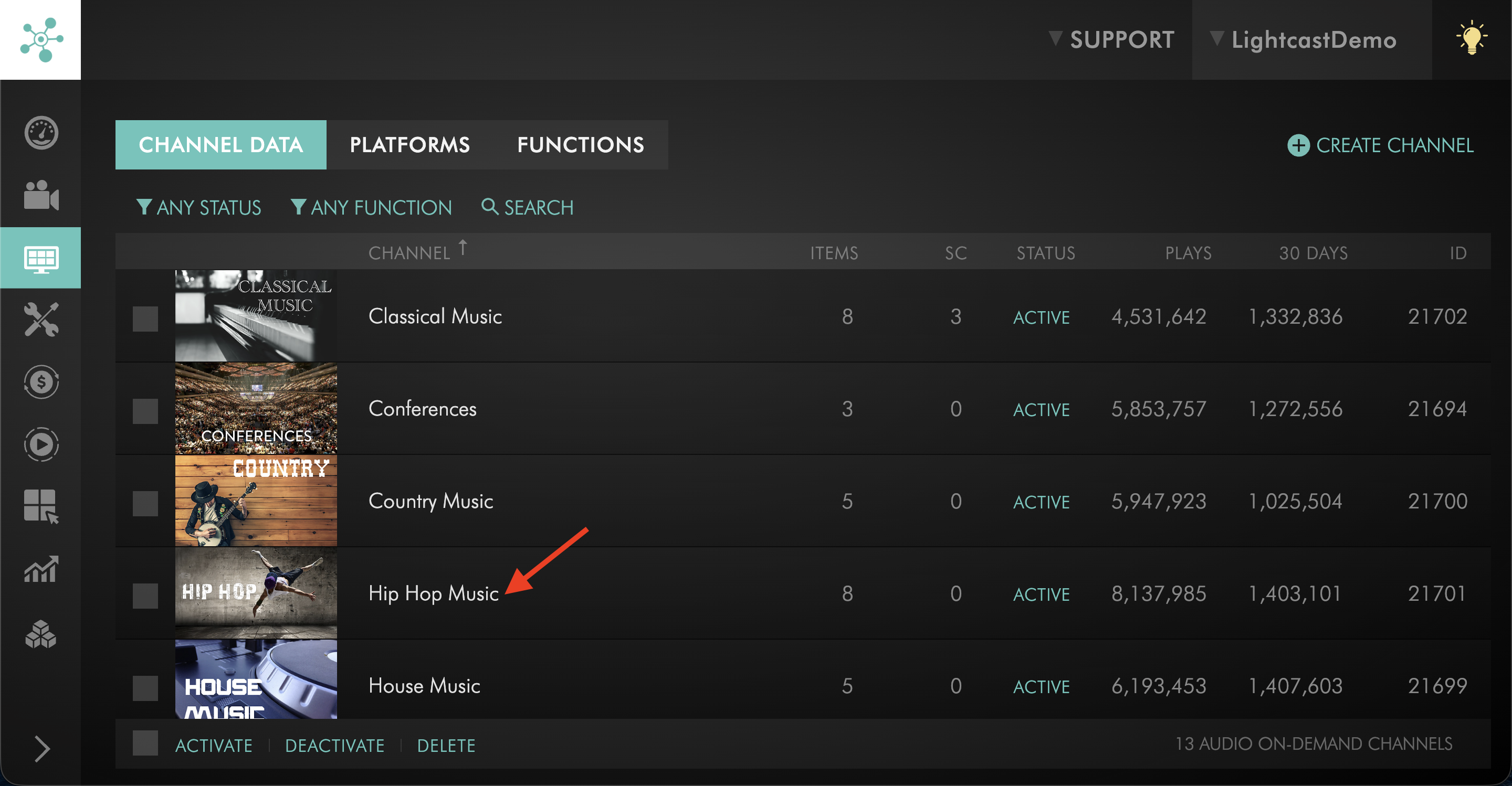
Select the AOD Channel that contains the audio items you want to remove.
Step 4
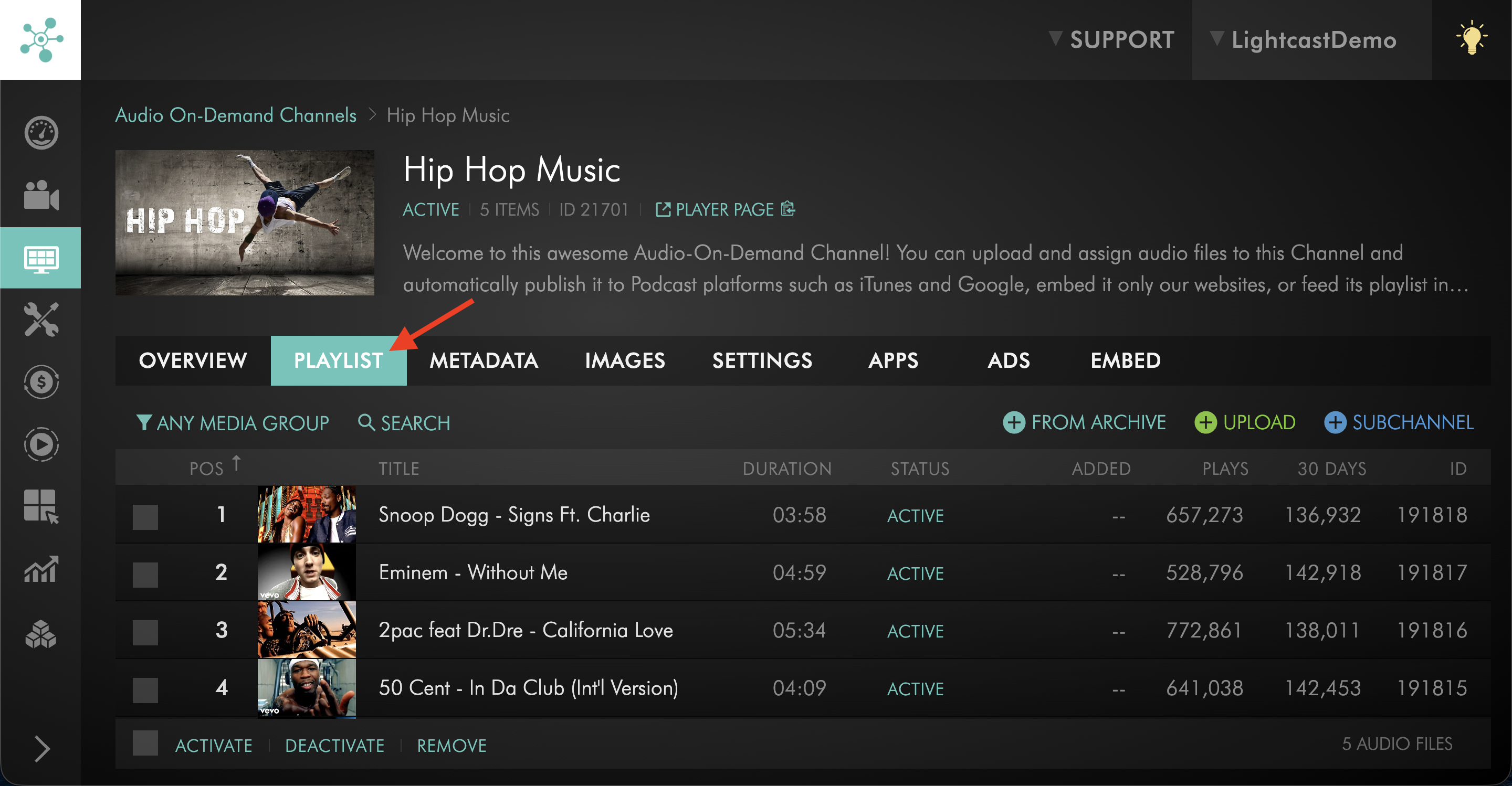
Click the PLAYLIST tab.
Step 5
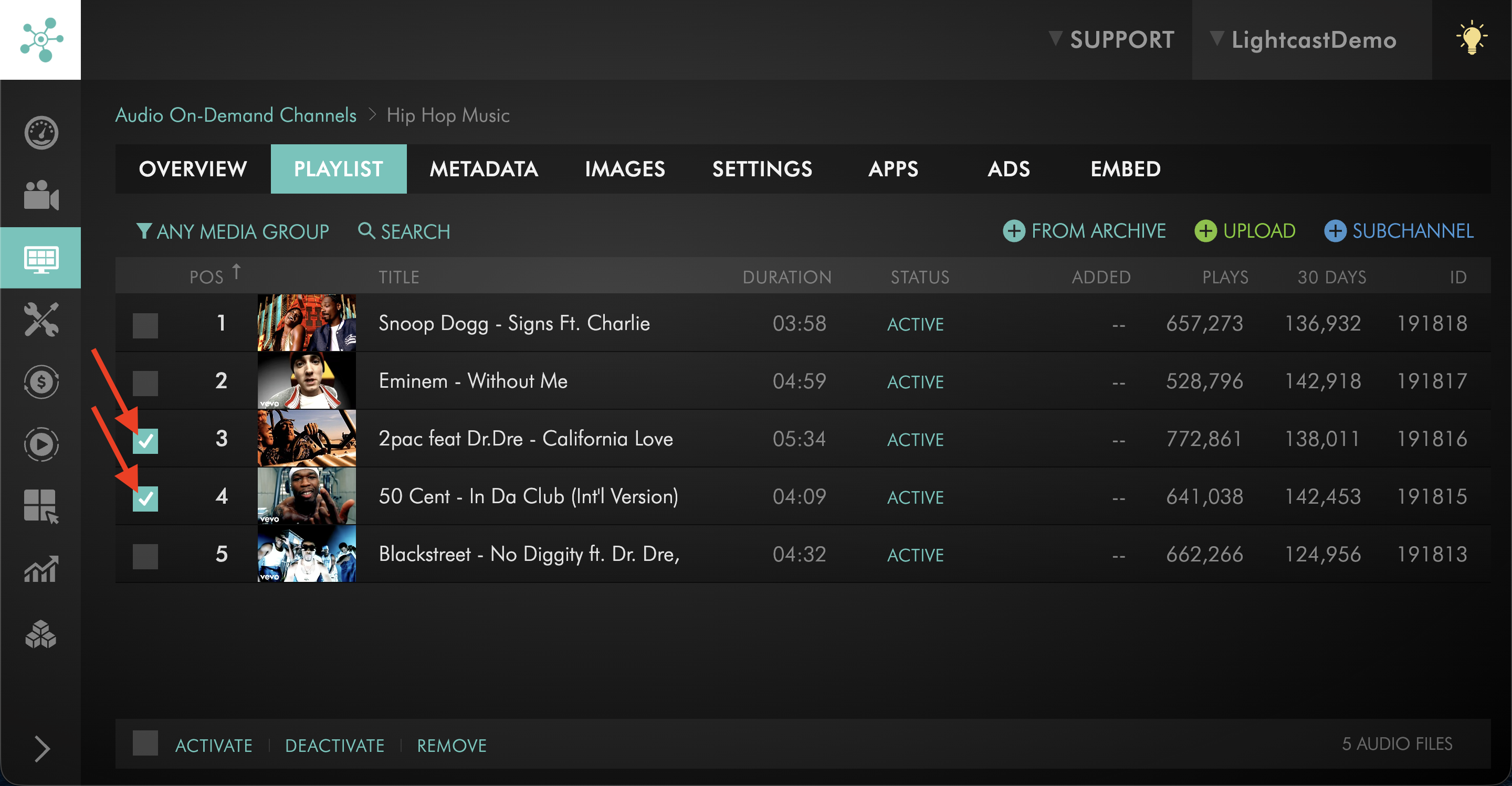
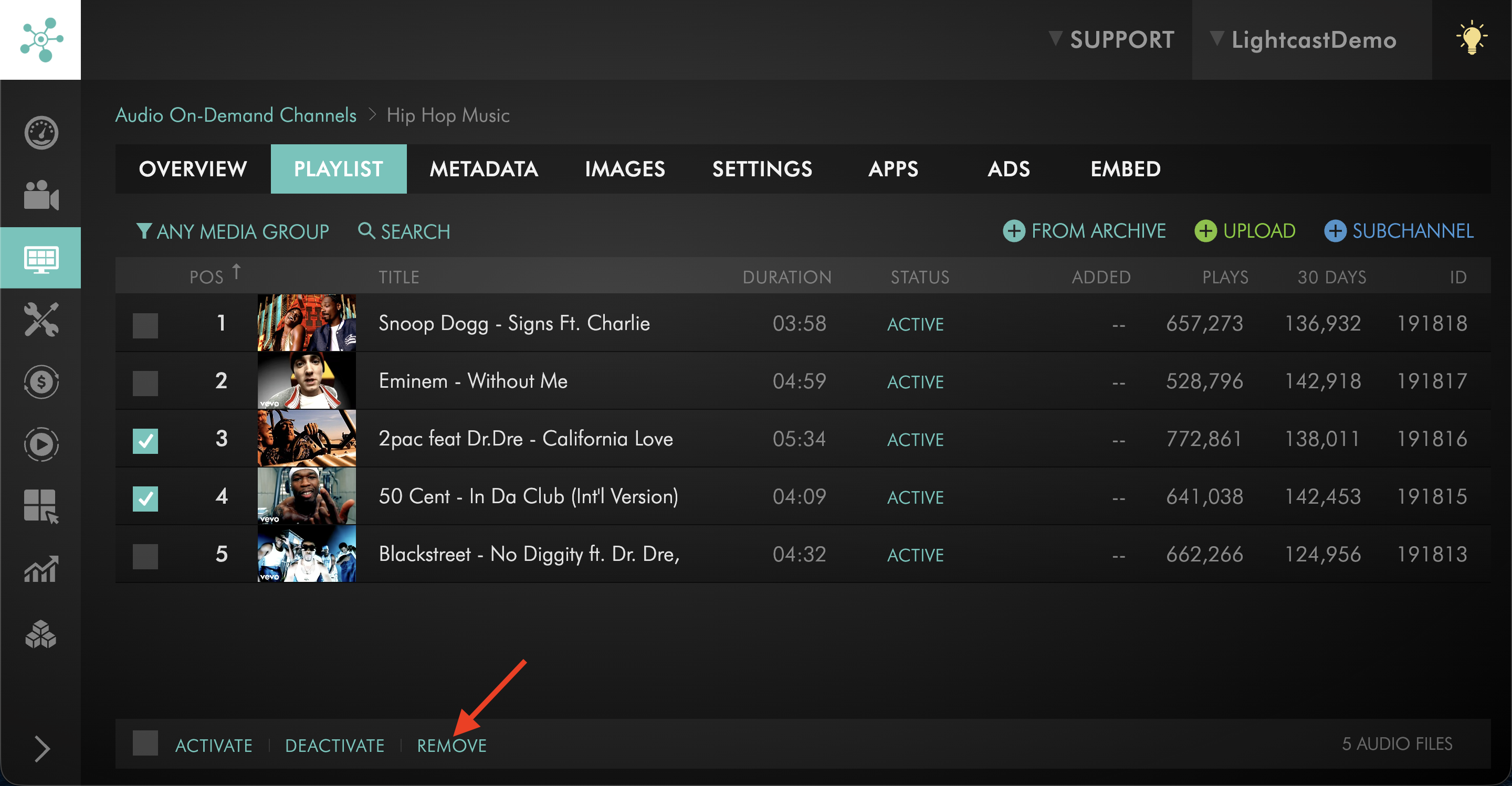
Select the checkbox next to each audio item that you want to remove.
Step 6
Click REMOVE.
Step 7
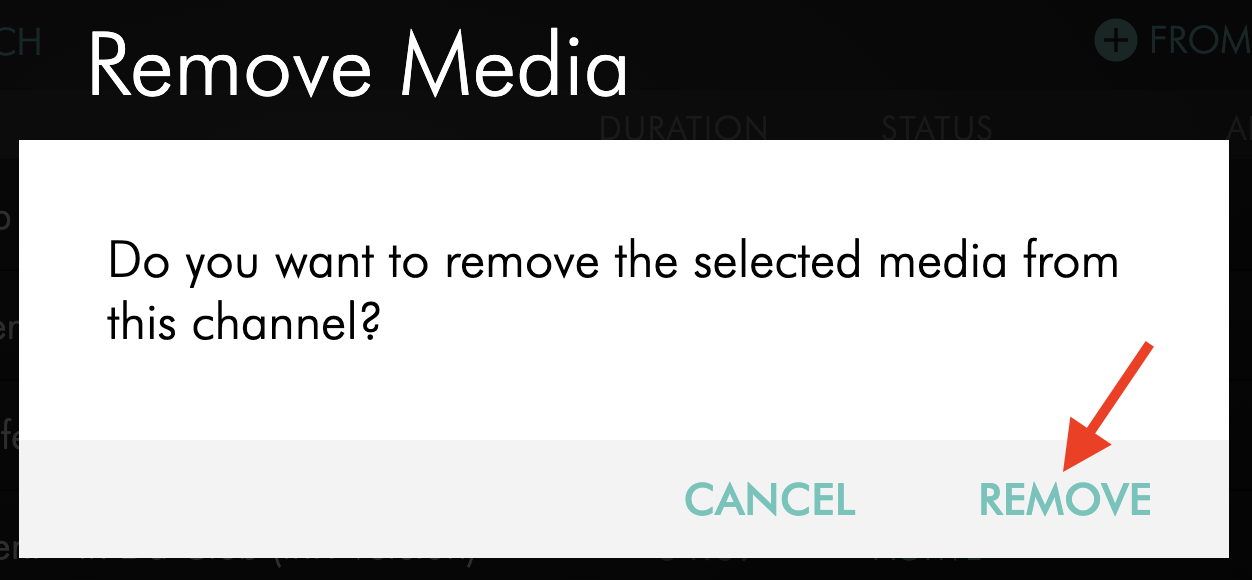
In the pop-up window, click REMOVE again to confirm.
Option 2: Unassign an individual audio item from its CHANNELS tab
Step 1
Log in to your Media Cloud account.
Step 2
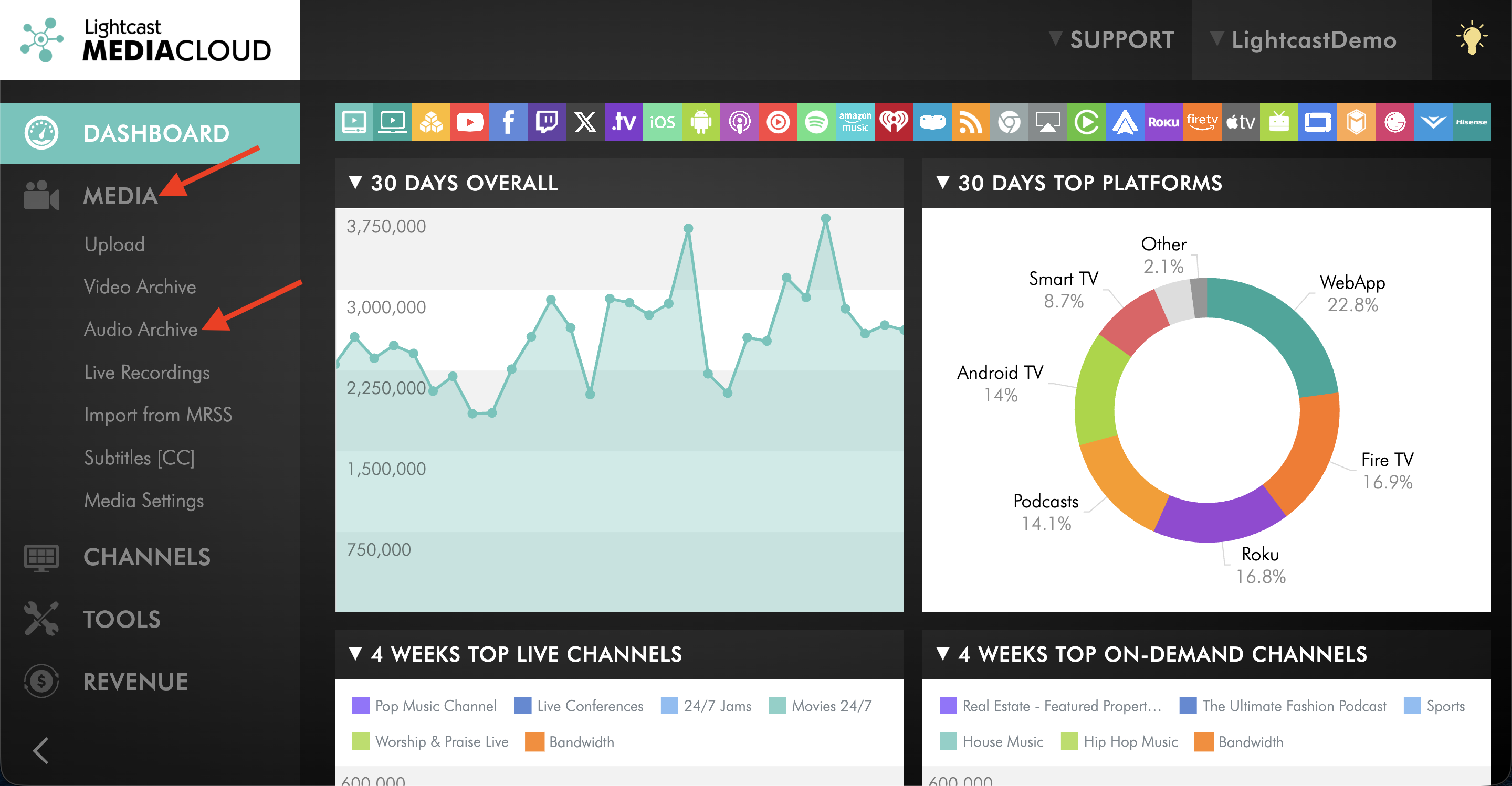
Go to MEDIA and then Audio Archive.
Step 3
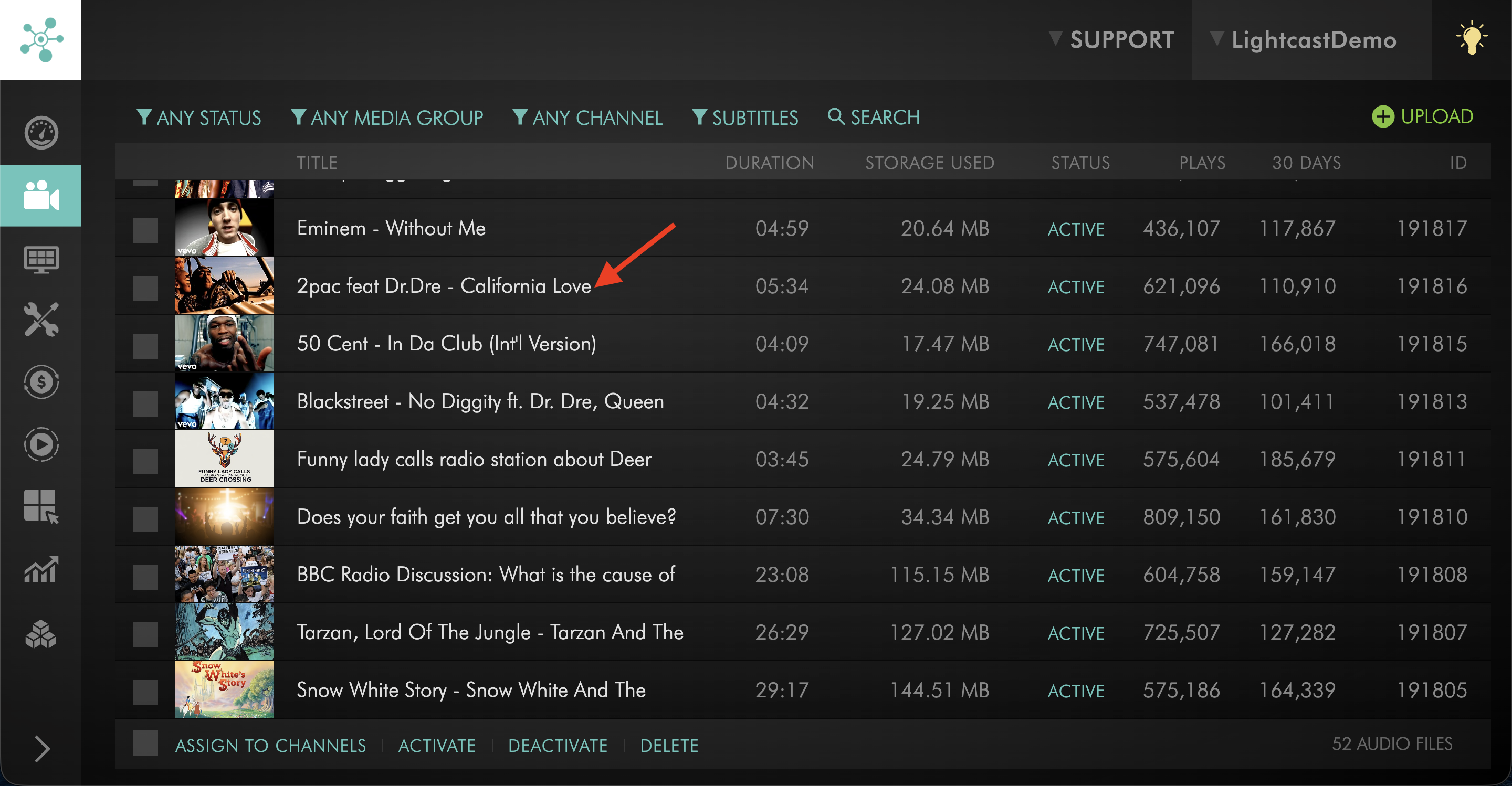
Select the audio item.
Step 4
Click the CHANNELS tab.
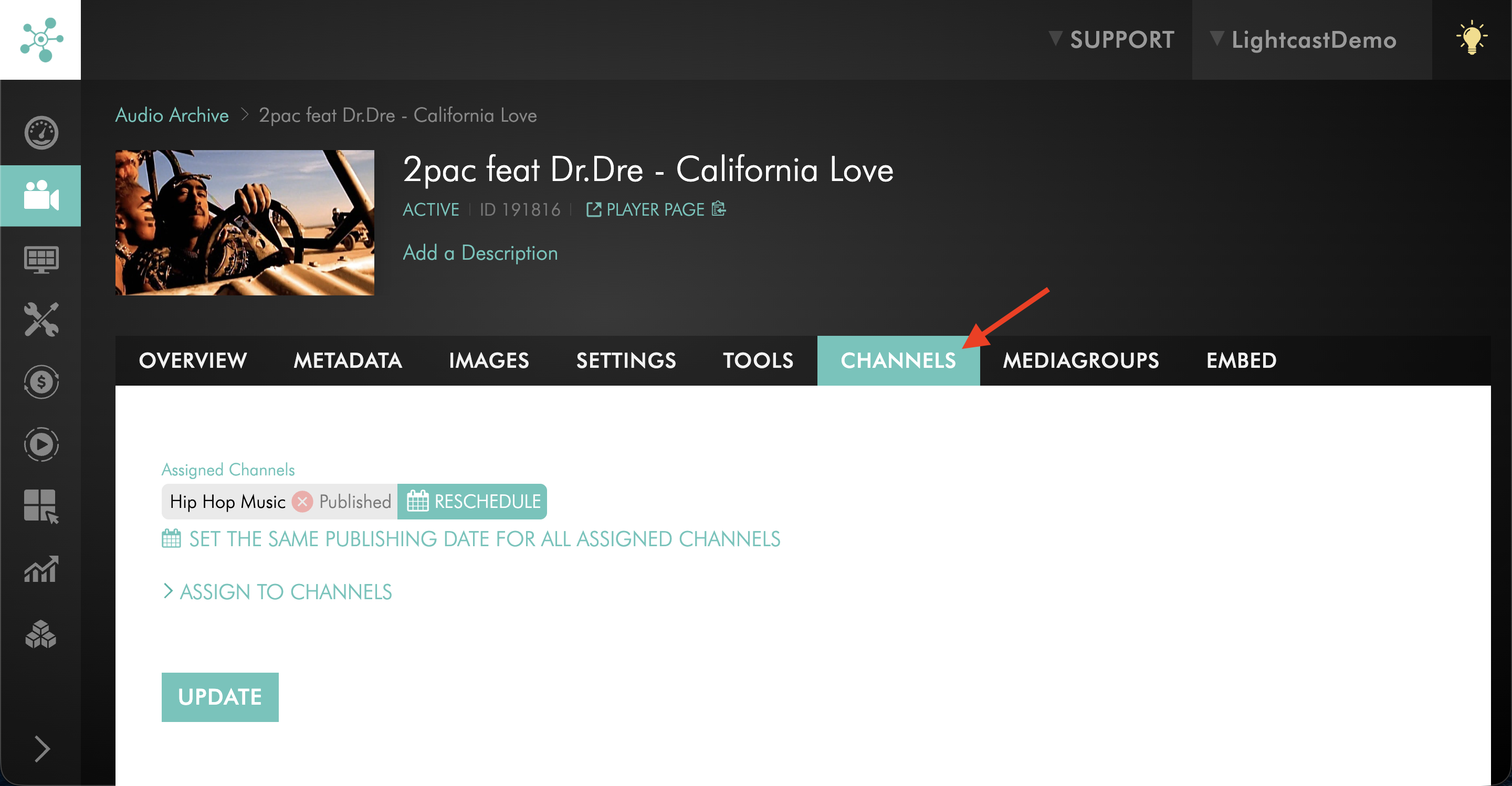
Step 5
Under Assigned Channels, click the red X next to the AOD Channel you want to remove.
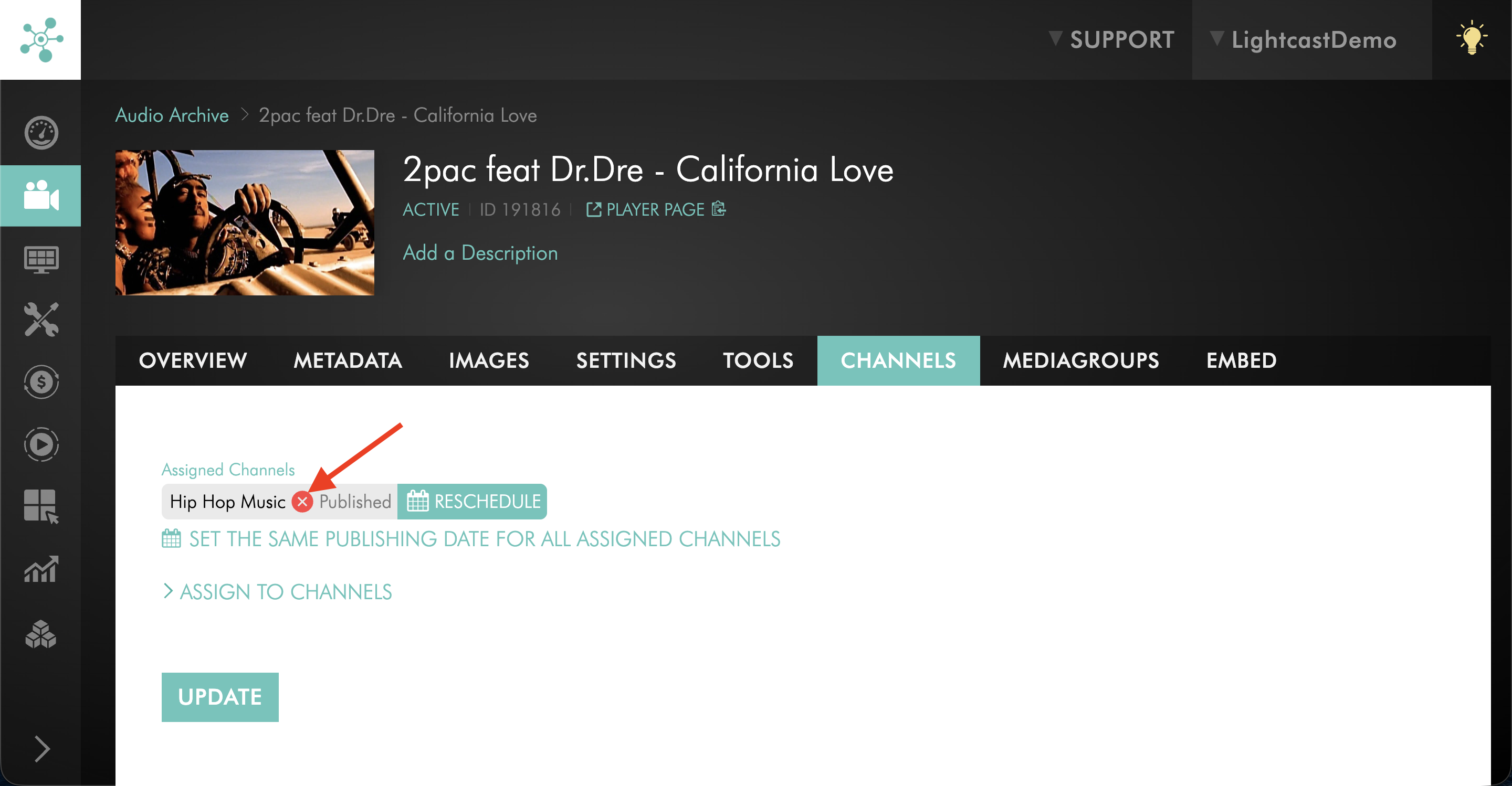
Step 6
Click UPDATE to save your changes.
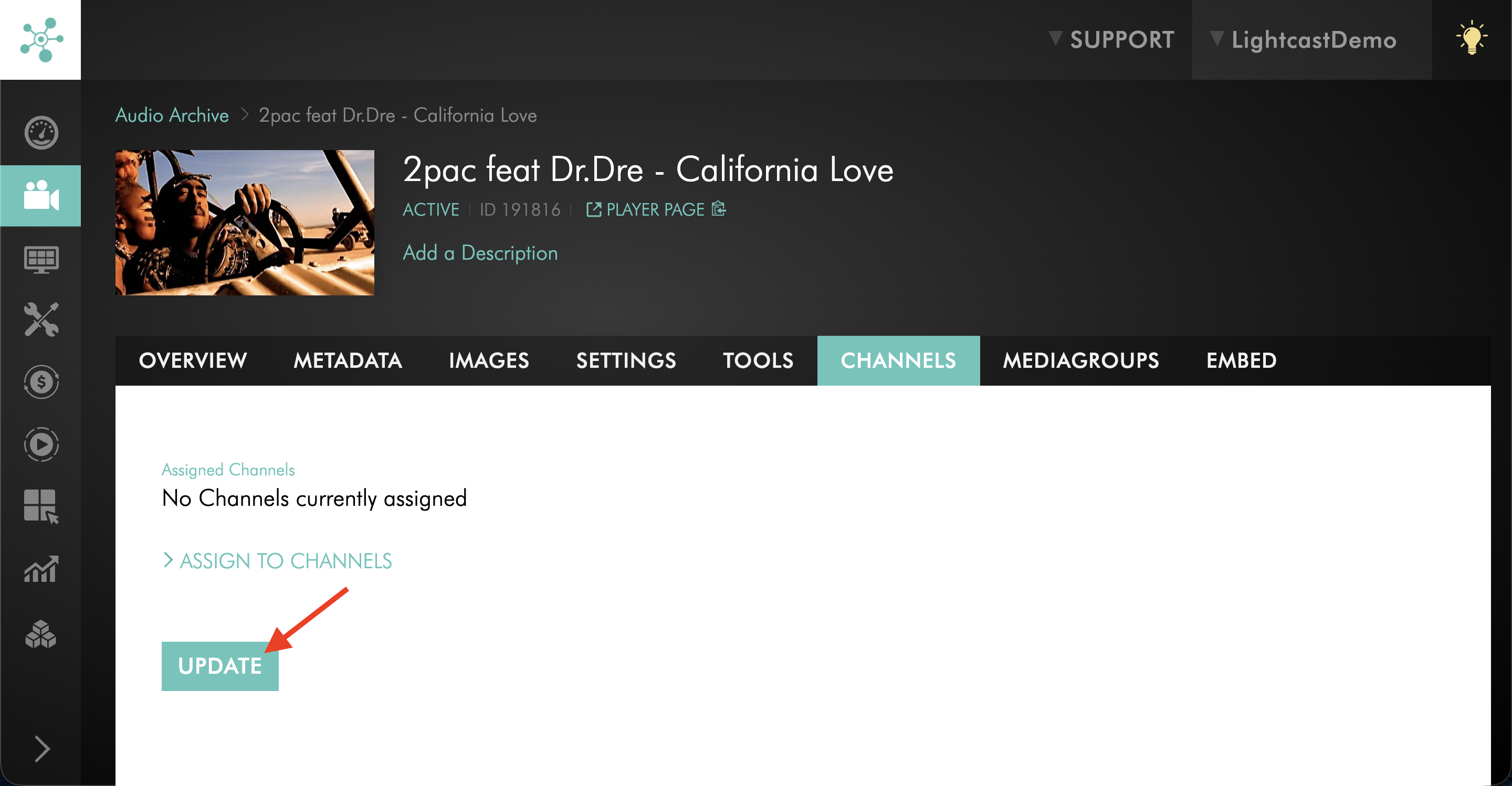
FAQs
Does removing audio from an AOD Channel delete it from the Media Cloud?
No. Removing audio from an AOD Channel only removes that Channel assignment. The audio item remains in the Audio Archive unless it is deleted separately.
What is the difference between removing and deleting audio?
Removing unassigns the audio item from an AOD Channel playlist. Deleting removes the media item from the Media Cloud entirely.
Can I remove multiple audio items at the same time?
Yes. In the AOD Channel’s PLAYLIST tab, you can select multiple audio items and click REMOVE.
When should I use the audio item’s CHANNELS tab?
Use the CHANNELS tab when you are already viewing one specific audio item and want to remove that item from an assigned AOD Channel.
If an audio item is assigned to multiple Channels, will removing it from one Channel remove it from all Channels?
No. Removing an audio item from one AOD Channel only removes it from that specific Channel assignment.
Can I undo a removal from an AOD Channel?
Yes. If the audio item still exists in the Audio Archive, you can assign it to the AOD Channel again.
To learn how to add an audio item back to the AOD Channel, see How to assign audio files to an Audio On-Demand (AOD) Channel.
Pricing
Removing or unassigning audio from an AOD Channel does not create a new upload and does not use additional Storage or Transcoding.
Your overall account limits and publishing rules still apply.