
How to create and manage Media Groups in the Media Cloud
Overview
This article explains how to create Media Groups, assign video or audio files to them, and manage their settings in the Media Cloud.
Media Groups help organize media by topic, theme, series, category, or another shared grouping.
When to use Media Groups
Use this article when you want to create or manage Media Groups in the Media Cloud.
This article is helpful when you want to:
create a new Media Group
assign a video or audio file to one or more Media Groups
update Media Group details such as the name, description, thumbnail, or order
understand how Media Group order and media item order may affect supported publishing properties
For a high-level explanation of what Media Groups are and how they work, see Media Groups explained.
How it works
Creating Media Groups
Media Groups can be created from the Media Groups Manager or from the MEDIAGROUPS tab of a video or audio file.
After a Media Group is created, you can assign video or audio files to it from the media item’s MEDIAGROUPS tab. A single media item can be assigned to more than one Media Group.
Changes made to a Media Group are reflected everywhere that Media Group is used in supported publishing properties.
Channel assignment is still required
Media Groups help organize media, but they do not replace Channel assignment. For a media item to appear in published content, it must still be assigned to a VOD Channel or AOD Channel.
Requirements for Media Groups to appear
For a Media Group to appear under a specific Channel in a supported app, all of the following must be true:
the Media Group exists
the media item must be assigned to the Media Group
the same media item must also be assigned to the VOD Channel or AOD Channel where the Media Group should appear
Media Groups must also be enabled for that Channel in the app through the APP BUILDER. For step-by-step instructions, see How to enable or disable Sub-Channels and Media Groups in your published apps.
Media Group order
If you change the order of Media Groups in the Media Groups Manager, the updated order can appear in connected publishing properties where Media Groups are supported and enabled.
Changes usually appear automatically after a short delay. If the updated order does not appear immediately, viewers may need to refresh or reopen the app because the app or device may be using cached data.
Media item order inside Media Groups
In supported TV app layouts, the order of videos within a Media Group is based on the top-to-bottom order of those same videos in the VOD Channel playlist.
To change the order of videos within the Media Group, reorder the videos in the VOD Channel playlist.
Instructions
Create a Media Group from the Media Groups Manager
Step 1
Log in to your Media Cloud account.
Step 2
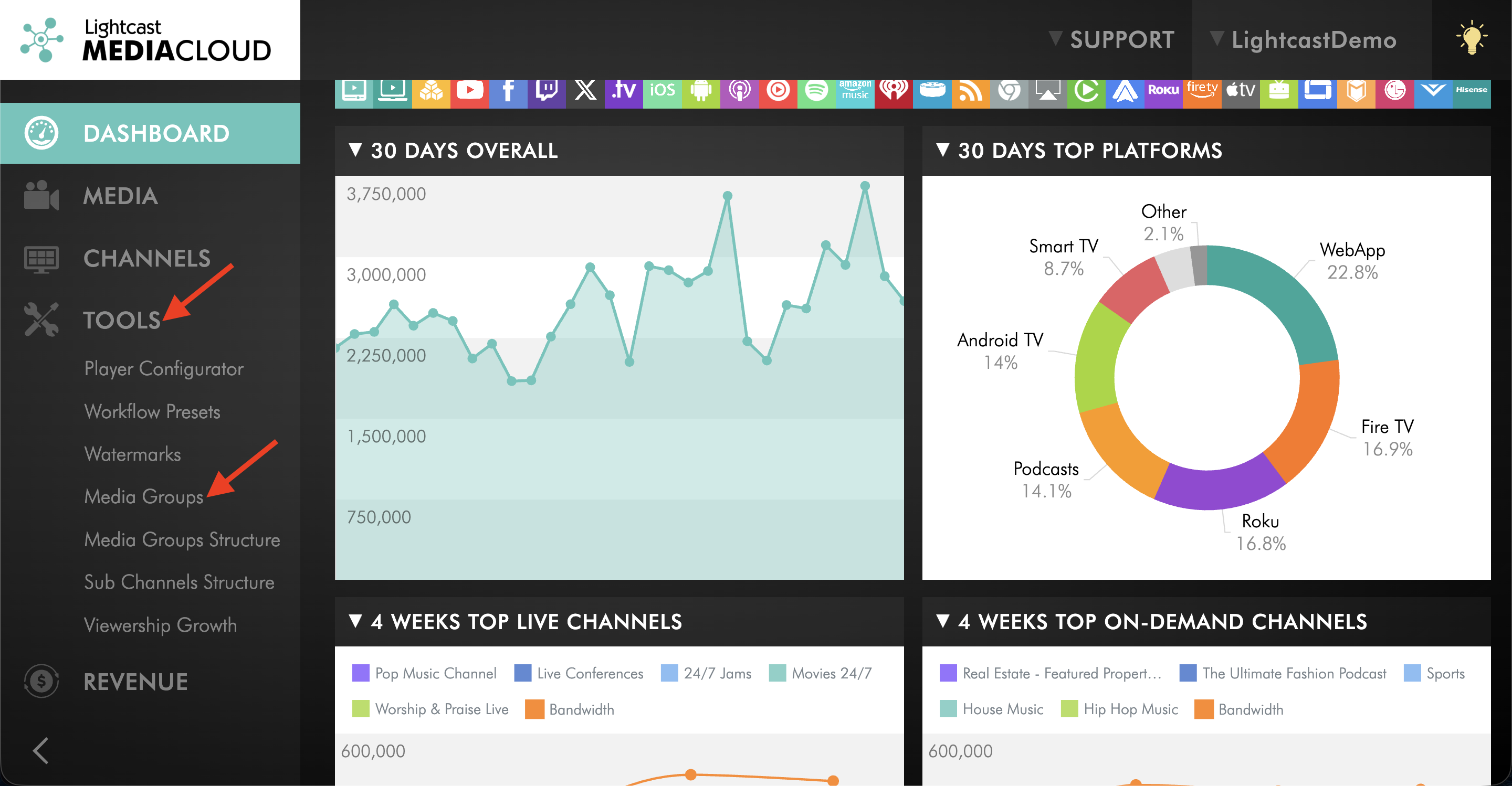
Go to TOOLS and select Media Groups.
Step 3
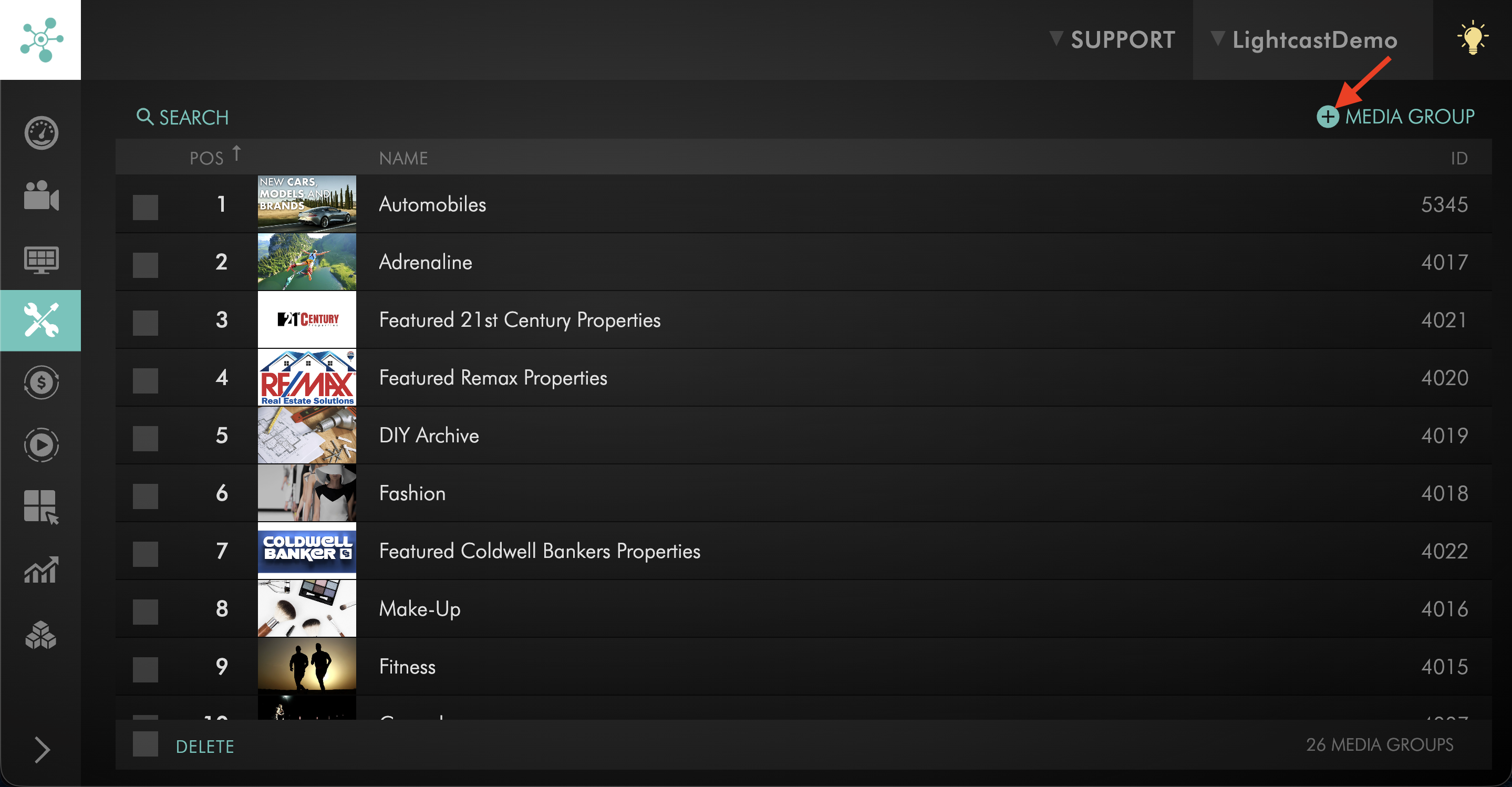
Click + MEDIA GROUP in the upper-right corner.
Step 4
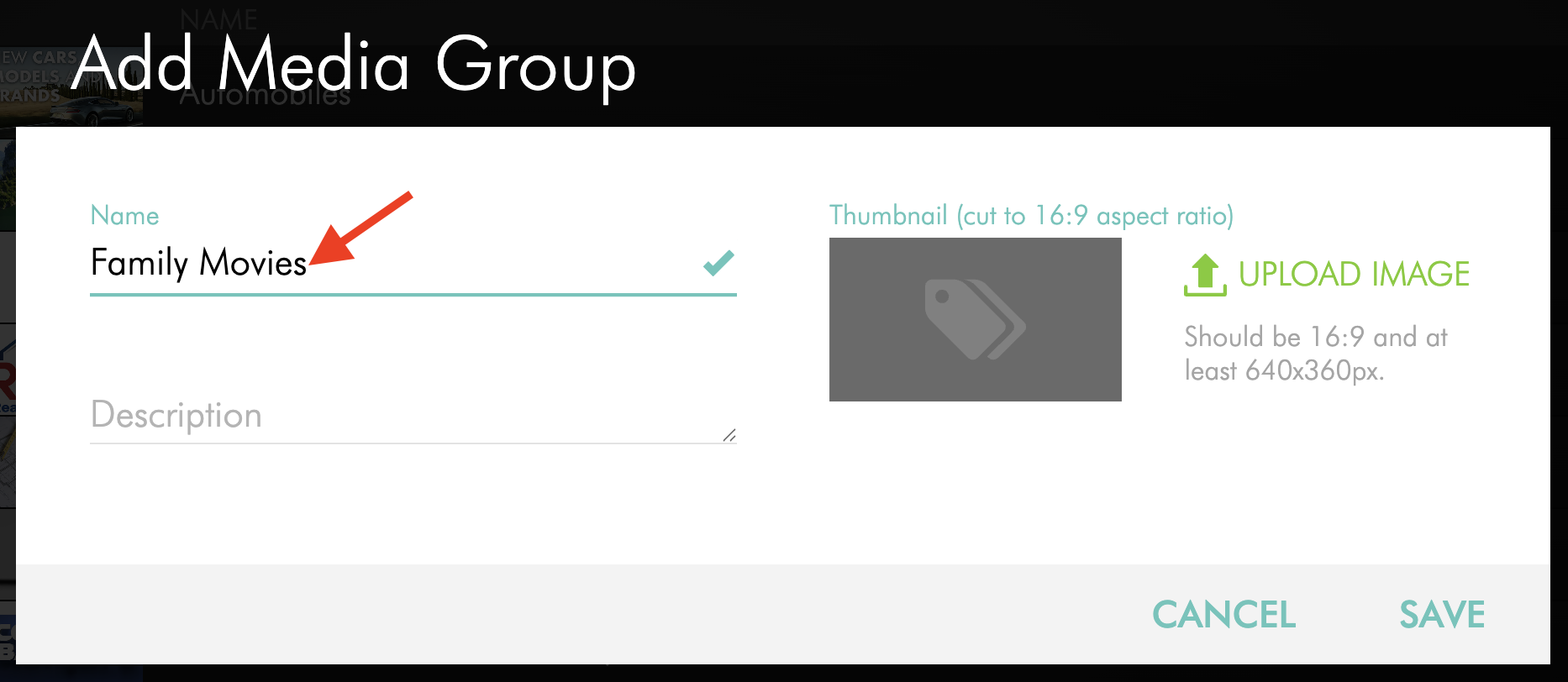
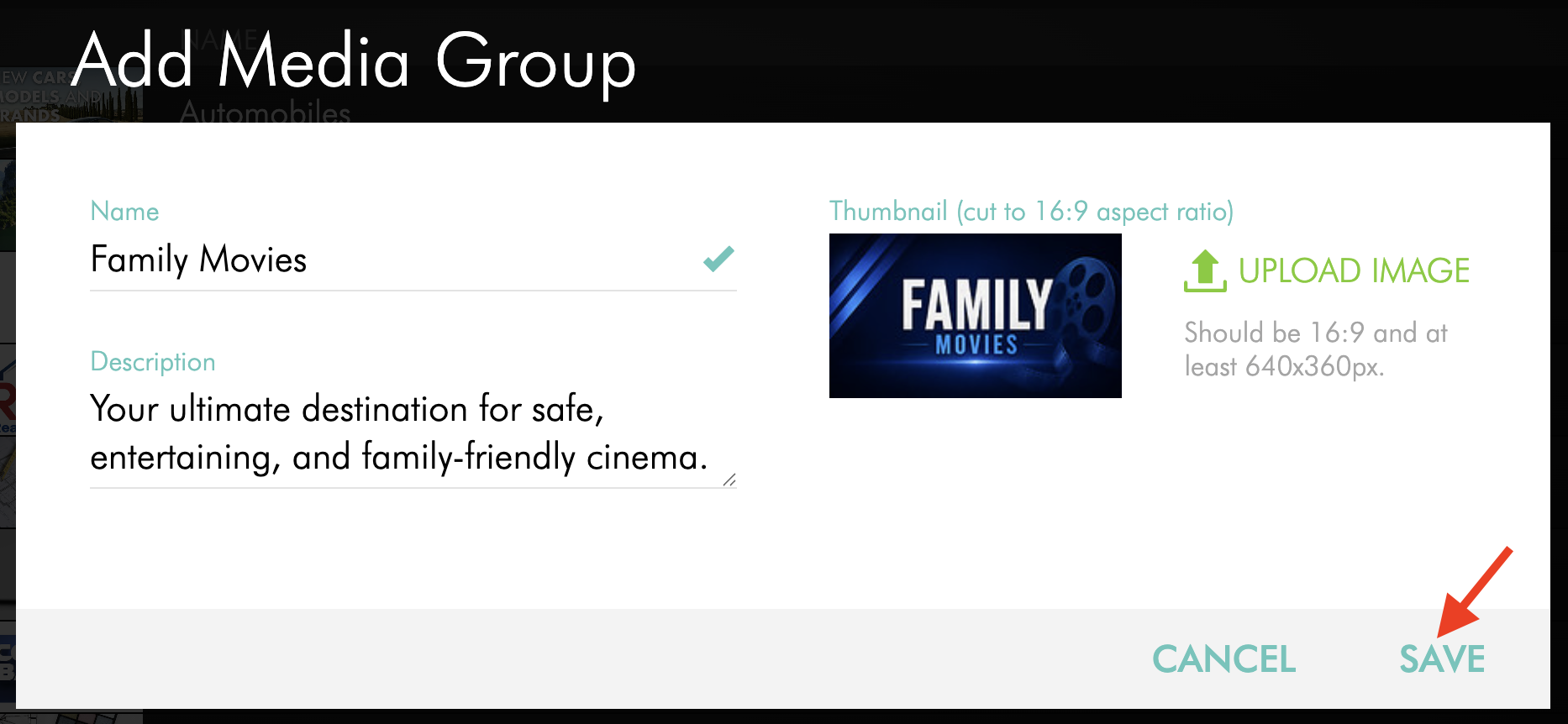
Enter the Media Group Name.
Step 5
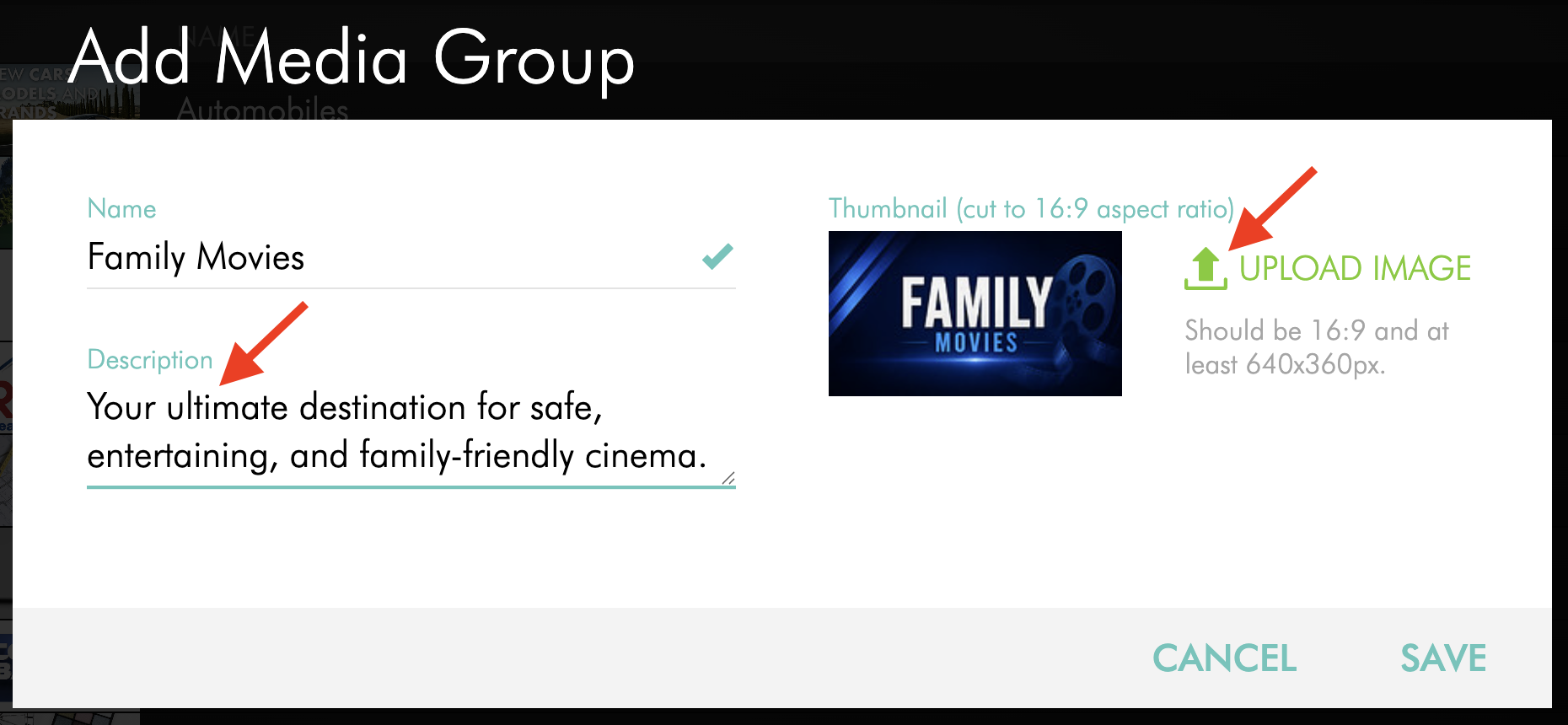
Add a Description and Thumbnail, if needed.
Step 6
Click SAVE.
The Media Group is now available to assign to video or audio files.
Create a Media Group from a media item
Step 1
Log in to your Media Cloud account.
Step 2
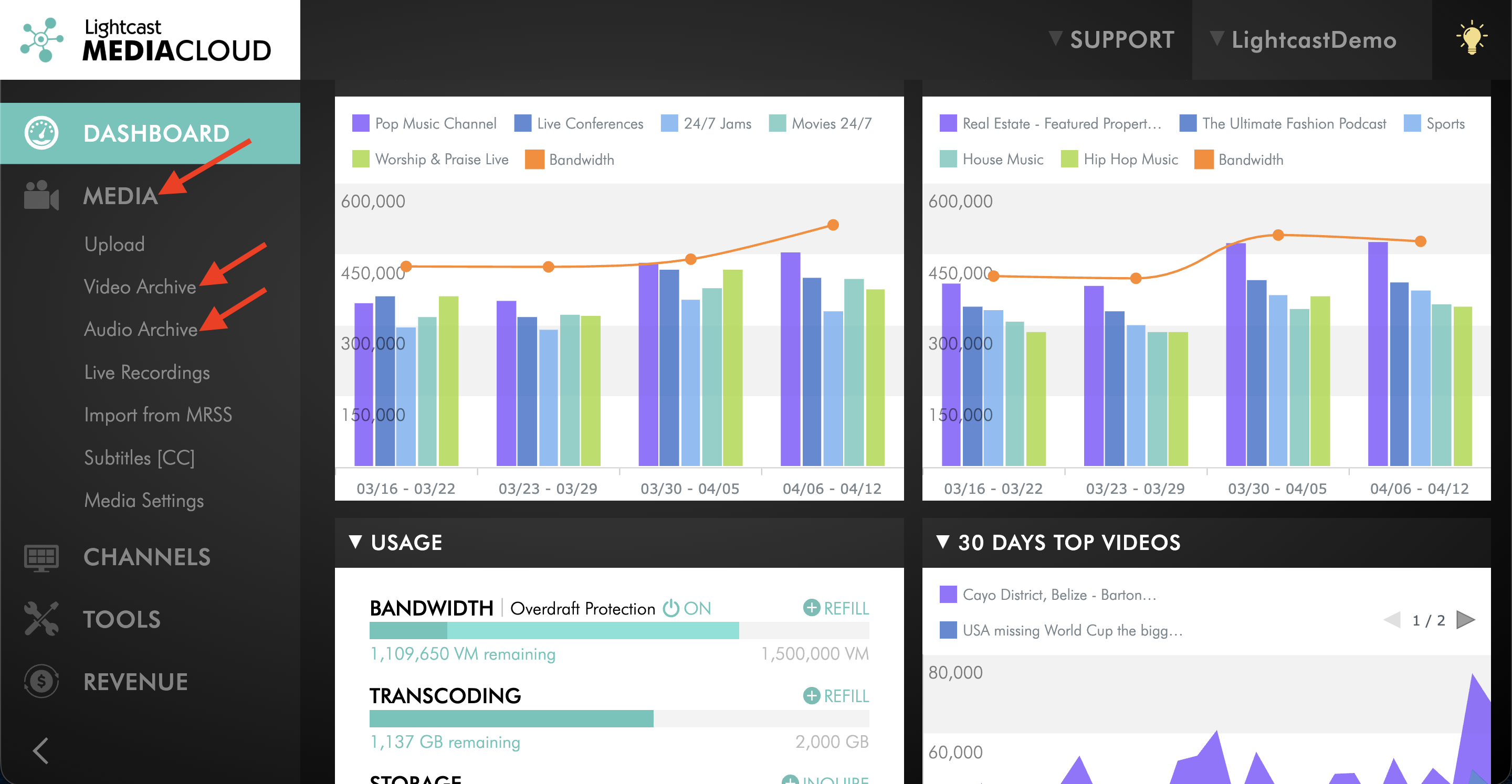
Go to MEDIA, then select Video Archive or Audio Archive, depending on the type of media item you want to use.
Step 3
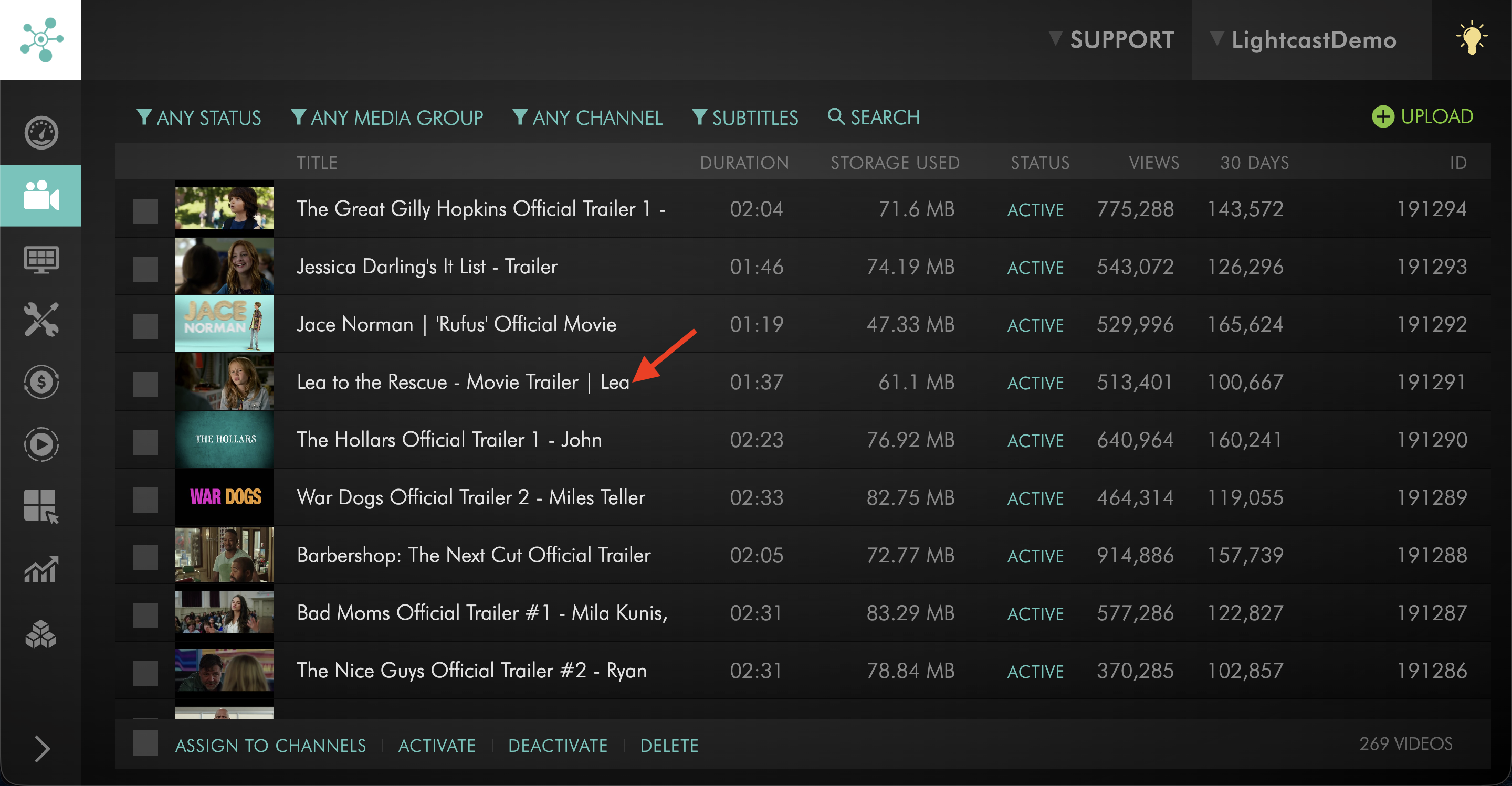
Select the video or audio file where you want to create the Media Group.
Step 4
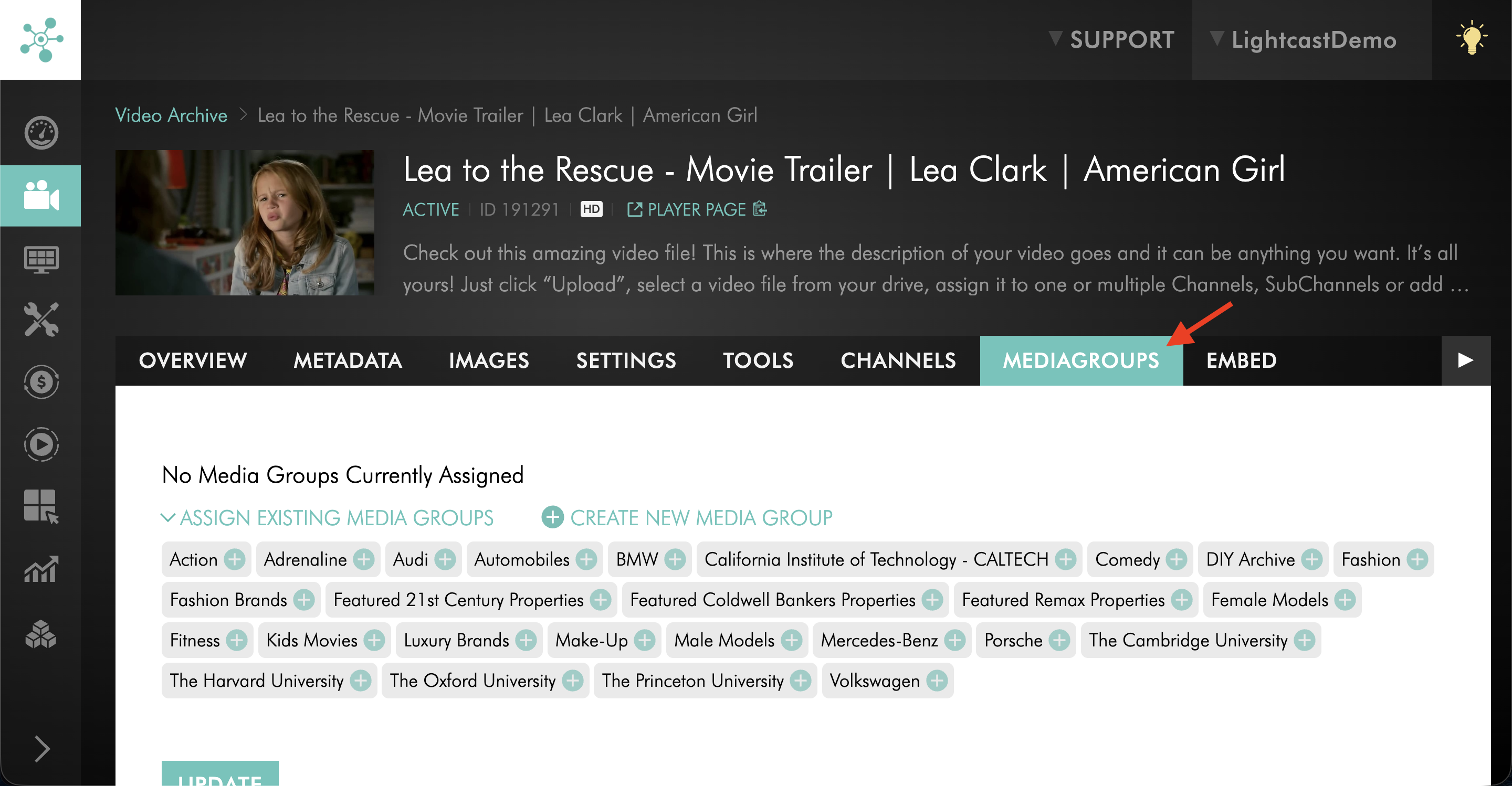
Open the MEDIAGROUPS tab.
Step 5
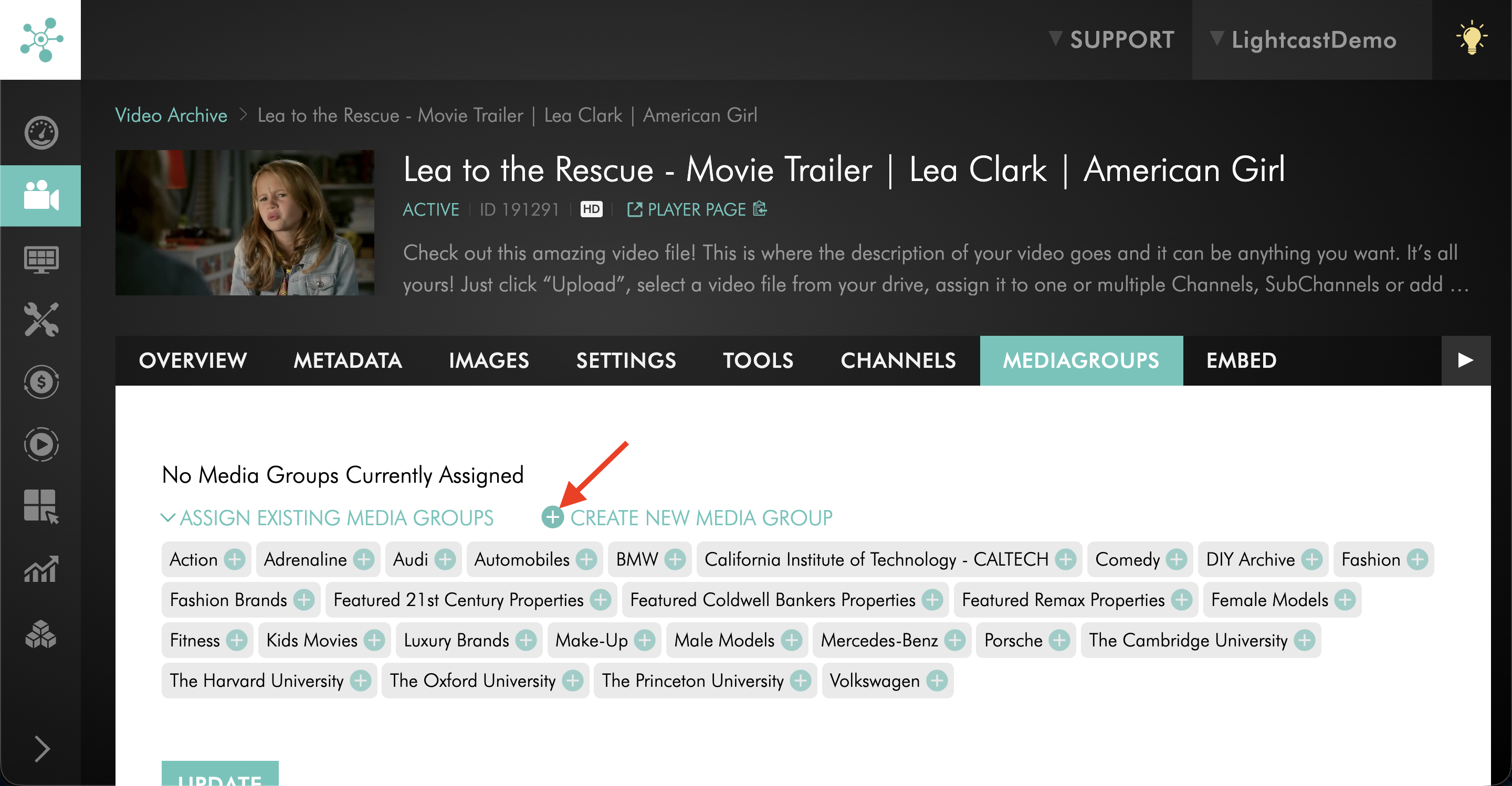
Click + CREATE NEW MEDIA GROUP.
Step 6
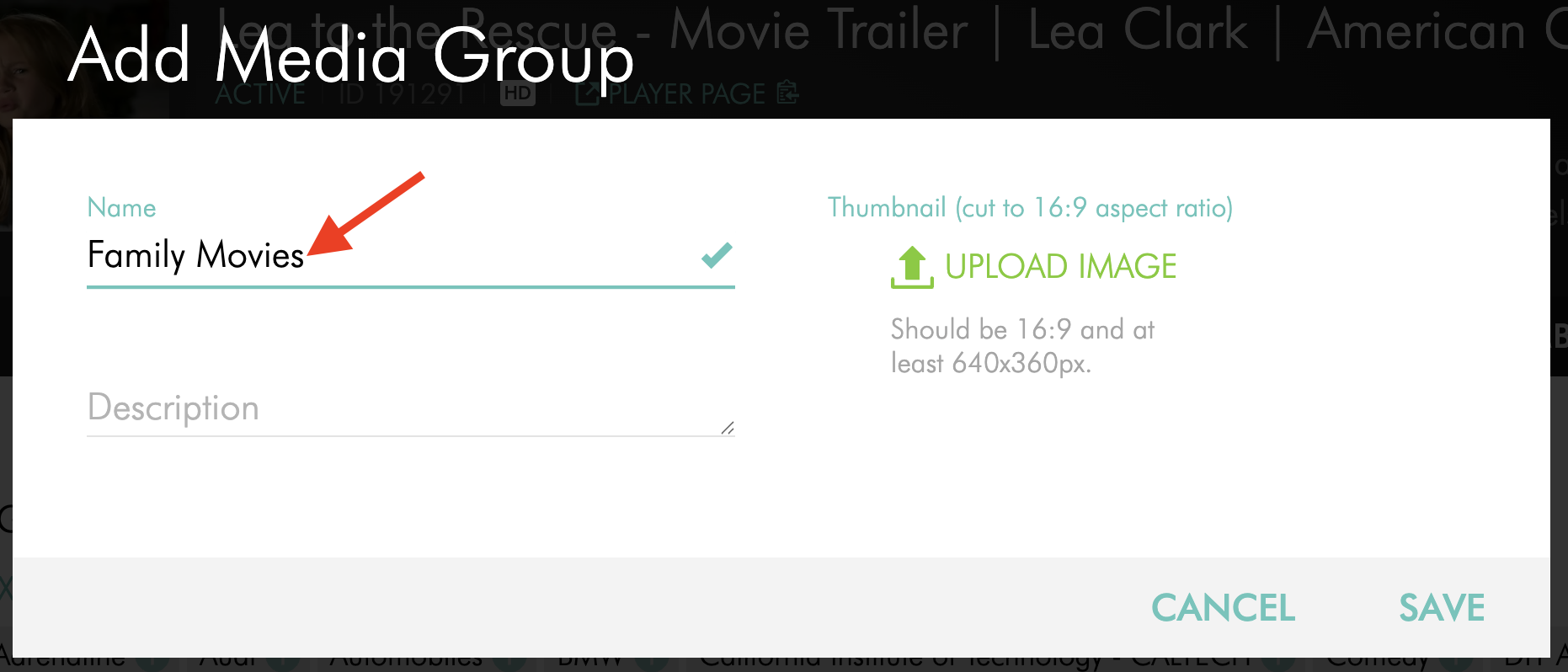
Enter the Media Group Name.
Step 7
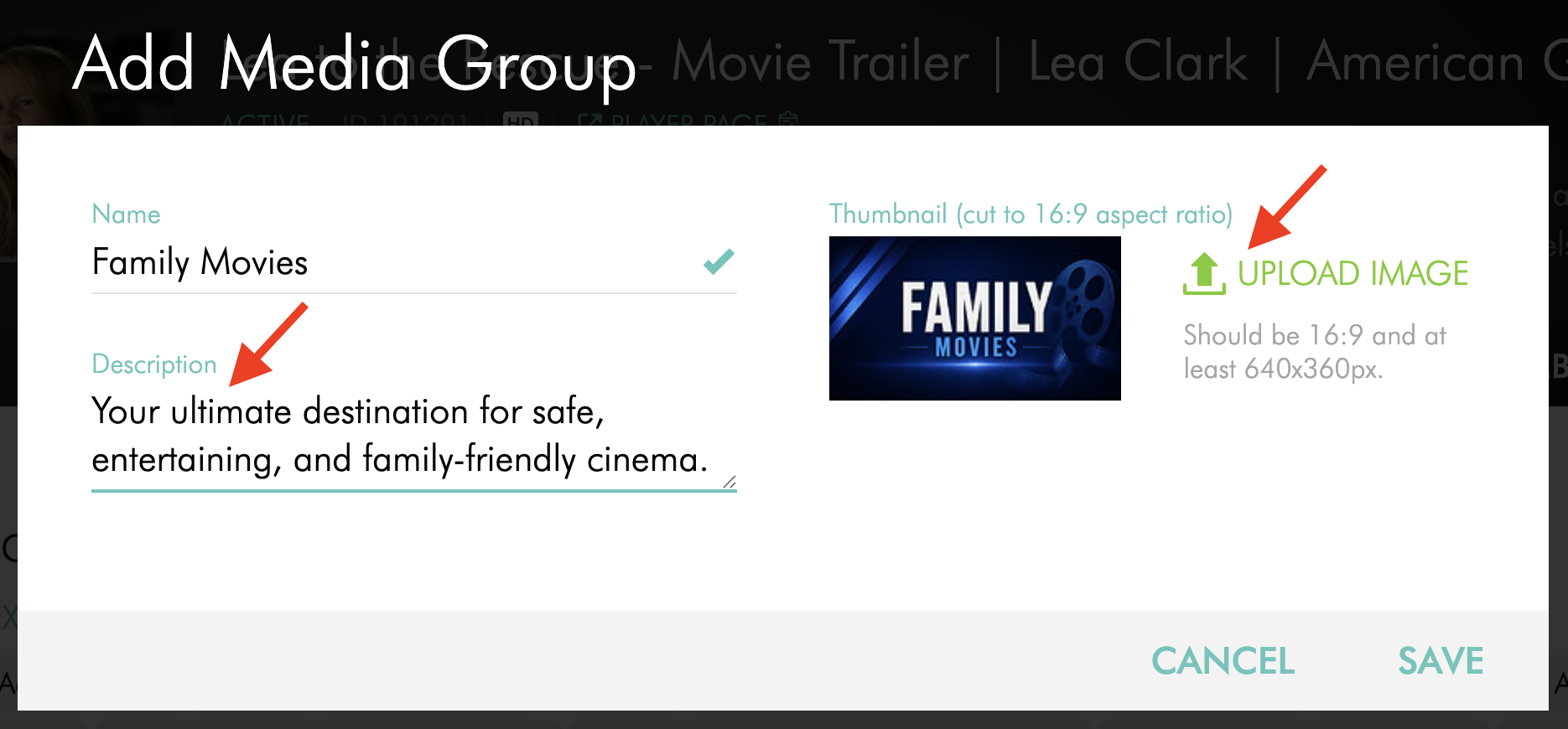
Add a Description and Thumbnail, if needed.
Step 8
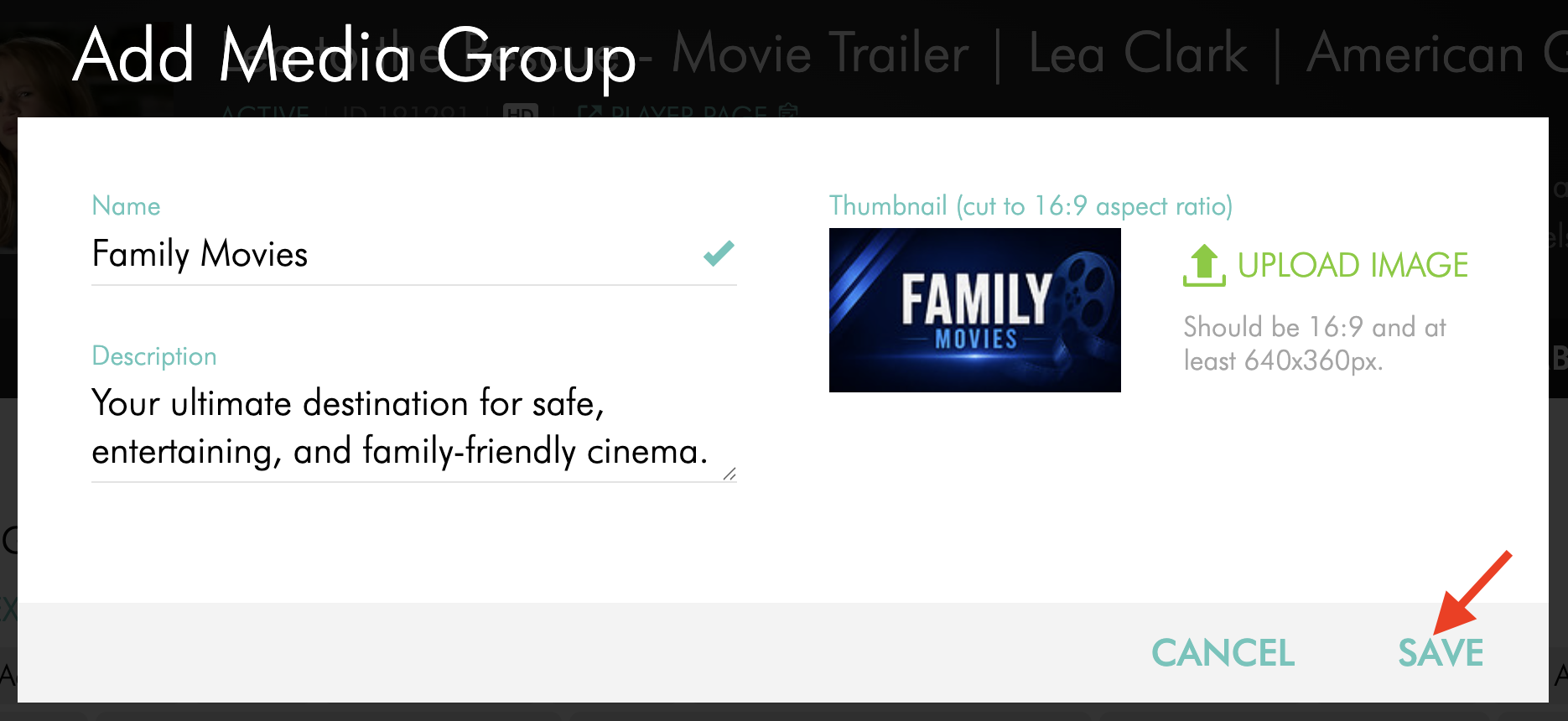
Click SAVE.
The Media Group is created and can be assigned to media items.
Assign a video or audio file to a Media Group
Step 1
Log in to your Media Cloud account.
Step 2
Go to MEDIA and select either Video Archive or Audio Archive, depending on the type of media item you want to assign.
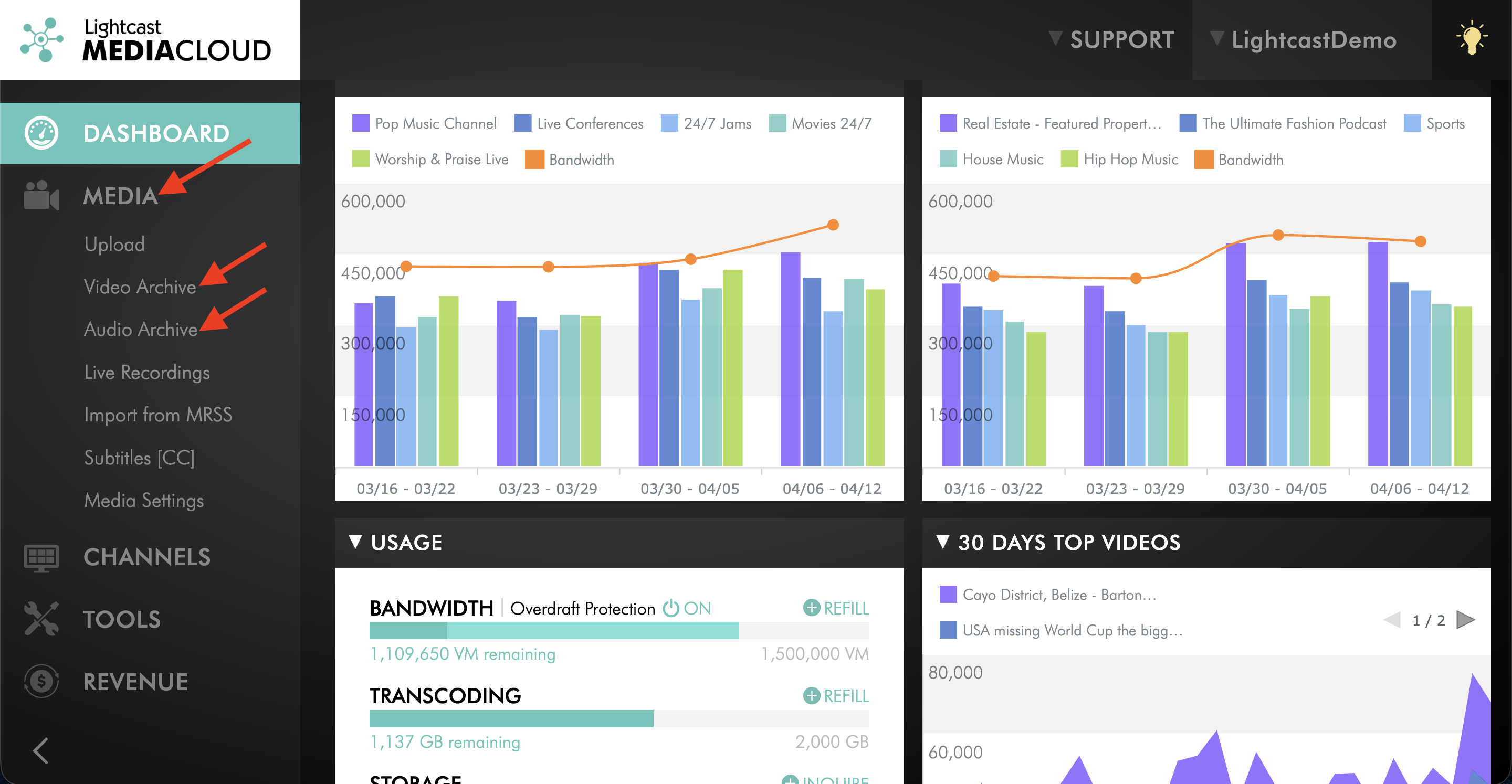
Step 3
Select the video or audio file you want to assign to a Media Group.
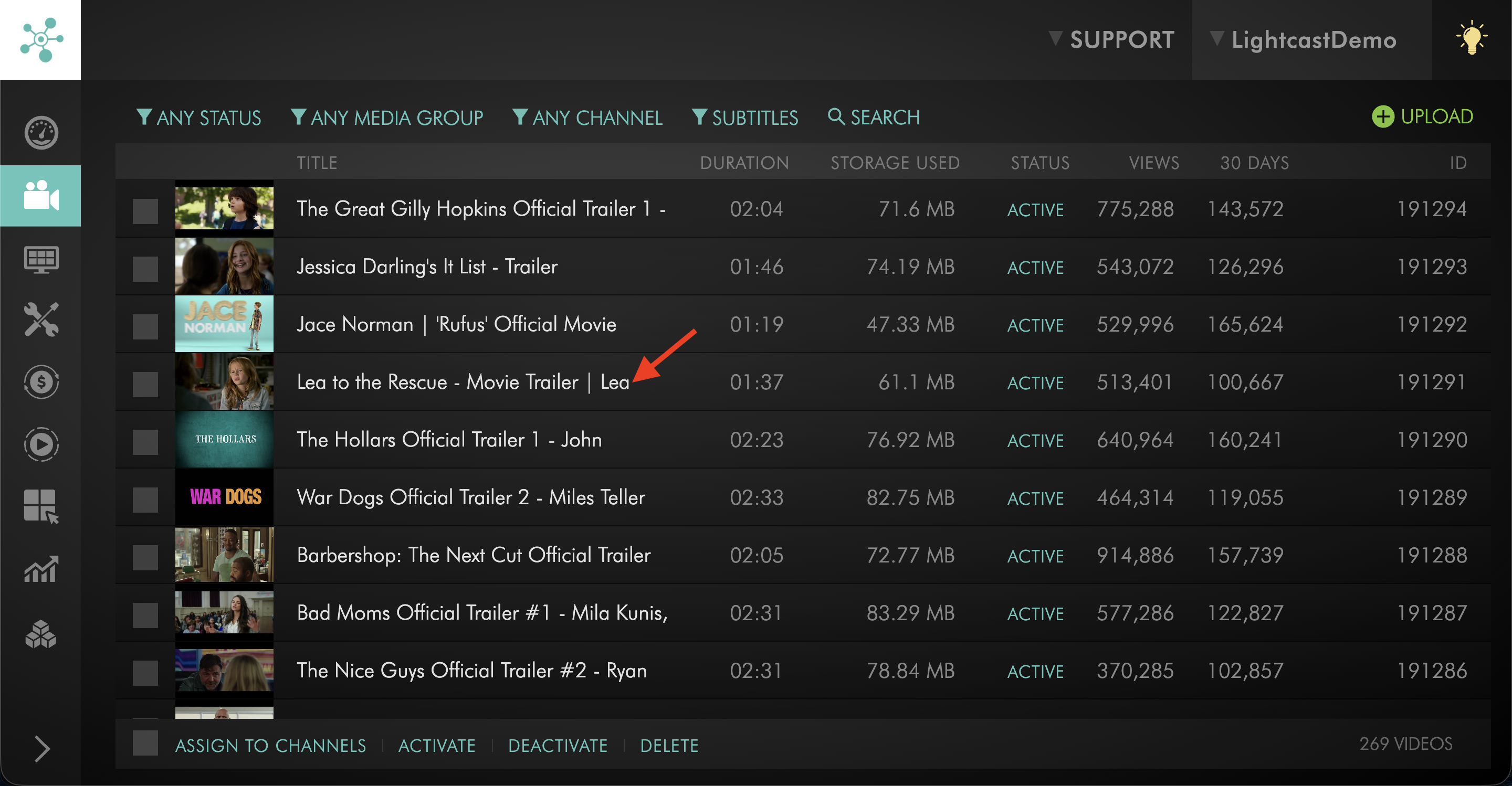
Step 4
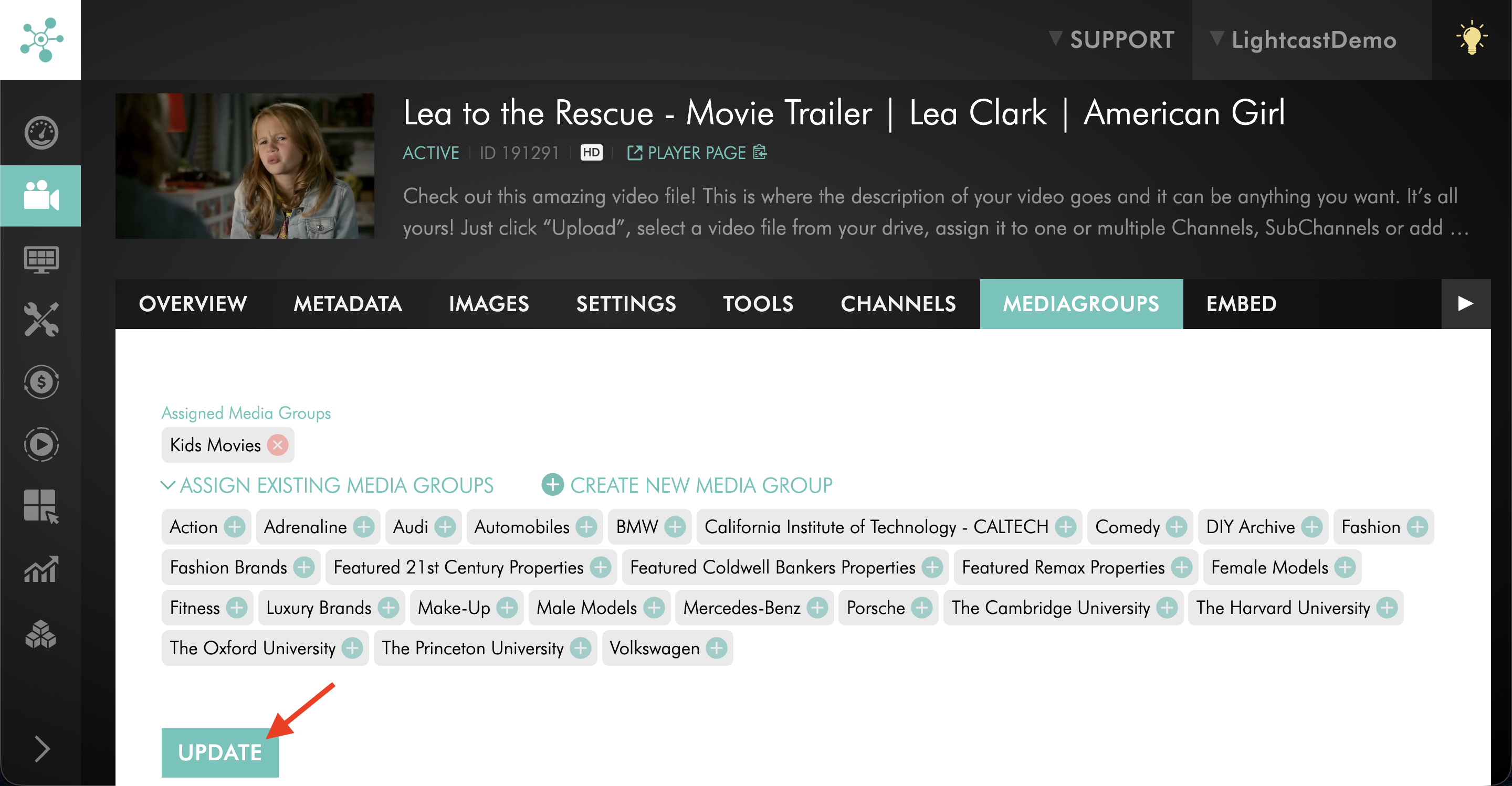
Open the MEDIAGROUPS tab.
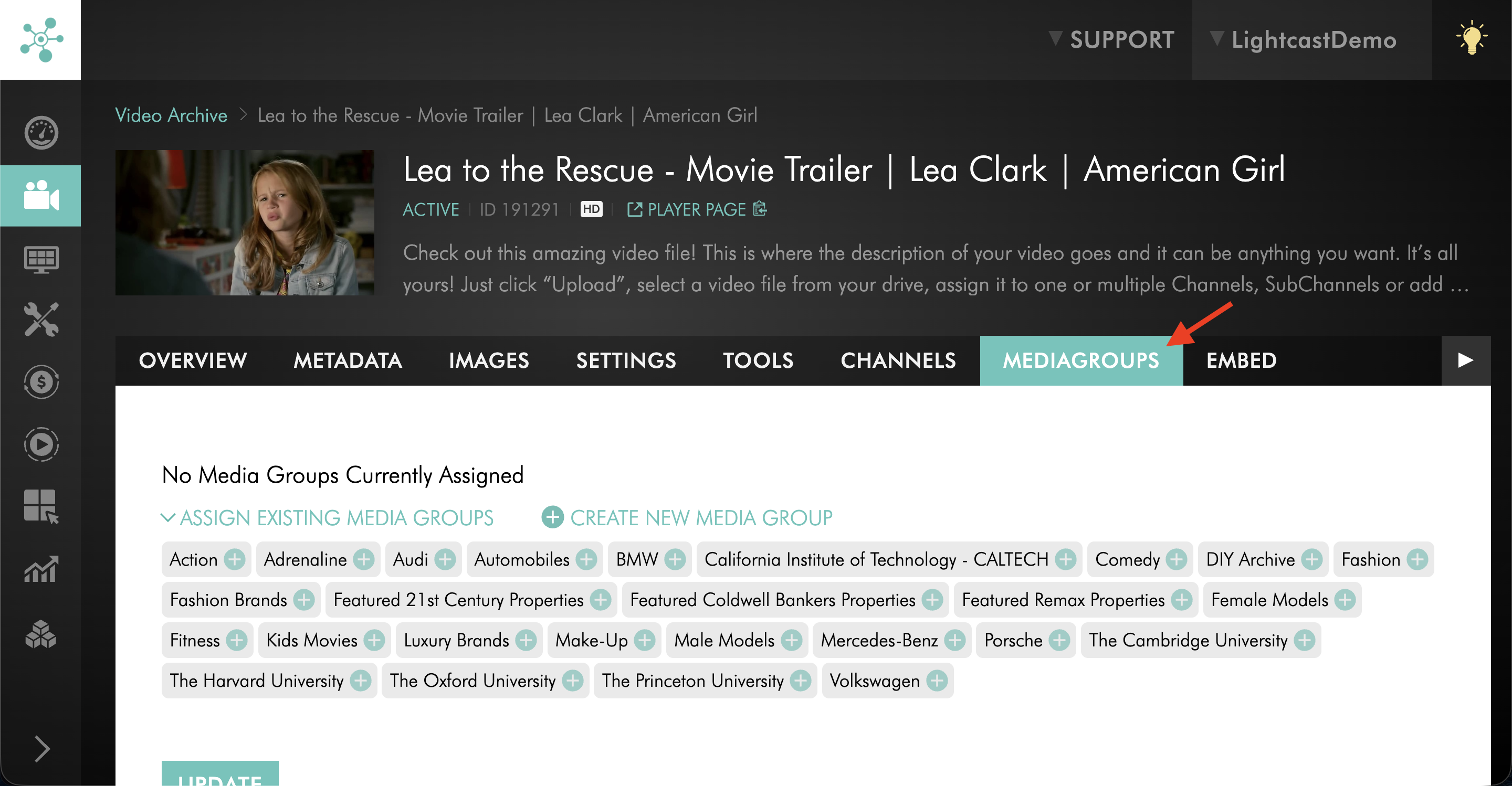
Step 5
Select the existing Media Group or Media Groups you want to assign to the media item.
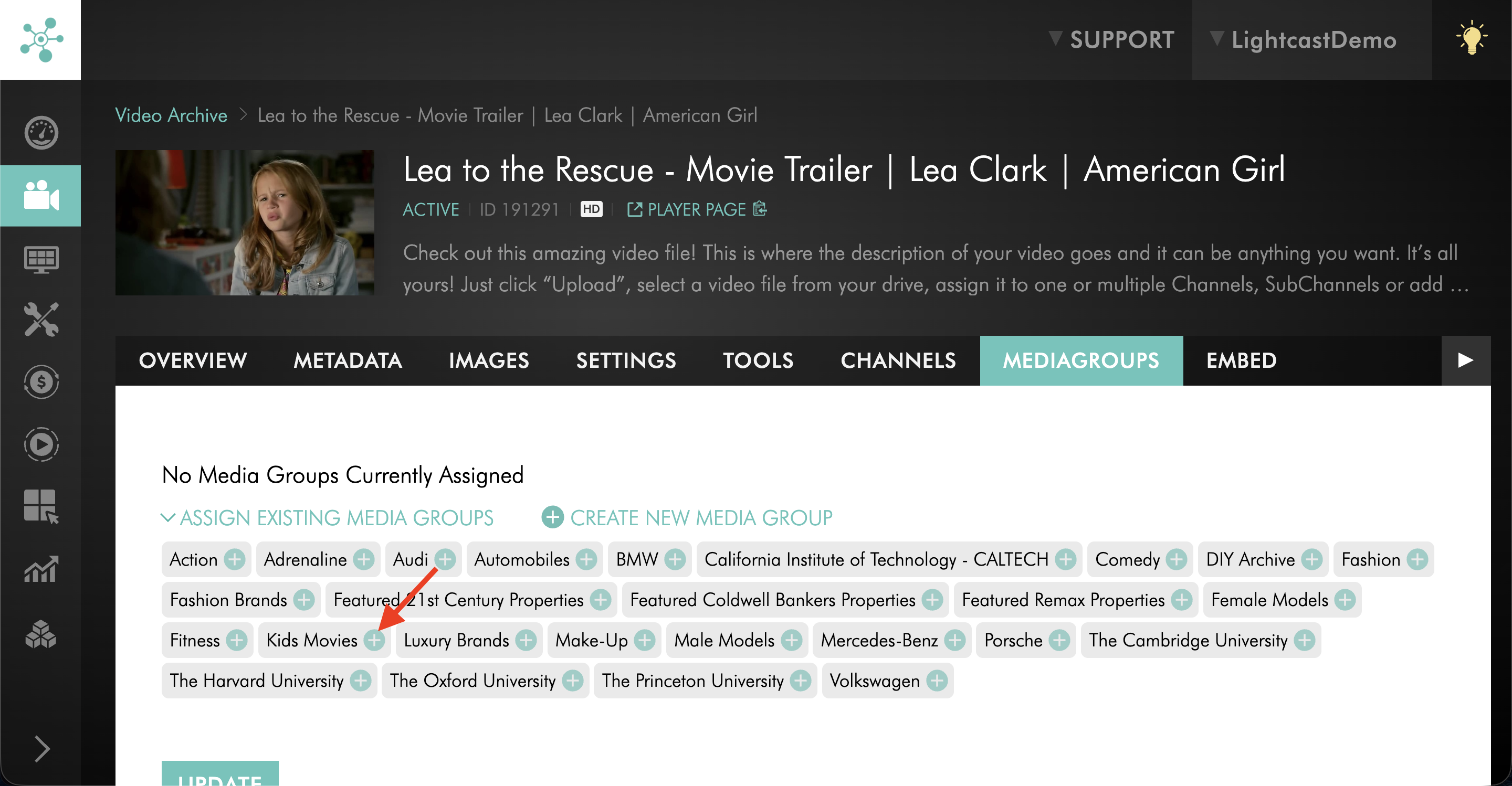
Step 6
Click UPDATE to save your changes.
The media item is now assigned to the selected Media Group or Media Groups.
Manage the order of Media Groups
Step 1
Log in to your Media Cloud account.
Step 2
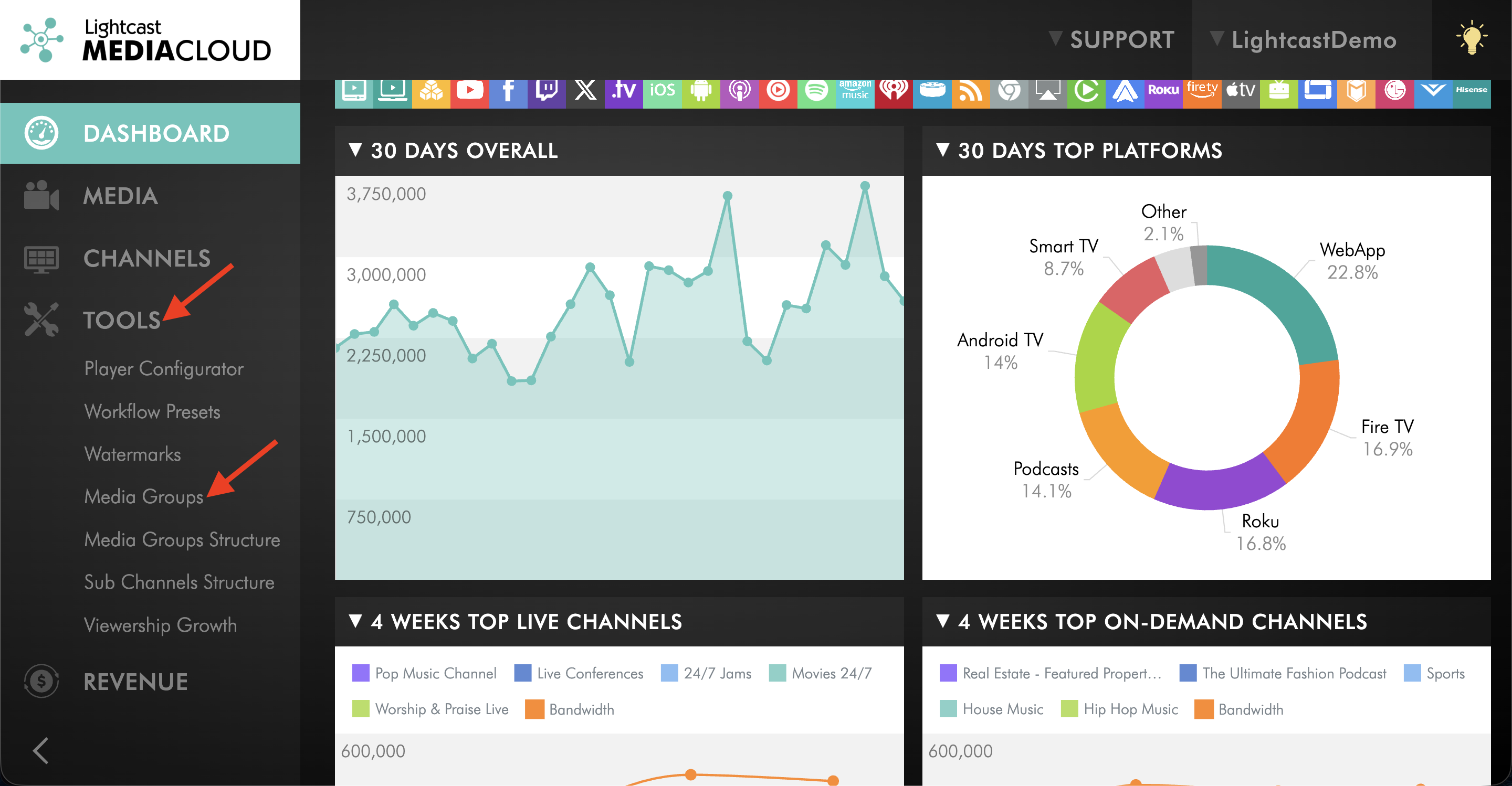
Go to TOOLS and select Media Groups.
Step 3
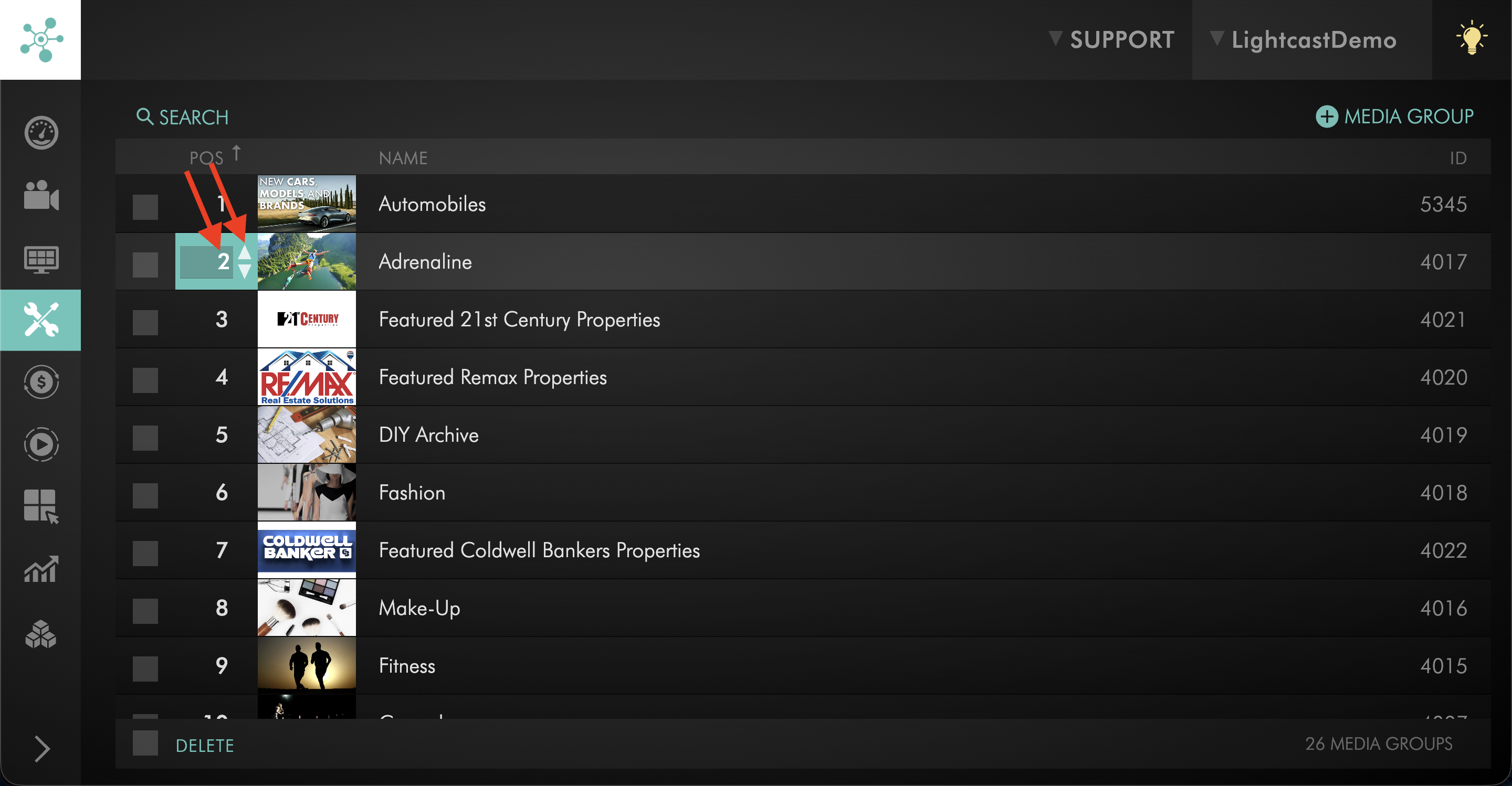
Use the arrows or number box in the POS column to move the Media Group to the desired position.
Step 4
Repeat this for any other Media Groups you want to reorder.
Your updated Media Group order will appear in the app in real time.
Manage video order inside Media Groups for supported TV apps
For supported TV app layouts, the order of videos inside a Media Group may follow the order of those videos in the VOD Channel playlist.
To adjust the display order, reorder the videos in the related VOD Channel playlist. For step-by-step instructions, see How to reorder media in a Channel playlist.
FAQs
Where can Media Groups be created?
Media Groups can be created from the Media Groups Manager under TOOLS or from the MEDIAGROUPS tab of an individual video or audio file.
Can Media Groups be created from a video or audio file?
Yes. You can create a Media Group from the MEDIAGROUPS tab of a video or audio file.
Can one media item be assigned to multiple Media Groups?
Yes. A video or audio file can be assigned to one or more Media Groups.
Can both video and audio files be assigned to Media Groups?
Yes. Video and audio files can be assigned to Media Groups when supported by your account and publishing setup.
Does assigning a media item to a Media Group publish it to a Channel?
No. Media Groups do not replace Channels. The media item must still be assigned to a VOD Channel or AOD Channel before it can appear in that Channel’s published content.
What needs to be true for a Media Group to appear in a Channel?
For a Media Group to appear under a specific Channel in a supported app, the Media Group must exist, the media item must be assigned to the Media Group, and the same media item must also be assigned to the VOD Channel or AOD Channel where the Media Group should appear.
Media Groups must also be enabled for that Channel in the app through the APP BUILDER.
Will Media Group order changes appear in connected publishing properties?
Yes. If Media Groups are enabled in supported publishing properties, changes to the Media Group order can appear in those publishing properties.
Changes usually appear automatically after a short delay. If the updated order does not appear immediately, viewers may need to refresh or reopen the app because the app or device may be using cached data.
How is video sorting handled inside Media Groups in supported TV apps?
In supported TV app layouts, the order of videos within a Media Group is based on the top-to-bottom order of those same videos in the VOD Channel playlist.
This means videos assigned to the same Media Group should be sorted in the VOD Channel in the order you want them to appear in the app.
Can Media Groups appear in TV apps, mobile apps, and Web Apps?
Yes, when supported by your app setup. Media Groups can appear in supported TV apps, mobile apps, and Web Apps when Media Groups are enabled for the Channel through the APP BUILDER section of the Media Cloud.
What is the difference between Media Groups and Sub-Channels?
Media Groups belong to the media item and can appear across multiple Channels where that media item is assigned.
Sub-Channels belong to one specific VOD Channel or AOD Channel and only affect that parent Channel.
For more information, see Understanding the difference between Sub-Channels and Media Groups.
Pricing
Media Groups are available on POWER packages and up.
If you don’t have access to this feature, you can upgrade to one of our latest plans or contact your account manager.