
How to monetize your content with subscriptions
Overview
This article explains what subscriptions (SVOD) are, what MULTIFY and EasyPay provide for subscriptions, and what information is needed to configure your subscription product.
How it works
What is SVOD?
SVOD (Subscription Video on Demand) is a model where viewers subscribe for ongoing access until they cancel. Most subscriptions renew month-to-month.
Where subscriptions work
Subscriptions can be integrated on your website (Web Player / Web App), mobile apps, and TV apps (Roku, Fire TV, Android TV, and other supported platforms). To see an example of a Web App with integrated subscriptions, visit subsdemo.lightcast.com.
What the subscription system includes
MULTIFY is Lightcast’s multi-platform subscriber system. It supports subscriber accounts and authentication across supported platforms where MULTIFY is integrated. EasyPay is the payment processing service used for paid subscriptions.
MULTIFY includes:
Multi-platform subscriber access (one subscriber account across supported platforms where MULTIFY is integrated)
EasyPay payment processing for paid subscriptions
Subscriber database/admin access (subscriber counts, exports, revenue visibility, revenue payout)
Subscriber self-management accounts (payment updates, invoices, subscription actions)
What the EasyPay processing system includes
EasyPay supports subscription payment processing and subscriber billing actions for paid subscription products, including:
Secure subscription checkout for subscribers
Recurring billing for monthly and/or annual subscriptions
Subscriber self-service for updating payment details
Subscriber access to invoices/receipts and billing history
Support for all credit cards and debit cards
EasyPay also includes a revenue share model for paid subscriptions:
You keep 80% of subscription payments.
Lightcast uses 20% to cover payment processing costs and operating costs that support EasyPay, including transaction and banking fees, customer support services, and licensing for the central subscriber and payment processing system.
Instructions
These instructions explain what information to submit so Lightcast can configure your subscription product, and which optional subscription features you can request.
Step 1
Plan your subscription model. Decide:
Monthly, annual, or both
Trial period (optional)
Single plan or tiered subscriptions
Which Channels will be included
Whether you will use trailers/previews
Step 2
Submit your subscription product details using the Subscription Setup Form (also referred to as your subscription application). Lightcast configures your subscription product based on the information you provide.
Include:
Subscription product name
Subscription product description
Subscription price(s)
Billing options (monthly, annual, or both)
Which Channel(s) should be included in the subscription product
Any additional setup preferences requested on the form
Pricing guidance for EasyPay
When choosing your subscription price, keep in mind that EasyPay includes a fixed $1.00 cost per subscriber per month, which covers:
$0.90 credit card processing and transaction fees
$0.10 chargeback handling, overhead, and support
Lightcast recommends charging at least $4.99 per month. At $4.99/month or higher, about 20% goes toward processing and system costs. Lower subscription prices are possible, but the fixed $1.00 cost will represent a larger percentage of your revenue.
For current EasyPay pricing tiers and add-on pricing, see the Rate-Card for Add-On Products.
Step 3
Once submitted, our team uses this information to configure your subscription product.
Step 4
If needed, request optional subscription features, such as a free trial period, multiple subscription tiers, promo codes, or trailers/previews.
Managing changes
After your subscription product is set up, you can request updates or make adjustments depending on the change:
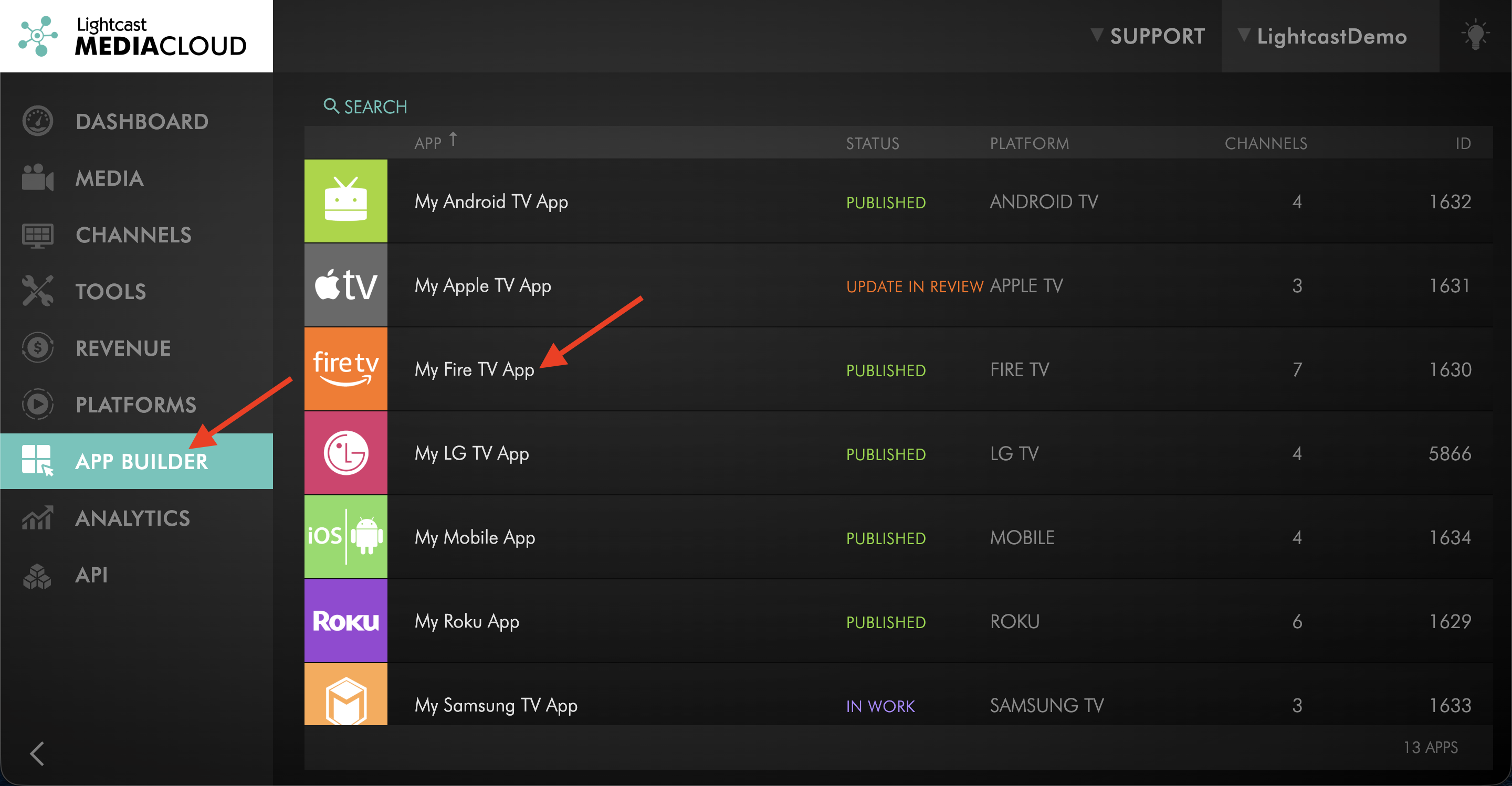
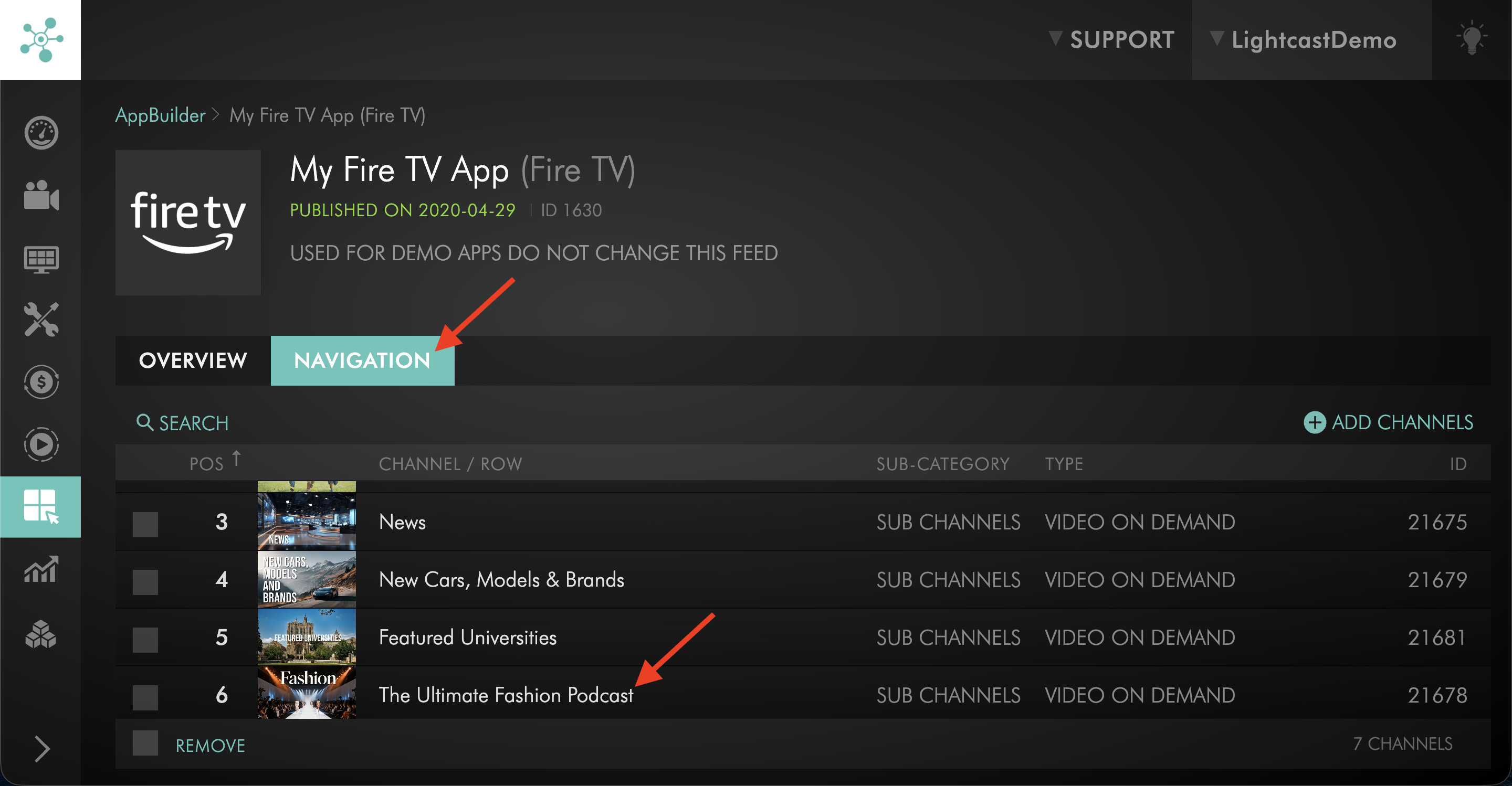
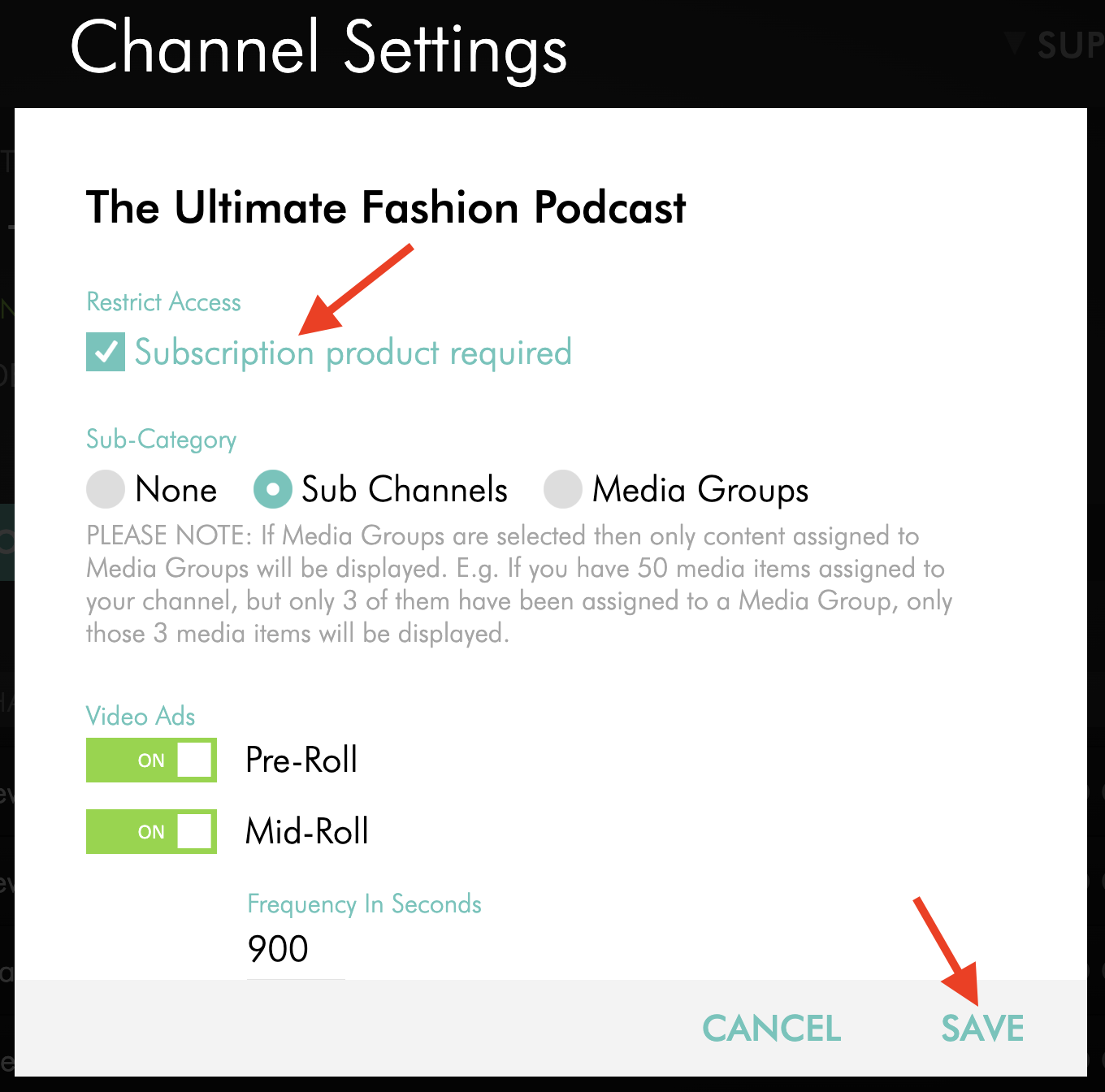
Update subscription requirement in each app (Restrict Access): In the Media Cloud → App Builder, choose an app, switch to the NAVIGATION tab, select a Channel included in your subscription product, and toggle Subscription product required on or off and click Save. Any changes apply in real time.
Add or remove Channels from your subscription product
Rename the subscription product
Delete/cancel subscription product: if subscribers are active, cancellations are scheduled for the end of the paid billing period.
For changes to the subscription product (name, description, or included Channels), and to delete/cancel a subscription product, please contact Customer Support.
FAQs
Can I add new Channels to my subscription later?
Yes. Please contact Customer Support to update which Channels are assigned to the subscription product.
Can I offer a free trial?
Yes. Free trials are available as an optional add-on.