
Your Message, Live on YouTube
Ready to take your live events to a global audience? With YouTube Live Streaming built right into your Lightcast Media Cloud, going live is simple, streamlined, and only a few clicks away.
🔎 Where to Enable YouTube Live Streaming
You'll find YouTube Live Streaming inside the Events page of any Live Events Channel.
Click "+ Event"
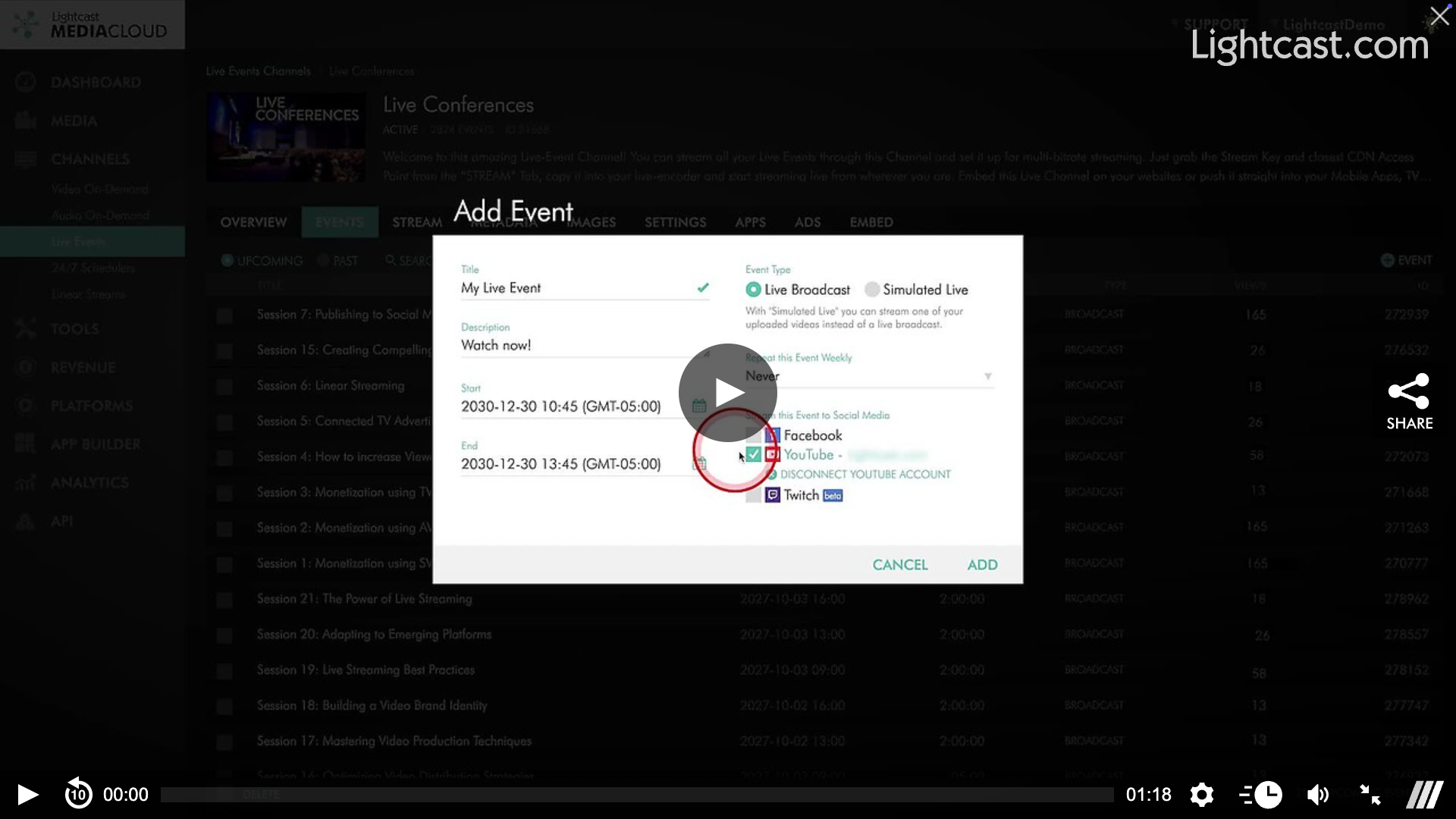
Select the YouTube option.
A pop-up will prompt you to log in to your YouTube account and activate YouTube Live Streaming (if it's your first time).
Add your event name, start/end time, or choose a recurring event (up to 26 weeks).
Optional: Not streaming live? Select a video from your Media Archive to share as a simulated live broadcast.
👉🏼 Click here for a step-by-step guide.
📺 Go Live & Monitor Your Stream
Once your event is live, it will appear instantly in your YouTube Live Dashboard (YouTube Studio) whenever you're logged in.
From there, you can:
Monitor your live stream's performance
Share it with your audience
Benefit from YouTube's massive global reach
👉🏼 Click here for more information about our YouTube Live Streaming feature.
💡 Pro Tip: YouTube requires Live Streaming to be enabled on your account. If you're new to YouTube Live, be sure to activate this feature ahead of time so everything runs smoothly.
Watch this video to See How to Publish Your Live Stream to YouTube

For previous tips, visit our tips page!
Would you like a specific topic to be covered by an upcoming “Tip of the Week”? Click here to submit your request!
Happy Streaming!
Your Lightcast Success Team