
Activate/Deactivate Media
We know that our clients appreciate the easy-to-use Media Cloud interfaces and the flexibility of the Media Management System to fully control uploaded media and live streams, as well as the delivery to publishing platforms. Today, we would like to point out a feature which allows you to set selected VOD assets "inactive" for the purpose of delaying a public release, or to simply hide media on your connected platforms.
💡 By default, new on-demand assets are set to "Active" when uploaded but do not show up on any of your connected properties (players and apps) unless you assign them to a published VOD or AOD Channel.
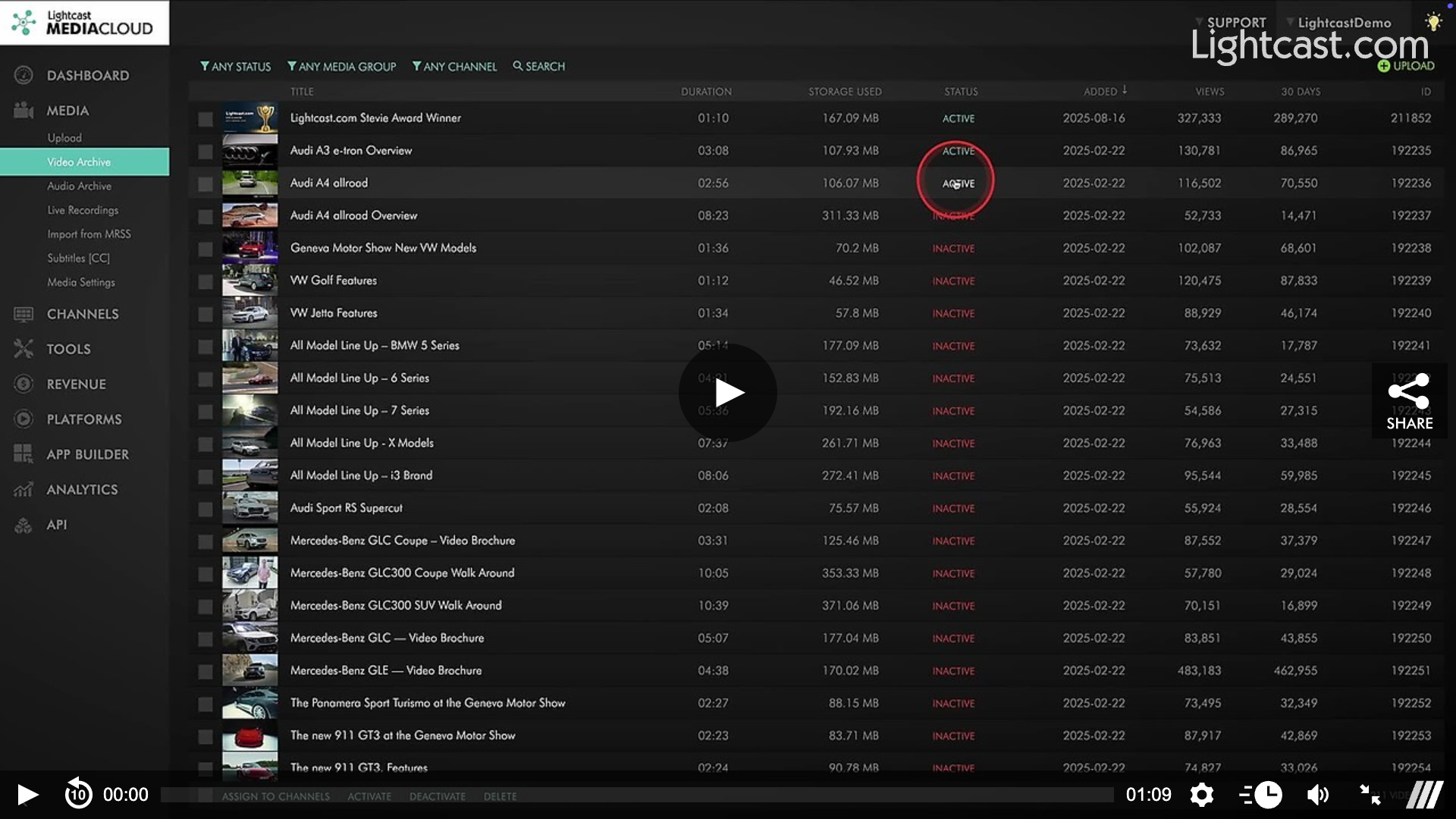
💡 Once you assigned an on-demand file to a VOD or AOD Channel during the upload process, or at any time after the upload, you can change the status of the file from “Active” to "Inactive" and as a result hide it from your publishing platforms. Simply go to your "Media Archive” in your Media Cloud account, or click on the Channel you assigned the media to. Locate the "Status" column (which will display "Active" or "Inactive”), then click on the current status to toggle from "Active" to “Inactive”.
💡 Alternatively, you can change the channel assignment for any video or audio file in order to unpublish the file from a specific VOD or AOD Channel. Click here to see how.
💡 Or you can use the “Scheduled Publishing” feature to schedule the publishing of your on-demand content for a future date. Click here to see how.
Watch this Video to see How to Set Media to Active/Inactive

For previous tips, visit our tips page!
Would you like a specific topic to be covered by an upcoming “Tip of the Week”? Click here to submit your request!
Happy Streaming!
Your Lightcast Success Team