
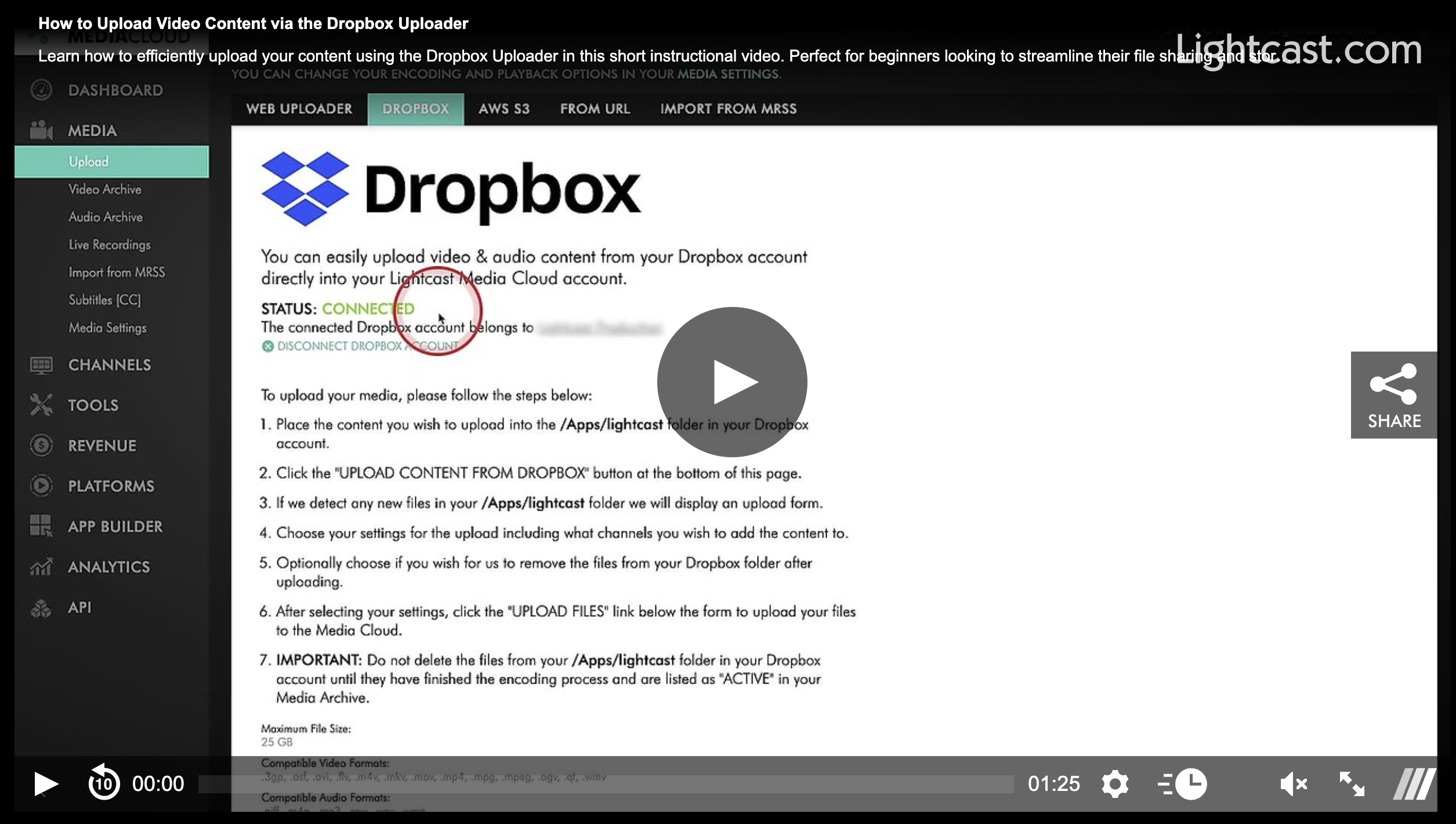
Upload Directly from Dropbox
If your media is already stored in Dropbox, the Dropbox Uploader provides a fast and convenient way to transfer it directly into your Media Cloud. It’s a helpful option when you need to move larger files or multiple media items without downloading them to your computer first.
You can access the Dropbox Uploader from MEDIA > Upload.
🚀 Best For
The Dropbox Uploader is ideal when you need to:
Upload video or audio files already stored in Dropbox
Transfer large files, up to 25 GB each
Move multiple files into the Media Cloud at once
Support batch uploads or content migrations
It can also be a helpful alternative to the FTP Uploader for batch upload workflows.
🔁 Direct Cloud-to-Cloud Transfers
Instead of downloading files to your computer first, simply connect your Dropbox account and select the files you want to transfer into the Media Cloud.
Benefits include:
No software installation required
Supports files up to 25 GB each
No set limit on the number of files you can select for upload
💡 Before You Upload
Uploads use your available Storage and Transcoding balance. If your remaining balance is low, uploads may be limited, or you may receive an upload warning, so it's a good idea to check your available resources before starting a large upload.
Watch this Video to See How to Upload Video Content via the Dropbox Uploader

For previous tips, visit our tips page!
Would you like a specific topic to be covered by an upcoming “Tip of the Week”? Click here to submit your request!
Happy Streaming!
Your Lightcast Success Team