
Streamline Uploads with Workflow Presets
Managing large volumes of content can be time-consuming, especially when the same settings need to be applied repeatedly. Workflow Presets help simplify the process by automatically assigning your preferred upload and publishing settings, saving time and reducing manual work.
🚀 Upload More, Manage Less
Workflow Presets allow you to save common upload configurations and apply them to video and audio uploads during upload workflows. This is especially useful for bulk uploads, recurring content, or repeatable publishing processes where consistent settings need to be applied.
Benefits include:
Faster upload and publishing workflows
Consistent settings across content
Reduced manual setup
More efficient content management
🤖 What Can Be Automated?
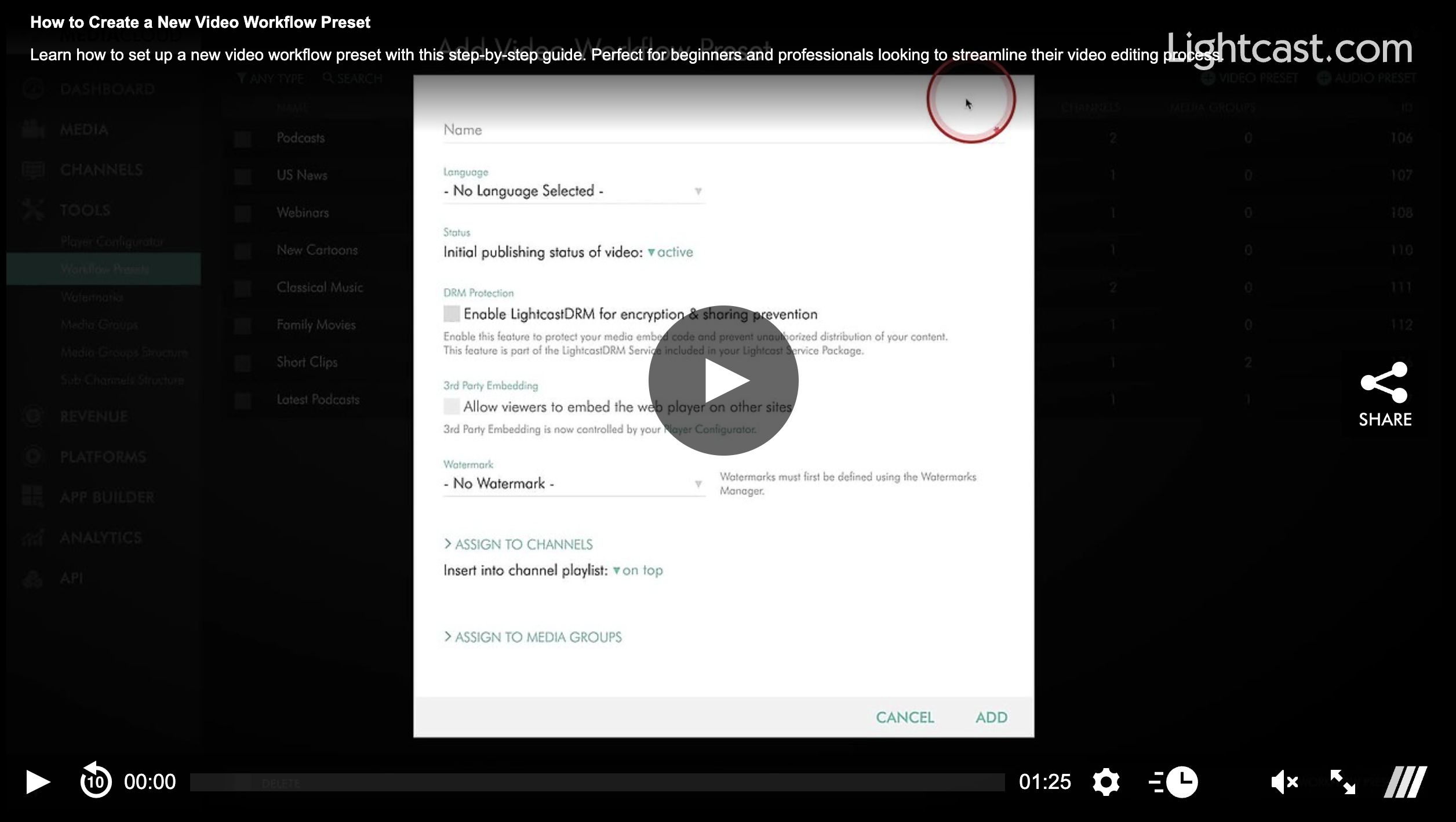
Workflow Presets can automatically apply settings such as:
Channel and Sub-Channel assignment
Media Group assignment
DRM selection
Initial publishing status
Watermark settings
Language selection
Workflow Presets are selected during the upload process before the media item is sent to encoding.
📈 Perfect for Bulk Uploads
Whether you are uploading a single asset or hundreds of files, Workflow Presets help ensure your content is processed consistently and efficiently. Instead of selecting the same settings for each upload, you can choose a preset during the upload process and let the Media Cloud apply those settings before encoding begins.
💡 Get the Most from Your Workflow
Workflow Presets are ideal for organizations with recurring publishing processes, multiple content categories, or large media libraries. In many cases, creating separate presets for different workflows can help keep your upload process organized and reduce the chance of applying the wrong settings.
Watch this Video to See How to Create a New Video Workflow Preset:
Note: Workflow Presets are available on POWER packages and up.

For previous tips, visit our tips page!
Would you like a specific topic to be covered by an upcoming “Tip of the Week”? Click here to submit your request!
Happy Streaming!
Your Lightcast Success Team