
Understanding time zones and daylight saving time in the 24/7 Scheduler
Overview
This article explains how the programming time zone and daylight saving time affect your 24/7 Scheduler Channel. It also explains how to select the time zone used to build and manage your programming schedule.
When to use time zone settings
Use the time zone setting to define the programming time zone for your 24/7 Scheduler Channel.
In most cases, select the time zone in which you want to build and manage your programming schedule. For example, if your programming lineup is based on US Eastern Time, select the applicable Eastern Time zone even if you manage the Channel from another location.
The selected time zone determines how scheduled times appear in the Scheduler and when your programming plays.
How it works
How the programming time zone works
The time zone selected for your 24/7 Scheduler Channel is the programming time zone for that schedule.
The Scheduler uses Coordinated Universal Time (UTC) internally as a consistent time reference, but you create and view your programming schedule in the time zone selected for your 24/7 Scheduler Channel.
For example, if your Channel is set to US Eastern Time and you schedule a program for 7:00 PM, it plays at 7:00 PM US Eastern Time. Viewers in other locations experience that programming at the corresponding time in their own local time zone.
The Scheduler does not change the programming time based on each viewer's location. Your programming follows the time zone configured for the 24/7 Scheduler Channel.
Important: Changing the programming time zone does not change the actual playback time of content that is already scheduled. Existing programming keeps the same time in UTC, but its displayed scheduled time changes to reflect the newly selected time zone.
For example, if a program is scheduled for 9:00 AM Eastern Time and you change the Channel time zone to Central Time, the program will appear at 8:00 AM Central Time in the Scheduler.
How daylight saving time works
If your selected programming time zone observes daylight saving time, you do not need to manually change the Channel time zone when daylight saving time begins or ends. The Scheduler applies the applicable time change automatically.
UTC remains consistent throughout the year and does not change for daylight saving time.
When clocks move forward in the spring, one local hour is skipped. Because that hour does not exist on that date, programming cannot be scheduled during it.
When clocks move backward in the fall, one local hour occurs twice. The Scheduler includes the additional hour so programming can continue through the time change.
Daylight saving time is not observed in every location, and the dates when time changes occur can vary by country or region. The Scheduler accounts for the applicable time changes based on the selected programming time zone.
Choosing the right time zone
Select the local time zone that matches how you want to build and manage your programming schedule.
For example, if you want a program to remain scheduled for 7:00 PM US Eastern Time throughout the year, use the applicable Eastern Time zone. The Scheduler automatically accounts for the change between Eastern Standard Time and Eastern Daylight Time.
Select UTC only if you want your programming schedule to remain fixed to UTC throughout the year. If you want programming to follow a local time zone that observes daylight saving time, select that local time zone instead.
Instructions
Change the time zone for your 24/7 Scheduler
Step 1
Log in to your Media Cloud account.
Step 2
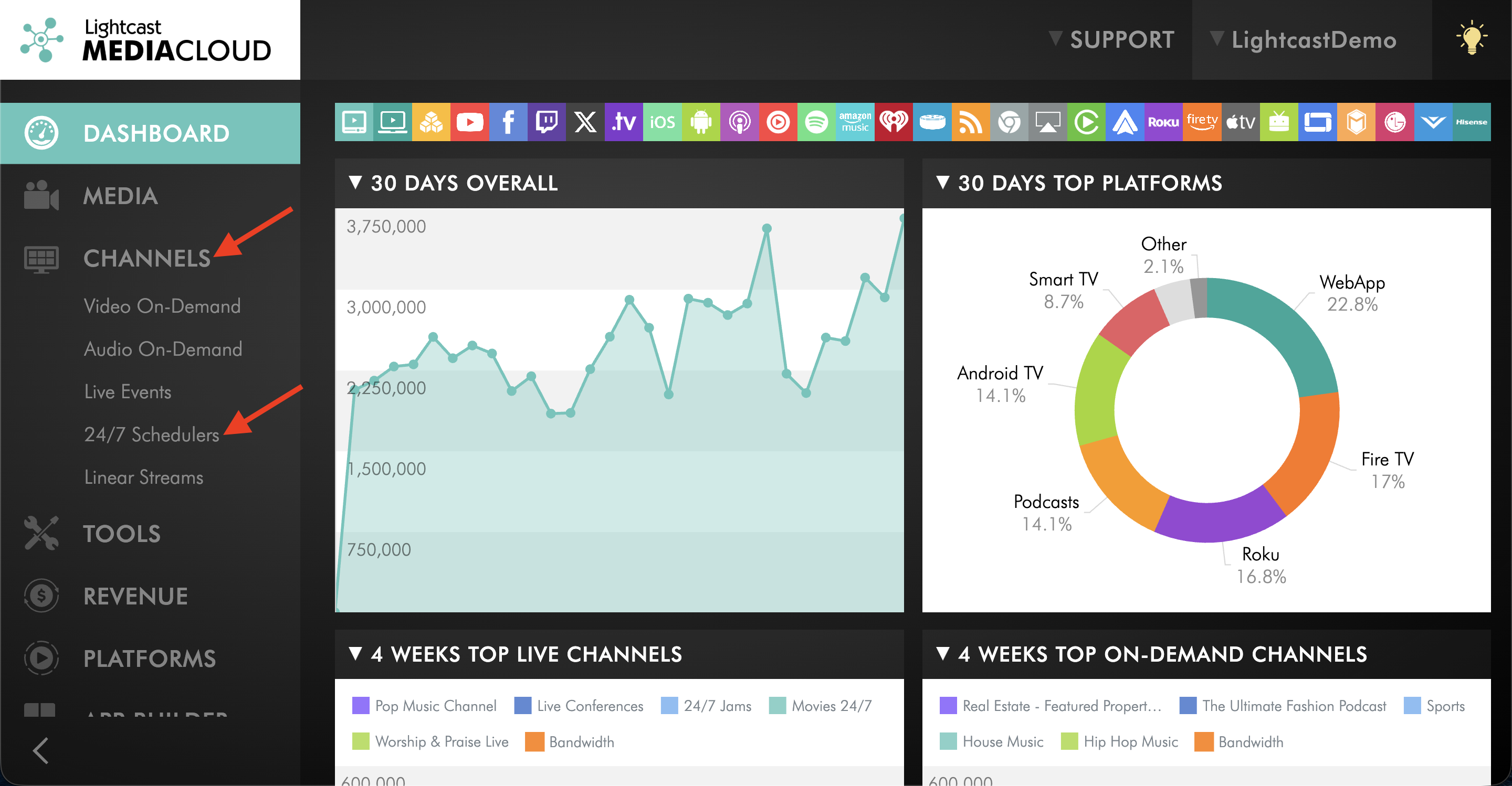
Go to CHANNELS and select 24/7 Schedulers.
Step 3
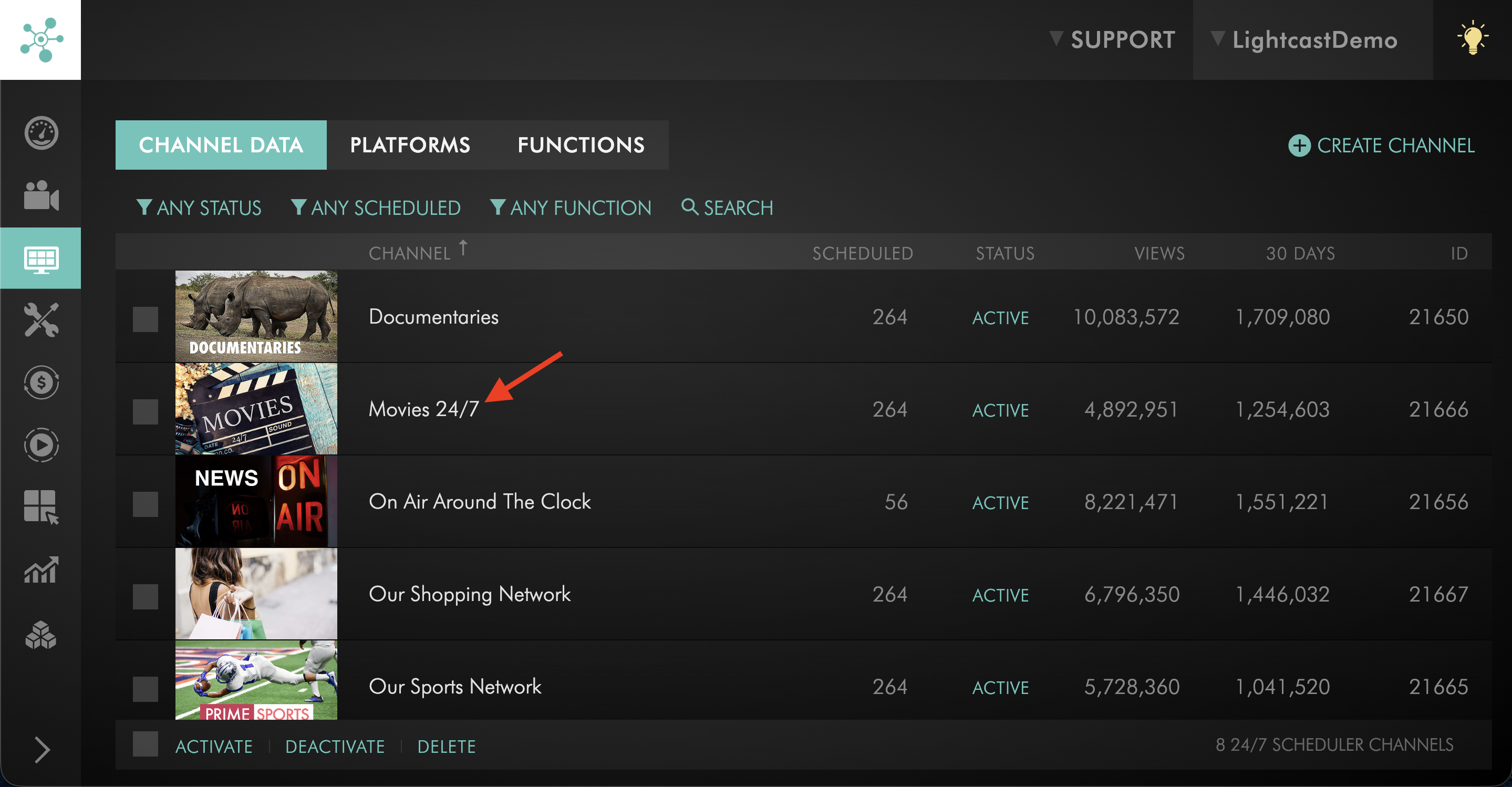
Select the 24/7 Scheduler Channel you want to manage.
Step 4
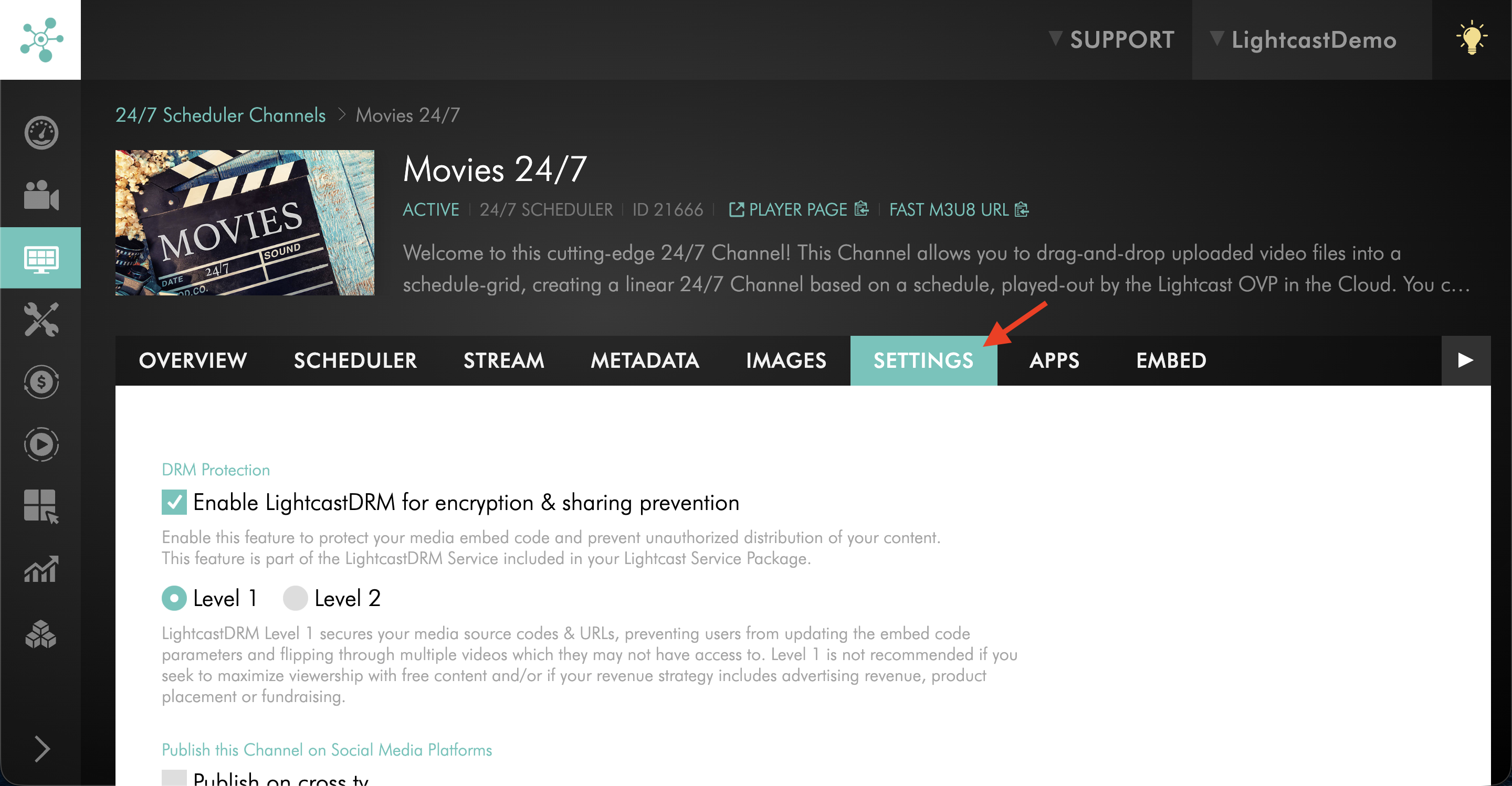
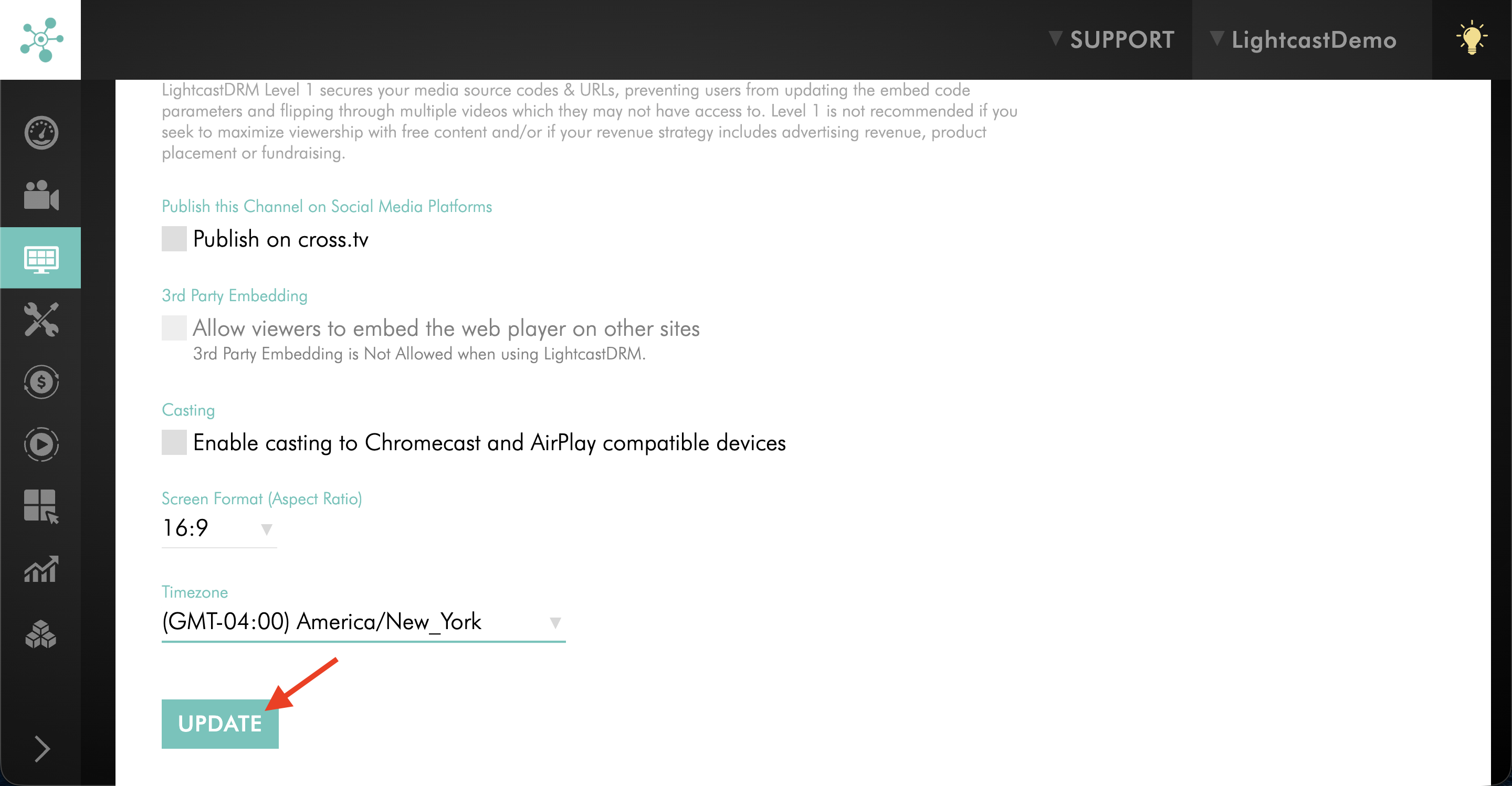
Open the SETTINGS tab.
Step 5
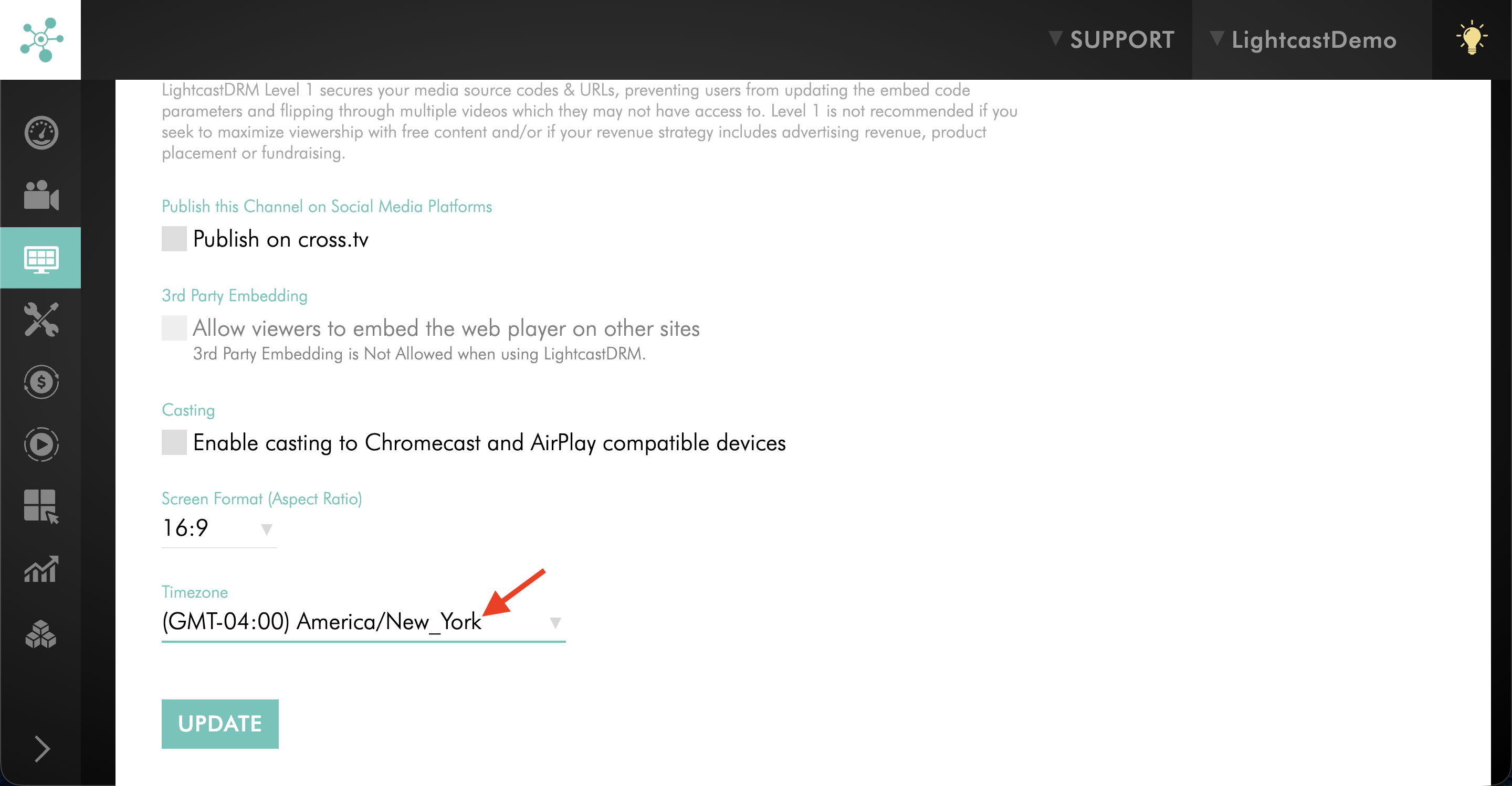
Select the time zone you want to use for your programming schedule.
If your Channel already contains scheduled programming, keep in mind that changing the time zone does not change the actual playback time of that programming. The scheduled times displayed in the Scheduler will adjust to the newly selected time zone.
Step 6
Click UPDATE to save your changes.
The Scheduler displays and plays your programming according to the selected time zone.
FAQs
Which time zone should be selected for a 24/7 Scheduler Channel?
Select the time zone in which you want to build and manage your programming schedule.
For example, if your programming lineup is based on US Eastern Time, select the applicable Eastern Time zone even if you manage the Channel from another location.
Am I scheduling in UTC or in my selected programming time zone?
You create and view your programming schedule in the time zone selected for your 24/7 Scheduler Channel.
The Scheduler uses UTC internally as a consistent time reference.
What happens to existing scheduled programming if I change the Channel time zone?
Existing scheduled programming keeps the same actual playback time in UTC. Changing the Channel time zone changes how those scheduled times are displayed in the Scheduler.
For example, if a program is scheduled for 9:00 AM Eastern Time and you change the Channel time zone to Central Time, the program will appear at 8:00 AM Central Time in the Scheduler.
Should I select UTC for my 24/7 Scheduler Channel?
Select UTC only if you want your programming schedule to remain fixed to UTC throughout the year.
If you want your programming to follow a local time zone that observes daylight saving time, select that local time zone instead.
Do I need to change my Channel time zone when daylight saving time begins or ends?
No. If the selected programming time zone observes daylight saving time, the Scheduler automatically applies the applicable time change.
You do not need to switch the Channel manually between standard time and daylight saving time.
Does a viewer's location change when scheduled programming plays?
No. Scheduled programming follows the time zone configured for the 24/7 Scheduler Channel.
Viewers in other time zones experience the programming at the corresponding local time.
Does UTC change for daylight saving time?
No. UTC remains consistent throughout the year and does not move forward or backward for daylight saving time.
What happens to the schedule when clocks move forward?
When the selected time zone moves forward for daylight saving time, one local hour is skipped.
Because that hour does not exist on that date, programming cannot be scheduled during it.
What happens to the schedule when clocks move backward?
When the selected time zone moves backward, one local hour occurs twice.
The Scheduler includes the additional hour so programming can continue through the time change.
Do all time zones observe daylight saving time?
No. Some countries and regions do not observe daylight saving time, and locations that do observe it may change their clocks on different dates.
The Scheduler accounts for the applicable time changes based on the selected programming time zone.
Does the 24/7 Scheduler update deadline follow the Channel's selected time zone?
No. The daily schedule cutoff and schedule transition are based on US Eastern Time, not the programming time zone selected for your Channel.
Changes for the following day must be completed by 11:45 PM US Eastern Time on the previous day.
Your Channel can use a different programming time zone even though the update deadline remains based on US Eastern Time.
To learn more, see Understanding 24/7 Scheduler update deadlines.
Pricing
The 24/7 Scheduler and Playout System is available on POWER packages and above for a fee.
If you don't have access to this feature, you can upgrade to one of our latest plans or contact your account manager.