
How to use filler videos in the 24/7 Scheduler
Overview
This article explains how filler videos work in the 24/7 Scheduler, including how the Scheduler selects filler content to fill gaps between scheduled programs and how to assign or unassign filler videos in the Media Cloud.
When to use filler videos
Use filler videos when you want the 24/7 Scheduler to automatically play your own video content during gaps between scheduled programs.
A gap occurs when one scheduled program ends before the next scheduled program begins. Without an assigned filler video that can fill the available time, the Scheduler uses the default placeholder.
Before you begin
Your 24/7 Scheduler Channel must already be available in the Media Cloud, and the videos you want to use as filler content must be uploaded to your Video Archive.
To learn how to build your programming schedule, see How to schedule content on your 24/7 Scheduler Channel.
How it works
When there is a gap between scheduled programs, the 24/7 Scheduler checks the videos assigned as filler content.
A filler video is used only if its full duration fits within the remaining gap. The Scheduler does not shorten or interrupt an assigned filler video to make it fit.
When multiple assigned filler videos can fully fit within the remaining gap, the Scheduler selects one at random.
Each assigned filler video can play only once within the same gap. After a filler video plays, the Scheduler checks the remaining assigned filler videos and selects another video whose full duration fits within the remaining time.
If none of the remaining assigned filler videos can fully fit, or all assigned filler videos have already played once during that gap, the Scheduler uses the default placeholder for the remaining time.
For gaps of 5 seconds or longer, the default placeholder displays the following message:
Our broadcast will continue shortly with the next scheduled program. Thank you for your patience.
The default placeholder can display for up to 60 minutes at a time. If additional time remains in the gap, the default placeholder repeats as needed until the next scheduled program begins.
Note: If the remaining gap is less than 5 seconds, the Scheduler displays a black screen instead of the default placeholder.
For example, if four filler videos are each 15 seconds long and there is a 66-second gap, the gap is filled as follows:
Filler video 1: 15 seconds
Filler video 2: 15 seconds
Filler video 3: 15 seconds
Filler video 4: 15 seconds
Default placeholder: 6 seconds
Because each filler video is used only once during the gap, the remaining 6 seconds are filled by the default placeholder.
Instructions
Assign filler videos
Step 1
Log in to your Media Cloud account.
Step 2
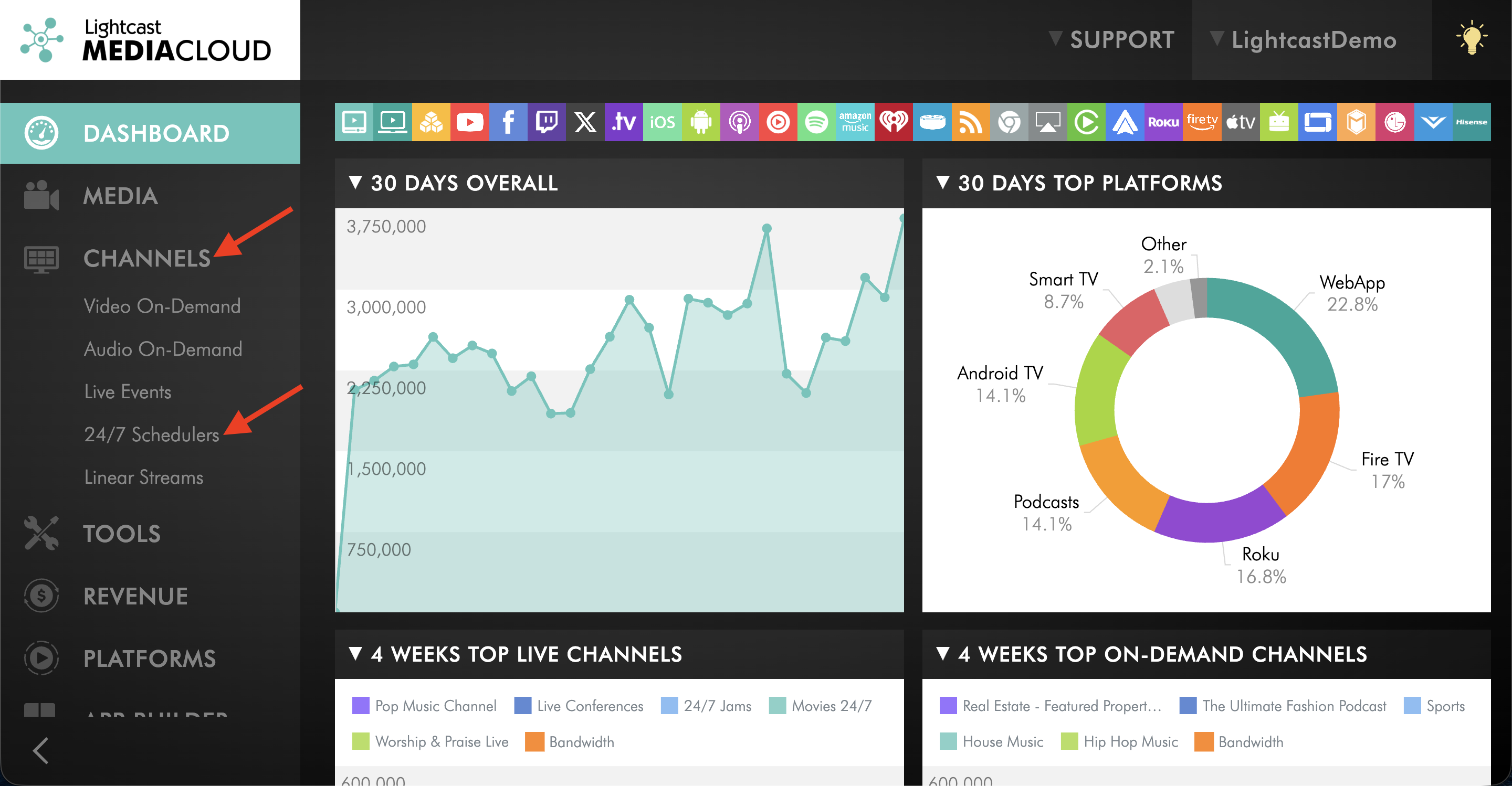
Go to CHANNELS and select 24/7 Schedulers.
Step 3
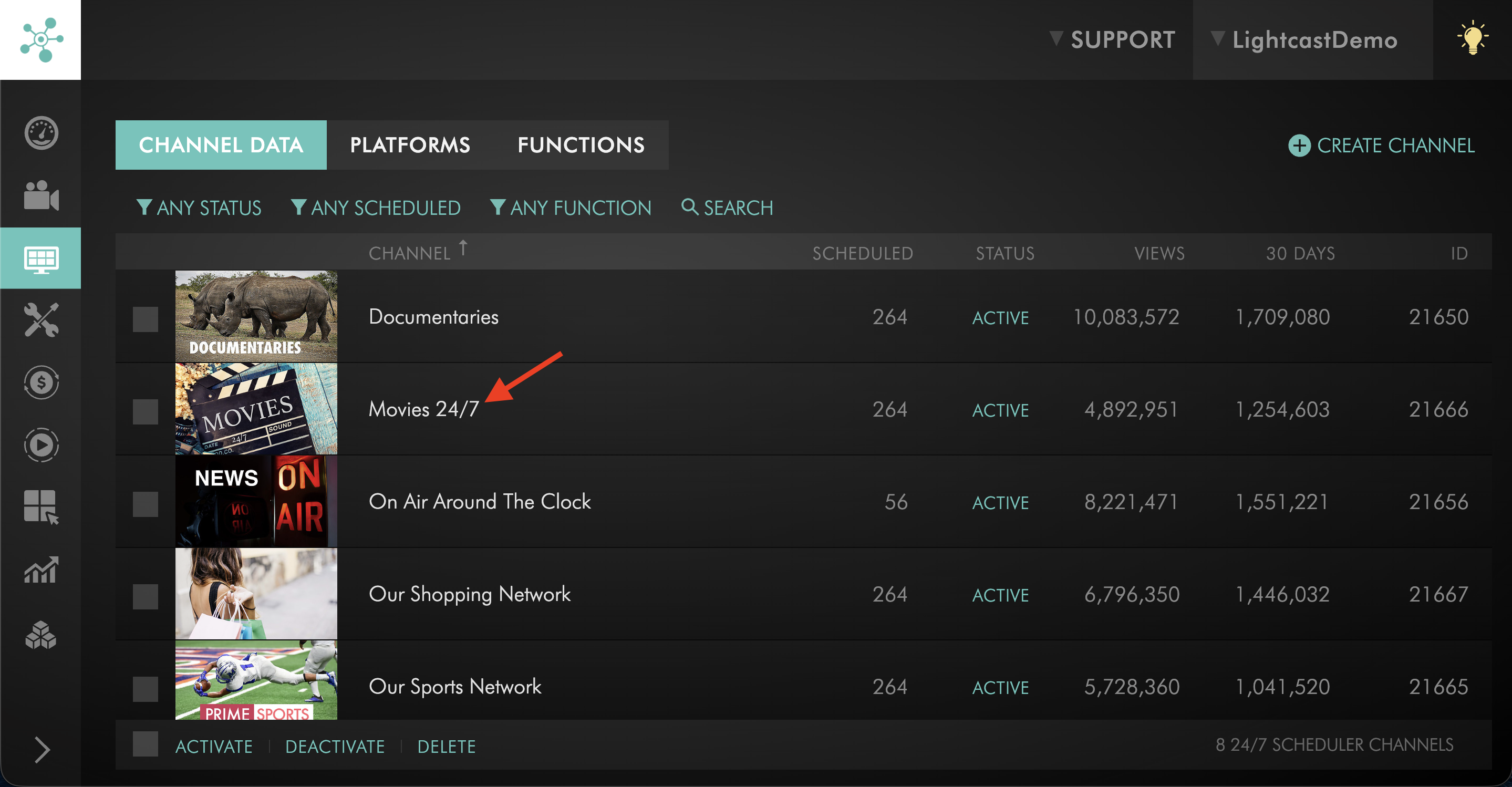
Select the 24/7 Scheduler Channel where you want to manage filler videos.
Step 4
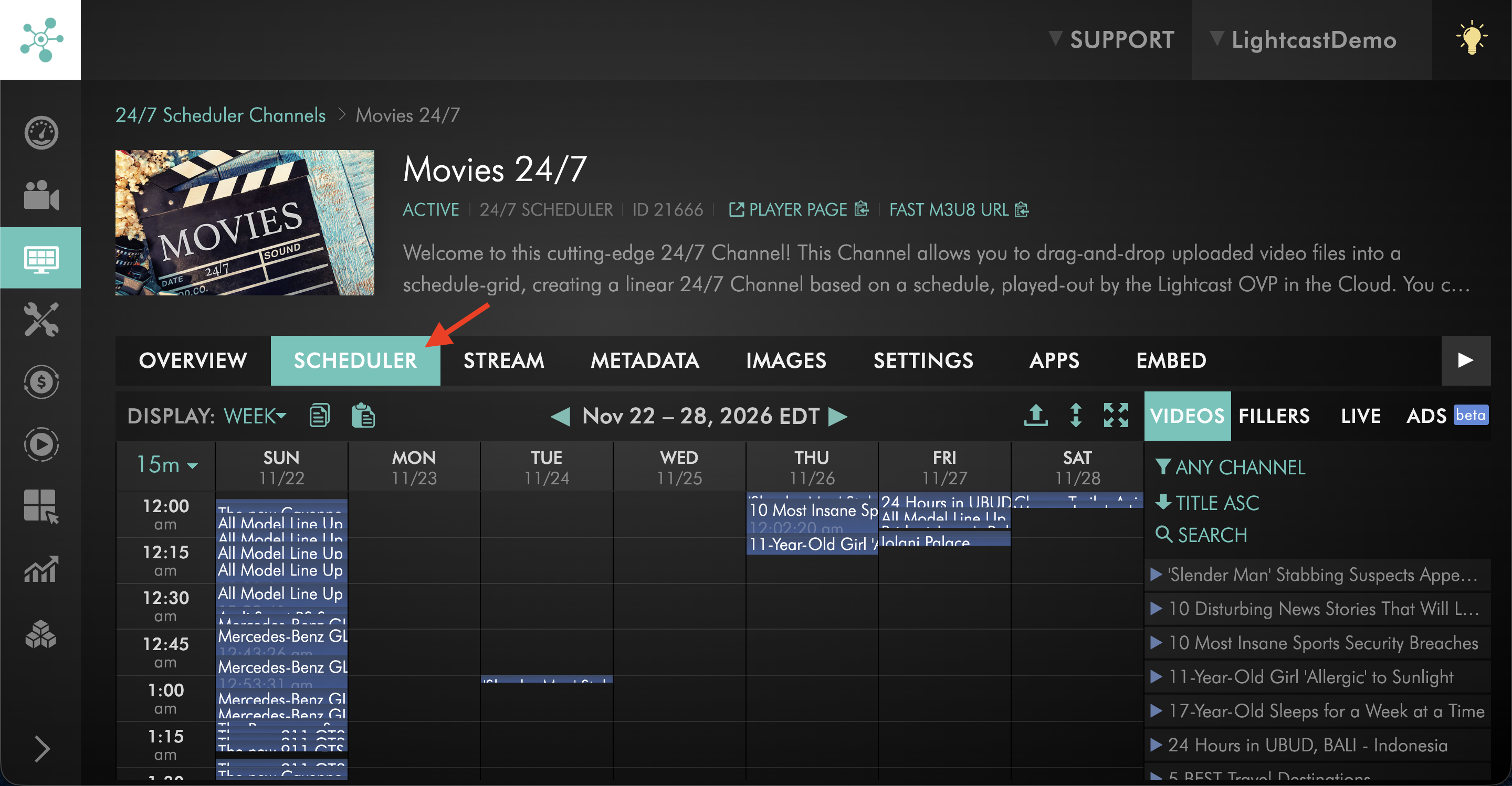
Open the SCHEDULER tab.
Step 5
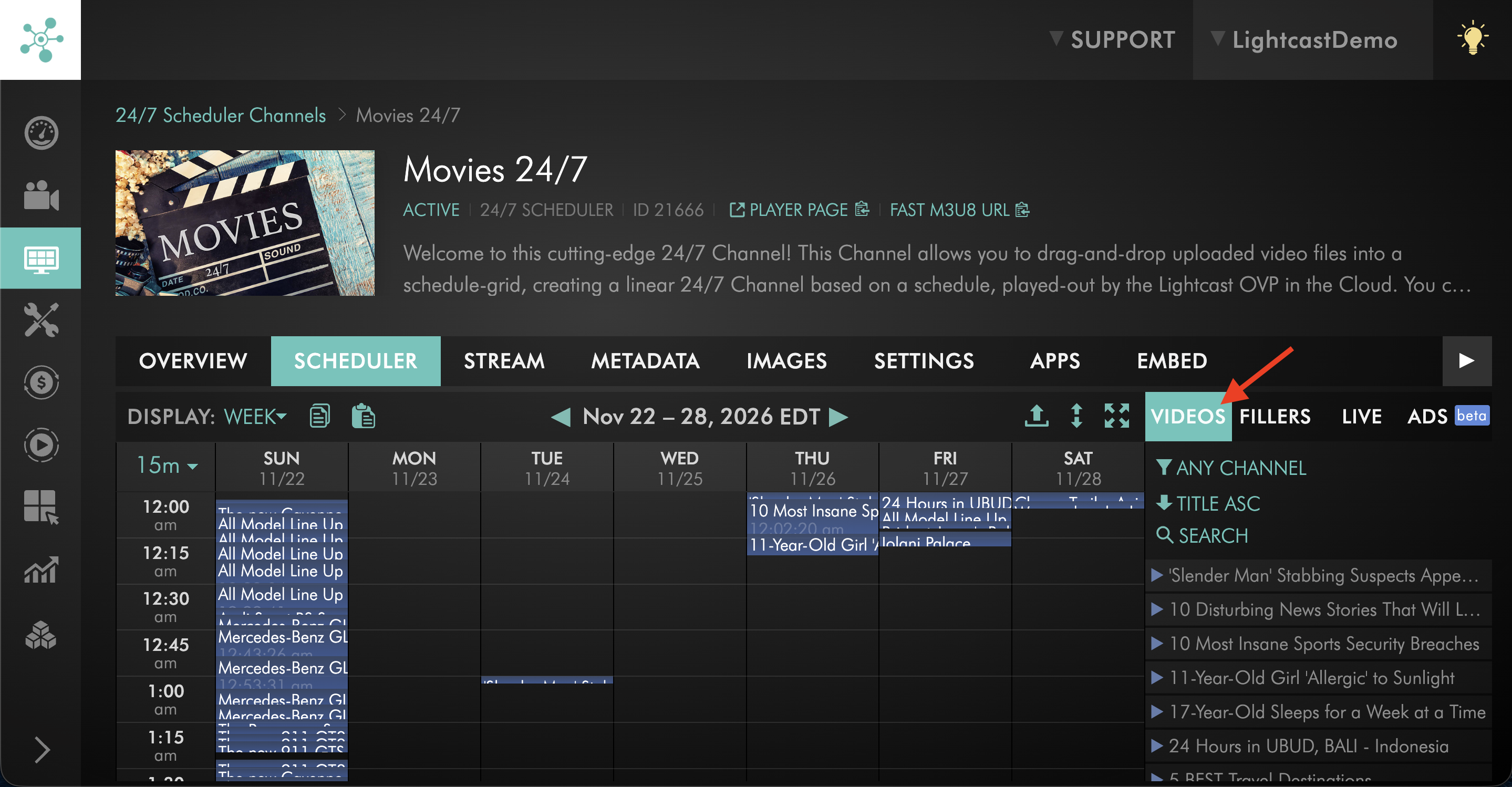
Select VIDEOS.
Step 6
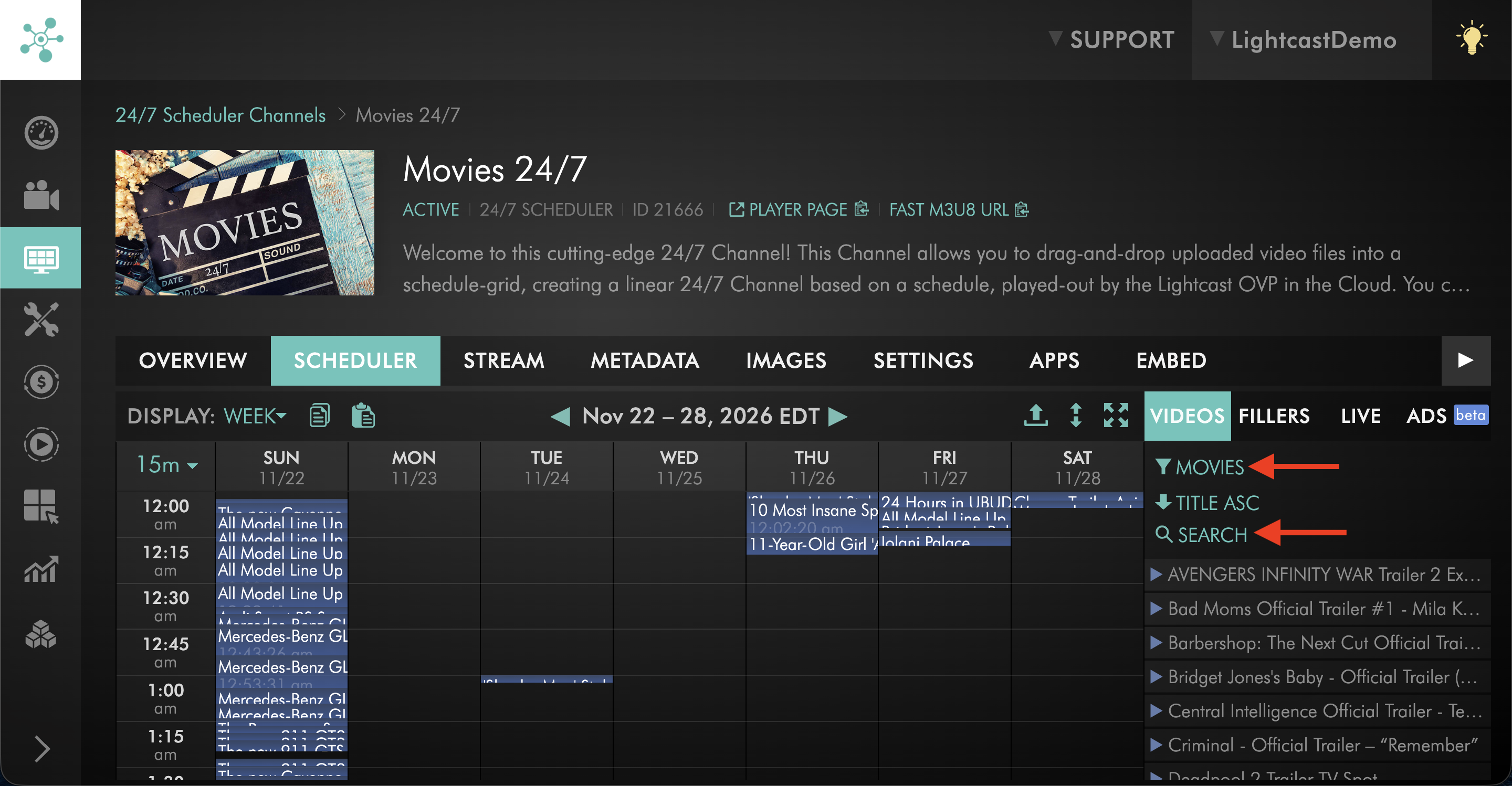
Locate the video you want to use as filler content.
You can filter the available videos by Channel or use SEARCH to locate a specific video.
Step 7
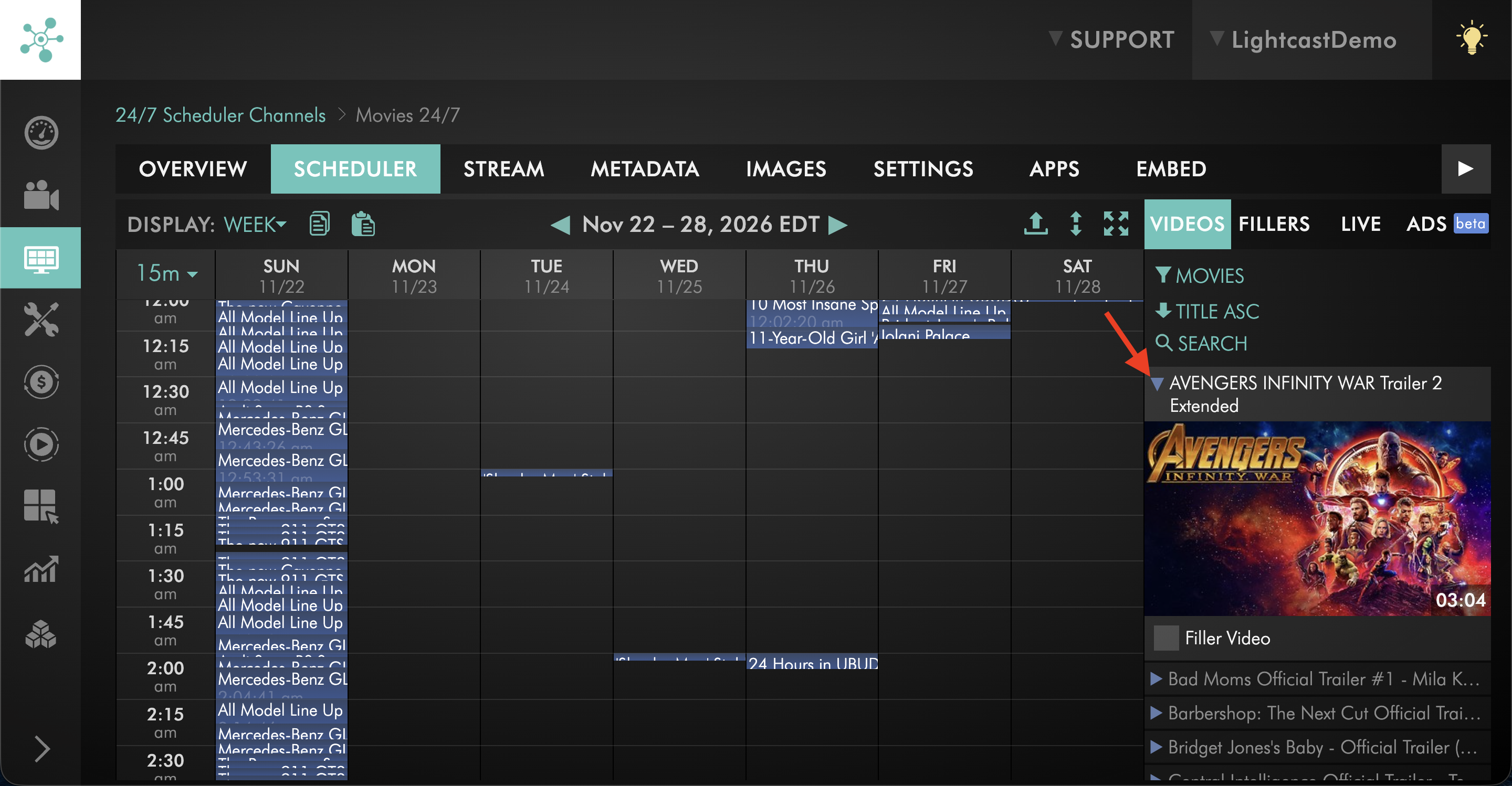
Click the video to expand its details.
Step 8
Select Filler Video.
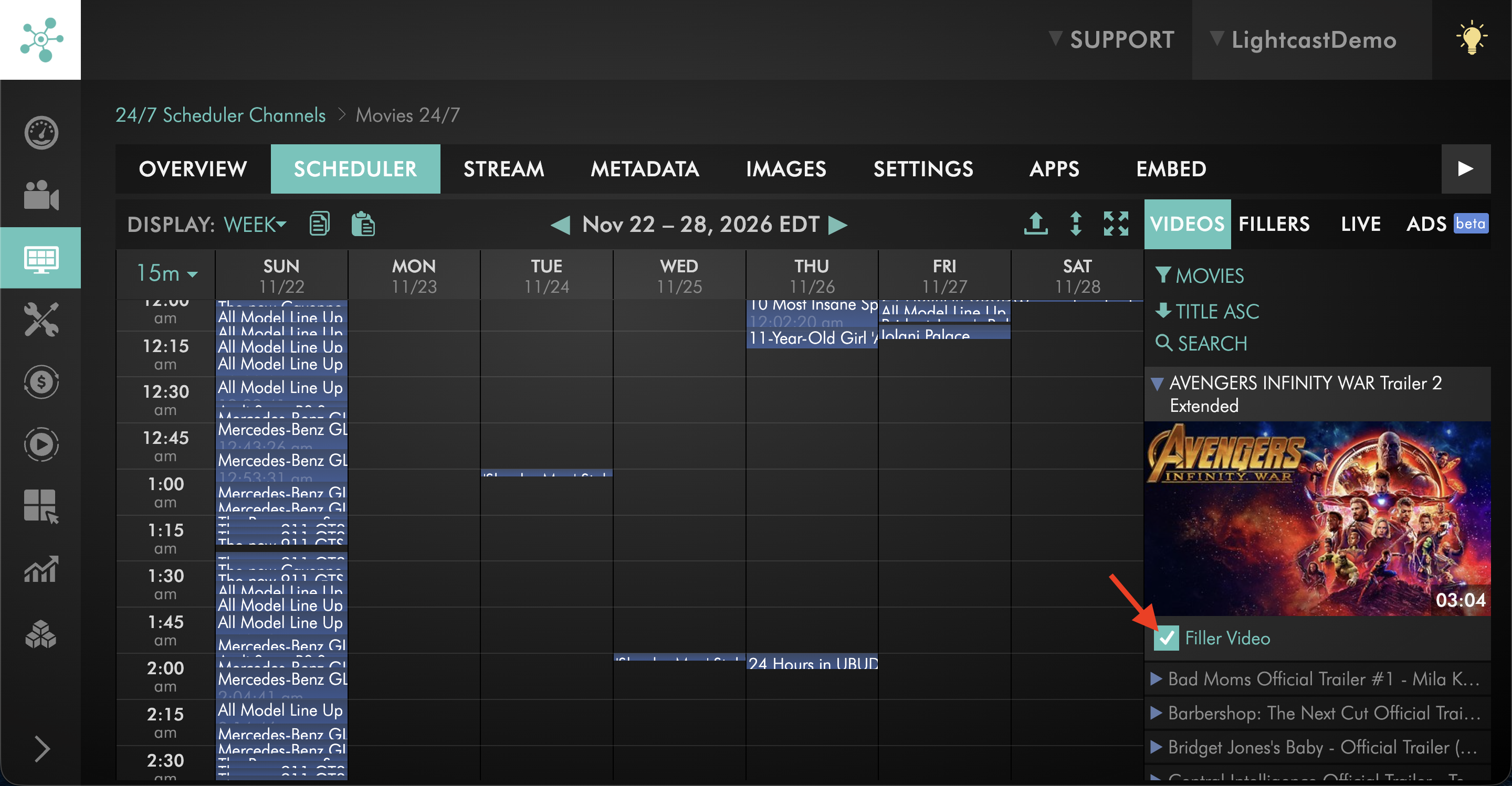
The video is now available for the 24/7 Scheduler to use when filling gaps between scheduled programs.
Repeat these steps for any additional videos you want to assign as filler content.
Unassign filler videos
Step 1
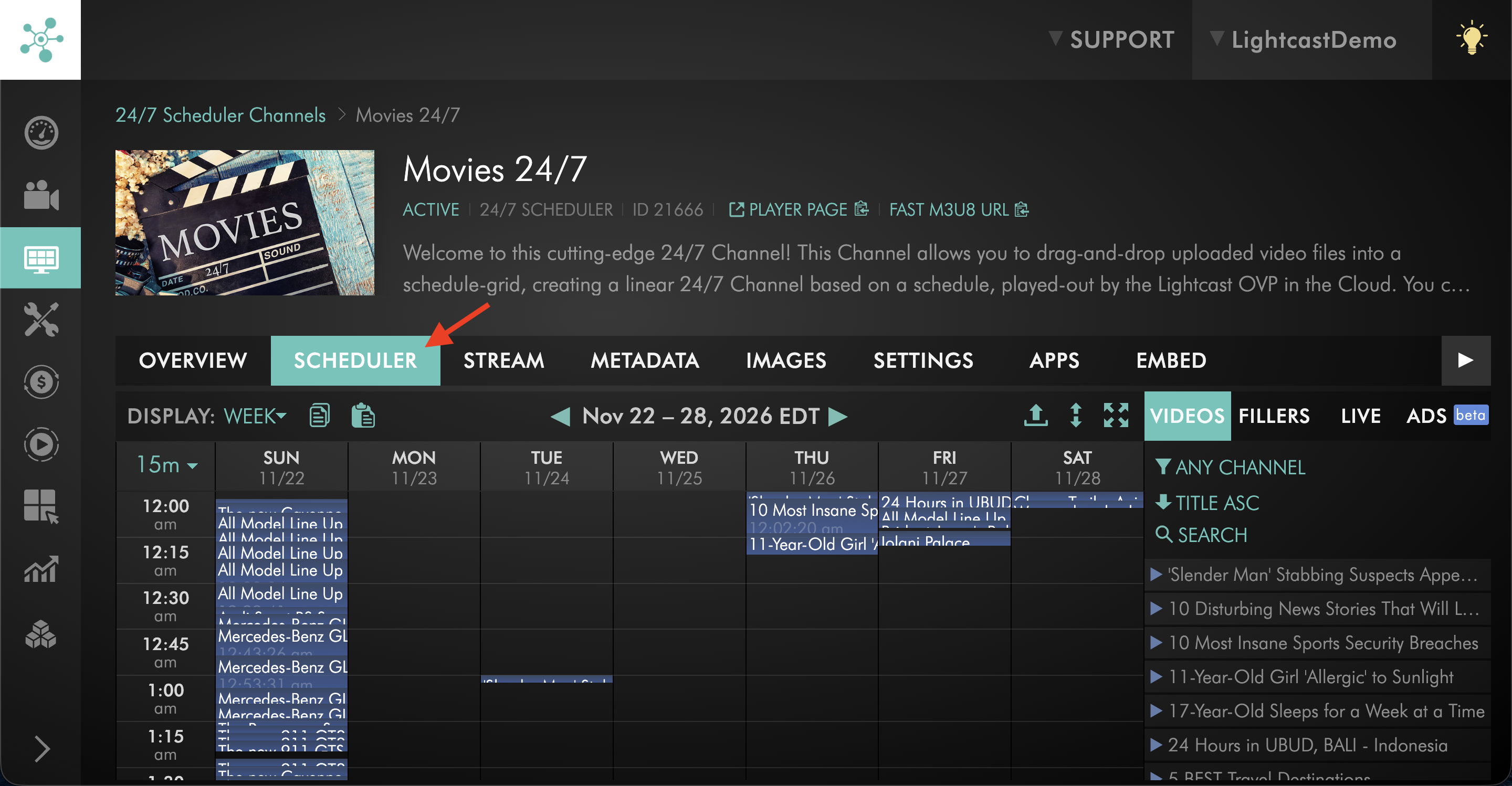
Open the SCHEDULER tab for your 24/7 Scheduler Channel.
Step 2
Open the FILLERS section.
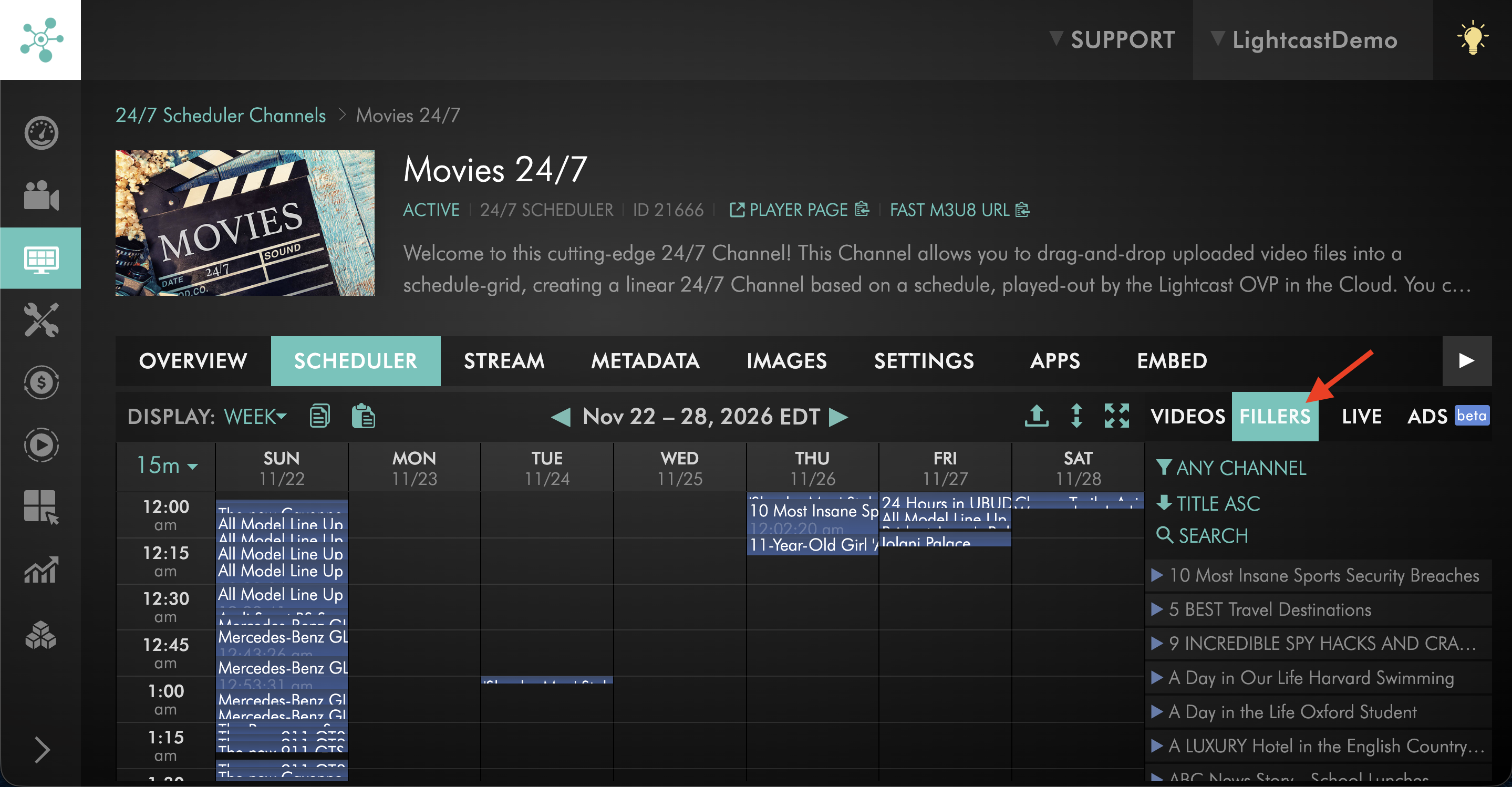
Step 3
Locate the filler video you want to remove.
You can filter the available videos by Channel or use SEARCH to locate a specific video.
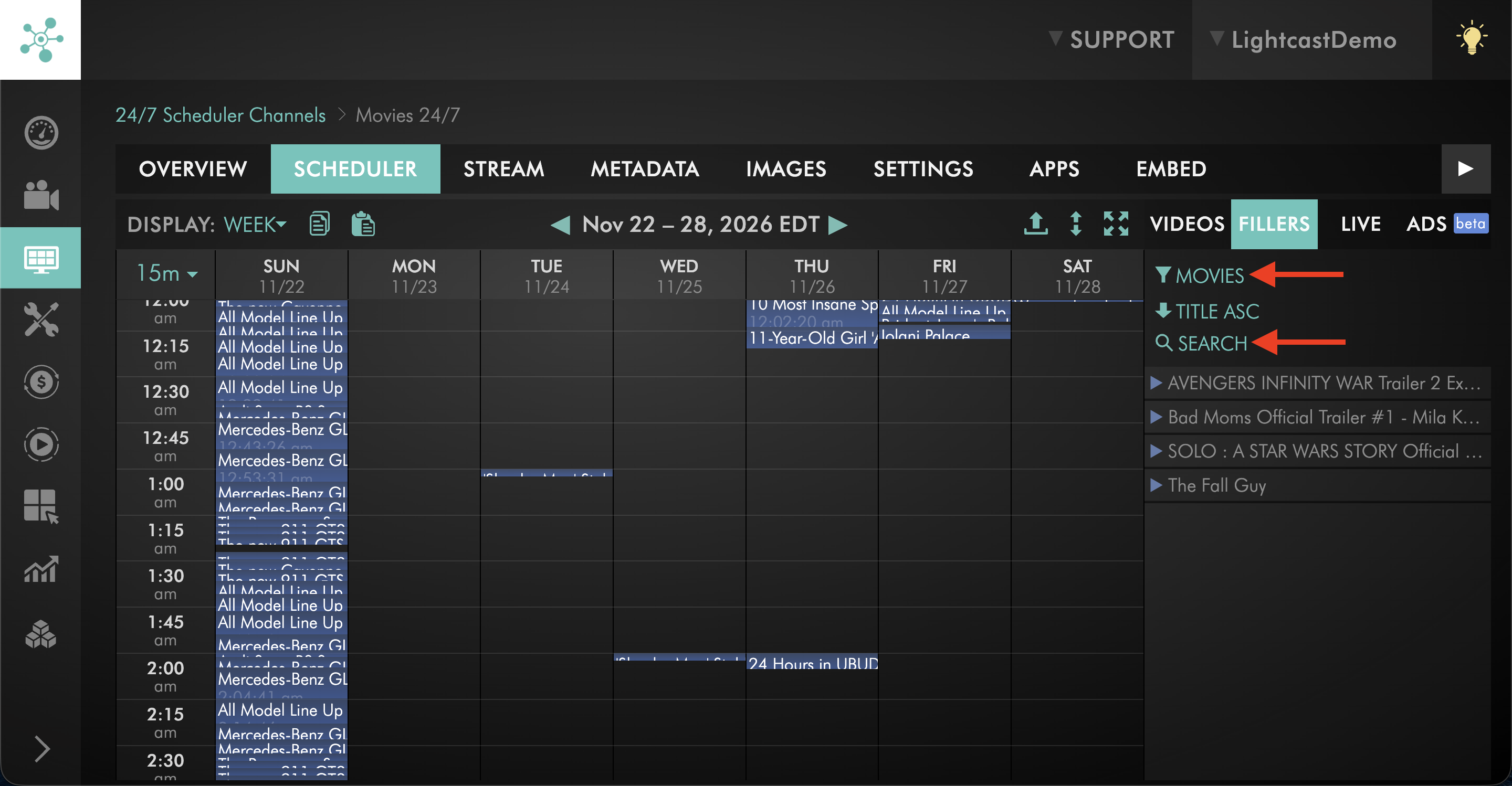
Step 4
Click the video to expand its details.
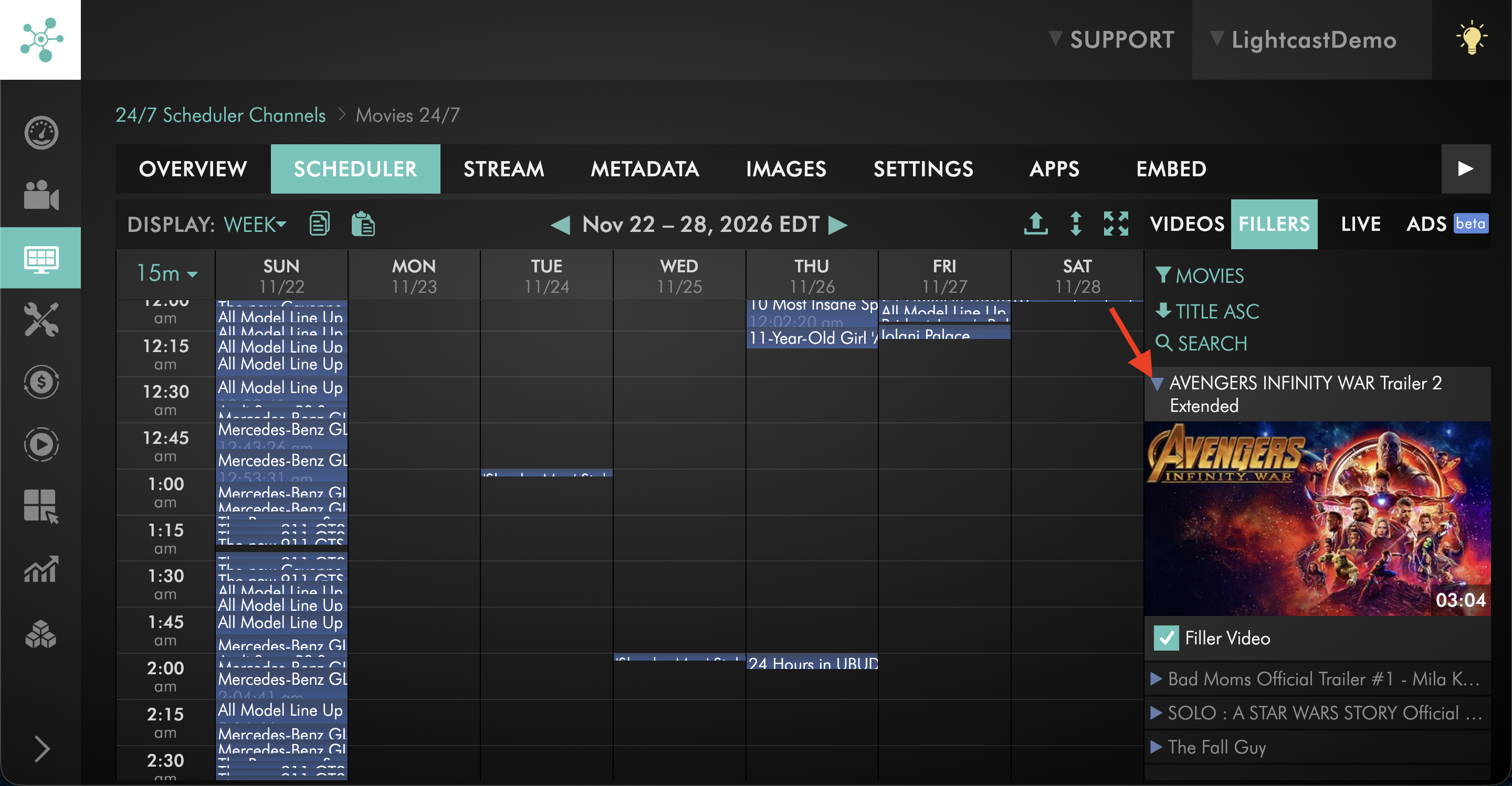
Step 5
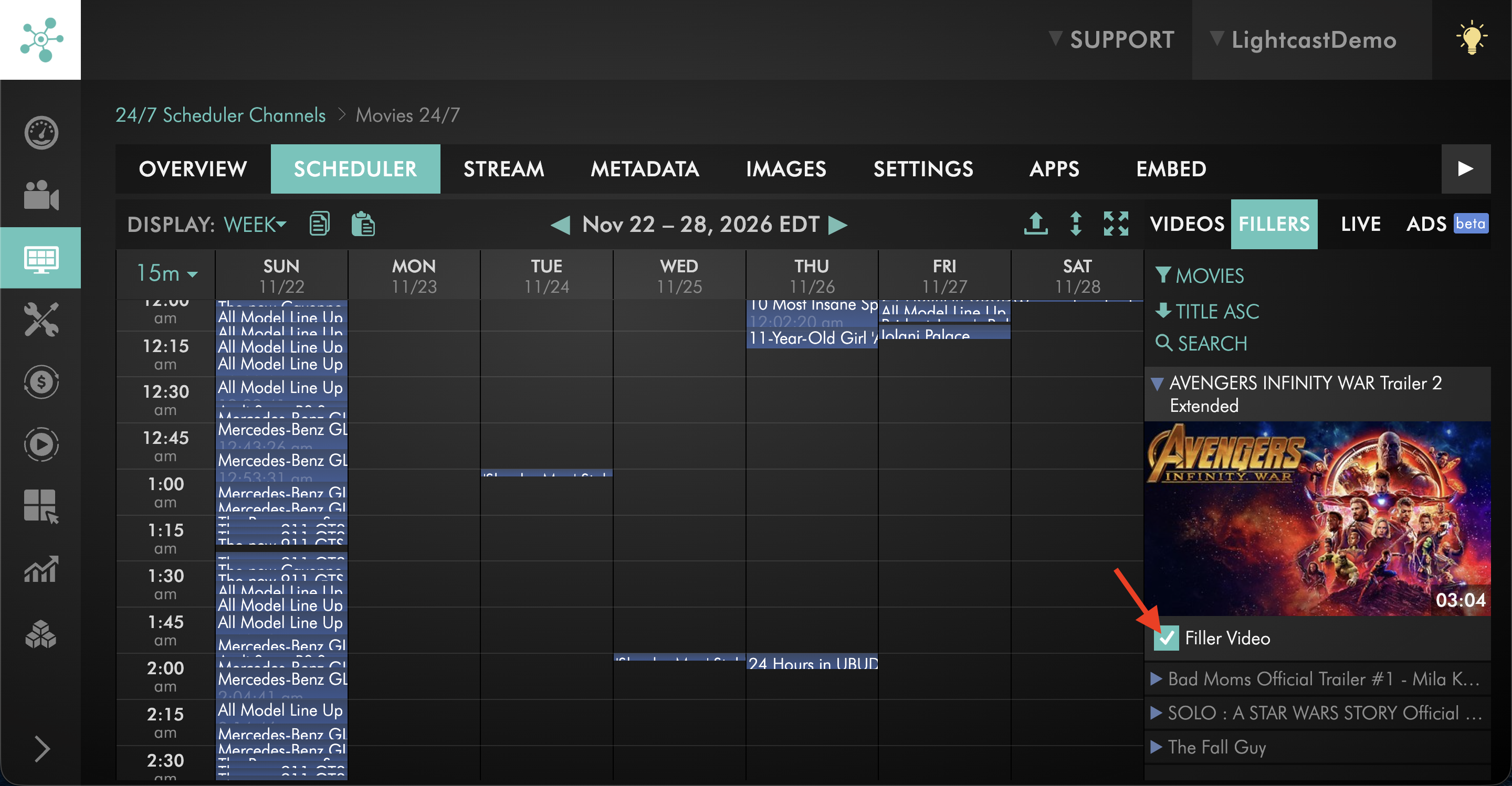
Clear Filler Video.
The video will no longer be available for the 24/7 Scheduler to use as filler content. The video remains in your Media Cloud account.
FAQs
How does the Scheduler choose which filler video to play?
The Scheduler first checks which assigned filler videos have not already played during the current gap and whose full duration fits within the remaining time.
If more than one assigned filler video can fully fit, the Scheduler selects one randomly.
After that filler video plays, the Scheduler repeats the process using the remaining assigned filler videos.
Can the Scheduler shorten or interrupt a filler video to make it fit within a gap?
No. An assigned filler video is used only when its full duration fits within the remaining gap.
The Scheduler does not shorten or interrupt client filler content.
Why is the default placeholder displaying instead of an assigned filler video?
The default placeholder is used when none of the assigned filler videos that have not already played can fully fit within the remaining gap.
It is also used when all assigned filler videos have already played once during that gap and time still remains.
What happens when a gap is shorter than an assigned filler video?
The Scheduler does not use a filler video unless its full duration fits within the remaining gap.
If none of the assigned filler videos can fit and the remaining gap is 5 seconds or longer, the Scheduler uses the default placeholder.
If the remaining gap is less than 5 seconds, a black screen is displayed.
Can the same filler video play more than once during a single gap?
No. Each assigned filler video can play only once within the same gap.
If all assigned filler videos have already played once and time still remains, the Scheduler uses the default placeholder for the remaining time.
How long can the default placeholder display?
The default placeholder can display for up to 60 minutes at a time.
If the schedule gap continues beyond that time, the default placeholder repeats as needed until the next scheduled program begins.
What happens when no filler videos are assigned?
If the gap is 5 seconds or longer, the Scheduler uses the default placeholder.
If the gap is less than 5 seconds, a black screen is displayed.
Does unassigning a filler video delete it from the Media Cloud?
No. Unassigning a filler video only removes it from the filler options for that 24/7 Scheduler Channel. The video remains available in your Media Cloud account.
Can filler videos be included in 24/7 Scheduler data retrieved through the LightcastAPI?
Yes. Filler content can be included when retrieving the current 24/7 schedule through the LightcastAPI.
Pricing
The 24/7 Scheduler and Playout System is available on POWER packages and above for a fee.
If you don't have access to this feature, you can upgrade to one of our latest plans or contact your account manager.