
How to retrieve 24/7 Scheduler data using the LightcastAPI
Overview
This article explains how to retrieve programming schedule data from a 24/7 Scheduler Channel using the LightcastAPI.
The retrieved Scheduler data can be used for custom integrations such as displaying a programming timeline or program guide on a website.
When to retrieve 24/7 Scheduler data
Use the LightcastAPI when you want your developers to retrieve programming information from a 24/7 Scheduler Channel for use outside the Media Cloud.
This may be helpful when you want to:
Display your 24/7 programming schedule on a website
Build a custom programming timeline
Create a custom program guide using your Scheduler data
Integrate Scheduler data into another website, application, or custom solution
How it works
The LightcastAPI provides programmatic access to information from the Media Cloud.
To retrieve programming data for a 24/7 Scheduler Channel, use the getSchedule action under 24/7 Scheduler in the LightcastAPI documentation. The returned schedule data can be used to build websites, programming timelines, program guides, and other custom integrations.
The getSchedule action can return up to 90 days of Scheduler data in a single API call.
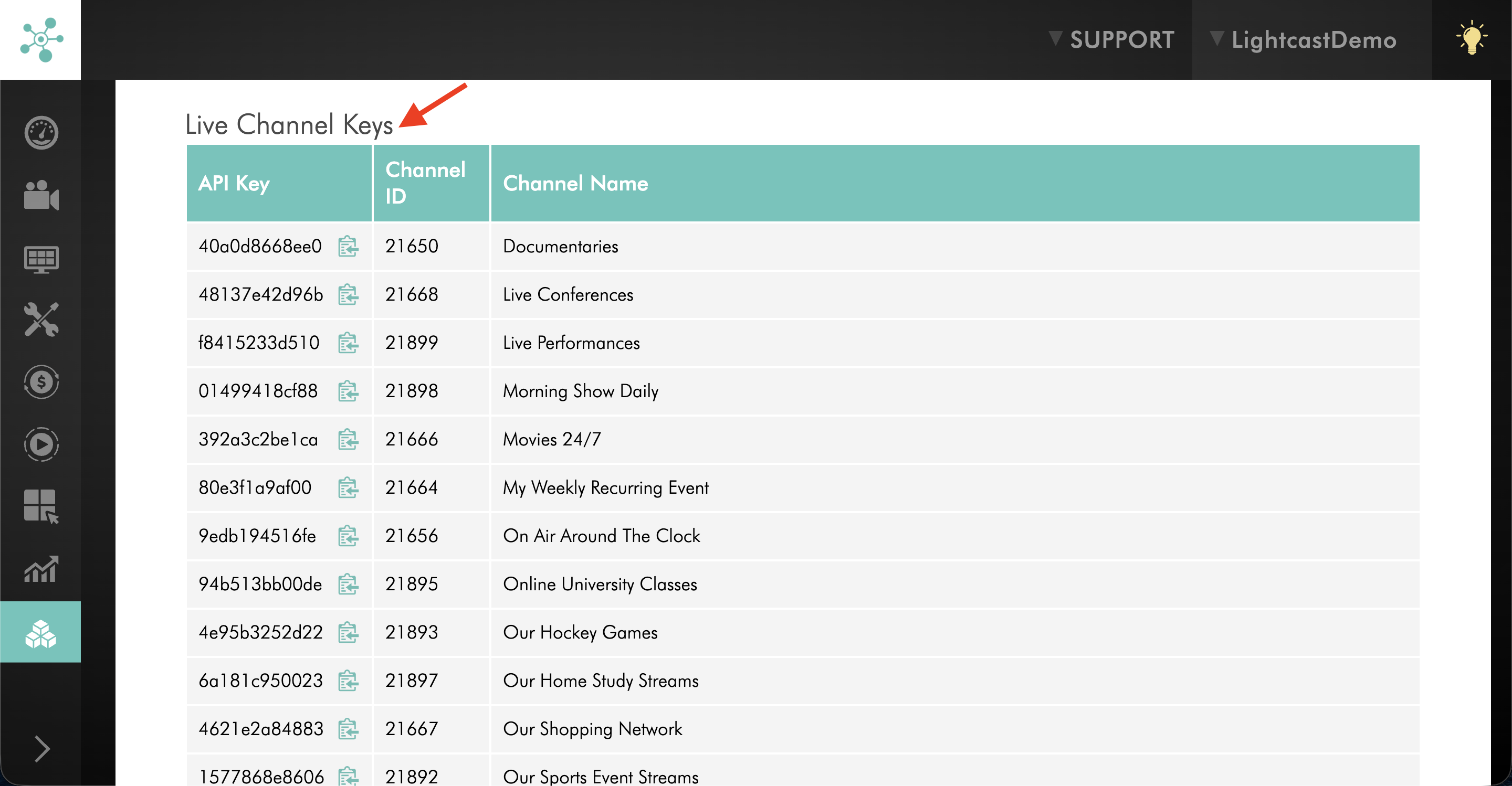
To retrieve the schedule, your developer will also need the Live Channel API Key associated with the 24/7 Scheduler Channel. The key is available under API → Authentication → Live Channel Keys in the Media Cloud.
Keep your API Key private. Do not expose it in publicly accessible website code or share it with unauthorized users. Only provide it to trusted developers or systems that require access to your Channel data.
Note: The LightcastAPI is intended for developers who are familiar with working with APIs and integrating API responses into websites or applications.
The getSchedule action retrieves schedule information that your developers can use in a website, programming timeline, program guide, or other custom integration.
For the technical requirements and available parameters, see the 24/7 Scheduler getSchedule API documentation.
Instructions
Find your Live Channel API Key
Step 1
Log in to your Media Cloud account.
Step 2
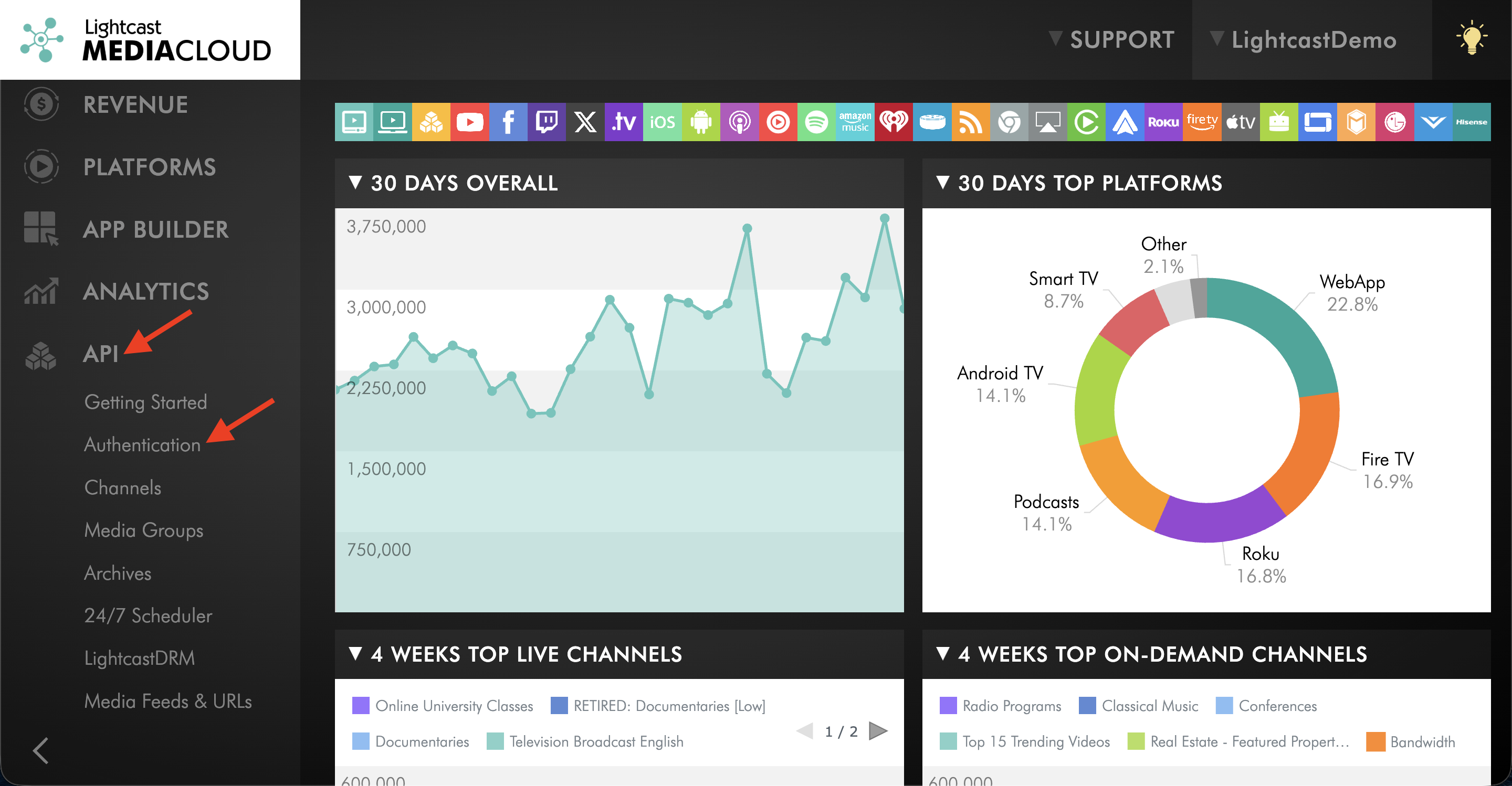
Go to API and select Authentication.
Step 3
Scroll to Live Channel Keys.
Step 4
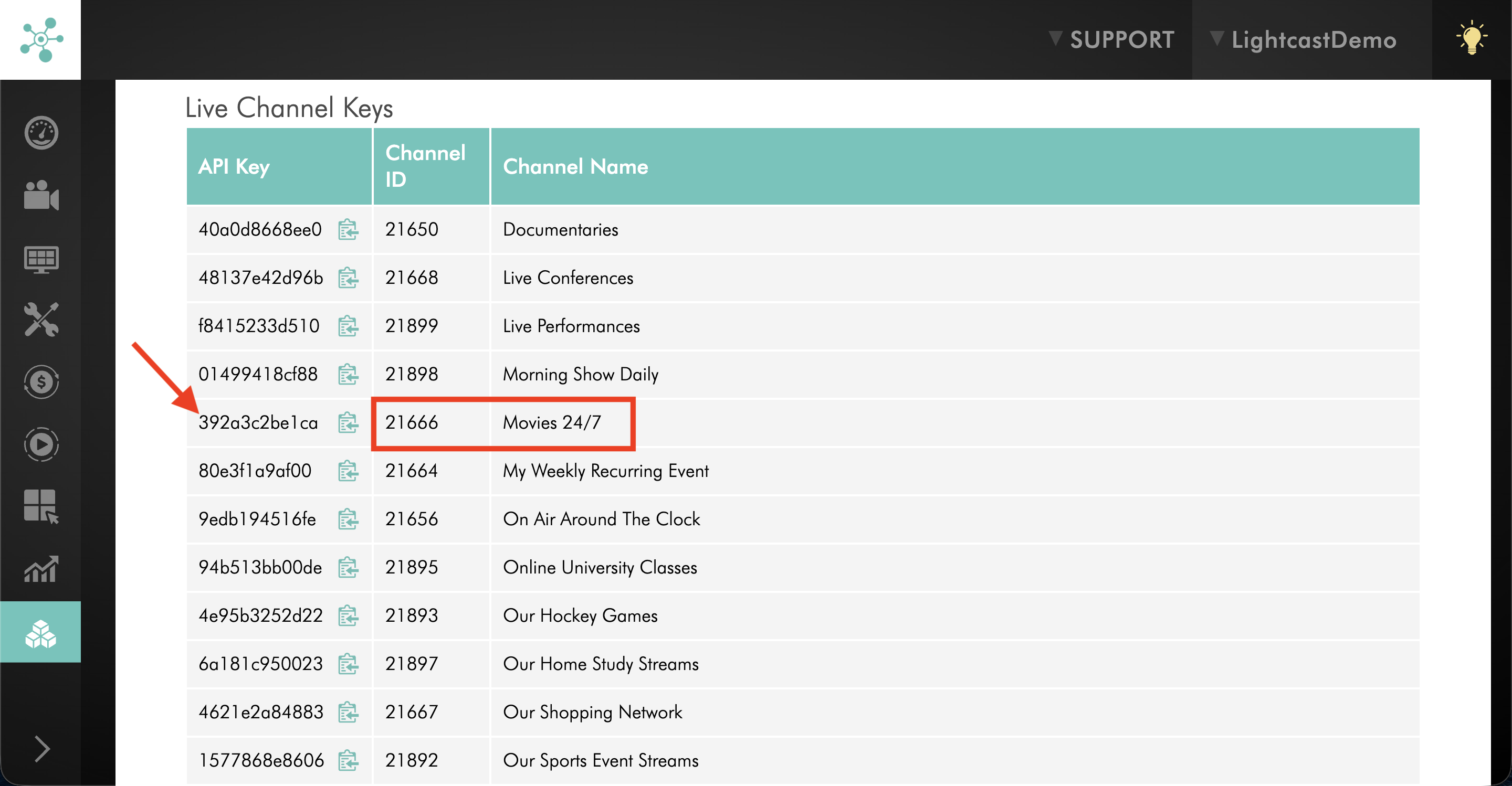
Locate the 24/7 Scheduler Channel whose schedule you want to retrieve.
Use the Channel Name or Channel ID to confirm that you have selected the correct Channel.
Step 5
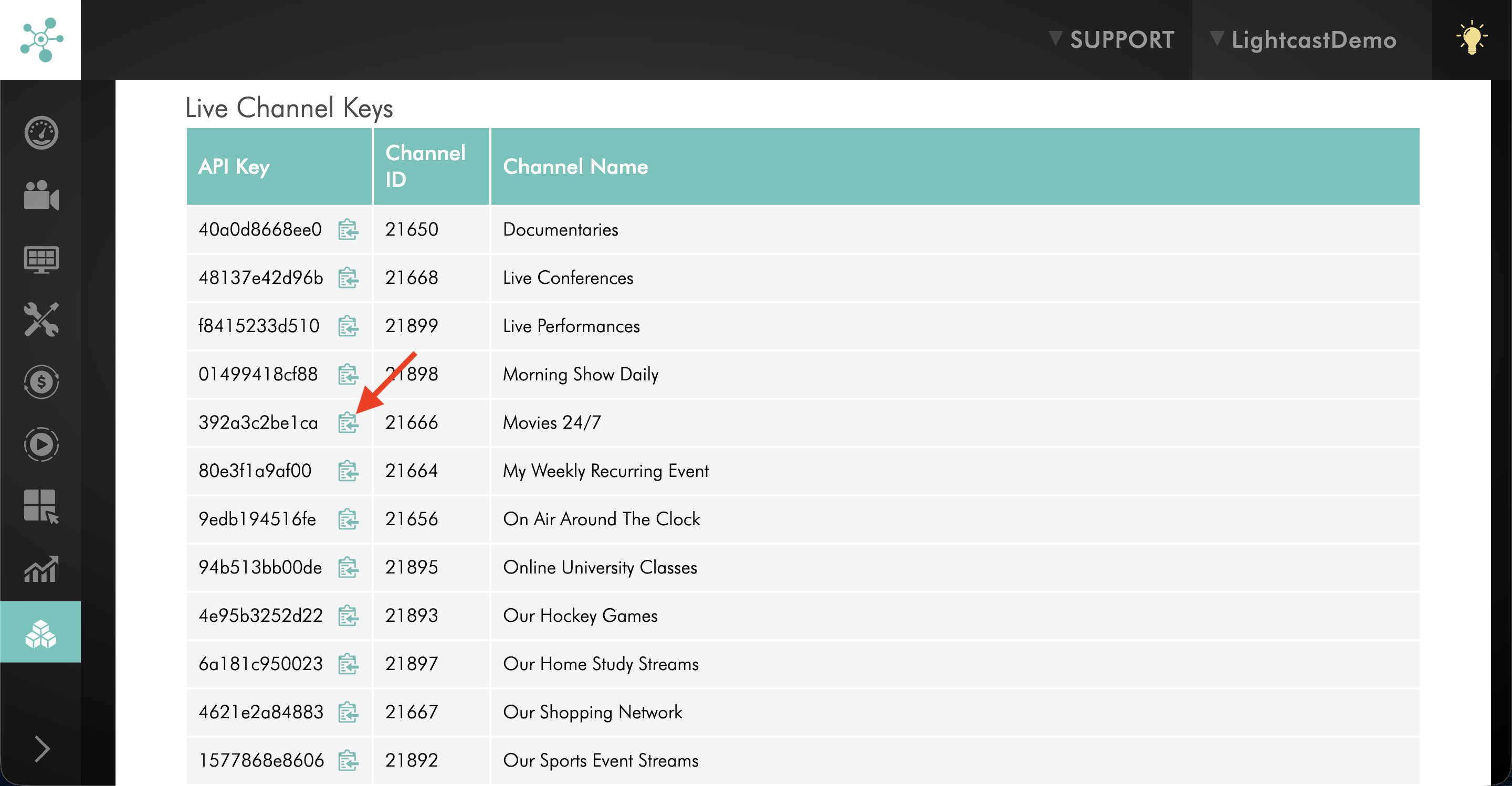
Copy the API Key for that Channel.
Keep your API Key private. Do not expose it in publicly accessible website code or share it with unauthorized users.
Find the getSchedule action in the LightcastAPI
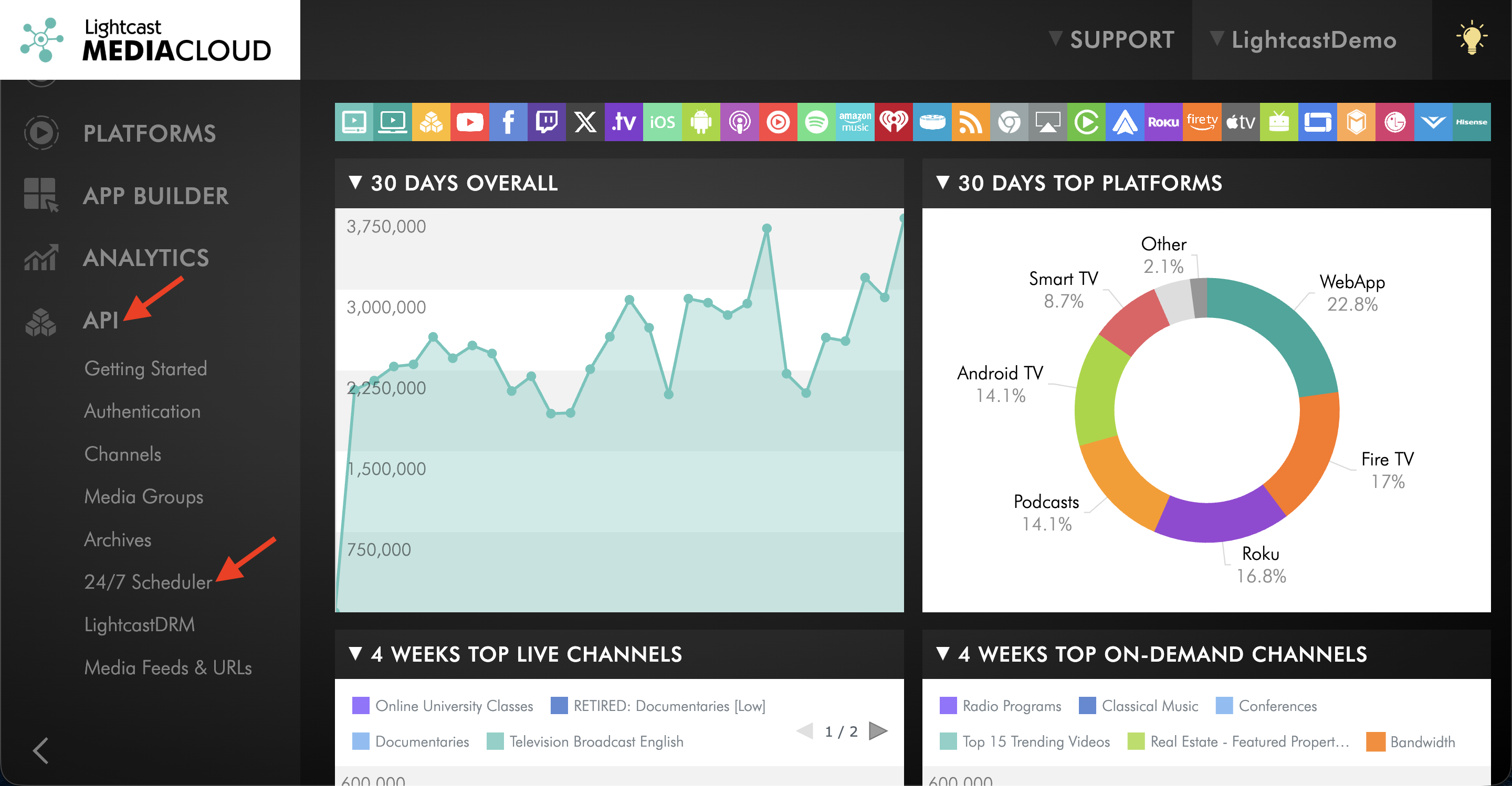
Step 1
From the API section, select 24/7 Scheduler.
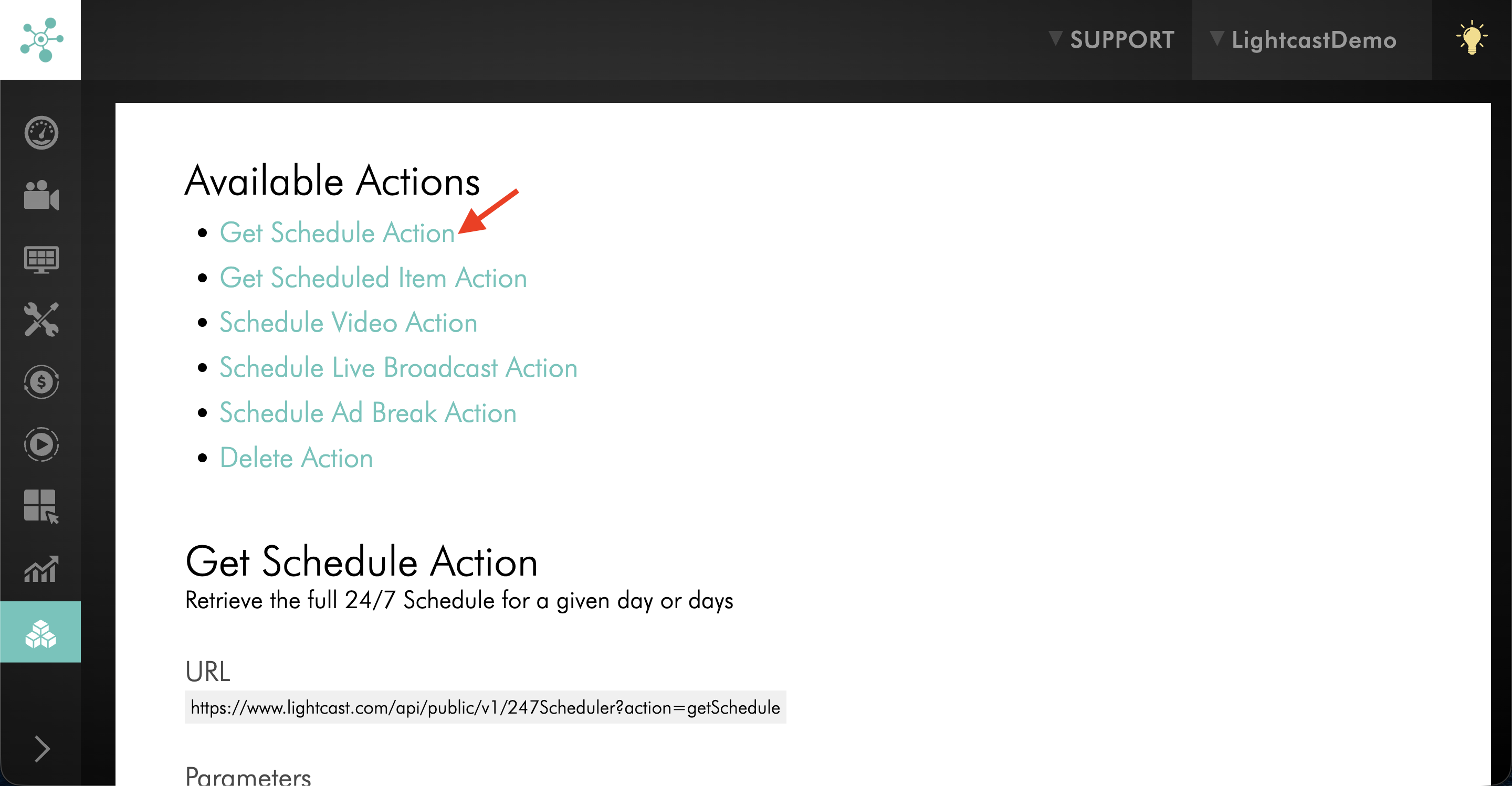
Step 2
Select the Get Schedule Action.
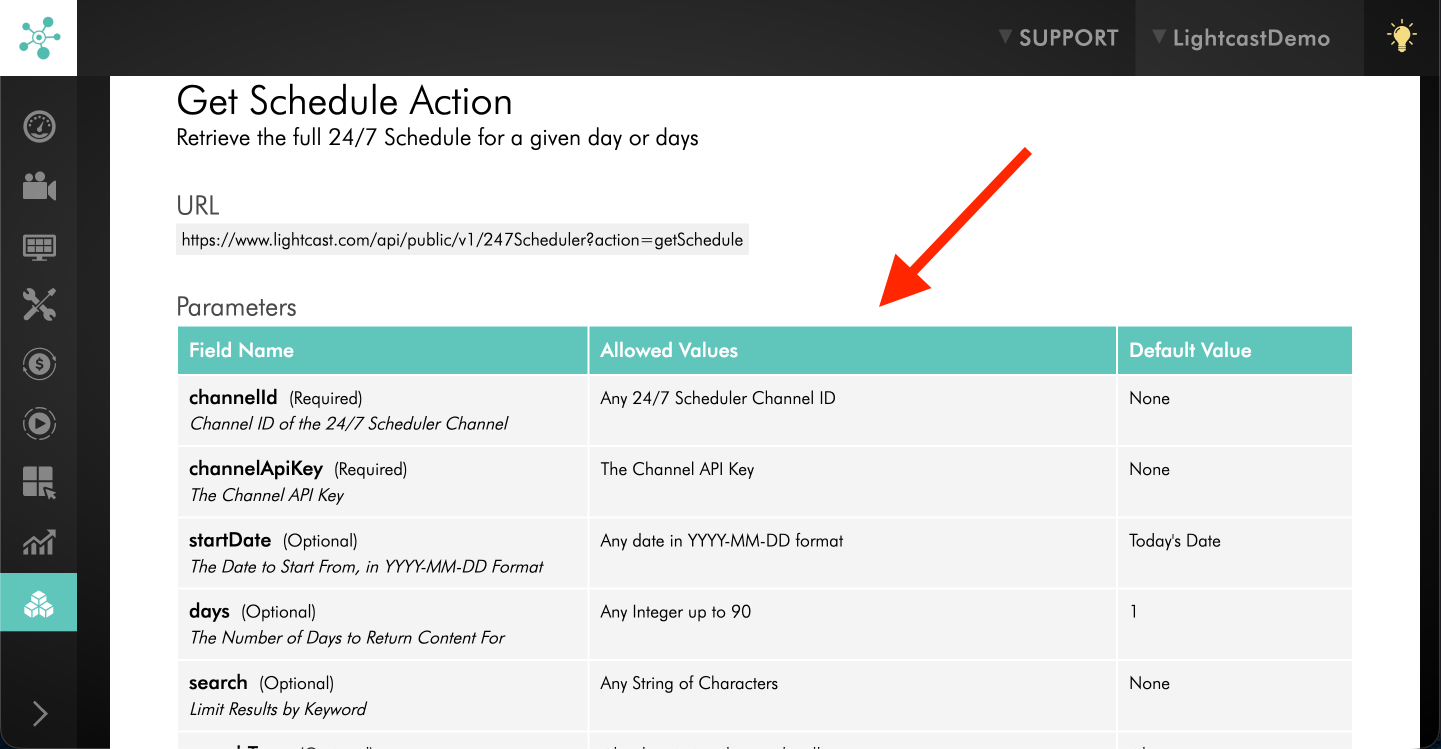
Step 3
Review the 24/7 Scheduler getSchedule API documentation for the technical requirements and available parameters.
Step 4
Use the Live Channel API Key for the applicable 24/7 Scheduler Channel to retrieve its Scheduler data.
Step 5
Use the data returned by the getSchedule action to build your programming timeline, website program guide, or other custom integration.
FAQs
Which LightcastAPI action is used for 24/7 Scheduler data?
Use the getSchedule action under 24/7 Scheduler in the LightcastAPI documentation.
For technical details, see the 24/7 Scheduler getSchedule API documentation.
Which API Key should I use to retrieve a 24/7 Scheduler schedule?
Use the Live Channel API Key associated with the 24/7 Scheduler Channel whose schedule you want to retrieve.
You can find the key under API → Authentication → Live Channel Keys in the Media Cloud.
How should I protect my Live Channel API Key?
Keep your API Key private and only provide it to trusted developers or systems that require access to your Channel data.
Do not expose the API Key in publicly accessible website code or share it with unauthorized users.
Where can I find the LightcastAPI documentation?
Open the API section in your Media Cloud account.
Go to 24/7 Scheduler and select the Get Schedule Action to view the documentation for retrieving Scheduler data.
Can I display my 24/7 Scheduler timeline on my website?
Yes. Your developers can retrieve Scheduler data using the getSchedule action and use that data to create a custom programming timeline or program guide on your website.
Is a program guide created with the LightcastAPI the same as the Electronic Program Guide for 24/7 Scheduler Channels?
No. The LightcastAPI provides Scheduler data that your developers can use to create a custom integration, such as a programming timeline or website program guide.
The Electronic Program Guide (EPG) for 24/7 Scheduler Channels is a separate app feature designed to display Scheduler programming in supported Web Apps and mobile apps.
To learn more, see Understanding Electronic Program Guides for 24/7 Scheduler Channels.
Do I need a developer to use the 24/7 Scheduler data from the LightcastAPI?
The LightcastAPI is intended for technical integrations. A developer can use the API documentation and the applicable Live Channel API Key to retrieve your Scheduler data and integrate it into your website or another custom project.
Pricing
The 24/7 Scheduler and Playout System is available on POWER packages and above for a fee.
The LightcastAPI is available on POWER packages and above.
If you don't have access to these features, you can upgrade to one of our latest plans or contact your account manager.