
How to share a player link from a mobile app
Overview
This article explains how to share player links for individual On-Demand media items and LIVE Channels from a Lightcast mobile app.
You can send the link using your device's available sharing options or copy the link to share it elsewhere.
Before you begin
Sharing a player link does not change the access settings of the media item or LIVE Channel. Viewers must still meet any applicable access requirements, such as sign-in, subscription access, access codes, geographic restrictions, or other enabled restrictions.
If sharing is disabled for the content or player, the sharing option may not be available.
How it works
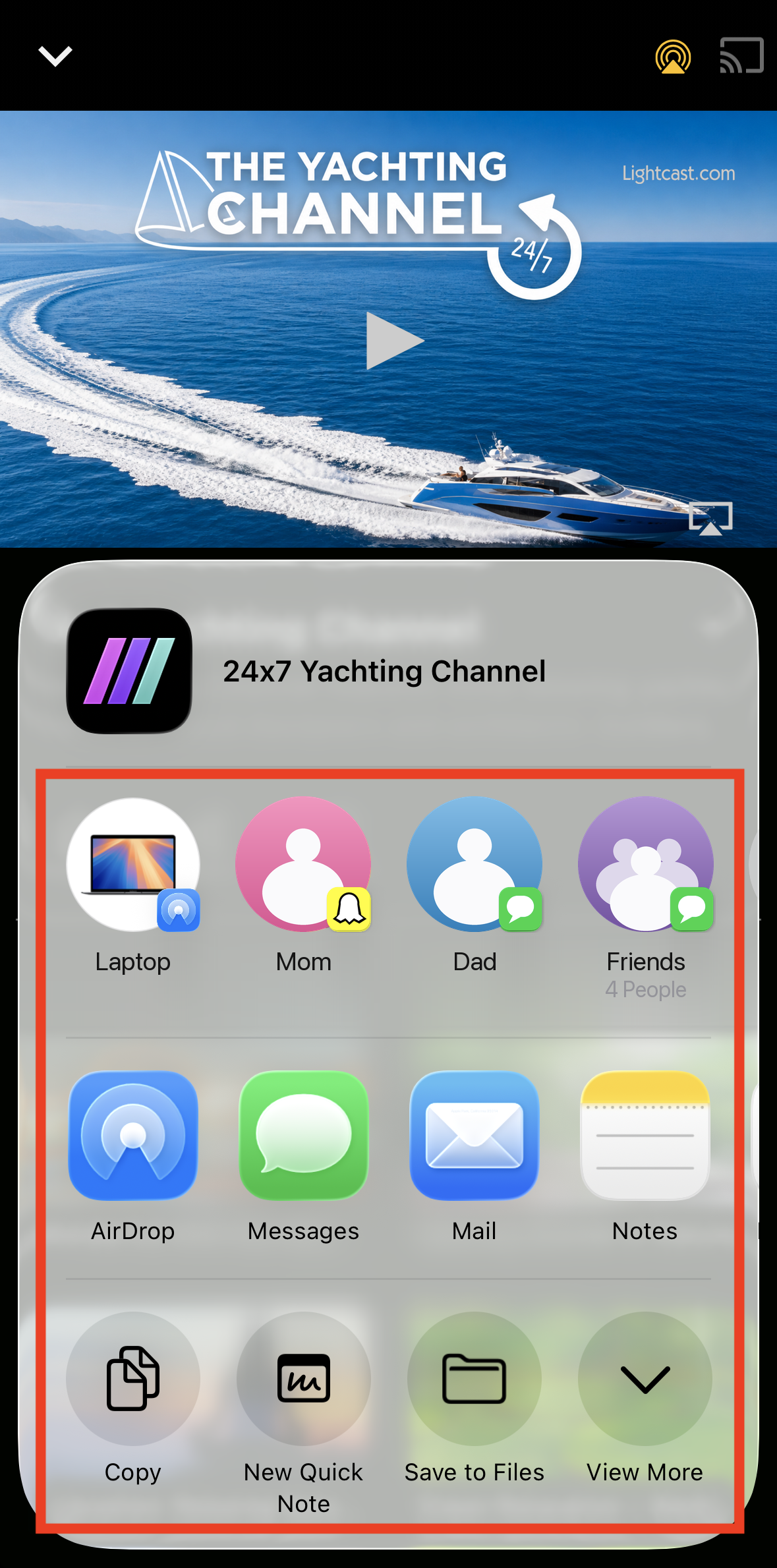
When you select Share in a mobile app, your device opens its built-in sharing menu. From there, you can choose an available sharing option or copy the player link to use elsewhere.
The sharing options available may vary depending on your mobile device and the apps installed on it.
For On-Demand content, sharing applies to an individual media item. You can share media items located inside an On-Demand Channel or Sub-Channel.
For LIVE content, you can share the LIVE Channel player.
Sharing options may be available in multiple locations within the mobile app. Depending on where you are in the app, sharing options may be available from the media item's three-dot menu or from the Share icon in the player.
The instructions below show one workflow for each content type.
Instructions
Use the steps below based on the type of content you want to share.
Use these steps to share an individual media item from an On-Demand Channel in a mobile app.
Step 1
Open the mobile app and locate the On-Demand Channel that contains the media item you want to share.
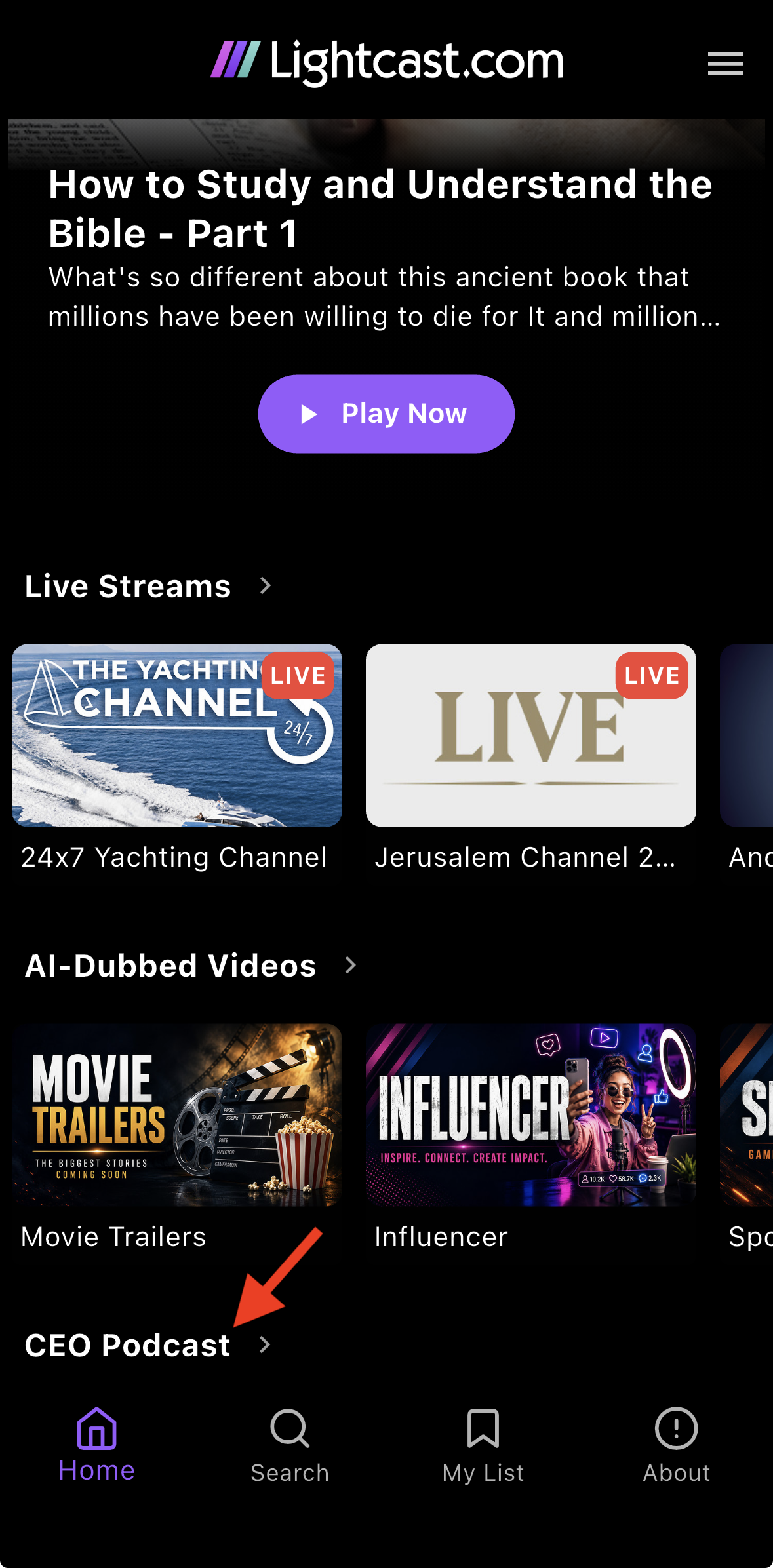
Step 2
Open the On-Demand Channel.
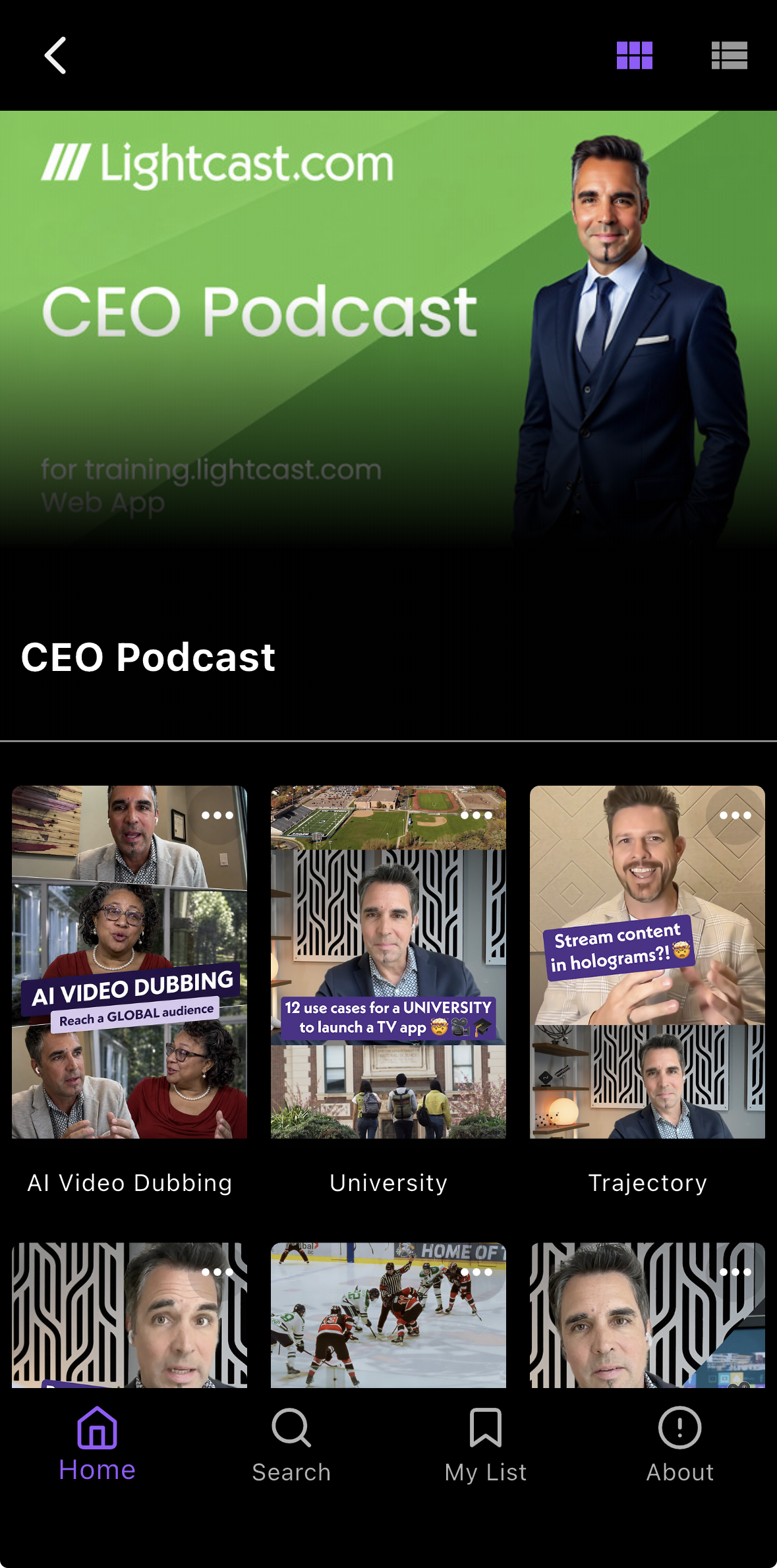
Step 3
Tap the three-dot menu on the media item you want to share, or tap the media item thumbnail to open the player.
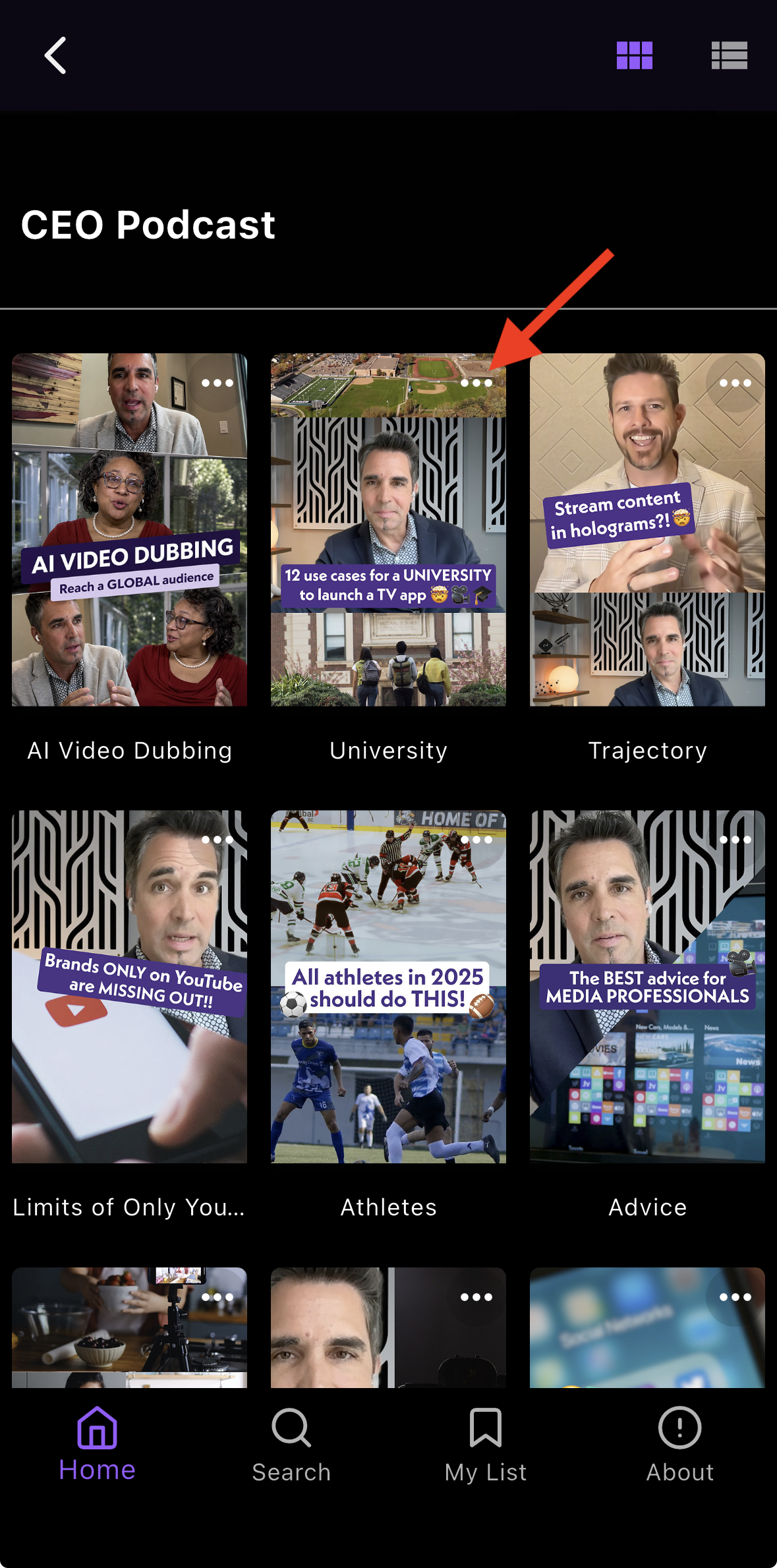
Step 4
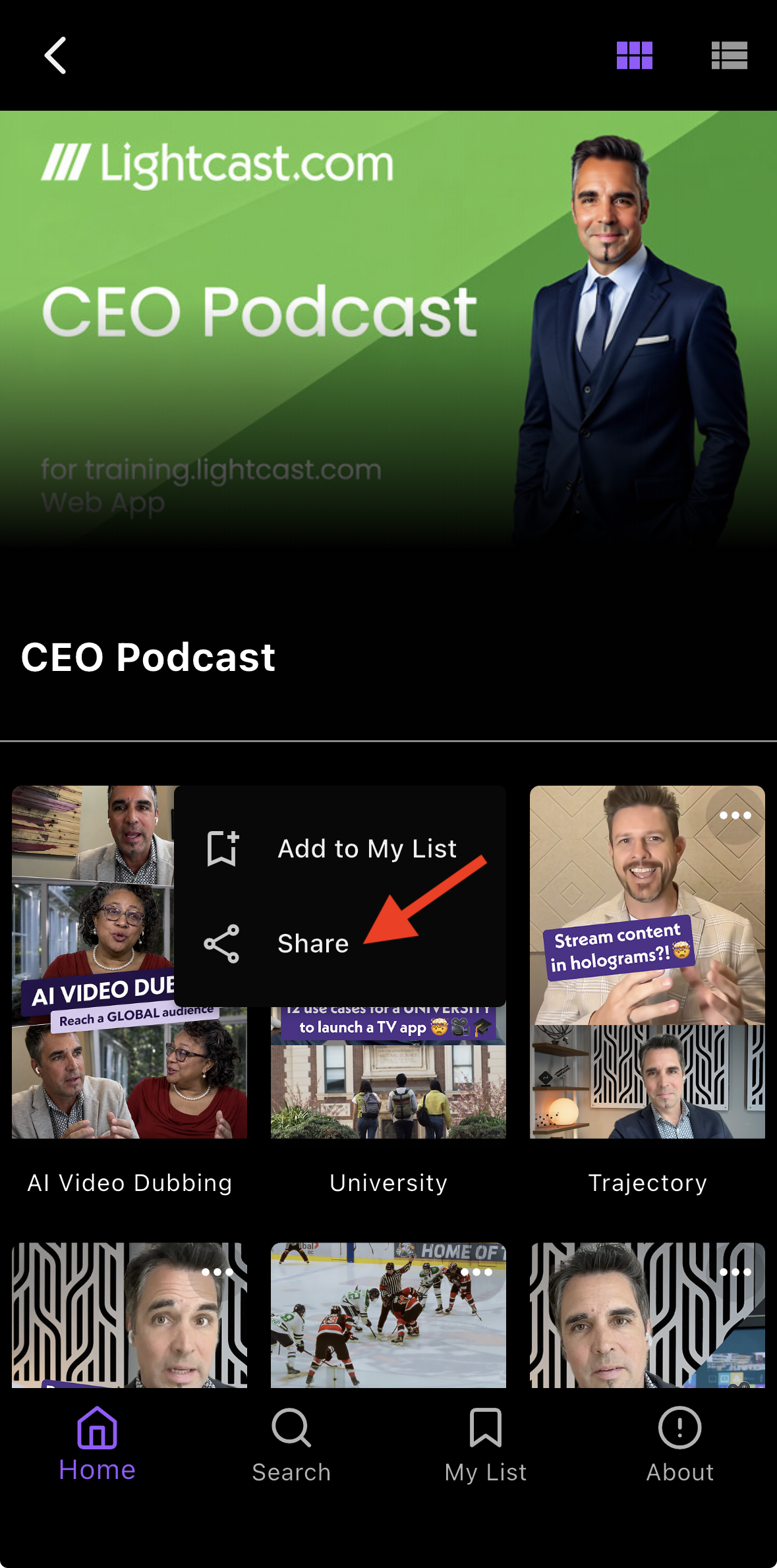
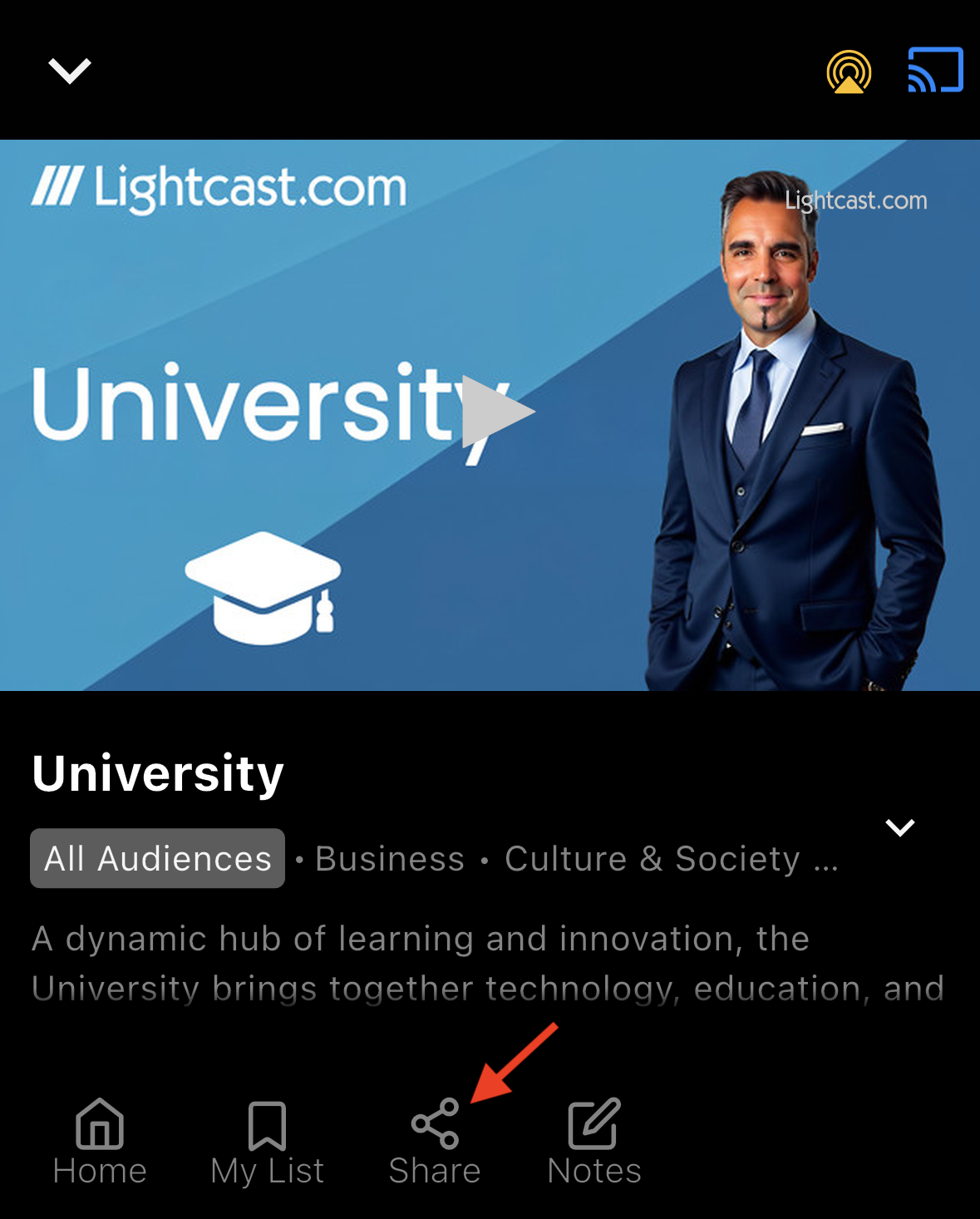
Tap Share from the three-dot menu, or tap the Share icon in the player.
Option 1: Tap Share from the three-dot menu
Option 2: Tap the Share icon below the player after clicking on the media thumbnail
Step 5
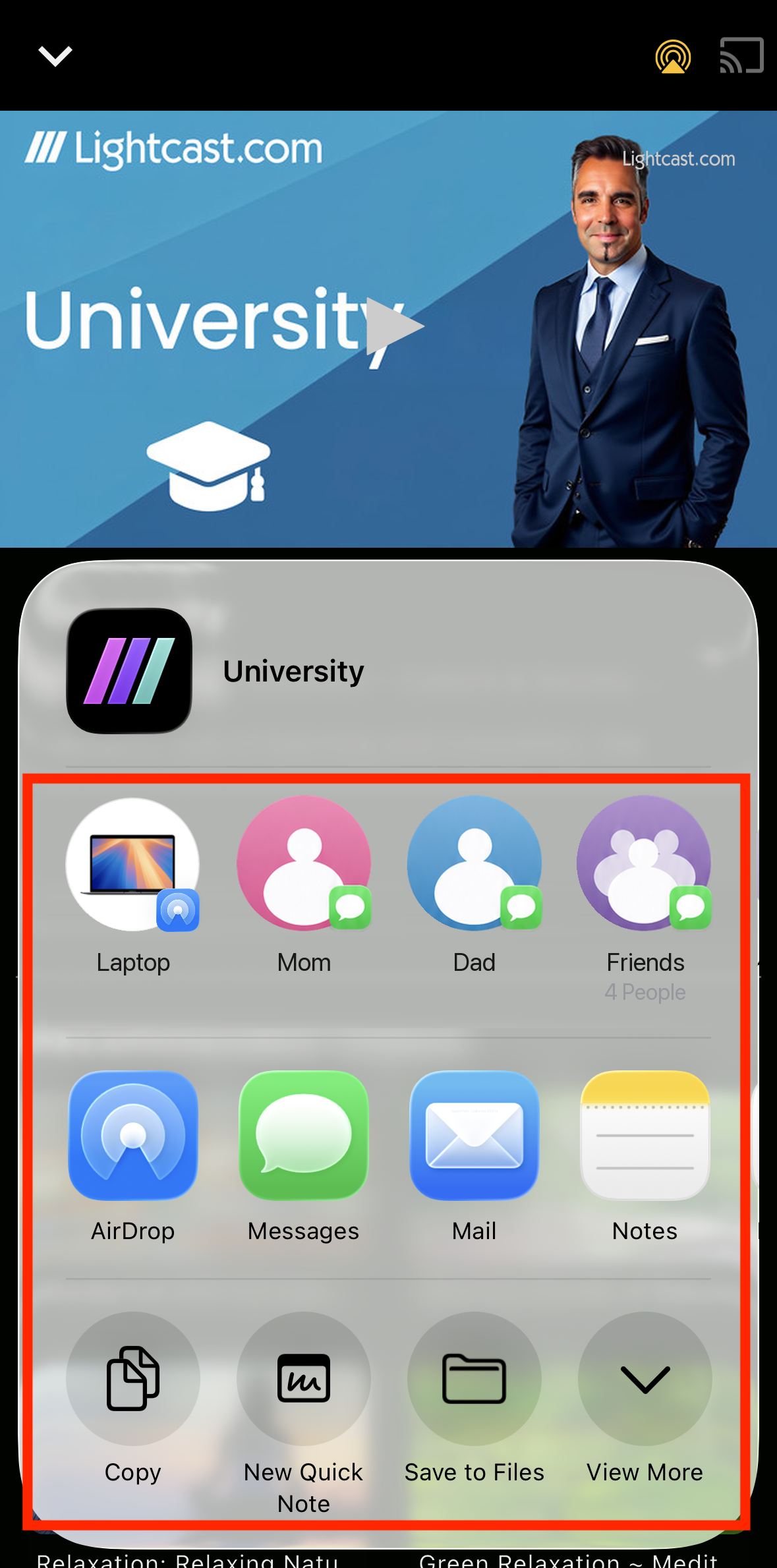
When your device's sharing menu opens, choose how you want to share the player link.
To copy the link without sending it immediately, tap Copy.
Step 6
If you copied the link, paste it into the message, email, social media post, or other location where you want to share it.
Use these steps to share an individual media item assigned to a Sub-Channel in a mobile app.
Step 1
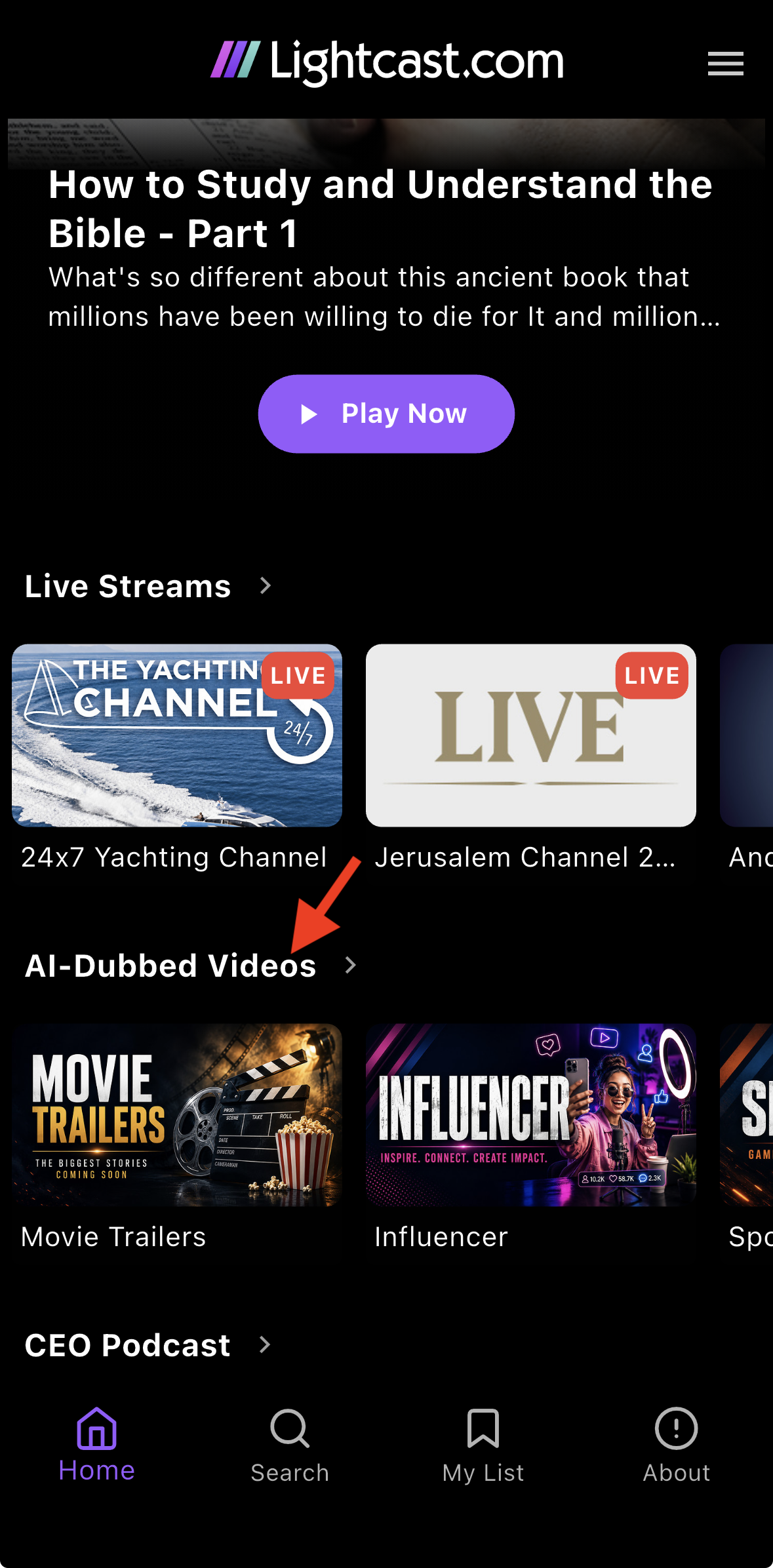
Open the mobile app and locate the On-Demand Channel that contains the Sub-Channel.
Step 2
Open the On-Demand Channel.
Step 3
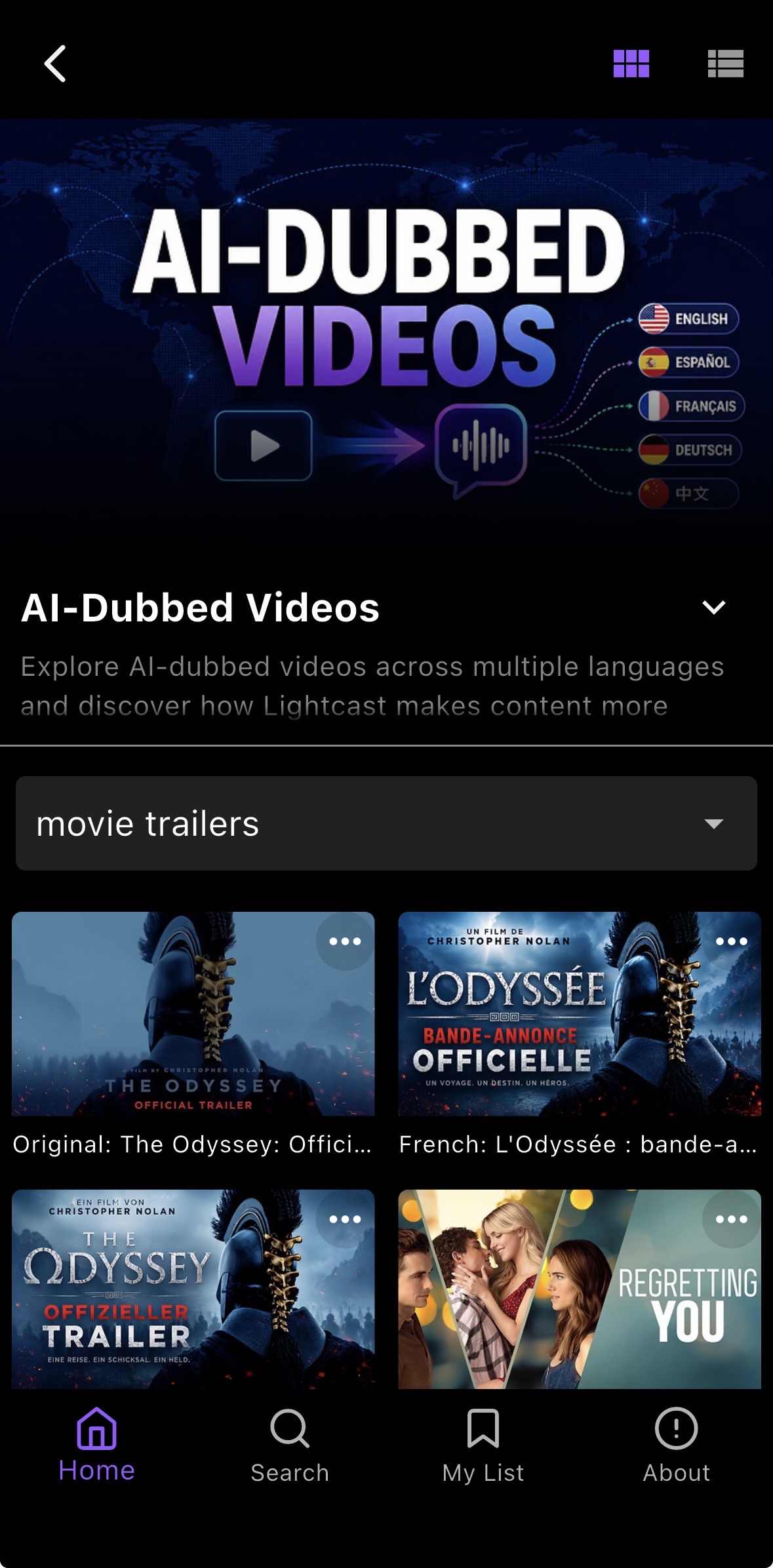
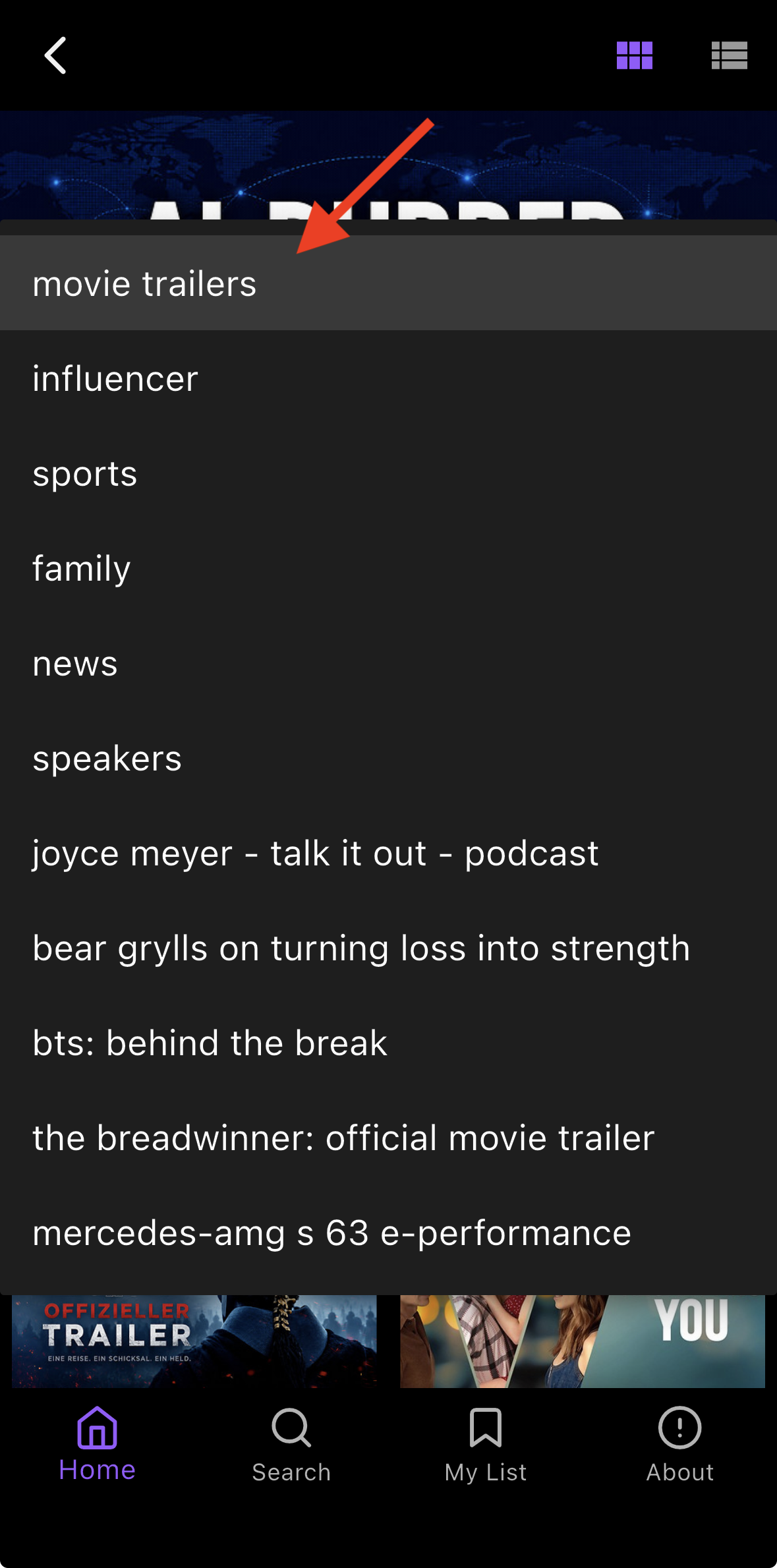
Use the Sub-Channel dropdown menu to select the Sub-Channel you want to open.
Step 4
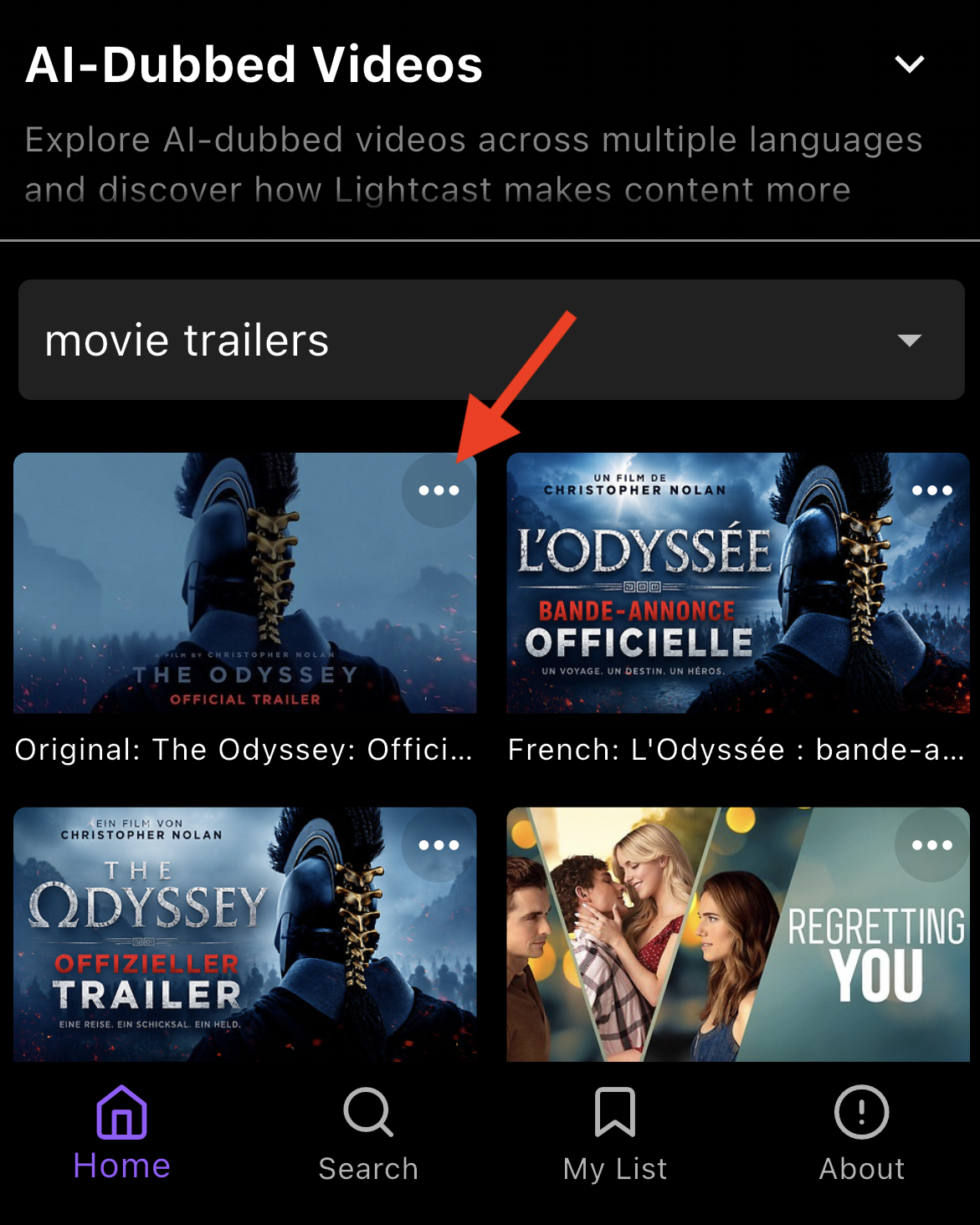
Tap the three-dot menu on the media item you want to share, or tap the media item thumbnail to open the player.
Step 5
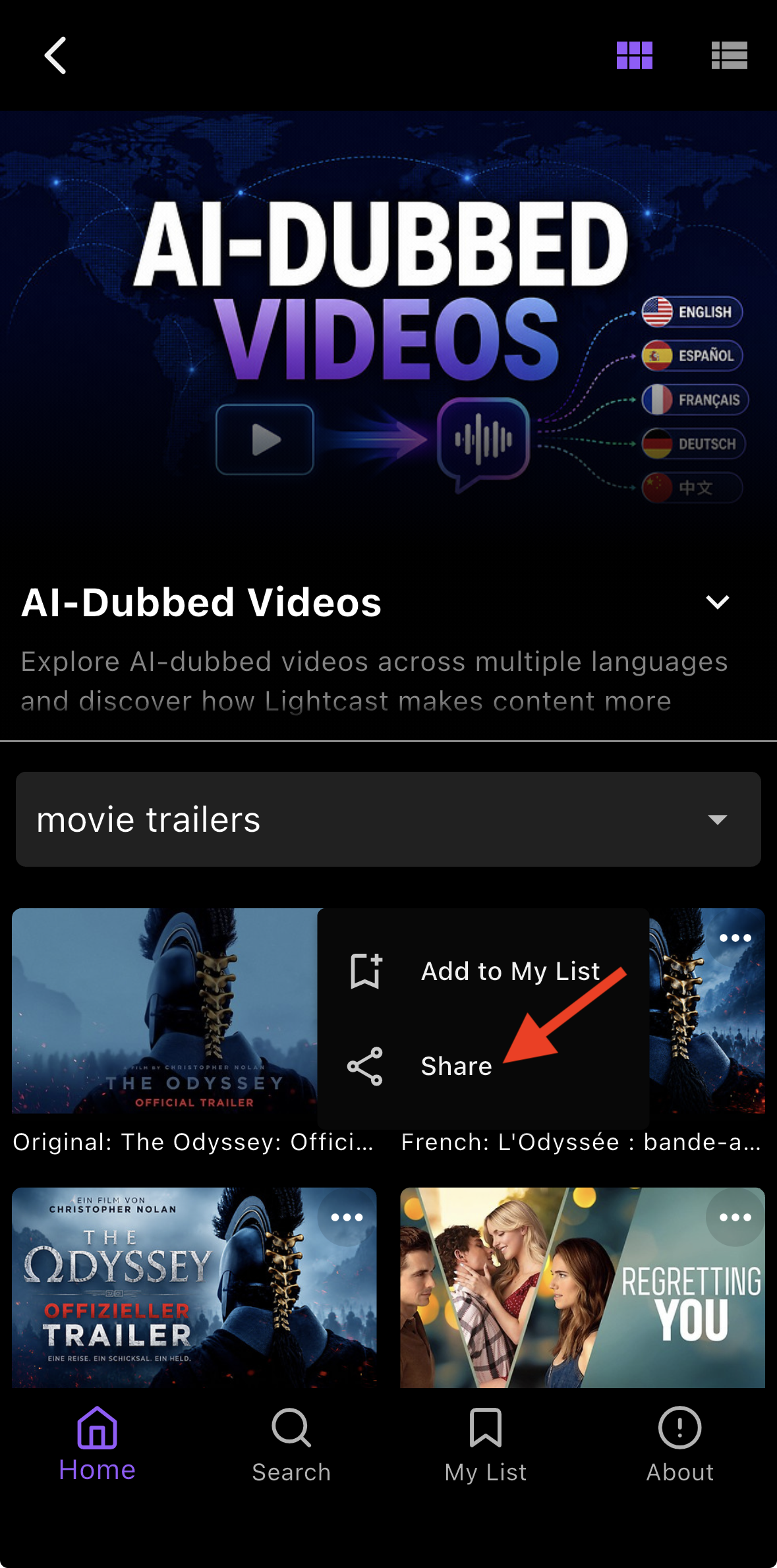
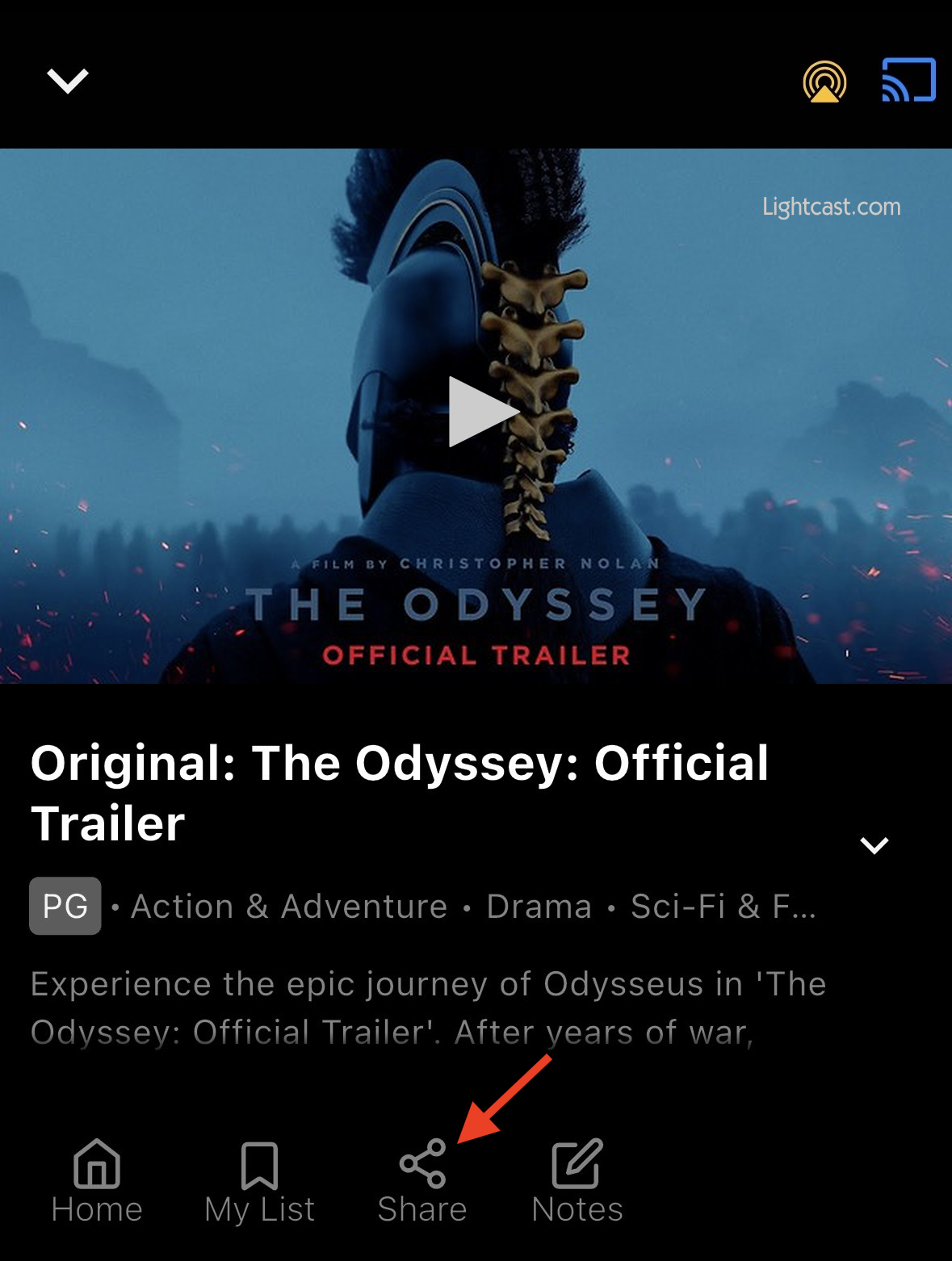
Tap Share from the three-dot menu, or tap the Share icon in the player.
Option 1: Tap Share from the three-dot menu
Option 2: Tap the Share icon below the player after clicking on the media thumbnail
Step 6
When your device's sharing menu opens, choose how you want to share the player link.
To copy the link without sending it immediately, tap Copy.
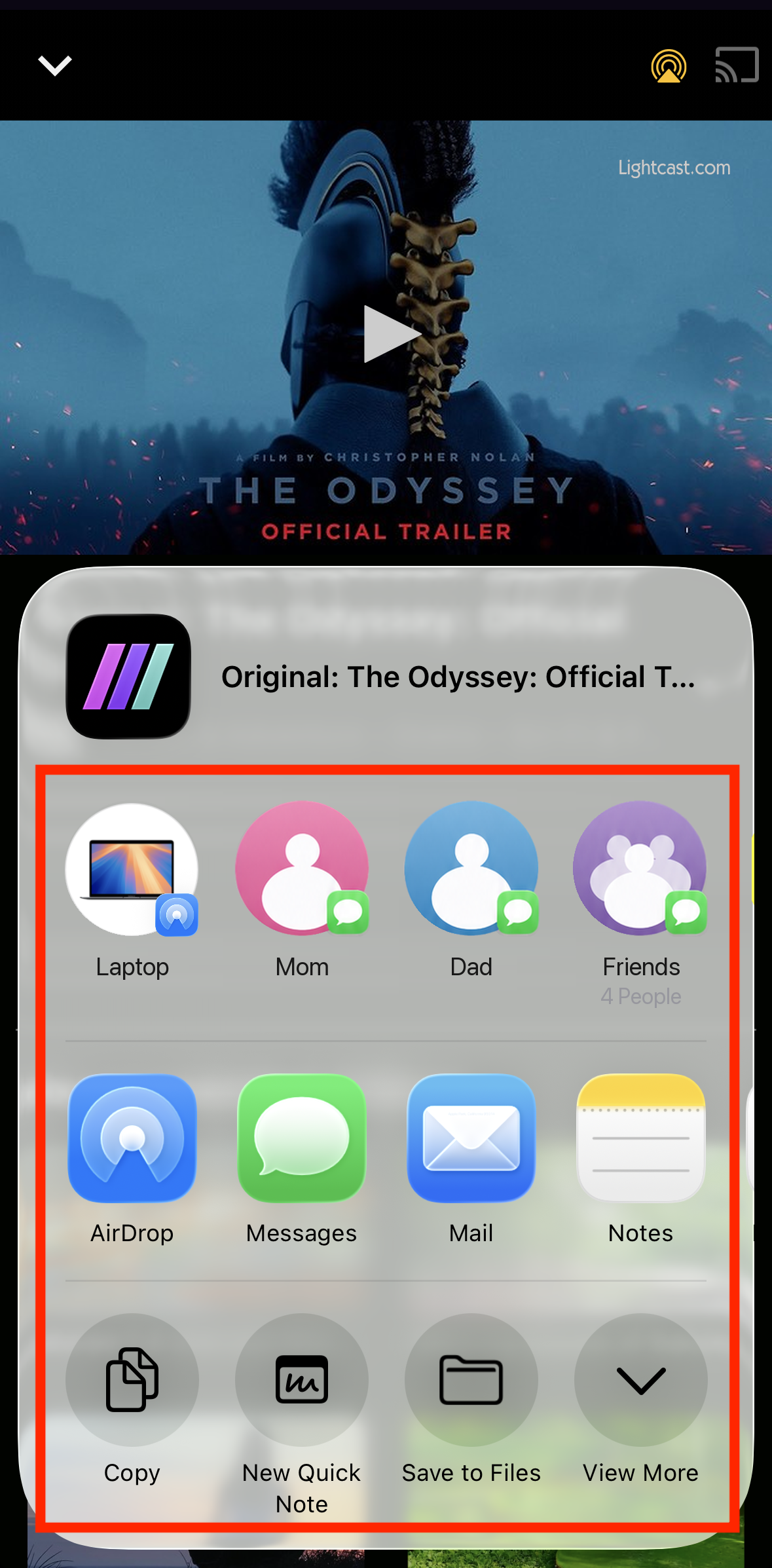
Step 7
If you copied the link, paste it into the message, email, social media post, or other location where you want to share it.
Use these steps to share a LIVE Channel player from a mobile app.
Step 1
Open the mobile app and locate the LIVE Channel you want to share.
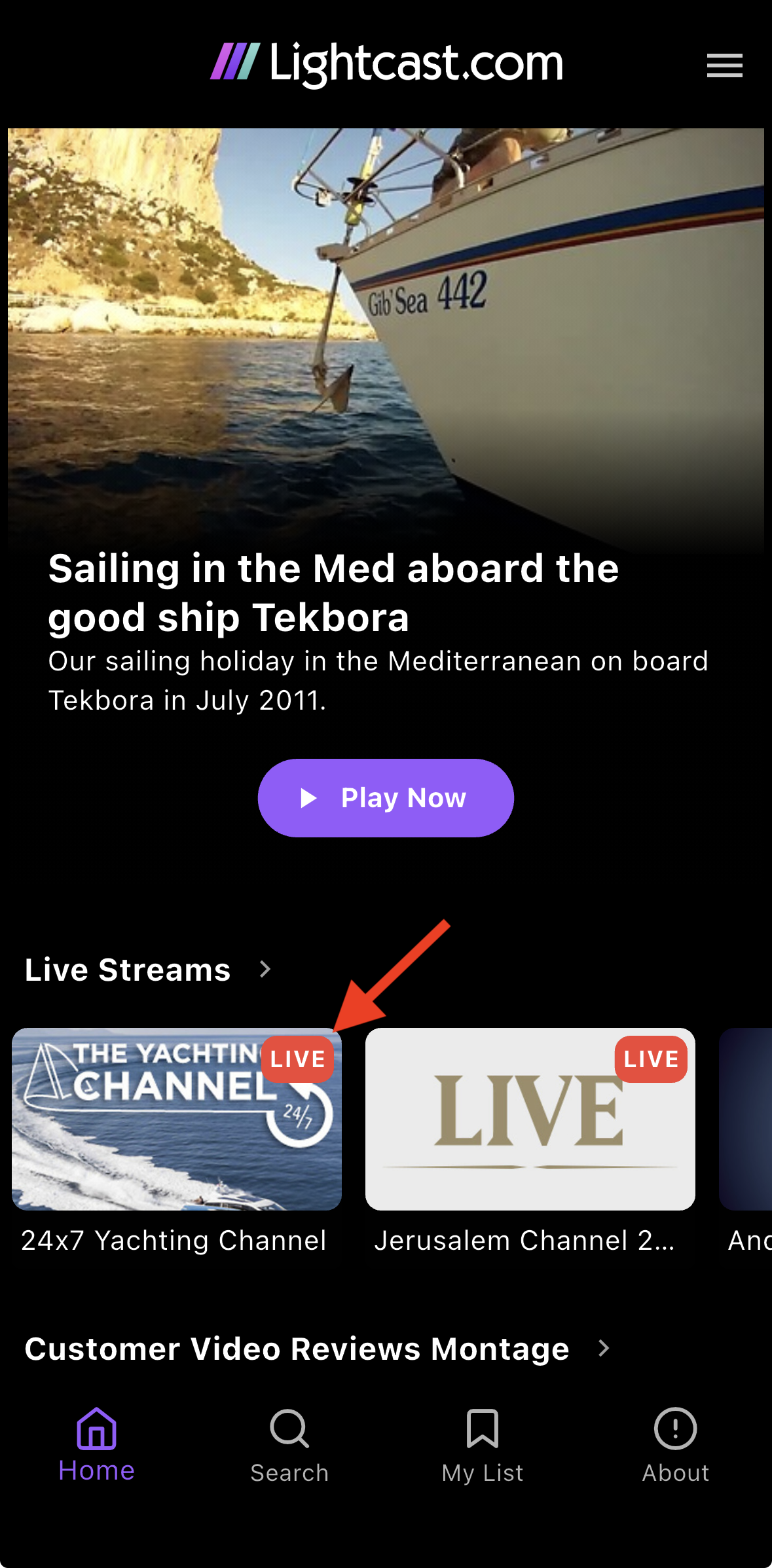
Step 2
Open the LIVE Channel.
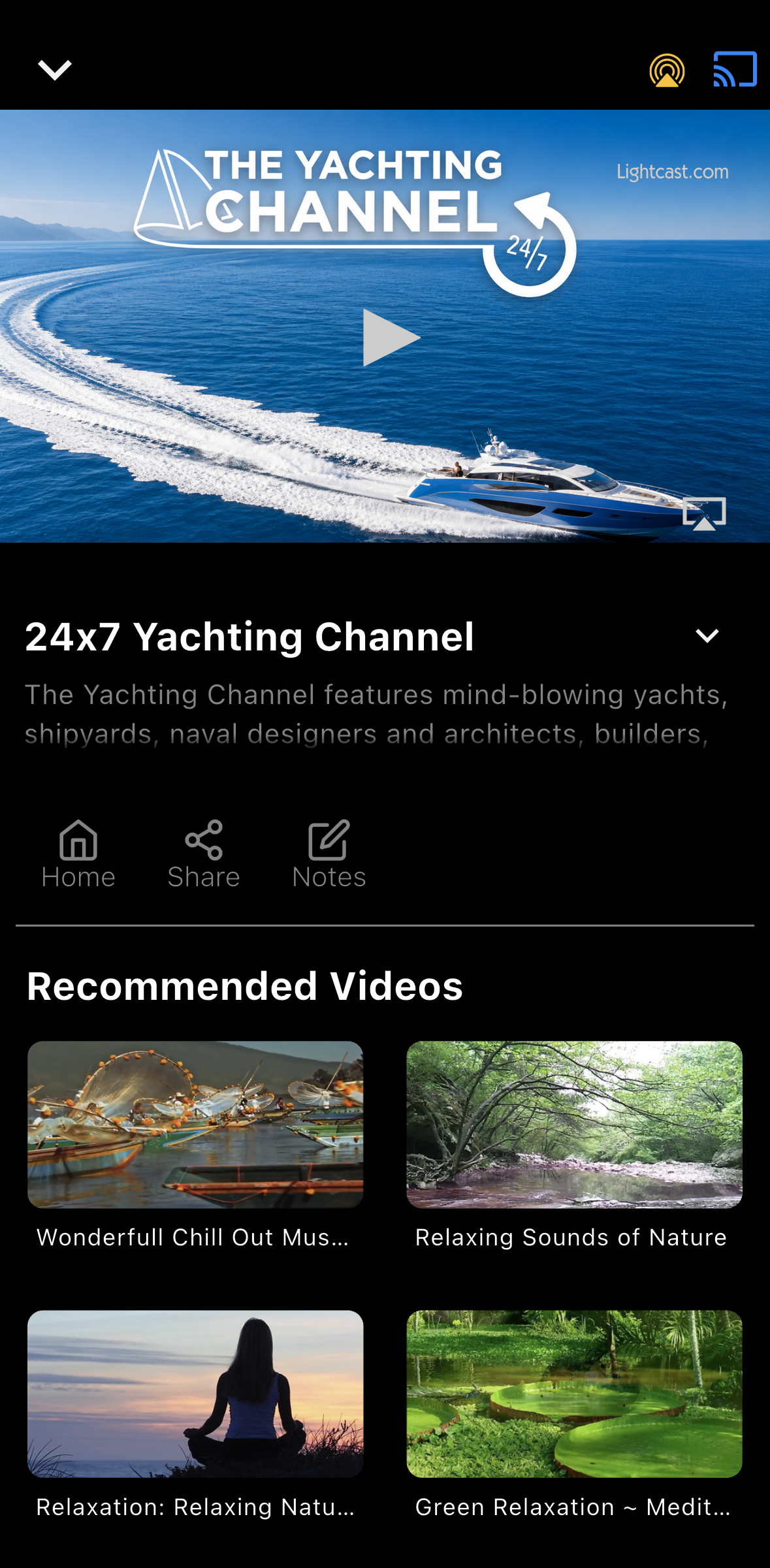
Step 3
Tap Share.
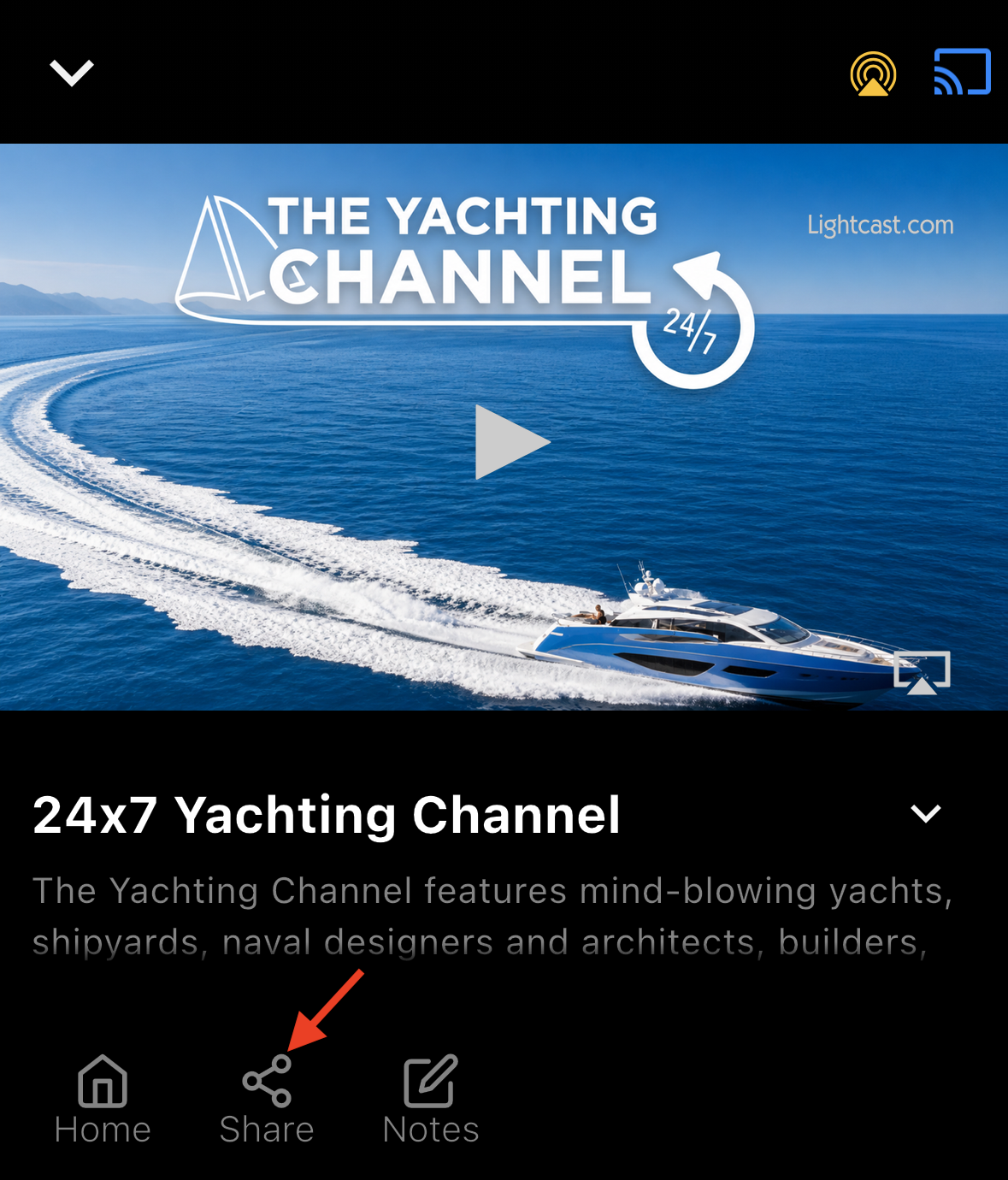
Step 4
When your device's sharing menu opens, choose how you want to share the player link.
To copy the link without sending it immediately, tap Copy.
Step 5
If you copied the link, paste it into the message, email, social media post, or other location where you want to share it.
You can also open the LIVE Channel player, tap the Share icon in the player, and select Link to access the player link.
FAQs
What can I share from a mobile app?
You can share individual media items from On-Demand Channels and Sub-Channels, as well as LIVE Channel players.
Can I share an individual media item from an On-Demand Channel or Sub-Channel?
Yes. Open the On-Demand Channel or Sub-Channel, select the media item, and use the available Share option.
Can I share an entire On-Demand Channel or Sub-Channel from a mobile app?
Sharing in the mobile apps is available for individual media items inside On-Demand Channels and Sub-Channels.
Can I share a LIVE Channel player from a mobile app?
Yes. Open the LIVE Channel and tap Share. You can also open the LIVE Channel player and use the Share icon in the player.
Are there other ways to share a media item from a mobile app?
Yes. Depending on where you are in the mobile app, you may be able to share a media item by tapping its three-dot menu and selecting Share, or by opening the media item and tapping the Share icon in the player.
What sharing options are available when I tap Share?
The mobile app uses your device's built-in sharing menu. The options available depend on your mobile device and the apps installed on it.
For example, you may be able to copy the link or share it through a text message, email, AirDrop, or another supported app.
Can I copy the player link instead of sharing it immediately?
Yes. When your device's sharing menu opens, select Copy to copy the player link. You can then paste it wherever you want to use it.
Can I share a player link from a TV app?
No. TV apps do not support copying or sharing player links. TV apps are designed for viewing content on a television and do not include the sharing tools used on mobile devices to copy or send player links.