
How to enable Poster Images in the App Builder
Overview
This article explains how to enable 2:3 Poster Images for an on-demand Channel in the APP BUILDER.
Poster Images can be enabled for supported app rows that display media items from a VOD or AOD Channel.
When to use Poster Images in the App Builder
Use this setting when you want media items from a VOD or AOD Channel to display with vertical 2:3 Poster Images instead of standard 16:9 thumbnails in supported app rows.
Before enabling 2:3 Poster Images, make sure each media item in the Channel playlist has an uploaded or AI-generated Poster Image selected. When a Channel is configured to use Poster Images, the app expects every media item in that row to have a Poster Image instead of a standard 16:9 thumbnail. This helps provide a consistent appearance across supported apps.
The Video Image Type setting is available only for supported app frameworks and only when the Channel is configured to display media items directly in the app row.
How it works
Video Image Type
The Video Image Type setting controls which image format is displayed for media items from the Channel in supported app rows.
The available options are:
16:9 Thumbnails
2:3 Poster Images
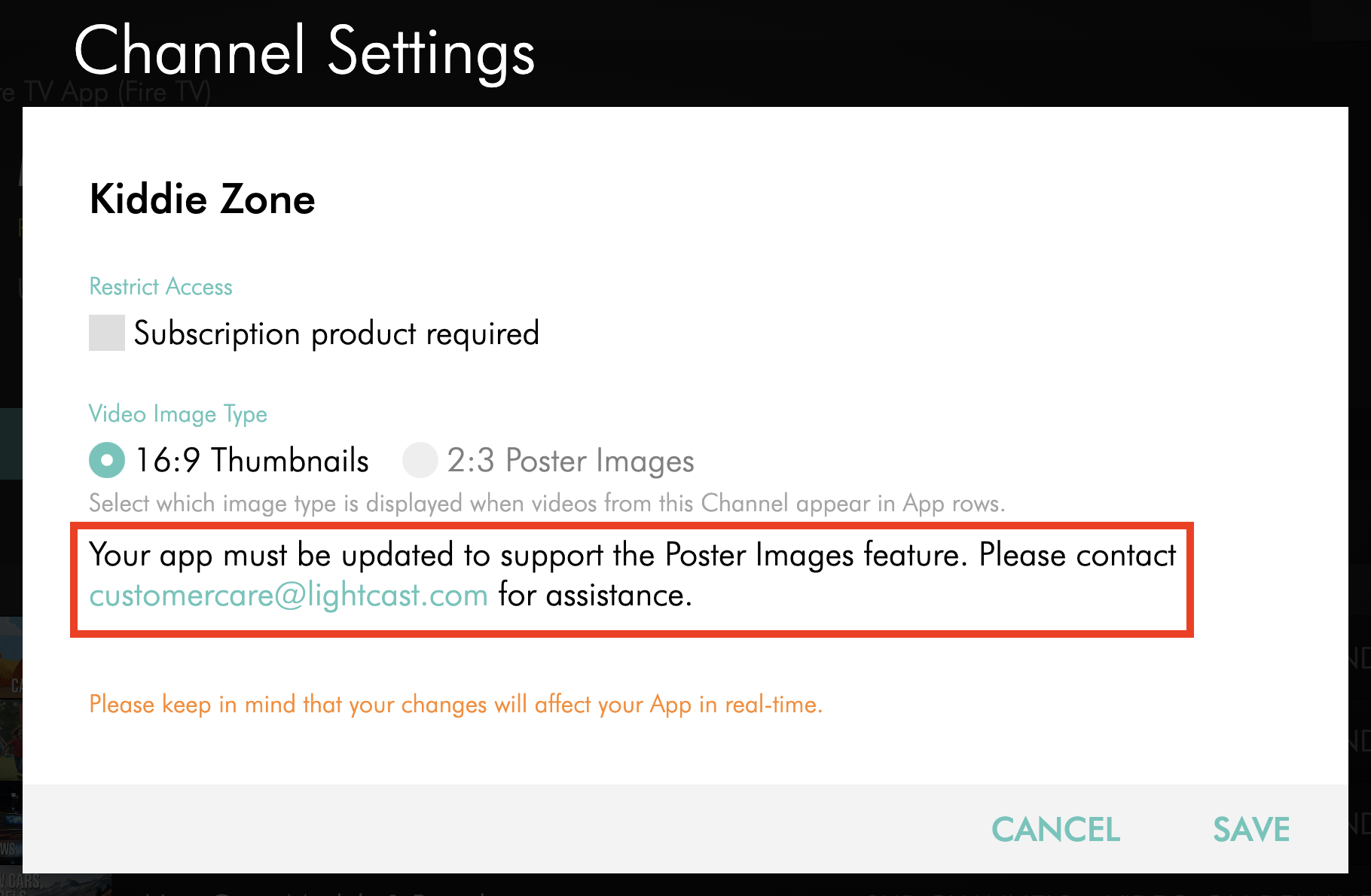
The default setting is 16:9 Thumbnails. To display Poster Images in the app row, select 2:3 Poster Images.
Changes made in the APP BUILDER affect the app in real time.
Supported app frameworks
The Video Image Type setting is shown only when the app framework supports Poster Images.
If the app framework does not support Poster Images, the 2:3 Poster Images option is not available. If your app needs to be updated to support Poster Images, a message will appear in the APP BUILDER with instructions to contact Customer Support for assistance.
Sub-Channels and Media Groups
The Video Image Type setting is available only when the Channel is configured to display media items directly in the app row, instead of Sub-Channels or Media Groups.
If Sub-Channels or Media Groups are enabled under Sub-Category for that Channel, the Video Image Type setting is hidden and the app uses standard 16:9 thumbnails for that row.
If a Channel is already configured to use 2:3 Poster Images and Sub-Channels are later enabled, the Channel automatically switches back to 16:9 Thumbnails.
Poster Images for media items
Enabling 2:3 Poster Images changes only how media items are displayed. It does not upload Poster Images to your media items.
Poster Images can be uploaded manually or generated using AI in the Media Cloud. You can also use the Poster Image Selector to choose which uploaded or AI-generated Poster Image is displayed for each media item.
If an app is configured to use 2:3 Poster Images but a media item does not have a Poster Image, the app may display a placeholder image instead of the intended artwork.
To learn how to upload, generate, or select Poster Images, see How to upload Poster Images for media items.
Instructions
Step 1
Log in to your Media Cloud account.
Step 2
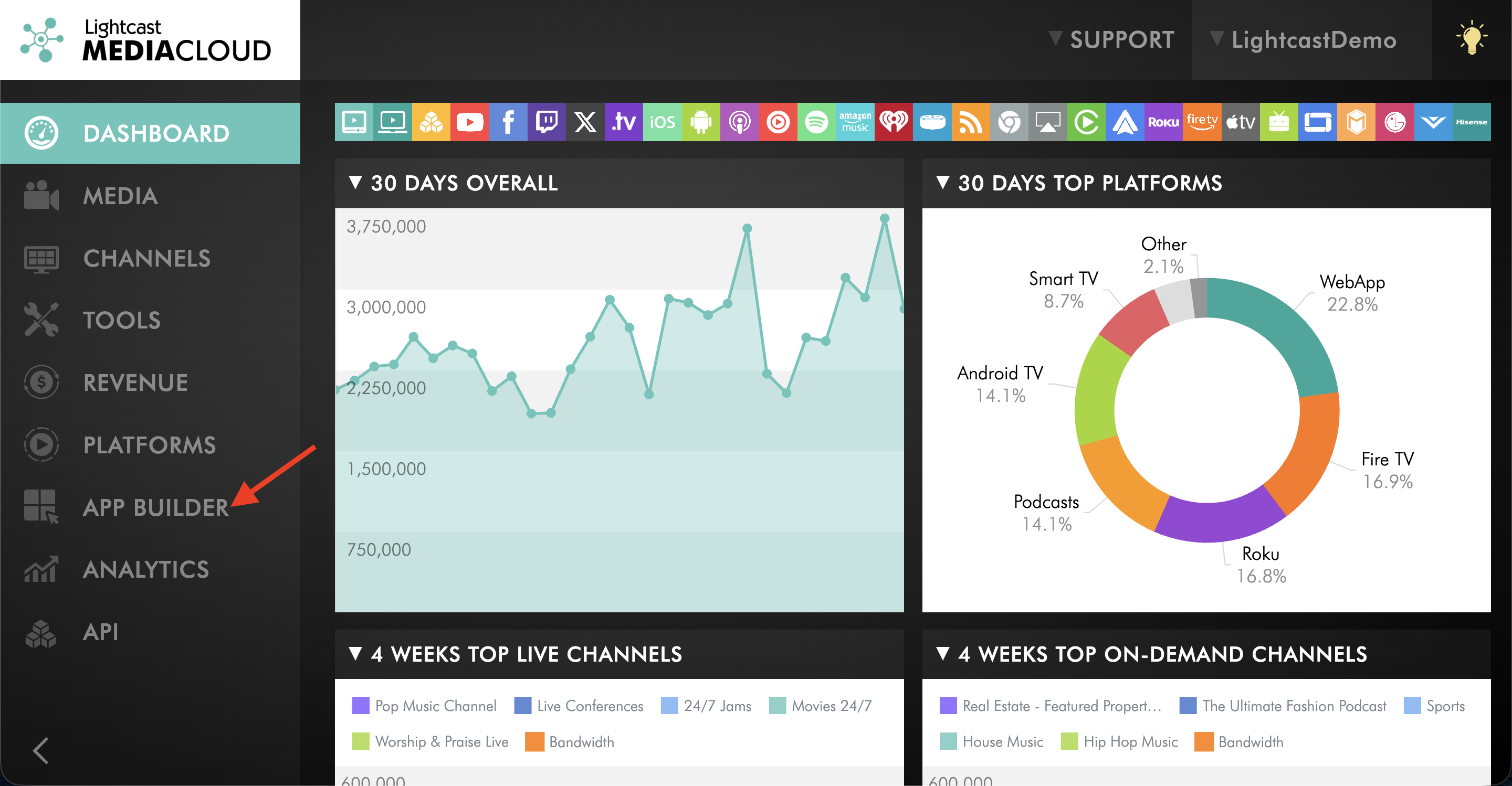
Go to the APP BUILDER.
Step 3
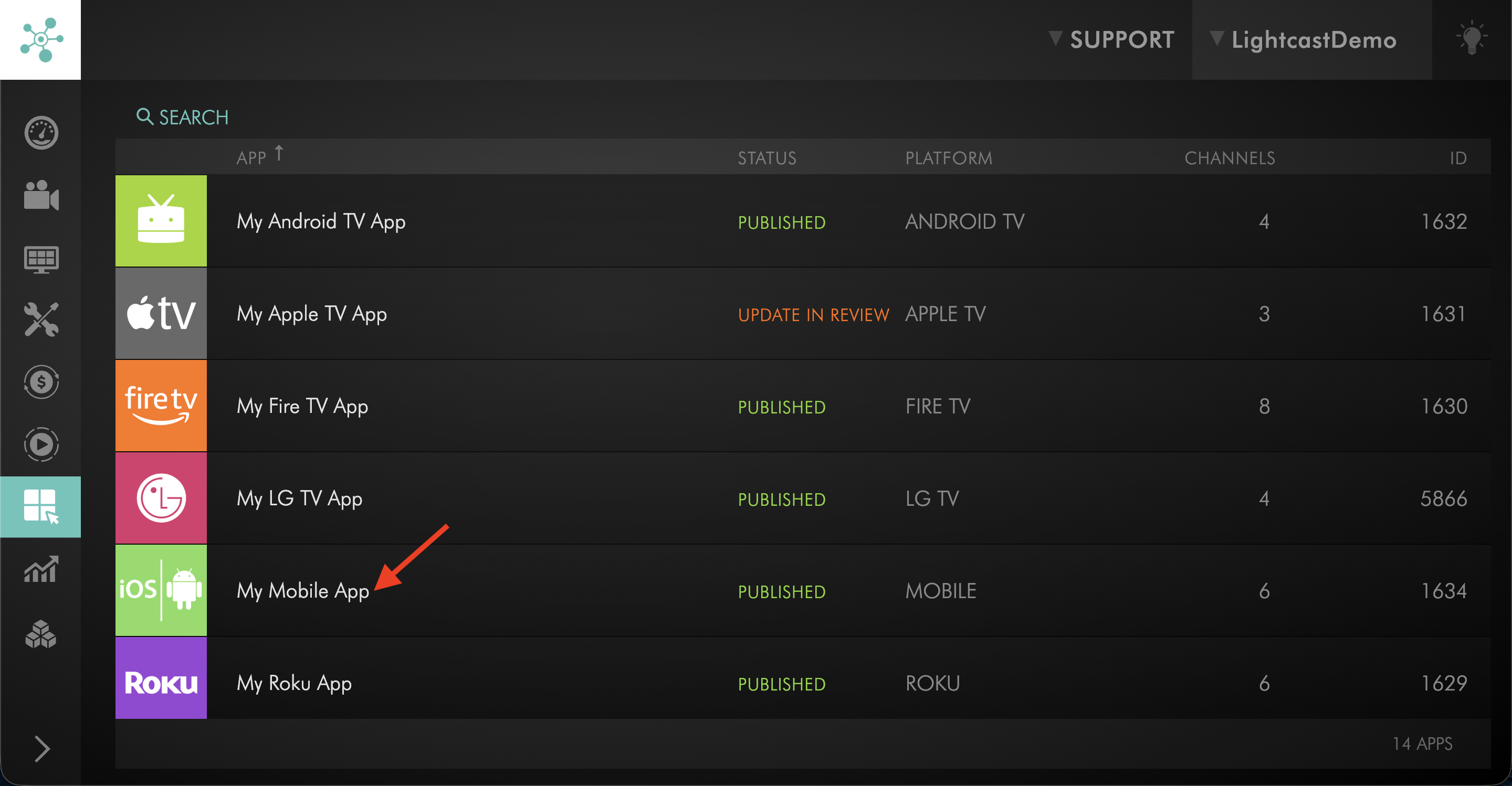
Open the app where you want Poster Images to display.
Step 4
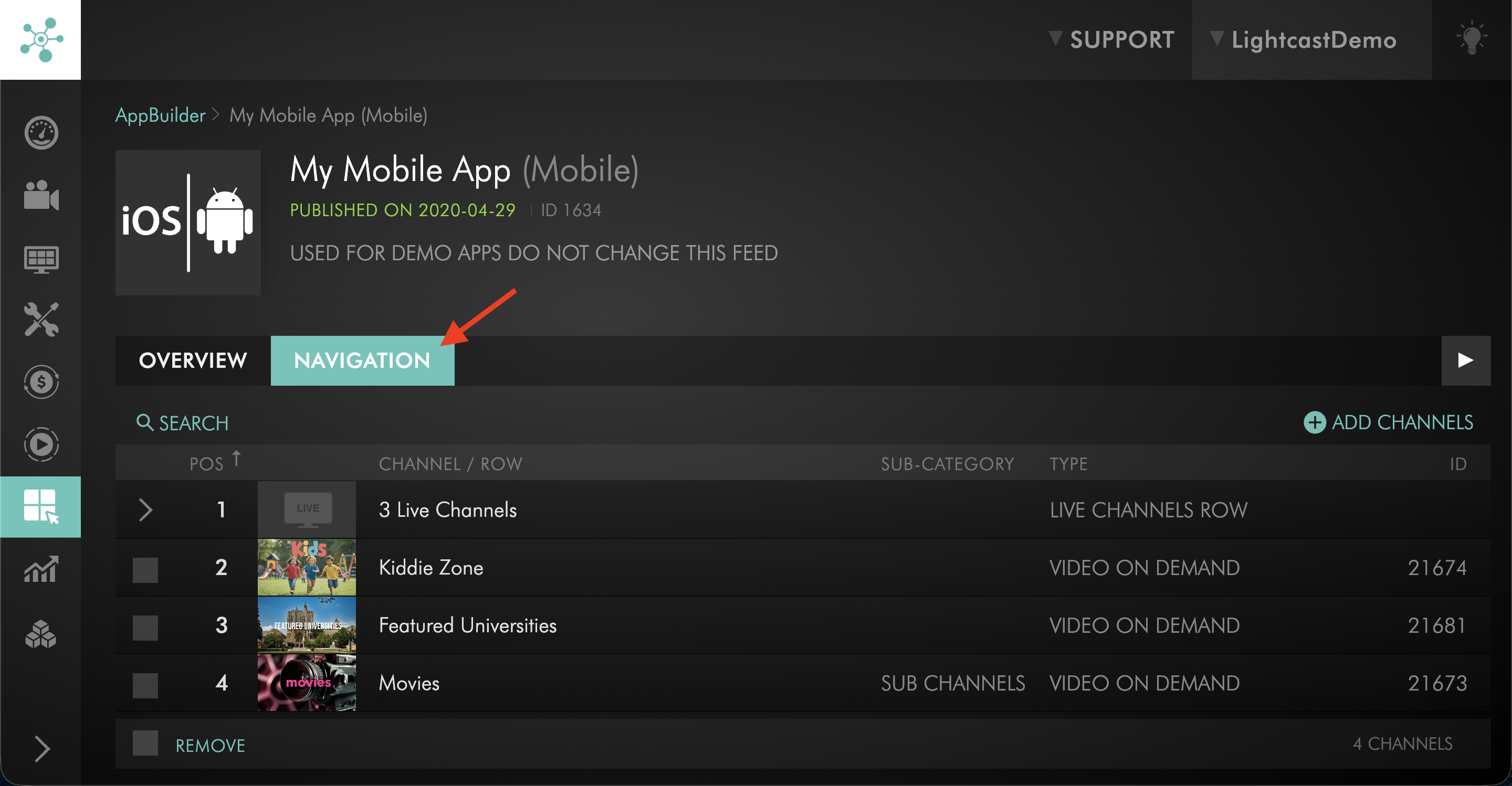
Switch to the NAVIGATION tab.
Step 5
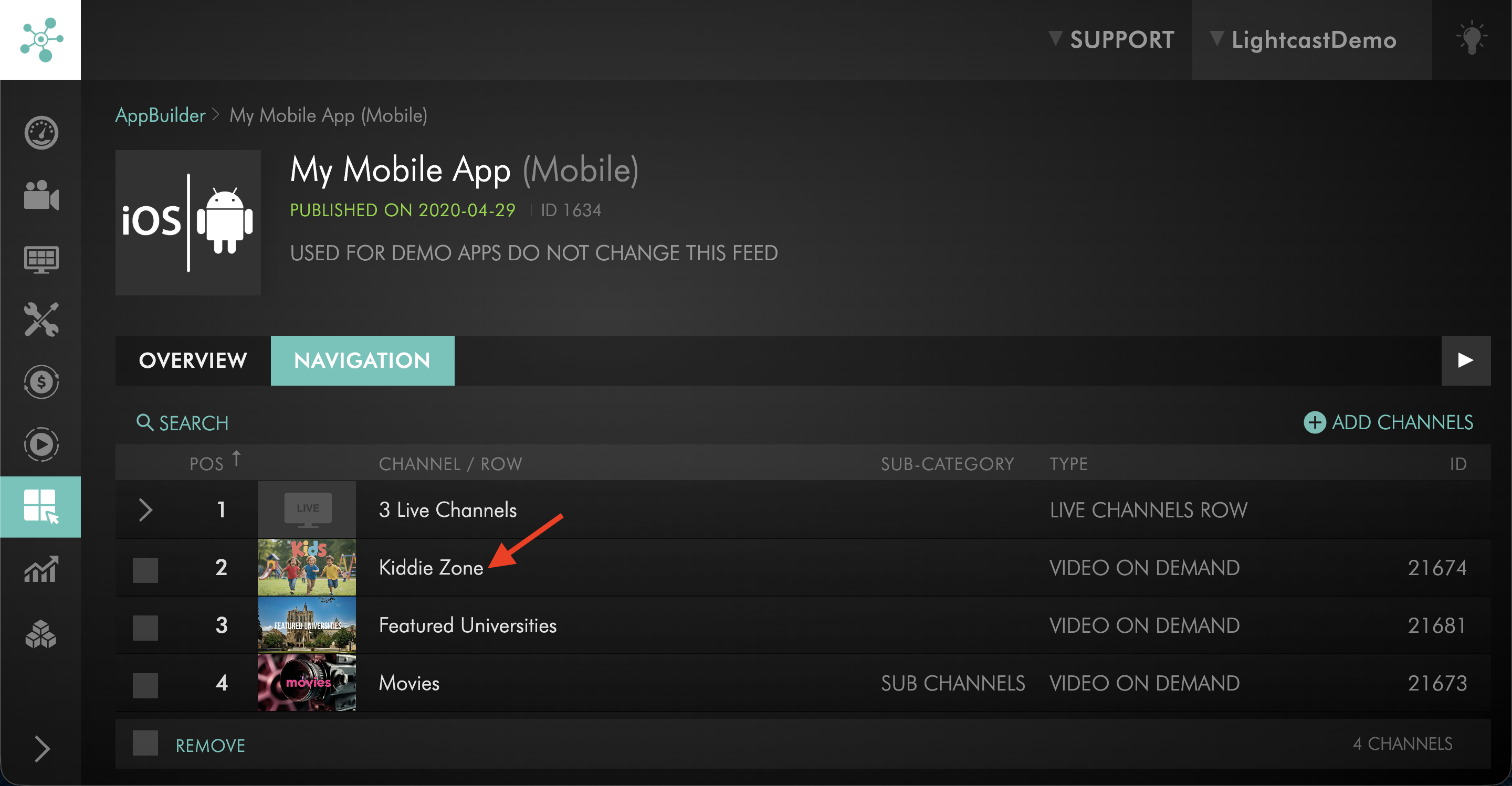
Select the VOD Channel or AOD Channel row you want to update.
Step 6
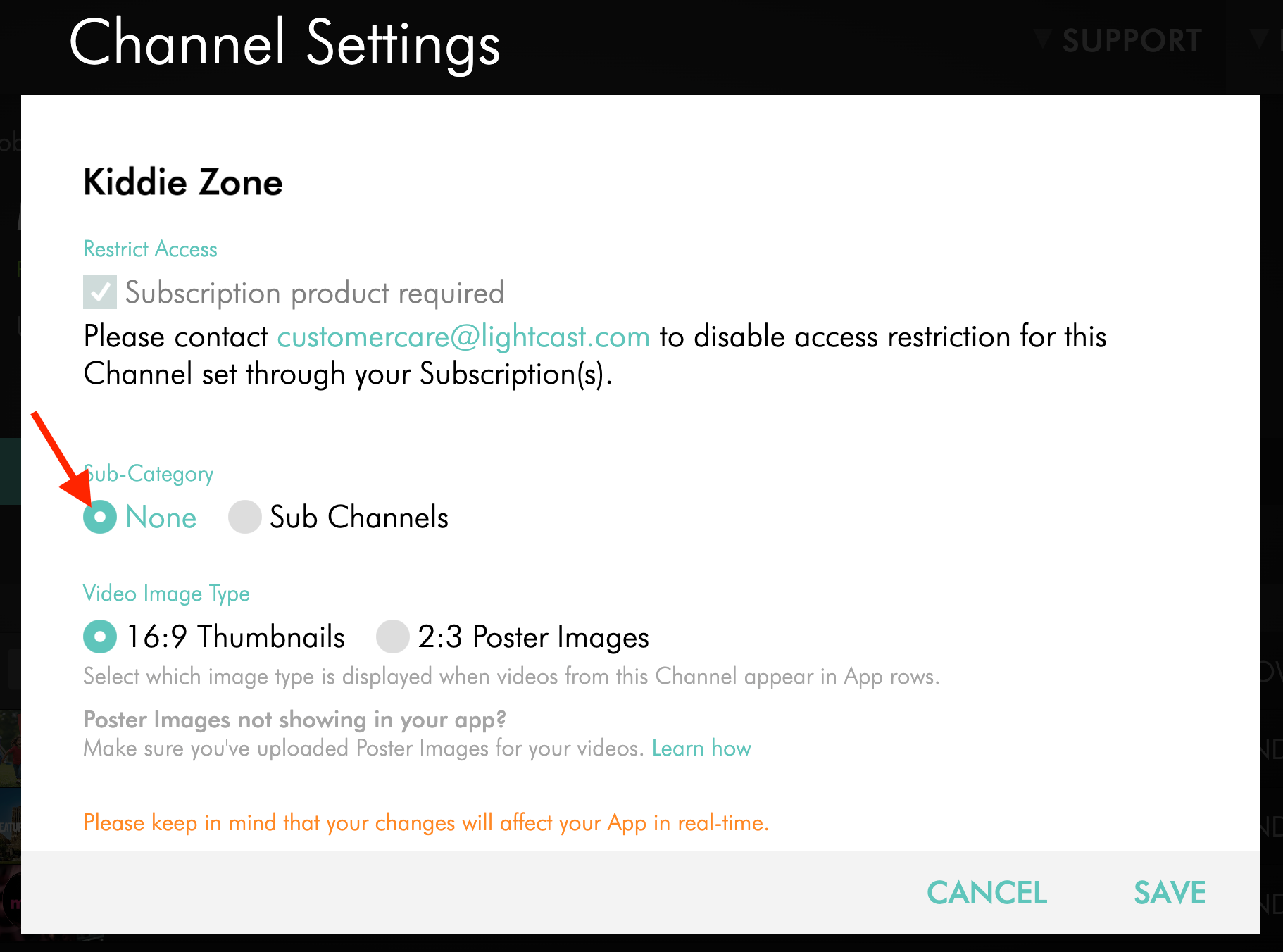
In the Channel Settings pop-up, under Sub-Category, make sure None is selected.
Step 7
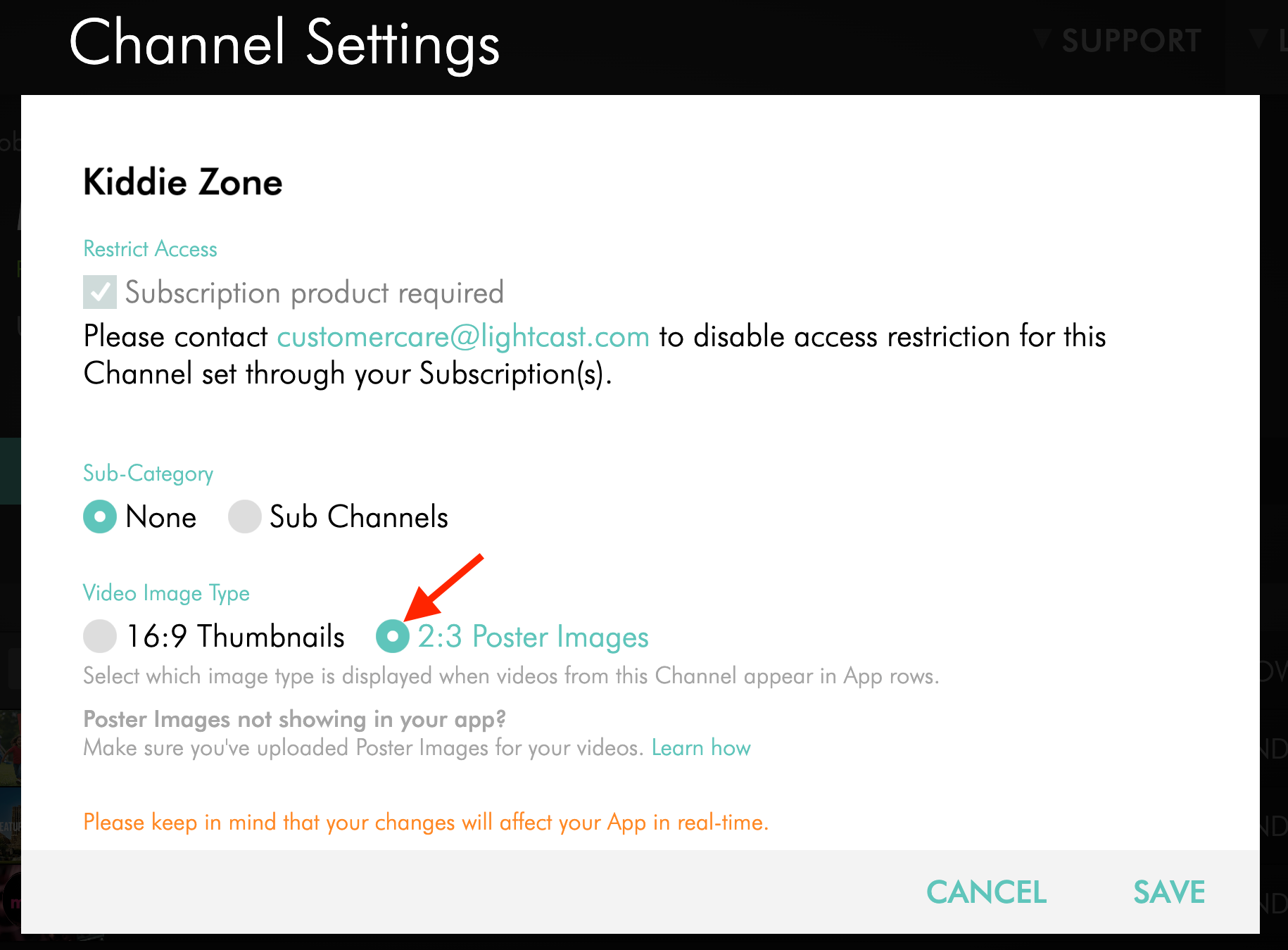
The Video Image Type setting is available when the Channel is configured to display media items directly in the app row instead of Sub-Channels or Media Groups.
Under Video Image Type, select 2:3 Poster Images.
Step 8
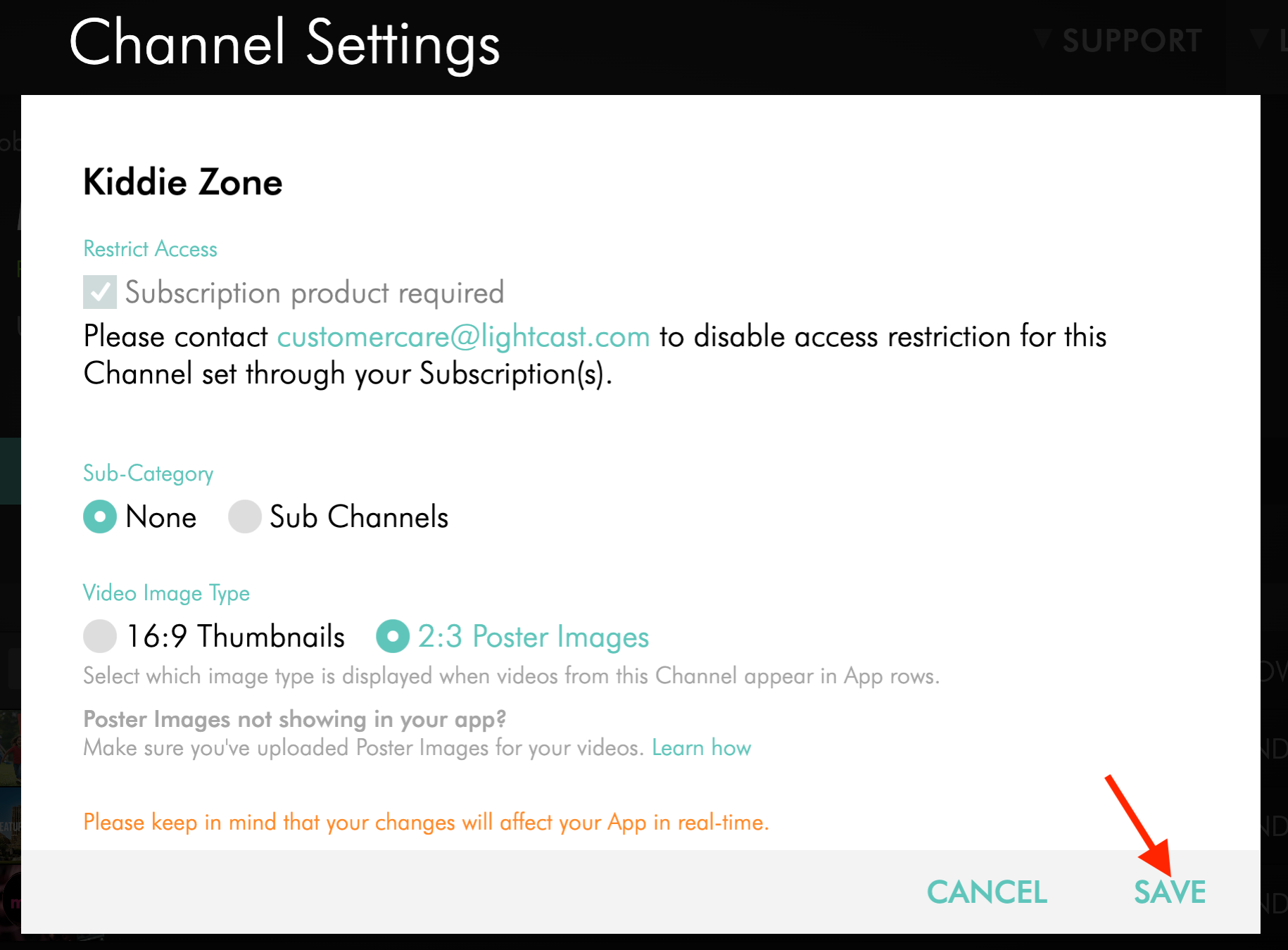
Click SAVE.
Step 9
Review the app row to make sure the media items from the Channel display with Poster Images.
If Poster Images do not display, make sure an uploaded or AI-generated Poster Image has been selected for each media item in the Channel playlist.
FAQs
Why is the Video Image Type setting not available?
The Video Image Type setting may not be available if the app framework does not support Poster Images.
The setting is also not shown when Sub-Channels or Media Groups are enabled under Sub-Category for that Channel in the APP BUILDER.
Can Poster Images be enabled for a Channel that has Sub-Channels in the Media Cloud?
Yes. A Channel can have Sub-Channels in the Media Cloud and still use Poster Images in an app, as long as Sub-Channels are not enabled for that Channel in that app’s APP BUILDER settings.
If Sub-Channels are enabled for the Channel in the APP BUILDER, the app displays the Sub-Channel row using standard 16:9 thumbnails.
What happens if Sub-Channels are enabled after Poster Images are already enabled?
If Sub-Channels are enabled for that Channel in the APP BUILDER, the system automatically switches the Channel row back to standard 16:9 thumbnails. The Video Image Type setting is not shown while Sub-Channels are enabled for that Channel row.
Why are Poster Images not showing after selecting 2:3 Poster Images?
Each media item in the Channel playlist should have an uploaded or AI-generated Poster Image selected before it can display in the app row.
The app must also use a framework that supports Poster Images, and the Channel must be configured to display media items directly in the app row.
Does enabling Poster Images in the APP BUILDER upload Poster Images for media items?
No. The APP BUILDER setting only controls which image format is displayed in supported app rows.
Poster Images must be uploaded or generated separately for each media item in the Media Cloud. You can also use the Poster Image Selector to choose which image is displayed.