
How to customize the playlist display for an On-Demand Channel or Sub-Channel player
Overview
This article explains how to customize the playlist display for VOD and AOD Channel players and Sub-Channel players embedded on your website.
How it works
The Playlist Display setting controls how the media playlist appears with your embedded Channel or Sub-Channel player.
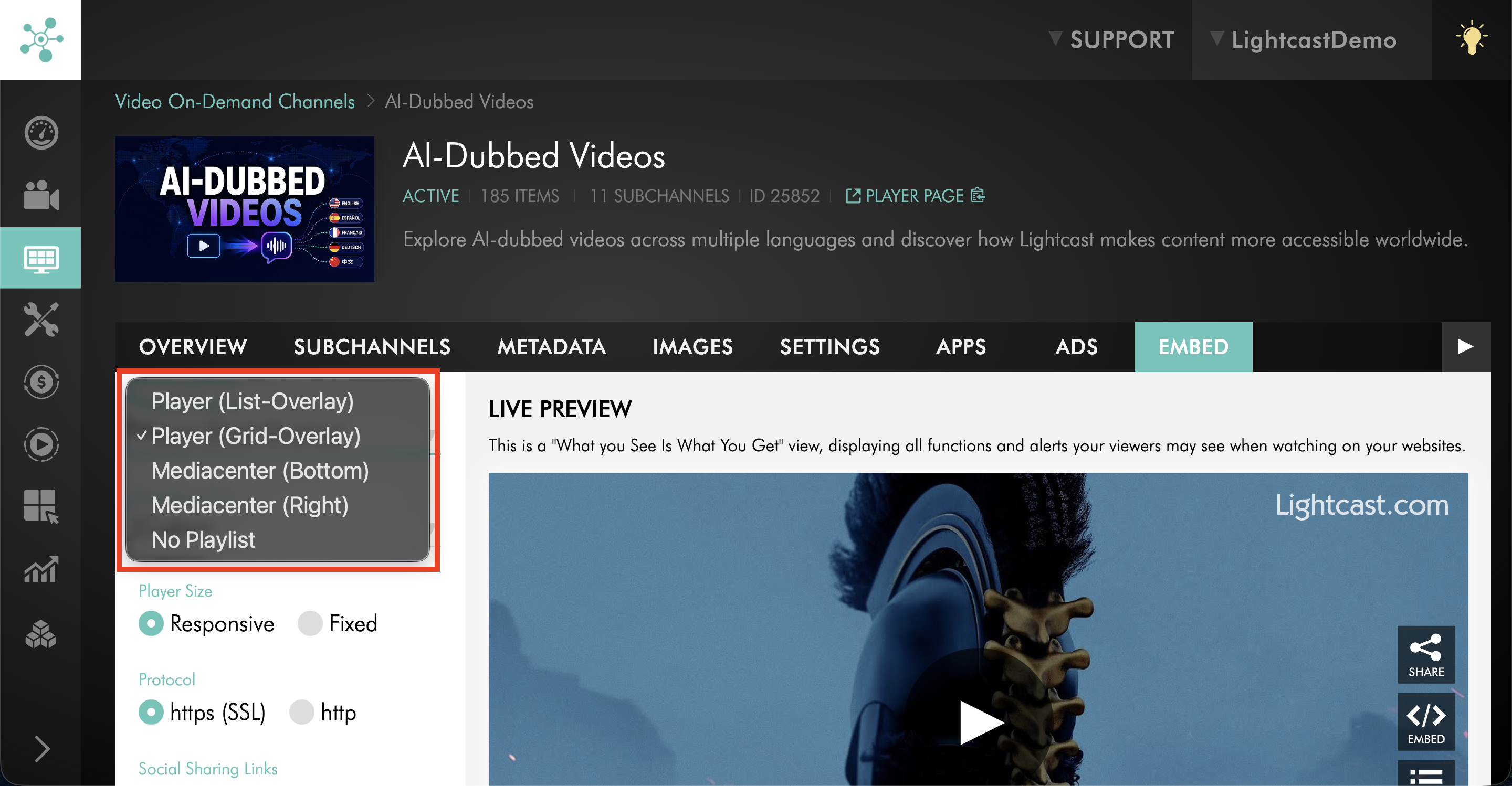
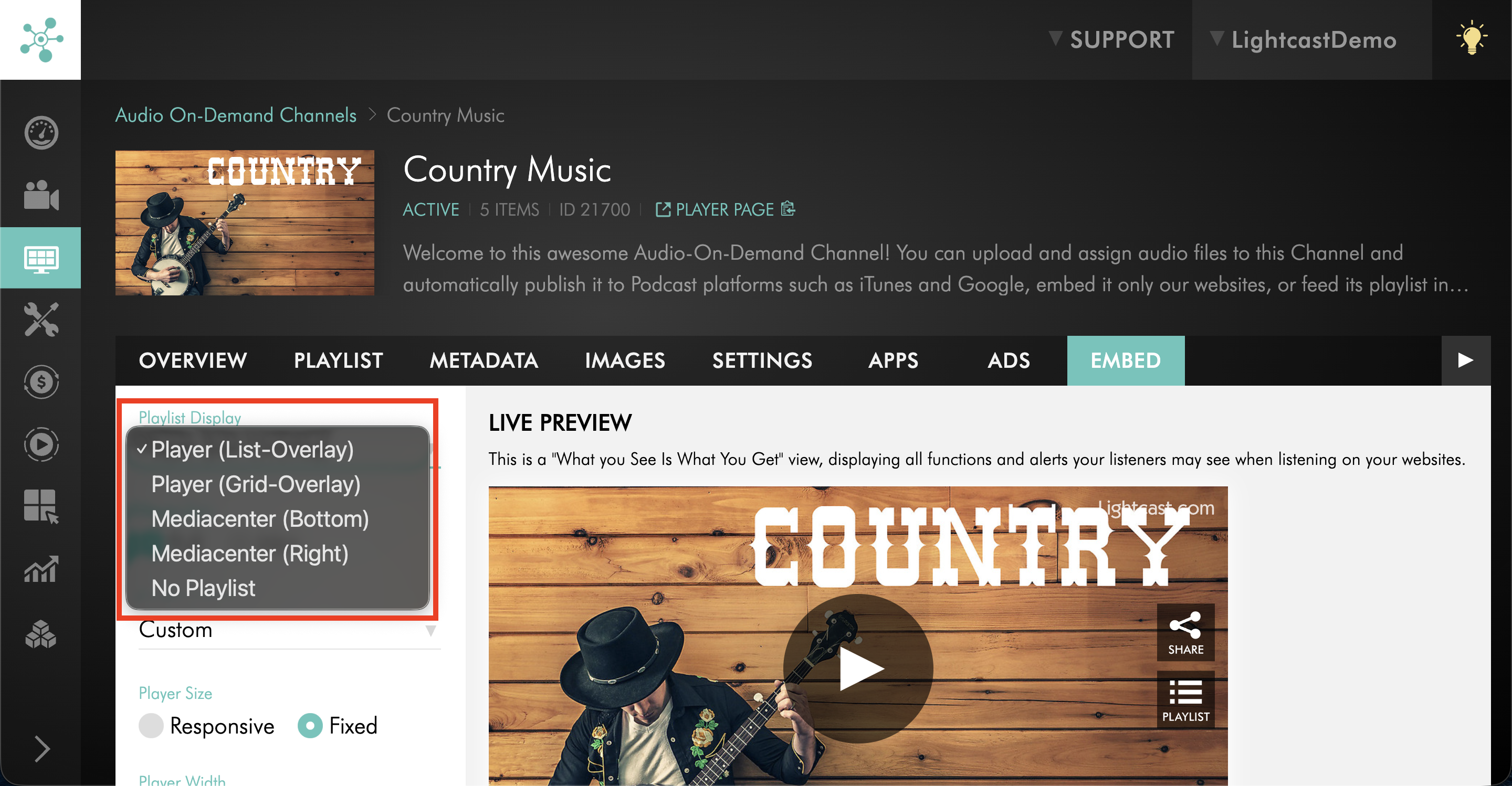
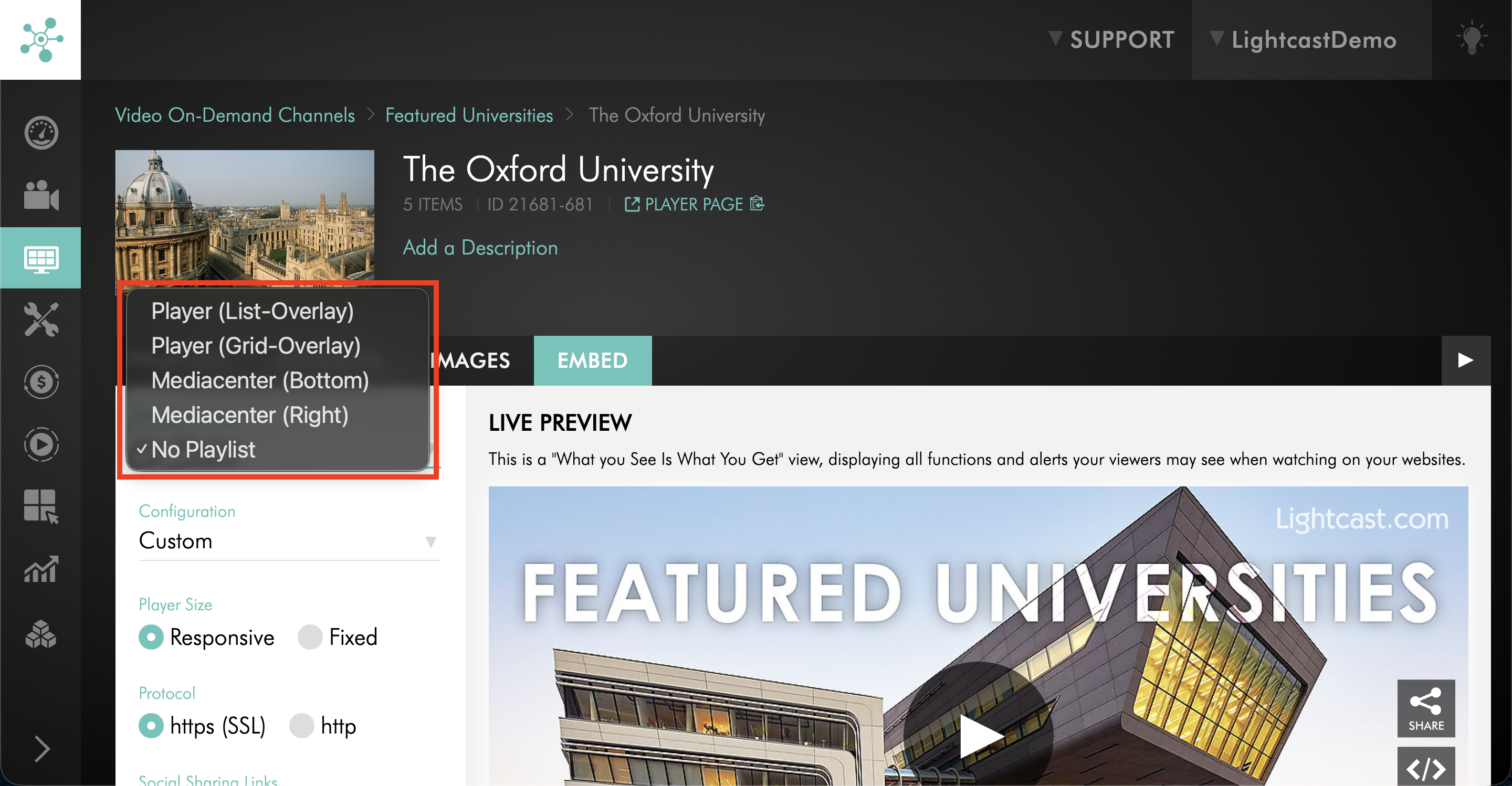
You can choose from several display options, including:
Player (List-Overlay)
Player (Grid-Overlay)
Mediacenter (Bottom)
Mediacenter (Right)
No Playlist
Select the display option that best fits how you want viewers to browse and access the media available in the Channel or Sub-Channel.
If you do not want a playlist to appear with the player, select No Playlist.
These playlist display options are available for embeddable VOD and AOD Channel and Sub-Channel players.
If you need a custom playlist or media gallery that is not available through the standard playlist display options, your web developer can use the Lightcast API and Developer Tools to create a custom implementation.
Instructions
Customize the playlist display for a VOD Channel player
Step 1
Log in to your Media Cloud account.
Step 2
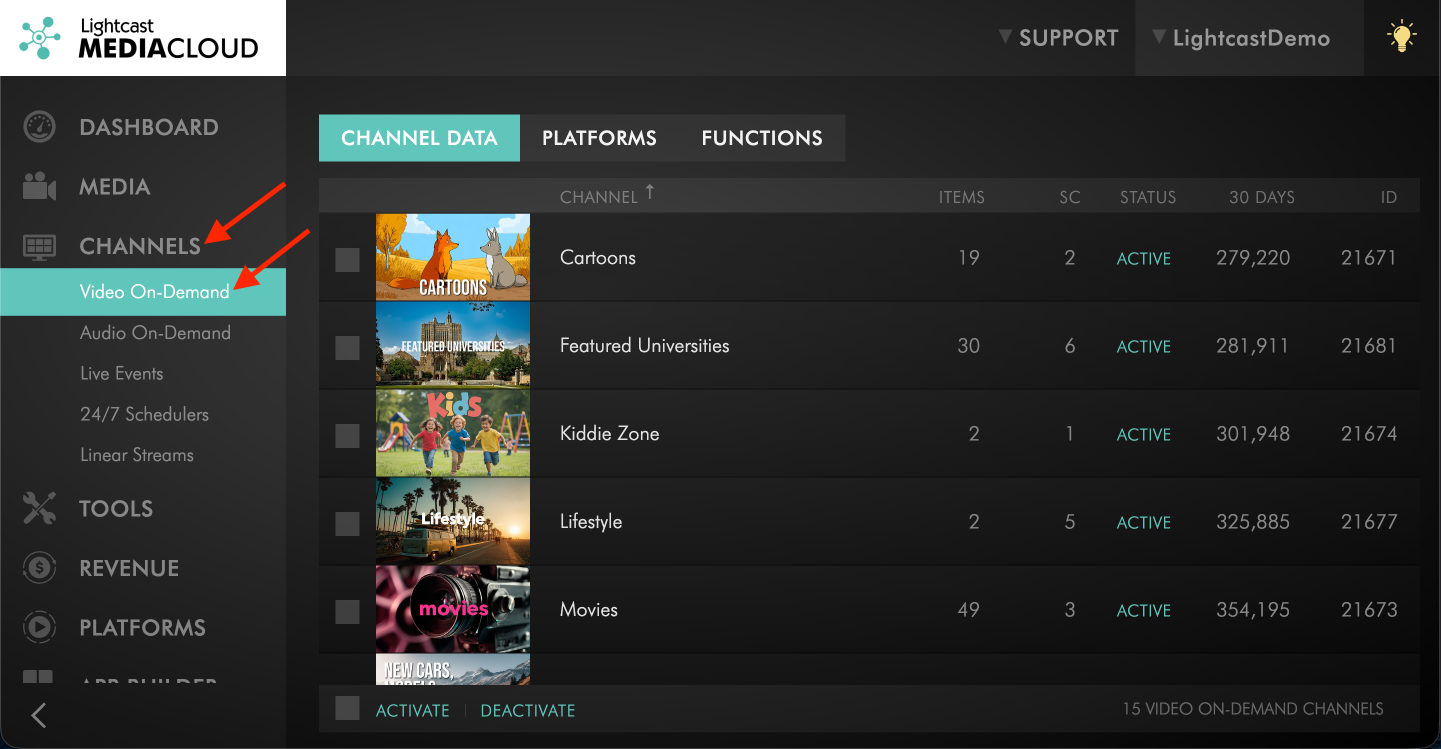
Go to CHANNELS, then select Video On-Demand.
Step 3
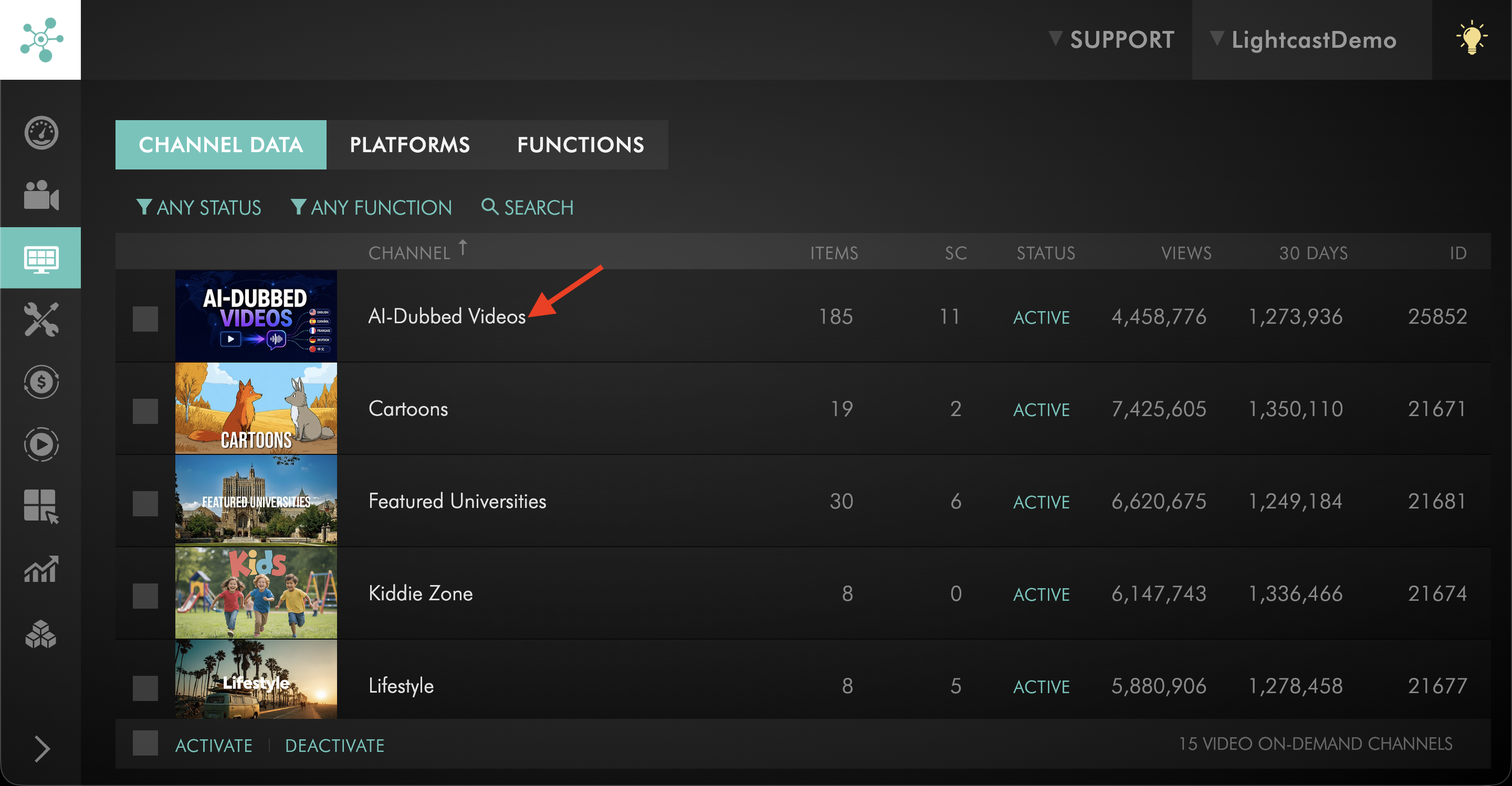
Select the VOD Channel you want to embed on your website.
Step 4
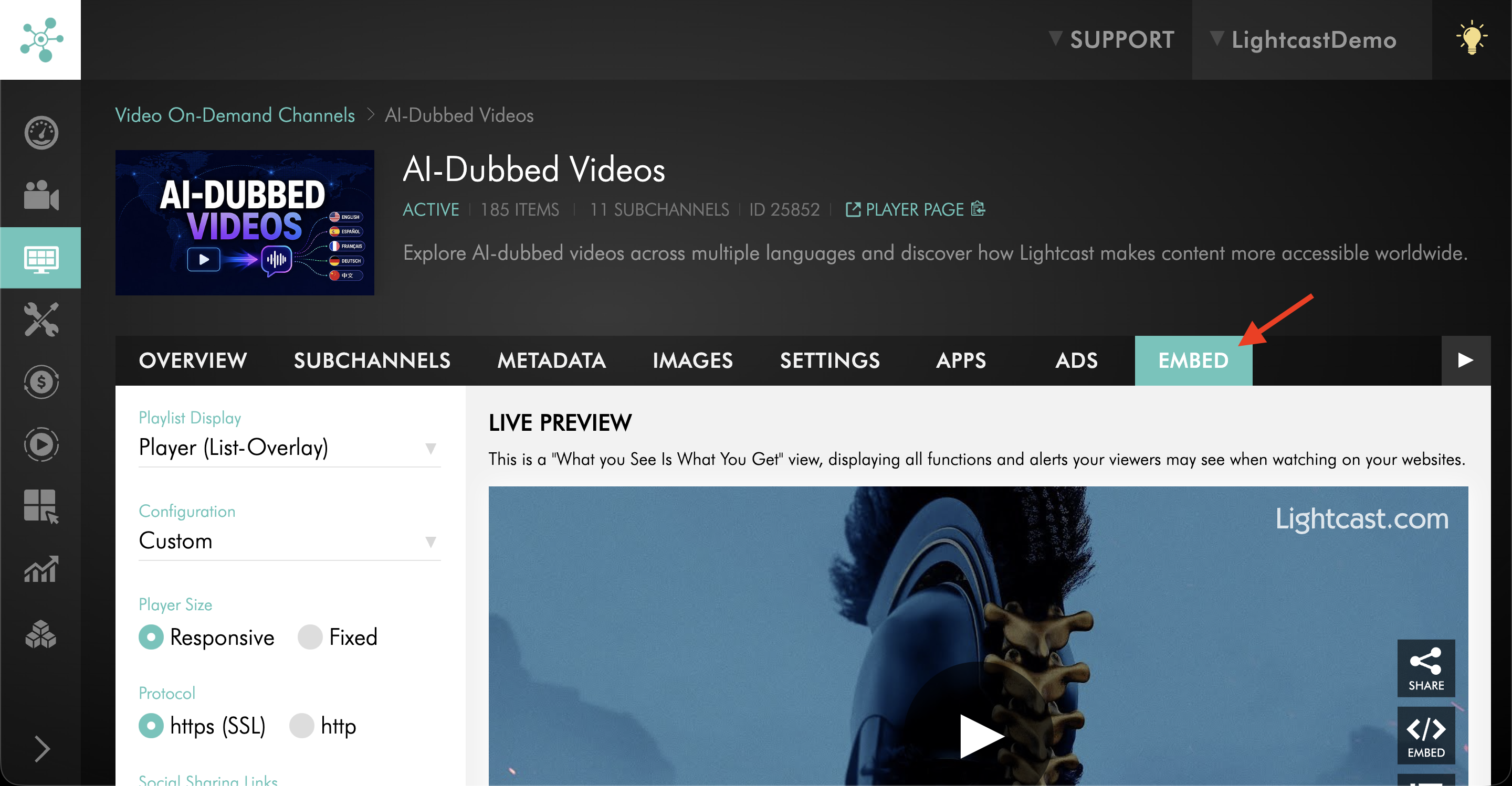
Click the EMBED tab.
Step 5
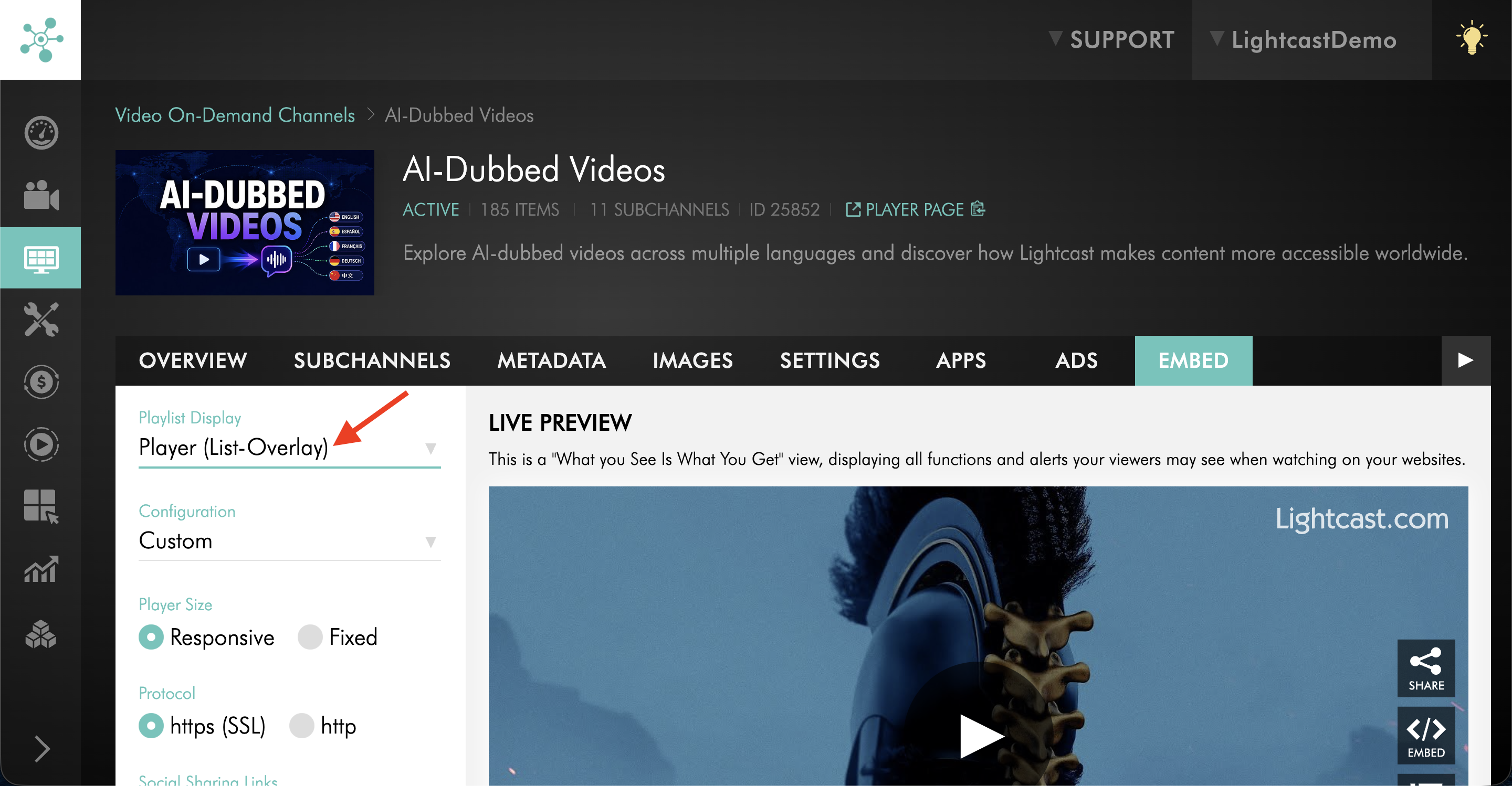
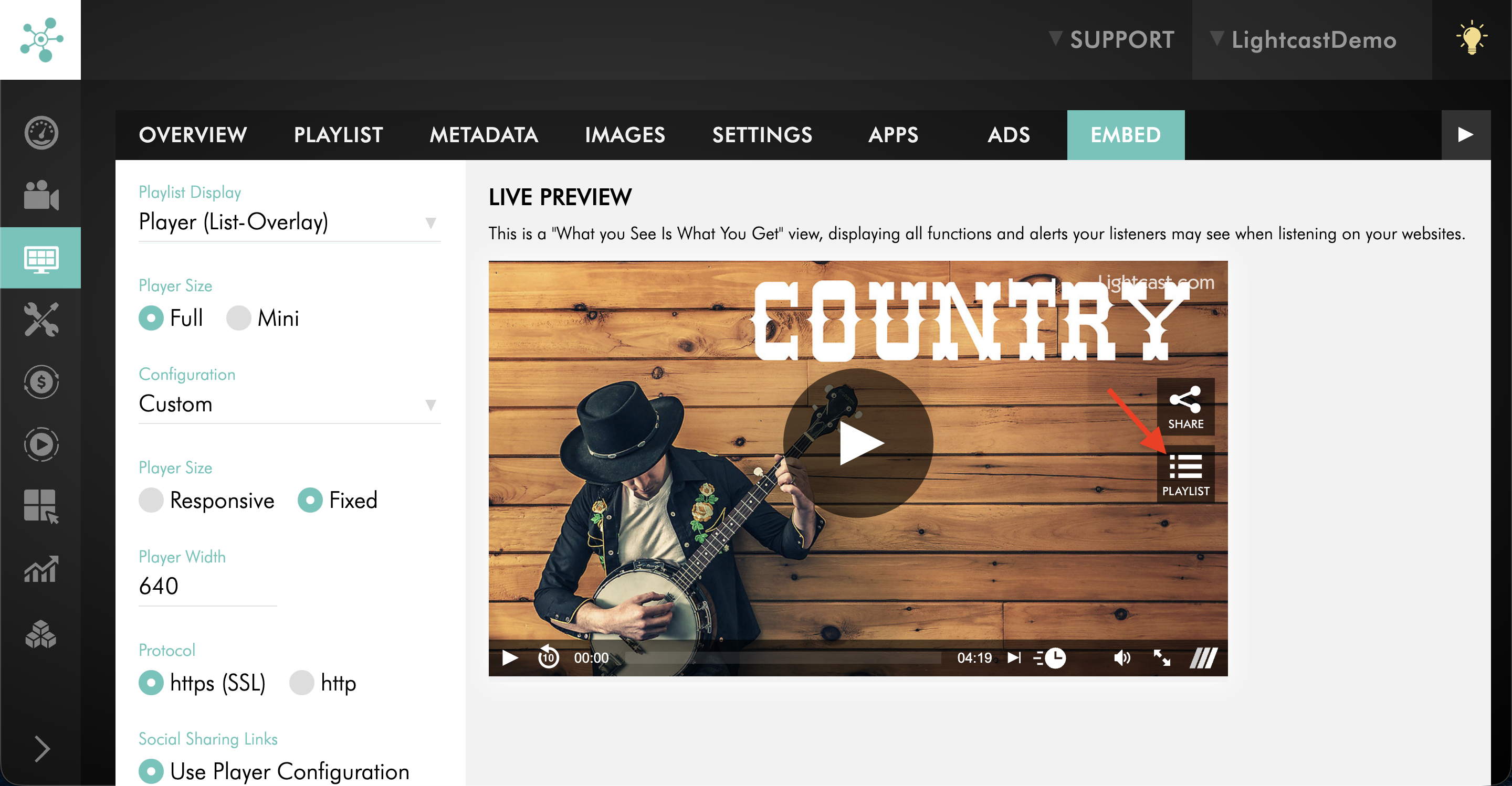
Open the Playlist Display dropdown menu.
Step 6
Select the playlist display option you want to use.
Step 7
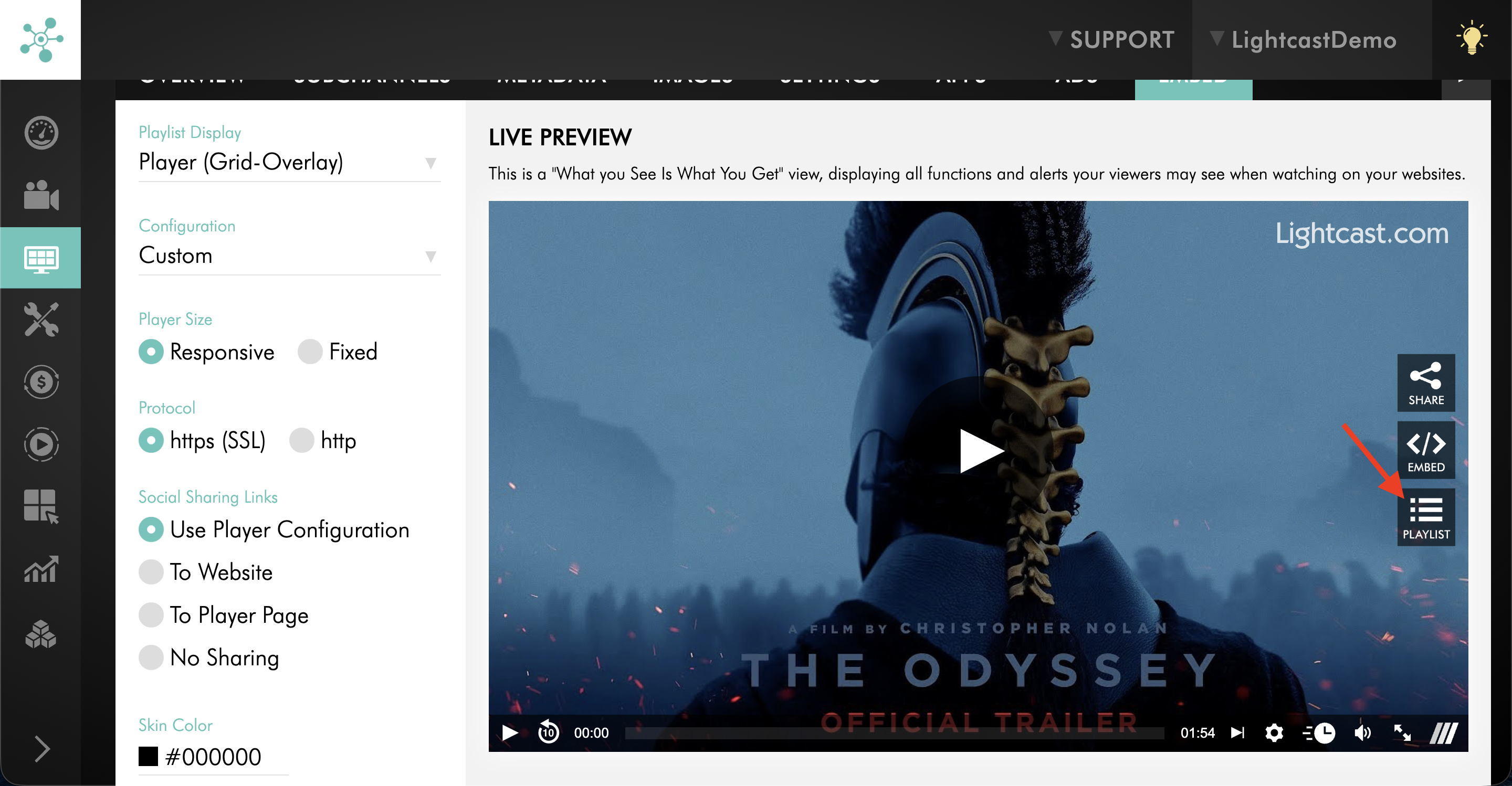
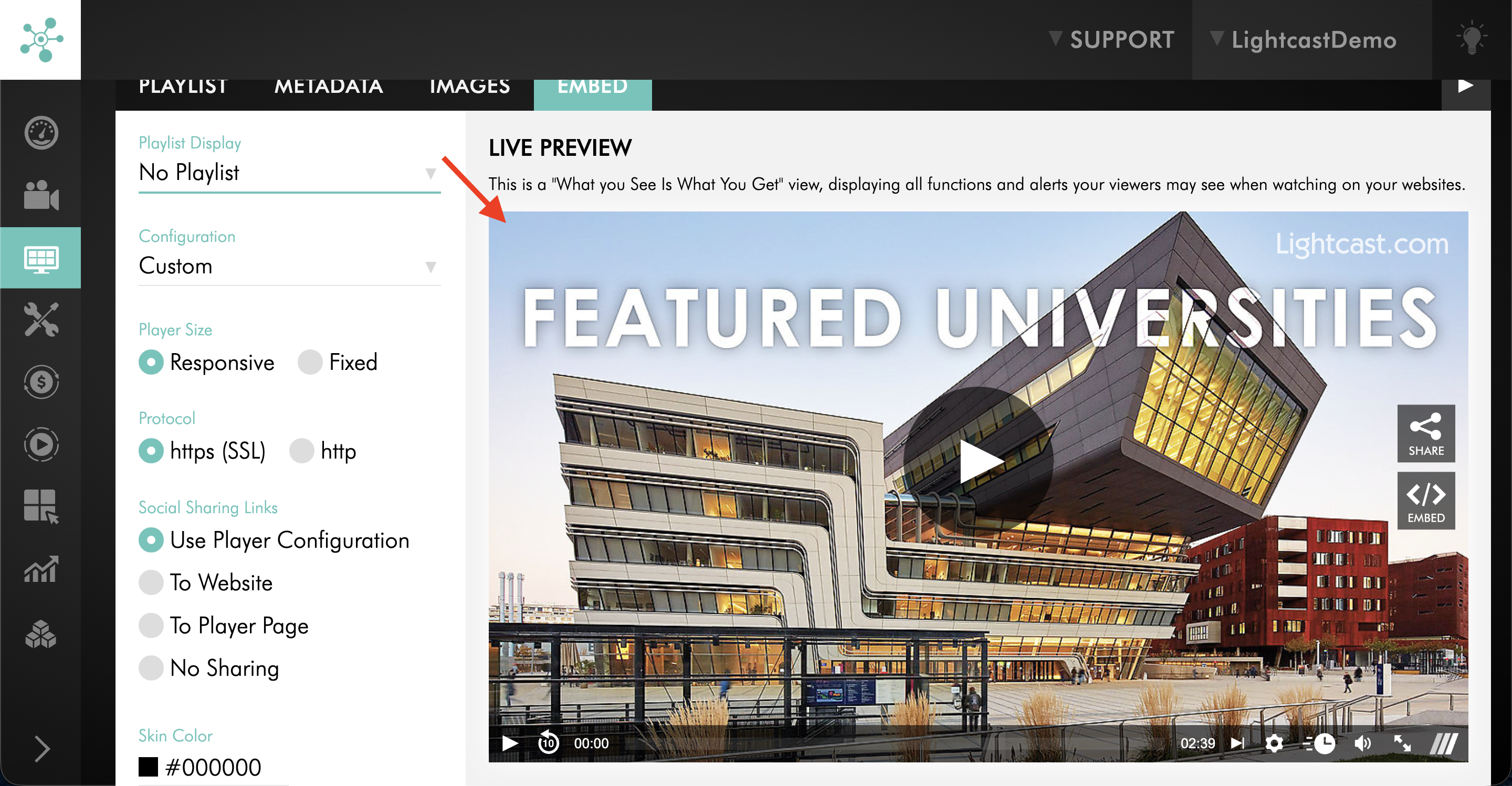
Review the LIVE PREVIEW to confirm how the player and PLAYLIST will appear.
Step 8
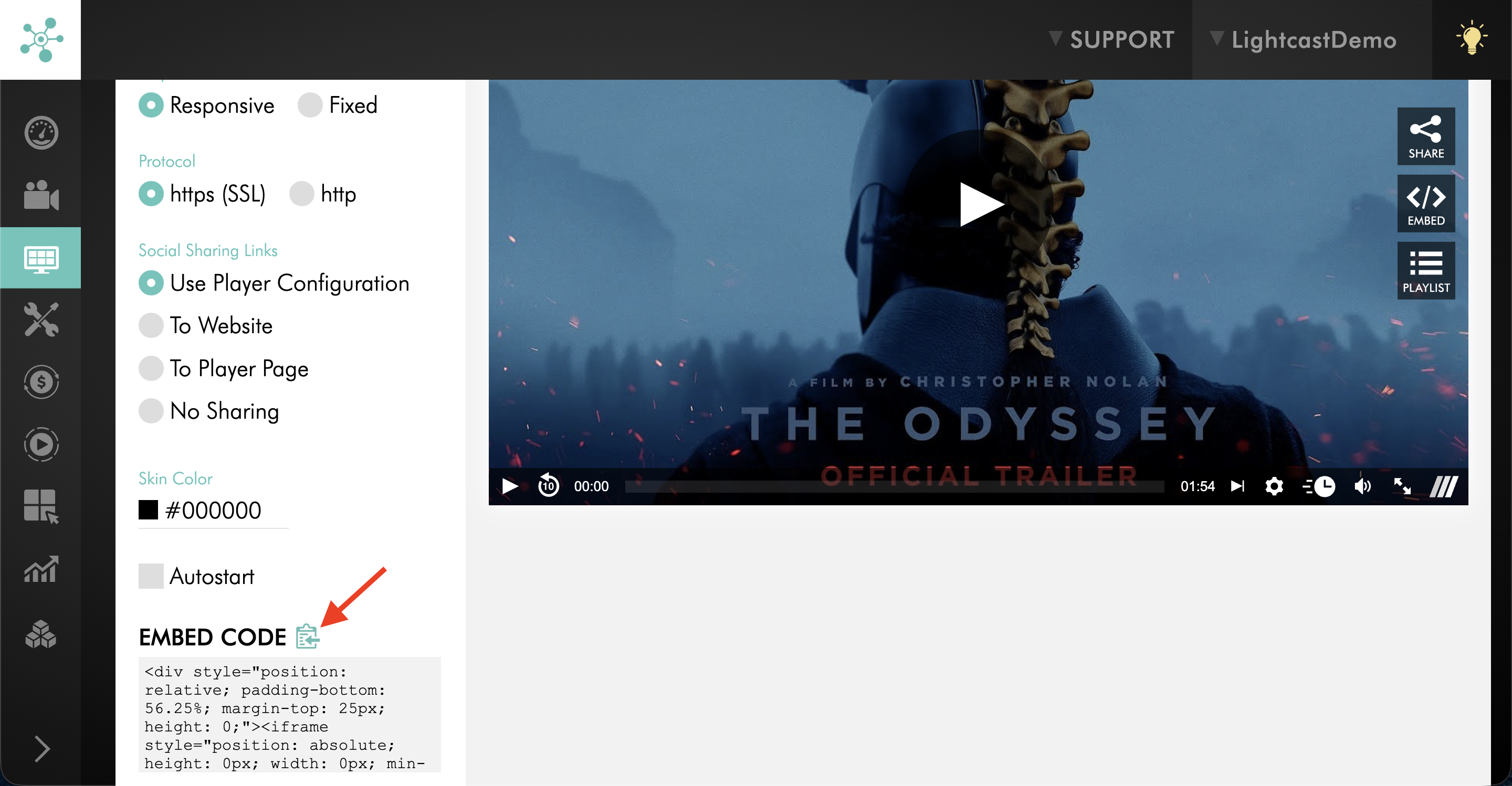
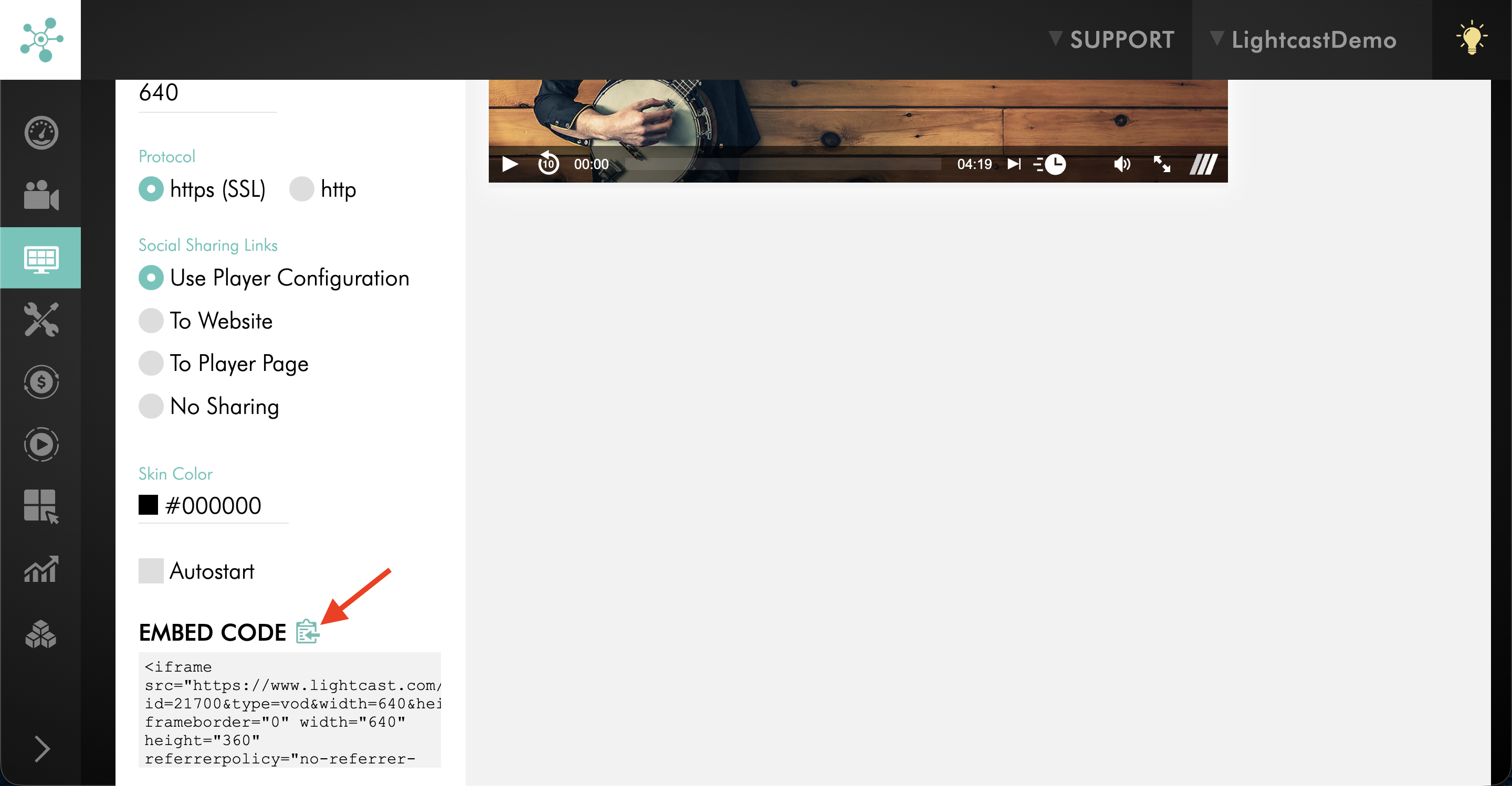
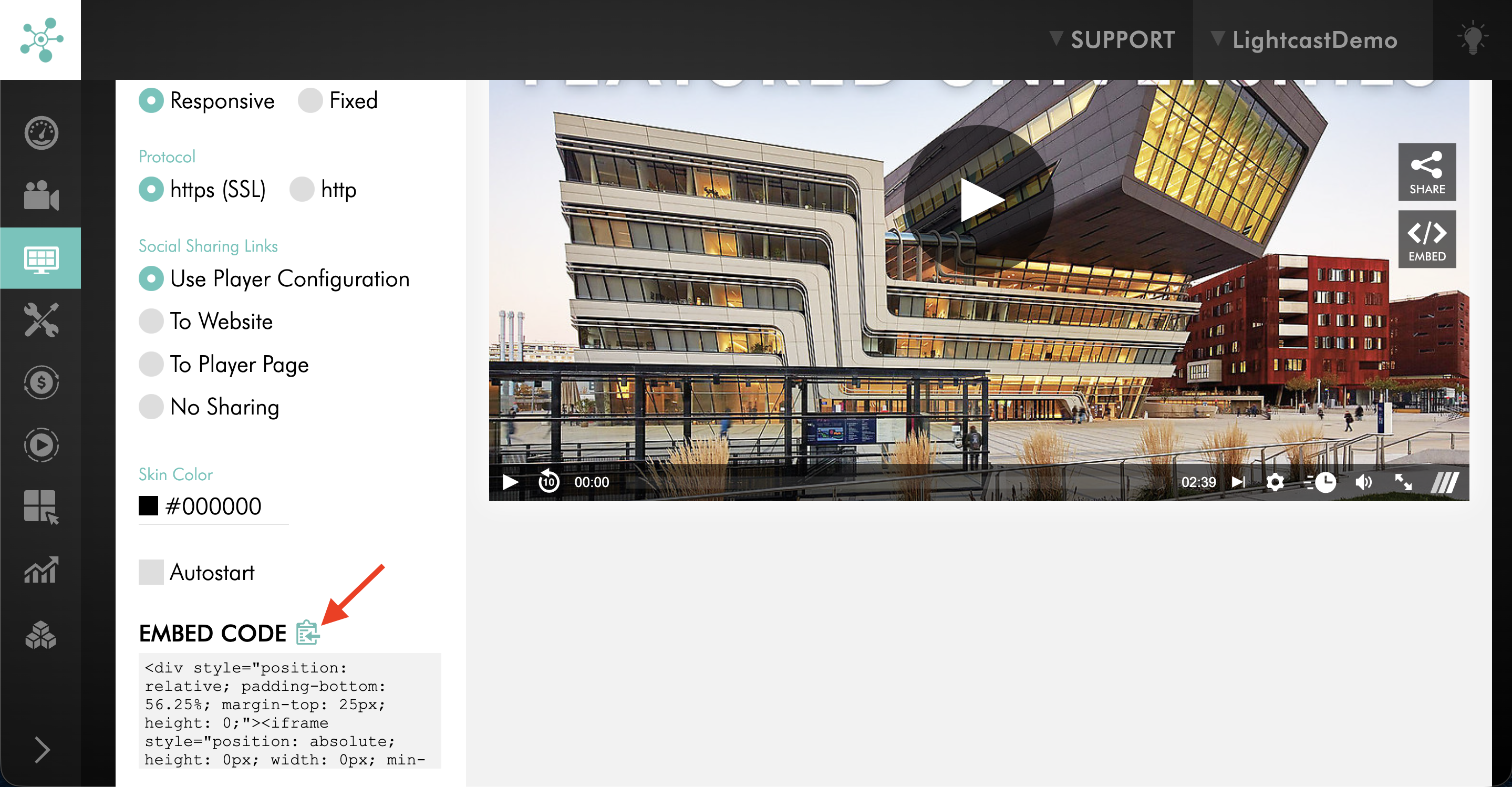
Copy the updated embed code and add it to your website.
Customize the playlist display for an AOD Channel player
Step 1
Log in to your Media Cloud account.
Step 2
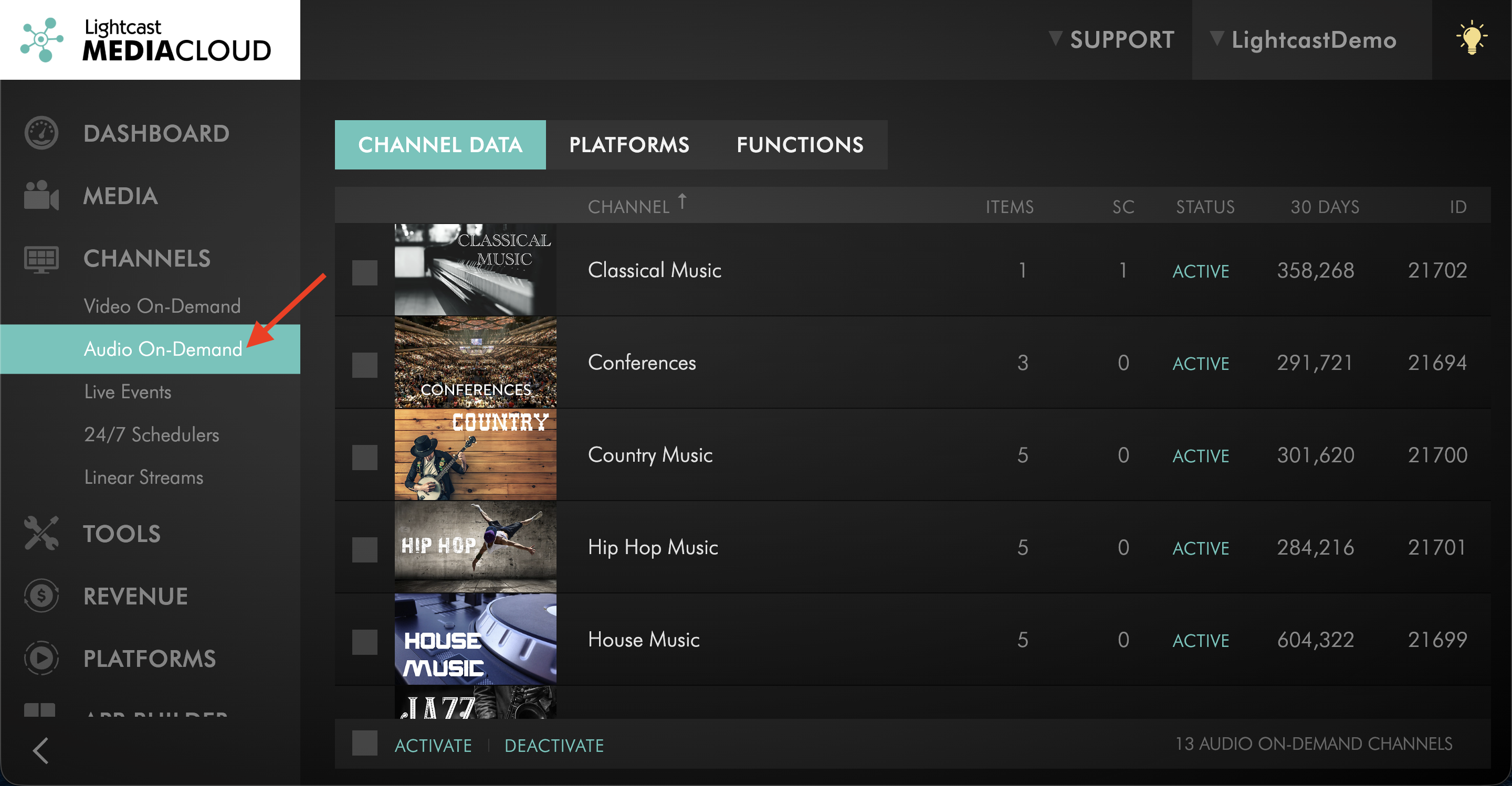
Go to CHANNELS, then select Audio On-Demand.
Step 3
Select the AOD Channel you want to embed on your website.
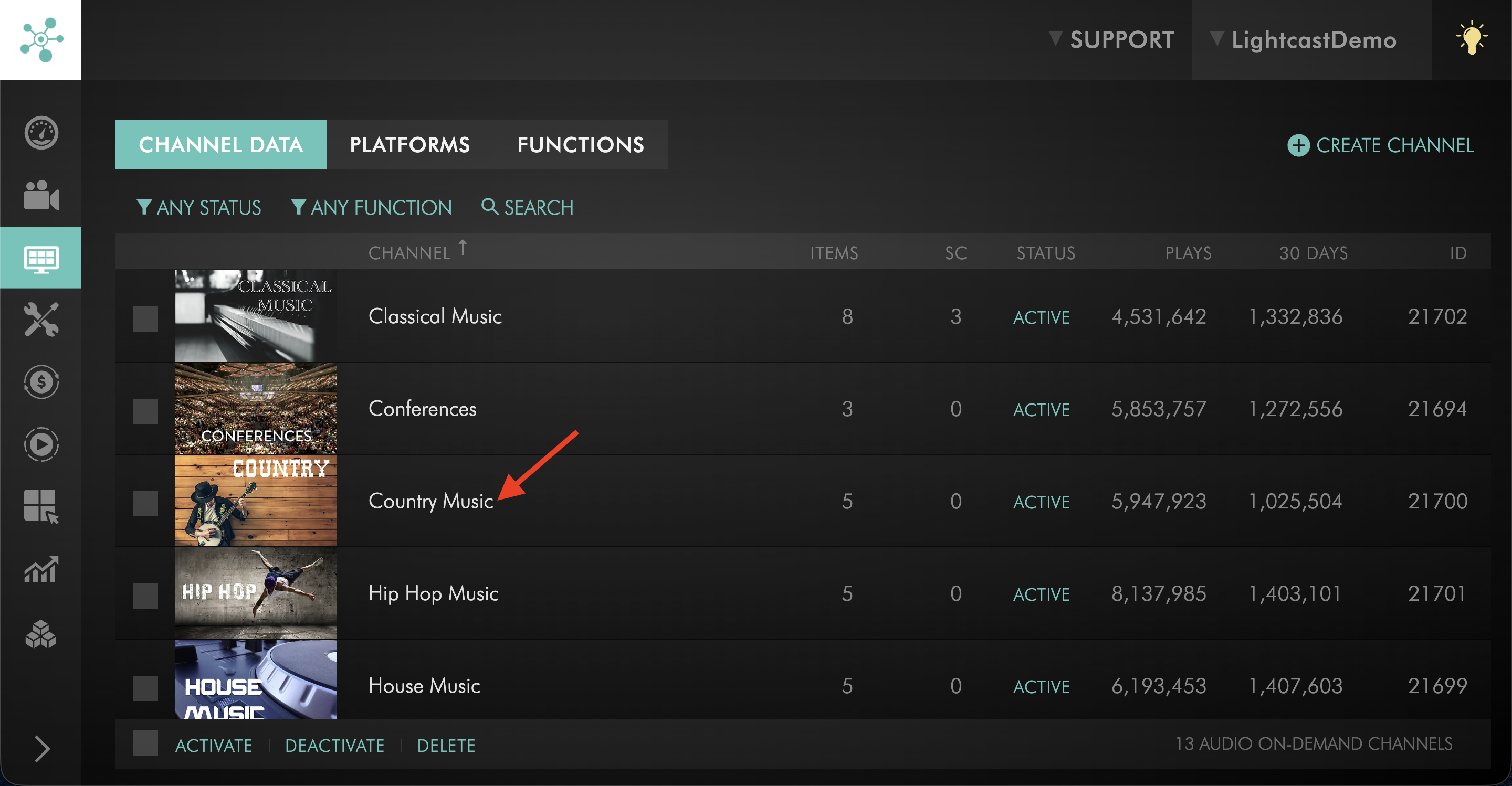
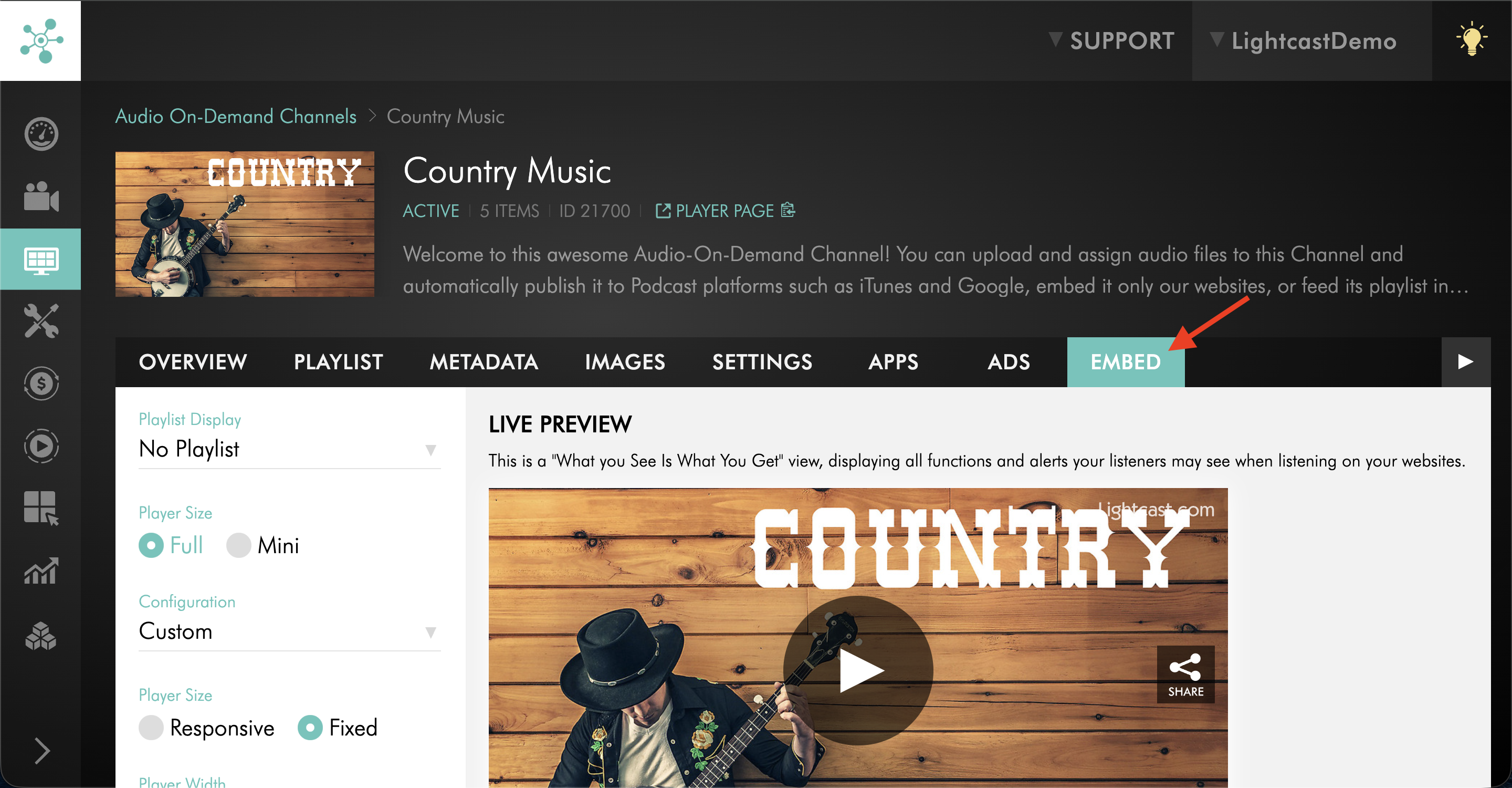
Step 4
Click the EMBED tab.
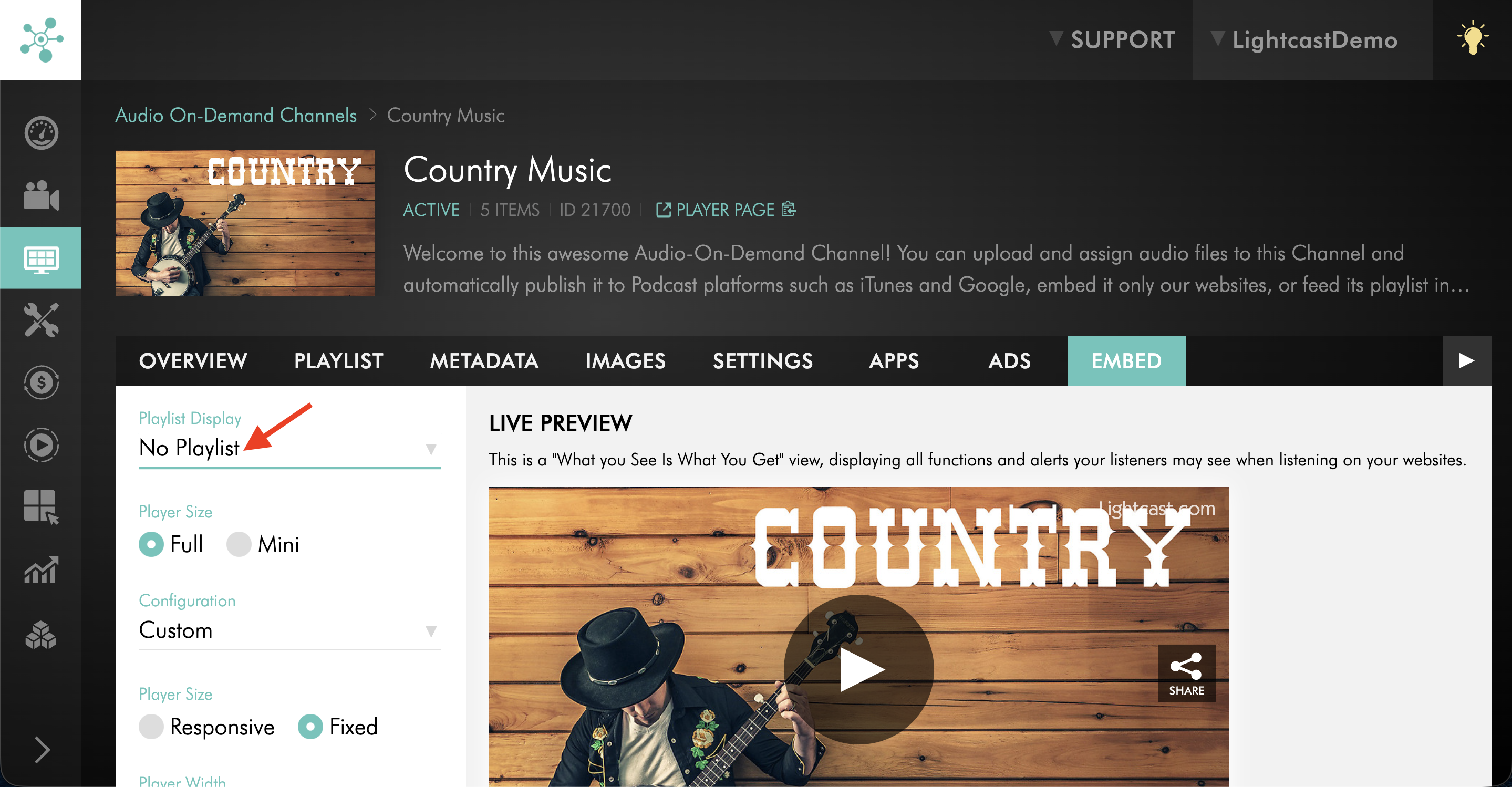
Step 5
Open the Playlist Display dropdown menu.
Step 6
Select the playlist display option you want to use.
Step 7
Review the LIVE PREVIEW to confirm how the player and PLAYLIST will appear.
Step 8
Copy the updated embed code and add it to your website.
Customize the playlist display for a Sub-Channel player
Step 1
Log in to your Media Cloud account.
Step 2
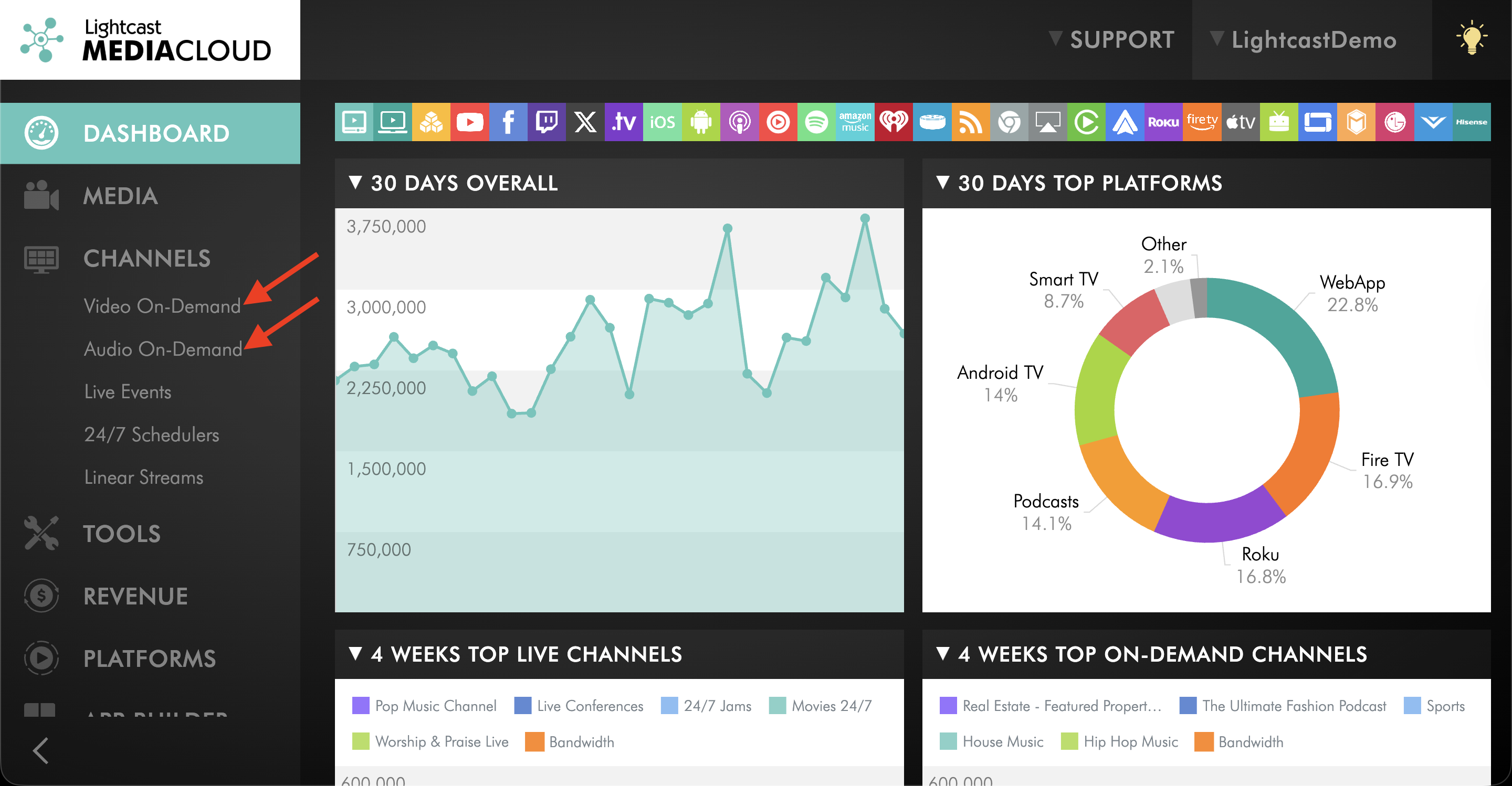
Go to CHANNELS and then click Video On-Demand or Audio On-Demand, depending on the type of Sub-Channel player you want to customize.
Step 3
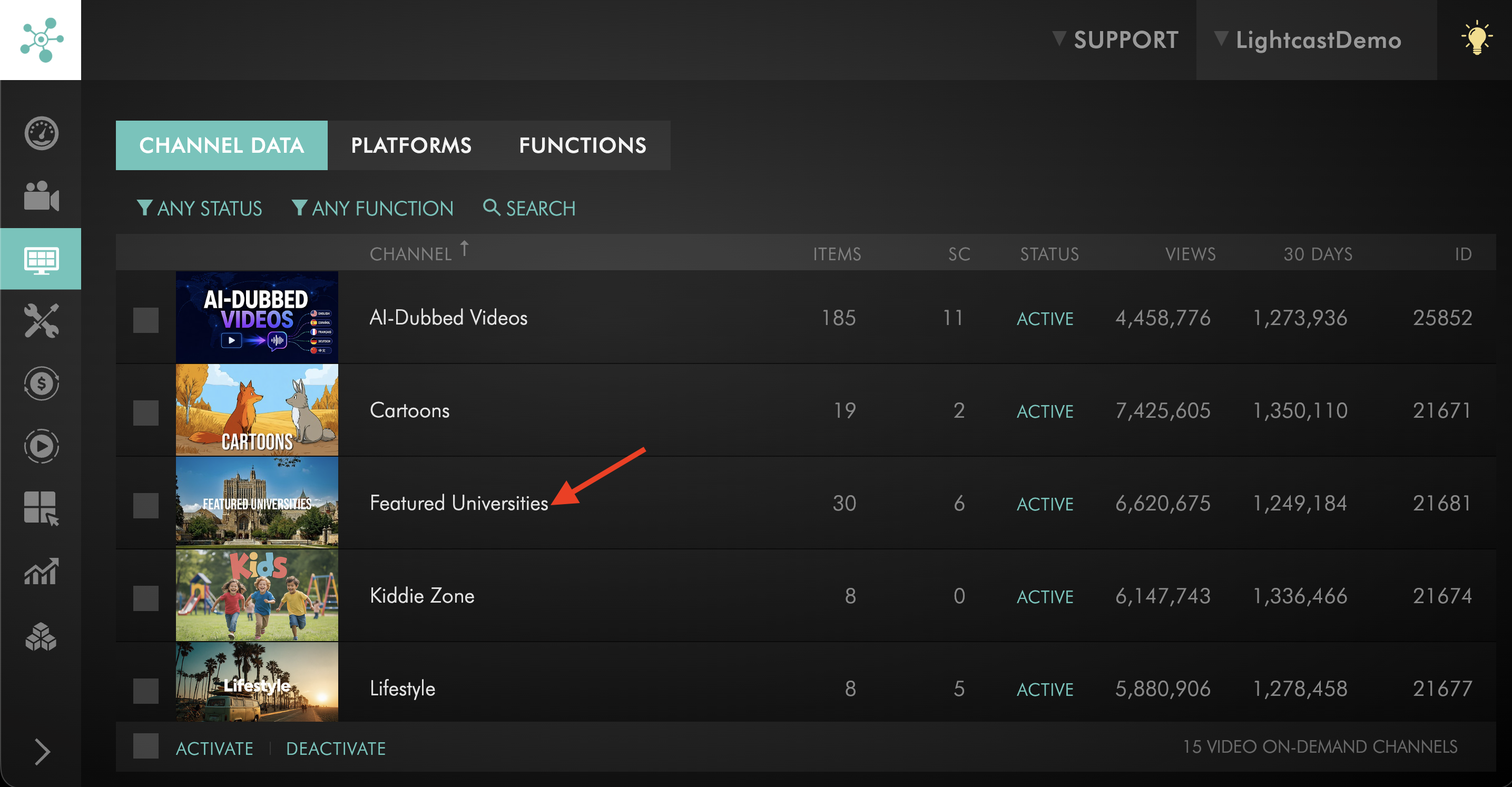
Select the parent Channel that contains the Sub-Channel.
Step 4
Switch to the SUBCHANNELS tab.
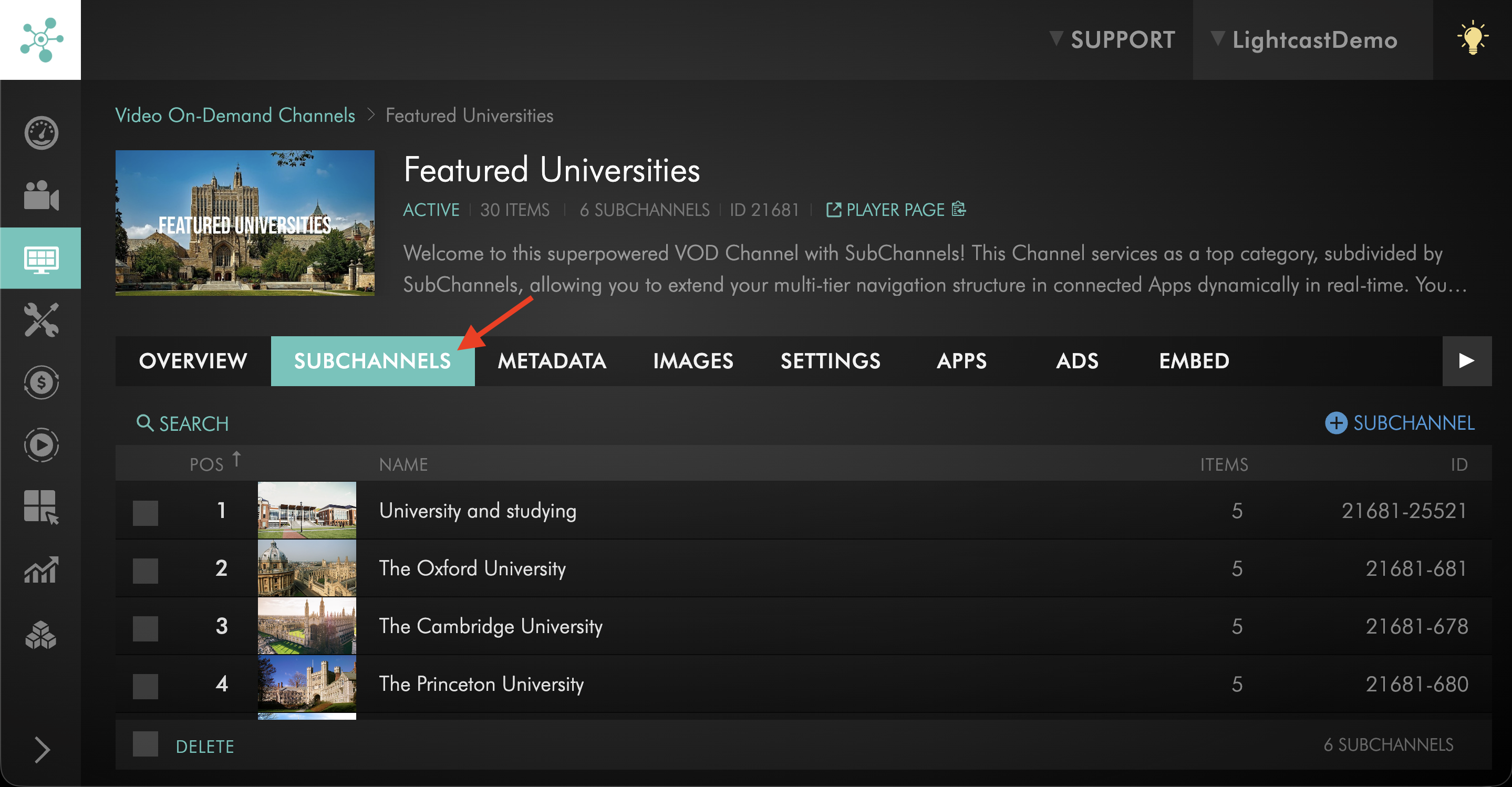
Step 5
Open the Sub-Channel you want to embed on your website.
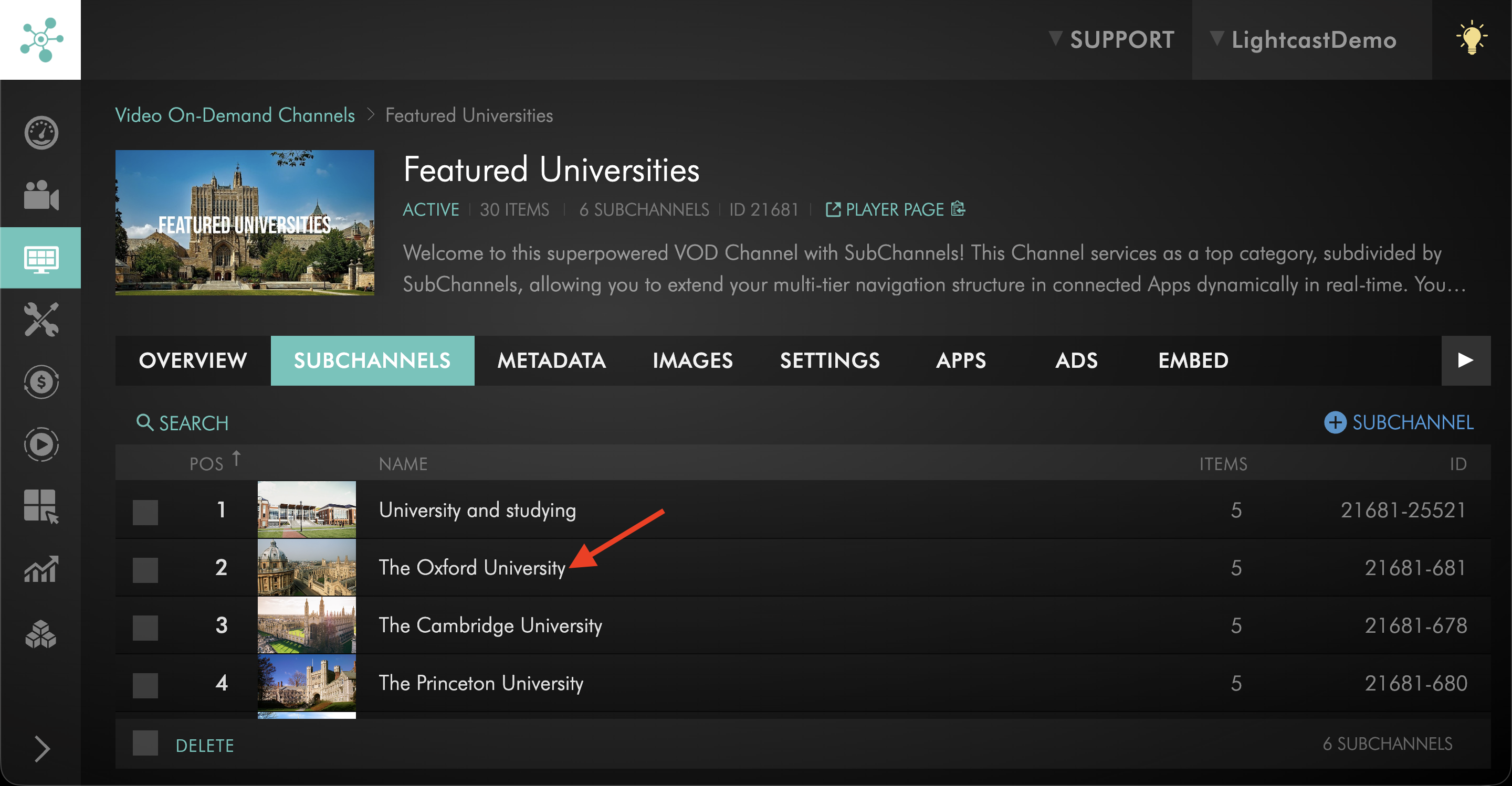
Step 6
Click the EMBED tab.
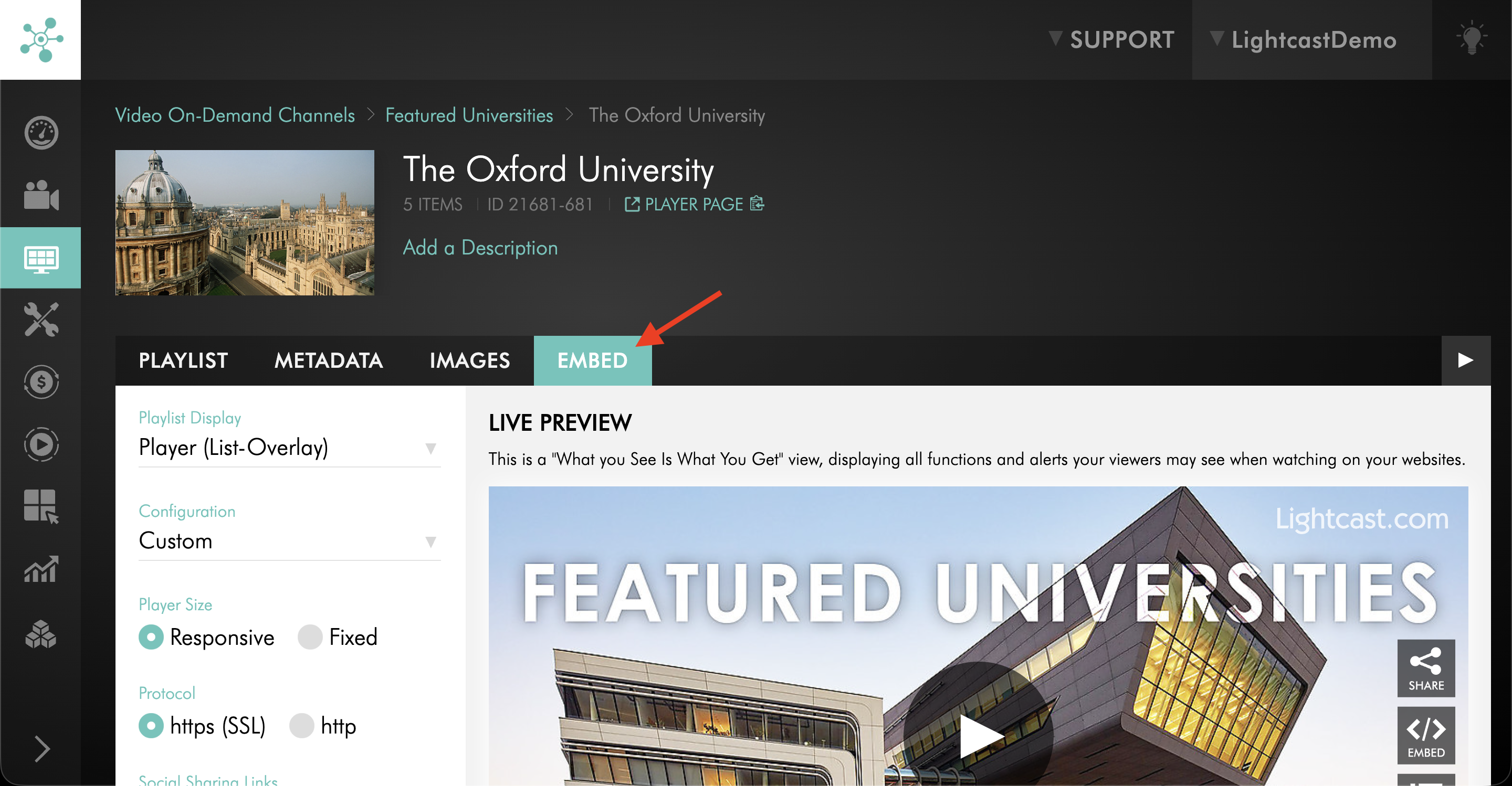
Step 7
Open the Playlist Display dropdown menu.
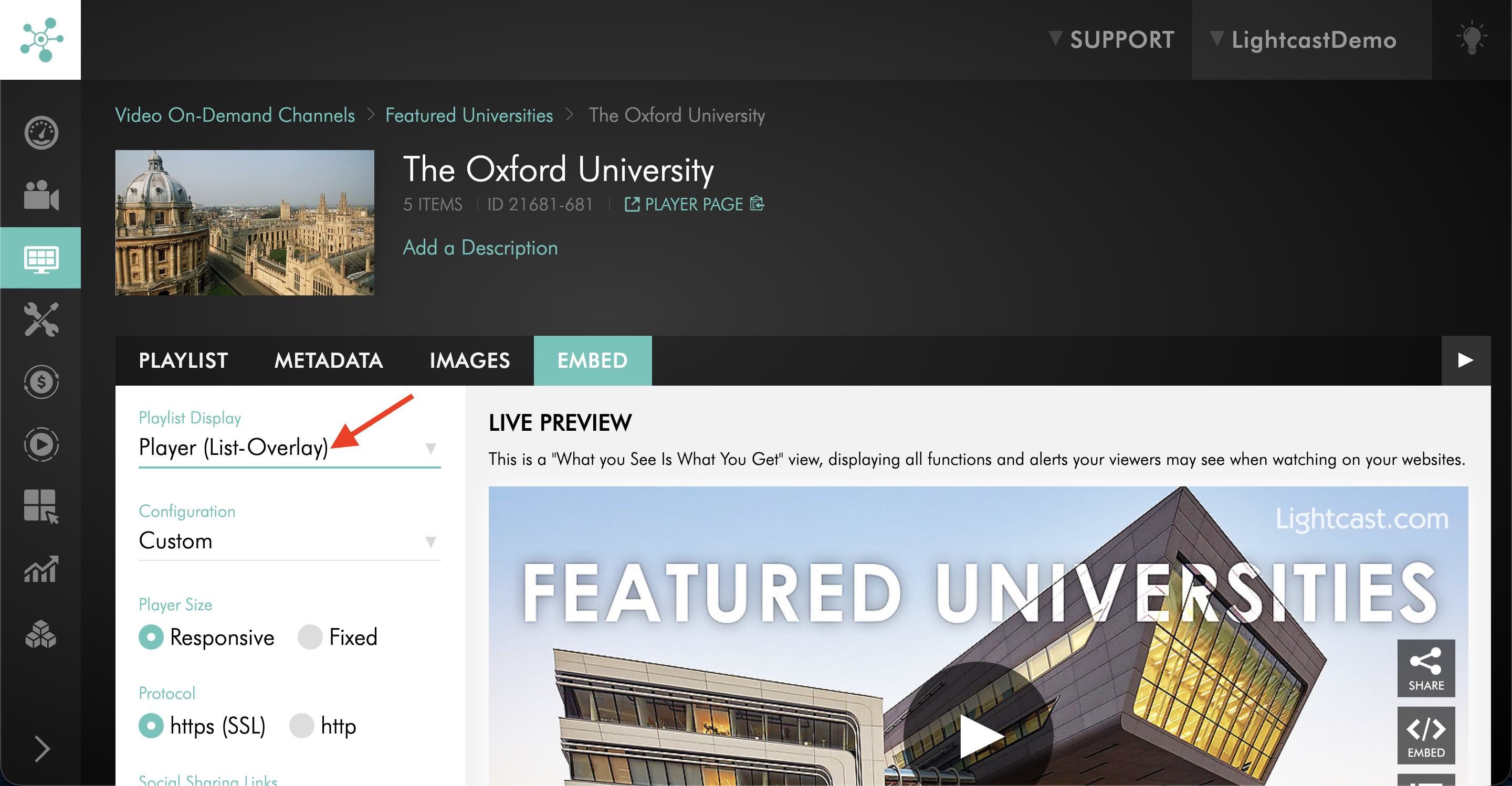
Step 8
Select the playlist display option you want to use.
Step 9
Review the LIVE PREVIEW to confirm how the player and PLAYLIST will appear.
Step 10
Copy the updated embed code and add it to your website.
FAQs
Can playlist display options be used for both video and audio Channel players?
Yes. Playlist display options can be used for both VOD and AOD Channel players.
Can playlist display options be used for Sub-Channel players?
Yes. Playlist display options can be used for embeddable VOD and AOD Sub-Channel players.
What does the Playlist Display setting control?
The Playlist Display setting controls how the playlist appears with the embedded Channel player. Depending on the option selected, the playlist can appear as an overlay, as a media center below the player, as a media center beside the player, or be hidden from the embedded player.
Can the playlist be hidden from the embedded player?
Yes. Select No Playlist if you do not want the playlist to appear with the embedded Channel player.
Can a custom media gallery be built instead of using the standard playlist display options?
Yes. Your web developer may be able to build a custom media gallery using the LightcastAPI and Developer Tools.