
How to reorder media in an On-Demand Channel playlist
Overview
This article explains how to reorder media items in a Video On-Demand (VOD) or Audio On-Demand (AOD) Channel playlist in the Media Cloud.
How it works
The order of media items on the PLAYLIST tab controls the order in which they appear in the Channel player and other places where the Channel is published.
You can reorder media items in two ways:
Use the arrow controls to move a media item up or down in the playlist.
Enter a position number to move a media item directly to a specific position in the playlist.
The position number field is usually the quickest option for large playlists, especially if you need to move an item from the bottom of the playlist to the top.
Playlist order changes are saved in the Media Cloud and reflected across supported destinations where the Channel is published, including TV apps, mobile apps, Web Apps, embedded Channel players, and custom galleries using the LightcastAPI.
In some cases, the updated playlist order may not appear immediately because previously loaded content is cached. Refresh or reopen the app, Web App, webpage, or player to see the latest playlist order.
Instructions
Reorder media in a VOD Channel playlist
Step 1
Log in to your Media Cloud account.
Step 2
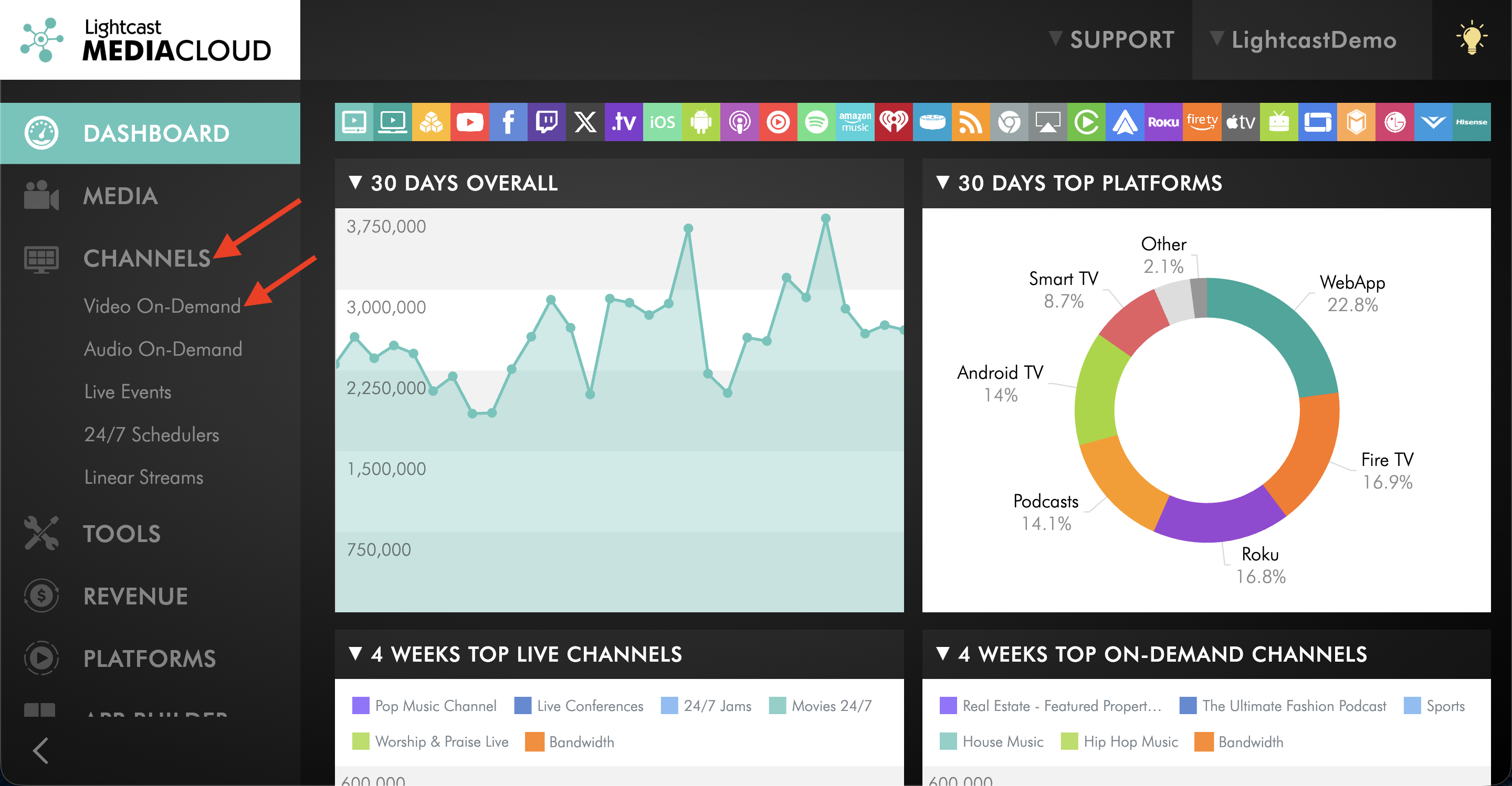
Go to CHANNELS and then click Video On-Demand.
Step 3
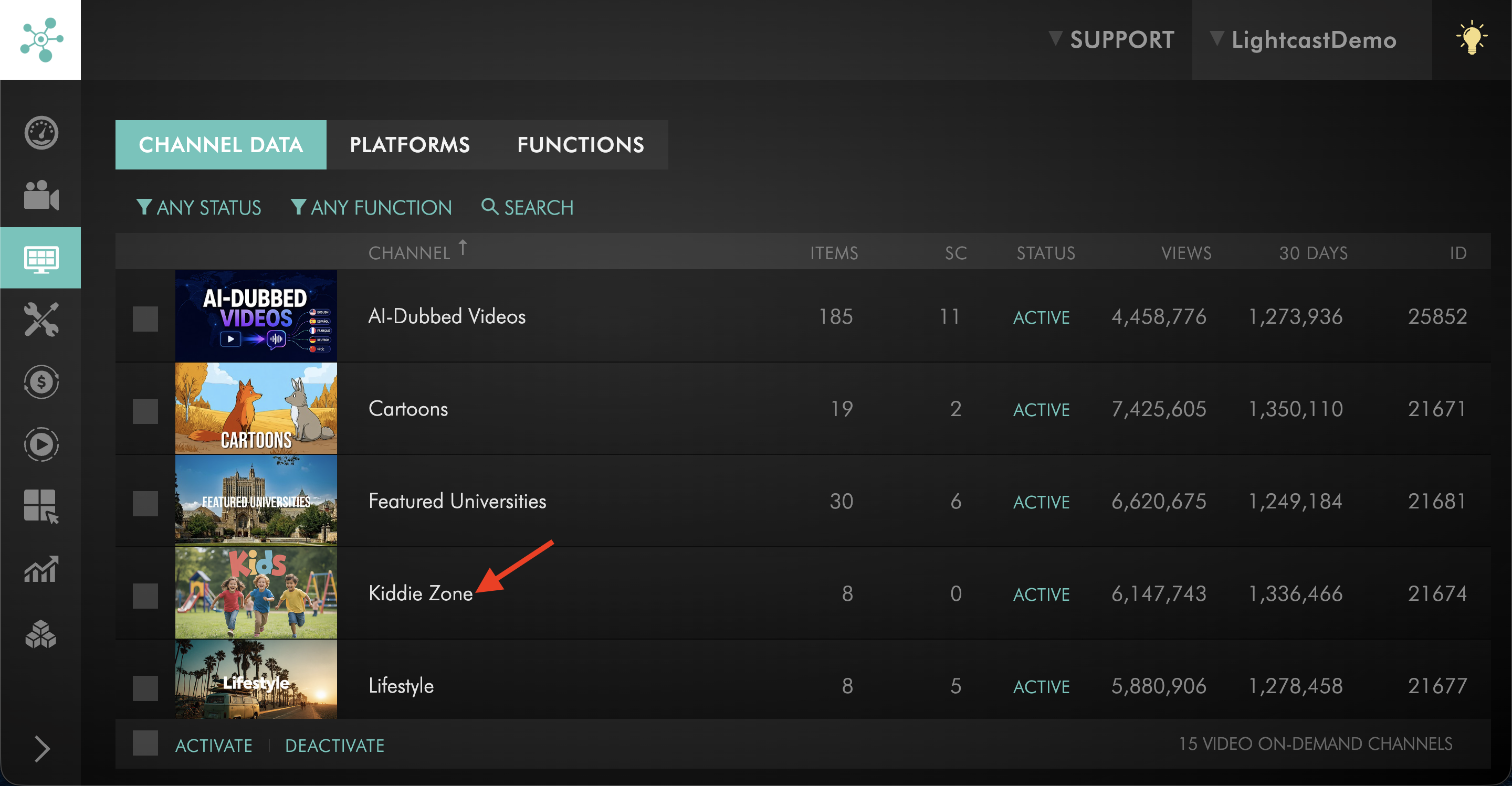
Select the VOD Channel that contains the media items you want to reorder.
Step 4
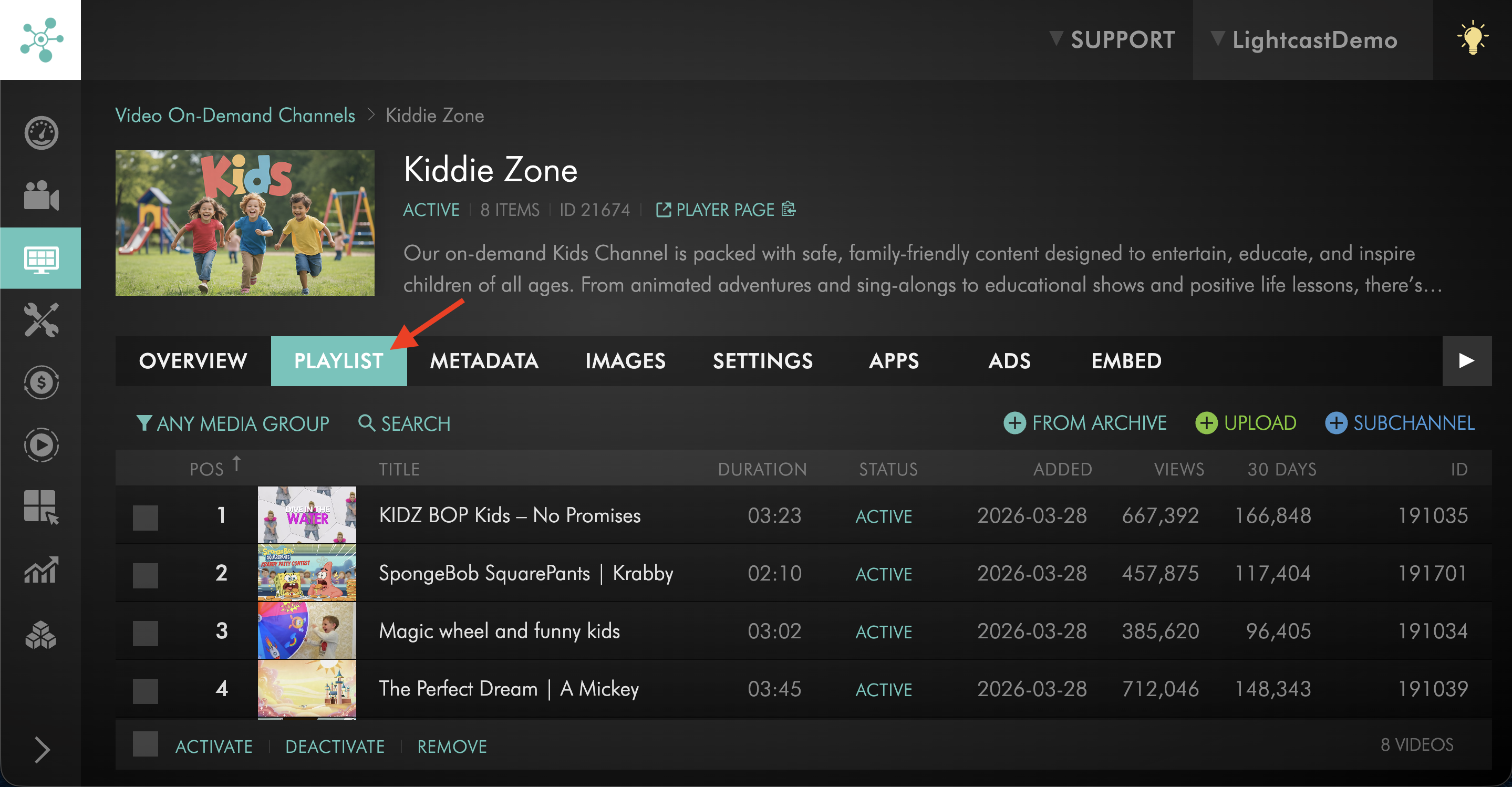
Switch to the PLAYLIST tab.
Step 5
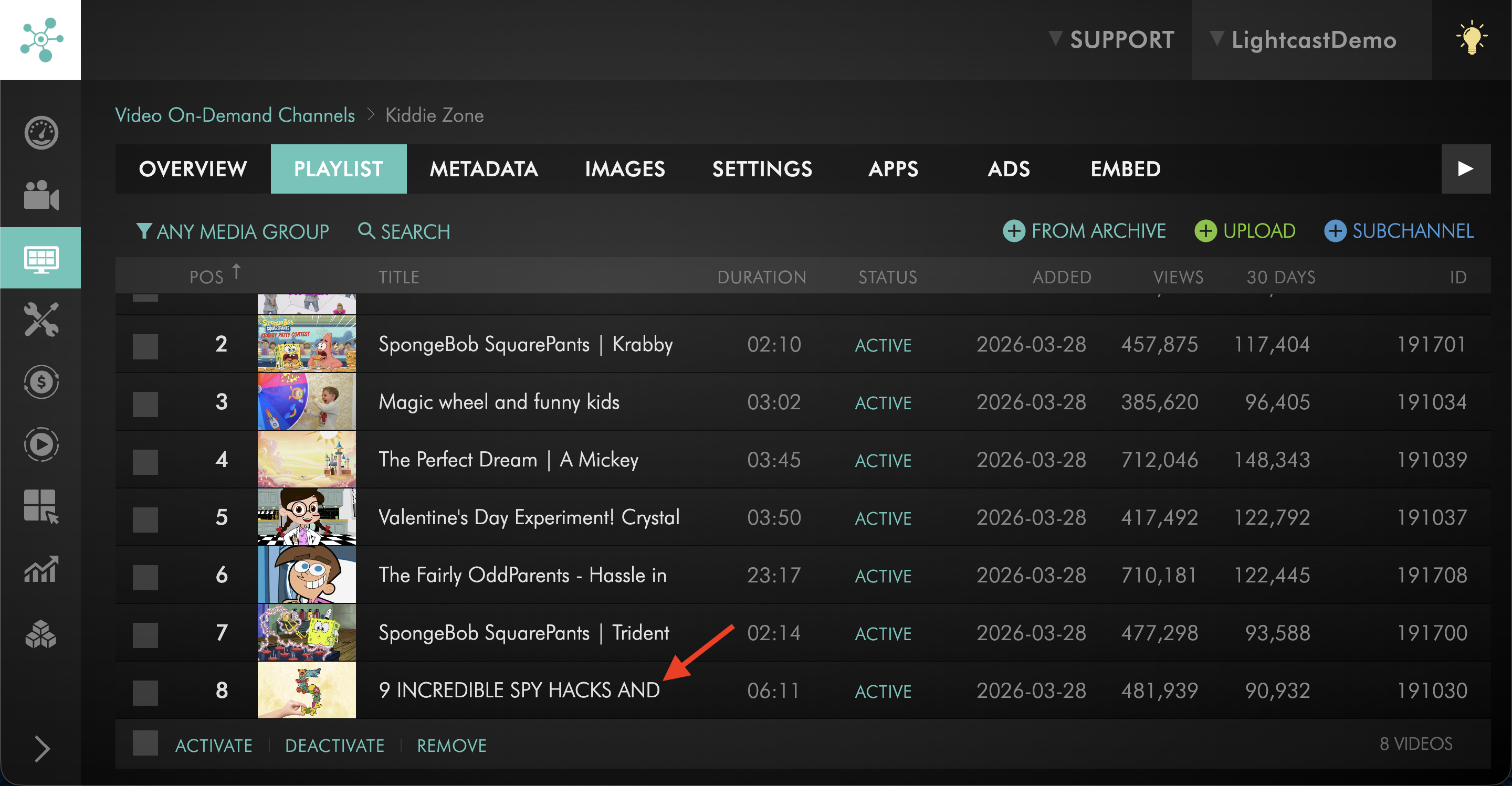
Find the media item you want to move.
Step 6
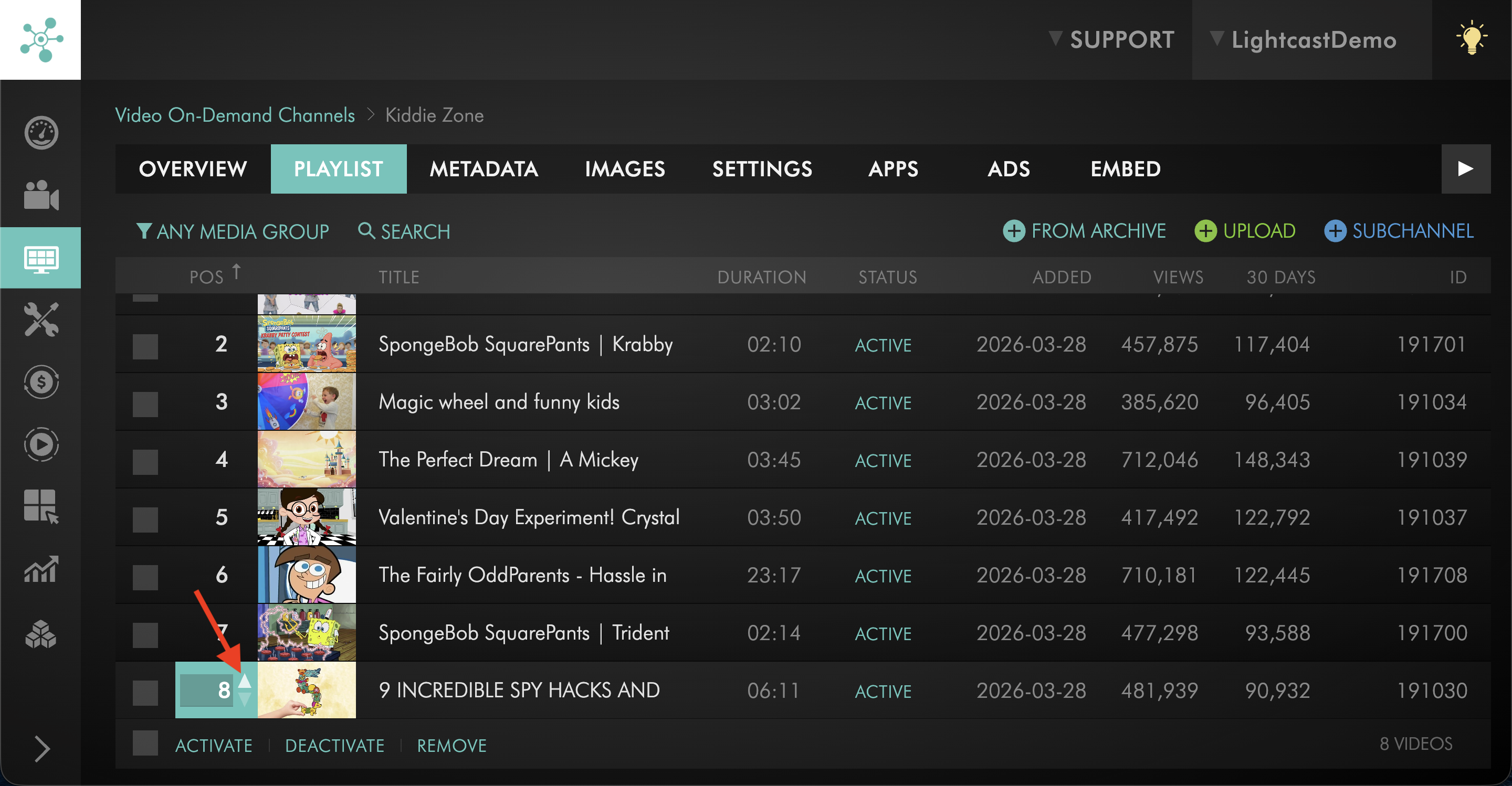
Use the arrow controls to move the media item up or down in the playlist.
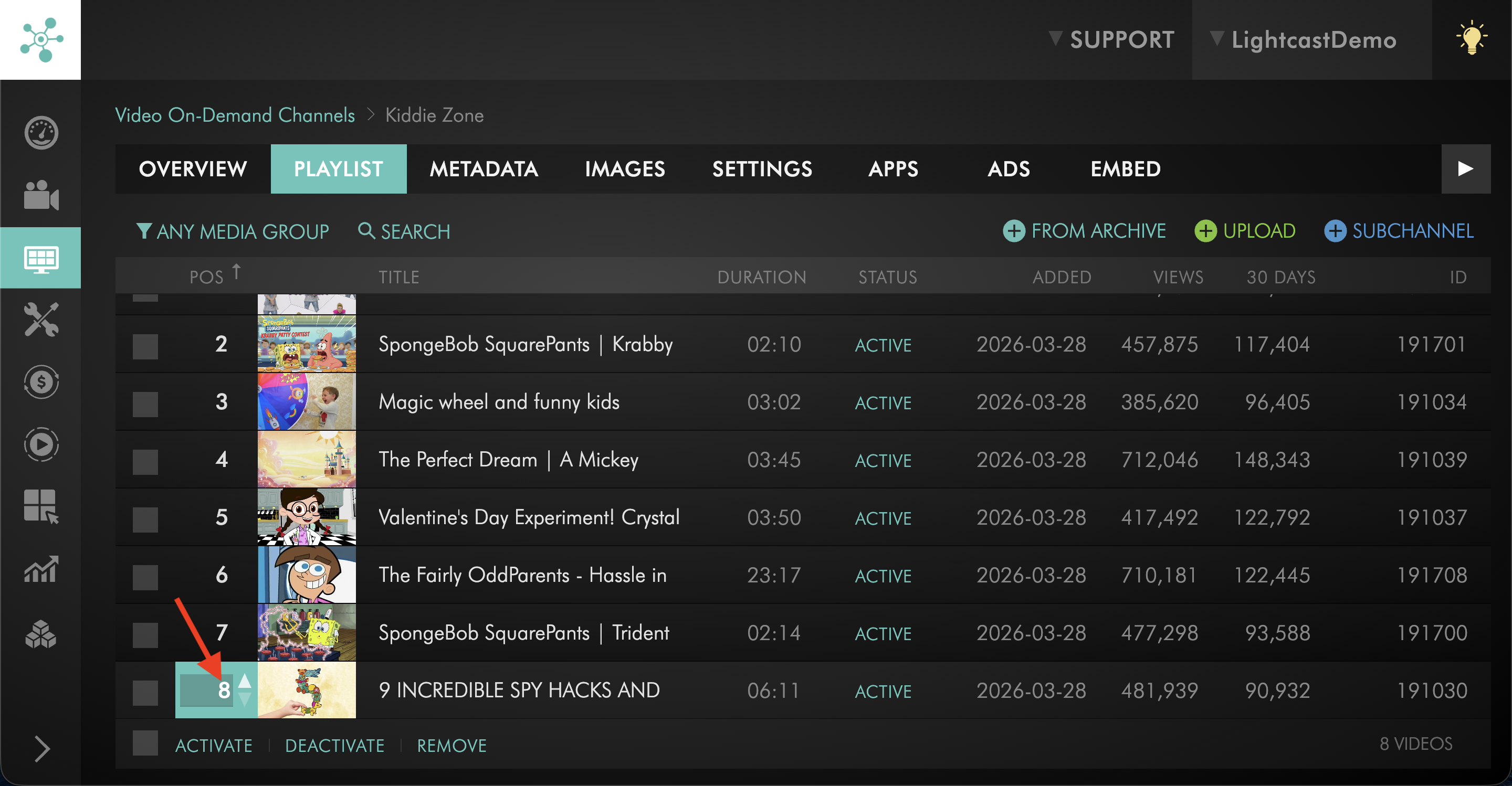
To move the media item to a specific position, enter the desired playlist position in the number field on the left side of the item.
Step 7
Repeat this for any other media items you want to reorder.
Your changes are saved and applied to the Channel playlist.
Reorder media in an AOD Channel playlist
Step 1
Log in to your Media Cloud account.
Step 2
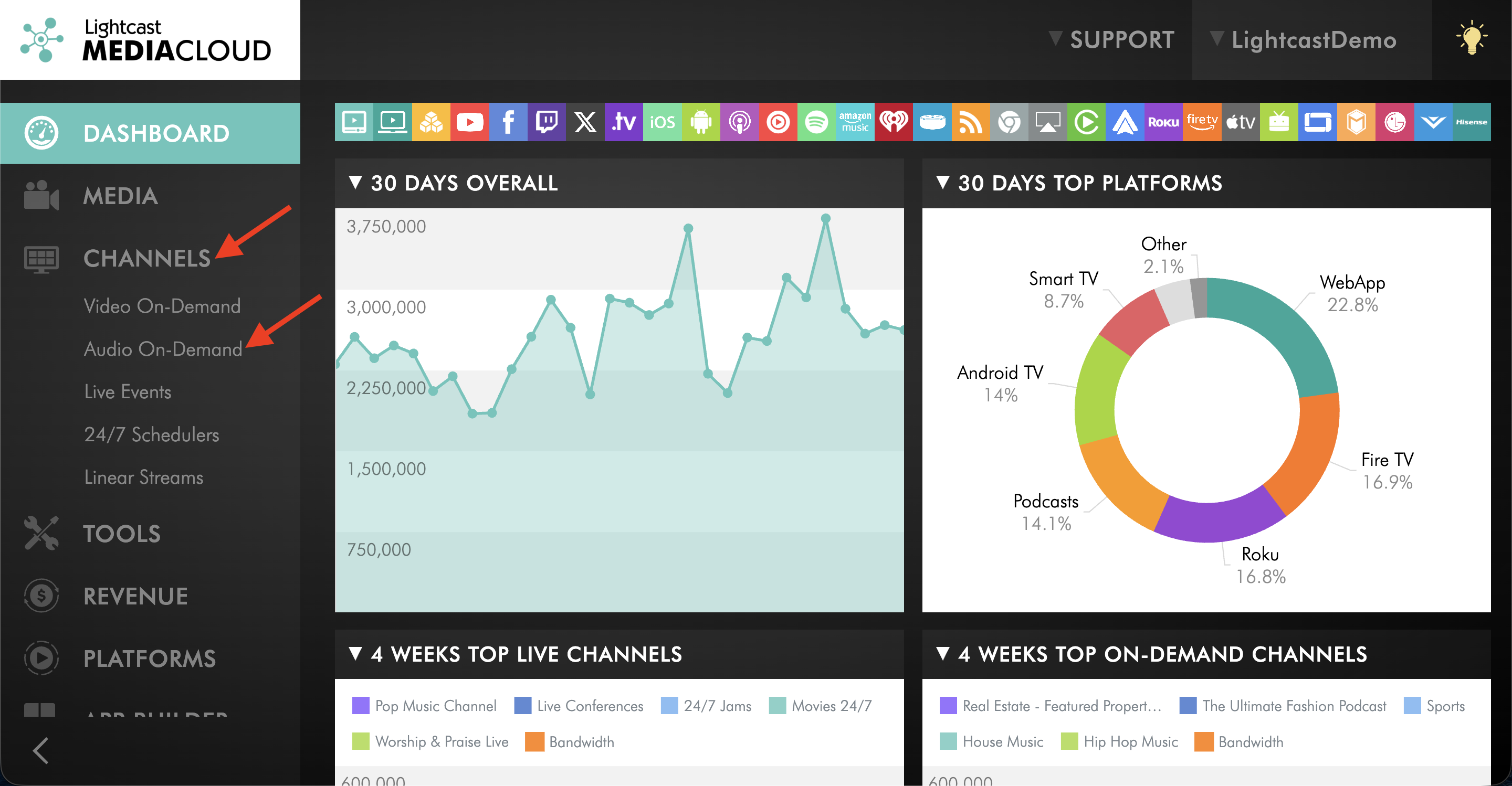
Go to CHANNELS and then click Audio On-Demand.
Step 3
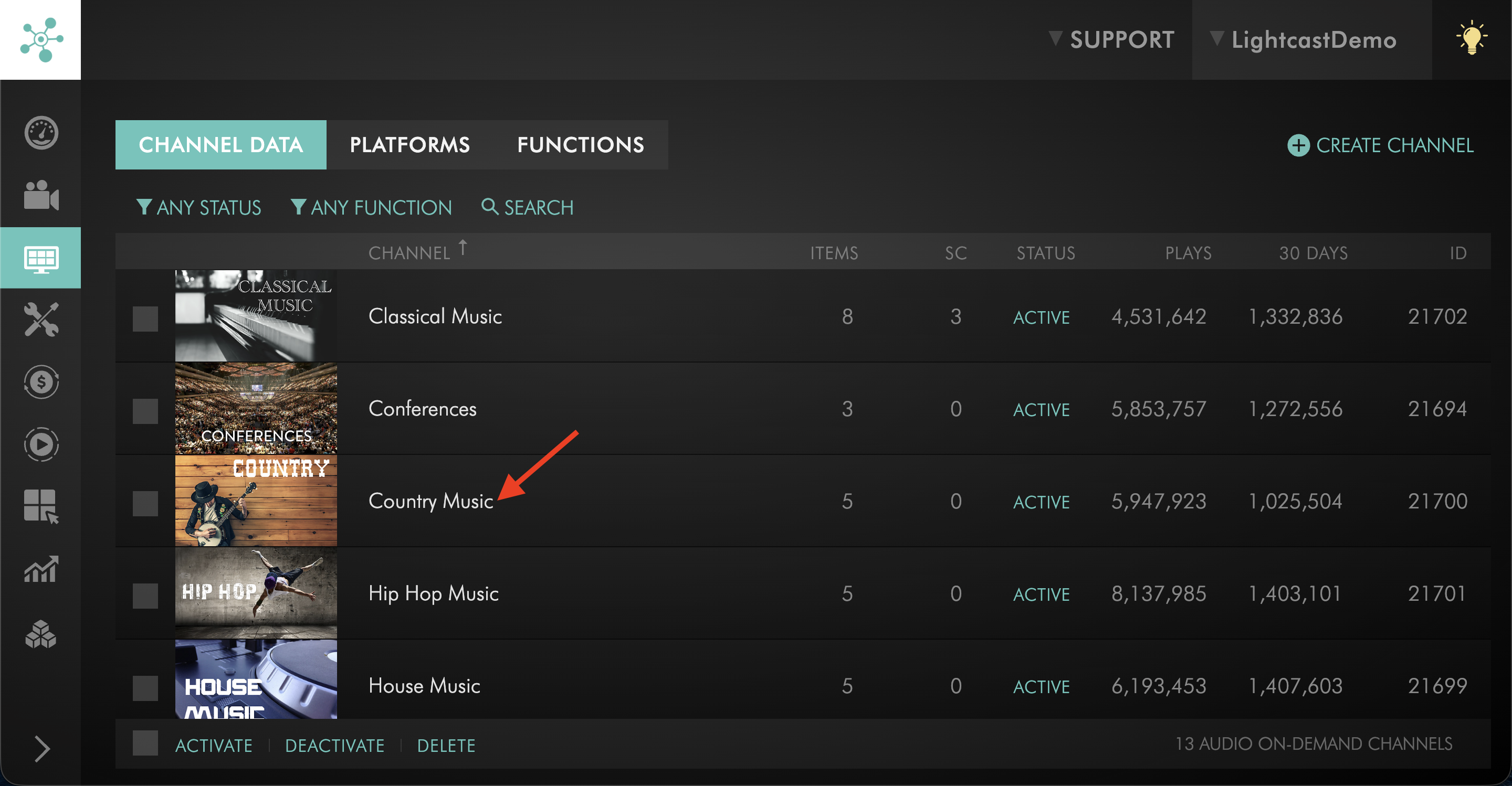
Select the AOD Channel that contains the media items you want to reorder.
Step 4
Switch to the PLAYLIST tab.
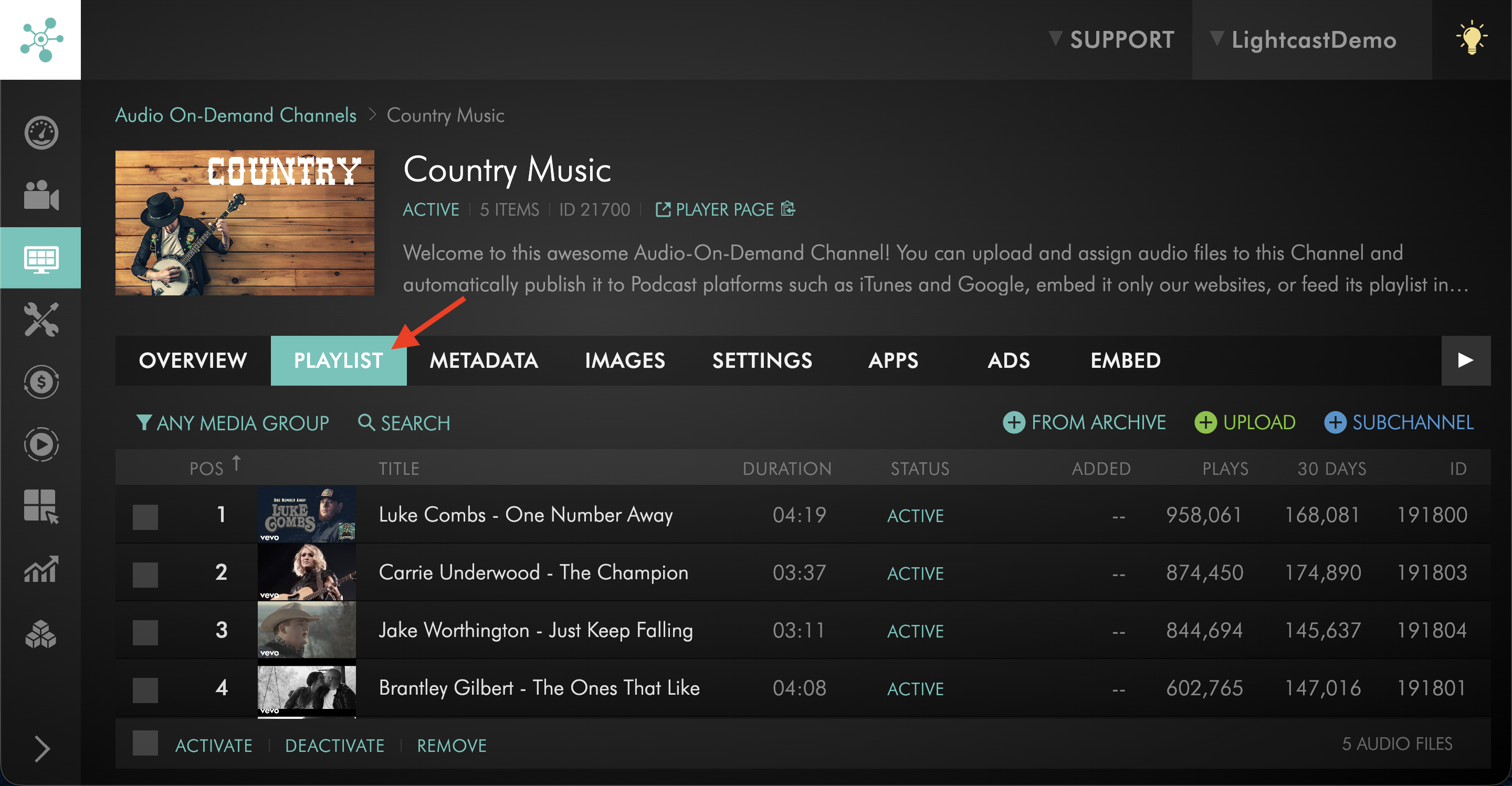
Step 5
Find the media item you want to move.
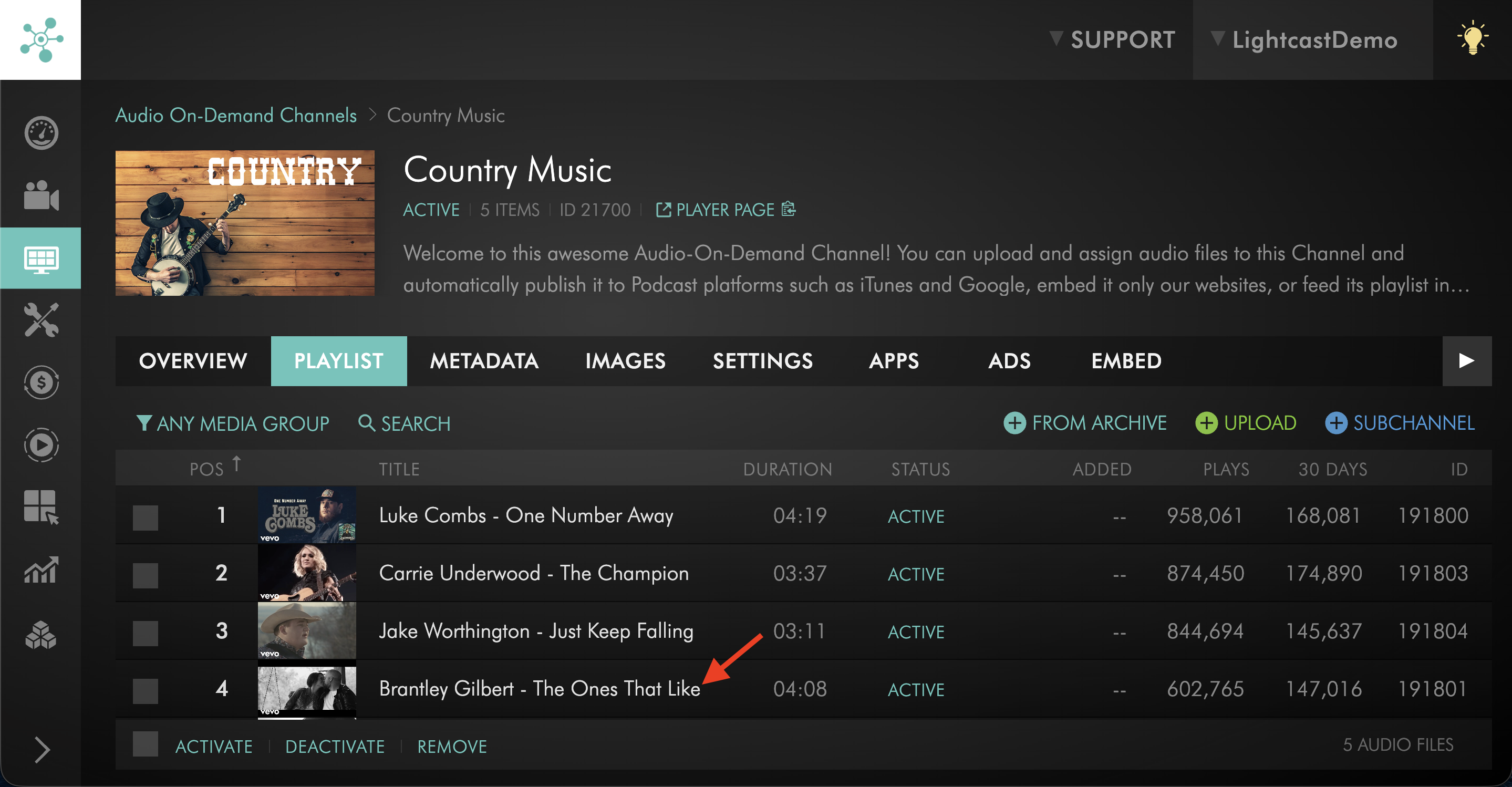
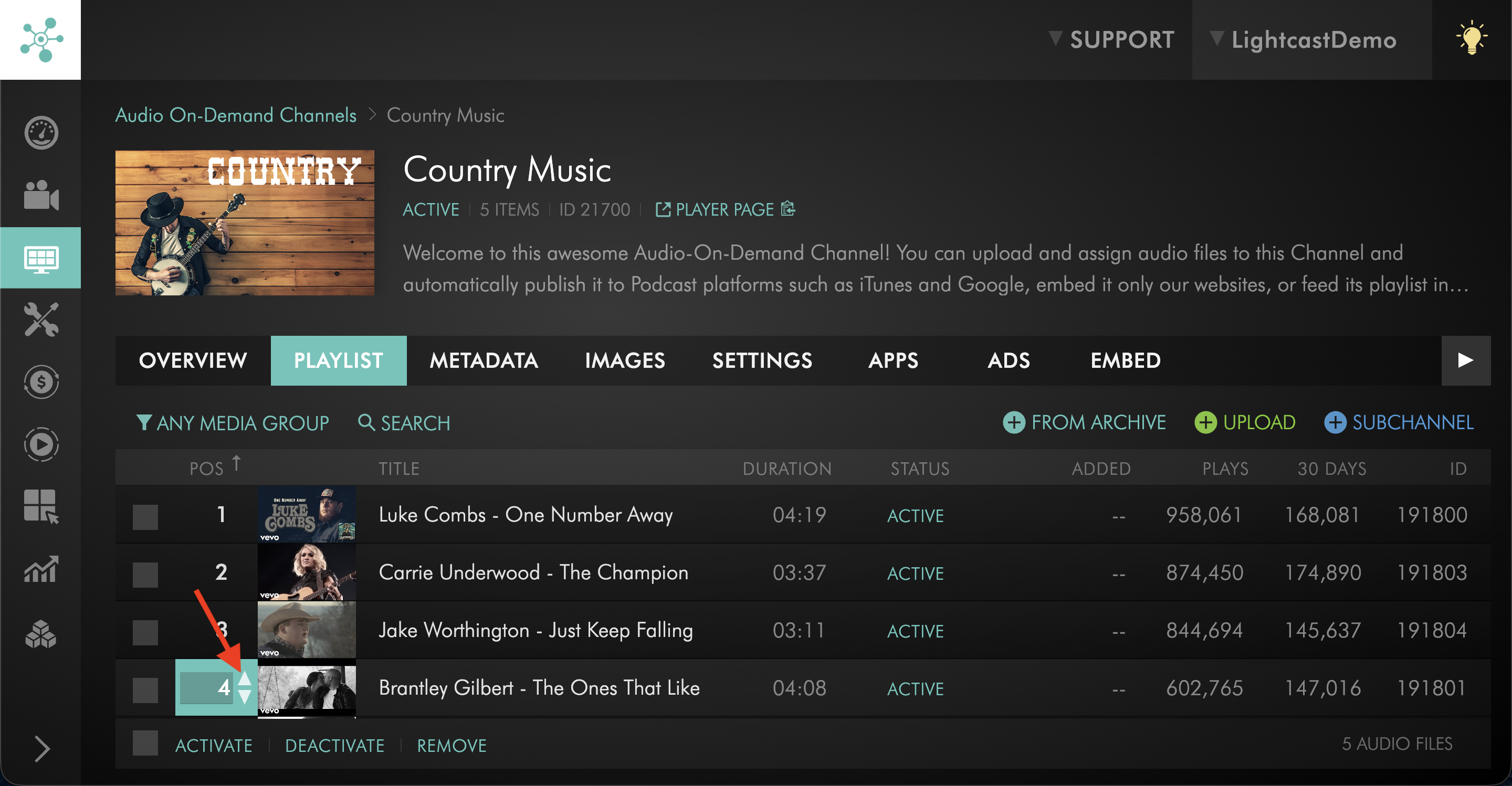
Step 6
Use the arrow controls to move the media item up or down in the playlist.
To move the media item to a specific position, enter the desired playlist position in the number field on the left side of the item.
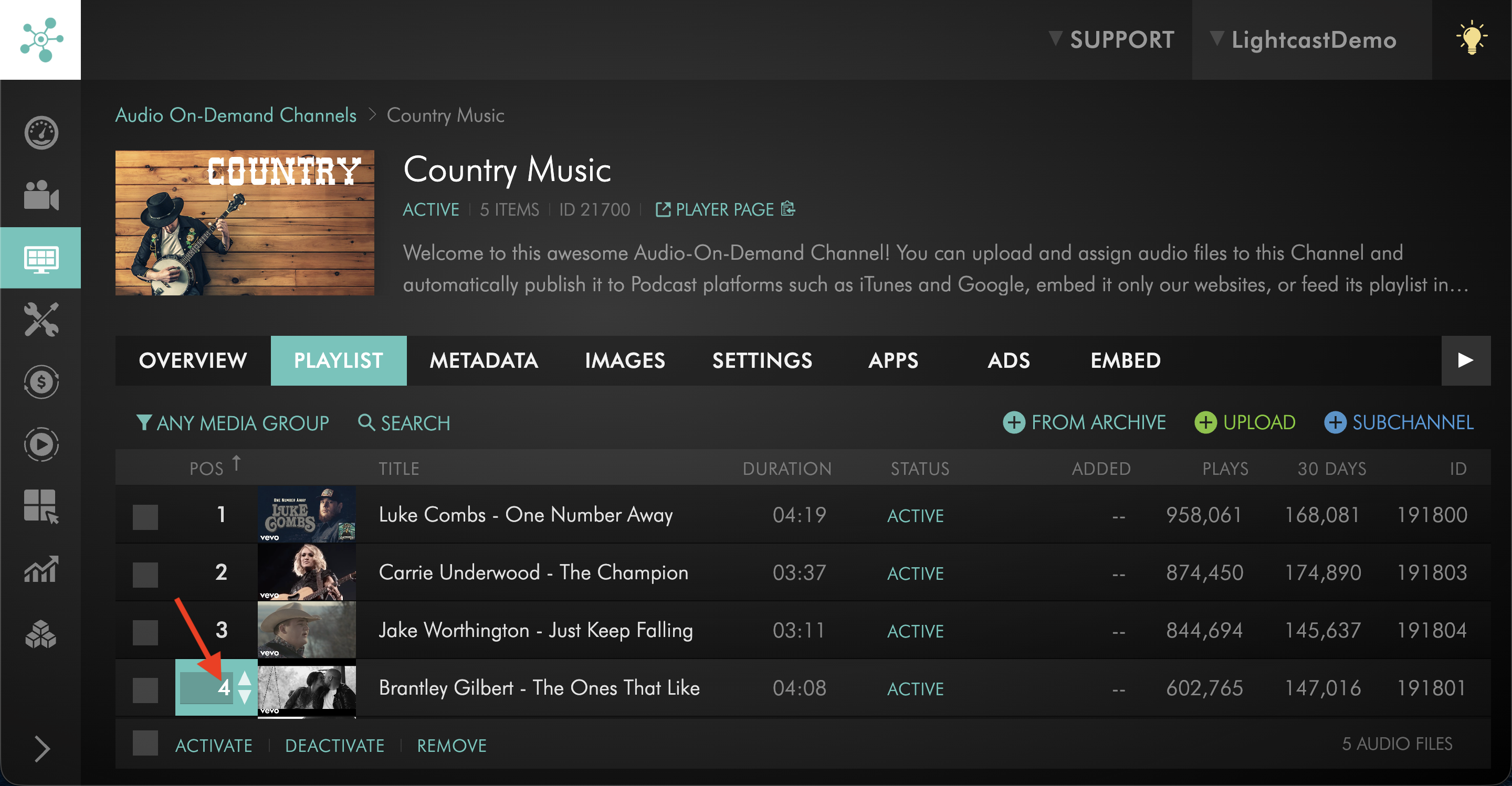
Step 7
Repeat this for any other media items you want to reorder.
Your changes are saved and applied to the Channel playlist.
FAQs
Can playlist order be changed for both video and audio Channels?
Yes. You can reorder media items in both VOD and AOD Channel playlists.
What is the quickest way to move an item in a large playlist?
For large playlists, enter the desired playlist position in the number field on the left side of the media item. This is usually faster than moving the item up or down one position at a time with the arrow controls.
Do playlist order changes update connected apps and players?
Yes. Playlist order changes are reflected across supported destinations where the Channel is published, including TV apps, mobile apps, Web Apps, embedded Channel players, custom galleries using the LightcastAPI, and other supported destinations.
If the updated order does not appear right away, refresh or reopen the app, Web App, webpage, or player because previously loaded content may be cached.
Can media items in a Sub-Channel playlist be reordered the same way?
Yes. Media items in Sub-Channel playlists can also be reordered, but the steps to access the playlist are different.