
How to enable or disable LightcastDRM
Overview
This article explains how to enable or disable LightcastDRM for an individual media item or for a Channel in the Media Cloud.
When to use LightcastDRM
Use LightcastDRM when you want to add encryption and sharing prevention to protected media. LightcastDRM can be enabled for individual media items or for Channels, depending on where the content is managed.
LightcastDRM includes two protection levels:
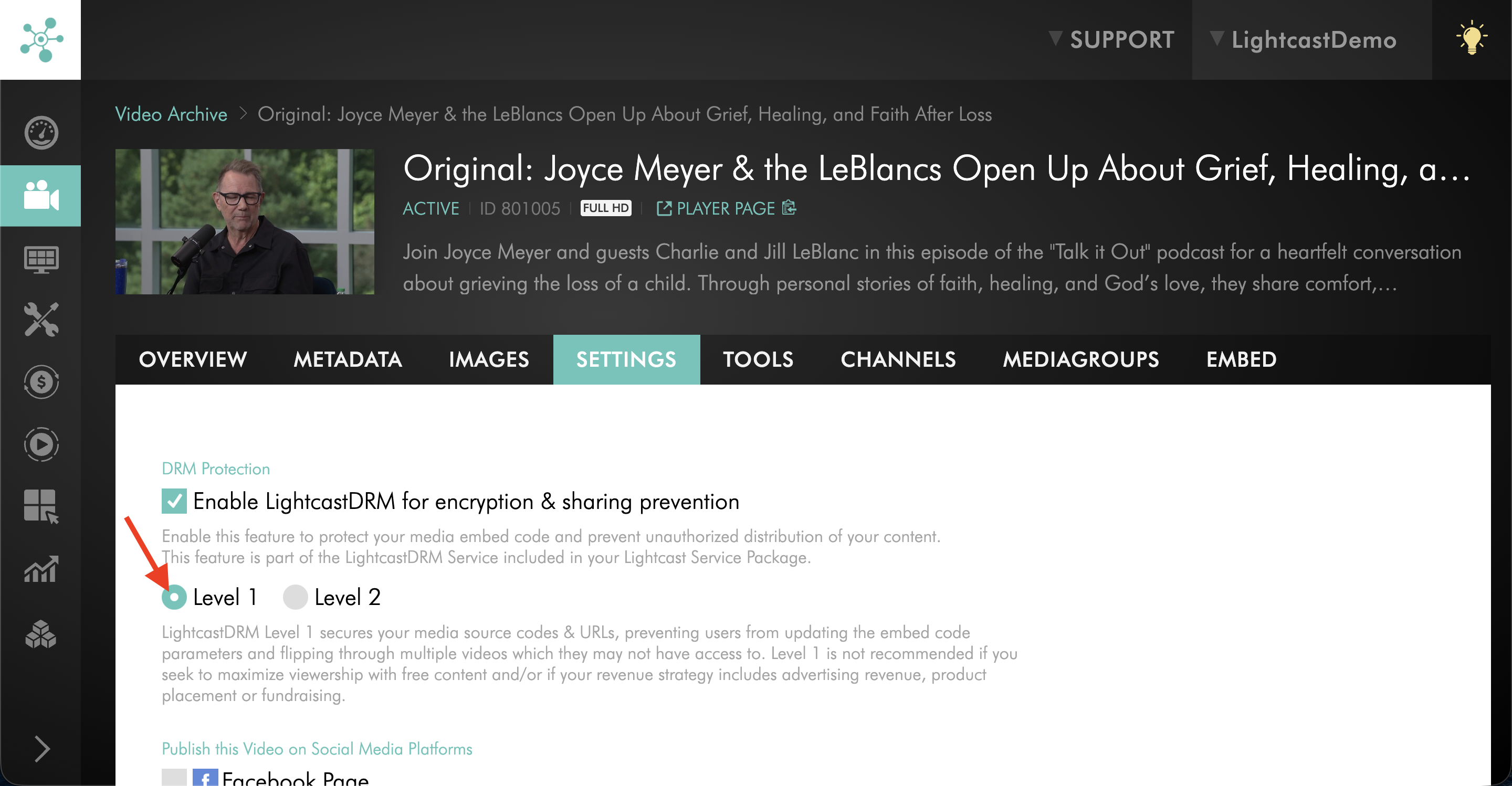
Level 1 secures media source codes and URLs. This helps prevent viewers from changing embed code parameters or moving through multiple videos they may not have access to.
Level 2 creates a unique embed code for each viewer and disables sharing and embedding options. Level 2 is recommended when used with subscription systems designed to limit specific content to specific viewers.
Level 2 requires the embed code to be retrieved through the LightcastAPI for each viewer because the embed codes are no longer static.
How it works
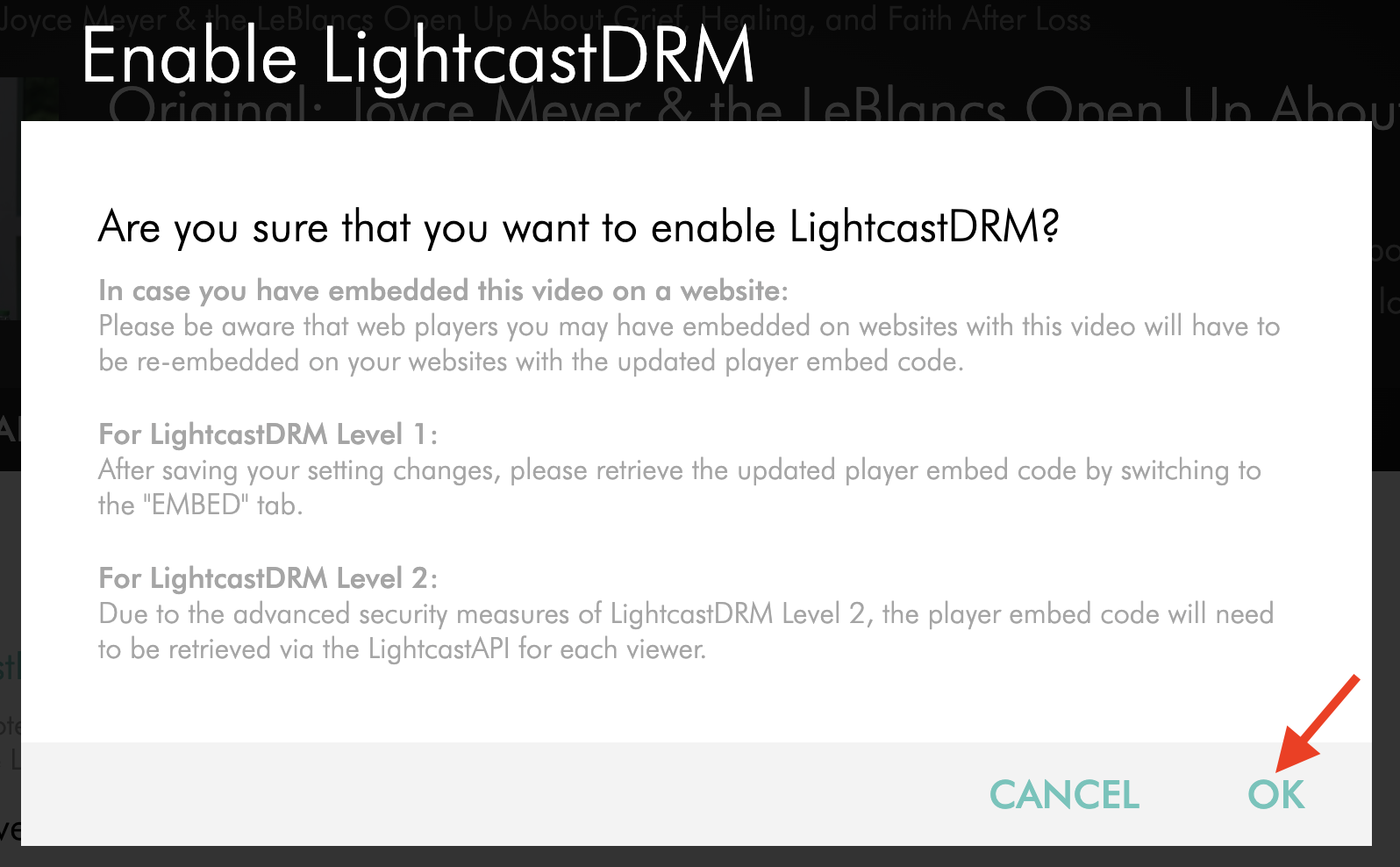
When LightcastDRM is enabled, the Media Cloud displays a confirmation message before applying the setting.
If the media item or Channel has already been embedded on a website, the web player may need to be re-embedded using the updated player embed code.
For Level 1, retrieve the updated player embed code from the EMBED tab after saving your settings.
For Level 2, retrieve the player embed code through the LightcastAPI for each viewer.
Instructions
Enable LightcastDRM for a media item
Step 1
Log in to your Media Cloud account.
Step 2
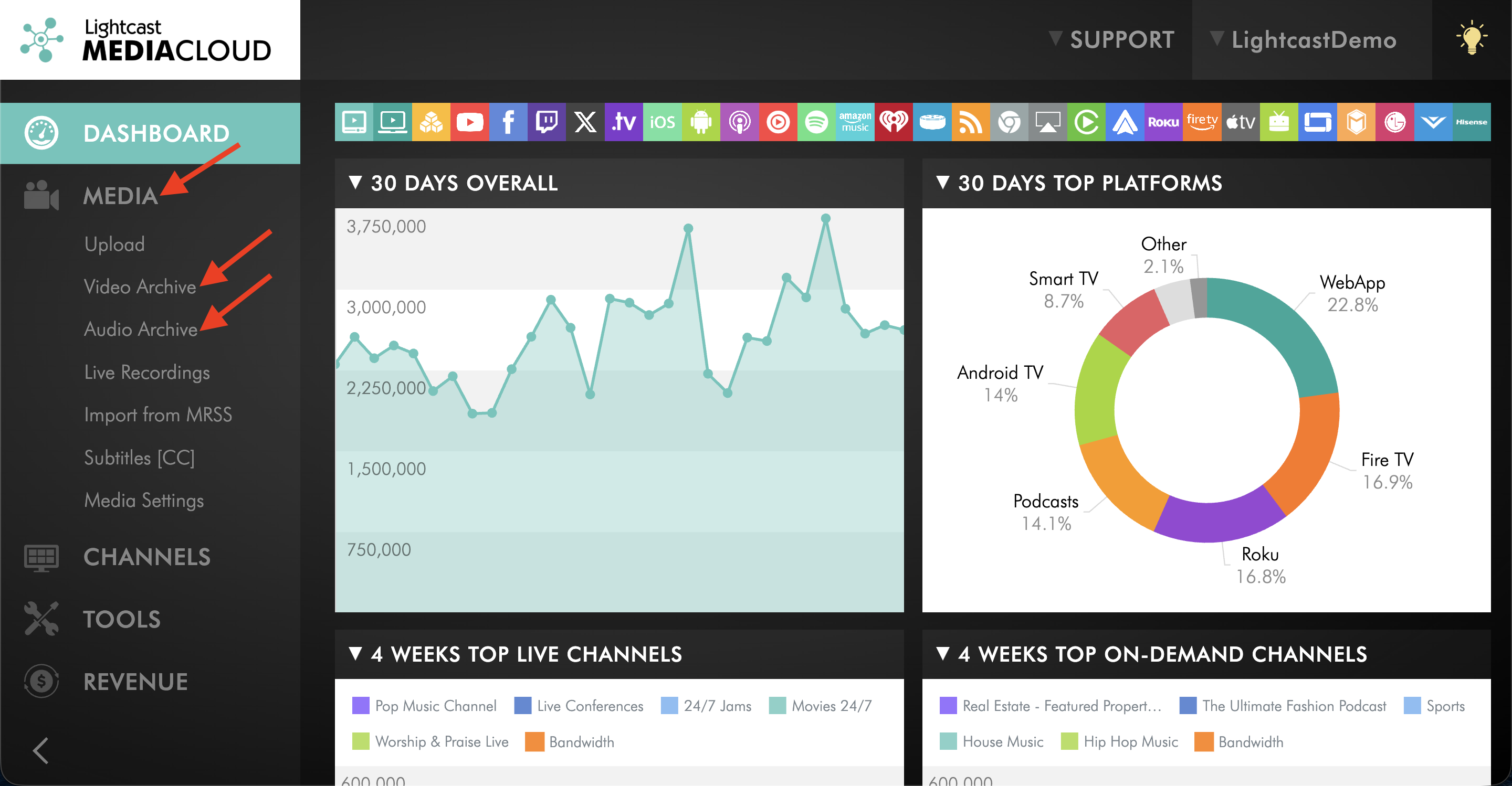
Go to MEDIA and select either Video Archive or Audio Archive.
Step 3
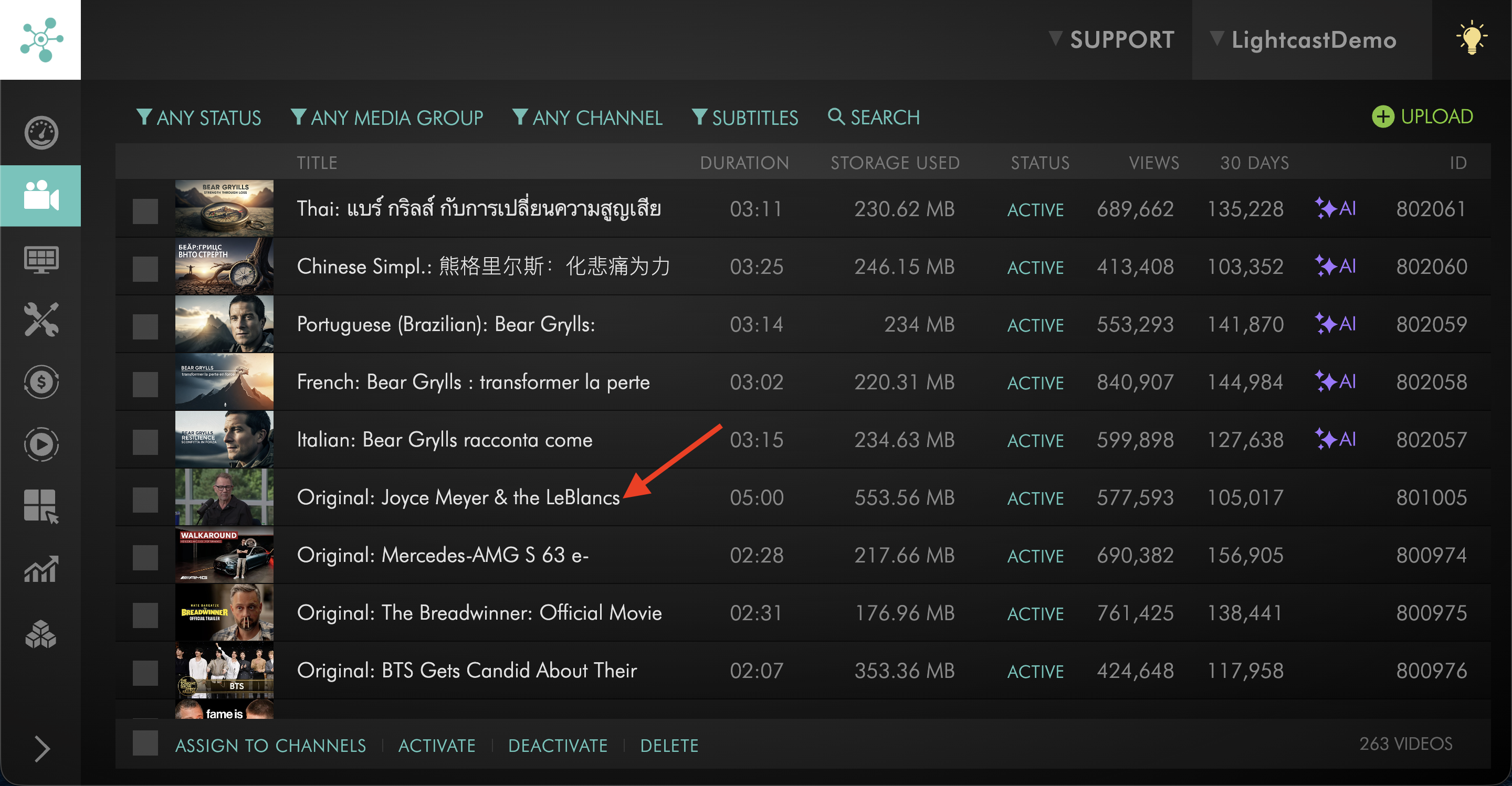
Open the media item you want to update.
Step 4
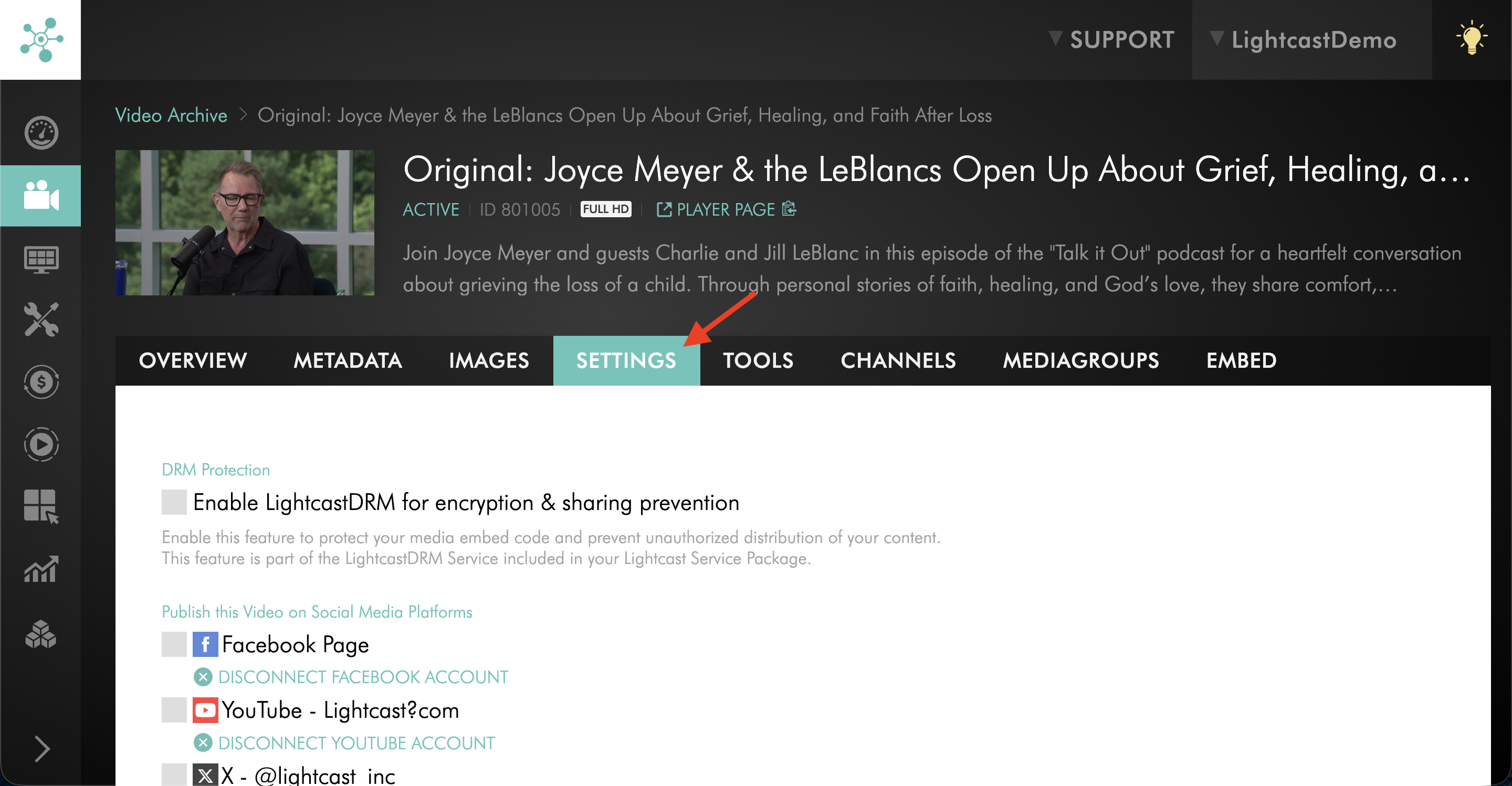
Select the SETTINGS tab.
Step 5
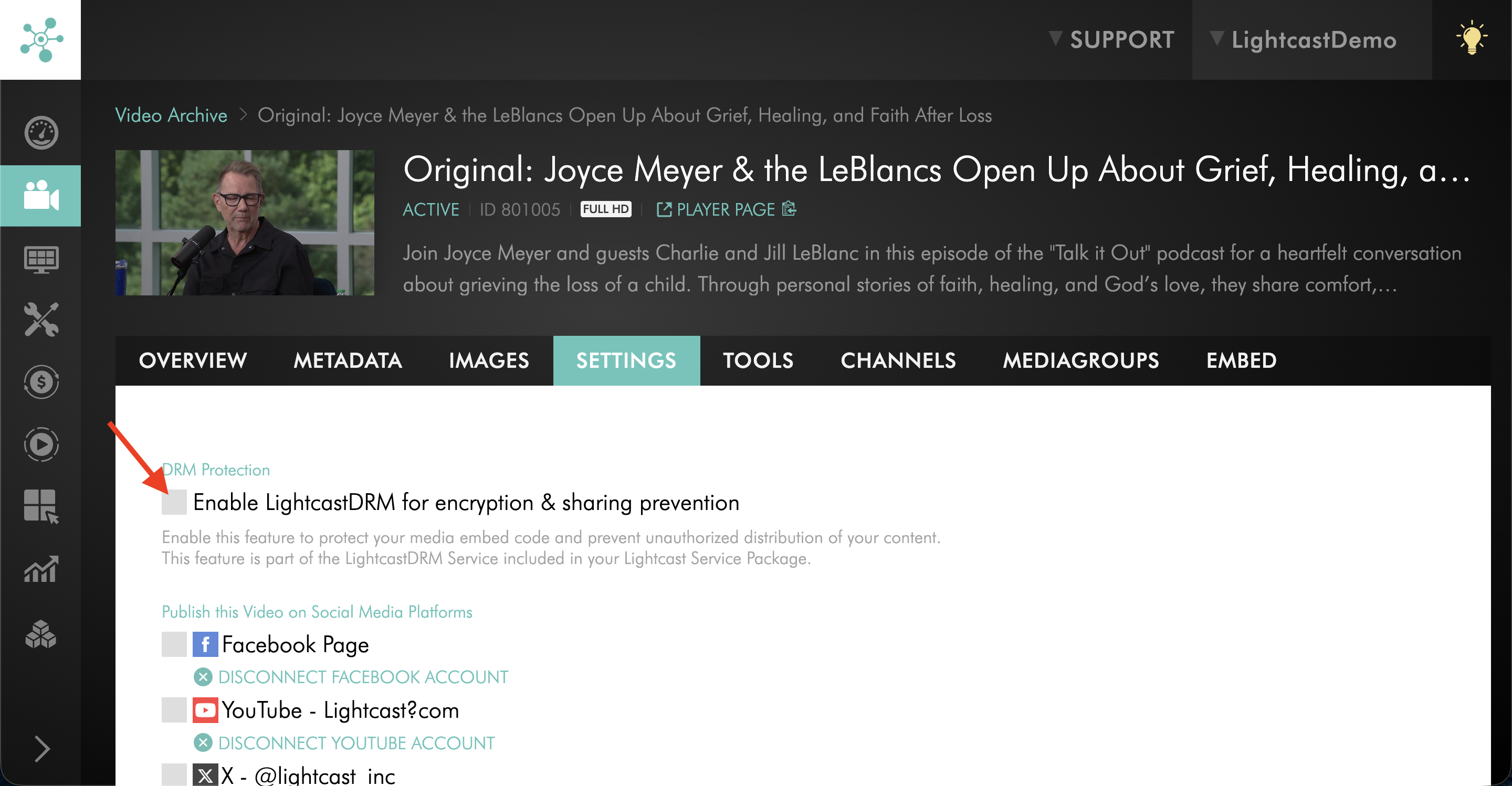
Under DRM Protection, select Enable LightcastDRM for encryption & sharing prevention.
Step 6
Review the confirmation message, then select OK to continue.
Step 7
Select Level 1 or Level 2.
Step 8
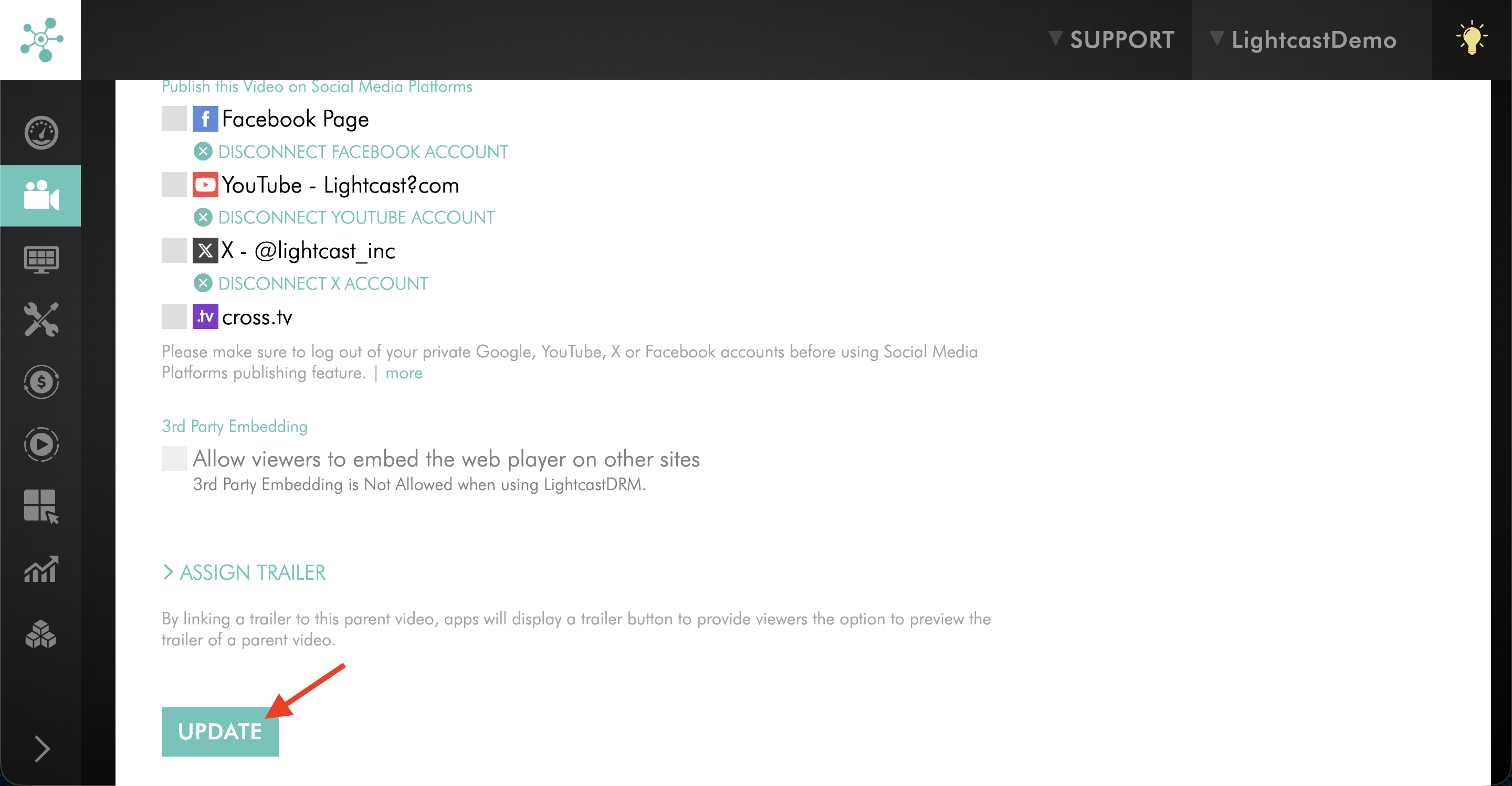
Scroll down and select UPDATE to save the changes.
Step 9
If the media item is embedded on a website, update the embed code as needed based on the selected LightcastDRM level.
Enable LightcastDRM for a Channel
Step 1
Log in to your Media Cloud account.
Step 2
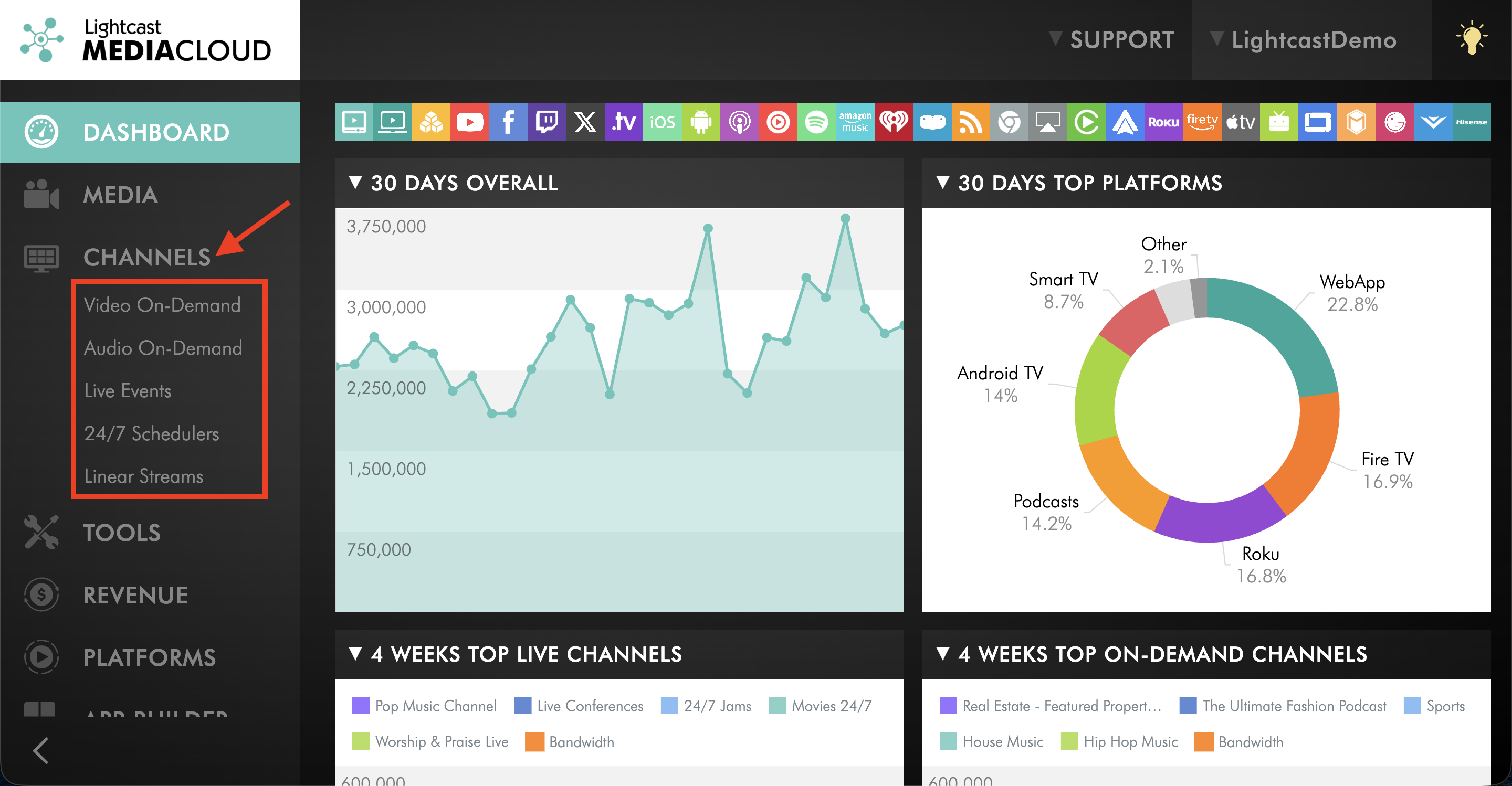
Go to CHANNELS and select the Channel category you want to update.
Step 3
Open the Channel you want to update.
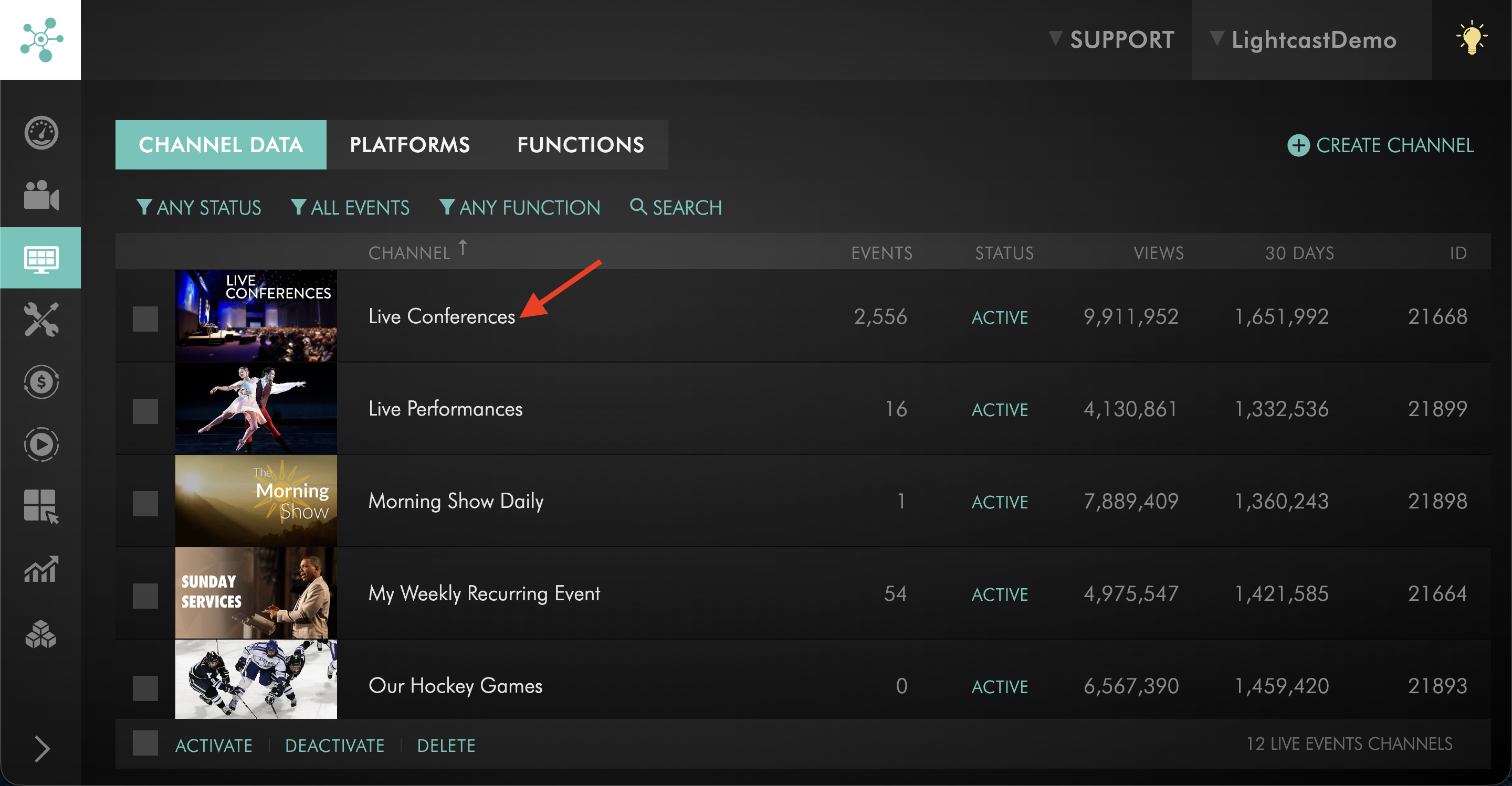
Step 4
Select the SETTINGS tab.
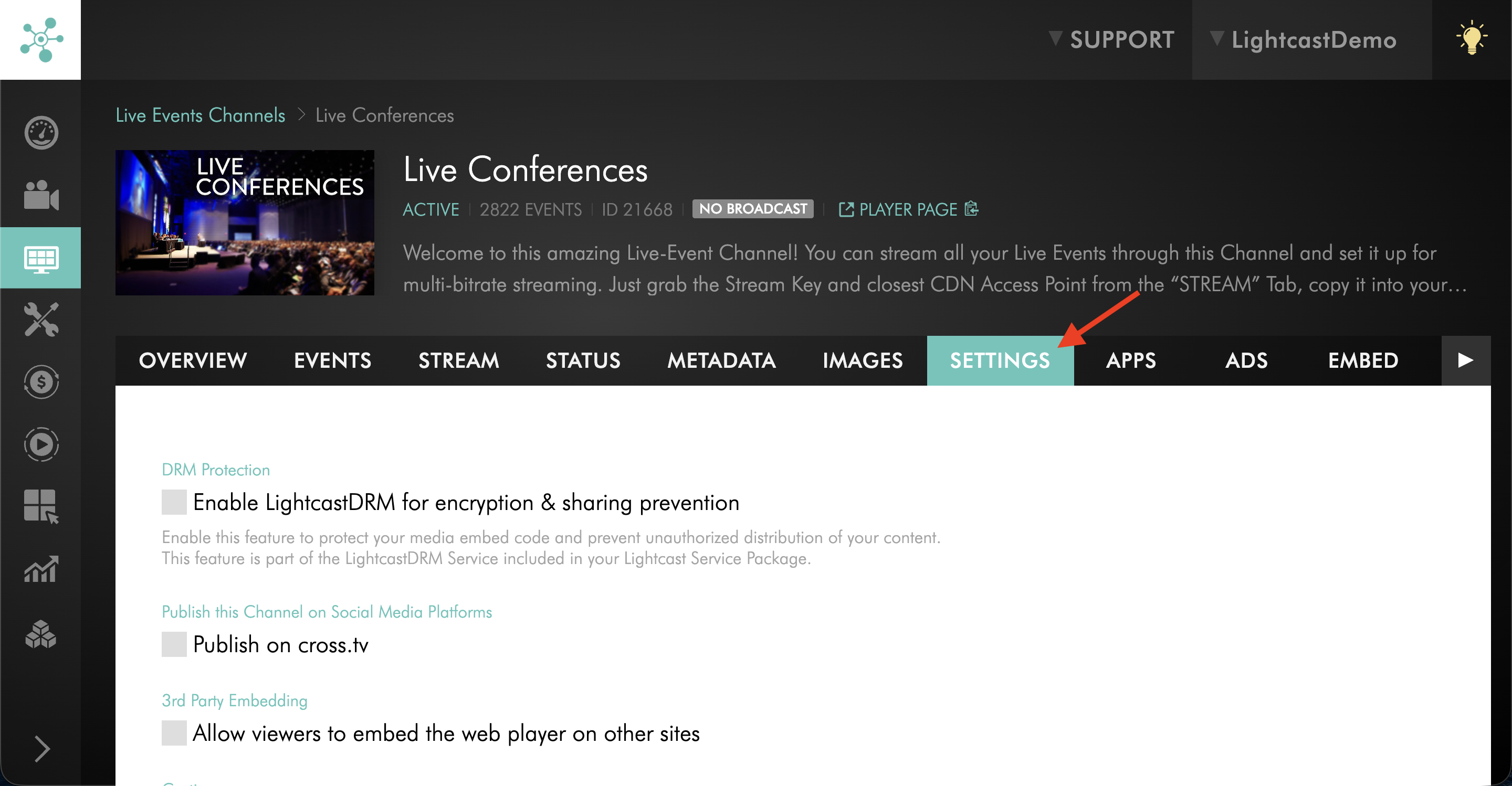
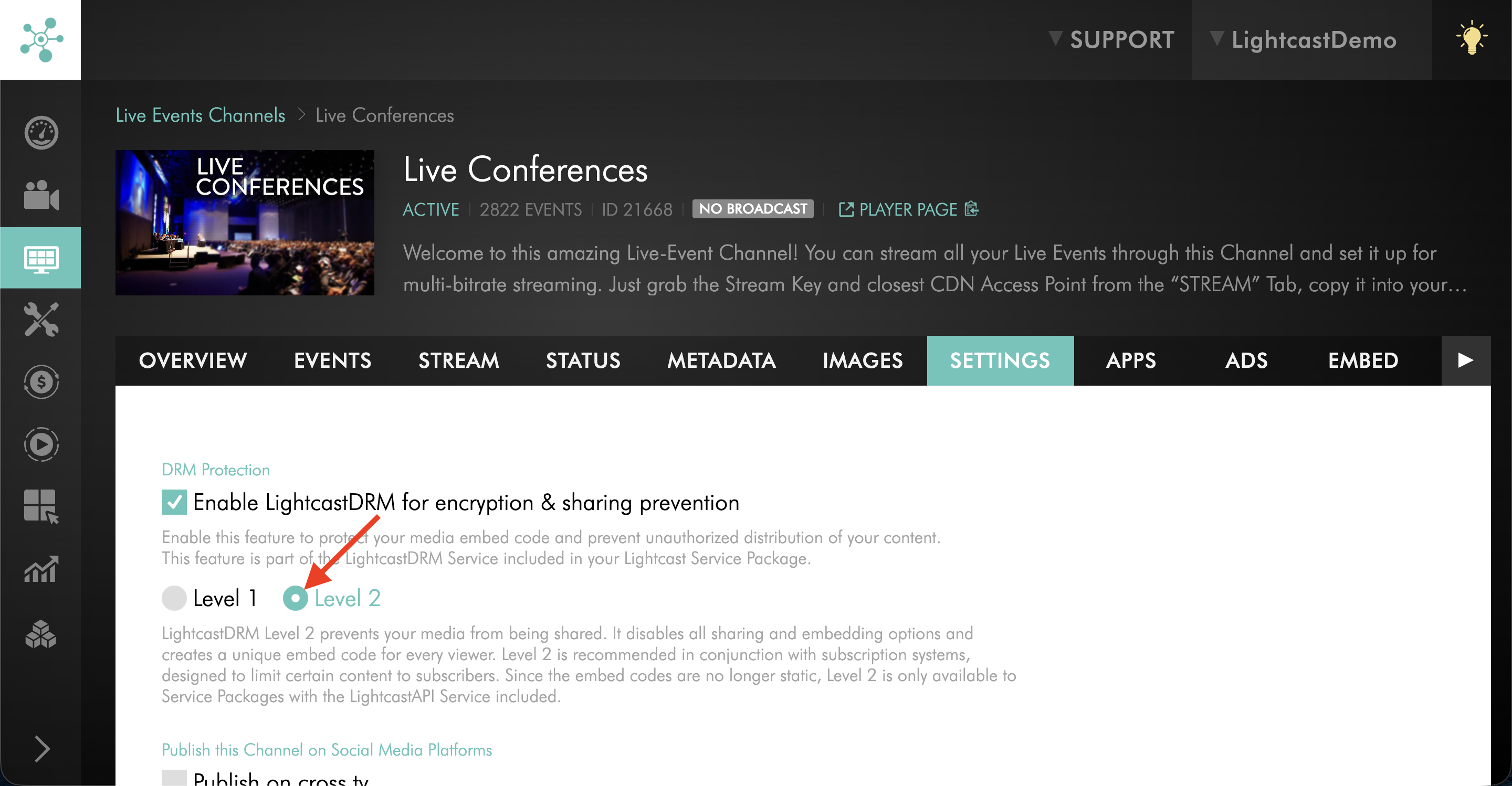
Step 5
Under DRM Protection, select Enable LightcastDRM for encryption & sharing prevention.
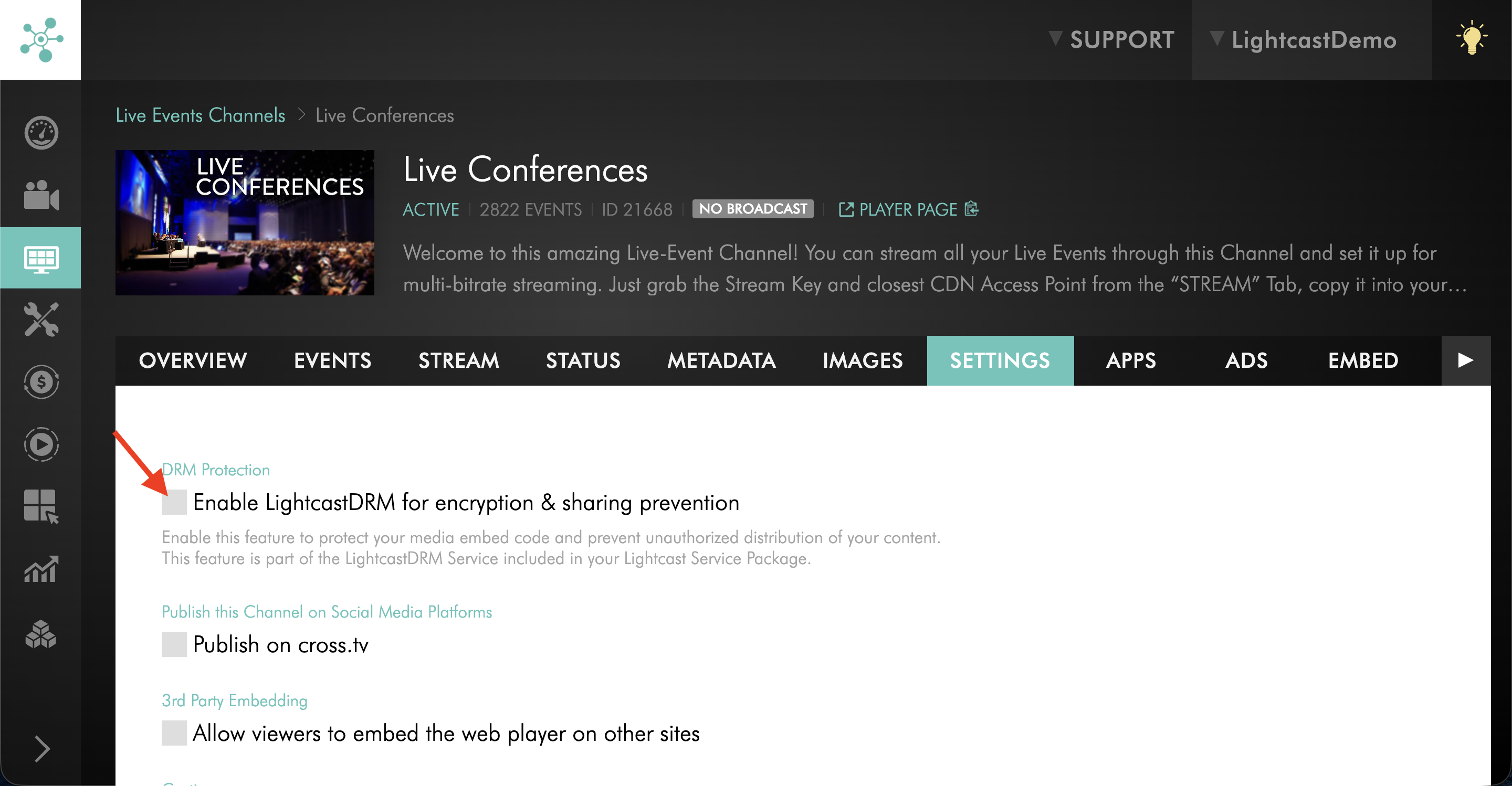
Step 6
If a confirmation message appears, review it, then select OK to continue.
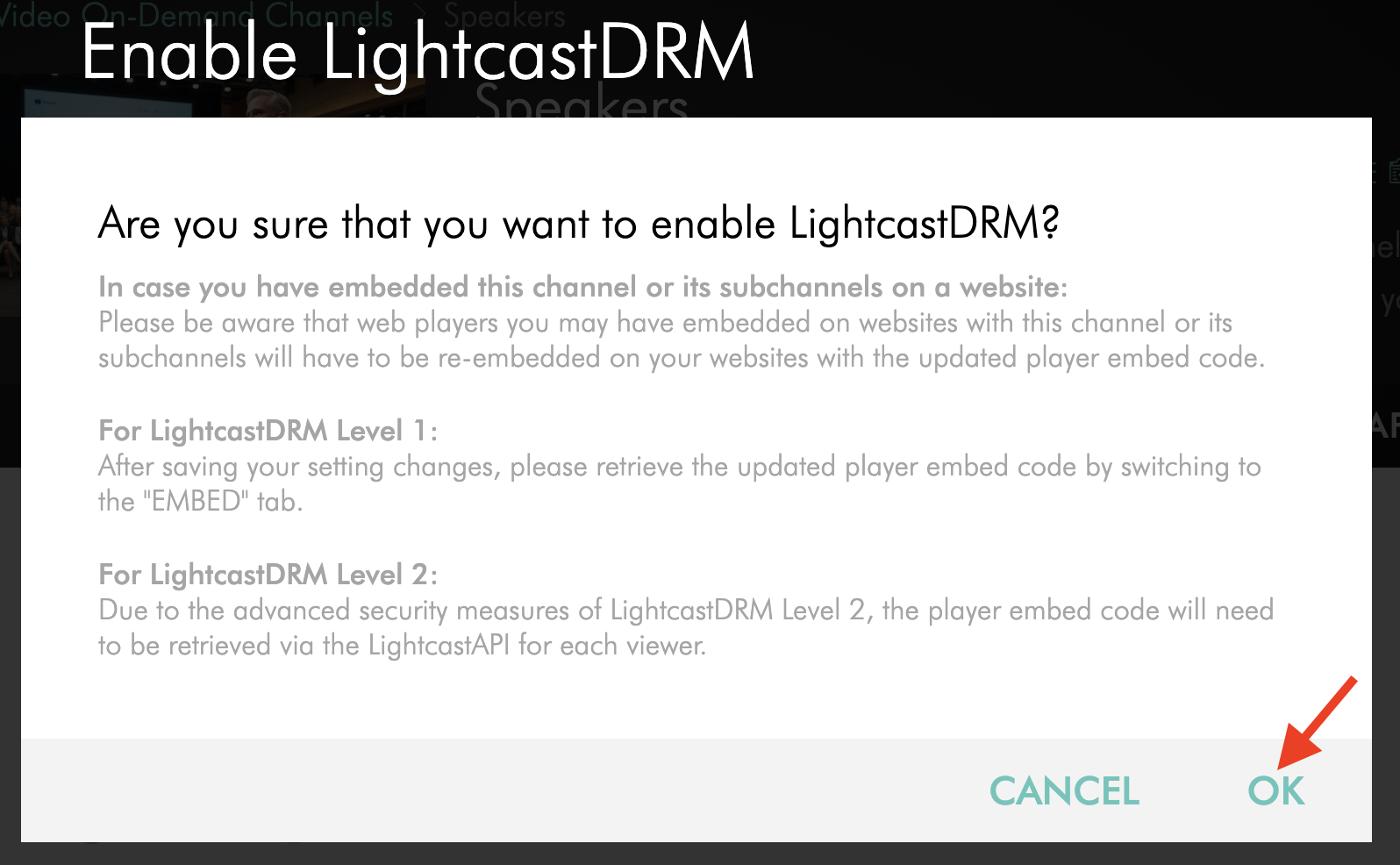
Step 7
Select Level 1 or Level 2.
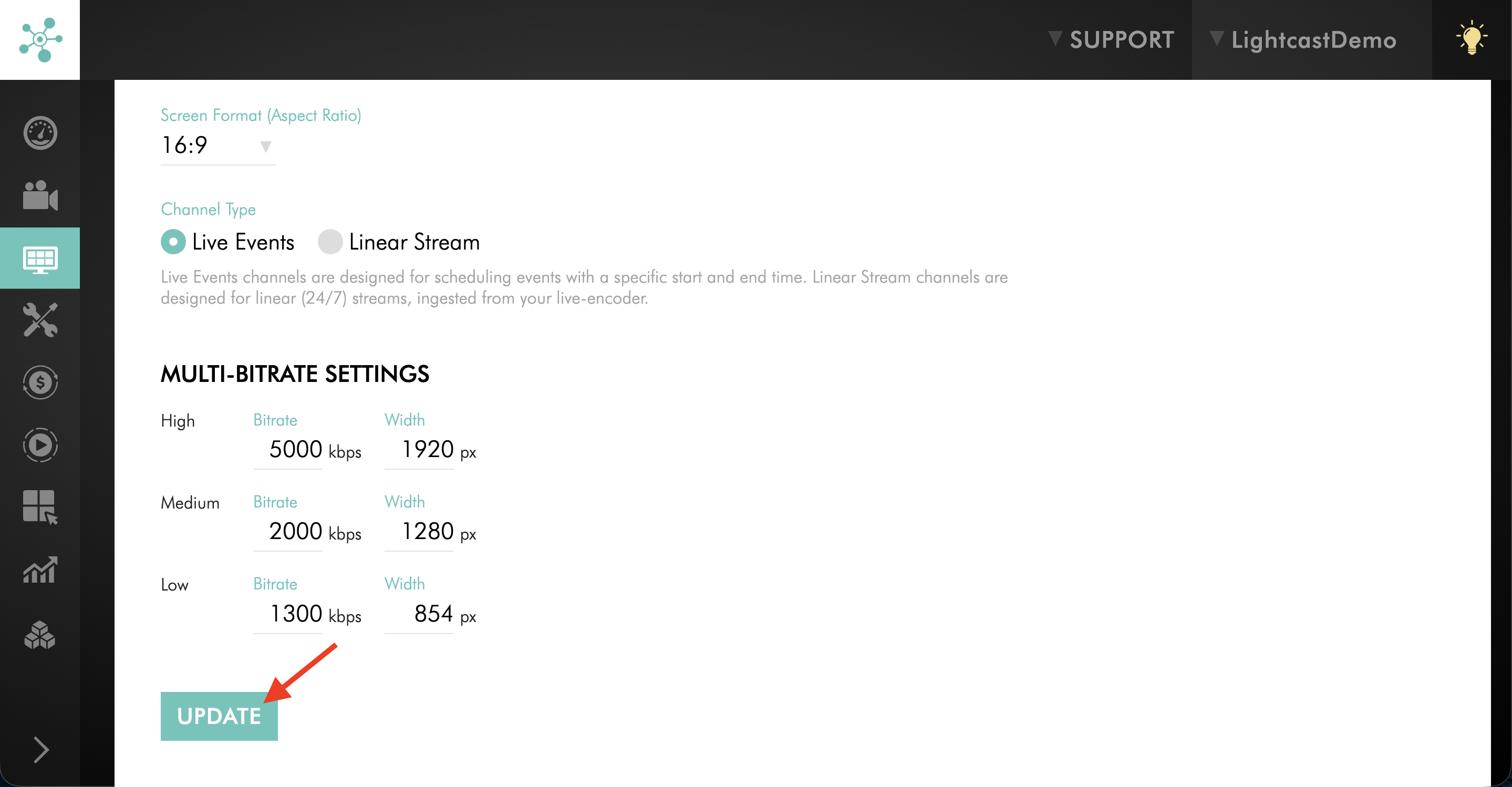
Step 8
Scroll down and select UPDATE to save the changes.
Step 9
If the Channel is embedded on a website, update the embed code as needed based on the selected LightcastDRM level.
Disable LightcastDRM
Step 1
Follow the same steps for the media item or Channel where LightcastDRM is currently enabled.
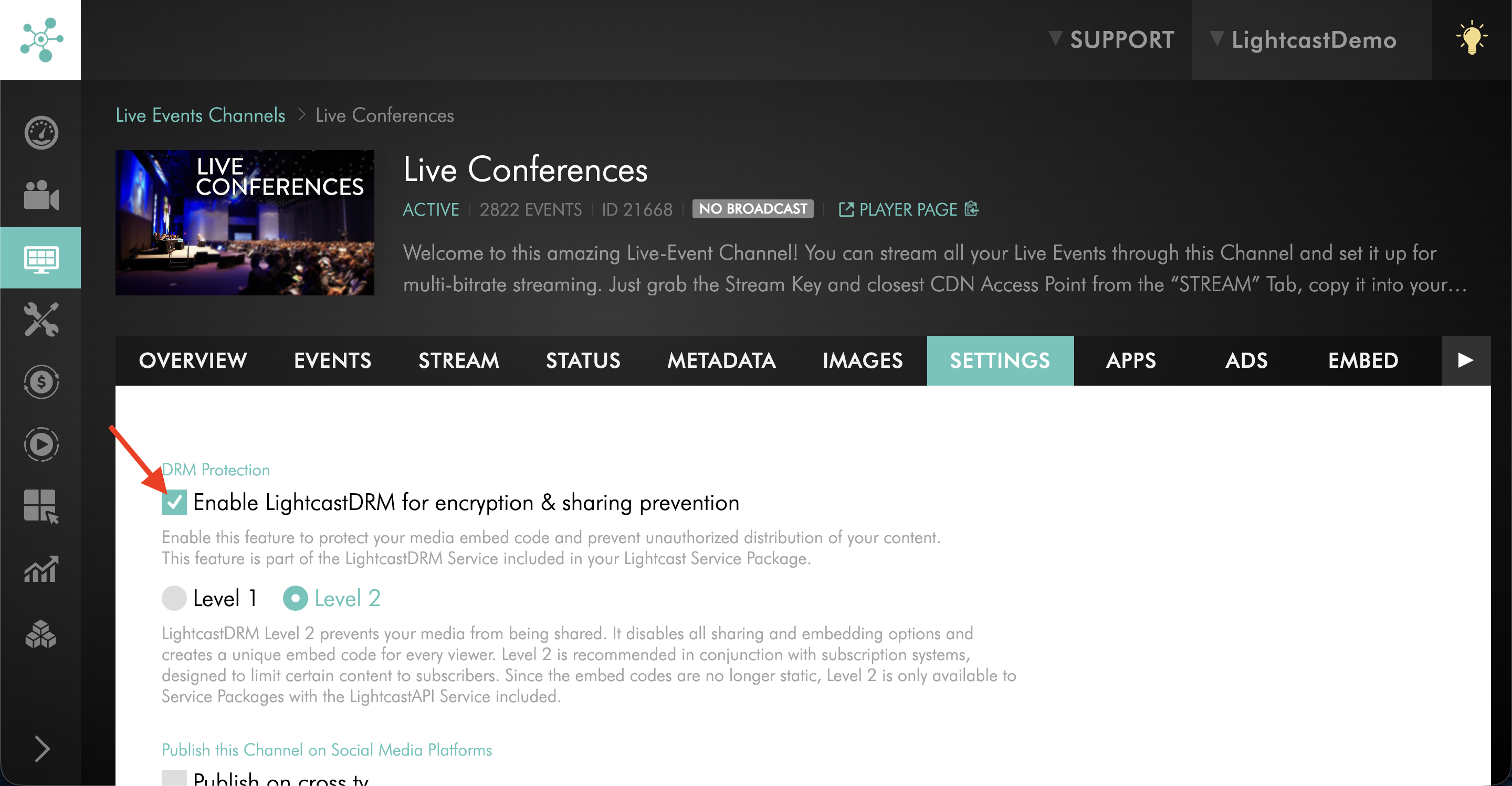
Step 2
Under DRM Protection, clear Enable LightcastDRM for encryption & sharing prevention.
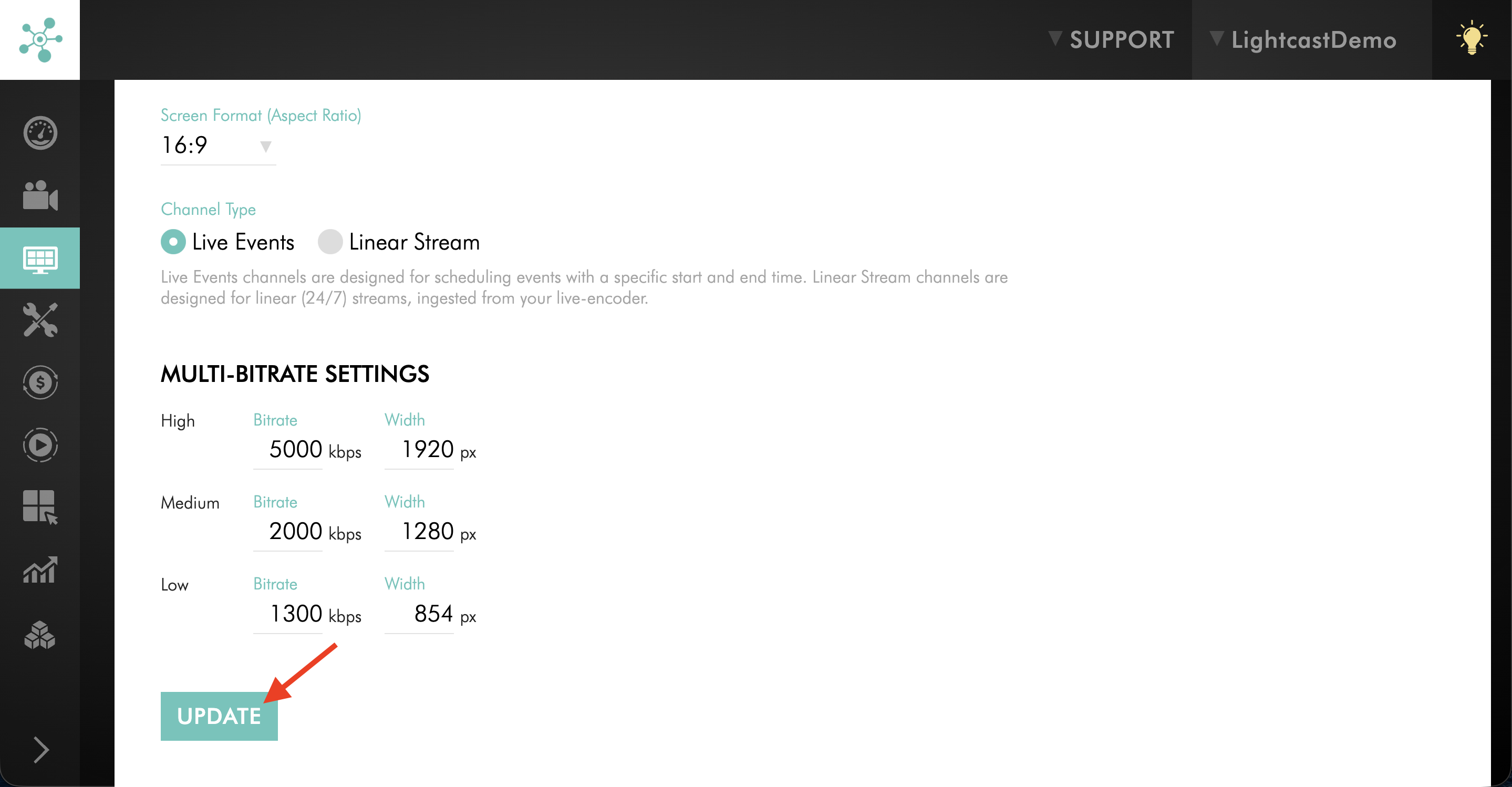
Step 3
Scroll down and select UPDATE to save the changes.
FAQs
What is the difference between LightcastDRM Level 1 and Level 2?
Level 1 secures media source codes and URLs. This helps prevent viewers from changing embed code parameters or moving through multiple videos they may not have access to.
Level 2 prevents media from being shared, disables sharing and embedding options, and creates a unique embed code for each viewer.
When should Level 1 be used?
Level 1 can be used when you want to protect media source codes and URLs while still using a static embed workflow.
When should Level 2 be used?
Level 2 is recommended when used with subscription systems designed to limit certain content to specific viewers.
Does Level 2 require the LightcastAPI?
Yes. Because Level 2 embed codes are no longer static, the player embed code must be retrieved through the LightcastAPI for each viewer.
Does enabling LightcastDRM require the player to be re-embedded?
If the media item or Channel has already been embedded on a website, the player may need to be re-embedded using the updated embed code.
For Level 1, retrieve the updated player embed code from the Embed tab after saving your settings.
For Level 2, retrieve the player embed code through the LightcastAPI for each viewer.
Pricing
LightcastDRM is available on POWER packages and above.
If you don’t have access to this feature, you can upgrade to one of our latest plans or contact your account manager.