
How to view Roku app install numbers in your Roku Developer account
Overview
This article explains how to view Roku app install numbers in your Roku Developer account.
When to use Roku app install numbers
Use Roku app install numbers when you need to review how many users have installed your published Roku app.
Roku app install numbers are managed by Roku. They are not available in the Media Cloud because this data comes from Roku’s platform.
Instructions
Step 1
Go to the Roku Launchpad and log in to your Roku Developer account.
Step 2
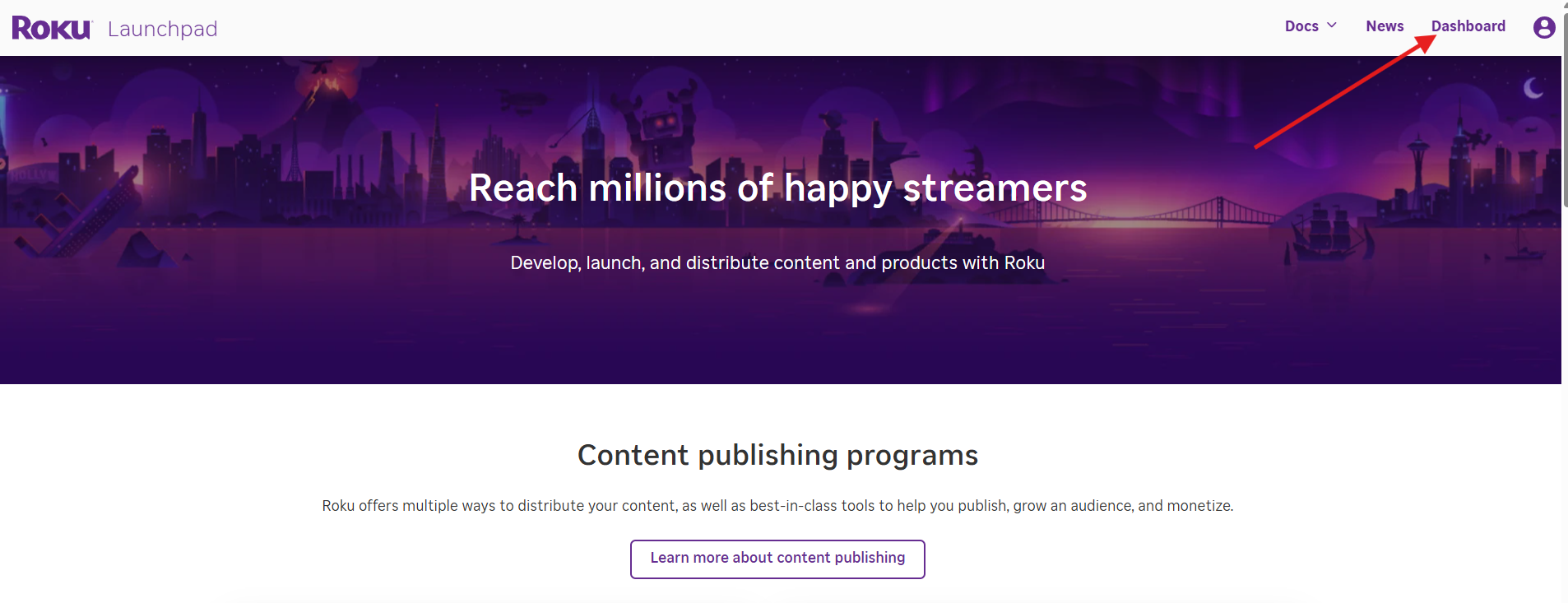
Click Dashboard in the top-right corner of the page.
Step 3
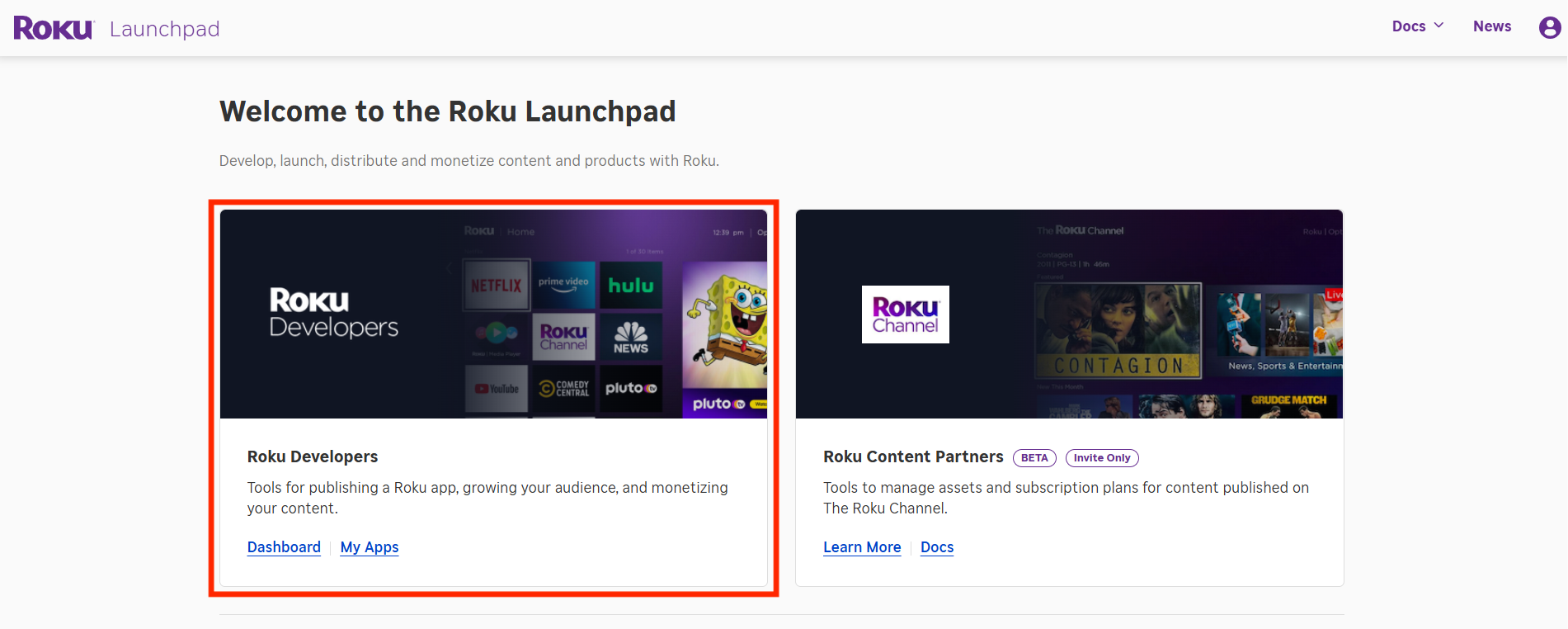
On the Roku Launchpad page, go to the Roku Developers card.
Step 4
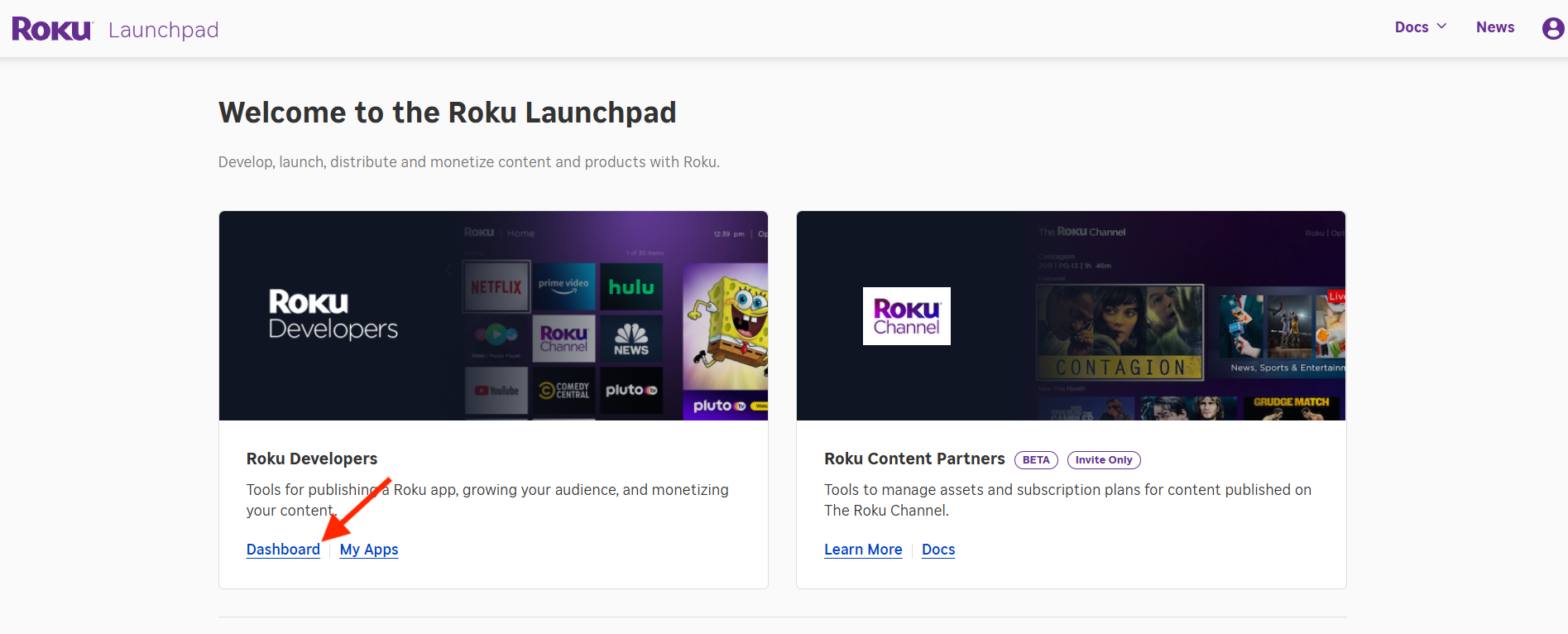
Click Dashboard.
Step 5
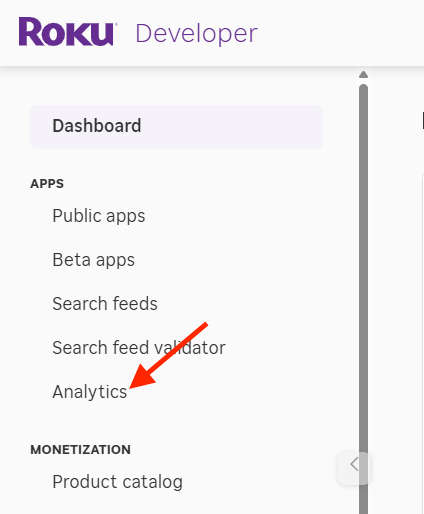
In the left-side menu, click Analytics.
Step 6
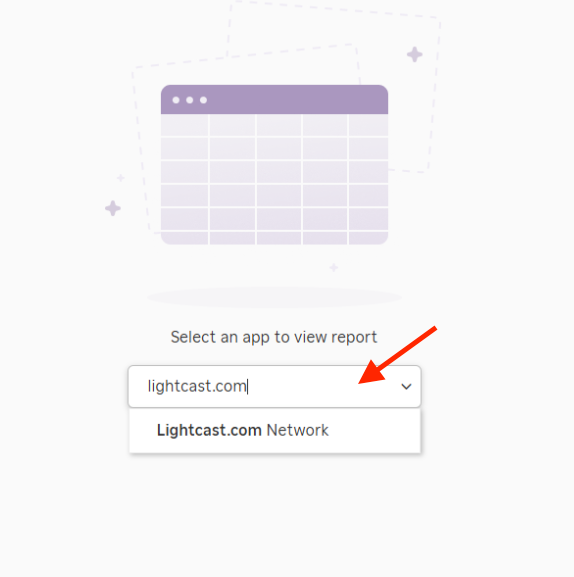
Select your Roku app from the Select an app dropdown menu.
Step 7
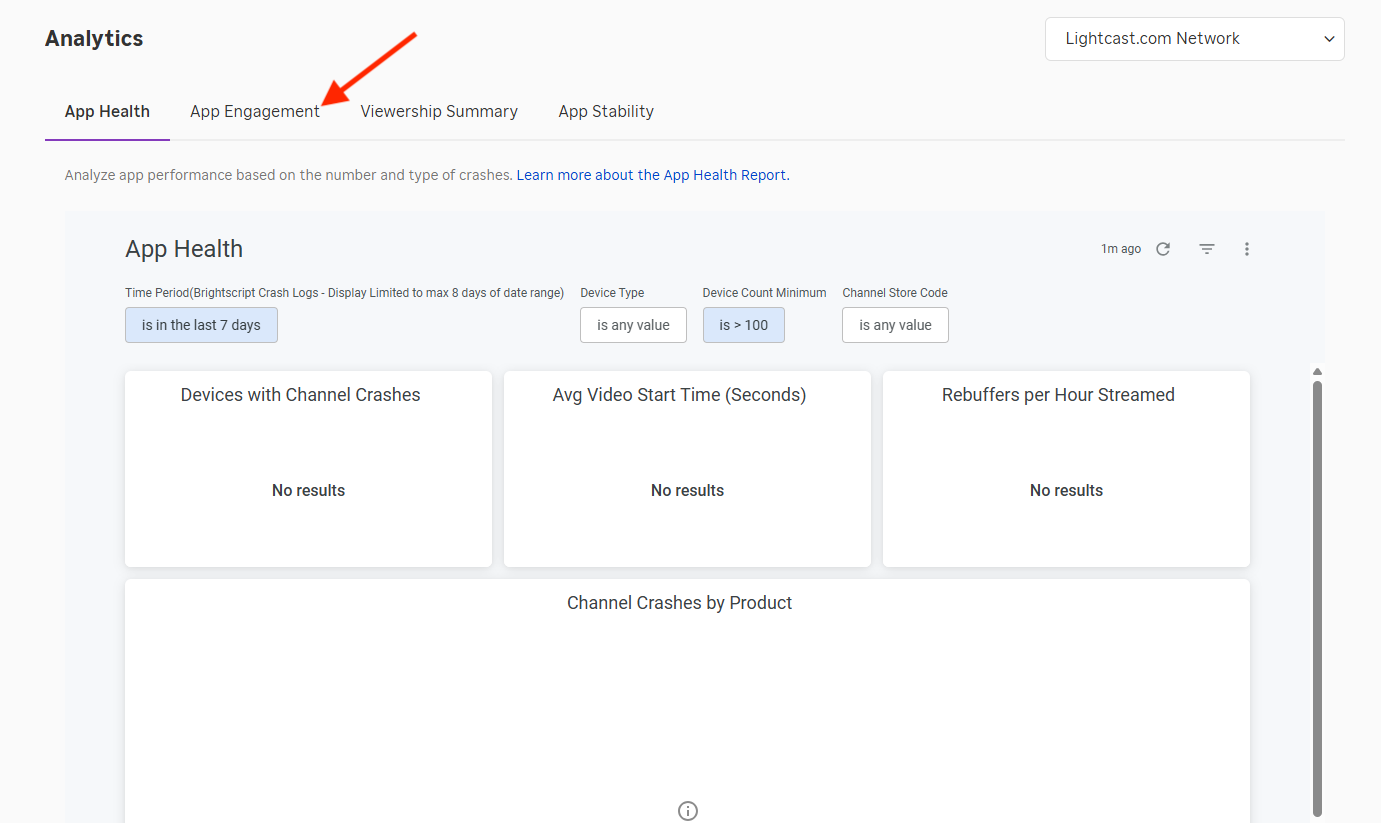
Click the App Engagement tab.
Step 8
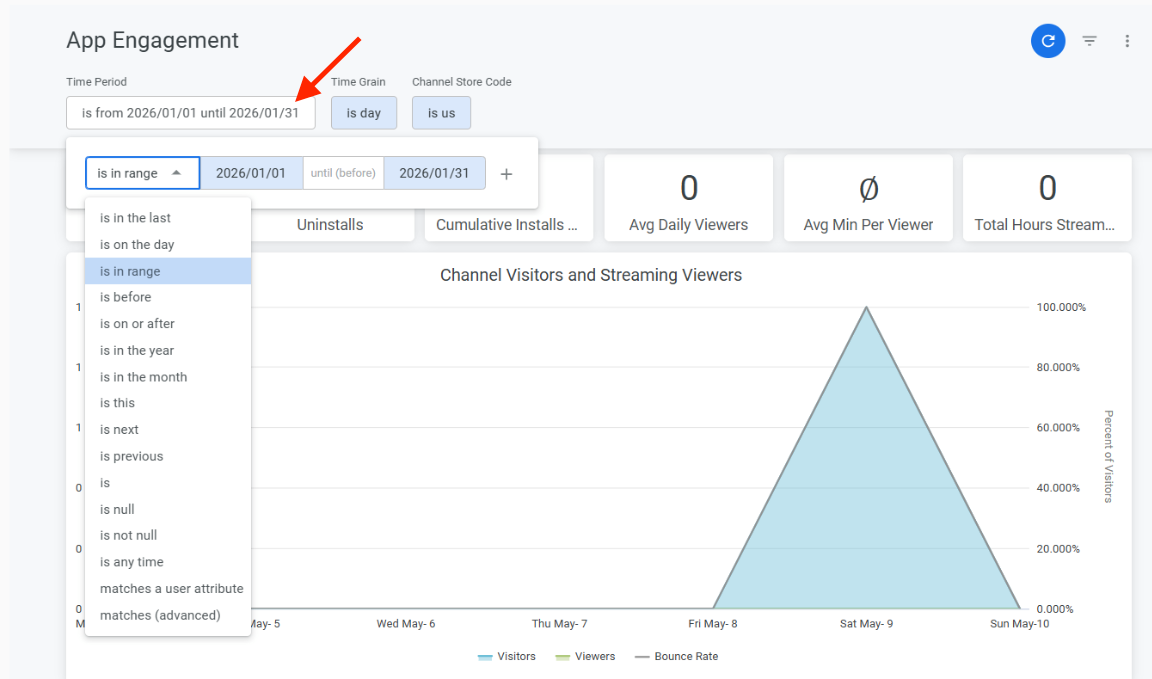
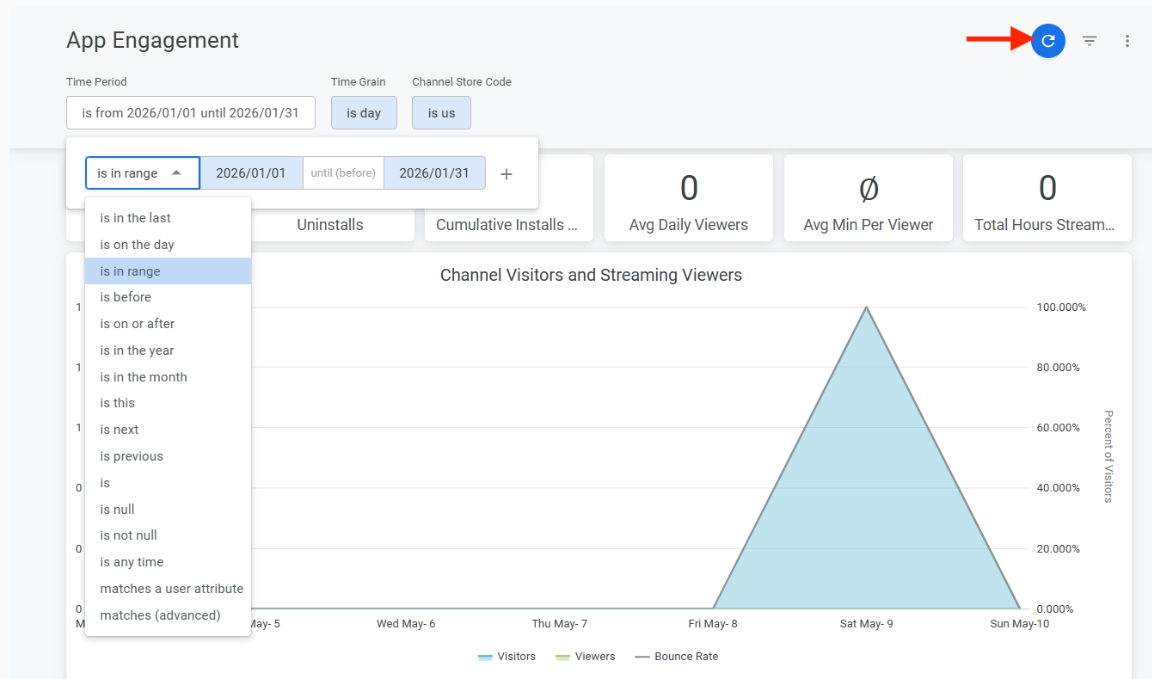
Go to the Time Period filter.
Step 9
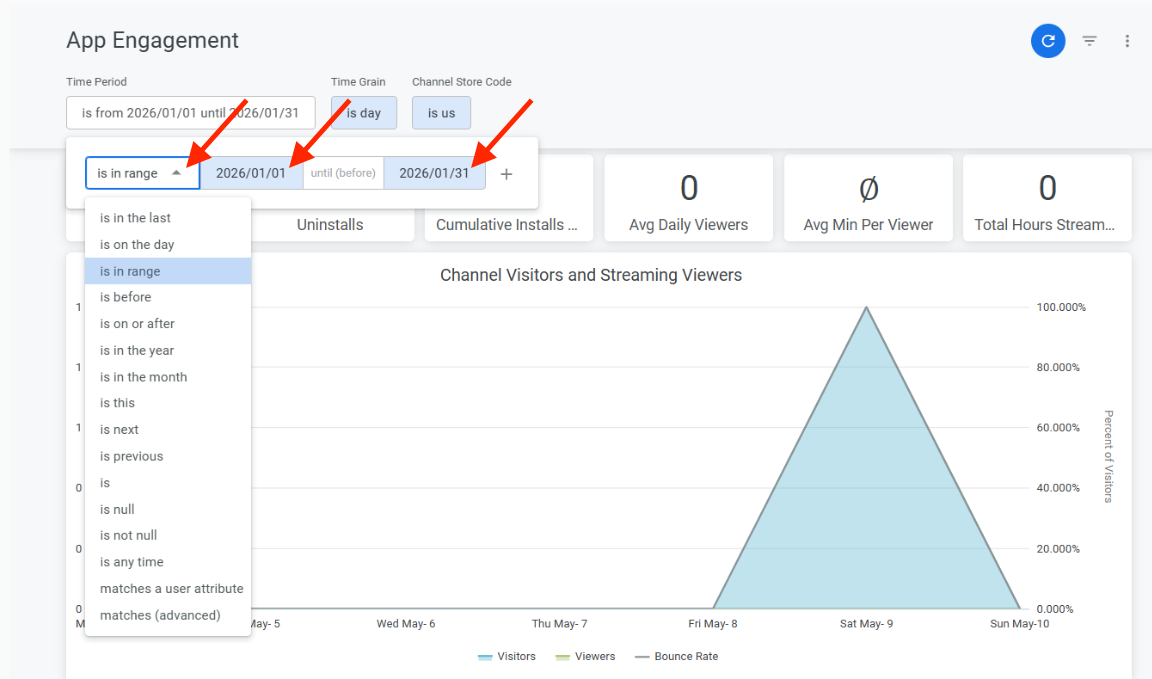
Select the date range you want to review.
Step 10
Click the Update button.
Step 11
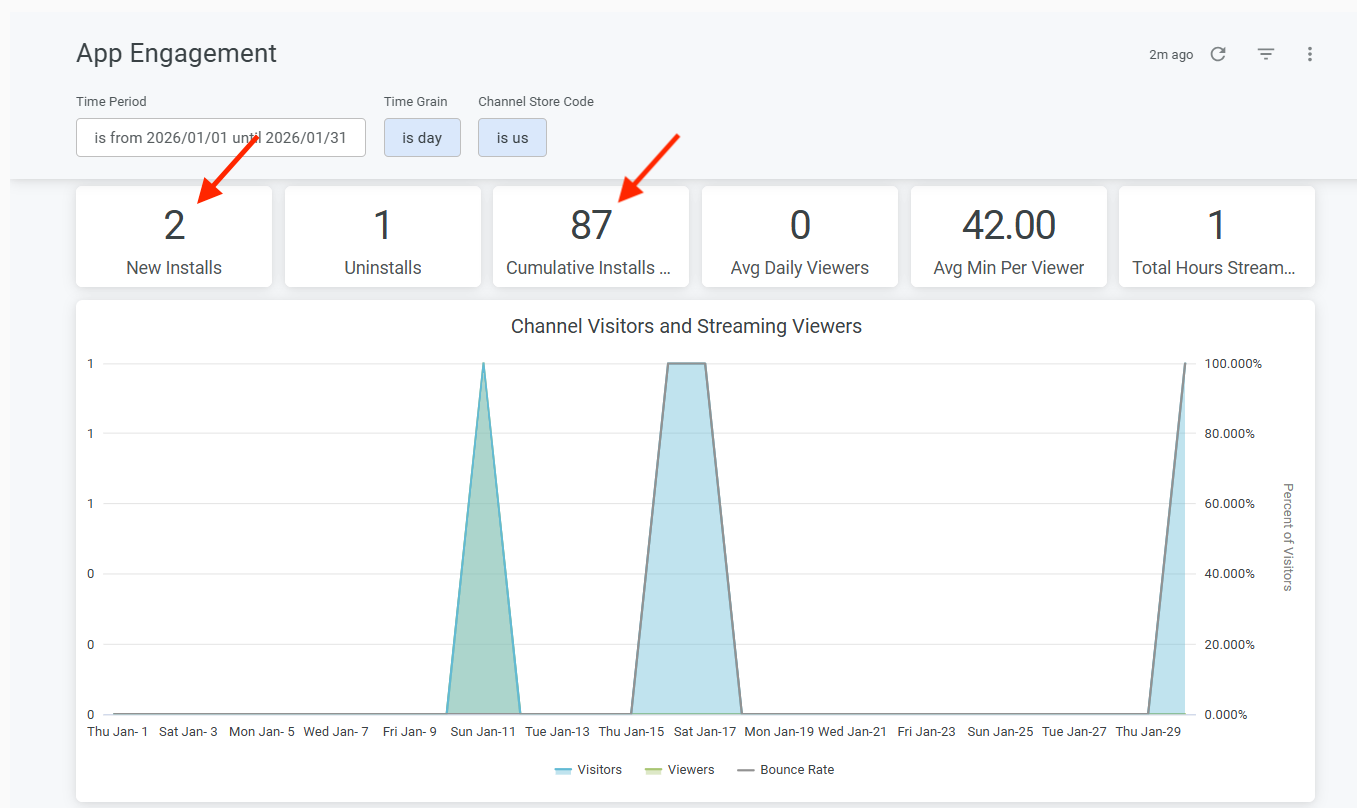
Review the install numbers for the selected Roku app and timeframe.
The install numbers appear in the New Installs and Cumulative Installs sections.
FAQs
Can Roku app install numbers be viewed in the Media Cloud?
No. Roku app install numbers are not available in the Media Cloud because install data is managed by Roku through your Roku Developer account.
Third-party platforms, including Roku, do not currently provide this install data to the Media Cloud through an API. If Roku makes this data available through their API in the future, Lightcast may be able to display it in the Media Cloud.
Where are Roku app install numbers found?
Roku app install numbers are found in your Roku Developer account under Analytics > App Engagement.
Can install numbers be filtered by date range?
Yes. Roku allows you to view install numbers for a selected timeframe.
What do New Installs and Cumulative Installs mean?
New Installs shows installs for the selected timeframe.
Cumulative Installs shows the total number of installs recorded for the app.
What should be checked if the Roku app is not listed?
Confirm that you are logged in to the Roku Developer account that owns or manages the app.
If the app is managed by Lightcast, contact Customer Support for assistance.