
How to install and test a beta Roku app
Overview
This article explains how to install and test a beta version of your Roku app before the app is published in the Roku Channel Store.
When to test a beta Roku app
Use these steps if you ordered a beta version of your Roku app and Lightcast provided a Channel Access Code.
Before you begin, make sure:
Your Roku device is connected to the internet
You can log in to the Roku account connected to your Roku device
You have the Channel Access Code provided by Lightcast
A beta Roku app is available for 120 days and can be used by up to 20 people at a time.
How it works
Roku beta apps are installed using a Channel Access Code. This allows you to add the beta app to your Roku account before the app is certified and published in the Roku Channel Store.
During setup, Roku may show a warning that the app is not certified. This is expected because the app is still in beta testing.
After the beta app is added, it may take up to 24 hours to appear in your app list on your Roku device. You can also refresh your Roku app list to see the app sooner.
Instructions
Step 1
Go to the Roku sign-in page and log in to the Roku account connected to your Roku device.
Step 2
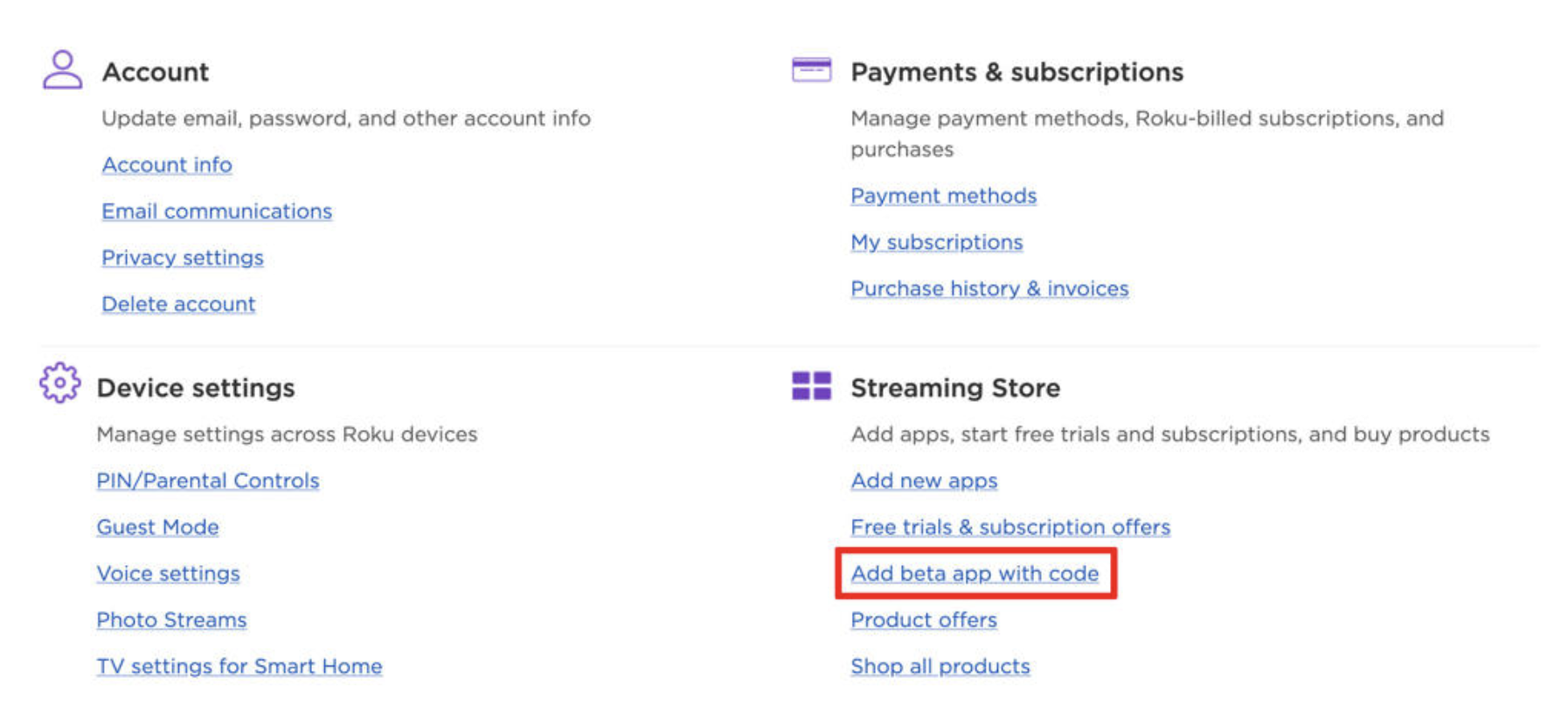
Under Streaming Store, click Add beta app with code.
Step 3
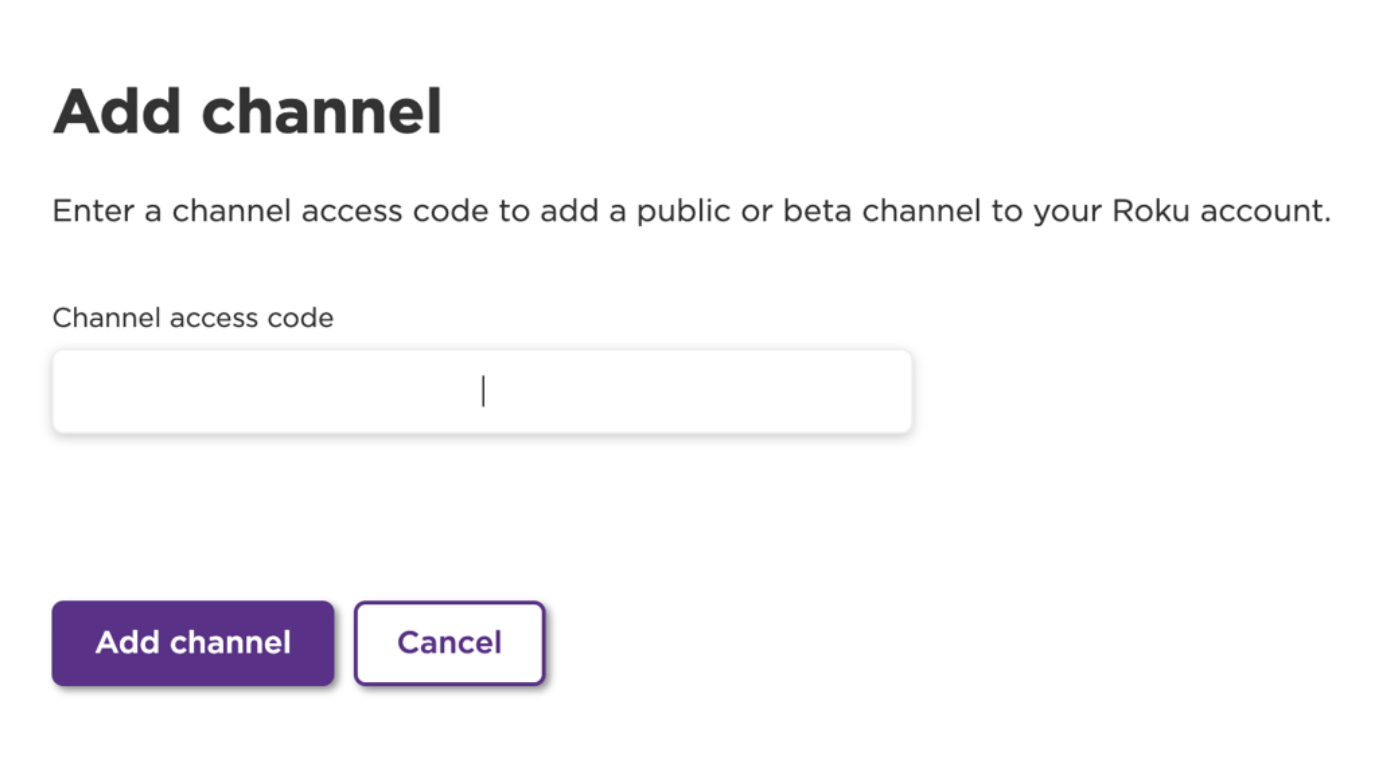
Enter the Channel Access Code provided by Lightcast.
Step 4
Click Add channel.
Step 5
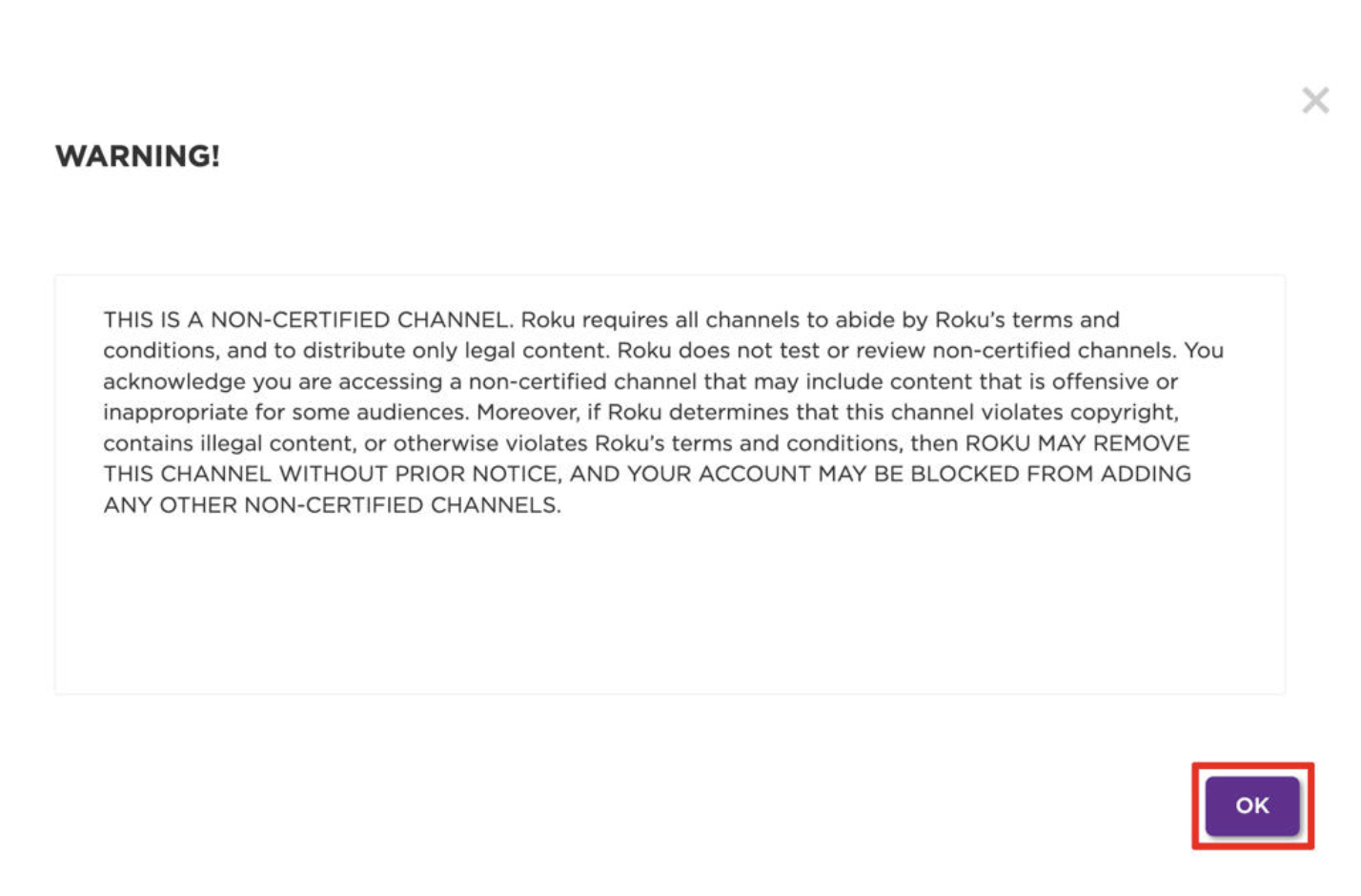
When the warning message appears, click OK to continue.
This warning is expected because the beta Roku app is not yet certified or published in the Roku Channel Store.
Step 6
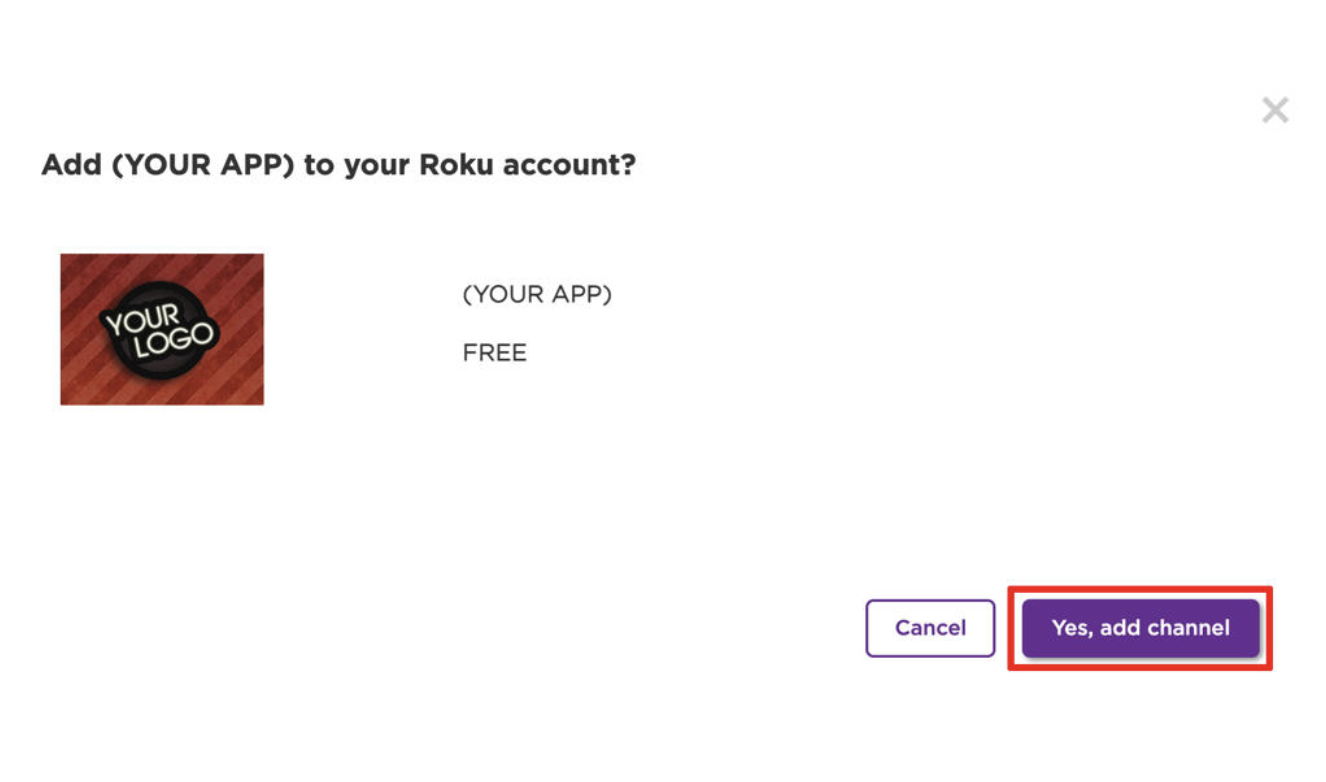
Review the app name and image shown on the confirmation screen.
If this is the correct beta Roku app, click Yes, add channel.
Step 7
Wait for the beta Roku app to be added to your Roku device.
The app may appear in your app list within 24 hours. You can also refresh your Roku app list to see the app sooner.
Step 8
Open the beta Roku app on your Roku device and test the areas Lightcast asked you to review.
Check the app navigation, content layout, video playback, LIVE stream playback, graphics, and any other areas Lightcast asked you to test.
FAQs
What is needed to test a beta Roku app?
You need a Roku device connected to the internet, access to the Roku account connected to that device, and the Channel Access Code provided by Lightcast.
Why does Roku show a warning when adding the beta app?
Roku shows a warning because the beta app is not yet certified or published in the Roku Channel Store.
This is expected during beta testing.
How long is a beta Roku app available?
A beta Roku app is available for 120 days.
How many people can test a beta Roku app?
A beta Roku app can be used by up to 20 people at a time.
Is the beta Roku app the published app?
No. The beta Roku app is for testing before the app is published in the Roku Channel Store.
Why is there a fee for a beta Roku app?
The beta app fee applies when you want to install and test a beta version of your Roku app locally on your Roku device before the app is published in the Roku Channel Store.
Beta app testing is optional, so the fee is not included in standard app setup costs. This helps keep the standard app setup cost fair for publishers who do not need a beta app.
The beta app fee is listed on the Rate-Card for Add-On Services page in the Media Cloud.
Lightcast can also provide screenshots of the final app at no additional cost. Many publishers choose this option when they do not need to install and test the beta app directly on a device.