
How to find and install your published Apple TV app
Overview
This article explains how to find and install your published Apple TV app on a compatible Apple TV device.
When to install your published Apple TV app
Use these steps when you want to install a published Apple TV app from the App Store.
Before you begin, make sure:
Your Apple TV device is connected to the internet
You are signed in with your Apple ID
You know the exact name of the app
Your Apple TV device supports the App Store
How it works
Published Apple TV apps can be installed from the App Store on compatible Apple TV devices.
Apple TV App Store search results may include multiple apps with similar names. Searching for the exact app name can help you find the correct app more quickly.
After the app is installed, you can open it from the App Store page or from your Apple TV Home screen.
Instructions
Step 1
Turn on your Apple TV device.
Step 2
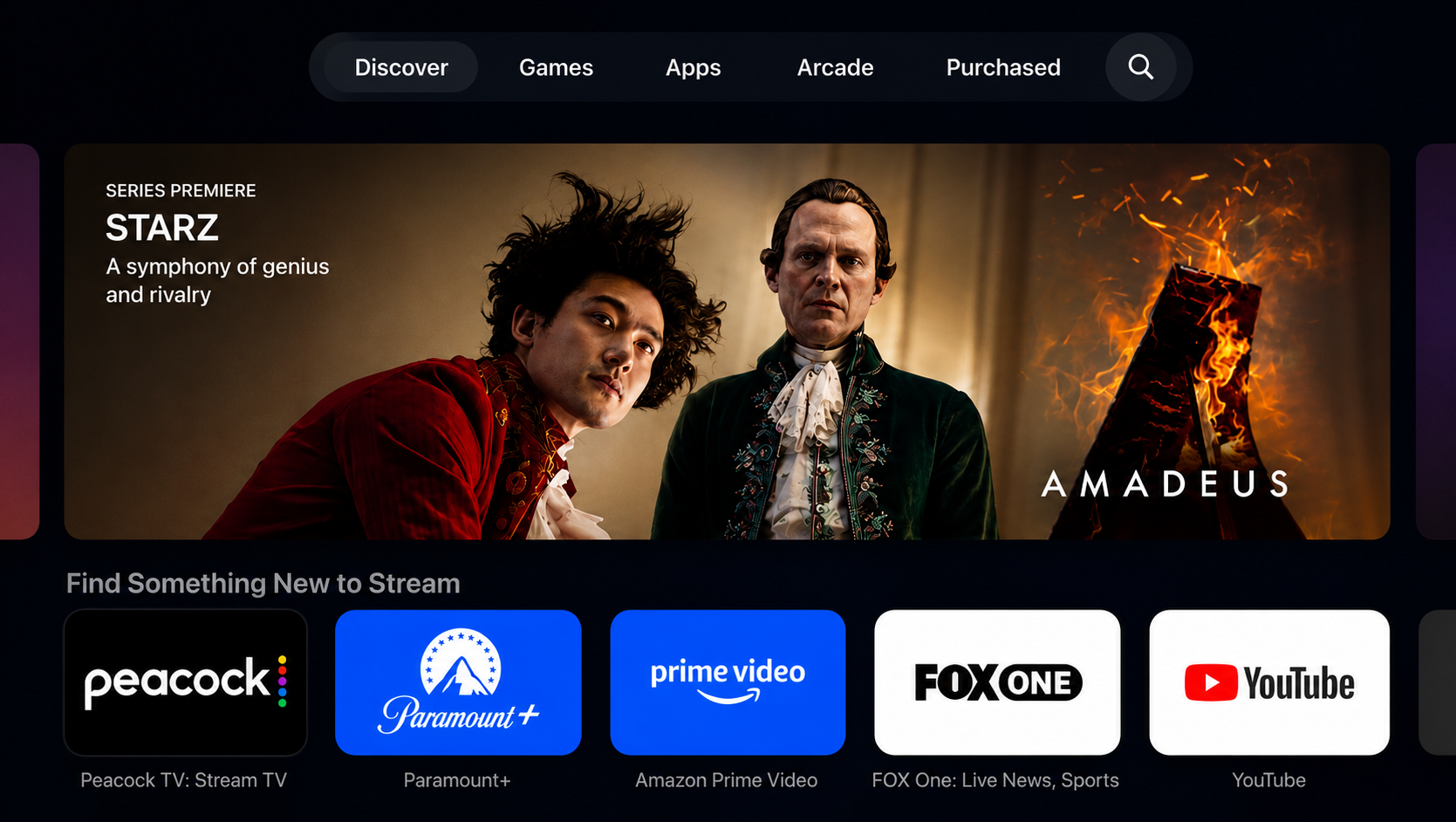
Open the App Store from the Apple TV Home screen.
Step 3
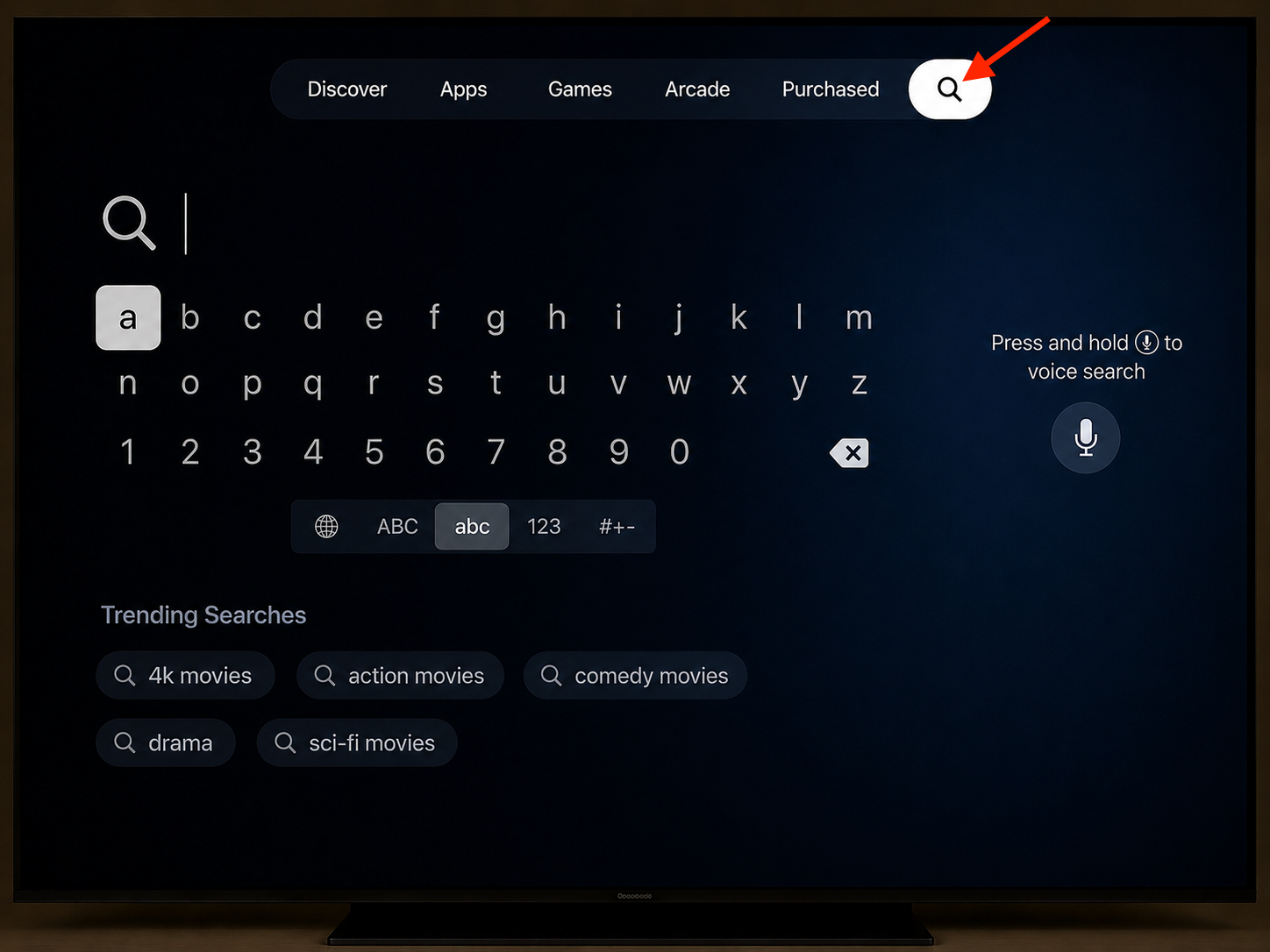
Go to the search option.
Depending on your Apple TV version, this may appear as a magnifying glass icon or a Search tab.
Step 4
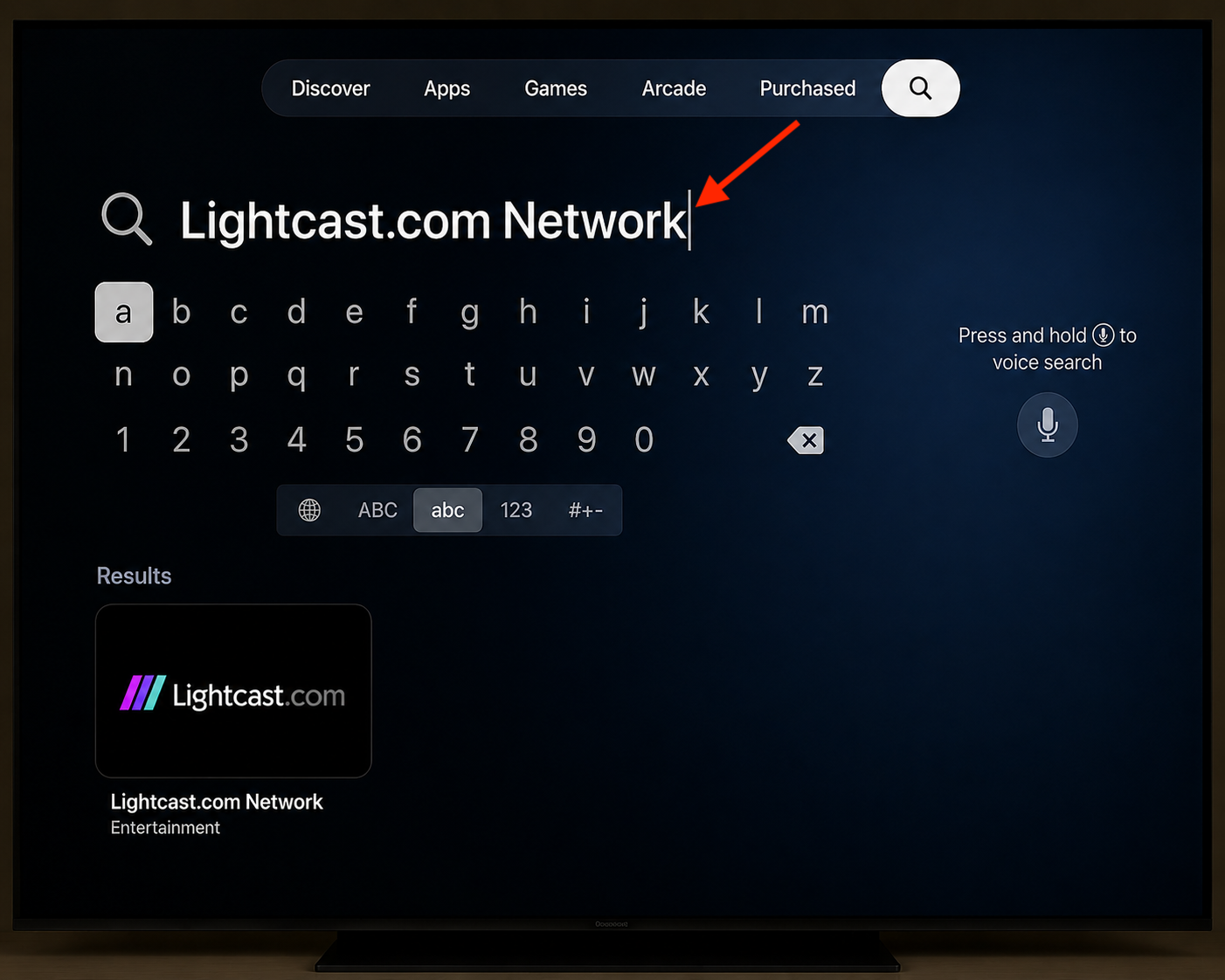
Search for the exact app name.
Step 5
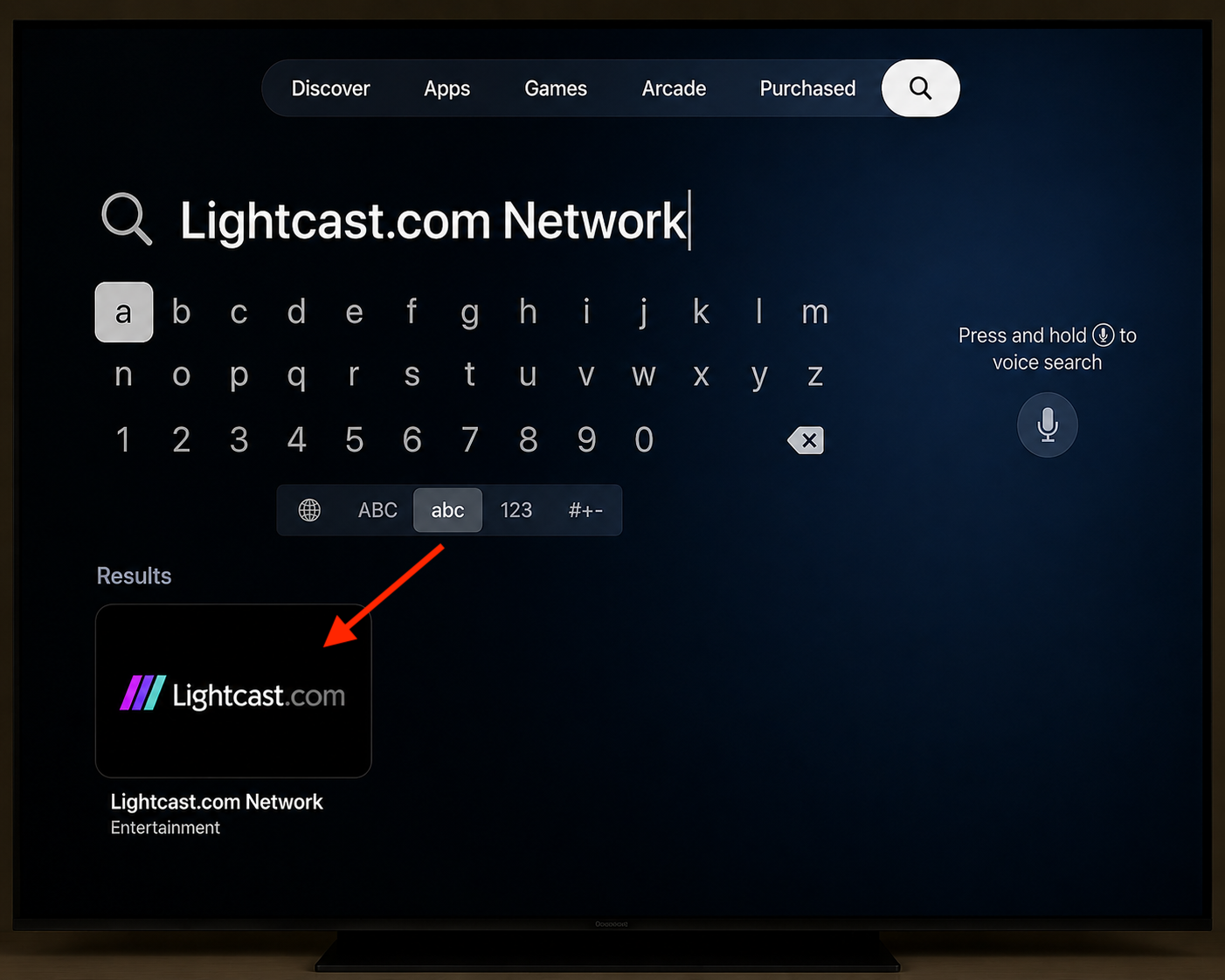
Select the correct app from the search results.
Step 6
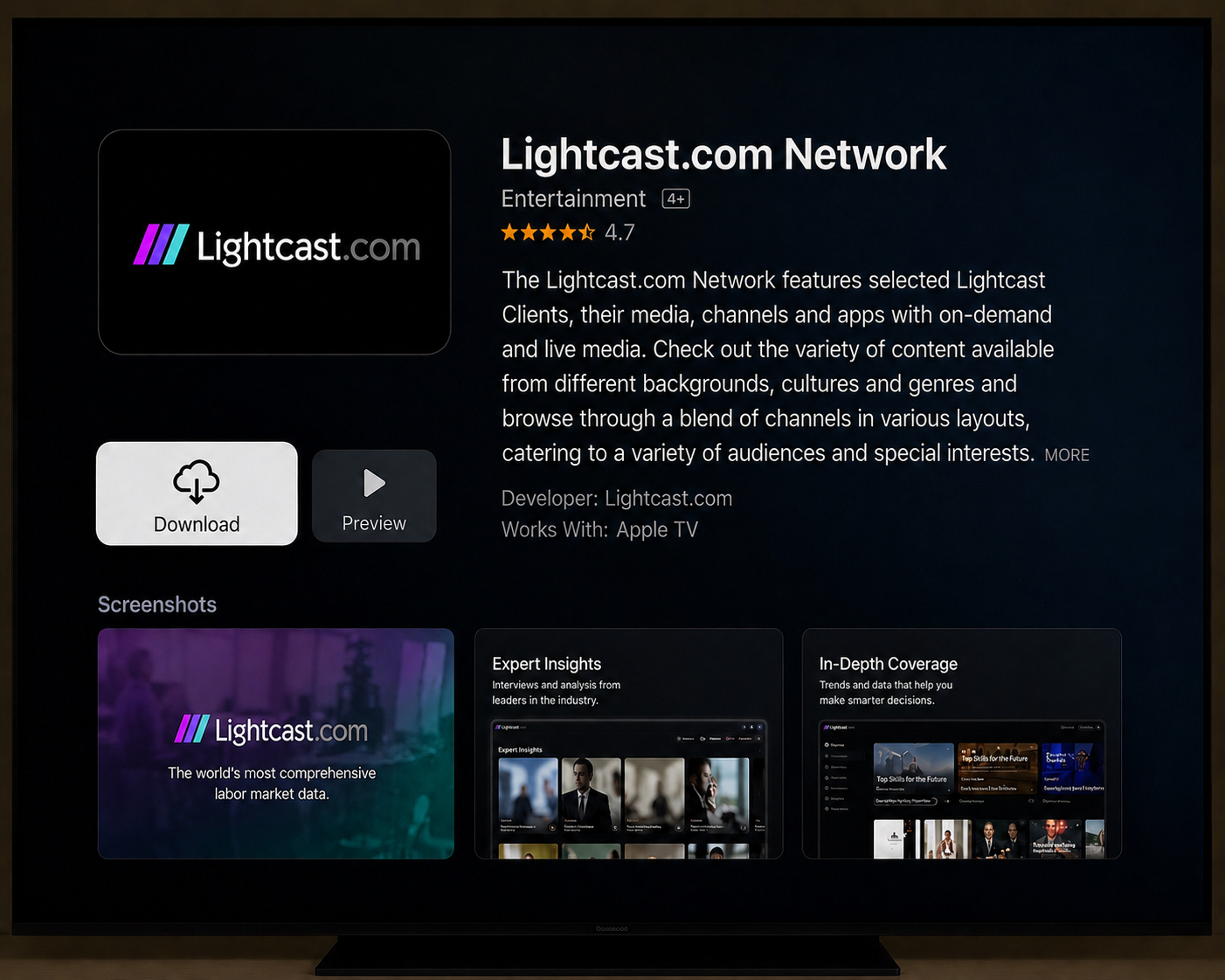
Click Download, Get, or the cloud download icon to install the app.
The button wording may vary depending on your Apple TV device, Apple ID, and whether the app has been installed before.
Step 7
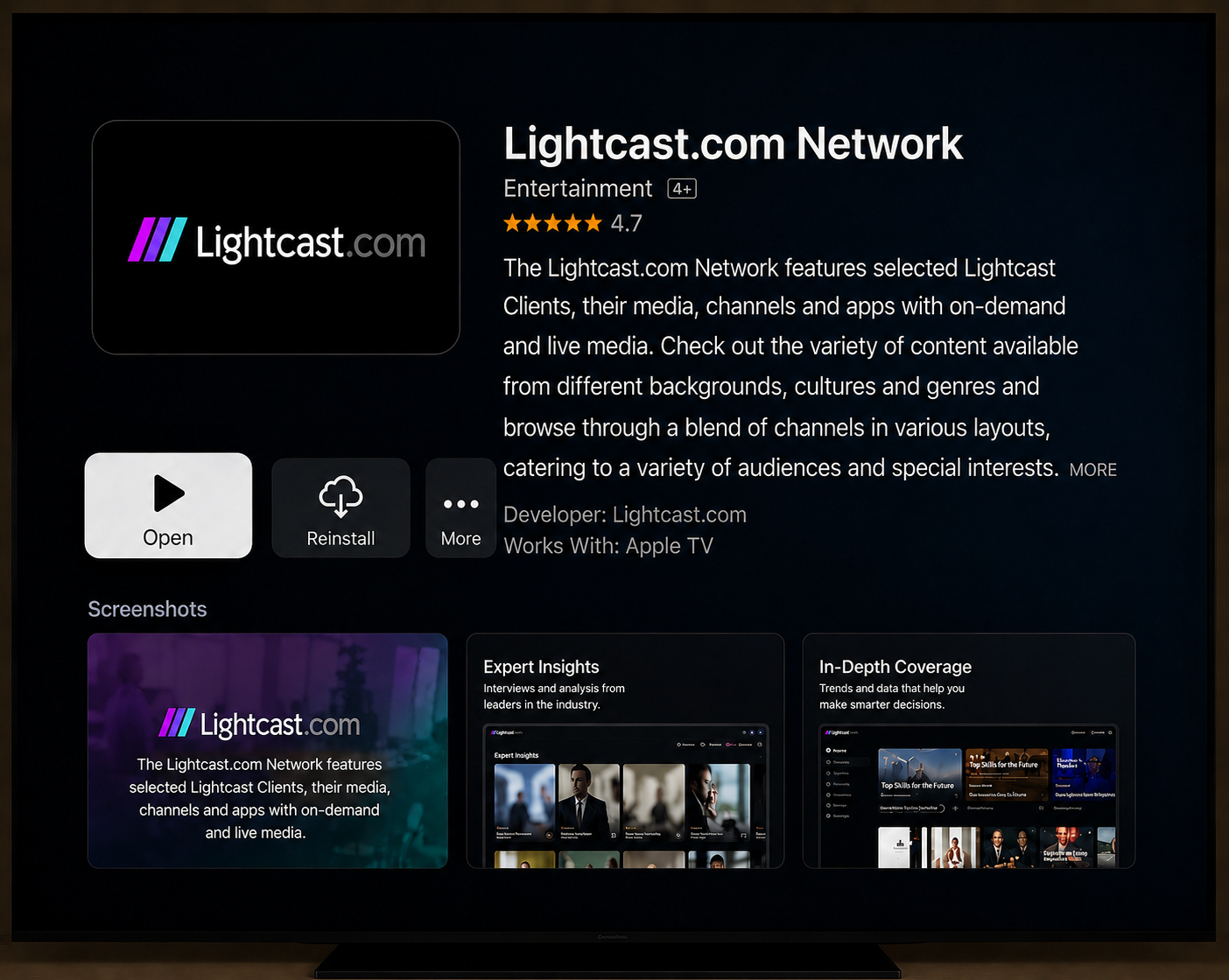
After the app finishes installing, click Open to launch it from the App Store page.
You can also open the app later from your Apple TV Home screen.
Step 8
Confirm that the app opens correctly and that your content displays as expected.
FAQs
Where can published Apple TV apps be downloaded?
Published Apple TV apps can be downloaded from the App Store on compatible Apple TV devices.
How can viewers find a published Apple TV app?
Viewers can search for the exact app name in the App Store on a compatible Apple TV device.
You can also share a direct app link so viewers can open the app listing or download page more easily.
Where can the app be found after installation?
After installation, the app appears on your Apple TV Home screen.
You can open it from the Home screen or directly from the App Store page after installation.
Why is the app not appearing in Apple TV App Store search results?
Apple TV App Store search results may include apps with similar names, or the app may not appear immediately if the search term does not match the app name closely.
Search for the exact app name first. If the app still does not appear, try searching one or two distinctive words from the app title.
What should be checked if the app is not visible after installation?
Confirm that your Apple TV device is connected to the internet and signed in with the correct Apple ID.
If the app is still not visible, restart your Apple TV device and check the Home screen again.
Is this the same as installing a beta Apple TV app through TestFlight?
No. These steps apply to published Apple TV Apps available in the App Store.
Beta Apple TV apps are installed and tested through TestFlight before they are published.