
How to install and test a beta Android TV app
Overview
This article explains how to install and test a beta Android TV app before the app is launched on the Google Play Store.
When to use beta Android TV app testing
Use beta Android TV app testing if you ordered a beta version of your Android TV app and need to review the app before it is publicly available in the Google Play Store.
Before you can install and test the beta app, you must have an active Google Play account. You must also provide Customer Support with the email address connected to that Google Play account so Lightcast can send you the test link.
The same Google Play account must be used on the Android TV device where you want to install and test the app.
How it works
After you provide your Google Play account email address, Lightcast sends you a test link for the beta Android TV app.
The test link gives your Google Play account access to install the beta app. After access is granted, you can log in to your Android TV device with the same Google Play account, find the app in the Google Play Store, install it, and begin testing.
Instructions
Step 1
Provide Customer Support with the email address connected to your active Google Play account.
Step 2
After Lightcast sends the beta test link, open the link from the Google Play account that should have access to the beta app.
Step 3
Log in to your Android TV device using the same Google Play account.
Step 4
Open the Google Play Store on your Android TV device.
Step 5
Search for your app title in the Google Play Store.
Step 6
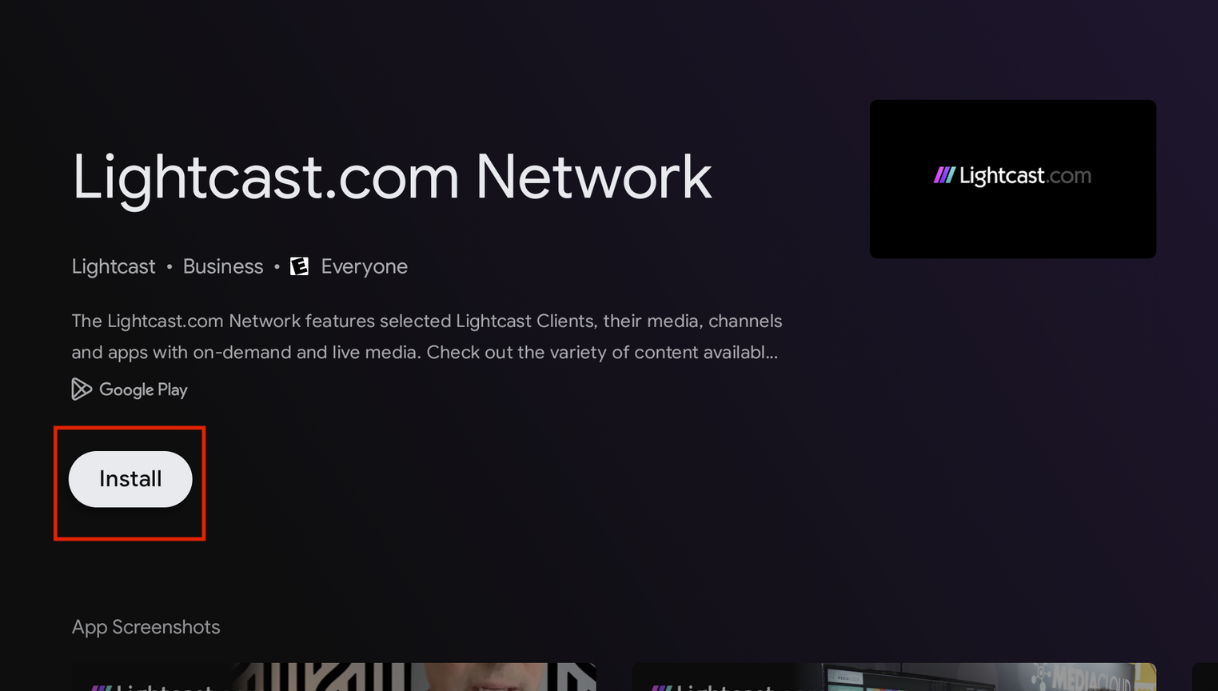
Select the app, then click Install.
Step 7
Open the app on your Android TV device and begin testing.
FAQs
Is a Google Play account required to test a beta Android TV app?
Yes. You need an active Google Play account to access, install, and test the beta Android TV app.
Does the same Google Play account need to be used on the Android TV device?
Yes. The Google Play account used to access the beta test link must be the same account used on the Android TV device.
If a different Google Play account is used on the Android TV device, the beta app may not be available to install.
How is access to the beta Android TV app provided?
Lightcast sends a test link to the Google Play account email address you provided.
The test link gives that Google Play account access to the beta app before the app is publicly available in the Google Play Store.
What should be tested in the beta Android TV app?
Review the app on your Android TV device and confirm that the app opens, displays correctly, and plays your content as expected.
If you notice an issue, contact Customer Support with a clear description of the issue and the steps you took before it occurred.
Why is there a fee for a beta Android TV App?
The beta app fee applies when you want to install and test a beta version of your Android TV App locally on your Android TV device before the app is published in the Google Play Store.
Beta app testing is optional, so the fee is not included in standard app setup costs. This helps keep the standard app setup cost fair for publishers who do not need a beta app.
The beta app fee is listed on the Rate-Card for Add-On Services page in the Media Cloud.
Lightcast can also provide screenshots of the final app at no additional cost. Many publishers choose this option when they do not need to install and test the beta app directly on a device.