
How to assign Trailers to your videos
Overview
Trailers let viewers preview video content before watching the full video. This article explains how to assign a Trailer to a video in the Media Cloud and how Trailers appear to viewers in your connected apps.
When to use Trailers
Use Trailers when you want to give viewers a preview of your video content before they watch the full video.
Trailers are especially helpful for:
Promoting premium or subscription-protected content
Helping viewers decide whether they want to watch a full video
Highlighting featured videos, series, or special content
Supporting a better browsing experience in your connected apps
How it works
A Trailer is assigned to an existing video in your Video Archive. To assign a Trailer, both the full video and the Trailer video must already be uploaded to the Media Cloud.
For free videos that are not behind a payment wall, your connected apps may display options such as Play, Play All, and Trailer.
For subscription-protected videos, your connected apps may display options such as Get Access and Trailer. This lets viewers preview the Trailer before subscribing or getting access to the full content.
Instructions
Step 1
Log in to your Media Cloud account.
Step 2
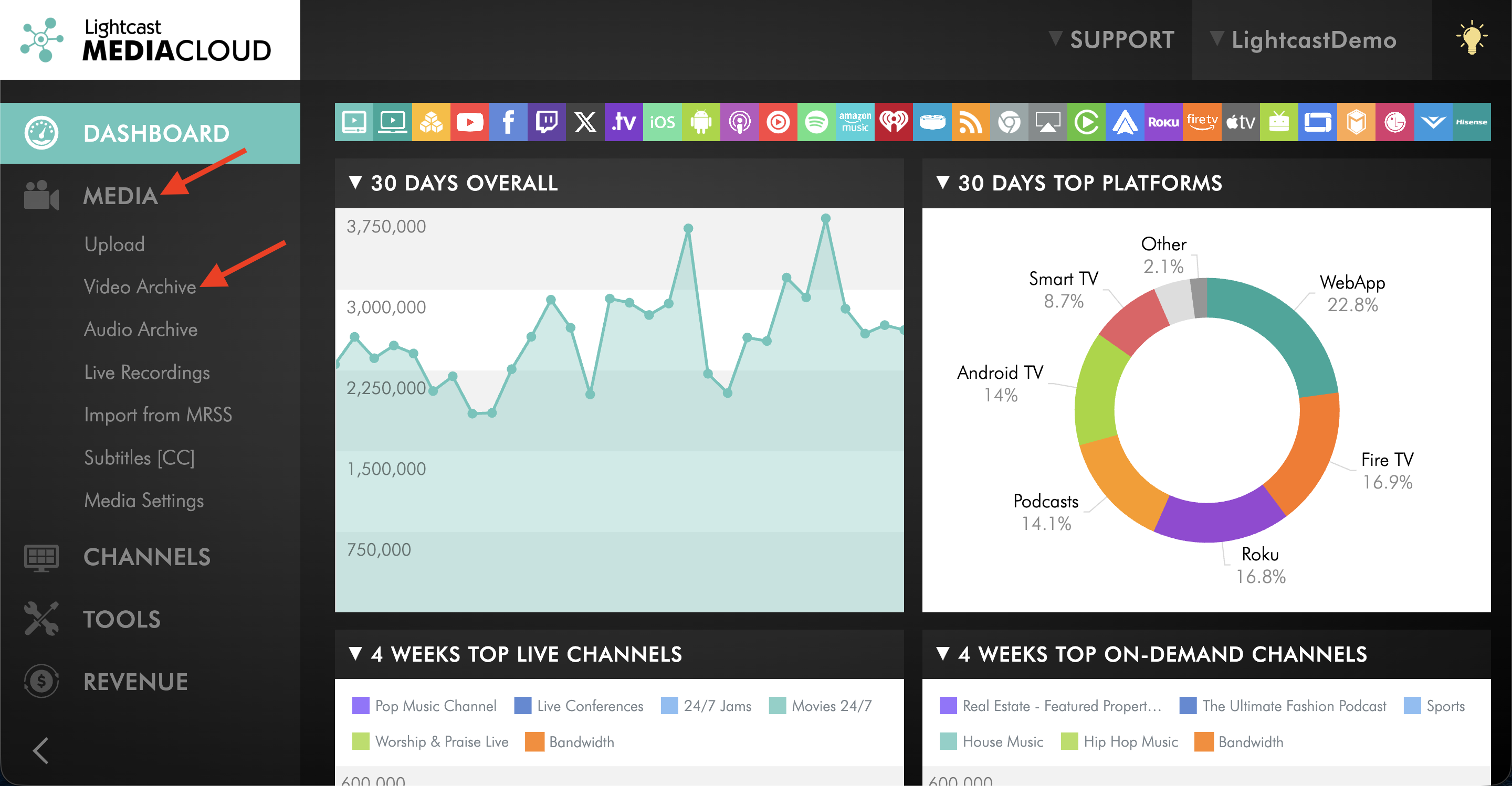
Go to MEDIA and select Video Archive.
Step 3
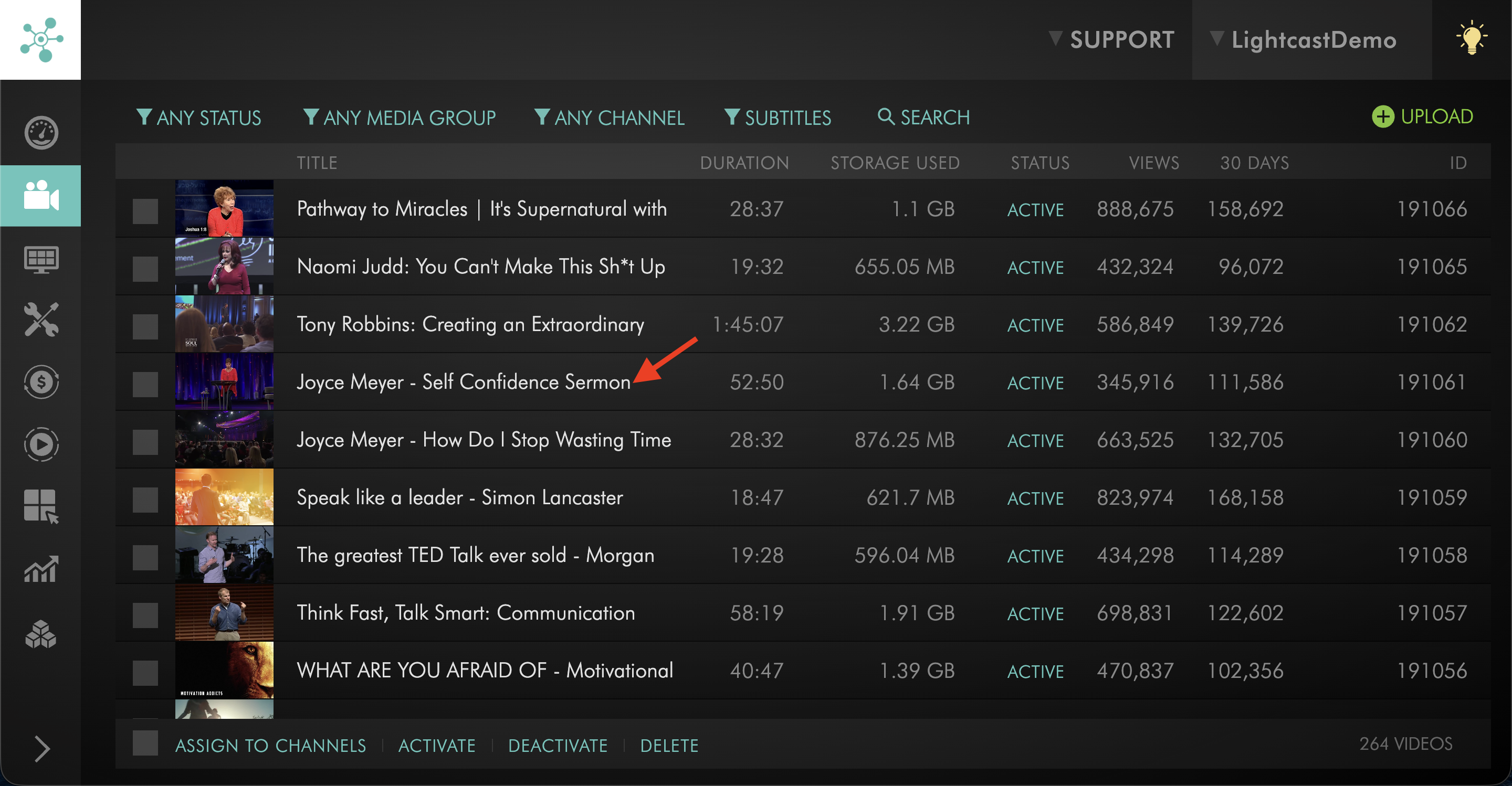
Open the video you want to assign a Trailer to.
Step 4
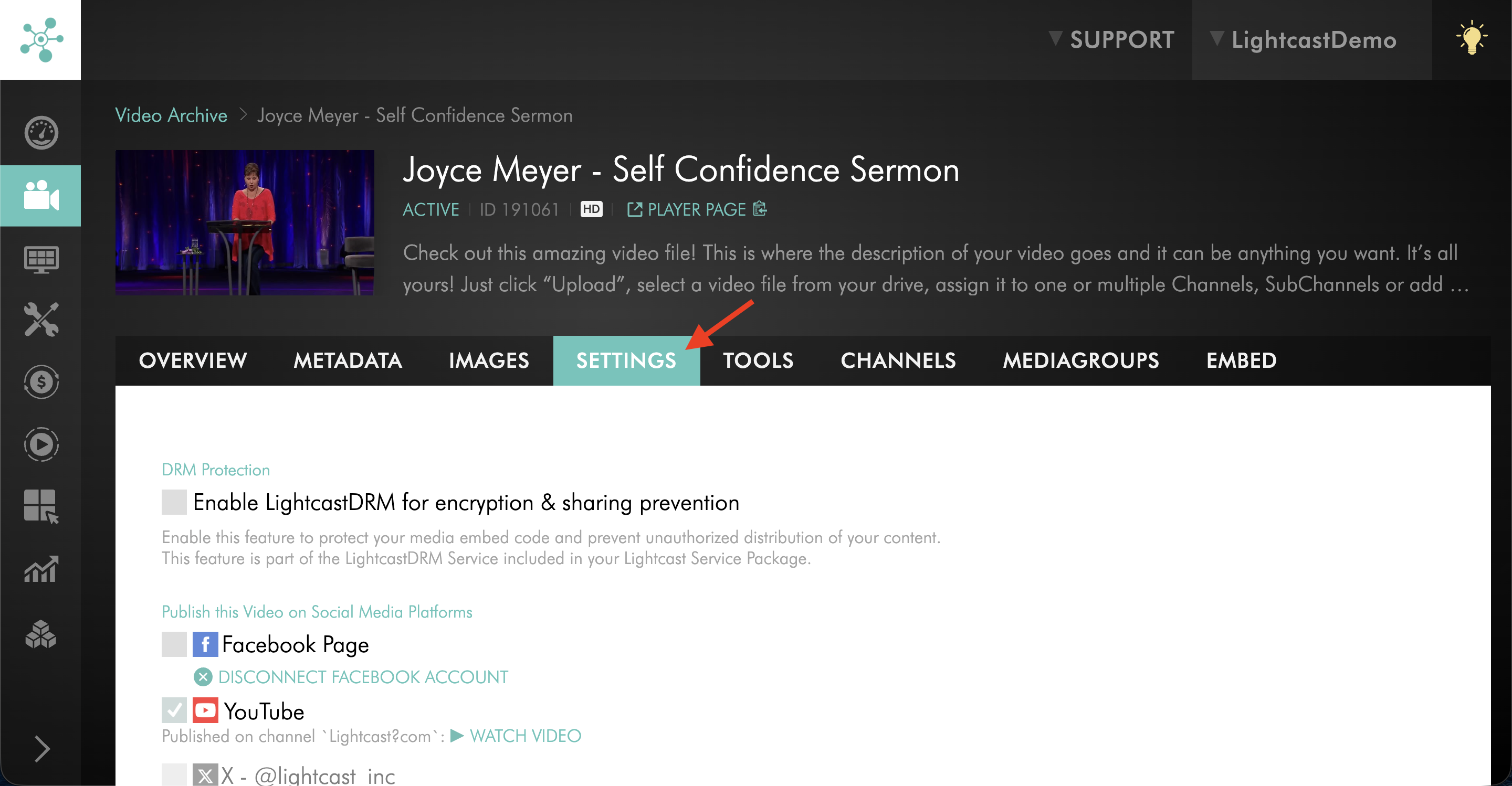
Switch to the SETTINGS tab.
Step 5
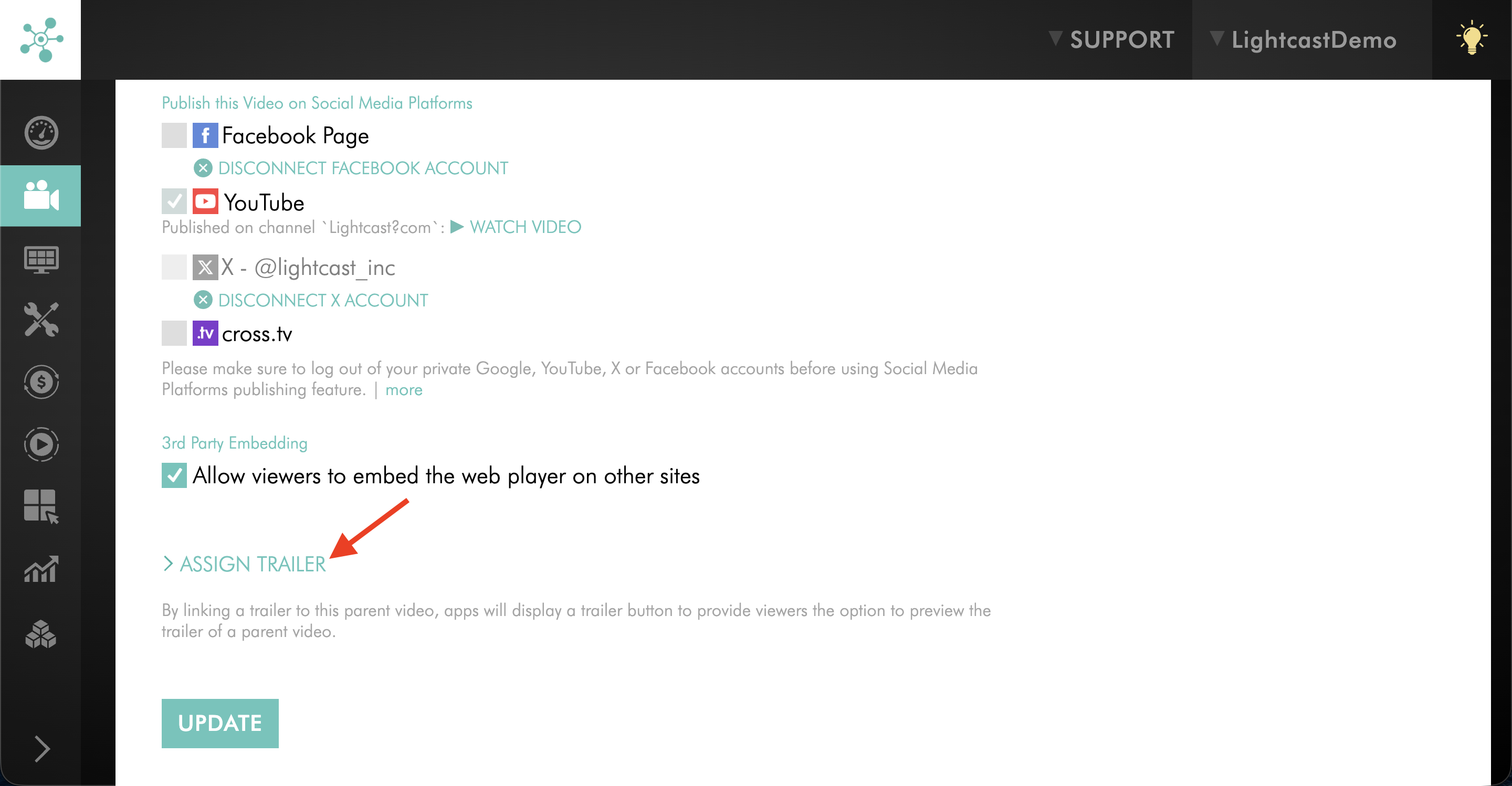
Scroll down and select > ASSIGN TRAILER.
Step 6
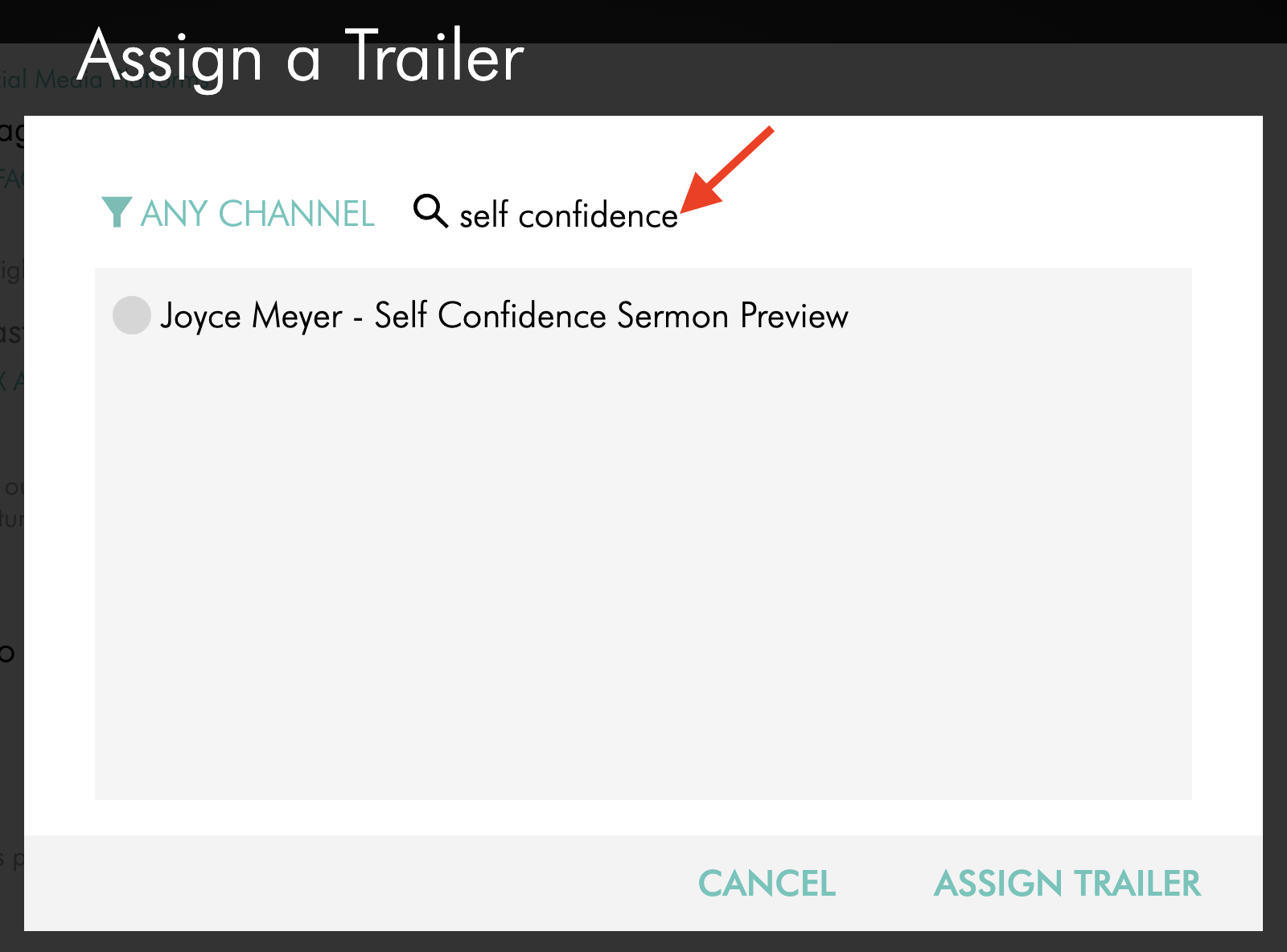
Search for your Trailer video.
Step 7
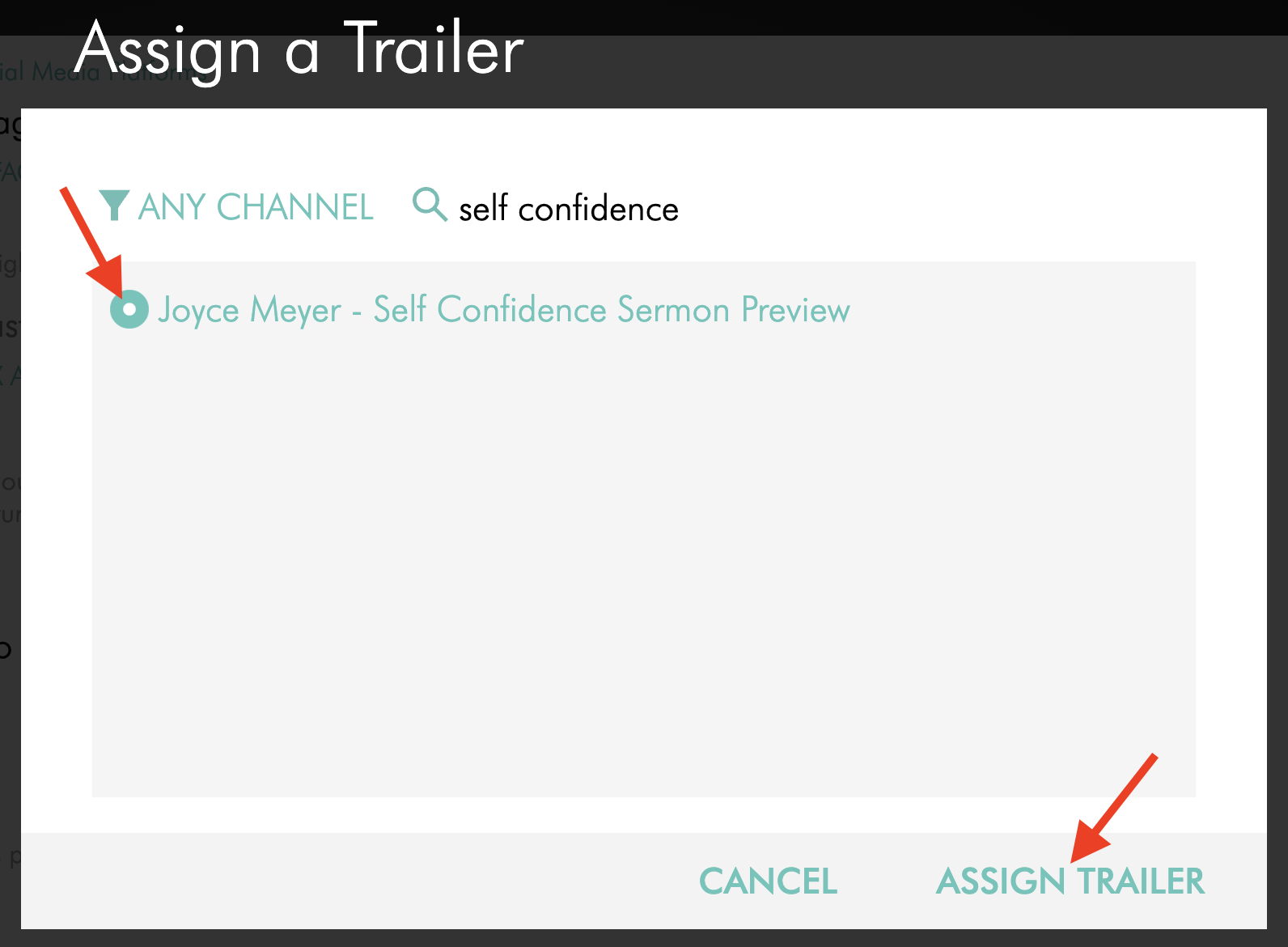
Select the Trailer video and click ASSIGN TRAILER.
Step 8
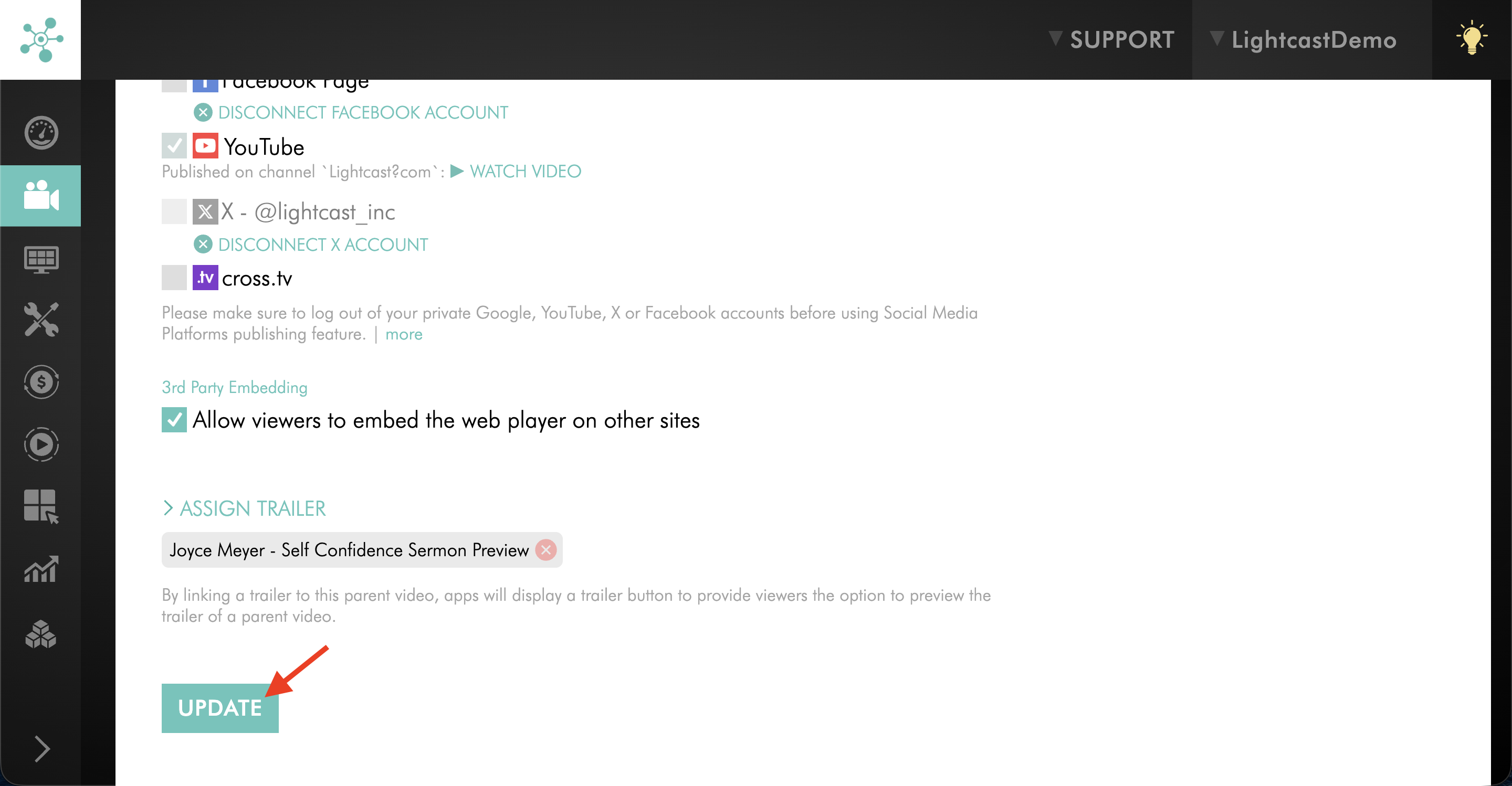
Click UPDATE to save your changes.
FAQs
Can viewers watch a Trailer before subscribing?
Yes. If the content is behind the subscription wall, viewers can select the Trailer option to preview the content before subscribing or getting access.
When does the Trailer show up in the apps?
The Trailer can show up in the apps immediately after you assign it to the video and click UPDATE. No app update is required.
Viewers will only see the Trailer if the video it is assigned to is available in your apps. For example, the video must be assigned to a Channel that is currently published in your apps.
Where do viewers see Trailers in TV Apps?
Viewers can see the Trailer option on the video details screen in supported TV and Web Apps.
Does the Trailer video need to be uploaded first?
Yes. The video you want to use as the Trailer must be uploaded to the Media Cloud before you can assign it to another video.
Can any video be used as a Trailer?
Yes. Any uploaded video can be assigned as a Trailer, as long as it is available in your Video Archive.
Pricing
Trailers are available on POWER packages and up.
If you don’t have access to this feature, you can upgrade to one of our latest plans or contact your account manager.