
How to change your Podcast thumbnail image
Overview
This article explains how to update the thumbnail image used for your Podcast in the Media Cloud.
When to use this article
Use these steps when you want to change the thumbnail image shown for your Podcast across your connected Podcast platforms. This is helpful when you want to refresh your Podcast branding or replace an existing Podcast image.
How it works
Your Podcast thumbnail image can be updated from the source VOD or AOD Channel, or from the connected Podcast details page in PLATFORMS. Both options update the image used for the Podcast.
Changes to the Podcast image affect all connected Podcast platforms for that Podcast, not just the platform you opened. Podcast platforms update at their own pace, so changes may take about 48 hours to appear.
Instructions
Option 1: Change the Podcast thumbnail from the source Channel's IMAGES tab
Step 1
Log in to your Media Cloud account.
Step 2
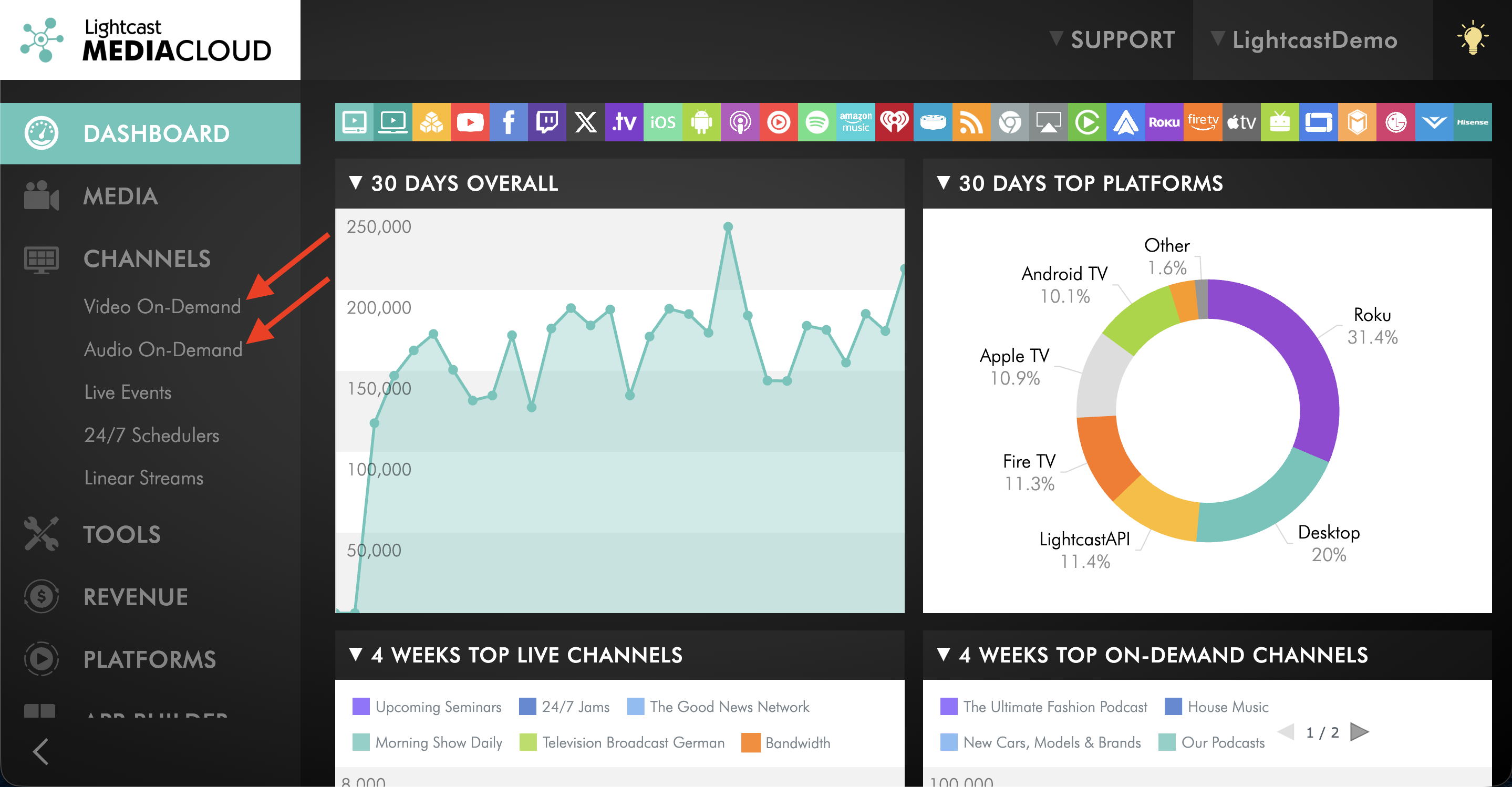
Go to CHANNELS and click on either Video On-Demand or Audio On-Demand.
Step 3
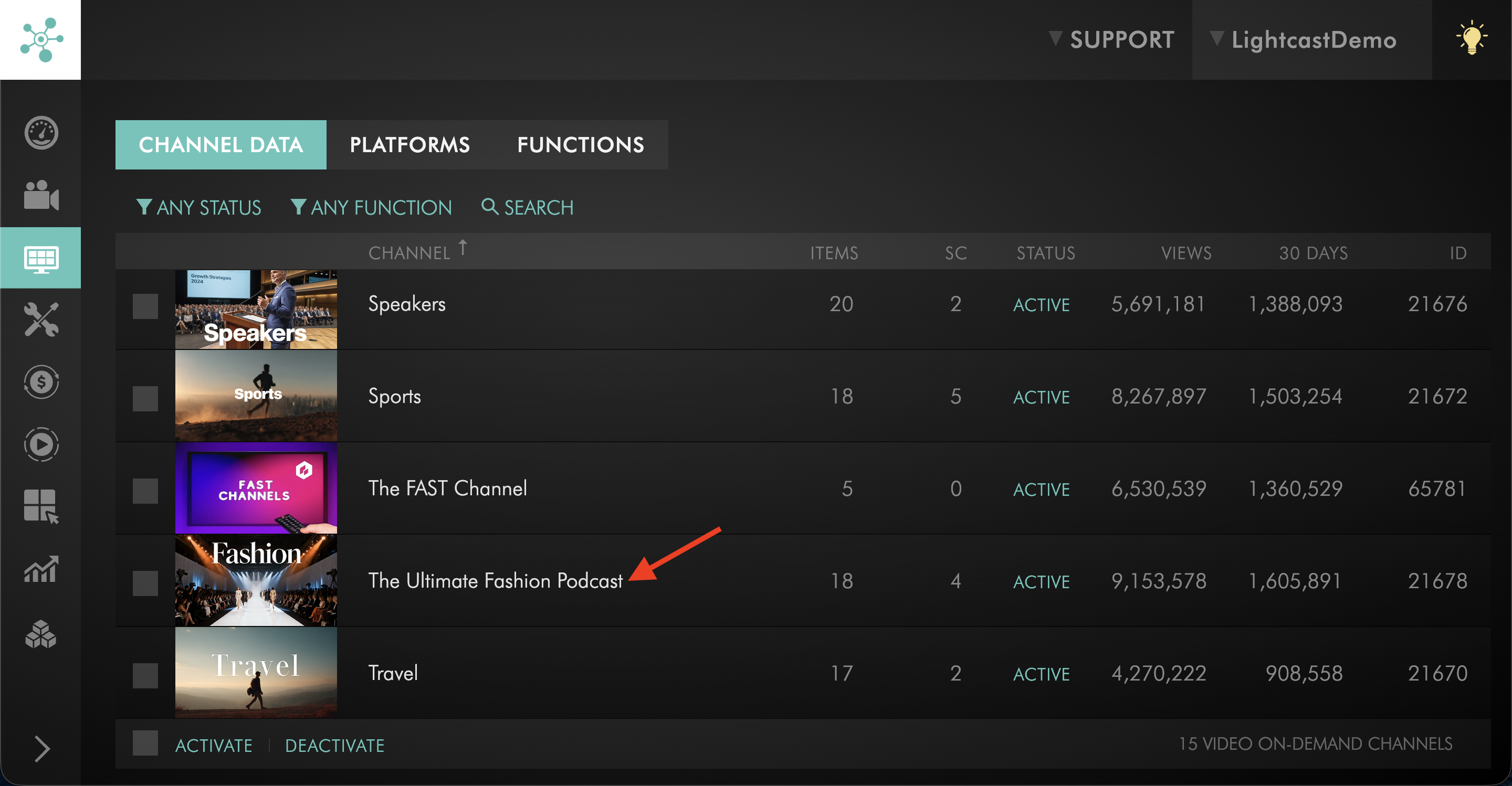
Open the VOD or AOD Channel used as the source for your Podcast.
Step 4
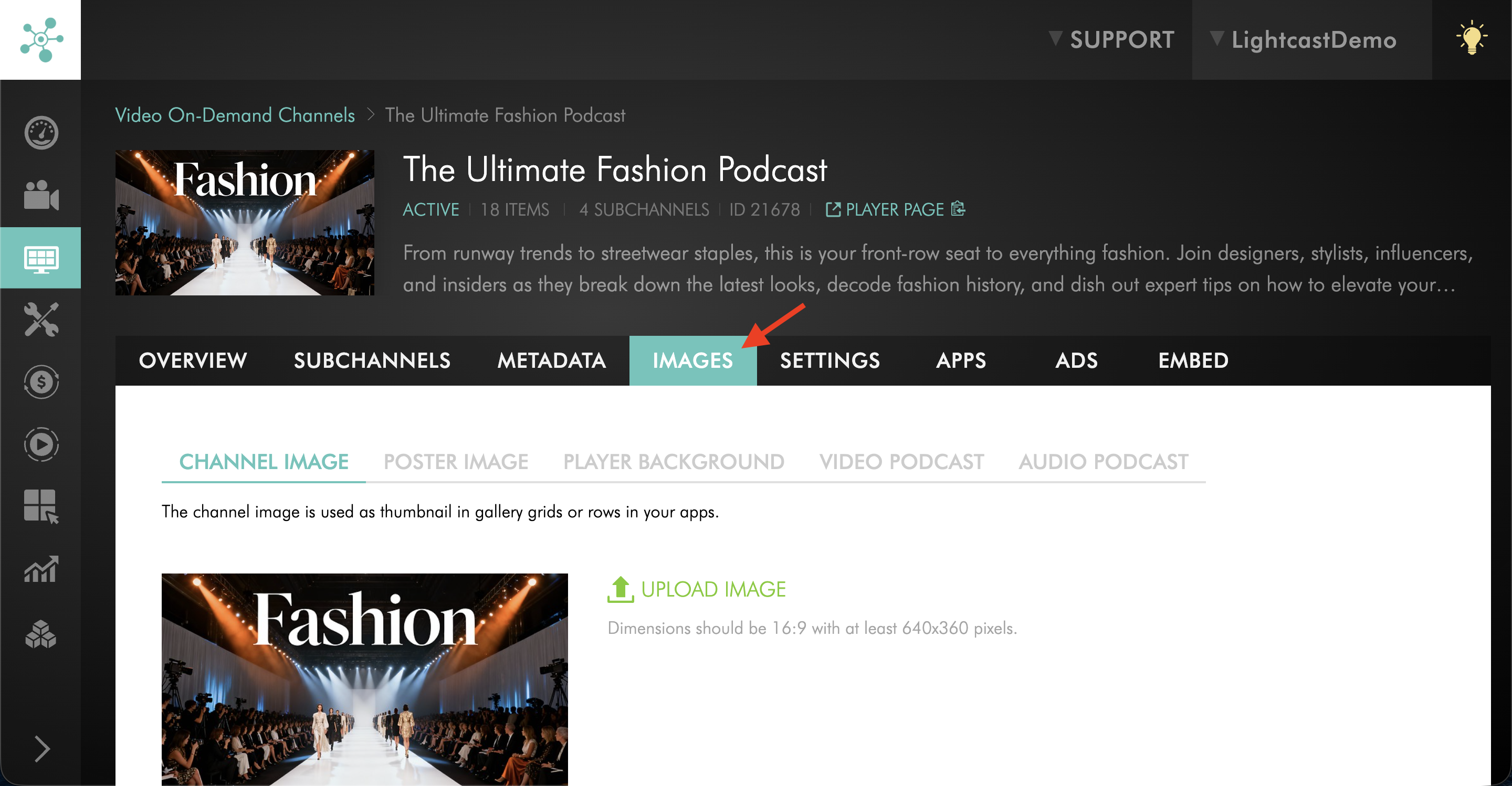
Select the IMAGES tab.
Step 5
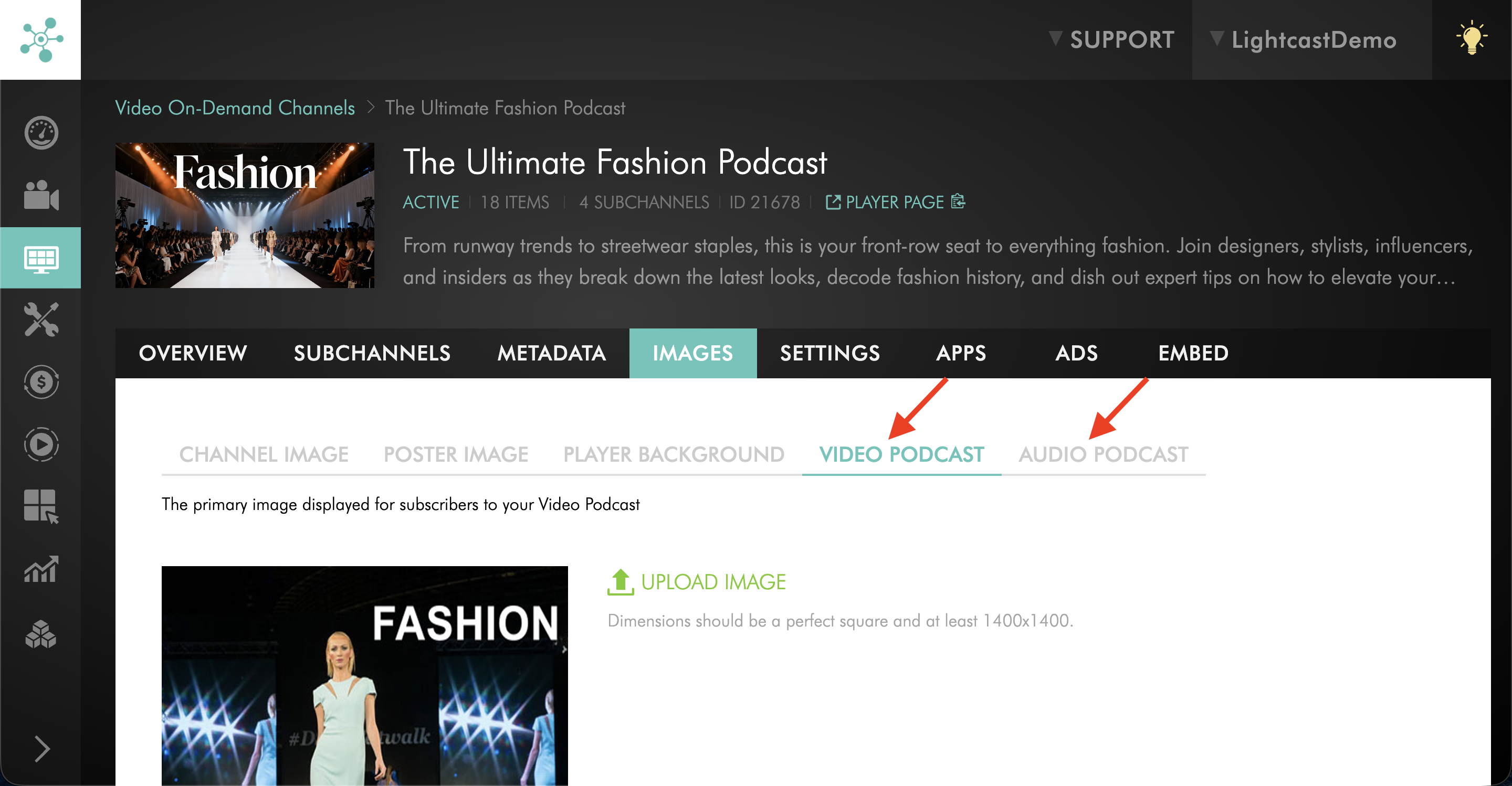
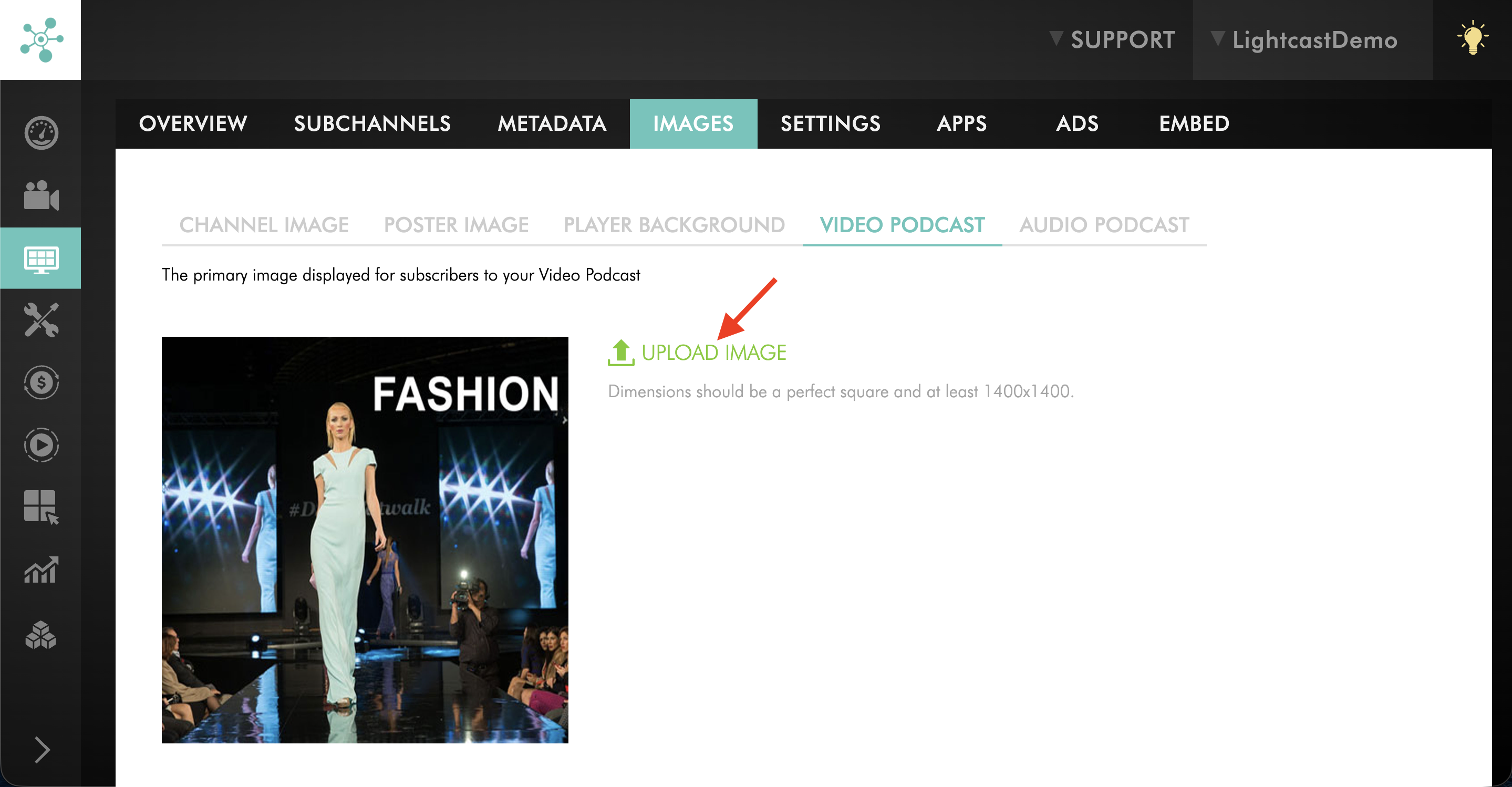
Depending on which Podcast type you are trying to update, switch to either the VIDEO PODCAST tab or the AUDIO PODCAST tab.
Step 6
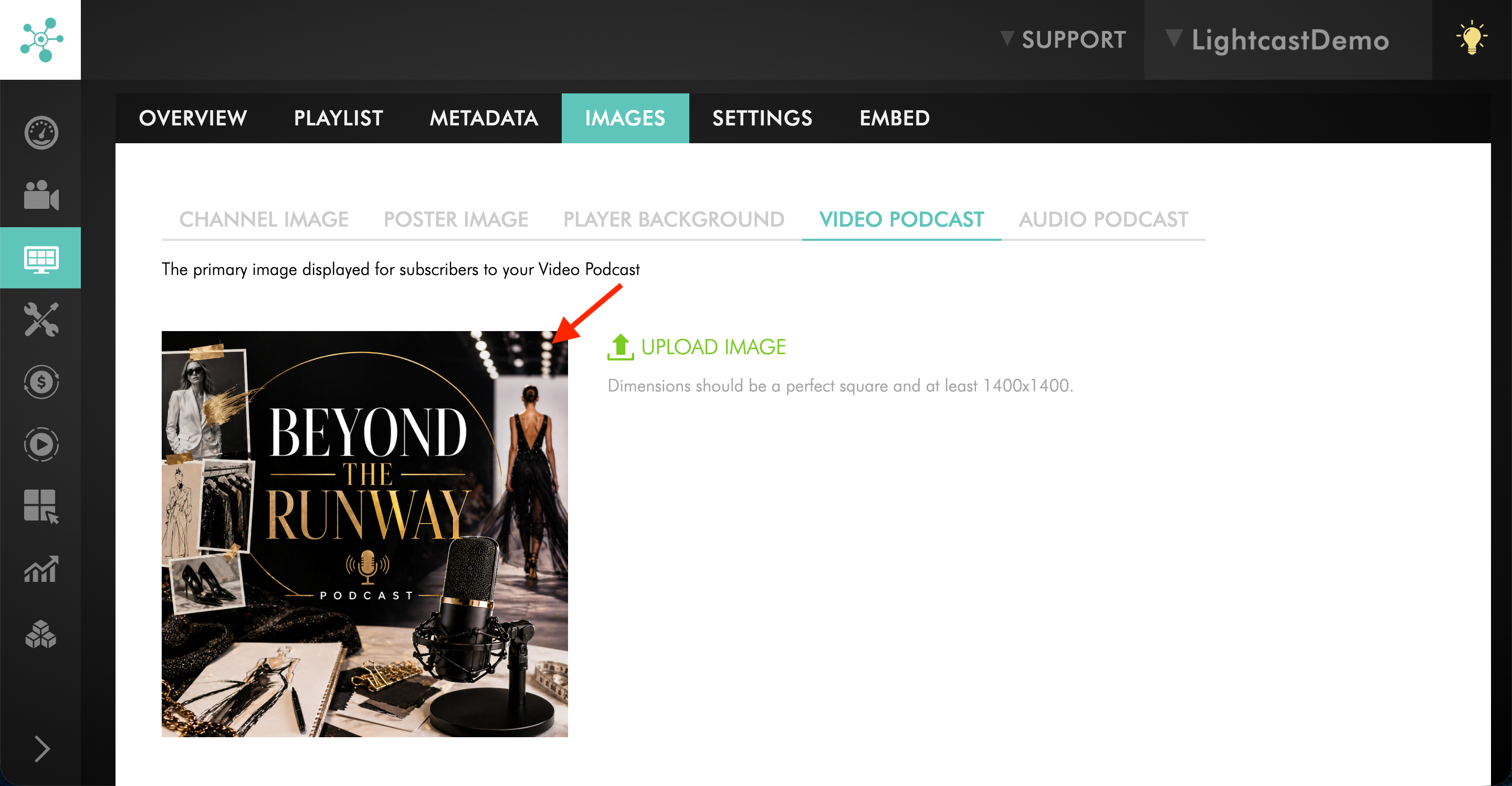
Click UPLOAD IMAGE and select your new Podcast thumbnail image from your computer. Make sure the image is a perfect square and at least 1400 x 1400 pixels.
Step 7
Wait about 48 hours for the updated image to appear on your connected Podcast platforms.
Option 2: Change the Podcast thumbnail from the podcast detail page's IMAGE tab
Step 1
Log in to your Media Cloud account.
Step 2
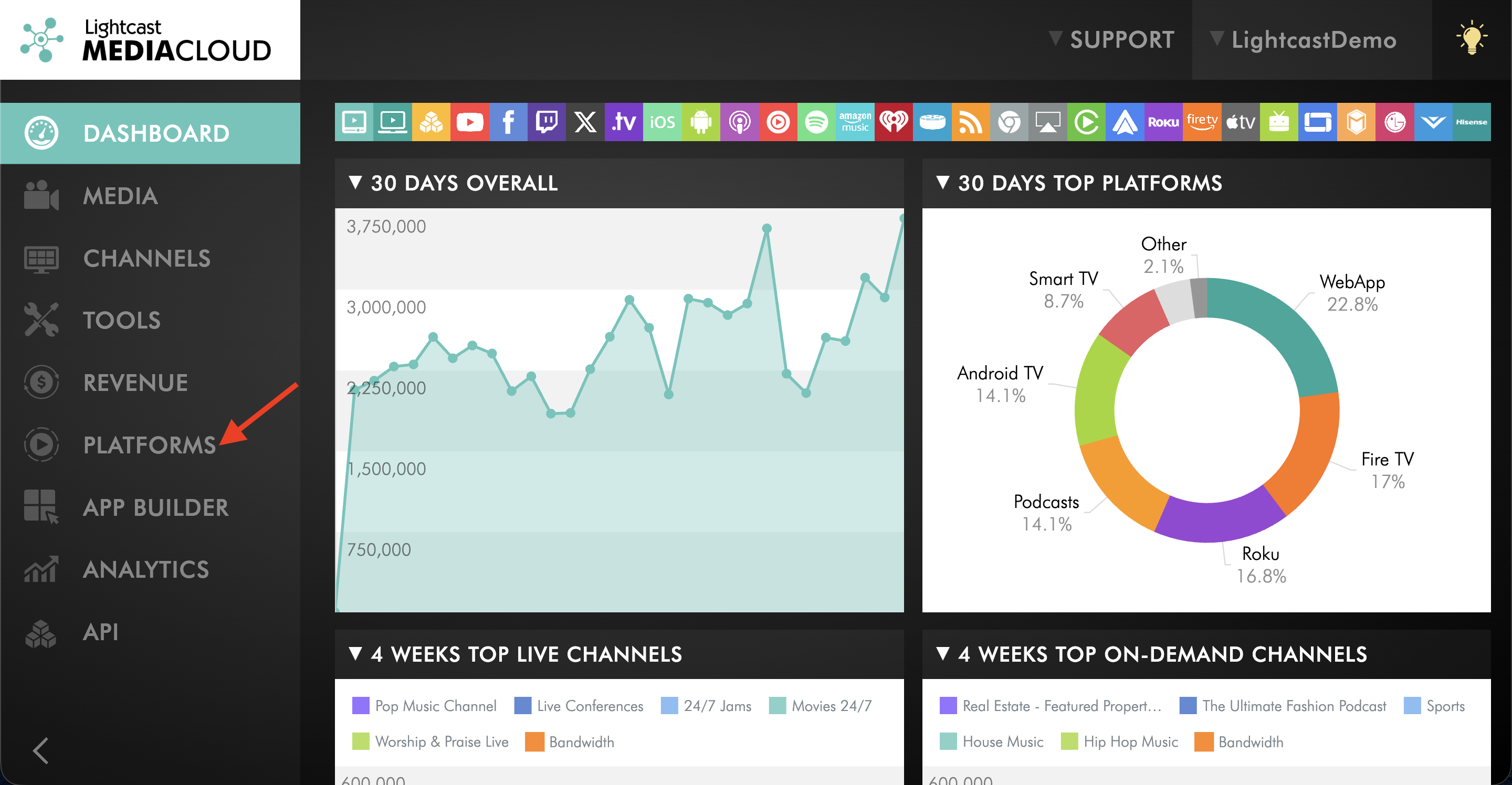
Go to PLATFORMS.
Step 3
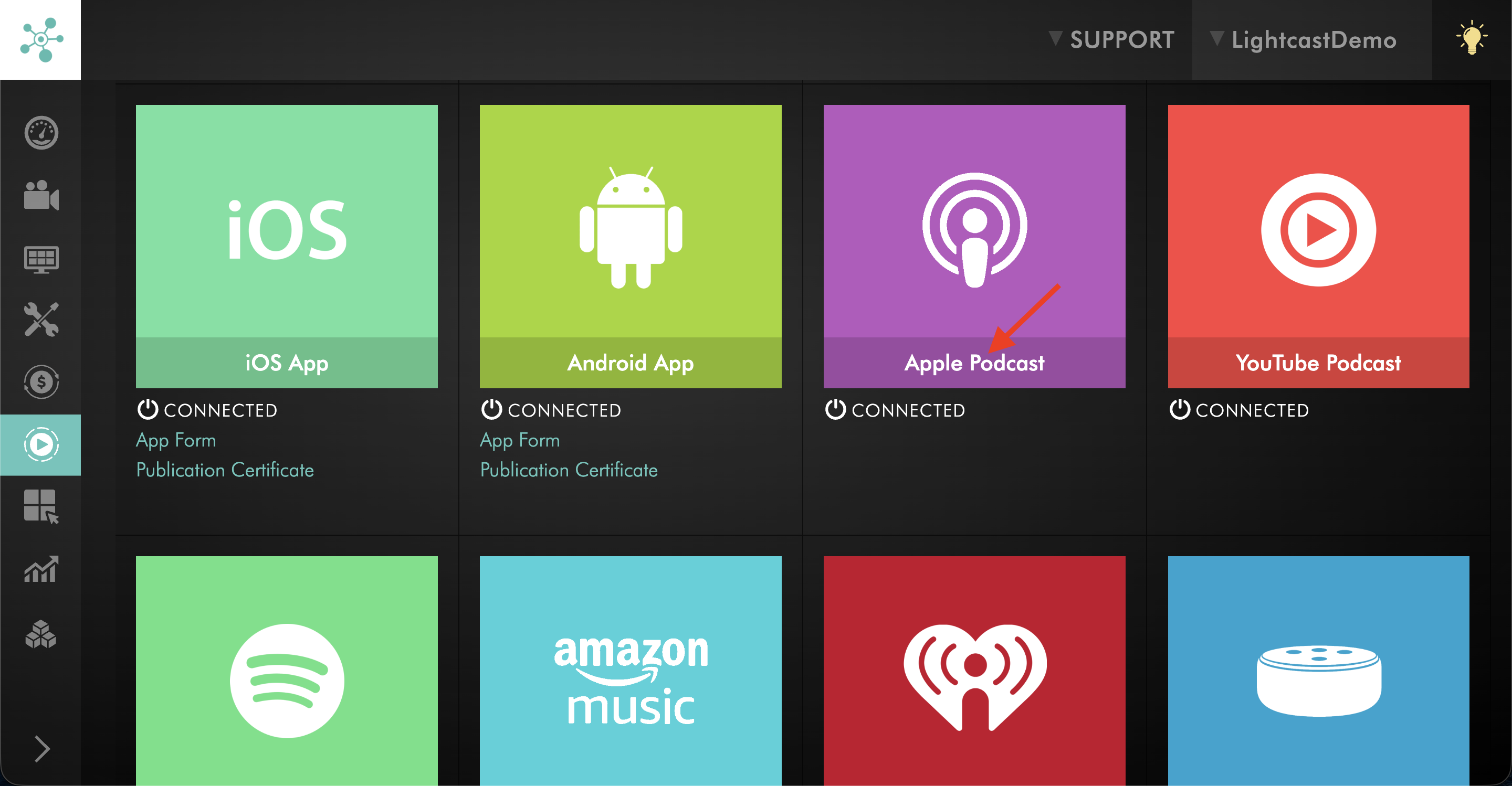
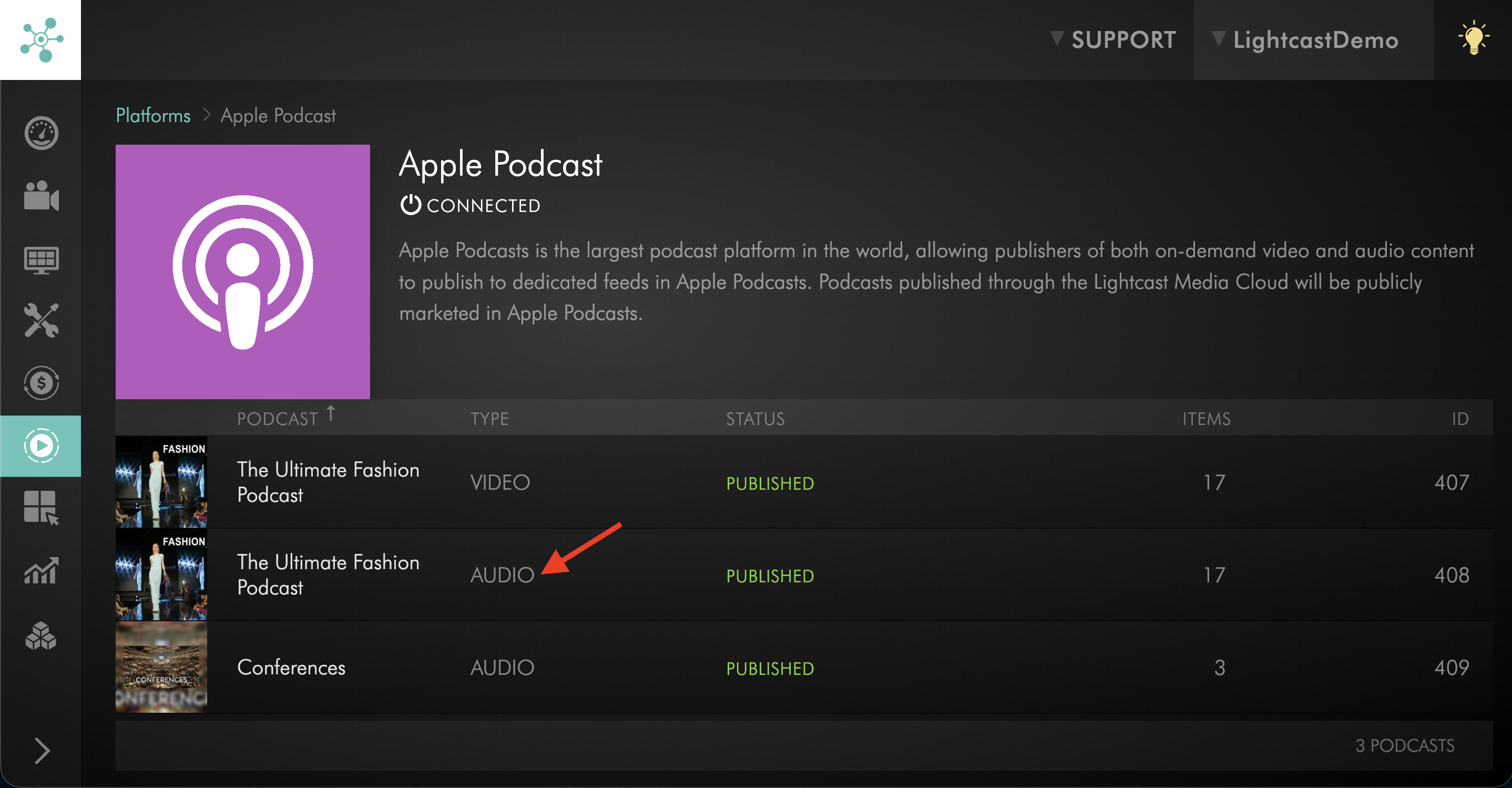
Click the connected Podcast platform you want to open, such as Spotify, Apple Podcasts, or Amazon Music.
Step 4
Select the connected Podcast Channel to open its details.
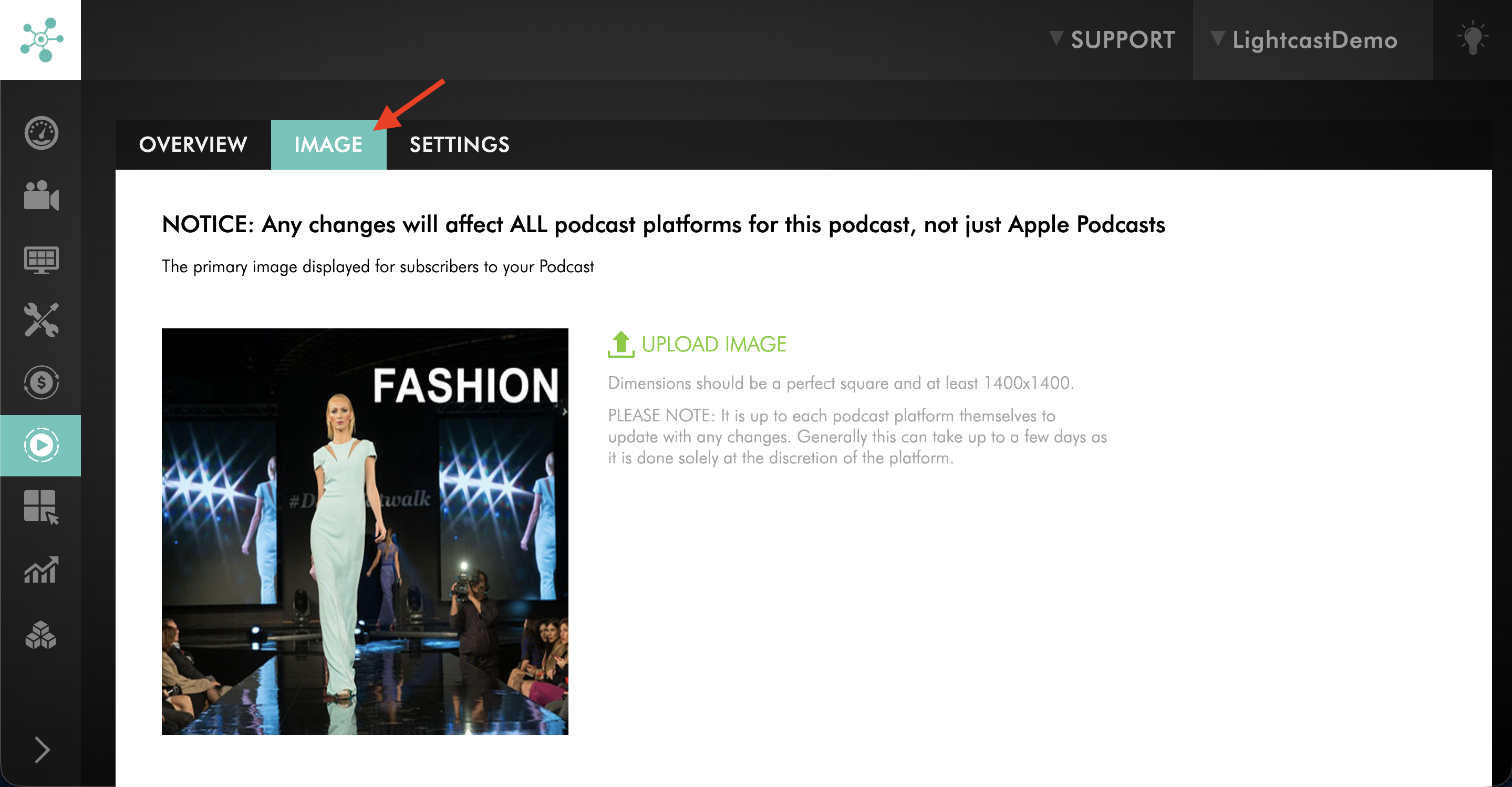
Step 5
Click the IMAGE tab.
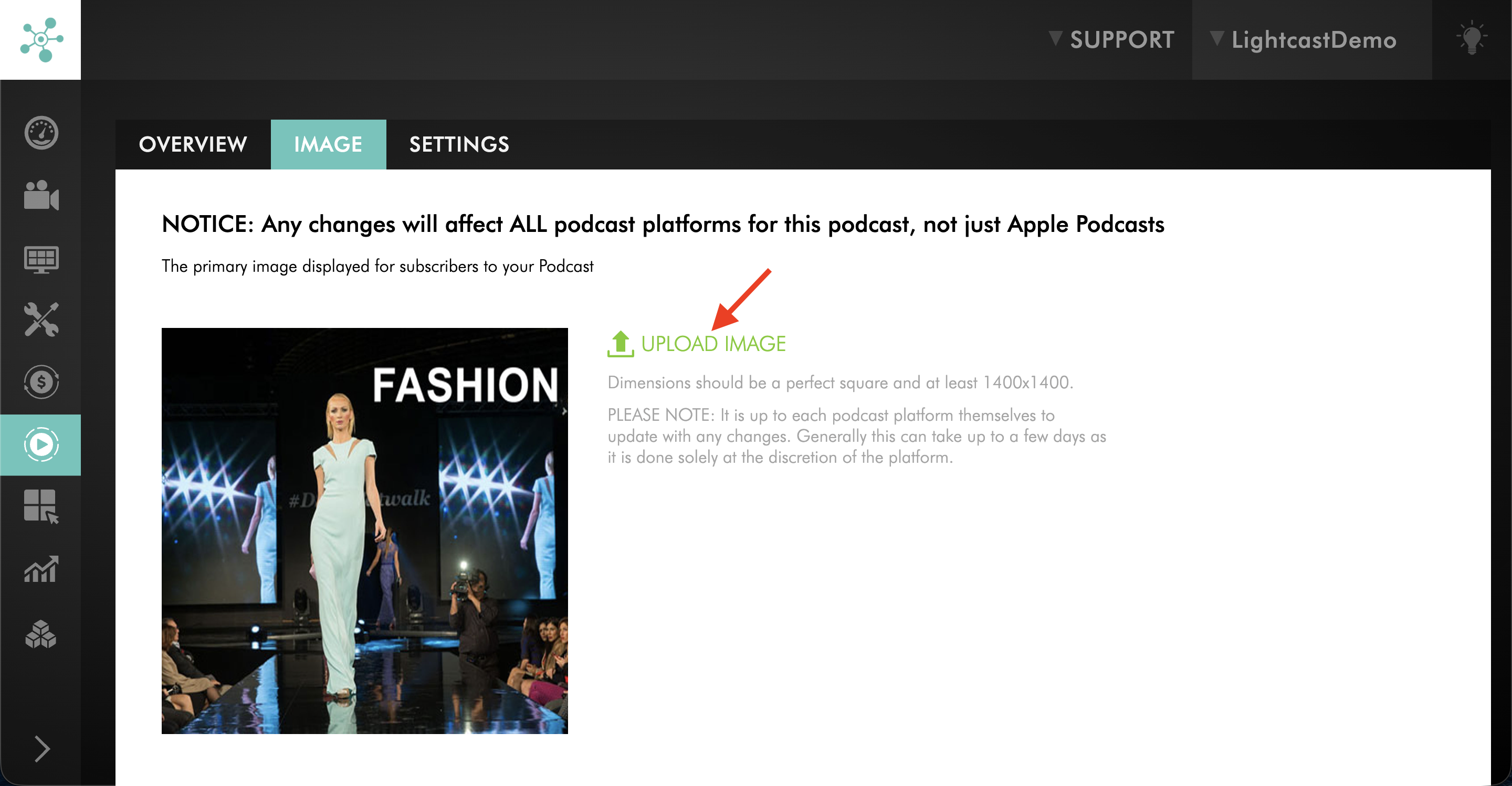
Step 6
Click UPLOAD IMAGE and select your new Podcast thumbnail image from your computer. Make sure the image is a perfect square and at least 1400 x 1400 pixels.
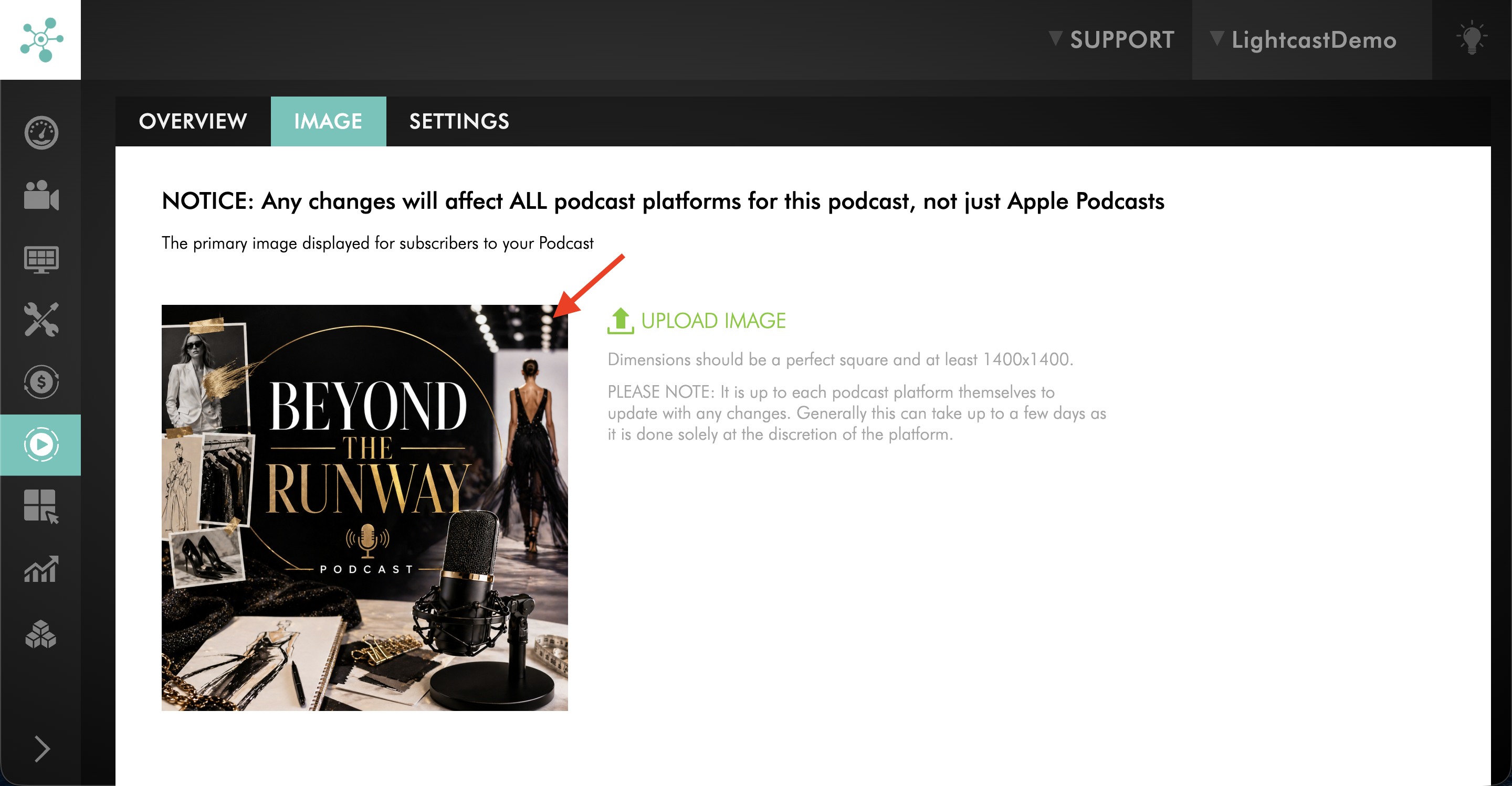
Step 7
Wait about 48 hours for the updated image to appear on your connected Podcast platforms.
FAQs
Can I update the Podcast thumbnail from the Podcast details page?
Yes. You can update the Podcast thumbnail from the connected Podcast details page by opening the Podcast in PLATFORMS and selecting the IMAGE tab.
Do I need to update the thumbnail from the source Channel or from PLATFORMS?
You can use either method. You can update the image from the source VOD or AOD Channel, or from the connected Podcast details page in PLATFORMS.
Do thumbnail changes affect only one Podcast platform?
No. Changes to the Podcast image affect all connected Podcast platforms for that Podcast, not just the platform you opened.
What image size should I use for a Podcast thumbnail?
Use an image that is a perfect square and at least 1400 x 1400 pixels.
How long does it take for the updated thumbnail to appear on Podcast platforms?
Podcast platforms update at their own pace, so changes may take about 48 hours to appear.