
How to change your Podcast title and description
Overview
This article explains how to update the title and description used for your Podcast in the Media Cloud.
When to use this article
Use these steps when you want to change the Name or Description for the VOD or AOD Channel that is used as the source for your Podcast. This is helpful when you want to update how your Podcast appears across your connected Podcast platforms.
How it works
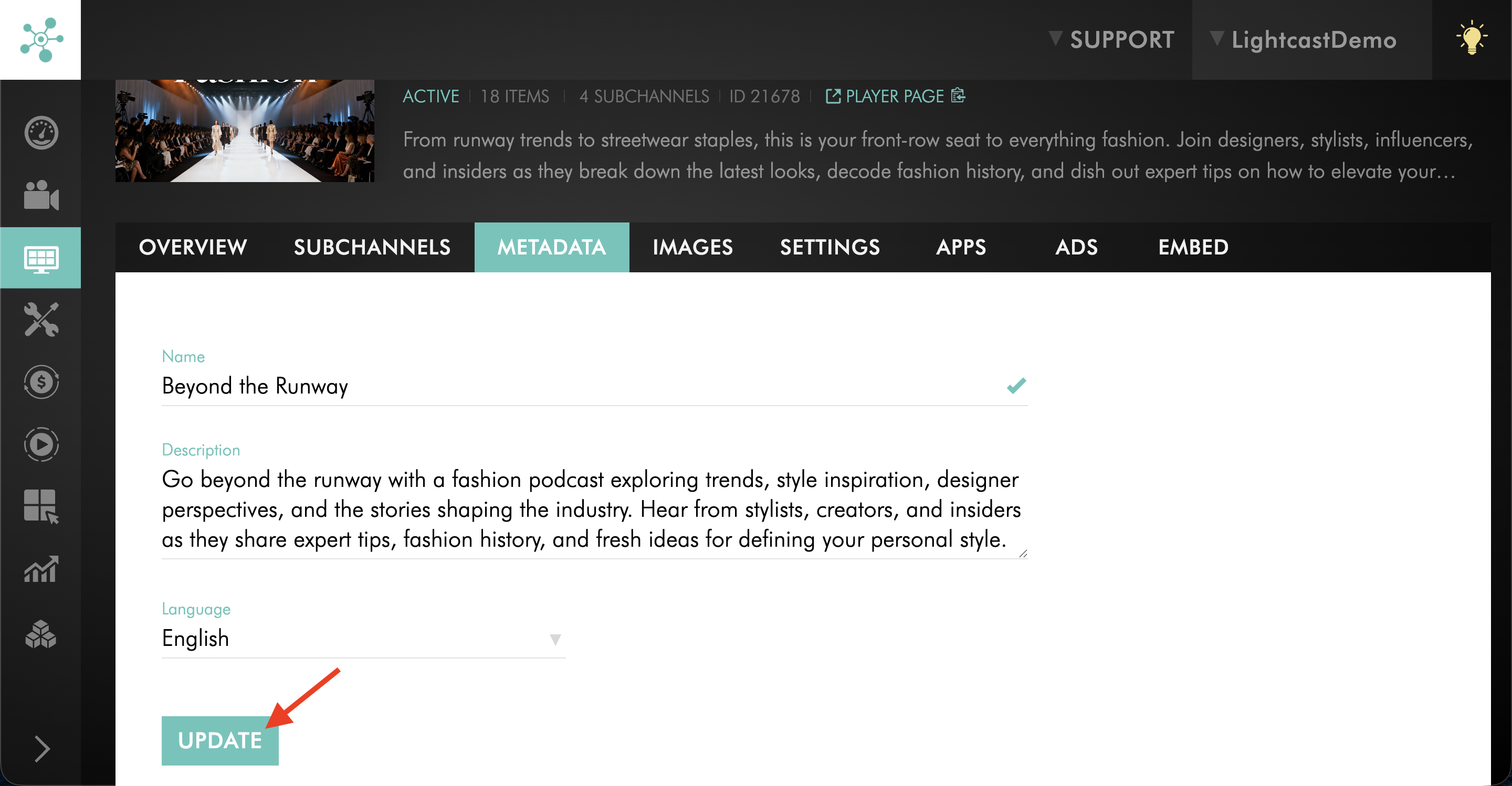
Your Podcast title and description come from the source VOD or AOD Channel in the Media Cloud. To change both fields, update the information on the source Channel's METADATA tab.
Because these details come from the source Channel, changes affect not only your Podcast, but also any other platforms connected to that same Channel. Podcast platform updates are not immediate and may take up to 48 hours to appear.
Instructions
Step 1
Log in to your Media Cloud account.
Step 2
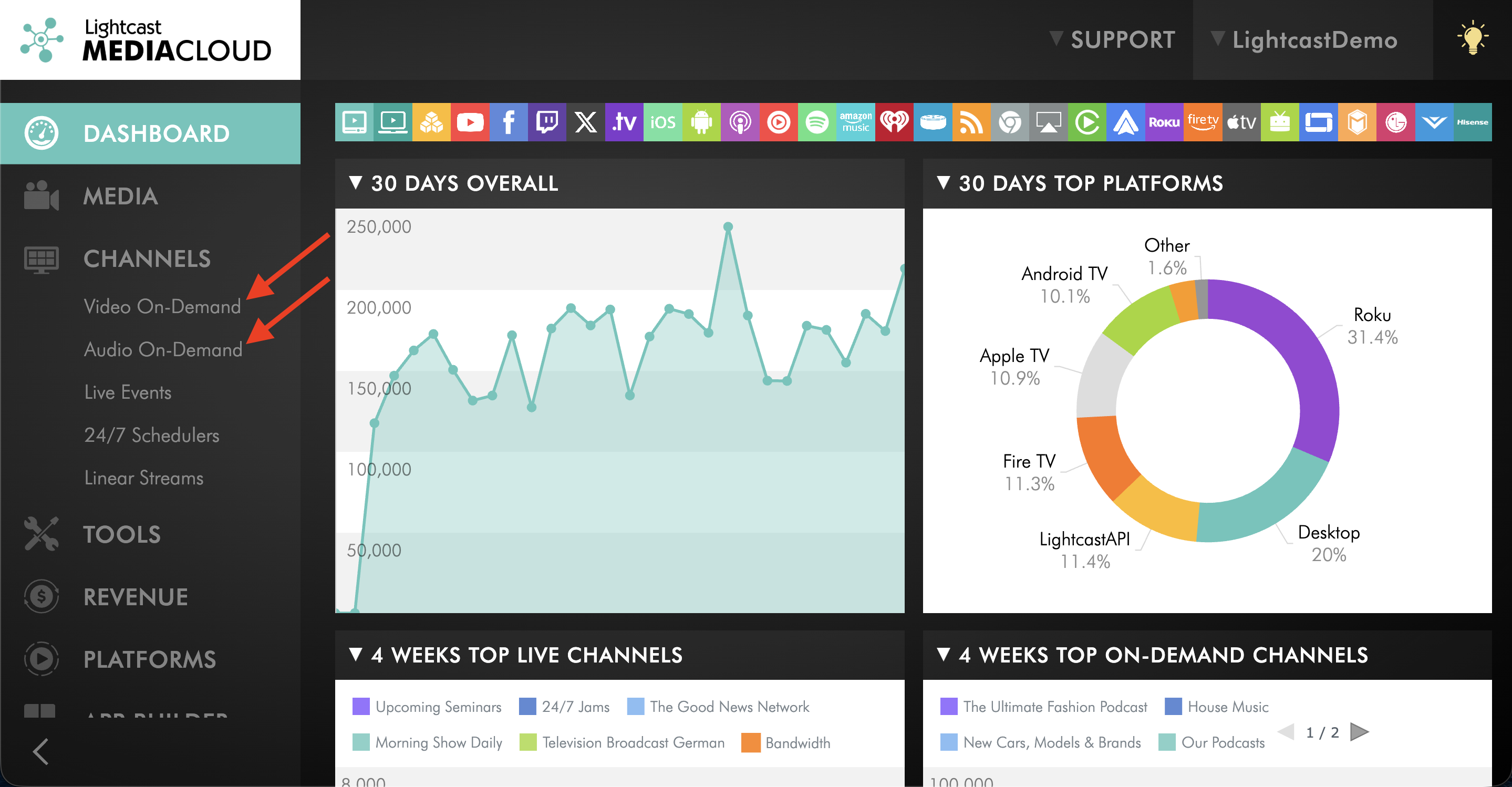
Go to CHANNELS and click on either Video On-Demand or Audio On-Demand.
Step 3
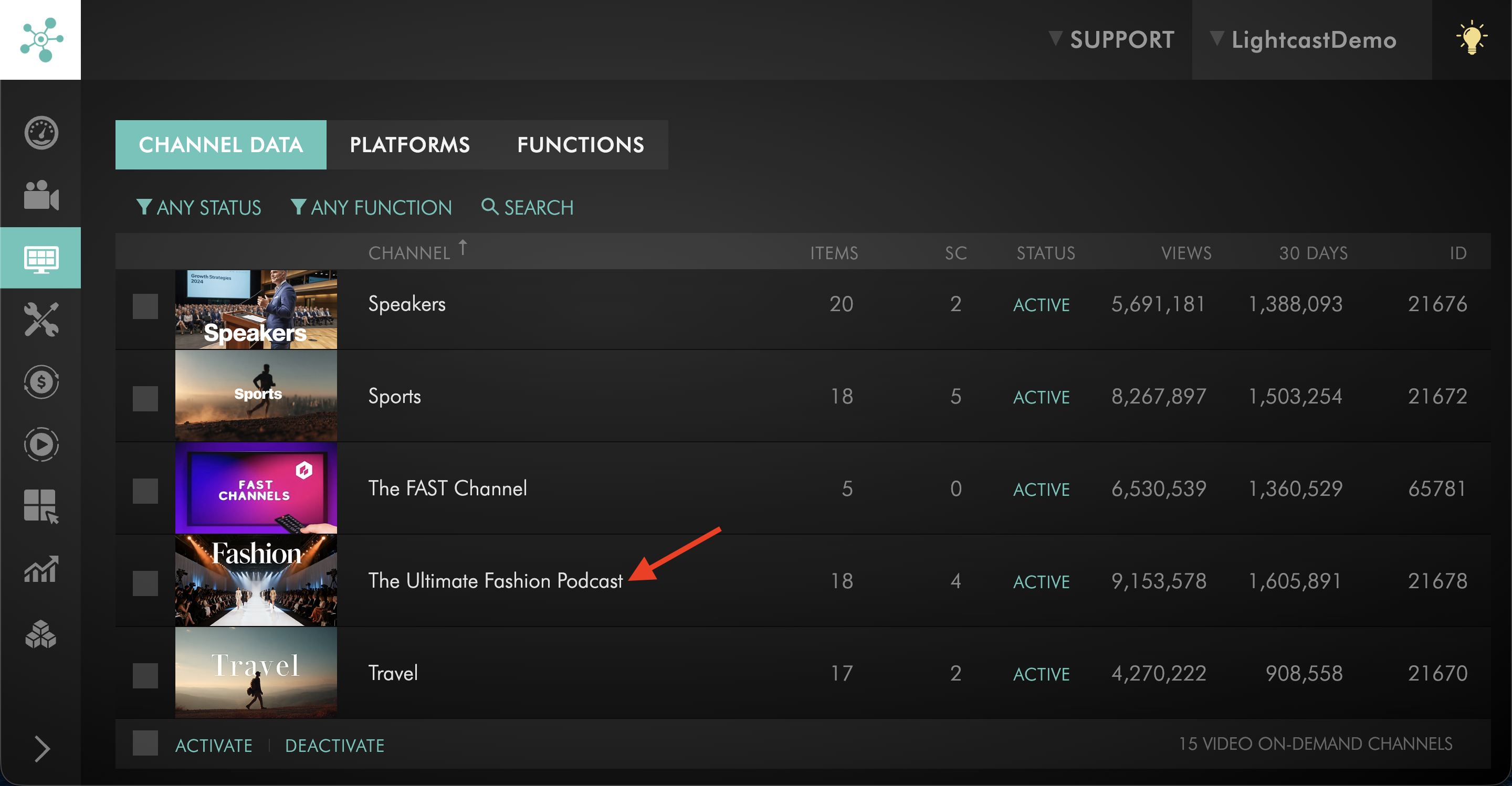
Open the VOD or AOD Channel used as the source for your Podcast.
Step 4
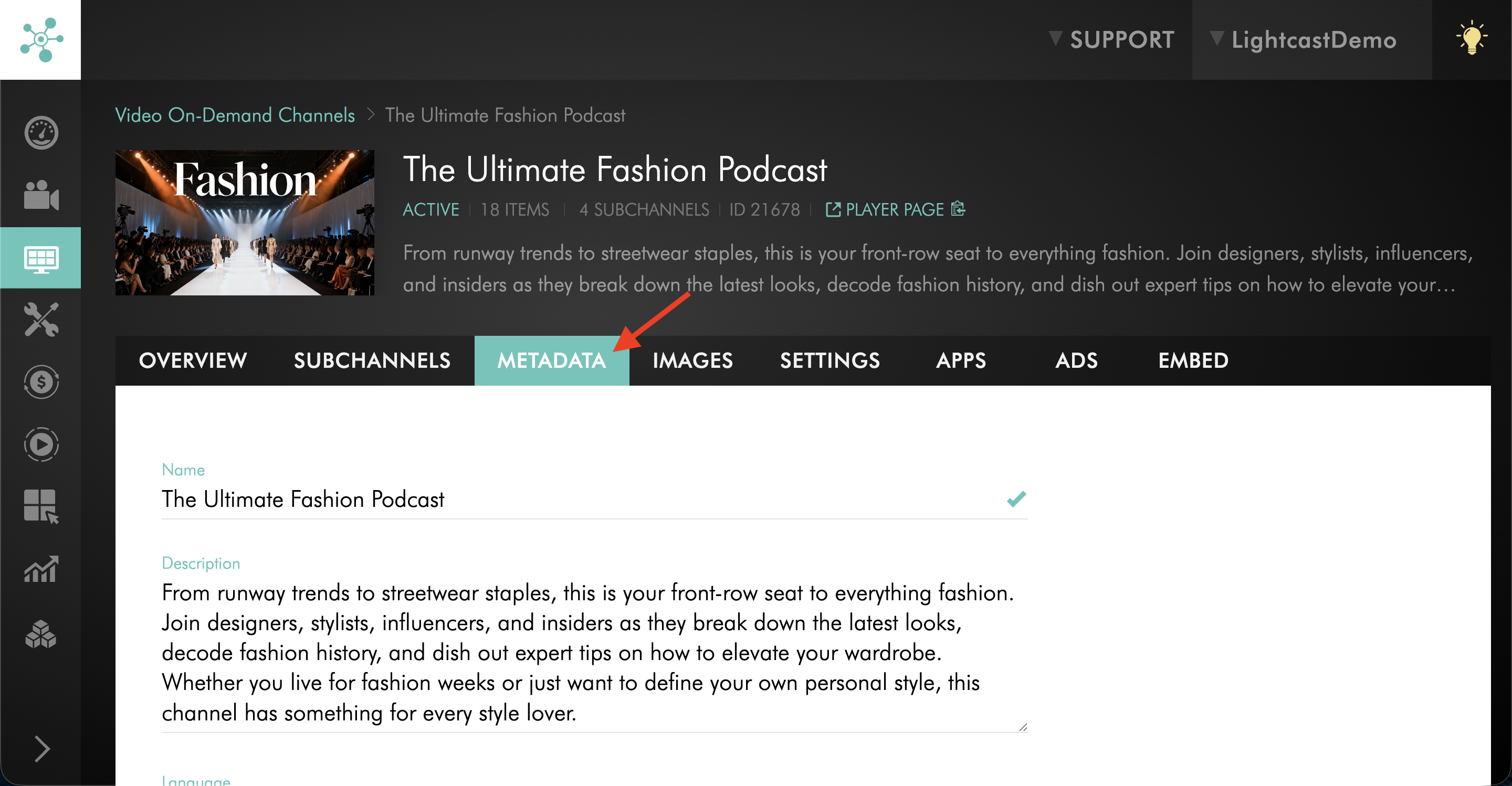
Select the METADATA tab.
Step 5
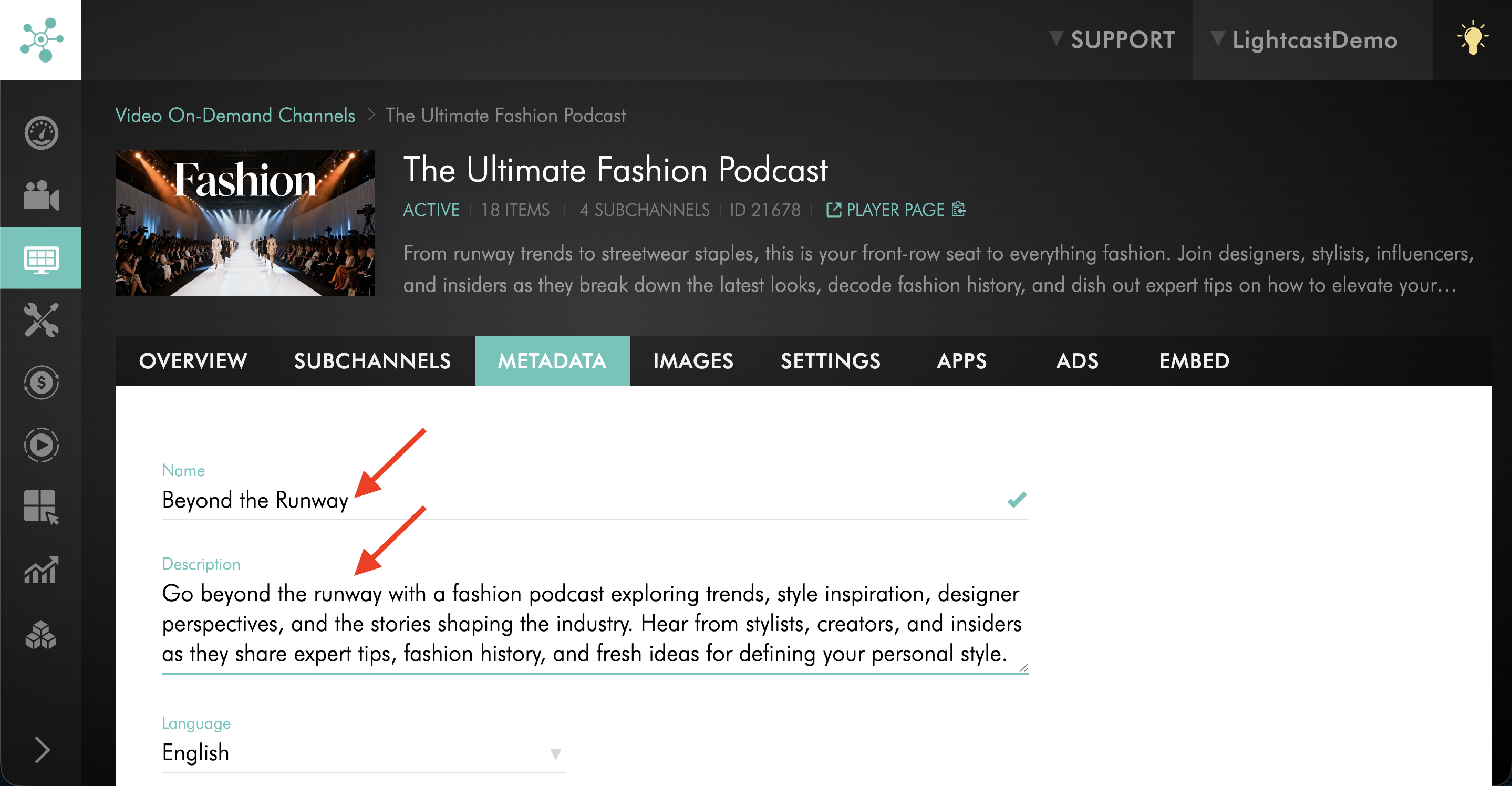
Update the Channel Name and Description.
Step 6
Click UPDATE to save your changes.
FAQs
Why should I update the title and description from the Channel instead of the Podcast settings page?
Use the source Channel’s METADATA tab when you need to update both the title and description. The Podcast SETTINGS page includes other Podcast-specific fields, but it does not let you update the description there.
Do these changes affect only my Podcast?
No. Because the Podcast title and description come from the source Channel, changes also affect any other platforms connected to that same Channel.
How long does it take for the updated title and description to appear on Podcast platforms?
Changes may take up to 48 hours to appear on Podcast platforms.
Where can I update other Podcast settings, such as category, content rating, or language?
For Podcast-specific settings such as category, content rating, email address, owner’s name, author’s name, website URL, and language, see How to update podcast settings in the Media Cloud.