
How to edit your Sub-Channel metadata
Overview
This article explains how to edit your Sub-Channel metadata in the Media Cloud. This is helpful if you want to update how a Sub-Channel appears in your account and across your connected apps.
Sub-Channel metadata can include the Sub-Channel Name, Description, and thumbnail image. Updating this information can help viewers understand the content in the Sub-Channel more easily and improve navigation across your apps.
How it works
A Sub-Channel belongs to a parent Audio On-Demand (AOD) Channel or Video On-Demand (VOD) Channel. Like a main Channel, a Sub-Channel can have its own metadata to help identify and present that section of content more clearly.
The main parts of Sub-Channel metadata are the Name, Description, and thumbnail image. These settings help define how the Sub-Channel is labeled and displayed in supported areas of the Media Cloud and across connected apps that support Sub-Channels.
Your Sub-Channel description should explain what viewers can expect from that section of content. If you want the full description to display without a Read More button, the recommended maximum length is 120 characters for OTT Apps such as Roku, Fire TV, Apple TV, Android TV, Samsung TV, and LG TV. For iOS and Android Mobile Apps, the recommended maximum length is 70 characters.
It is also important to avoid special characters that may affect how the description displays on some platforms. For example, single quotation marks can cause descriptions to be cut off on some devices. If quotation marks are needed, use standard double quotation marks instead.
A Sub-Channel thumbnail can also improve navigation and presentation, especially if your apps are configured to display Sub-Channels visually.
Instructions
Once you have created a Sub-Channel on a parent VOD or AOD Channel, you can follow the steps below to edit the Sub-Channel metadata, including the Name, Description, and thumbnail image.
To learn how to create a Sub-Channel, see: How to create and organize Sub-Channels in your Media Cloud
Step 1
Log in to your Media Cloud account.
Step 2
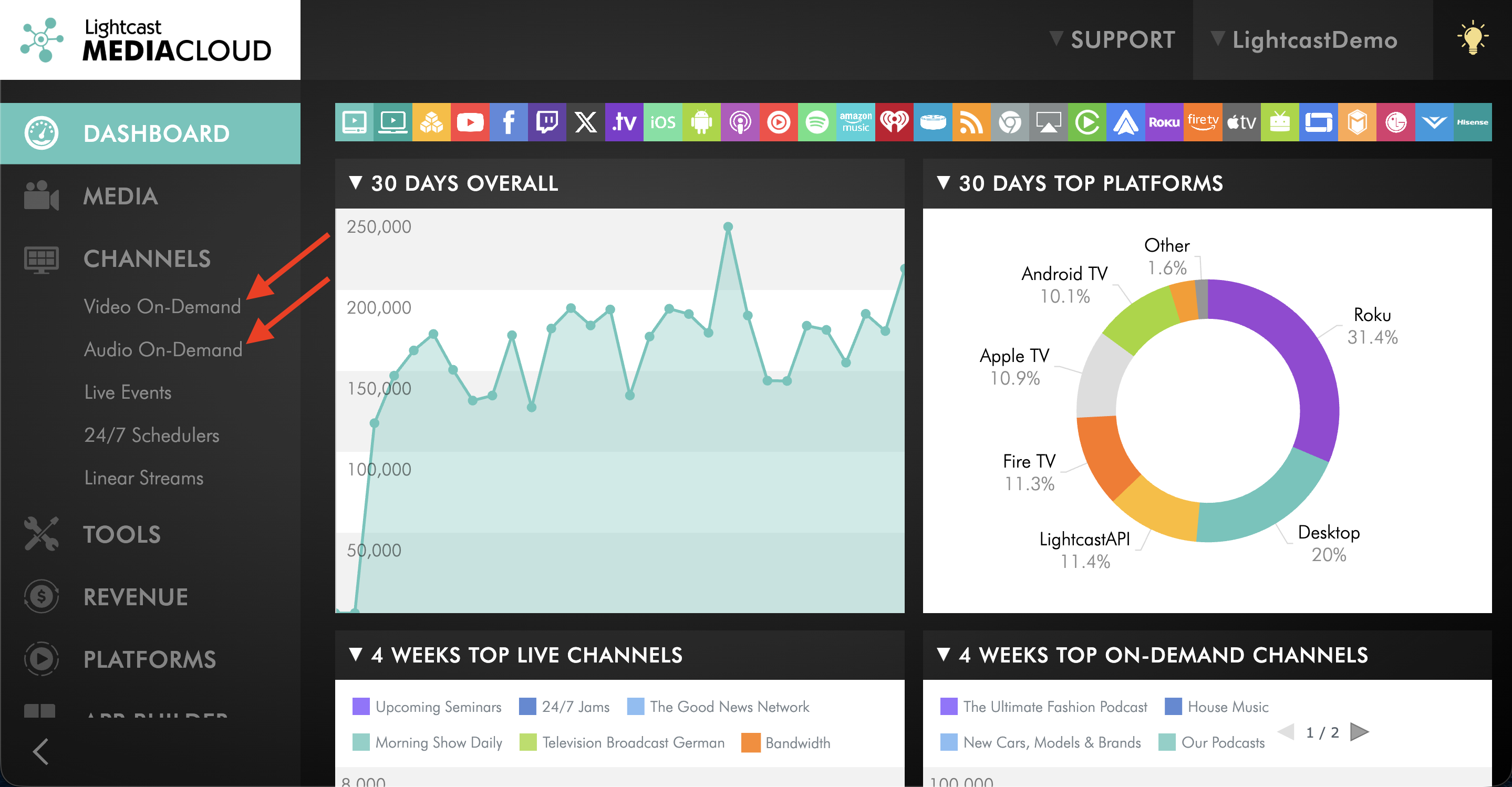
Under CHANNELS, click Video On-Demand or Audio On-Demand, depending on the parent Channel where the Sub-Channel is located.
Step 3
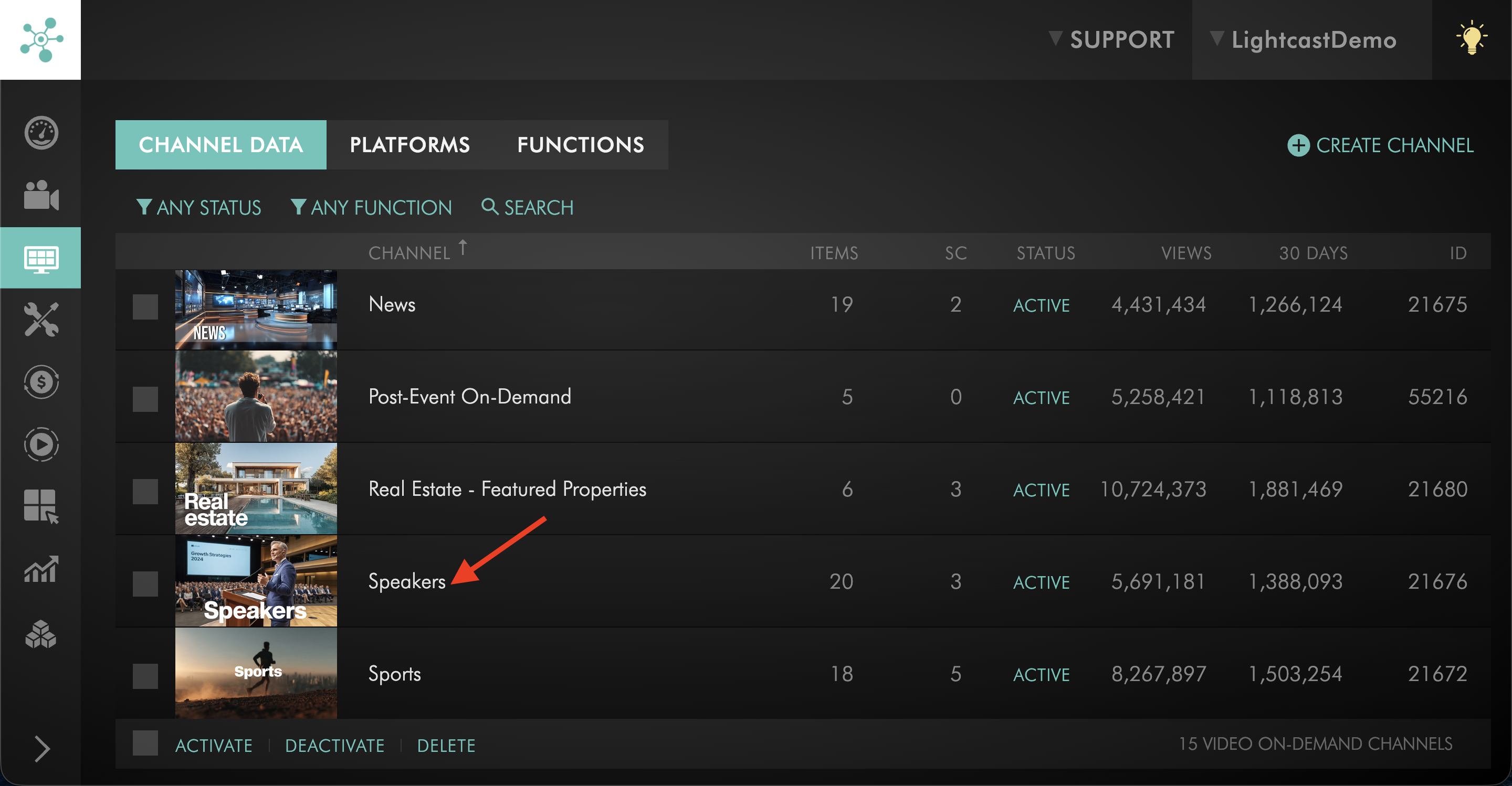
Select the parent Channel that contains the Sub-Channel you want to set up.
Step 4
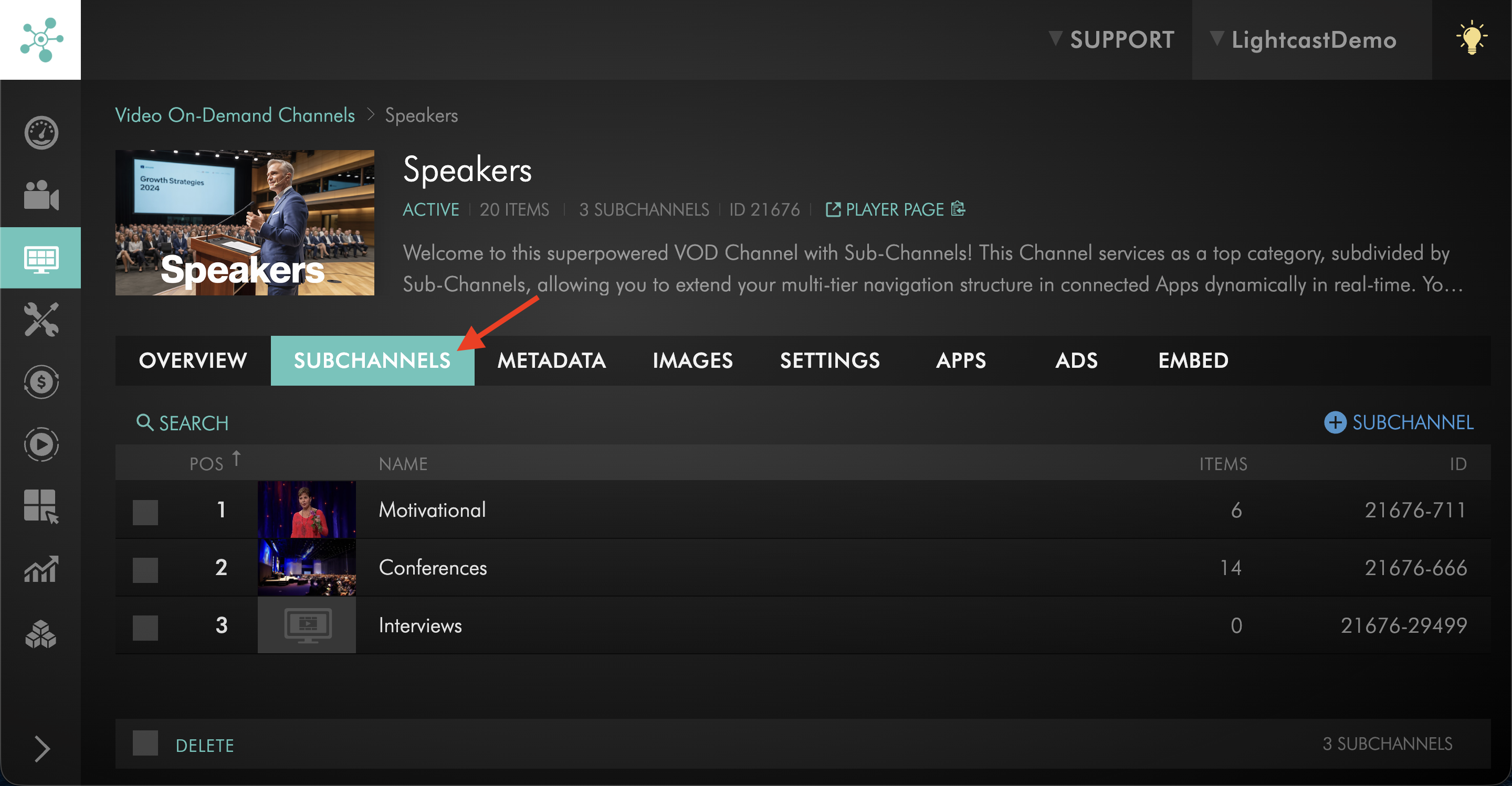
Switch to the SUBCHANNELS tab.
Step 5
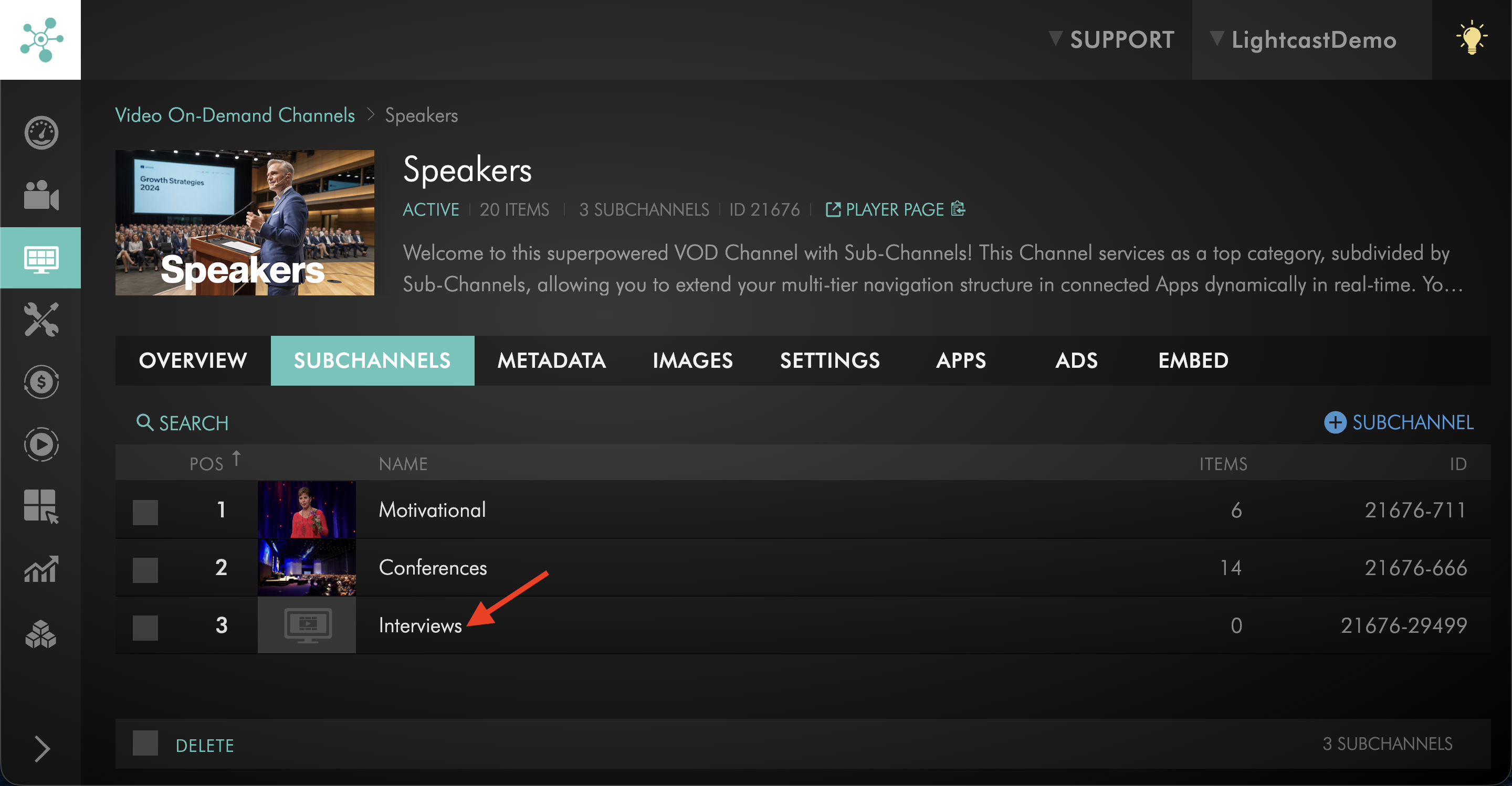
Select the Sub-Channel you want to set up.
Step 6
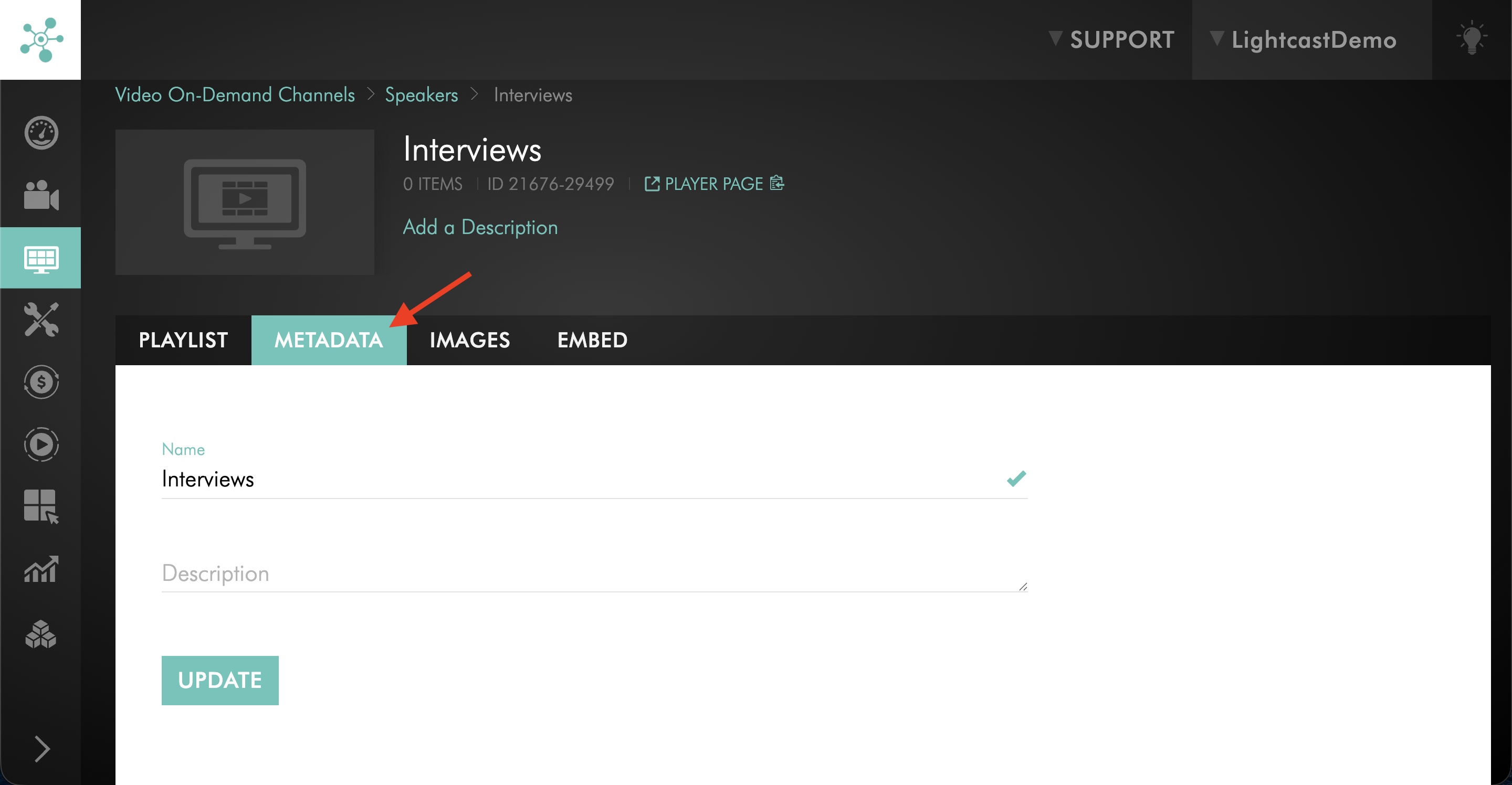
Switch to the METADATA tab.
Step 7
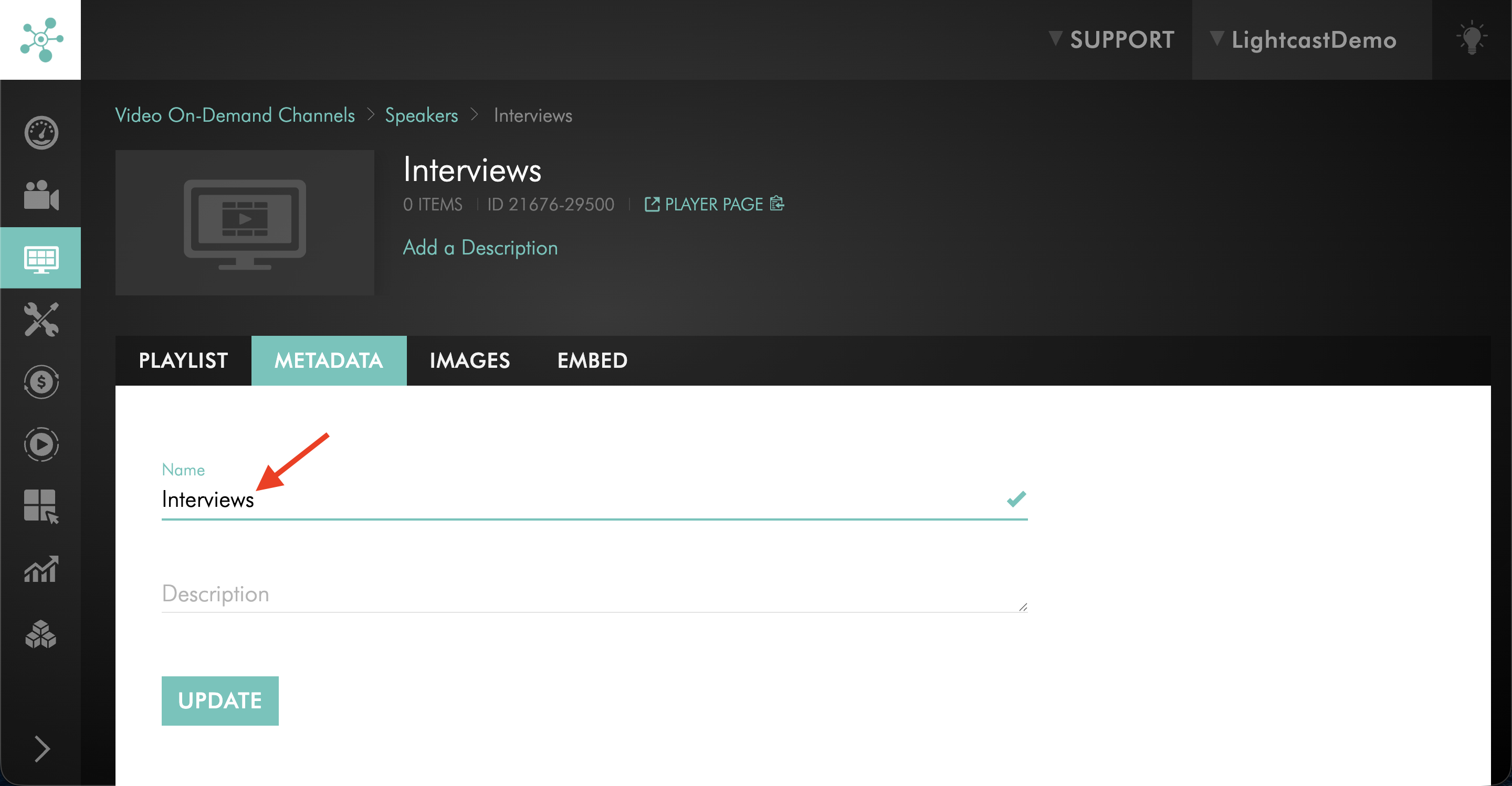
In the Name field, review and update the Sub-Channel name as needed.
Use a short, descriptive name that helps viewers understand what the Sub-Channel includes.
Step 8
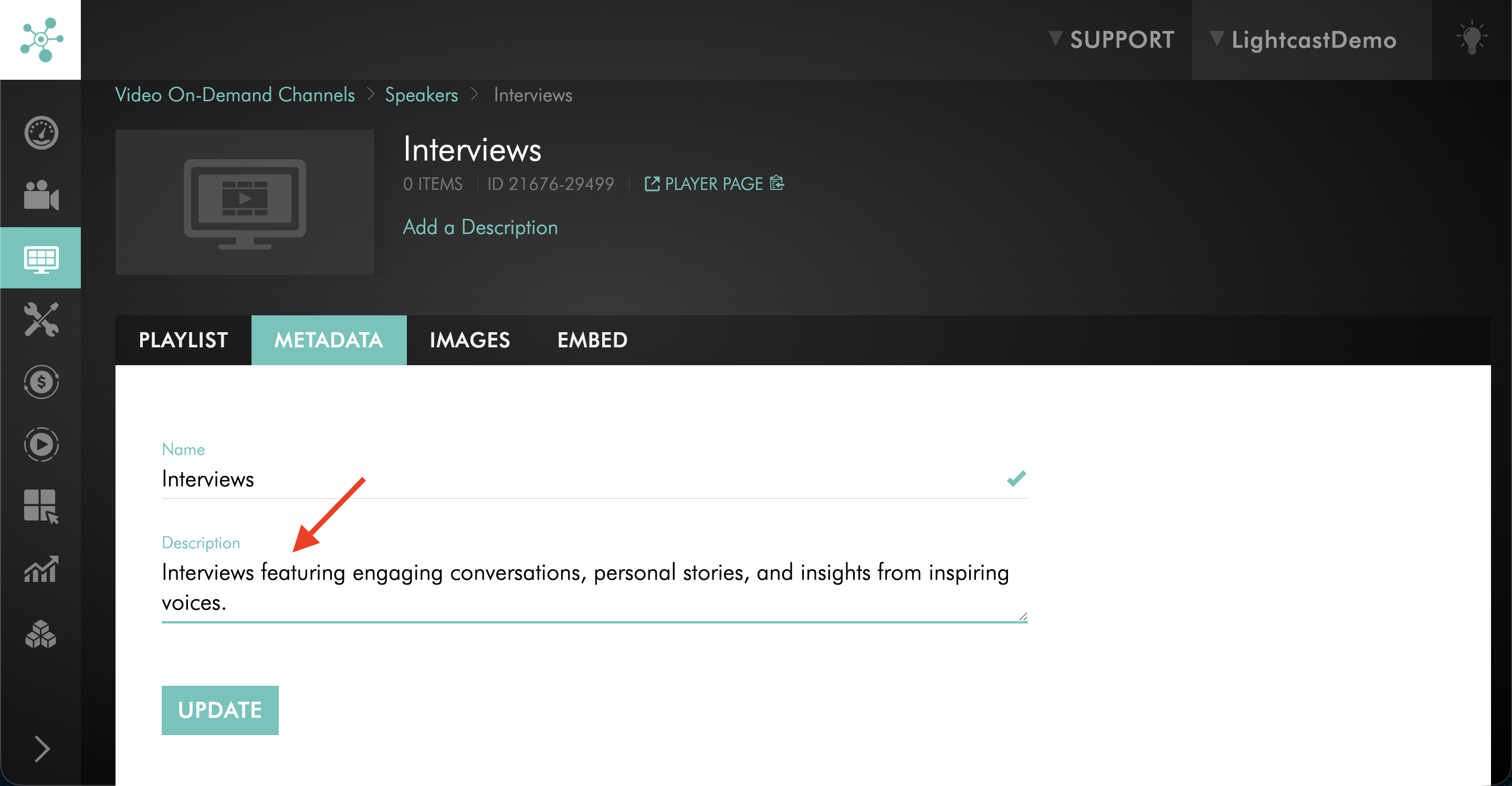
In the Description field, add or update the description for the Sub-Channel.
The description should clearly explain what the Sub-Channel includes and what viewers can expect.
Step 9
Review the Description before saving it.
Avoid special characters that may affect how the description displays on some platforms. If quotation marks are needed, use standard double quotation marks instead of single quotation marks.
If you want the full Sub-Channel description to display without a Read More button, keep it within these recommended limits:
OTT Apps: 120 characters maximum
iOS and Android Mobile Apps: 70 characters maximum
Step 10
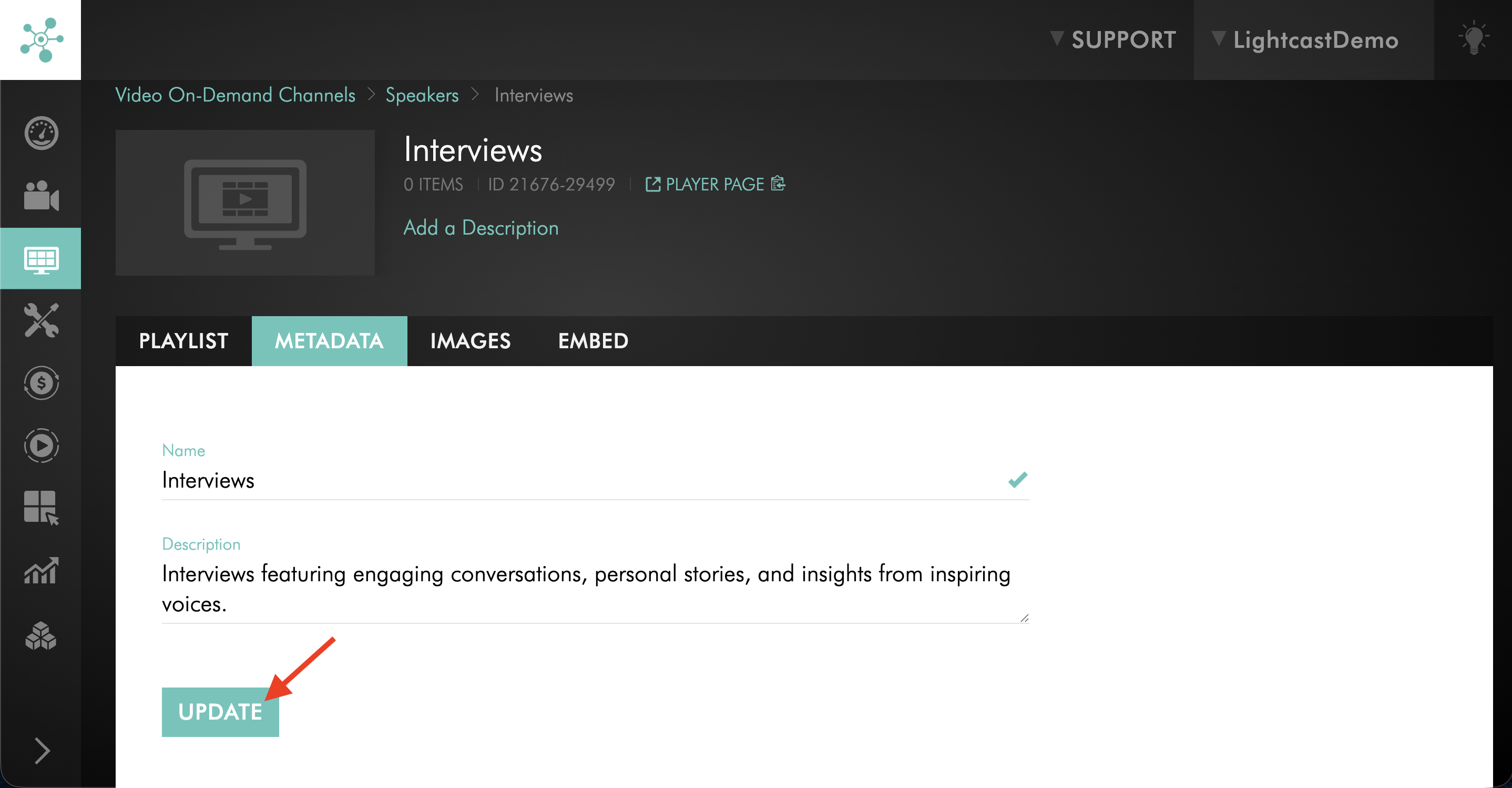
Click UPDATE to save your changes.
Step 11
Switch to the IMAGES tab.
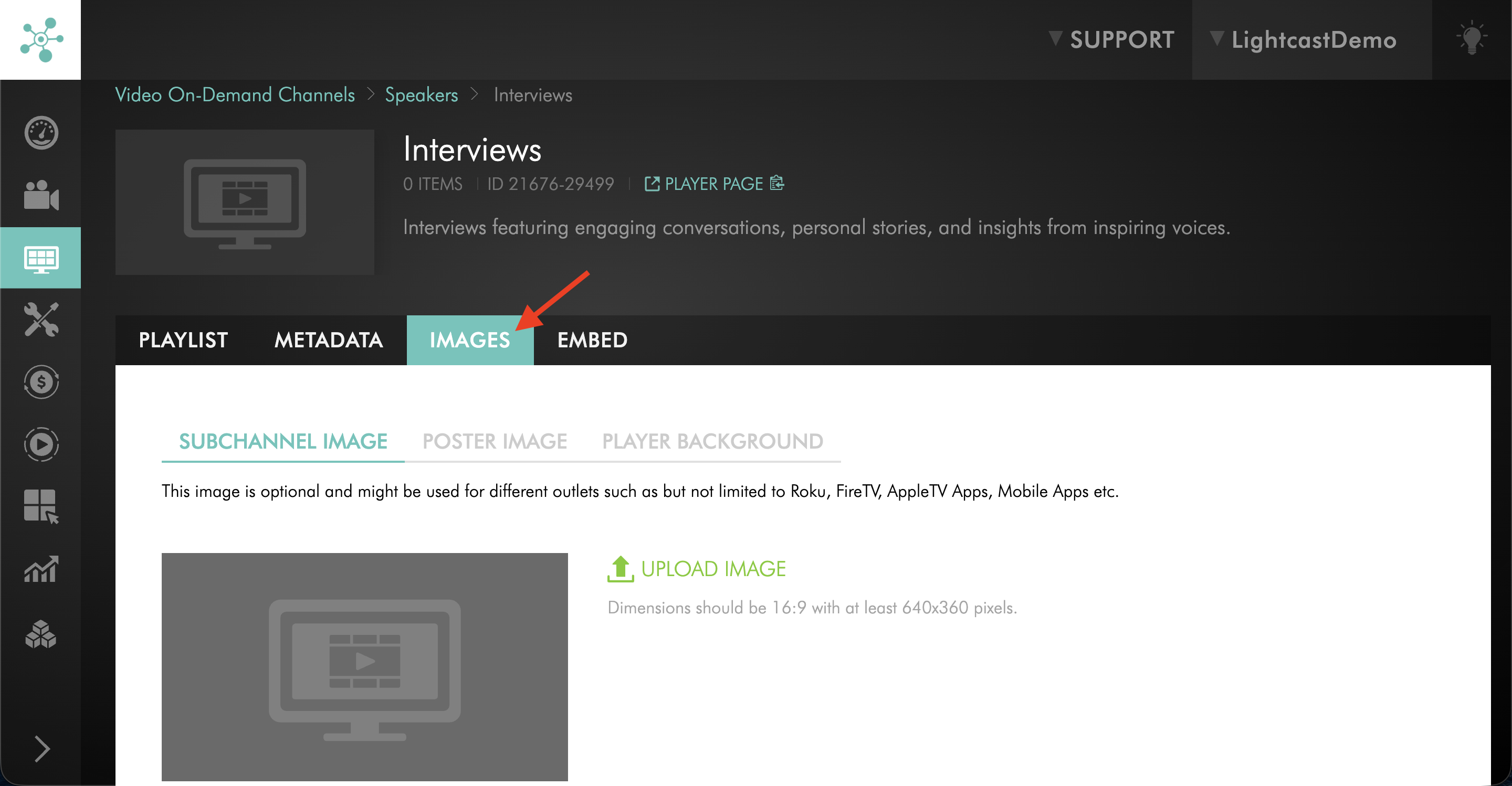
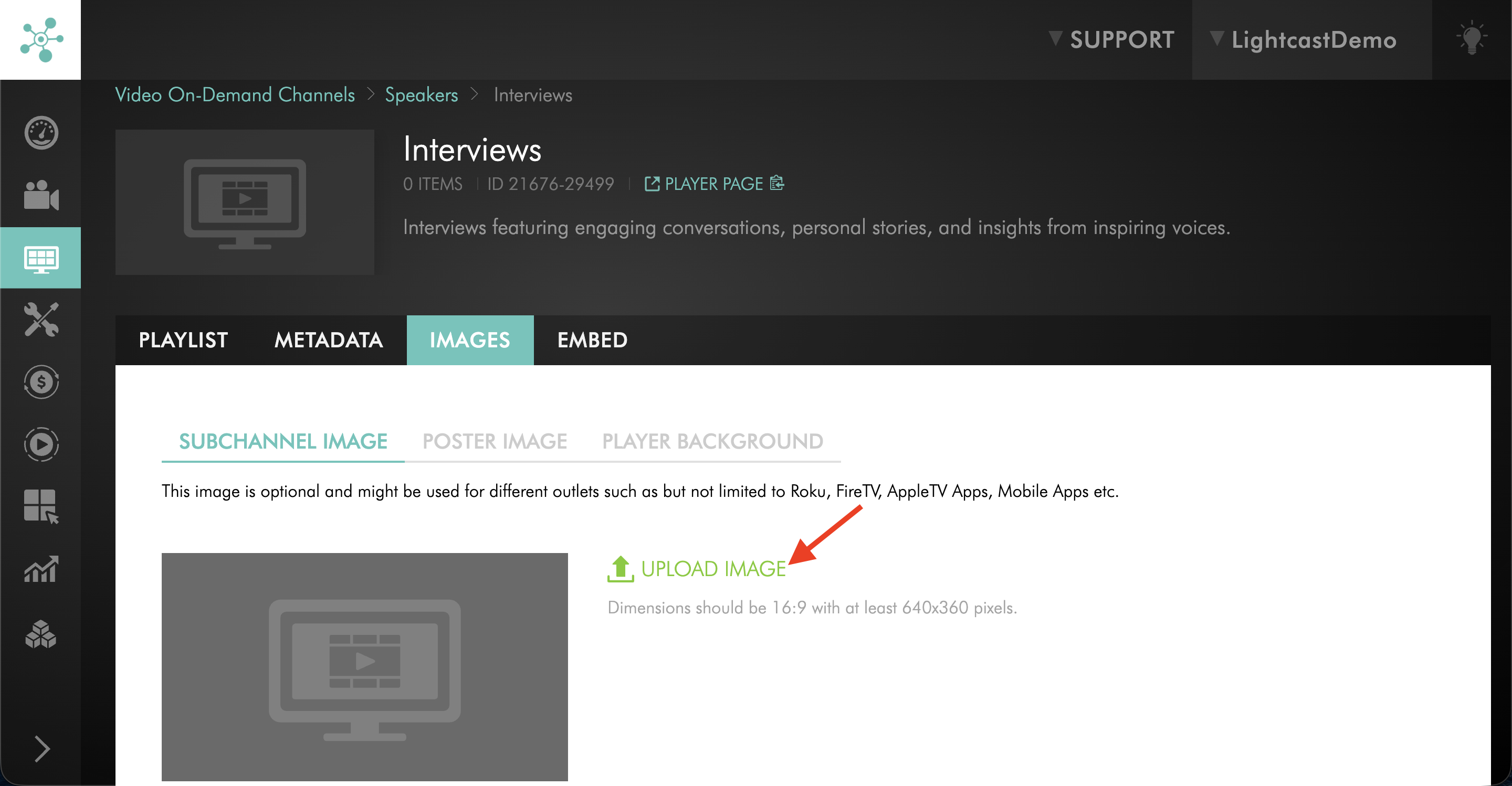
Step 12
Click UPLOAD IMAGE to upload a Sub-Channel thumbnail image.
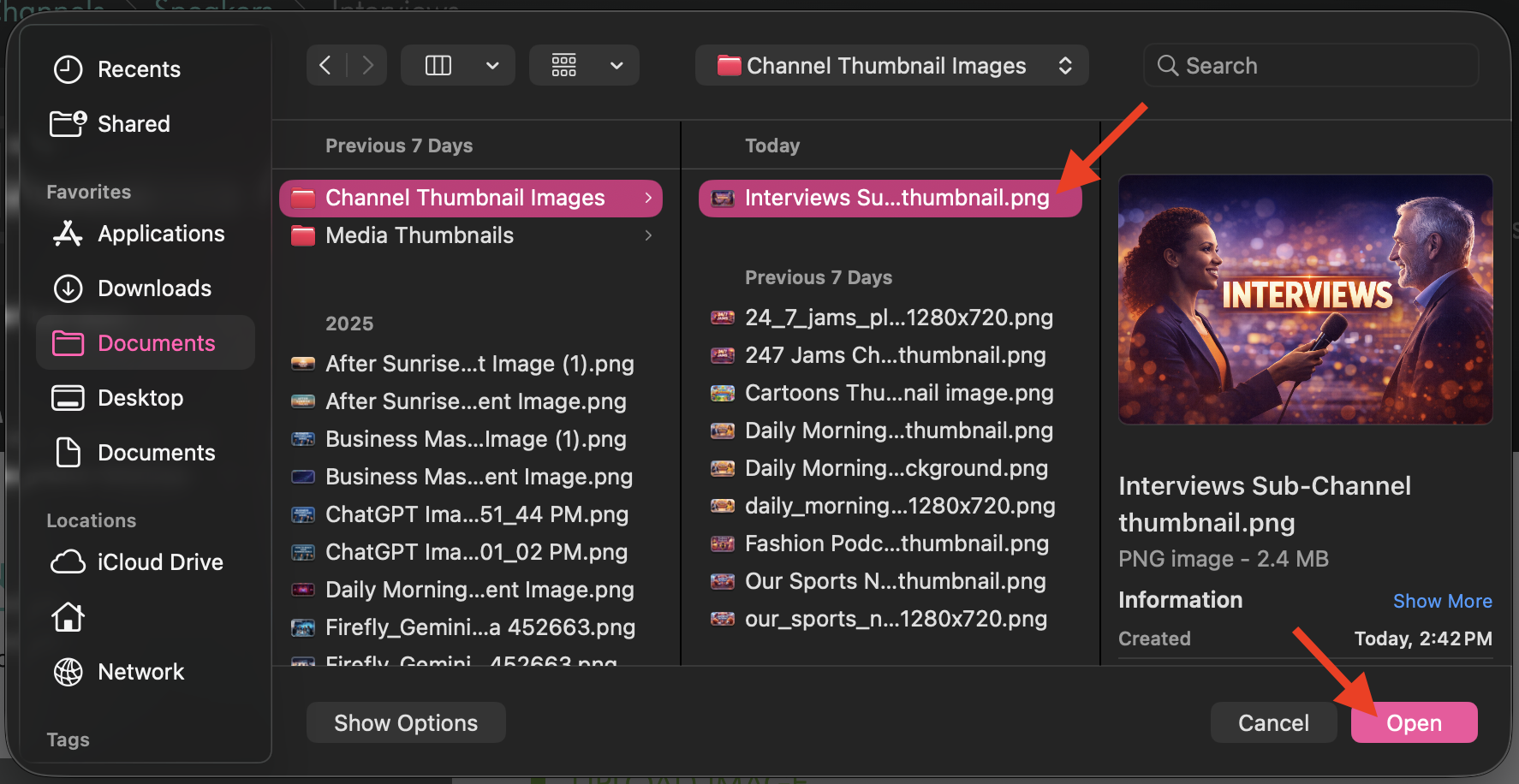
Step 13
In the pop-up window, select an image that matches the Sub-Channel’s branding, theme, or content.
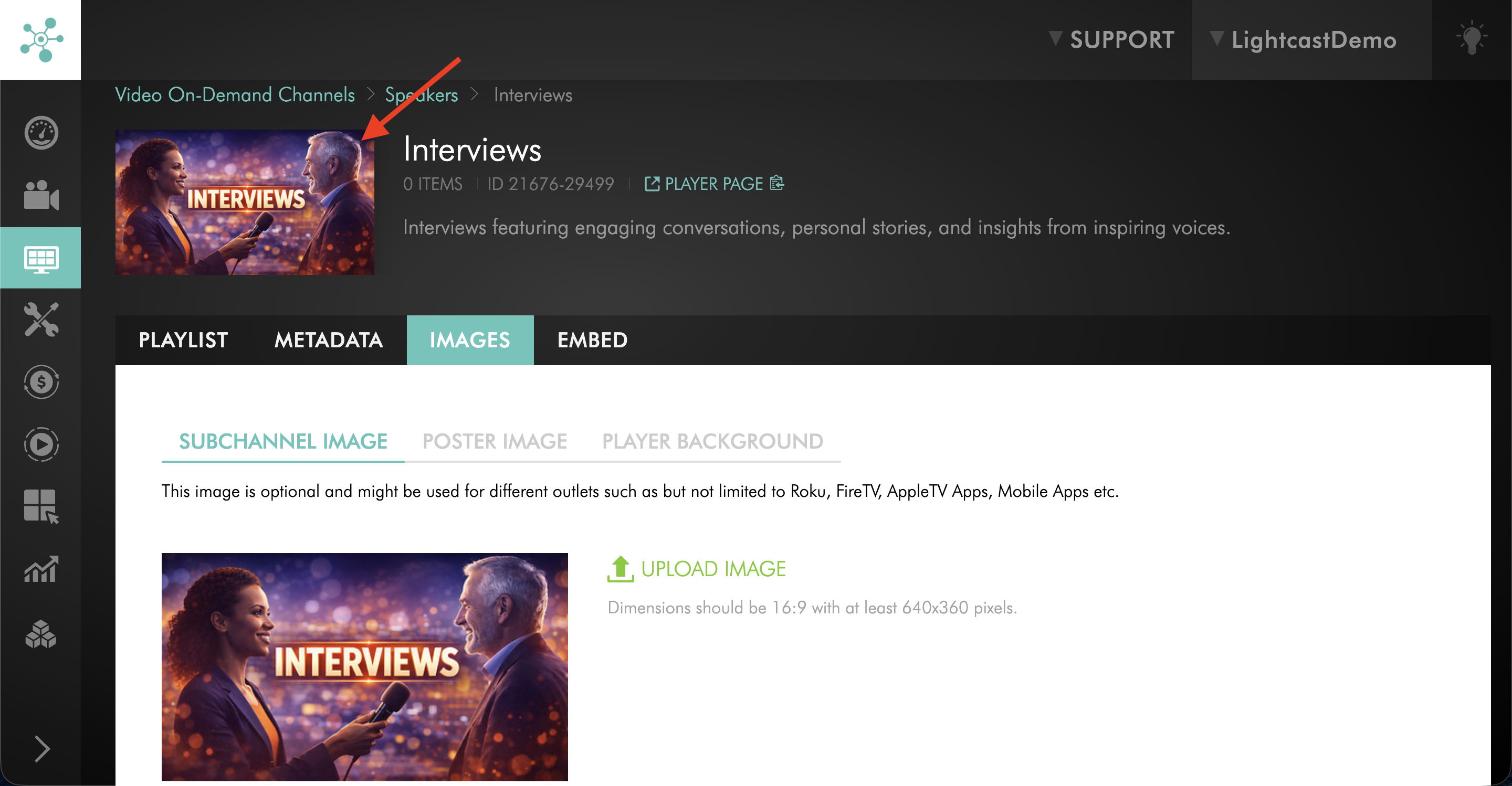
Step 14
The updated Sub-Channel thumbnail image will take effect immediately.
FAQs
Why should I add metadata to my Sub-Channel?
Adding metadata helps define what the Sub-Channel contains and can improve how it appears across supported publishing platforms. This can make the content easier for viewers to understand and browse.
What should I include in my Sub-Channel description?
Your Sub-Channel description should clearly explain what type of content is included in that section. Keep it short, specific, and easy to understand.
What is the recommended character length for a Sub-Channel description?
If you want the full Sub-Channel description to display without a Read More button, keep it within these recommended limits:
OTT Apps: 120 characters maximum
iOS and Android Mobile Apps: 70 characters maximum
Why is my Sub-Channel description getting cut off on some platforms?
This can happen when the description is too long or includes unsupported special characters. Single quotation marks can also cause display issues on some platforms. Using standard double quotation marks instead can help the description display properly.
Should I add a thumbnail to my Sub-Channel?
Yes, if your apps support Sub-Channels. A thumbnail can improve navigation and make the Sub-Channel easier for viewers to identify.
Can I update Sub-Channel metadata after the Sub-Channel is created?
Yes. You can update the Sub-Channel Name and Description at any time by editing the fields on the METADATA tab and clicking UPDATE. You can also upload a new thumbnail image in the IMAGES tab, and the updated thumbnail image will take effect immediately.
Pricing
Sub-Channels are available on POWER packages and up.
If you don’t have access to this feature, you can upgrade to one of our latest plans or contact your account manager.
Video: How to Rename a Sub-Channel
How to upload or assign content to a Sub-Channel