
How to upload your app graphics and logos
Overview
This article explains how to upload app graphics and logos during your initial app setup in the Media Cloud.
When to upload your app graphics and logos
Upload your app graphics and logos after you have prepared the required branding files for the app you are setting up.
Each app platform may require different graphics. Use the graphic development guide and upload fields shown in the UPLOAD YOUR GRAPHICS step of the app specs form for the current requirements.
You do not need to create the graphics yourself. Many publishers use their own graphic designer, creative team, or agency so they can control the look and feel of their apps. If you need help creating the required graphics, you can request graphic development from Lightcast. Fees may apply.
How it works
The graphics and logos uploaded through the app specs form are used by Lightcast during app development.
Because these files are used to build and prepare your app for submission, only upload graphics when they are ready to be used for launch. Changing submitted graphics during development can cause delays because Lightcast may need to adjust or rebuild parts of the app before submission.
Each app platform has its own graphic specifications, file format requirements, and display areas. Be sure to review the graphic development guide before creating and uploading your graphics.
After all required graphics are uploaded, click SUBMIT GRAPHICS FOR DEVELOPMENT at the bottom of the UPLOAD YOUR GRAPHICS step.
If graphics need to be changed after submission, contact Customer Support as soon as possible. Revisions may require additional design work, development work, app rebuilding, App Store resubmission, and fees.
Instructions
Step 1
Log in to your Media Cloud account.
Step 2
Go to APP BUILDER.
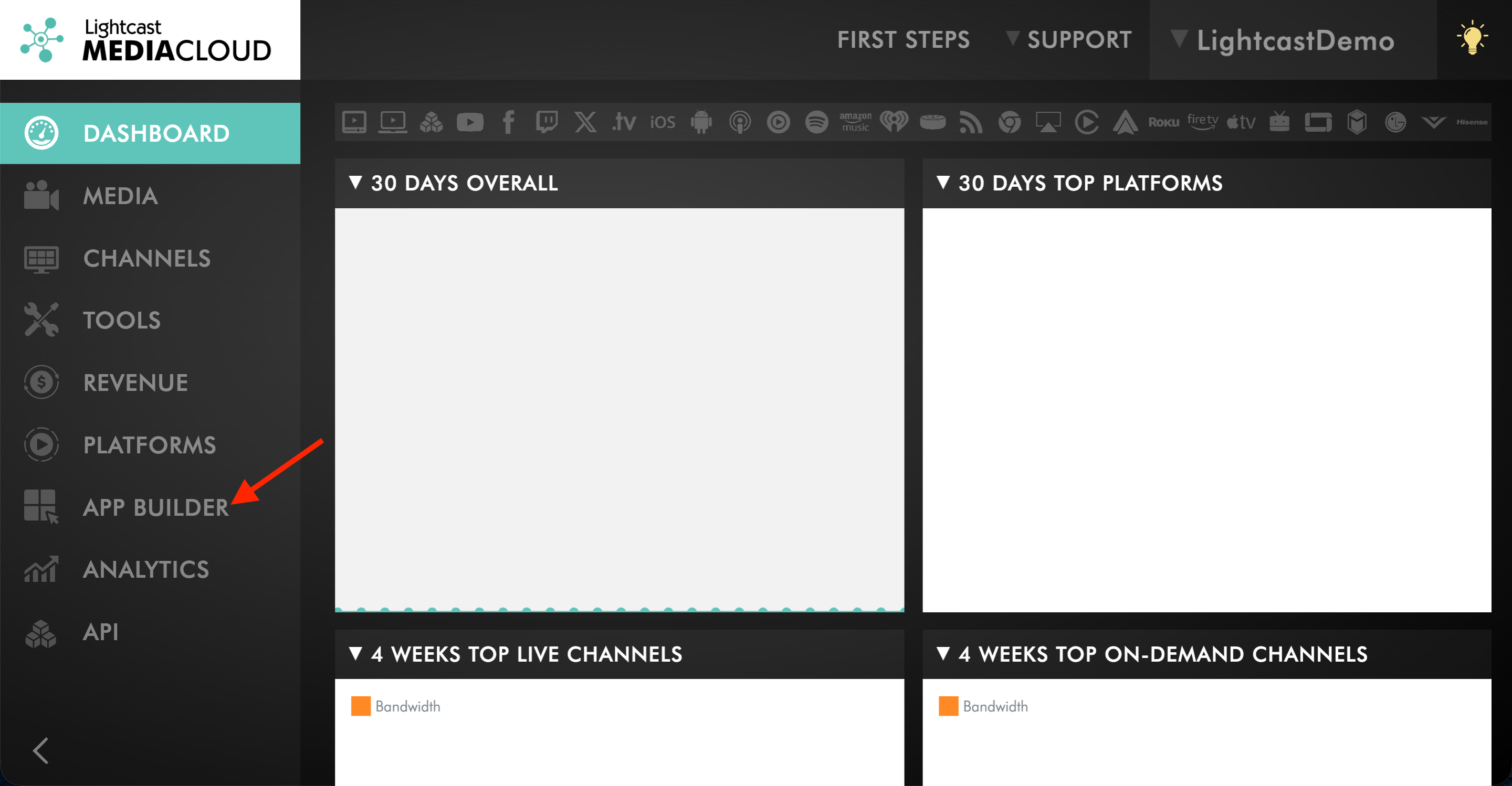
Step 3
Click the app you want to set up.
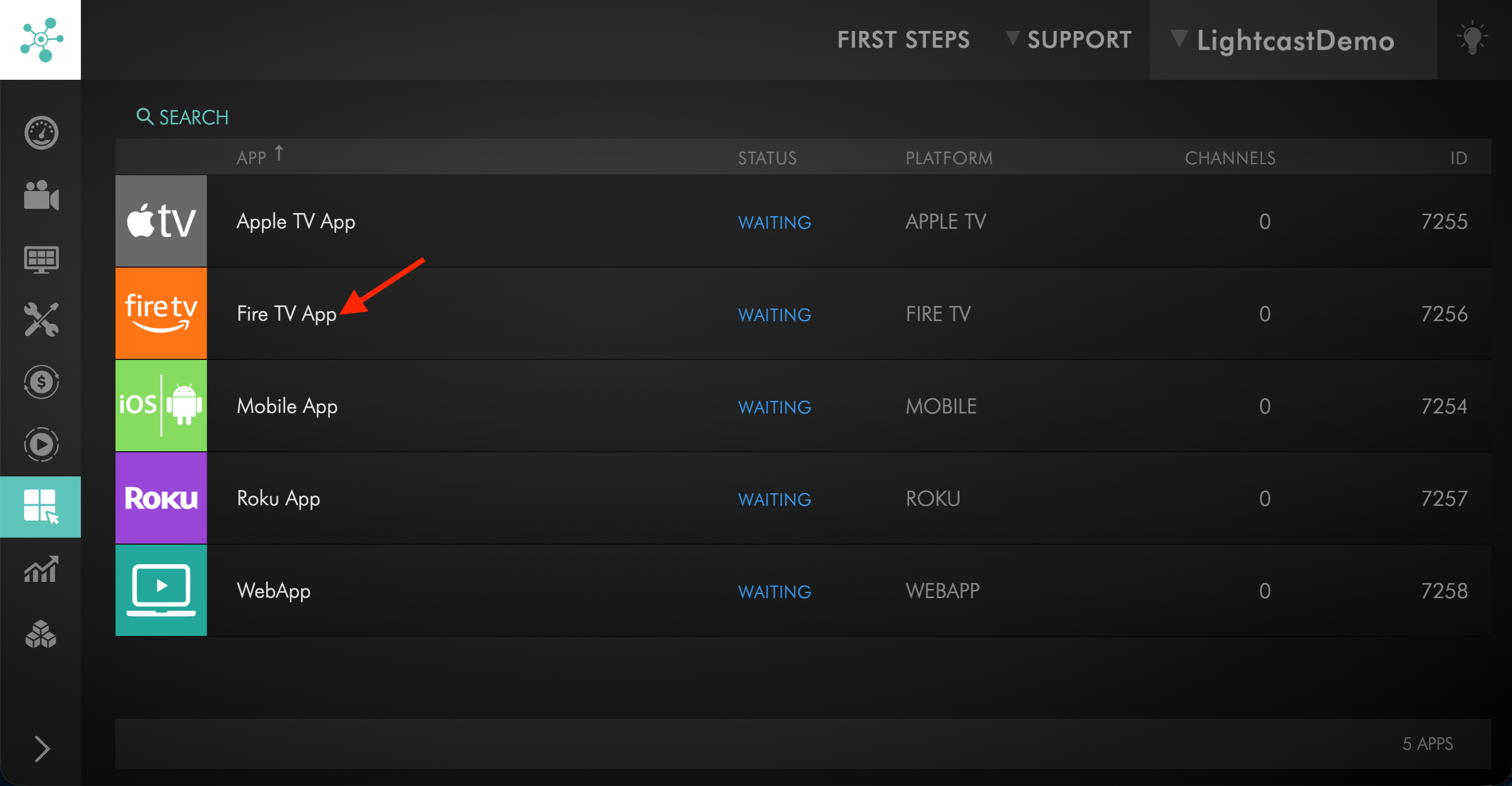
Step 4
Click App Form to open the app specs form.
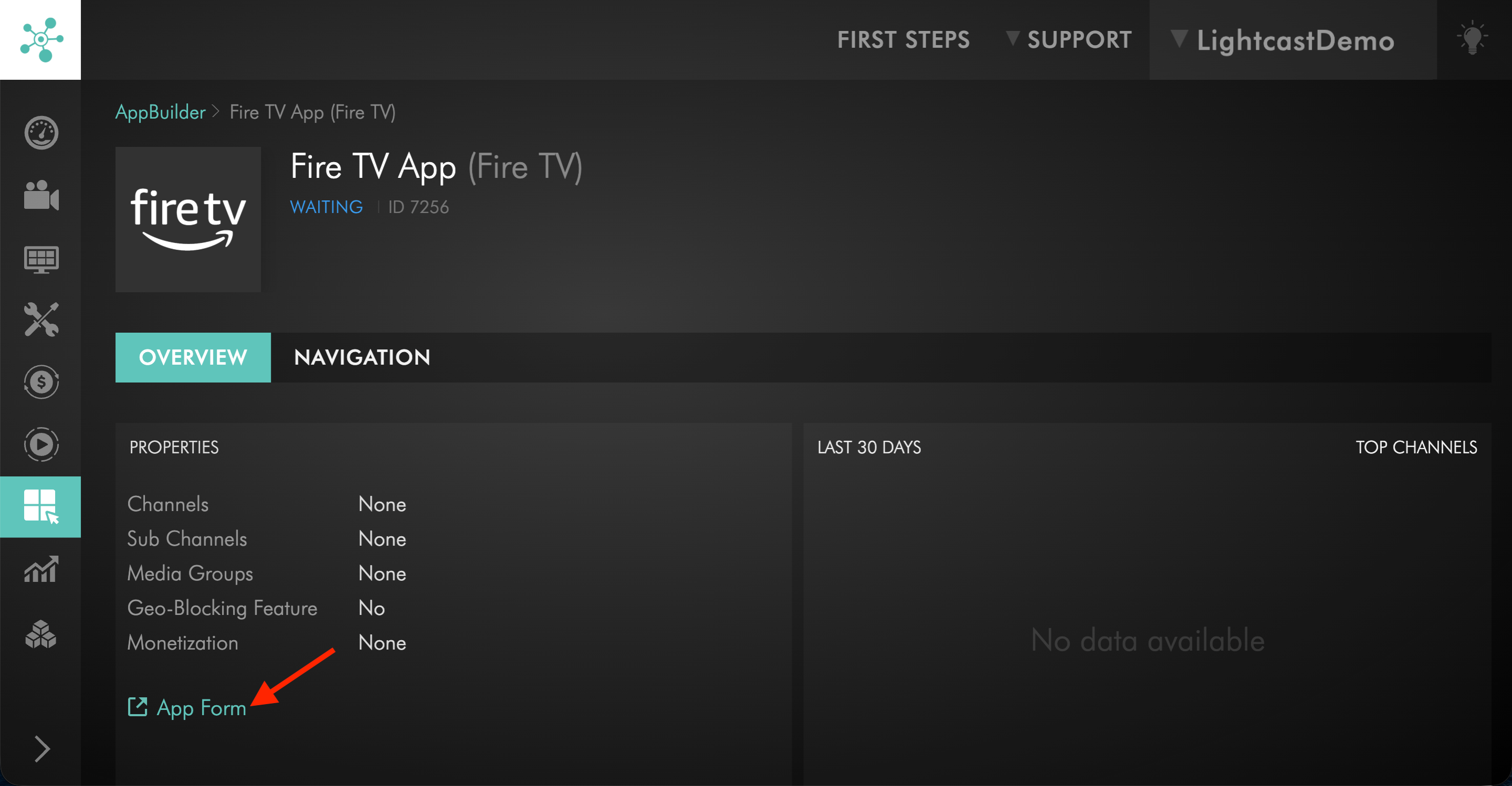
Step 5
Switch to STEP 2. UPLOAD YOUR GRAPHICS.
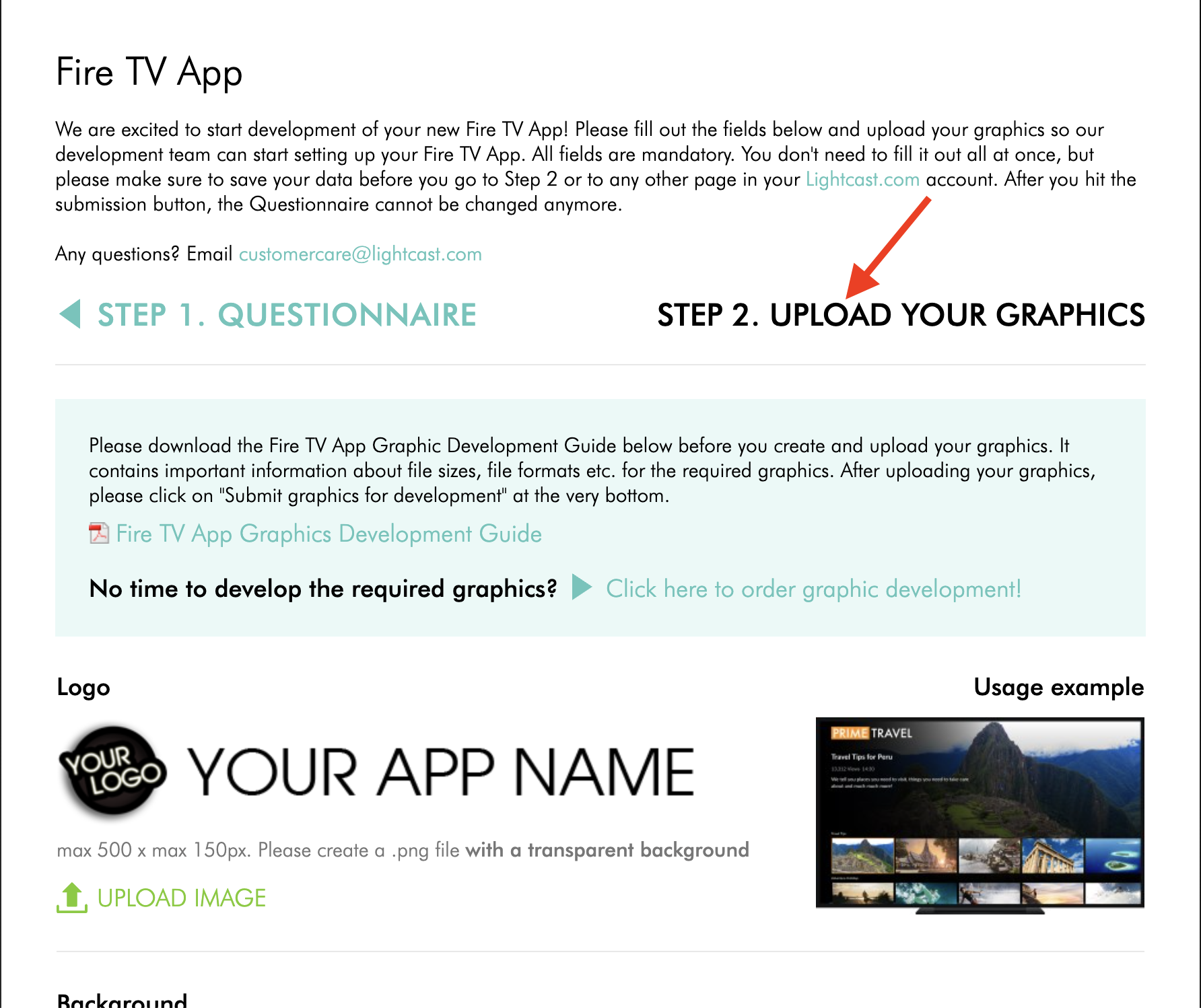
Step 6
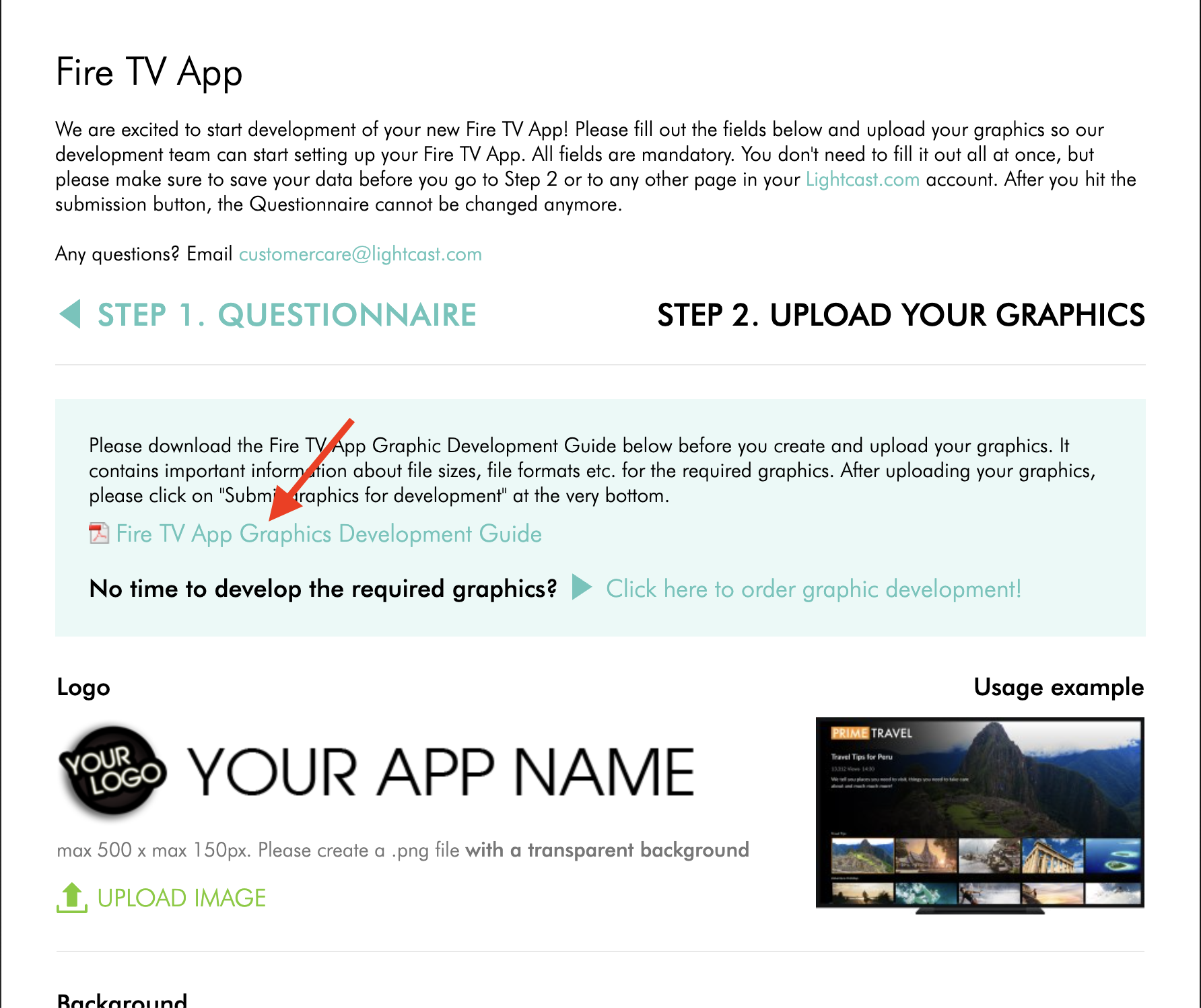
Download and review the Graphic Development Guide shown in the form.
Use the guide for the specific app platform you are setting up. The guide includes the current requirements for the required graphics.
Step 7
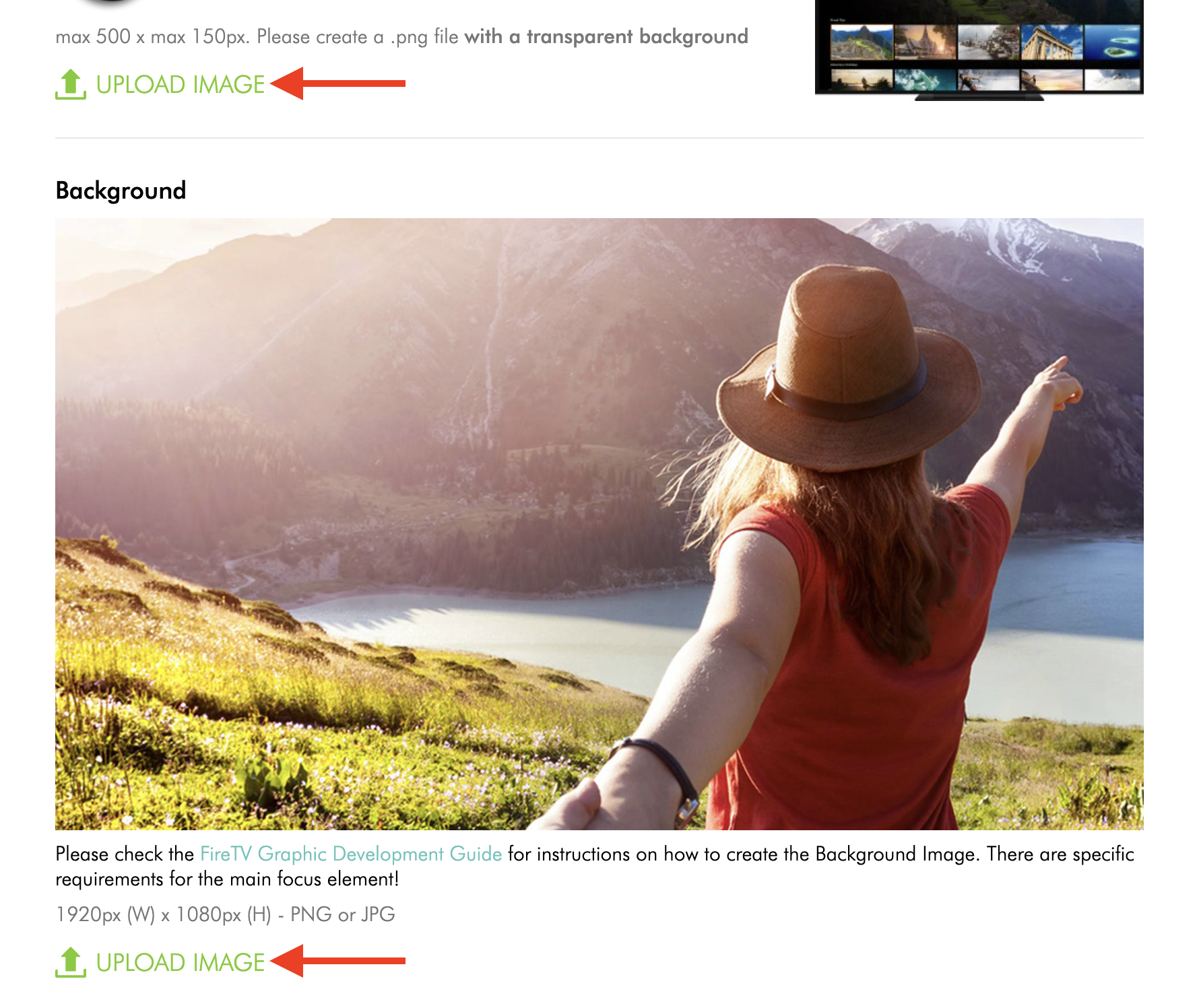
Upload each required graphic or logo in the matching upload field.
Step 8
Review the uploaded graphics before submitting them for development.
Make sure the graphics are final and ready to be used for launch.
Step 9
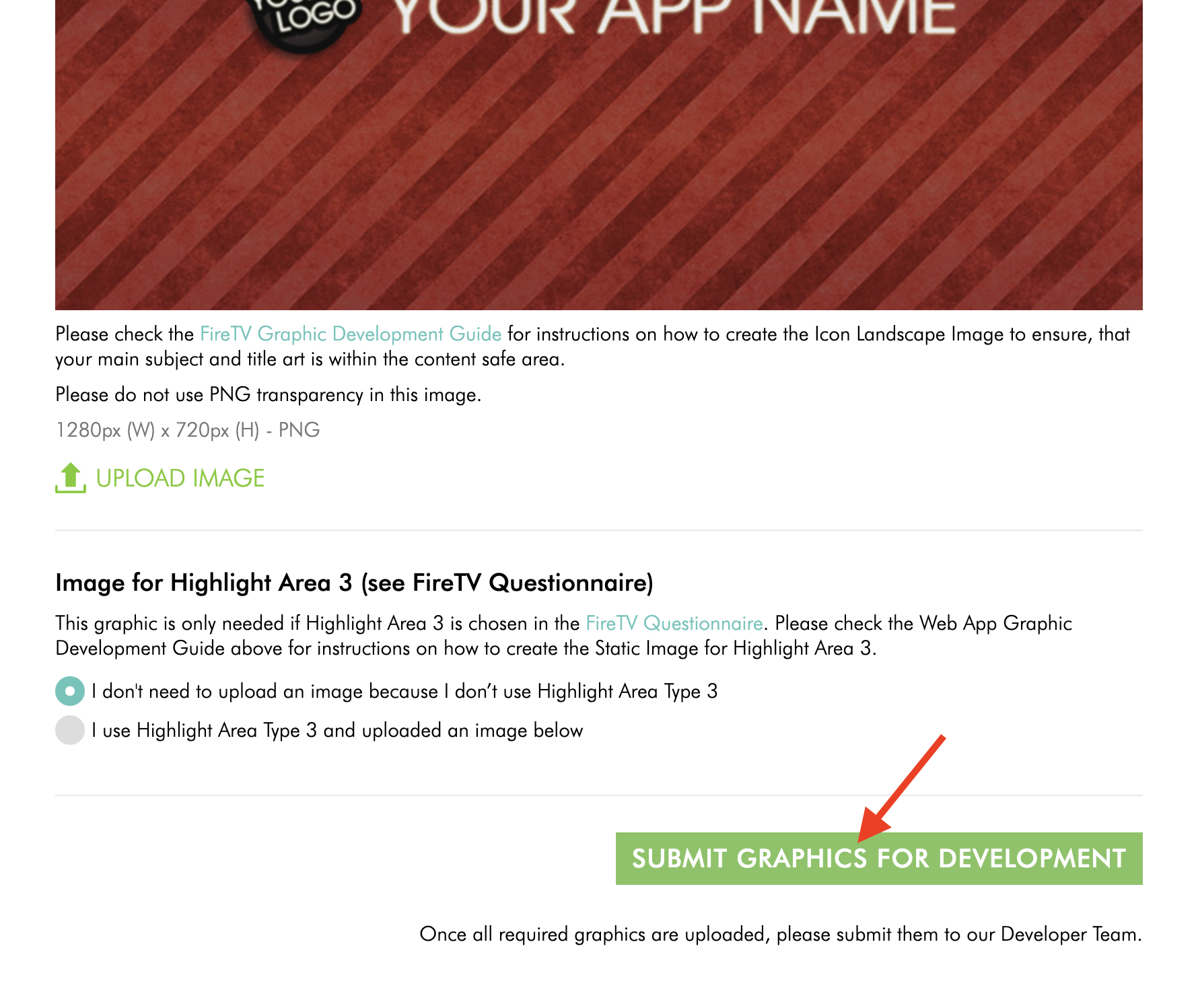
Click SUBMIT GRAPHICS FOR DEVELOPMENT at the bottom of the UPLOAD YOUR GRAPHICS step after all required graphics have been uploaded.
Step 10
Contact Customer Support if you need help with your graphics, want to request graphic development from Lightcast, or need to change graphics after they have been submitted.
FAQs
Do app graphics and logos need to be uploaded during initial app setup?
Yes. App graphics and logos are part of the initial app setup process. Lightcast uses the uploaded graphics to prepare and develop your app.
Where are app graphics uploaded?
App graphics are uploaded in the app specs form.
Go to APP BUILDER, open the app, click App Form, then switch to STEP 2. UPLOAD YOUR GRAPHICS.
Should the graphic development guide be reviewed before uploading graphics?
Yes. Review the graphic development guide shown in the UPLOAD YOUR GRAPHICS step before creating or uploading your graphics.
Each app platform may have different requirements, and the guide provides the current details for that app type.
Can Lightcast create the required app graphics?
Yes. If you do not have time to create the required graphics or do not have a graphic designer, you can request graphic development from Lightcast.
Fees may apply.
Do publishers have to create their own app graphics?
No. Publishers may create their own graphics, use their own designer or agency, or request graphic development from Lightcast.
Many publishers choose to create their own graphics because they want direct control over the branding and visual presentation of their apps.
When should app graphics be submitted?
Submit app graphics only when they are ready to be used for launch.
The graphics submitted through your app specs forms are used by Lightcast during app development.
Can submitted app graphics be changed during the development process?
Possibly. If you need to change graphics after they have already been submitted, contact Customer Support as soon as possible.
Revised graphics during development may cause delays because Lightcast may need to adjust or rebuild parts of the app before submission.
Can app graphics be changed after the app is published?
Yes. App graphic changes can be requested after an app is published.
Depending on the platform and type of change, the update may require design work, development work, app rebuilding, App Store resubmission, and App Store review. Fees may apply.
What should be done if a required graphic is missing or not ready yet?
Do not submit the graphics for development until all required graphics are ready.
If you are not sure how to complete a required graphic, review the graphic development guide or contact Customer Support.