
How to create a Roku Developer account for your Roku app
Overview
This article explains how to create a Roku Developer account and give Lightcast access so we can build, package, and submit your Roku app to the Roku Channel Store.
You would use this process when you are preparing a new Roku app for submission or when Lightcast needs access to manage your Roku app submission on your behalf.
For more information about Roku’s developer requirements, you can also refer to Roku’s official developer documentation.
How it works
To submit a Roku app, Roku requires the app to be tied to a valid Roku Developer account. That account must also meet Roku’s platform requirements before submission can move forward.
As part of this process, you must:
create or sign in to a Roku customer account
enroll in the Roku Developer Program
link a Roku device to the same account
enroll in the Roku Partner Payout Program
invite Lightcast as an administrator
A physical Roku device is required for this process because Roku must have at least one device linked to the same account used for the Roku Developer Program. This linked device enables developer mode and allows the account to be used for Roku app submission.
You must link the device using the same email address used for your Roku Developer account. If your Roku device was already set up under a different email address, you may need to factory reset it and complete setup again so it can be linked to the correct account.
Lightcast also needs Administrator access to your Roku Developer account so our development team can prepare, package, and submit your app.
Instructions
You must have a Roku customer account before enrolling in the Developer Program.
Step 1
Go to: https://my.roku.com/signin
Step 2
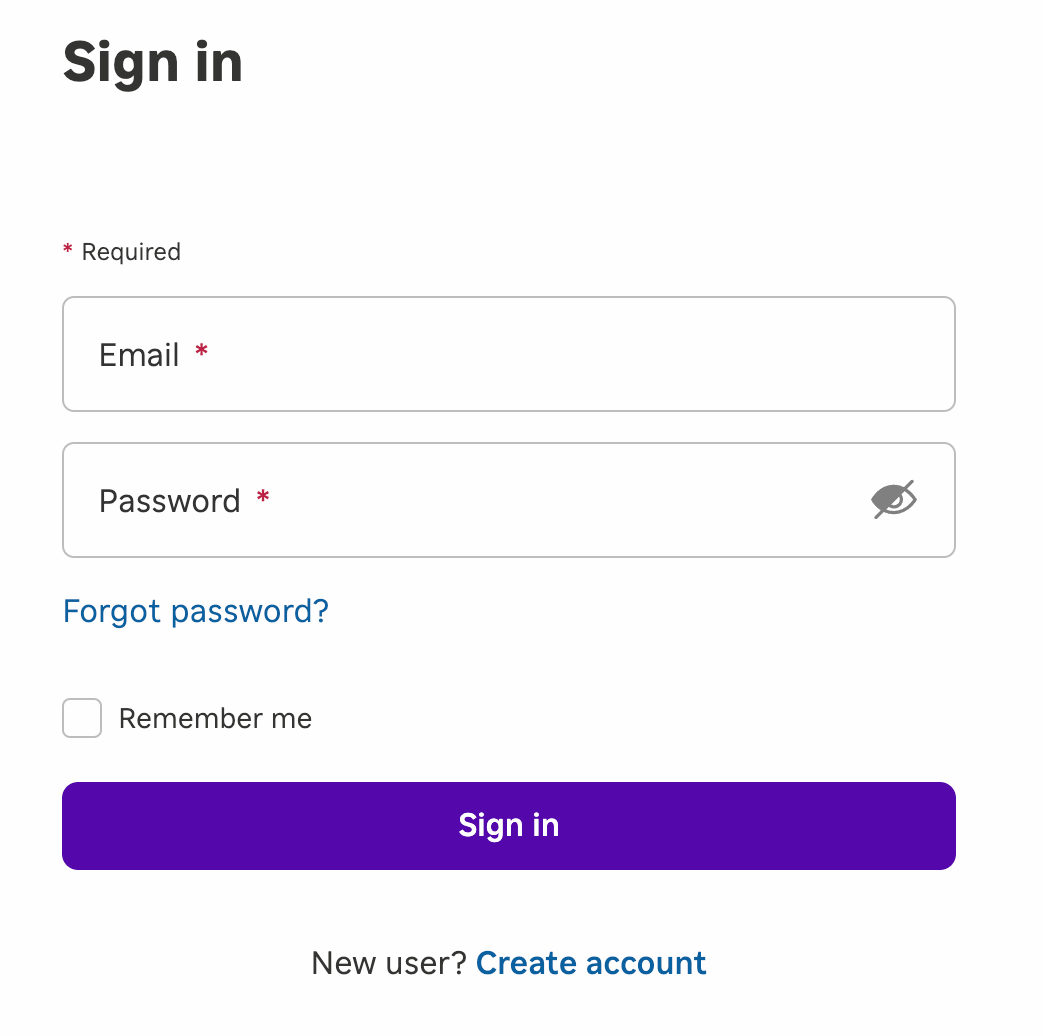
Select one of the following:
Sign In (if you already have a Roku account)
Create account (to register a new account for your organization)
Step 3
Based on your selection in Step 2:
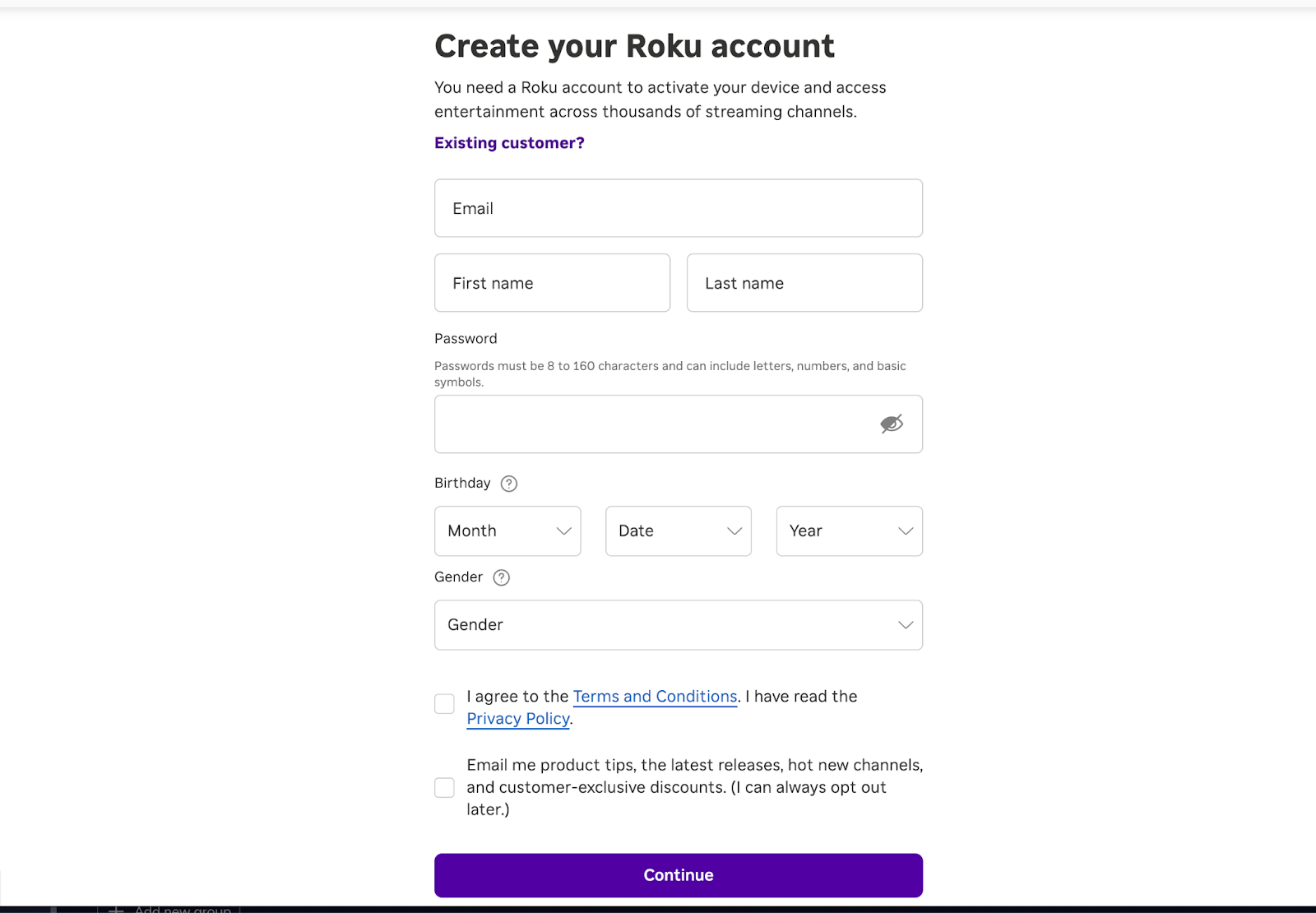
If you chose Create account, fill out the registration form to create your Roku customer account. After your account is created, continue to Step 4 to begin the Roku Developer enrollment process.
If you chose Sign in, continue to Step 4 to begin the Roku Developer enrollment process.
Step 4
Go to: https://developer.roku.com/account.
Step 5
Sign in using your Roku customer account credentials.
Step 6
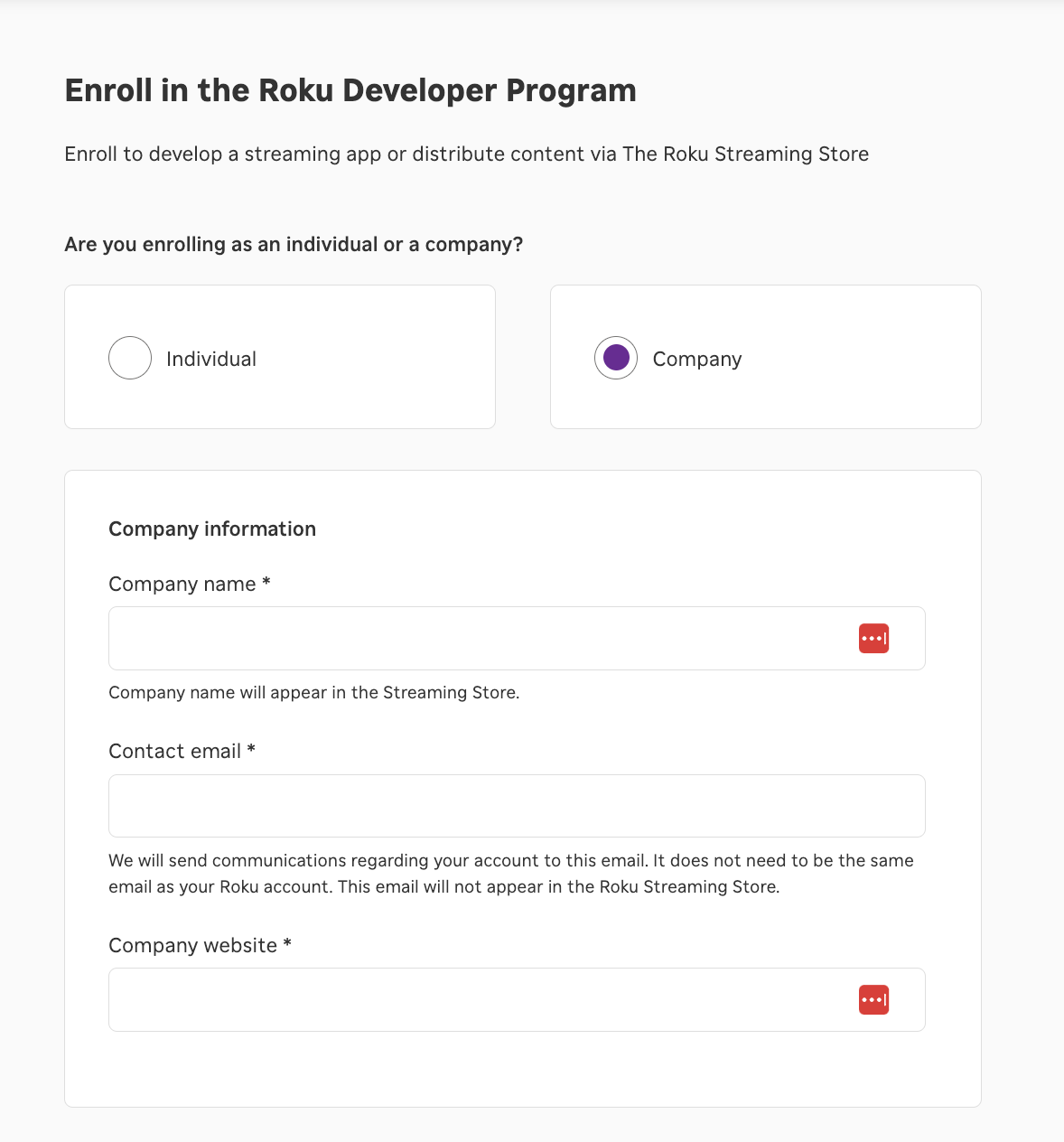
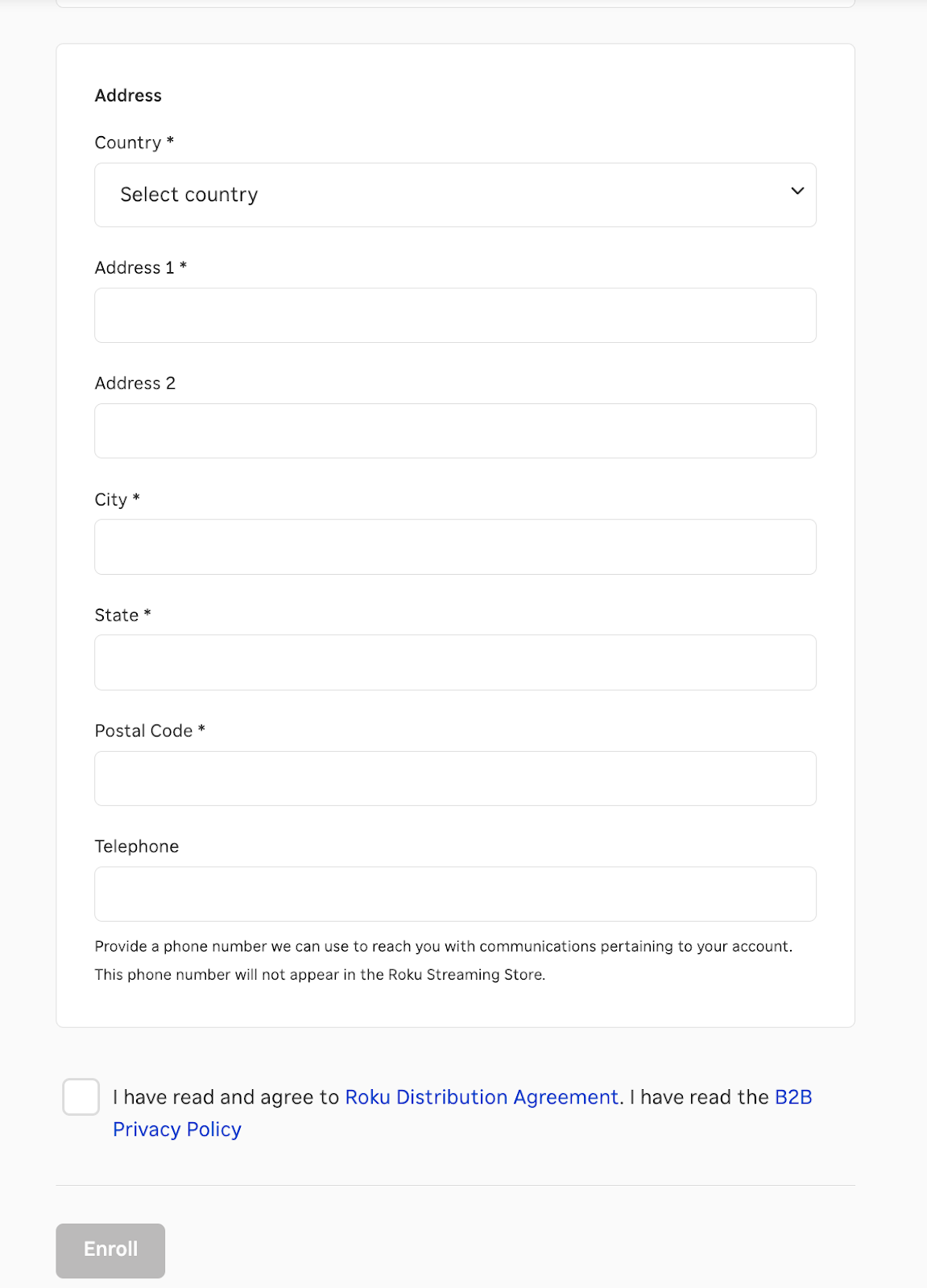
Complete the enrollment form by choosing the account type that best represents your organization:
Option A: Individual - Select this if you are publishing as an individual.
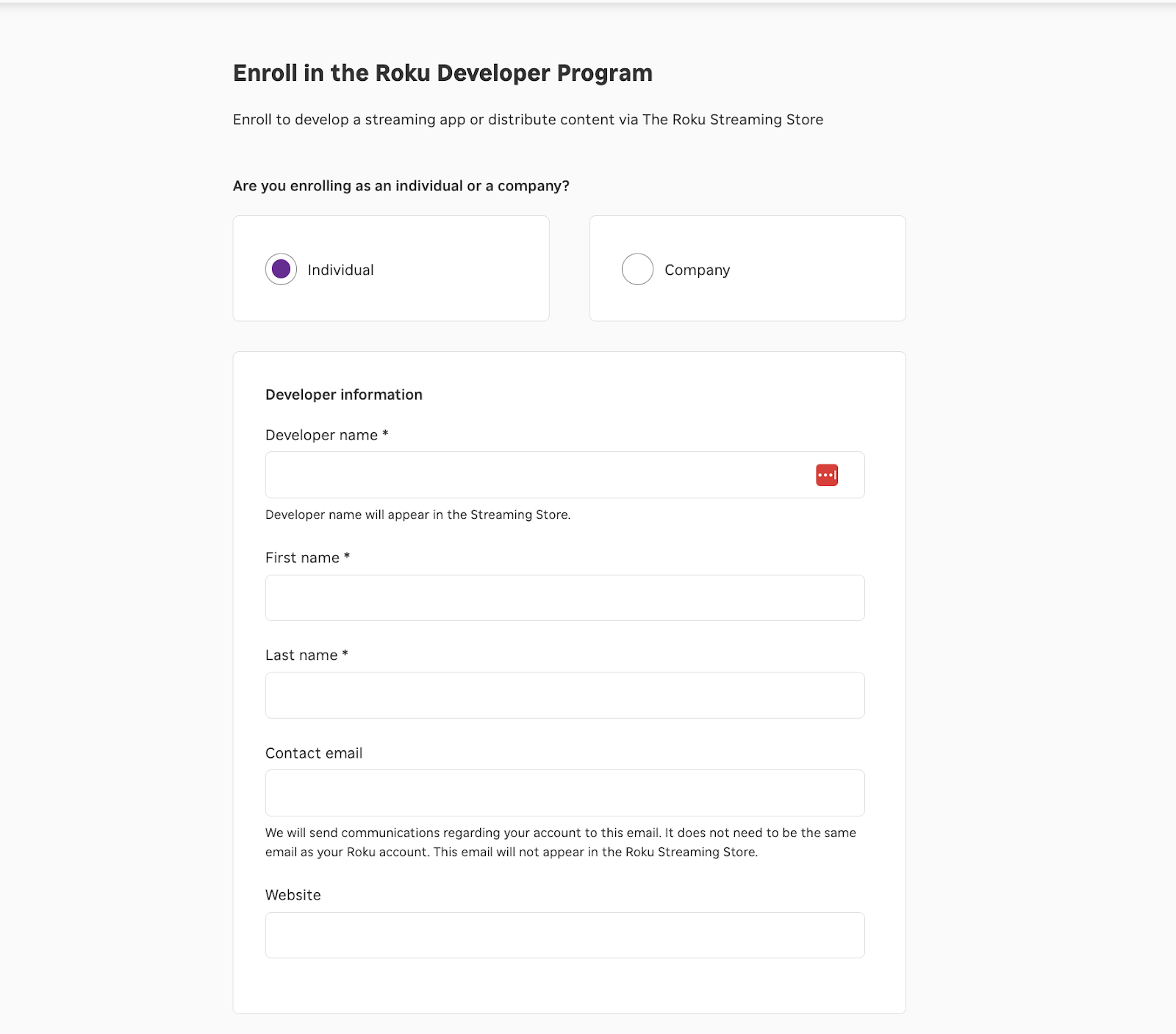
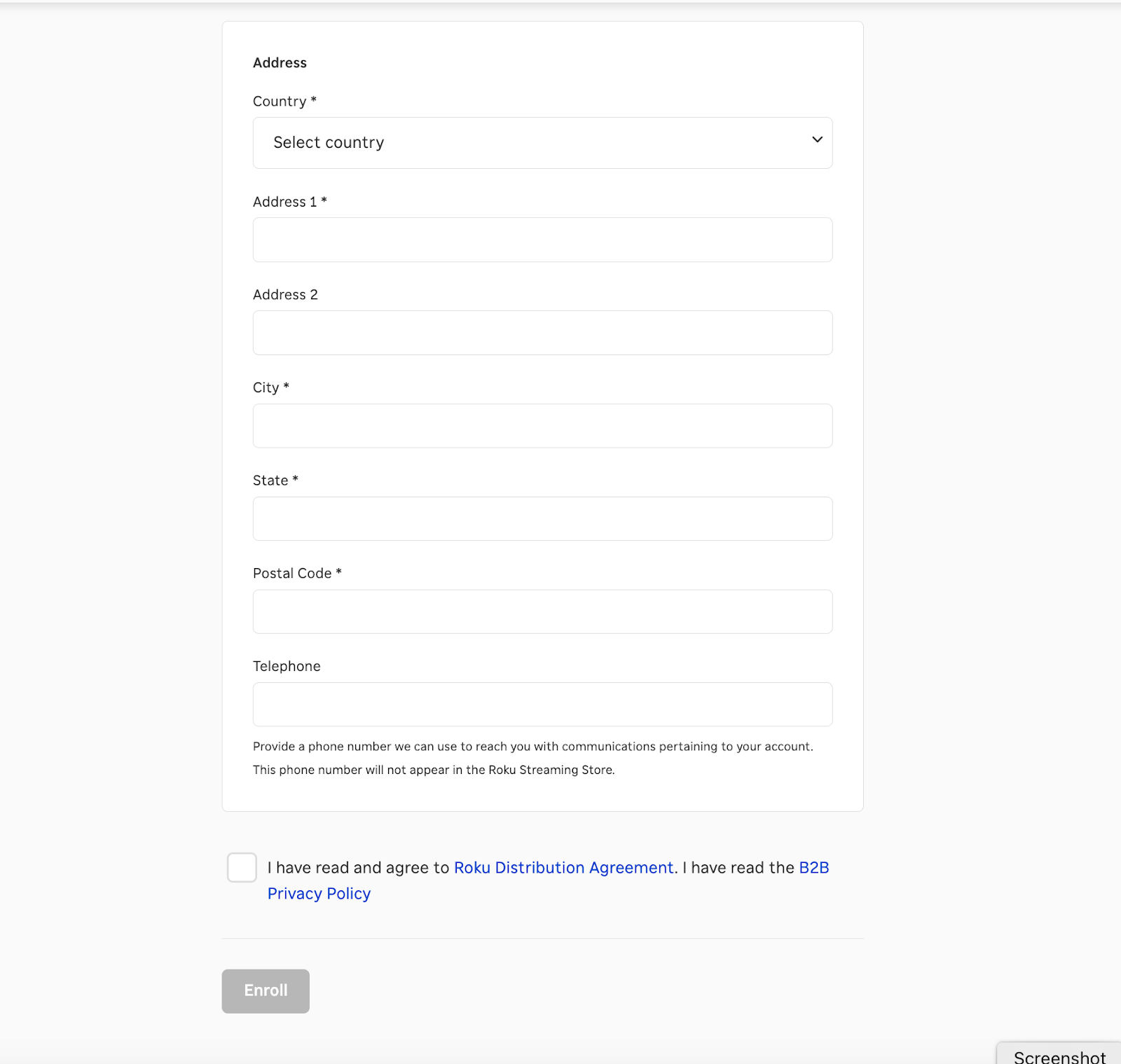
Option B: Company - Select this if publishing under a business or organization name.
Step 7
Submit the form to complete enrollment.
Step 8
A Roku device must be linked to your account to enable development and testing.
Important: Linking a Roku device can only be done during the device setup process. If your device is already set up, you will need to perform a factory reset.
Step 9
If your device is already set up, follow these steps to complete a factory reset. If you have a new Roku device, proceed to Step 10.
On your Roku device, go to:
Settings → System → Advanced System Settings → Factory Reset
Enter the PIN shown on screen.
Select Start Factory Reset.
Step 10
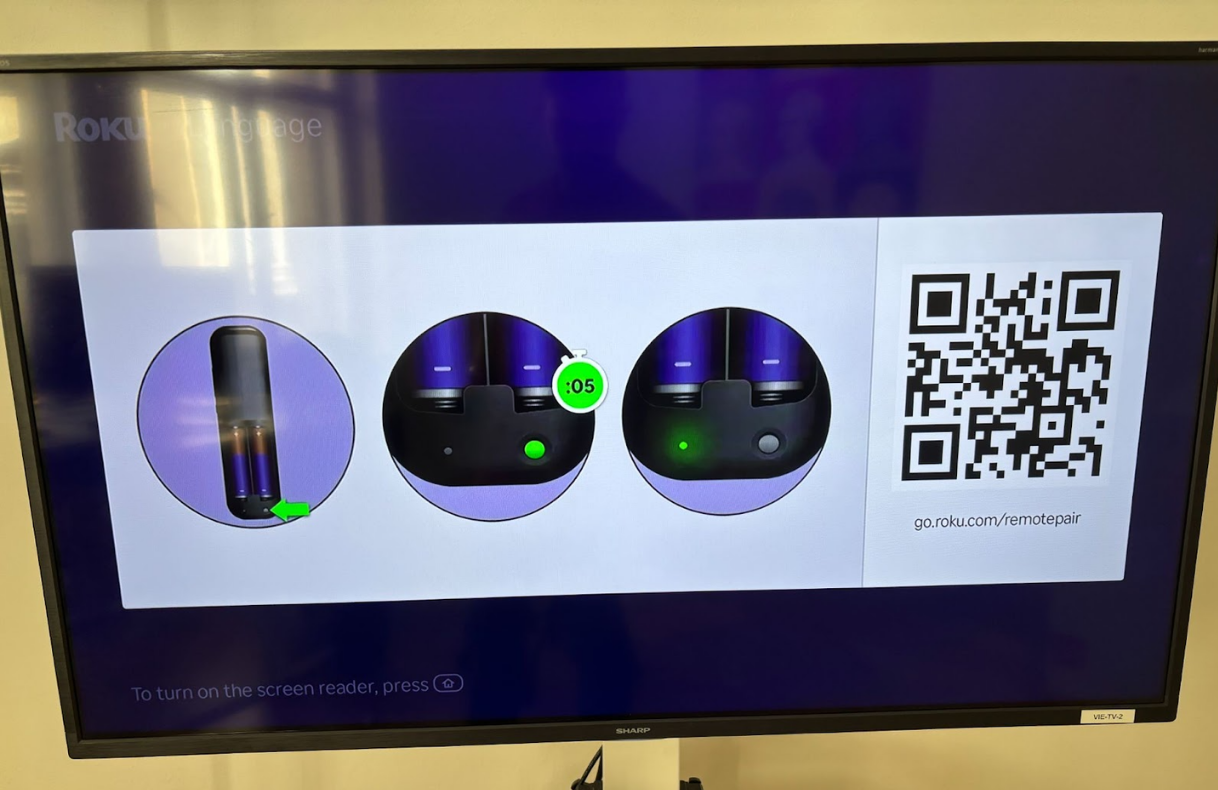
Connect your remote.
Step 11
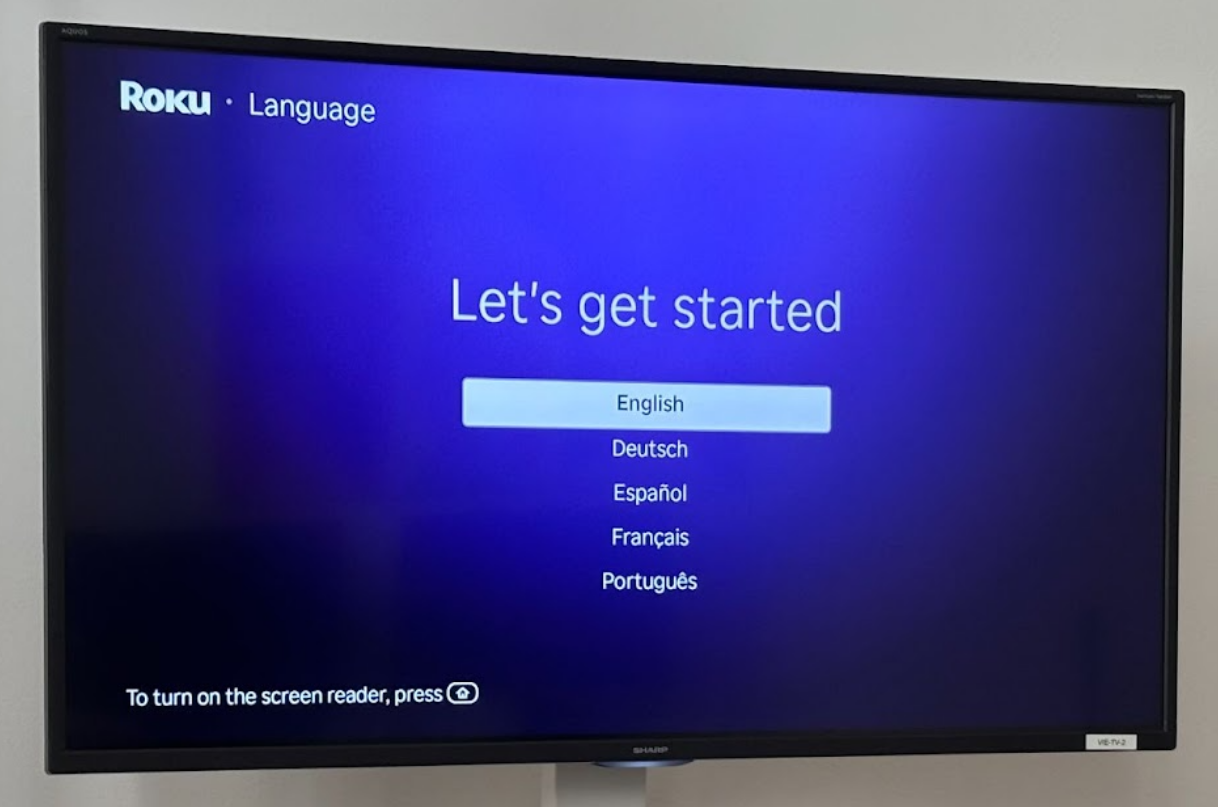
Select your language.
Step 12
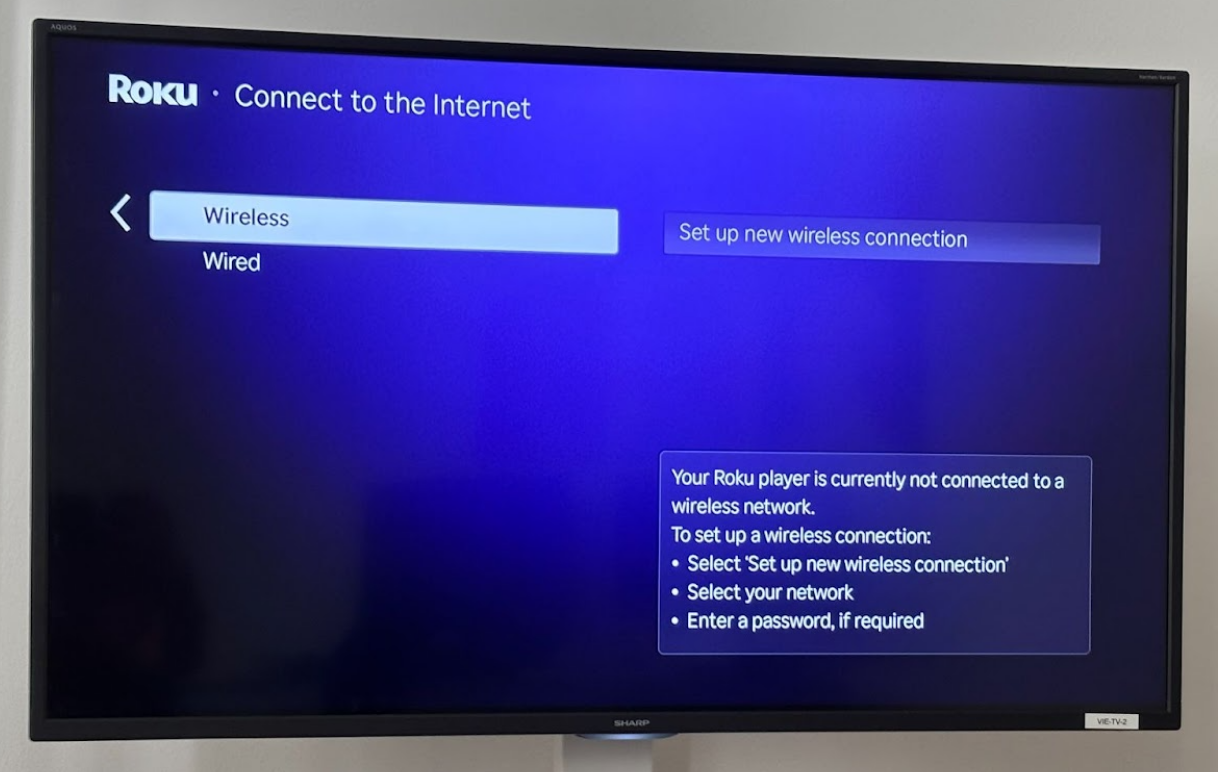
Set up your network connection.
Step 13
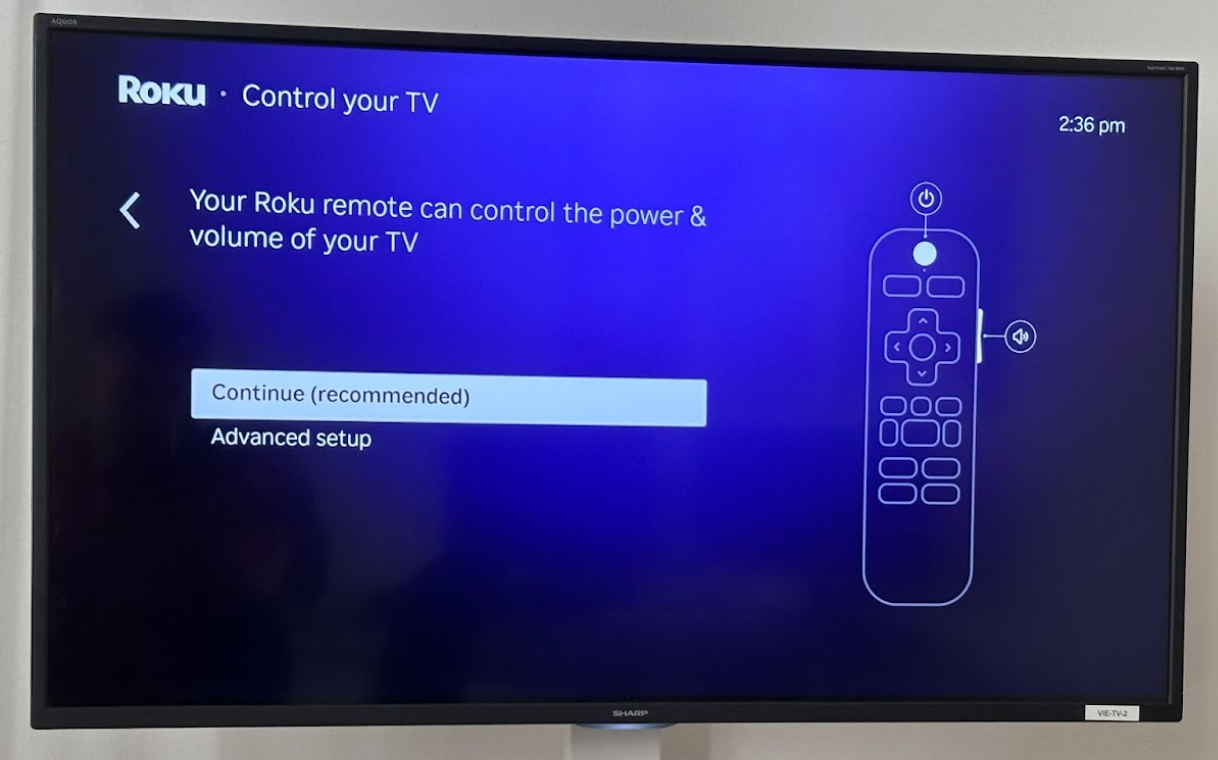
Configure the remote (if prompted).
Step 14
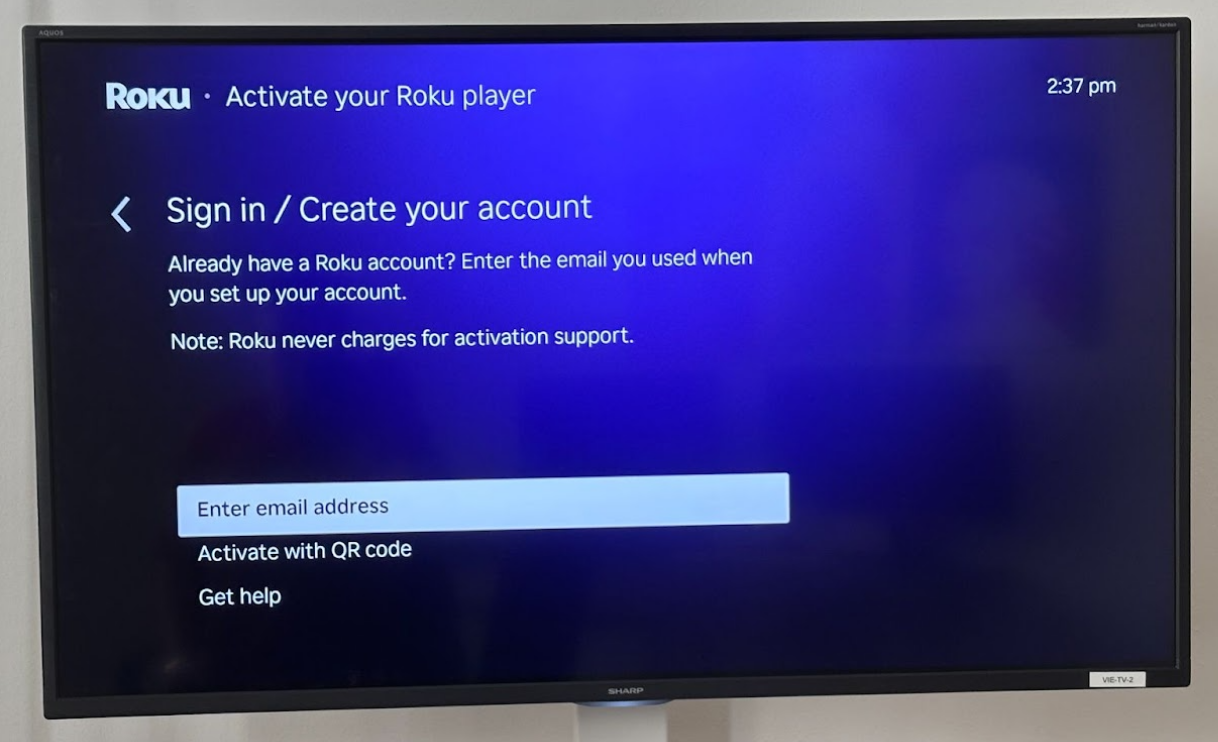
When asked to connect a Roku account, enter the same email address used in Steps 2-5.
Step 15
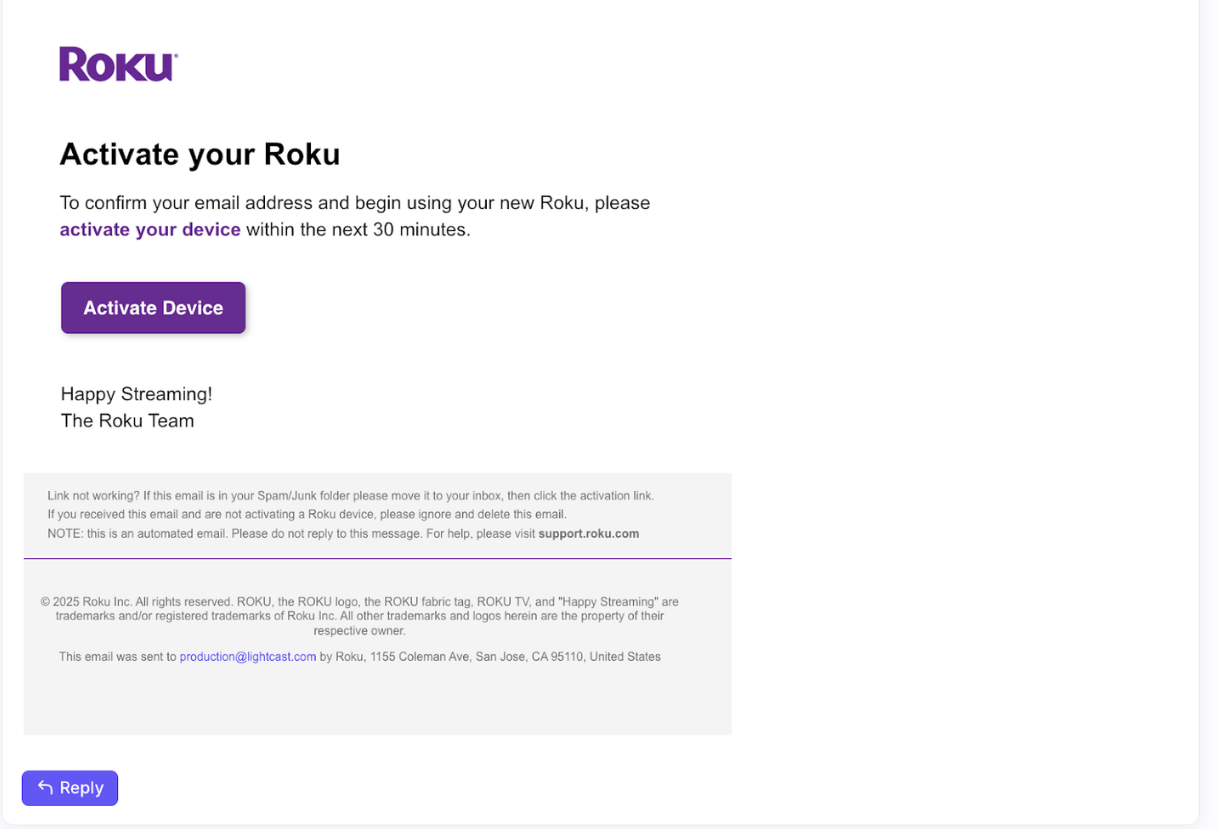
Check your email and click Activate Device.
Step 16
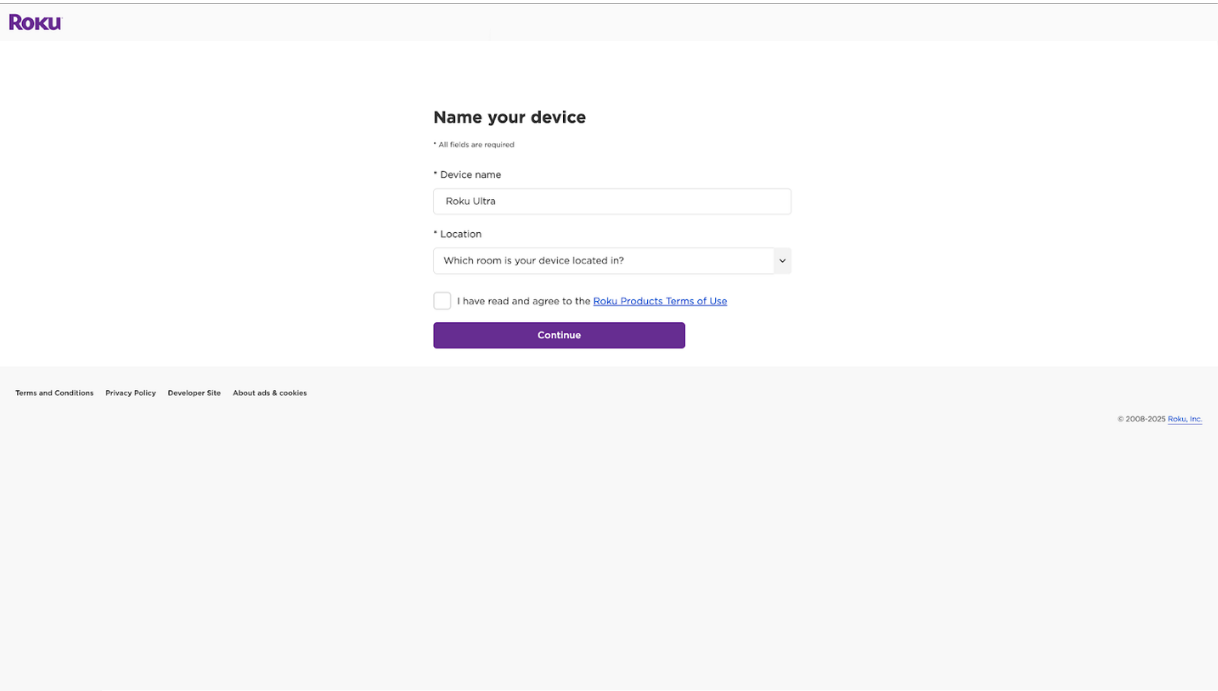
Choose a device name and location.
Step 17
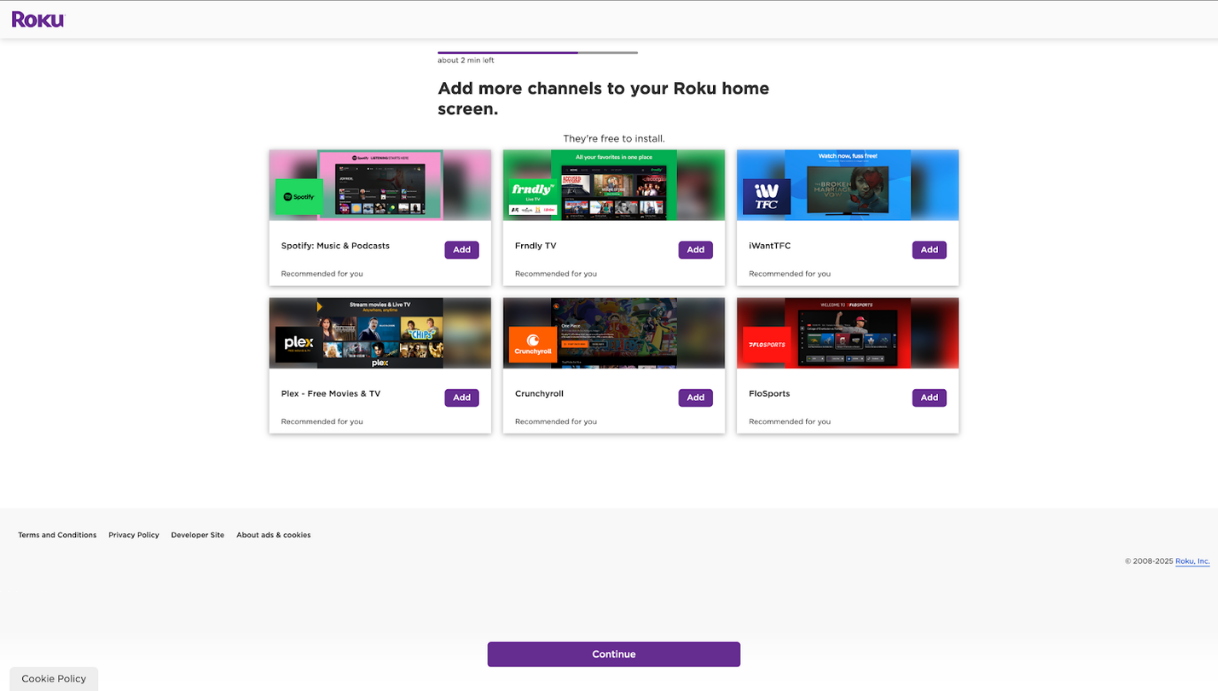
(Optional) Add Roku Channels.
Step 18
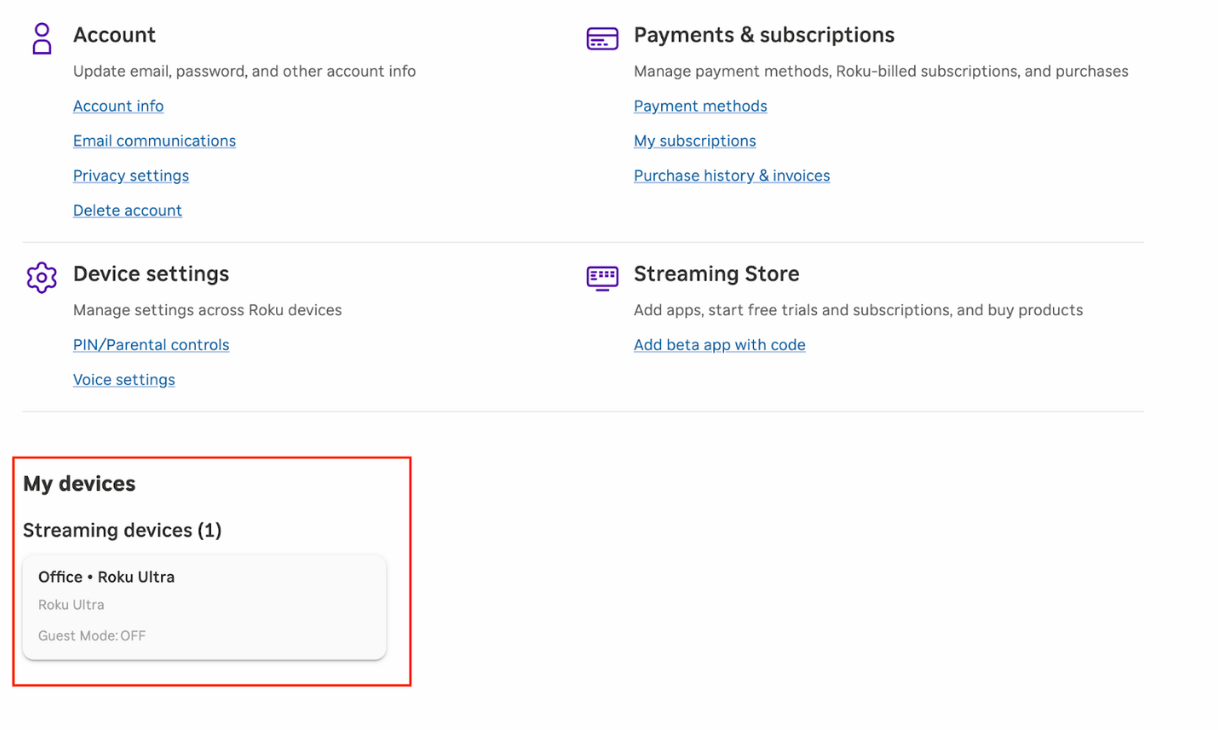
To confirm your device is linked, visit https://my.roku.com/account and verify the device appears under your account.
Step 19
Roku requires all developers to enroll in the Partner Payout Program before publishing apps.
Visit the Roku Partner Payout enrollment page.
Complete the required payment and tax information.
Submit the form.
This step is required even if your app will not generate revenue.
Please click here and follow the directions to enroll in the Roku Partner Payouts Program.
Step 20
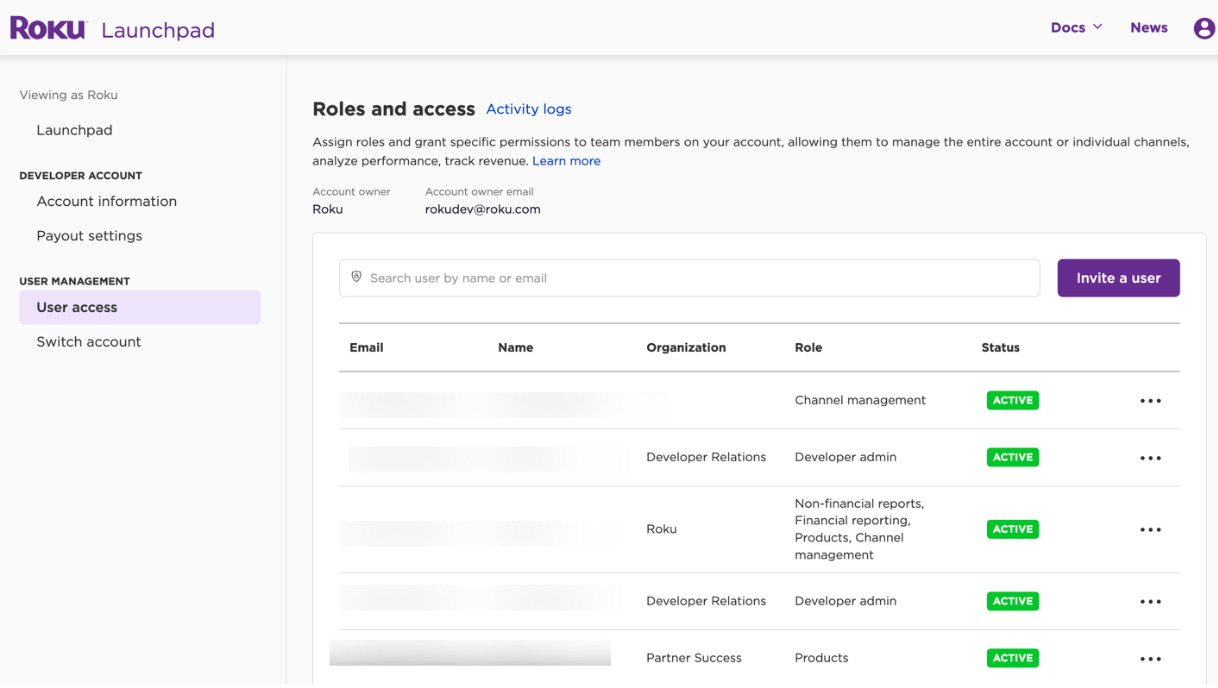
Lightcast must have Administrator access to build and submit your Roku app.
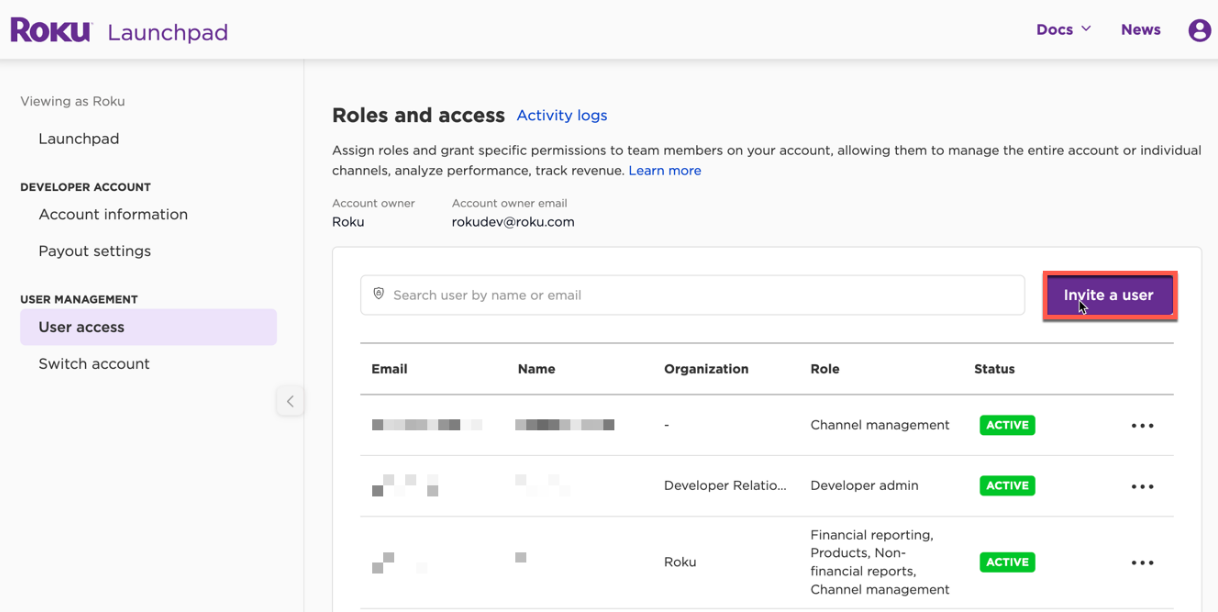
From the Roku Developer Dashboard, select User Access in the left sidebar.
Step 21
Click Invite a User.
Step 22
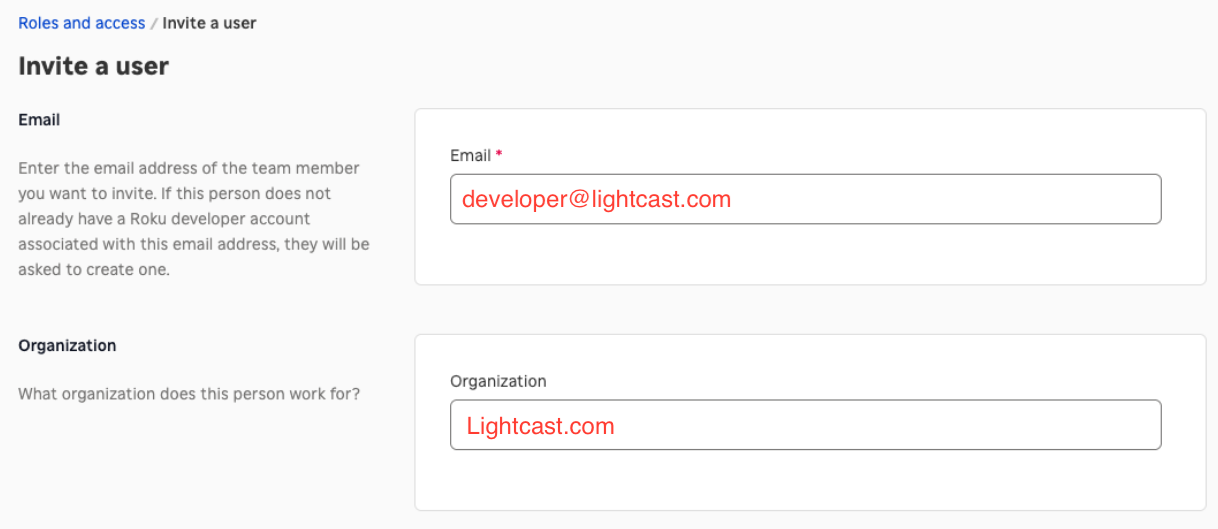
Enter the following email address: developer@lightcast.com.
For Organization, please type in: Lightcast.com.
Step 23
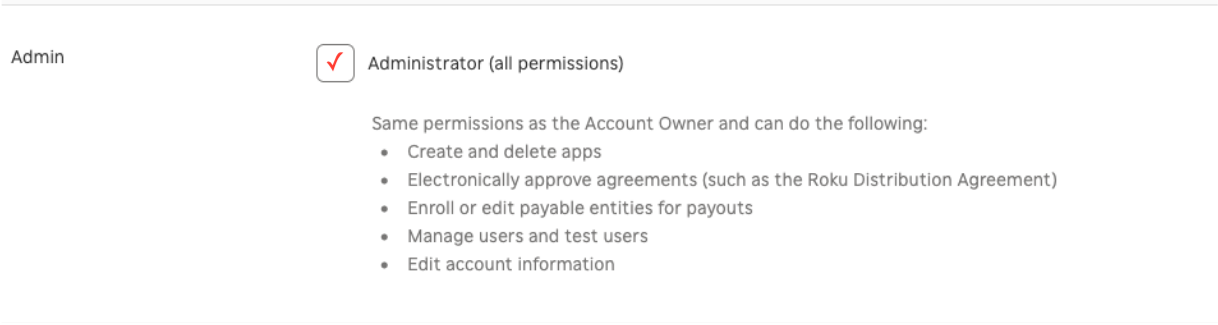
Select the role: Administrator.
Step 24
Click Invite.
Step 25
Please notify Customer Support that the invite has been sent so that the Lightcast development team can accept the invitation.
FAQs
Do I need a Roku customer account before creating a Roku Developer account?
Yes. You must first create or sign in to a Roku customer account before enrolling in the Roku Developer Program.
Do I need a physical Roku device?
Yes. Roku requires a physical Roku device to be linked during setup in order to complete the developer account process.
What if my Roku device is already set up?
You will most likely need to factory reset it so it can be linked to your Roku Developer account during the setup process. Alternatively, you can purchase and link a new Roku device.
Why does Lightcast need Administrator access?
Lightcast needs Administrator access so our development team can build, package, and submit your Roku app through your Roku Developer account.
Is the Roku Partner Payout Program required?
Yes. Roku requires developers to enroll in the Roku Partner Payout Program as part of the submission process.
Timeline for building and launching new apps in the App Stores
Customer Care appointment scheduling: https://customercare.lightcast.com