
How to find and install your published Amazon Fire TV app
Overview
This article explains how to find and install your published Amazon Fire TV app on a compatible Fire TV device.
When to install your published Amazon Fire TV app
Use these steps when you want to install a published Fire TV app from the Amazon Appstore.
Before you begin, make sure:
Your Fire TV device is connected to the internet
You are signed in with your Amazon account
You know the exact name of the app
Supported Fire TV devices include:
Amazon Fire TV Stick
Amazon Fire TV Stick with Alexa Voice Remote
Amazon Fire TV Set Top Box
Fire TV-enabled Smart TVs
How it works
Fire TV apps can be installed from the Amazon Appstore on compatible Fire TV devices.
Fire TV device search is primarily optimized for movies and TV content. Because of this, app titles may not always appear at the top of search results, even when the app name is entered correctly.
If the app does not appear in Fire TV device search, you may be able to locate and install it from Amazon.com instead. Amazon.com search and Fire TV device search use different ranking systems.
Instructions
Install the app from your Fire TV device
Step 1
Turn on your Fire TV device.
Step 2
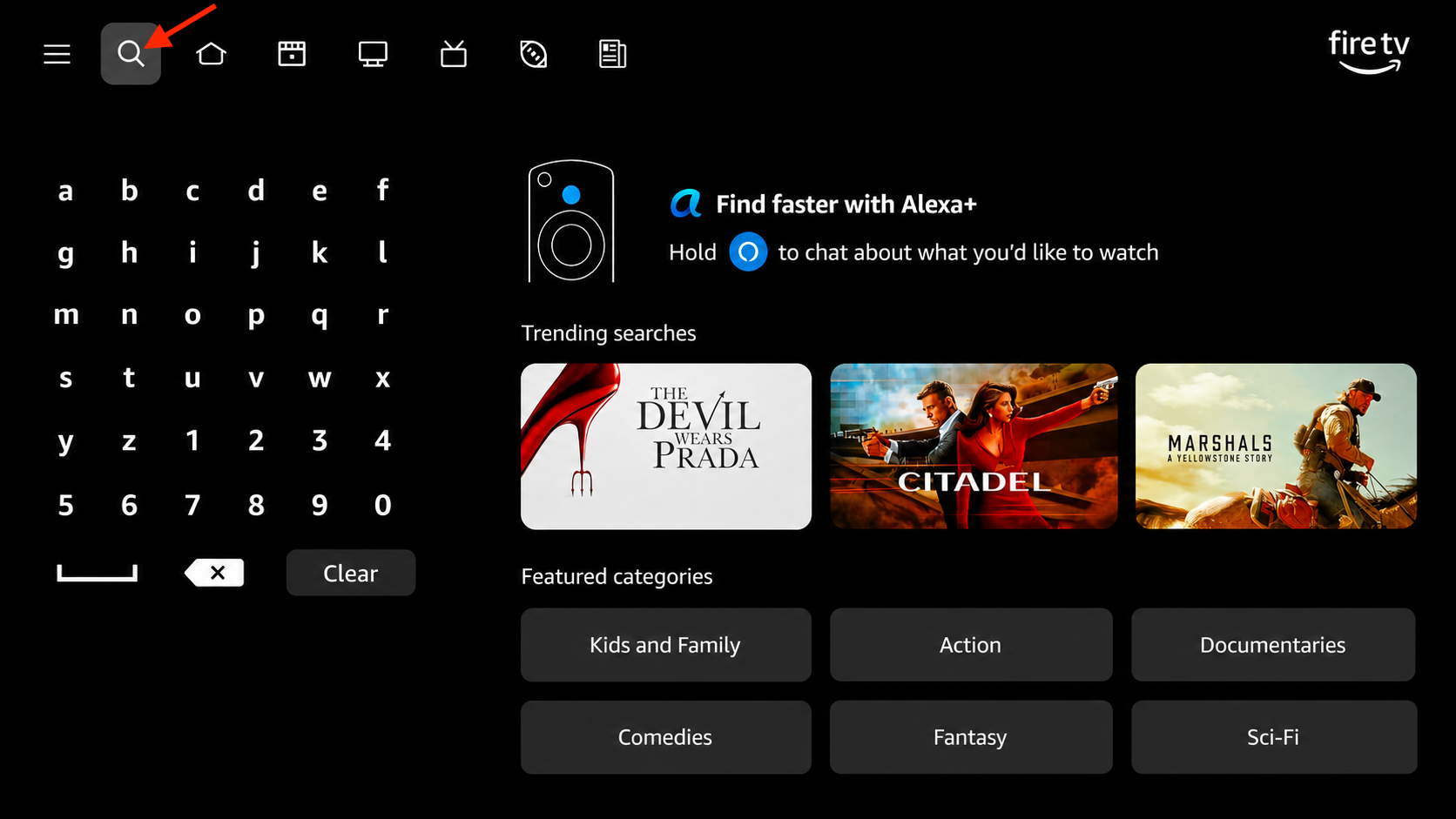
From the Home screen, select Search.
Step 3
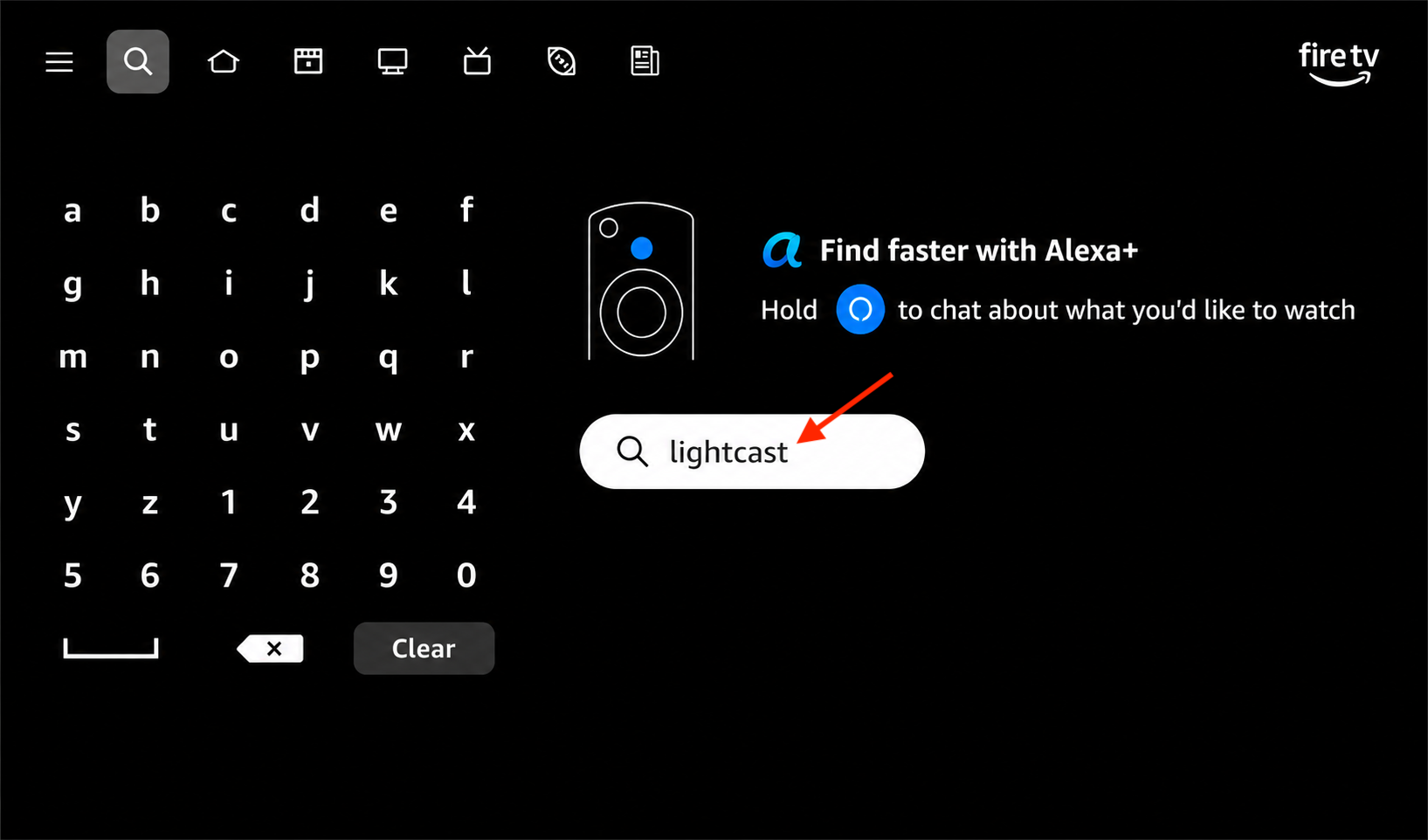
Search for the app.
You can type the full app name using the on-screen keyboard or press and hold the Alexa voice button on your remote and say the app name clearly.
Step 4
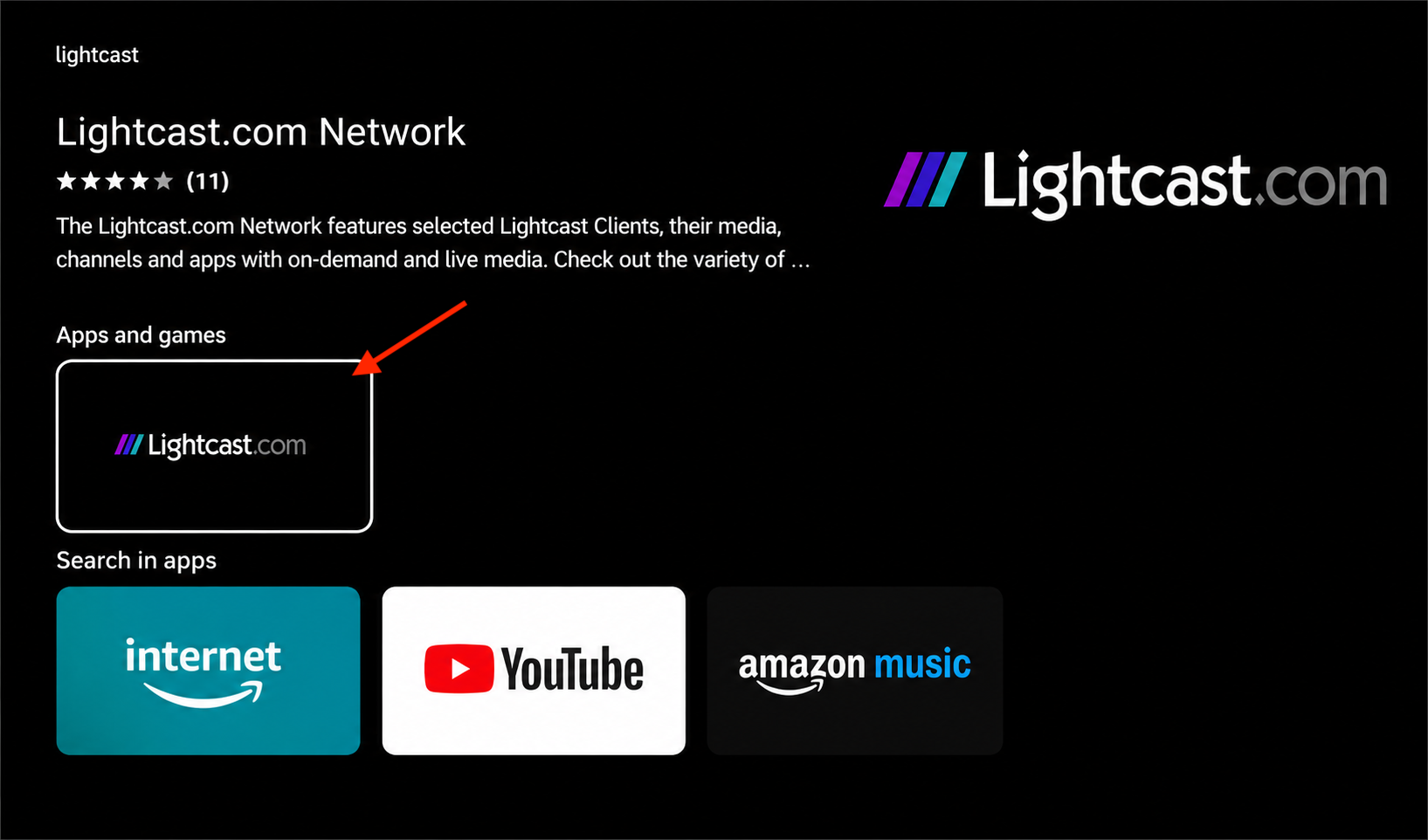
Select the correct app from the search results.
Step 5
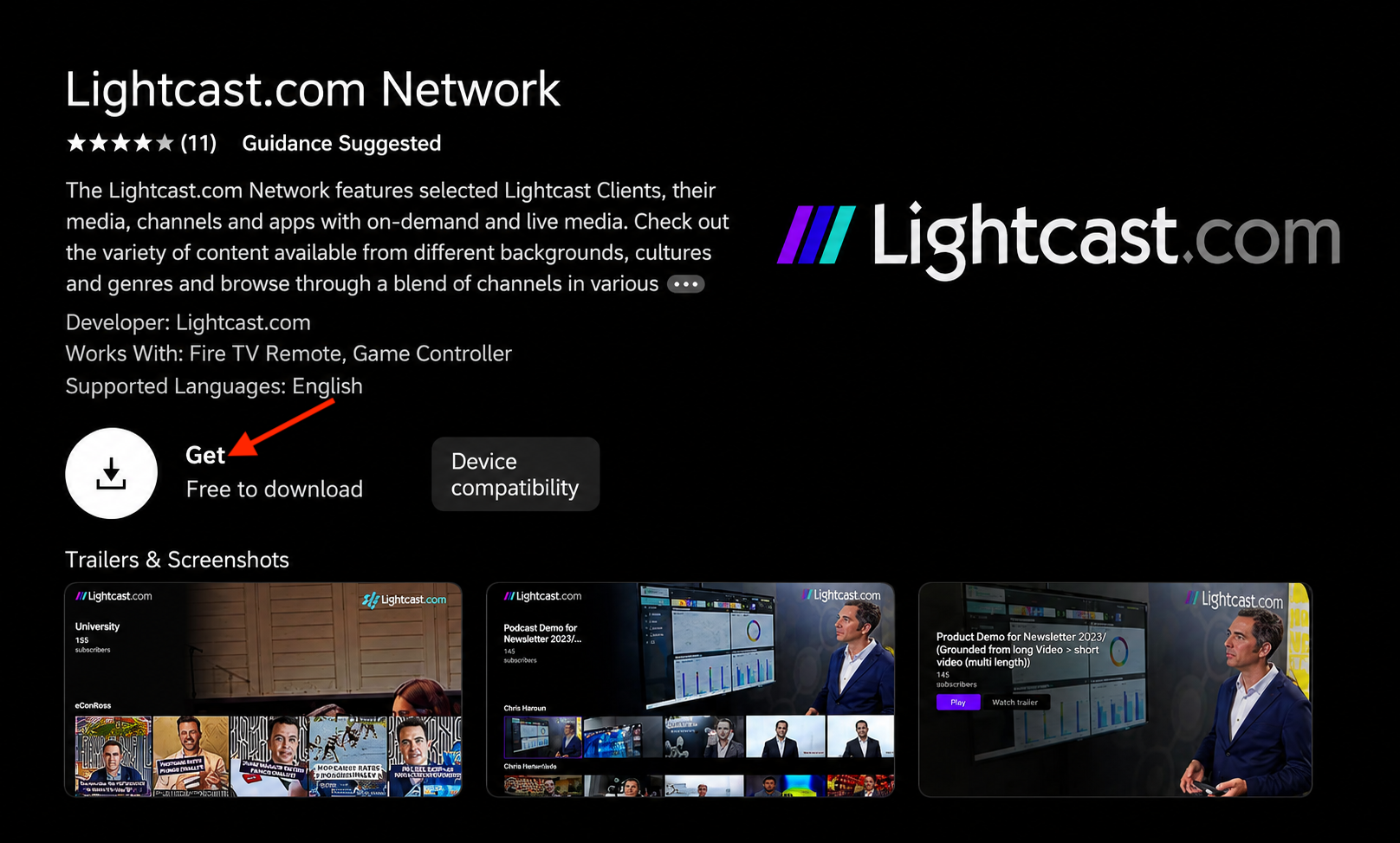
Select Get or Download.
The app will begin installing automatically.
Step 6
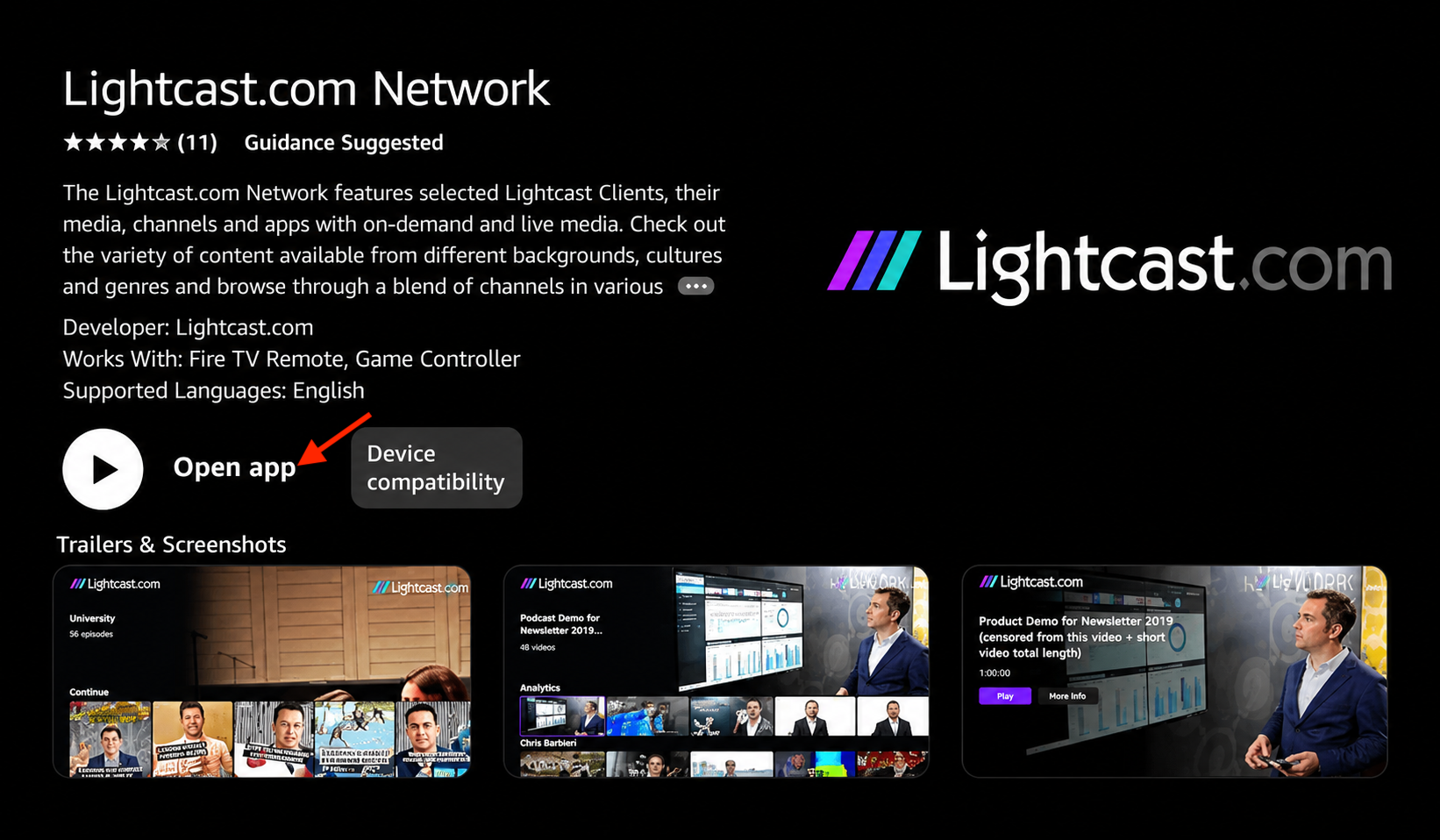
After the installation is complete, open the app.
Step 7
Confirm that the app opens correctly and that your content displays as expected.
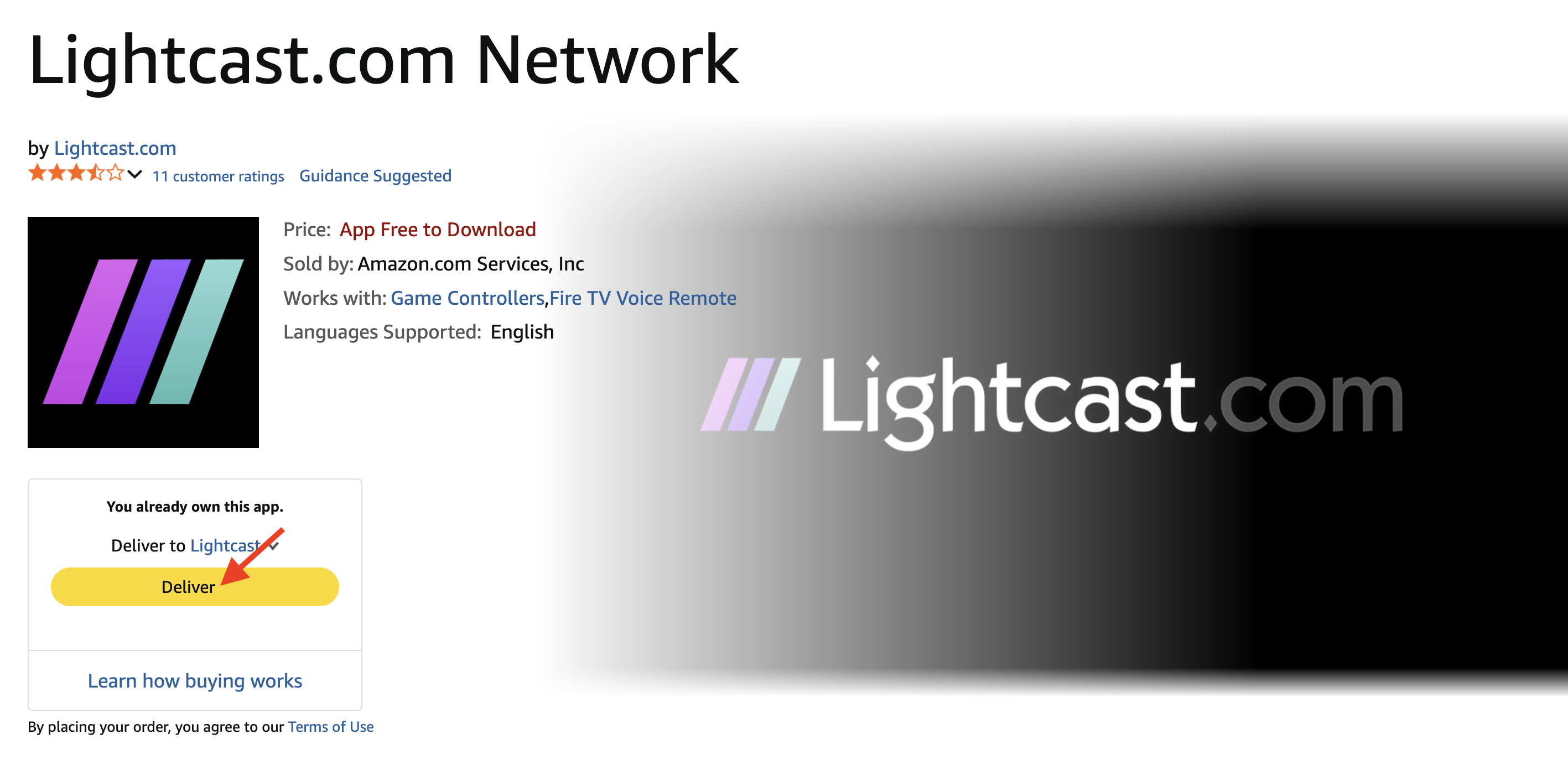
Install the app from Amazon.com
Step 1
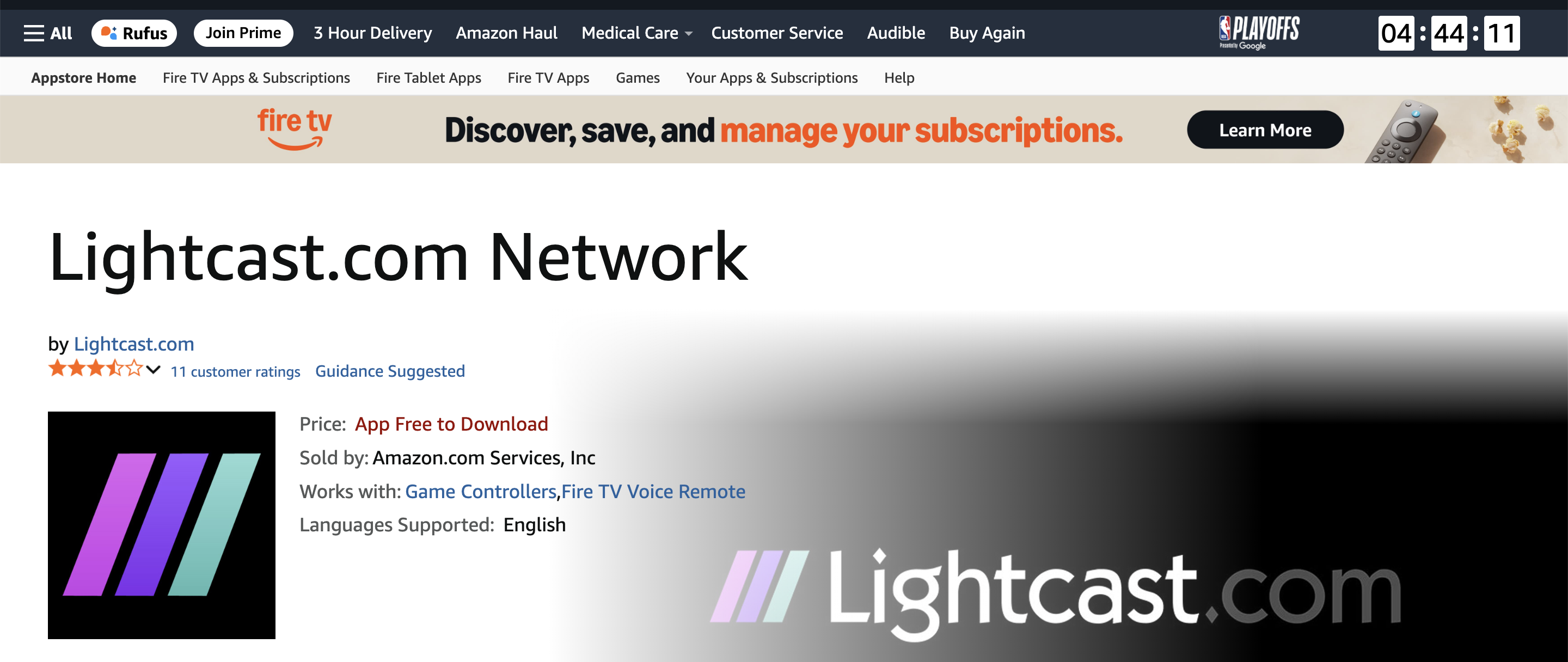
Open a web browser and go to the app’s product page on Amazon.com.
Step 2
Sign in using the same Amazon account connected to your Fire TV device.
Step 3
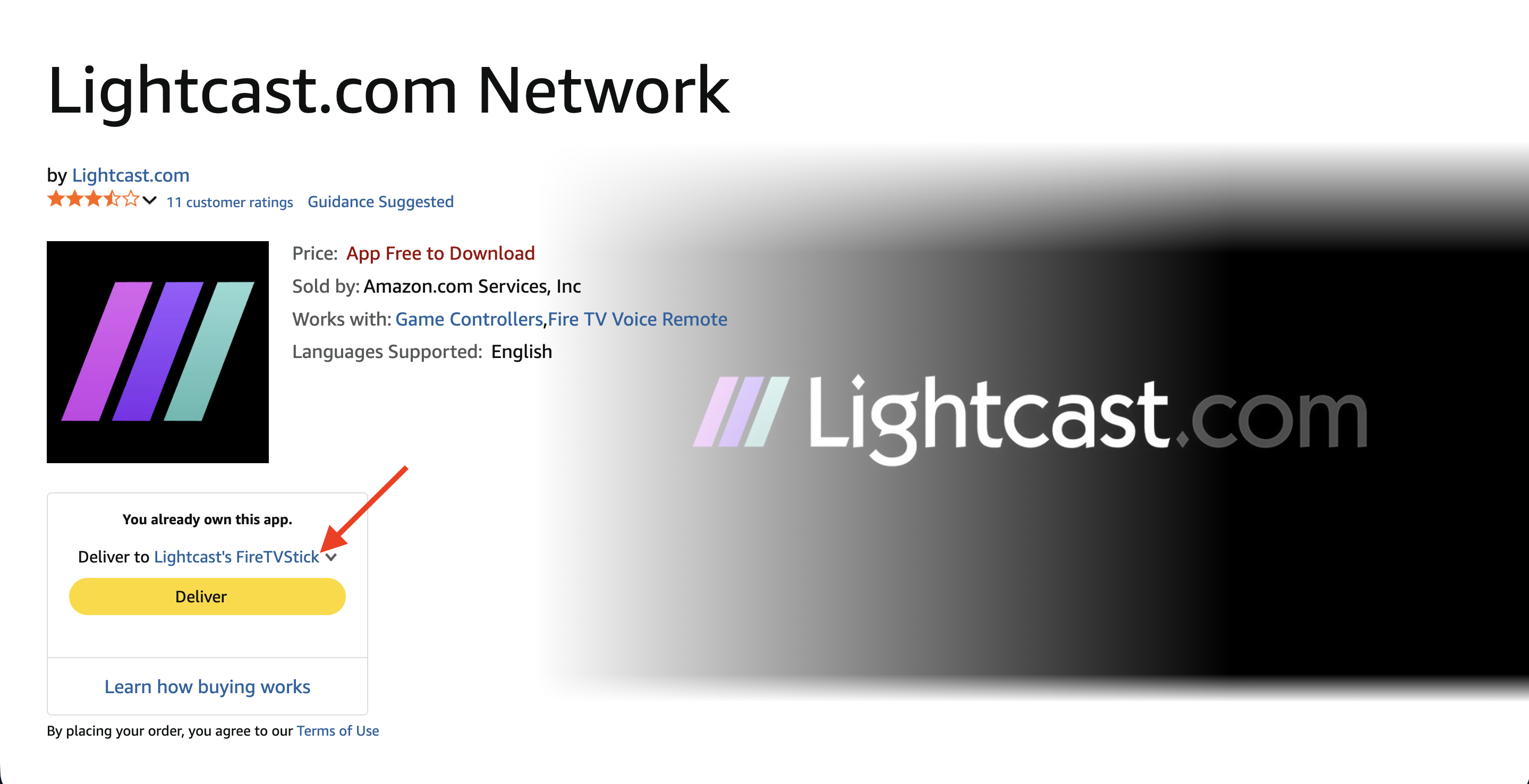
Find the Deliver to dropdown menu on the app product page.
Step 4
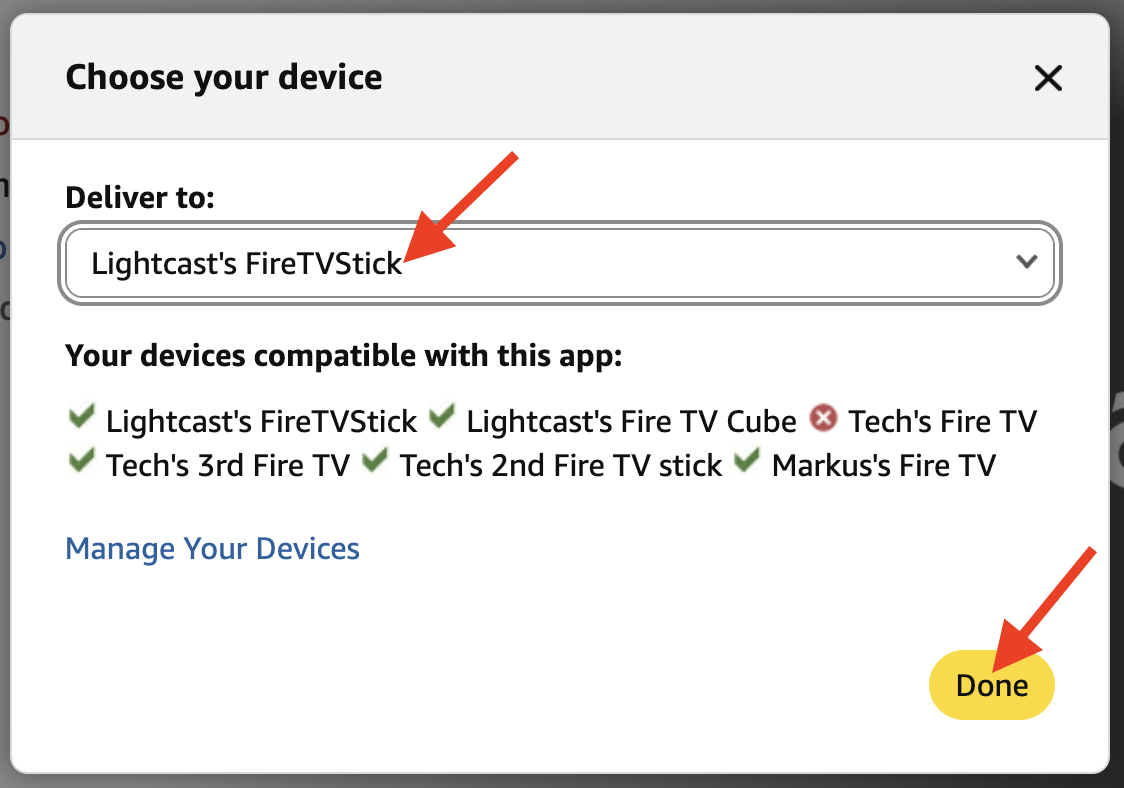
Select your Fire TV device from the list.
Step 5
Click Deliver and the app will install on your Fire TV device and appear in Your Apps & Channels.
FAQs
Where can published Fire TV apps be downloaded?
Published Fire TV apps can be downloaded from the Amazon Appstore through your Amazon account.
How can viewers find a published Fire TV app?
Viewers can search for the exact app name in the Amazon Appstore or on their Fire TV device.
You can also share a direct Amazon Appstore link so viewers can open the app listing or download page more easily.
Where can the app be found after installation?
After installation, go to the Fire TV Home screen and open Your Apps & Channels.
If you do not see the app right away, scroll to the end of Your Apps & Channels and select See All to view the full list of installed apps.
Why does the app appear on Amazon.com but not on the Fire TV device?
Amazon.com search and Fire TV device search use different ranking systems. The app may be available in the Amazon Appstore even if it is not prioritized in Fire TV device search results.
If this happens, install the app from Amazon.com and deliver it to your Fire TV device.
What can help when the app does not appear in Fire TV search results?
Try searching with the exact app name first.
If the app still does not appear, try:
Using voice search instead of typing
Searching one or two distinctive keywords from the app title
Avoiding punctuation, such as apostrophes
Installing the app from Amazon.com instead
What should be checked if the app is not visible after installation?
Confirm that your Fire TV device is connected to the internet and signed in to the correct Amazon account.
If the app is still not visible, restart your Fire TV device and check Your Apps & Channels again.