
Simplify Media Imports
Managing large volumes of content doesn’t have to be manual. With the MRSS Import Tool in your Media Cloud account, you can automate how outside media gets added into your library — as long as you have an MRSS feed to supply.
✅ With This Tool, You Can:
Import batches of up to 15 media items at a time
Automatically check for new content every 15 minutes
Bring in metadata (title, description, keywords, etc.) with each file
Apply your Workflow Presets during import
Activate or deactivate feeds anytime
Track progress and see how many files have been imported
Already had MRSS imports set up? Your feeds are already waiting for you in the tool — no extra steps required. You’ll find it under Media → Import from MRSS in your left-hand menu.
🌟 Why It Matters
Use MRSS imports when you already have a feed URL from a content partner or another platform. For example:
Pull in weekly sermon podcasts directly from your church’s RSS feed
Import your organization’s YouTube uploads via its MRSS feed
Keep syndicated partner content automatically updated in your Media Cloud
👉🏼 Pro Tip: By supplying the feed once, you can keep your Media Cloud in sync without manual uploads, saving you time.
📌 Need Other Ways To Upload?
MRSS is powerful, but it’s not the only option. Click here to learn more about manual uploads, FTP, and more.
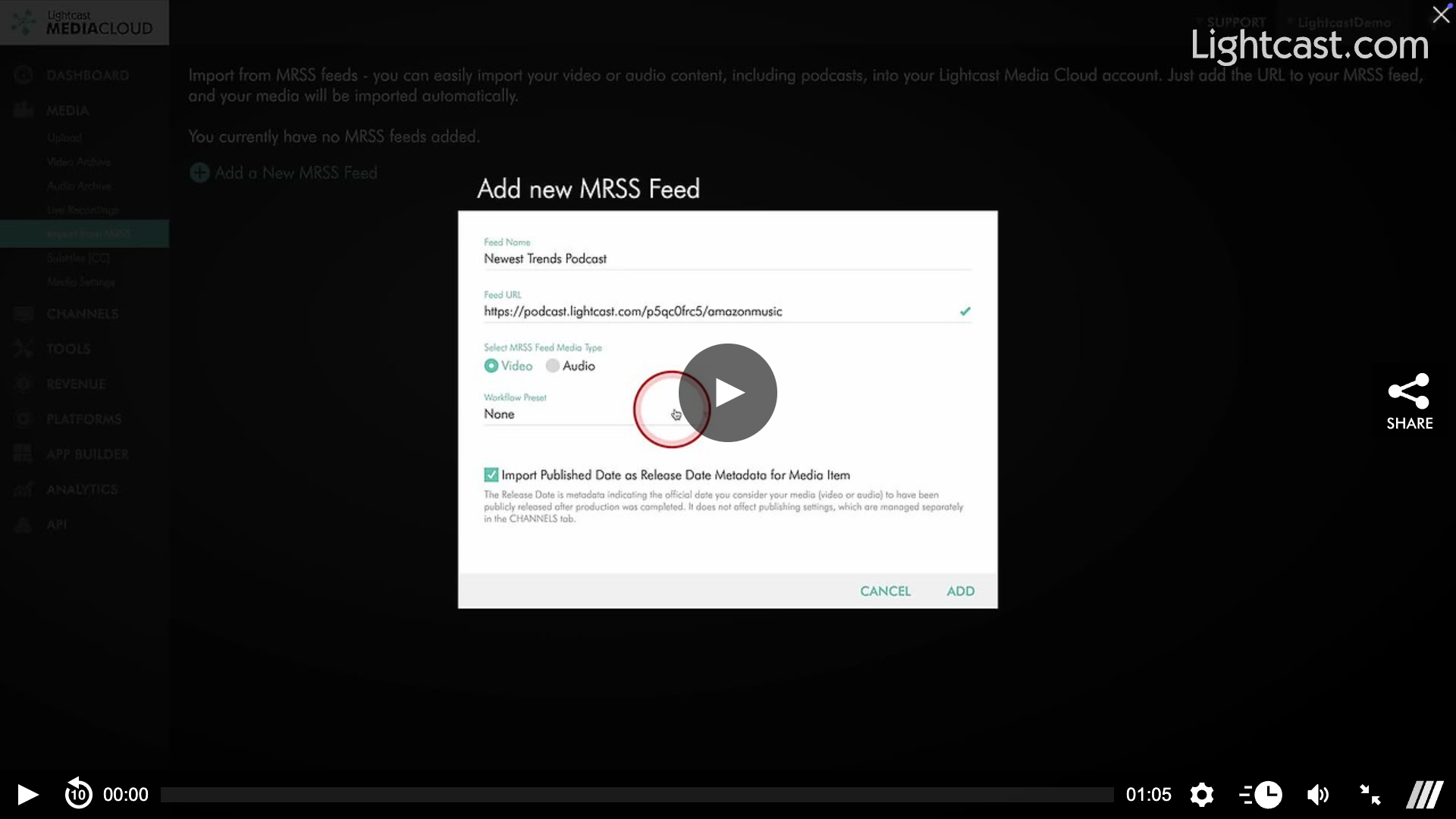
Watch this Video to See How to Upload Content via the MRSS Uploader
For previous tips, visit our tips page!
Would you like a specific topic to be covered by an upcoming “Tip of the Week”? Click here to submit your request!

Happy Streaming!
Your Lightcast Success Team