
Twitch Streaming Made Easy
Bring your live events to a dynamic, community-driven platform with seamless Twitch integration directly through your Lightcast Media Cloud.
🎮 Where to Enable Twitch Live Streaming
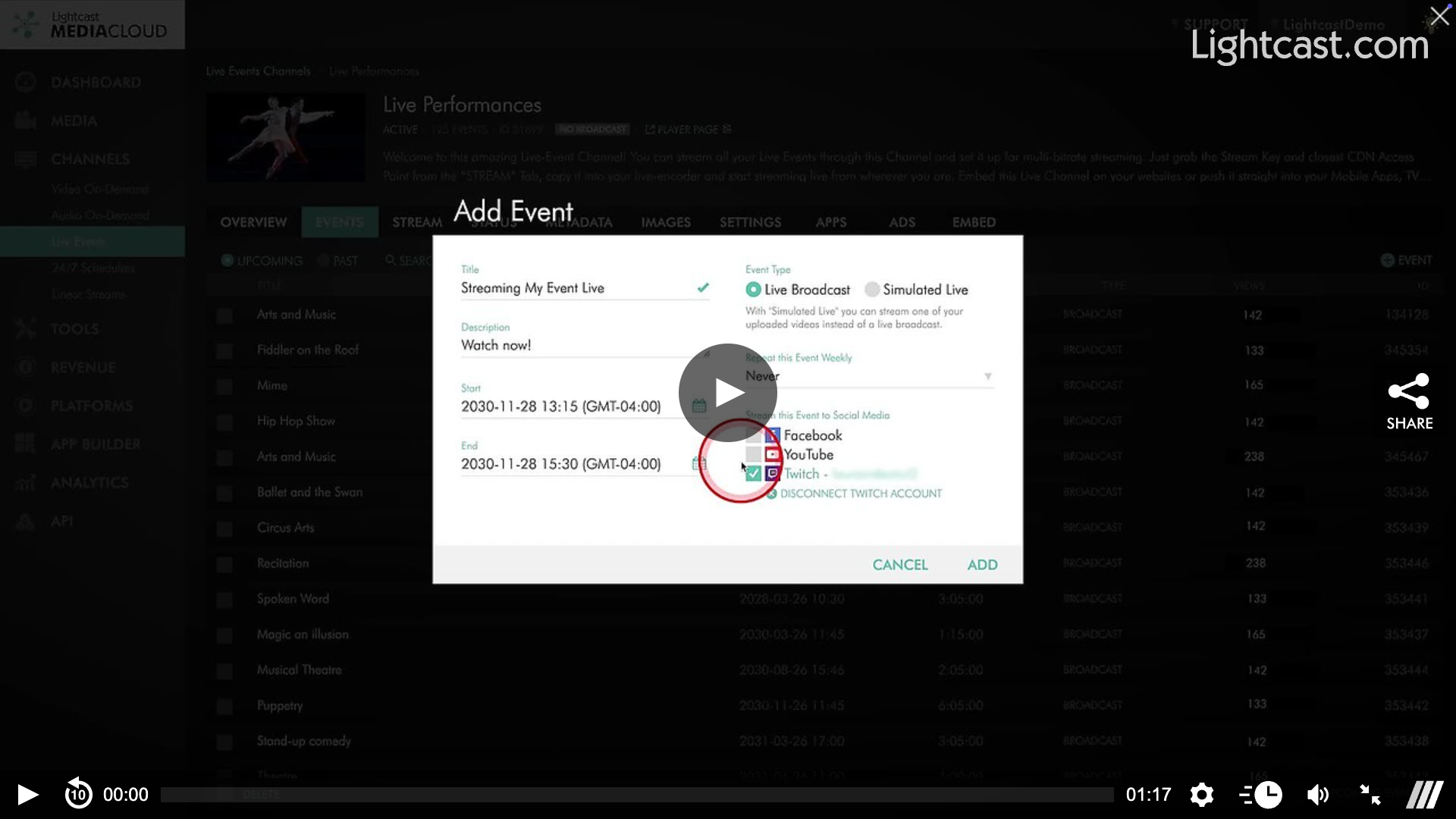
Open any Live Event Channel and navigate to the EVENTS tab.
Click "+ Event."
Under the "Stream this Event to Social Media," select the Twitch checkbox.
Sign in to your Twitch account when prompted.
Pro Tip: Enable Twitch Live Streaming on each event with a single click – your Media Cloud keeps your Twitch account ready for seamless streaming every time.
❓ Why Stream to Twitch
Streaming to Twitch gives you:
Access to a massive community that's built around live video
One-click enablement for every new event
Support for live, simulated live, and recurring weekly events
A streamlined workflow that keeps content flowing automatically
📌 Ready To Go Live?
Check whether Twitch Live Streaming is included with your package and start broadcasting to Twitch today. Grow your audience, expand your reach, and keep your events running smoothly – all from one platform.
Watch this Video to See How to Publish Your Live Stream to Twitch
For previous tips, visit our tips page!
Would you like a specific topic to be covered by an upcoming “Tip of the Week”? Click here to submit your request!

Happy Streaming!
Your Lightcast Success Team