
Is Your Channel Live in the App? Here's How to Check!
There are four areas in the Media Cloud where you can quickly check to see which of your CHANNELS are published or not published within each of your Apps:
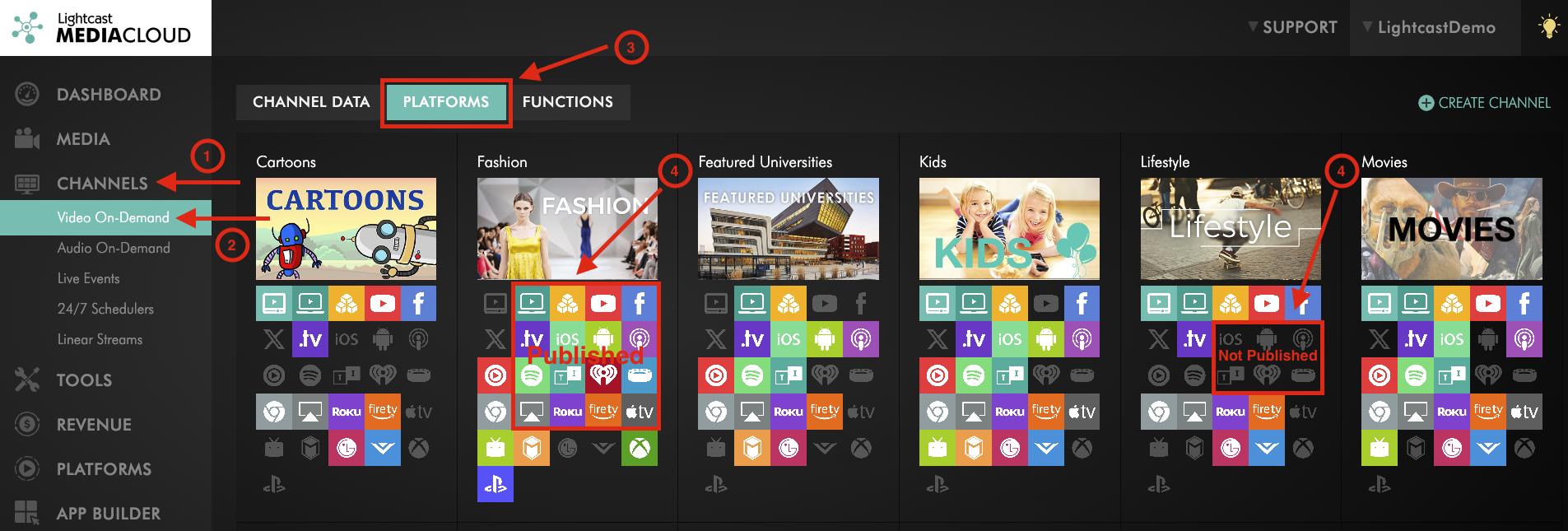
1. The Channel's Platforms Tab
Navigate to "CHANNELS" in the left-hand menu and select Video on Demand or any other channel type. Then click the PLATFORMS tab.
👉 This provides you with a visual overview of each CHANNEL and its publishing status across platforms:
Colored icons indicate the CHANNEL is published on that platform.
Grey icons mean it is not yet published.
Hover over any icon to view the publishing status tooltip.
2. The Channel Manager's Overview Tab
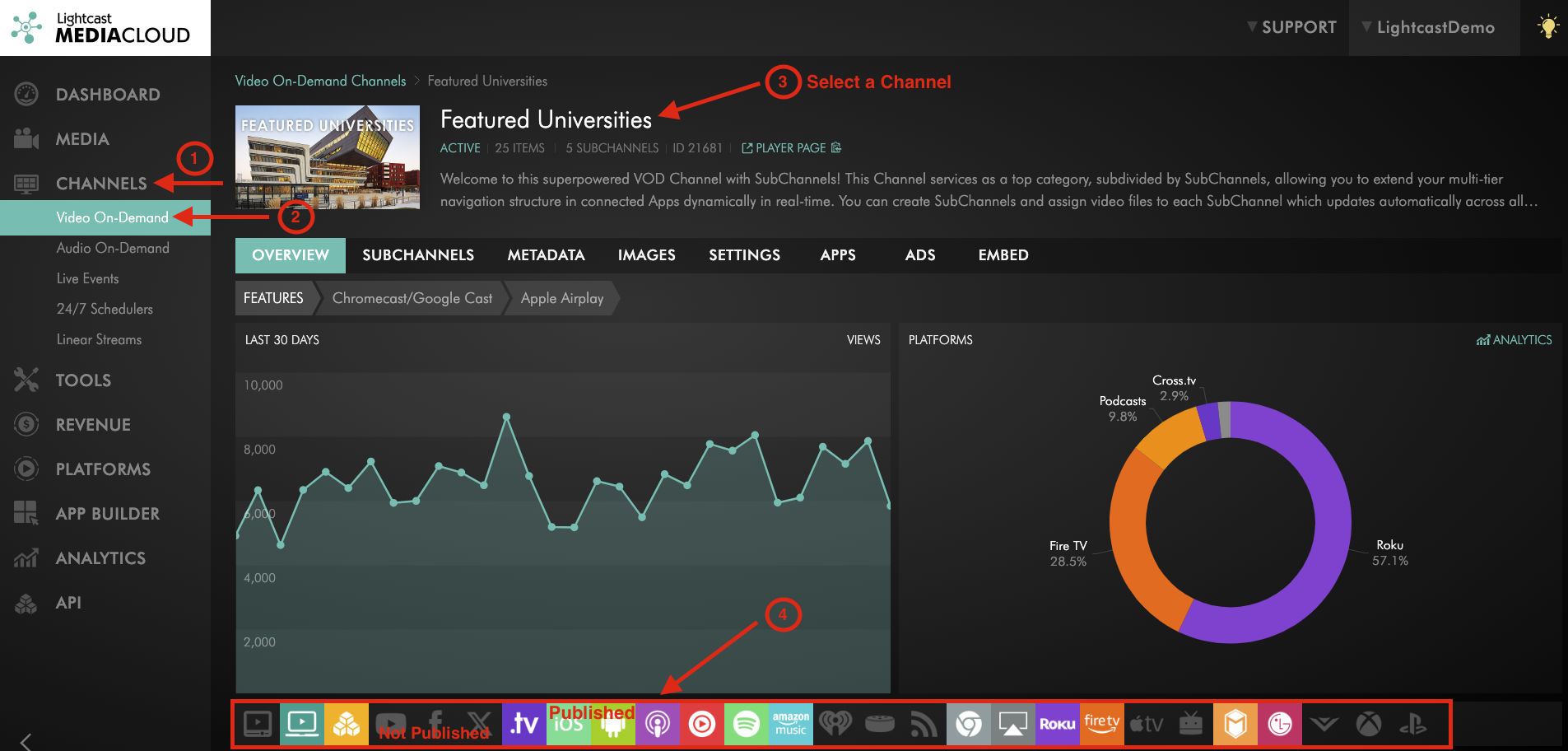
To view a CHANNEL’s overview, go to the left-hand menu and click "CHANNELS," then select "Video on Demand" or any other CHANNEL type.
👉 Clicking on a CHANNEL opens its Overview page in the CHANNEL Manager, where you can see general information and check its publishing status across platforms. Just like in the PLATFORMS tab:
Colored platform icons indicate the CHANNEL is published.
Grey icons mean it is not yet published.
Hovering over an icon will display its current status.
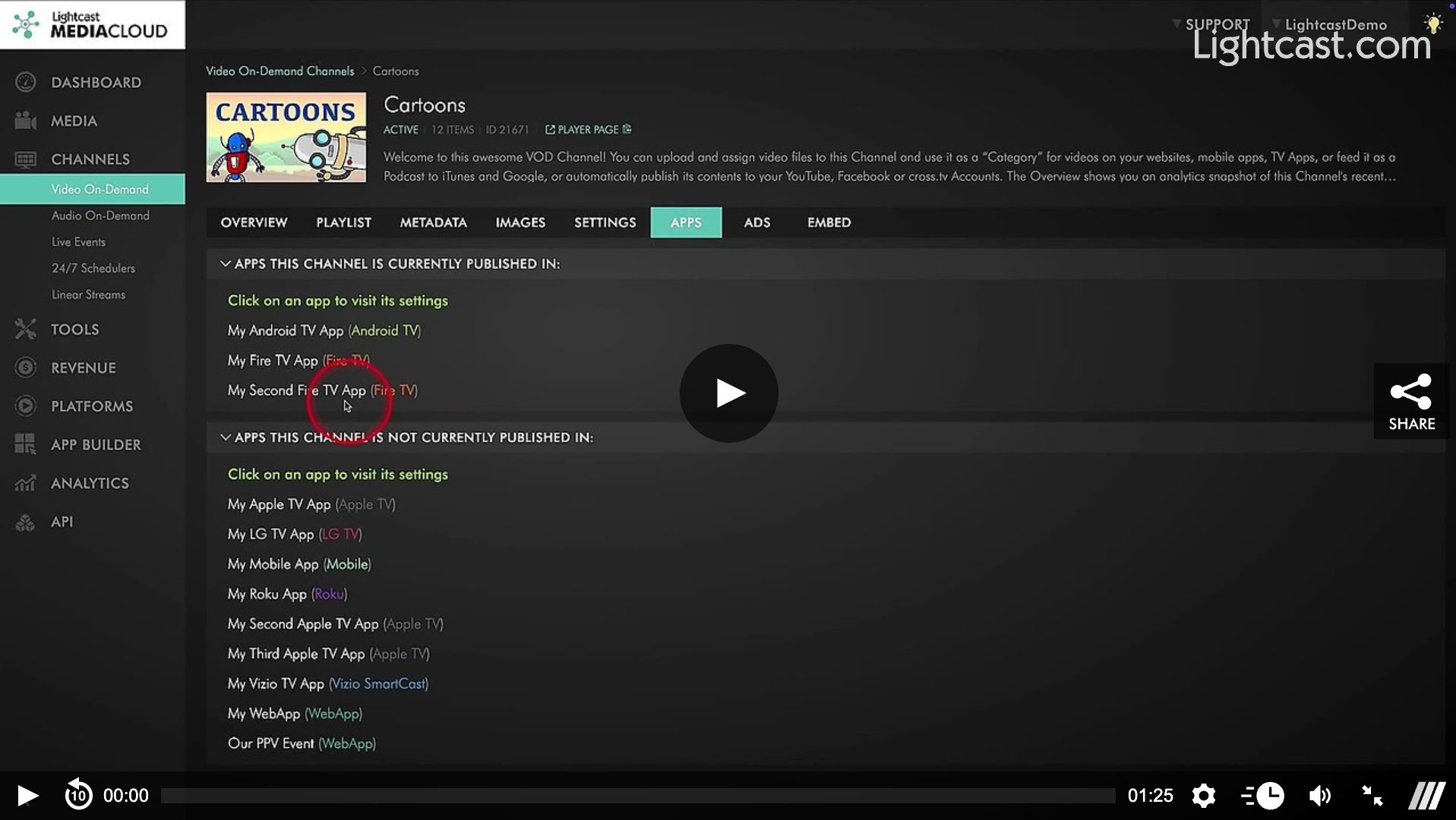
3. The Channel Manager's Apps Tab
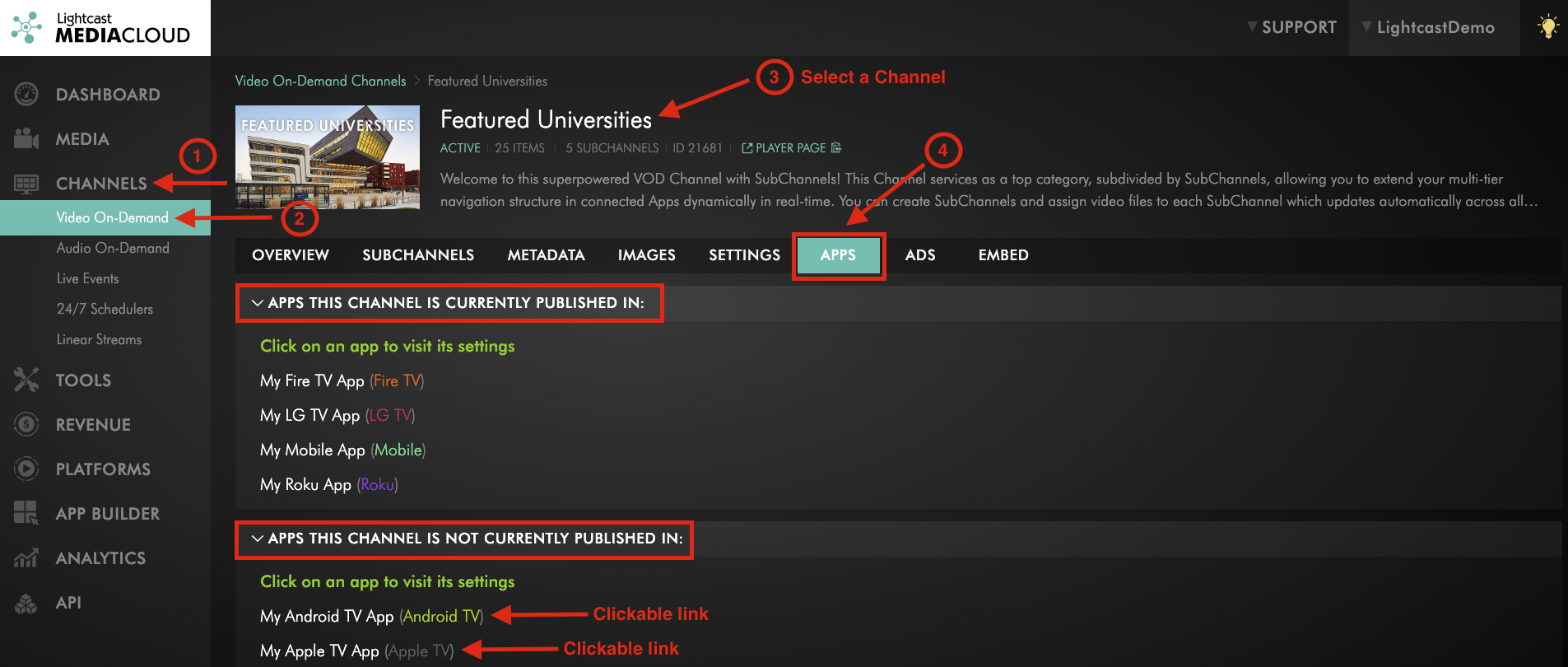
Inside the CHANNEL Manager, navigate to the APPS tab. This tab gives you a quick overview of which App Platforms your CHANNEL is currently assigned to, and which ones it isn’t.
👉 You'll also find convenient links to the App Builder, where you can easily add or remove CHANNELS to/from your Apps.
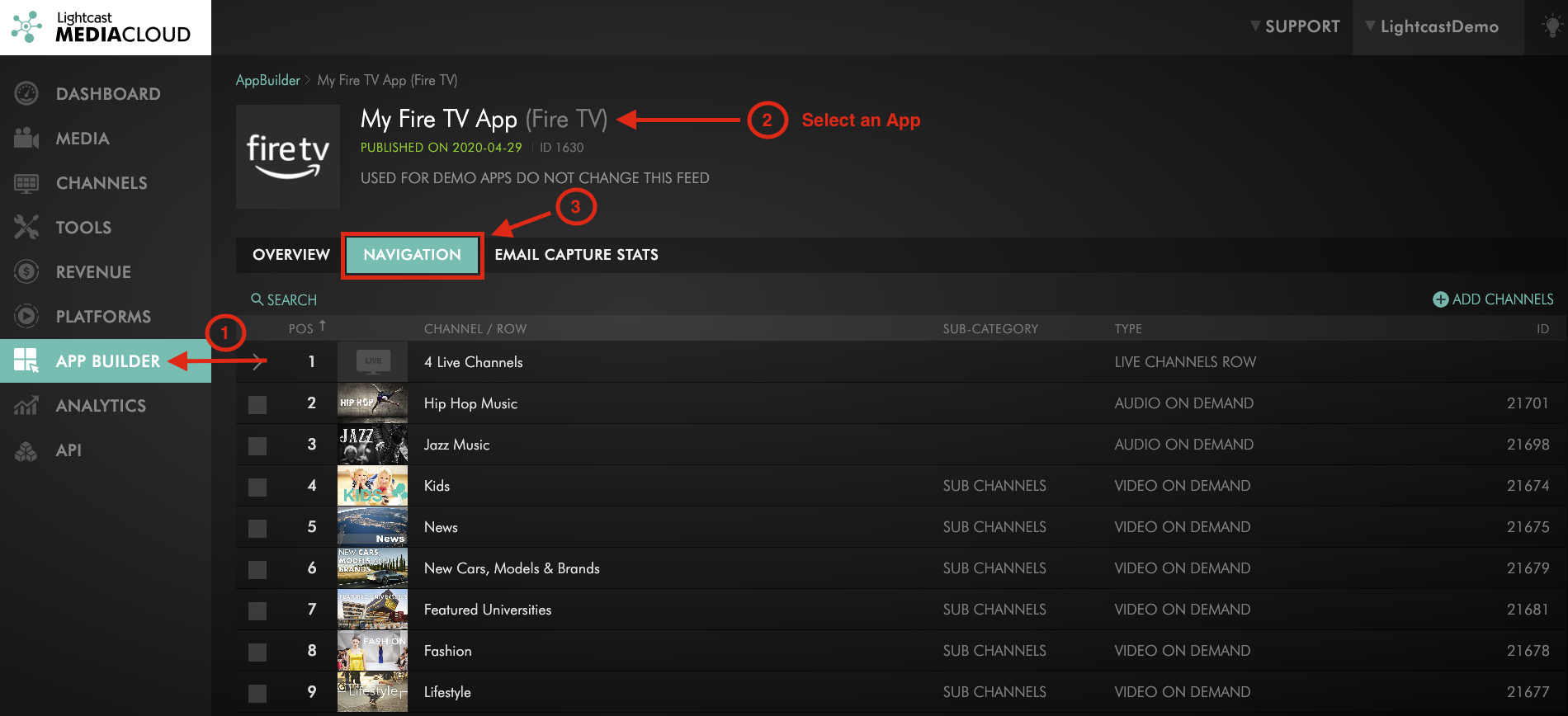
Navigate to the APP BUILDER section of the left-hand menu, select an App, and switch to the NAVIGATION tab. Here you can easily see the CHANNELS assigned to your App.
Watch This Video to See How to Determine if a CHANNEL is Published in an App

For previous tips, visit our tips page!
Would you like a specific topic to be covered by an upcoming “Tip of the Week”? Click here to submit your request!
Happy Streaming!
Your Lightcast Success Team